

 Chats
Chats Calendar
 Meetings
 Contacts
 Mail
Mail Docs
Docs Drive
Drive AI Table
 AI Minutes
 Attendance
 Approval
 YiDA
YiDA Admin Console
1. Feature overview
Cross-organization approval lets you run approval processes with external organizations, addressing enterprise and government-enterprise needs across management, communication, collaboration, and business chains. It helps you connect more effectively with suppliers, distributors, platform merchants, and other business partners. This guide explains how employees use the cross-organization approval feature.2. Applicable scenarios
- Your Organization uses cross-organization approval, and employees need to work with the feature.
- Other scenarios that require cross-organization approval.
3. Operation process
1. Mobile
1
Open cross-organization approval
On mobile DingTalk, go to Workbench > OA Approval > More (bottom right) > Cross-Organization Approval:
2
View customer profile
Tap Customer Profile to view all customers you invited in this scenario (that is, customers for whom you are the follow-up person). Tap a customer to view profile details. To change the follow-up person, use the desktop client: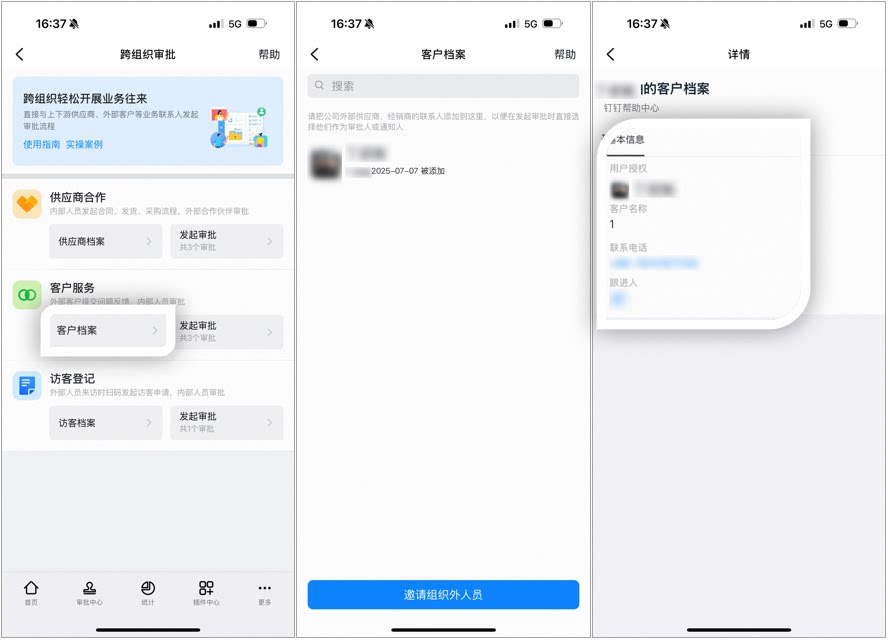
3
Invite external organization users
Tap Invite External Organization Users to invite external users to fill out the profile by sending a QR Code, sharing to DingTalk, or copying the Link: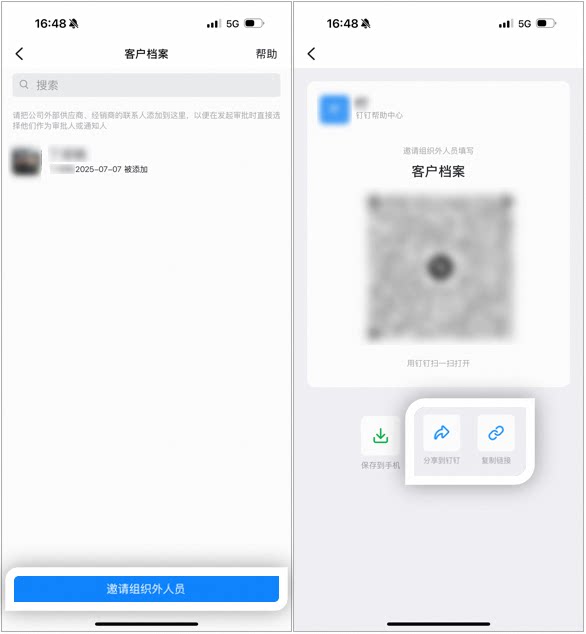
4
Share the form
Tap Initiate Approval to share the Form directly: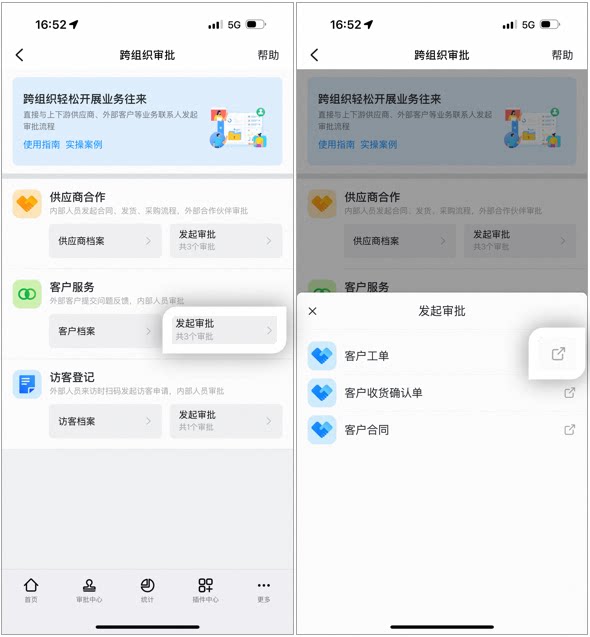
5
Initiate approval and view data
Tap a Form to initiate the Approval directly. Tap View Data to view every process Form Data record related to you (both submitted and processed by you):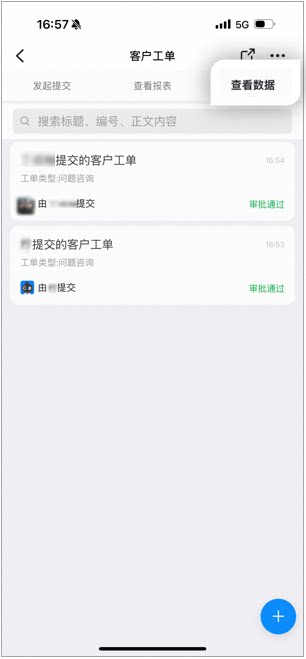
6
View Approval form details
Tap an Approval form to view details. Tap ··· at the bottom to resubmit or Download the File: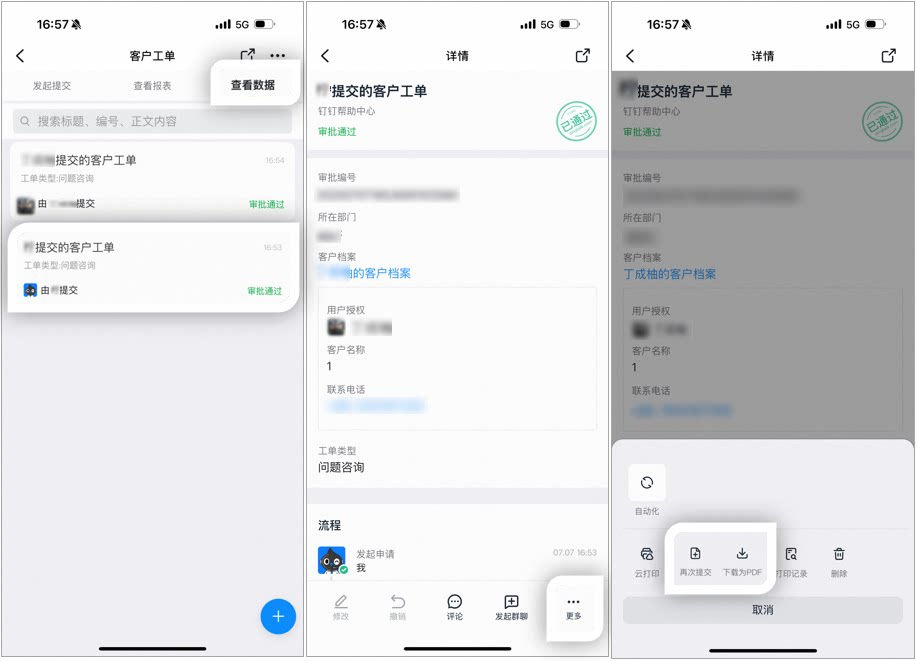
7
Initiate a new approval
Tap the + Button in the bottom right to initiate an Approval:
2. Desktop
1
Open cross-organization approval
On desktop DingTalk, go to Workbench > OA Approval > Cross-Organization Approval: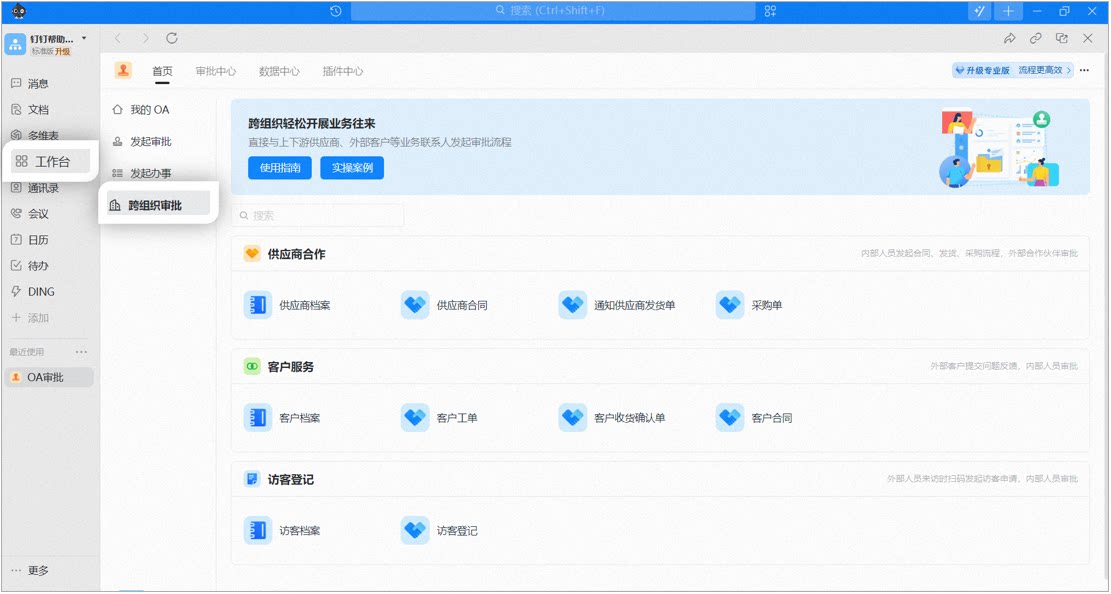
2
View customer profile
Click the profile Form. You can only view customer profiles in this scenario that you invited by sharing the Form — that is, profiles for which you are the follow-up person: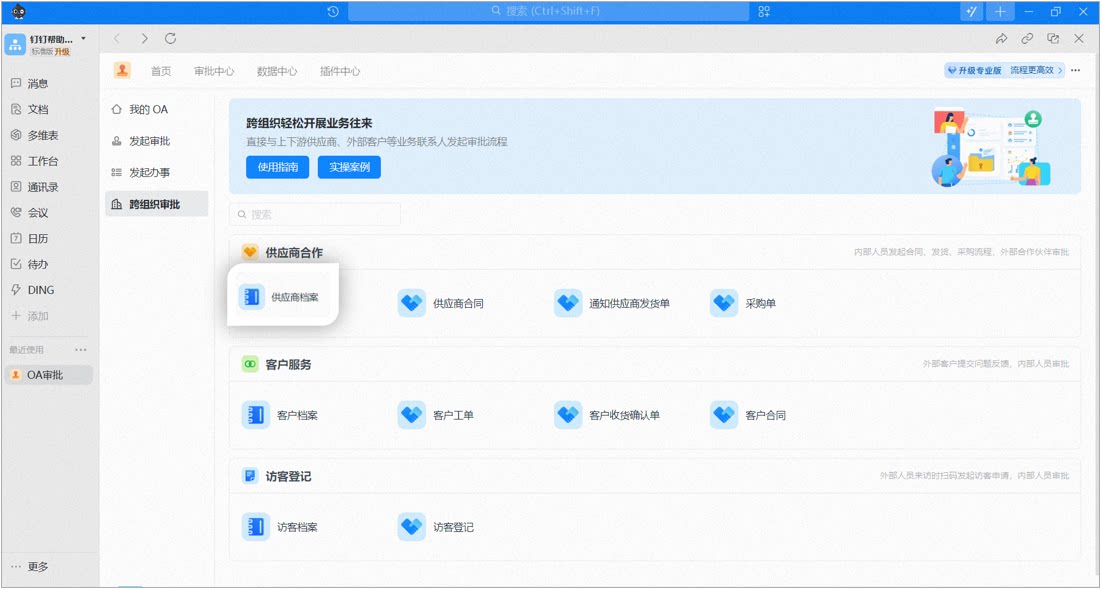
3
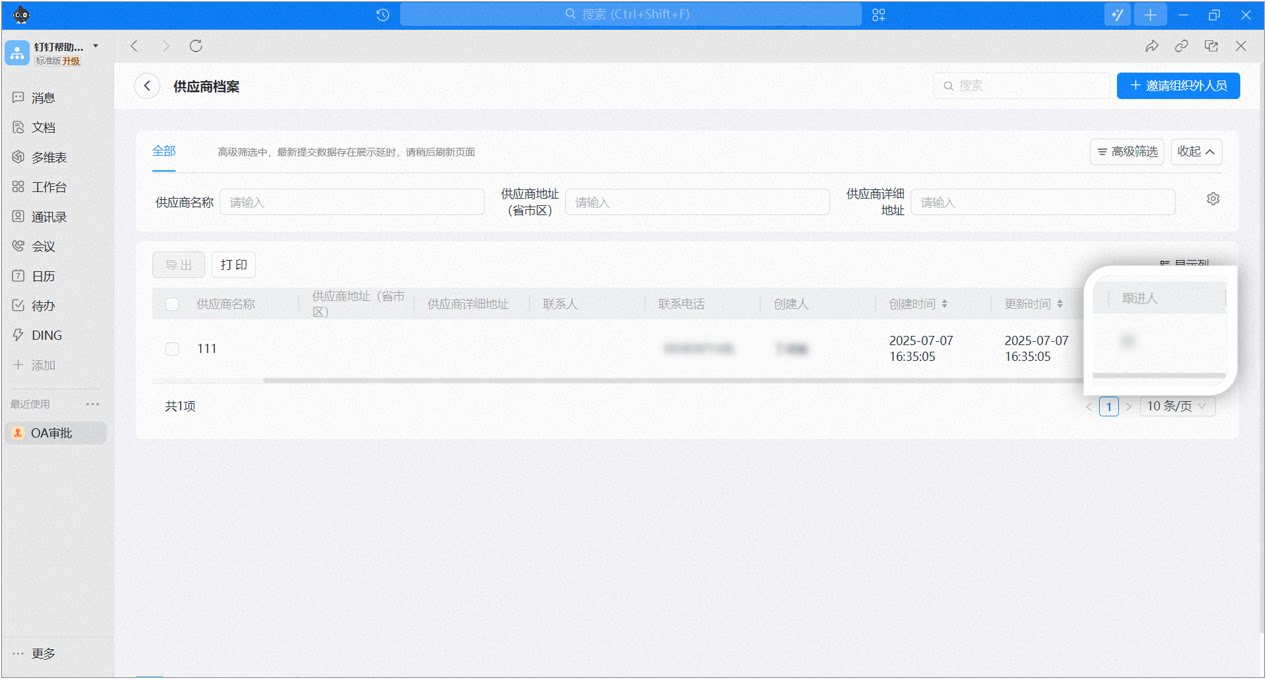
View profile details
Click a profile to view its details and change the follow-up person: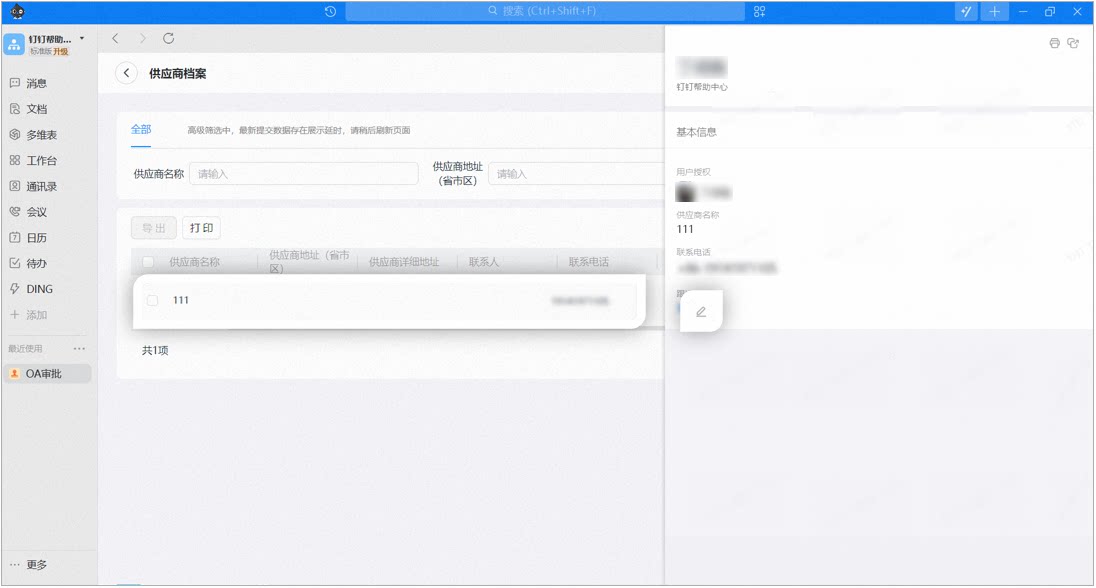
4
Invite external organization users
Click Invite External Organization Users in the top right to invite external users to submit profiles by saving the QR Code, sharing to a DingTalk Chat window, or copying the Link: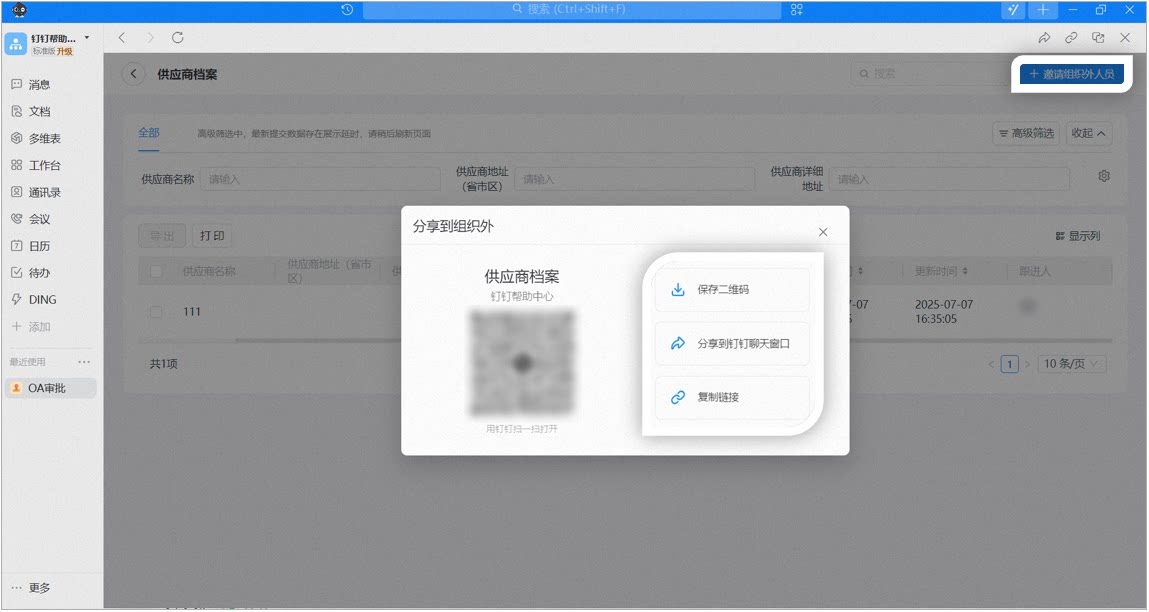
5
Initiate or share a process form
Click Process Form to initiate an Approval directly, or Share it with external users to fill out: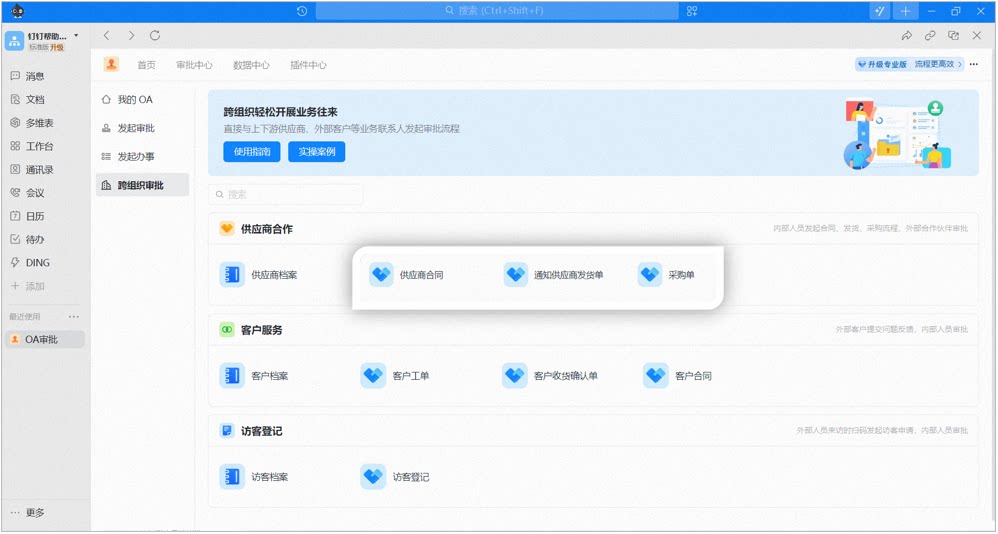 Fill out the Form directly to initiate the Approval:
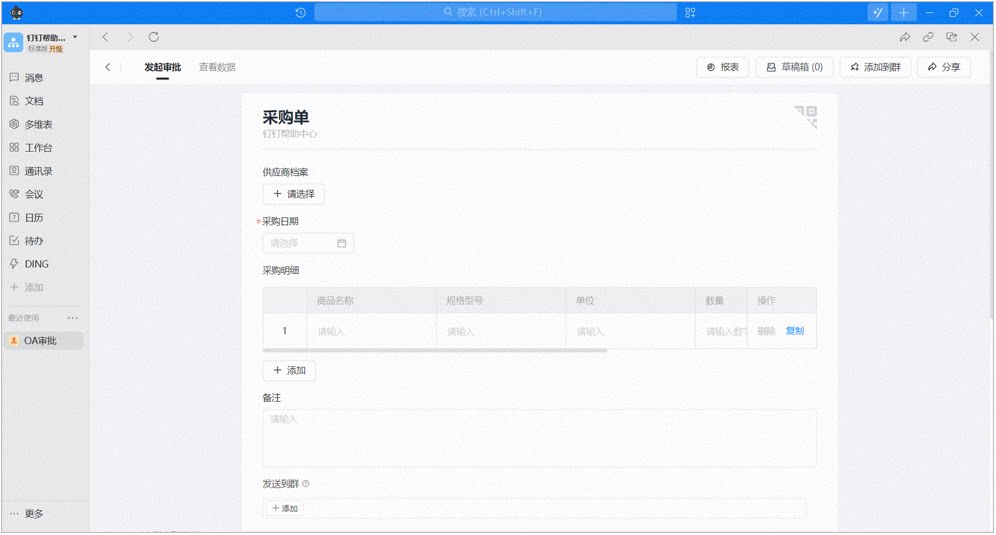 Or Share it with external users to fill out: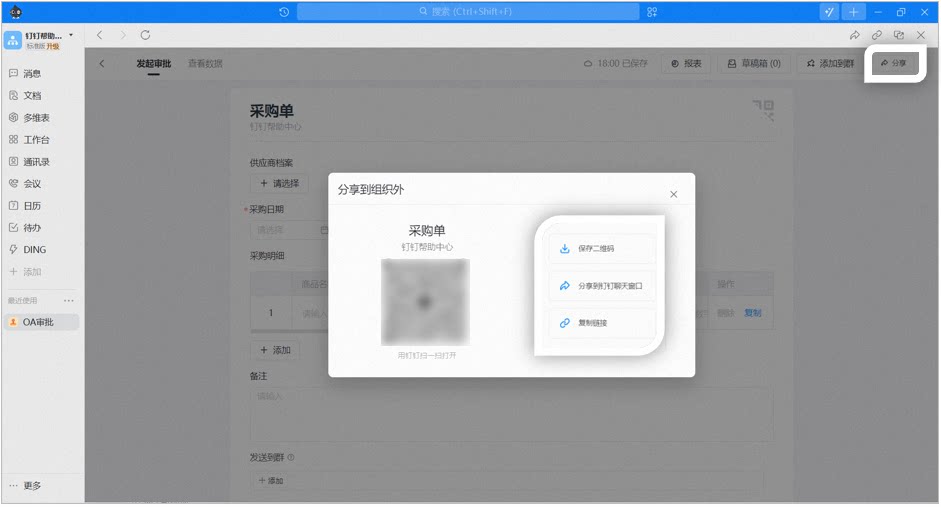
6
View data
Click View Data to open the Data Page, where you can view every process Form Data record related to you (both submitted and processed by you). Click a record to view its details: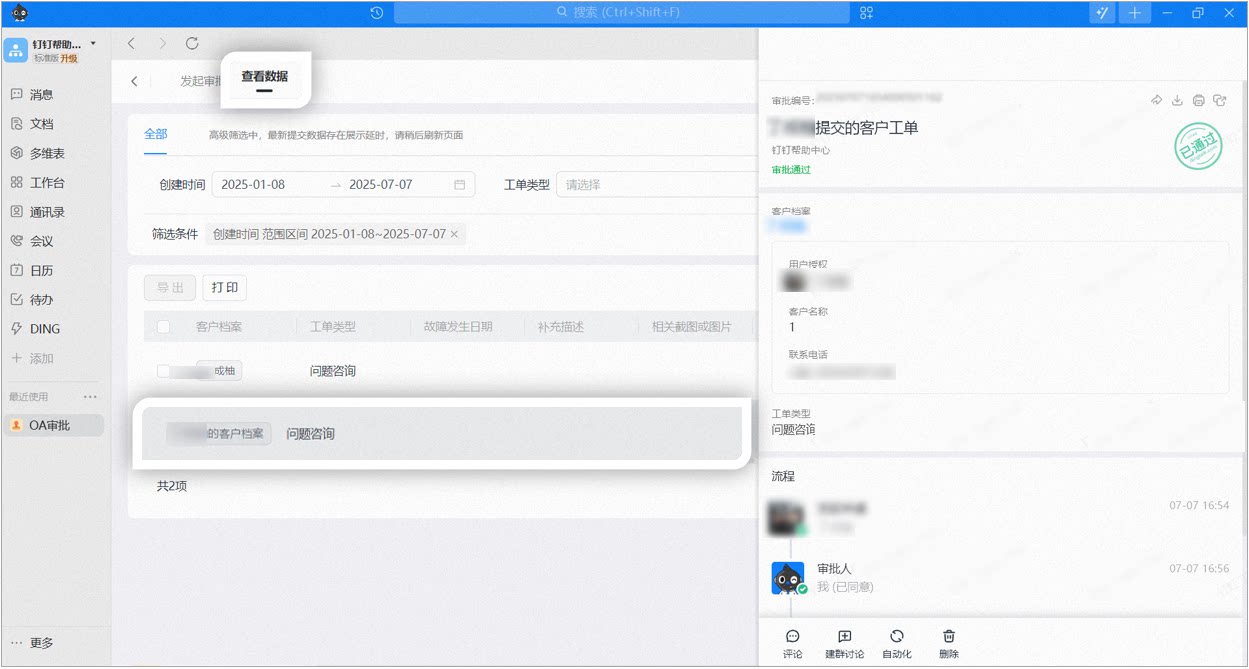
7
Initiate a new approval
Click Create in the top right to initiate an Approval: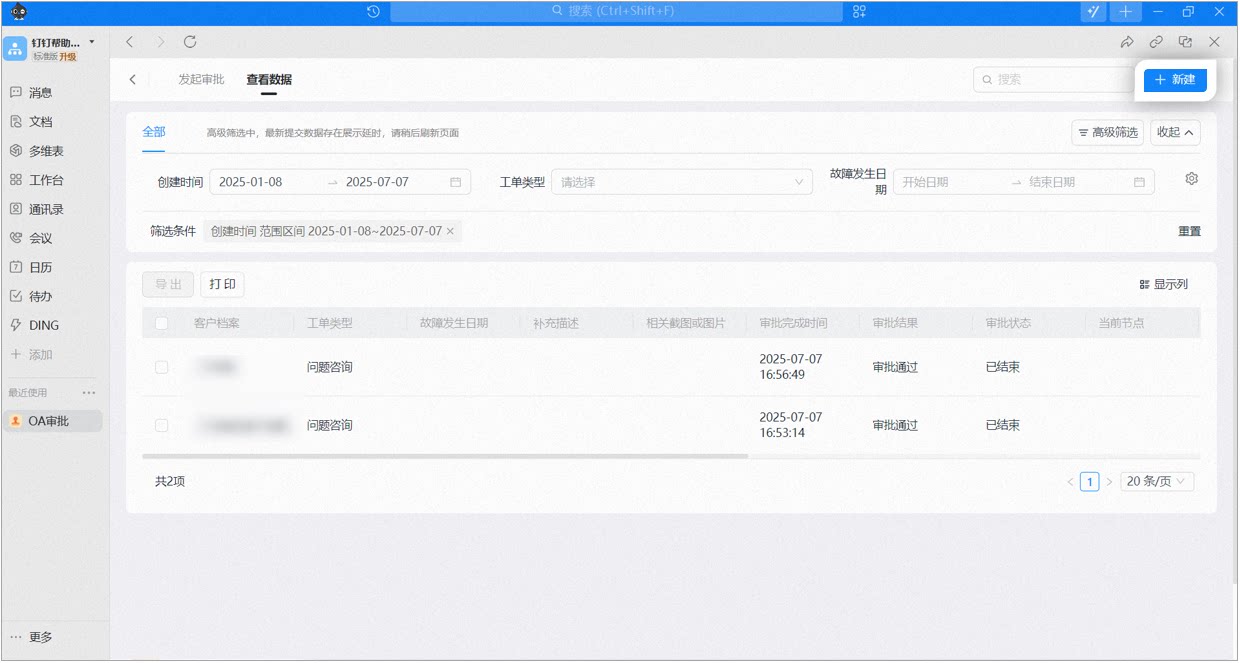
4. Related documents
Cross-organization quick start
Feature overview and basic operation process for cross-organization approval
Cross-organization admin guide
How admins configure and manage cross-organization approval