

 Chats
Chats Calendar
 Meetings
 Contacts
 Mail
Mail Docs
Docs Drive
Drive AI Table
 AI Minutes
 Attendance
 Approval
 YiDA
YiDA Admin Console
Drag the field to a suitable position on the form. Every field must be set to Required before it can be used as a condition.
1. Select
When a Select field is used as a condition, matching is based on the chosen option — when the initiator selects a given option on the form, the Approval form enters that branch. In form design, add a Select field, edit its options, and turn on Required:
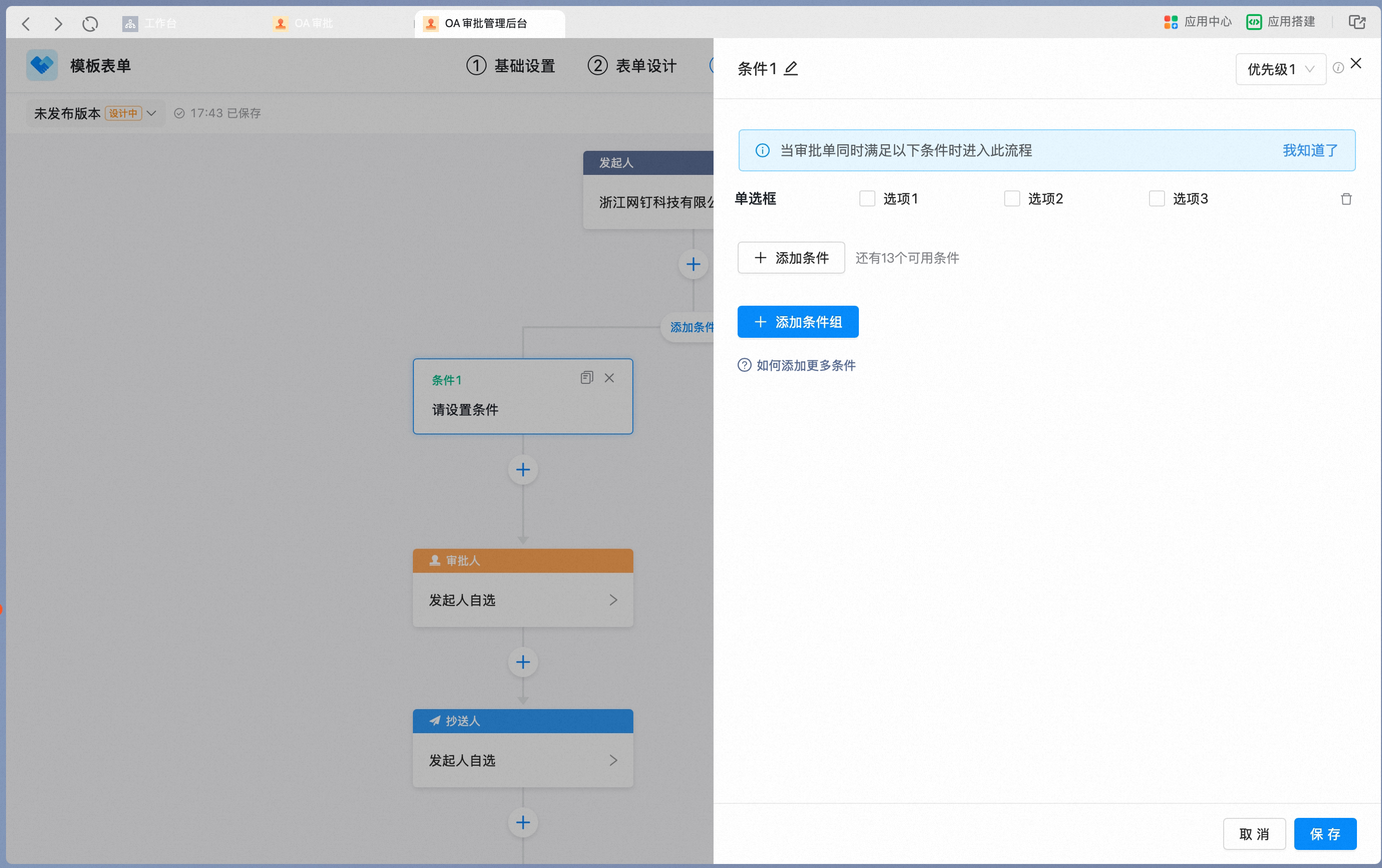
2. Multiselect
When a Multiselect field is used as a condition, two matching modes are supported: Full match and Contains any. Full match requires the initiator’s selected options to be exactly the same as the condition; Contains any is triggered as long as any one of the condition’s options is selected. In form design, add a Multiselect field, edit its options, and turn on Required:
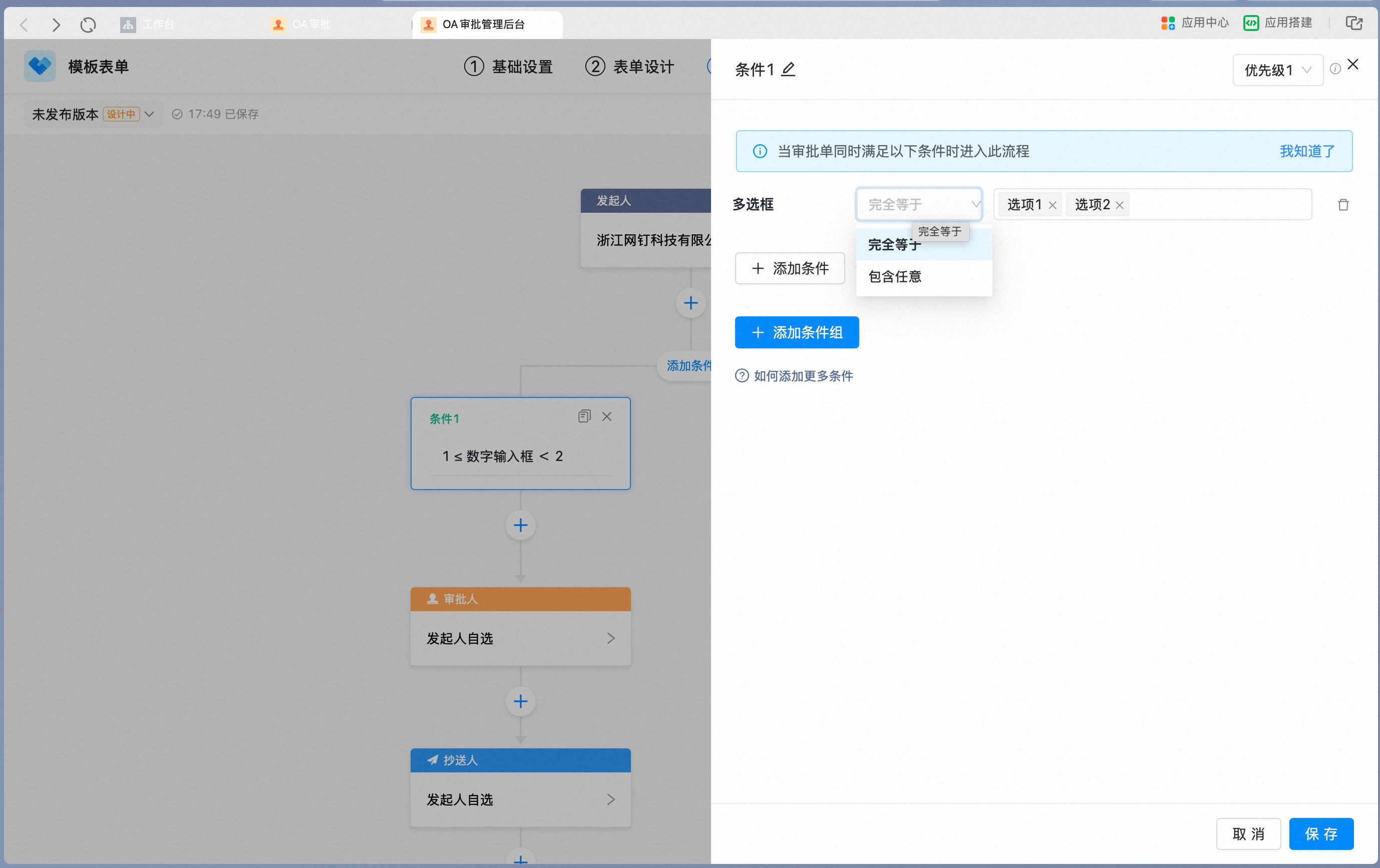
3. Date range
When a Date range field is used as a condition, the check runs against the duration automatically calculated between the start and end time, and supports less than, less than or equal to, equal to, greater than or equal to, greater than, and between (two numbers). Typical scenario: a leave request under 12 hours goes to the manager for Approval; if it is longer, an additional Approval from the department head is required. In form design, add a Date range field and turn on Required: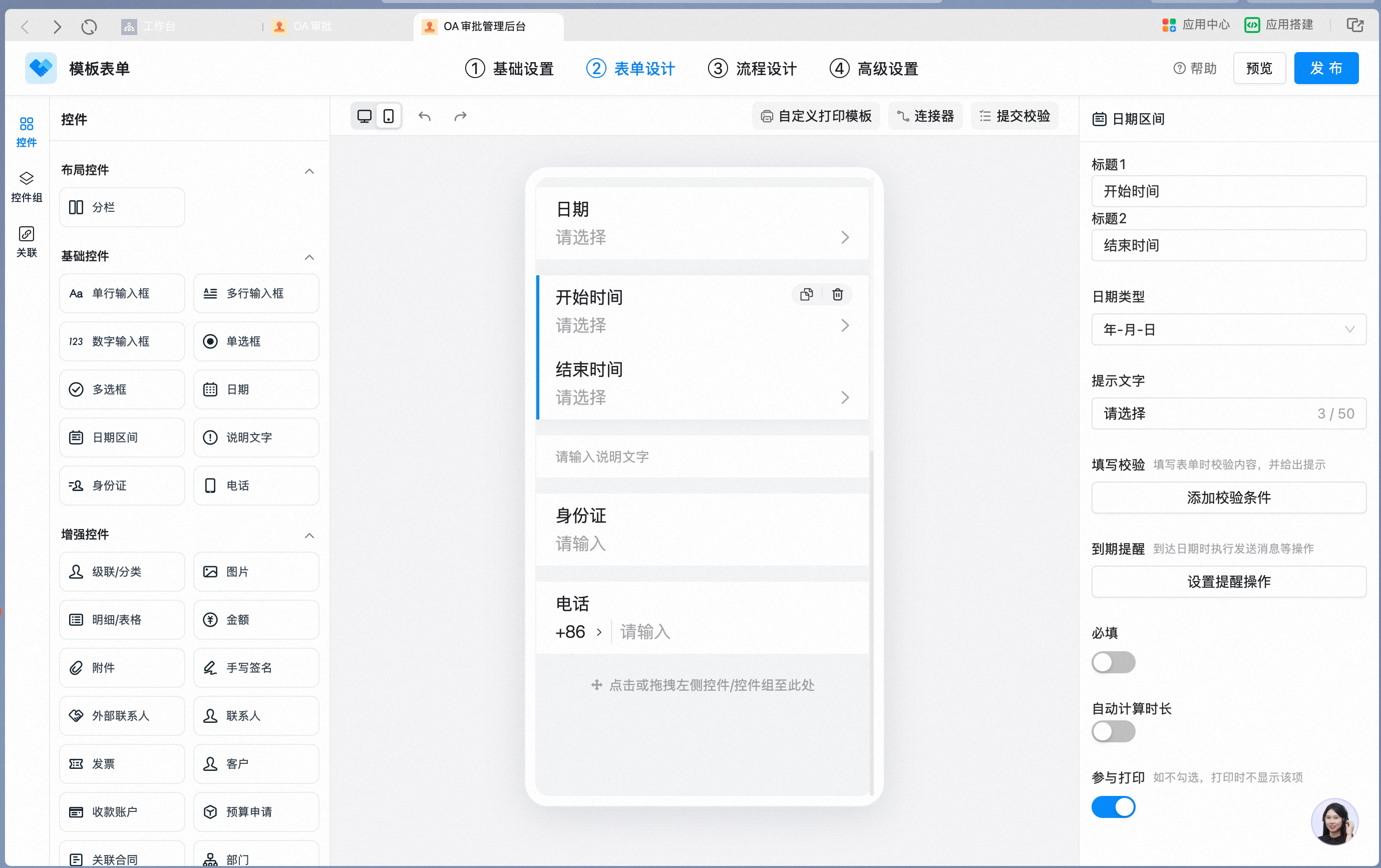
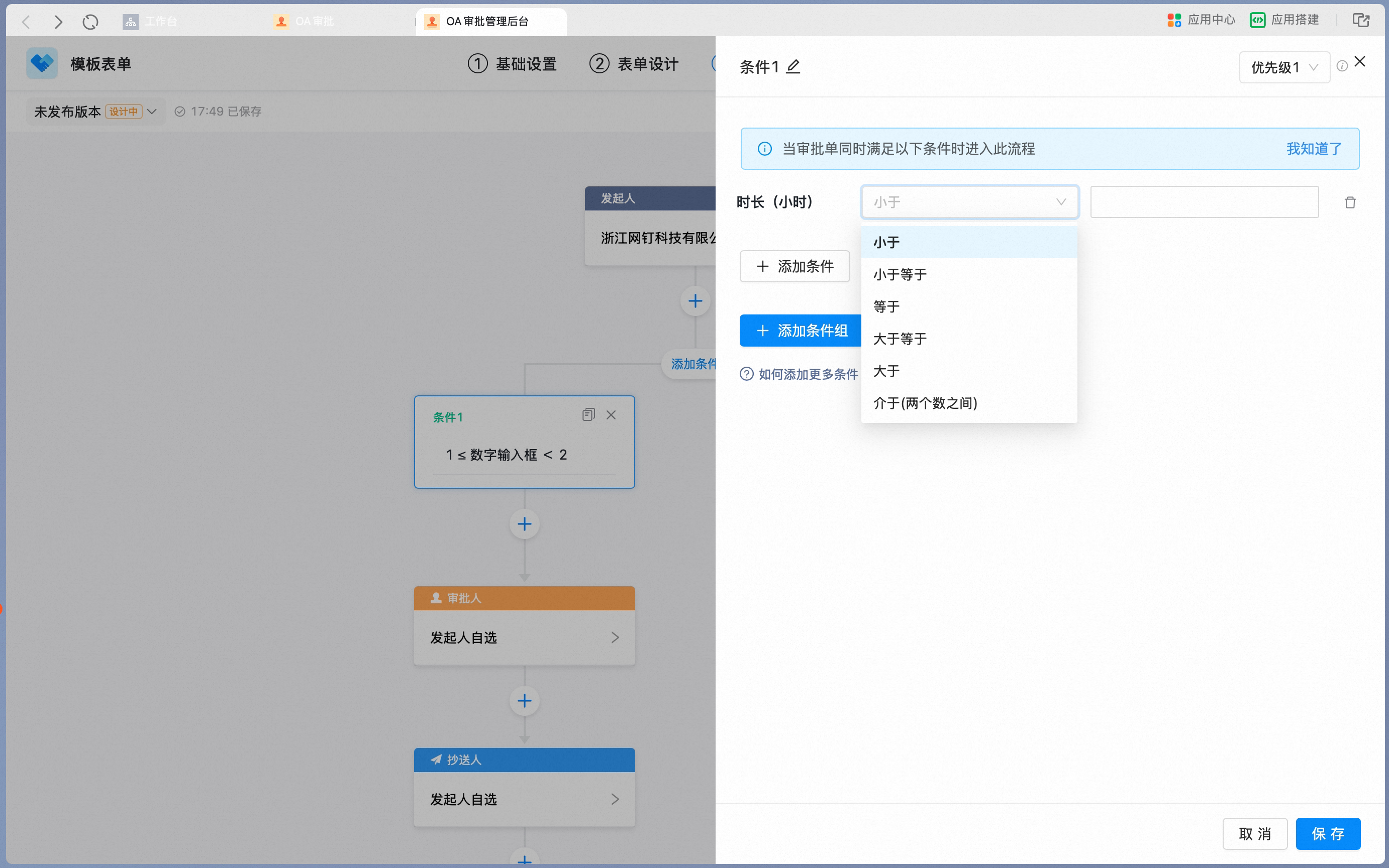
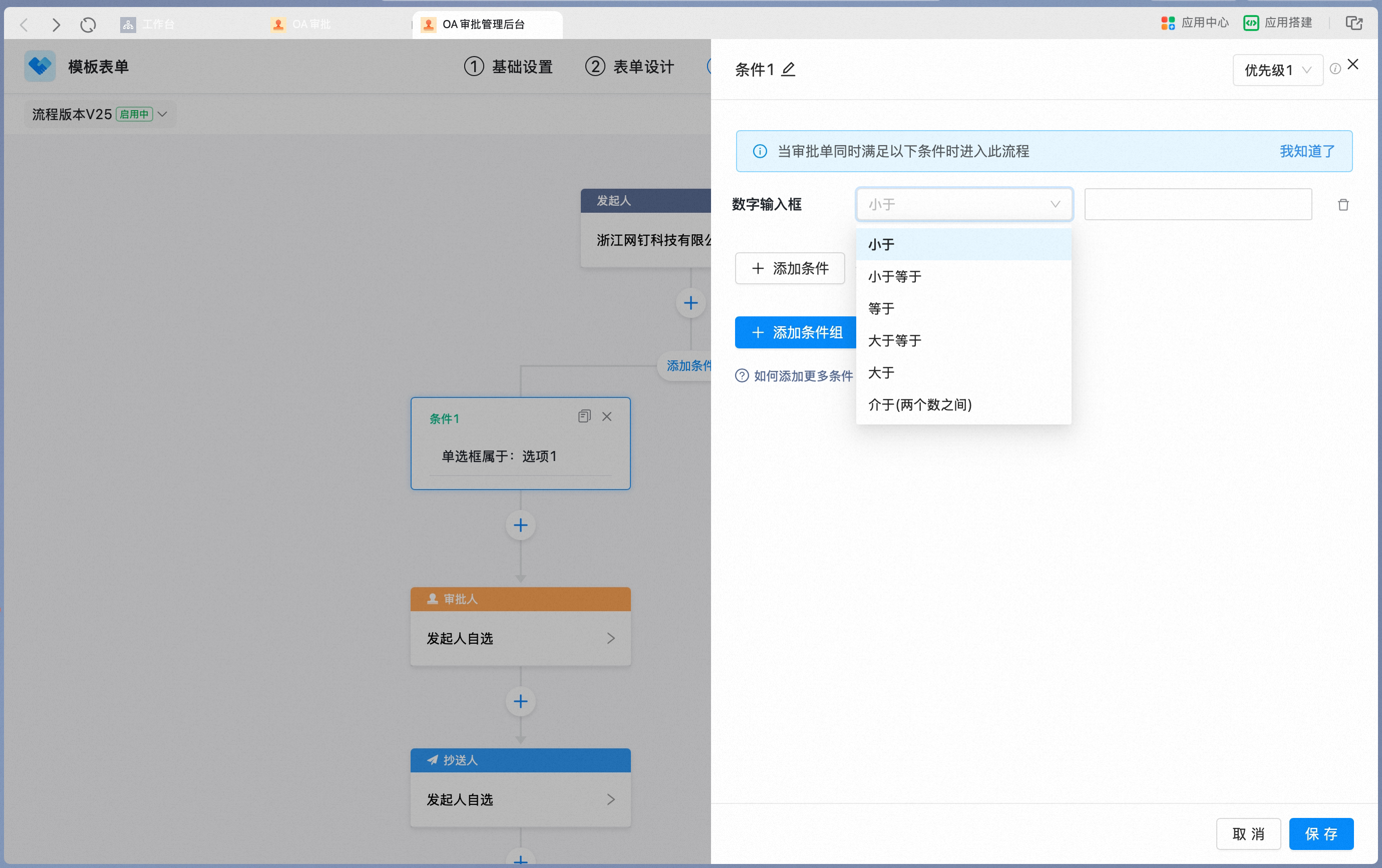
4. Number input
When a Number input field is used as a condition, the check runs against the entered number and supports less than, less than or equal to, equal to, greater than or equal to, greater than, and between (two numbers). In form design, add a Number input field and turn on Required:
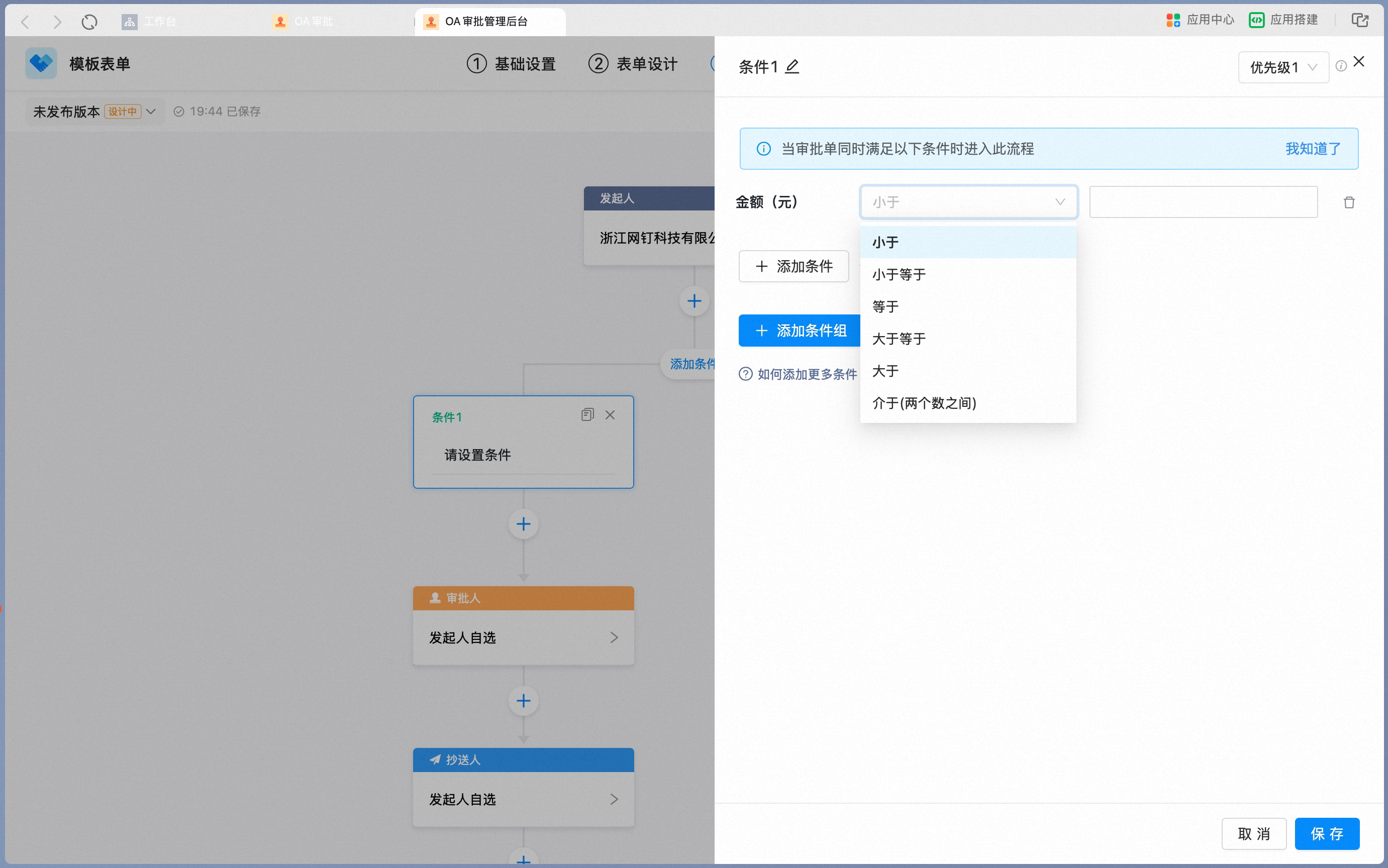
5. Amount
When an Amount field is used as a condition, the check runs against the entered amount and supports less than, less than or equal to, equal to, greater than or equal to, greater than, and between (two numbers). Typical scenario: reimbursements within 1,000 CNY go to the manager for Approval; anything above adds a finance Approval. In form design, add an Amount field and turn on Required:
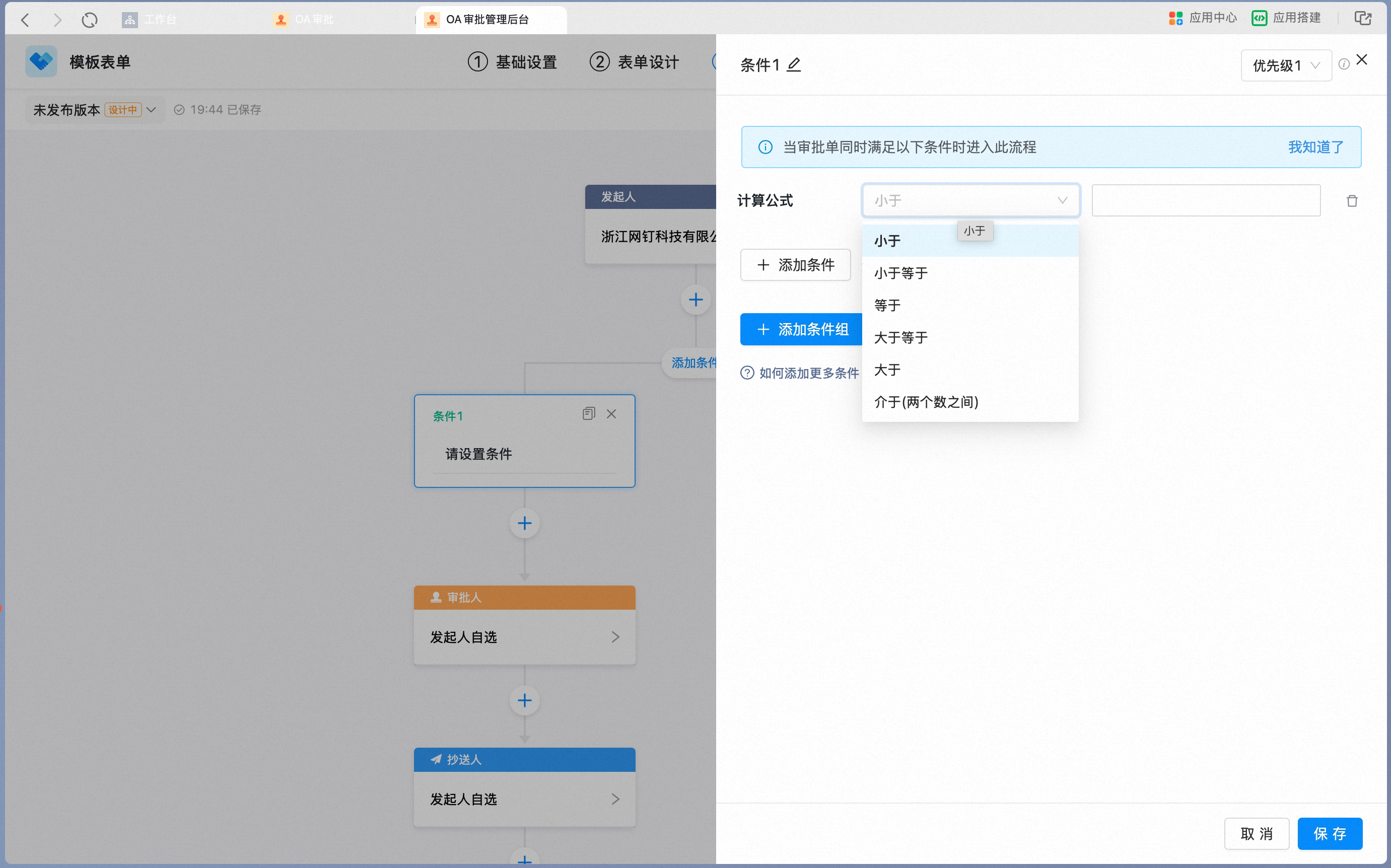
6. Formula
When a Formula field is used as a condition, the check runs against the Formula’s calculated result and supports less than, less than or equal to, equal to, greater than or equal to, greater than, and between (two numbers). For example, calculate the total price as unit price × quantity, then route the Approval by that total. In form design, add a Formula field and configure the Formula:
7. Fields inside a Details table / Spreadsheet
Amount, Number, and other fields placed inside a Details table / Spreadsheet can also be used as conditions, with two aggregation modes supported: check by the sum across all Records, or check by any single value (matched as soon as any one Record satisfies it). In form design, add a Details table / Spreadsheet, and place an Amount or similar field inside it: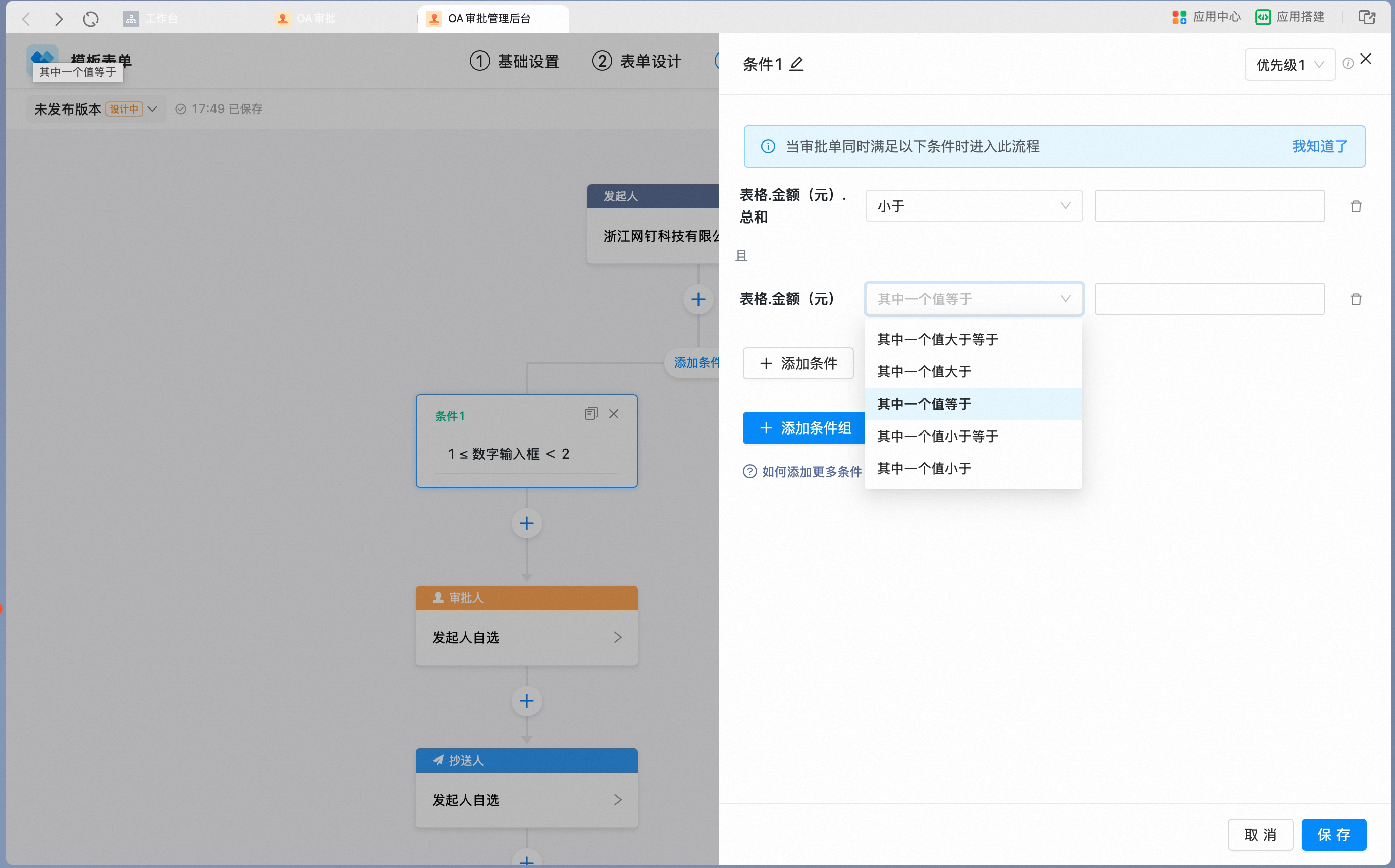
Related documents
Conditional approval
Add conditional branches and set AND / OR condition rules
Conditional approval troubleshooting
Troubleshoot cases where a conditional branch does not take effect