Chats
Chats Calendar
 Meetings
 Contacts
 Mail
Mail Docs
Docs Drive
Drive AI Table
 AI Minutes
 Attendance
 Approval
 YiDA
YiDA Admin Console
1. Overview
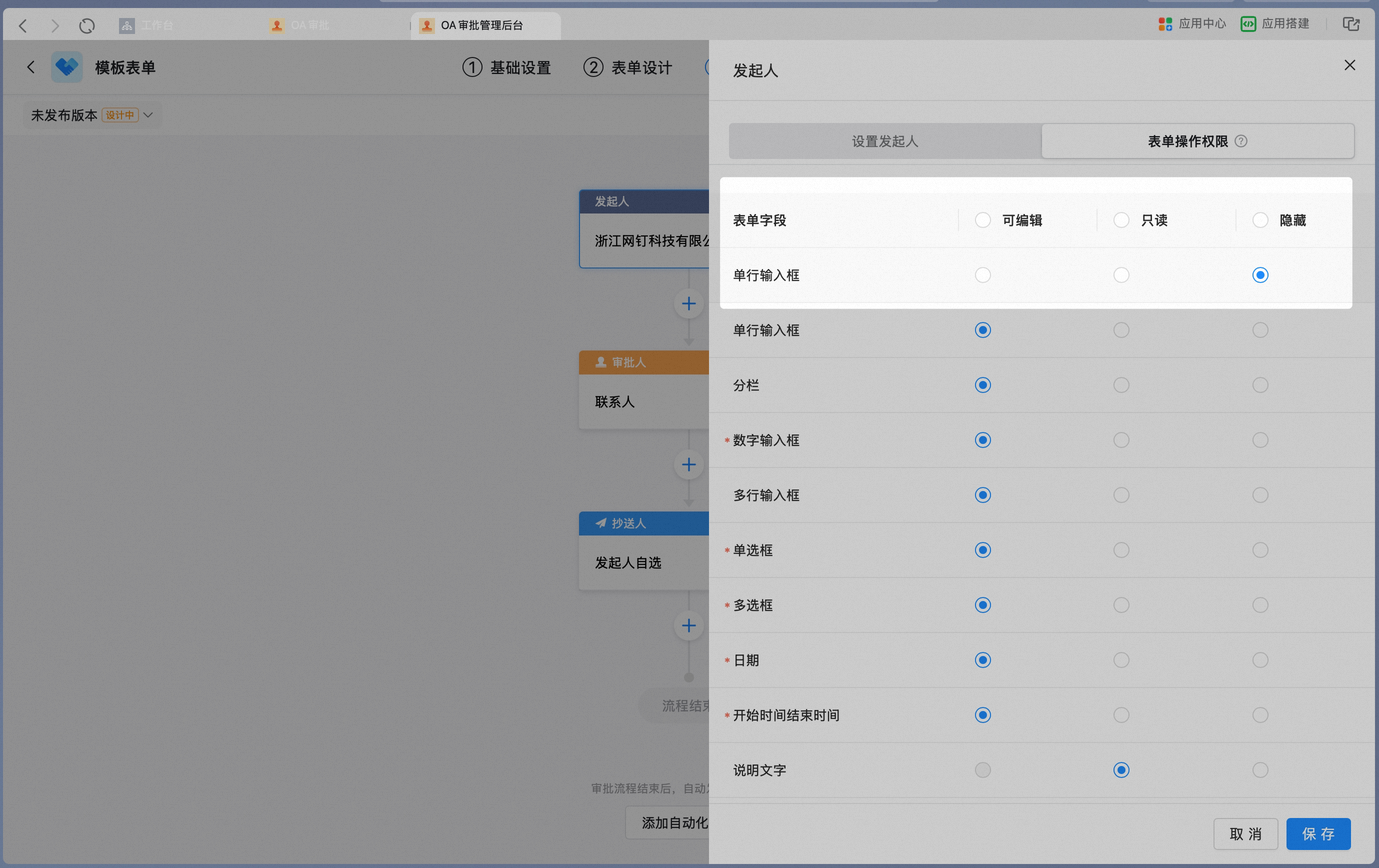
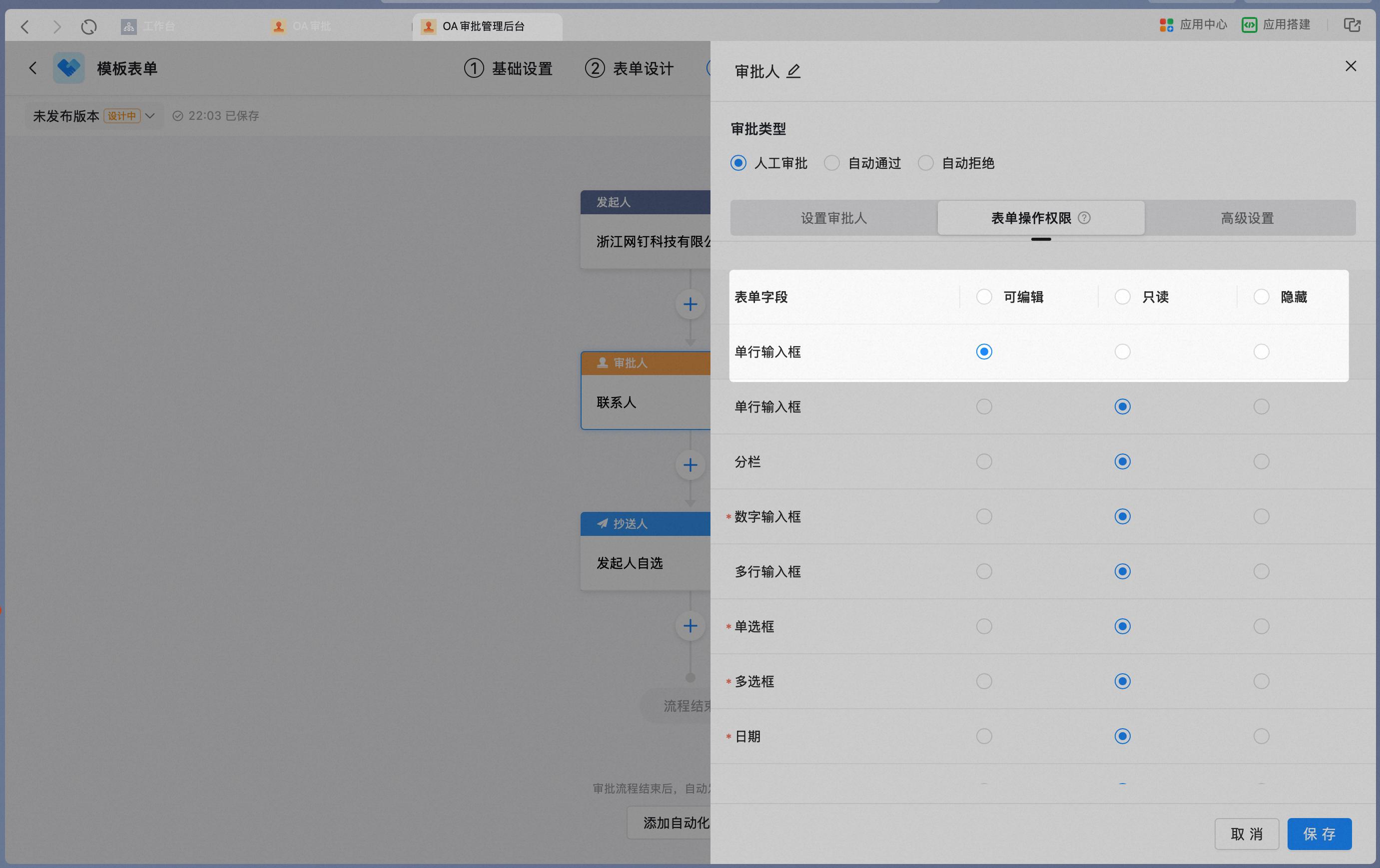
Admins can configure node action permissions.Default node action permissions: initiator: editable; approver, CC recipient, and handler: read-only.In specific scenarios, node action permissions need to be adjusted.For example, in salary or job-level evaluations, certain information can only be viewed by specific approvers. In such cases, specific fields must be hidden from certain users.In other scenarios, such as item rating, certain information is filled in by the approver rather than the initiator. In such cases, specific approvers need edit permission for the rating field.
2. Prerequisites
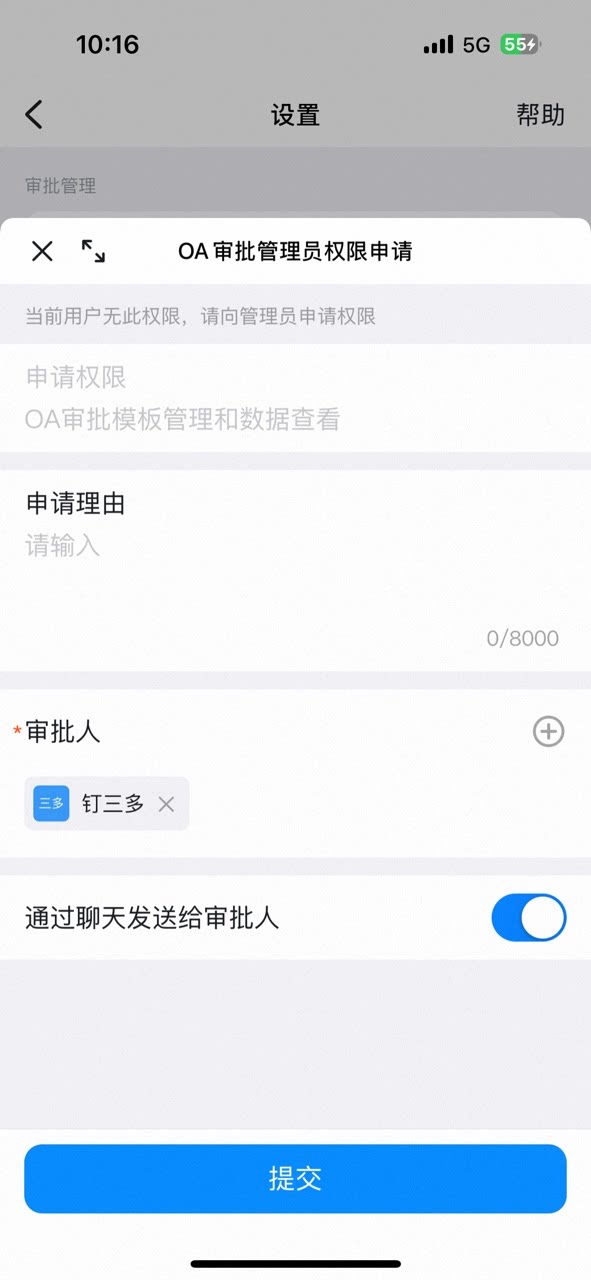
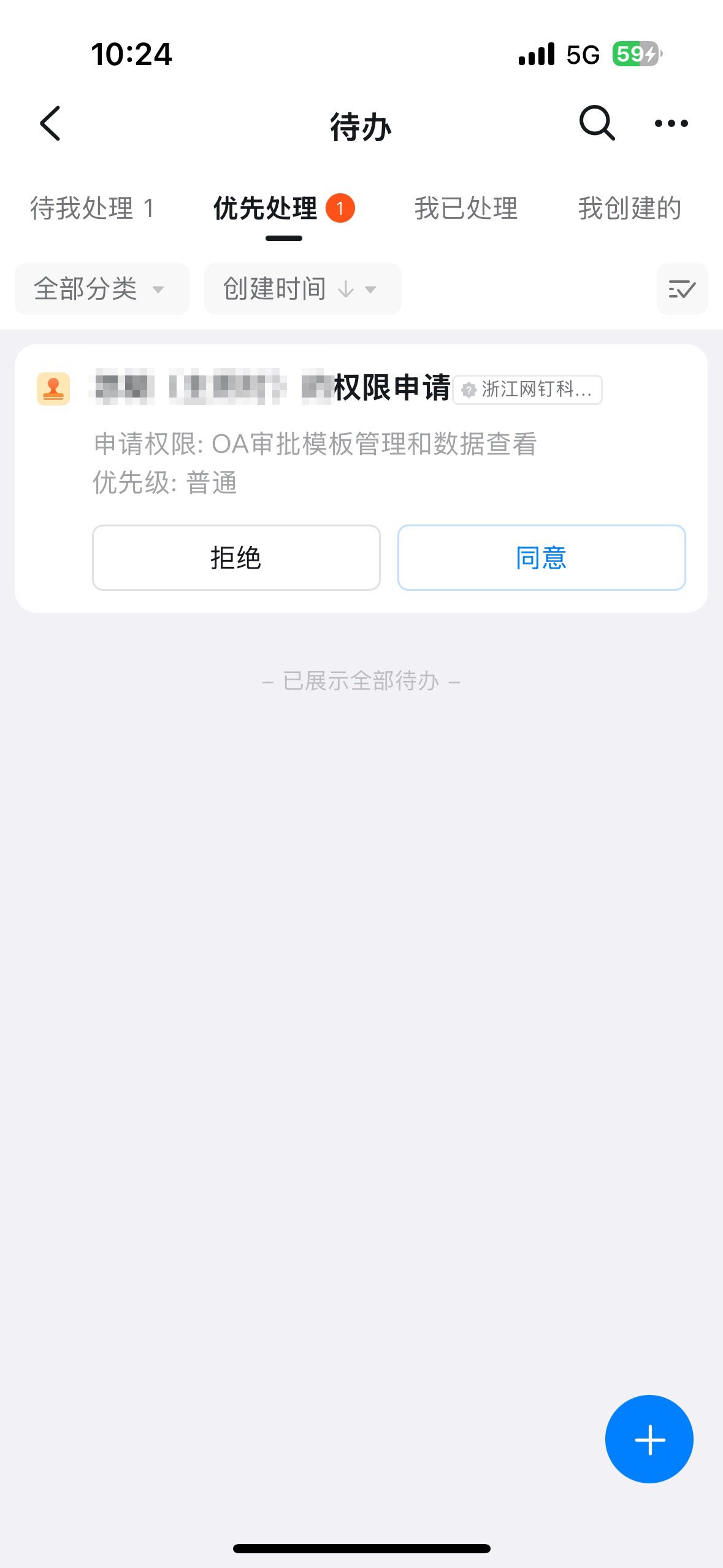
- Only an Approval Admin can perform process design, so you must become an Approval Admin first.


3. Entry point
On the Approval Admin Console > Form Management page, click Edit in the Action column of the form.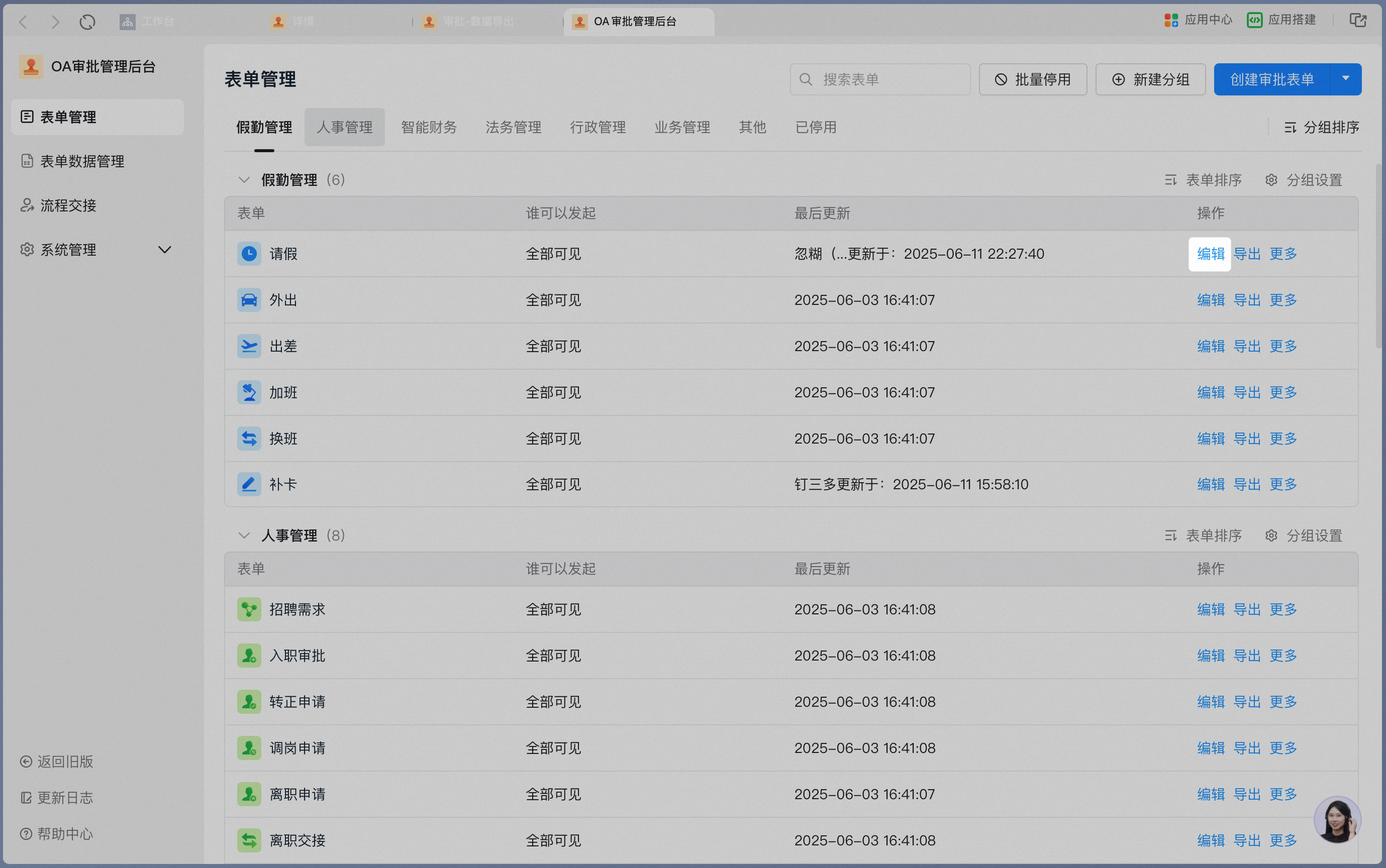
4. Steps
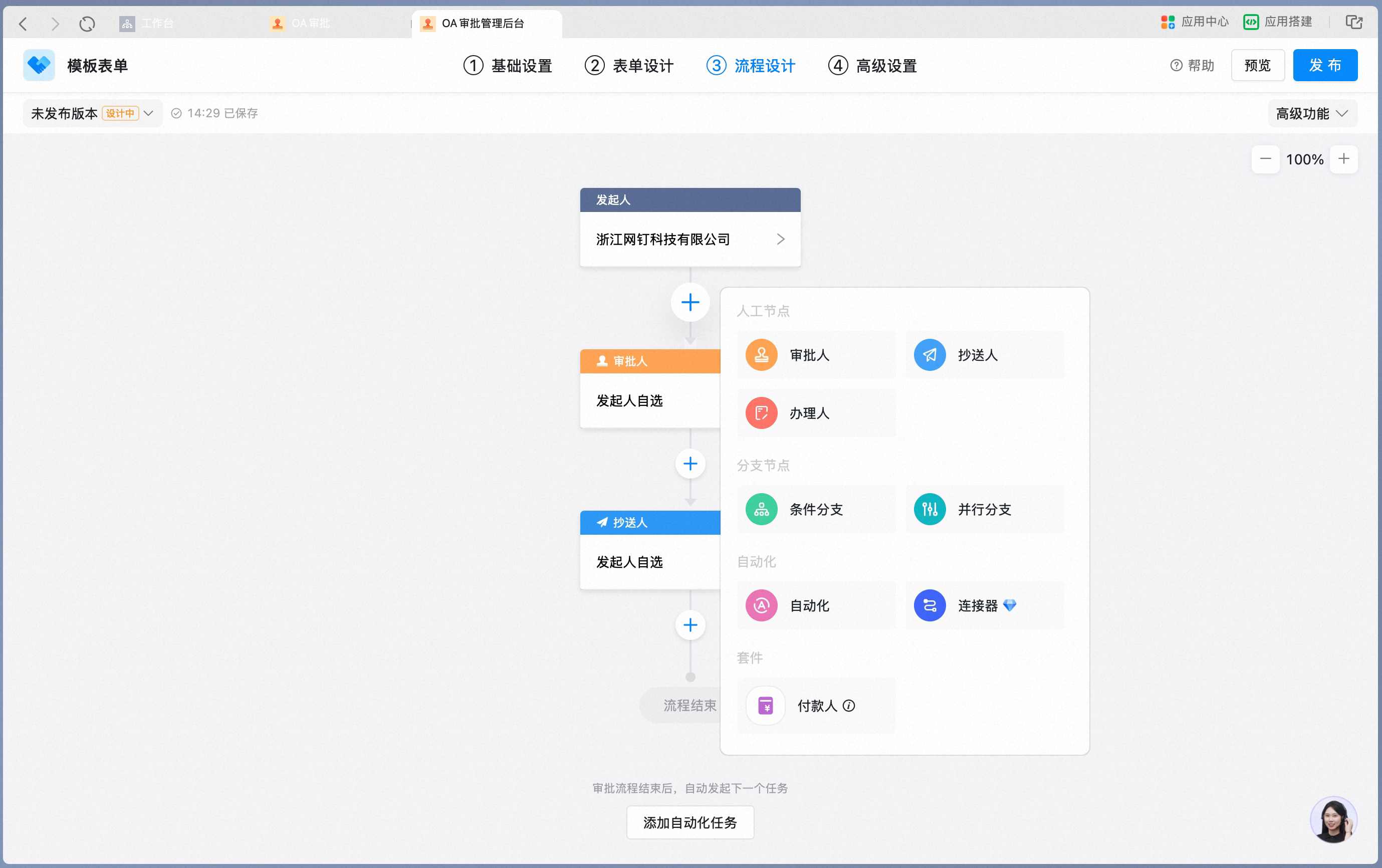
Select the approval node whose form action permissions you want to adjust, click Form Action Permissions, select the control corresponding to the form content you want to hide, and change the permission to Hidden.