Chats
Chats Calendar
 Meetings
 Contacts
 Mail
Mail Docs
Docs Drive
Drive AI Table
 AI Minutes
 Attendance
 Approval
 YiDA
YiDA Admin Console
1. Overview
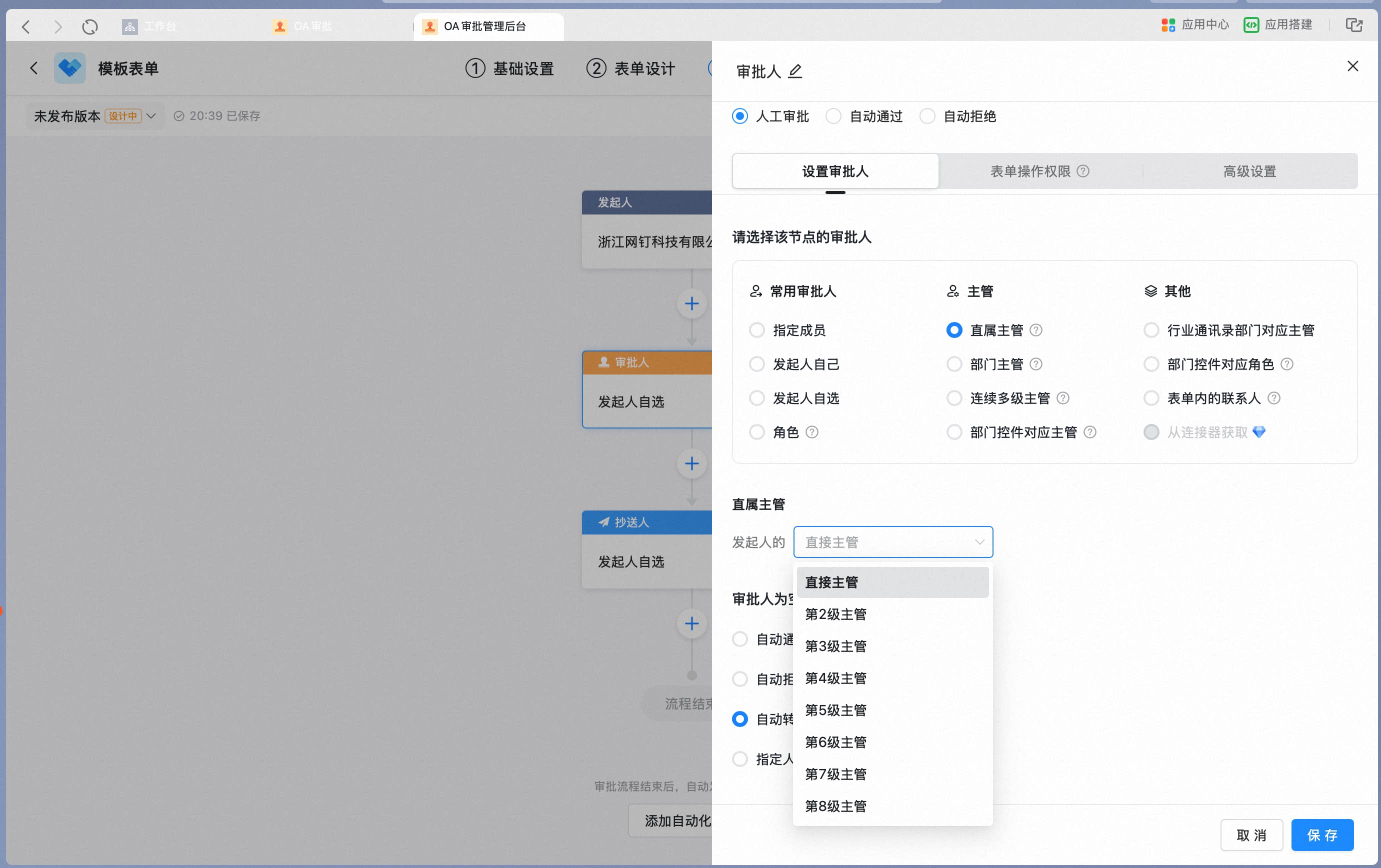
Admins can set a direct manager as an approver.A direct manager refers to a manager on a business-related reporting line other than the Contacts manager:For example, in project management, project team Users on a specific project must report to the project manager and project director when handling project-related Approvals.For example, in product R&D, procurement, design, and production teams must report to the product development lead when handling Approvals related to that product’s R&D.When you set a direct manager as an approver and the direct manager later changes, you only need to adjust the direct manager to keep the process running normally.Direct manager updates take effect simultaneously on Approvals that have already been initiated but have not yet reached the current Step, as well as on process settings in approval templates.
2. Prerequisites
- Only the Approval Admin can perform process design, so you must first become an Approval Admin.
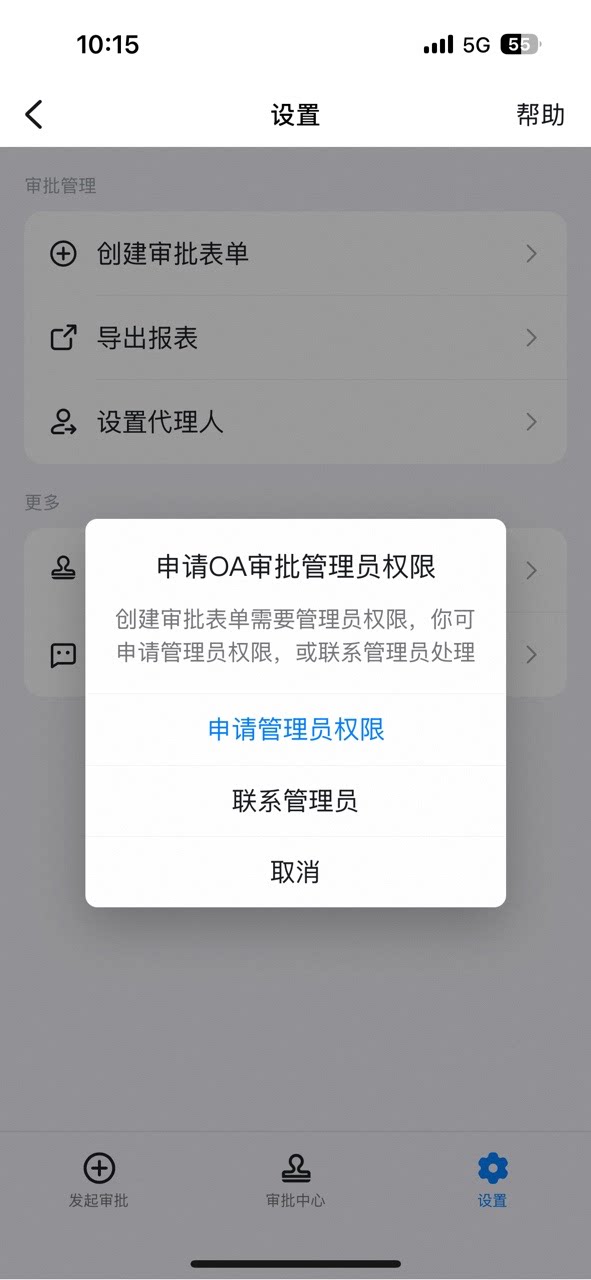
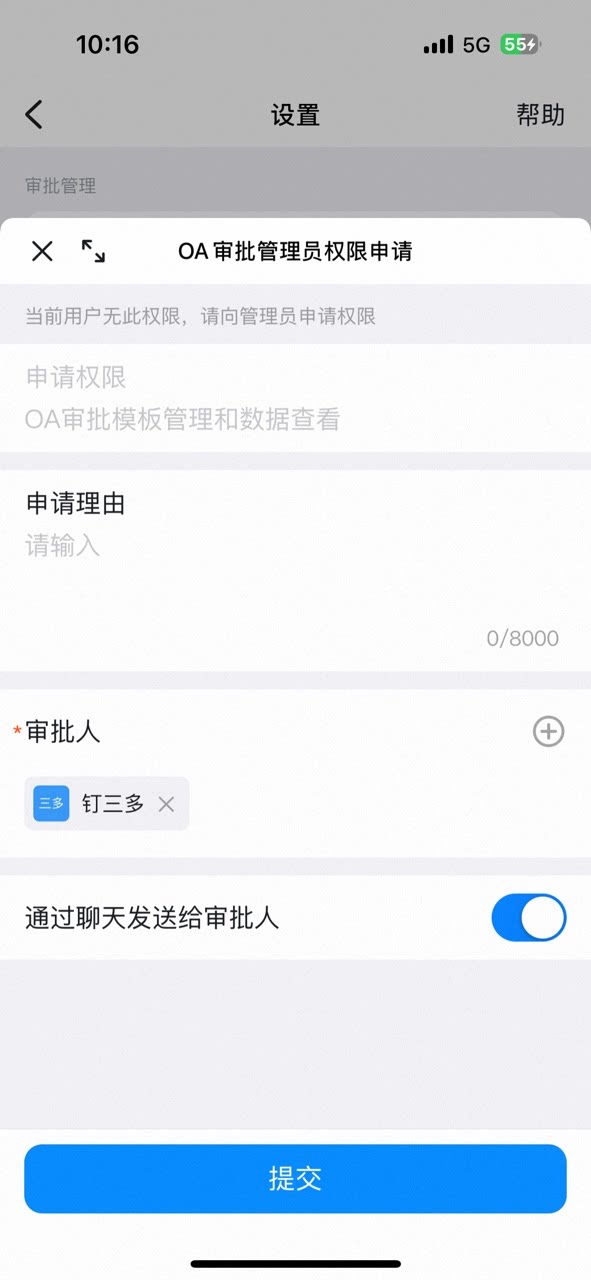
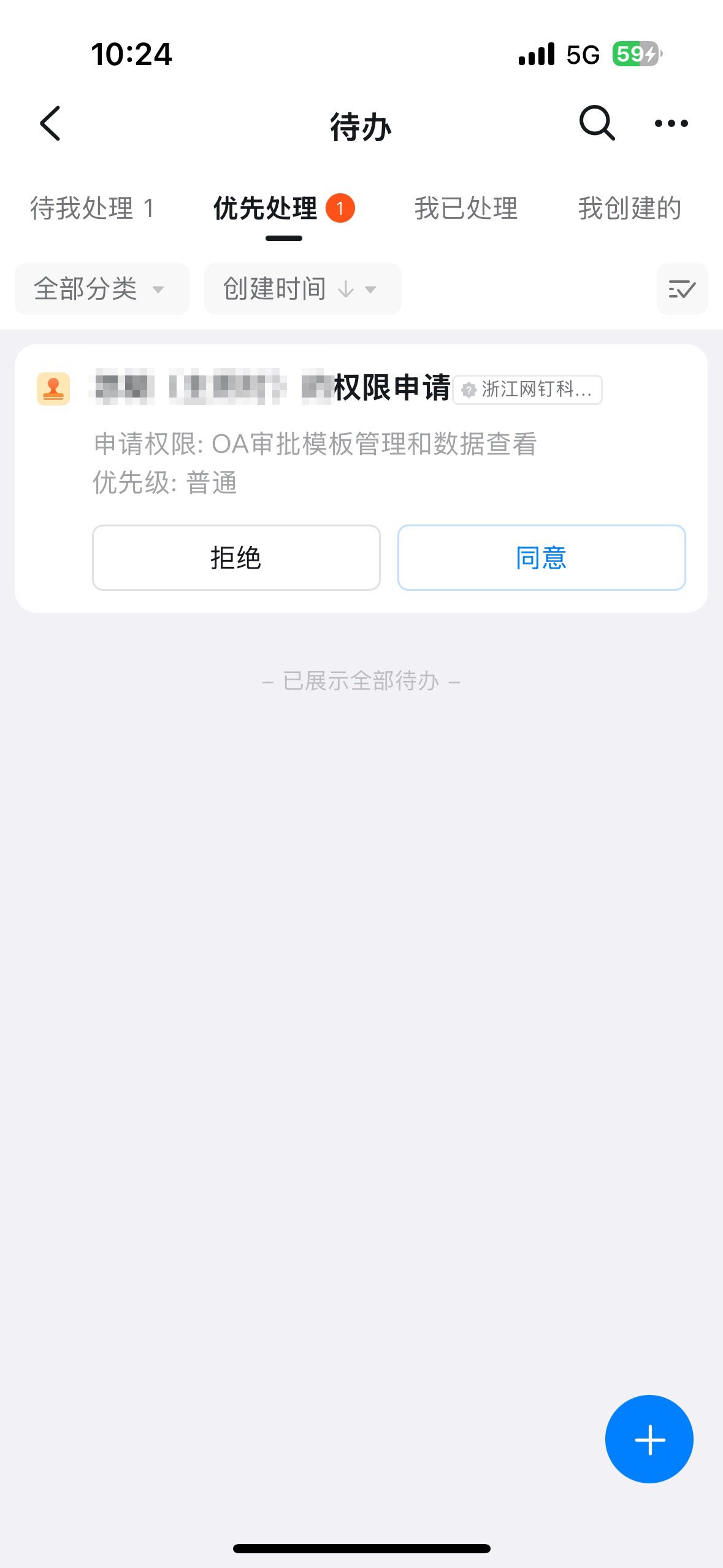
3. Steps
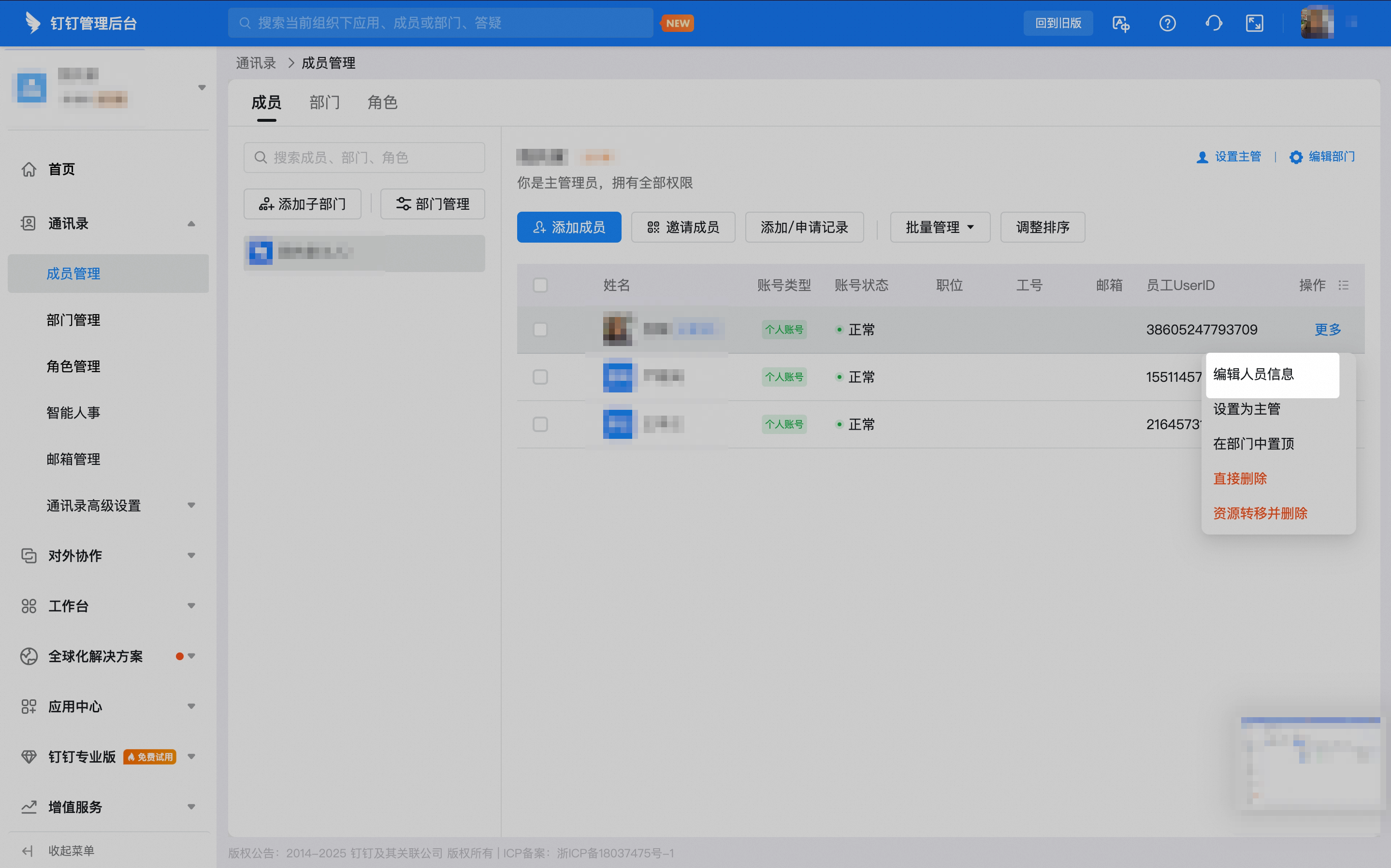
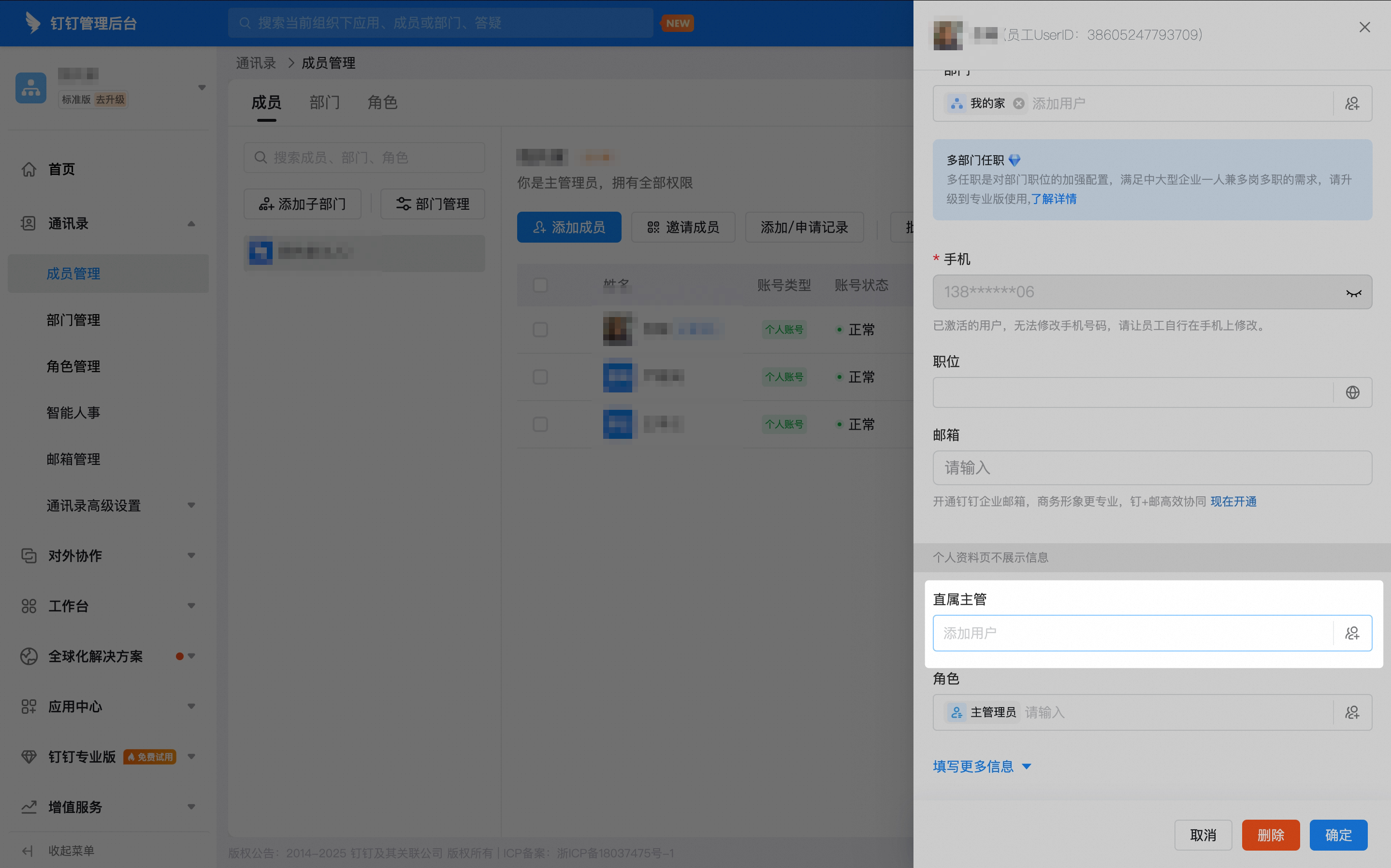
1. Set the direct manager
In the browser, the Admin opens the DingTalk Admin Console, then clicks [Contacts] - [User Management] to open the User List: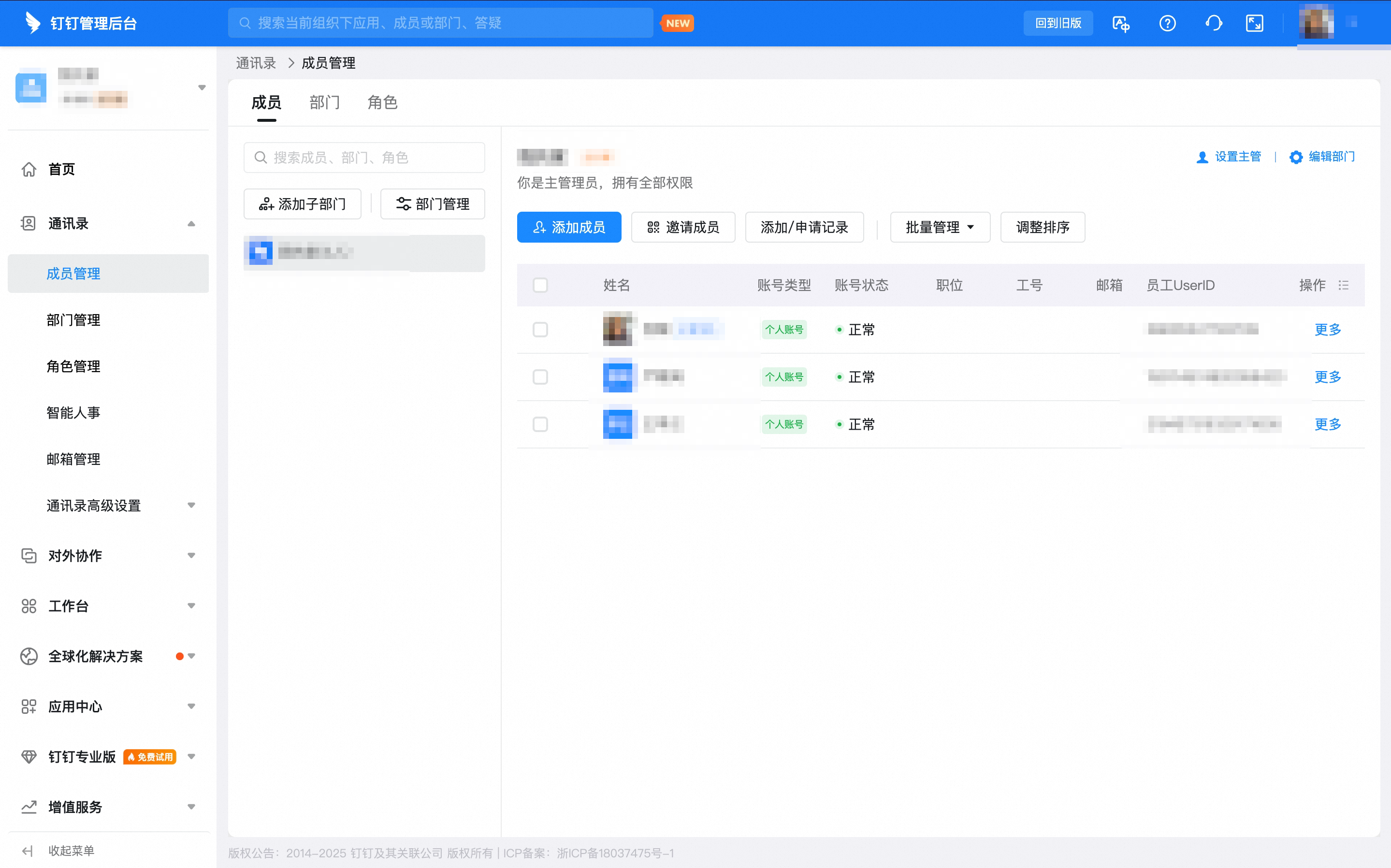
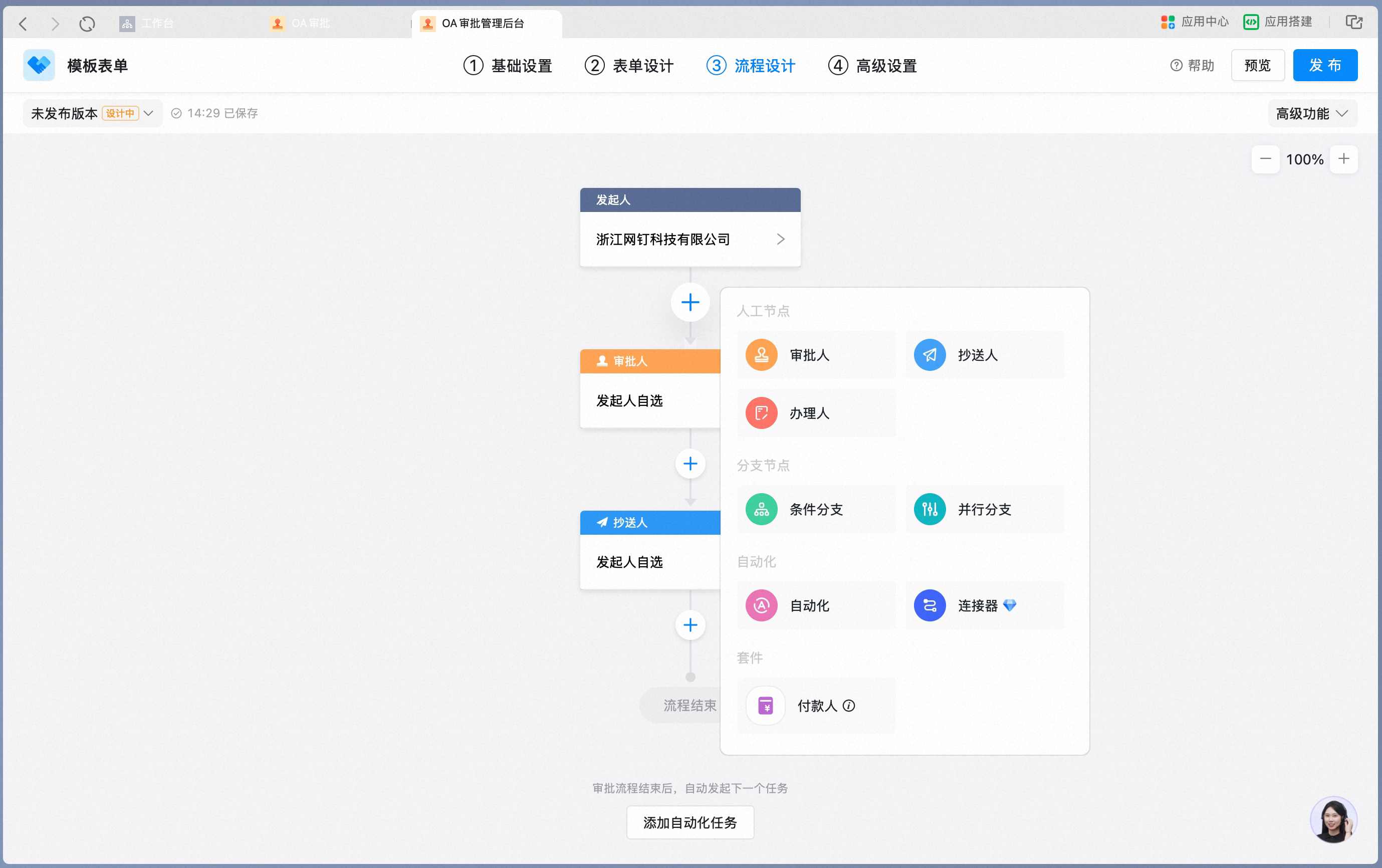
2. Set the direct manager as approver in the Approval process
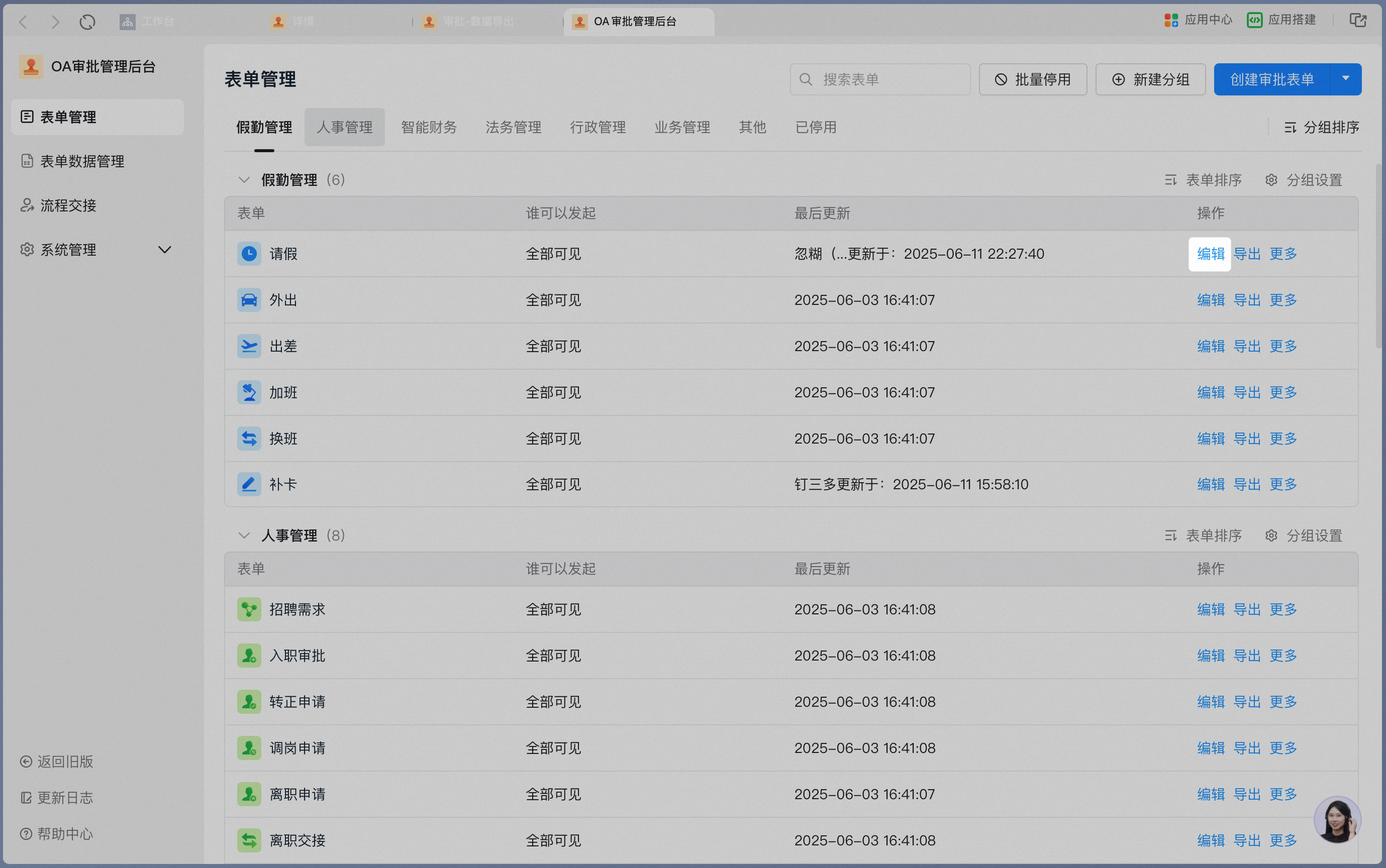
On the “Approval Admin Console” - “Form Management” page, click [Edit] in the Form Action column.