

 Chats
 Calendar
 Meetings
 Contacts
 Mail
 Docs
 Drive
 AI Table
 AI Minutes
 Attendance
 Approval
 YiDA
 Admin Console
Create a Shared Mailbox
1
Open Shared Mailbox management
In the admin console, under App Management, go to Mail > Organization Account Management > Shared Mailbox.
2
Create a shared mailbox
Click Create Shared Mailbox. Enter the mailbox name in Name and the email address prefix in Email Address.
3
Add members
Under Department, click + Add from Contacts.
4
Confirm
Click Confirm to create the shared mailbox.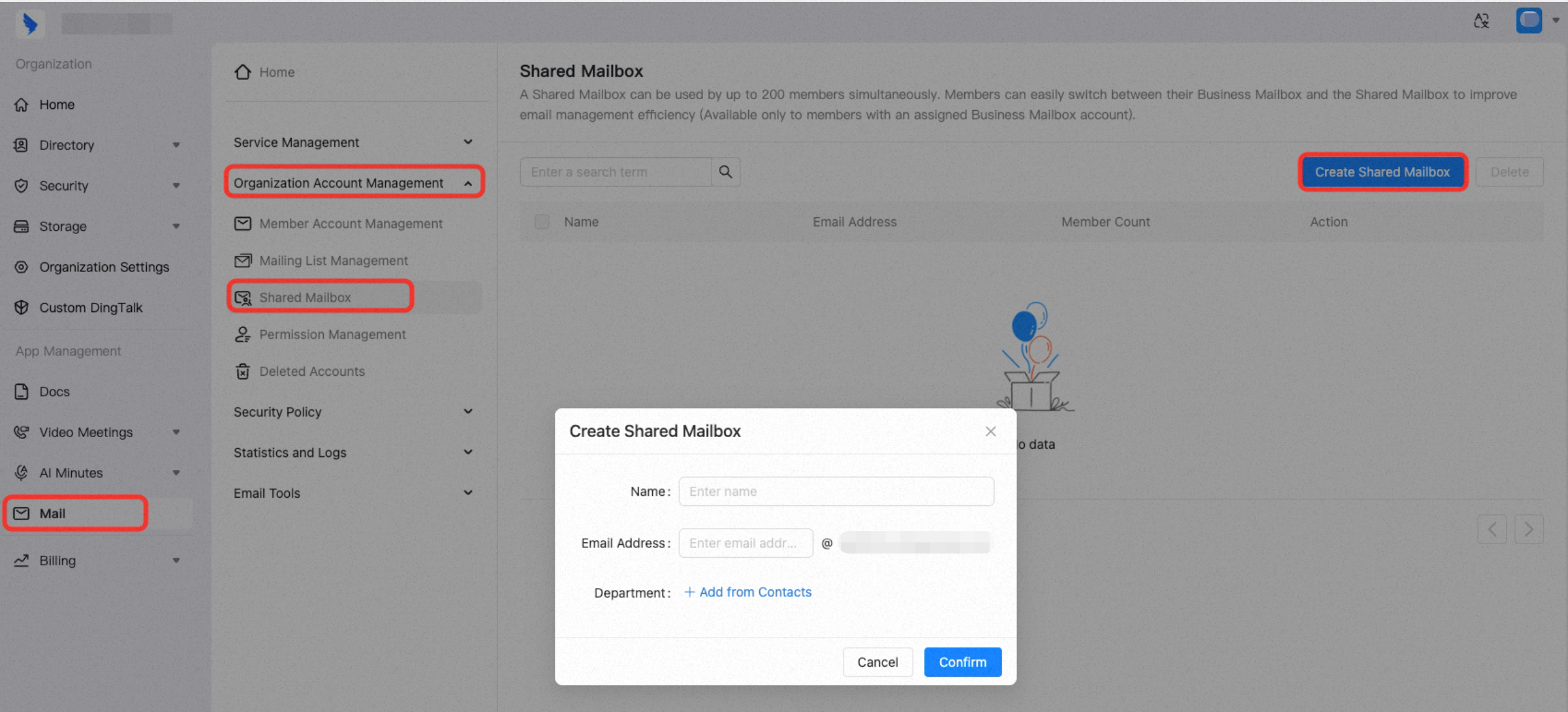
5
Members switch to the shared mailbox
After being added, members can sign in to DingTalk, open Mail, and click the dropdown in the upper-left corner to select a shared mailbox assigned to them.Click the shared mailbox to switch directly to that account. Members can then view emails in the shared mailbox and send emails on its behalf.
Delete a Shared Mailbox
1
Open Shared Mailbox management
In the admin console, under App Management, go to Mail > Organization Account Management > Shared Mailbox.
2
Select and delete
Select the checkbox next to the shared mailbox you want to delete, then click Delete in the upper-right corner.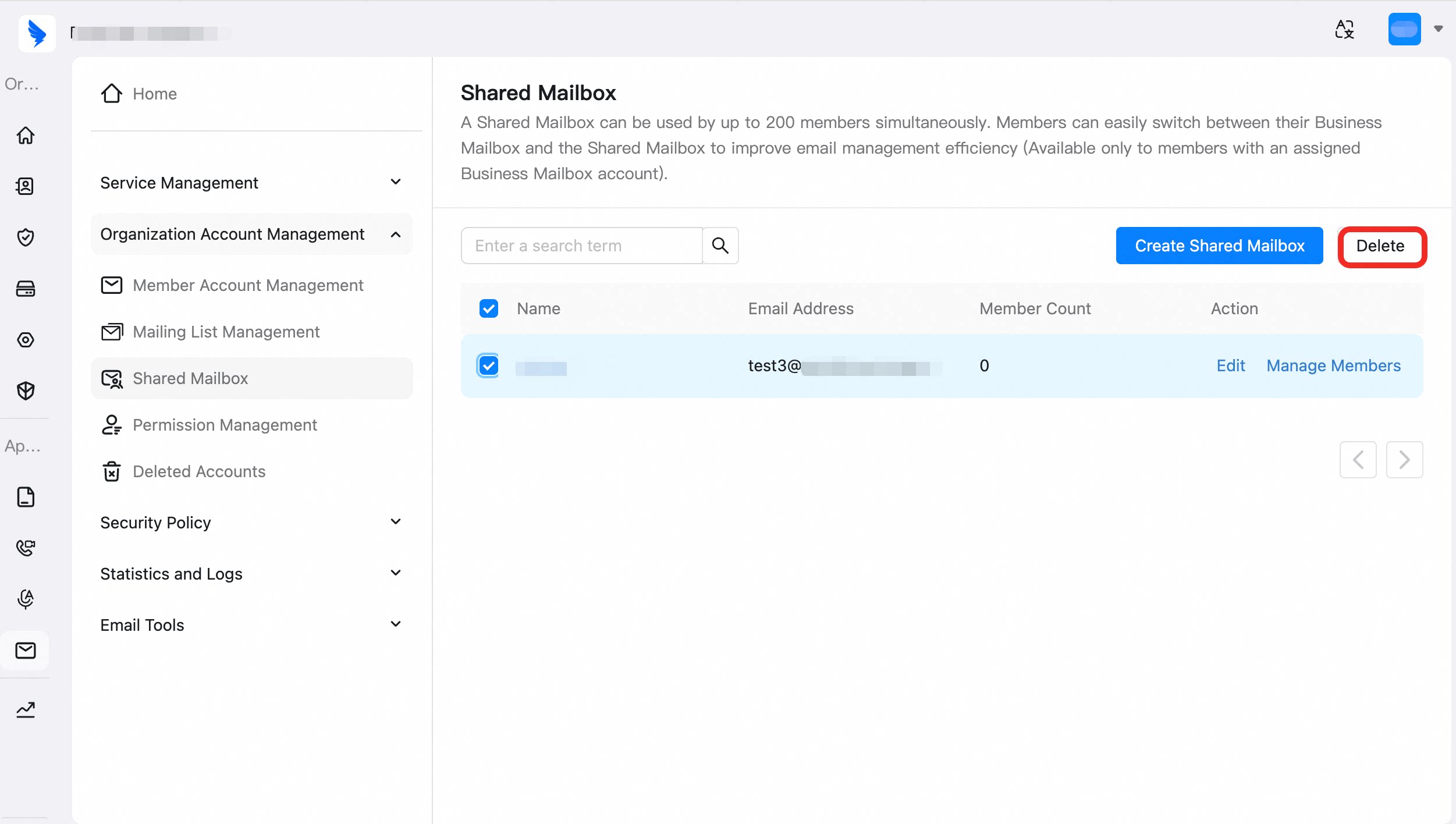
The deleted mailbox is moved to Deleted Accounts.