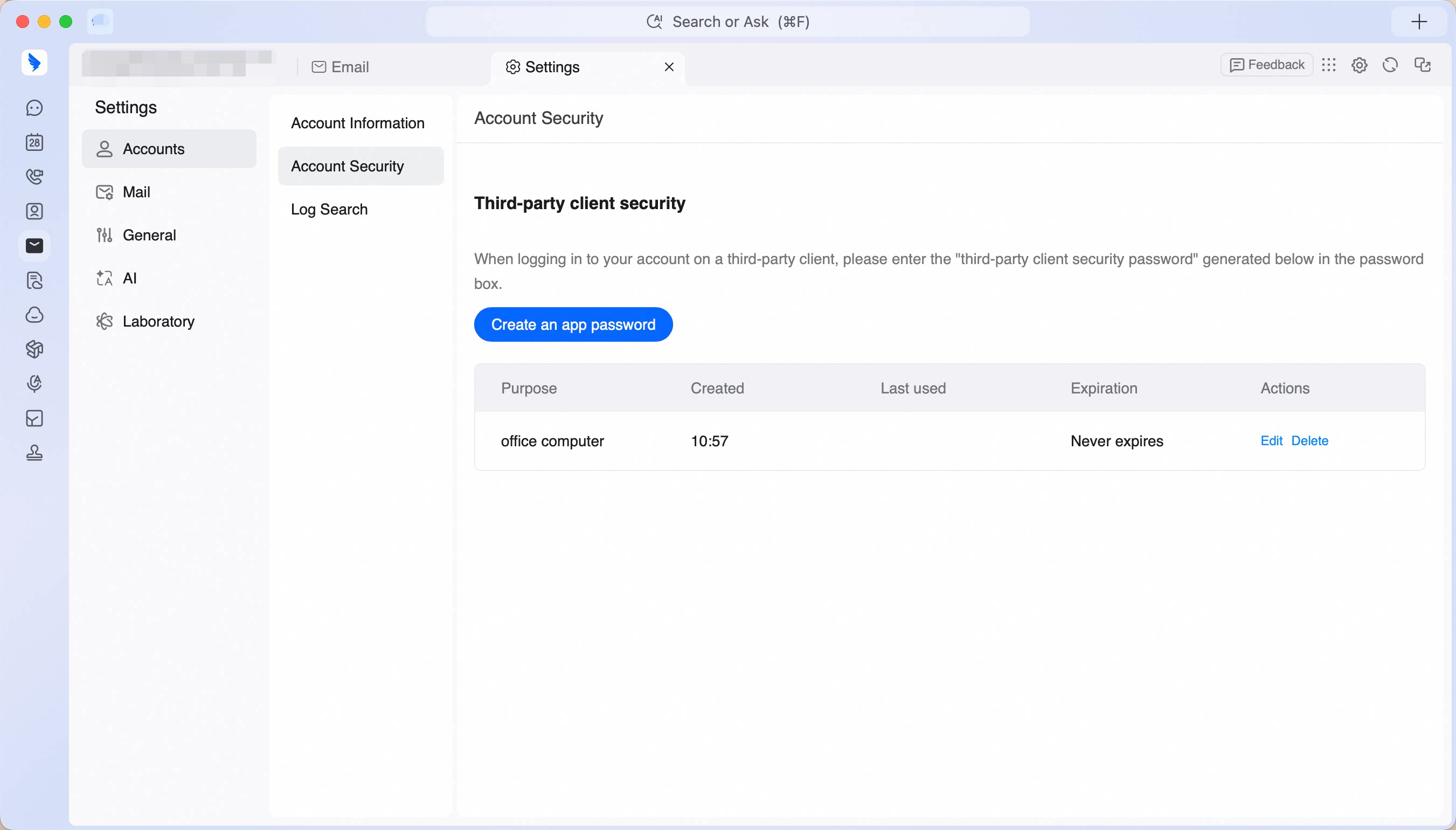

 Chats
 Calendar
 Meetings
 Contacts
 Mail
 Docs
 Drive
 AI Table
 AI Minutes
 Attendance
 Approval
 YiDA
 Admin Console
This feature is disabled by default. Contact your administrator to enable it in the email management section of the DingTalk admin console. For details, see Manage Third-Party Clients.
What Is a Third-Party Client Security Password?
A third-party client security password is a separate password used to sign in to a DingTalk Enterprise Mail account through a third-party client, such as Outlook or Foxmail. It helps improve security when sending and receiving emails through these clients.Create and Use the Password
1
Open Third-party client security
Sign in to DingTalk Enterprise Mail. Go to Settings > Accounts > Account Security. Find the Third-party client security section.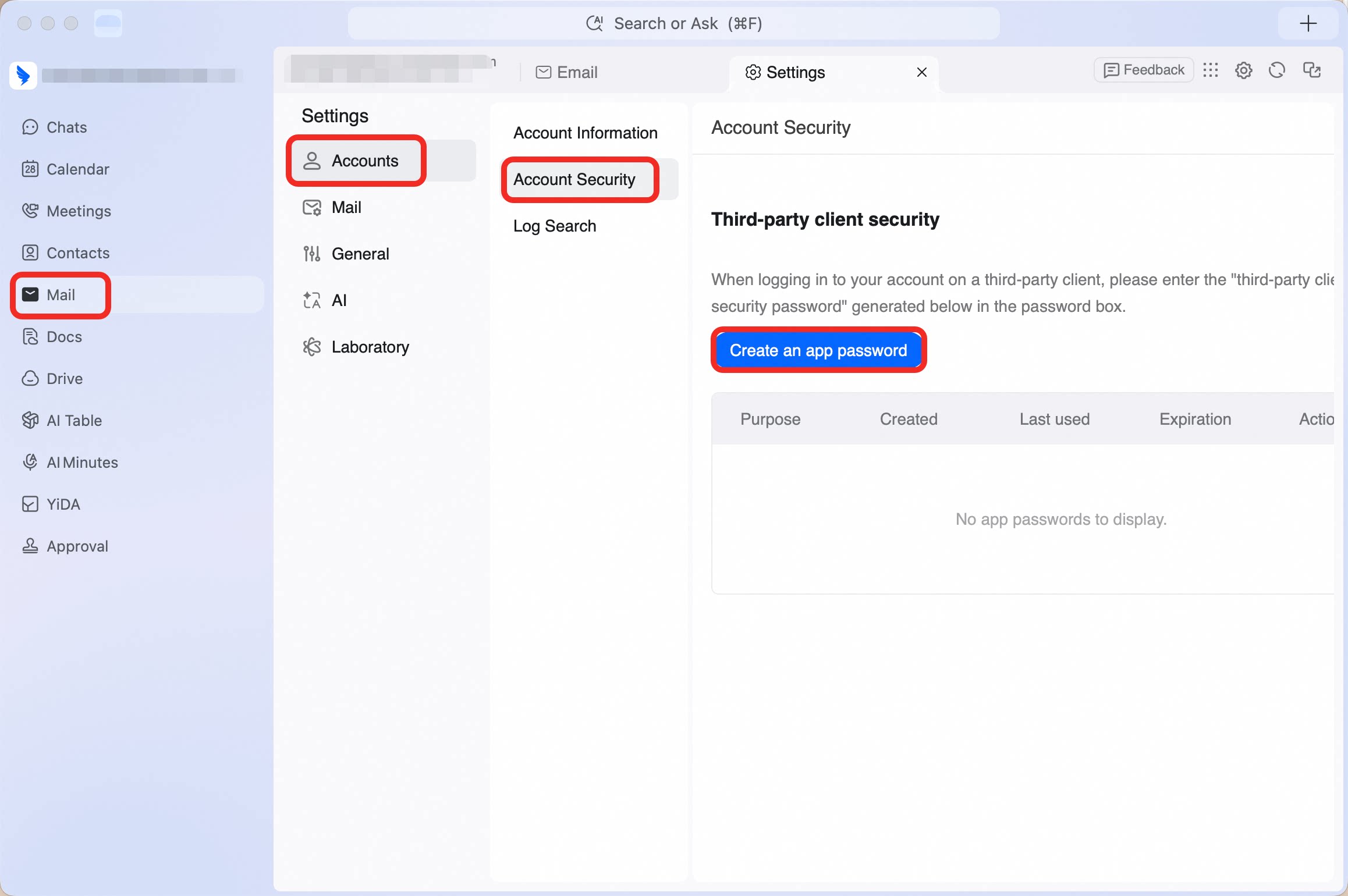
2
Create an app password
Click Create an app password. In the Generate Third-Party client security password window, click Copy to copy the generated password, enter a device name in Device, then click Confirm.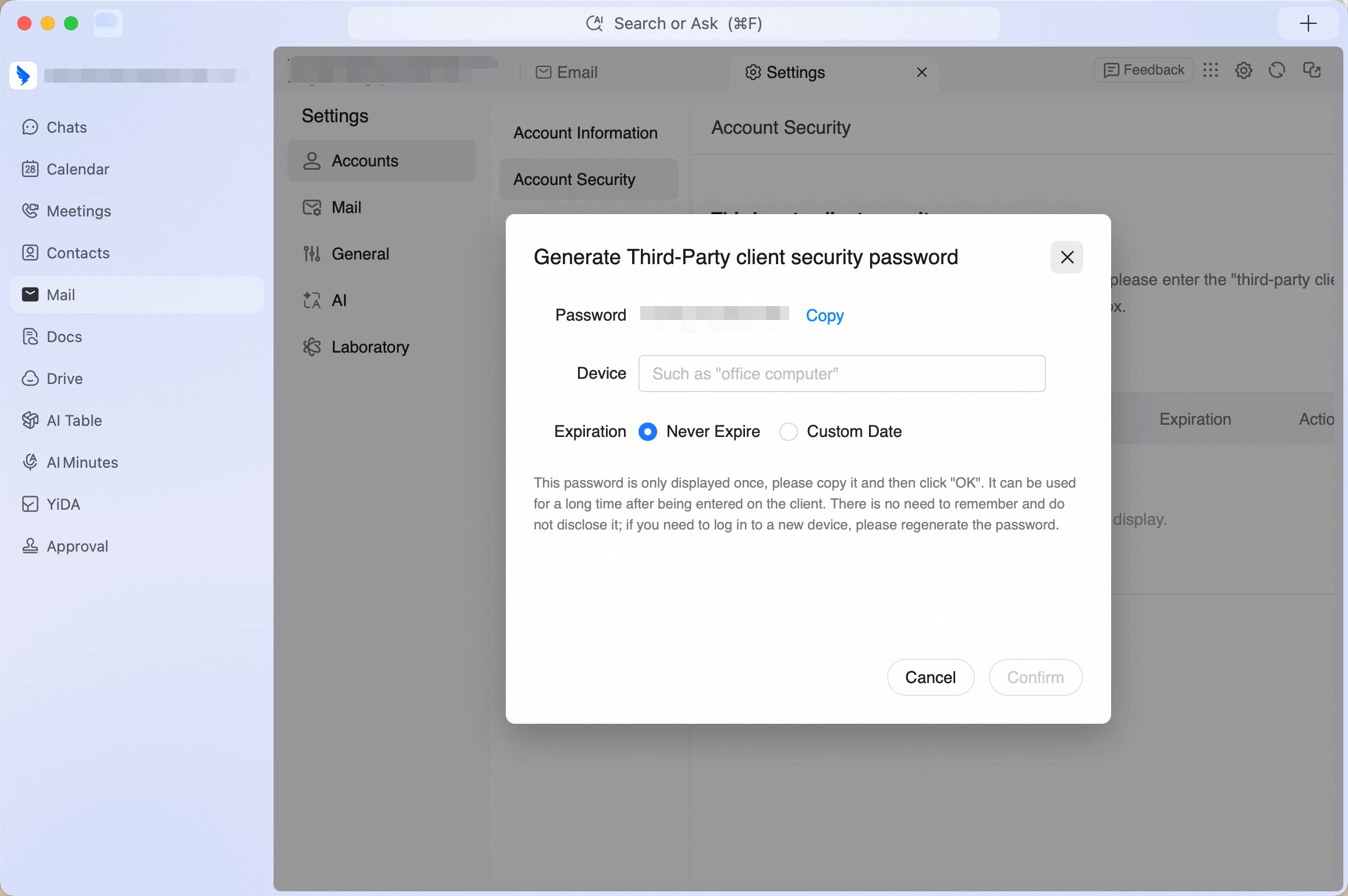
3
Sign in from the client
Paste the copied password into the password field in Outlook, Foxmail, or another third-party client to sign in. If you no longer want to use this password, delete its entry from the password list to stop using it.