

 Chats
 Calendar
 Meetings
 Contacts
 Mail
 Docs
 Drive
 AI Table
 AI Minutes
 Attendance
 Approval
 YiDA
 Admin Console
Procedure
1
Open the member's information editor
Sign in to the DingTalk admin console as an administrator. Go to Directory > Members. For the member whose email account you want to delete, click More > Edit Information.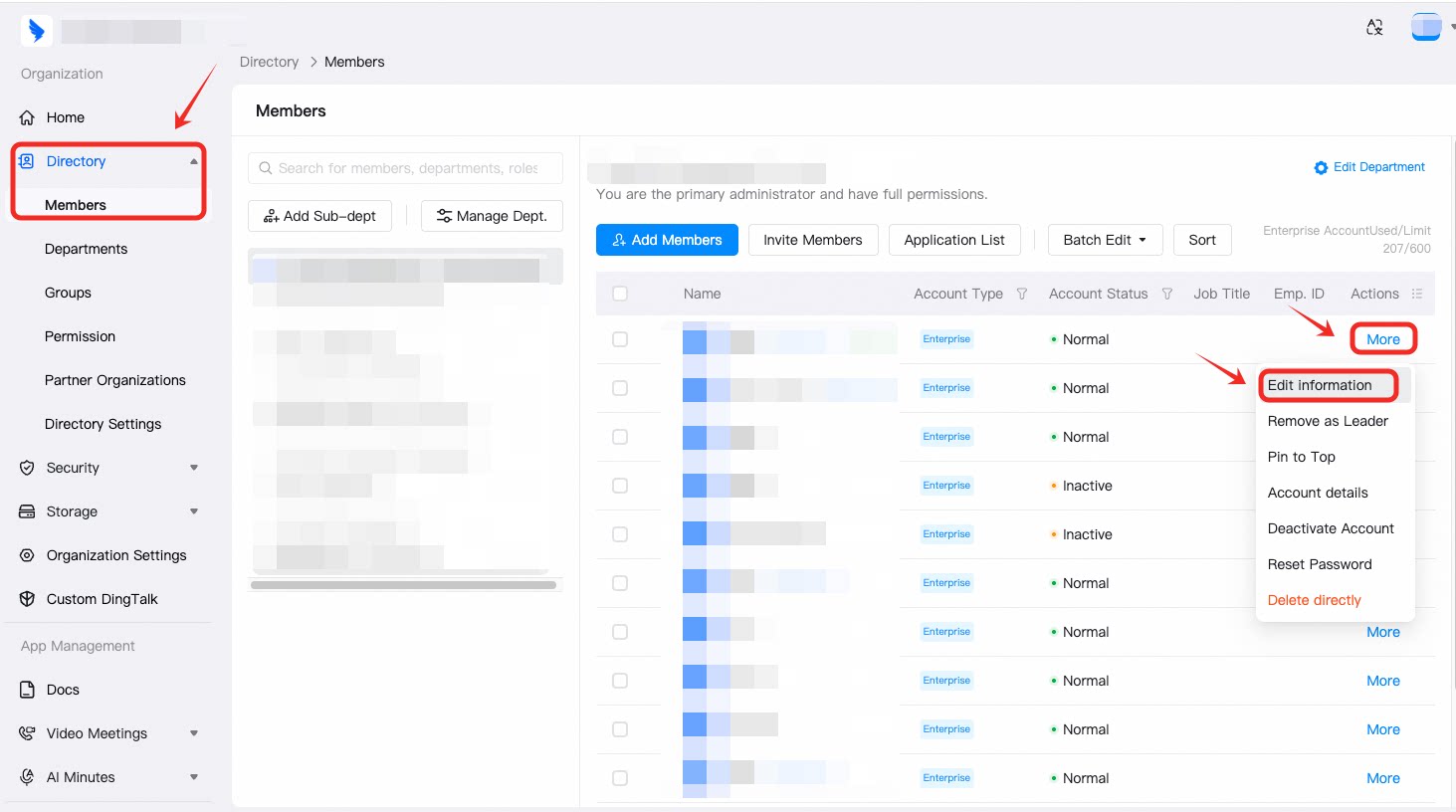
2
Delete the Enterprise Email
Under Enterprise Email, click Delete.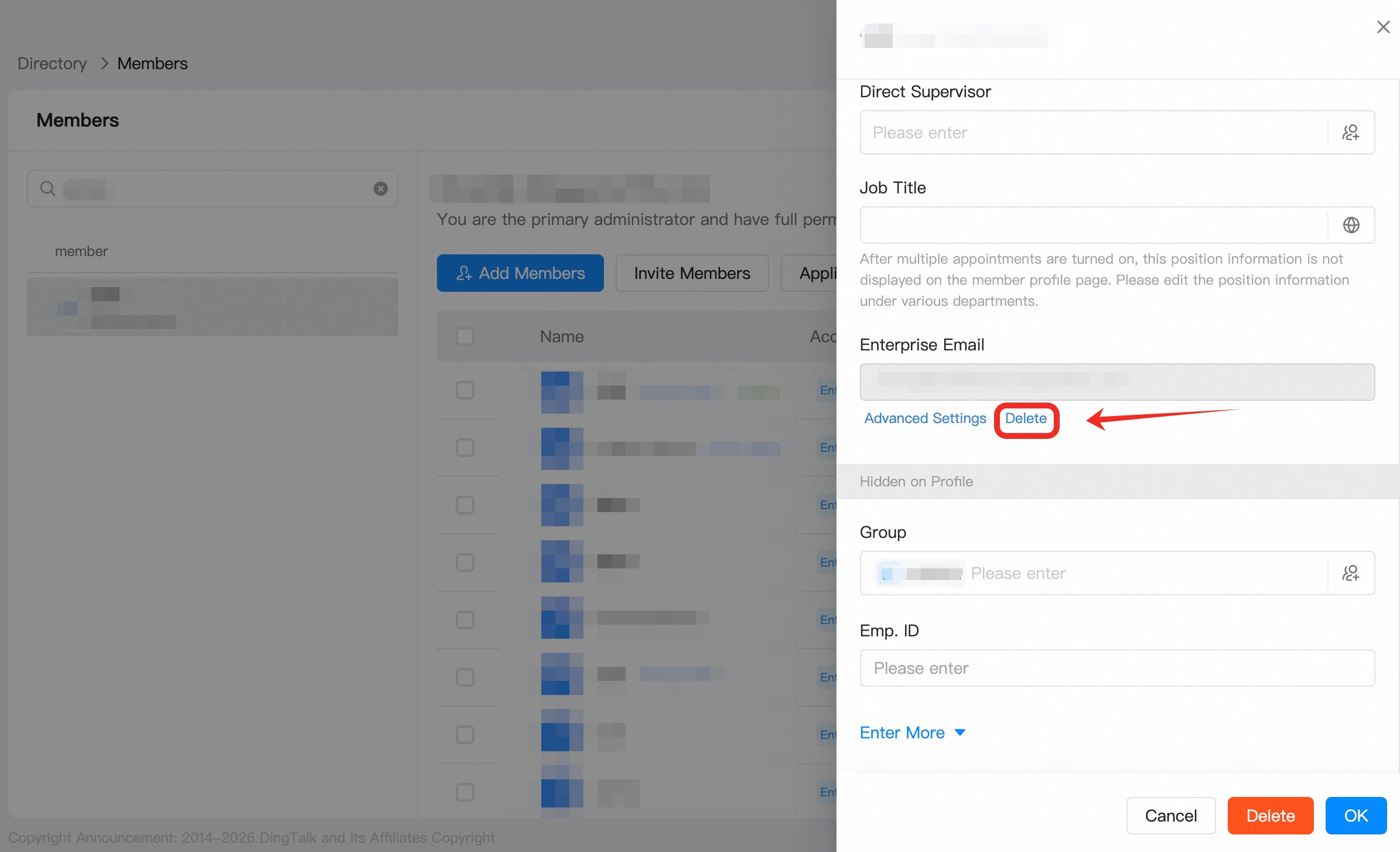
3
Choose where to transfer the data
In the Delete dialog box, under Transfer the email account and its data, select Account Recycle Bin or Shared Mailbox, then click OK.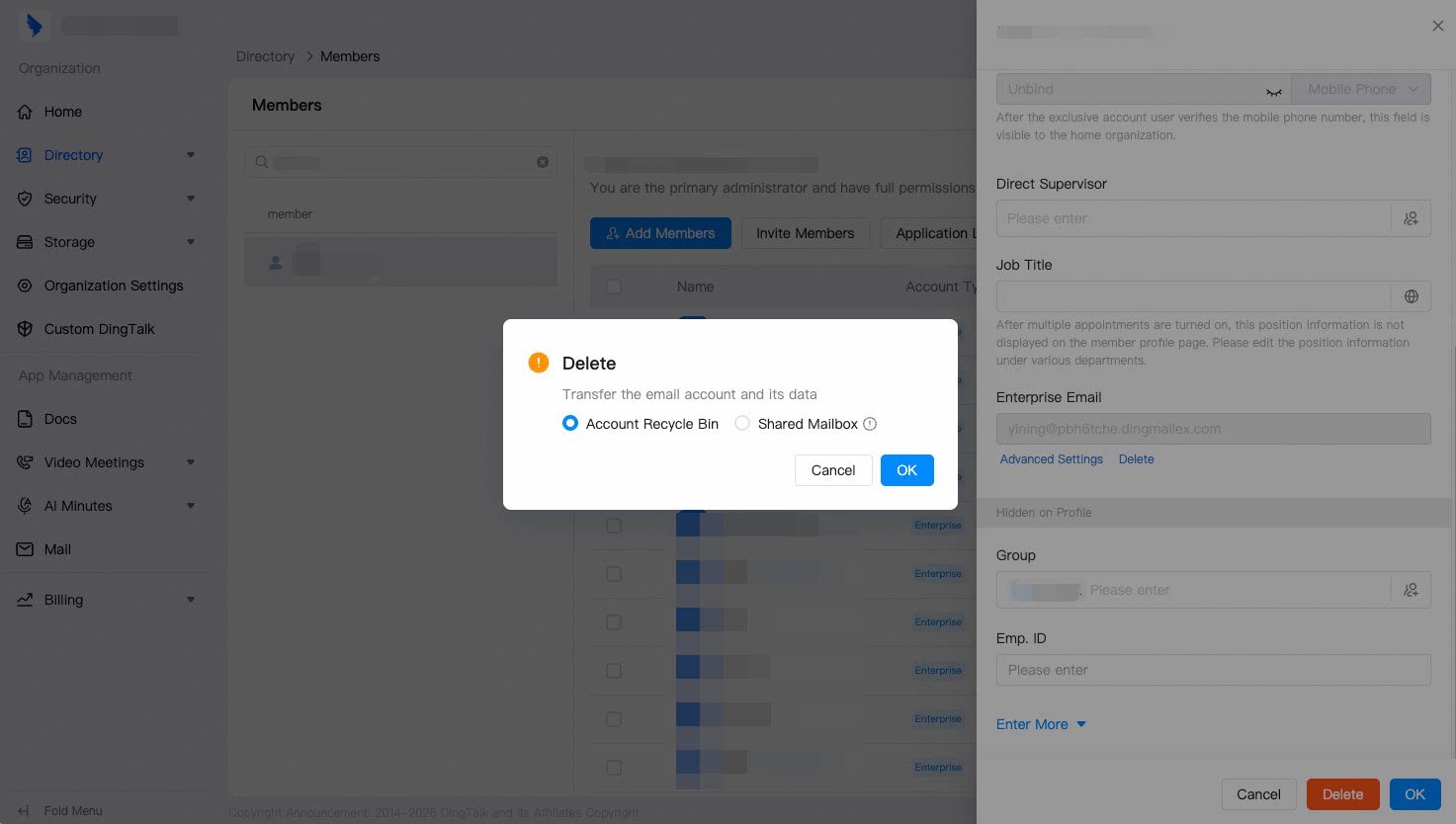
- Account Recycle Bin
The email account and its data are moved to Account Recycle Bin. From there, you can restore the account or transfer its data. The account no longer counts toward the email account limit.