Chats
Chats Calendar
 Meetings
 Contacts
 Mail
Mail Docs
Docs Drive
Drive AI Table
 AI Minutes
 Attendance
 Approval
 YiDA
YiDA Admin Console
1. General troubleshooting steps
1
Update the DingTalk App to the latest version
Update to the latest version for the best location experience.
2
Turn on Wi-Fi
You do not need to connect to a wireless network—just turn on the switch. Wi-Fi scanning can correct minor deviations based on nearby hotspots.
3
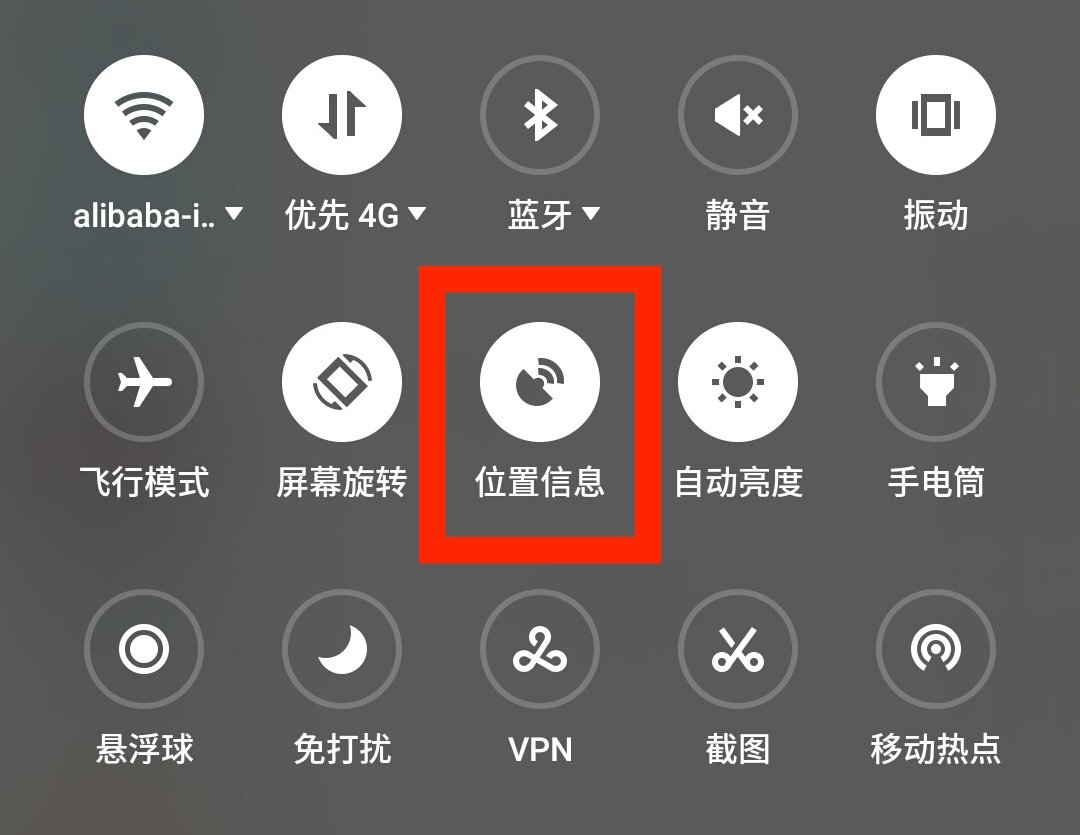
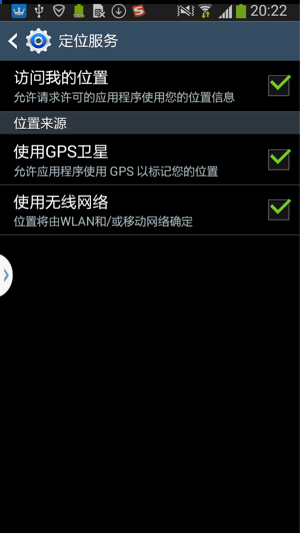
Turn on the location service switch
4
Check whether the DingTalk App has location permission
Go to Phone Settings → App Management → Manage permissions → Get location, and verify that location access is allowed.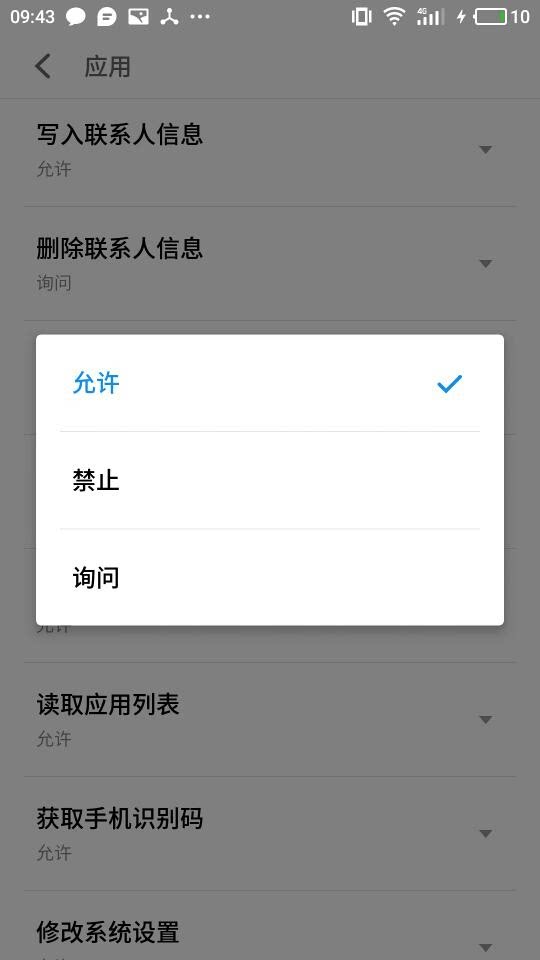
5
Check whether security management software has disabled location permission
Check whether the security management software installed on your phone has disabled the App’s location permission. Such software is usually preinstalled on Huawei, OPPO, vivo, and Xiaomi phones.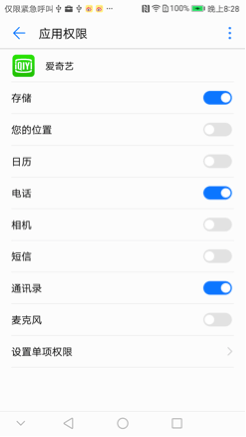
2. Background location settings on Huawei phones
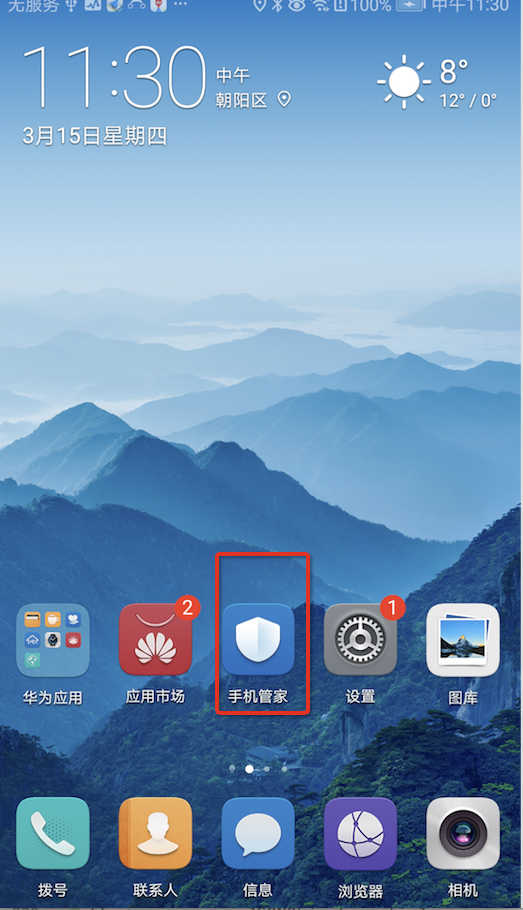
On some Huawei phones, background location has recently been found to be restricted (even a foreground service cannot perform background location). The root cause is that Huawei’s security software, Phone Manager, restricts the App’s background activity. Follow the steps below to fix it.
1
Open Huawei's Phone Manager app
2
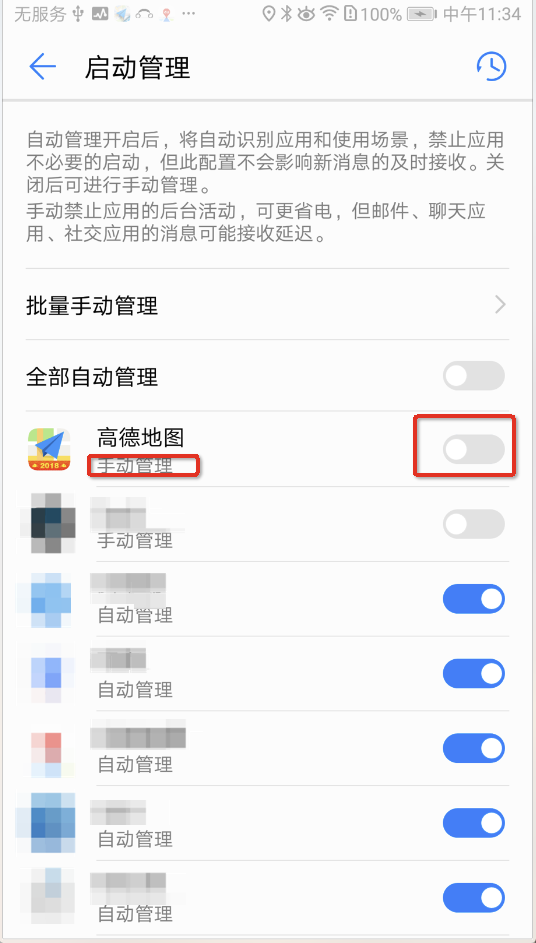
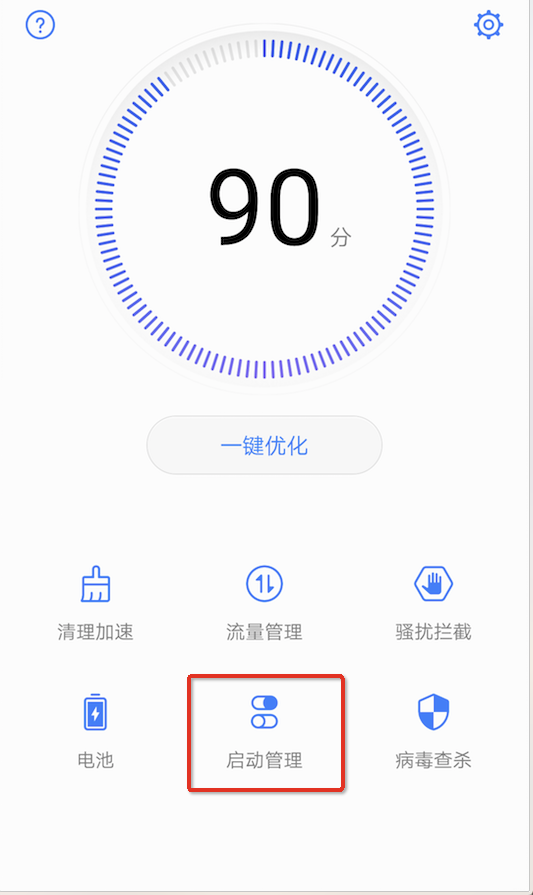
Go to the launch management screen
3
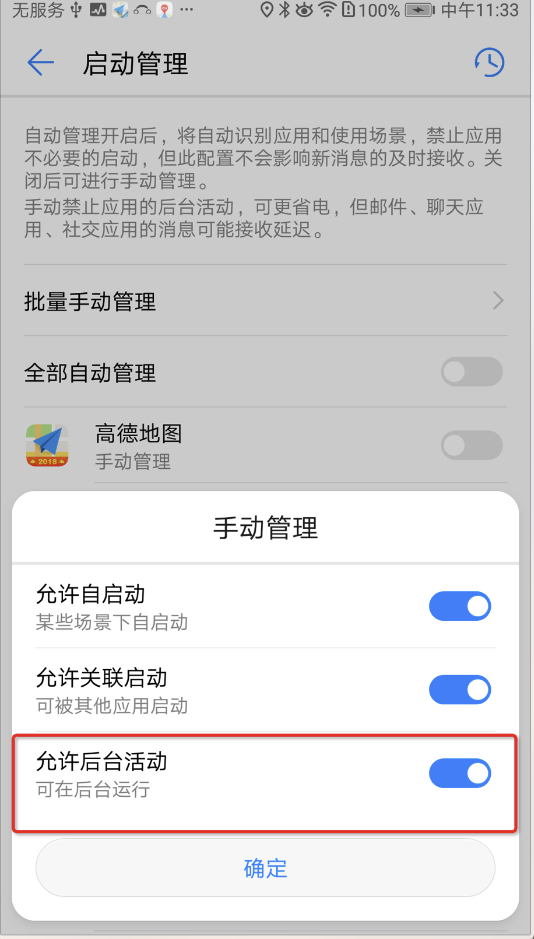
Go to the manual management screen
Check whether the App is set to auto management. If it is, tap the toggle (or the App name) to go to the manual management screen.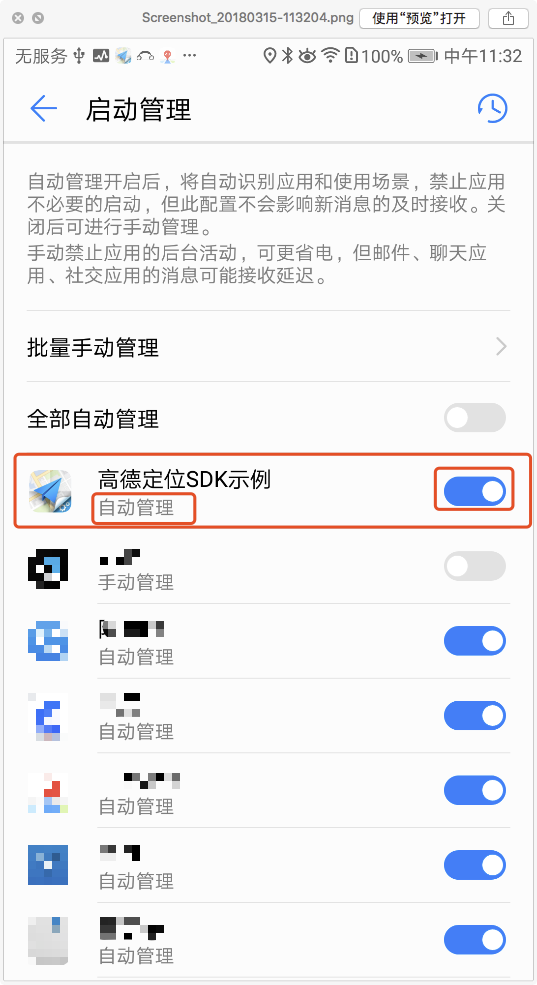
4
Turn on Allow background activity
5
Confirm the manual management status
After you tap Confirm, the App is switched to manual management.