Chats
Chats Calendar
 Meetings
 Contacts
 Mail
Mail Docs
Docs Drive
Drive AI Table
 AI Minutes
 Attendance
 Approval
 YiDA
YiDA Admin Console
Search Files
Under an enterprise organization, use the Search Files field to enter the name of the file or folder you want to find.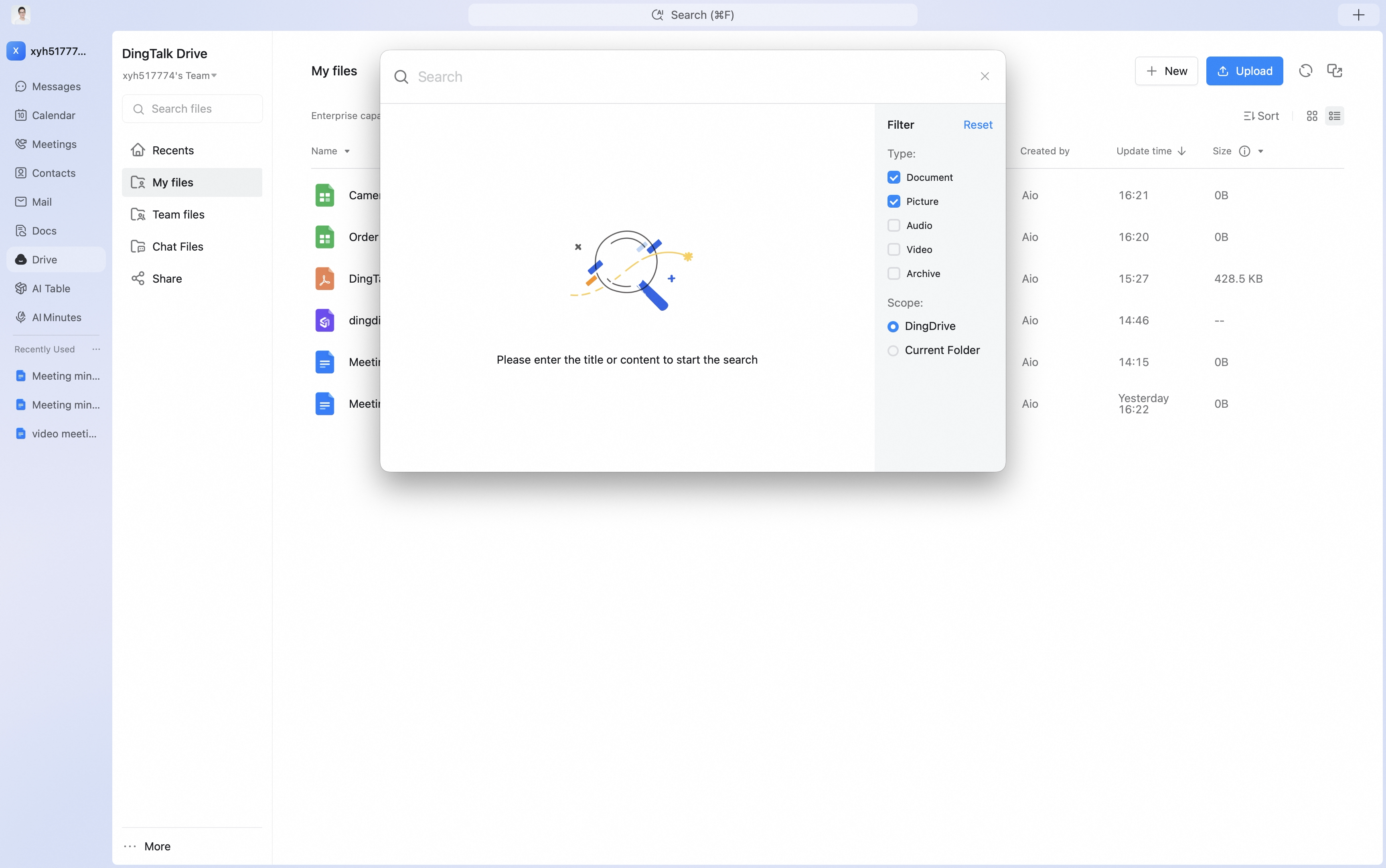
Create or Upload
The DingTalk Drive home page supports creating or uploading files and folders, making it easier for enterprises and users to manage files on their own.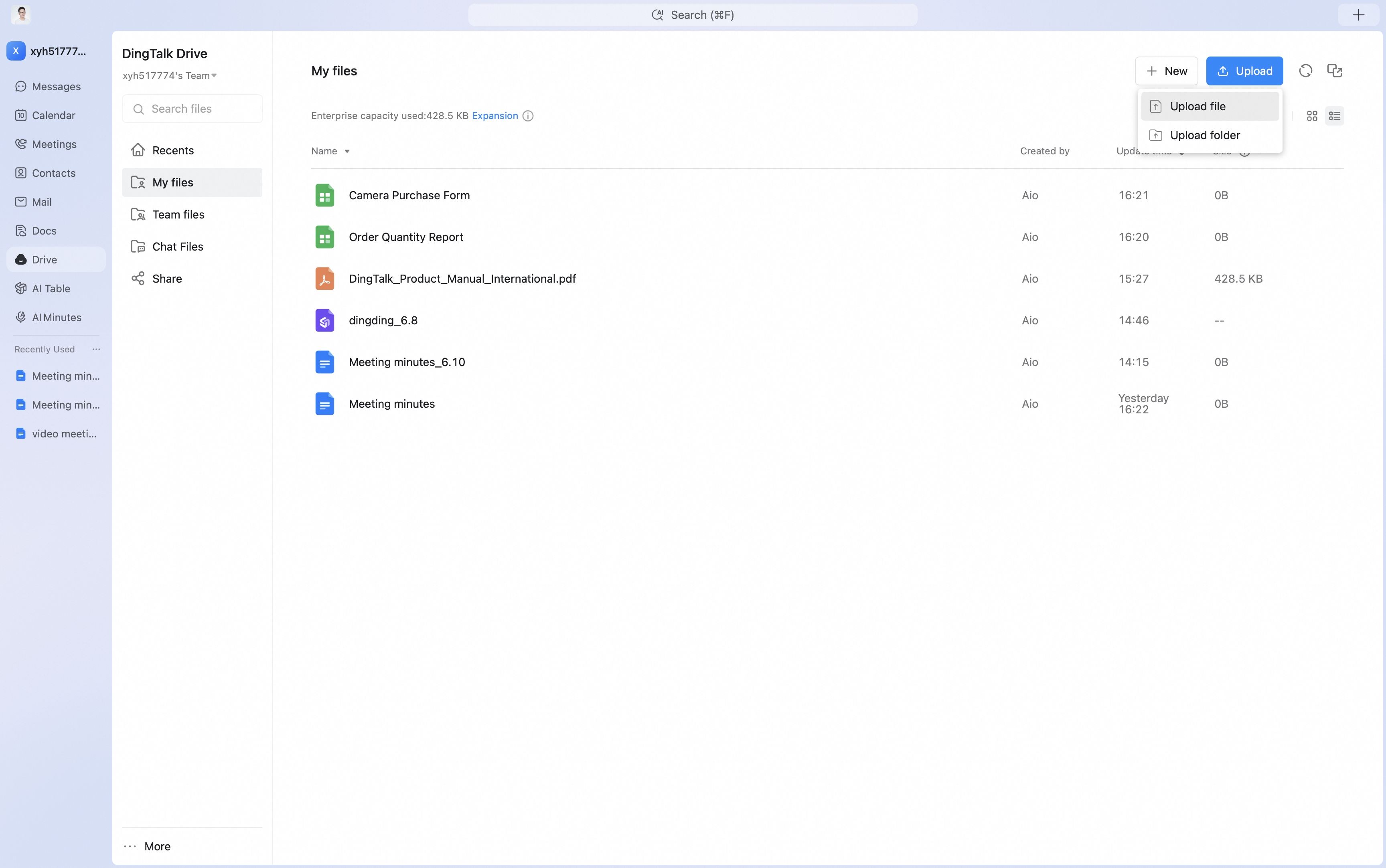
Recent
Recent in DingTalk Drive helps you quickly find files. It displays all files viewed or edited in DingTalk during the past month. Historical files are grouped into three categories: Recently viewed, Recently edited, and Recently downloaded, which greatly improves the efficiency of tracing and accessing target files.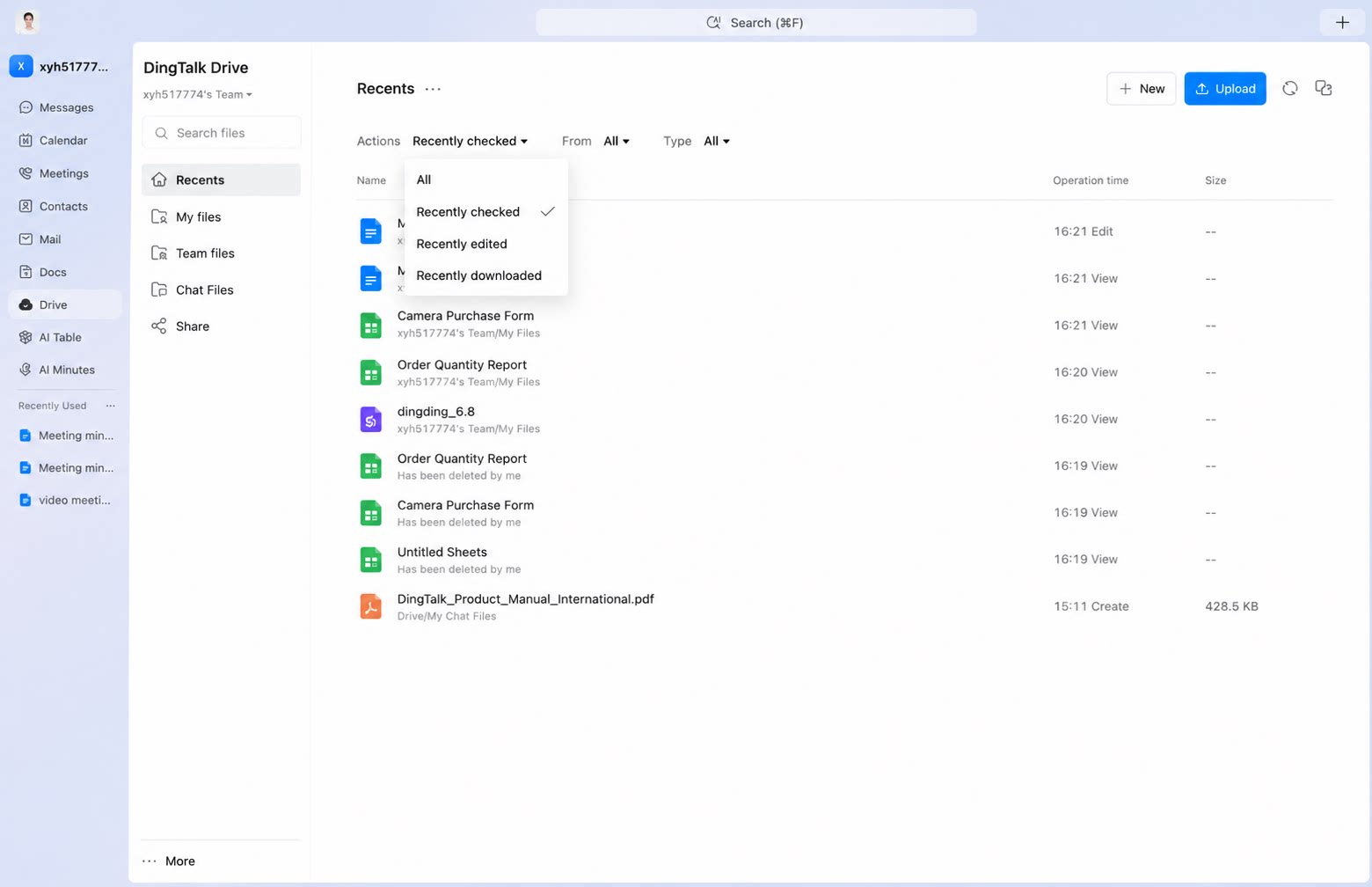
Files: My Files and Team Files
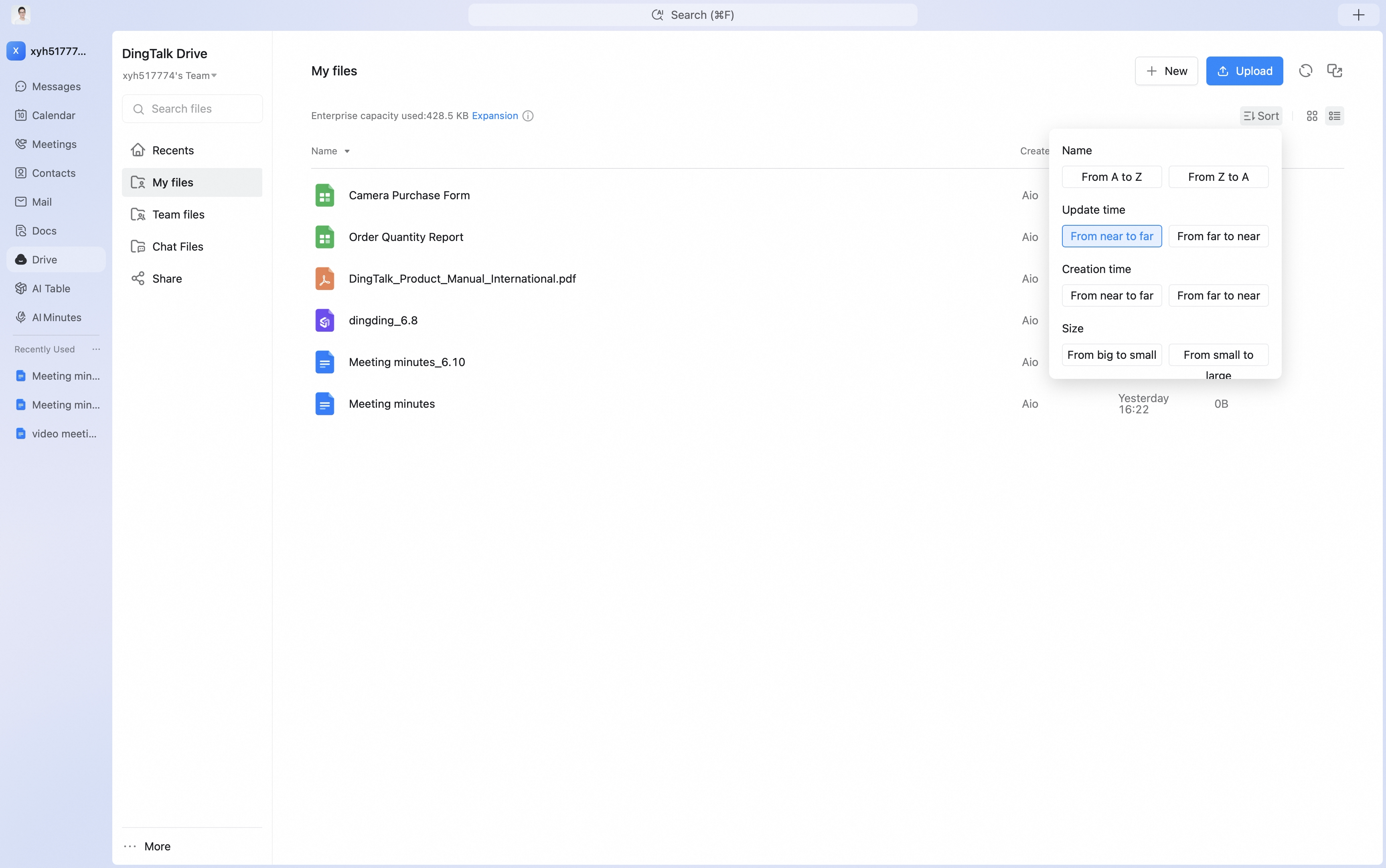
Files is where work files are stored in Enterprise Drive. It supports viewing work files saved in different folders. Files that you have edited or viewed in DingTalk Docs are also stored in Files by default. DingTalk Drive provides two initial folders: My Files and Team Files. The initial capacity is 100 GB.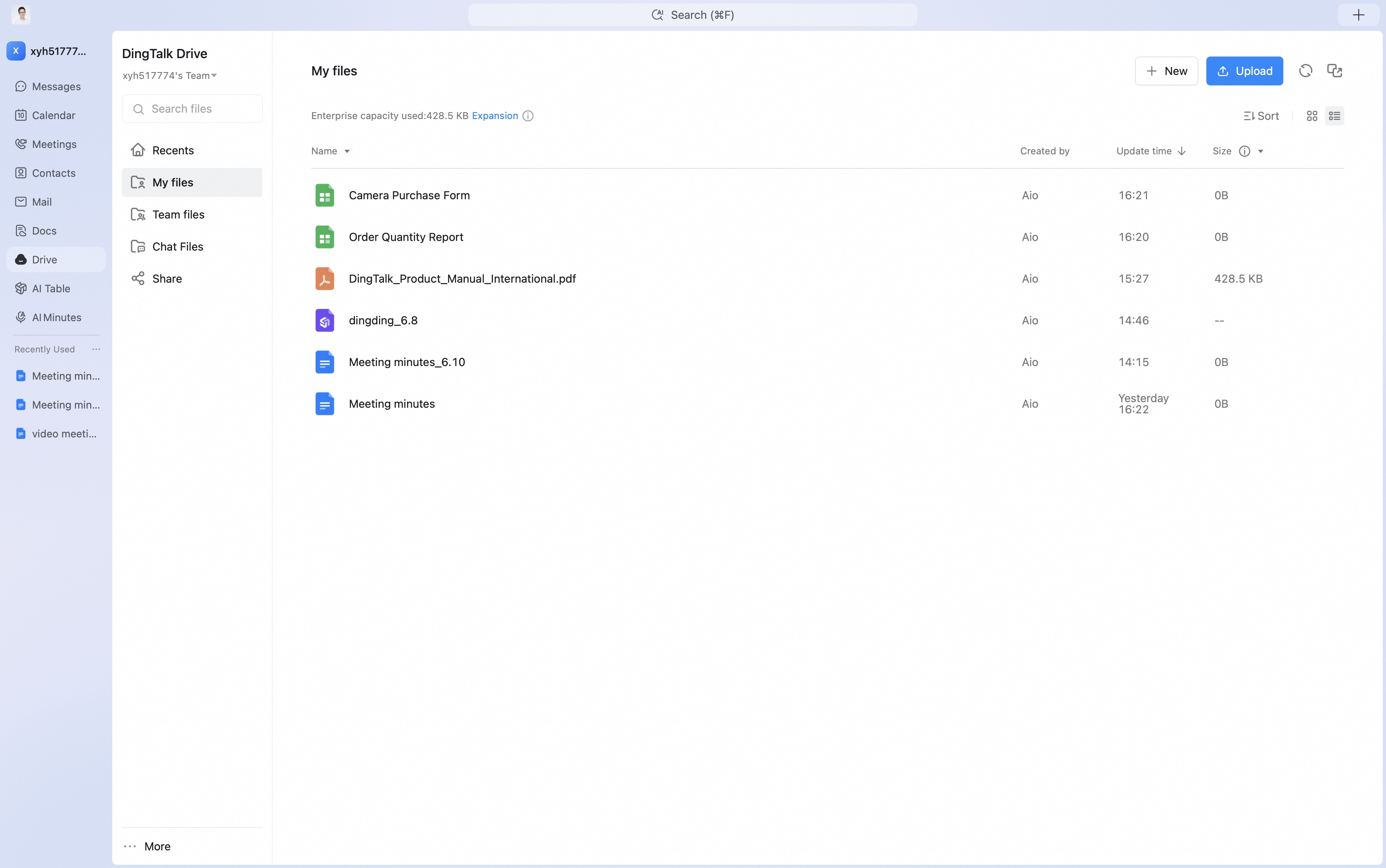 Sort files: Sort files by name, update time, creation time, or file size.
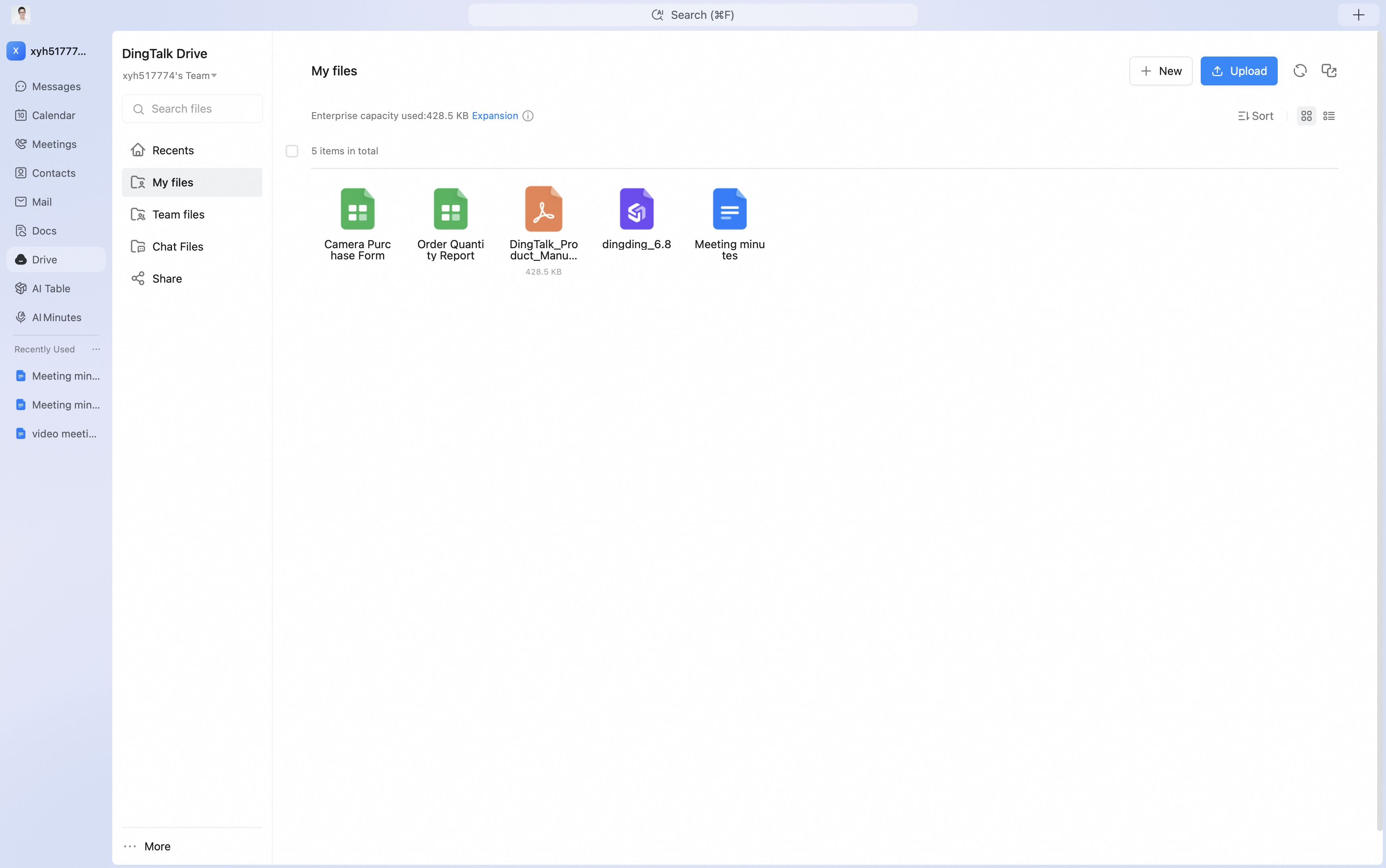
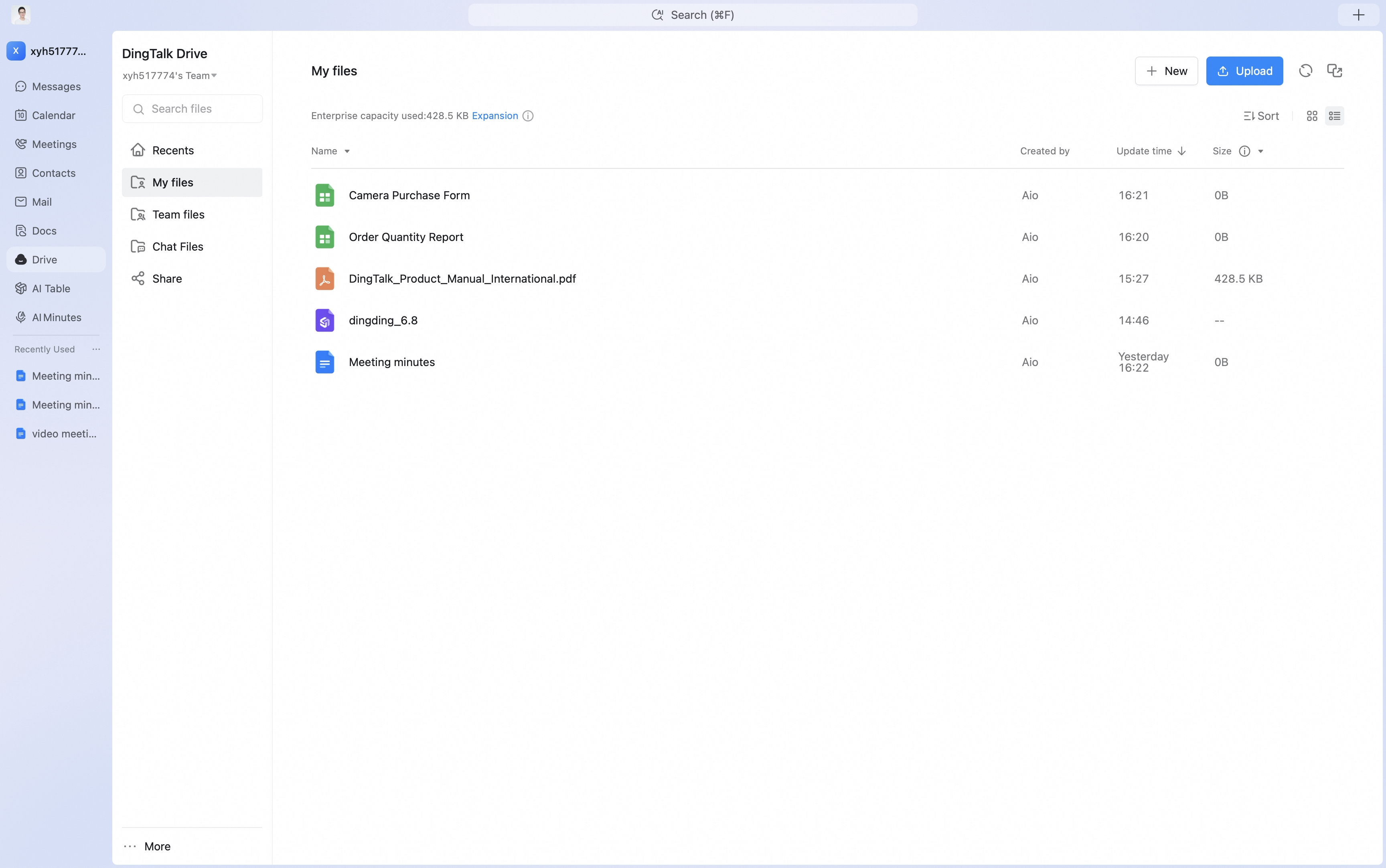
 Switch view style: Switch between thumbnail view and list view.
Team Files
Files that an enterprise or organization edits, views, or uploads in daily work are saved in Team Files.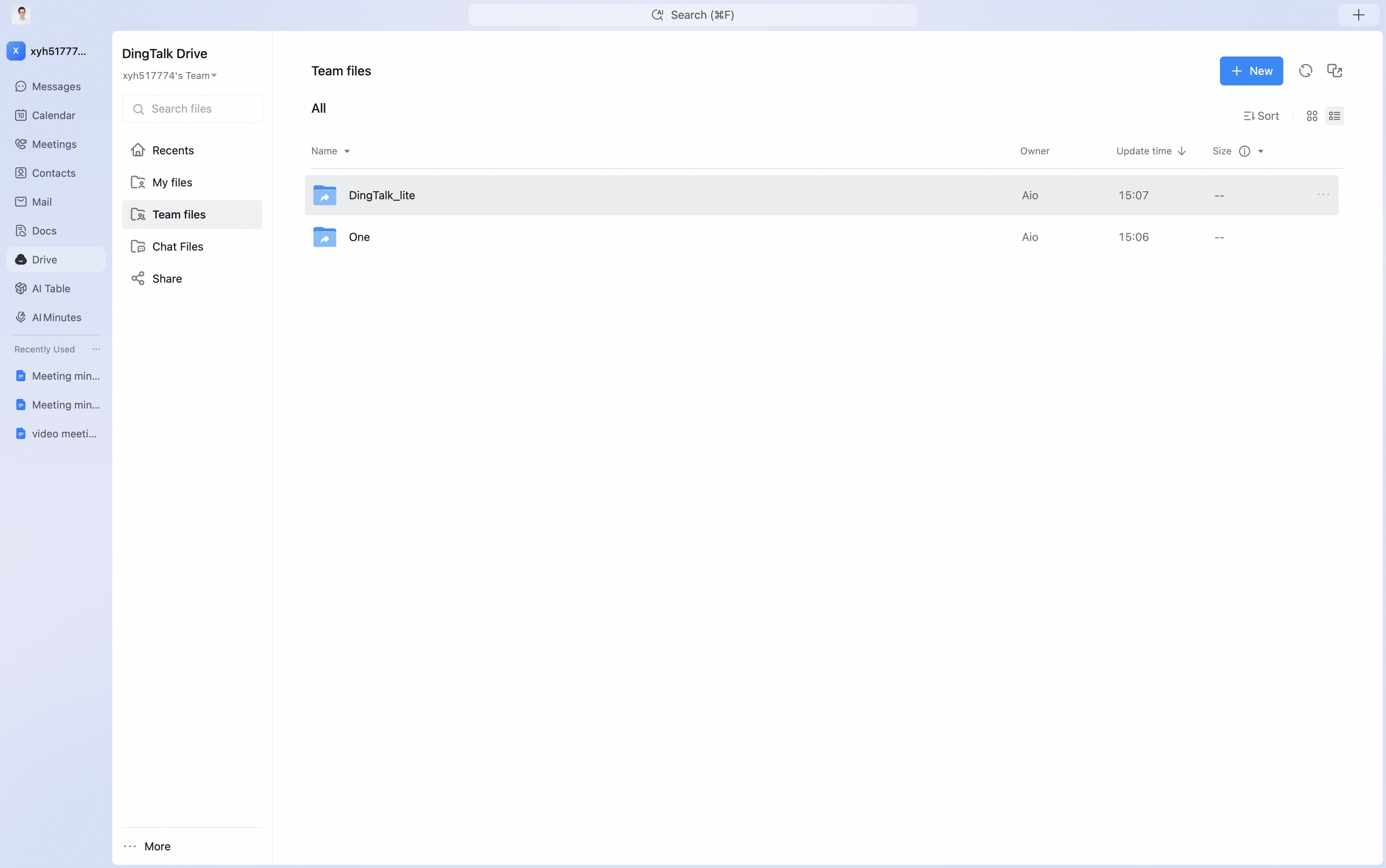
Chat Files
Files from My Chat Files, regular groups, and enterprise groups can be saved in Chat Files.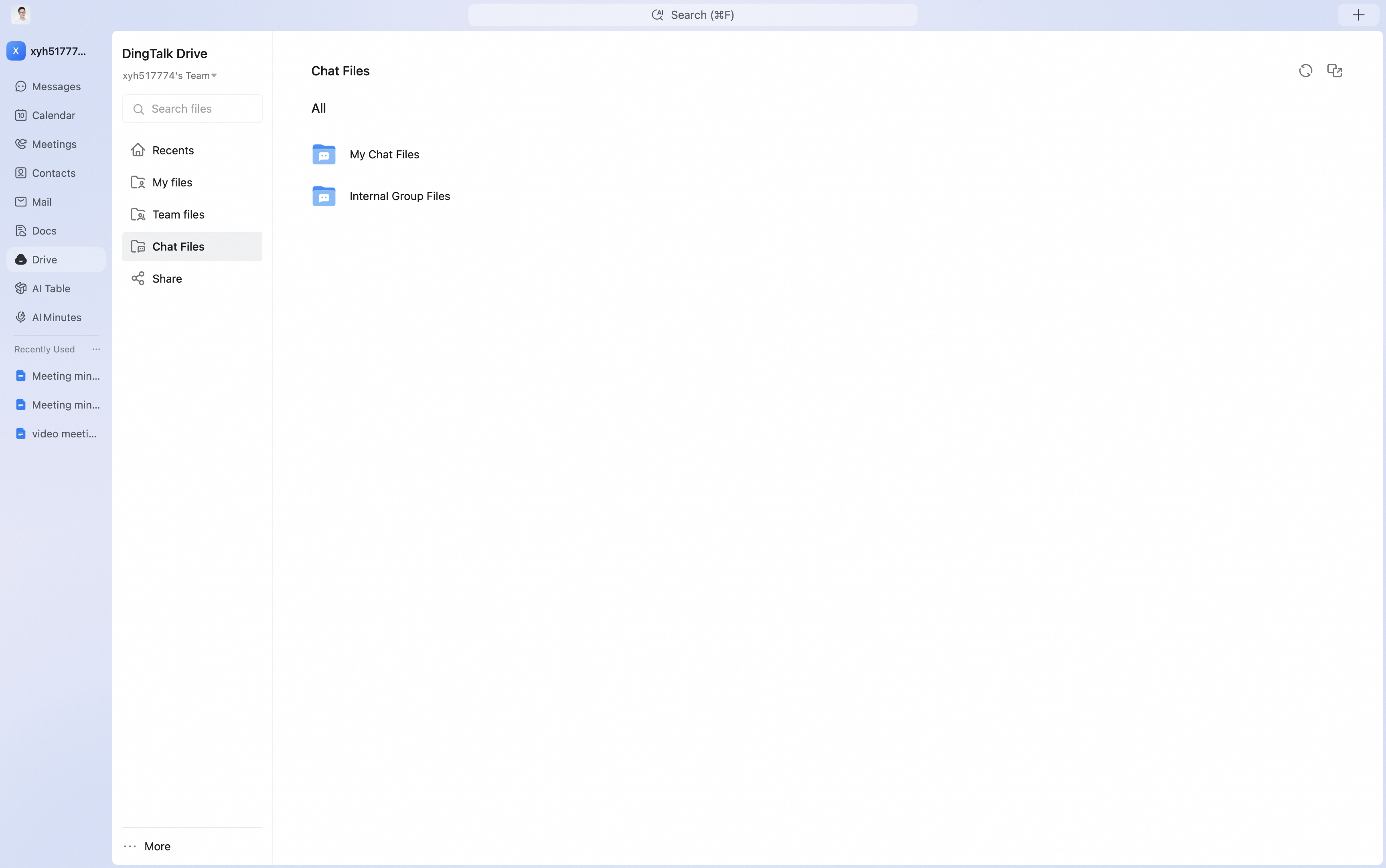
Shared
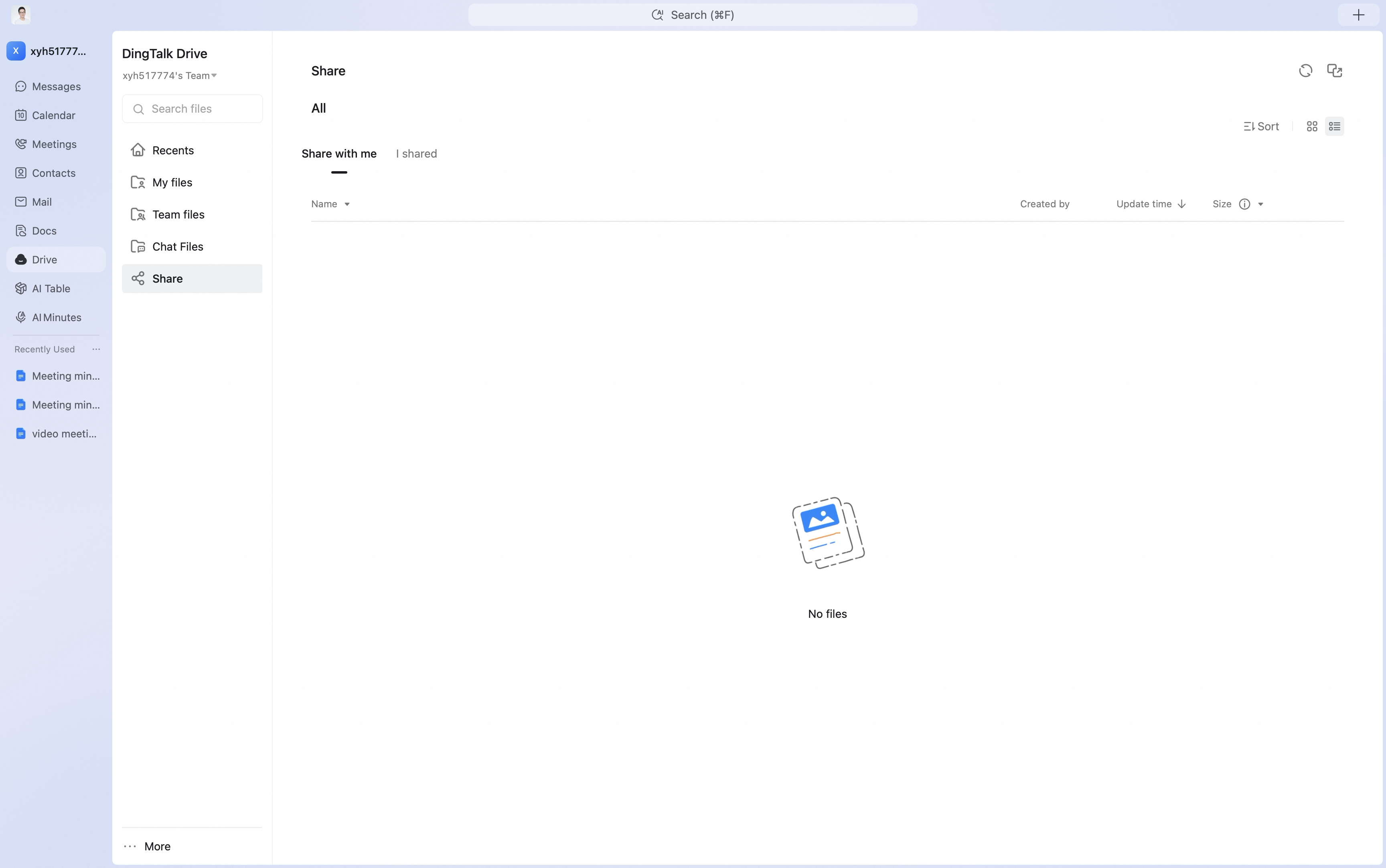
In Shared, you can view records for files shared with me and files shared by me.