

 Chats
Chats Calendar
 Meetings
 Contacts
 Mail
Mail Docs
Docs Drive
Drive AI Table
 AI Minutes
 Attendance
 Approval
 YiDA
YiDA Admin Console
Desktop
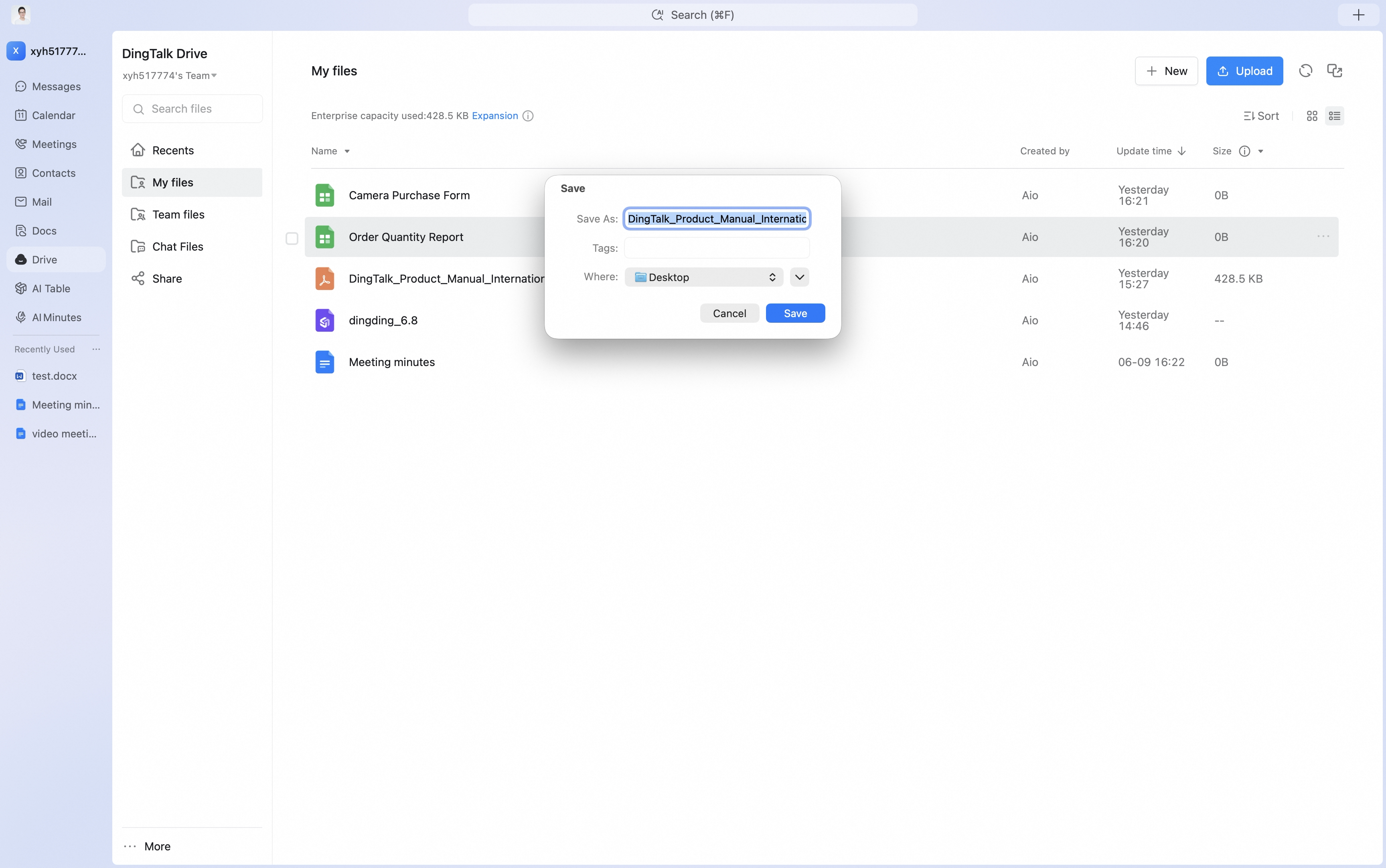
Open the DingTalk Drive home page, Team Files on the Docs home page, or My Files (from DingTalk Drive) under My Docs. Select multiple files or folders, then use the toolbar to batch download, move, delete, and more.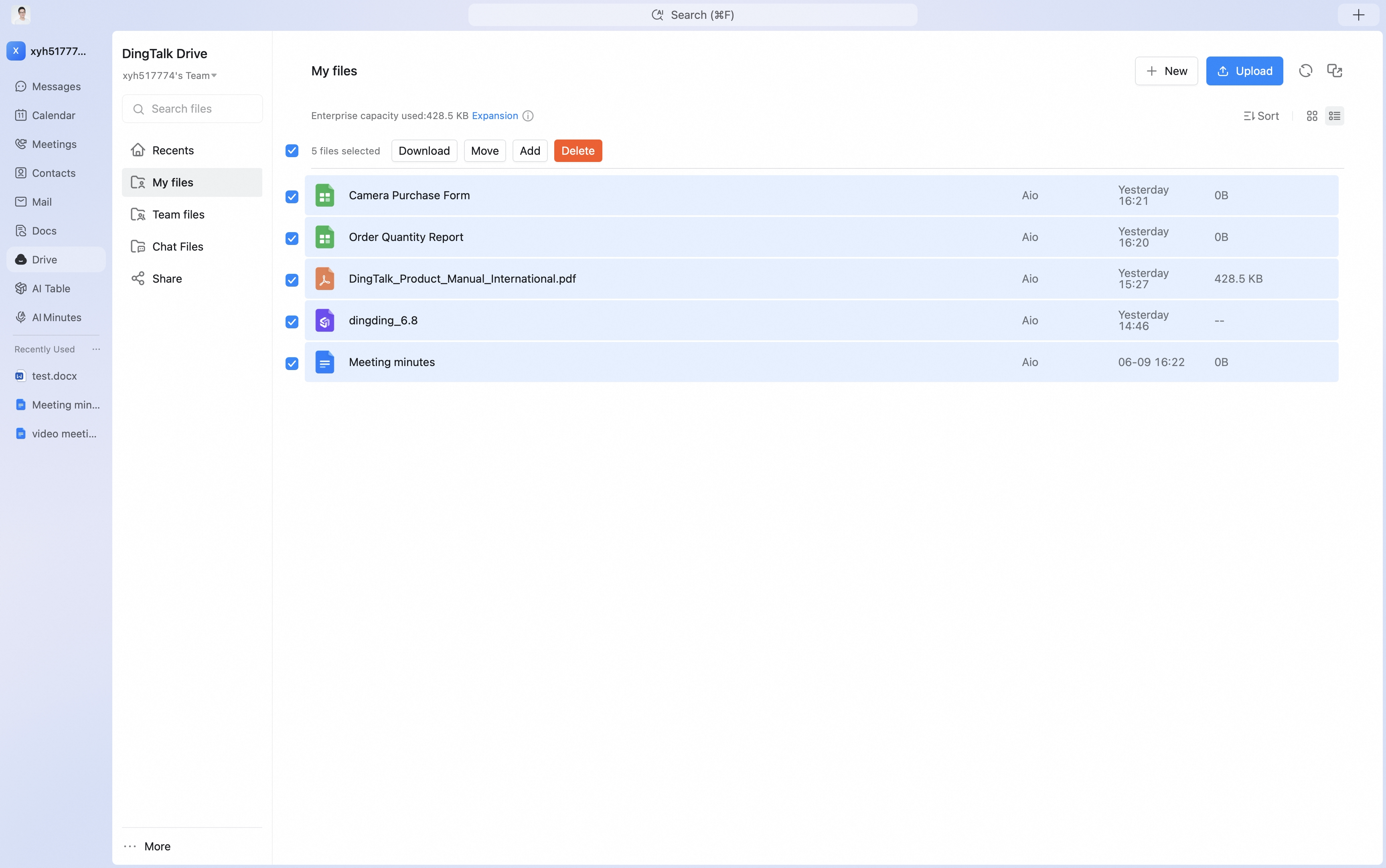 To download files from DingTalk Drive, click Download in the toolbar and choose a local save path.
 To move files in DingTalk Drive, click Move in the toolbar. You can move files to different locations such as a knowledge base, knowledge group, My Files, or Team Files. After a file is moved, it will no longer appear in the original location.
If you want to keep the file in the original location, choose Add to in the toolbar to create a copy, then save it to a knowledge base, knowledge group, My Files, Team Files, or another location.
Select Delete to move files to the recycle bin. You can restore them from the recycle bin or permanently delete them there.
To move files in DingTalk Drive, click Move in the toolbar. You can move files to different locations such as a knowledge base, knowledge group, My Files, or Team Files. After a file is moved, it will no longer appear in the original location.
If you want to keep the file in the original location, choose Add to in the toolbar to create a copy, then save it to a knowledge base, knowledge group, My Files, Team Files, or another location.
Select Delete to move files to the recycle bin. You can restore them from the recycle bin or permanently delete them there.
