Chats
Chats Calendar
 Meetings
 Contacts
 Mail
Mail Docs
Docs Drive
Drive AI Table
 AI Minutes
 Attendance
 Approval
 YiDA
YiDA Admin Console
Desktop
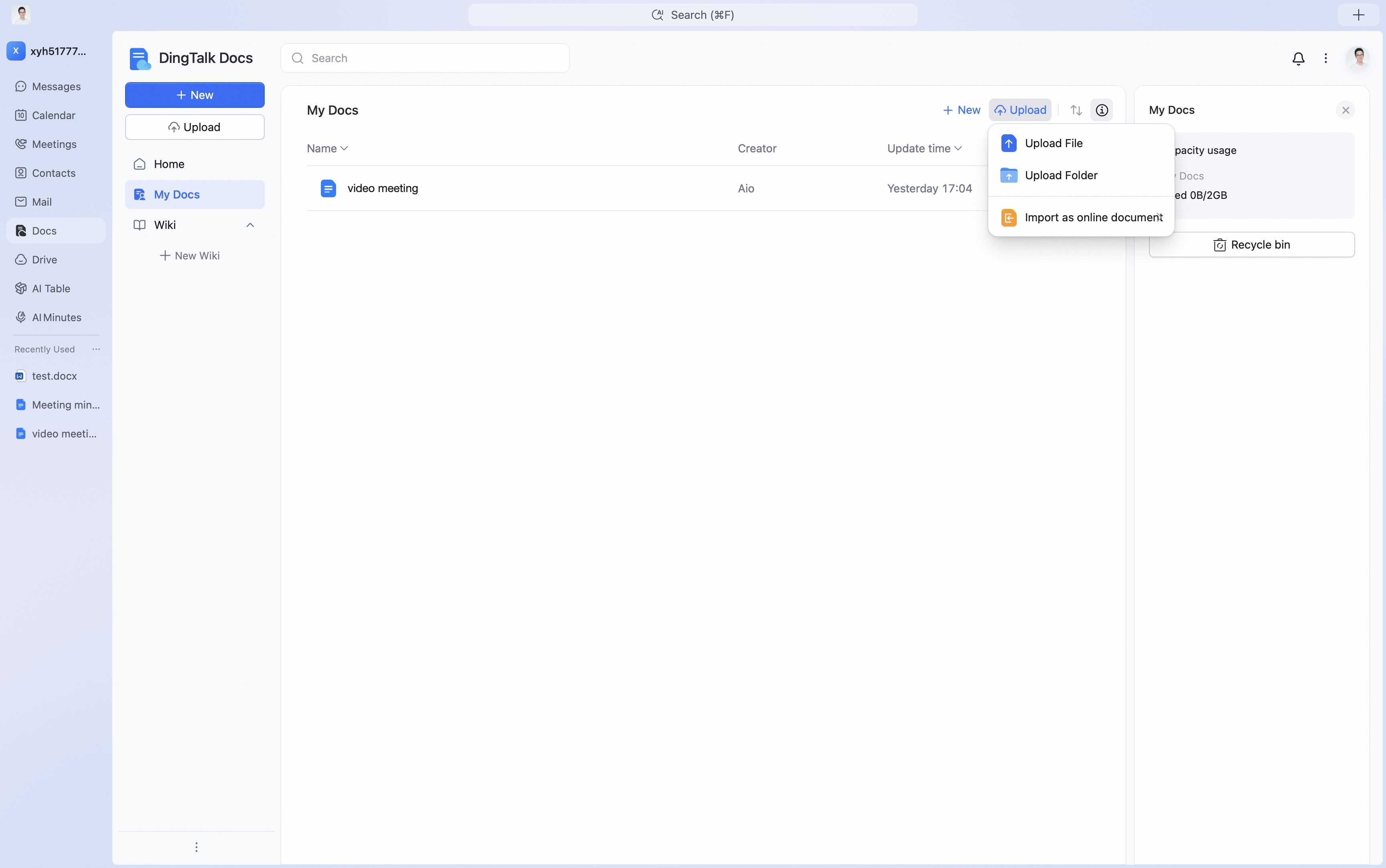
On the DingTalk Drive home page, open Recent or My Files. You can also open My Docs on the Docs home page and go to My Files (from DingTalk Drive). Click Upload in the upper-right corner to upload files or folders. You can also drag files directly from your desktop to upload them.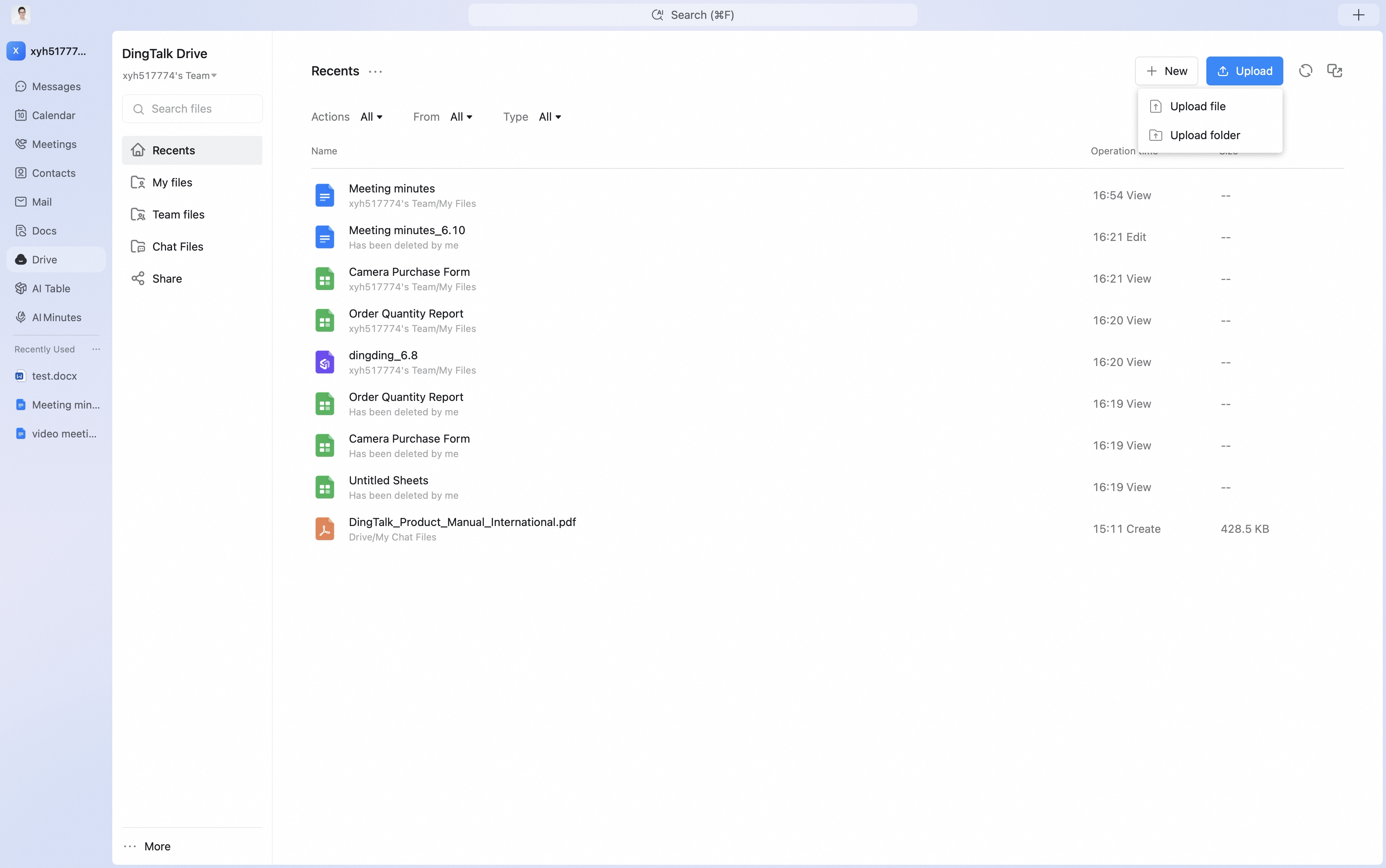
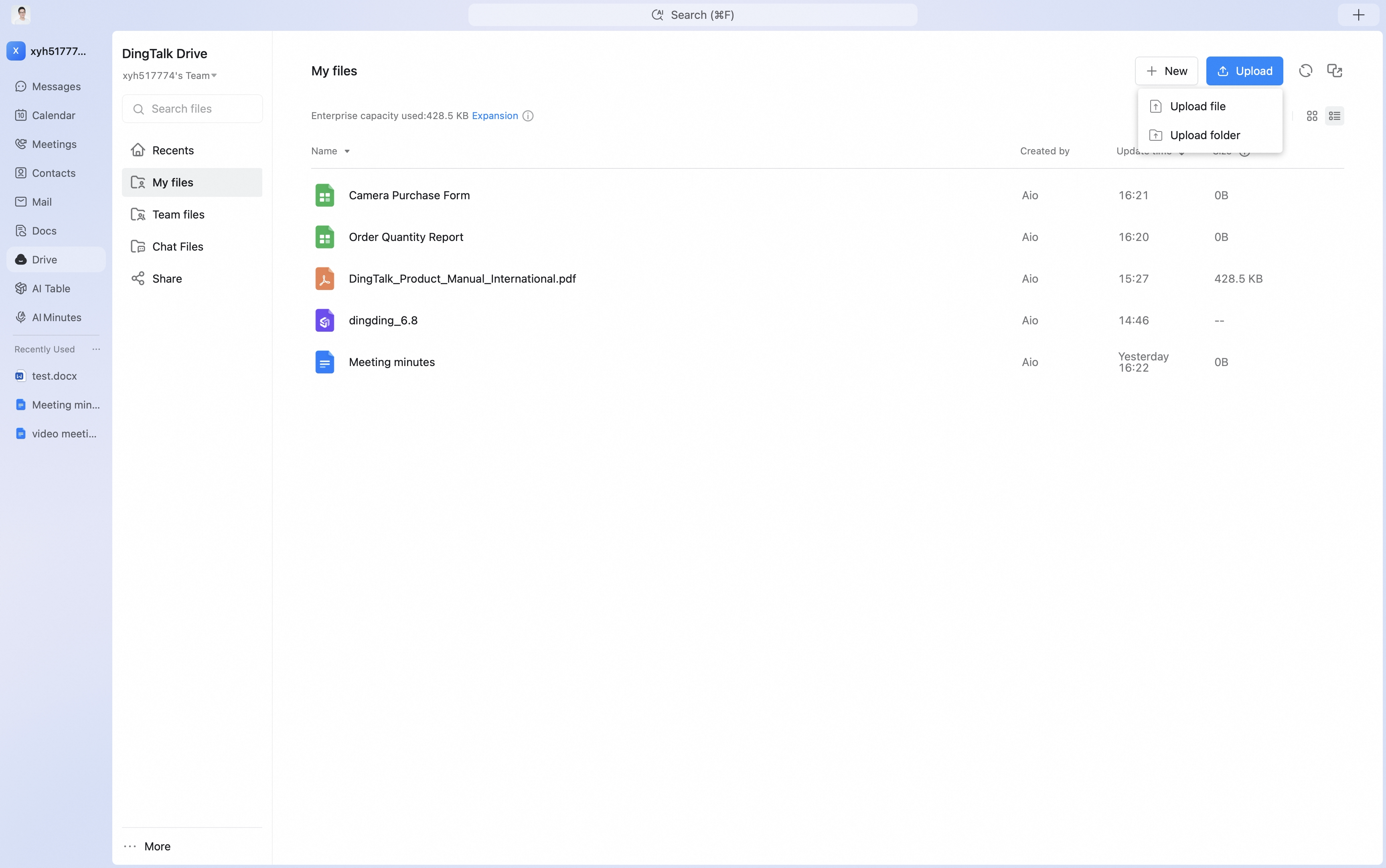
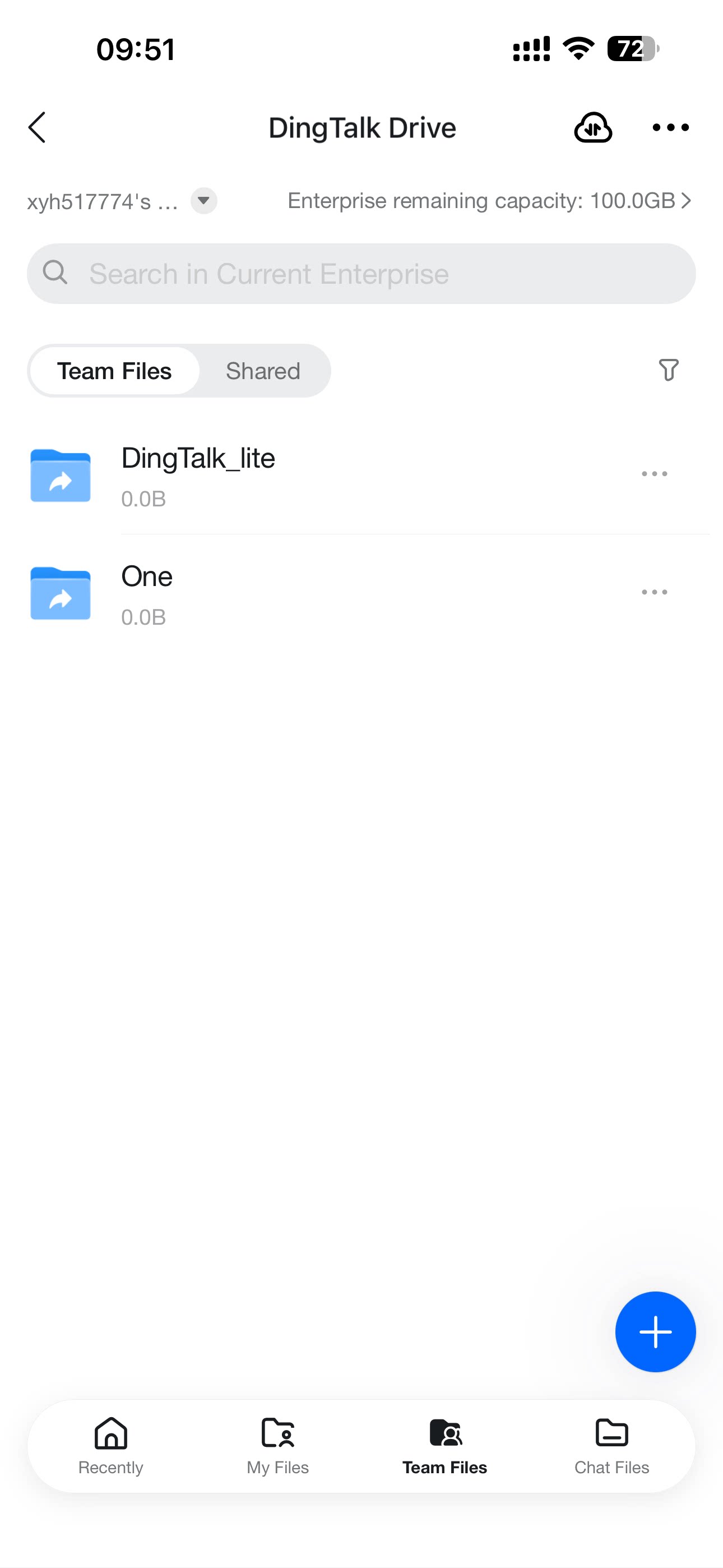
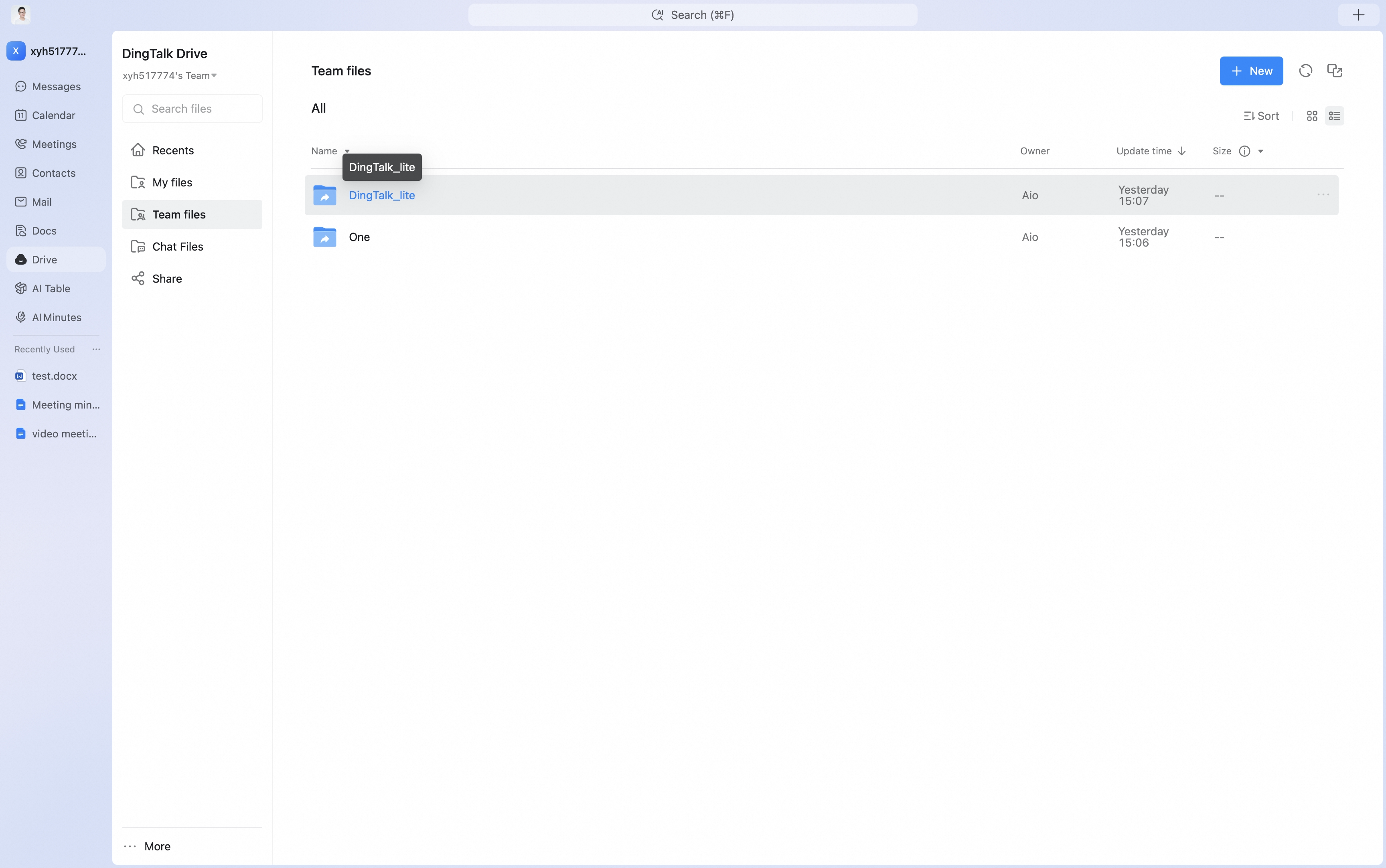
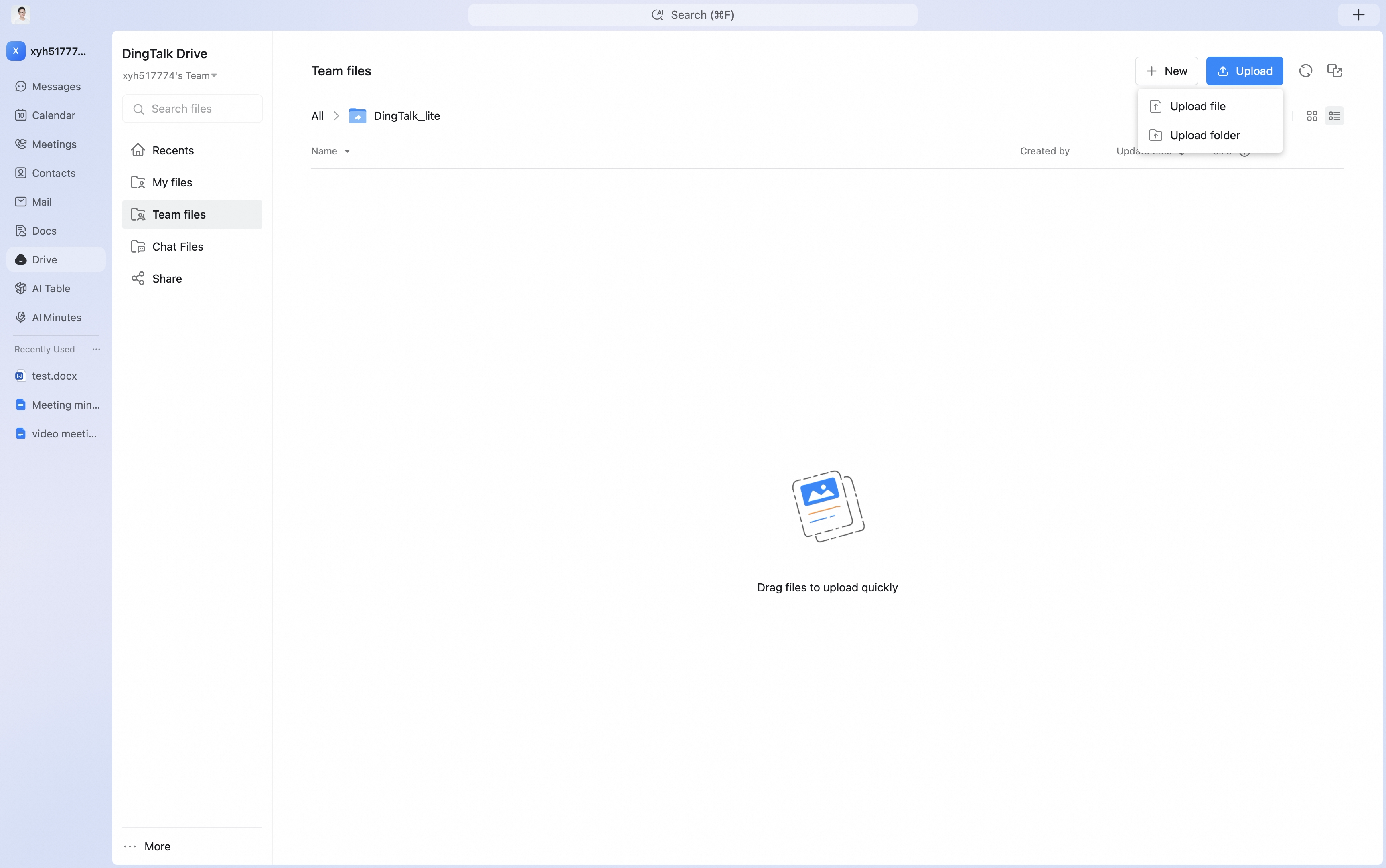
 On the DingTalk Drive home page or the Docs home page, open Team Files, select the target folder, and click Upload in the upper-right corner of the folder to upload files or folders. Drag-and-drop upload from the desktop is also supported.
Mobile
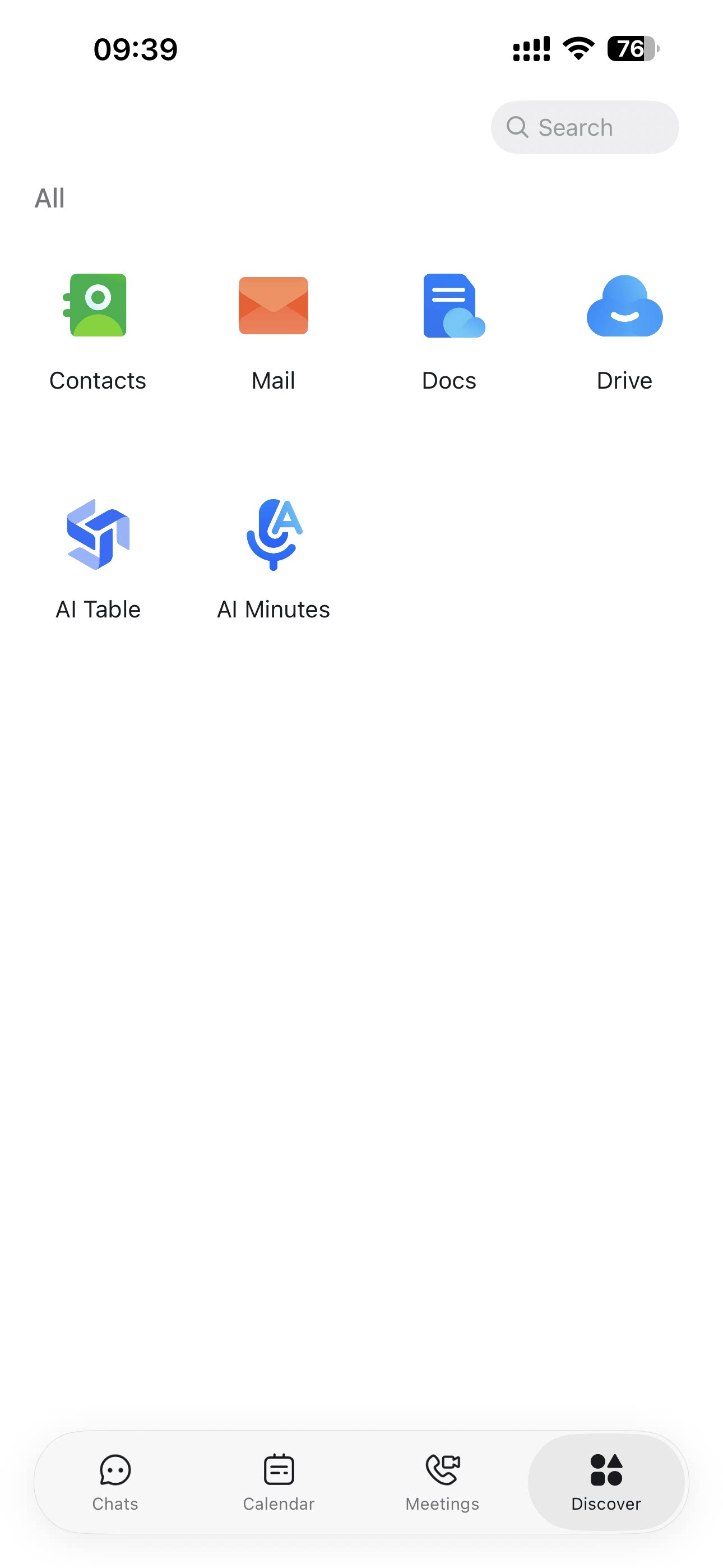
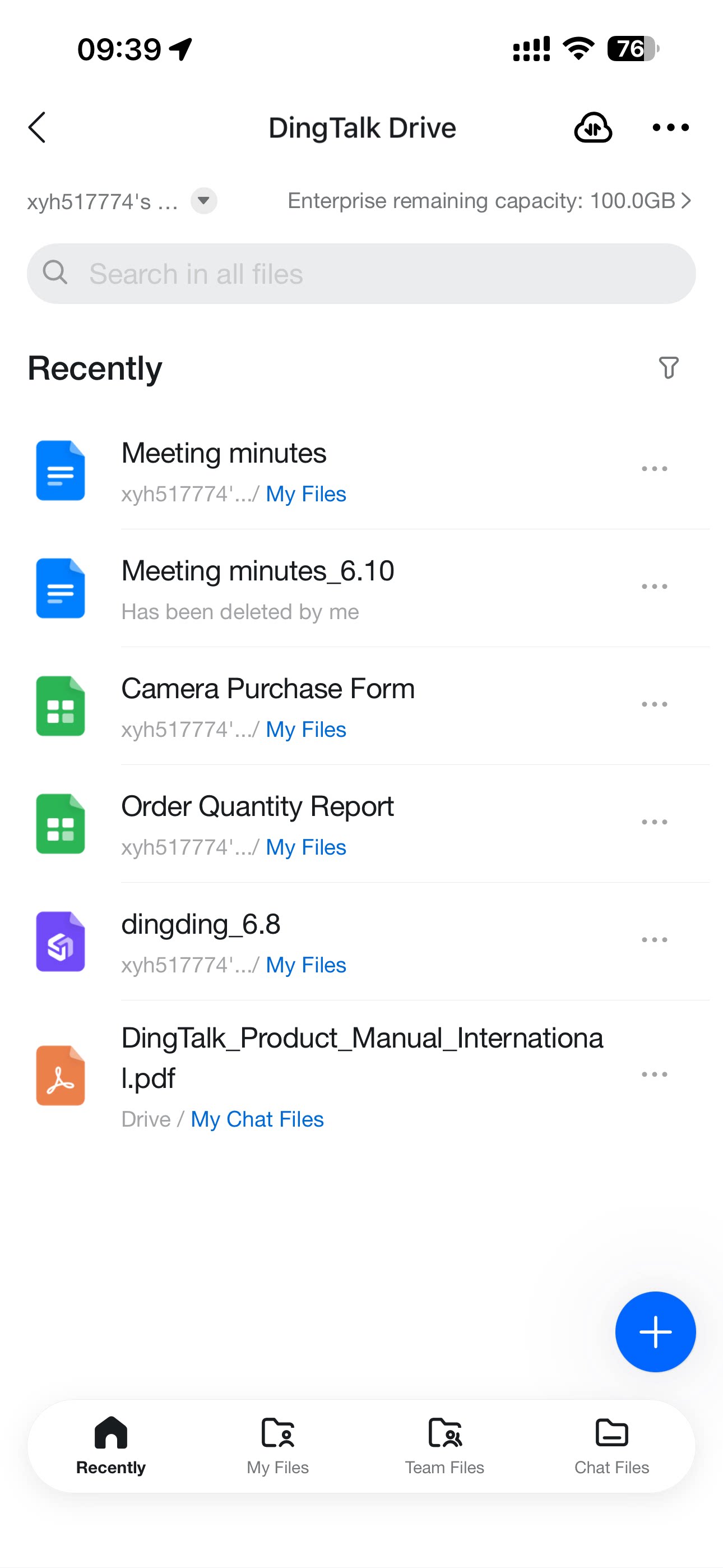
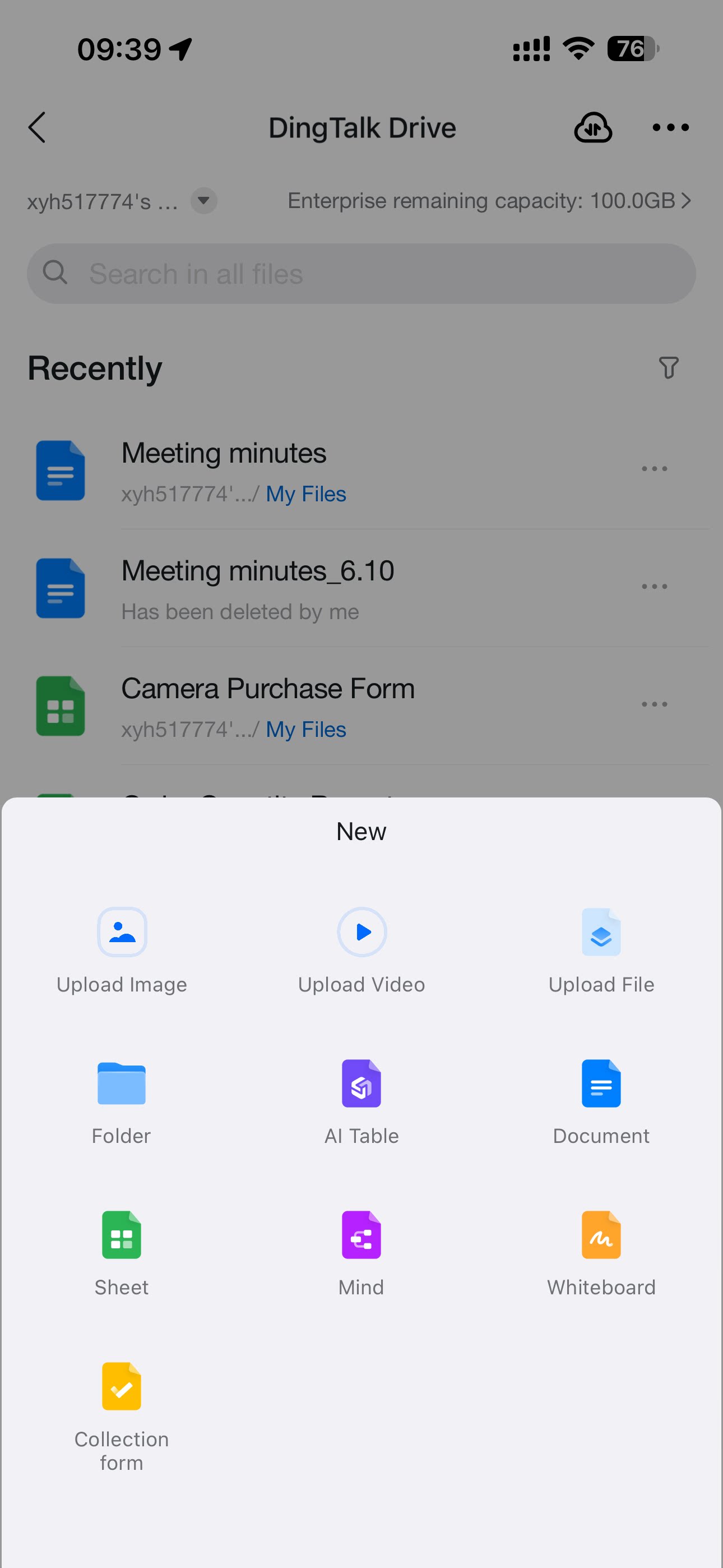
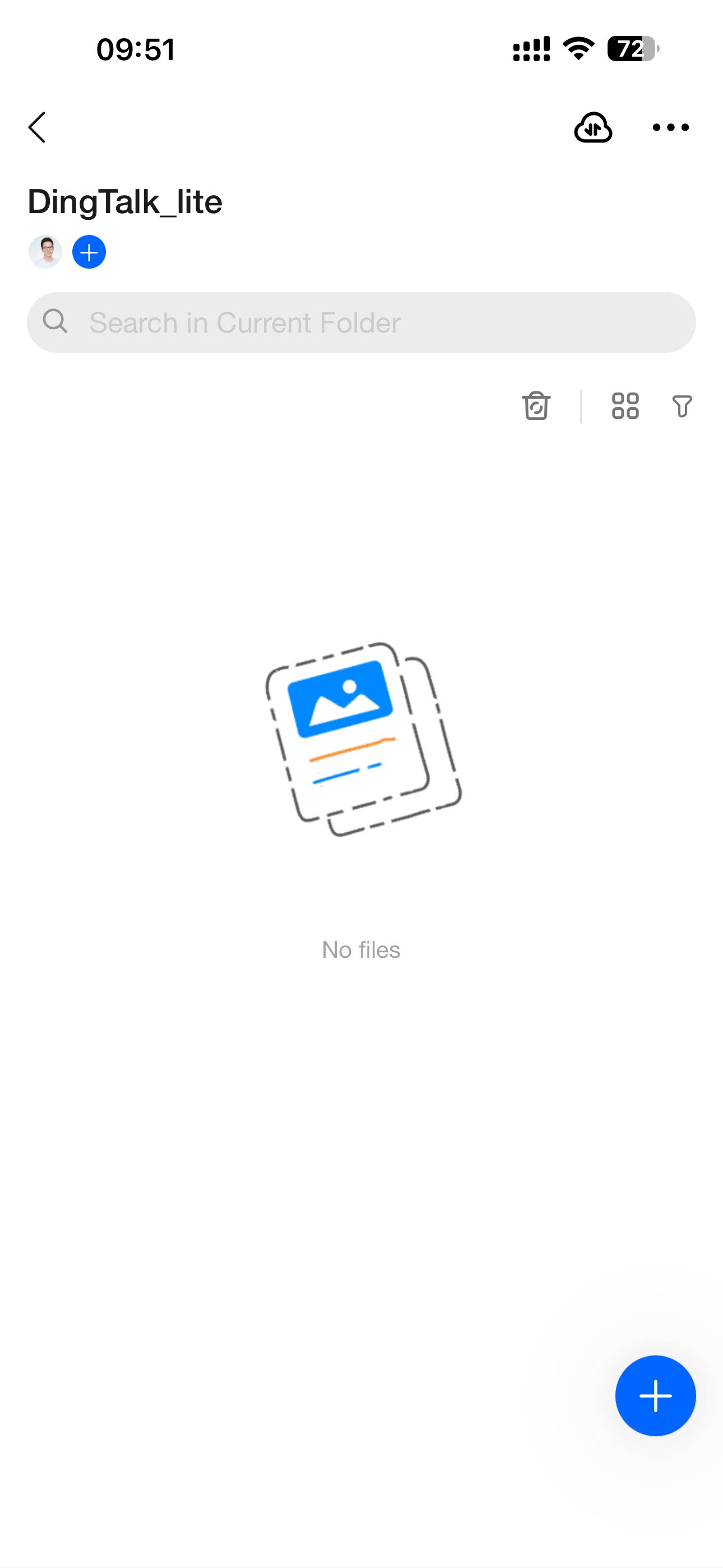
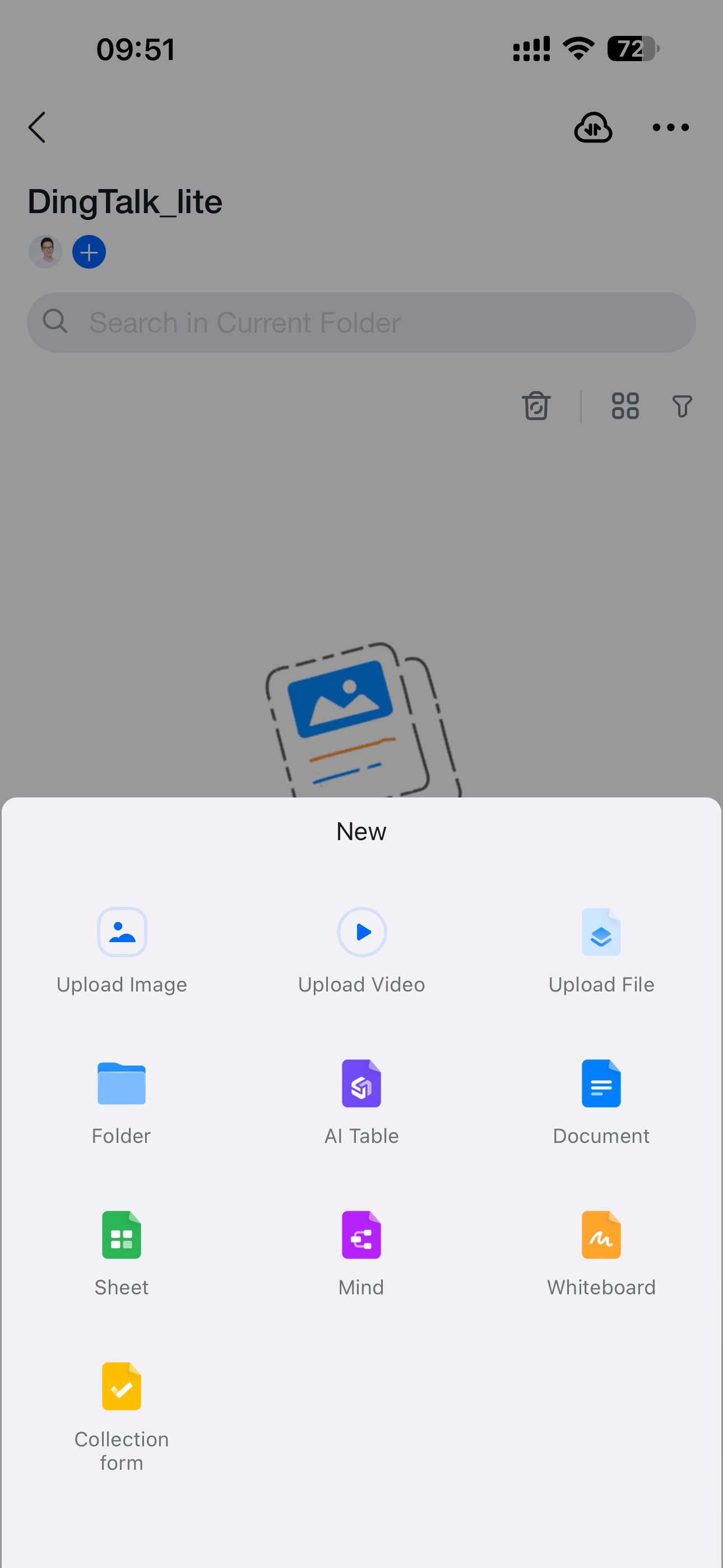
Open DingTalk, tap Discover, and select Drive. You can also search for the Drive app in the DingTalk search box. As on desktop, you can open Recent or My Files and tap the + button in the lower-right corner to upload images, files, videos, and more.