DingTalk Drive FAQs: free storage limits and Enterprise Drive location, saving chat files and managing or expanding capacity, multi-person collaboration on shared folders, and data security practices.
How much free storage does DingTalk Drive provide?
Enterprise Drive provides 100 GB. Personal Drive provides 2 GB.
Where is Enterprise Drive?
Open DingTalk Drive. The system opens Enterprise Drive by default.Desktop: Open DingTalk desktop and click the DingTalk Drive icon in the left-side menu.Mobile: Open DingTalk mobile, tap Discover in the lower-right corner, then tap DingTalk Drive.
Method 1: For internal groups, the group administrator can directly enable group file sync.Method 2: Select Add to on the message card, or right-click and select Add to. In the save panel, choose Team Files or My Docs > My Files (from DingTalk Drive).Method 3: In an internal group chat, open the group file list, select the files you want to save, click Add to, and choose Team Files or My Docs > My Files (from DingTalk Drive) in the save panel.
Why is the 100 GB Enterprise Drive full even though few files have been stored?
For internal groups, you can turn off group file sync to DingTalk Drive to avoid automatically storing many small, unimportant files and consuming storage. To manage DingTalk Drive capacity effectively, you can also allocate available capacity to employees and certain mini apps.Path: The administrator opens Enterprise Admin Console, clicks Storage Space under Docs and Storage Management, clicks Manage after DingTalk Drive in storage management, and opens the DingTalk Drive capacity management page.
Click More (…) in the left-side DingTalk menu. The administrator opens Enterprise Admin Console, goes to Storage Space under Docs and Storage Management, and clicks Manage after DingTalk Drive in storage management to view capacity usage.Tip: This is easier on desktop. Only administrators can view this information.
How can I prevent group files from syncing to DingTalk Drive?
Method 1: Open Enterprise Admin Console, go to Storage Space under Docs and Storage Management, click Manage after DingTalk Drive in storage management, open the Group Files page, and turn off Allow internal groups to enable DingTalk Drive sync.Tip: Only administrators can configure this setting.Method 2: In an internal group chat, open settings in the upper-right corner, click Group Management, and turn off Auto-sync to DingTalk Drive.Tip: This can only be configured for internal groups.
How can I allocate personal storage capacity to employees?
Open Enterprise Admin Console, click Storage Space under Docs and Storage Management, click Manage after DingTalk Drive in storage management, and open the DingTalk Drive capacity management page. On the My Files page, click the edit icon after Employee personal file storage, make the changes, and confirm.
How can I allocate dedicated capacity to an app?
In Enterprise Admin Console, click Storage Space under Docs and Storage Management. In storage management, click Allocate after the app that needs capacity, then select the capacity to allocate and complete the setup.
What should I do if files are deleted by mistake?
Deleted files are automatically moved to the recycle bin and are permanently deleted after 30 days.Recycle bin entry: On desktop, click Recycle Bin, click … after the target file, and choose Restore to restore it to its original location. If you click Permanently Delete, it cannot be recovered. On mobile, tap … in the upper-right corner of DingTalk Drive, tap Recycle Bin, tap … after the target file, and choose Restore to restore it to its original location. If you tap Permanently Delete, it cannot be recovered.
How can I clean up DingTalk Drive capacity?
Enterprise organization administrators can clean up DingTalk Drive capacity in the admin console.Cleanup path: On DingTalk desktop, click More (…) in the left-side toolbar, open Admin Console, click Storage Space under Docs and Storage Management, and click Manage after DingTalk Drive in storage management. You can then manage files stored in different locations or notify enterprise members to clean up files.
How can I expand Enterprise Drive capacity?
Enterprise Drive has an initial capacity of 100 GB. After the initial capacity is used up, the enterprise must pay to expand capacity.Capacity expansion pricing: See the image.Capacity expansion path: On DingTalk desktop, open the admin console, go to Fees, select Purchase or Upgrade, click Buy Now, and follow the prompts.Tip: Enterprise DingTalk Drive capacity expansion is currently supported. Personal space capacity expansion is not supported. After payment, the original free 100 GB capacity can continue to be used.
After a group is deleted or dissolved, where can I find the files from the group?
If group chat files were not synced to DingTalk Drive, the files are deleted together with the group after the group is deleted or dissolved.If group chat files were synced to DingTalk Drive, which is only available for enterprise internal groups, the group owner can still find the corresponding group files under Group Files in Enterprise Drive after the group is deleted or dissolved.
Where do documents saved by an employee go after the employee leaves?
Files saved to Enterprise Drive belong to the enterprise. After leaving, the employee can no longer access them. They can only be accessed by internal enterprise members.
How can I collaborate with others on the same file?
If you are the file creator, you can add editable permissions for collaborators. Open DingTalk Drive, click … after the file, open Permission Settings, add specified people, and select Can edit.If you are a recipient of a shared file, you can request editable permissions from the creator for that file.
What should I do if content is deleted by mistake during collaboration?
You can restore a previous version of the file through version history.Desktop: Open DingTalk Drive, click the file, click the save time to view the file’s editing history, then click Restore to quickly recover content deleted by mistake.Mobile: Open DingTalk Collaboration, go to DingTalk Drive, tap … after the corresponding file, and open History Versions.The system automatically sorts versions by edit order and displays the editor and edit time, helping you quickly find the correct version.
How can I set a folder as a shared folder for multi-person collaborative editing?
When creating a folder, set it to Share with others and invite others to collaborate. The folder will be marked with a sharing indicator. After it is created, the folder automatically appears in the other party’s DingTalk Drive.
Method 1: Configure permissions. We recommend setting the other party’s permission to View only.Open the DingTalk Drive home page, Team Files on the Docs home page, or My Files (from DingTalk Drive) under My Docs. Find the target file or folder, click … for more options, and select Permission Management.Click Add Collaborator, select the member you want to add, choose the corresponding permission level, and click OK. Permission levels include Can manage, Can edit, Can view/download, and View only. The permission notification can be sent through one-on-one chat.Method 2: Send a link.Open the DingTalk Drive home page, Team Files on the Docs home page, or My Files (from DingTalk Drive) under My Docs. Find the target file or folder, click … for more options, then click Share or Send Link.Method 3: Forward a copy.For folders, local files, videos, images, PDFs, and other non-online documents, click … for more options and select Forward copy to send the copy to the other party.Method 4: Get a share link.Open DingTalk Drive, click … after the corresponding document, which applies to regular uploaded documents, get the share link, set the file validity period, and send the external link to the other party.


 Chats
Chats Calendar
 Meetings
 Contacts
 Mail
Mail Docs
Docs Drive
Drive AI Table
 AI Minutes
 Attendance
 Approval
 YiDA
YiDA Admin Console
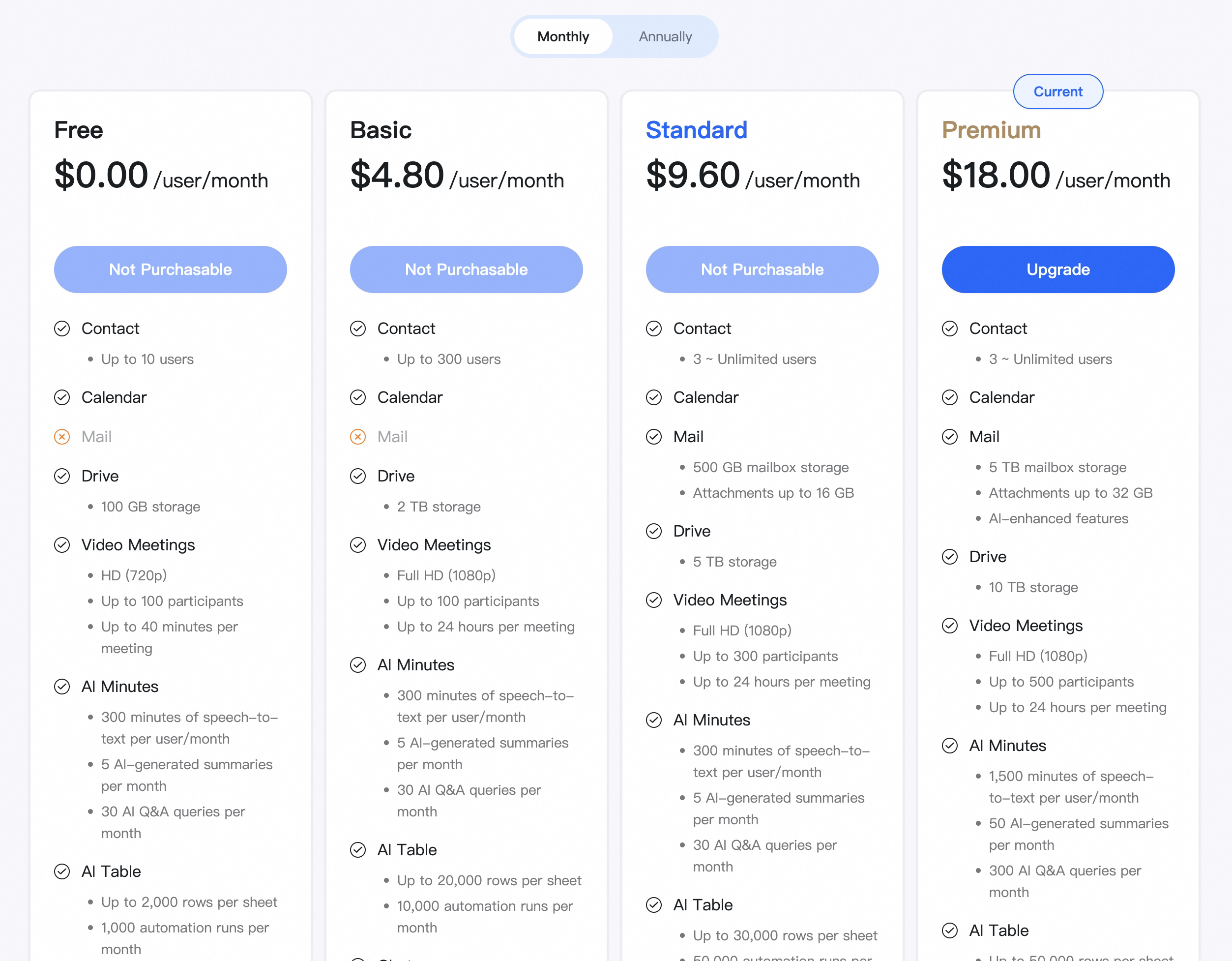 Capacity expansion path: On DingTalk desktop, open the admin console, go to Fees, select Purchase or Upgrade, click Buy Now, and follow the prompts.Tip: Enterprise DingTalk Drive capacity expansion is currently supported. Personal space capacity expansion is not supported. After payment, the original free 100 GB capacity can continue to be used.