Chats
Chats Calendar
 Meetings
 Contacts
 Mail
Mail Docs
Docs Drive
Drive AI Table
 AI Minutes
 Attendance
 Approval
 YiDA
YiDA Admin Console
Method 1: Configure Permissions
Desktop
Open the DingTalk Drive home page, Team Files on the Docs home page, or My Files (from DingTalk Drive) under My Docs. Find the target file or folder, click … for more options, and select Permission Management.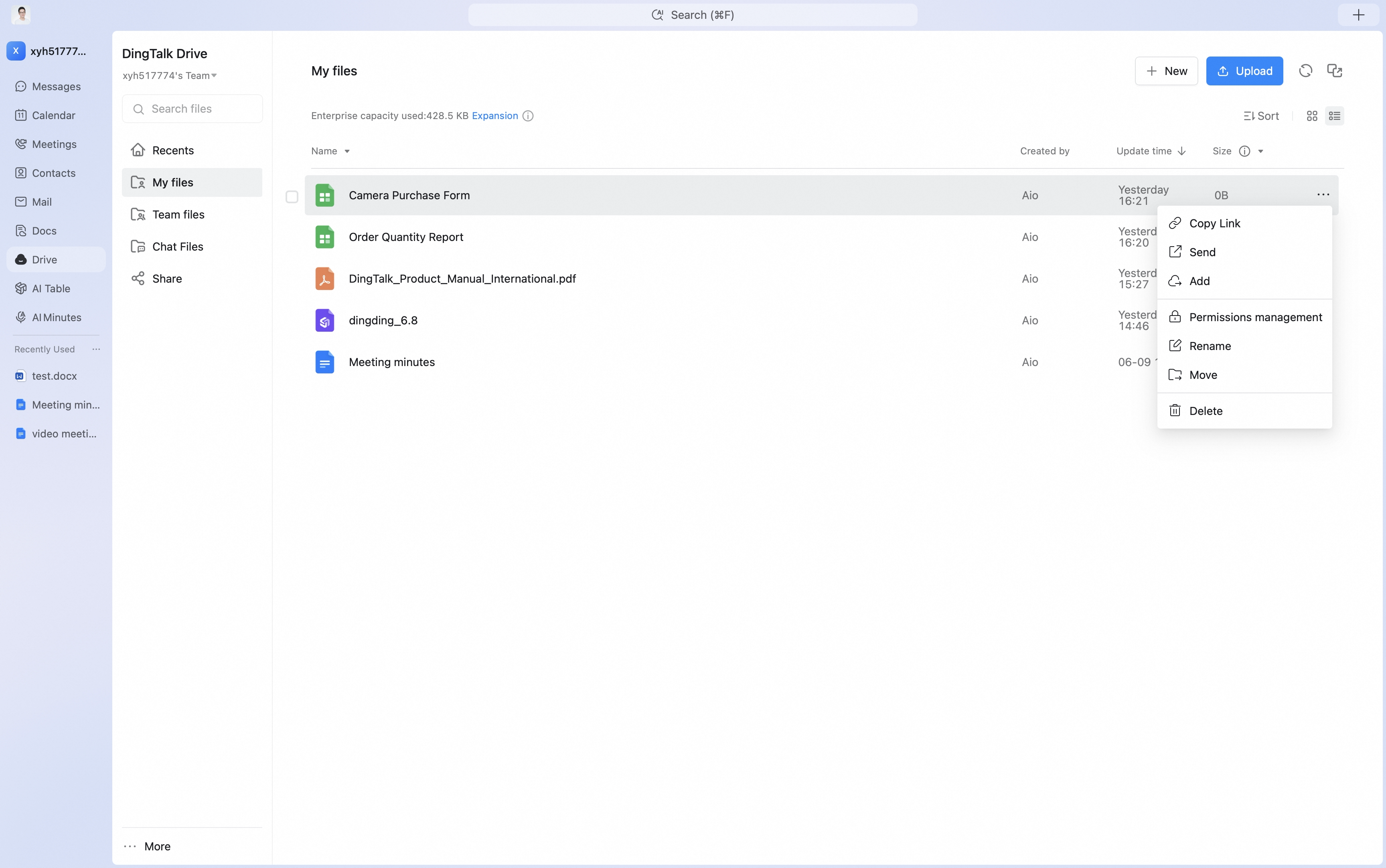 Click Add Collaborator, select the member you want to add, choose the corresponding permission level, and click OK. The permission notification can be sent through one-on-one chat.
Permission levels include Can manage, Can edit, Can view/download, and View only.
Click Add Collaborator, select the member you want to add, choose the corresponding permission level, and click OK. The permission notification can be sent through one-on-one chat.
Permission levels include Can manage, Can edit, Can view/download, and View only.
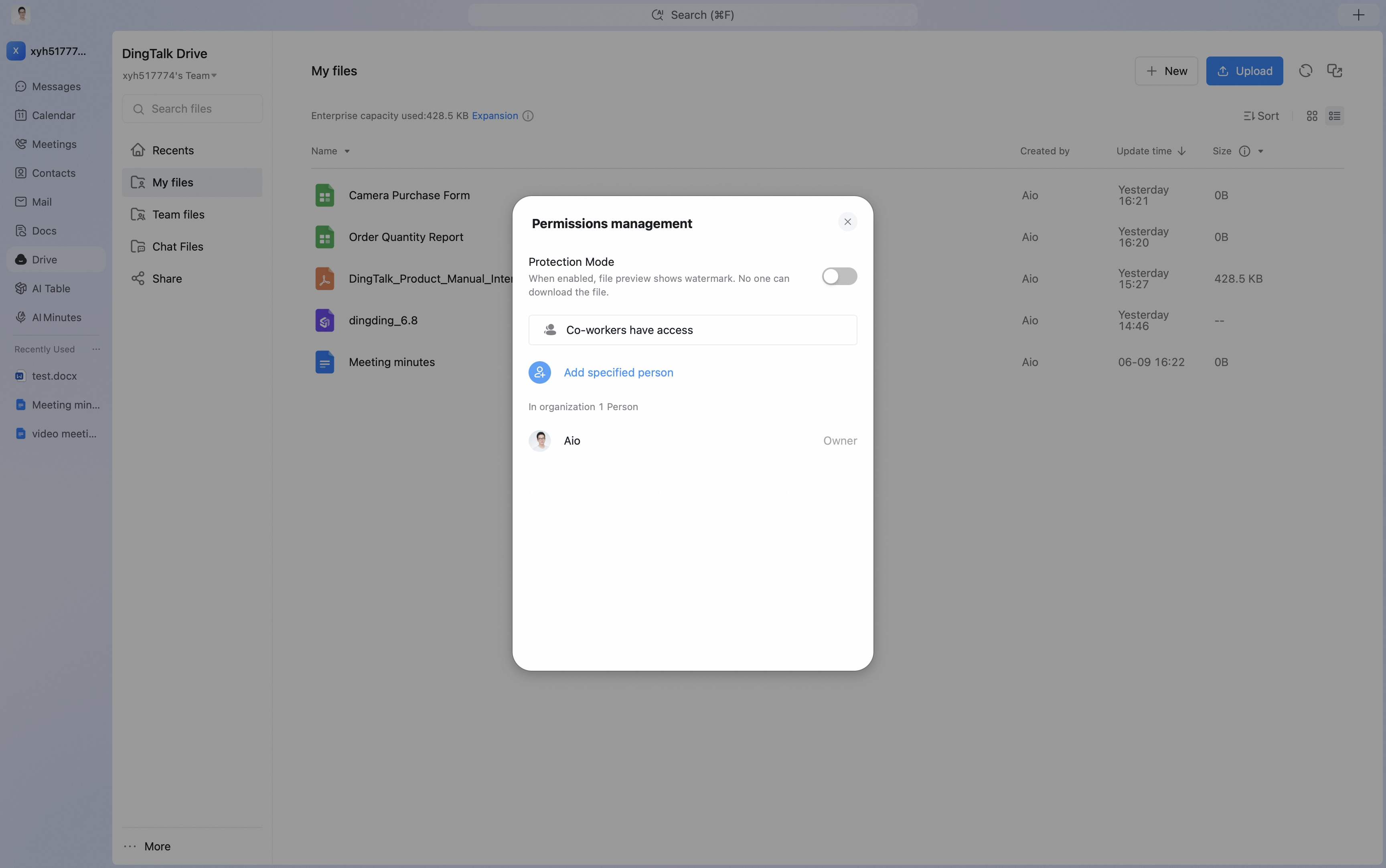
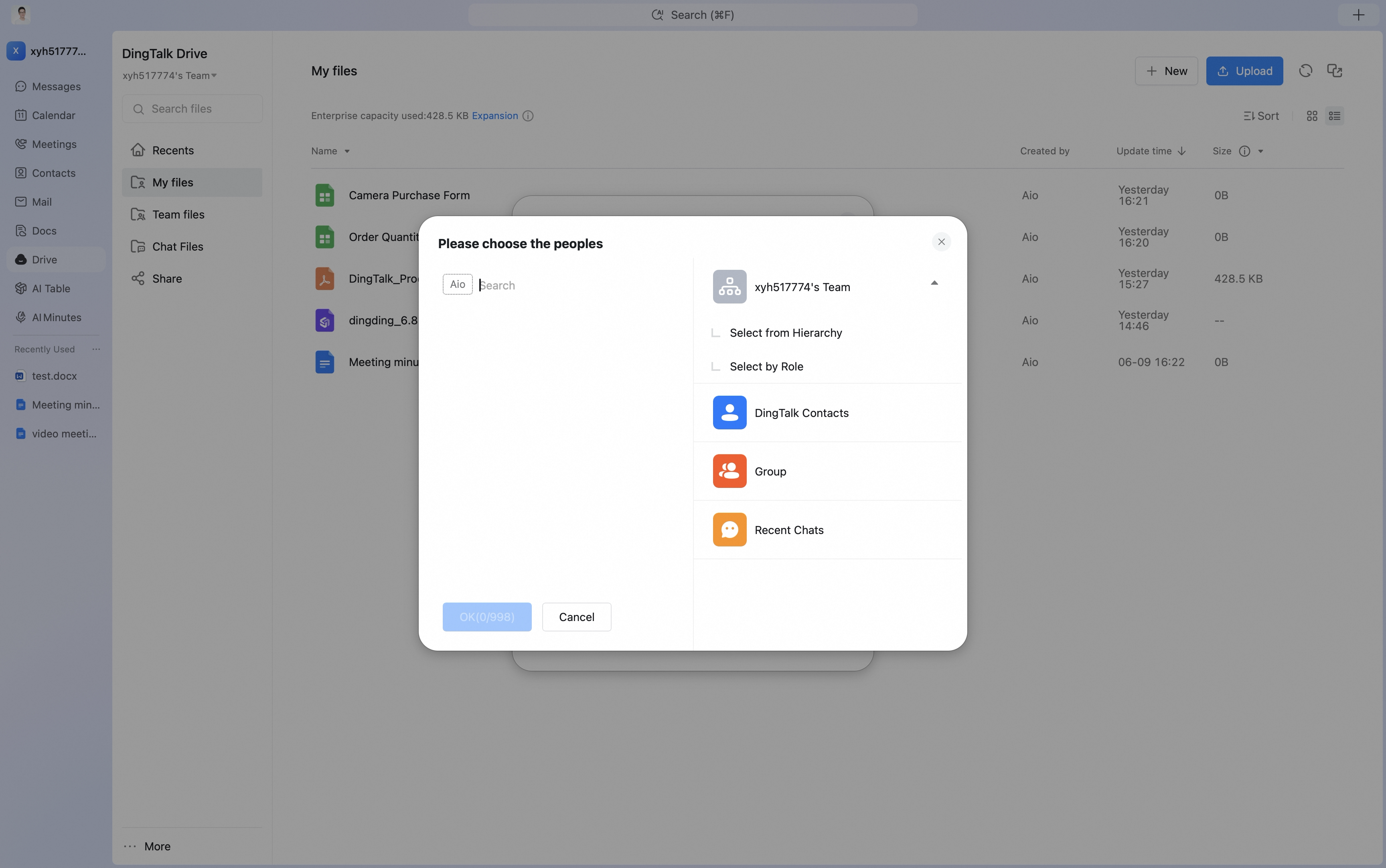

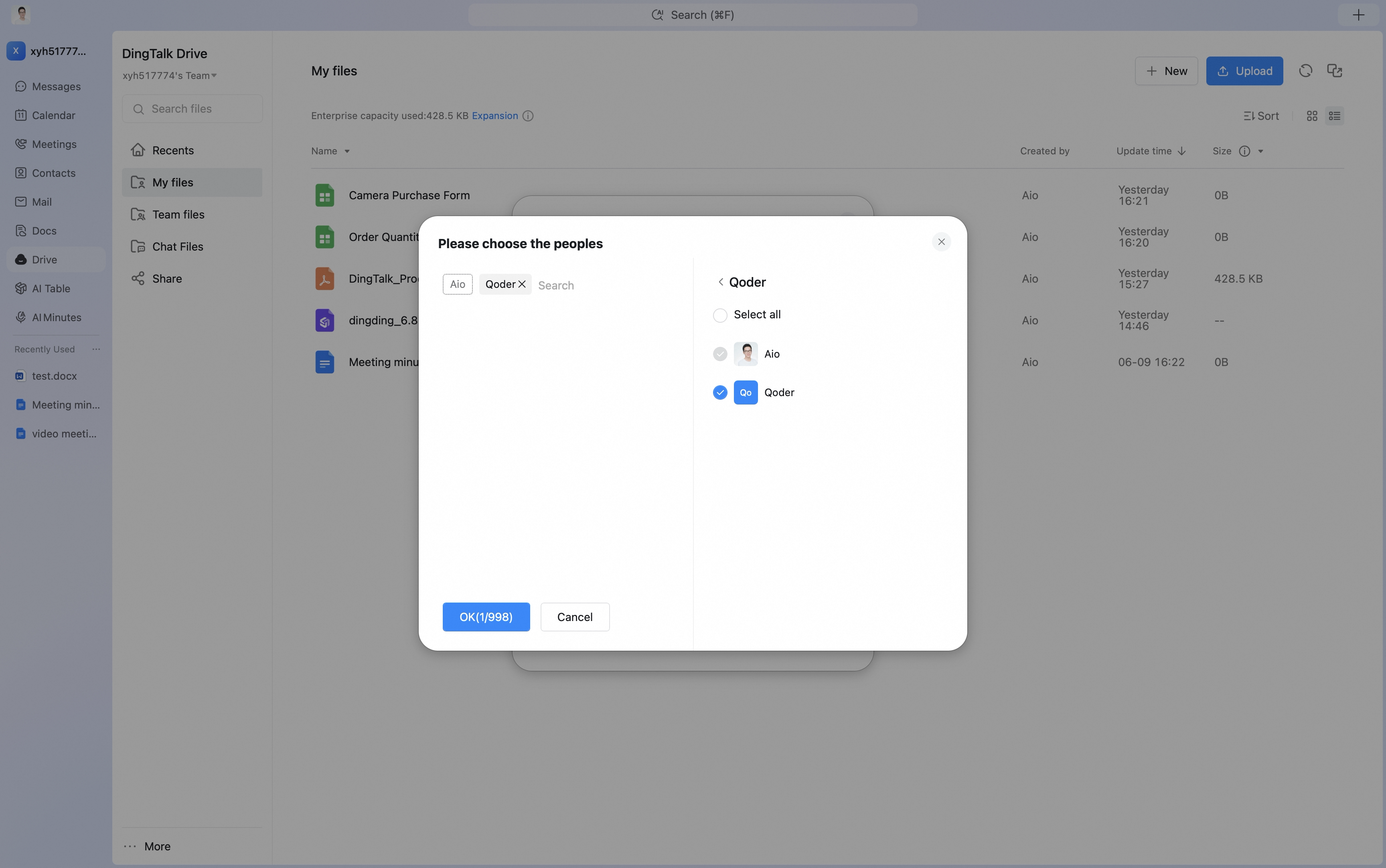
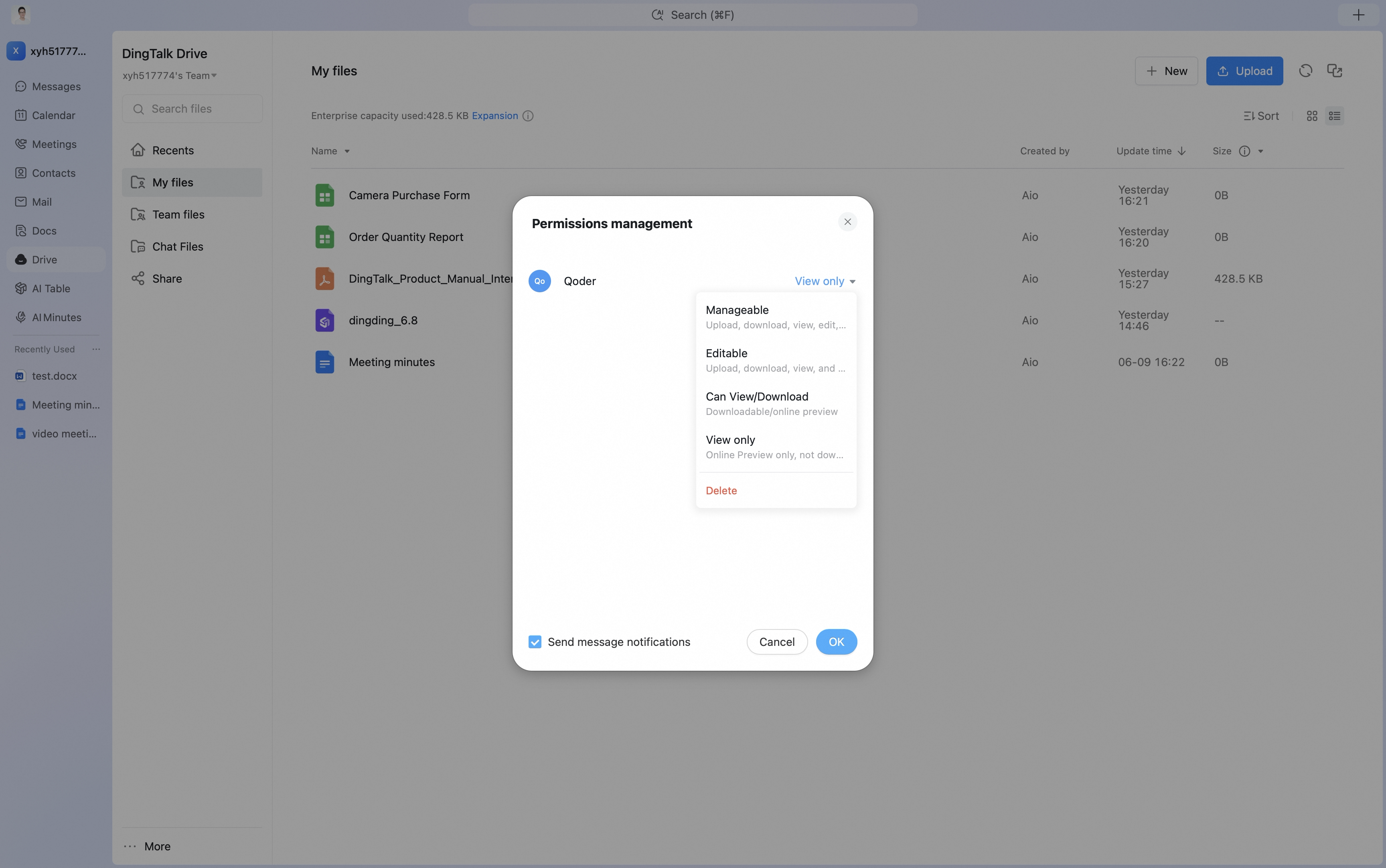 To better protect information security, if the external person does not need to edit the file, set the permission to View only. If they need to download the file, set the permission to Can view/download.
Method 2: Send a Link
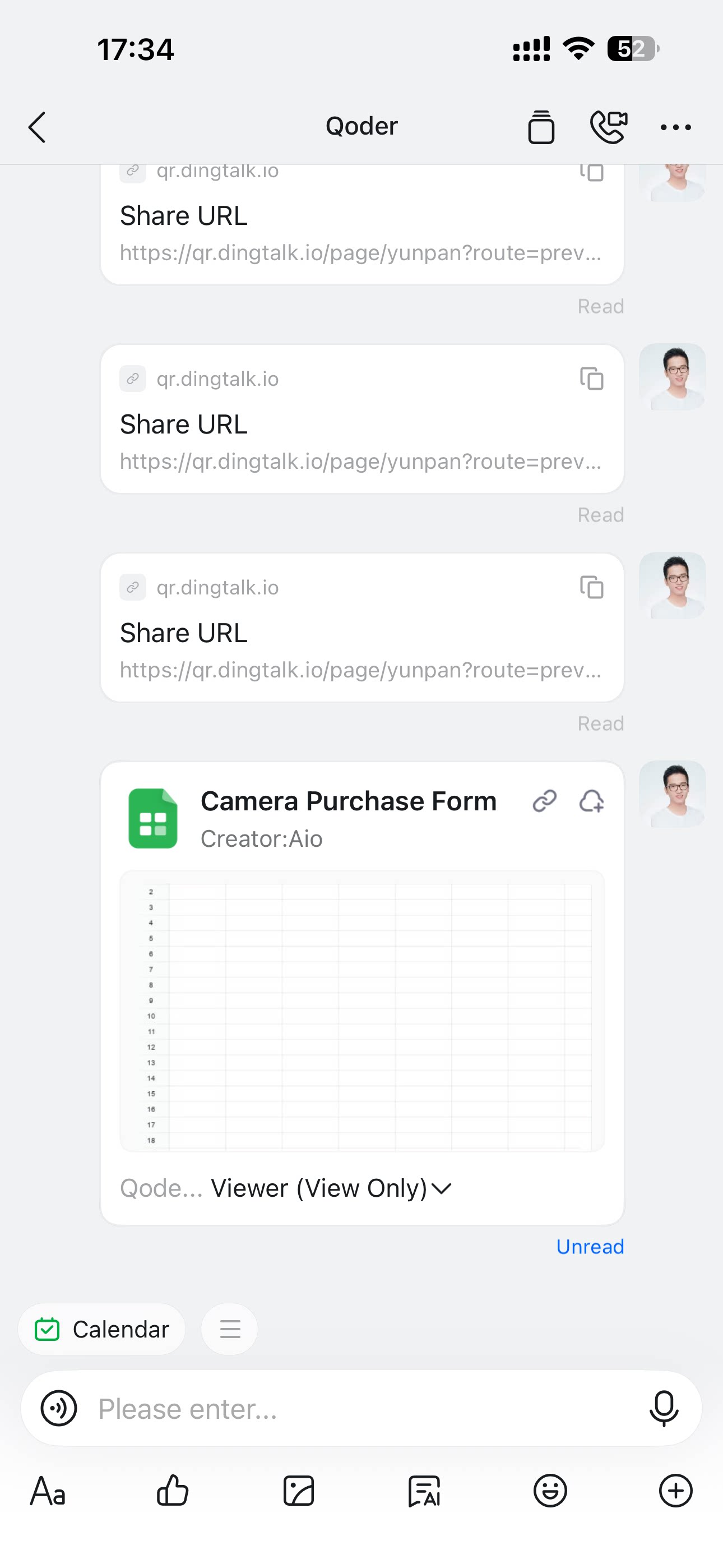
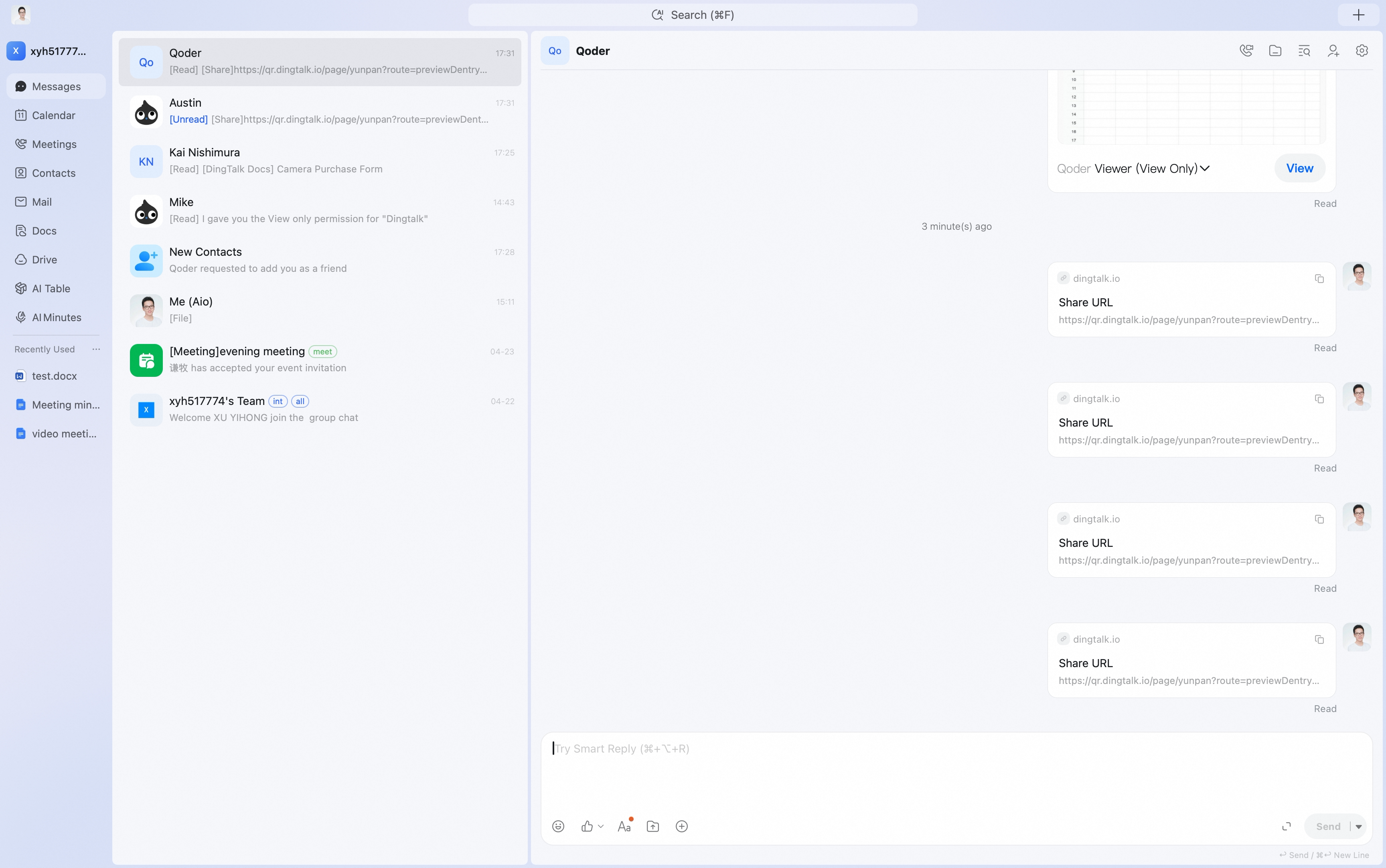
Open the DingTalk Drive home page, Team Files on the Docs home page, or My Files (from DingTalk Drive) under My Docs. Find the target file or folder and click … for more options.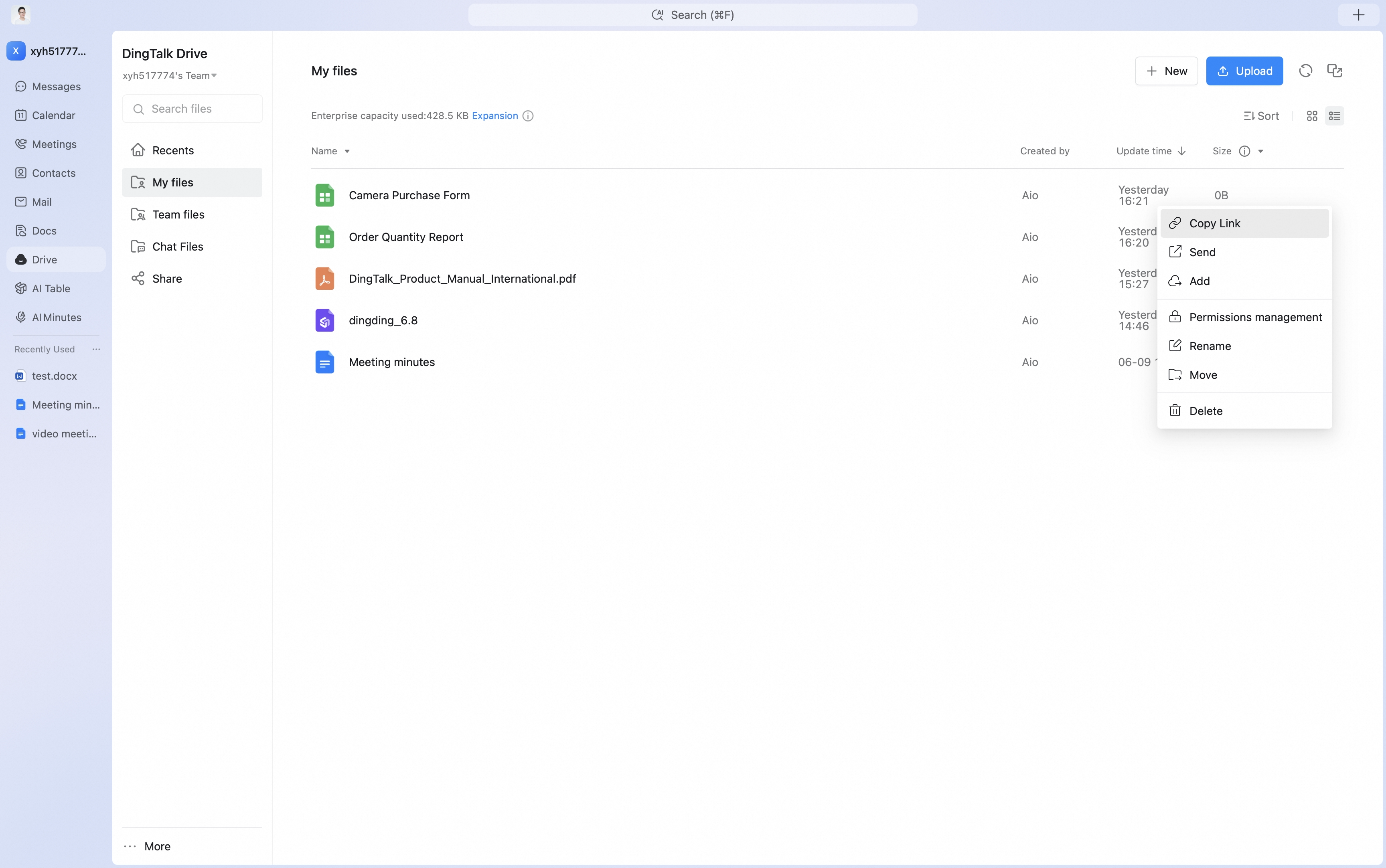 For online documents such as documents, sheets, and mind maps, click …, then click Share. The file share will be sent to the other party as a DingTalk chat message, and permissions can be adjusted in the chat interface.
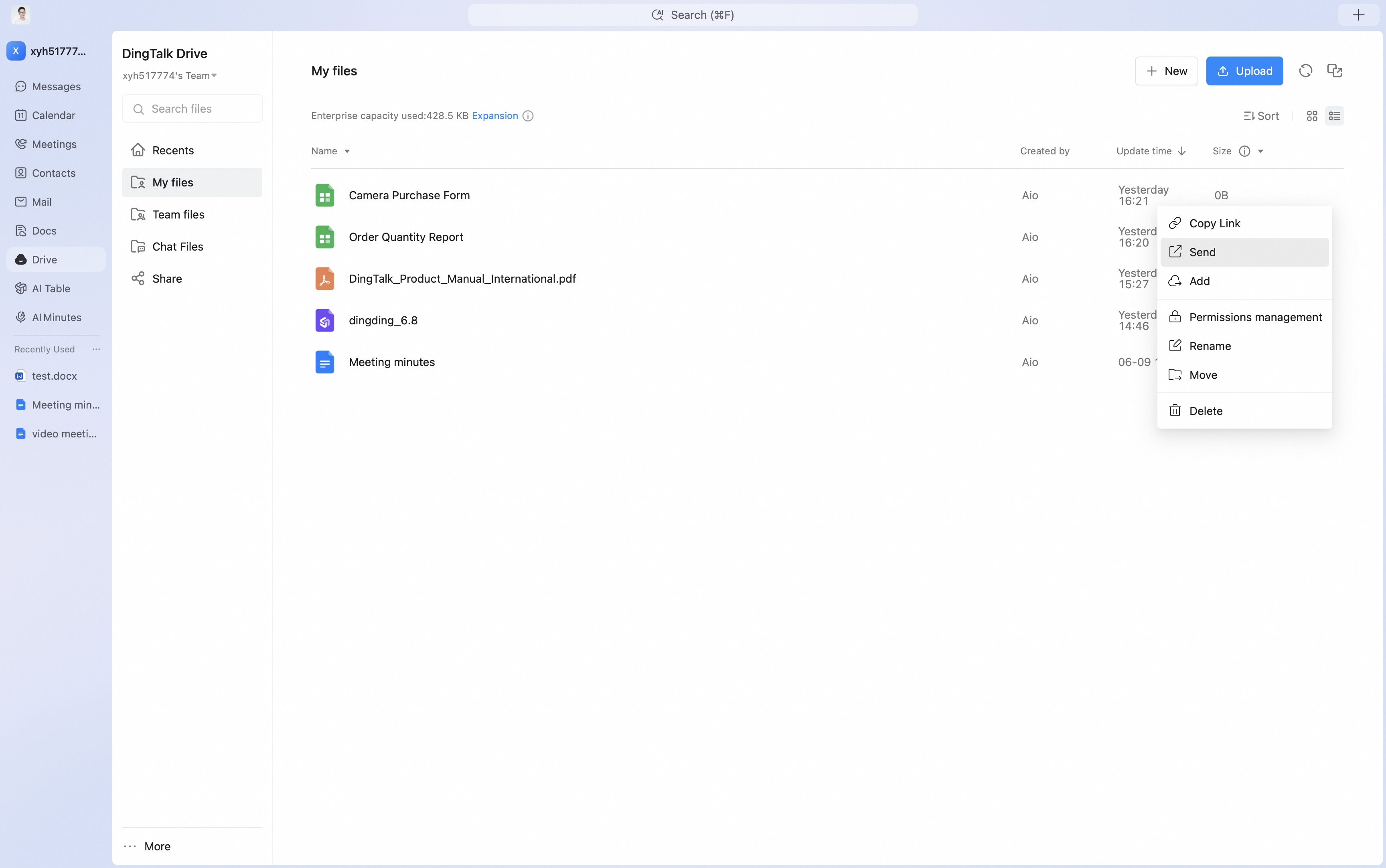
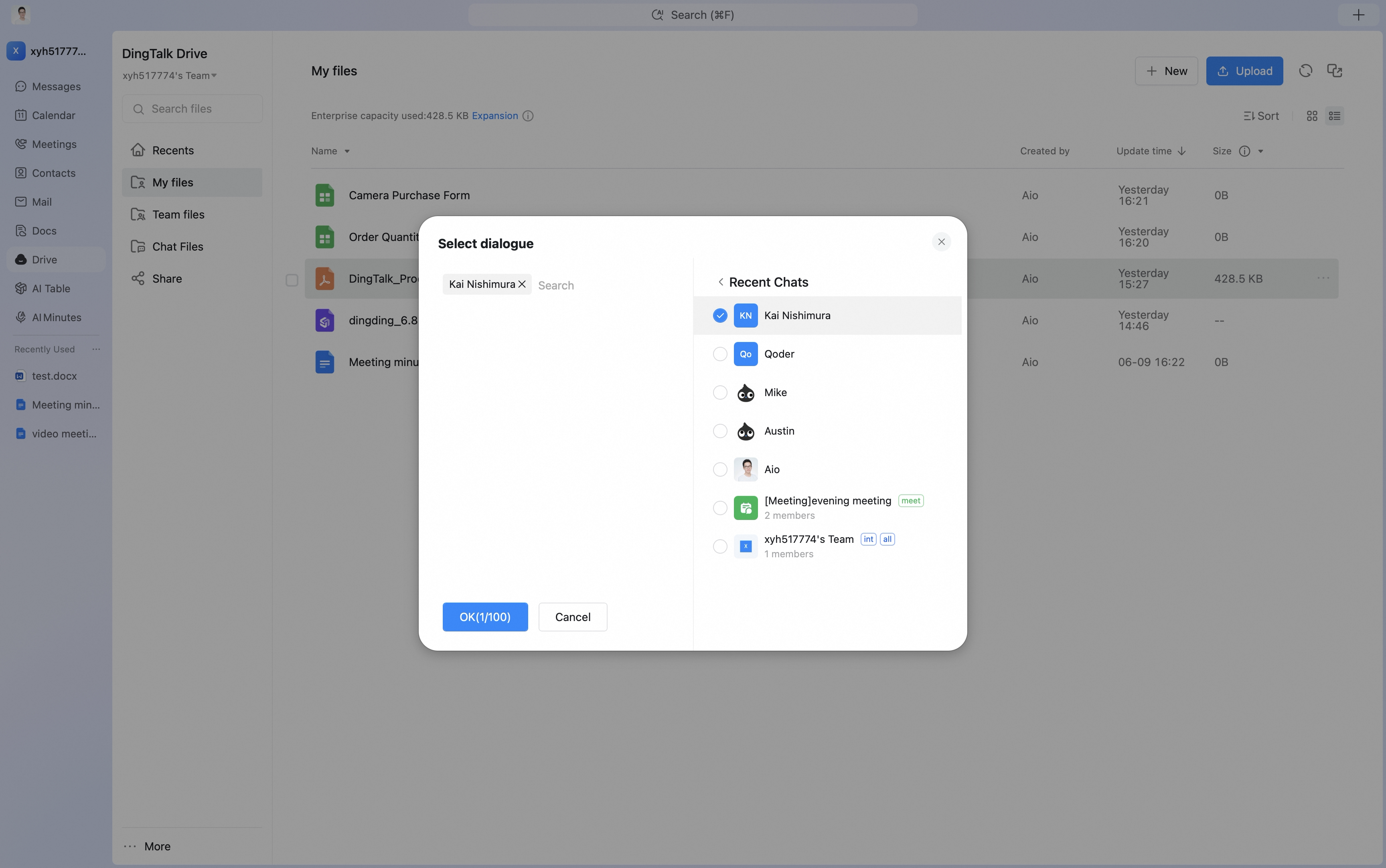
 For folders, local files, videos, images, and similar items, click … and then click Send Link to share.
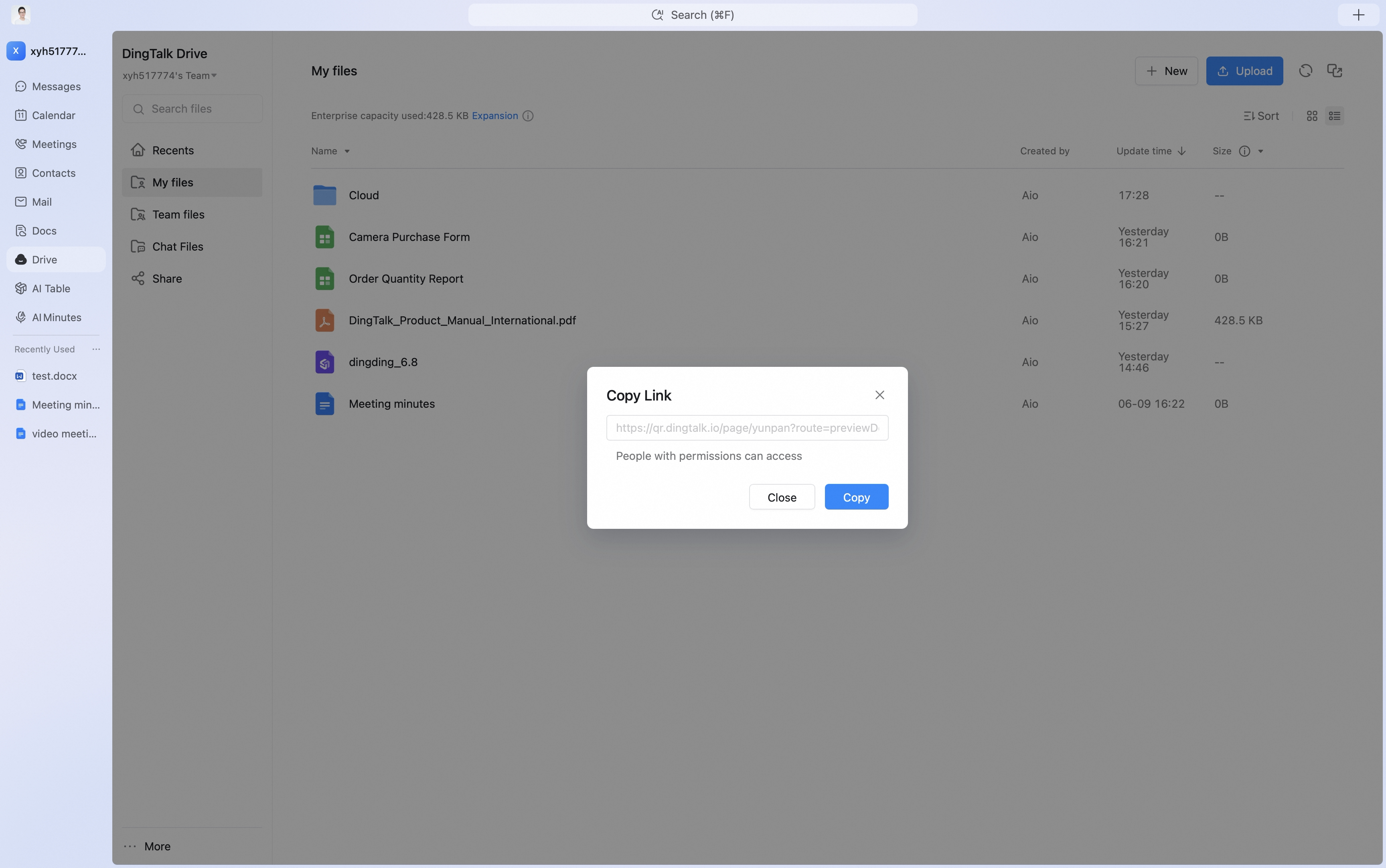
Mobile
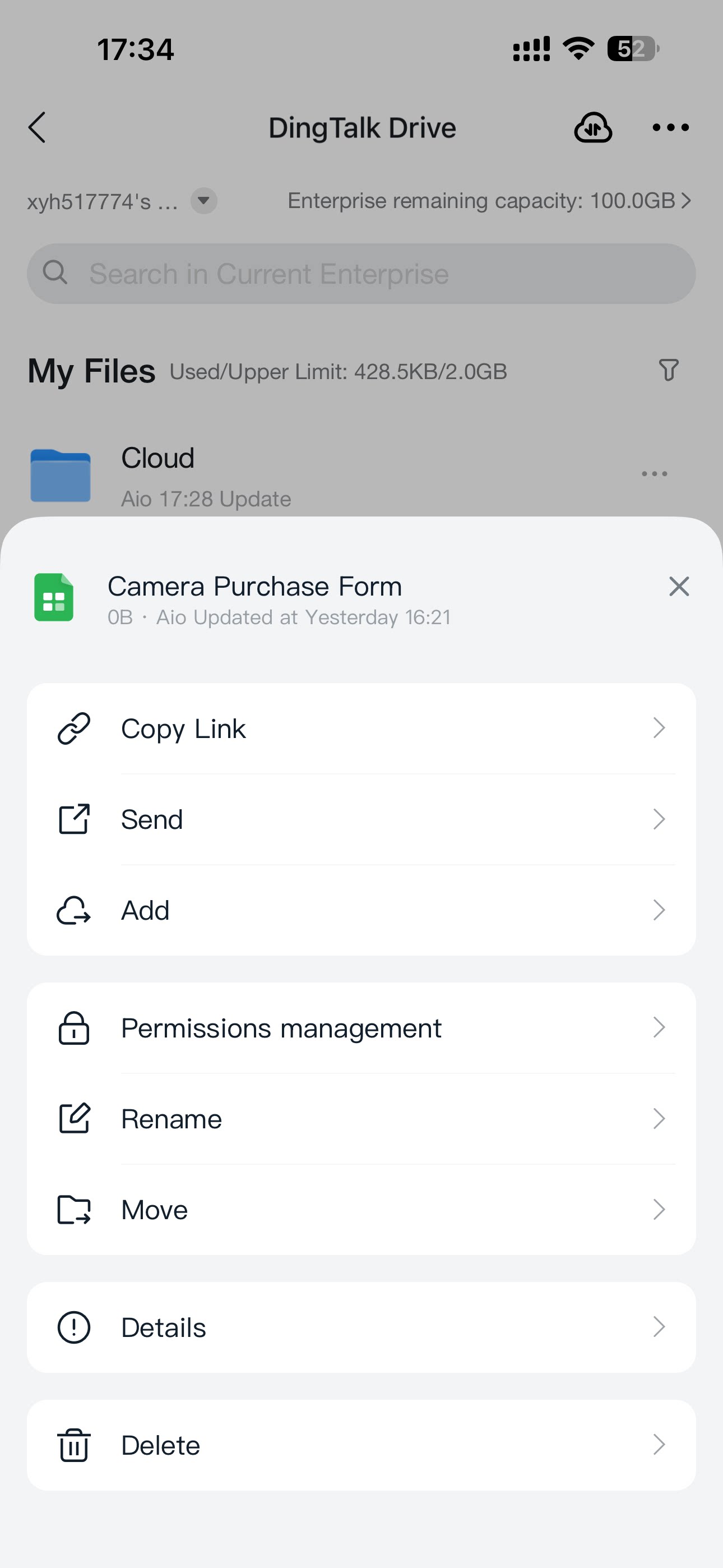
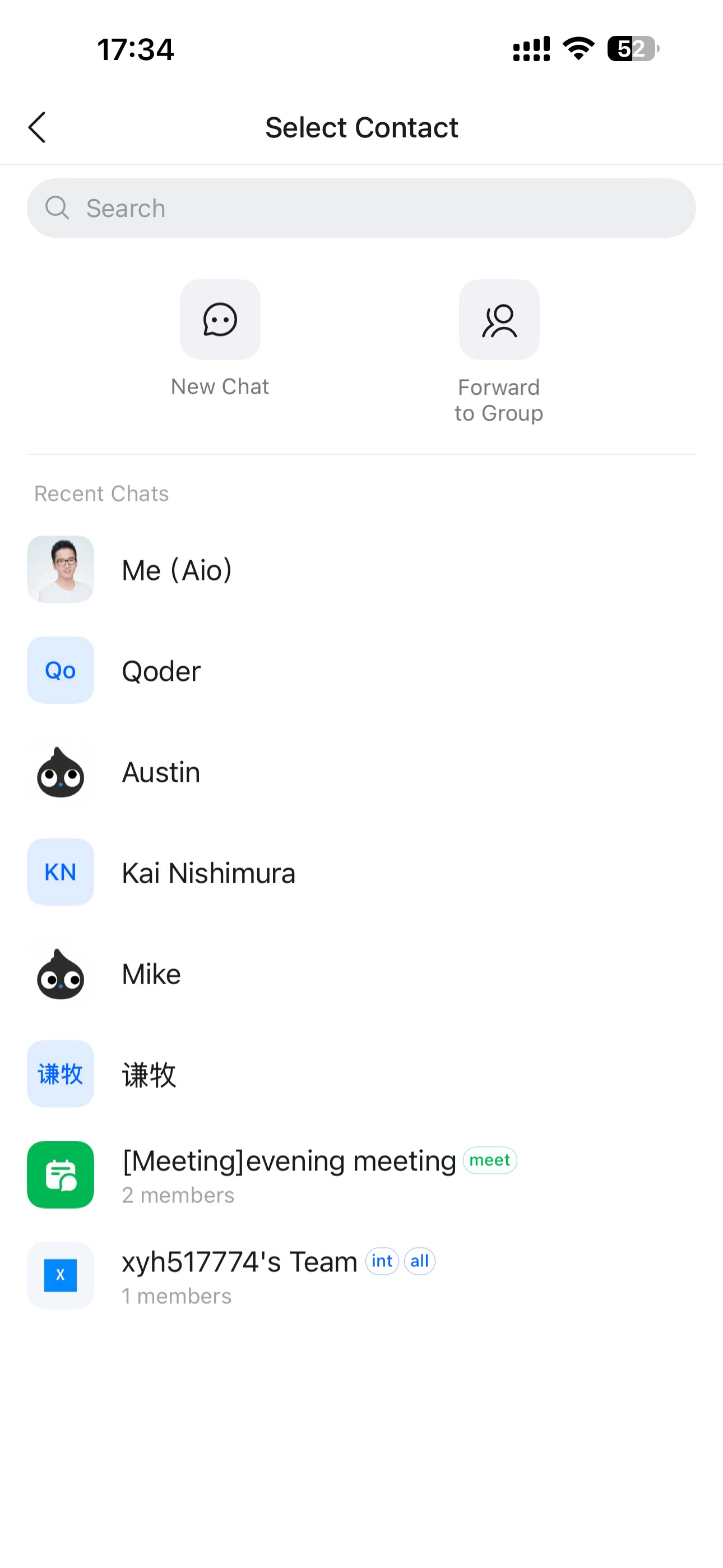
For online documents such as documents, sheets, and mind maps, tap … for more options and then tap Send to Chat.