

 Chats
Chats Calendar
 Meetings
 Contacts
 Mail
Mail Docs
Docs Drive
Drive AI Table
 AI Minutes
 Attendance
 Approval
 YiDA
YiDA Admin Console
1. Open the Enterprise Storage Capacity Page
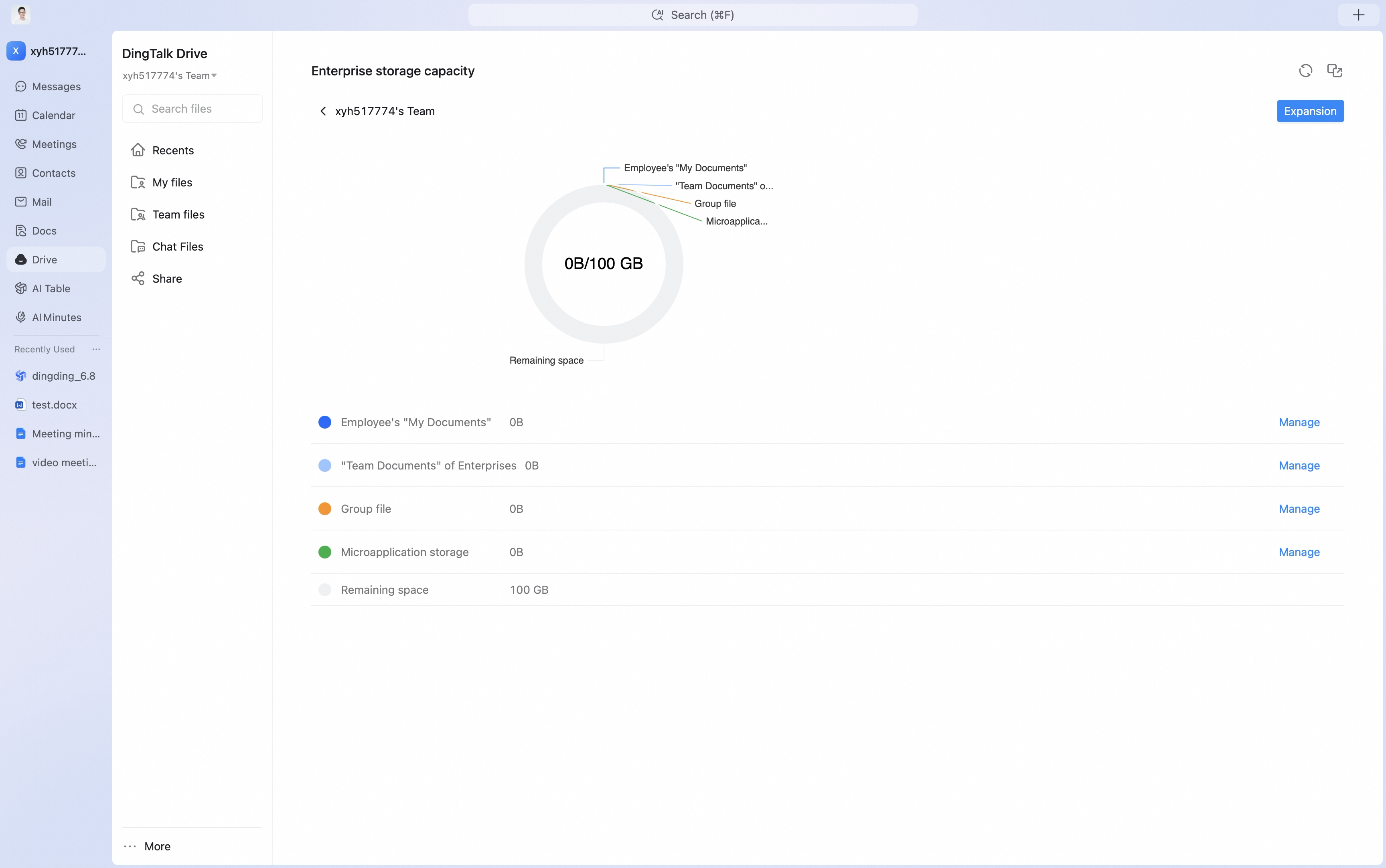
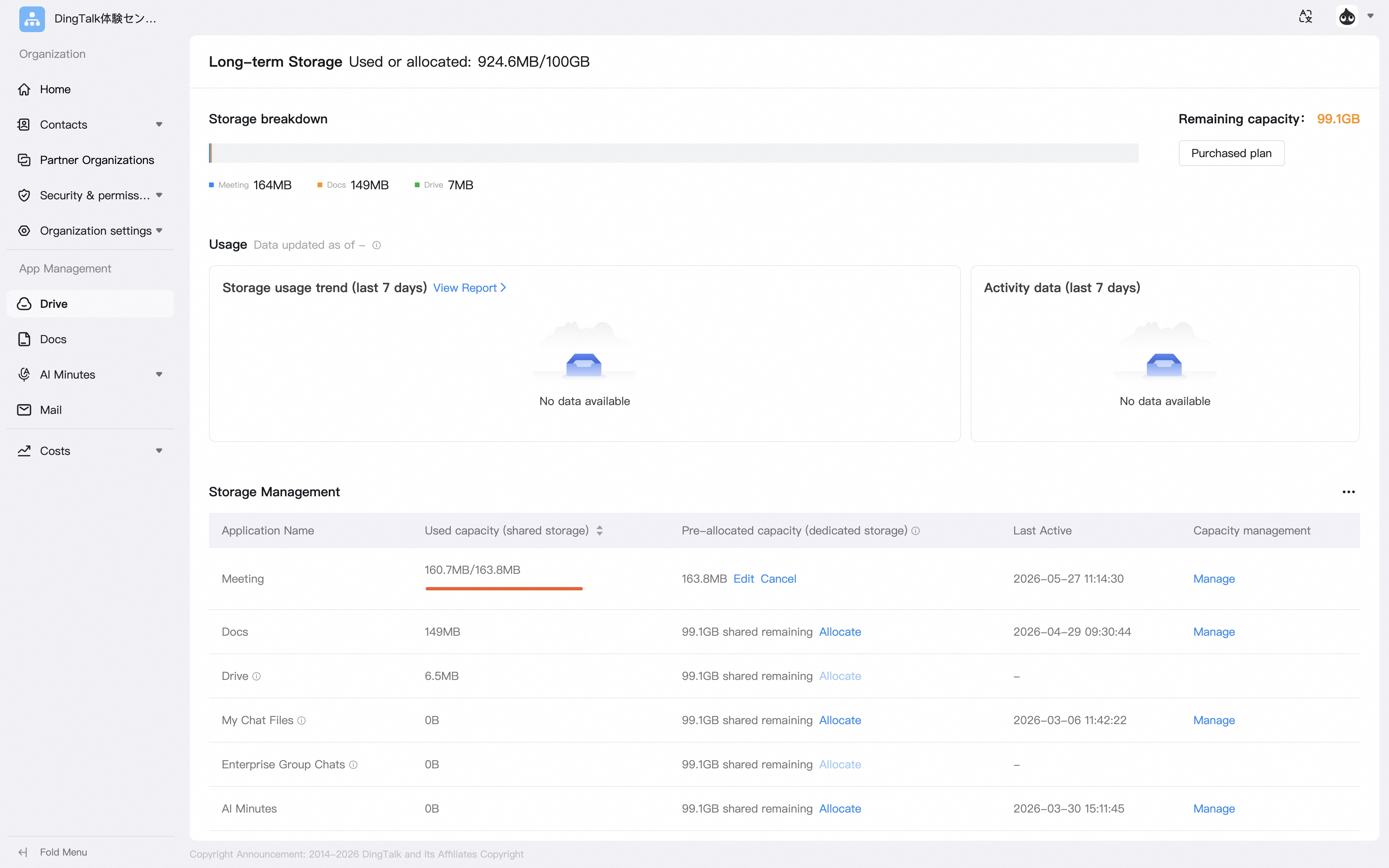
Open DingTalk Drive, click More in the lower-left corner, and then click Enterprise storage capacity to enter the enterprise storage capacity page. Click View details, then click Manage to open the DingTalk Drive capacity management page.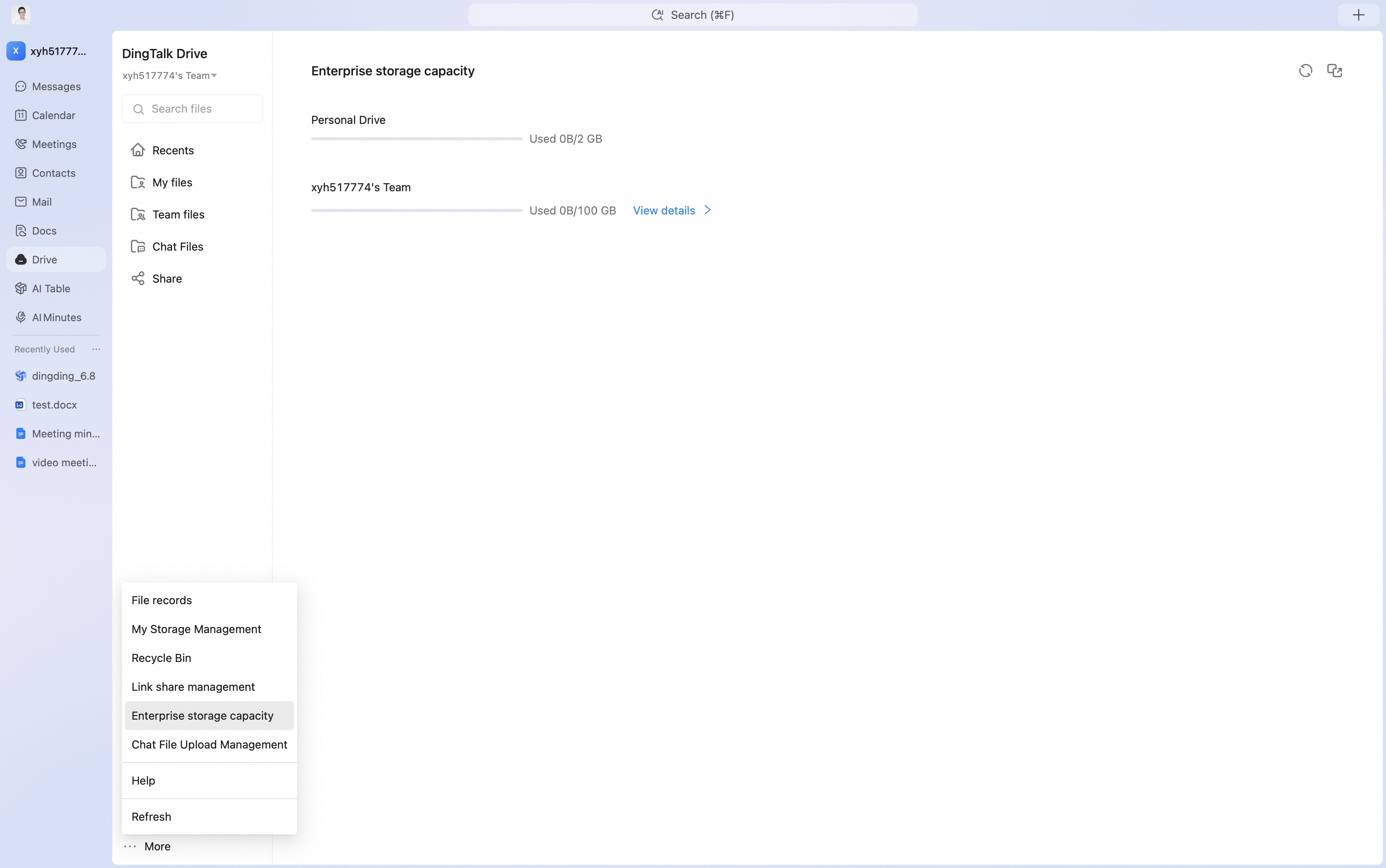
2. Configure Details on the Management Page
On the management page, you can set capacity limits and view usage for DingTalk Drive areas such as My Files, Team Files, Group Files, mini apps, and external sharing.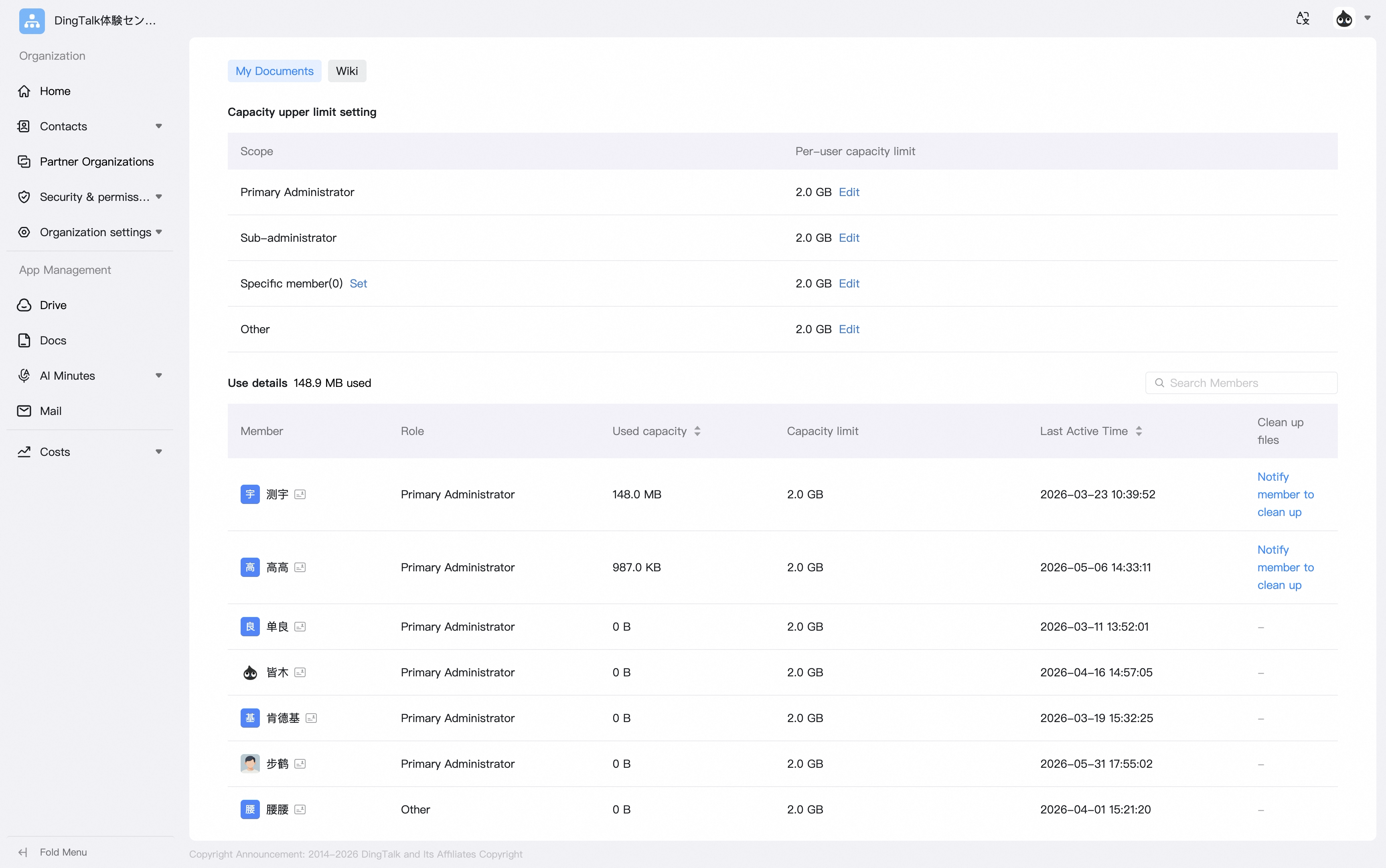 On the My Files page, you can configure whether roles such as enterprise administrators, DingTalk Drive administrators, specified people, and others are allowed to use My Files.
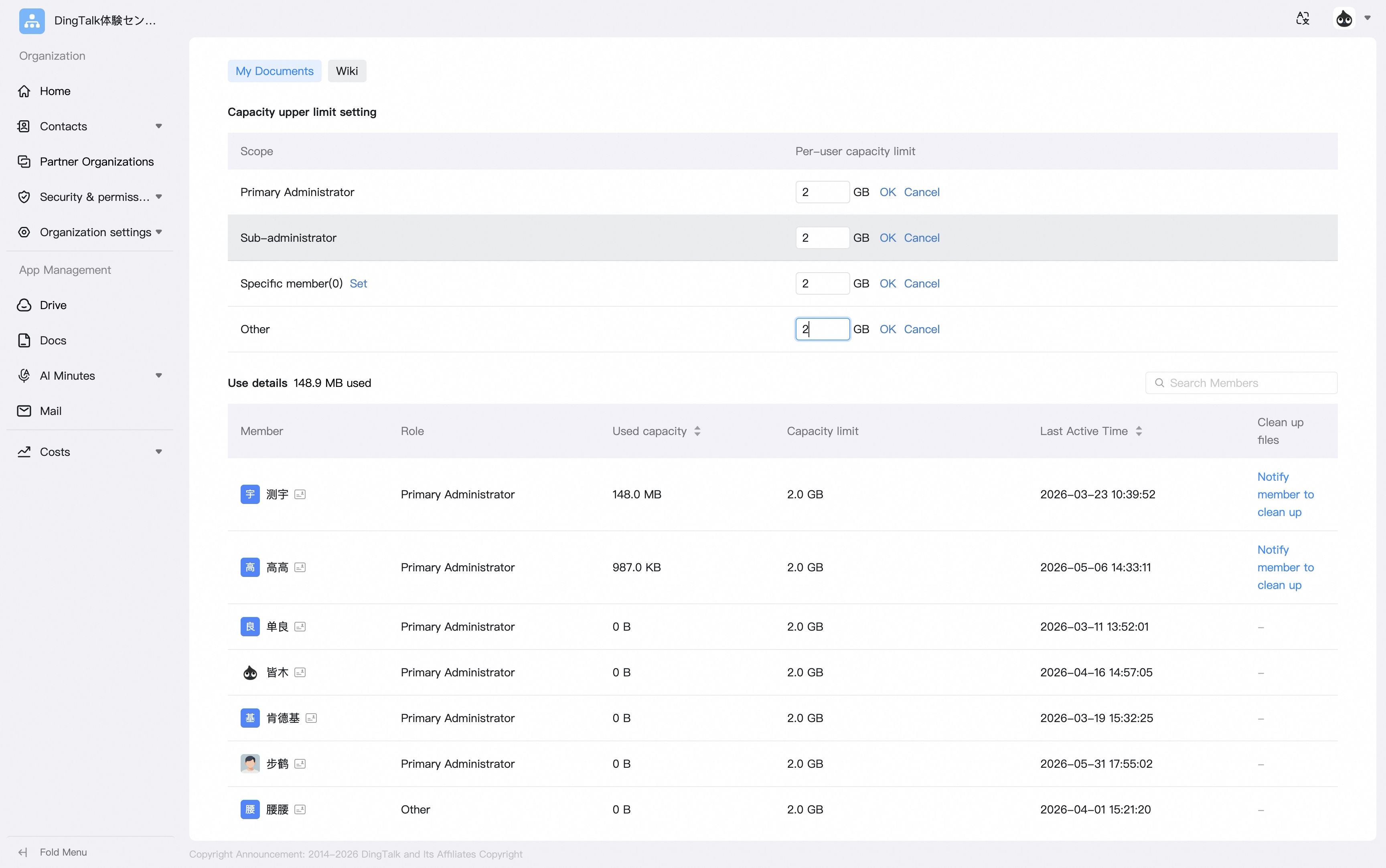 You can also view members’ storage usage, set member capacity limits, and notify members in one click to clean up unnecessary files in their personal My Docs.
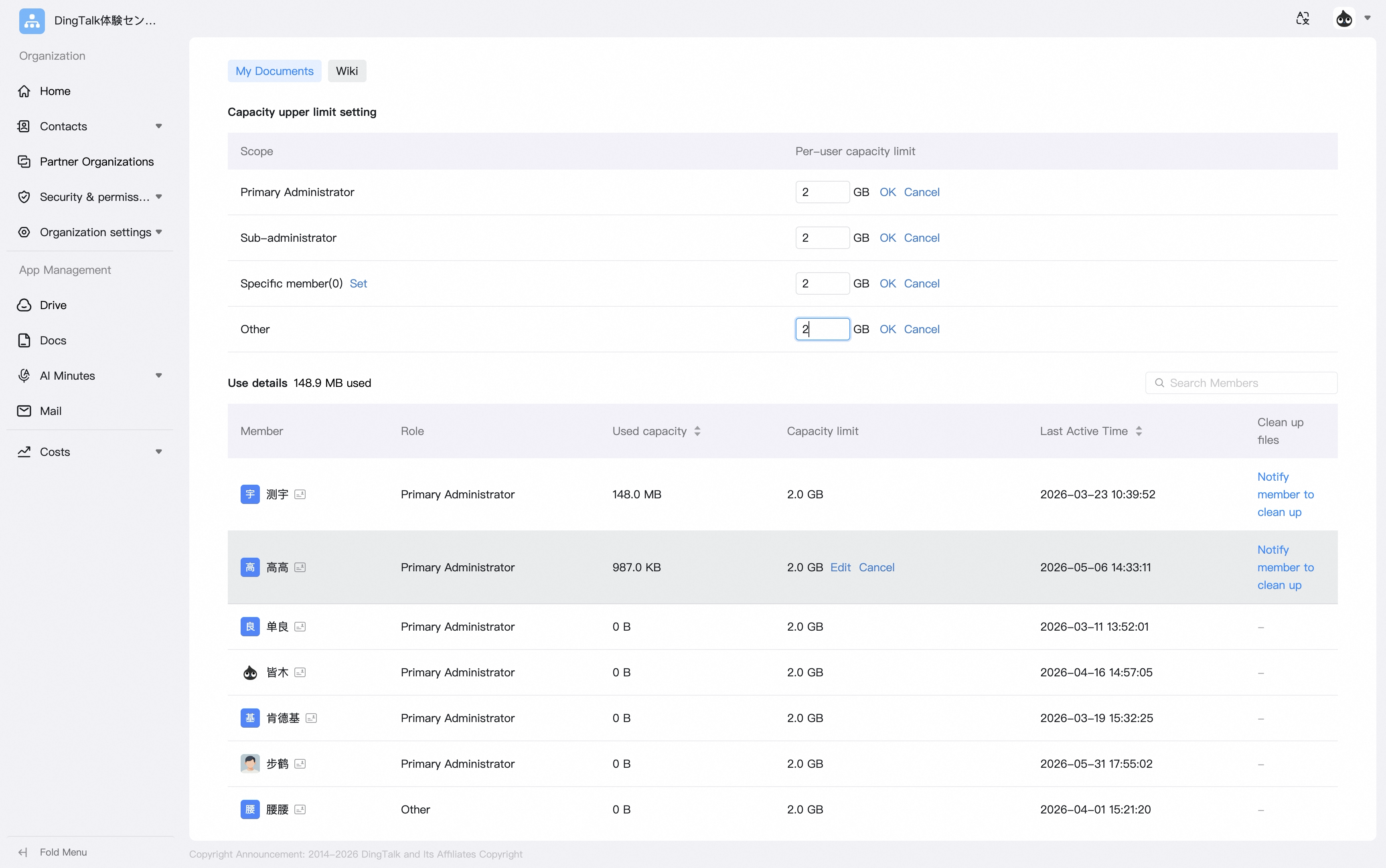
3. Delete Unneeded Files
Desktop: Open DingTalk Drive, select the target file, click … after the target file, and then click Delete. Mobile: Use the same steps as desktop.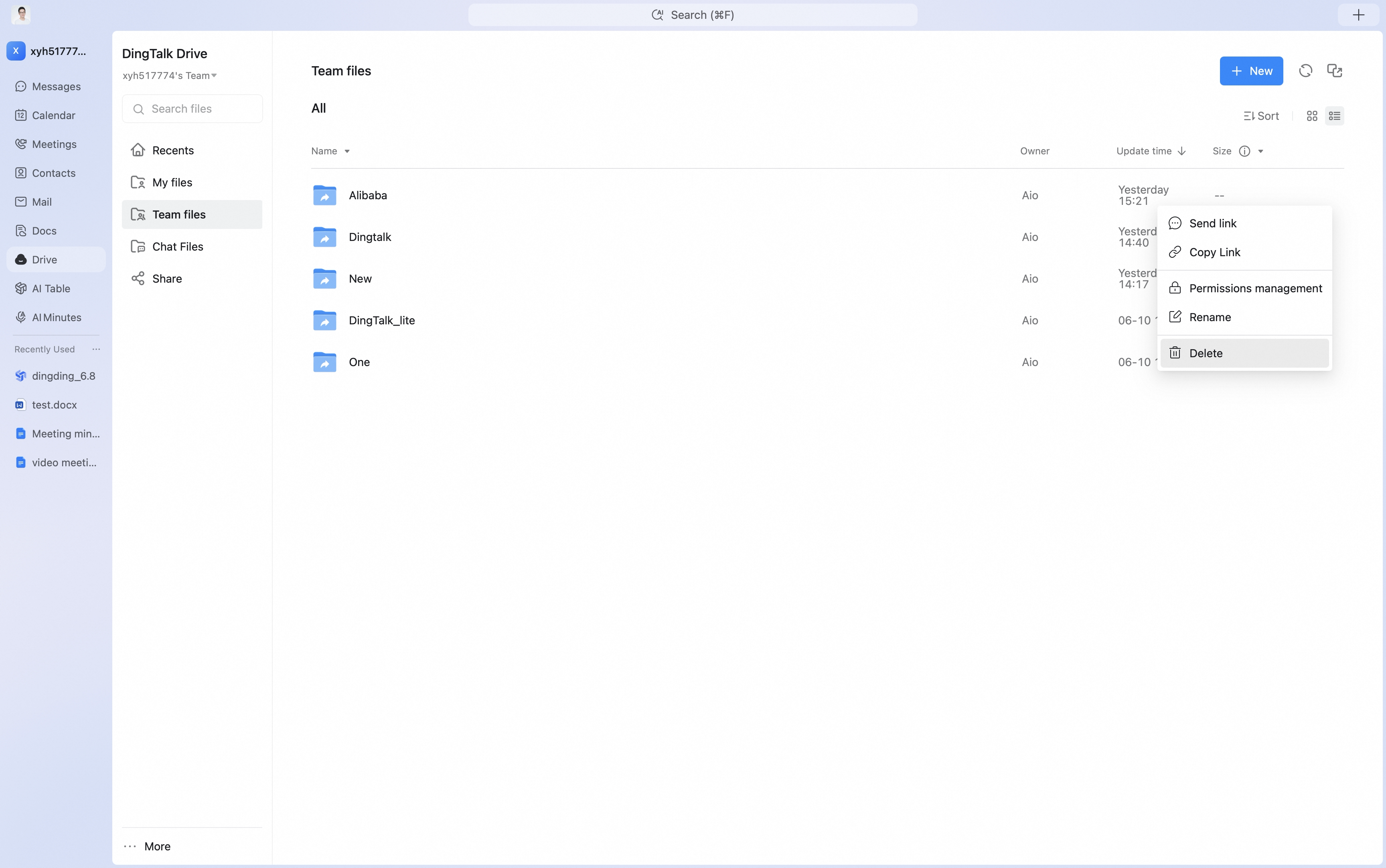
Tips
- Team Space files can be deleted by the main administrator or by folder managers who have been added in settings.
- Shared files or shared folders can be deleted by the folder creator and by people who have been granted manager permissions.
- If group chat files use a large amount of space, contact the group owner to delete them from group files. Deleted files are retained in the recycle bin for 30 days and are then automatically cleaned up by the system.