Chats
Chats Calendar
 Meetings
 Contacts
 Mail
Mail Docs
Docs Drive
Drive AI Table
 AI Minutes
 Attendance
 Approval
 YiDA
YiDA Admin Console
What Is Local Sync?
DingTalk Drive Local Sync keeps your files automatically synced across your computer, phone, and tablet. No more manual uploads or downloads — your files stay up to date on every device in real time. Changes to My Files and Team Files sync instantly, so you can access and edit your files from anywhere.- Auto-upload to the cloud: Edits, additions, moves, and deletions made locally are automatically synced to the cloud.
- Auto-download from the cloud: Edits, additions, moves, and deletions made in the cloud are automatically synced to your local device.
- Free up local storage: Release unused files from local storage to save space, and download them again when needed.
How to Enable Local Sync
System requirements
- DingTalk desktop: Version 8.2.0 or later (download from dingtalk.io)
- Windows: Windows 10 (64-bit), version 1709 or later
- Mac: Not yet available. Stay tuned for updates
Steps
1
Enable Local Sync
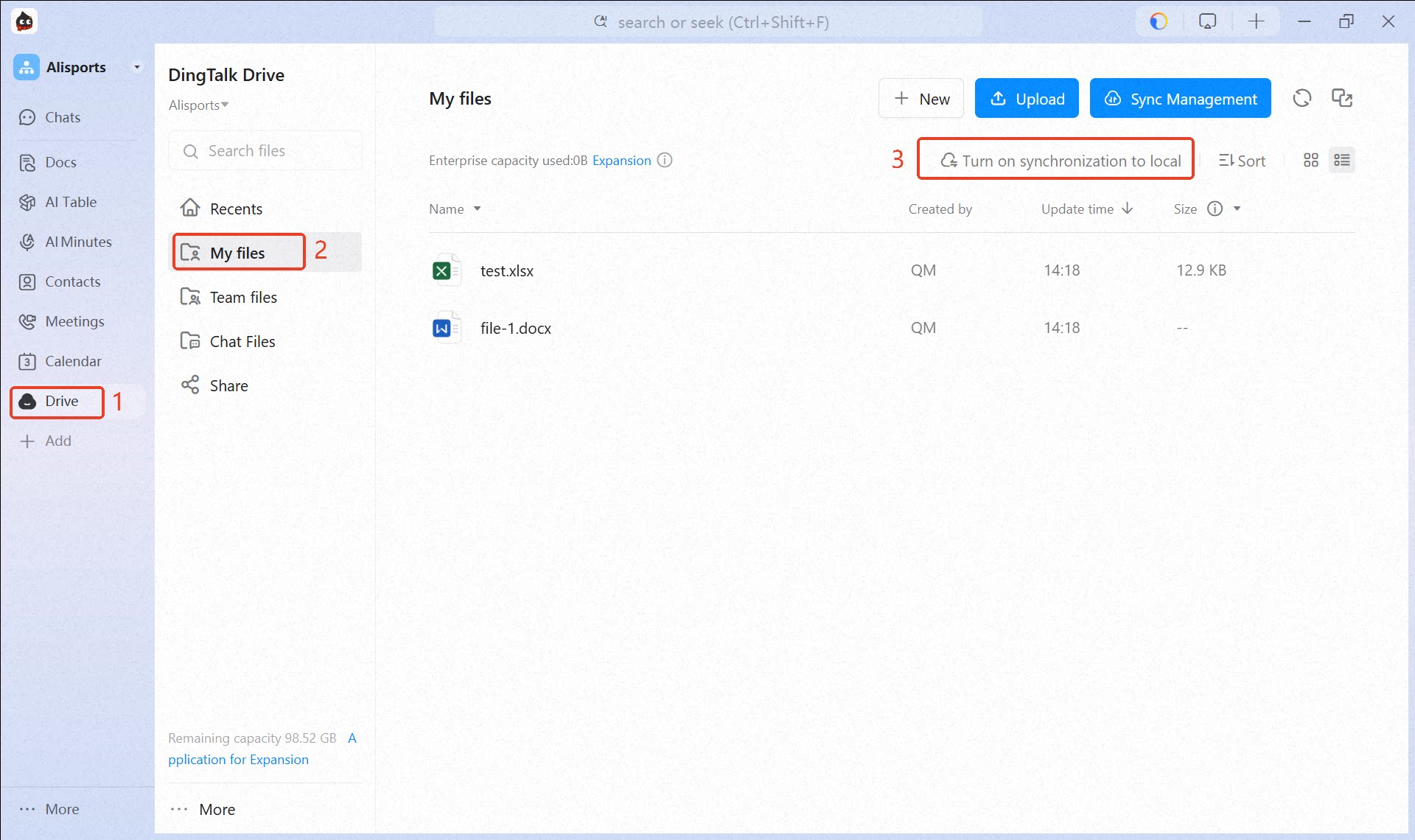
You can enable local sync for root-level folders in Team Files, and for My Files. Select the folders you want to use locally, and turn on sync.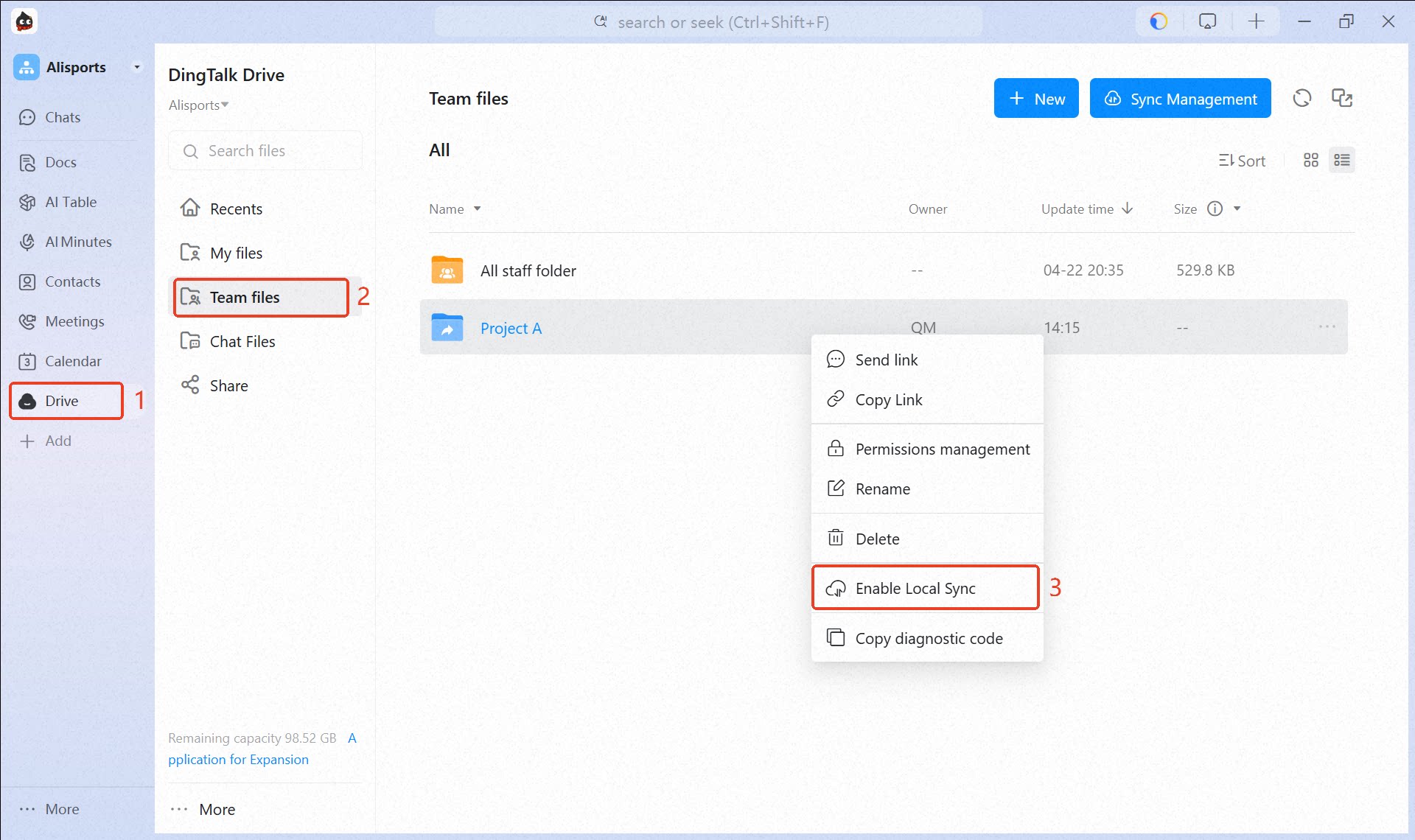
2
Access Synced Folders on Your Computer
Once sync is enabled, a DingDrive entry appears in File Explorer, where you can find all your synced folders.Windows: Look for DingDrive in the left pane of File Explorer to access your DingTalk Drive sync folders.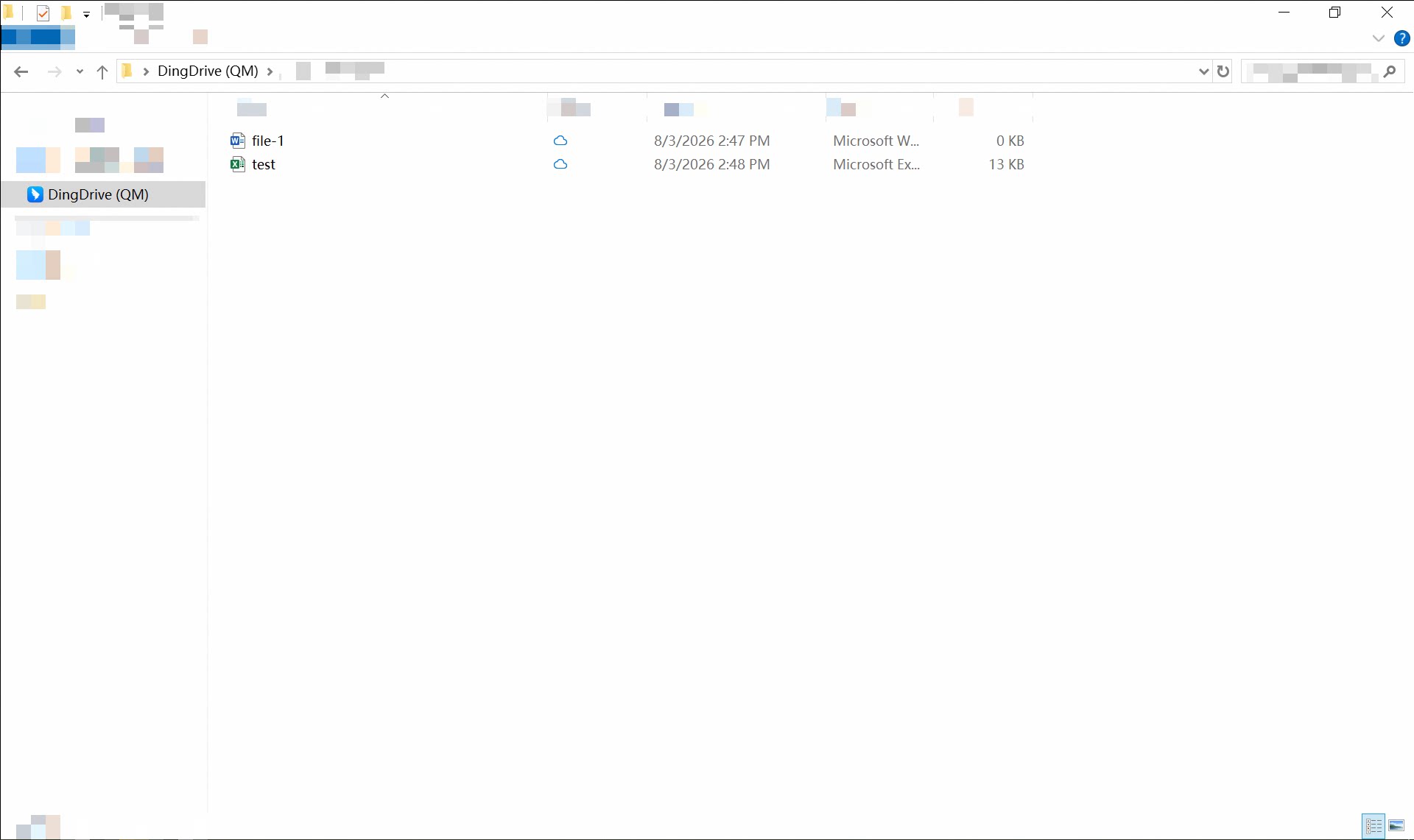 Mac: Not yet available. Stay tuned for updates.
3
Two-Way Sync Between Local and Cloud
- Files you add, edit, or delete in the local sync folder are automatically synced to DingTalk Drive.
- You need the appropriate permissions to sync changes to DingTalk Drive.
- Files that anyone adds, edits, or deletes in the cloud folder are automatically synced to your local sync folder.
- You need download permission for the corresponding files to sync to your local device.
How to Check Sync Status
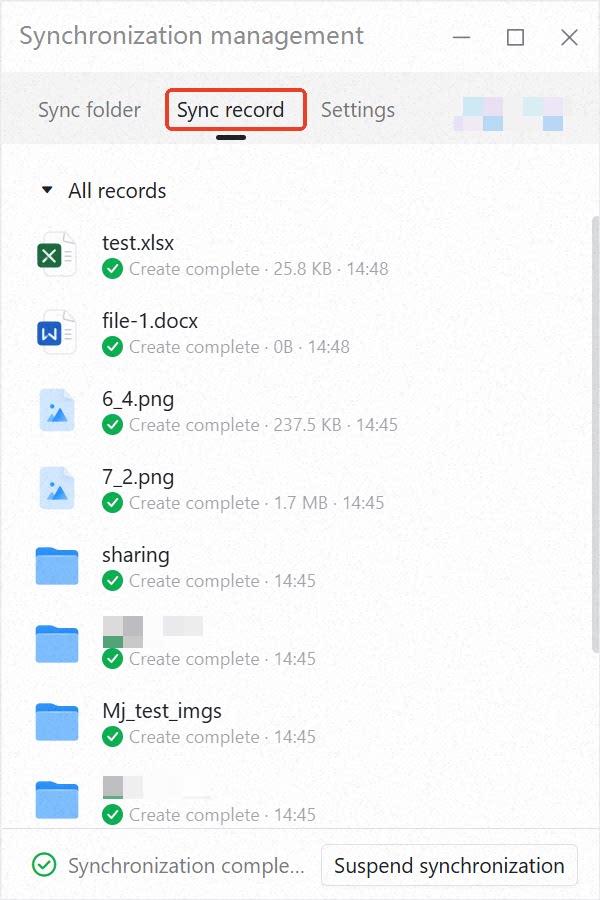
- You can view all sync activity in DingTalk Drive > Sync Management > Sync Records.
How to Cancel Sync
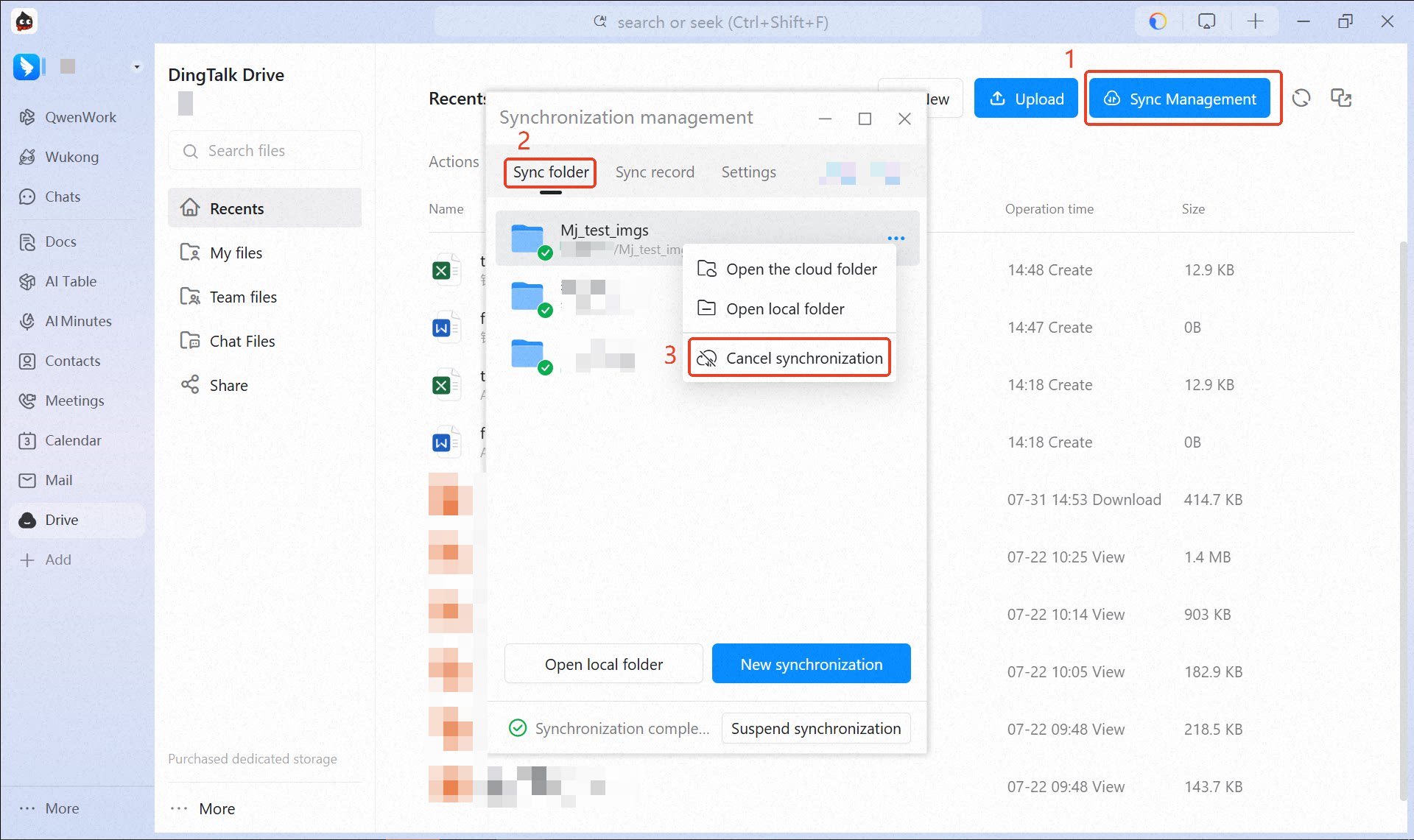
- In DingTalk Drive > Sync Management > Synced Folders, find the folder you want to stop syncing, right-click it, and select Cancel Sync.
How to Change the Sync Path
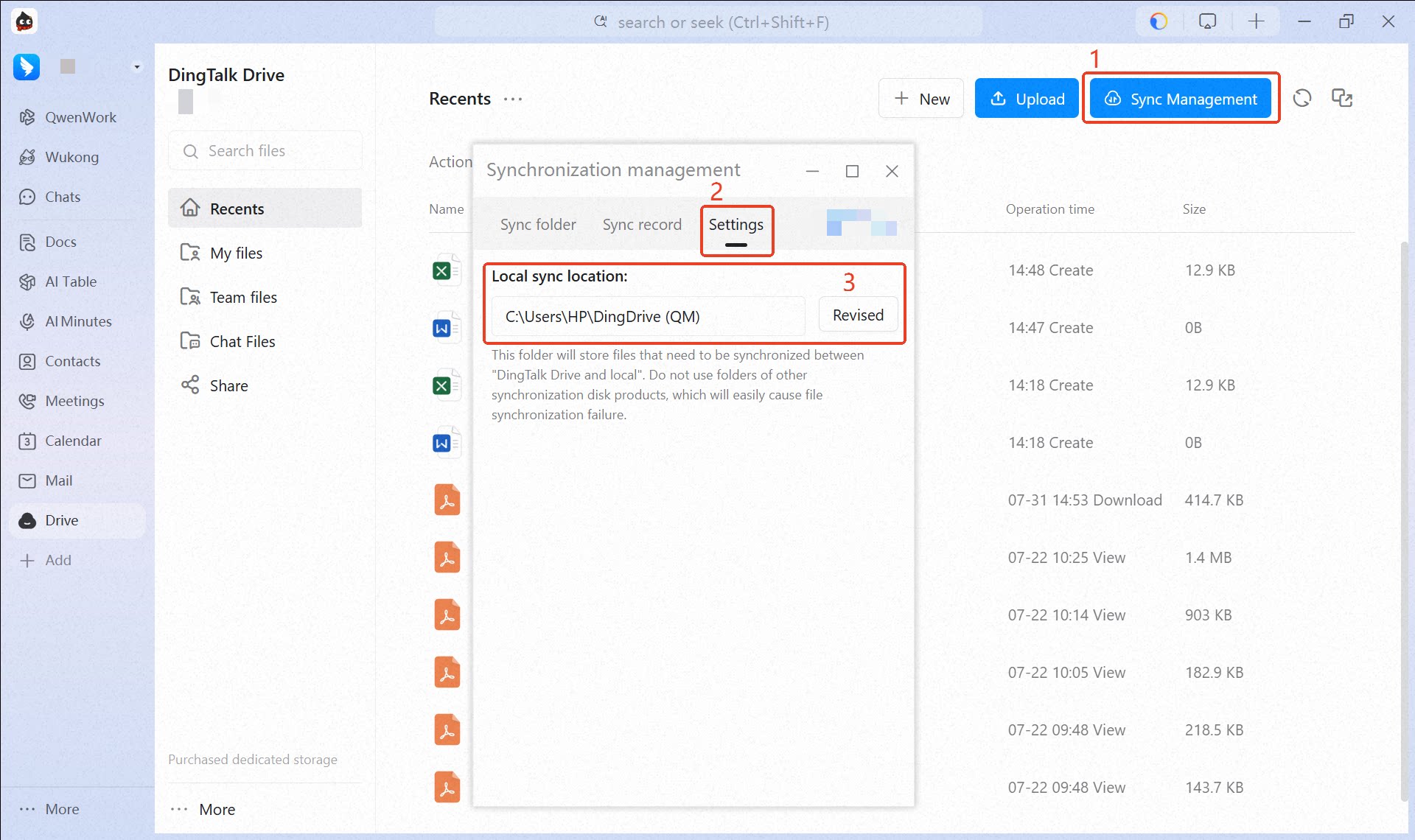
- Go to DingTalk Drive > Sync Management > Settings to change the local sync path.
How to Restrict Members from Using Local Sync
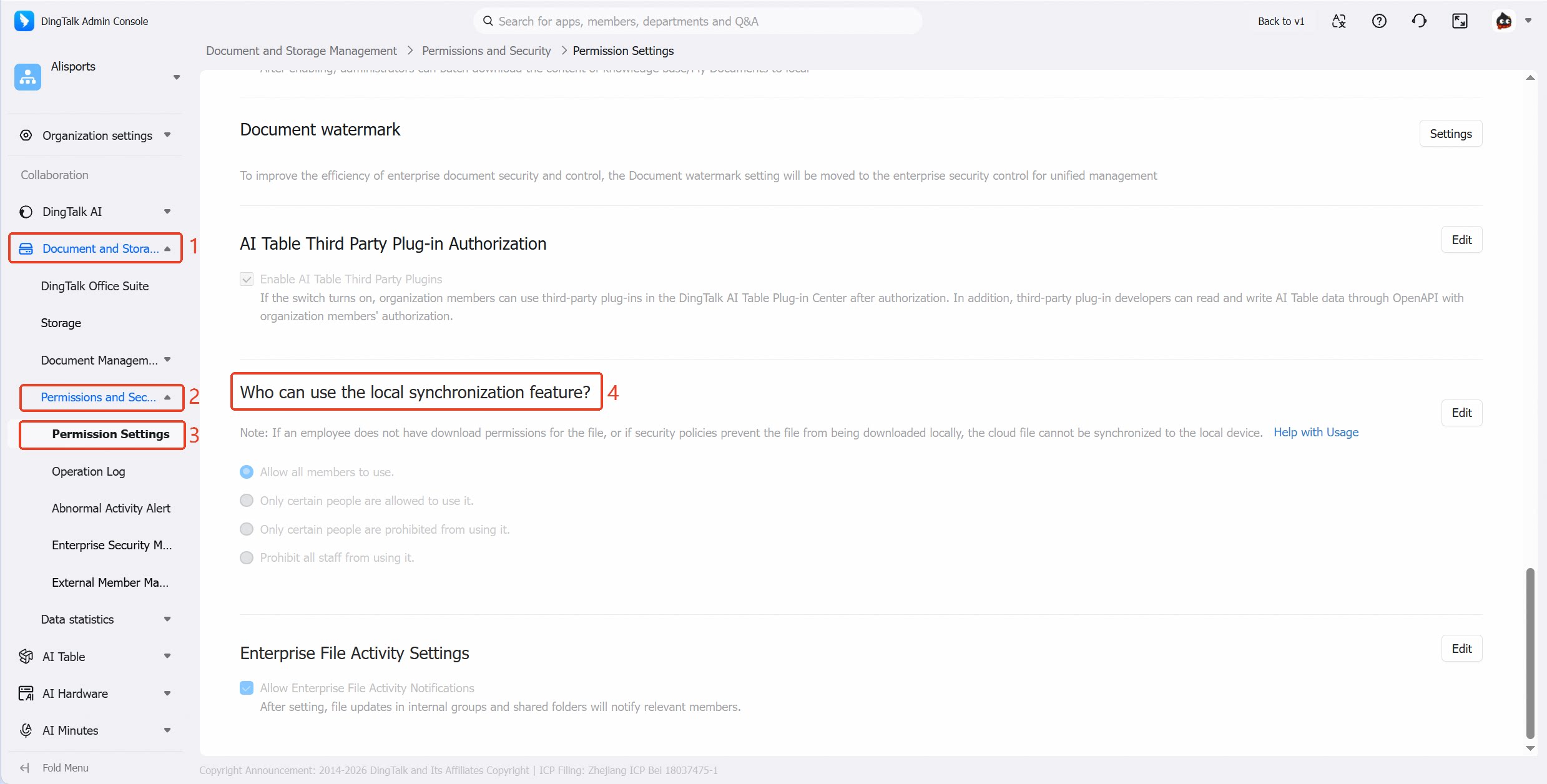
- Enterprise administrators can restrict which members can use local sync.
- In the Enterprise Admin Console, go to Docs and Storage Management > Permissions and Security > Permission Settings to configure who can use local sync.
- Members who are restricted will not see the Enable Local Sync option in DingTalk Drive.