Chats
Chats Calendar
 Meetings
 Contacts
 Mail
Mail Docs
Docs Drive
Drive AI Table
 AI Minutes
 Attendance
 Approval
 YiDA
YiDA Admin Console
Desktop
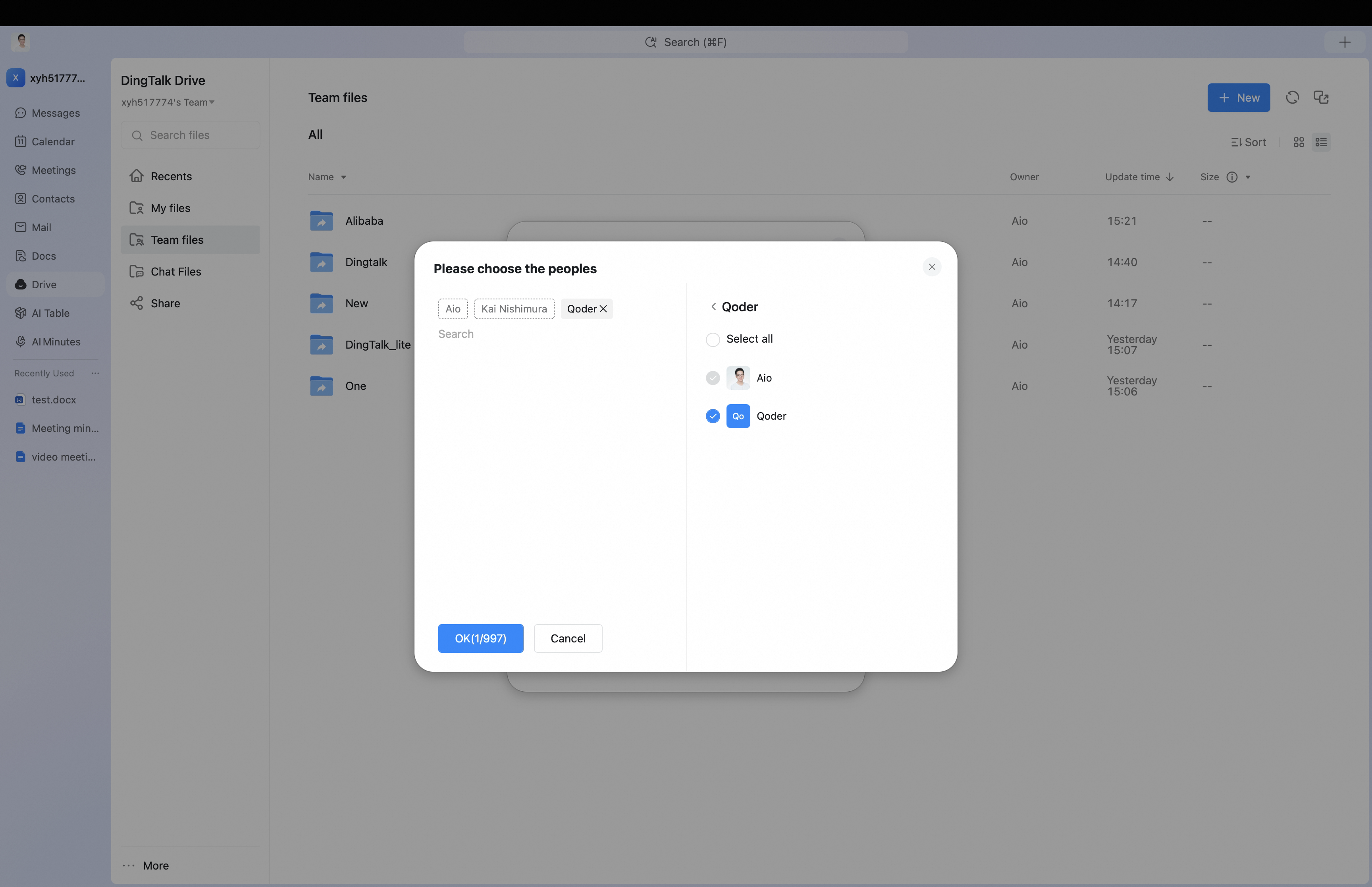
Open the DingTalk Drive home page, Team Files on the Docs home page, or My Files (from DingTalk Drive) under My Docs. Find the target file or folder, click … for more options, and select Permission Management.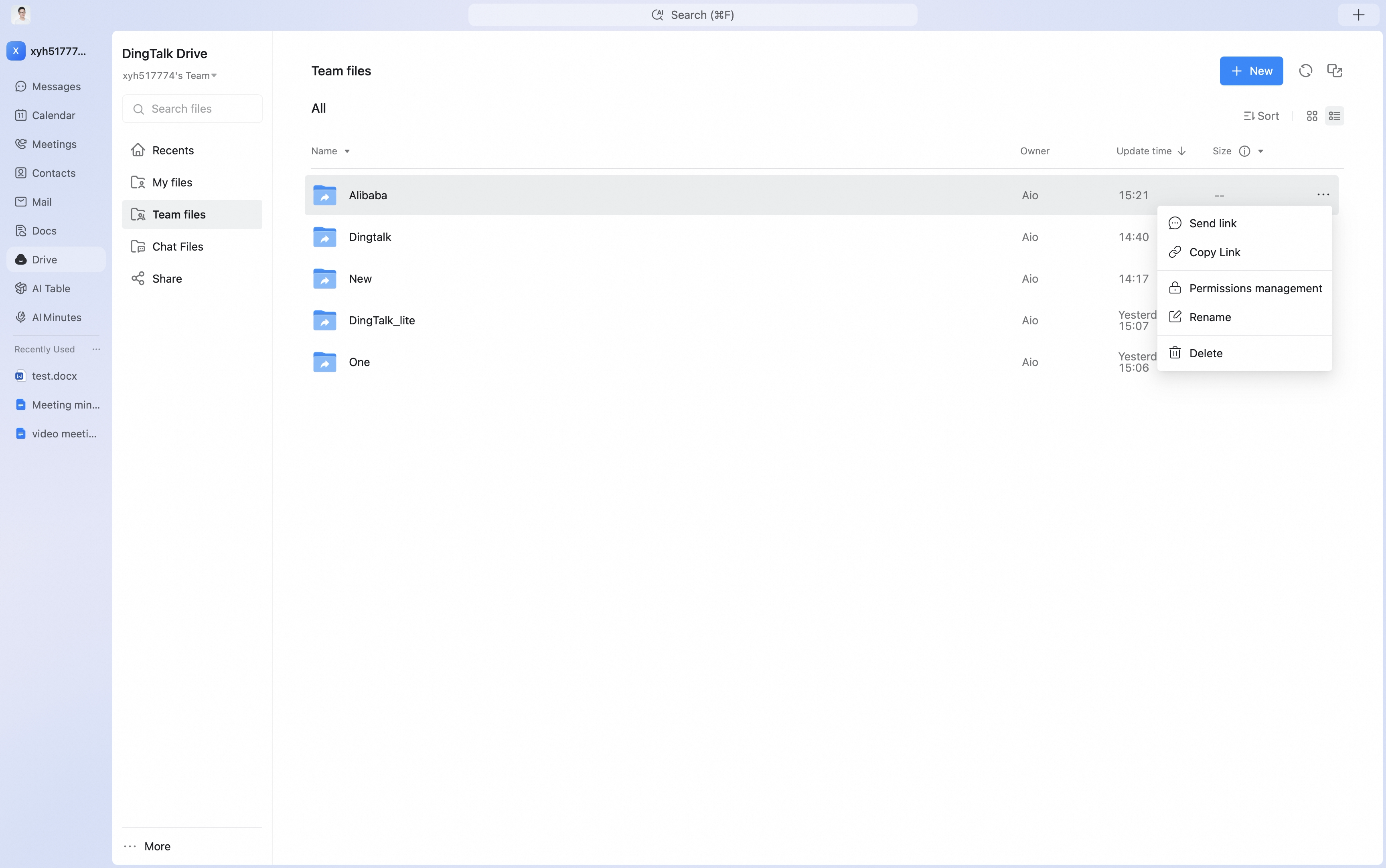 Click Add Collaborator, then select the specified group, person, or department to grant access.
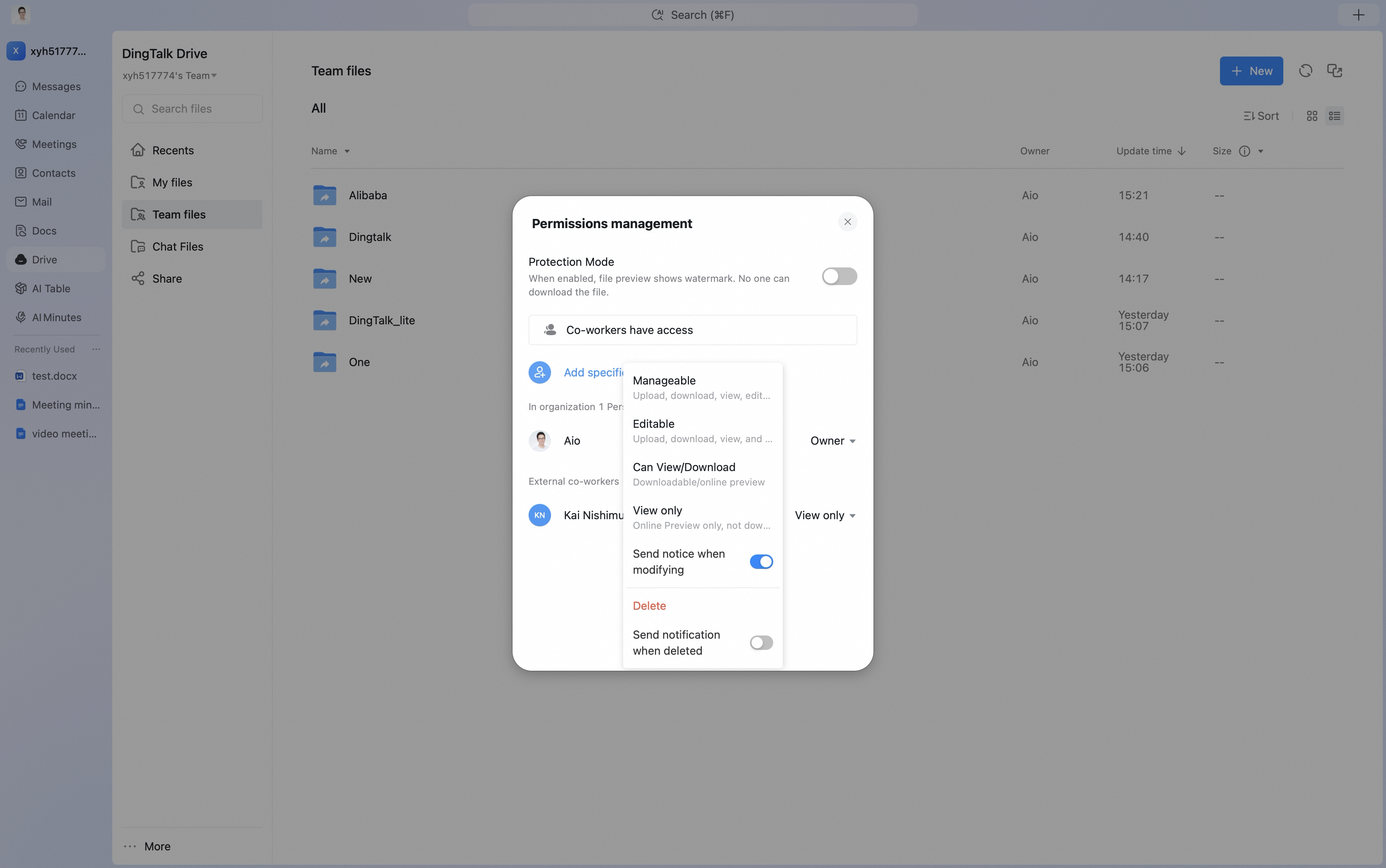
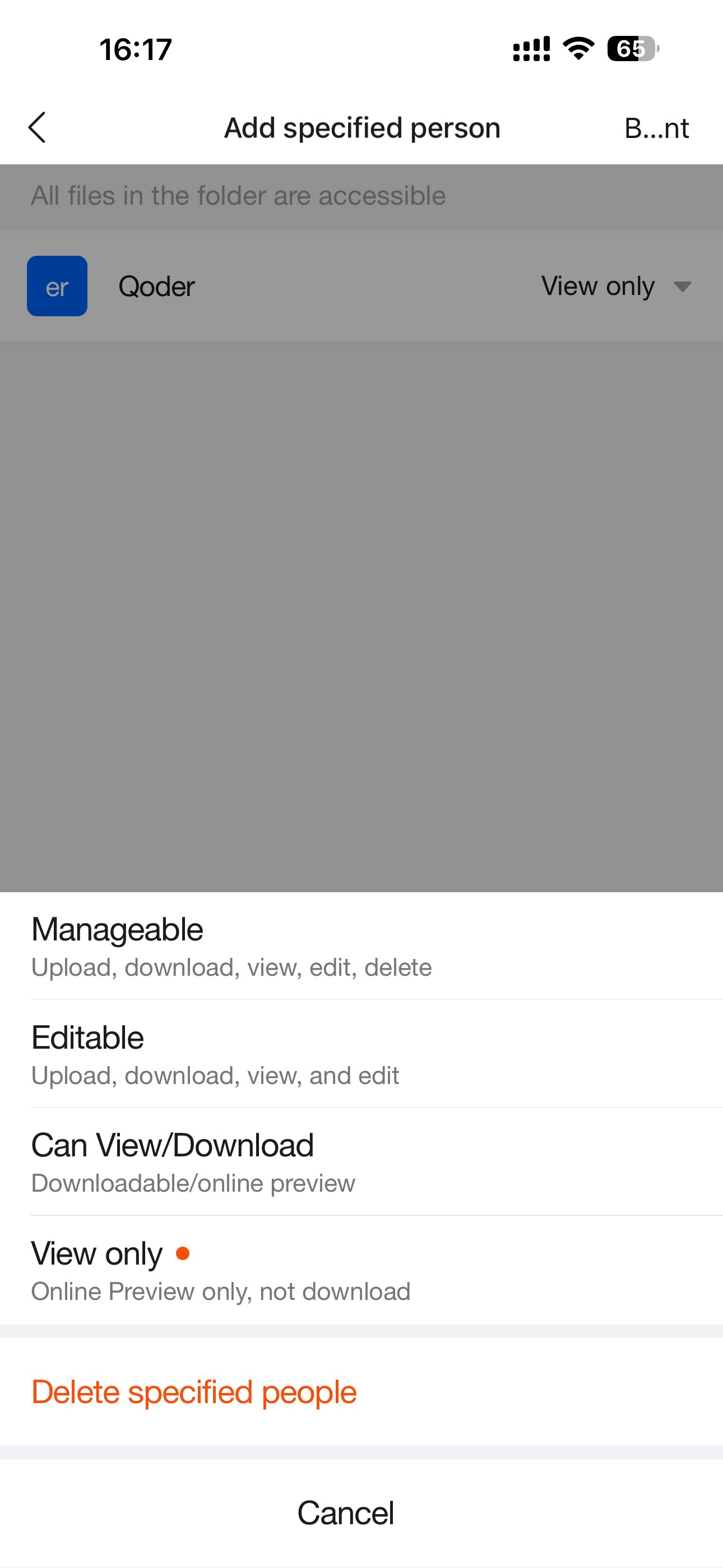
 After collaborators are added, you can modify permissions for people, groups, or departments that already have access.
Mobile
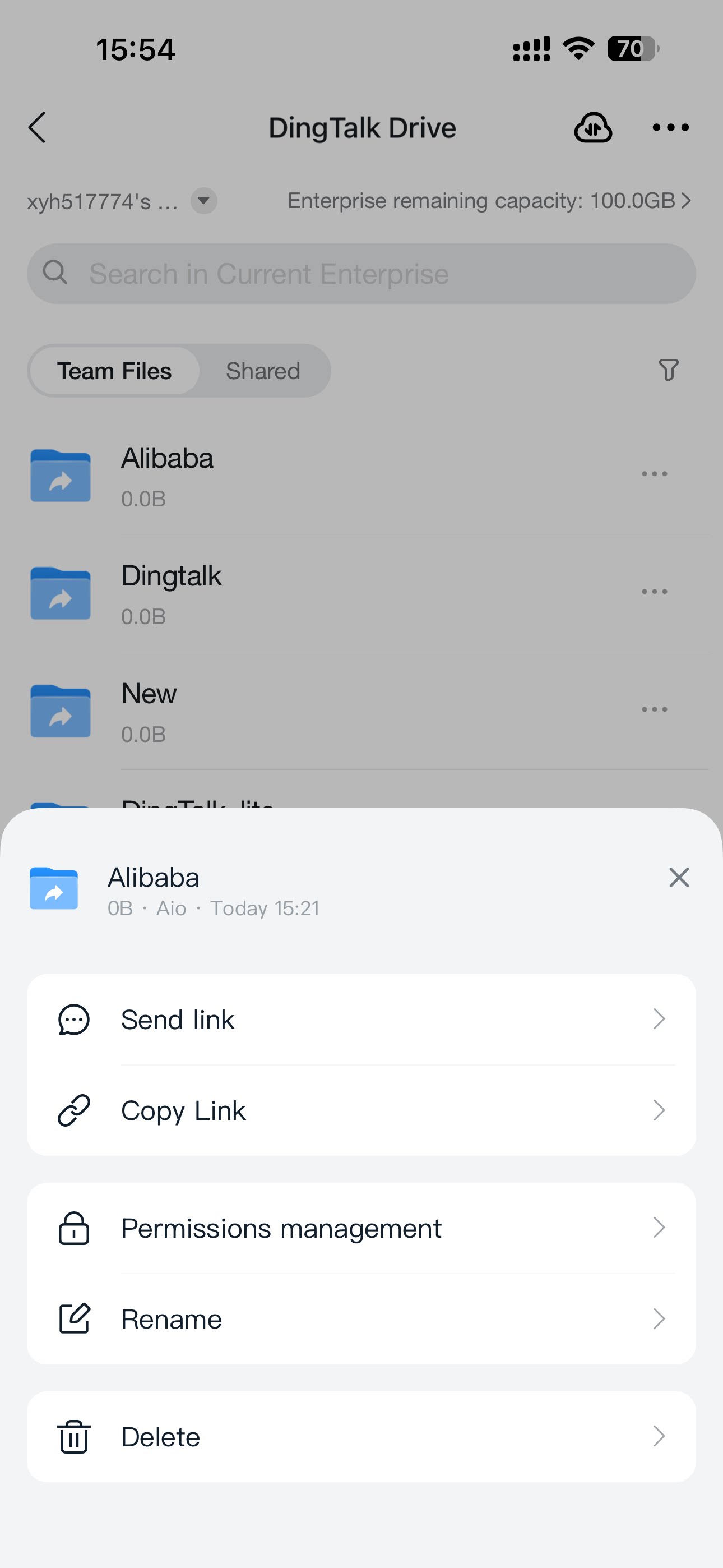
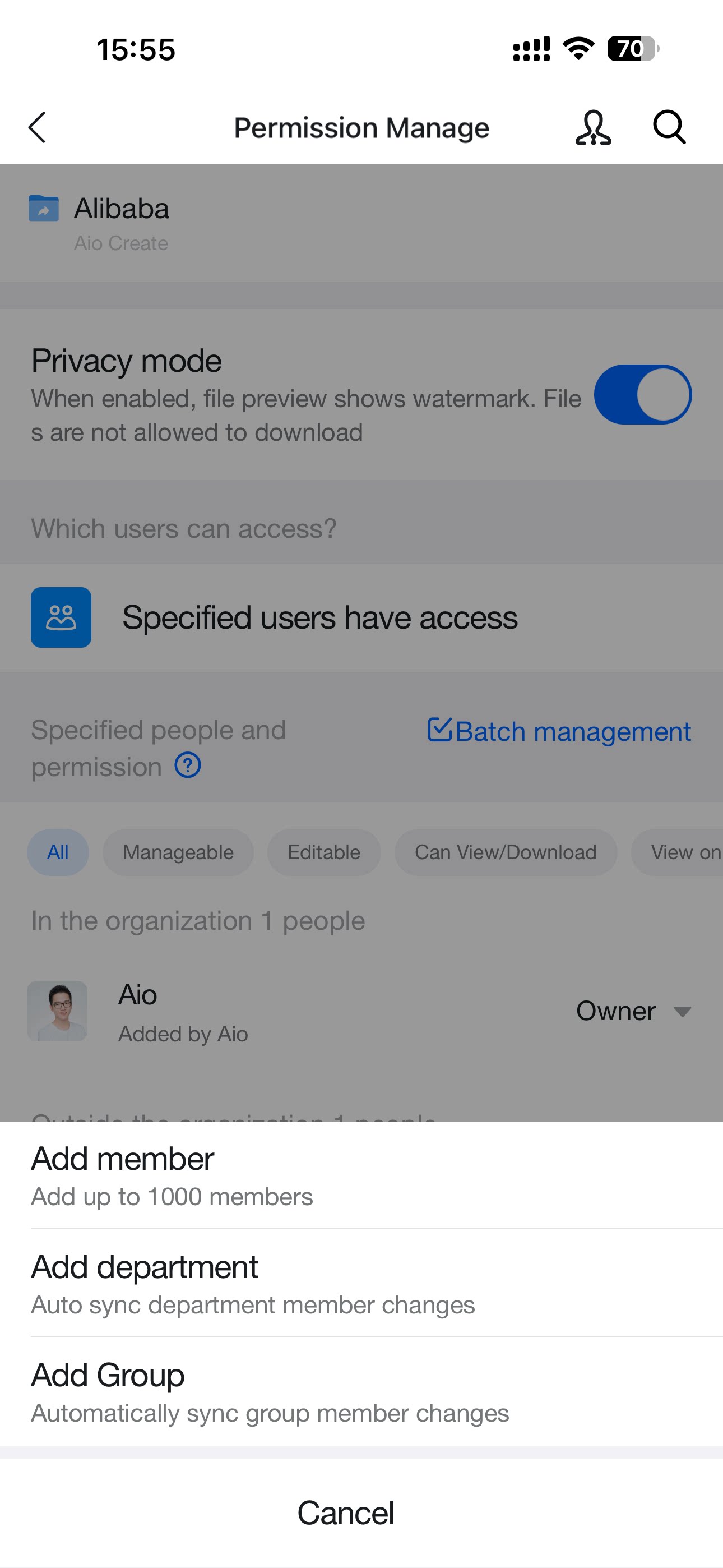
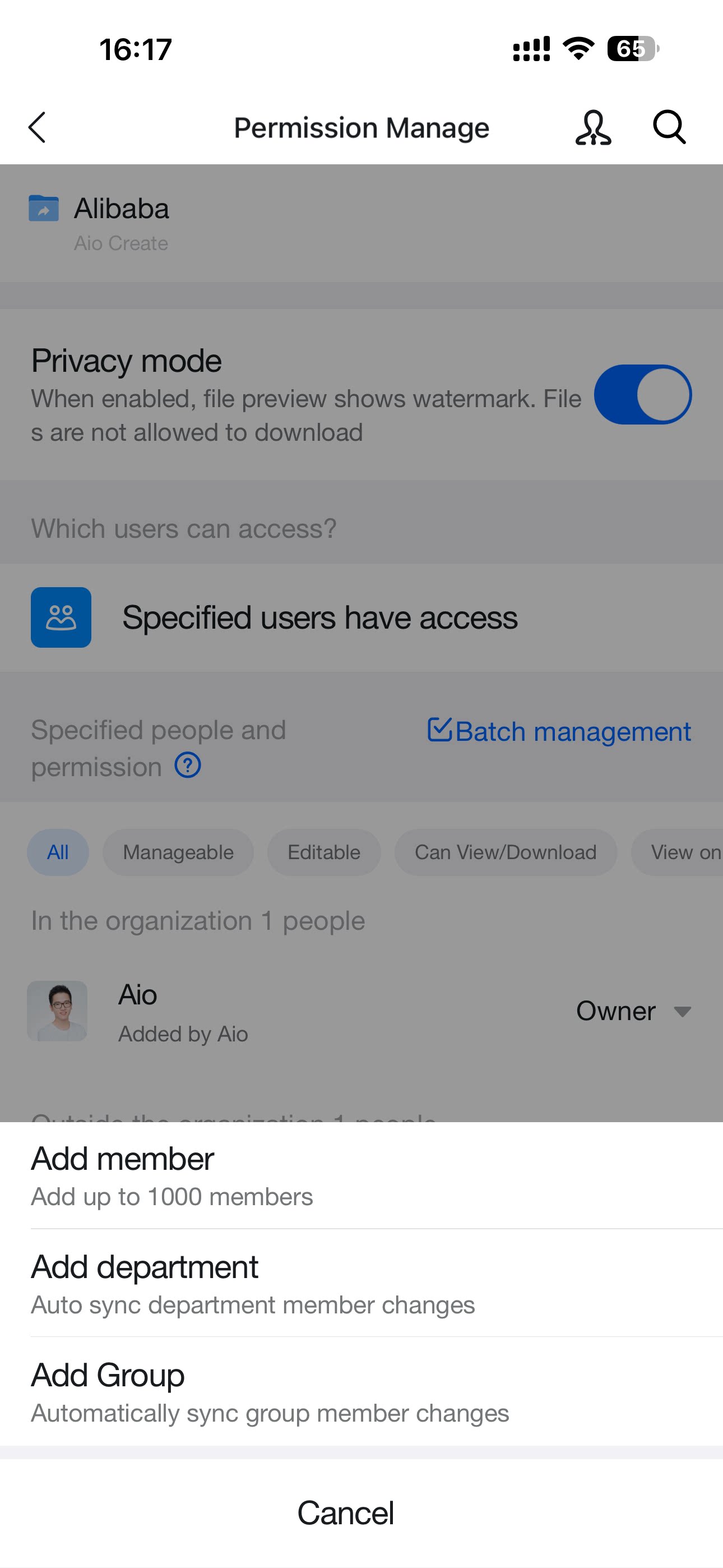
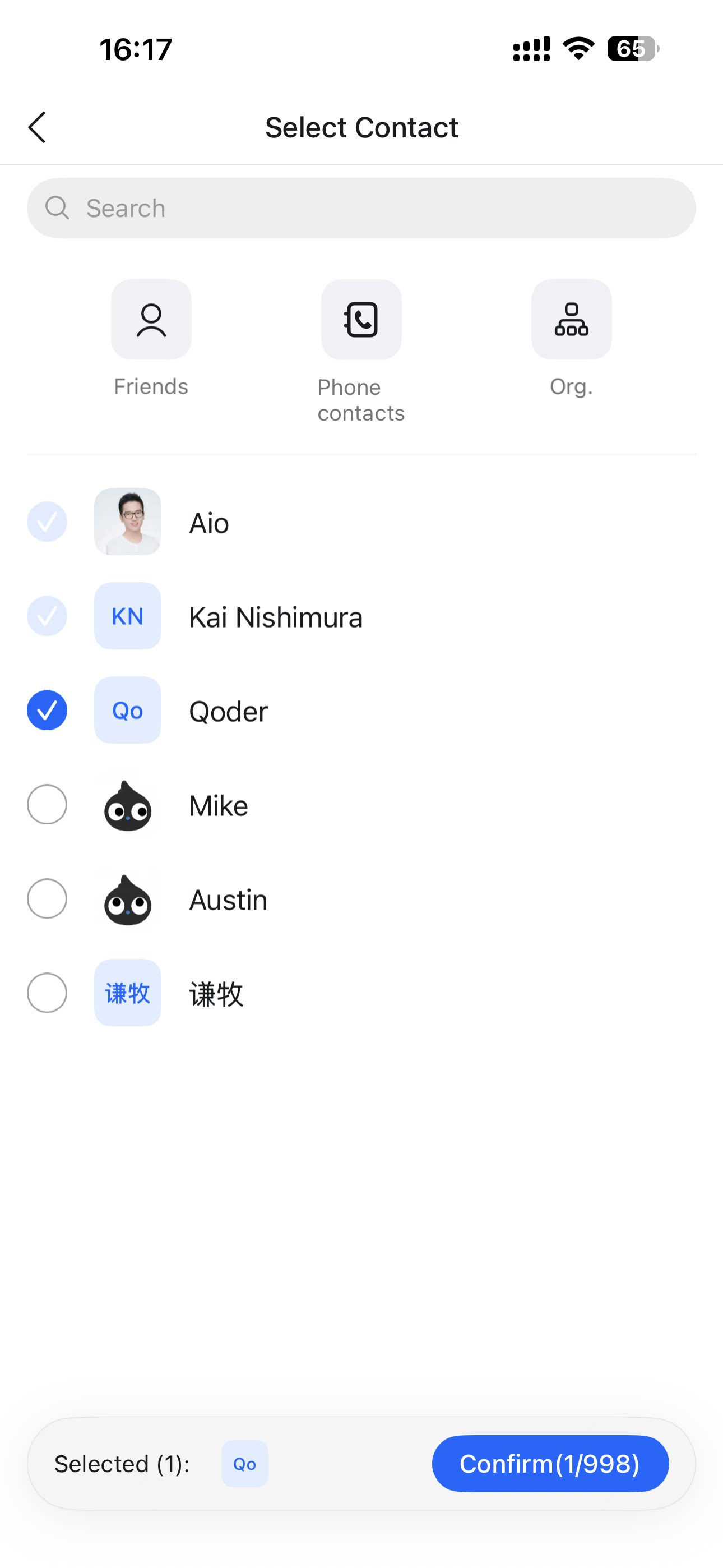
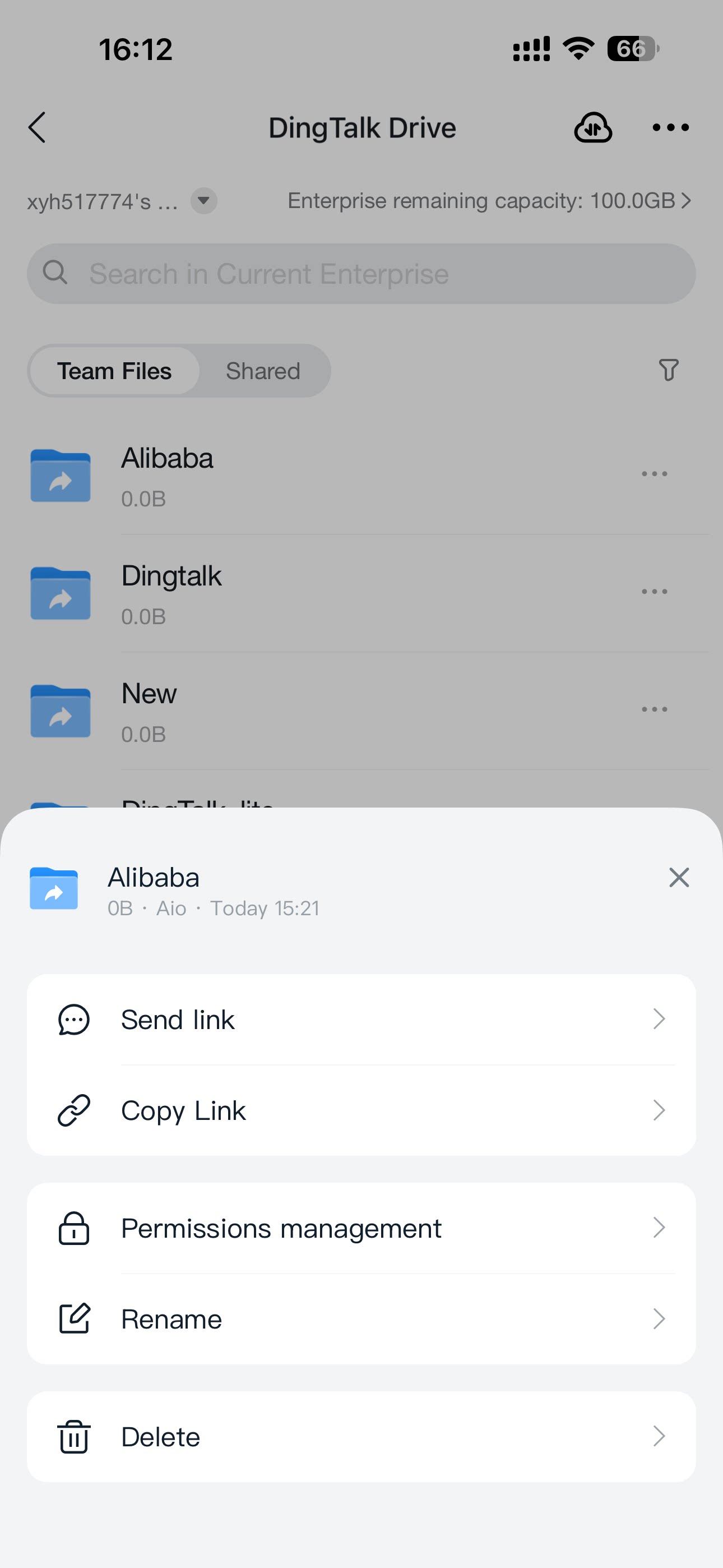
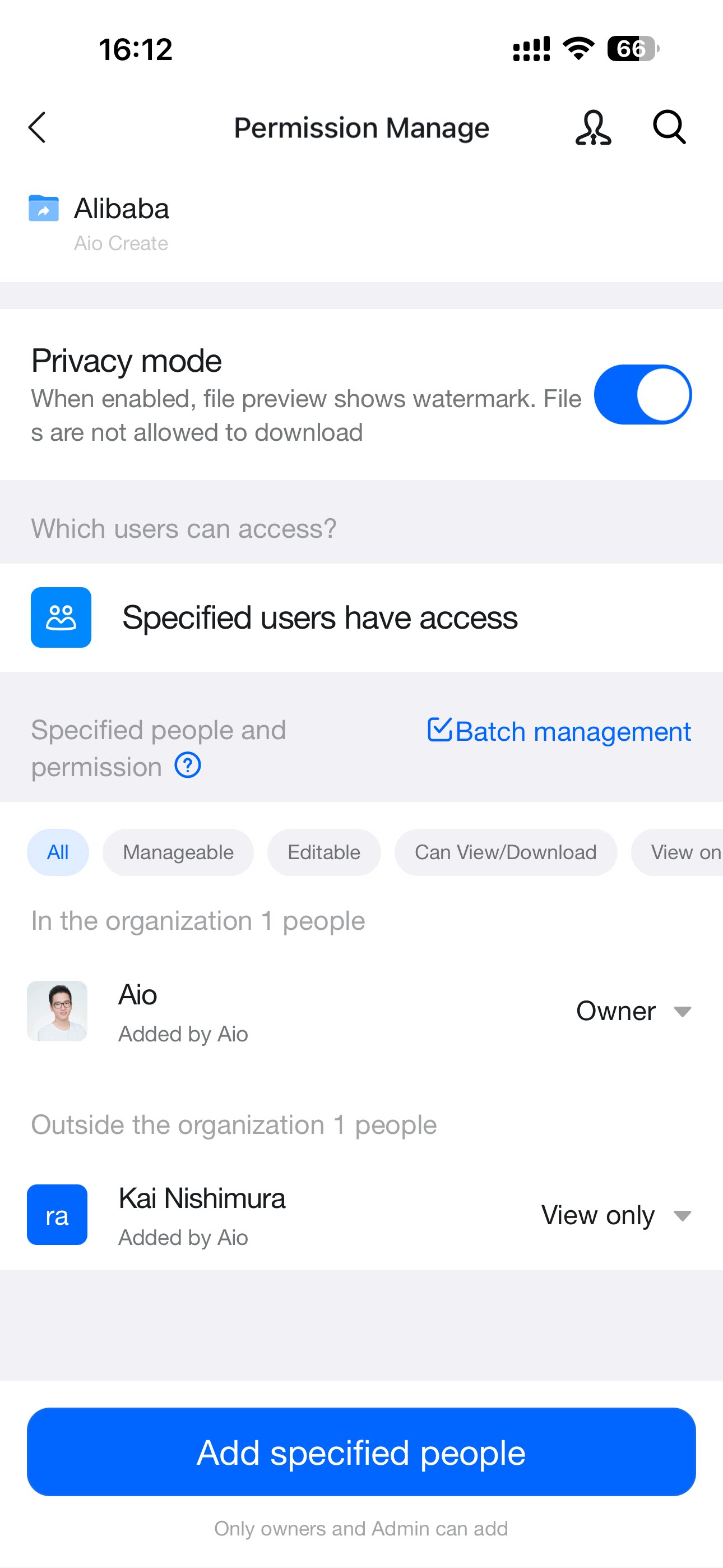
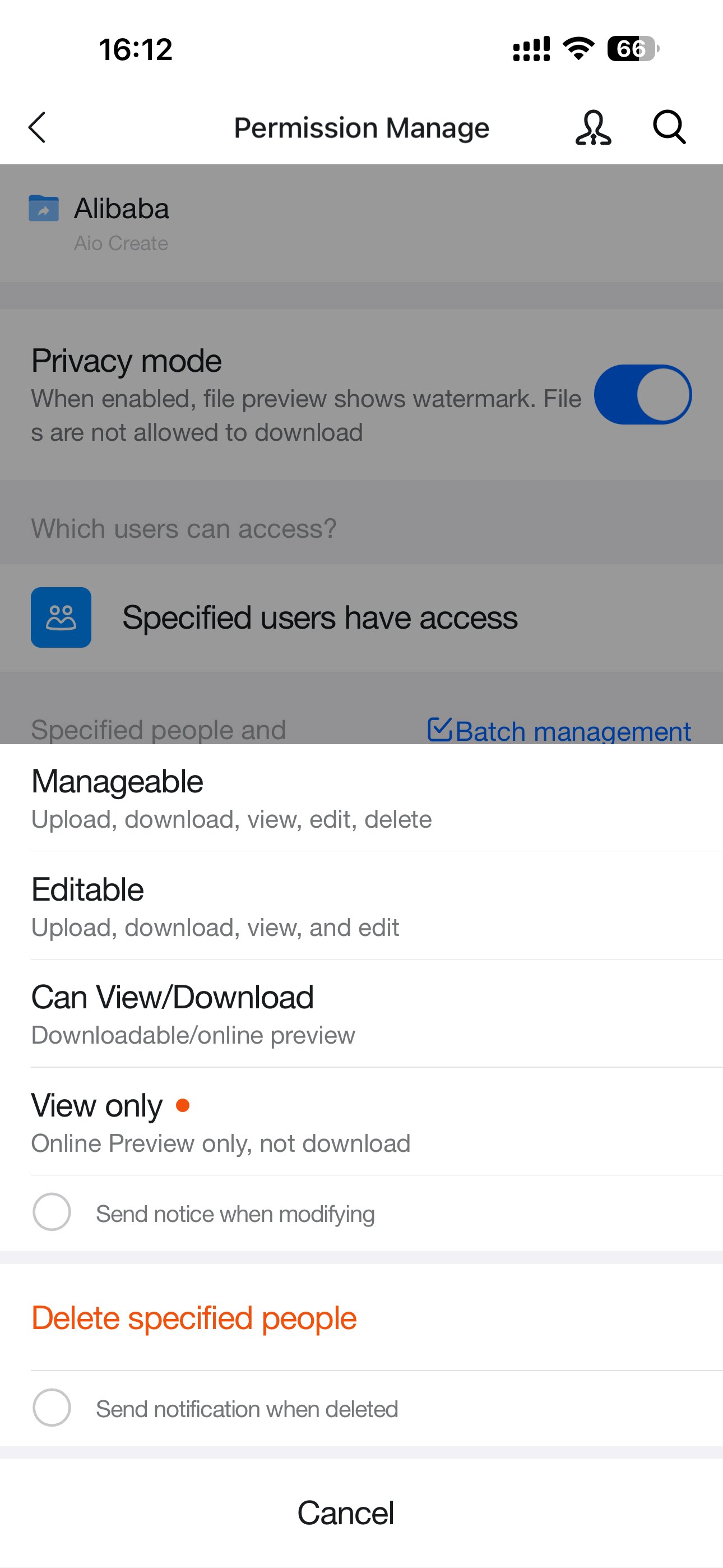
Open the DingTalk Drive home page, Team Files on the Docs home page, or My Files (from DingTalk Drive) under My Docs. Find the target file or folder, tap … for more options, select Permission Management, and then tap Add Collaborator.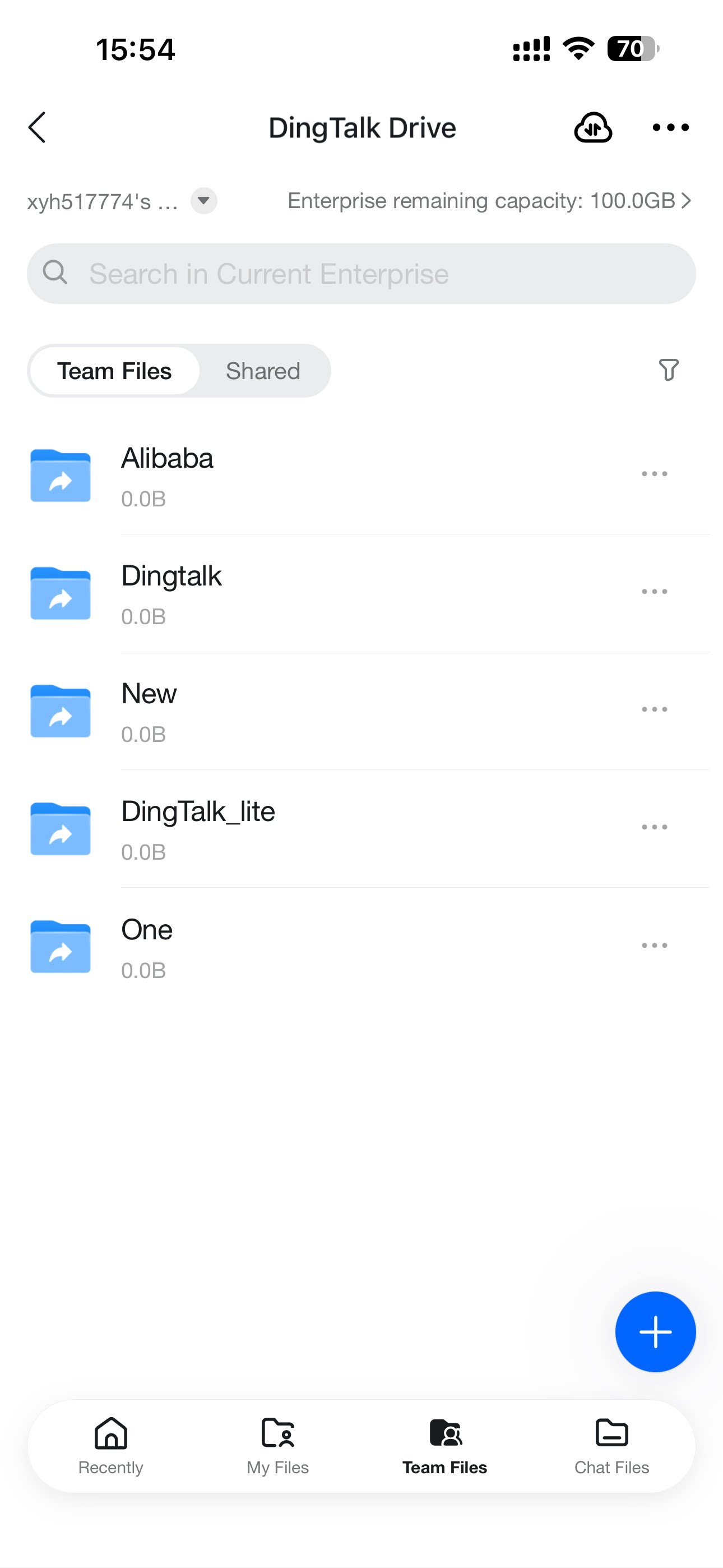
Notes
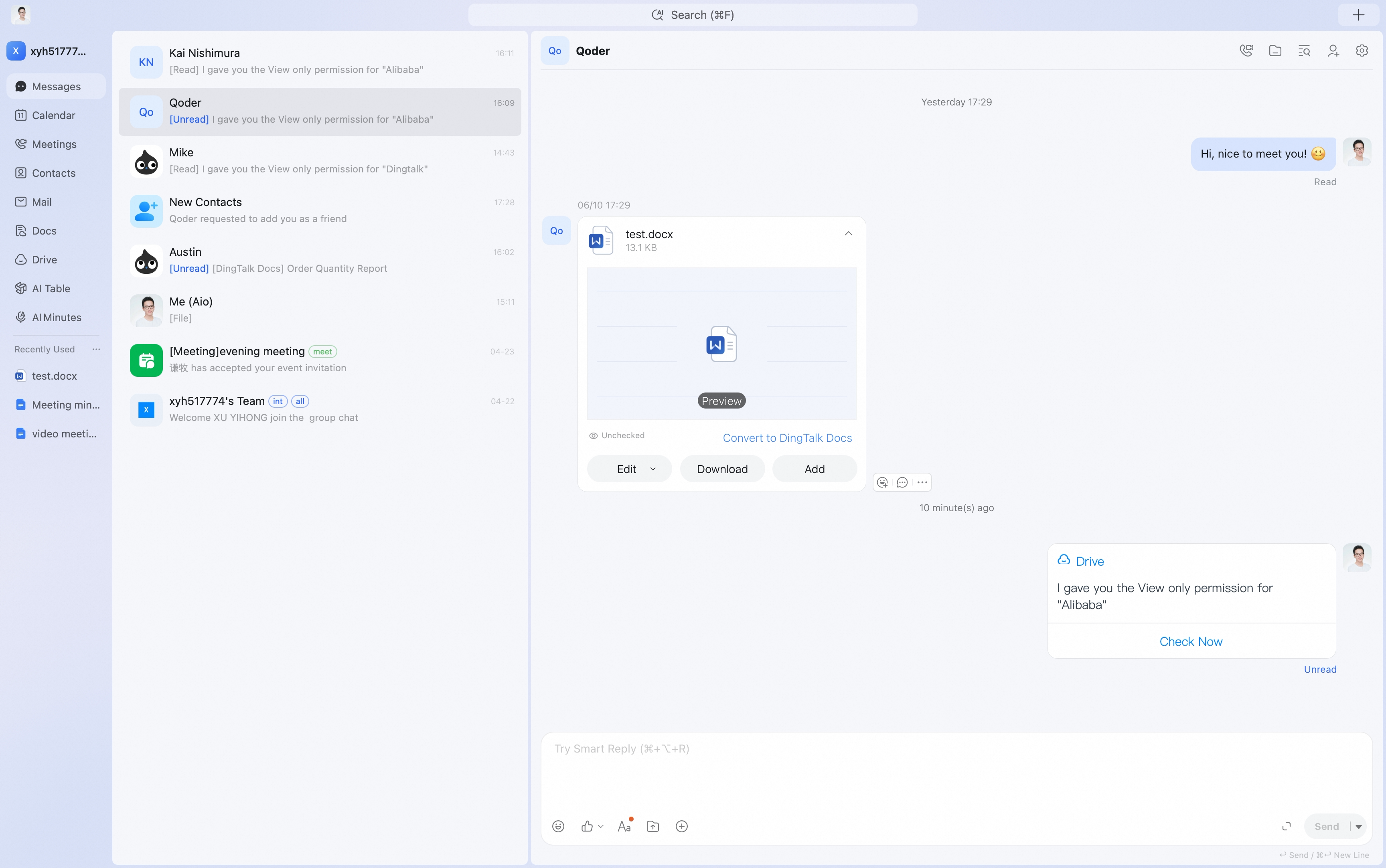
- Authorization information can be sent to the other party through DingTalk chat. The recipient can receive the authorization message immediately and can change permissions directly in the chat box.
- If the specified target is a group or department, the system automatically syncs membership changes for that group or department.