

 Chats
Chats Calendar
 Meetings
 Contacts
 Mail
Mail Docs
Docs Drive
Drive AI Table
 AI Minutes
 Attendance
 Approval
 YiDA
YiDA Admin Console
1. Feature overview
DingTalk clock-in supports flexible makeup clock-in rules. Admins can decide whether employees are allowed to submit makeup clock-ins, and set limits on the time, frequency, and type of makeup clock-ins.2. Use cases
- Employees forget to clock in.
- Employees fail to clock in on time due to unexpected events.
- Employees need to temporarily adjust work start and end times to meet work requirements.
- Employees need to adjust attendance records due to work arrangements.
- Other scenarios that require a makeup clock-in.
3. Procedure
1. Access the settings page
Open DingTalk desktop > Workbench > Attendance > Attendance rule management > Makeup clock-in rules > Select the relevant makeup clock-in rule > Edit, and configure the rule. ⚠️ Notes:- Allow makeup clock-in: Employees who forget to clock in can correct their attendance record with a makeup clock-in.
- Makeup clock-in for normal status: Employees can also apply for a makeup clock-in when the attendance result is normal.
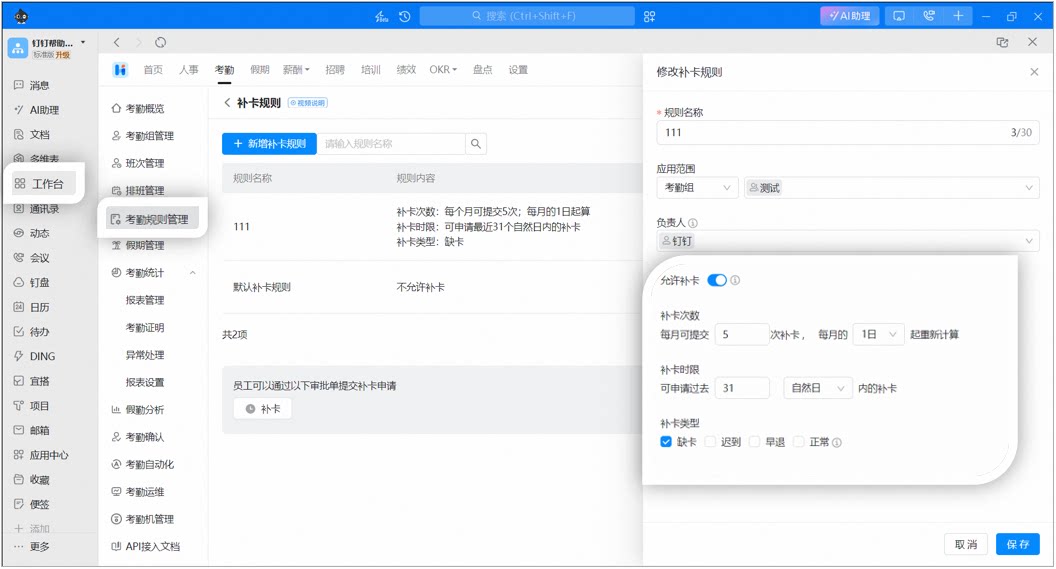
Example of configuring makeup clock-in rules
2. Configure makeup clock-in rules
- Set the makeup clock-in frequency limit (1–99 times) and the makeup clock-in time limit (0–180 days). If Allow makeup clock-in is not enabled, employees cannot submit makeup clock-in requests. You can also set the start date of the monthly makeup clock-in count and specify whether the applicable time range is calendar days or working days.
- Limit makeup clock-in type: Restrict which types of clock-in results are eligible for a makeup clock-in. Once selected, employees can only submit makeup clock-ins for the checked types. By default, normal, missed clock-in, late arrival, and early leave are all eligible.
- Limit makeup clock-in time: Restrict employees to submitting makeup clock-ins only for a specified number of past days. Requests beyond this range are not allowed.
- Limit makeup clock-in frequency: Set the maximum number of makeup clock-ins per cycle, for example, up to 3 times per cycle.
Notes:
- If “Normal” is selected as a makeup clock-in type, employees can submit makeup clock-ins for both “Normal” and “No clock-in required” results.
- If “Late arrival” is selected as a makeup clock-in type, employees can submit makeup clock-ins for both “Late arrival” and “Severe late arrival” results.
- If the makeup clock-in approval template is disabled, employees cannot submit makeup clock-in requests.
- If the makeup clock-in frequency limit is enabled, submitting a makeup clock-in request on behalf of another employee deducts from the Submitter’s makeup clock-in quota.
3. Employees submit makeup clock-in requests
When the Admin has enabled makeup clock-in and the employee meets the makeup clock-in rules, the employee can submit a makeup clock-in request from the clock-in Home page, application page, or statistics page. For details, see >>> Clock-in operations | Submit a makeup clock-in request.Note: Employees can view the specific makeup clock-in rules on the clock-in Home page > View rules.
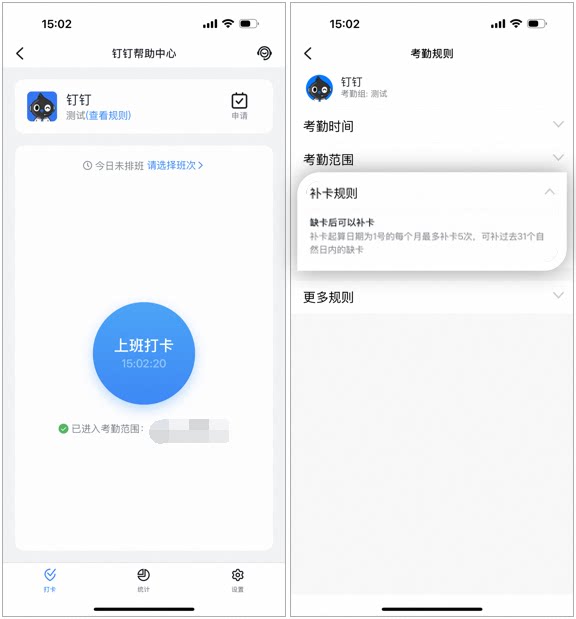
Example of the employee makeup clock-in request page
4. FAQ
Why does the system show 'Makeup clock-in quota used up, unable to continue submitting' when I submit a makeup clock-in?
Why does the system show 'Makeup clock-in quota used up, unable to continue submitting' when I submit a makeup clock-in?
If the number of makeup clock-ins submitted by an employee exceeds the limit set by the Admin, the employee cannot submit another makeup clock-in request. The system shows: Makeup clock-in quota used up, unable to continue submitting.
If multiple makeup clock-in requests are submitted for the same missed clock-in time, how many attempts are consumed?
If multiple makeup clock-in requests are submitted for the same missed clock-in time, how many attempts are consumed?
If an employee submits multiple makeup clock-in requests for the same missed clock-in time, each submission consumes one makeup clock-in attempt. For example, if an employee submits one makeup clock-in request for a missed clock-out that day, and then submits another request for the same missed clock-in time while the first request is still pending approval, 2 makeup clock-in attempts are consumed.
If flexible clock-in is configured, will the result show as normal after a makeup clock-in?
If flexible clock-in is configured, will the result show as normal after a makeup clock-in?
If the attendance shift is configured with a late arrival and late departure allowance, the makeup clock-in time can be extended according to that rule. For example, if the shift is 9:00–18:00 with a 1-hour late arrival allowance and the employee misses the clock-in, the makeup clock-in time range is 9:00–10:00. Once the makeup clock-in request is approved, it is counted as a normal clock-in.
How is the working-day makeup clock-in rule calculated?
How is the working-day makeup clock-in rule calculated?
When the makeup clock-in rule is based on working days, only statutory working days (Monday to Friday) are supported. Working days defined by scheduling or flexible working hours are not supported. For example, if the Admin sets the makeup clock-in window to the past 2 working days, a missed clock-in on Friday can be made up on the following Monday, because Saturday and Sunday are rest days and not counted as working days. (Statutory holidays only include the 7 national holidays announced by the State Council each year: 1 day for New Year’s Day, 3 days for Spring Festival, 1 day for Qingming Festival, 1 day for Labor Day, 1 day for Dragon Boat Festival, 3 days for National Day, and 1 day for Mid-Autumn Festival, totaling 11 days. For example, if you enable automatic scheduling for statutory holidays, 7 days are scheduled as rest during the National Day period, but only October 1, 2, and 3 count as statutory holidays.)
When submitting a makeup clock-in on behalf of someone else, whose makeup clock-in quota is deducted?
When submitting a makeup clock-in on behalf of someone else, whose makeup clock-in quota is deducted?
If the makeup clock-in frequency limit is enabled, submitting a makeup clock-in request on behalf of another employee deducts from that employee’s makeup clock-in quota, not the Submitter’s quota.