

 Chats
Chats Calendar
 Meetings
 Contacts
 Mail
Mail Docs
Docs Drive
Drive AI Table
 AI Minutes
 Attendance
 Approval
 YiDA
YiDA Admin Console
1. Overview
DingTalk overtime management lets you flexibly configure how overtime is calculated, how overtime duration is converted, and more. Employee clock-in records are also integrated with overtime approvals, helping you boost team management efficiency. 2. Use cases Set different overtime rules for workdays, rest days, and public holidays for your employees.3. How to configure
- An Admin with the required permissions can open DingTalk on desktop > Workbench > Attendance > Manage attendance rules > Overtime rules.
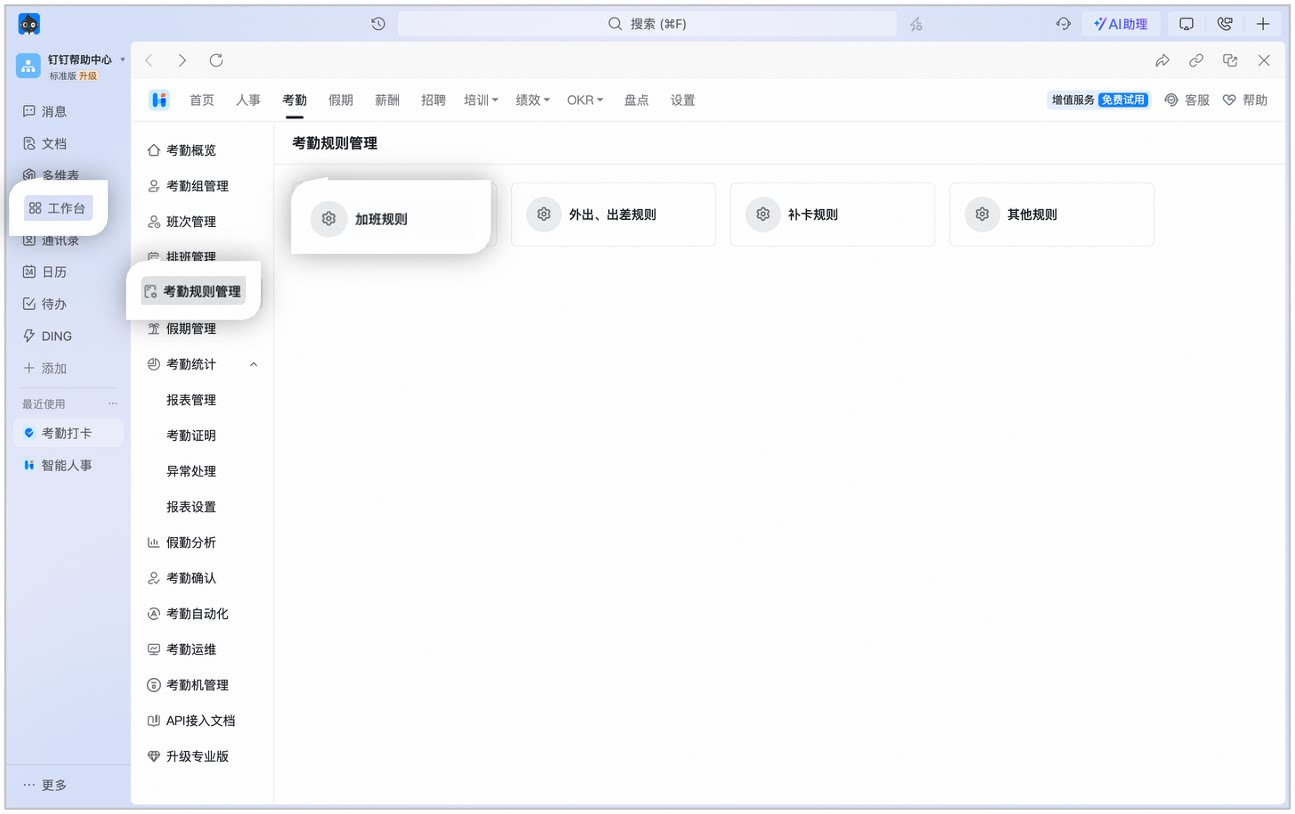
Example of the Overtime rules page
- Click Add overtime rule / Edit to set the overtime rule based on your organization’s needs.
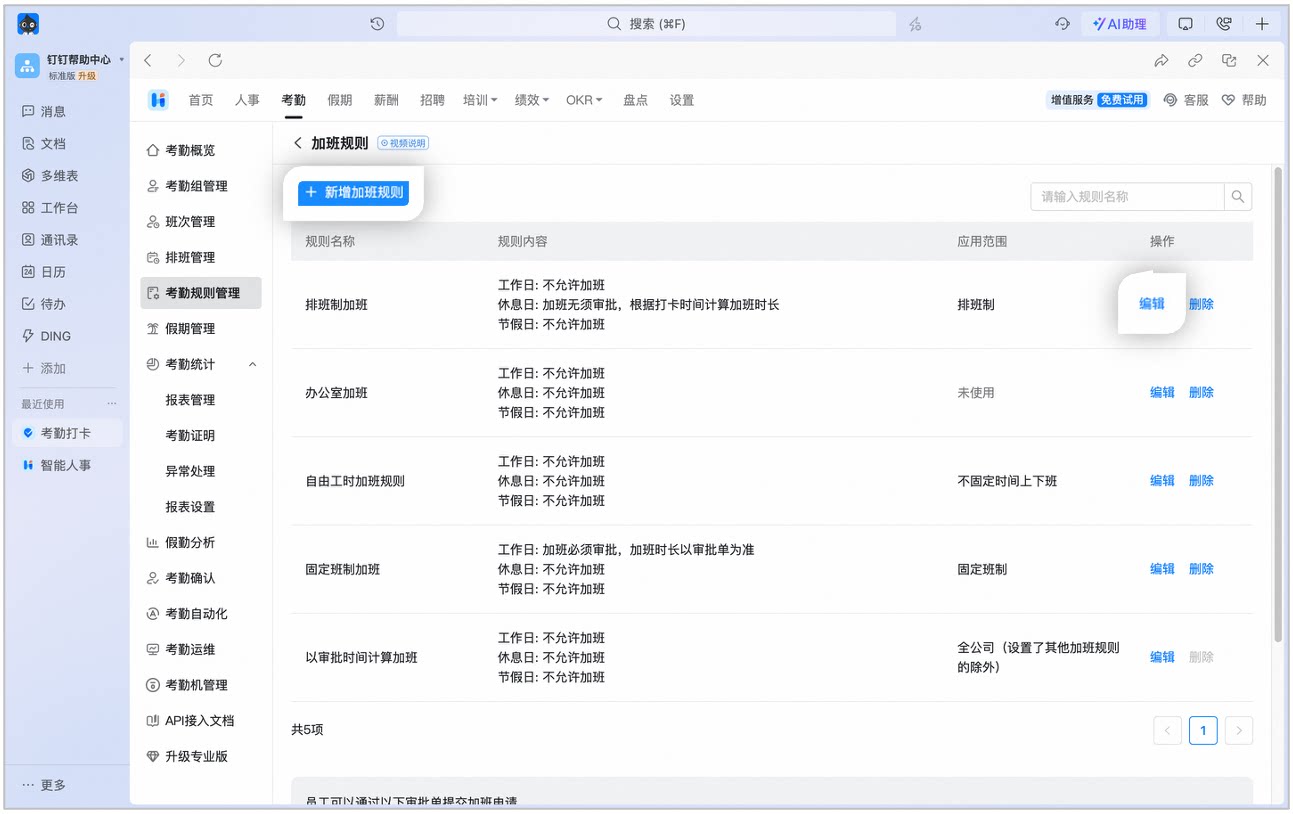
Example of the Add / Edit overtime rule page
4. Overtime rule details
Default rules
- Calculate overtime based on the approved duration: Overtime must be approved, and the overtime duration follows the Approval form.
- Calculate overtime based on clock-in time after approval: Overtime must be approved. The overtime duration is based on clock-in time but cannot exceed the duration on the Approval form.
- Calculate overtime based on clock-in time: Overtime does not require approval. The overtime duration is calculated based on clock-in time.
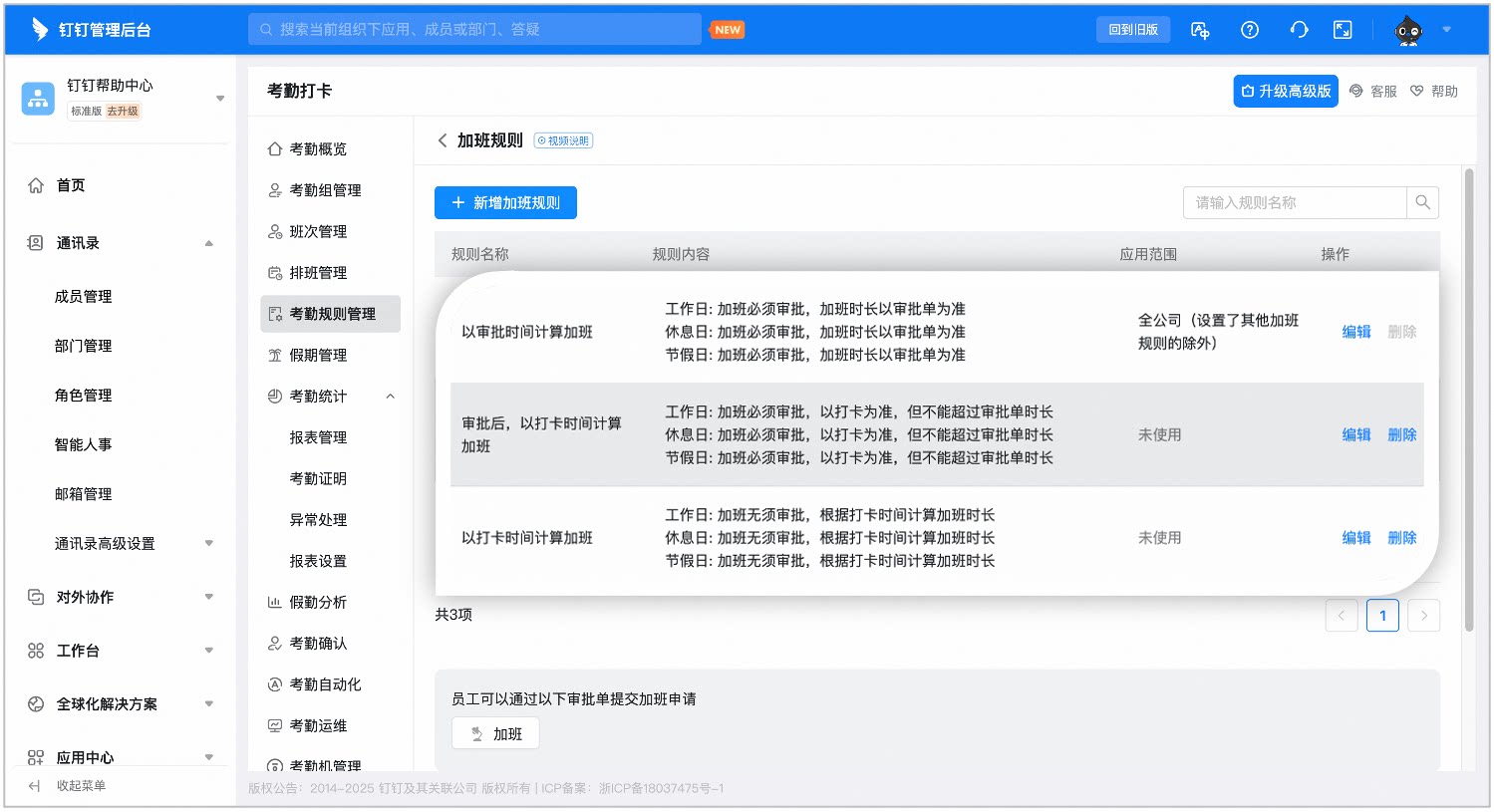
Example of the Overtime rules page
Edit overtime rules
Rule name
Set different overtime rule names based on your organization’s needs.Application scope
The overtime application scope can only be set by attendance group. You can set different overtime rules for different attendance groups.Whether to allow overtime
- Allow overtime on: Employees follow the overtime rule you configured for that Date type.
- Allow overtime off: Employees cannot submit overtime requests for that Date type, and any time worked will not count as overtime.
Overtime calculation method
- When Clock-in required for both the start and end of overtime is enabled:
- When Clock-in required for both the start and end of overtime is not enabled, overtime is calculated according to the method the Admin has set.
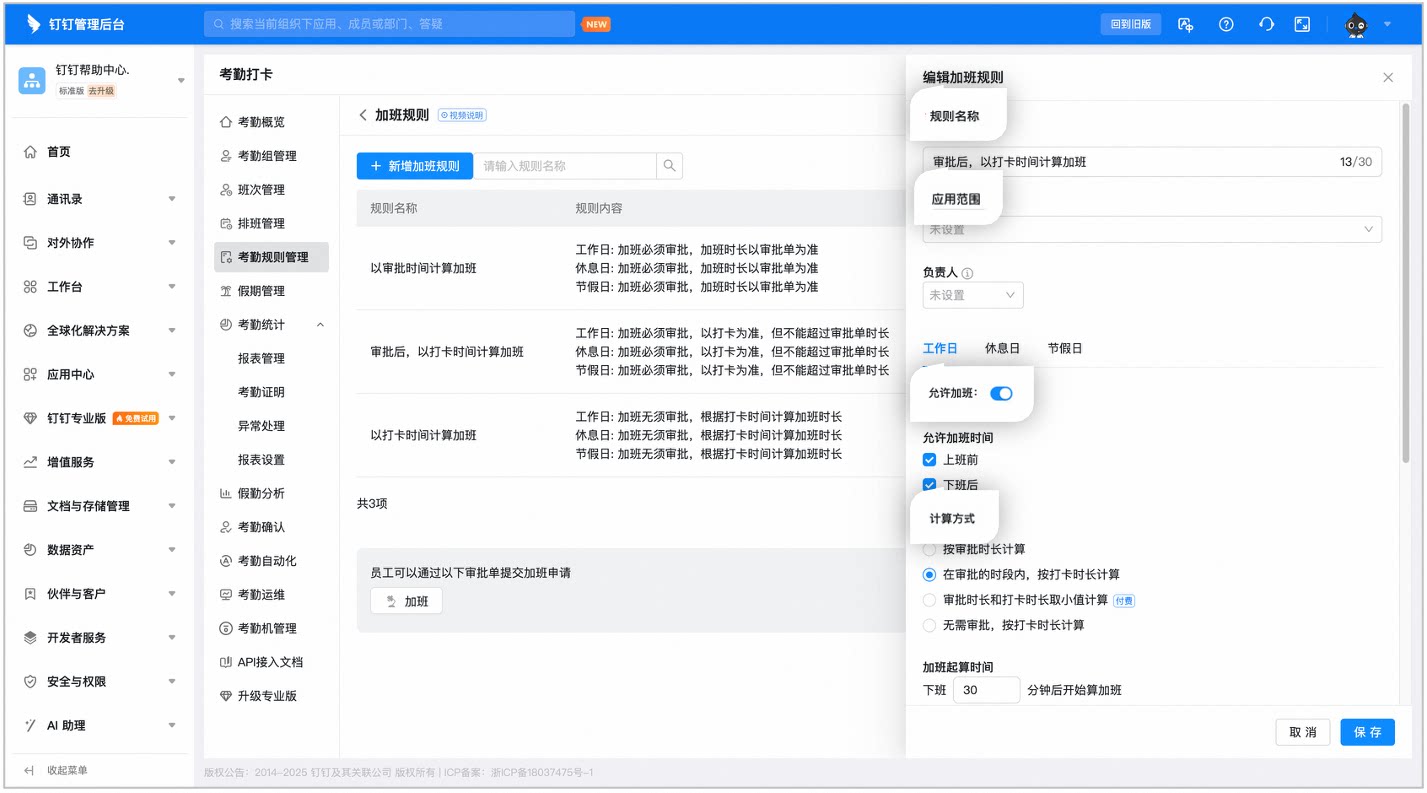
Example of the overtime rule settings page
Minimum overtime duration
- Overtime before / after the shift shorter than: Overtime worked within a certain period before the shift starts or after the shift ends does not count toward overtime duration. For example, if set to 30 minutes, overtime within 30 minutes after the shift ends will not be counted.
- Cumulative overtime shorter than: When the total duration of an employee’s single or multiple overtime sessions does not reach the set value, it will not count as overtime.
Deducted break time
- Deduct by break period.
- Deduct by overtime duration.
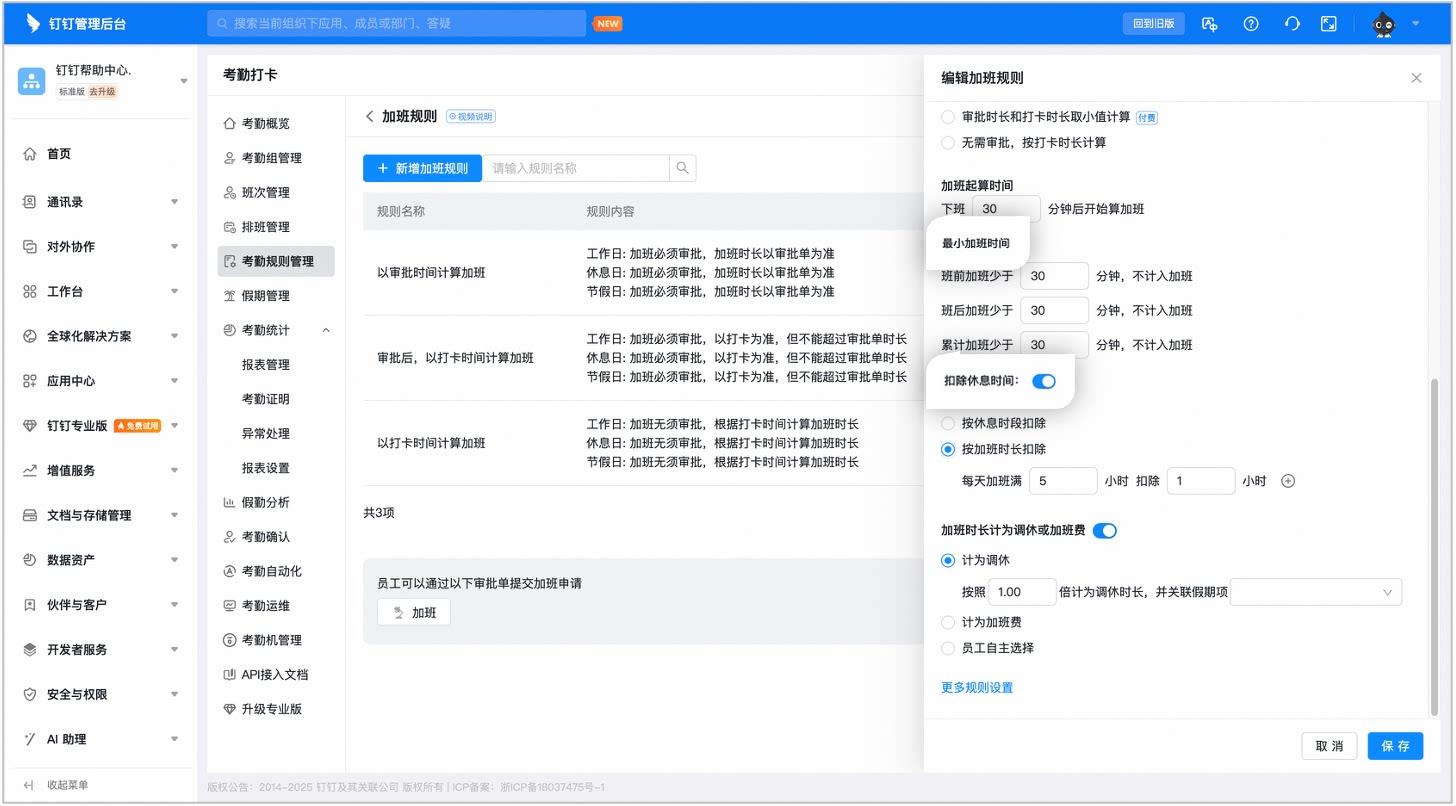
Example of the Minimum overtime duration and Deducted break time page
Overtime duration counted as compensatory leave or overtime pay
- Count as compensatory leave: The overtime duration is converted into compensatory leave. To link the leave type, see the FAQ at the bottom of this article.
- Count as overtime pay: The overtime duration is converted into overtime pay. You can view and summarize overtime duration in reports for regular payroll calculation.
- Employee’s choice: Let employees choose the conversion method when submitting an overtime request.
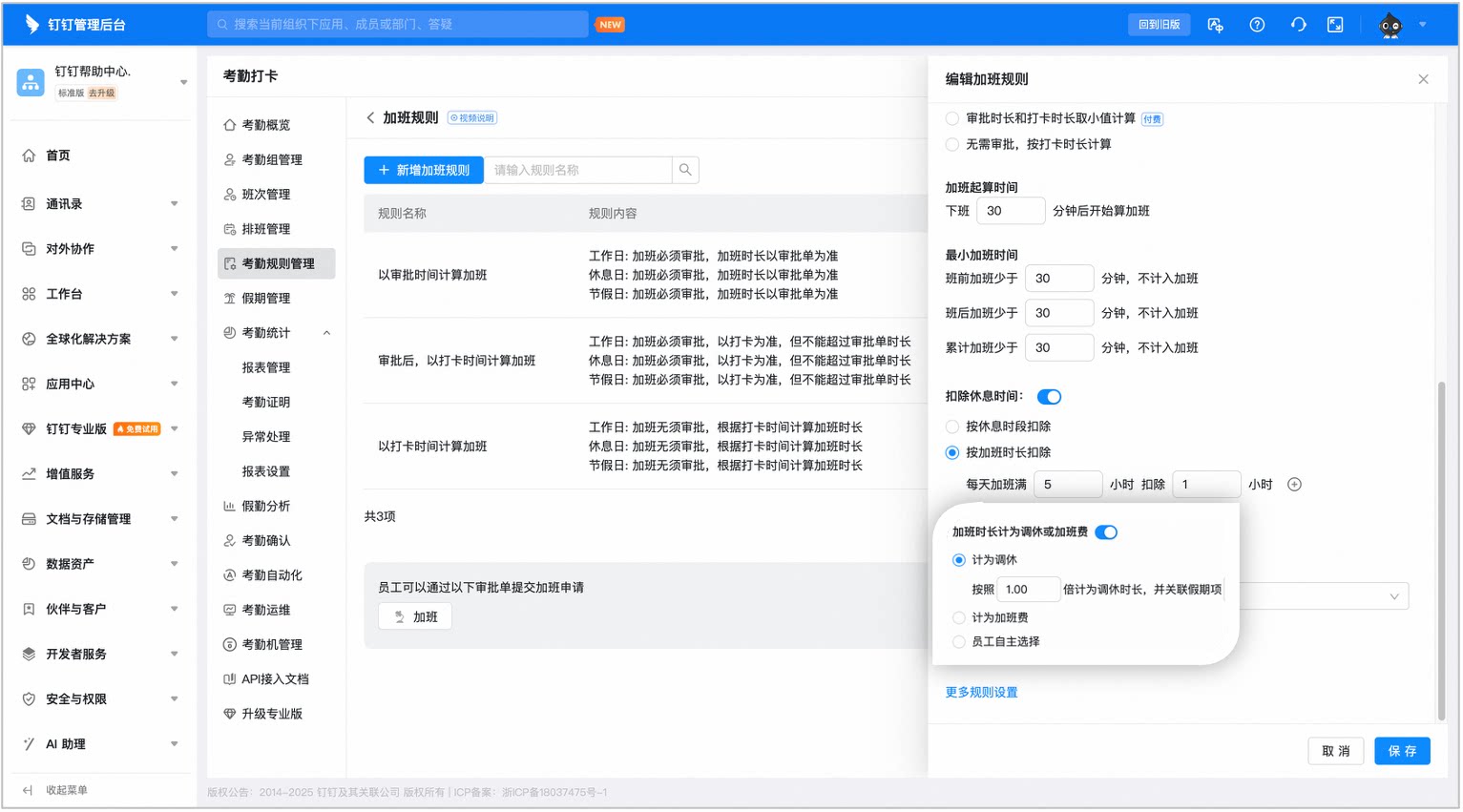
Example of the overtime duration counted as compensatory leave or overtime pay page
More rule settings
Overtime duration unit
In Overtime rules > More rule settings, you can also set the overtime duration unit. The Default is hours, and you can change it to days as needed.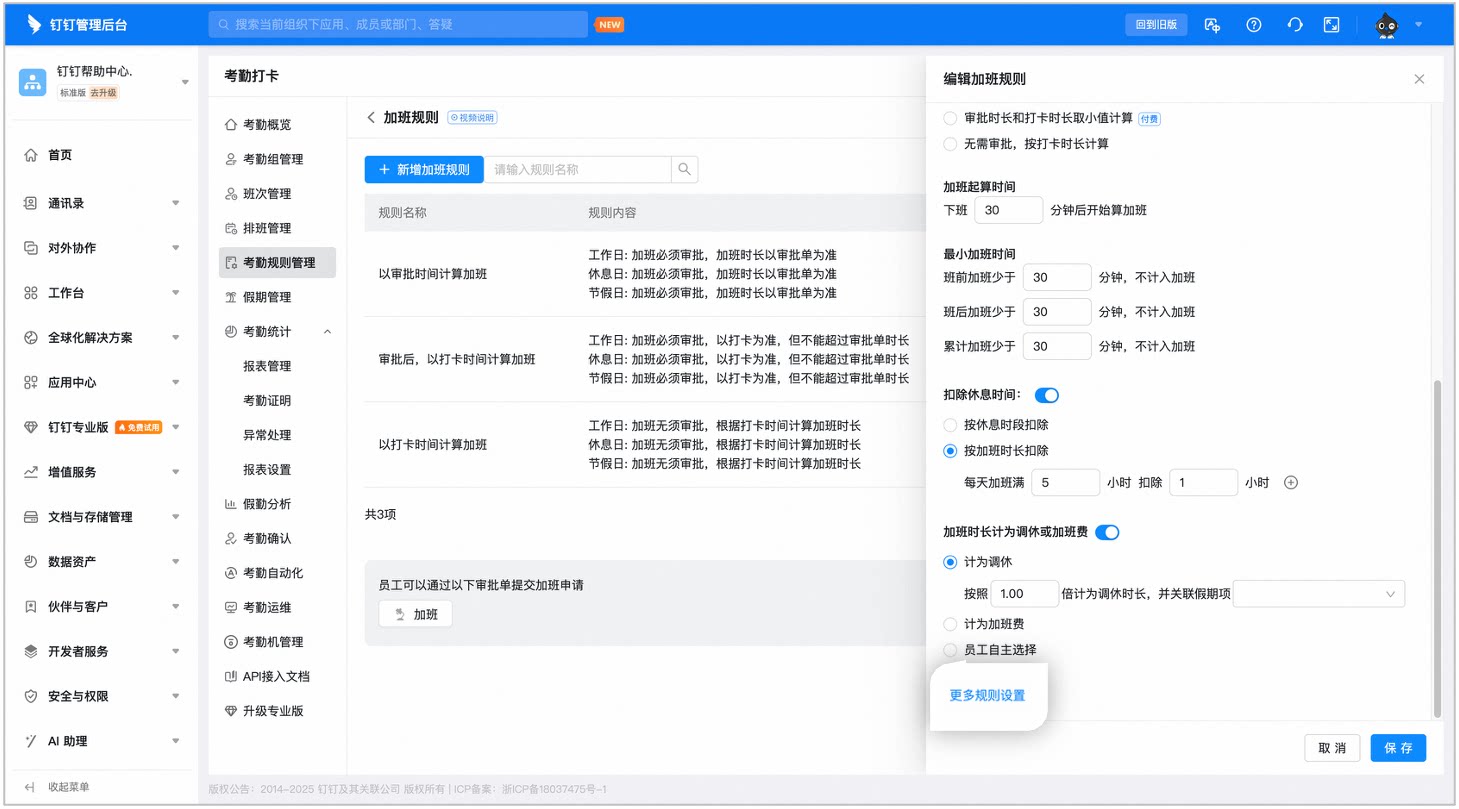
Example of the More rule settings page
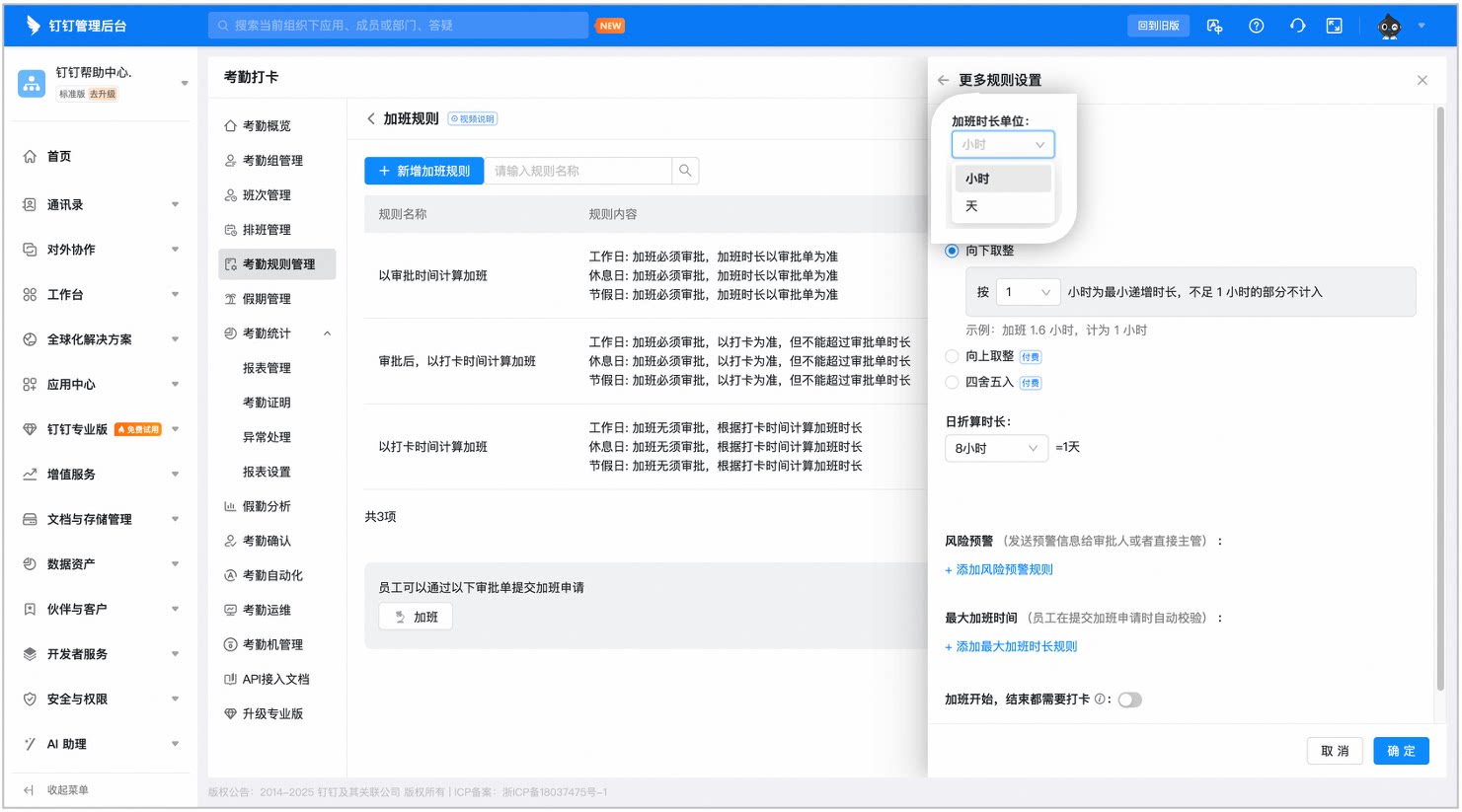
Example of the overtime duration unit page
Overtime duration rounding rules
- No rounding: The overtime duration is not rounded and is calculated using the actual duration.
- Round down: Set XX hours as the minimum increment. Any period shorter than XX hours will not count as overtime.
- Round up / Round to nearest: This is a paid feature and requires the Premium or Enterprise plan for DingTalk Attendance.
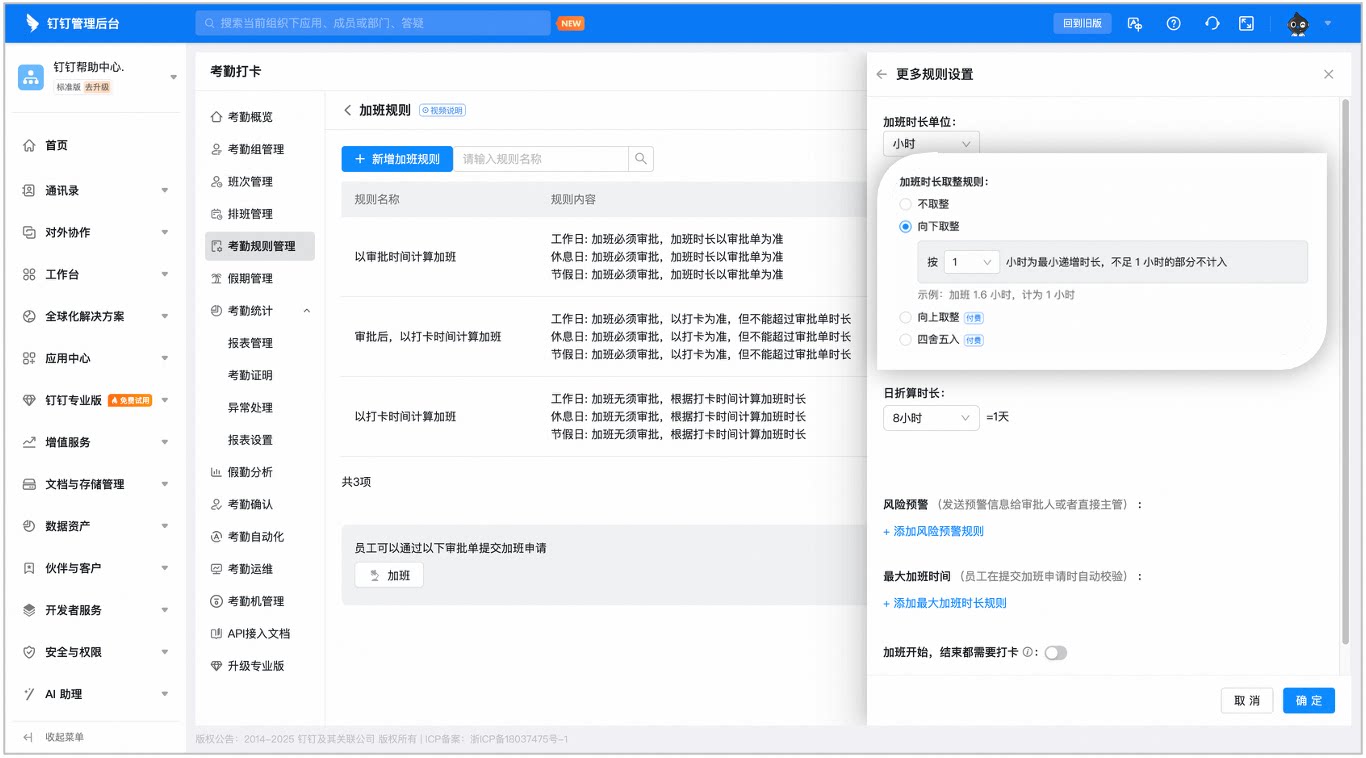
Example of the overtime duration rounding page
Daily conversion duration
The overtime duration supports setting a daily conversion duration. Configure it based on your organization’s needs.5. View overtime data
Admins view overtime data
Mobile
Open DingTalk on mobile > Workbench > Attendance > Statistics > Team statistics > Weekly / Monthly statistics > tap Overtime > tap a User to view overtime details.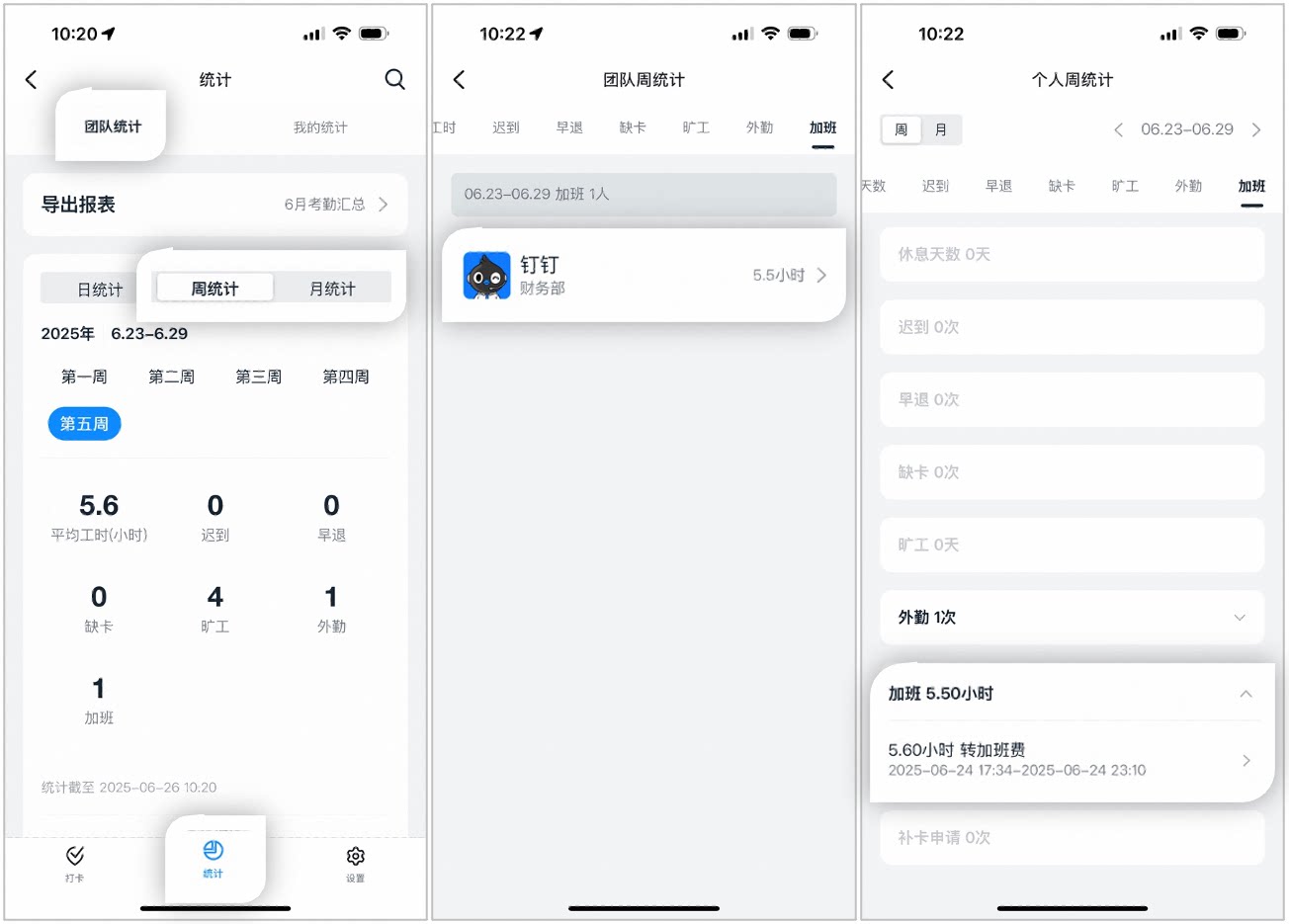
Example of viewing overtime data on mobile
Desktop
Open DingTalk on desktop > Workbench > Attendance > Attendance statistics > Manage reports > Monthly summary > View to view overtime data, or filter by specific date / department / User to export a report for review.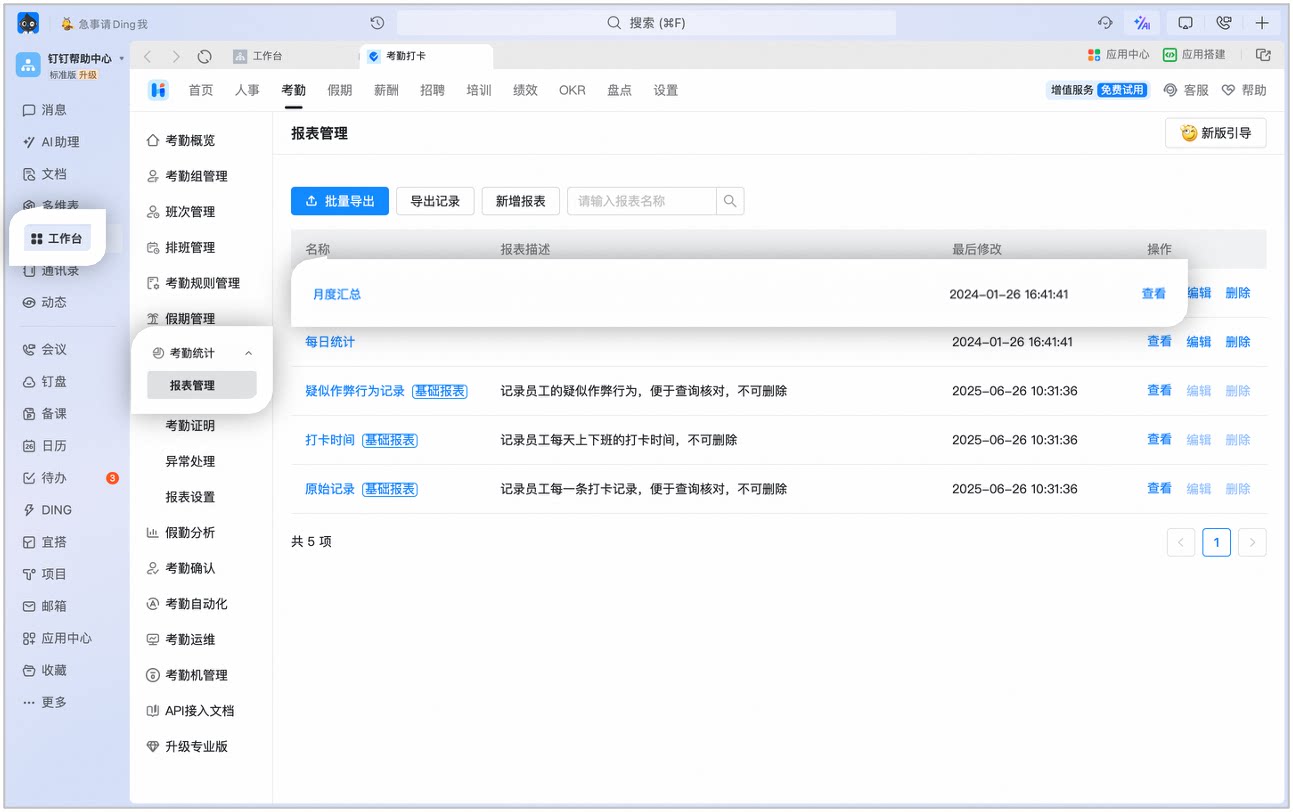
Example of viewing overtime data on desktop
Employees view overtime data
Open DingTalk on mobile > Workbench > Attendance > Statistics > Team statistics > Weekly / Monthly statistics > tap Overtime to view overtime details.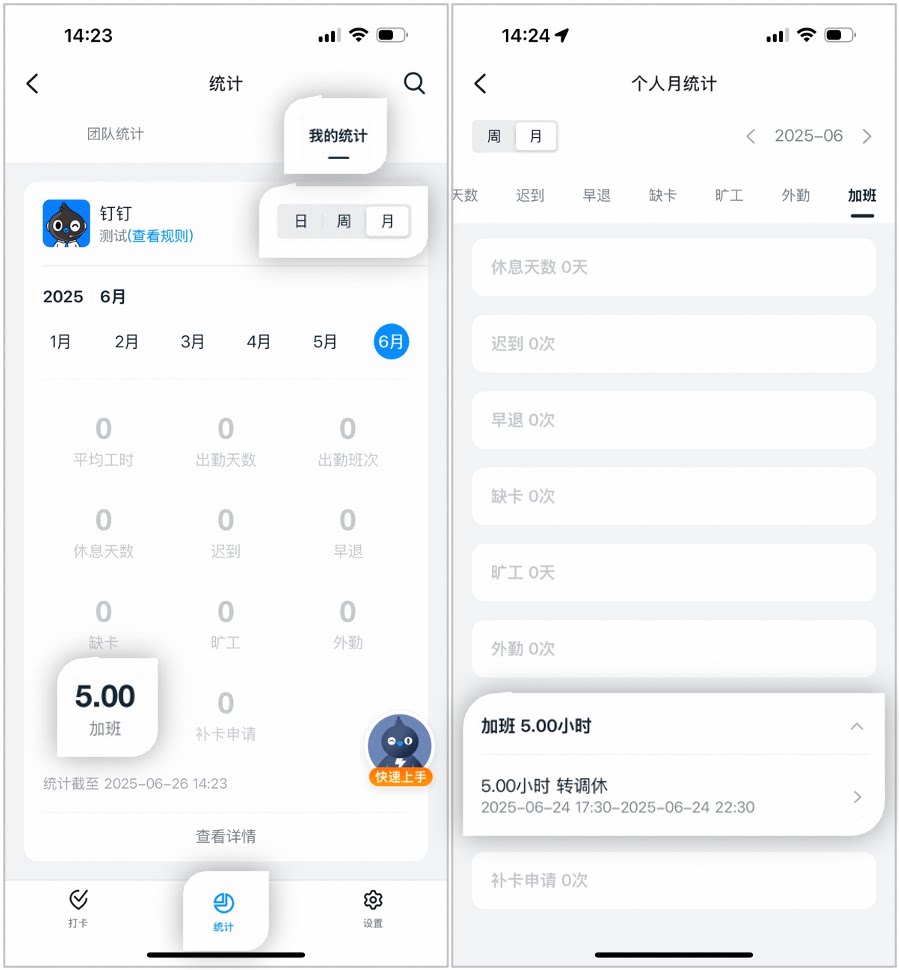
Example of employees viewing overtime data
6. Submit an overtime request
Mobile
Open DingTalk on mobile > Workbench > OA Approval > Overtime > fill out the request as required, then tap Submit.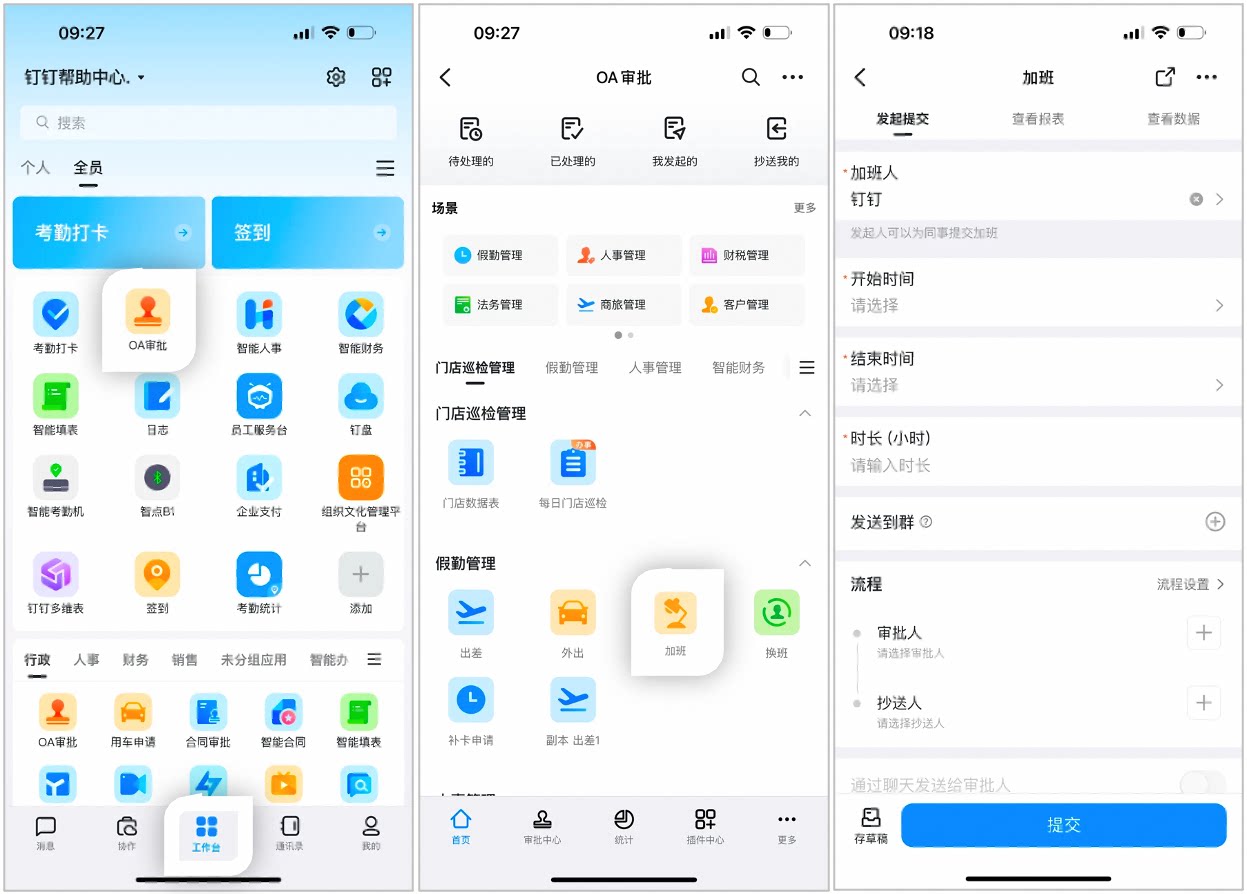
Example page
Desktop
Open DingTalk on desktop > Workbench > OA Approval > Overtime > fill out the request as required, then click Submit.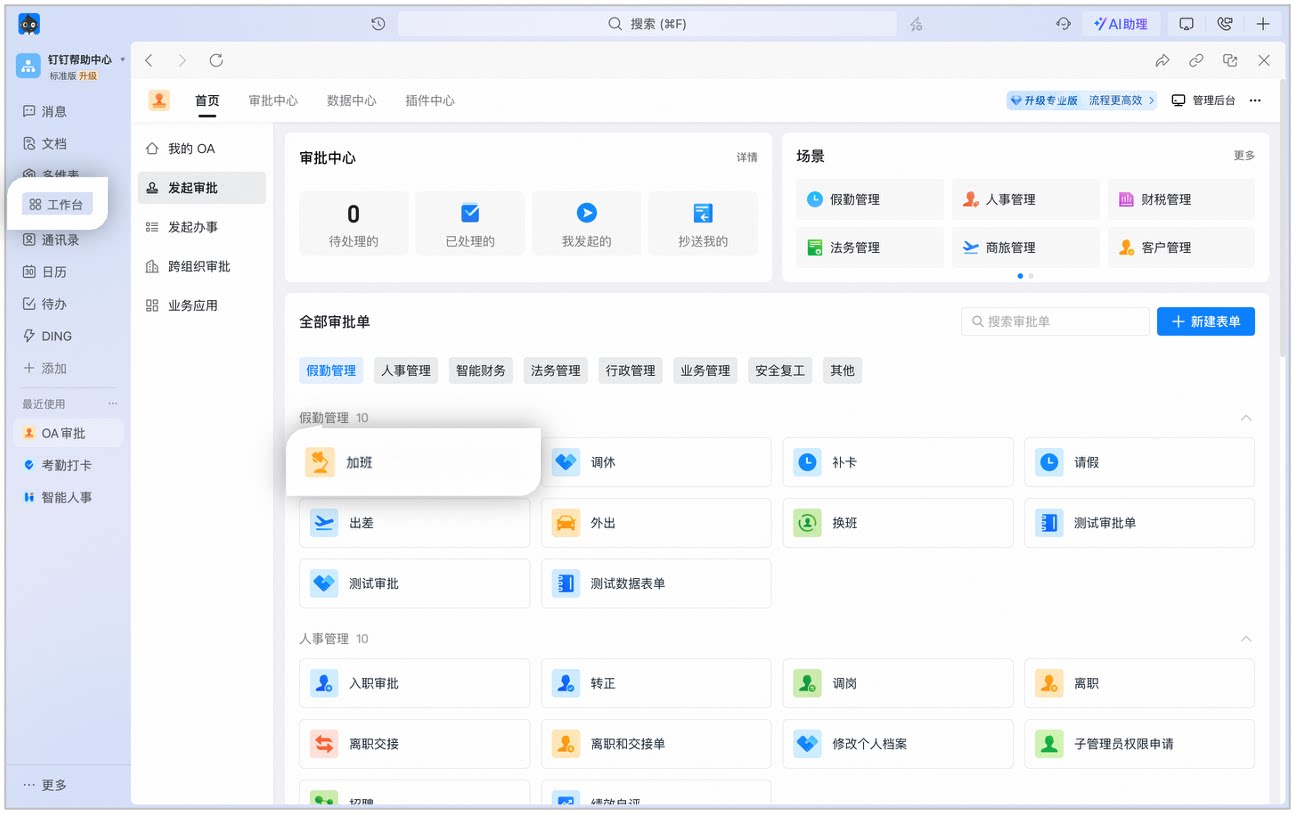
Example page
7. FAQ
Can overtime rules be configured on mobile?
Can overtime rules be configured on mobile?
Why don't I have permission to configure overtime rules?
Why don't I have permission to configure overtime rules?
How do I link a compensatory leave type when overtime counts as compensatory leave?
How do I link a compensatory leave type when overtime counts as compensatory leave?
Will changing overtime rules affect past overtime?
Will changing overtime rules affect past overtime?
Why is overtime on public holidays not being counted?
Why is overtime on public holidays not being counted?