

 Chats
Chats Calendar
 Meetings
 Contacts
 Mail
Mail Docs
Docs Drive
Drive AI Table
 AI Minutes
 Attendance
 Approval
 YiDA
YiDA Admin Console
1. Overview
Attendance statistics support custom-configured attendance reports. Admins can generate attendance reports tailored to their needs for easier viewing and management.2. Use cases
Organizations with more advanced attendance reporting needs, such as tiered late arrival statistics, employee allowances, or pulling employee information into attendance reports.3. Instructions
Customize the report page
Open DingTalk on desktop > Workbench > Attendance > Attendance statistics > Report management > Daily statistics/Monthly summary > Edit > Report customization page. You can Add or Edit attendance fields. Click Save after configuration, and the statistics report will update accordingly.Note:Hover over a field, then hold the drag icon to move it up or down and reorder the fields.
Manage fields
Open DingTalk on desktop > Workbench > Attendance > Attendance statistics > Report settings > Field management, then select the field you want to edit and configure.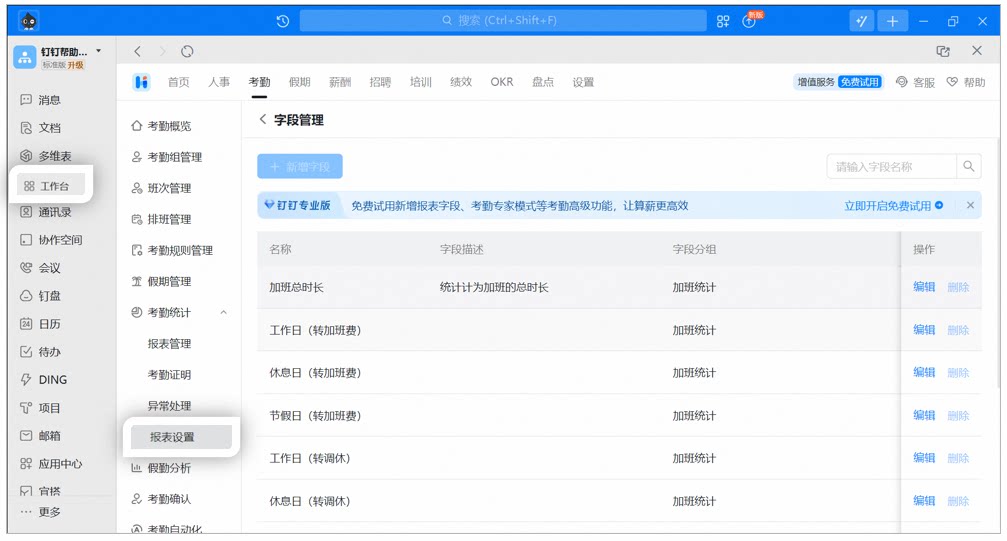
Sample field management settings page on desktop
Note:Upgrade to DingTalk Pro to add new fields.
4. FAQ
Why can't the clock-in records and original records reports be edited?
Why can't the clock-in records and original records reports be edited?
The clock-in time and original data tables are Basic reports and cannot be added, edited, or deleted. To add or delete the corresponding monthly summary and daily statistics tables, open DingTalk on desktop > Workbench > Attendance > Attendance statistics > Report management.