

 Chats
Chats Calendar
 Meetings
 Contacts
 Mail
Mail Docs
Docs Drive
Drive AI Table
 AI Minutes
 Attendance
 Approval
 YiDA
YiDA Admin Console
1. Feature overview
To meet the diverse attendance statistics needs of organizations, DingTalk provides basic attendance statistics fields for daily use as well as customizable field options, allowing organizations to compile attendance data more flexibly.2. Use cases
Scenarios in which organizations have personalized requirements for attendance statistics reports.3. Workflow
The Admin goes to DingTalk on desktop > Workbench > Attendance > Attendance statistics > Report settings > Field management, and then clicks Edit on the target field. Fields can be edited in two modes: Option mode and Expert mode.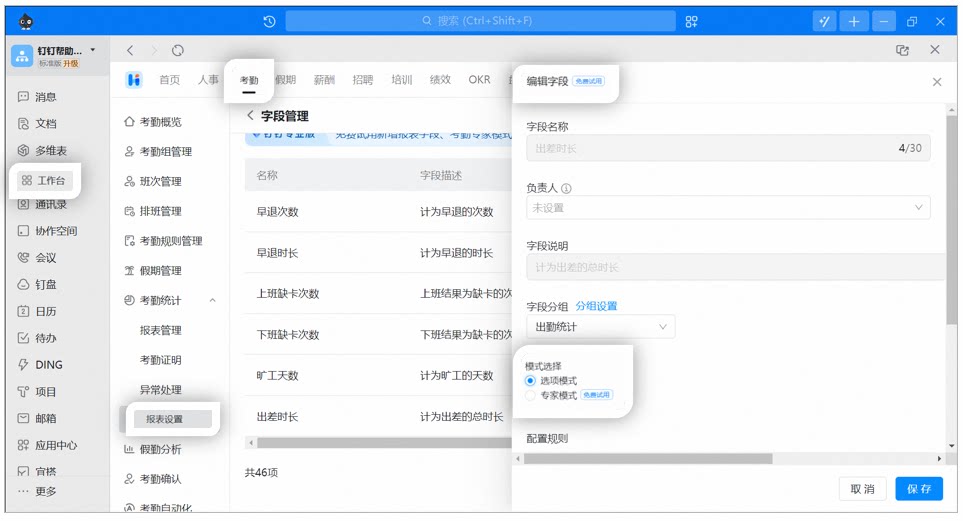
Example of editing an attendance field on desktop
Notes:
- Option mode: Use Option mode to edit rules for built-in fields such as required attendance days, attendance days, working hours, and attendance shift.
- Expert mode: Organizations can create custom functions to meet personalized statistics rules. The system provides operators, fields, and functions to build the calculation logic your organization needs.
- Expert mode requires DingTalk Pro. It supports creating annual reports and exporting data across multiple months or by year to meet personalized attendance needs.
- To watch the introduction Video for attendance Expert mode, click here.
4. Field descriptions
Fixed fields
- Name, attendance group, Department, Employee ID, and Job Title are fixed fields. They appear in all reports and cannot be deleted or edited in the report.
Basic fields
Attendance statistics fields
Error statistics fields
Leave statistics fields
Overtime statistics fields
5. FAQ
How are attendance days calculated?
How are attendance days calculated?
Attendance days are calculated based on the attendance day rules set by the Admin. If no rules are set, the system default applies: attendance is counted whenever there is a clock-in, regardless of whether the day is a rest day or a scheduled workday. To customize attendance day rules, the Admin goes to DingTalk on desktop > Workbench > Attendance > Attendance statistics > Report settings > Field management and clicks Edit on the Attendance days field.
Why are required attendance days calculated incorrectly?
Why are required attendance days calculated incorrectly?
If the monthly summary report does not include the required attendance days field, the Admin needs to add it first. Admin path: DingTalk on desktop > Workbench > Attendance > Attendance statistics > Report settings > Field management > Required attendance days > Edit, and then Save.
Notes:
- Flexible working hours do not count toward required attendance days.
- Days without scheduling are not counted as required attendance days.
- The legacy attendance report does not support setting required attendance day statistics rules. Switch to the new attendance report to configure them.