

 Chats
Chats Calendar
 Meetings
 Contacts
 Mail
Mail Docs
Docs Drive
Drive AI Table
 AI Minutes
 Attendance
 Approval
 YiDA
YiDA Admin Console
1. Feature overview
DingTalk Attendance lets admins view team attendance data directly in the mobile app.Note:
- Department managers can view department data (department managers correspond to the Organization Structure in the DingTalk Admin Console).
- Attendance admins, attendance group owners, and Organization owners can view attendance group data.
2. Applicable scenarios
Use this feature whenever you need to view attendance data on a mobile phone.3. Instructions
Open Mobile DingTalk > Workbench > Attendance > Statistics, switch between Team Statistics and My Statistics, and either Export Report or view data by Daily, Weekly, or Monthly statistics.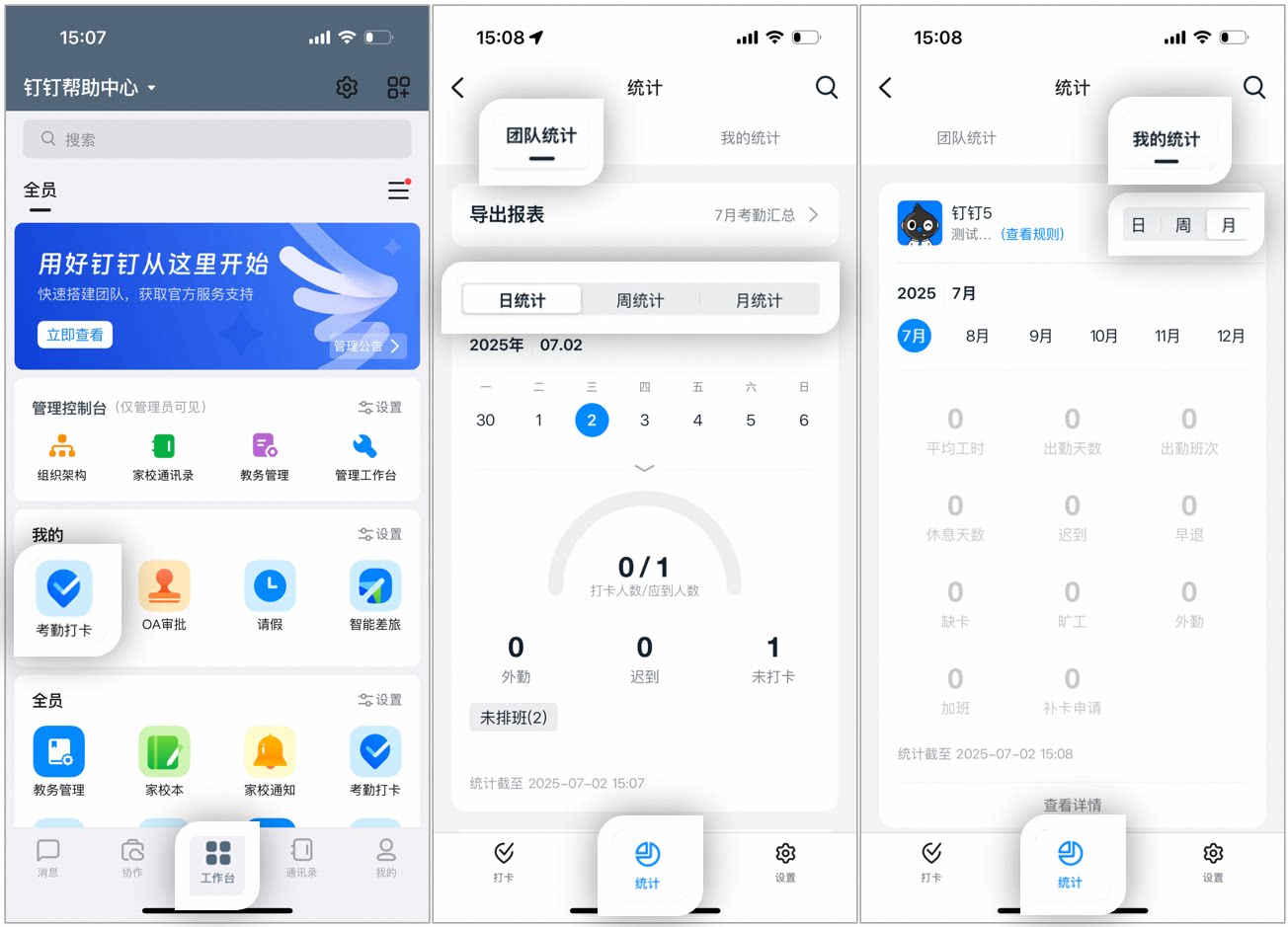
Example of the Statistics page
Export report
Five report types are available: Monthly Summary, Daily Statistics, Suspected Cheating Records, Clock-in Records, and Raw Records. You can also select the time range and User range.Report descriptions:
- Monthly Summary: A summary of monthly attendance data.
- Daily Statistics: A summary of daily attendance data.
- Suspected Cheating Records (Basic report): Records Employees’ suspected cheating behavior for easy reference. Cannot be deleted.
- Clock-in Time (Basic report): Records the daily start-of-day and end-of-day clock-in times of Employees. Cannot be deleted.
- Raw Records (Basic report): Records every clock-in Record of Employees for easy reference. Cannot be deleted.
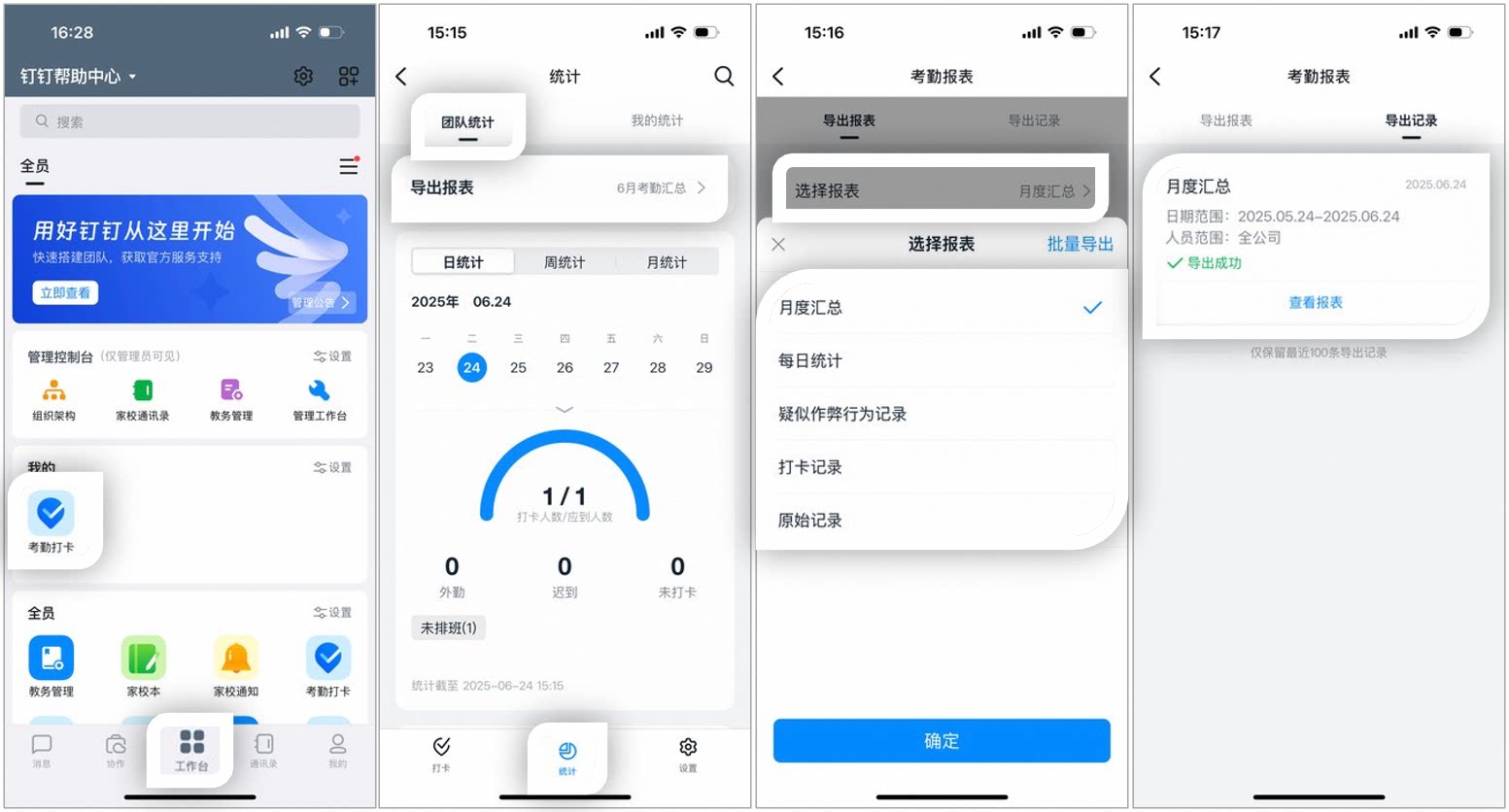
Example of the Export Report page
Daily data
Users with attendance Permissions can select a specific Date to view the attendance summary and details for that Date. Tap Clocked-in Users / Expected Users to see who has clocked in and who was expected to clock in but did not, and send reminders to Employees to clock in.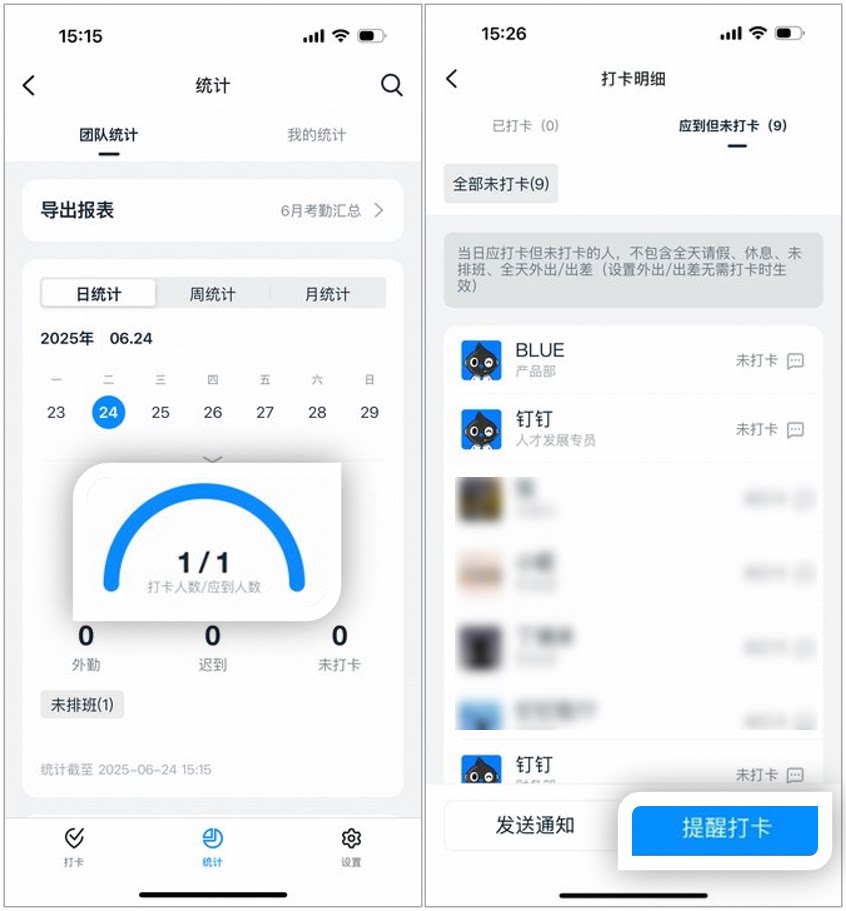
Example of the Daily Data page
Weekly / Monthly statistics
Select a specific period to view the attendance summary for that period.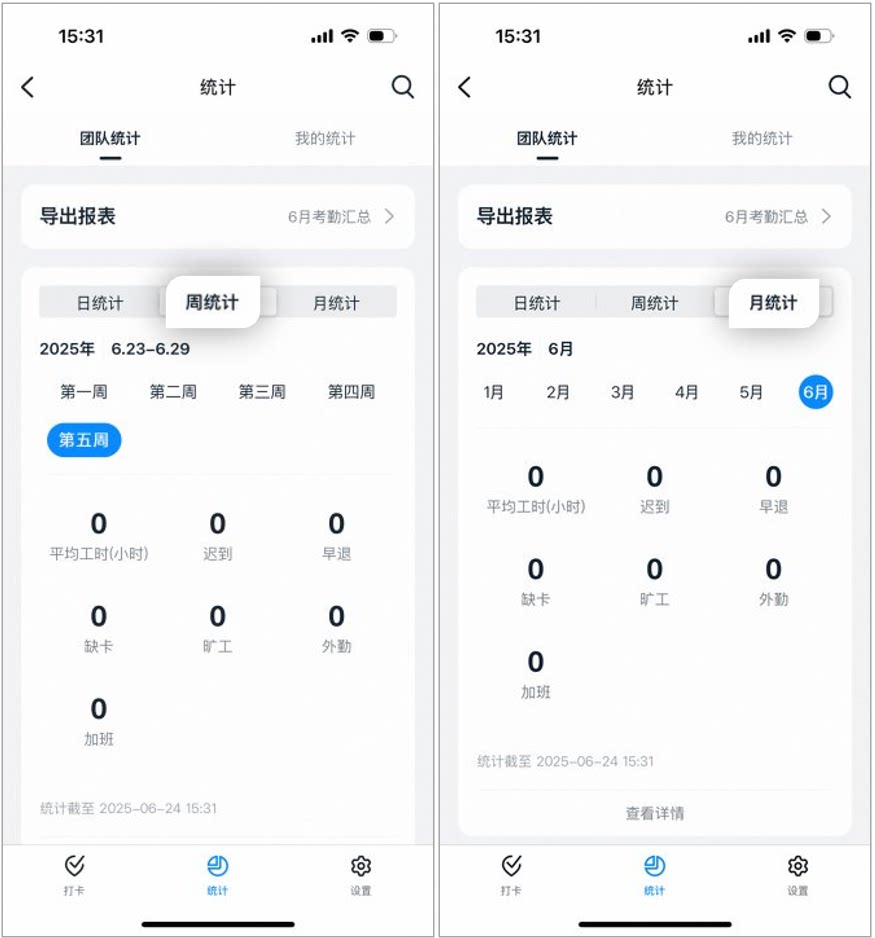
Example of the Weekly / Monthly Statistics page
4. Field descriptions
Clocked-in Users
- The total number of Users who actually clocked in on the day. This includes Users with normal clock-ins, field clock-ins, late clock-ins, or early leave clock-ins; Users on business trips or out of office who clocked in; and Users without scheduling who clocked in. If Users who are not required to work that day clock in, the number of clocked-in Users may exceed the number of expected Users. If a User is on leave that day, they are excluded from the clocked-in Users count.
Expected Users
- The total number of Users required to attend on the day. This includes Users added to the attendance group by the Admin who are required to work that day; Users who are not required to attend, are not in an attendance group, are not scheduled, or are on rest but have clocked in; Users in a flexible working hours attendance group (when the day is a workday); and Users under flexible working hours (with no workday configured) who manually clocked in. Excluded are Users on All day leave that day, Users on rest, Users without scheduling, and Users on All day out-of-office or business trips (when out-of-office or business trips are configured to require no clock-in).
Expected but not clocked in
- The total number of Users who were required to attend on the day but did not clock in. This includes scheduled Users who did not clock in; Users in a flexible working hours attendance group (when the day is a workday) who did not clock in; Users on business trips or out of office who did not clock in; and Users on flexible working hours leave who did not clock in. Excluded are Users on All day leave (excluding flexible working hours leave), Users on All day rest or without scheduling, and Users on All day out-of-office or business trips (when out-of-office or business trips are configured to require no clock-in).