

 Chats
Chats Calendar
 Meetings
 Contacts
 Mail
Mail Docs
Docs Drive
Drive AI Table
 AI Minutes
 Attendance
 Approval
 YiDA
YiDA Admin Console
1. Feature overview
In daily organization management, attendance reports are essential references for evaluating employee attendance, calculating payroll, and conducting performance reviews. DingTalk provides powerful attendance statistics and export capabilities, allowing you to generate detailed attendance reports by department, user, or time range.2. Workflow
Organization owner / Sub Admin / Admin: View and export attendance dataView and export attendance data of active employees
Open DingTalk mobile app > Workbench > Attendance > Statistics > Export report > select the desired report > Confirm > select the start date / end date > user scope > Export report.- Daily statistics: The mobile app supports online viewing of daily data only within the last 6 months. To view data older than 6 months, you must export the report.
- Summary statistics: The mobile app supports online viewing of data only within the last 3 months. To view data older than 3 months, you must export the report.
- Suspected cheating records, clock-in records, and raw records can only be viewed by exporting reports.
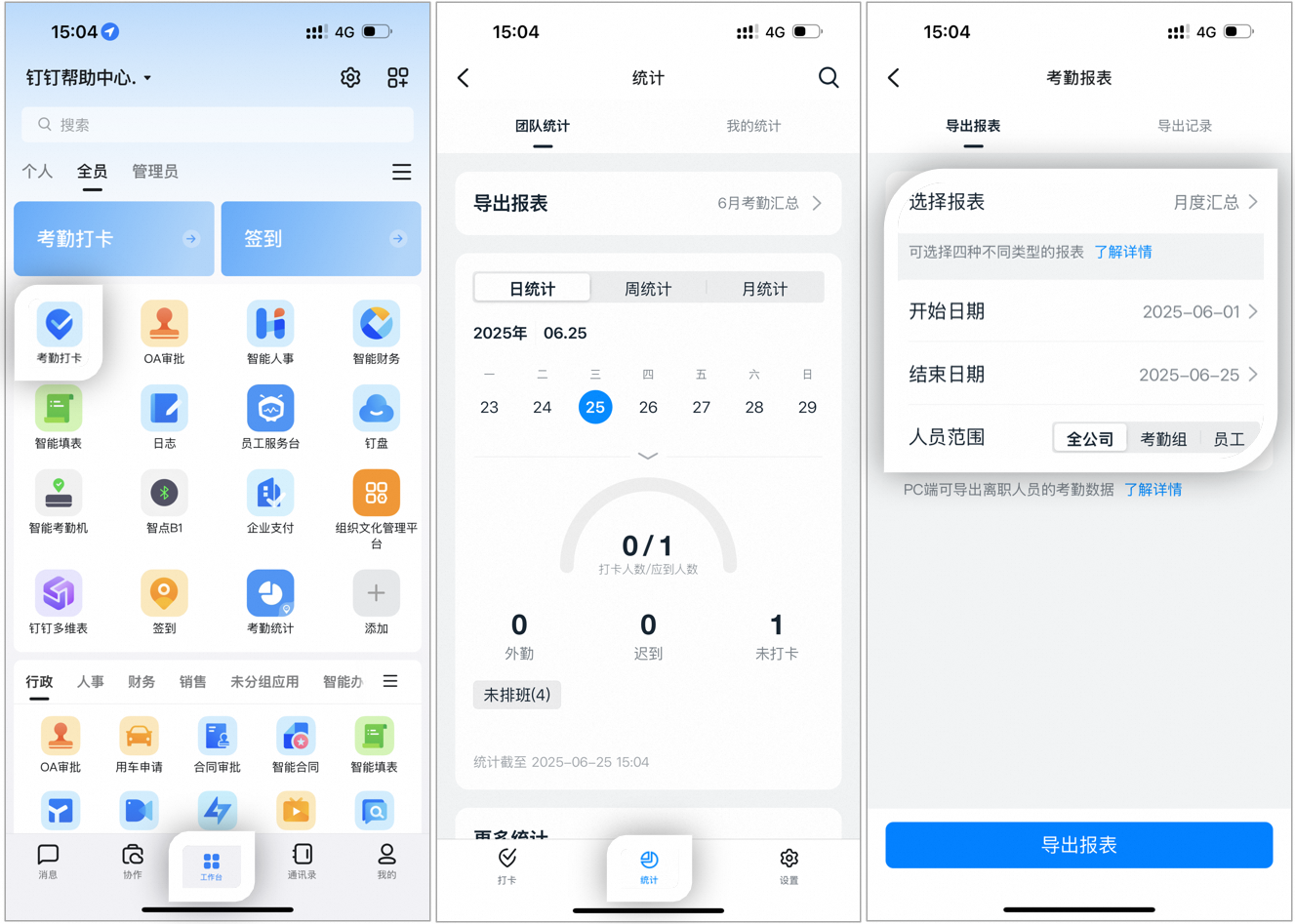
Example of exporting a report on the mobile app
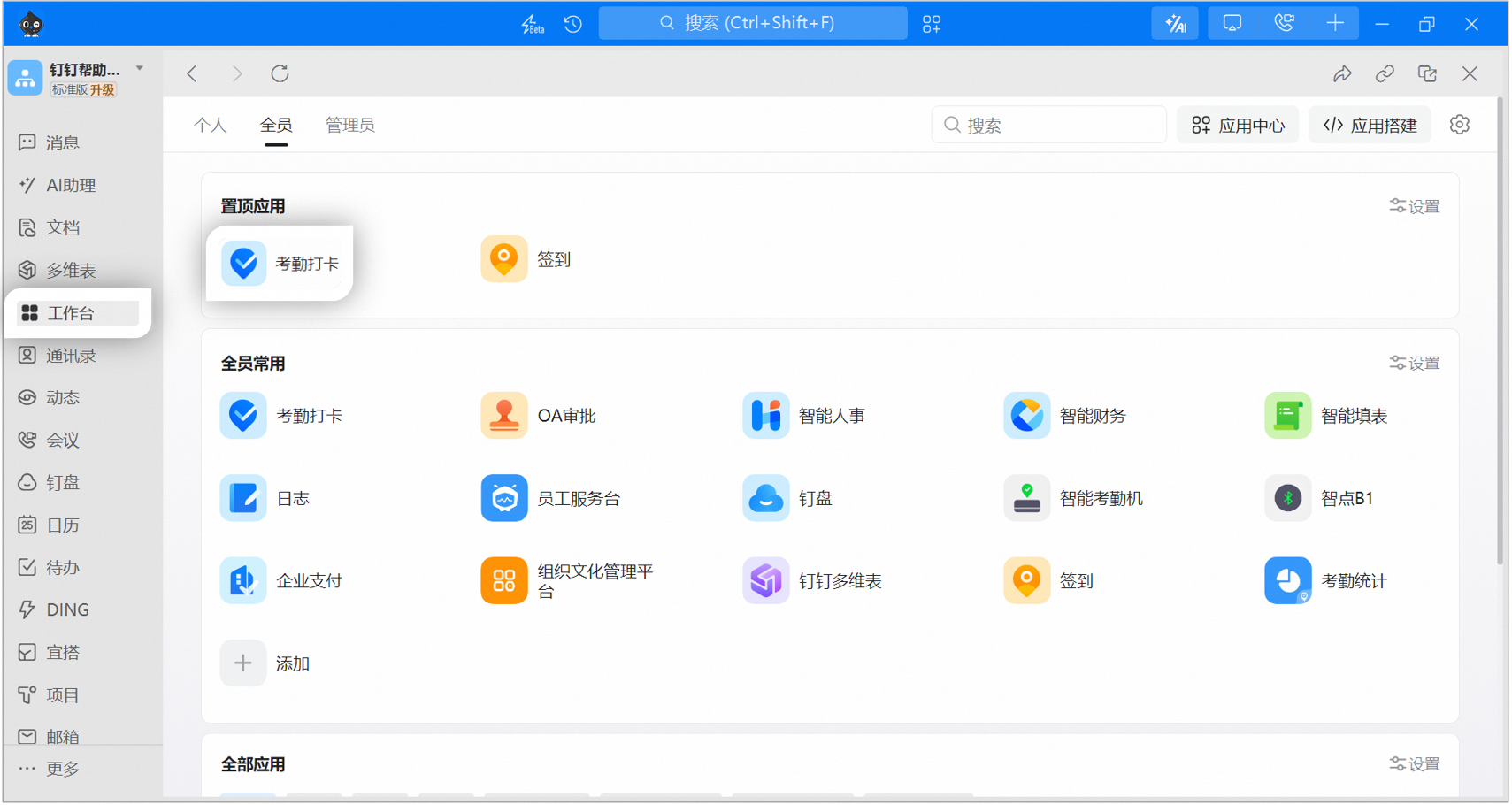
Example of exporting a report on the desktop app
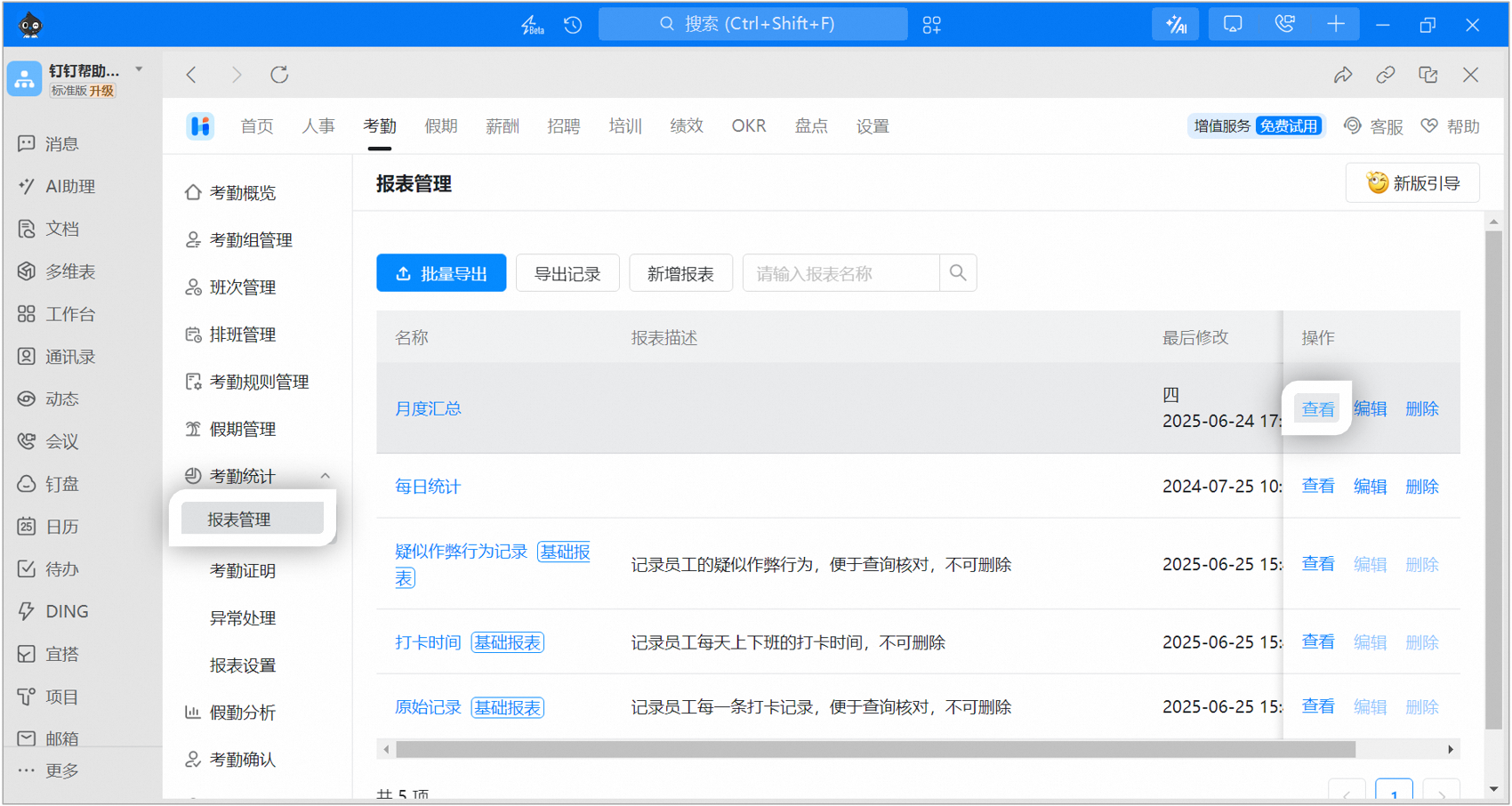
Example of exporting a report on the desktop app
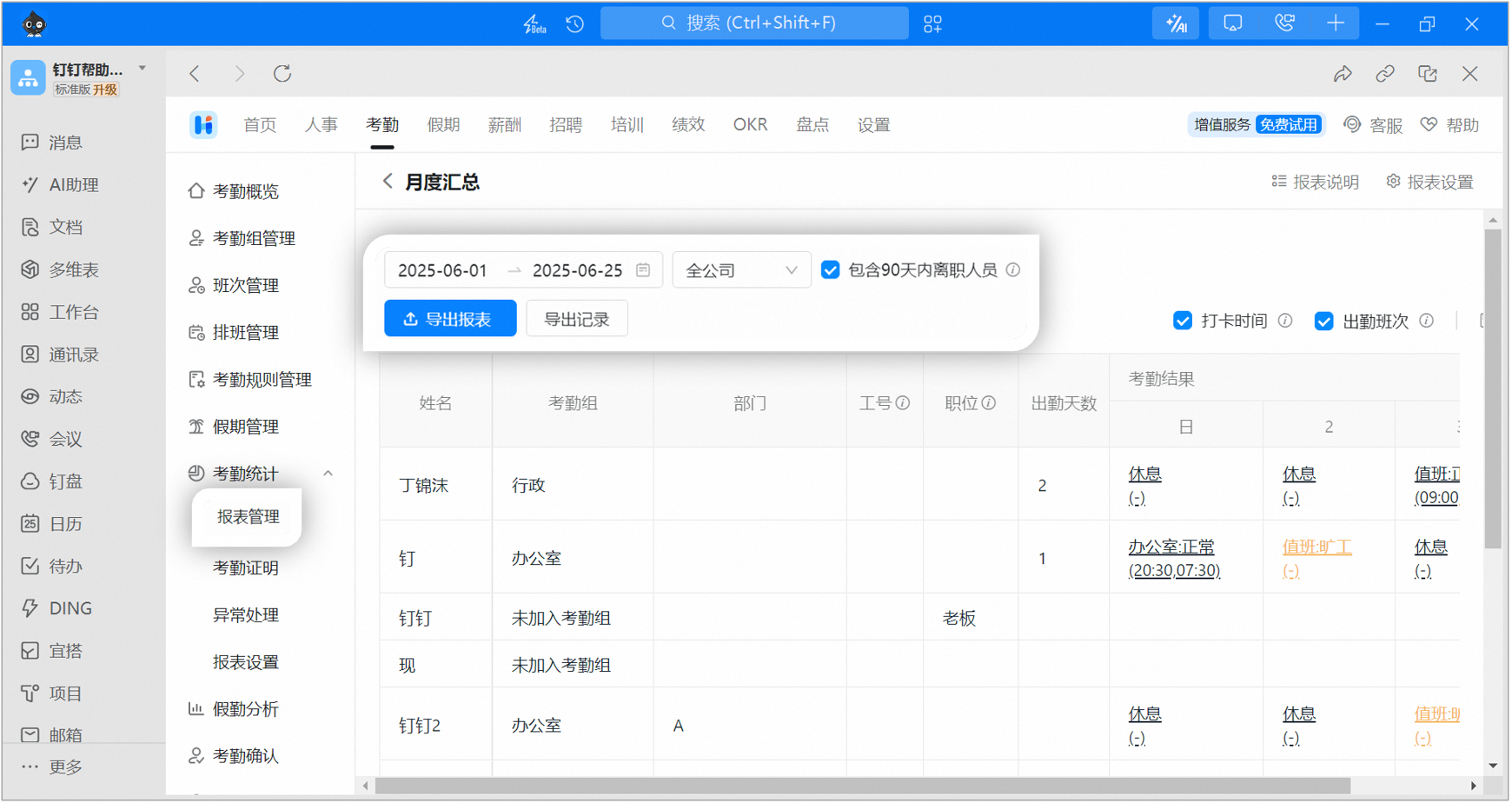
Example of exporting a report on the desktop app
View and export attendance data of former employees
Open DingTalk mobile app > Workbench > Attendance > Statistics > Team statistics > Export report > Monthly summary, select the desired attendance period, set the user scope to All company, and tap Export report.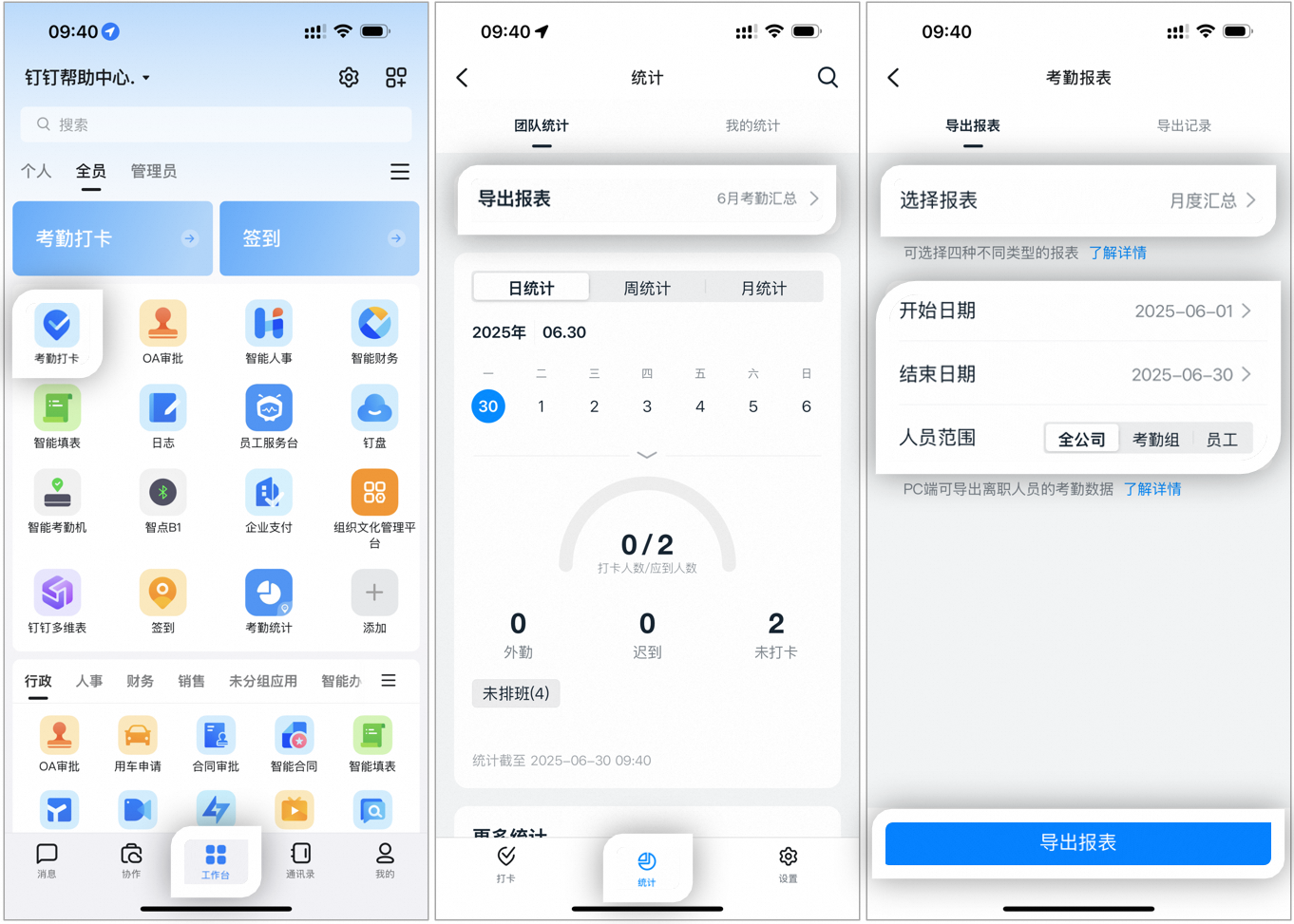
Example of exporting a report on the mobile app
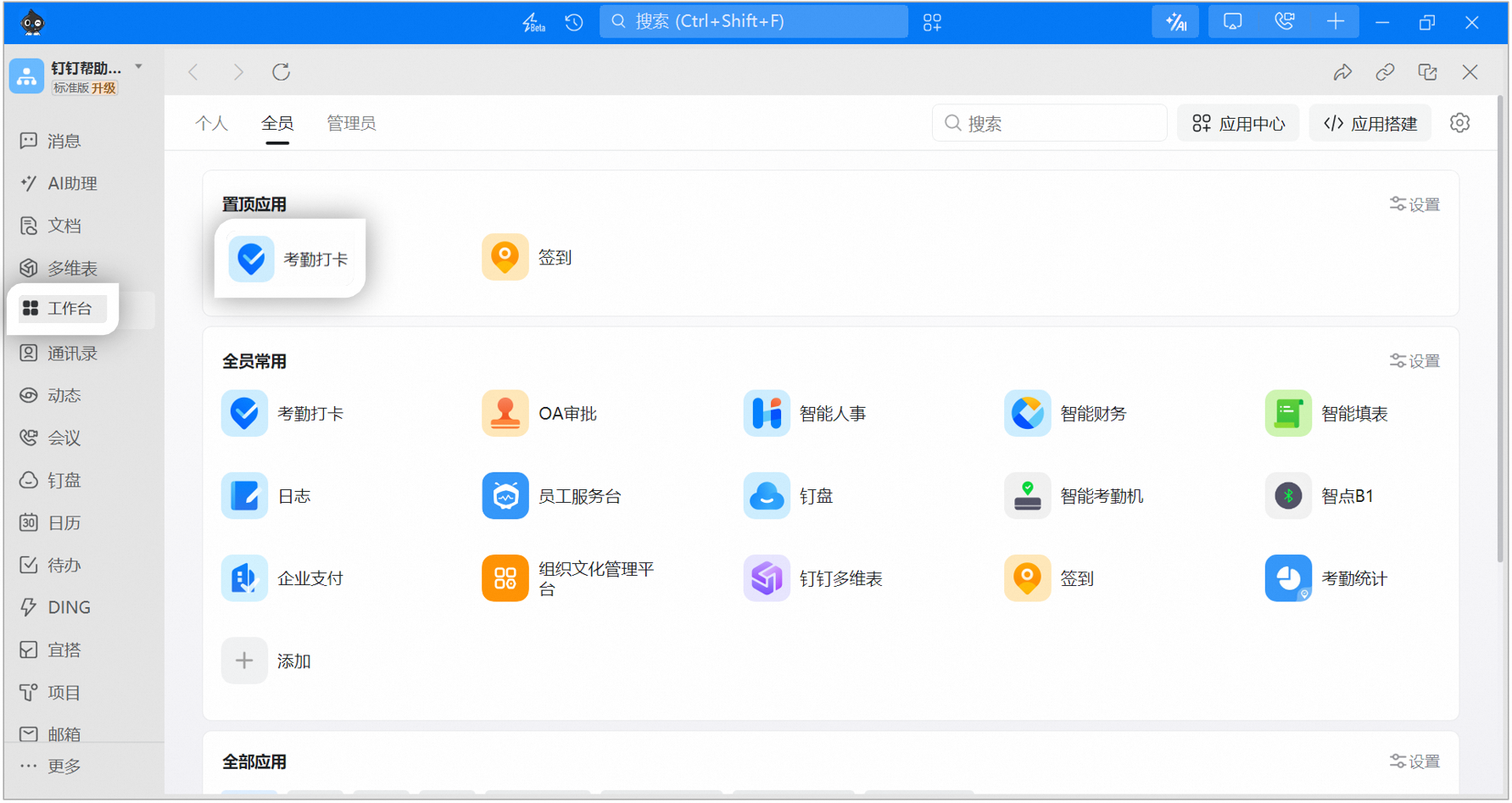
Example of exporting a report on the desktop app
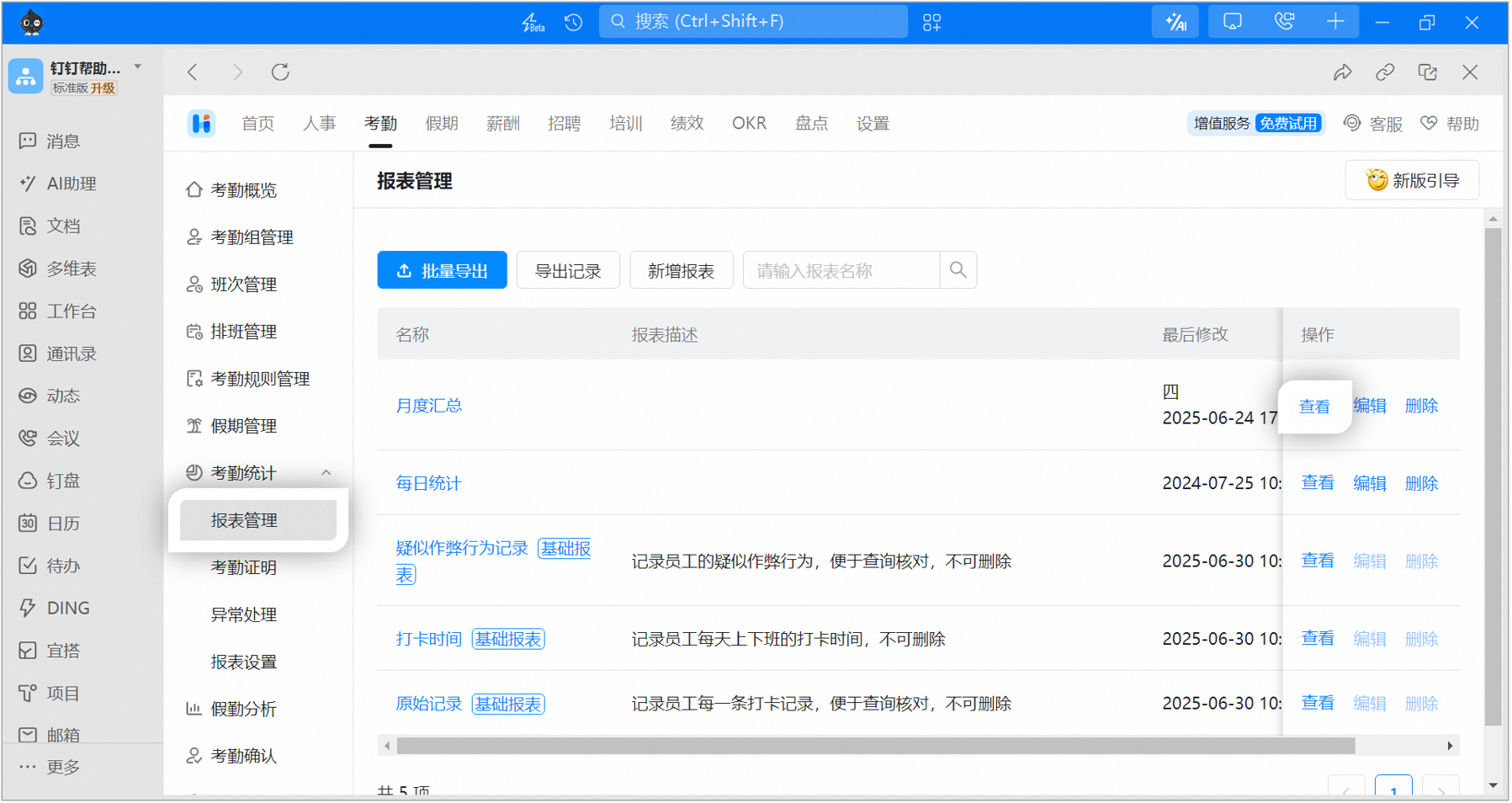
Example of exporting a report on the desktop app
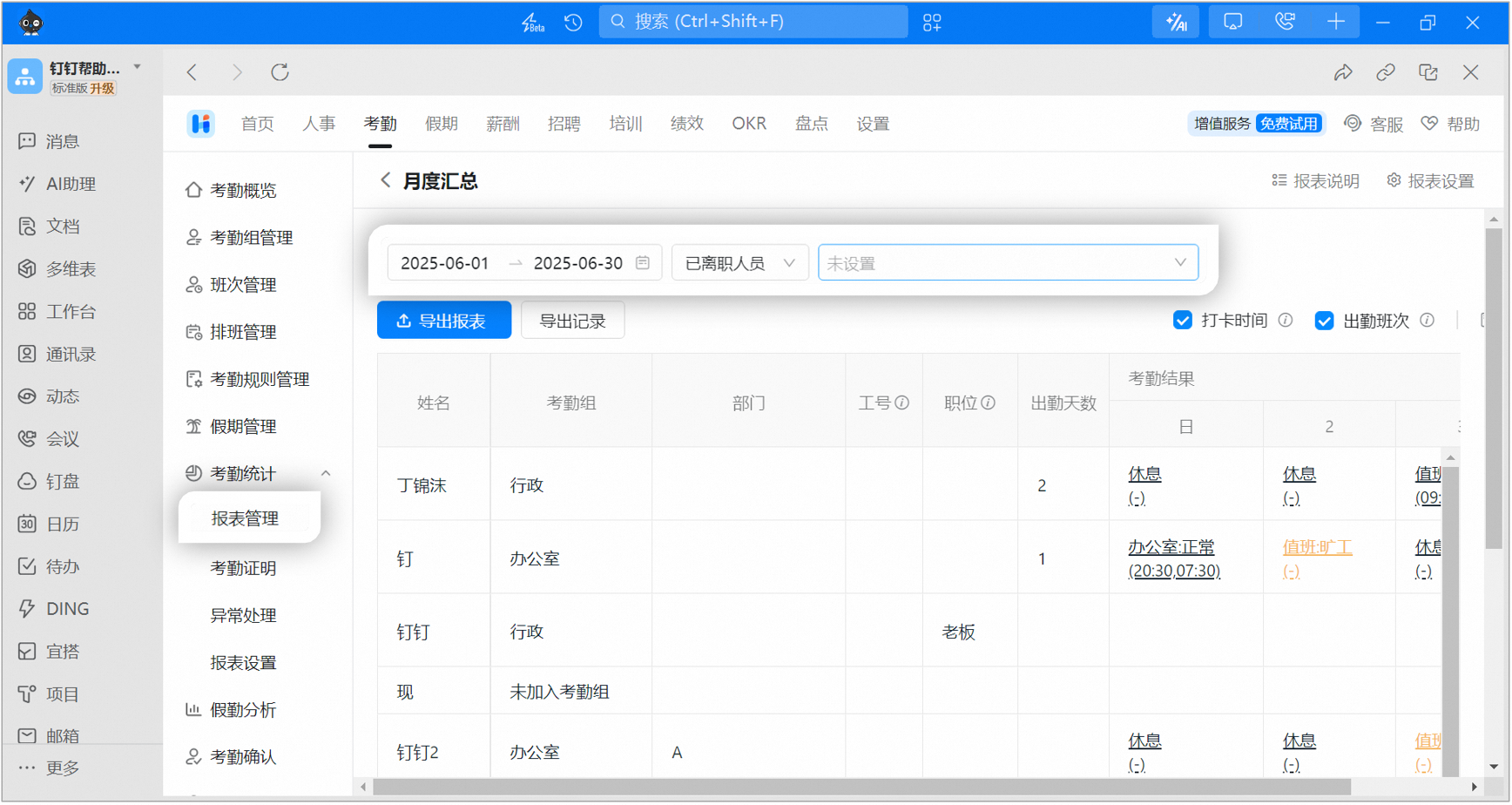
Example of selecting former employees when exporting a report
Attendance certificate
Open DingTalk desktop app > Workbench > Attendance > Attendance statistics > Attendance certificate, select the attendance period and the corresponding former employees > Export certificate.- An attendance administrator can export attendance records of former employees within their managed departments.
- Each export can cover a time range of up to 12 months.
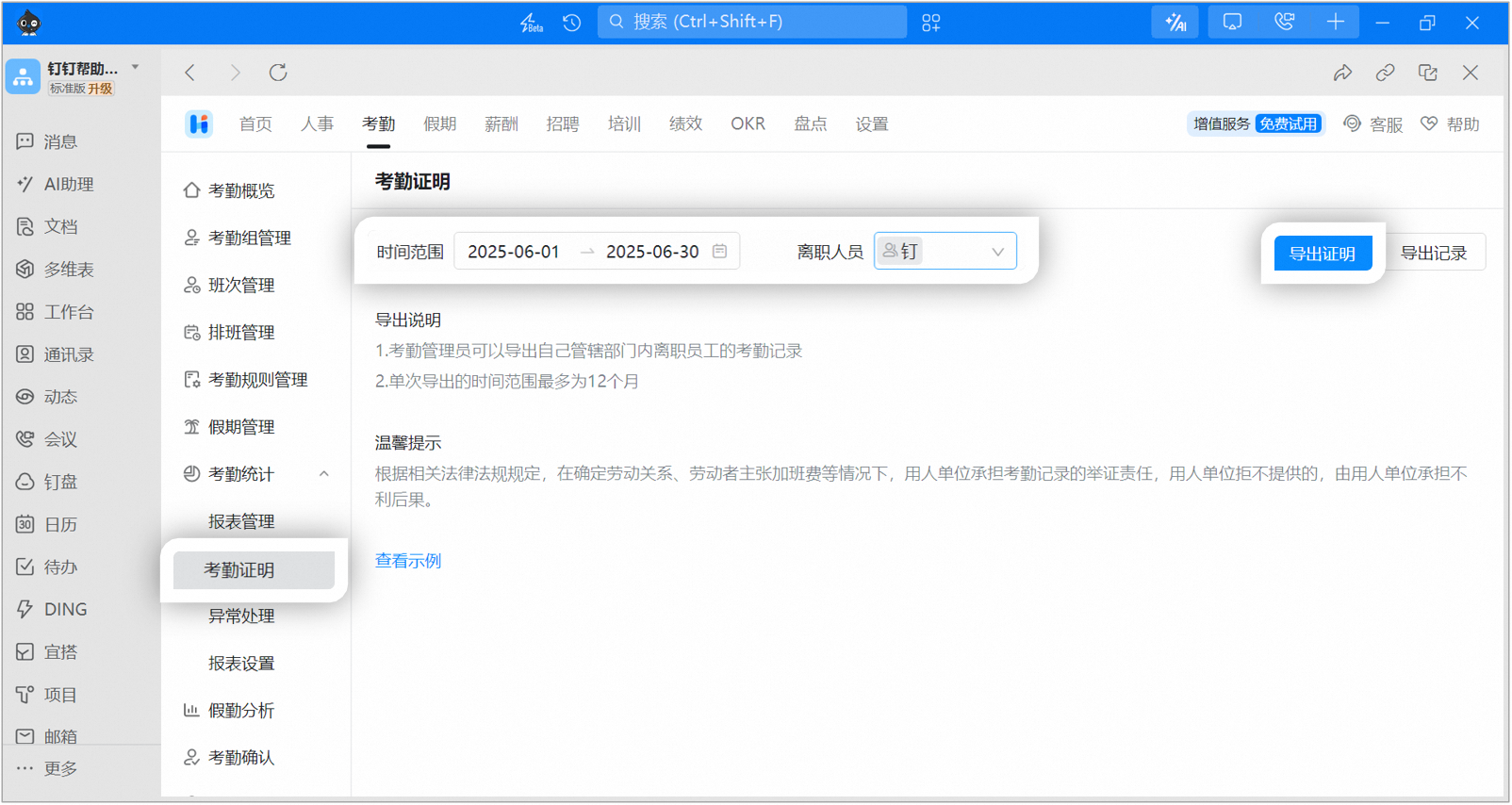
Example of the attendance certificate export page
Attendance group owners viewing and exporting attendance data
1. Primary attendance group owner
Open DingTalk mobile app > Workbench > Attendance > Statistics > Team statistics > select Daily / weekly / monthly statistics to view, or tap Export report at the top > select the date, report type, and user scope > Export report. The exported report is delivered via Work Notifications.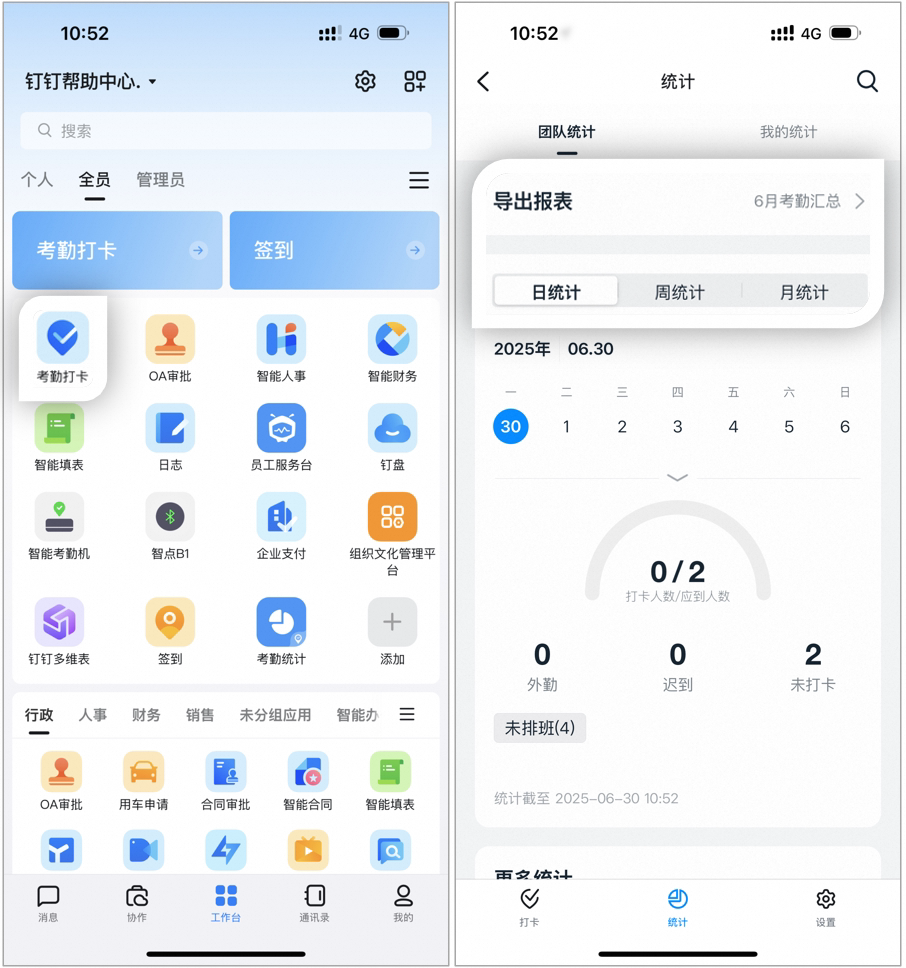
Example of the primary attendance group owner exporting a report on the mobile app
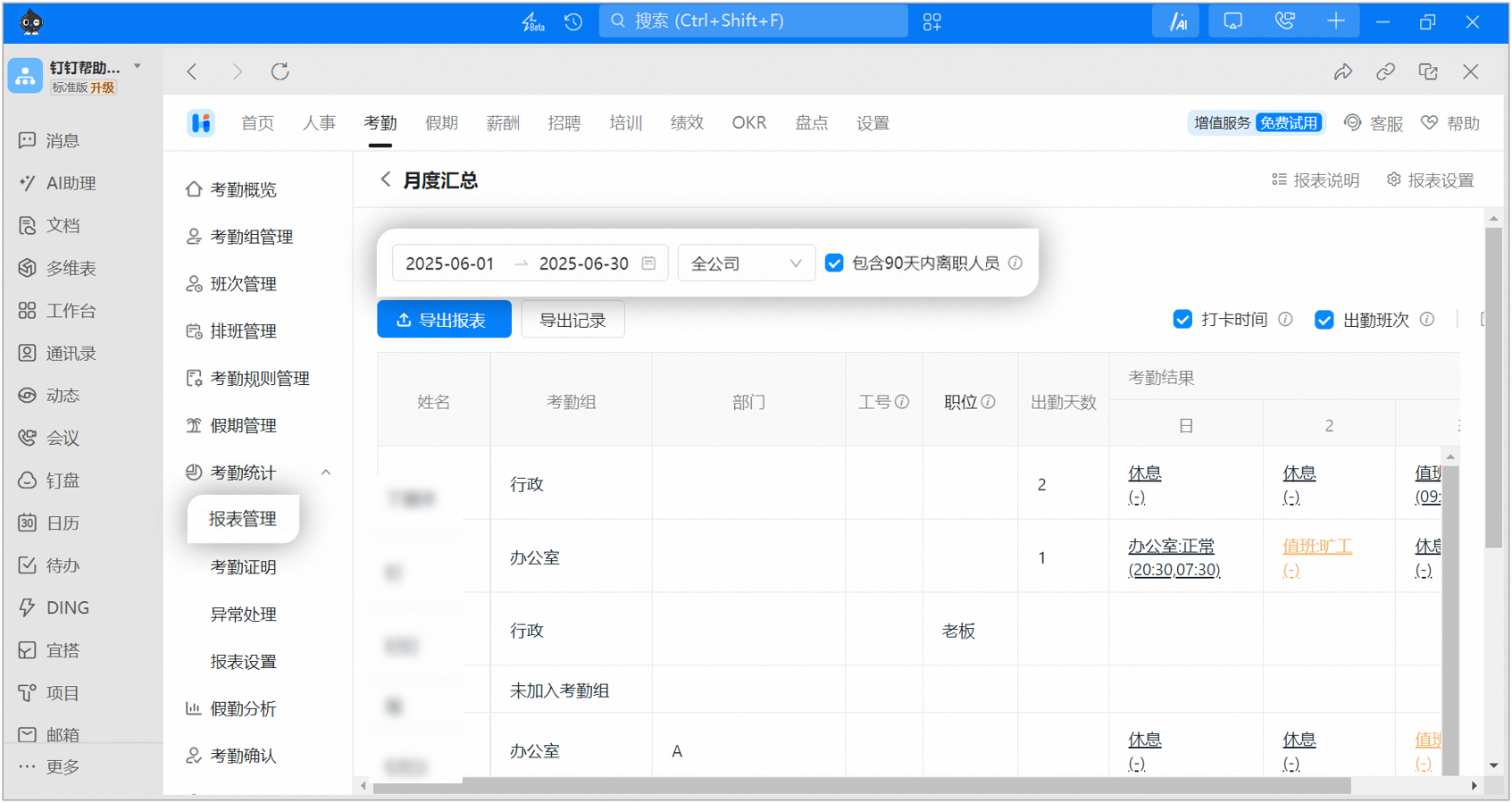
Example of the primary attendance group owner exporting a report on the desktop app
2. Sub attendance group owner
Open DingTalk mobile app > Workbench > Attendance > Statistics > Team statistics > select Daily / weekly / monthly statistics to view, or tap Export report > select the date, report type, and user scope > Export report. The exported report is delivered via Work Notifications.Example of the sub attendance group owner exporting a report on the mobile app
Department managers viewing and exporting attendance data
Example of a department manager exporting a report on the mobile app
Employees viewing and exporting attendance data
Active employees
Open DingTalk mobile app > Workbench > Attendance > Statistics. You can view attendance data within the last 6 months by day / week / month. Employees cannot export their own attendance data for the past 6 months. To request an export, contact an Admin, attendance group owner, or department manager.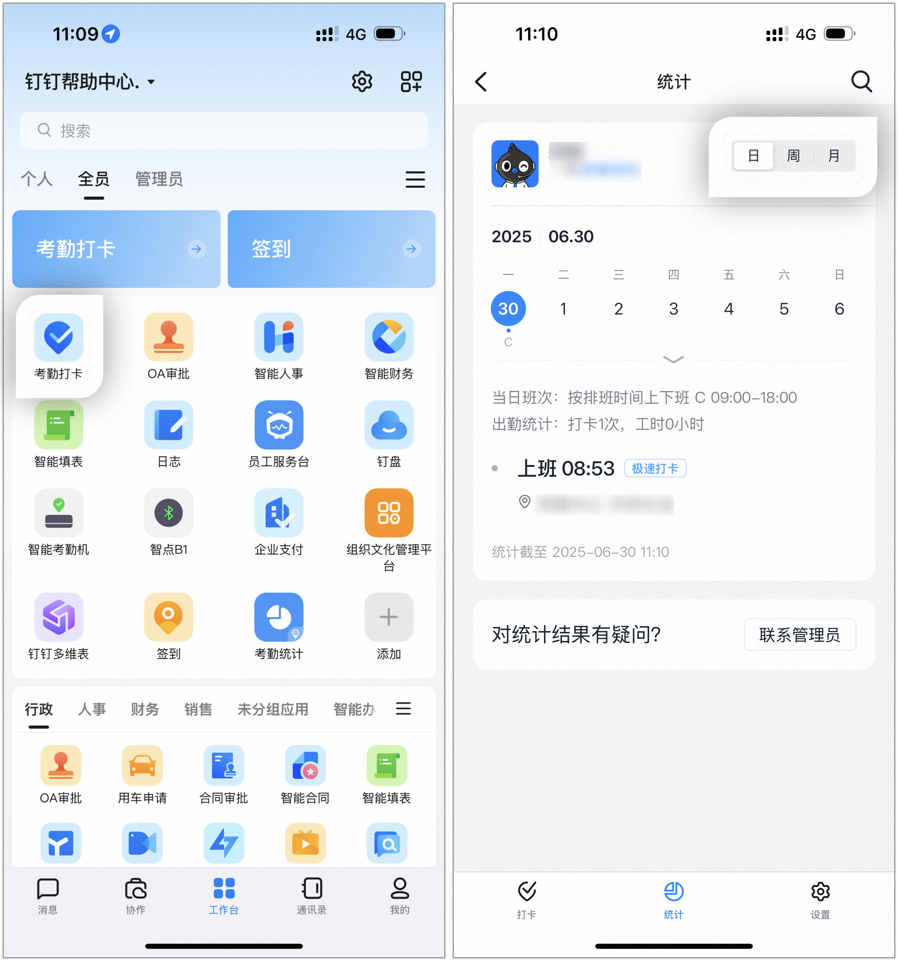
Example of active employees viewing attendance data on the mobile app
- Attendance statistics older than 6 months must be exported to view; online viewing is not supported for records older than 6 months.
- Historical data exports take 1–3 days to complete. Once ready, the report is delivered via Work Notifications.
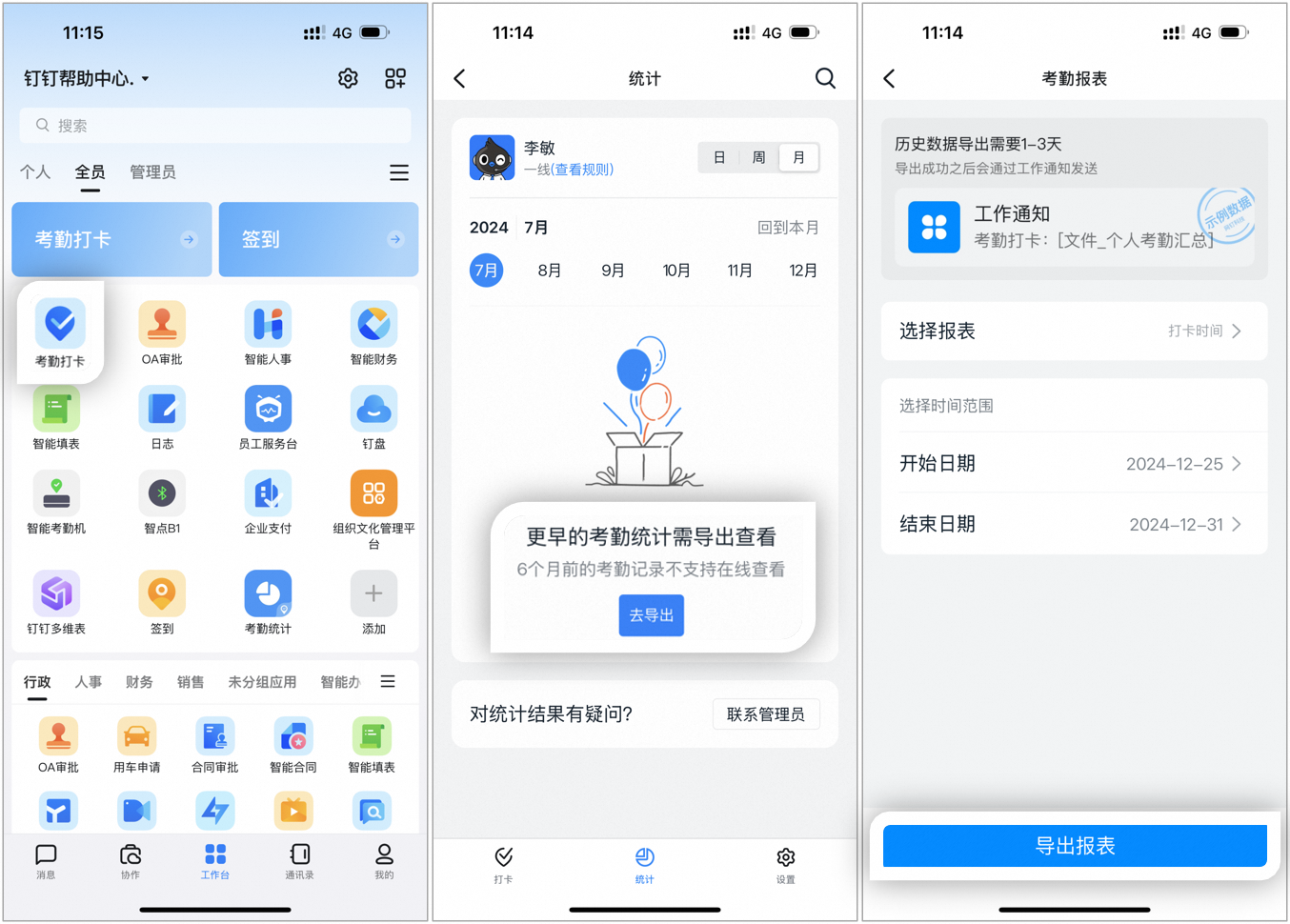
Example of active employees exporting attendance data on the mobile app
Former employees
- If you have left the company and exited the organization, you cannot view or export attendance data yourself. We recommend contacting an Admin at your former company who has attendance permissions to help export the data.
- If the company does not cooperate, we recommend using a legal notice to request the records from your former company.
3. FAQs
Can I export half a year of attendance data at once on the mobile app?
Can I export half a year of attendance data at once on the mobile app?
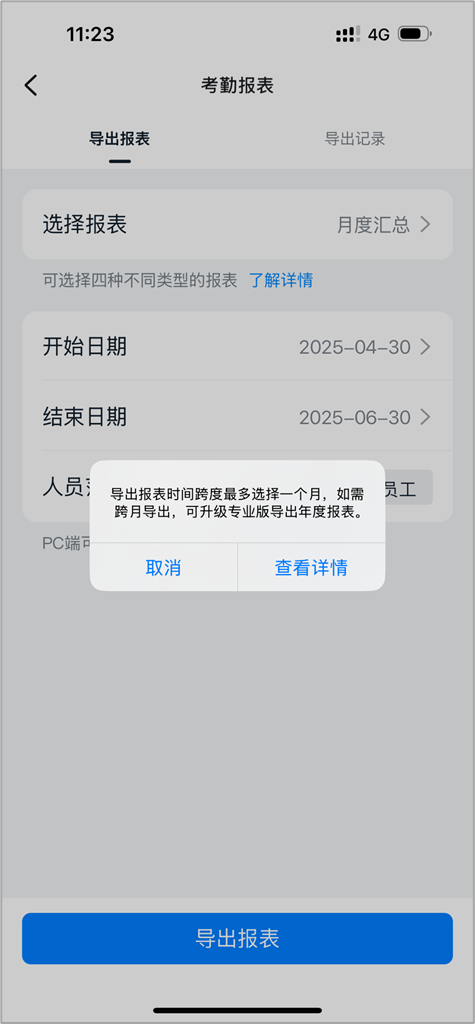
Page example
How far back can I export attendance data on the Free plan?
How far back can I export attendance data on the Free plan?
How far back can I export attendance data on DingTalk Pro?
How far back can I export attendance data on DingTalk Pro?
What should I do if I need to export attendance data older than 2 years?
What should I do if I need to export attendance data older than 2 years?