

 Chats
Chats Calendar
 Meetings
 Contacts
 Mail
Mail Docs
Docs Drive
Drive AI Table
 AI Minutes
 Attendance
 Approval
 YiDA
YiDA Admin Console
1. Feature overview
Attendance group owners can configure attendance rules directly in DingTalk. Once configured, employees can start clocking in.2. Use cases
Scenarios where the attendance group owner configures attendance groups, attendance types, clock-in methods, attendance schedules, overtime rules, and more for employees.3. Operation path
Mobile

Example of adding an attendance group on mobile
- Fixed working hours: applies when everyone clocks in at the same time, such as office workers on a 9-to-5 schedule.
- Shift-based working hours: applies when different employees clock in based on their own schedules, such as factory, store, or multi-shift workers.
- Flexible working hours: applies when clock-in and clock-out times are flexible and employees can clock in at any time, such as sales staff or hourly workers.
- The system automatically matches the closest shift based on the employee’s clock-in time.
- Same-day shifts are matched in real time, and admins can verify and edit them the next day.
- When shifts are added to or removed from the attendance group, shifts included in automatic shift matching by default are updated automatically.
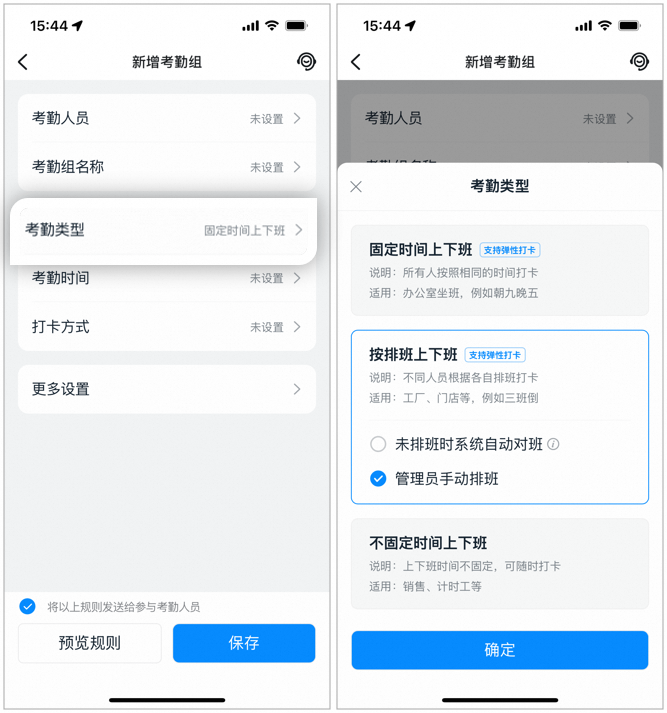
Example of setting the attendance type on mobile
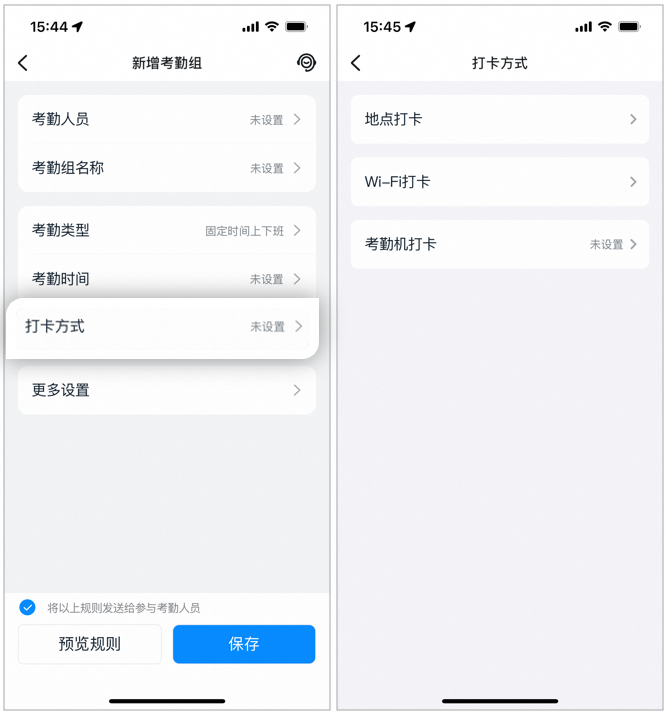
Example of setting the clock-in method on mobile
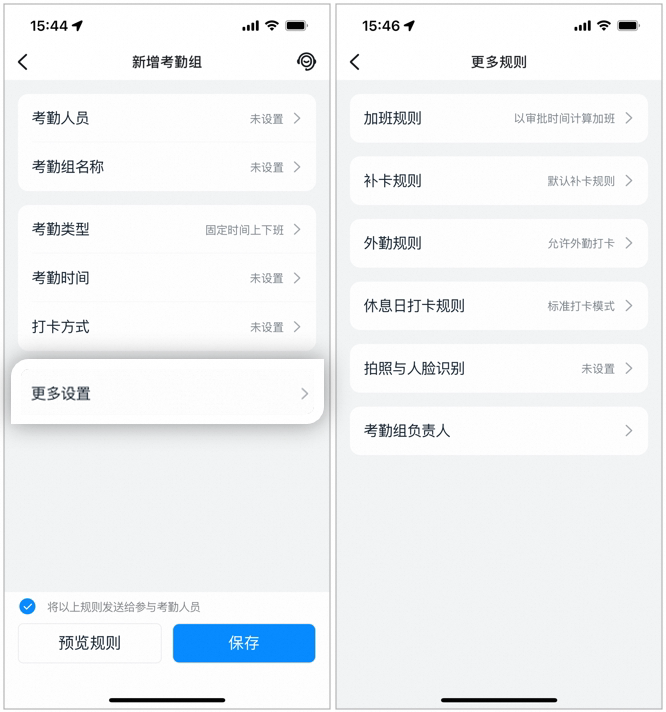
Example of configuring more rules on mobile
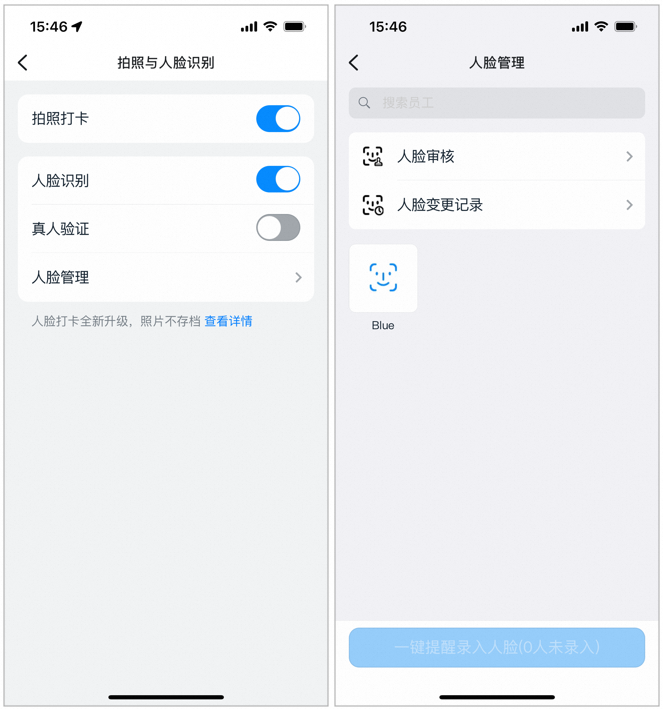
Example of managing facial data on mobile
Desktop
1. Set up an attendance group
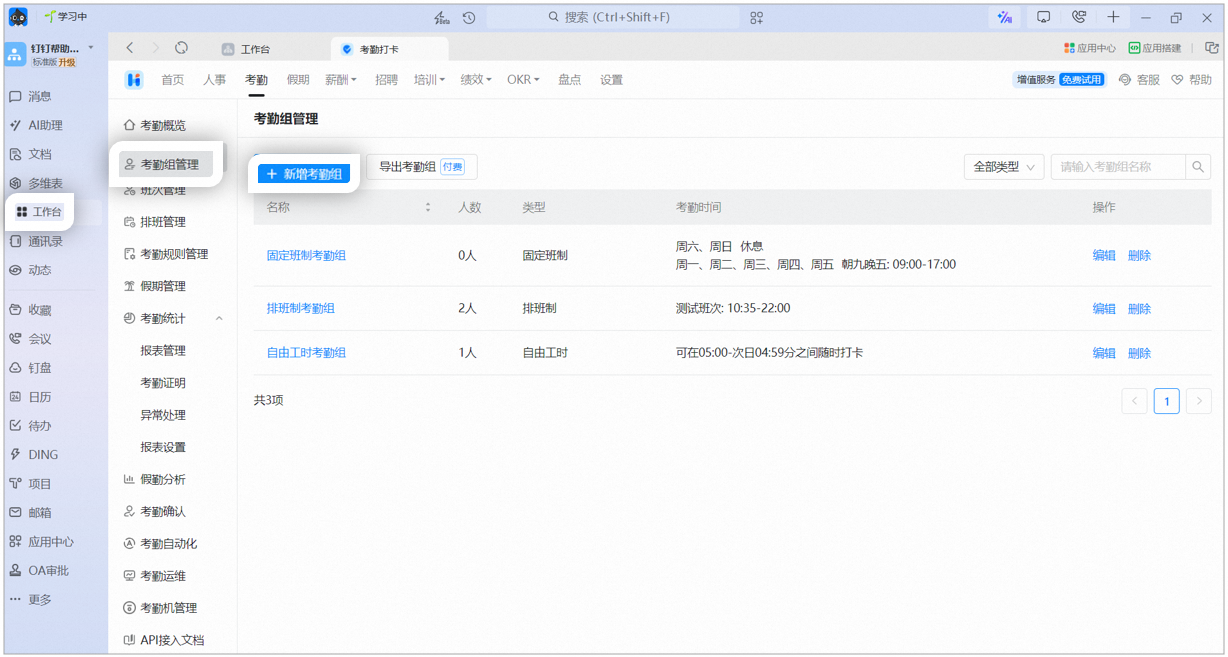
Example of adding an attendance group on desktop
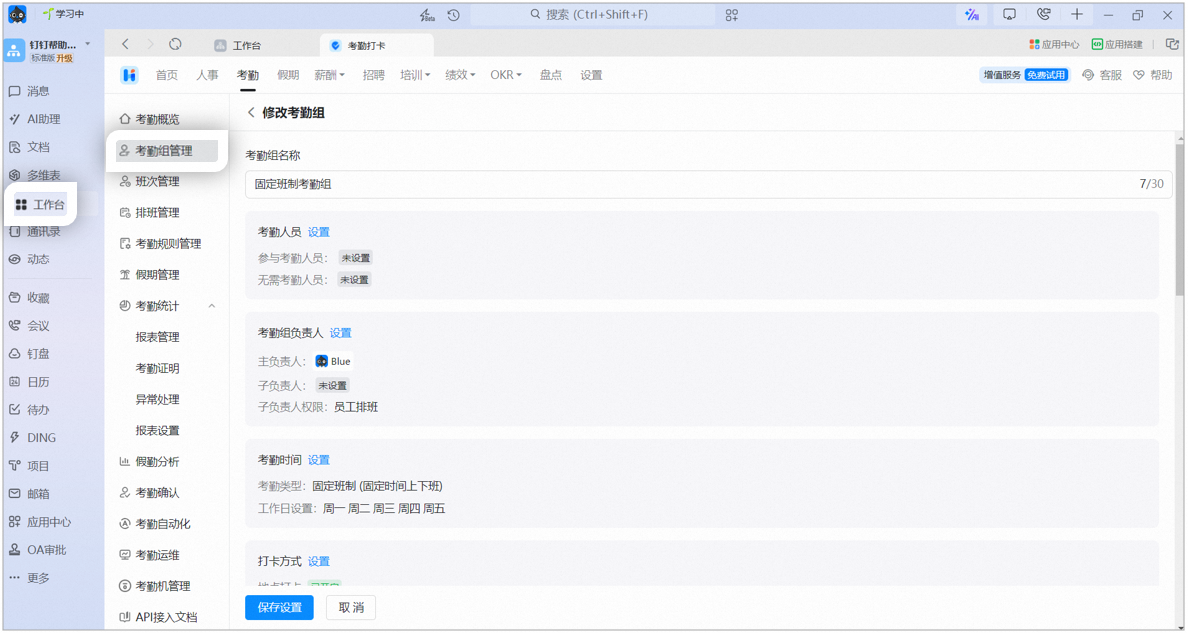
Example of selecting attendance members on desktop
2. Set the attendance group owner
⚠️ Notes:- Primary owner (by default, the attendance group creator): has permission to delete the attendance group and add sub-owners.
- Sub-owner permissions: the primary owner can configure management permissions for sub-owners.
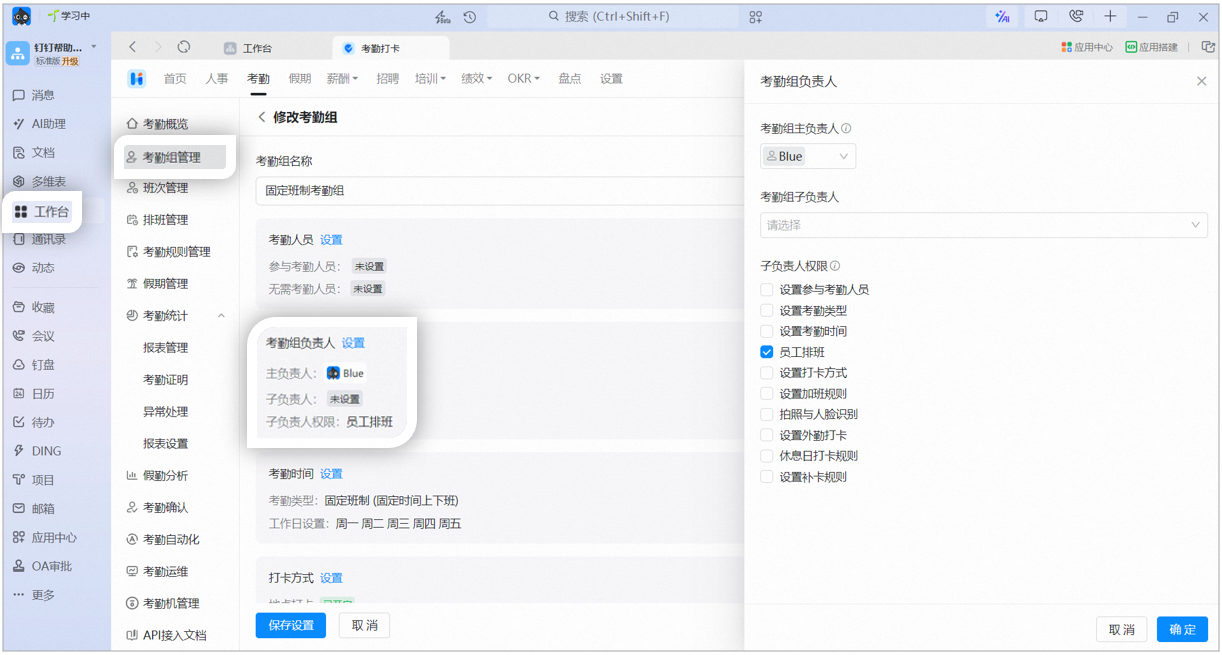
Example of setting the attendance group owner on desktop
- Fixed shift attendance (fixed working hours): everyone in the attendance group clocks in at the same time. Suitable for office workers, for example a 9-to-5 schedule.
- Shift-based attendance (shift-based working hours): a custom shift is set for each person. Suitable for factories and stores, for example a three-shift rotation.
- Flexible working hours: clock-in and clock-out times are flexible and employees can clock in at any time. Suitable for sales staff and hourly workers such as decorators and housekeepers.
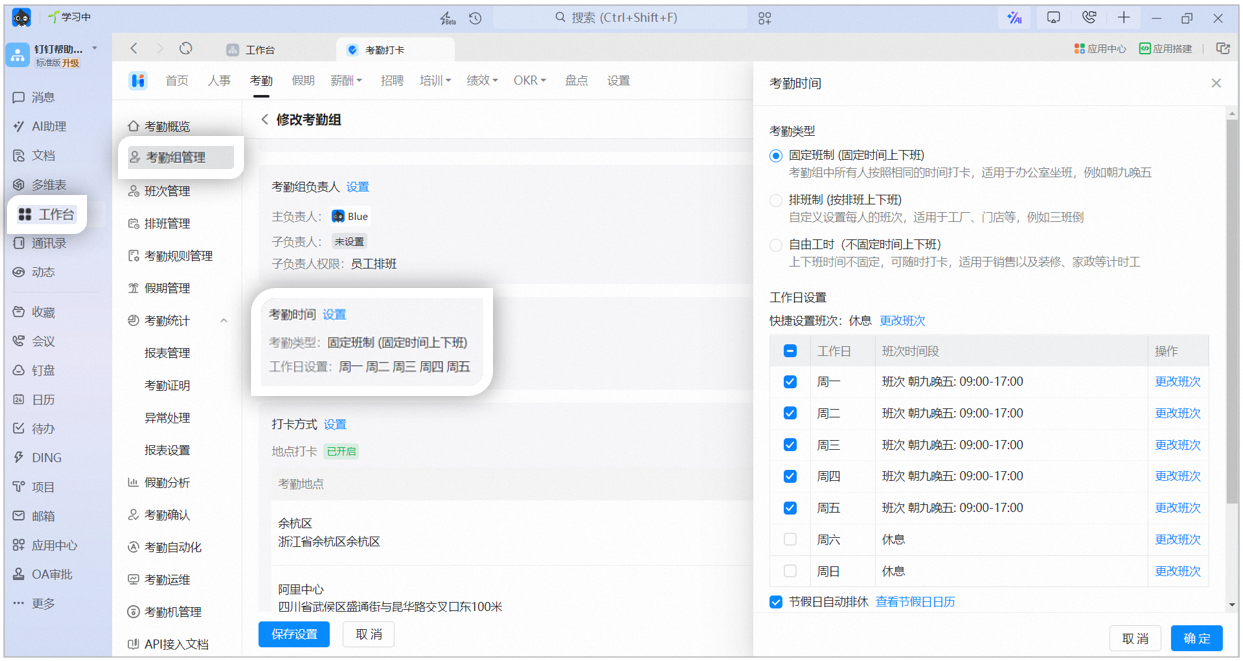
Example of setting the attendance schedule on desktop
- The system automatically matches the closest shift based on the employee’s clock-in time.
- Same-day shifts are matched in real time, and admins can verify and edit them the next day.
- When shifts are added to or removed from the attendance group, shifts included in automatic shift matching by default are updated automatically.
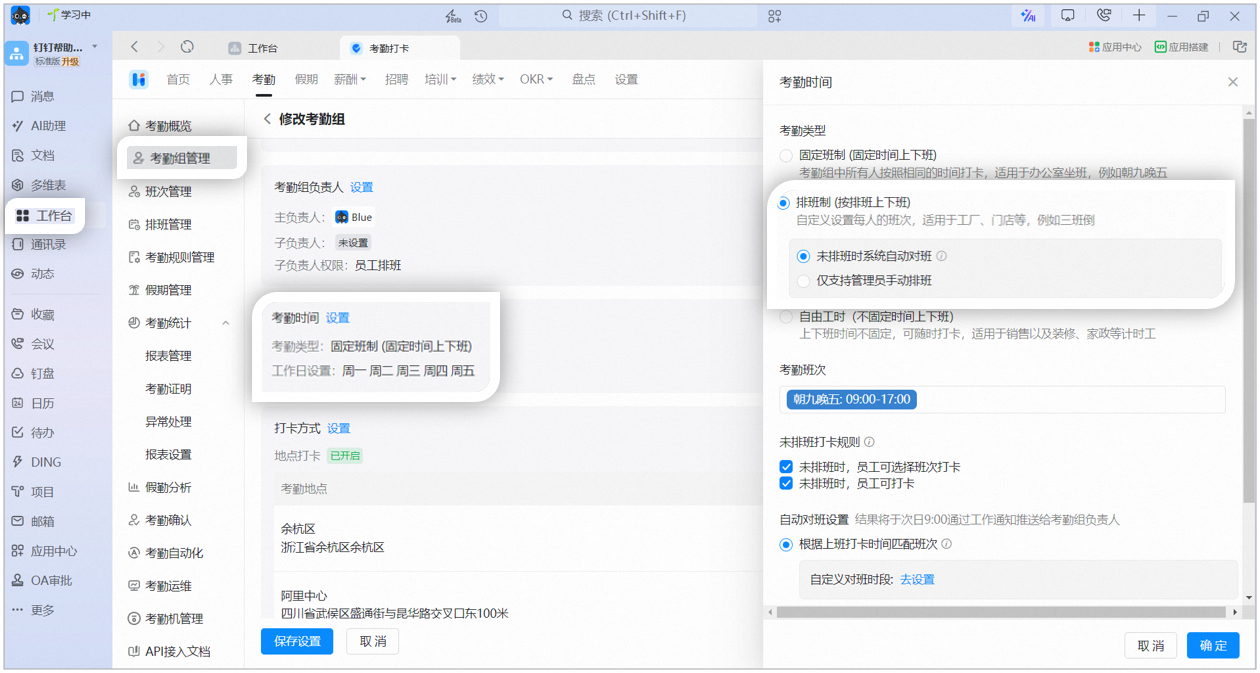
Example of configuring a shift-based attendance group on desktop
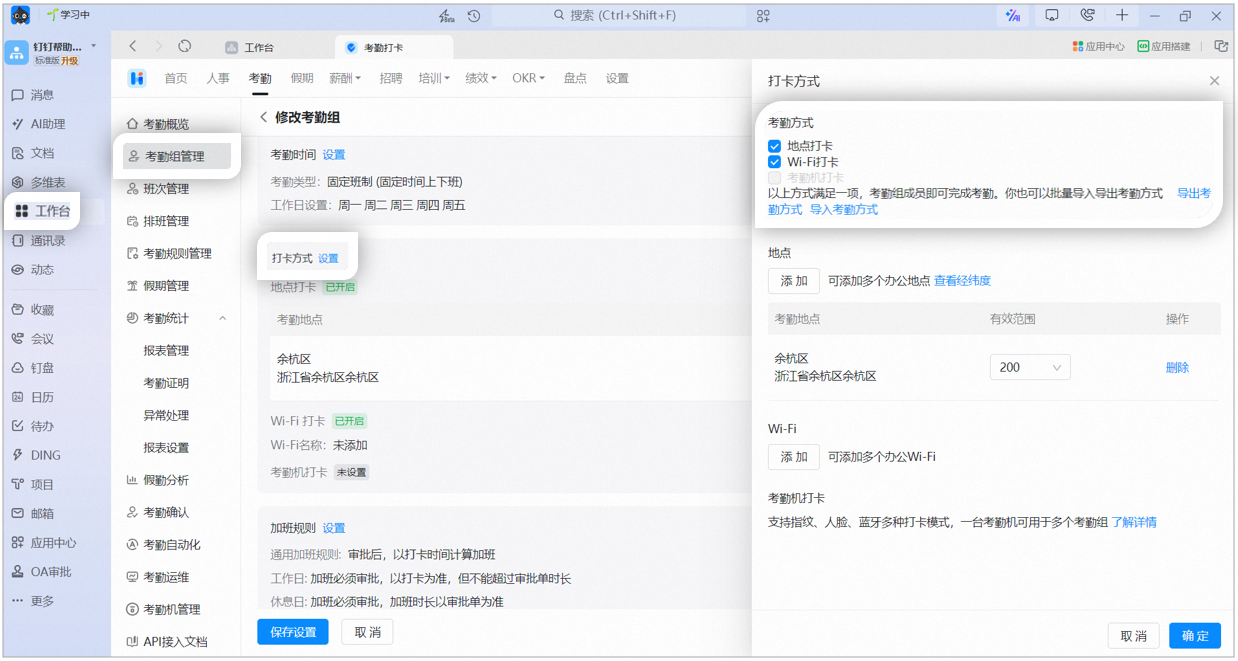
Example of setting the clock-in method on desktop
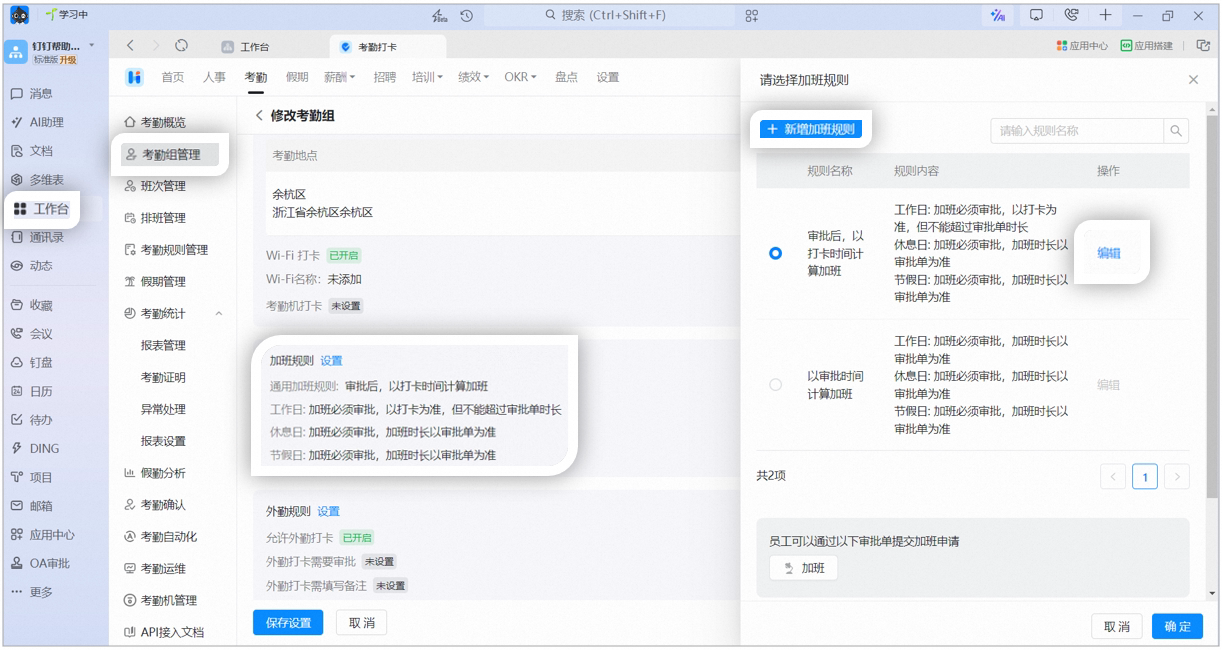
Example of setting overtime rules on desktop
- Allow employees to hide the detailed address: hides the address for remote work to protect employee privacy.
- Allow office clock-ins to update field clock-ins for check-in: when both an office clock-in and a field clock-in exist within the check-in time range, the earlier office clock-in is used as the check-in. Suitable for companies or teams that require employees to work in the office. If employees often leave for external work before returning to the office, we recommend disabling this option.
- Allow field clock-ins to update office clock-ins for check-out: when both an office clock-in and a field clock-in exist within the check-out time range, the later field clock-in is used as the check-out. Suitable for companies or teams where employees work overtime outside the office and need to update the check-out time.
- Allow location fine-tuning: when employees travel to visit clients, they can select a designated location within the configured range.
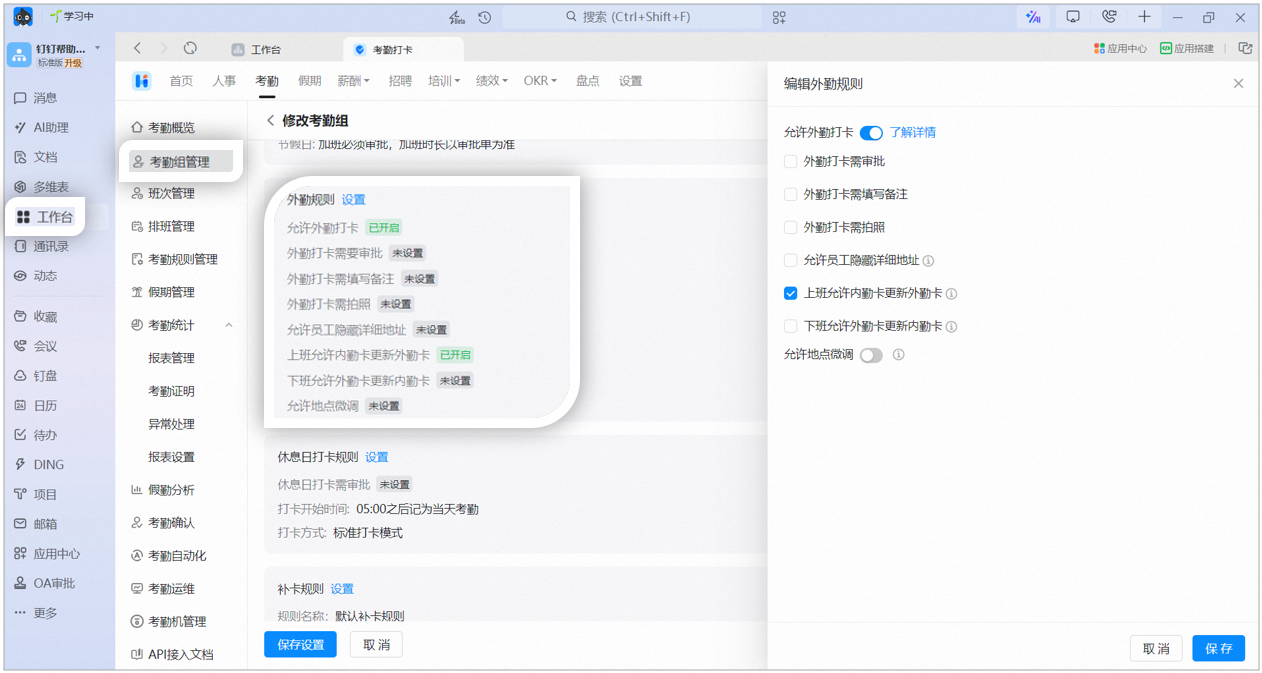
Example of setting field clock-in rules on desktop
- Standard clock-in mode: the first clock-in counts as check-in and the second as check-out. Any subsequent clock-ins update the check-out time.
- Strict clock-in mode: the first clock-in counts as check-in, the second as check-out, the third as check-in, and so on in alternation.
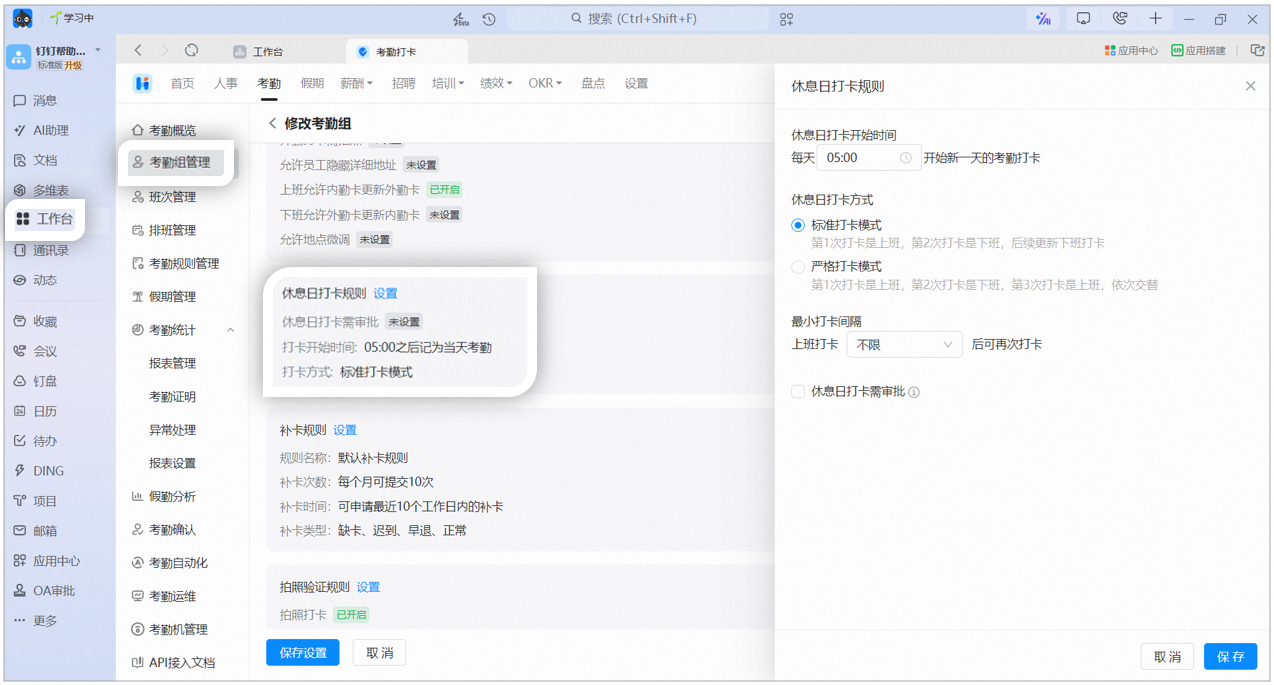
Example of setting rest day clock-in rules on desktop
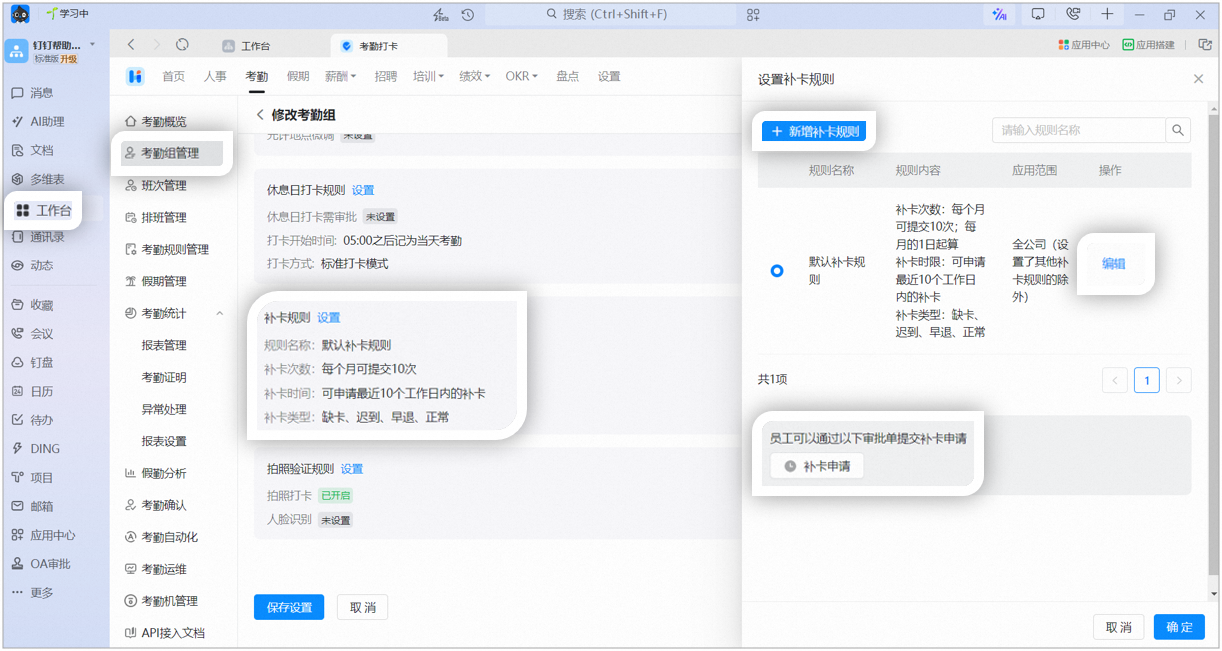
Example of setting makeup clock-in rules on desktop
- Photo clock-in: employees must take a photo when clocking in, and photos are archived.
- Facial recognition: employees’ faces are verified automatically when clocking in, and photos are not archived.
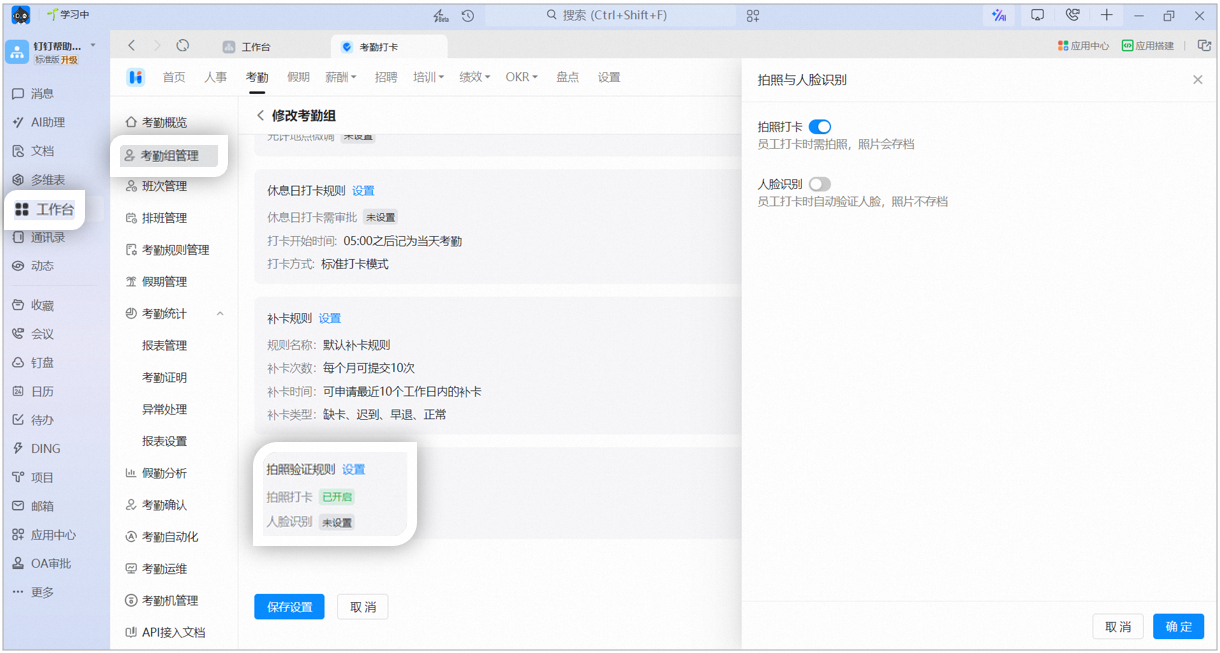
Example of setting photo verification rules on desktop