Learn how to set up Wi-Fi clock-in for DingTalk Attendance by matching the router’s MAC address. Enter the full MAC address and find answers to common issues, such as iOS clock-in failures and clock-in across multiple Wi-Fi networks.
Wi-Fi clock-in matches the MAC address of the Wi-Fi router with the MAC address of the network the employee connects to. Enter the complete MAC address. For the pros and cons of each clock-in method, see Differences between clock-in methods.
This method suits organizations with fixed workplaces that record attendance by connecting to a designated company Wi-Fi network. No extra equipment is required.
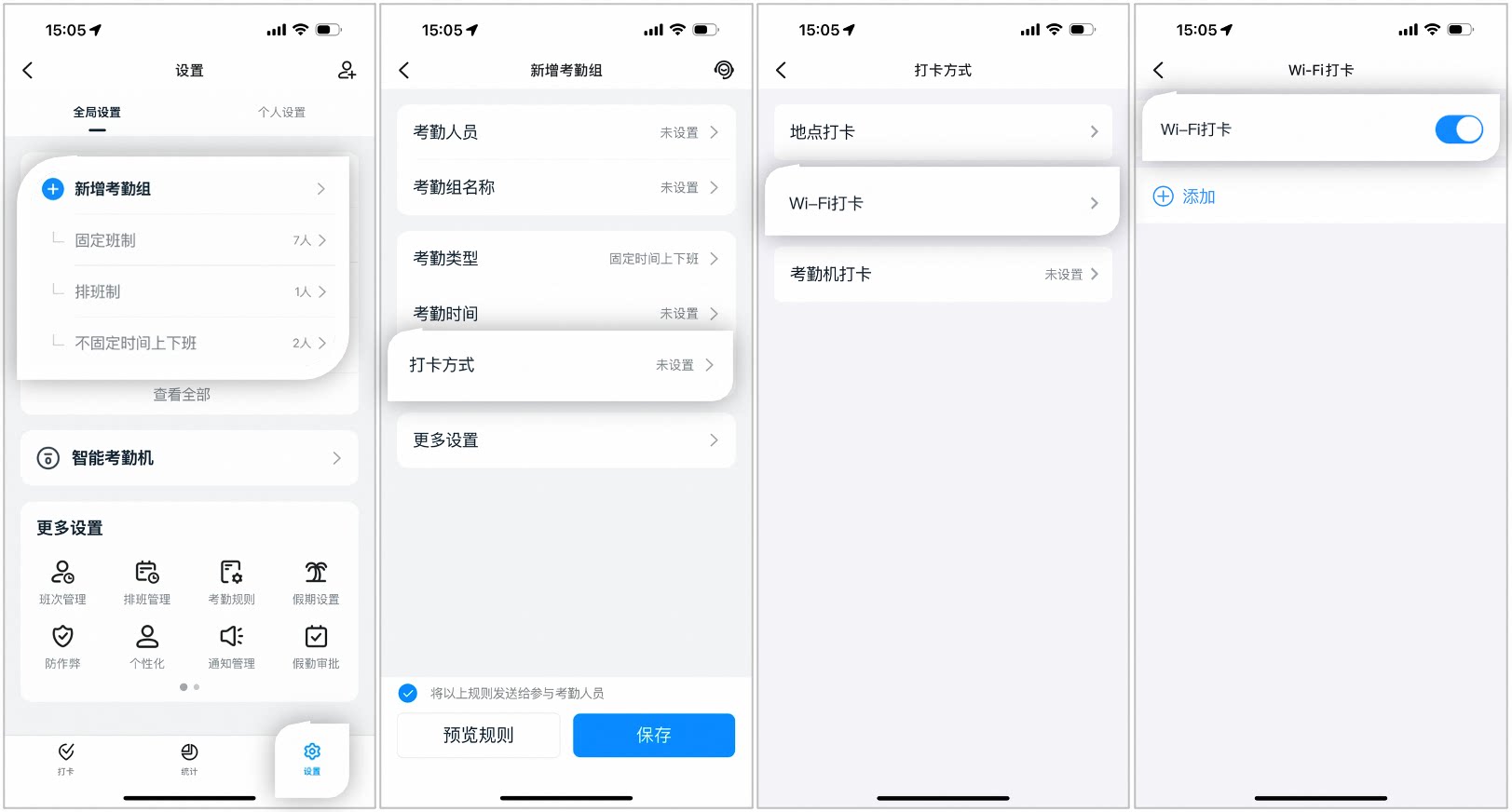
An Admin with the required Permissions can go to DingTalk mobile app > Workbench > Attendance > Settings > Global Settings > Add attendance group or Edit an existing attendance group > Clock-in method.
Example of the Add attendance group page on mobile
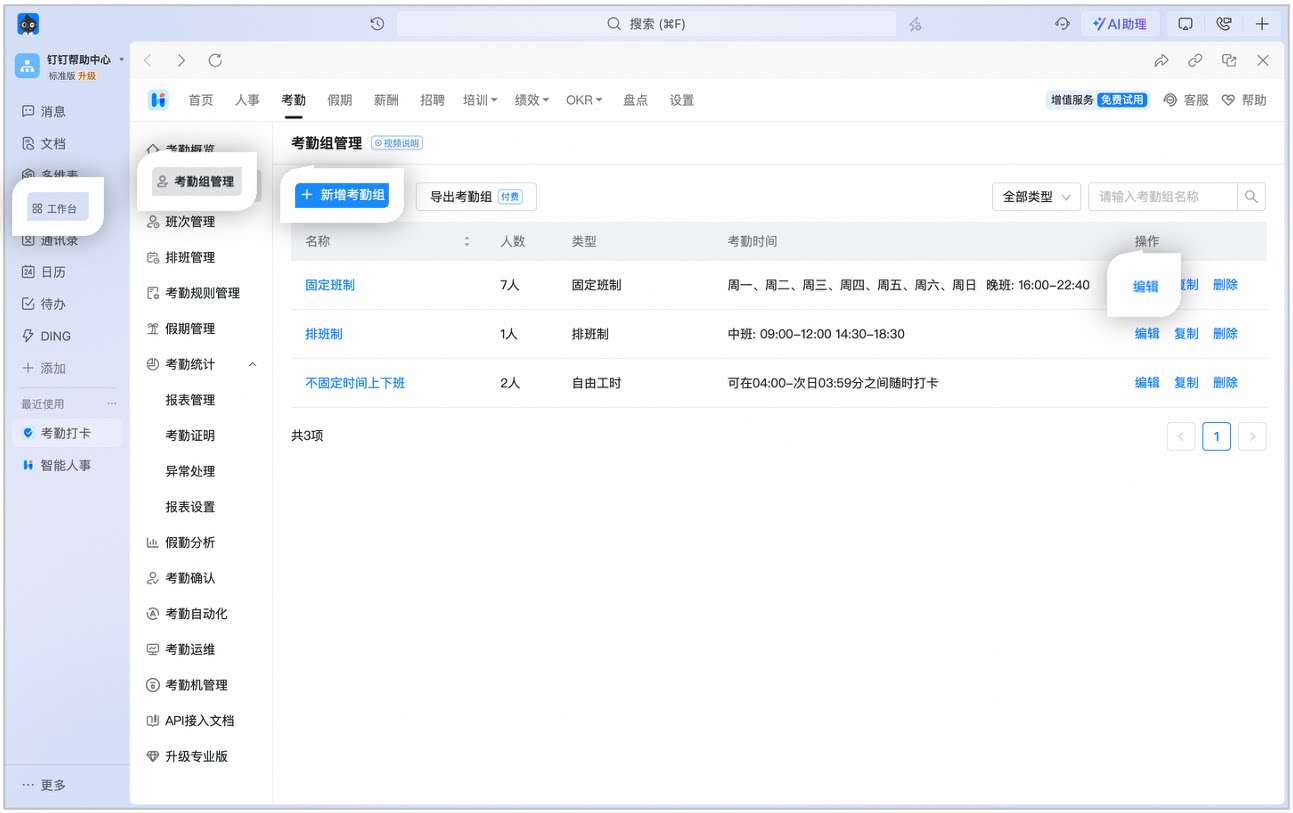
An Admin with the required Permissions can go to DingTalk desktop app > Workbench > Attendance > Attendance Group Management > Add attendance group, or click Edit to modify an existing attendance group.
Example of the Add attendance group page on desktop
2
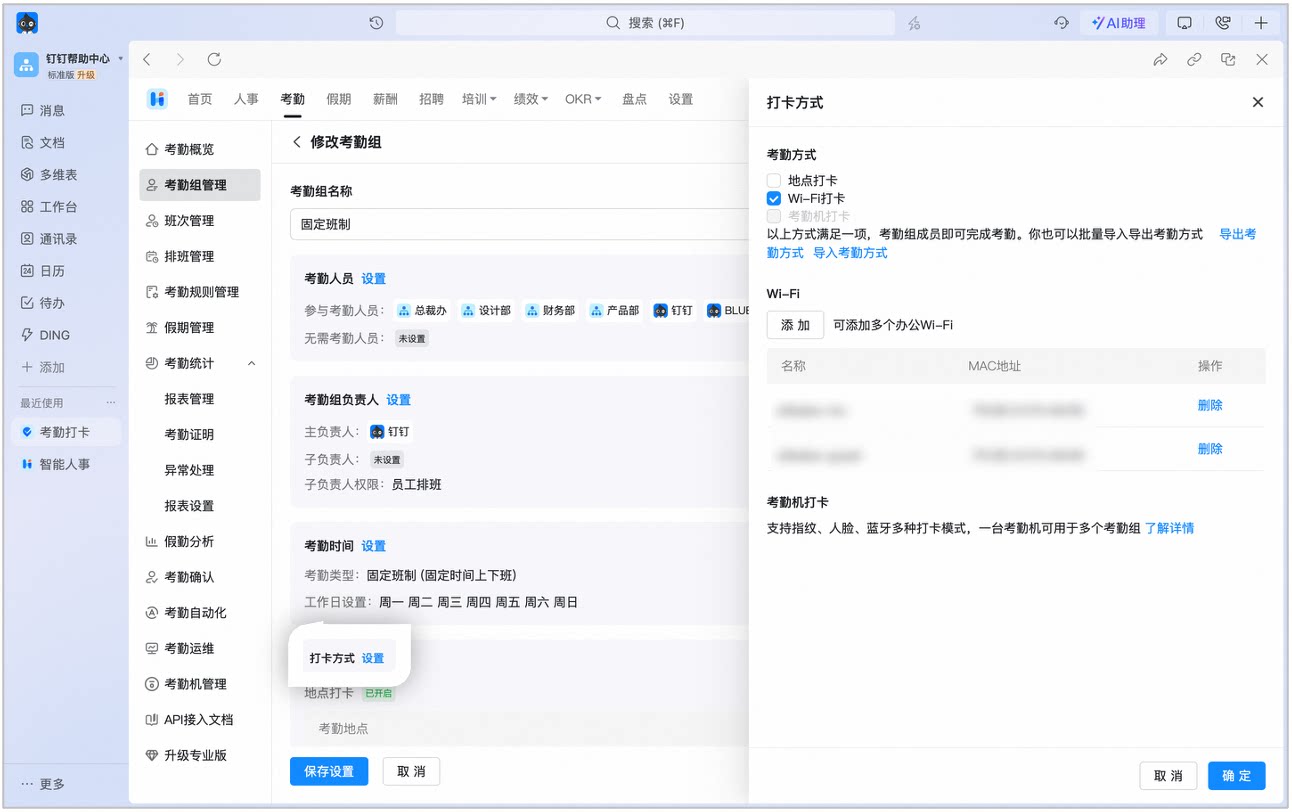
Go to Clock-in method > Settings and select Wi-Fi clock-in.
Example of the clock-in method selection page on desktop
A single Wi-Fi network may have multiple MAC addresses. iOS devices identify the network by the Wi-Fi MAC address. We recommend that the Admin use an Android phone to add the MAC address of each Wi-Fi network.
How do I clock in across multiple Wi-Fi networks?
Set multiple clock-in Locations and multiple clock-in Wi-Fi networks. Employees can tap to clock in as soon as they reach any of the Locations or connect to any of the Wi-Fi networks.
How many Wi-Fi networks can be added to an attendance group?
You can add up to 1,000 Wi-Fi networks to a single attendance group.
Was this page helpful?
{"docsConfig":{"theme":"mint","$schema":"https://mintlify.com/docs.json","name":"DingTalk Help Center","description":"Official help center for DingTalk International — guides, API references, and tutorials.","colors":{"primary":"#0066ff","light":"#3385ff","dark":"#0052cc"},"logo":{"light":"https://help.dingtalk.io/logo/light.svg","dark":"https://help.dingtalk.io/logo/dark.svg","href":"/"},"favicon":"https://mintcdn.com/dingtalk-8c0f98e2/-gG_zvv6IXkTItYa/favicon.ico?fit=max\u0026auto=format\u0026n=-gG_zvv6IXkTItYa\u0026q=85\u0026s=0379048afba937f1ccd8e3a3d7ff252e","appearance":{"default":"system"},"background":{"decoration":"gradient"},"search":{"prompt":""},"seo":{"metatags":{"canonical":"https://help.dingtalk.io","og:type":"website","og:locale":"en_US","og:site_name":"DingTalk Help Center","twitter:card":"summary_large_image","dingtalk:title":"DingTalk 帮助中心","dingtalk:description":"DingTalk 帮助中心 — 指南、API 文档与教程","dingtalk:img":"https://img.alicdn.com/imgextra/i2/O1CN01YT67eU1F0F4n6LlTN_!!6000000000424-2-tps-1024-1024.png","google-site-verification":"4EgfuXkL4_HIpxdhr5IMYiZJoq7XTFARPiv2wALnH0c"},"indexing":"navigable"},"styling":{"codeblocks":{"theme":{"light":"github-light","dark":"github-dark"}},"latex":true},"integrations":{"ga4":{"measurementId":"G-5H09N9EW47"}},"errors":{"404":{"redirect":false}},"contextual":{"options":["copy"],"display":"header"},"navigation":{"languages":[{"language":"en","banner":{"content":"**Announcement:** DingTalk plans for international customers are changing beginning October 21, 2026. [Learn more](/announcements/international-plan-changes-2026)","dismissible":true,"type":"info"},"footer":{"socials":{"x":"https://x.com/DingTalkJapan","instagram":"https://www.instagram.com/dingtalkjapan","linkedin":"https://www.linkedin.com/company/dingtalk"}},"navbar":{"primary":{"type":"button","label":"Download","href":"https://www.dingtalk.io/download/"}},"href":"im/chats-overview"},{"language":"zh","banner":{"content":"**公告**:DingTalk 国际组织商业版本将于 2026 年 10 月 21 日起调整。[查看详情](/zh/announcements/international-plan-changes-2026)","dismissible":true,"type":"info"},"footer":{"socials":{"x":"https://x.com/DingTalkJapan","instagram":"https://www.instagram.com/dingtalkjapan","linkedin":"https://www.linkedin.com/company/dingtalk"}},"navbar":{"primary":{"type":"button","label":"下载","href":"https://www.dingtalk.io/zh/download/"}},"href":"zh/im/chats-overview"},{"language":"ja","banner":{"content":"**お知らせ**:2026年10月21日より、DingTalkグローバル版のプランを改定します。[詳細を見る](/ja/announcements/international-plan-changes-2026)","dismissible":true,"type":"info"},"footer":{"socials":{"x":"https://x.com/DingTalkJapan","instagram":"https://www.instagram.com/dingtalkjapan","linkedin":"https://www.linkedin.com/company/dingtalk"}},"navbar":{"primary":{"type":"button","label":"ダウンロード","href":"https://www.dingtalk.co.jp/download/"}},"href":"ja/im/chats-overview"},{"language":"id","banner":{"content":"**Pengumuman:** Paket DingTalk untuk pelanggan internasional akan berubah mulai 21 Oktober 2026. [Selengkapnya (bahasa Inggris)](/announcements/international-plan-changes-2026)","dismissible":true,"type":"info"},"footer":{"socials":{"x":"https://x.com/DingTalkJapan","instagram":"https://www.instagram.com/dingtalkjapan","linkedin":"https://www.linkedin.com/company/dingtalk"}},"navbar":{"primary":{"type":"button","label":"Unduh","href":"https://www.dingtalk.io/download/"}},"href":"id/im/chats-overview"},{"language":"uz","banner":{"content":"**Pengumuman:** Pelan DingTalk untuk pelanggan antarabangsa akan berubah mulai 21 Oktober 2026. [Ketahui lanjut (bahasa Inggeris)](/announcements/international-plan-changes-2026)","dismissible":true,"type":"info"},"footer":{"socials":{"x":"https://x.com/DingTalkJapan","instagram":"https://www.instagram.com/dingtalkjapan","linkedin":"https://www.linkedin.com/company/dingtalk"}},"navbar":{"primary":{"type":"button","label":"Muat turun","href":"https://www.dingtalk.io/download/"}},"href":"ms/im/chats-overview"}]}},"deployment":{"deploymentMetadataValue":{"subdomain":"dingtalk-8c0f98e2","hasAudioNarration":false,"actualSubdomain":"dingtalk-8c0f98e2","customDomains":["help.dingtalk.io"],"gitSource":{"type":"github","owner":"fuxun2008","repo":"dingtalk-docs","deployBranch":"main","contentDirectory":"","isPrivate":true,"mountPath":"","label":""},"chroma":{"liveDeploymentHistoryId":"6ae0635ddc8e261a8bb5a83f","collectionId":"7732ee56-7e24-4173-b91a-eaa9c9b7dfcd","schemaVersion":"v3","latestBuiltDeploymentHistoryId":"6ae0635ddc8e261a8bb5a83f"},"feedback":{"thumbs":true},"entitlements":{"AI_CHAT":{"status":"DISABLED"}},"buildId":"6aed6ab16ef5b3d55c3e841a","clientVersion":"0.0.4076","searchFilterCounts":[{"language":"en","tag":"Help Docs","count":1175},{"language":"id","tag":"Pusat Bantuan","count":1175},{"language":"ja","tag":"ヘルプドキュメント","count":1175},{"language":"uz","tag":"Pusat Bantuan","count":1175},{"language":"zh","tag":"帮助文档","count":1175},{"language":"en","tag":"Developer Docs","count":577},{"language":"id","tag":"Platform Terbuka","count":577},{"language":"ja","tag":"開発ドキュメント","count":577},{"language":"uz","tag":"Platform Terbuka","count":577},{"language":"zh","tag":"开发文档","count":577},{"language":"en","tag":"YiDA","count":568},{"language":"id","tag":"YiDA","count":568},{"language":"ja","tag":"YiDA","count":568},{"language":"uz","tag":"YiDA","count":568},{"language":"zh","tag":"宜搭","count":568},{"language":"en","tag":"Server API","count":476},{"language":"id","tag":"Server API","count":476},{"language":"ja","tag":"サーバー API","count":476},{"language":"uz","tag":"Server API","count":476},{"language":"zh","tag":"服务端 API","count":476},{"language":"en","tag":"Form Management","count":231},{"language":"id","tag":"Manajemen Formulir","count":231},{"language":"ja","tag":"フォーム管理","count":231},{"language":"uz","tag":"Pengurusan Borang","count":231},{"language":"zh","tag":"表单管理","count":231},{"language":"id","tag":"Dokumen","count":205},{"language":"ja","tag":"ドキュメント","count":205},{"language":"uz","tag":"Dokumen","count":205},{"language":"zh","tag":"文档","count":205},{"language":"en","tag":"Docs","count":180},{"language":"en","tag":"Form Design","count":166},{"language":"id","tag":"Desain Formulir","count":166},{"language":"ja","tag":"フォーム設計","count":166},{"language":"uz","tag":"Reka Bentuk Borang","count":166},{"language":"zh","tag":"表单设计","count":166},{"language":"en","tag":"AI Table","count":161},{"language":"id","tag":"AI Table","count":161},{"language":"uz","tag":"AI Table","count":161},{"language":"zh","tag":"AI 表格","count":161},{"language":"en","tag":"Docs \u0026 files","count":146},{"language":"id","tag":"Dokumen \u0026 file","count":146},{"language":"ja","tag":"Docs とファイル","count":146},{"language":"uz","tag":"Dokumen \u0026 Fail","count":146},{"language":"zh","tag":"文档/文件","count":146},{"language":"ja","tag":"AI テーブル","count":144},{"language":"en","tag":"Attendance","count":143},{"language":"id","tag":"Absensi","count":143},{"language":"ja","tag":"勤怠","count":143},{"language":"uz","tag":"Kehadiran","count":143},{"language":"zh","tag":"考勤","count":143}],"searchSettings":{"maxResults":15}},"assistantConfig":{"enableAskAiButton":false,"enableStarterQuestions":false,"enableContextualStarterQuestions":false,"enableAskAiSearchBar":true},"basePath":"","hasChatPermissions":false,"hasWebMcpPermissions":false,"toggles":[],"googleFontsInlined":false},"customCss":[{"filePath":"custom.css","content":".prose table,main table{border-collapse:separate!important;border-spacing:0;width:100%;margin:1.25rem 0;font-size:14px;line-height:1.6;border:1px solid rgb(229, 231, 235);border-radius:8px;overflow:hidden}.prose table th,main table th{min-width:5em}html.dark .prose table,html.dark main table{border-color:rgb(55, 65, 81)}.prose table thead,main table thead{background-color:rgb(249, 250, 251)}html.dark .prose table thead,html.dark main table thead{background-color:rgba(31, 41, 55, 0.6)}.prose table th,main table th{padding:12px 16px!important;font-weight:600!important;text-align:left!important;color:rgb(17, 24, 39)!important;border-bottom:1px solid rgb(229, 231, 235)!important}html.dark .prose table th,html.dark main table th{color:rgb(243, 244, 246)!important;border-bottom-color:rgb(55, 65, 81)!important}.prose table:not(:has(thead))>tr:first-child,main table:not(:has(thead))>tr:first-child{background-color:rgb(249, 250, 251)}html.dark .prose table:not(:has(thead))>tr:first-child,html.dark main table:not(:has(thead))>tr:first-child{background-color:rgba(31, 41, 55, 0.6)}.prose table td,main table td{padding:10px 16px!important;vertical-align:top;border-bottom:1px solid rgb(243, 244, 246)!important}html.dark .prose table td,html.dark main table td{border-bottom-color:rgba(55, 65, 81, 0.4)!important}.prose table td:first-child,main table td:first-child{padding-inline-start:16px!important;font-weight:500;color:rgb(31, 41, 55)}html.dark .prose table td:first-child,html.dark main table td:first-child{color:rgb(229, 231, 235)}.prose table tbody tr:last-child td,main table tbody tr:last-child td,.prose table>tr:last-child td,main table>tr:last-child td{border-bottom:0!important}.prose table tbody tr:nth-child(even),main table tbody tr:nth-child(even),.prose table:not(:has(thead))>tr:nth-child(even),main table:not(:has(thead))>tr:nth-child(even){background-color:rgba(249, 250, 251, 0.5)}html.dark .prose table tbody tr:nth-child(even),html.dark main table tbody tr:nth-child(even),html.dark .prose table:not(:has(thead))>tr:nth-child(even),html.dark main table:not(:has(thead))>tr:nth-child(even){background-color:rgba(31, 41, 55, 0.25)}.prose table tbody tr:hover,main table tbody tr:hover,.prose table>tr:hover,main table>tr:hover{background-color:rgba(0, 102, 255, 0.05)}html.dark .prose table tbody tr:hover,html.dark main table tbody tr:hover,html.dark .prose table>tr:hover,html.dark main table>tr:hover{background-color:rgba(0, 102, 255, 0.1)}.prose table code,main table code{font-size:0.875em;padding:1px 6px;border-radius:4px}.prose img,main article img{max-height:80vh;max-width:100%;width:auto;height:auto;object-fit:contain;display:block;margin-left:auto;margin-right:auto;border-radius:8px;box-shadow:0 1px 3px rgba(0, 0, 0, 0.08)}html.dark .prose img,html.dark main article img{box-shadow:0 1px 3px rgba(0, 0, 0, 0.4)}@media (max-width: 640px){.prose img,main article img{max-height:none;border-radius:6px}}.prose img.inline-icon,main article img.inline-icon{display:inline-block;width:auto;height:auto;max-height:1.5em;margin:0 3px;vertical-align:text-bottom;border-radius:3px;box-shadow:none}img[src*=\"/logo/icons/\"]{background-color:currentColor!important;-webkit-mask-repeat:no-repeat;mask-repeat:no-repeat;-webkit-mask-position:center;mask-position:center;-webkit-mask-size:contain;mask-size:contain}img[src*=\"/logo/icons/im.svg\"]{-webkit-mask-image:url(/logo/icons/im-glyph.svg);mask-image:url(/logo/icons/im-glyph.svg)}img[src*=\"/logo/icons/cal.svg\"]{-webkit-mask-image:url(/logo/icons/cal-glyph.svg);mask-image:url(/logo/icons/cal-glyph.svg)}img[src*=\"/logo/icons/av.svg\"]{-webkit-mask-image:url(/logo/icons/av-glyph.svg);mask-image:url(/logo/icons/av-glyph.svg)}img[src*=\"/logo/icons/contact.svg\"]{-webkit-mask-image:url(/logo/icons/contact-glyph.svg);mask-image:url(/logo/icons/contact-glyph.svg)}img[src*=\"/logo/icons/mail.svg\"]{-webkit-mask-image:url(/logo/icons/mail-glyph.svg);mask-image:url(/logo/icons/mail-glyph.svg)}img[src*=\"/logo/icons/doc.svg\"]{-webkit-mask-image:url(/logo/icons/doc-glyph.svg);mask-image:url(/logo/icons/doc-glyph.svg)}img[src*=\"/logo/icons/drive.svg\"]{-webkit-mask-image:url(/logo/icons/drive-glyph.svg);mask-image:url(/logo/icons/drive-glyph.svg)}img[src*=\"/logo/icons/table.svg\"]{-webkit-mask-image:url(/logo/icons/table-glyph.svg);mask-image:url(/logo/icons/table-glyph.svg)}img[src*=\"/logo/icons/notes.svg\"]{-webkit-mask-image:url(/logo/icons/notes-glyph.svg);mask-image:url(/logo/icons/notes-glyph.svg)}img[src*=\"/logo/icons/yida.svg\"]{-webkit-mask-image:url(/logo/icons/yida-glyph.svg);mask-image:url(/logo/icons/yida-glyph.svg)}img[src*=\"/logo/icons/att.svg\"]{-webkit-mask-image:url(/logo/icons/att-glyph.svg);mask-image:url(/logo/icons/att-glyph.svg)}img[src*=\"/logo/icons/appr.svg\"]{-webkit-mask-image:url(/logo/icons/appr-glyph.svg);mask-image:url(/logo/icons/appr-glyph.svg)}[data-component-part=\"products-selector-trigger\"]>span{max-width:none!important;overflow:visible!important;text-overflow:clip!important;-webkit-line-clamp:unset!important;display:block!important;white-space:nowrap!important}[data-component-part=\"products-selector-trigger\"]{overflow:visible!important}.nav-tabs-item{white-space:nowrap!important;flex-shrink:0!important}.nav-tabs{flex-wrap:nowrap;overflow:hidden}html.dt-nav-ready .nav-tabs{overflow:visible}#navbar div.flex-1.justify-end{flex-grow:0!important}.dt-more-tab{position:relative;display:inline-flex;align-items:center;gap:6px;height:100%;cursor:pointer;background:none;border:0;padding:0;white-space:nowrap;flex-shrink:0}.dt-more-tab .dt-more-caret{width:12px;height:12px;transition:transform 0.2s ease}.dt-more-tab:hover .dt-more-caret,.dt-more-tab:focus-within .dt-more-caret,.dt-more-tab[aria-expanded=\"true\"] .dt-more-caret{transform:rotate(180deg)}.dt-more-tab.dt-more-active{color:var(--primary, #0066ff)!important}html.dark .dt-more-tab.dt-more-active{color:var(--primary-light, #4d94ff)!important}.dt-more-panel{position:absolute;top:calc(100% + 6px);right:0;z-index:60;min-width:208px;padding:6px;display:none;flex-direction:column;gap:2px;background:#ffffff;border:1px solid rgba(23, 26, 29, 0.1);border-radius:12px;box-shadow:0 12px 32px rgba(23, 26, 29, 0.16), 0 2px 8px rgba(23, 26, 29, 0.08)}html.dark .dt-more-panel{background:#1b1e24;border-color:rgba(255, 255, 255, 0.12);box-shadow:0 12px 32px rgba(0, 0, 0, 0.6), 0 2px 8px rgba(0, 0, 0, 0.4)}.dt-more-panel::before{content:\"\";position:absolute;left:0;right:0;top:-10px;height:10px}.dt-more-tab:hover .dt-more-panel,.dt-more-tab:focus-within .dt-more-panel,.dt-more-panel:hover,.dt-more-tab[aria-expanded=\"true\"] .dt-more-panel{display:flex}.dt-more-panel .dt-more-item{display:flex;align-items:center;gap:10px;padding:8px 10px;border-radius:8px;font-size:14px;font-weight:500;color:var(--gray-700, #374151);white-space:nowrap;text-decoration:none}html.dark .dt-more-panel .dt-more-item{color:rgba(255, 255, 255, 0.75)}.dt-more-panel .dt-more-item:hover{background:rgba(0, 102, 255, 0.08)}.dt-more-panel .dt-more-item.dt-more-item-active{color:var(--primary, #0066ff);background:rgba(0, 102, 255, 0.1)}.dt-more-panel .dt-more-item img{width:18px;height:18px;flex:none}img[src*=\"/logo/icons/dev.svg\"]{-webkit-mask-image:url(/logo/icons/dev-glyph.svg);mask-image:url(/logo/icons/dev-glyph.svg)}img[src*=\"/logo/icons/oa.svg\"]{-webkit-mask-image:url(/logo/icons/oa-glyph.svg);mask-image:url(/logo/icons/oa-glyph.svg)}html.dt-embed #navbar,html.dt-embed #sidebar,html.dt-embed #table-of-contents,html.dt-embed footer{display:none!important}html.dt-embed :where(div):has(>#content-area){padding-top:2.5rem!important}@font-face{font-family:\"DT Yu Gothic\";src:local(\"Yu Gothic Medium\"), local(\"YuGothic Medium\");font-weight:100 500}@font-face{font-family:\"DT Yu Gothic\";src:local(\"Yu Gothic Bold\"), local(\"YuGothic Bold\");font-weight:600 900}html[lang=\"ja\"]{--dt-font-ja: Inter, \"Hiragino Sans\", \"Hiragino Kaku Gothic ProN\", \"DT Yu Gothic\", \"Yu Gothic\", YuGothic, sans-serif}html[lang=\"ja\"] body,html[lang=\"ja\"] :is(h1,h2,h3,h4,h5,h6){font-family:var(--dt-font-ja)}html[lang=\"ja\"] .dt-home{--cjk: var(--dt-font-ja)}#content-area:has(.dt-hide-page-desc) #header>div.prose{display:none}"},{"filePath":"style.css","content":".dt-home{--blue: #0066ff;--blue-deep: #0052cc;--blue-soft: #eaf2ff;--blue-tint: #f4f8ff;--ink: #0d1421;--ink-2: #3d4757;--ink-3: #7a8595;--line: #e9edf3;--line-2: #f0f3f8;--bg: #ffffff;--bg-soft: #f7f9fc;--surface: #ffffff;--surface-glass: rgba(255, 255, 255, 0.82);--eyebrow-bg: #ffffff;--logo-url: url(/logo/dark.svg);--dot-pattern: rgba(13, 20, 33, 0.045);--hero-scrim: radial-gradient(660px 420px at 50% 42%, rgba(247, 249, 252, 0.62), rgba(247, 249, 252, 0.18) 54%, rgba(247, 249, 252, 0) 78%);--hero-tint-1: rgba(0, 102, 255, 0.10);--hero-tint-2: rgba(58, 147, 255, 0.08);--hero-tint-3: rgba(150, 120, 255, 0.06);--radius: 18px;--shadow-sm: 0 1px 2px rgba(13, 20, 33, 0.04), 0 4px 16px rgba(13, 20, 33, 0.04);--shadow-md: 0 8px 30px rgba(13, 20, 33, 0.08);--shadow-blue: 0 12px 40px rgba(0, 102, 255, 0.18);--cjk: \"PingFang SC\", \"Hiragino Sans GB\", \"Microsoft YaHei\", sans-serif;color:var(--ink);background:var(--bg);line-height:1.6;font-family:var(--cjk)}.dt-home *,.dt-home *::before,.dt-home *::after{box-sizing:border-box}.dt-home a{color:inherit;text-decoration:none}.dt-home img,.dt-home svg{display:block}html[data-page-mode=\"custom\"] #navbar{display:none!important}html[data-page-mode=\"custom\"] :where(div):has(>#content-area){padding-top:0!important}html:has(.dt-home),html:has(.dt-home) body{scrollbar-width:none;-ms-overflow-style:none}html:has(.dt-home)::-webkit-scrollbar,html:has(.dt-home) body::-webkit-scrollbar{width:0;height:0;display:none}.dt-home-header{position:sticky;top:0;z-index:50;background:var(--surface-glass);backdrop-filter:saturate(180%) blur(18px);-webkit-backdrop-filter:saturate(180%) blur(18px);border-bottom:1px solid var(--line-2)}.dt-home-nav{max-width:1180px;margin:0 auto;padding:0 28px;height:66px;display:flex;align-items:center;gap:32px}.dt-home .dt-home-brand{display:flex;align-items:center;gap:10px;font-weight:700;letter-spacing:-0.01em;text-decoration:none}.dt-home-brand-logo{display:block;width:95px;height:32px;background:var(--logo-url) no-repeat left center;background-size:contain}.dt-home-brand-sub{color:var(--ink-3);font-weight:500;font-size:13px;border-left:1px solid var(--line);padding-left:11px;margin-left:2px}.dt-home-nav-links{display:flex;gap:28px;margin-left:8px}.dt-home .dt-home-nav-links a{font-size:14.5px;color:var(--ink-2);font-weight:500;transition:color 0.2s;text-decoration:none}.dt-home .dt-home-nav-links a:hover{color:var(--blue)}.dt-home-nav-right{margin-left:auto;display:flex;align-items:center;gap:14px}.dt-home-lang{position:relative}.dt-home-lang-btn{display:flex;align-items:center;gap:6px;font-size:13.5px;color:var(--ink-2);font-weight:600;border:1px solid var(--line);border-radius:99px;padding:7px 11px 7px 13px;cursor:pointer;transition:0.2s;background:var(--surface);font-family:inherit}.dt-home-lang-btn:hover{border-color:var(--blue);color:var(--blue)}.dt-home-lang-label{white-space:nowrap}.dt-home-lang-btn svg{width:15px;height:15px}.dt-home-lang-chev{width:13px!important;height:13px!important;transition:transform 0.2s;opacity:0.7}.dt-home-lang-open .dt-home-lang-btn{border-color:var(--blue);color:var(--blue)}.dt-home-lang-open .dt-home-lang-chev{transform:rotate(180deg)}.dt-home-lang-list{position:absolute;top:calc(100% + 8px);right:0;min-width:176px;background:var(--surface);border:1px solid var(--line);border-radius:13px;box-shadow:var(--shadow-md);padding:6px;list-style:none;margin:0;opacity:0;visibility:hidden;transform:translateY(-6px);transition:0.18s;z-index:60}.dt-home-lang-open .dt-home-lang-list{opacity:1;visibility:visible;transform:none}.dt-home-lang-list li{display:flex;align-items:center;justify-content:space-between;gap:10px;font-size:14px;color:var(--ink-2);font-weight:500;padding:9px 12px;border-radius:9px;cursor:pointer;transition:0.15s;white-space:nowrap}.dt-home-lang-list li:hover{background:var(--blue-tint);color:var(--blue)}.dt-home-lang-list li[aria-selected=\"true\"]{color:var(--blue);font-weight:600;background:var(--blue-soft)}.dt-home-lang-list li[aria-selected=\"true\"]::after{content:\"\\2713\";font-size:12px}.dt-home-navmenu{position:relative;display:none}.dt-home-nav-burger{display:flex;align-items:center;justify-content:center;width:38px;height:38px;border:1px solid var(--line);border-radius:11px;background:var(--surface);color:var(--ink-2);cursor:pointer;transition:0.2s;padding:0}.dt-home-nav-burger:hover{border-color:var(--blue);color:var(--blue)}.dt-home-nav-burger svg{width:22px;height:22px}.dt-home-navmenu-open .dt-home-nav-burger{border-color:var(--blue);color:var(--blue)}.dt-home-nav-panel{position:absolute;top:calc(100% + 8px);right:0;min-width:196px;background:var(--surface);border:1px solid var(--line);border-radius:13px;box-shadow:var(--shadow-md);padding:8px;display:flex;flex-direction:column;gap:2px;opacity:0;visibility:hidden;transform:translateY(-6px);transition:0.18s;z-index:60}.dt-home-navmenu-open .dt-home-nav-panel{opacity:1;visibility:visible;transform:none}.dt-home .dt-home-nav-panel a{font-size:14.5px;color:var(--ink-2);font-weight:500;padding:11px 12px;border-radius:9px;transition:0.15s;text-decoration:none}.dt-home .dt-home-nav-panel a:hover{background:var(--blue-tint);color:var(--blue)}.dt-home .dt-home-nav-panel-cta{margin-top:6px;text-align:center;background:var(--blue);color:#fff!important;font-weight:600;box-shadow:0 4px 14px rgba(0, 102, 255, 0.28)}.dt-home .dt-home-nav-panel-cta:hover{background:var(--blue-deep)}.dt-home .dt-home-btn-primary{background:var(--blue);color:#fff;font-weight:600;font-size:14px;padding:9px 18px;border-radius:99px;transition:0.2s;box-shadow:0 4px 14px rgba(0, 102, 255, 0.28);text-decoration:none}.dt-home .dt-home-btn-primary:hover{background:var(--blue-deep);transform:translateY(-1px)}.dt-home-hero{position:relative;padding:92px 28px 76px;text-align:center;background:radial-gradient(900px 380px at 50% -8%, var(--hero-tint-1), transparent 60%),\n radial-gradient(560px 300px at 12% 18%, var(--hero-tint-2), transparent 60%),\n radial-gradient(560px 300px at 88% 12%, var(--hero-tint-3), transparent 60%);overflow:hidden}.dt-home-hero::before{content:\"\";position:absolute;inset:0;pointer-events:none;z-index:1;background-image:radial-gradient(var(--dot-pattern) 1px, transparent 1px);background-size:26px 26px;-webkit-mask-image:radial-gradient(620px 360px at 50% 30%, #000 0%, transparent 75%);mask-image:radial-gradient(620px 360px at 50% 30%, #000 0%, transparent 75%)}.dt-home-hero-bg{position:absolute;inset:0;z-index:0;overflow:hidden}.dt-home-particle-canvas{position:absolute;inset:0;width:100%;height:100%;display:block}.dt-home-hero-scrim{position:absolute;inset:0;z-index:2;pointer-events:none;background:var(--hero-scrim)}.dt-home-hero-inner{position:relative;z-index:3;max-width:760px;margin:0 auto}.dt-home-eyebrow{display:inline-flex;align-items:center;gap:7px;font-size:13px;font-weight:600;color:var(--blue);background:var(--eyebrow-bg);border:1px solid var(--blue-soft);box-shadow:var(--shadow-sm);padding:6px 14px;border-radius:99px;margin-bottom:24px}.dt-home-eyebrow-dot{width:6px;height:6px;border-radius:50%;background:#22c55e;box-shadow:0 0 0 4px rgba(34, 197, 94, 0.15)}.dt-home-notice{max-width:100%;padding:4px 14px 4px 4px;color:var(--ink-2);font-weight:500;text-decoration:none;transition:border-color 0.2s, box-shadow 0.2s, transform 0.2s}.dt-home-notice:hover{border-color:var(--blue);box-shadow:var(--shadow-blue);transform:translateY(-1px)}.dt-home-notice:focus-visible{outline:2px solid var(--blue);outline-offset:3px}.dt-home-notice-label{flex:none;padding:2px 10px;border-radius:99px;background:var(--blue);color:#fff;font-weight:600}.dt-home-notice-text{min-width:0;overflow:hidden;text-overflow:ellipsis;white-space:nowrap}.dt-home-notice-arrow{flex:none;color:var(--blue);transition:transform 0.2s}.dt-home-notice:hover .dt-home-notice-arrow{transform:translateX(3px)}.dt-home-hero-title{font-weight:700;letter-spacing:-0.02em;font-size:clamp(30px, 5vw, 46px);line-height:1.14;color:var(--ink);margin:0}.dt-home-hero-sub{margin:16px auto 0;font-size:17px;color:var(--ink-2);max-width:100%}.dt-home-search{margin:36px auto 0;max-width:620px;position:relative;z-index:30}.dt-home-search-box{display:flex;align-items:center;gap:12px;background:var(--surface);border:1.5px solid var(--line);border-radius:99px;padding:8px 8px 8px 22px;box-shadow:var(--shadow-md);transition:0.25s;cursor:text}.dt-home-search-box:focus-within{border-color:var(--blue);box-shadow:var(--shadow-blue)}.dt-home-search-ic{width:20px;height:20px;color:var(--ink-3);flex:none}.dt-home-search-box input{flex:1;min-width:0;border:none;outline:none;font-family:var(--cjk);font-size:16px;color:var(--ink);background:transparent}.dt-home-search-box input::placeholder{color:var(--ink-3)}.dt-home-search-go{background:var(--blue);color:#fff;border:none;cursor:pointer;font-family:var(--cjk);font-weight:600;font-size:15px;padding:11px 24px;border-radius:99px;transition:0.2s;flex:none;display:inline-flex;align-items:center;justify-content:center;gap:6px}.dt-home-search-go kbd{font-family:ui-monospace, SFMono-Regular, Menlo, monospace;font-size:11.5px;font-weight:600;color:rgba(255, 255, 255, 0.82);background:rgba(255, 255, 255, 0.16);border:1px solid rgba(255, 255, 255, 0.28);border-radius:5px;padding:2px 6px;letter-spacing:0.02em;user-select:none;line-height:1}.dt-home-search-go:hover{background:var(--blue-deep)}.dt-home-hot{margin-top:18px;display:flex;flex-wrap:nowrap;gap:8px;position:relative;left:50%;transform:translateX(-50%);z-index:1;justify-content:center;align-items:center;width:max-content;max-width:calc(100vw - 56px)}.dt-home-hot-label{font-size:13.5px;color:var(--ink-3);font-weight:500;margin-right:2px;flex:none}.dt-home .dt-home-hot a{font-size:13.5px;color:var(--ink-2);background:var(--surface);border:1px solid var(--line);padding:6px 13px;border-radius:99px;transition:0.2s;font-weight:500;white-space:nowrap;flex:none;text-decoration:none}.dt-home .dt-home-hot a:hover{color:var(--blue);border-color:var(--blue);background:var(--blue-tint)}.dt-home-wrap{max-width:1180px;margin:0 auto;padding:0 28px}.dt-home-block{padding-top:64px;padding-bottom:64px}.dt-home-popular .dt-home-block{padding-top:88px;padding-bottom:88px}.dt-home-sec-head{display:flex;align-items:flex-end;justify-content:space-between;margin-bottom:30px;gap:20px;flex-wrap:wrap}.dt-home-sec-head h2{font-weight:700;font-size:25px;letter-spacing:-0.01em;margin:0}.dt-home-sec-head p{font-size:14.5px;color:var(--ink-3);margin:6px 0 0}.dt-home .dt-home-more{font-size:14px;font-weight:600;color:var(--blue);display:inline-flex;align-items:center}.dt-home .dt-home-more:hover{color:var(--blue-deep)}.dt-home-grid{display:grid;grid-template-columns:repeat(3, 1fr);gap:18px}.dt-home-card{display:block;background:var(--surface);border:1px solid var(--line);border-radius:var(--radius);padding:26px 24px;transition:0.28s cubic-bezier(0.2, 0.7, 0.2, 1);position:relative;overflow:hidden}.dt-home-card::after{content:\"\";position:absolute;inset:0;border-radius:var(--radius);background:linear-gradient(135deg, rgba(0, 102, 255, 0.05), transparent 55%);opacity:0;transition:0.28s}.dt-home-card:hover{border-color:transparent;box-shadow:var(--shadow-md);transform:translateY(-4px)}.dt-home-card:hover::after{opacity:1}.dt-home-card-ico{width:46px;height:46px;border-radius:13px;background:var(--blue-soft);color:var(--blue);display:grid;place-items:center;margin-bottom:16px;transition:0.28s}.dt-home-card-ico svg{width:23px;height:23px}.dt-home-card:hover .dt-home-card-ico{background:var(--blue);color:#fff;transform:scale(1.06) rotate(-3deg)}.dt-home-card h3{font-size:17.5px;font-weight:600;letter-spacing:-0.01em;margin:0}.dt-home-card-desc{font-size:13.5px;color:var(--ink-3);margin:7px 0 0;min-height:38px}.dt-home-card-topics{margin-top:14px;display:flex;flex-direction:column;gap:8px}.dt-home-card-topics span{font-size:13.5px;color:var(--ink-2);display:flex;align-items:center;gap:7px;font-weight:500}.dt-home-card-topics span::before{content:\"\";width:4px;height:4px;border-radius:50%;background:var(--blue);opacity:0.5;flex:none}.dt-home-card-count{position:absolute;top:24px;right:24px;font-size:12.5px;color:var(--ink-3);font-weight:600}.dt-home-popular{background:var(--bg-soft);border-top:1px solid var(--line-2);border-bottom:1px solid var(--line-2)}.dt-home-art-grid{display:grid;grid-template-columns:repeat(3, minmax(0, 1fr));gap:14px}.dt-home-art{display:flex;align-items:center;gap:16px;background:var(--surface);border:1px solid var(--line);border-radius:14px;padding:18px 20px;transition:0.22s;min-width:0}.dt-home-art:hover{border-color:var(--blue);box-shadow:var(--shadow-sm);transform:translateX(4px)}.dt-home-art-num{font-weight:700;font-size:18px;color:var(--blue);width:26px;flex:none;text-align:center}.dt-home-art-info{flex:1;min-width:0}.dt-home-art-info h4{font-size:15px;font-weight:600;letter-spacing:-0.01em;white-space:nowrap;overflow:hidden;text-overflow:ellipsis;margin:0}.dt-home-art-tag{font-size:12.5px;color:var(--ink-3);margin-top:3px;display:block}.dt-home-art-arr{width:18px;height:18px;color:var(--ink-3);flex:none;transition:0.22s}.dt-home-art:hover .dt-home-art-arr{color:var(--blue);transform:translateX(3px)}.dt-home-support{background:linear-gradient(120deg, #0c2a66, #0066ff 70%);color:#fff;border-radius:26px;padding:48px 52px;display:flex;align-items:center;gap:30px;justify-content:space-between;position:relative;overflow:hidden;box-shadow:var(--shadow-blue)}.dt-home-support-txt{flex:1;min-width:0}.dt-home-support-acts{flex:none}.dt-home-support::before{content:\"\";position:absolute;right:-60px;top:-60px;width:300px;height:300px;border-radius:50%;background:radial-gradient(circle, rgba(255, 255, 255, 0.18), transparent 70%)}.dt-home-support-txt h2{font-size:26px;font-weight:700;letter-spacing:-0.01em;margin:0}.dt-home-support-txt p{font-size:15px;color:rgba(255, 255, 255, 0.82);margin:8px 0 0;max-width:440px}.dt-home-support-acts{display:flex;gap:12px;flex-wrap:wrap;position:relative}.dt-home-support-acts a{padding:12px 22px;border-radius:99px;font-weight:600;font-size:14.5px;transition:0.2s}.dt-home-support-acts a.dt-home-support-s1{background:#fff;color:var(--blue-deep)}.dt-home-support-acts a.dt-home-support-s1:hover{transform:translateY(-2px);box-shadow:0 10px 24px rgba(0, 0, 0, 0.2)}.dt-home-support-acts a.dt-home-support-s2{background:rgba(255, 255, 255, 0.14);color:#fff;border:1px solid rgba(255, 255, 255, 0.28)}.dt-home-support-acts a.dt-home-support-s2:hover{background:rgba(255, 255, 255, 0.22)}.dt-home-footer{border-top:1px solid var(--line-2);padding:54px 0 40px;margin-top:8px}.dt-home-foot{display:grid;grid-template-columns:1.4fr repeat(3, 1fr);gap:40px}.dt-home-foot-brand{display:block;width:130px;height:42px;background:var(--logo-url) no-repeat left center;background-size:contain;margin-bottom:14px}.dt-home-foot-tagline{display:block;font-size:13.5px;color:var(--ink-3);max-width:260px;margin:0}.dt-home-foot h5{font-size:13px;font-weight:700;color:var(--ink);margin:0 0 14px;letter-spacing:0.02em}.dt-home-foot ul{list-style:none;display:flex;flex-direction:column;gap:10px;padding:0;margin:0}.dt-home-foot ul a{font-size:13.5px;color:var(--ink-2);transition:0.2s}.dt-home-foot ul a:hover{color:var(--blue)}.dt-home-foot-bottom{max-width:1180px;margin:36px auto 0;padding:22px 28px 0;border-top:1px solid var(--line-2);display:flex;justify-content:space-between;flex-wrap:wrap;gap:12px;font-size:13px;color:var(--ink-3)}.dt-home-foot-bottom a{color:var(--ink-3)}@media (max-width: 900px){.dt-home-grid{grid-template-columns:repeat(2, 1fr)}.dt-home-art-grid{grid-template-columns:repeat(2, minmax(0, 1fr))}.dt-home-foot{grid-template-columns:1fr 1fr}.dt-home-nav-links{display:none}.dt-home-navmenu{display:block}.dt-home .dt-home-btn-primary{display:none}}@media (max-width: 640px){.dt-home-art-grid{grid-template-columns:minmax(0, 1fr)}.dt-home-hot{left:auto;transform:none;width:auto;max-width:100%;justify-content:flex-start;overflow-x:auto;-webkit-overflow-scrolling:touch;scrollbar-width:none;padding-bottom:2px}.dt-home-hot::-webkit-scrollbar{display:none}}@media (max-width: 560px){.dt-home-nav{gap:10px;padding:0 24px;height:60px}.dt-home-brand{font-size:17px;gap:8px}.dt-home-brand-logo{width:76px;height:26px}.dt-home-brand-sub{display:none}.dt-home-nav-right{gap:8px}.dt-home-lang-btn{padding:7px 10px;font-size:13px}.dt-home-btn-primary{padding:8px 15px;font-size:13px}}@media (max-width: 560px){.dt-home-grid{grid-template-columns:1fr}.dt-home-wrap{padding:0 24px}.dt-home-hero{padding:52px 24px 46px}.dt-home-eyebrow{font-size:12px;margin-bottom:18px}.dt-home-hero-title{font-size:28px}.dt-home-hero-sub{font-size:15px}.dt-home-search{margin-top:28px}.dt-home-search-box{padding:7px 7px 7px 18px}.dt-home-search-box input{font-size:15px}.dt-home-search-go{display:none}.dt-home-block{padding-top:46px;padding-bottom:46px}.dt-home-popular .dt-home-block{padding-top:52px;padding-bottom:52px}.dt-home-sec-head{margin-bottom:24px}.dt-home-sec-head h2{font-size:21px}.dt-home-card{padding:22px 20px}.dt-home-art{padding:16px}.dt-home-support{padding:30px 22px;flex-direction:column;align-items:flex-start;gap:20px}.dt-home-support-txt h2{font-size:21px}.dt-home-support-acts{width:100%;flex-direction:column;gap:10px}.dt-home-support-acts a{width:100%;text-align:center}.dt-home-foot{grid-template-columns:1fr 1fr;gap:26px 24px}.dt-home-foot-bottom{flex-direction:column;gap:10px;align-items:flex-start;padding:22px 24px 0}}@media (max-width: 380px){.dt-home-hero-title{font-size:25px}.dt-home-foot{grid-template-columns:1fr}}html.dark .dt-home{--ink: #e8edf5;--ink-2: #b4becf;--ink-3: #7e8a9c;--line: #25303f;--line-2: #1b232f;--bg: #0c1219;--bg-soft: #11171f;--blue-soft: rgba(0, 102, 255, 0.18);--blue-tint: rgba(0, 102, 255, 0.10);--surface: #161d27;--surface-glass: rgba(12, 18, 25, 0.78);--eyebrow-bg: #161d27;--logo-url: url(/logo/dark.svg);--dot-pattern: rgba(255, 255, 255, 0.05);--hero-scrim: radial-gradient(660px 420px at 50% 42%, rgba(12, 18, 25, 0.55), rgba(12, 18, 25, 0.20) 54%, rgba(12, 18, 25, 0) 78%);--hero-tint-1: rgba(0, 102, 255, 0.18);--hero-tint-2: rgba(58, 147, 255, 0.10);--hero-tint-3: rgba(150, 120, 255, 0.08);--shadow-sm: 0 1px 2px rgba(0, 0, 0, 0.4), 0 4px 16px rgba(0, 0, 0, 0.35);--shadow-md: 0 8px 30px rgba(0, 0, 0, 0.45);--shadow-blue: 0 12px 40px rgba(0, 102, 255, 0.32)}html.dark .dt-home .dt-home-card:hover{border-color:var(--line)}.nav-logo{height:2rem;width:6rem;object-fit:contain;object-position:left center}html.dt-404[data-page-mode=\"custom\"] #navbar{display:block!important}@media (max-width: 1023px){html.dt-404[data-page-mode=\"custom\"] :where(div):has(>#content-area){padding-top:4rem!important}}html.dt-404 #content-container>span.absolute.inset-0{height:100%!important}@media (min-height: 560px){html.dt-404 .relative.antialiased.text-gray-500{max-height:100vh;overflow:hidden}}html.dt-404 #error-description{gap:0.5rem!important}html.dt-404 #content-area div:has(>#error-title){gap:1rem!important}"}],"page":{"pagePath":"attendance/set-wifi-clock-in","slug":"/attendance/set-wifi-clock-in","pageMetadata":{"title":"Wi-Fi clock-in","description":"Learn how to set up Wi-Fi clock-in for DingTalk Attendance by matching the router's MAC address. Enter the full MAC address and find answers to common issues, such as iOS clock-in failures and clock-in across multiple Wi-Fi networks.","polished":true,"href":"/attendance/set-wifi-clock-in"},"description":{"compiledSource":"\"use strict\";\nconst {jsx: _jsx} = arguments[0];\nconst {useMDXComponents: _provideComponents} = arguments[0];\nfunction _createMdxContent(props) {\n const _components = {\n p: \"p\",\n ..._provideComponents(),\n ...props.components\n };\n return _jsx(_components.p, {\n children: \"Learn how to set up Wi-Fi clock-in for DingTalk Attendance by matching the router’s MAC address. Enter the full MAC address and find answers to common issues, such as iOS clock-in failures and clock-in across multiple Wi-Fi networks.\"\n });\n}\nfunction MDXContent(props = {}) {\n const {wrapper: MDXLayout} = {\n ..._provideComponents(),\n ...props.components\n };\n return MDXLayout ? _jsx(MDXLayout, {\n ...props,\n children: _jsx(_createMdxContent, {\n ...props\n })\n }) : _createMdxContent(props);\n}\nreturn {\n default: MDXContent\n};\n","frontmatter":{},"scope":{}},"pageType":"default","mdx":{"mdxSource":{"compiledSource":"\"use strict\";const{Fragment:_Fragment,jsx:_jsx,jsxs:_jsxs}=arguments[0];const{useMDXComponents:_provideComponents}=arguments[0];function _createMdxContent(props){const _components={a:`a`,img:`img`,p:`p`,strong:`strong`,..._provideComponents(),...props.components},{Accordion,AccordionGroup,Frame,Heading,Step,Steps}=_components;if(!Accordion)_missingMdxReference(`Accordion`,true);if(!AccordionGroup)_missingMdxReference(`AccordionGroup`,true);if(!Frame)_missingMdxReference(`Frame`,true);if(!Heading)_missingMdxReference(`Heading`,true);if(!Step)_missingMdxReference(`Step`,true);if(!Steps)_missingMdxReference(`Steps`,true);return _jsxs(_Fragment,{children:[_jsx(Heading,{level:`2`,id:`1-overview`,children:`1. Overview`}),`\n`,_jsxs(_components.p,{children:[`Wi-Fi clock-in matches the MAC address of the Wi-Fi router with the MAC address of the network the employee connects to. Enter the `,_jsx(_components.strong,{children:`complete MAC address`}),`. For the pros and cons of each clock-in method, see `,_jsx(_components.a,{href:`/attendance/clock-in-methods-comparison`,children:_jsx(_components.strong,{children:`Differences between clock-in methods`})}),`.`]}),`\n`,_jsx(Heading,{level:`2`,id:`2-use-cases`,children:`2. Use cases`}),`\n`,_jsx(_components.p,{children:`This method suits organizations with fixed workplaces that record attendance by connecting to a designated company Wi-Fi network. No extra equipment is required.`}),`\n`,_jsx(Heading,{level:`2`,id:`3-procedure`,children:`3. Procedure`}),`\n`,_jsx(Heading,{level:`3`,id:`mobile`,children:`Mobile`}),`\n`,_jsxs(_components.p,{children:[`An Admin with the required Permissions can go to `,_jsx(_components.strong,{children:`DingTalk mobile app > Workbench > Attendance > Settings > Global Settings > Add attendance group or Edit an existing attendance group > Clock-in method`}),`.`]}),`\n`,_jsx(Frame,{caption:`Example of the Add attendance group page on mobile`,children:_jsx(_components.p,{children:_jsx(_components.img,{src:`https://img.alicdn.com/imgextra/i2/O1CN01vHpMpTqCFIG3IJ8p_!!6000000003620-2-tps-1623-872.png`,alt:`Add attendance group page on the DingTalk mobile app`})})}),`\n`,_jsx(Heading,{level:`3`,id:`desktop`,children:`Desktop`}),`\n`,_jsxs(Steps,{children:[_jsxs(Step,{children:[_jsx(_components.p,{children:`An Admin with the required Permissions can go to DingTalk desktop app > Workbench > Attendance > Attendance Group Management > Add attendance group, or click Edit to modify an existing attendance group.`}),_jsx(Frame,{caption:`Example of the Add attendance group page on desktop`,children:_jsx(_components.p,{children:_jsx(_components.img,{src:`https://img.alicdn.com/imgextra/i2/O1CN01kRyk8qc9biD2clb8_!!6000000004009-2-tps-1293-813.png`,alt:`Add attendance group page on the DingTalk desktop app`})})})]}),_jsxs(Step,{children:[_jsx(_components.p,{children:`Go to Clock-in method > Settings and select Wi-Fi clock-in.`}),_jsx(Frame,{caption:`Example of the clock-in method selection page on desktop`,children:_jsx(_components.p,{children:_jsx(_components.img,{src:`https://img.alicdn.com/imgextra/i2/O1CN01b5XwVDg7z2I2cdnE_!!6000000001397-2-tps-1292-812.png`,alt:`Clock-in method selection page on the DingTalk desktop app`})})})]})]}),`\n`,_jsx(Heading,{level:`2`,id:`4-faq`,children:`4. FAQ`}),`\n`,_jsxs(AccordionGroup,{children:[_jsx(Accordion,{id:`q1`,title:`Why can't iOS devices use Wi-Fi clock-in?`,children:_jsxs(_components.p,{children:[`A single Wi-Fi network may have multiple MAC addresses. iOS devices identify the network by the `,_jsx(_components.strong,{children:`Wi-Fi`}),` MAC address. We recommend that the Admin use an Android phone to add the MAC address of each Wi-Fi network.`]})}),_jsx(Accordion,{id:`q2`,title:`How do I clock in across multiple Wi-Fi networks?`,children:_jsx(_components.p,{children:`Set multiple clock-in Locations and multiple clock-in Wi-Fi networks. Employees can tap to clock in as soon as they reach any of the Locations or connect to any of the Wi-Fi networks.`})}),_jsx(Accordion,{id:`q3`,title:`How many Wi-Fi networks can be added to an attendance group?`,children:_jsxs(_components.p,{children:[`You can add up to `,_jsx(_components.strong,{children:`1,000`}),` Wi-Fi networks to a single attendance group.`]})})]})]})}function MDXContent(props={}){const{wrapper:MDXLayout}={..._provideComponents(),...props.components};return MDXLayout?_jsx(MDXLayout,{...props,children:_jsx(_createMdxContent,{...props})}):_createMdxContent(props)}return{default:MDXContent};function _missingMdxReference(id,component){throw new Error(`Expected `+(component?`component`:`object`)+\" `\"+id+\"` to be defined: you likely forgot to import, pass, or provide it.\")}","frontmatter":{},"scope":{"codeStyling":{"theme":{"light":"github-light","dark":"github-dark"}},"config":{},"pageMetadata":{"title":"Wi-Fi clock-in","description":"Learn how to set up Wi-Fi clock-in for DingTalk Attendance by matching the router's MAC address. Enter the full MAC address and find answers to common issues, such as iOS clock-in failures and clock-in across multiple Wi-Fi networks.","polished":true,"href":"/attendance/set-wifi-clock-in"}}},"mdxSourceWithNoJs":null},"mdxExtracts":{"tableOfContents":[{"title":"1. Overview","slug":"1-overview","depth":2,"children":[]},{"title":"2. Use cases","slug":"2-use-cases","depth":2,"children":[]},{"title":"3. Procedure","slug":"3-procedure","depth":2,"children":[{"title":"Mobile","slug":"mobile","depth":3,"children":[]},{"title":"Desktop","slug":"desktop","depth":3,"children":[]}]},{"title":"4. FAQ","slug":"4-faq","depth":2,"children":[]}],"codeExamples":{}},"jsLinks":["/_mintlify/custom/dingtalk-8c0f98e2/f5c3f6ab2f350c0d/custom-404.js","/_mintlify/custom/dingtalk-8c0f98e2/2315588e4406daf7/embed-mode.js","/_mintlify/custom/dingtalk-8c0f98e2/c231eb7efede7372/nav-overflow.js","/_mintlify/custom/dingtalk-8c0f98e2/83ccd86c0fac2e72/locale-label.js"],"subdomain":"dingtalk-8c0f98e2","siteName":"DingTalk Help Center","title":"Wi-Fi clock-in - DingTalk Help Center","navMaps":{"firstHrefInVersion":{},"firstHrefInLanguage":{"en":{"href":"/attendance/set-wifi-clock-in","matchLevel":0},"zh":{"href":"/zh/attendance/set-wifi-clock-in","matchLevel":1},"ja":{"href":"/ja/attendance/set-wifi-clock-in","matchLevel":1},"id":{"href":"/id/attendance/set-wifi-clock-in","matchLevel":1},"uz":{"href":"/ms/im/chats-overview","matchLevel":4}}},"lastModified":"2026-08-24T04:07:01.878Z","originalFileLocation":"attendance/set-wifi-clock-in.mdx","locale":"en"},"headHtml":"\u003cscript data-mint-head>(function(){var d=document.documentElement,p=null;if(!p){try{p=localStorage.getItem(\"isDarkMode\")}catch(e){}if(p==='true')p='dark';else if(p==='false')p='light';if(p!=='light'\u0026\u0026p!=='dark'\u0026\u0026p!=='system')p=\"system\"}var r=p==='system'?(matchMedia(\"(prefers-color-scheme: dark)\").matches?'dark':'light'):p;d.classList.remove(r==='dark'?'light':'dark');d.classList.add(r);d.setAttribute(\"data-theme-preference\",p)})();\u003c/script>\u003cmeta data-mint-head name=\"description\" content=\"Learn how to set up Wi-Fi clock-in for DingTalk Attendance by matching the router\u0026#x27;s MAC address. Enter the full MAC address and find answers to common issues, such as iOS clock-in failures and clock-in across multiple Wi-Fi networks.\">\u003cmeta data-mint-head name=\"application-name\" content=\"DingTalk Help Center\">\u003cmeta data-mint-head name=\"generator\" content=\"Mintlify\">\u003clink data-mint-head rel=\"icon\" type=\"image/png\" sizes=\"192x192\" href=\"/mintlify-assets/_mintlify/favicons/dingtalk-8c0f98e2/Pyy5MOYmlD5qyOij/_generated/favicon/android-chrome-192x192.png\" media=\"(prefers-color-scheme: light)\">\u003clink data-mint-head rel=\"apple-touch-icon\" type=\"image/png\" sizes=\"180x180\" href=\"/mintlify-assets/_mintlify/favicons/dingtalk-8c0f98e2/Pyy5MOYmlD5qyOij/_generated/favicon/apple-touch-icon.png\">\u003clink data-mint-head rel=\"icon\" type=\"image/png\" sizes=\"16x16\" href=\"/mintlify-assets/_mintlify/favicons/dingtalk-8c0f98e2/Pyy5MOYmlD5qyOij/_generated/favicon/favicon-16x16.png\" media=\"(prefers-color-scheme: light)\">\u003clink data-mint-head rel=\"icon\" type=\"image/png\" sizes=\"32x32\" href=\"/mintlify-assets/_mintlify/favicons/dingtalk-8c0f98e2/Pyy5MOYmlD5qyOij/_generated/favicon/favicon-32x32.png\" media=\"(prefers-color-scheme: light)\">\u003clink data-mint-head rel=\"shortcut icon\" type=\"image/x-icon\" href=\"/mintlify-assets/_mintlify/favicons/dingtalk-8c0f98e2/Pyy5MOYmlD5qyOij/_generated/favicon/favicon.ico\" media=\"(prefers-color-scheme: light)\">\u003clink data-mint-head rel=\"icon\" type=\"image/png\" sizes=\"192x192\" href=\"/mintlify-assets/_mintlify/favicons/dingtalk-8c0f98e2/Pyy5MOYmlD5qyOij/_generated/favicon-dark/android-chrome-192x192.png\" media=\"(prefers-color-scheme: dark)\">\u003clink data-mint-head rel=\"icon\" type=\"image/png\" sizes=\"16x16\" href=\"/mintlify-assets/_mintlify/favicons/dingtalk-8c0f98e2/Pyy5MOYmlD5qyOij/_generated/favicon-dark/favicon-16x16.png\" media=\"(prefers-color-scheme: dark)\">\u003clink data-mint-head rel=\"icon\" type=\"image/png\" sizes=\"32x32\" href=\"/mintlify-assets/_mintlify/favicons/dingtalk-8c0f98e2/Pyy5MOYmlD5qyOij/_generated/favicon-dark/favicon-32x32.png\" media=\"(prefers-color-scheme: dark)\">\u003clink data-mint-head rel=\"shortcut icon\" type=\"image/x-icon\" href=\"/mintlify-assets/_mintlify/favicons/dingtalk-8c0f98e2/Pyy5MOYmlD5qyOij/_generated/favicon-dark/favicon.ico\" media=\"(prefers-color-scheme: dark)\">\u003cmeta data-mint-head property=\"og:title\" content=\"Wi-Fi clock-in - DingTalk Help Center\">\u003cmeta data-mint-head property=\"og:description\" content=\"Learn how to set up Wi-Fi clock-in for DingTalk Attendance by matching the router\u0026#x27;s MAC address. Enter the full MAC address and find answers to common issues, such as iOS clock-in failures and clock-in across multiple Wi-Fi networks.\">\u003cmeta data-mint-head property=\"og:site_name\" content=\"DingTalk Help Center\">\u003cmeta data-mint-head property=\"og:url\" content=\"https://help.dingtalk.io/attendance/set-wifi-clock-in\">\u003cmeta data-mint-head property=\"og:type\" content=\"website\">\u003cmeta data-mint-head property=\"og:image\" content=\"https://dingtalk-8c0f98e2.mintlify.site/_mintlify/api/og/v2?division=Attendance+group+management\u0026amp;title=Wi-Fi+clock-in\u0026amp;description=Learn+how+to+set+up+Wi-Fi+clock-in+for+DingTalk+Attendance+by+matching+the+router%27s+MAC+address.+Enter+the+full+MAC+address+and+find+answers+to+common+issues%2C+s\u0026amp;theme=549c54e3bdcad2461cc57535\u0026amp;signature=cc90a7d43f544d9809b7a37a0e84b55cb87415b6bab71e71b94b6bf4f7f68b6d\">\u003cmeta data-mint-head property=\"og:image:width\" content=\"1200\">\u003cmeta data-mint-head property=\"og:image:height\" content=\"630\">\u003cmeta data-mint-head name=\"twitter:card\" content=\"summary_large_image\">\u003cmeta data-mint-head name=\"twitter:title\" content=\"Wi-Fi clock-in - DingTalk Help Center\">\u003cmeta data-mint-head name=\"twitter:description\" content=\"Learn how to set up Wi-Fi clock-in for DingTalk Attendance by matching the router\u0026#x27;s MAC address. Enter the full MAC address and find answers to common issues, such as iOS clock-in failures and clock-in across multiple Wi-Fi networks.\">\u003cmeta data-mint-head name=\"twitter:image\" content=\"https://dingtalk-8c0f98e2.mintlify.site/_mintlify/api/og/v2?division=Attendance+group+management\u0026amp;title=Wi-Fi+clock-in\u0026amp;description=Learn+how+to+set+up+Wi-Fi+clock-in+for+DingTalk+Attendance+by+matching+the+router%27s+MAC+address.+Enter+the+full+MAC+address+and+find+answers+to+common+issues%2C+s\u0026amp;theme=549c54e3bdcad2461cc57535\u0026amp;signature=cc90a7d43f544d9809b7a37a0e84b55cb87415b6bab71e71b94b6bf4f7f68b6d\">\u003cmeta data-mint-head name=\"twitter:image:width\" content=\"1200\">\u003cmeta data-mint-head name=\"twitter:image:height\" content=\"630\">\u003cmeta data-mint-head name=\"msapplication-config\" content=\"/mintlify-assets/_mintlify/favicons/dingtalk-8c0f98e2/Pyy5MOYmlD5qyOij/_generated/favicon/browserconfig.xml\">\u003cmeta data-mint-head name=\"apple-mobile-web-app-title\" content=\"DingTalk Help Center\">\u003cmeta data-mint-head name=\"msapplication-TileColor\" content=\"#0066ff\">\u003cmeta data-mint-head name=\"og:locale\" content=\"en_US\">\u003cmeta data-mint-head name=\"dingtalk:title\" content=\"DingTalk 帮助中心\">\u003cmeta data-mint-head name=\"dingtalk:description\" content=\"DingTalk 帮助中心 — 指南、API 文档与教程\">\u003cmeta data-mint-head name=\"dingtalk:img\" content=\"https://img.alicdn.com/imgextra/i2/O1CN01YT67eU1F0F4n6LlTN_!!6000000000424-2-tps-1024-1024.png\">\u003cmeta data-mint-head name=\"google-site-verification\" content=\"4EgfuXkL4_HIpxdhr5IMYiZJoq7XTFARPiv2wALnH0c\">\u003clink data-mint-head rel=\"canonical\" href=\"https://help.dingtalk.io/attendance/set-wifi-clock-in\">\u003clink data-mint-head rel=\"alternate\" type=\"application/xml\" href=\"/sitemap.xml\">\u003clink data-mint-head rel=\"alternate\" type=\"text/markdown\" href=\"/attendance/set-wifi-clock-in.md\">\u003clink data-mint-head rel=\"alternate\" hreflang=\"en\" href=\"https://help.dingtalk.io/attendance/set-wifi-clock-in\">\u003clink data-mint-head rel=\"alternate\" hreflang=\"zh\" href=\"https://help.dingtalk.io/zh/attendance/set-wifi-clock-in\">\u003clink data-mint-head rel=\"alternate\" hreflang=\"ja\" href=\"https://help.dingtalk.io/ja/attendance/set-wifi-clock-in\">\u003clink data-mint-head rel=\"alternate\" hreflang=\"id\" href=\"https://help.dingtalk.io/id/attendance/set-wifi-clock-in\">\u003clink data-mint-head rel=\"alternate\" hreflang=\"x-default\" href=\"https://help.dingtalk.io/attendance/set-wifi-clock-in\">\u003cscript data-mint-head type=\"application/ld+json\">{\"@context\":\"https://schema.org\",\"@graph\":[{\"@type\":\"Organization\",\"@id\":\"https://help.dingtalk.io/#organization\",\"name\":\"DingTalk Help Center\",\"url\":\"https://help.dingtalk.io\",\"logo\":{\"@type\":\"ImageObject\",\"url\":\"https://help.dingtalk.io/logo/light.svg\"}},{\"@type\":\"WebSite\",\"@id\":\"https://help.dingtalk.io#website\",\"name\":\"DingTalk Help Center\",\"url\":\"https://help.dingtalk.io\",\"publisher\":{\"@id\":\"https://help.dingtalk.io/#organization\"}},{\"@type\":\"WebPage\",\"@id\":\"https://help.dingtalk.io/attendance/set-wifi-clock-in#webpage\",\"url\":\"https://help.dingtalk.io/attendance/set-wifi-clock-in\",\"name\":\"Wi-Fi clock-in\",\"description\":\"Learn how to set up Wi-Fi clock-in for DingTalk Attendance by matching the router's MAC address. Enter the full MAC address and find answers to common issues, such as iOS clock-in failures and clock-in across multiple Wi-Fi networks.\",\"dateModified\":\"2026-08-24T04:07:01.878Z\",\"isPartOf\":{\"@id\":\"https://help.dingtalk.io#website\"},\"breadcrumb\":{\"@id\":\"https://help.dingtalk.io/attendance/set-wifi-clock-in#breadcrumb\"}},{\"@type\":\"BreadcrumbList\",\"@id\":\"https://help.dingtalk.io/attendance/set-wifi-clock-in#breadcrumb\",\"itemListElement\":[{\"@type\":\"ListItem\",\"position\":1,\"name\":\"Admin guide\",\"item\":\"https://help.dingtalk.io/attendance/shift-management\"},{\"@type\":\"ListItem\",\"position\":2,\"name\":\"Attendance group management\",\"item\":\"https://help.dingtalk.io/attendance/attendance-group-overview\"},{\"@type\":\"ListItem\",\"position\":3,\"name\":\"Wi-Fi clock-in\",\"item\":\"https://help.dingtalk.io/attendance/set-wifi-clock-in\"}]},{\"@type\":[\"Article\",\"TechArticle\"],\"@id\":\"https://help.dingtalk.io/attendance/set-wifi-clock-in#article\",\"headline\":\"Wi-Fi clock-in\",\"name\":\"Wi-Fi clock-in\",\"description\":\"Learn how to set up Wi-Fi clock-in for DingTalk Attendance by matching the router's MAC address. Enter the full MAC address and find answers to common issues, such as iOS clock-in failures and clock-in across multiple Wi-Fi networks.\",\"url\":\"https://help.dingtalk.io/attendance/set-wifi-clock-in\",\"mainEntityOfPage\":{\"@id\":\"https://help.dingtalk.io/attendance/set-wifi-clock-in#webpage\"},\"dateModified\":\"2026-08-24T04:07:01.878Z\",\"publisher\":{\"@id\":\"https://help.dingtalk.io/#organization\"},\"isPartOf\":{\"@id\":\"https://help.dingtalk.io#website\"}}]}\u003c/script>\u003cscript data-mint-head type=\"application/ld+json\">{\"@context\":\"https://schema.org\",\"@type\":\"WebSite\",\"name\":\"DingTalk Help Center\",\"creator\":{\"@type\":\"Organization\",\"name\":\"Mintlify\",\"url\":\"https://mintlify.com\"}}\u003c/script>","siteName":"DingTalk Help Center","nav":{"global":null,"languages":[{"language":"en","banner":{"content":"**Announcement:** DingTalk plans for international customers are changing beginning October 21, 2026. [Learn more](/announcements/international-plan-changes-2026)","dismissible":true,"type":"info"},"footer":{"socials":{"x":"https://x.com/DingTalkJapan","instagram":"https://www.instagram.com/dingtalkjapan","linkedin":"https://www.linkedin.com/company/dingtalk"}},"navbar":{"primary":{"type":"button","label":"Download","href":"https://www.dingtalk.io/download/"}},"products":[{"product":"Help Docs","icon":"book-open","tabs":[{"tab":"Chats","icon":"https://mintlify.s3.us-west-1.amazonaws.com/dingtalk-8c0f98e2/logo/icons/im.svg","pages":[{"title":"Chats","href":"/im/chats-overview"}]},{"tab":"Calendar","icon":"https://mintlify.s3.us-west-1.amazonaws.com/dingtalk-8c0f98e2/logo/icons/cal.svg","pages":[{"title":"Calendar","href":"/calendar/what-is-calendar"}]},{"tab":"Meetings","icon":"https://mintlify.s3.us-west-1.amazonaws.com/dingtalk-8c0f98e2/logo/icons/av.svg","pages":[{"title":"Meetings","href":"/meetings/voice-calls"}]},{"tab":"Contacts","icon":"https://mintlify.s3.us-west-1.amazonaws.com/dingtalk-8c0f98e2/logo/icons/contact.svg","pages":[{"title":"Contacts","href":"/contacts/quickly-enable-organization"}]},{"tab":"Mail","icon":"https://mintlify.s3.us-west-1.amazonaws.com/dingtalk-8c0f98e2/logo/icons/mail.svg","pages":[{"title":"Mail","href":"/mail/dingtalk-enterprise-mail"}]},{"tab":"Docs","icon":"https://mintlify.s3.us-west-1.amazonaws.com/dingtalk-8c0f98e2/logo/icons/doc.svg","pages":[{"title":"Docs","href":"/docs/getting-started"}]},{"tab":"Drive","icon":"https://mintlify.s3.us-west-1.amazonaws.com/dingtalk-8c0f98e2/logo/icons/drive.svg","pages":[{"title":"Drive","href":"/drive/what-is-dingtalk-drive"}]},{"tab":"AI Table","icon":"https://mintlify.s3.us-west-1.amazonaws.com/dingtalk-8c0f98e2/logo/icons/table.svg","pages":[{"title":"AI Table","href":"/aitable/getting-started/quick-start"}]},{"tab":"AI Minutes","icon":"https://mintlify.s3.us-west-1.amazonaws.com/dingtalk-8c0f98e2/logo/icons/notes.svg","pages":[{"title":"AI Minutes","href":"/ai-minutes/ai-minutes"}]},{"tab":"Attendance","icon":"https://mintlify.s3.us-west-1.amazonaws.com/dingtalk-8c0f98e2/logo/icons/att.svg","groups":[{"group":"Quick start","icon":"rocket","pages":[{"title":"Admin quickstart","href":"/attendance/admin-quick-start"},{"title":"Employee quickstart","href":"/attendance/employee-quick-start"}]},{"group":"Product overview","icon":"circle-info","pages":[{"title":"Standard edition feature overview","href":"/attendance/standard-edition-features"}]},{"group":"Admin guide","icon":"user-gear","pages":[{"title":"Shift management","href":"/attendance/shift-management"},{"title":"Scheduling management","href":"/attendance/scheduling-management"},{"title":"Automatic shift matching","href":"/attendance/auto-shift-matching-admin"},{"title":"Set up an attendance administrator","href":"/attendance/set-attendance-admin"},{"title":"Attendance statistics notifications","href":"/attendance/statistics-notification"},{"title":"Multi-time zone attendance","href":"/attendance/multi-timezone-attendance"},{"title":"Attendance management reminders","href":"/attendance/management-reminders"},{"title":"Default message notifications","href":"/attendance/default-notifications"},{"title":"Attendance request entry","href":"/attendance/set-application-entry"},{"group":"Attendance group management","pages":[{"title":"Overview","href":"/attendance/attendance-group-overview"},{"title":"Fixed shift attendance","href":"/attendance/set-fixed-shift"},{"title":"Shift-based attendance","href":"/attendance/set-scheduling-shift"},{"title":"Alternating week schedule attendance","href":"/attendance/set-alternating-week"},{"title":"Flexible shift attendance","href":"/attendance/set-flexible-shift"},{"title":"Location-based clock-in","href":"/attendance/set-location-clock-in"},{"title":"Photo clock-in","href":"/attendance/set-photo-clock-in"},{"title":"Set up field clock-in","href":"/attendance/set-field-clock-in"},{"title":"Zhidian Bluetooth clock-in","description":"Learn how to configure and use the DingTalk B1 Zhidian Bluetooth Time Clock: it supports work clock-in, event check-in, store patrol, and inspection scenarios, integrates seamlessly with DingTalk, and includes FAQs on binding attendance groups.","href":"/attendance/set-bluetooth-clock-in"},{"title":"Wi-Fi clock-in","href":"/attendance/set-wifi-clock-in"},{"title":"Bulk import locations/Wi-Fi","description":"Learn how to bulk import and export attendance locations and Wi-Fi networks. Admins can use templates to add locations or Wi-Fi networks in bulk when configuring clock-in methods, with answers to common questions such as import errors and how to obtain latitude and longitude.","href":"/attendance/import-location-wifi"},{"title":"Time Clock check-in","href":"/attendance/set-attendance-machine"},{"title":"Facial recognition clock-in","href":"/attendance/set-face-recognition"},{"title":"Comparison of clock-in methods","href":"/attendance/clock-in-methods-comparison"}]},{"group":"Attendance rules","pages":[{"title":"Overtime rules","href":"/attendance/overtime-rules"},{"title":"Makeup clock-in rules","href":"/attendance/makeup-clock-in-rules"},{"title":"Other rules","href":"/attendance/other-rules"}]},{"group":"Attendance statistics","pages":[{"title":"AI attendance photo error detection","href":"/attendance/ai-photo-anomaly-detection"},{"title":"Report management","href":"/attendance/report-management"},{"title":"Export attendance reports","href":"/attendance/export-attendance-report"},{"title":"Team attendance on mobile","href":"/attendance/view-team-attendance-mobile"},{"title":"Modify abnormal attendance data","href":"/attendance/modify-abnormal-data"},{"title":"Customize attendance reports","href":"/attendance/customize-report"},{"title":"Statistics field descriptions","href":"/attendance/statistics-field-guide"}]},{"group":"Leave management","pages":[{"title":"Leave management","href":"/attendance/leave-management-overview"},{"title":"Granular leave permissions","href":"/attendance/leave-permission-settings"}]}]},{"group":"Clock-in methods","icon":"clipboard-check","pages":[{"title":"Attendance clock-in verification methods","href":"/attendance/face-recognition-clock-in"},{"title":"Quick Check-in","href":"/attendance/fast-clock-in"},{"title":"Field clock-in","href":"/attendance/field-clock-in"},{"title":"AI error detection for photo check-in","href":"/attendance/photo-clock-in-ai-detection"}]},{"group":"Anti-cheating and security","icon":"user-shield","pages":[{"title":"Attendance appeals","href":"/attendance/attendance-appeal"},{"title":"Real-time alerts for employee clock-in cheating","href":"/attendance/cheating-reminder"},{"title":"Show the dedicated anti-cheating label","href":"/attendance/exclusive-badge"},{"title":"Restrict frequently used phones for attendance","href":"/attendance/phone-restrictions"},{"title":"How to turn off developer mode","href":"/attendance/disable-developer-mode"}]},{"group":"Statistics and reports","icon":"gauge","pages":[{"title":"Export cross-month and annual summary reports","href":"/attendance/export-cross-month-report"},{"title":"Personal attendance statistics notifications (daily, weekly, and monthly reports)","href":"/attendance/personal-daily-report"},{"title":"Personal attendance statistics Notifications","href":"/attendance/personal-statistics"},{"title":"Team attendance statistics notifications","href":"/attendance/team-statistics"},{"title":"Rules for clock-in details statistics","href":"/attendance/field-mandatory-clock-in"}]},{"group":"Scheduling","icon":"arrows-rotate","pages":[{"title":"Automatic shift matching","href":"/attendance/auto-shift-matching"},{"title":"Silent users","href":"/attendance/silent-user"}]},{"group":"Attendance FAQ","icon":"circle-question","pages":[{"group":"Admin FAQ","pages":[{"title":"Attendance group FAQ","href":"/attendance/attendance-group-faq"},{"title":"Scheduling FAQs","href":"/attendance/scheduling-faq"},{"title":"Shift FAQs","href":"/attendance/shift-faq"},{"title":"Statistics FAQ","href":"/attendance/statistics-faq"},{"title":"Overtime rules FAQ","href":"/attendance/overtime-faq"},{"title":"Attendance rules FAQ","href":"/attendance/rules-faq"},{"title":"FAQs on approval settings","href":"/attendance/approval-settings-faq"},{"title":"Leave FAQs","href":"/attendance/leave-faq"}]},{"group":"Employee FAQ","pages":[{"title":"Clock-in FAQ","href":"/attendance/employee-clock-in-faq"},{"title":"Approval submission FAQs","href":"/attendance/approval-submit-faq"},{"title":"View leave balance","href":"/attendance/check-leave-balance"},{"title":"Clock-in result is being calculated","href":"/attendance/blue-status-tip"},{"title":"How to fix inaccurate location","href":"/attendance/enable-gps"}]}]}]},{"tab":"Approval","icon":"https://mintlify.s3.us-west-1.amazonaws.com/dingtalk-8c0f98e2/logo/icons/appr.svg","pages":[{"title":"Approval","href":"/approval/quick-start"}]},{"tab":"YiDA","icon":"https://mintlify.s3.us-west-1.amazonaws.com/dingtalk-8c0f98e2/logo/icons/yida.svg","pages":[{"title":"YiDA","href":"/yida/intro/sbg6g2nsoxacis5y"}]},{"tab":"Admin Console","icon":"https://mintlify.s3.us-west-1.amazonaws.com/dingtalk-8c0f98e2/logo/icons/oa.svg","pages":[{"title":"Admin Console","href":"/oa"}]}]},{"product":"Developer Docs","icon":"code","pages":[{"title":"Developer Docs","href":"/open/dingstart/basic-concepts-beta"}]},{"product":"Resources","icon":"layer-group","pages":[{"title":"Resources","href":"/announcements"}]}]},{"language":"zh","banner":{"content":"**公告**:DingTalk 国际组织商业版本将于 2026 年 10 月 21 日起调整。[查看详情](/zh/announcements/international-plan-changes-2026)","dismissible":true,"type":"info"},"footer":{"socials":{"x":"https://x.com/DingTalkJapan","instagram":"https://www.instagram.com/dingtalkjapan","linkedin":"https://www.linkedin.com/company/dingtalk"}},"navbar":{"primary":{"type":"button","label":"下载","href":"https://www.dingtalk.io/zh/download/"}},"pages":[{"title":"zh","href":"/zh/attendance/set-wifi-clock-in"}]},{"language":"ja","banner":{"content":"**お知らせ**:2026年10月21日より、DingTalkグローバル版のプランを改定します。[詳細を見る](/ja/announcements/international-plan-changes-2026)","dismissible":true,"type":"info"},"footer":{"socials":{"x":"https://x.com/DingTalkJapan","instagram":"https://www.instagram.com/dingtalkjapan","linkedin":"https://www.linkedin.com/company/dingtalk"}},"navbar":{"primary":{"type":"button","label":"ダウンロード","href":"https://www.dingtalk.co.jp/download/"}},"pages":[{"title":"ja","href":"/ja/attendance/set-wifi-clock-in"}]},{"language":"id","banner":{"content":"**Pengumuman:** Paket DingTalk untuk pelanggan internasional akan berubah mulai 21 Oktober 2026. [Selengkapnya (bahasa Inggris)](/announcements/international-plan-changes-2026)","dismissible":true,"type":"info"},"footer":{"socials":{"x":"https://x.com/DingTalkJapan","instagram":"https://www.instagram.com/dingtalkjapan","linkedin":"https://www.linkedin.com/company/dingtalk"}},"navbar":{"primary":{"type":"button","label":"Unduh","href":"https://www.dingtalk.io/download/"}},"pages":[{"title":"id","href":"/id/attendance/set-wifi-clock-in"}]},{"language":"uz","banner":{"content":"**Pengumuman:** Pelan DingTalk untuk pelanggan antarabangsa akan berubah mulai 21 Oktober 2026. [Ketahui lanjut (bahasa Inggeris)](/announcements/international-plan-changes-2026)","dismissible":true,"type":"info"},"footer":{"socials":{"x":"https://x.com/DingTalkJapan","instagram":"https://www.instagram.com/dingtalkjapan","linkedin":"https://www.linkedin.com/company/dingtalk"}},"navbar":{"primary":{"type":"button","label":"Muat turun","href":"https://www.dingtalk.io/download/"}},"pages":[{"title":"uz","href":"/ms/im/chats-overview"}]}]},"basePath":"","title":"Wi-Fi clock-in - DingTalk Help Center","buildId":"dpl_8LJbrAiZvr1K98WQNZXCyY5AvT34","deploymentId":"dpl_8LJbrAiZvr1K98WQNZXCyY5AvT34","dynamics":["10e4515597","07c022d89b","a74be98ba7"],"chunks":["BannerMarkdown-BcDCEkh6.js","dist-CwjSCXIK.js","lib-DuNMoZ05.js","lib-B8HbPgcC.js","clsx-eKJ4rcii.js","html-void-elements-mCSPHezU.js","katex-YMM-FMeD.js","marked.esm-CZWythHk.js","Frame-NdetNziF.js","DynamicMarkdown-CD8713Yy.js","zoom-image-lightbox-DMoL6lHz.js","lightbox-handle-r17bVUz3.js"]}


 Chats
Chats Calendar
 Meetings
 Contacts
 Mail
Mail Docs
Docs Drive
Drive AI Table
 AI Minutes
 Attendance
 Approval
 YiDA
YiDA Admin Console