

 Chats
Chats Calendar
 Meetings
 Contacts
 Mail
Mail Docs
Docs Drive
Drive AI Table
 AI Minutes
 Attendance
 Approval
 YiDA
YiDA Admin Console
1. Overview
Once an admin enables Location-based clock-in, employees must be within the designated location range to clock in successfully.2. Use cases
- Organizations that use mobile devices for clock-in.
- Organizations that need to adjust the location-based clock-in range.
3. How to set up
Mobile
Admins with the required permissions can go to DingTalk Mobile > Workbench > Attendance > Settings > Global settings > Add attendance group, or edit an existing attendance group and go to Clock-in method > Location-based clock-in, then turn on Location-based clock-in.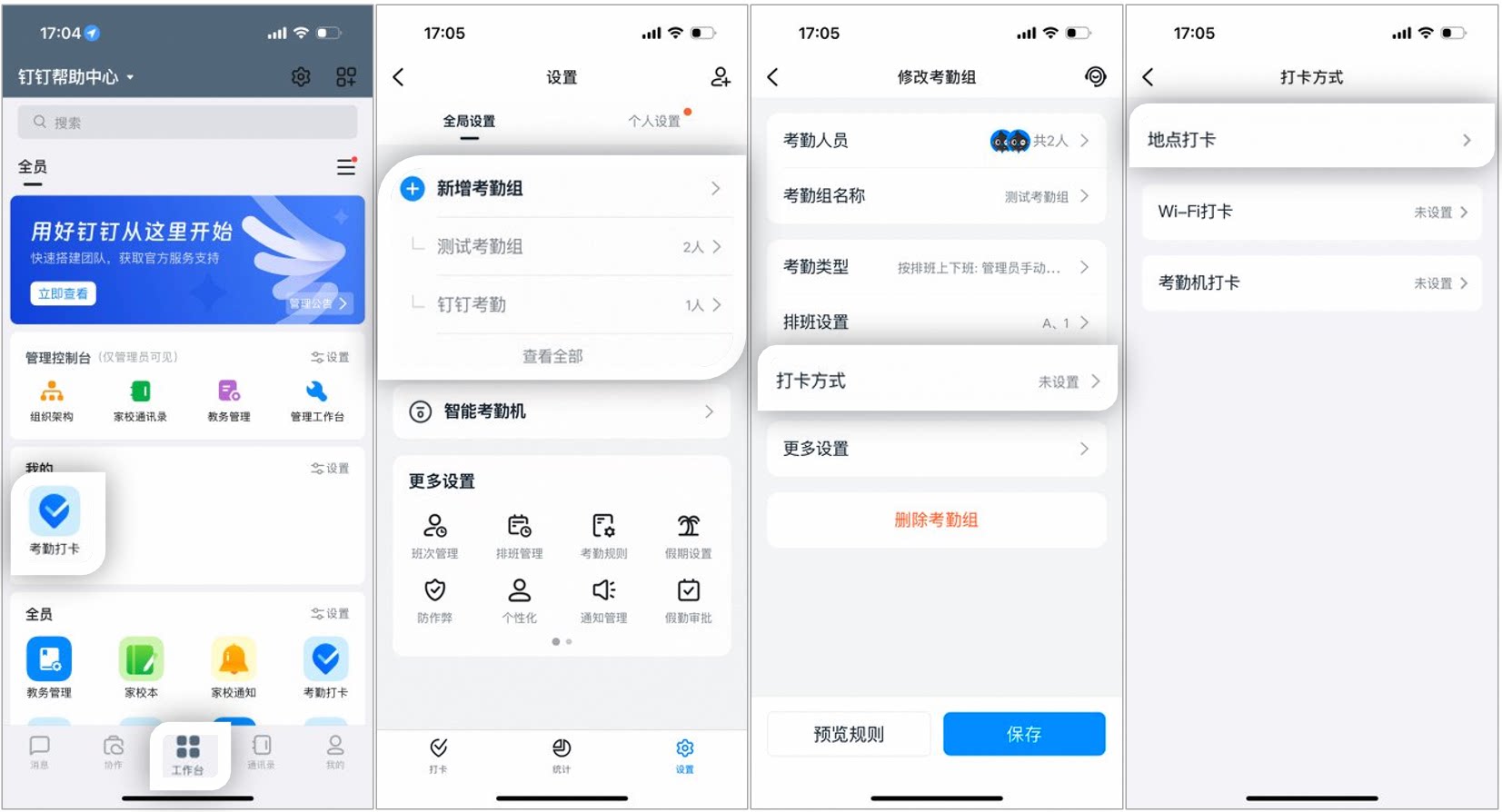
Example page for setting up location-based clock-in
Desktop
Admins with the required permissions can go to DingTalk Desktop > Workbench > Attendance > Attendance group management > Add attendance group, or edit an existing attendance group, go to Clock-in method, and select Location-based clock-in.Notes:Attendance methods include location-based clock-in, Wi-Fi clock-in, and Time Clock clock-in. Attendance group members can complete their clock-in as long as one of these methods is met. Admins can also import and export clock-in methods in bulk.
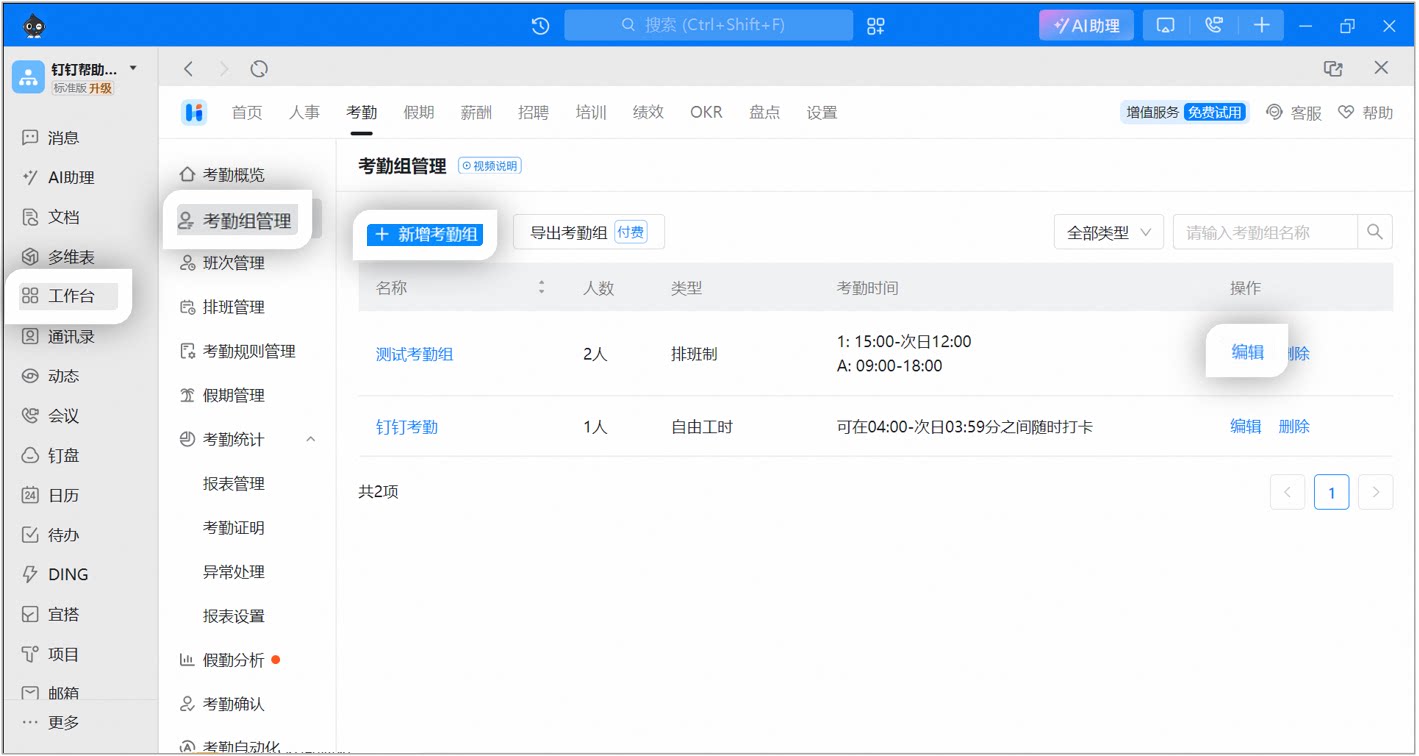
Example page for adding an attendance group
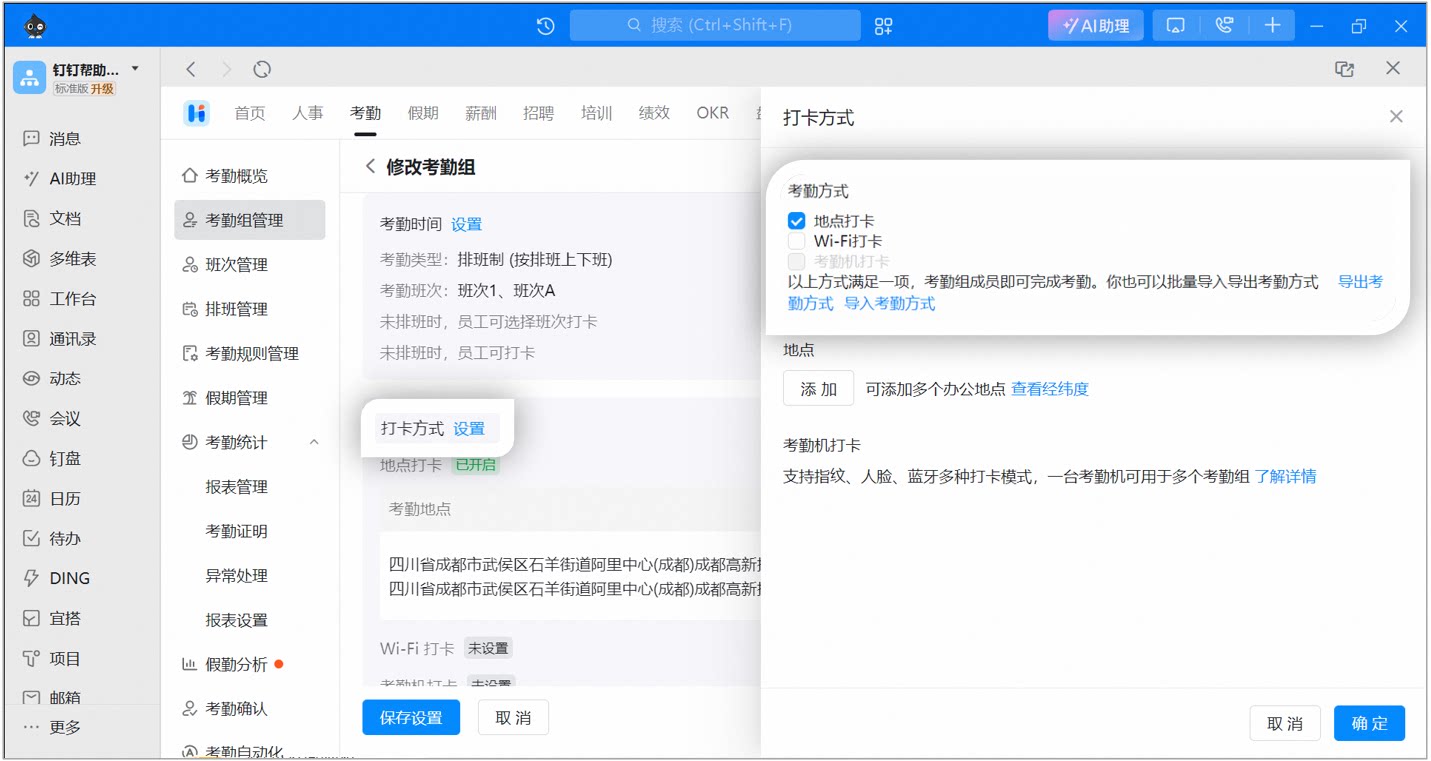
Example page for setting up location-based clock-in
Set attendance locations
You can set multiple attendance locations and configure a valid range for each one. Employees can clock in when they arrive at any of the listed locations. Click Add attendance location, and then:- Select the attendance location and range: On mobile, the app detects your current position automatically by default. You can also enter a keyword to search for another address. After selecting a location, choose the valid range from the drop-down list (the default is 300 meters; the supported range is 100 to 10,000 meters). Then click Next.
- Set the location name: Enter a name for the attendance location. This name appears on the mobile clock-in page to help employees identify the location.
- Mobile example:
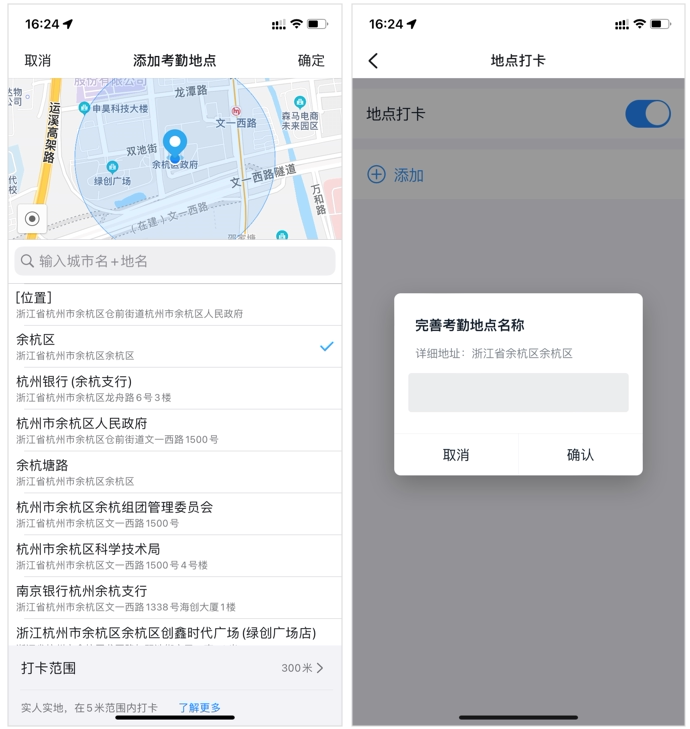
Example of the mobile setup page for location-based clock-in
- Desktop example:
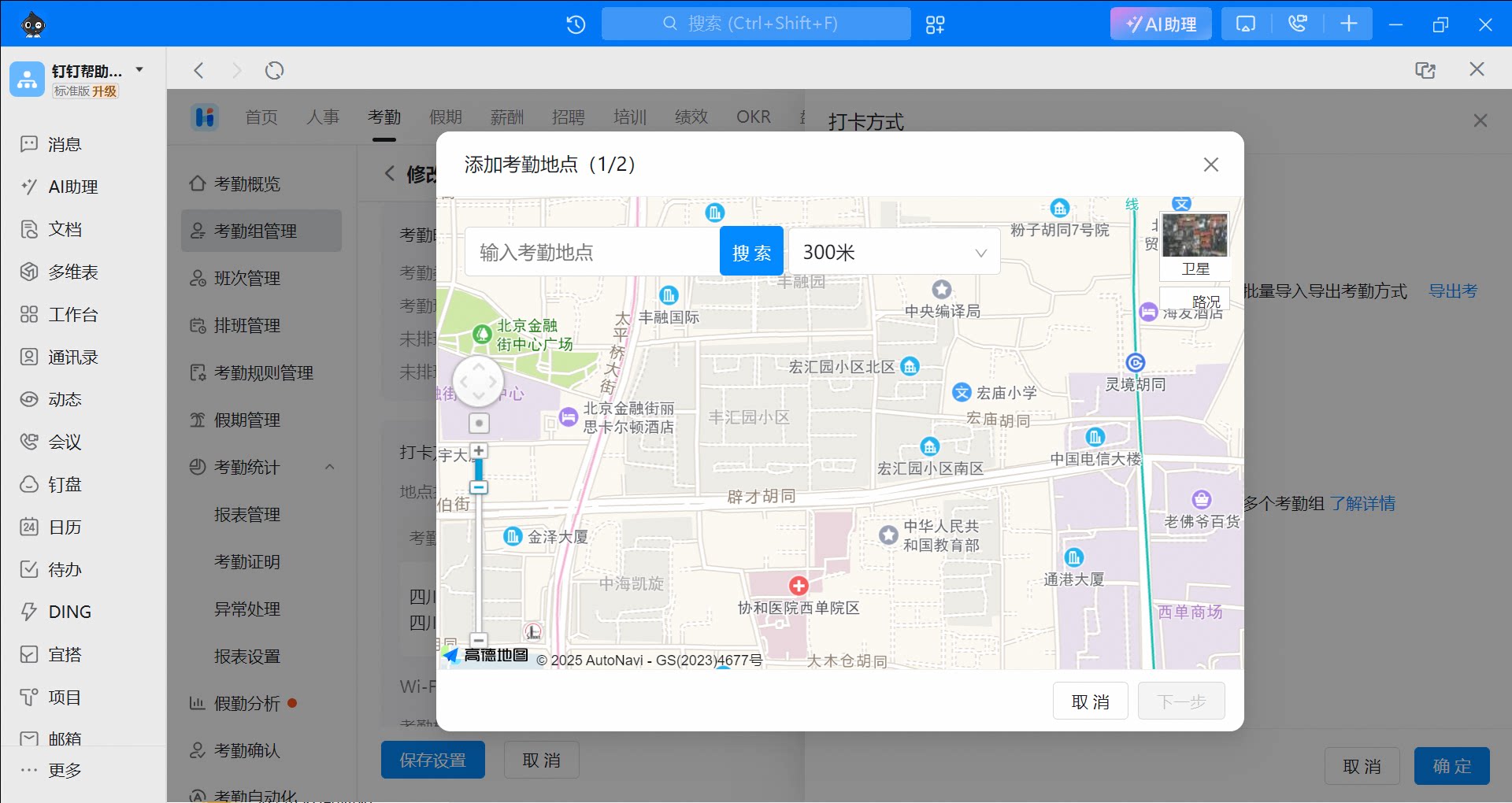
Example of the desktop setup page for location-based clock-in
- Each attendance group supports up to 1,000 locations.
- If field clock-in is enabled, the system switches to field clock-in when employees are outside the valid range.
- If both an address and Wi-Fi are set, employees can clock in as long as they arrive at any one of the locations or connect to any one of the Wi-Fi networks.
4. FAQ
What should I do if I can't find an attendance location?
What should I do if I can't find an attendance location?
We recommend adding your regular workplace as the attendance location. Only addresses searchable on Amap can be added. If the address is not available on Amap, submit feedback within the Amap app to request that it be added.
Why does my clock-in show as GPS spoofing when I'm at the office?
Why does my clock-in show as GPS spoofing when I'm at the office?
If your phone has apps or settings that modify your location, they can affect attendance clock-in, and DingTalk will issue a security alert. Uninstall the related apps and reinstall DingTalk >>> Download and install the DingTalk Client-sideIf no location-modifying apps are found on your phone, follow these steps based on your operating system:
- Android: Go to Settings on your phone, open Developer options, find Select mock location app, and turn it off.
- iOS: Go to Settings > Privacy > Location Services > System Services, and turn off Significant Locations.
How can I check whether an employee used GPS spoofing to clock in?
How can I check whether an employee used GPS spoofing to clock in?
Admins can go to DingTalk Mobile > Workbench > Attendance > Settings > Anti-cheating, and turn on Cheating app interception. If an employee has GPS spoofing apps installed on their phone, these apps can obtain system-level permissions and affect DingTalk attendance location—even when not actively used. GPS spoofing clock-ins do not notify admins, but admins with the required permissions can view the interception records at DingTalk Mobile > Workbench > Attendance > Settings > Anti-cheating. Attendance security data is available for the last 7 days only.
Which apps are considered GPS spoofing apps?
Which apps are considered GPS spoofing apps?
DingTalk has fully upgraded its attendance security protection to intelligently identify risky clock-in behaviors. Once your organization enables the rule that prohibits malicious apps, the system intelligently intercepts users who use GPS spoofing apps when they clock in. After interception, the clock-in is logged, and the user is required to complete facial recognition or is prohibited from clocking in.GPS spoofing apps include the following:位移空间, 任我行, 神行者, 天下游, 大牛, 大牛助手, 钉钉打卡精灵, 钉钉定位精灵, 钉钉打卡工具, 天下任我行, 西瓜皮, 海鱼魔器, 虚拟定位精灵, 打卡签到神器, 虚拟定位打卡, 太极重打包, 平行空间, VirtualHook, Fake Location, Xposed plugins, 小Q, and more.
Why don't I have permission to set up location-based clock-in?
Why don't I have permission to set up location-based clock-in?
Only the organization’s Super Admin or a Sub Admin with Attendance permissions can perform this action. Contact an admin with the required permissions to go to Admin Console > Security & Permissions > Manage permissions, and set up a Super Admin/Sub Admin.