

 Chats
Chats Calendar
 Meetings
 Contacts
 Mail
Mail Docs
Docs Drive
Drive AI Table
 AI Minutes
 Attendance
 Approval
 YiDA
YiDA Admin Console
1. Overview
If your organization follows an alternating single/double day off (alternating week schedule) attendance pattern—working six days one week and five days the next in a rotating cycle—configure it as described below to manage attendance flexibly.2. Use cases
- Organizations that follow an alternating single/double day off (alternating week schedule) attendance pattern.
- Other attendance scenarios that follow a regular date pattern.
3. Steps
Fixed shift attendance
Method 1: Set special dates
- Mobile: Open Mobile DingTalk > Workbench > Attendance > Settings > enter the Fixed shift attendance attendance group > Attendance hours > Special dates > add Mandatory clock-in dates / No clock-in dates required.
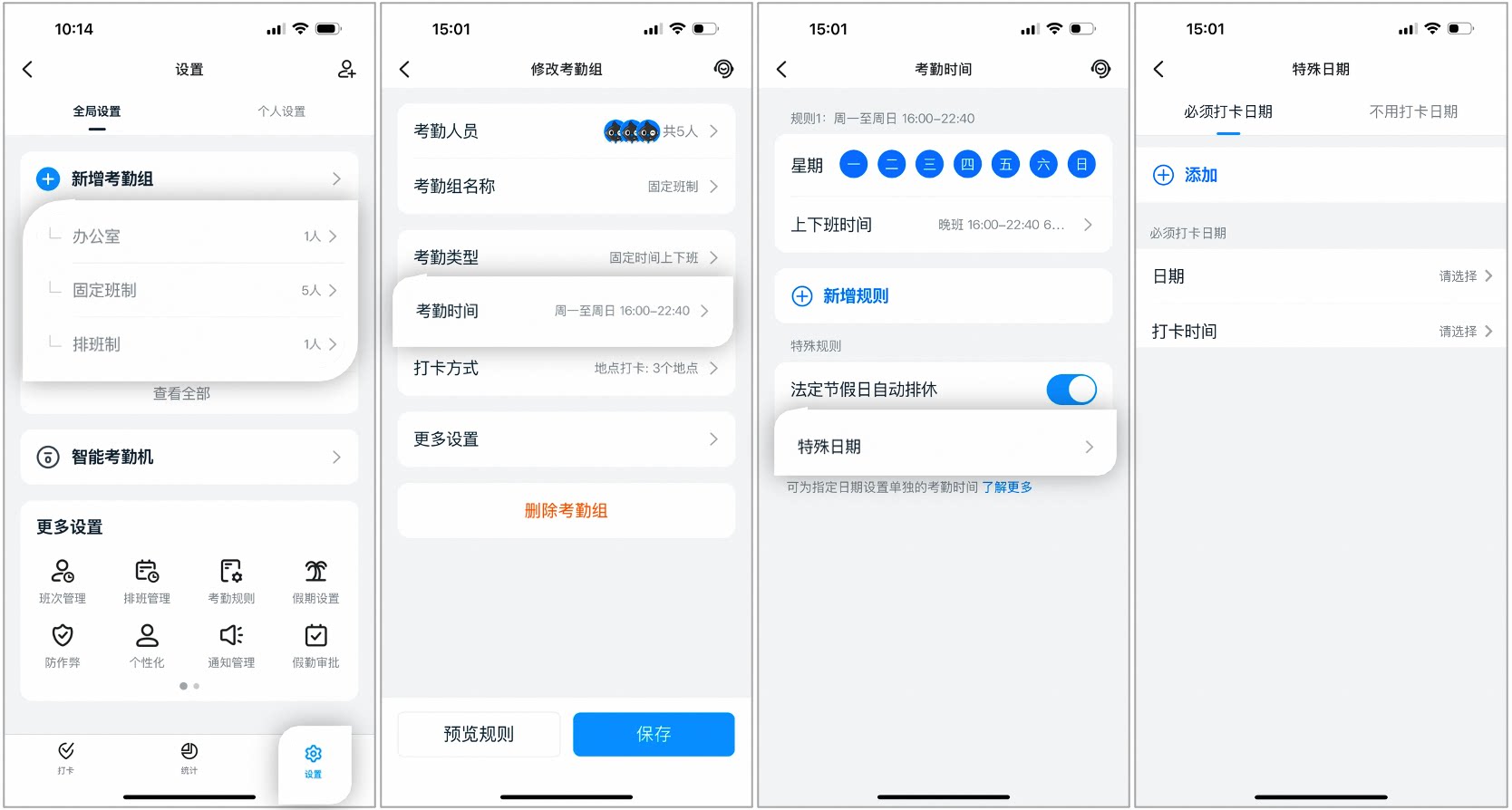
Setting special clock-in dates on mobile
- Desktop: Open Desktop DingTalk > Workbench > Attendance > Attendance group management > select the target attendance group > Edit > Attendance hours settings > Special dates > add Mandatory clock-in dates / No clock-in dates required.
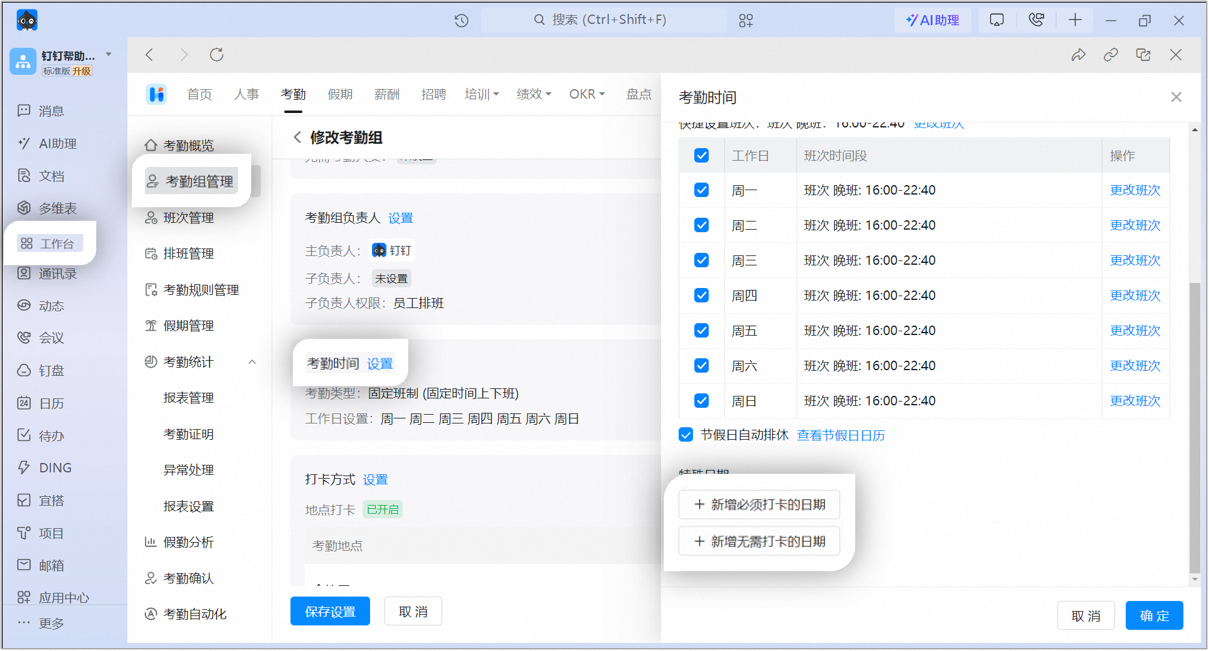
Setting special clock-in dates on desktop
Method 2: Enable biweekly cycle
Notes:The biweekly cycle requires the DingTalk Attendance Enterprise plan.
- Mobile: Open Mobile DingTalk > Workbench > Attendance > Settings > enter the fixed shift attendance group > Attendance hours > turn on Biweekly cycle.
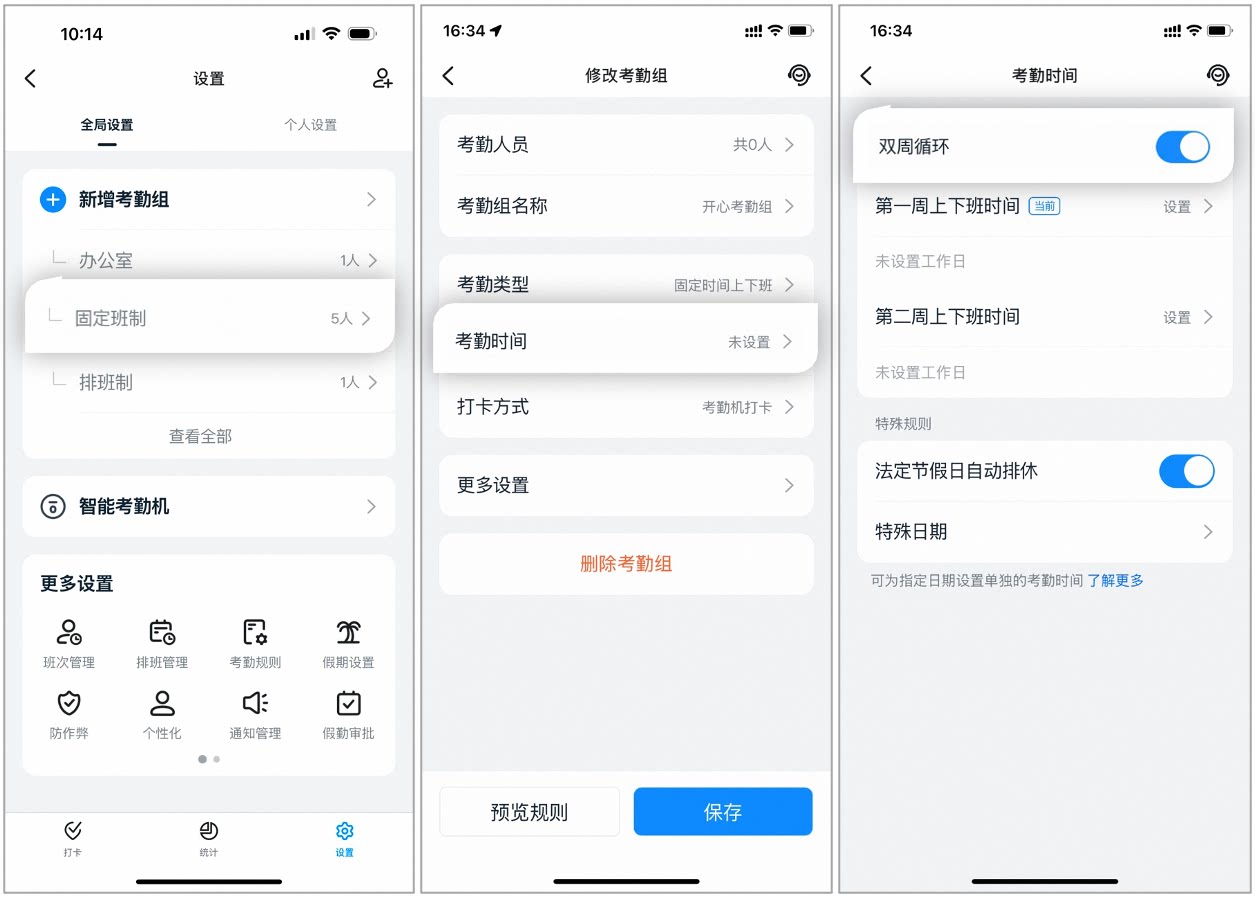
Enabling the biweekly cycle on mobile
- Desktop: Open Desktop DingTalk > Workbench > Attendance > Attendance group management > select the target attendance group > Edit > Attendance hours settings > turn on Biweekly cycle.
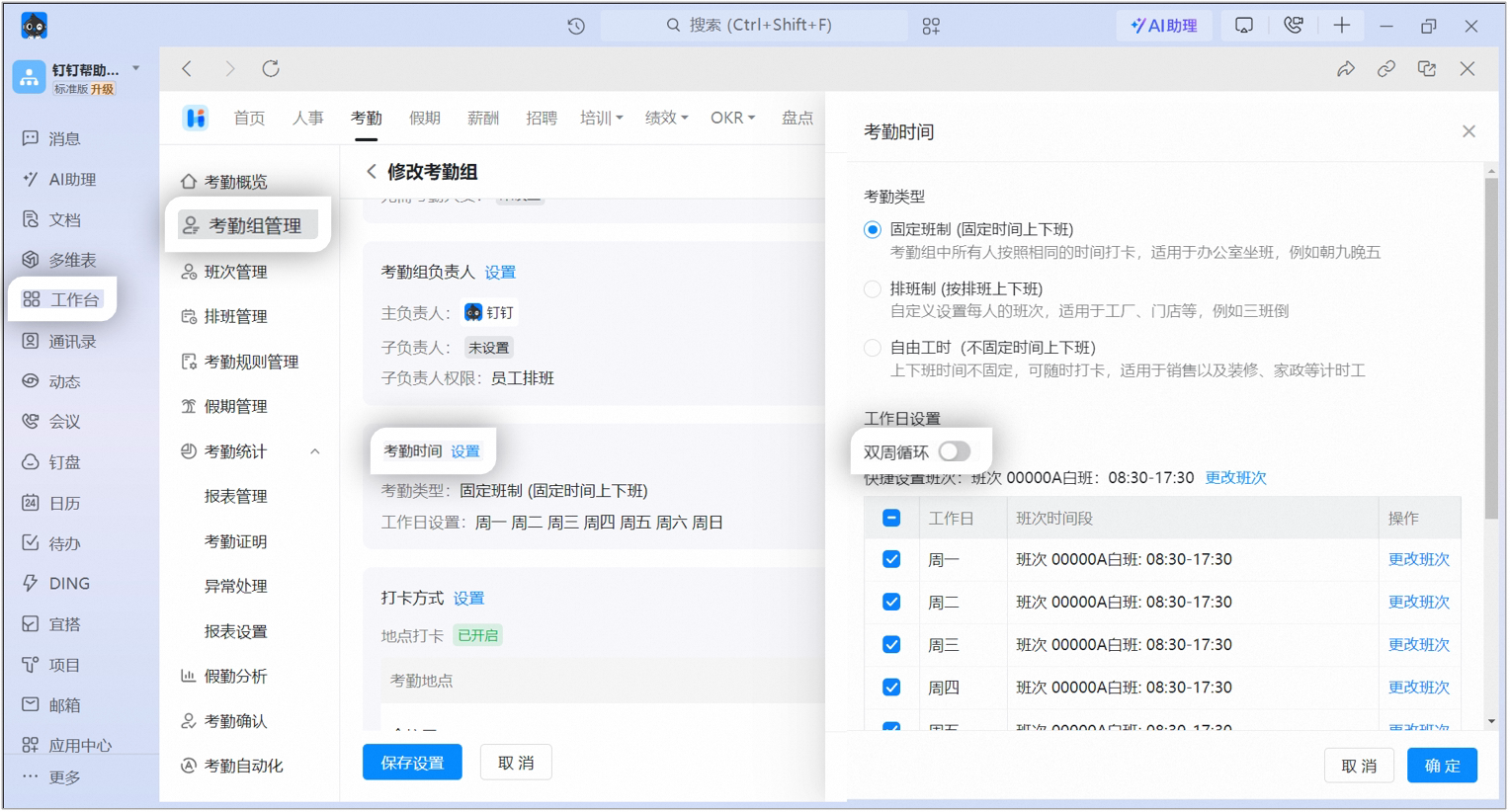
Enabling the biweekly cycle on desktop
2. Shift-based attendance
Method 1: Set a scheduling cycle
Notes:Add a new scheduling cycle, set Days per cycle to 14, and configure the shifts for the two weeks as needed (for example, work on days 1–5, rest on days 6 and 7, work on days 8–13, and rest on day 14). After clicking Confirm, open the scheduling table, click the scheduling start date of the target employee, select Schedule by cycle, and choose the cycle. This applies the alternating single/double day off (alternating week schedule) schedule from that date through the last day of the current month.
- Mobile: Open Mobile DingTalk > Workbench > Attendance > Settings > enter the shift-based attendance group > Scheduling > Scheduling settings > Scheduling cycle.
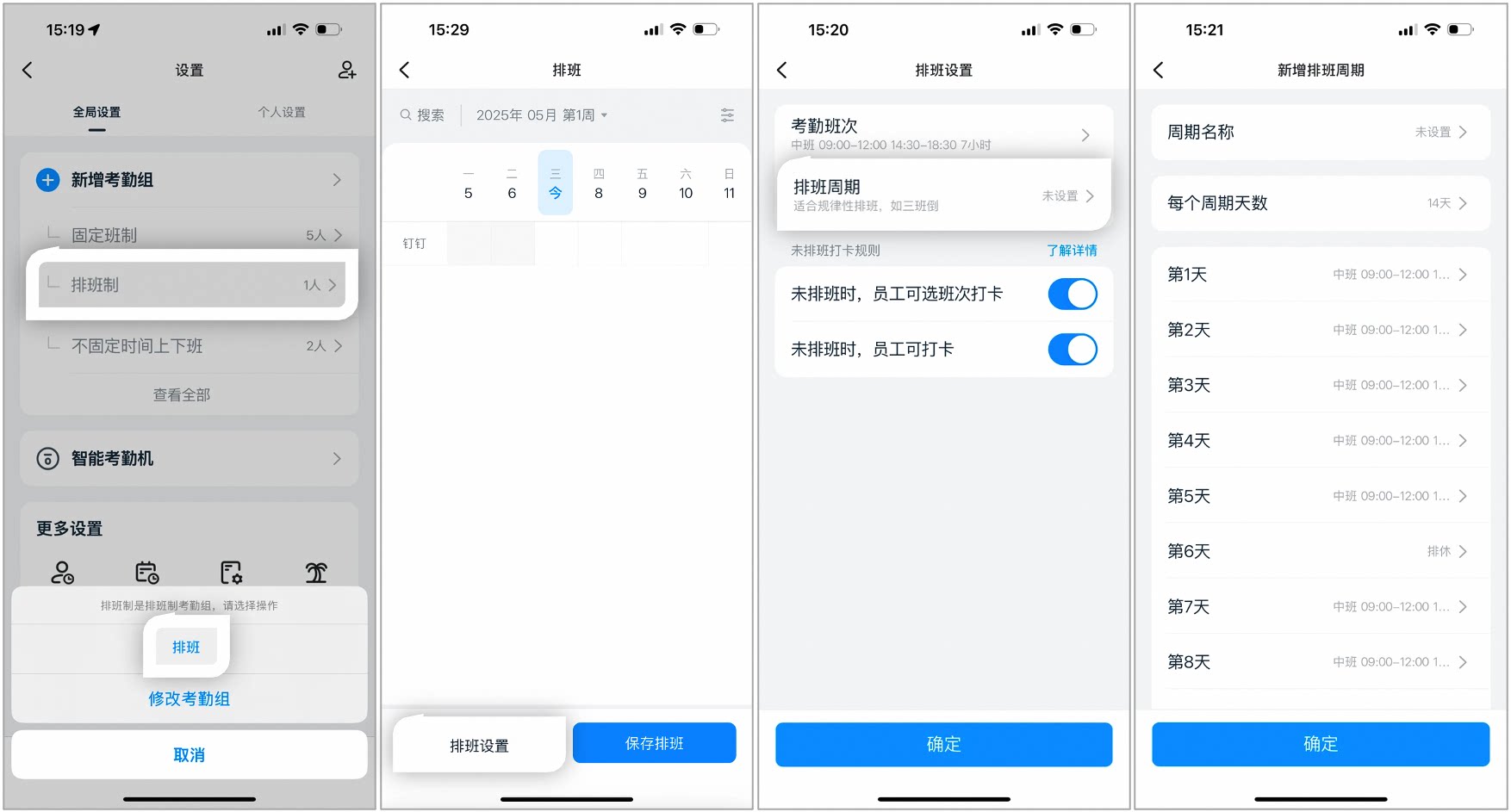
Setting a scheduling cycle on mobile
- Desktop: Open Desktop DingTalk > Workbench > Attendance > Attendance group management > select the Shift-based attendance group > Edit > Attendance hours settings > Add scheduling cycle.
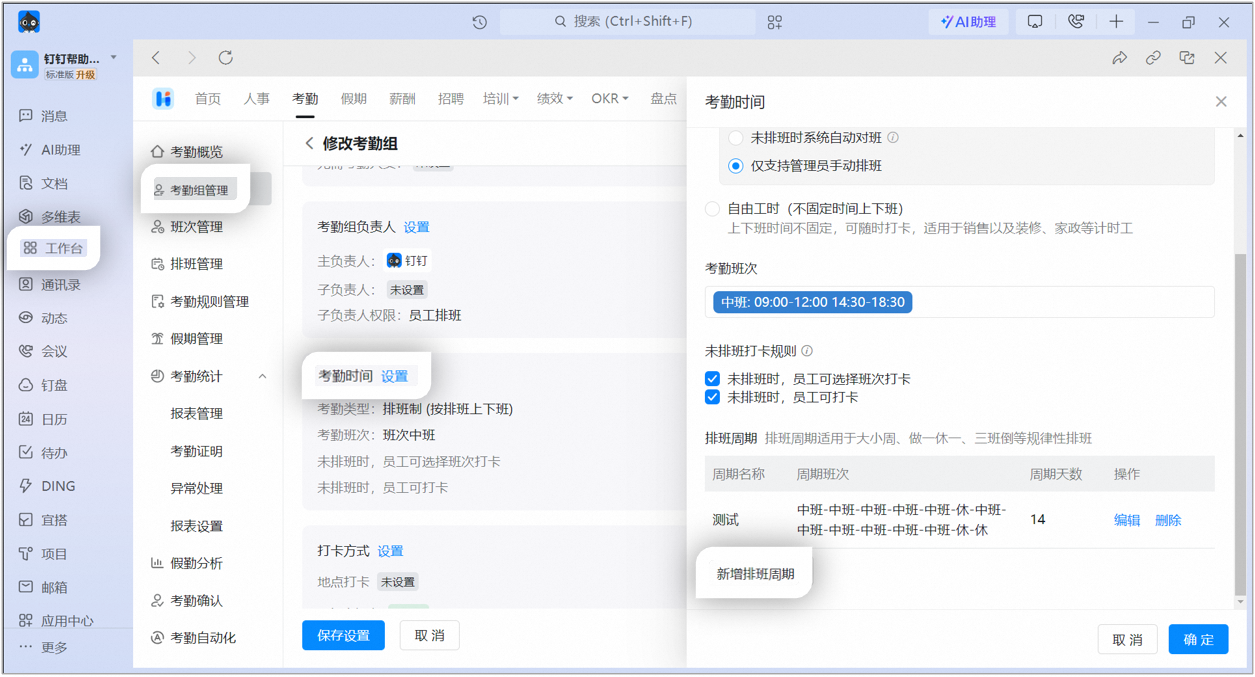
Setting a scheduling cycle on desktop
Method 2: Import a scheduling table
Notes:
- You can schedule employees manually in batches. For details on configuring a shift-based attendance group, refer to Admin sets up a shift-based attendance group.
- Add attendance shifts first, so the downloaded Excel file includes the corresponding shift options.
- Desktop: Open Desktop DingTalk > Workbench > Attendance > Scheduling management > click the target attendance group Edit scheduling > Batch schedule via Excel > Download scheduling table > Edit the downloaded scheduling table to schedule employees > Import scheduling table, and save.
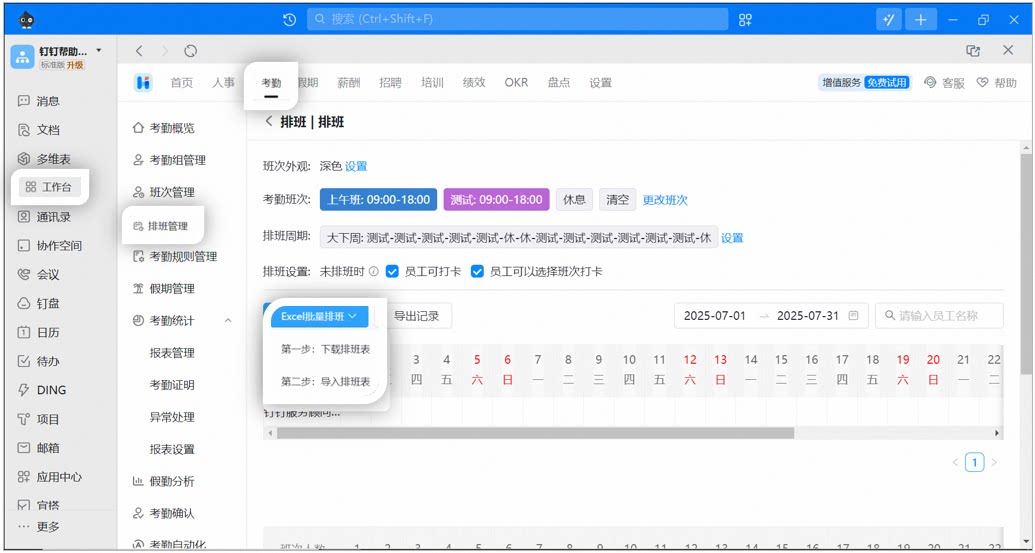
Downloading and importing a scheduling table on desktop
4. FAQ
Can special dates be set in batches?
Can special dates be set in batches?
Mandatory clock-in dates cannot be set in batches and must be added one day at a time. No clock-in dates required can be set in batches only on desktop, where you can add them by selecting a date range.
Can special dates be set retroactively?
Can special dates be set retroactively?
Yes. Special dates can be set retroactively.
Does deleting special dates have any impact?
Does deleting special dates have any impact?
Deleting special dates within 180 days after they are set will affect attendance data. Deleting them after 180 days will not affect attendance data.