

 Chats
Chats Calendar
 Meetings
 Contacts
 Mail
Mail Docs
Docs Drive
Drive AI Table
 AI Minutes
 Attendance
 Approval
 YiDA
YiDA Admin Console
1. Overview
Admins can disable Location, Wi-Fi clock-in, field clock-in, and Time Clock Bluetooth clock-in directly on the mobile app, so that Organization Users can only clock in via facial recognition or fingerprint on the Time Clock.2. Use cases
- Employees clock in at a fixed Location.
- Employees do not use mobile phones to clock in.
- The Organization uses multiple clock-in methods at the same time.
3. Procedure
Admin configuration path
Attendance group settings
- Mobile: Go to DingTalk Mobile > Workbench > Attendance > Settings > Add attendance group, or Edit an existing attendance group.
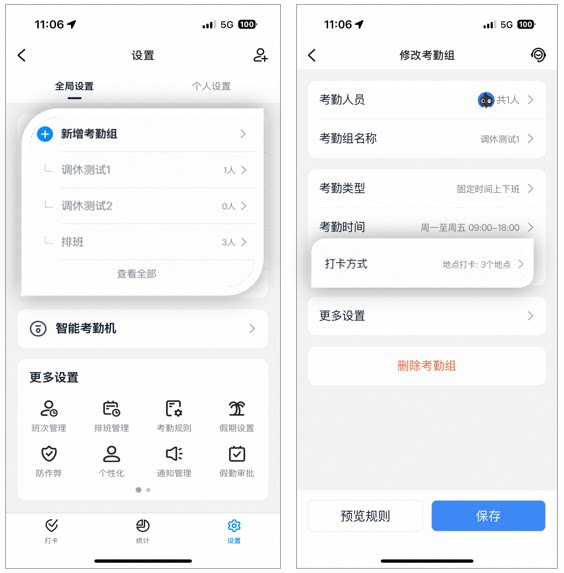
Configure attendance group on mobile
- Desktop: Go to DingTalk Desktop > Workbench > Attendance > Attendance group management > Add attendance group, or Edit an existing attendance group.
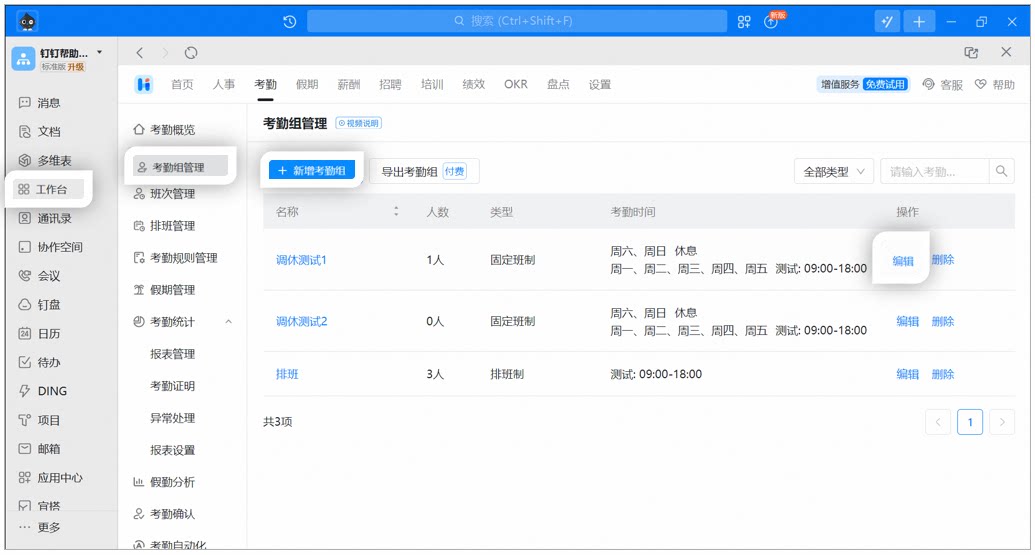
Configure attendance group on desktop
Enable Time Clock-only check-in
- Mobile: Go to DingTalk Mobile > Workbench > Attendance > Settings > tap the target attendance group > Clock-in method > disable any clock-in methods you do not need (if not disabled, multiple clock-in methods coexist) > select Time Clock check-in.
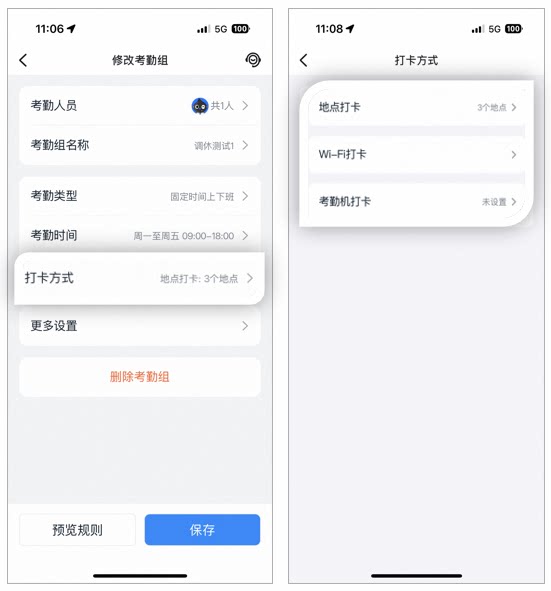
Enable Time Clock check-in on mobile
- Desktop: Go to DingTalk Desktop > Workbench > Attendance > Attendance group management > click Edit on the target attendance group > Clock-in method settings > clear any clock-in methods you do not need (if not disabled, multiple clock-in methods coexist) > select Time Clock check-in.
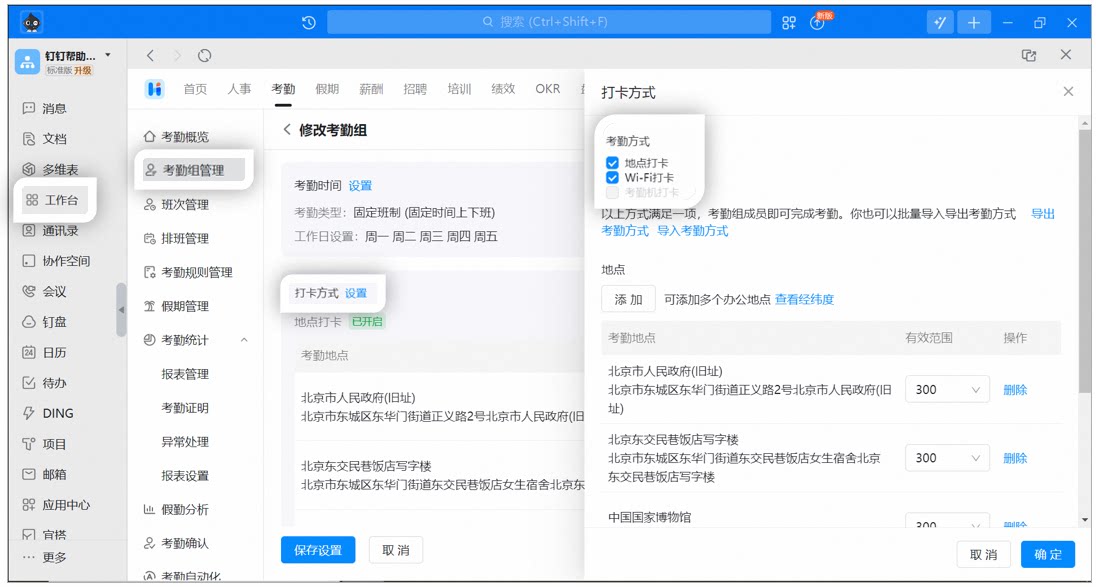
Enable Time Clock check-in on desktop
- Time Clock check-in appears only after the Organization has bound a Time Clock. Once bound, Time Clock check-in is enabled by default. Simply clear the other clock-in methods.
- If the Organization has bound a Modian access control device, Time Clock check-in does not appear in the desktop clock-in methods, and the Modian access control device does not appear either. Only DingTalk Time Clocks bound on the mobile app are displayed.
- Only the mobile app supports binding devices.
- Whether using location-based clock-in, Wi-Fi clock-in, or Time Clock check-in, Employees can complete attendance with any one of these methods, and multiple methods can coexist. The available options depend on the clock-in methods selected by the Organization.
4. FAQ
How do I purchase a Time Clock?
How do I purchase a Time Clock?
You can also purchase smart office hardware via DingTalk Mobile > Me > Discover > Smart Hardware.
How do I disable Time Clock Bluetooth clock-in?
How do I disable Time Clock Bluetooth clock-in?
Go to DingTalk Mobile > Workbench > Attendance > Settings > Smart Time Clock > tap the bound Time Clock > Bluetooth clock-in > Settings in the top-right corner > Disable Bluetooth clock-in.
How do I disable field clock-in?
How do I disable field clock-in?
Go to DingTalk Mobile > Workbench > Attendance > Settings > select the target attendance group > More Settings > Field rules > Allow field clock-in.