

 Chats
Chats Calendar
 Meetings
 Contacts
 Mail
Mail Docs
Docs Drive
Drive AI Table
 AI Minutes
 Attendance
 Approval
 YiDA
YiDA Admin Console
Overview
YiDA account authorization management helps organization admins control which users can access the YiDA platform. On the user account authorization page, view organization-level account data such as purchased accounts, unassigned accounts, and assigned accounts. It supports multiple ways to query user authorization status, batch authorization, batch freezing, and automatic authorization.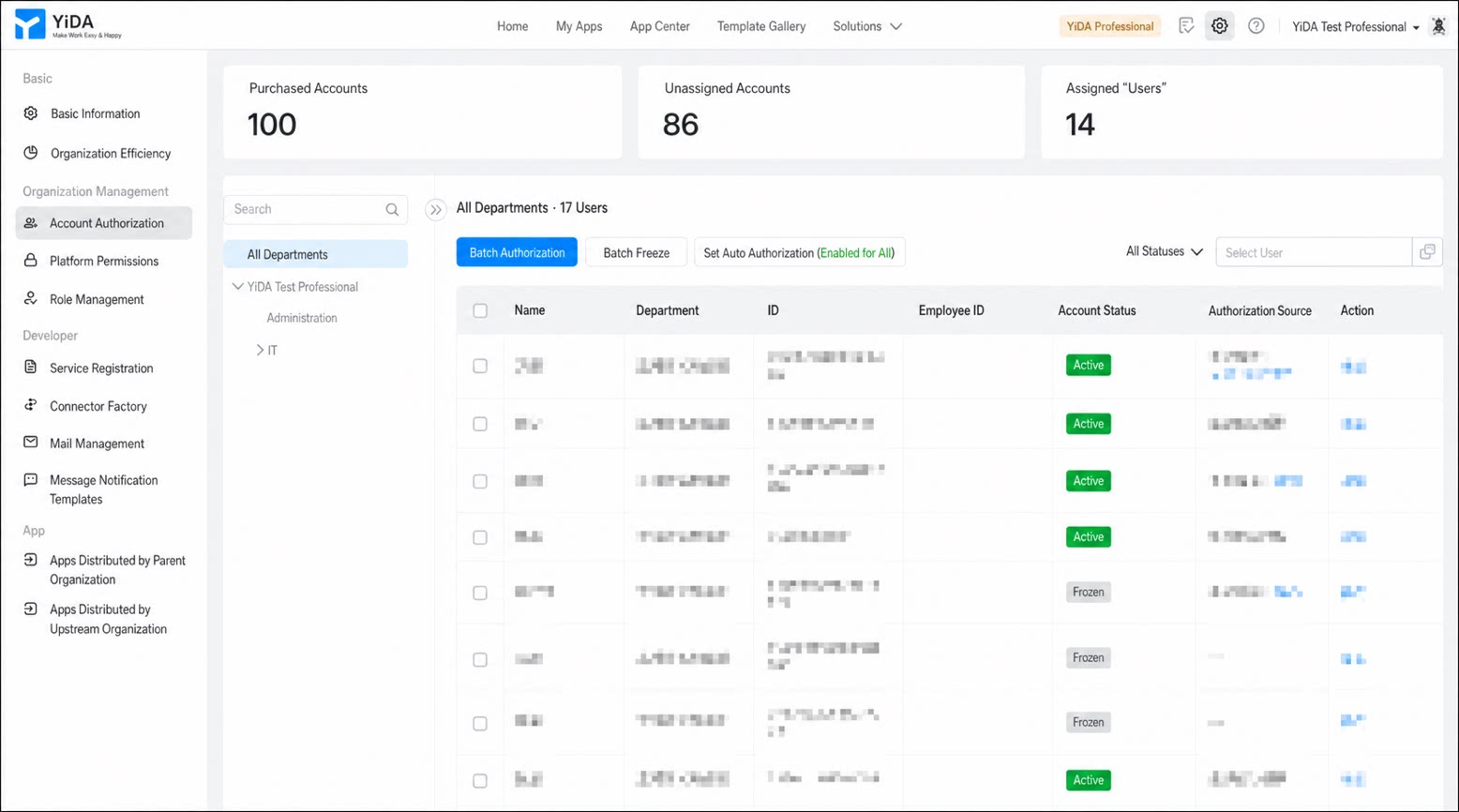
- Purchased accounts: The number of accounts that come with the purchased platform edition (Basic edition, Professional edition, and so on). This value reflects the account quota of your current edition. For details, see YiDA editions.
- Unassigned accounts: The number of purchased accounts minus the number of assigned accounts.
- Assigned accounts: The number of accounts with authorization enabled in user account authorization.
- Authorization toggle: Enable or disable authorization for accounts under the organization.
- Batch Authorization: Select multiple accounts and authorize them in bulk.
- Batch freeze: Select multiple accounts and disable authorization in bulk.
- Search by name: Search the authorization list by account name.
- Filter by department: Filter accounts in the list by department.
- Authorization status management: Filter accounts in the authorization list by Enabled or Frozen.
Procedure
Follow these steps to configure YiDA access authorization for users in your organization.1
Step 1
Sign in to the YiDA workbench as an admin.
2
Step 2
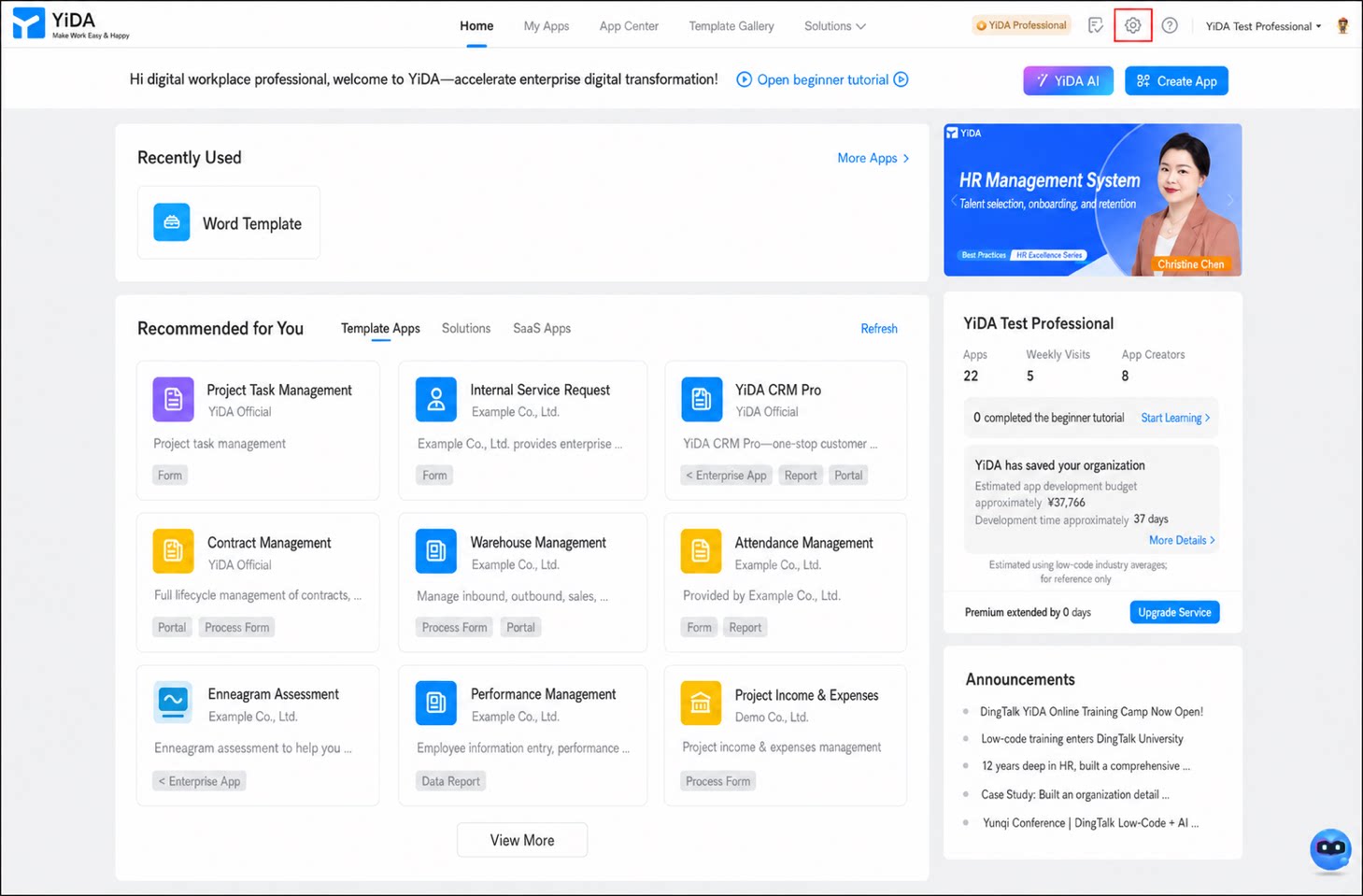
Click the Platform management button  in the upper-right corner to open the platform management page.
in the upper-right corner to open the platform management page.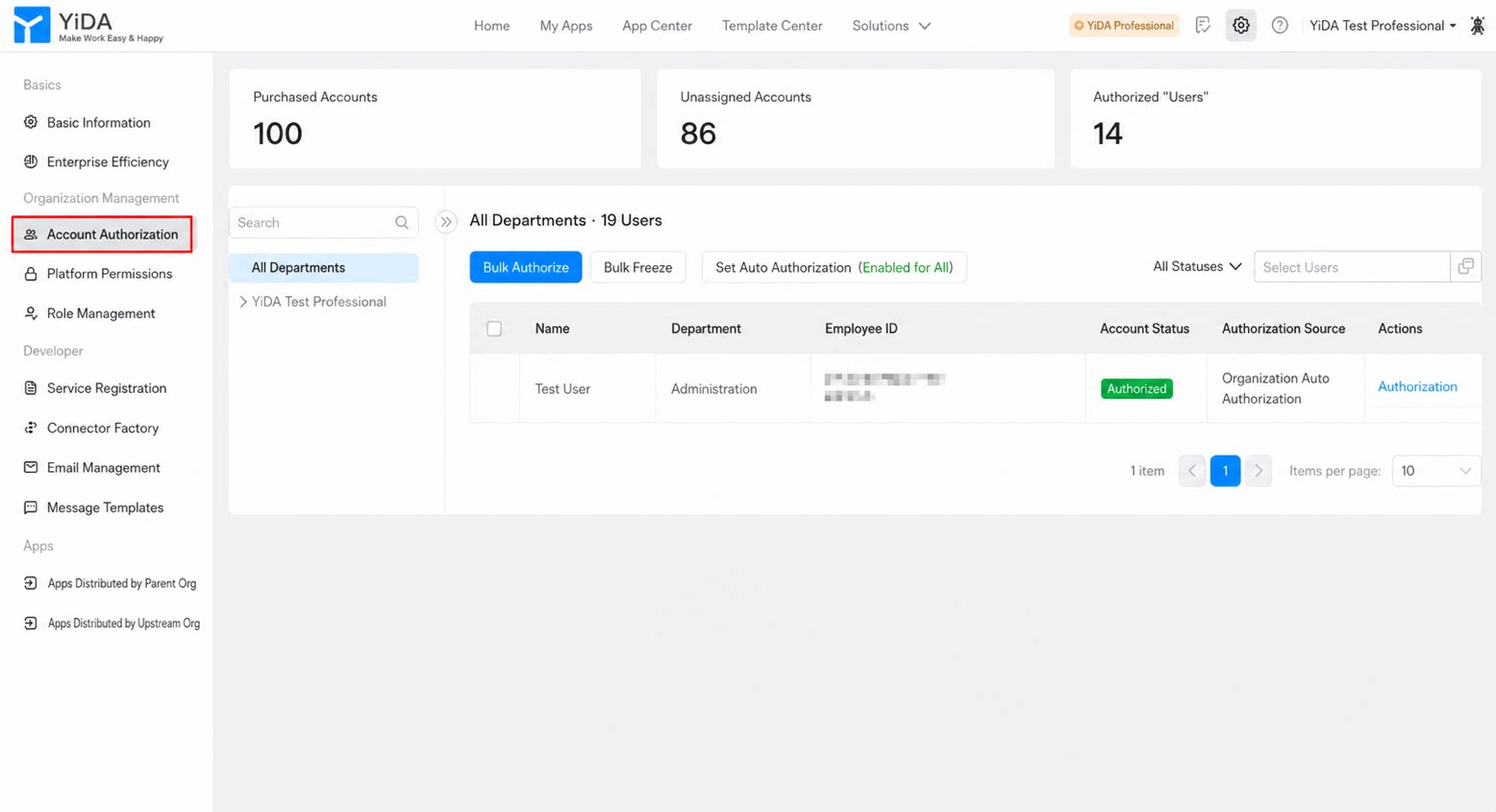
1
In the left navigation menu, click Account authorization management.
2
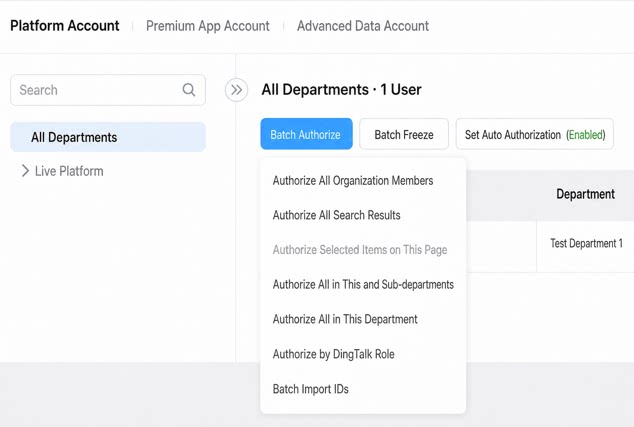
Select the target department on the left, select the users to authorize, and then click Batch Authorization.
Supported authorization (or freeze) methods include All Organization members, All Search results, Selected on current page, All members of current and sub-departments, All members of current Department, By DingTalk role, and Batch import user IDs.
Automatic Authorization (Paid Feature)
Previously, admins had to enable authorization manually, which could not guarantee real-time availability. To address this pain point and reduce admin workload for unlimited-user editions, YiDA now supports automatic authorization. Once automatic authorization is configured, every user who accesses YiDA is granted access permissions automatically.Keep the following in mind when using automatic authorization:
- After you enable automatic authorization, it takes a short time for account authorization status in the list to update. If the status does not update immediately, do not worry — this does not affect user access. Users are granted authorization automatically the first time they access the YiDA platform.
- Existing accounts that have not been authorized will not be granted authorization automatically.
- Once the organization reaches the account limit of its edition, no new users will be granted automatic authorization.
- Automatic authorization for all organization members
- Automatic authorization by department
- Automatic authorization by DingTalk role
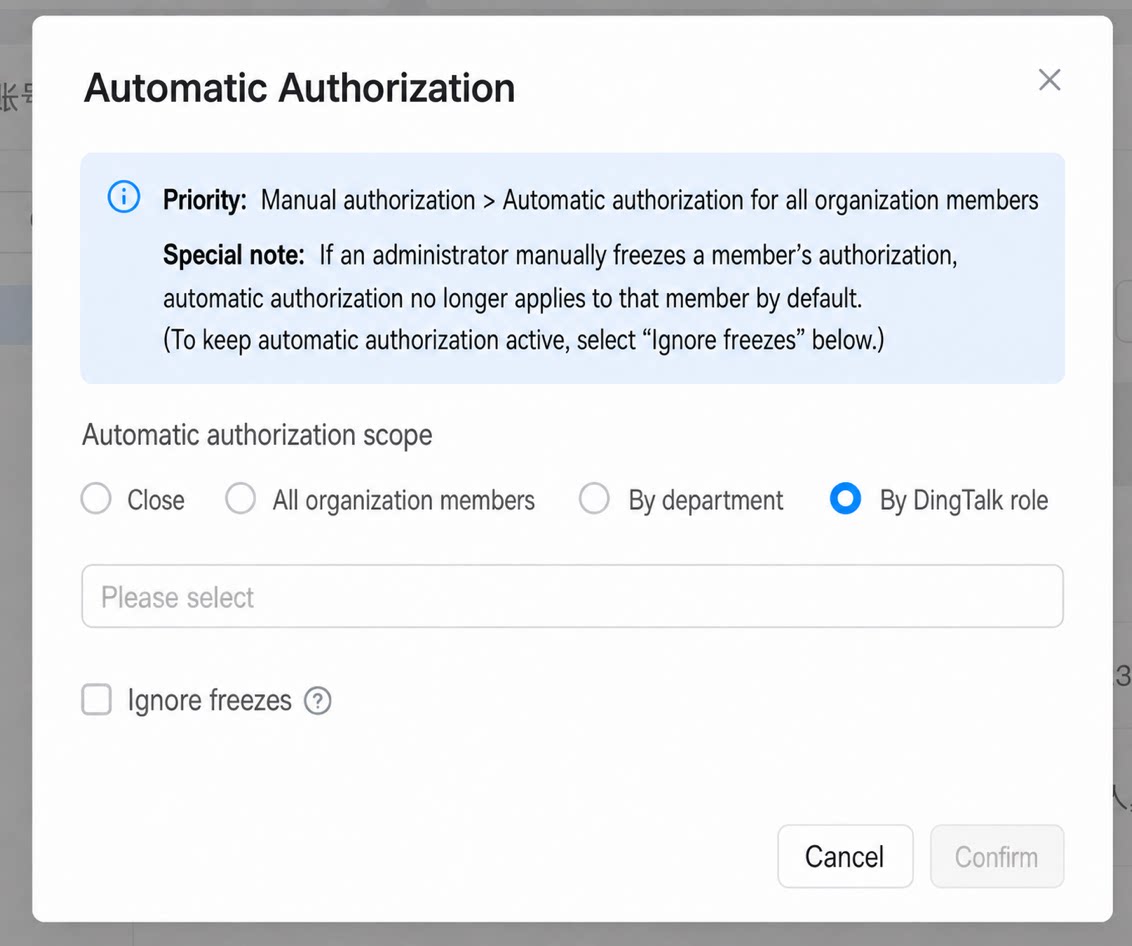
Authorization priority is: Manual Authorization > Organization-wide automatic Authorization > Automatic Authorization by Department or DingTalk role.
- If an admin manually freezes a user’s authorization, automatic authorization no longer applies to that user.
- If a user leaves a department or DingTalk role that has automatic authorization, their authorization is revoked.
- If a user is authorized through Manual Authorization by an admin or through Organization-wide automatic Authorization, they are no longer affected by the third scenario.
FAQ
- Q: After enabling automatic authorization, I still see an “unauthorized” message when accessing YiDA. What should I do?
- Q: If YiDA only has form submission permissions configured, do users still need account authorization? Yes. To submit a form, a user must first be granted account authorization, and then be added to the corresponding form permission group. For permission group configuration, see the new permission group configuration guide.
- Q: Why do the number of assigned accounts and the actual number of authorized accounts differ? Assigned accounts do not include employees who have left the organization. If the assigned account count exceeds the total in the assignment details, some employees who left before the automatic revocation feature was released still have active authorization. Switch the filter to Authorized. The Authorized account list shows former employees who are still authorized. Freeze their accounts to resolve the discrepancy.
Automatic authorization revocation is now supported for employee departures and department changes:
- When an authorized account leaves the organization, the user’s YiDA authorization is automatically revoked.
- For users authorized through Automatic Authorization by Department or DingTalk role, if their department or DingTalk role changes and they are no longer in an automatically authorized department or role, their YiDA authorization is automatically frozen.