

 Chats
Chats Calendar
 Meetings
 Contacts
 Mail
Mail Docs
Docs Drive
Drive AI Table
 AI Minutes
 Attendance
 Approval
 YiDA
YiDA Admin Console
Overview
- Available for YiDA China edition, Professional edition (Global), and Dedicated edition (Global).
- Available for YiDA Global edition with the “Internationalization” capability included.
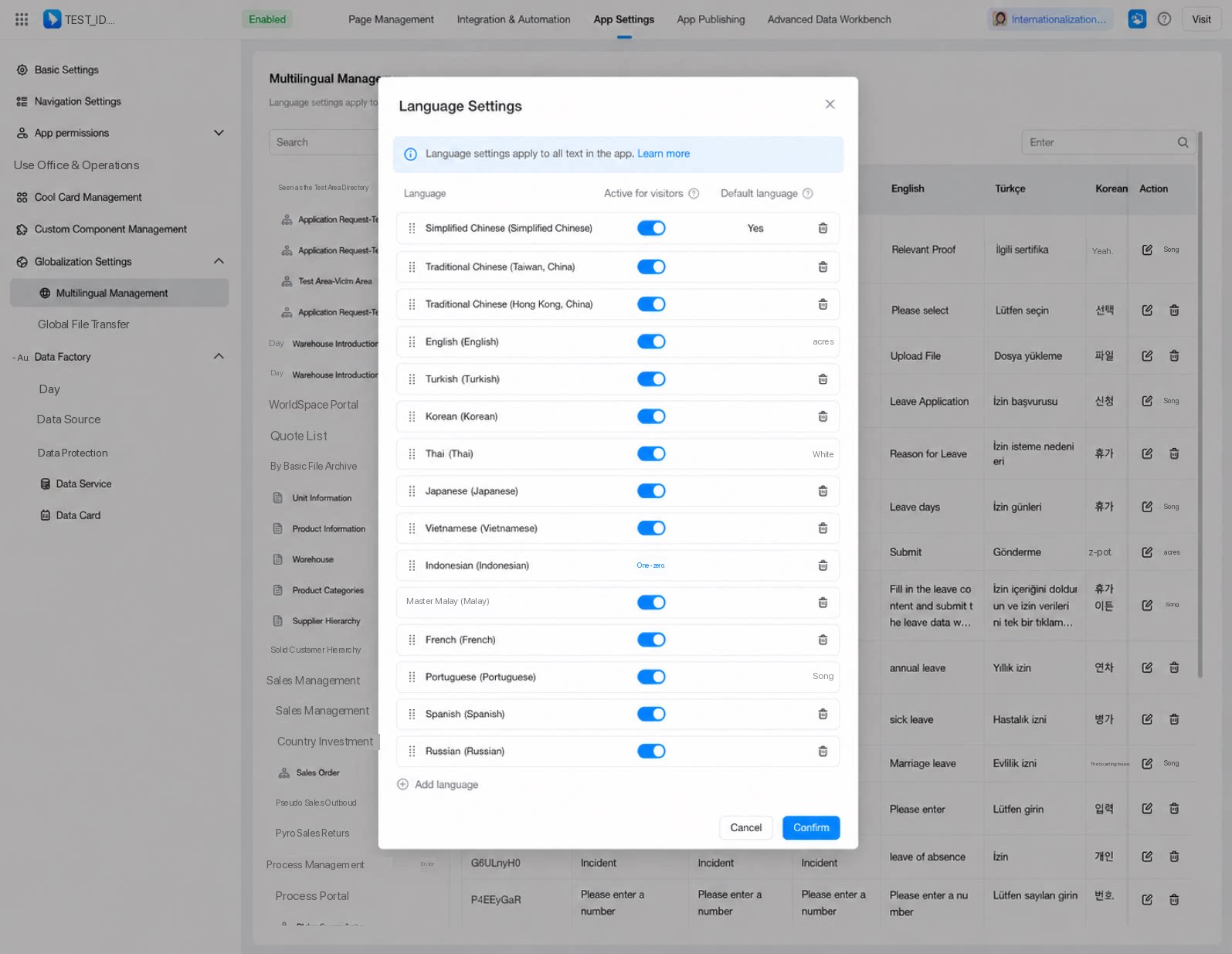
- 简体中文: Simplified Chinese (default language)
- 繁体中文: Traditional Chinese - Hong Kong (China)
- 繁体中文(中国台湾): Traditional Chinese - Taiwan (China)
- English
- Français: French
- 한국어: Korean
- 日本語: Japanese
- ไทย: Thai
- Português: Portuguese
- Español: Spanish
- Русский: Russian
- Tiếng Việt: Vietnamese
- Bahasa Melayu: Malay
- Bahasa Indonesia: Indonesian
- Türkçe: Turkish
- Build a multilingual app.
- Build a multilingual workspace: workspaces support multiple languages. Set the languages supported by a workspace and manage multilingual entries for the workspace portal.
- Upgrade legacy bilingual apps: upgrade legacy bilingual (Chinese and English) apps to multilingual entries.
- Switch app languages: switch the app language at runtime.
- Multilingual support for platform text: multilingual support is now available in the following areas at app runtime.
Build a Multilingual App
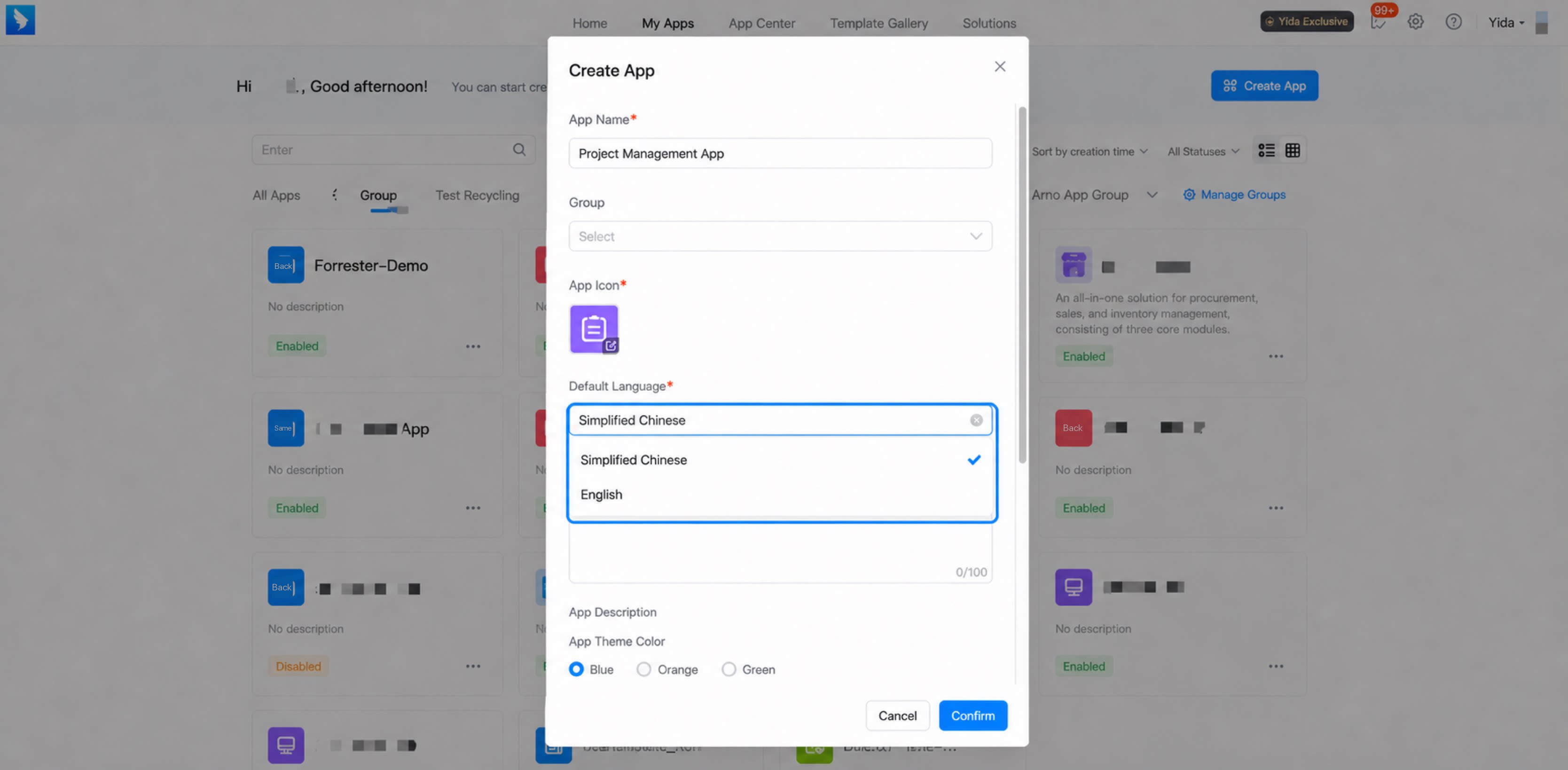
1) Set the Default Language
When creating an app, select a default language. Simplified Chinese and English are supported as default languages. The default language:- Serves as the default language for text entered during app development.
- Is displayed when the app is accessed and no text is set for the current environment language.
Once selected, the default language cannot be changed.
2) Add Languages
Go to App Settings > Globalization Settings > Multilingual Management > Language Settings to add and configure the languages the app supports.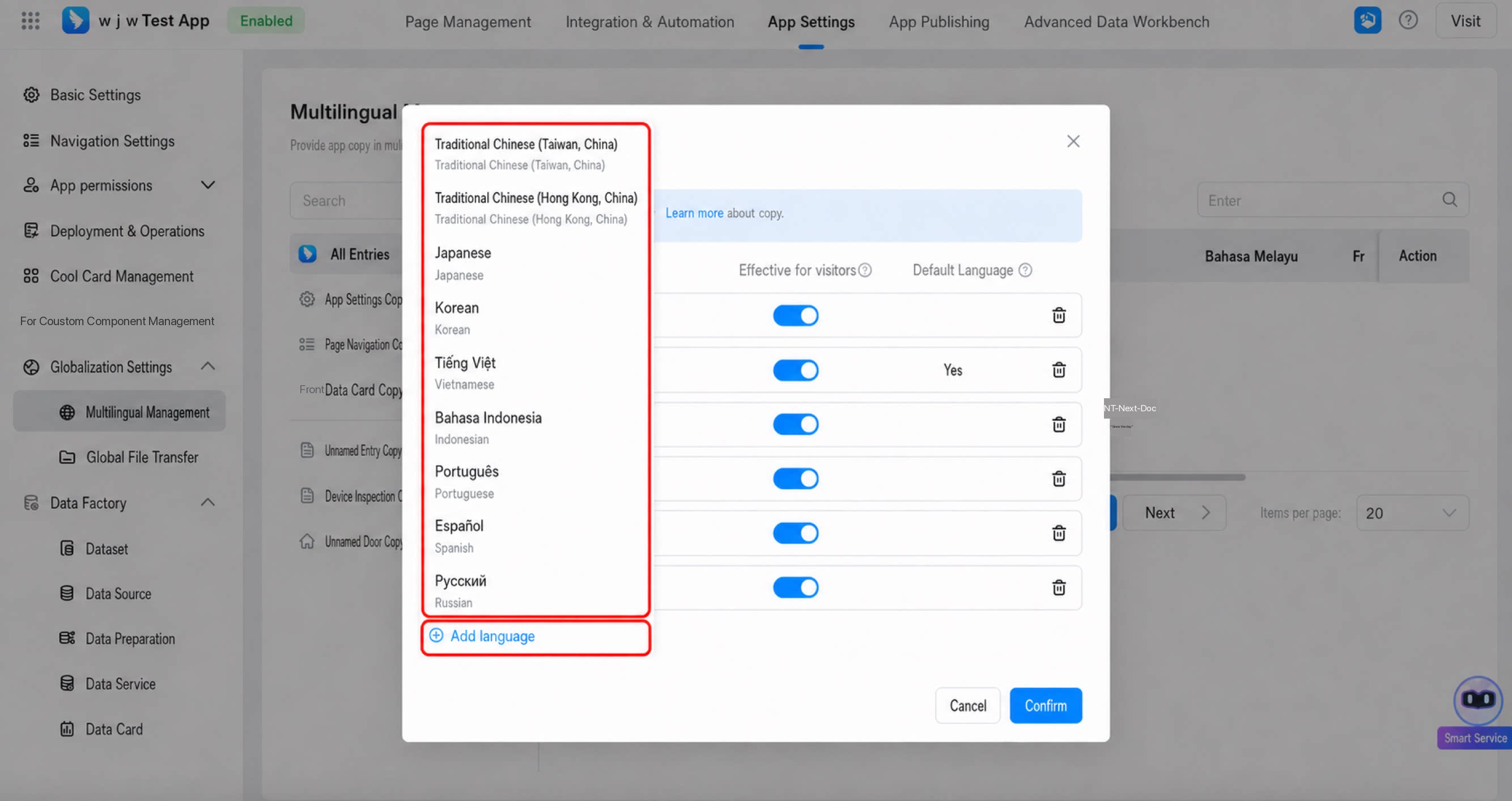
- Language settings apply to the entire app.
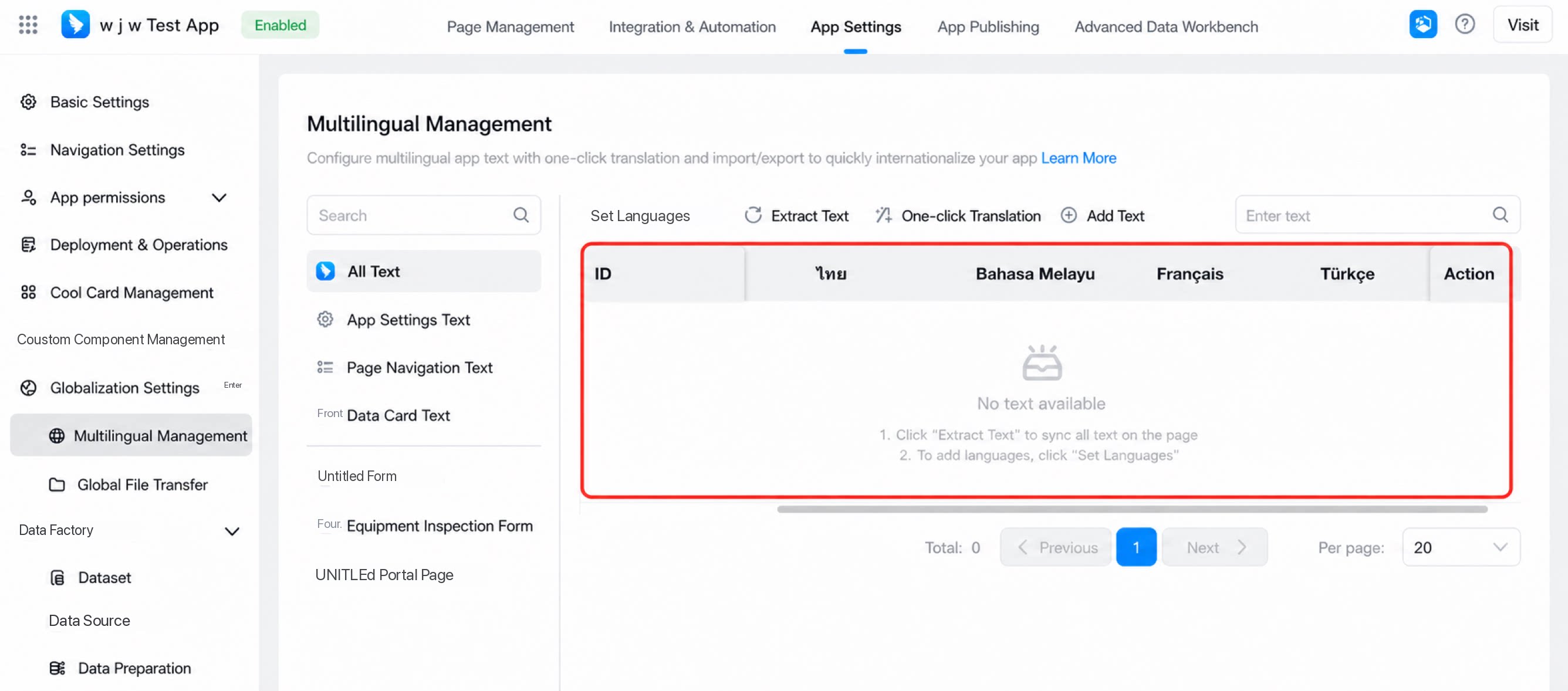
- Unified management supports batch extraction, one-click translation, editing, deletion, and more.
- New app-level groups: App Settings, Page Navigation, Data Cards.
- New page-level groups: Form, Workflow, Others.
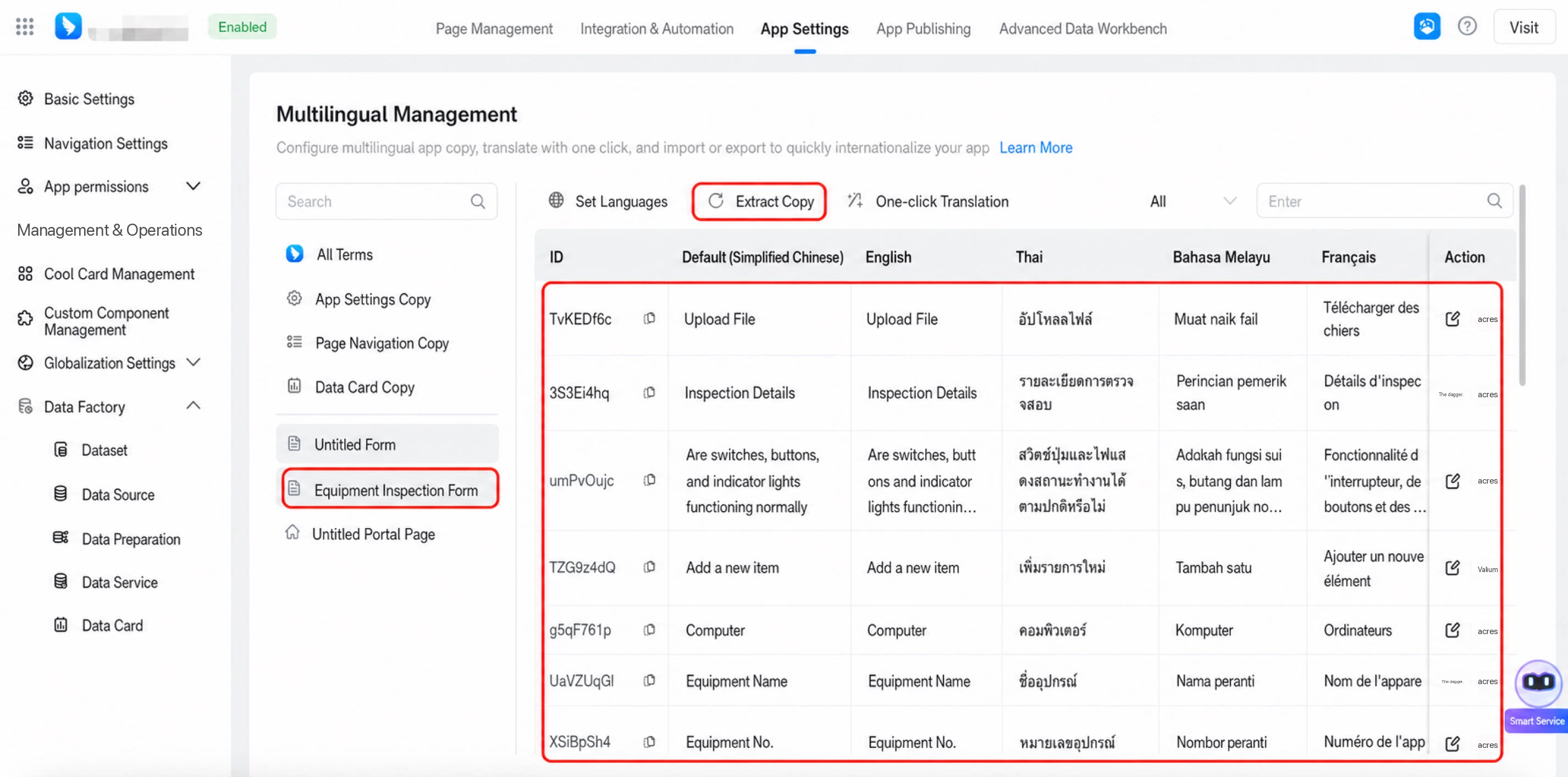
This iteration does not yet support unified app-level management of multilingual entries for app navigation settings or data management page view names. Support will be added in the next iteration.
Page navigation and step names are currently supported only through local multilingual capabilities.(Unified app-level management of page navigation and step names is under development and is expected to be available in December.)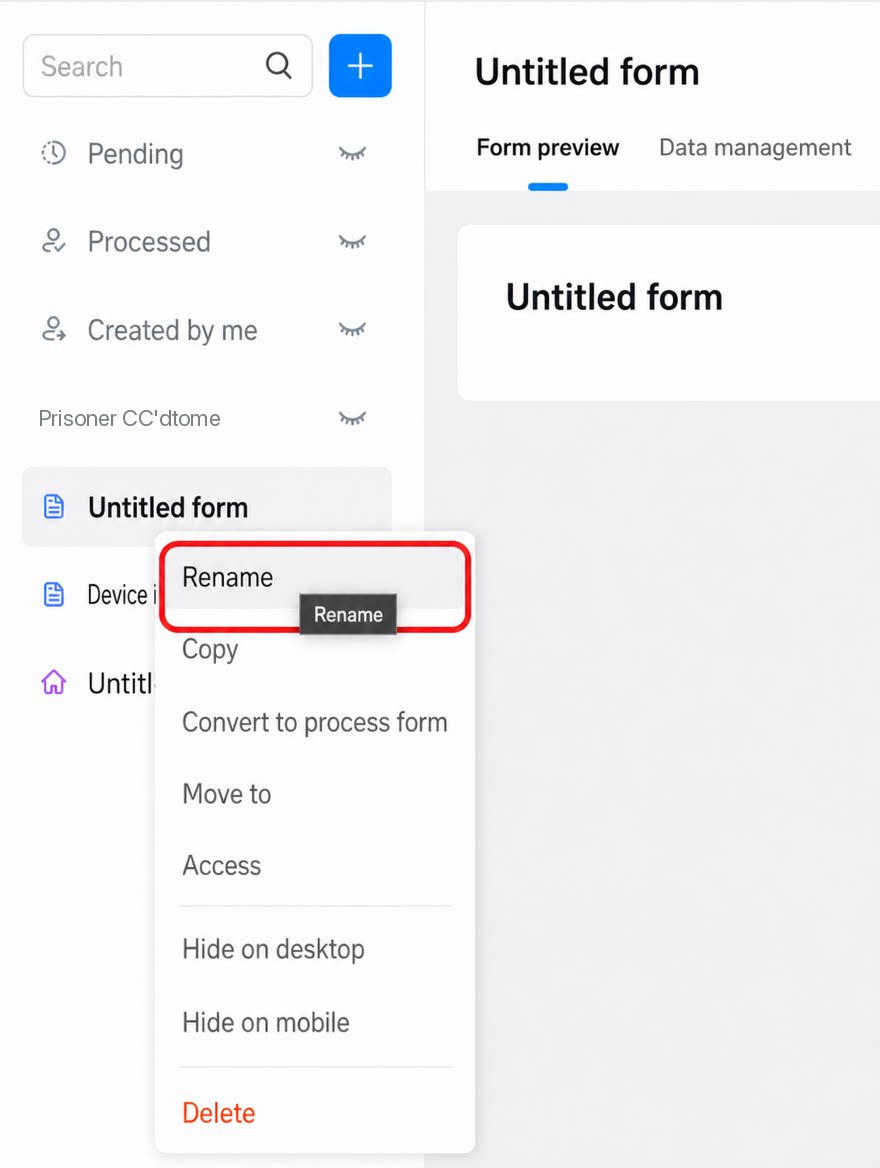
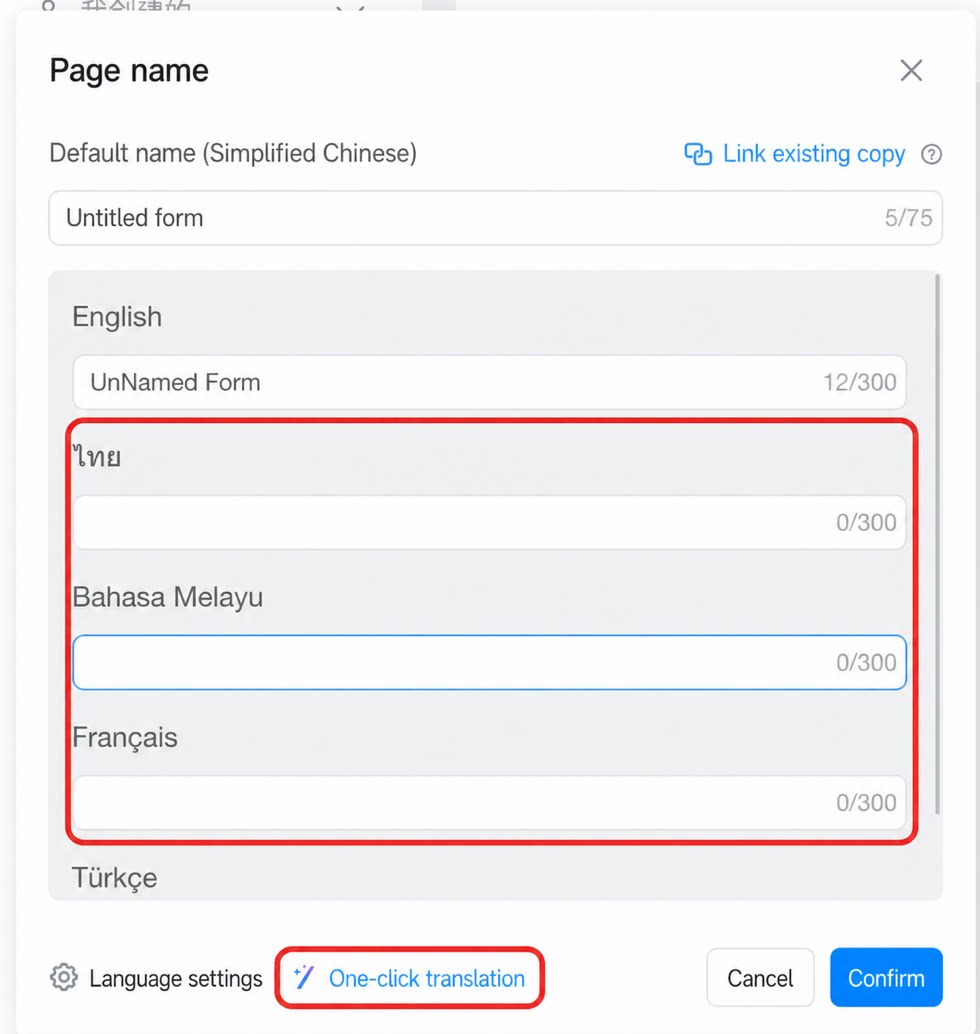
- Page names and navigation group names must be translated manually with one click in the page navigation settings.
- For multilingual translation of step names, click One-click translate for unified translation, or manually enter translations for each step name.
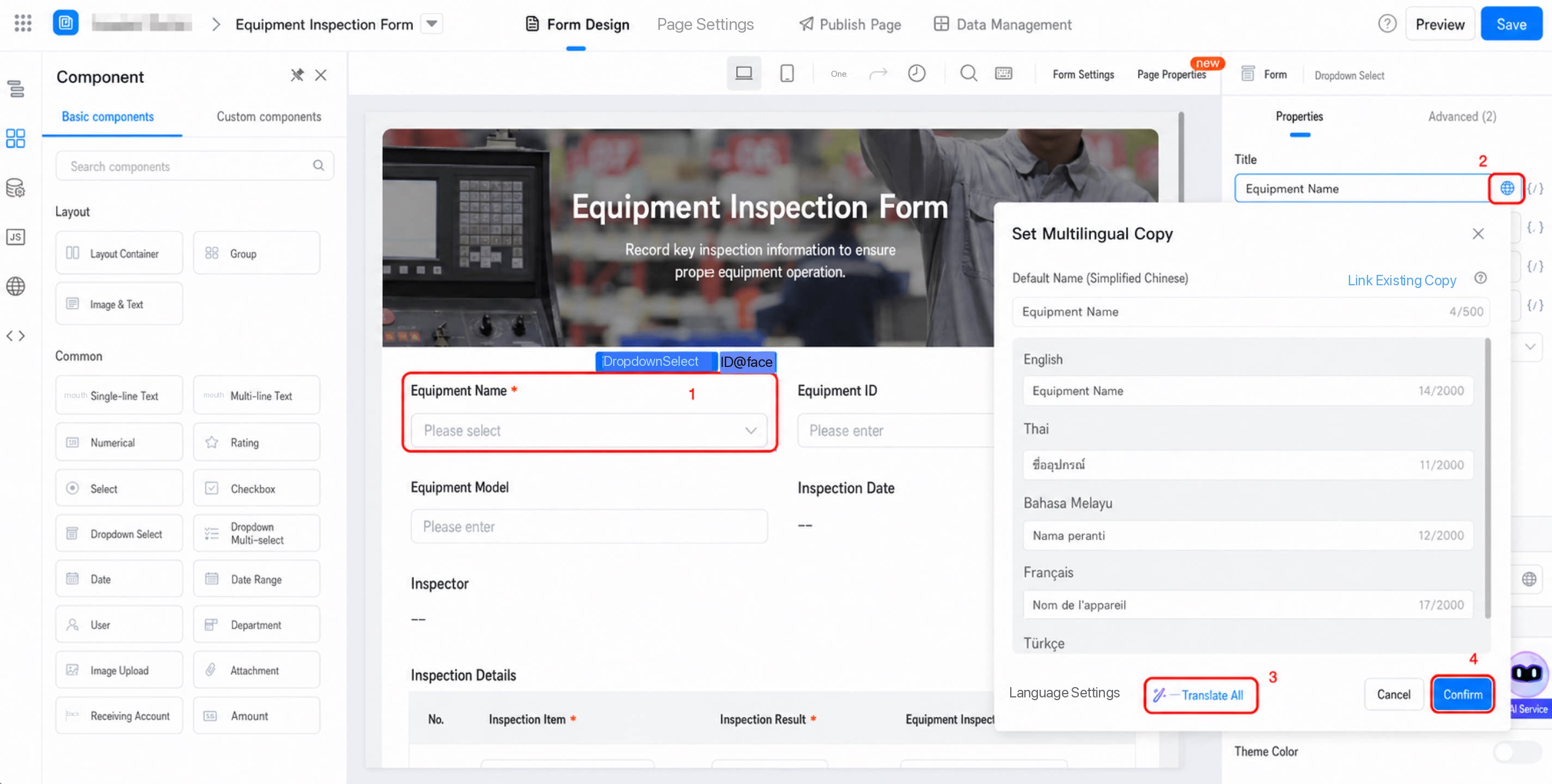
3) Manage Multilingual Entries at the Page Level
After enabling multiple languages for an app, select Multilingual Text Management from the left menu of the page designer to manage multilingual entries for each page. Supported page types: form pages, workflow form pages, portal pages, custom pages, and report pages. Form pages: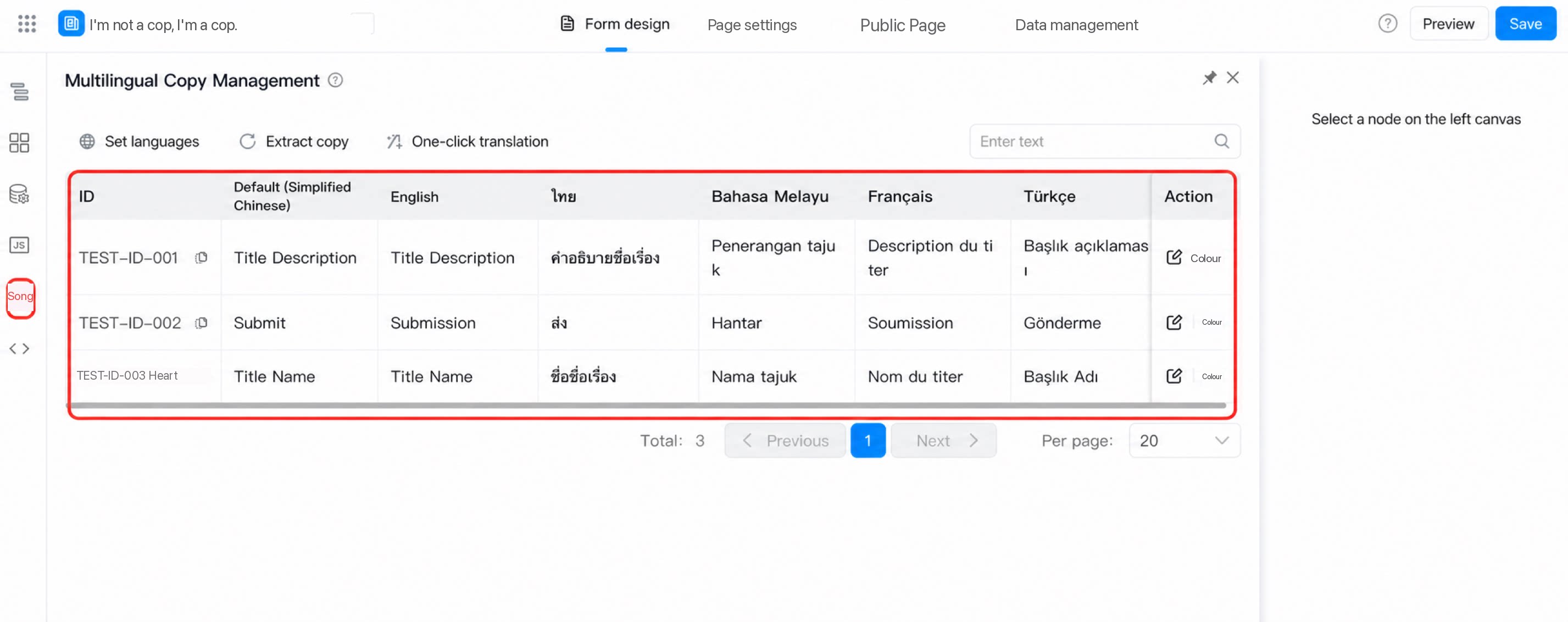
After a form is upgraded to support multiple languages, previously submitted records are not automatically adapted to the new multilingual environment. To make historical records support multiple languages, re-edit each record to manually activate the display settings for each language.
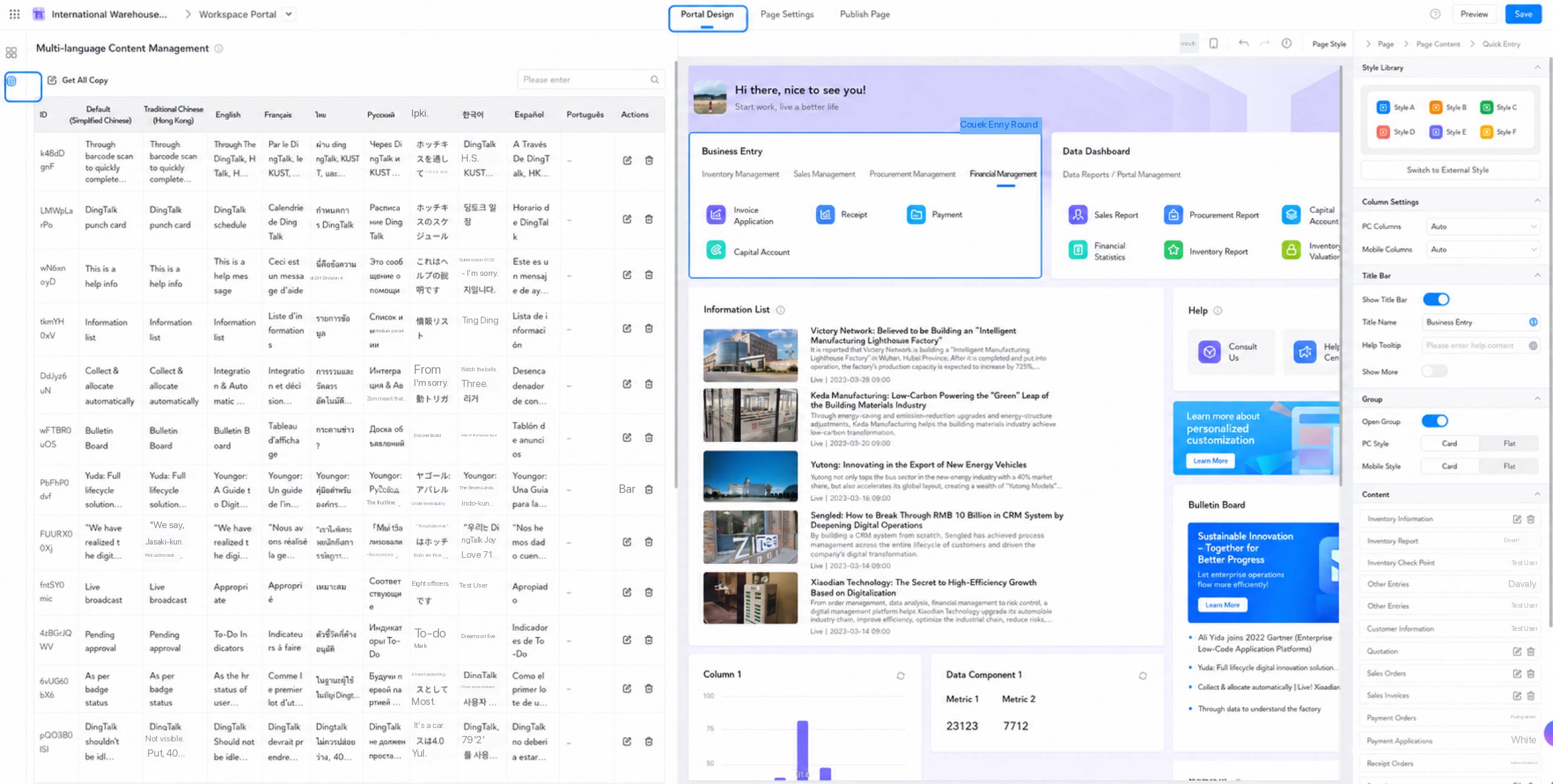
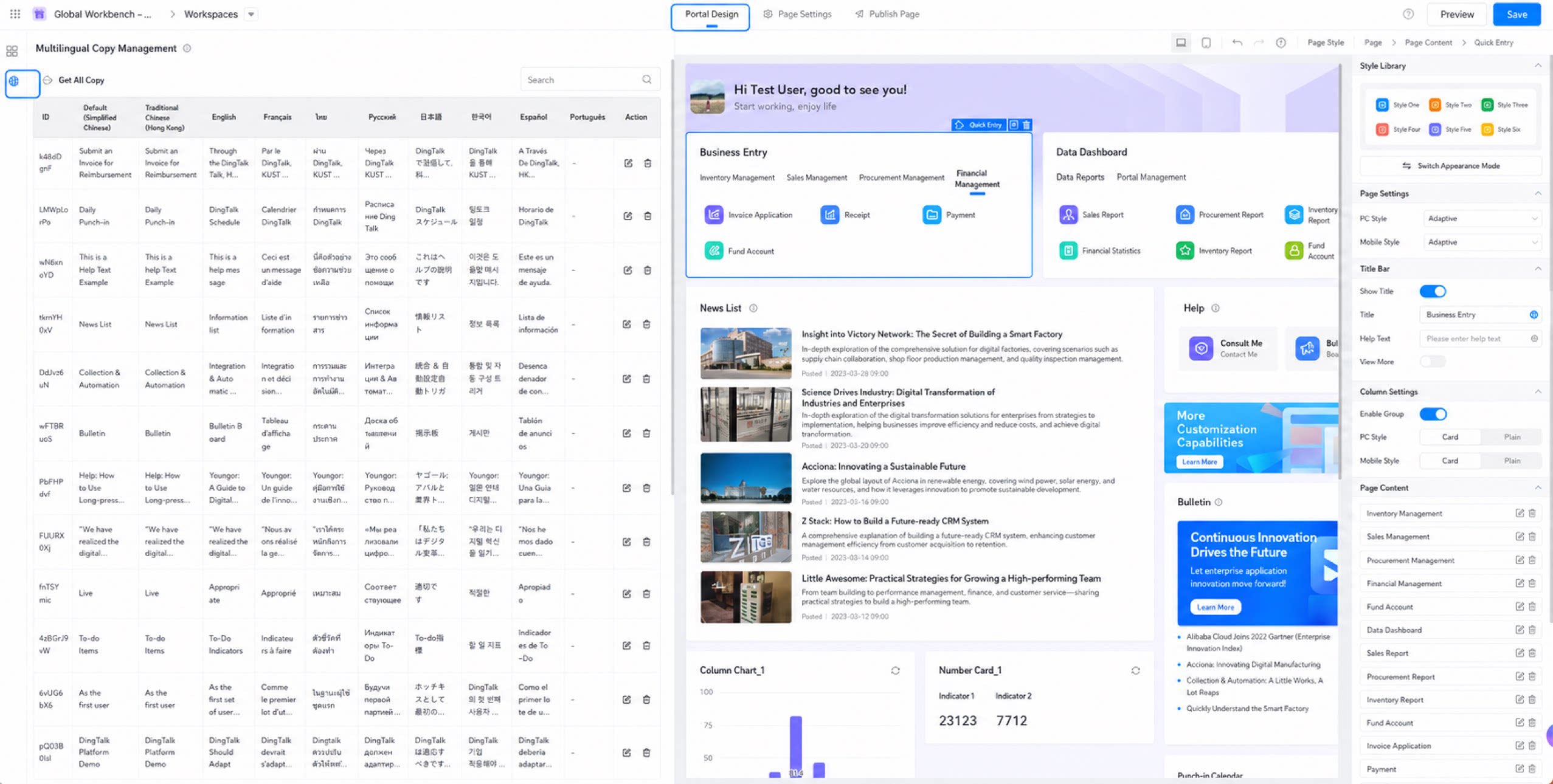
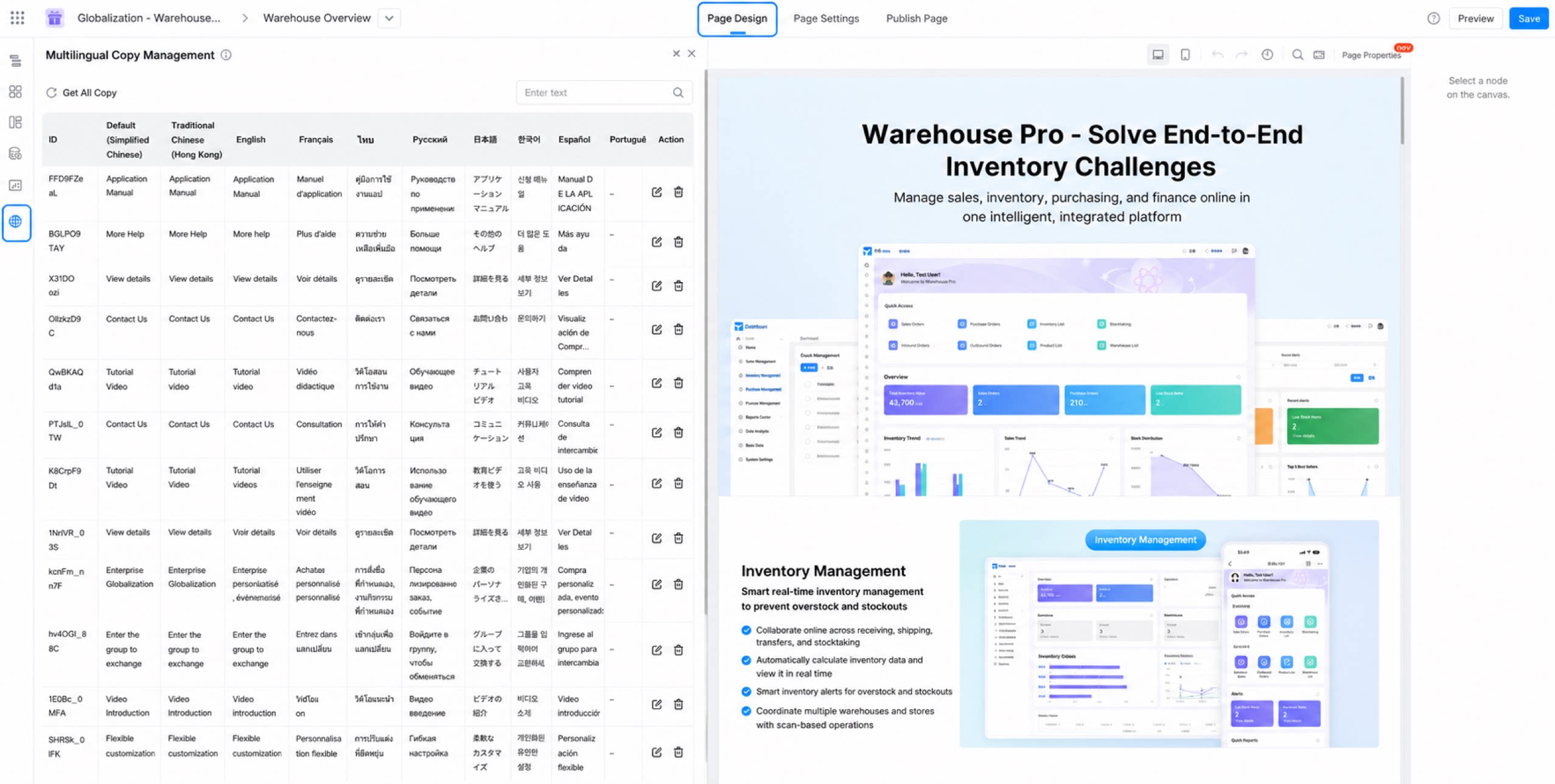
4) Manage Multilingual Entries Locally
Wherever text input is available in an app, local multilingual management is supported for maintaining multilingual text, one-click translation, and associating existing text.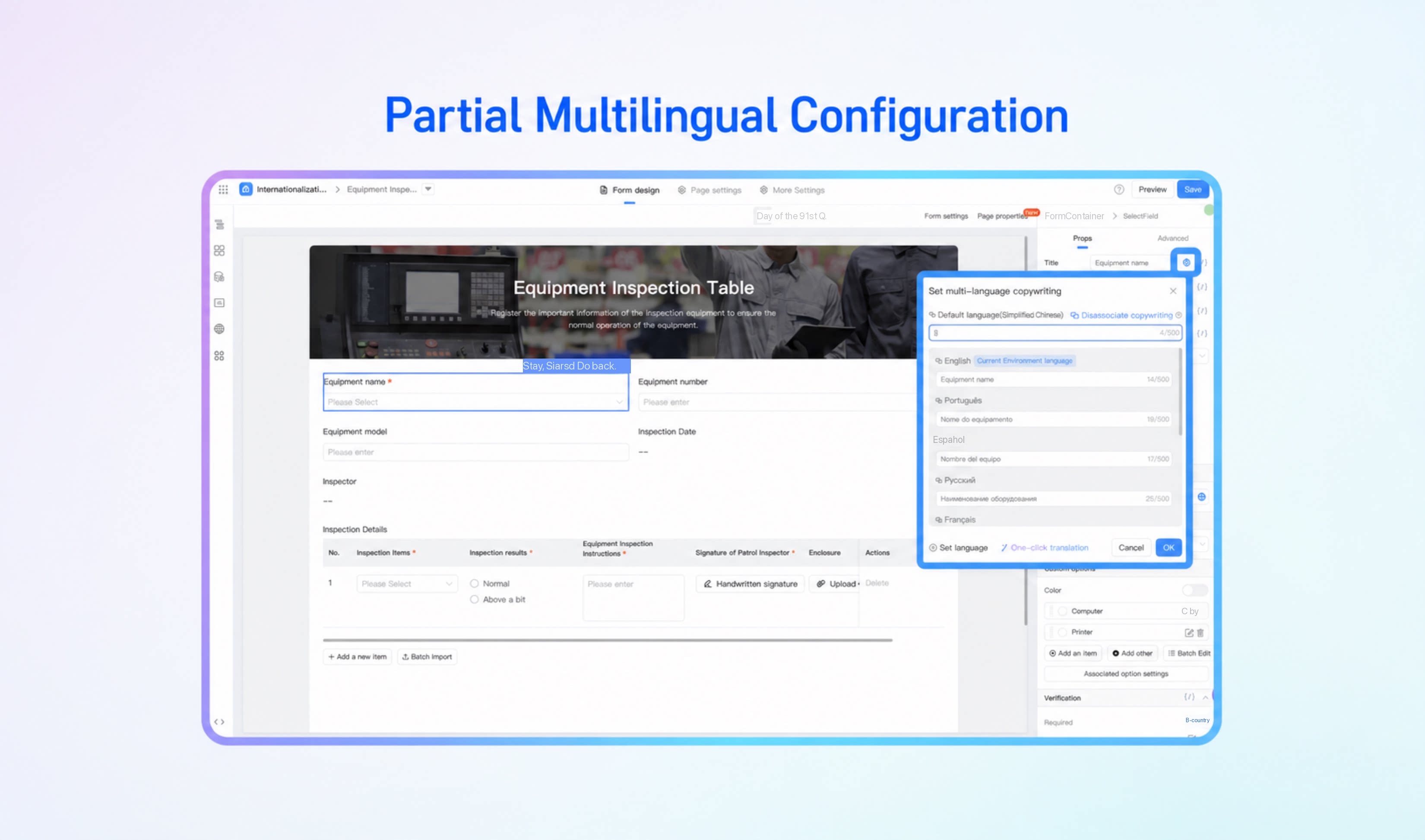
Access a Multilingual App
At runtime, switch the app language by clicking your Profile Photo in the top-right corner > Language > select a language.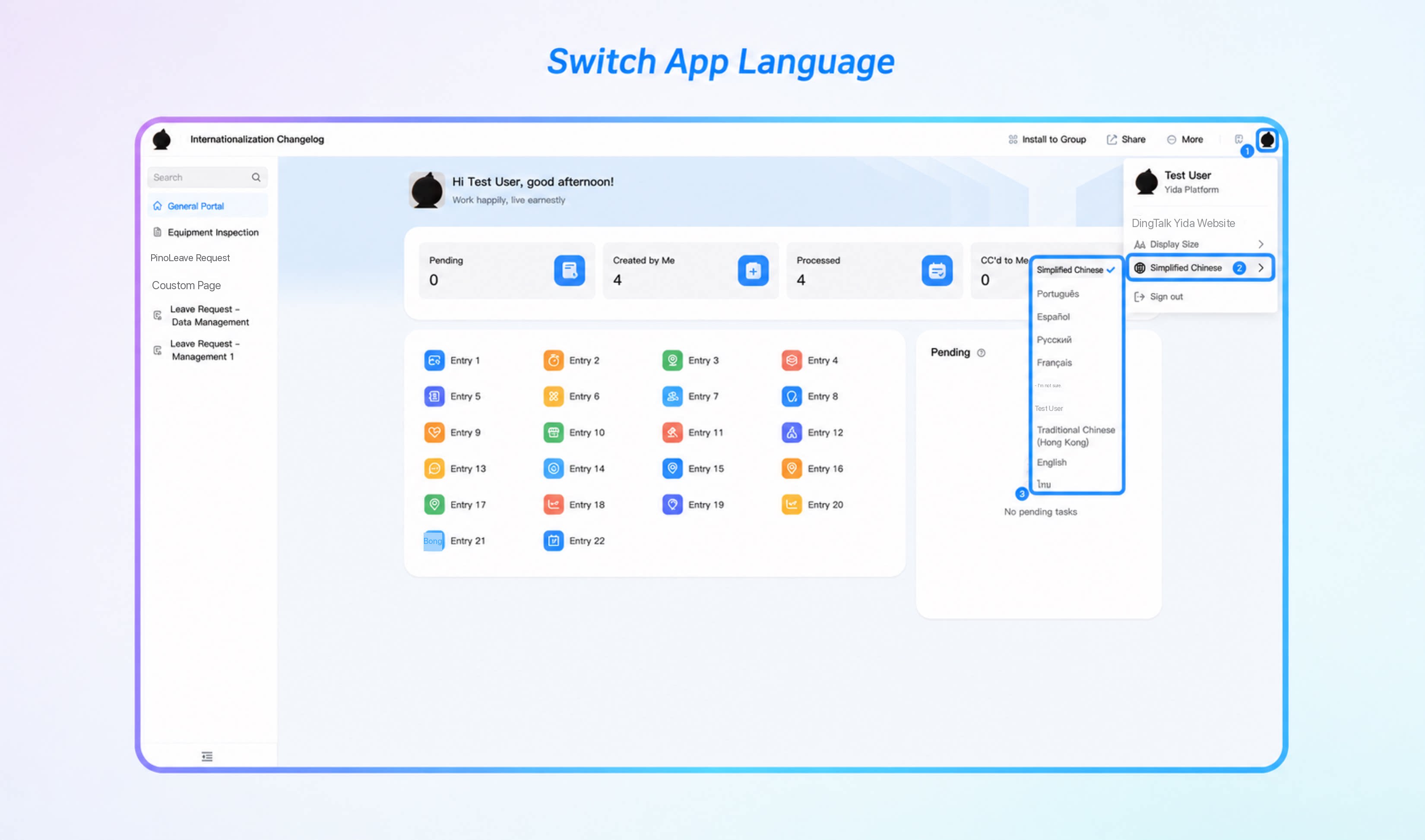
| Feature | Preview |
|---|---|
| Form and workflow form pages | Multilingual support for form and workflow form submissions. Multilingual support for required-field validation on form submission pages. Multilingual support for workflow approval actions, approval details, and user display. Multilingual support for workflow design. Multilingual support for quick approval notifications, approval reminder notifications, and CC notifications. Multilingual support for workflow approval buttons. Multilingual support for workflow validation rule tips and approval comments. 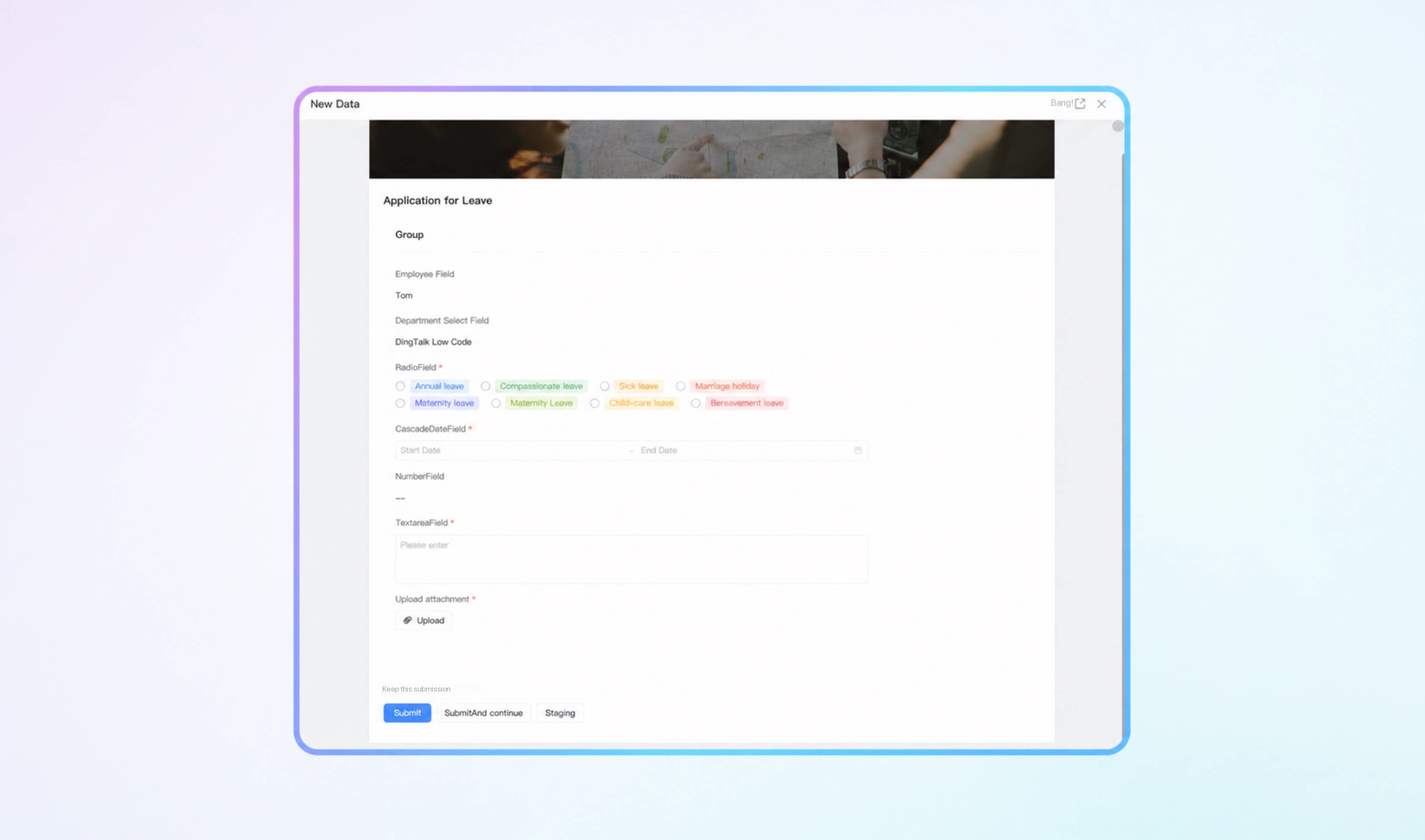 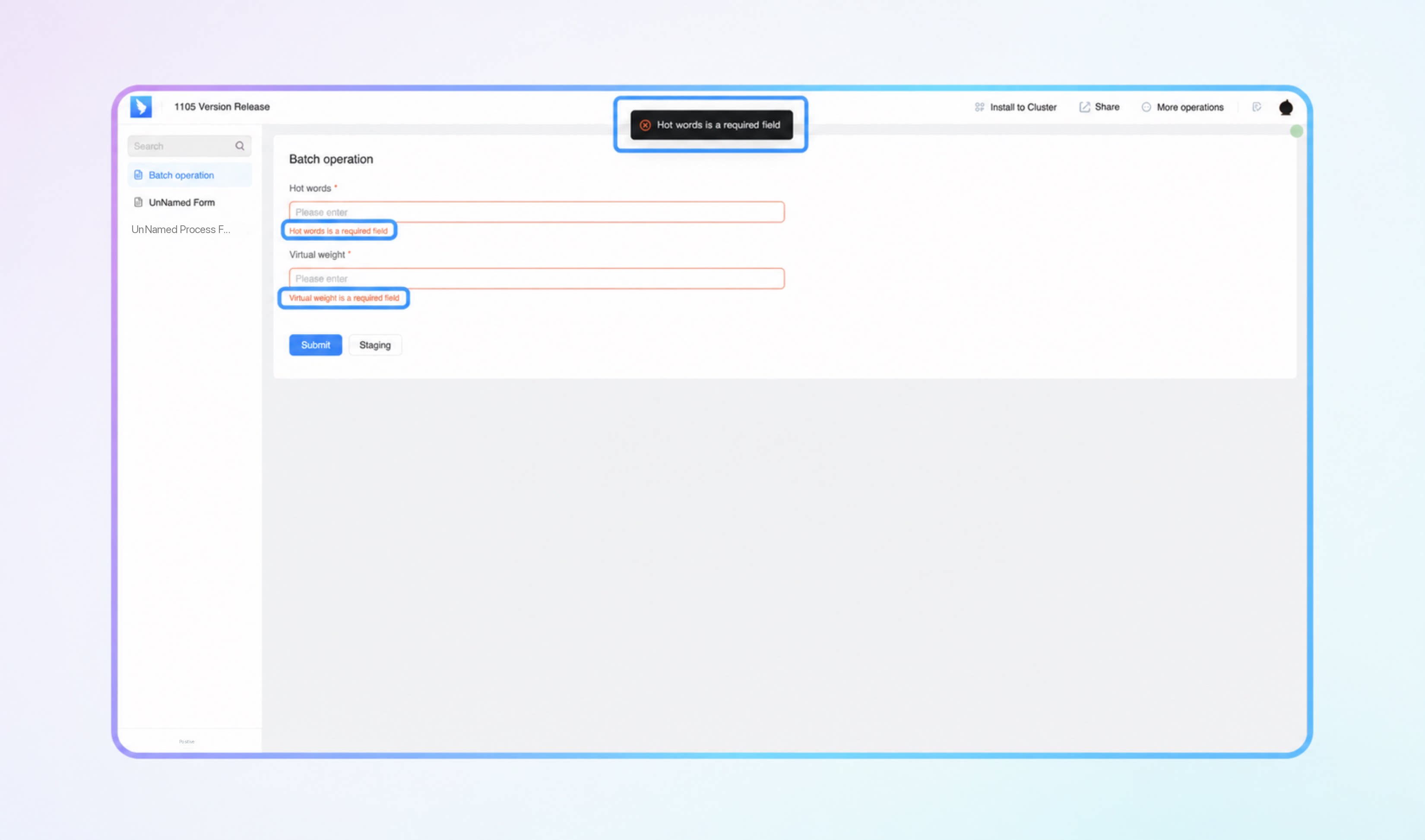 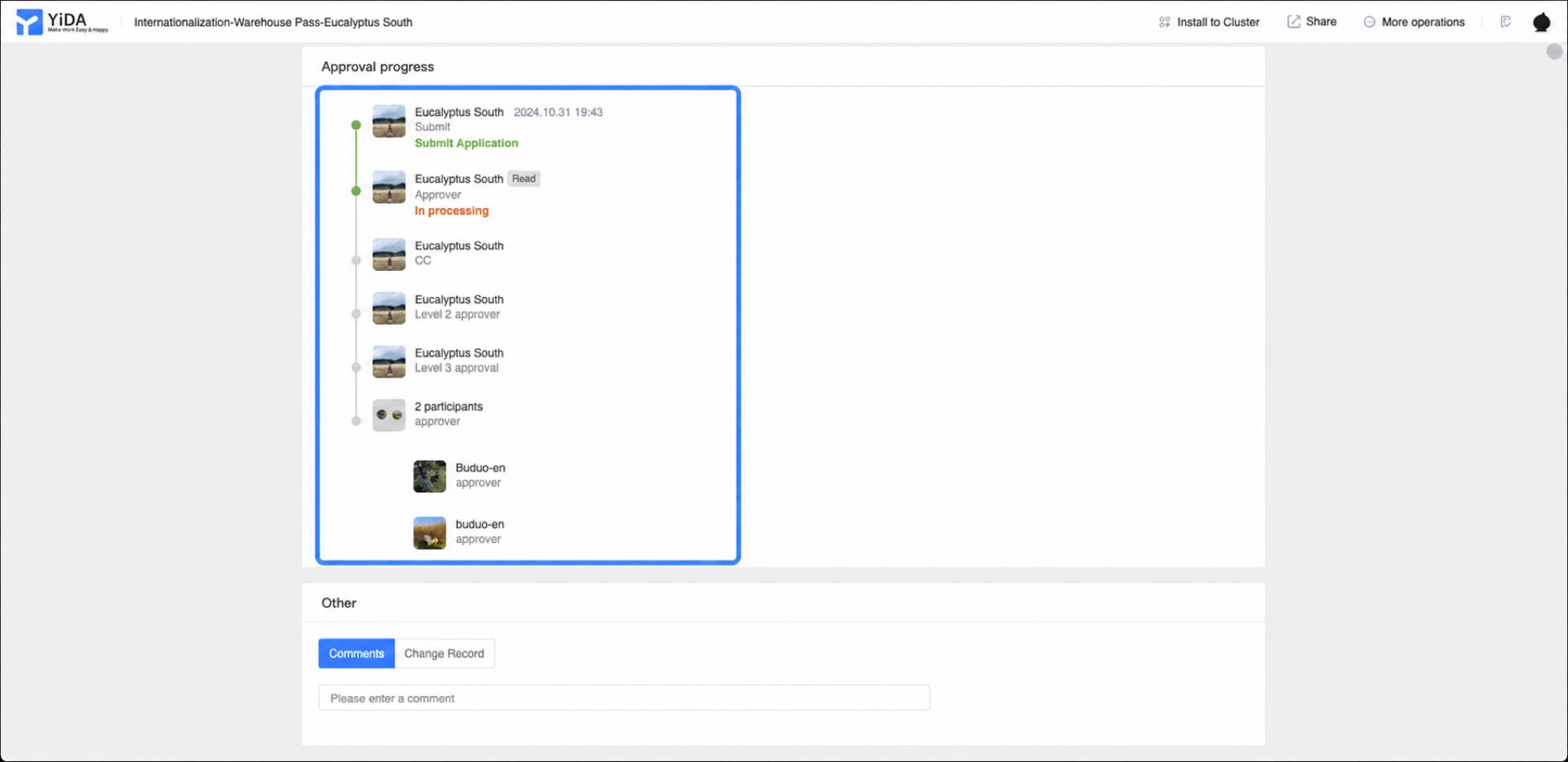 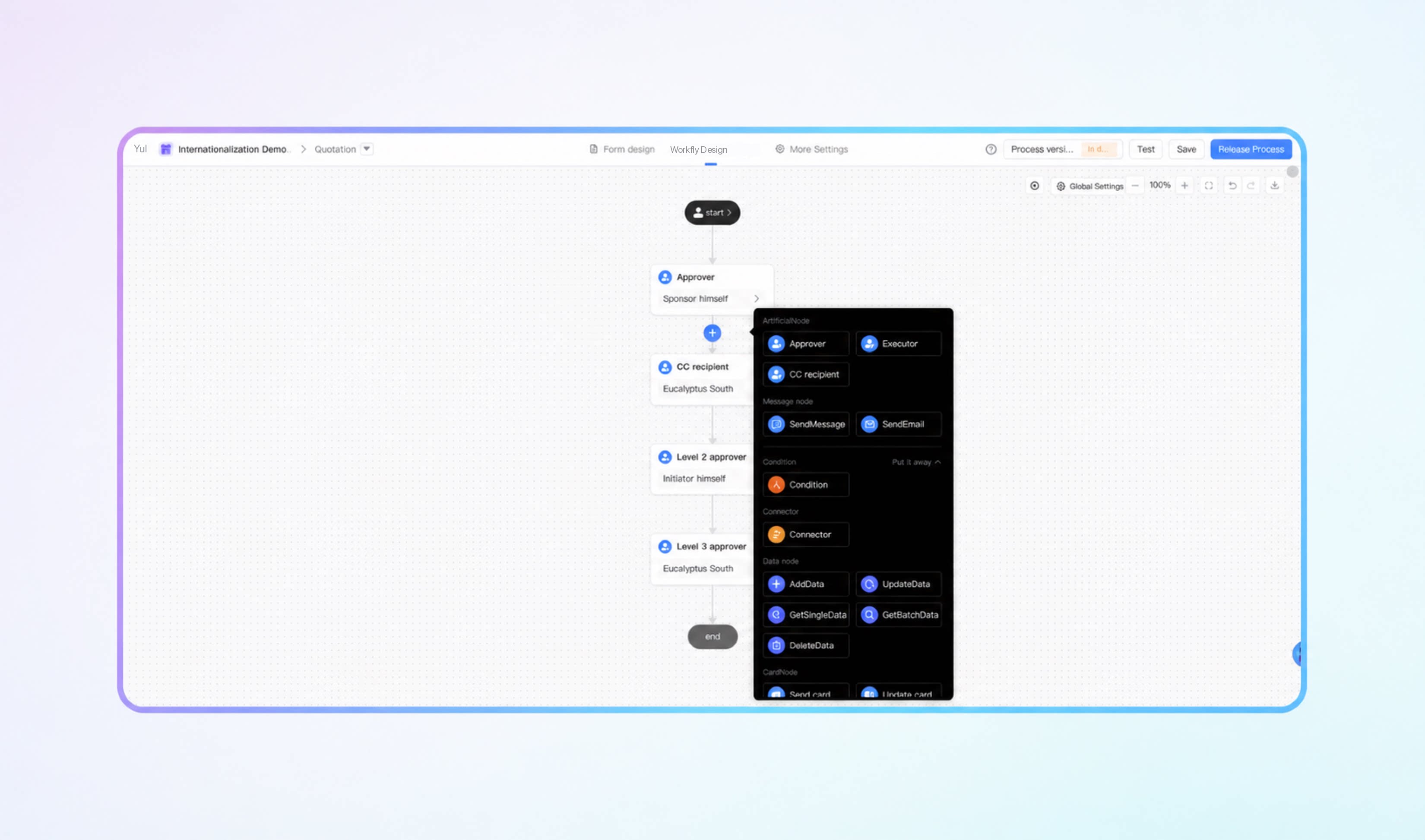 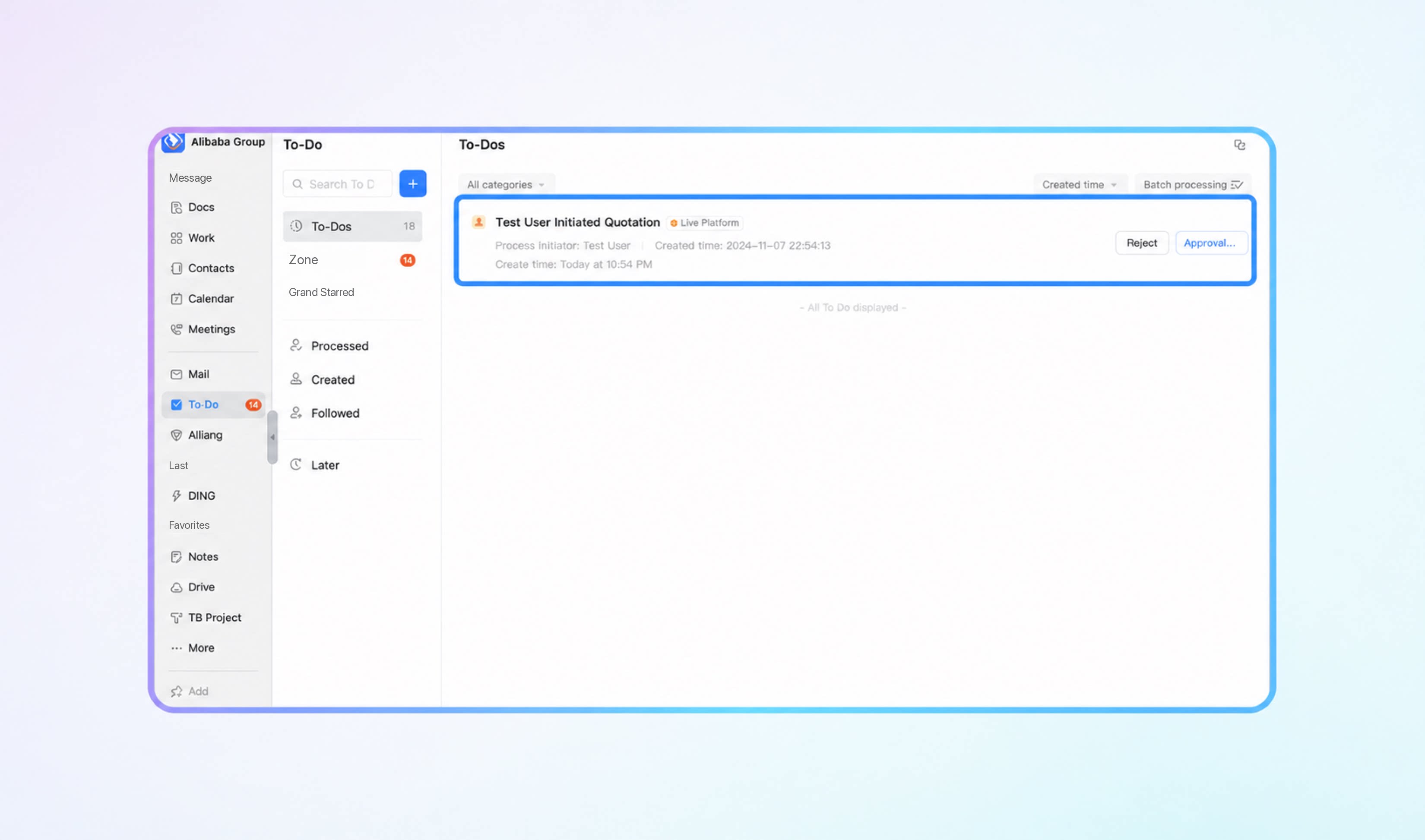 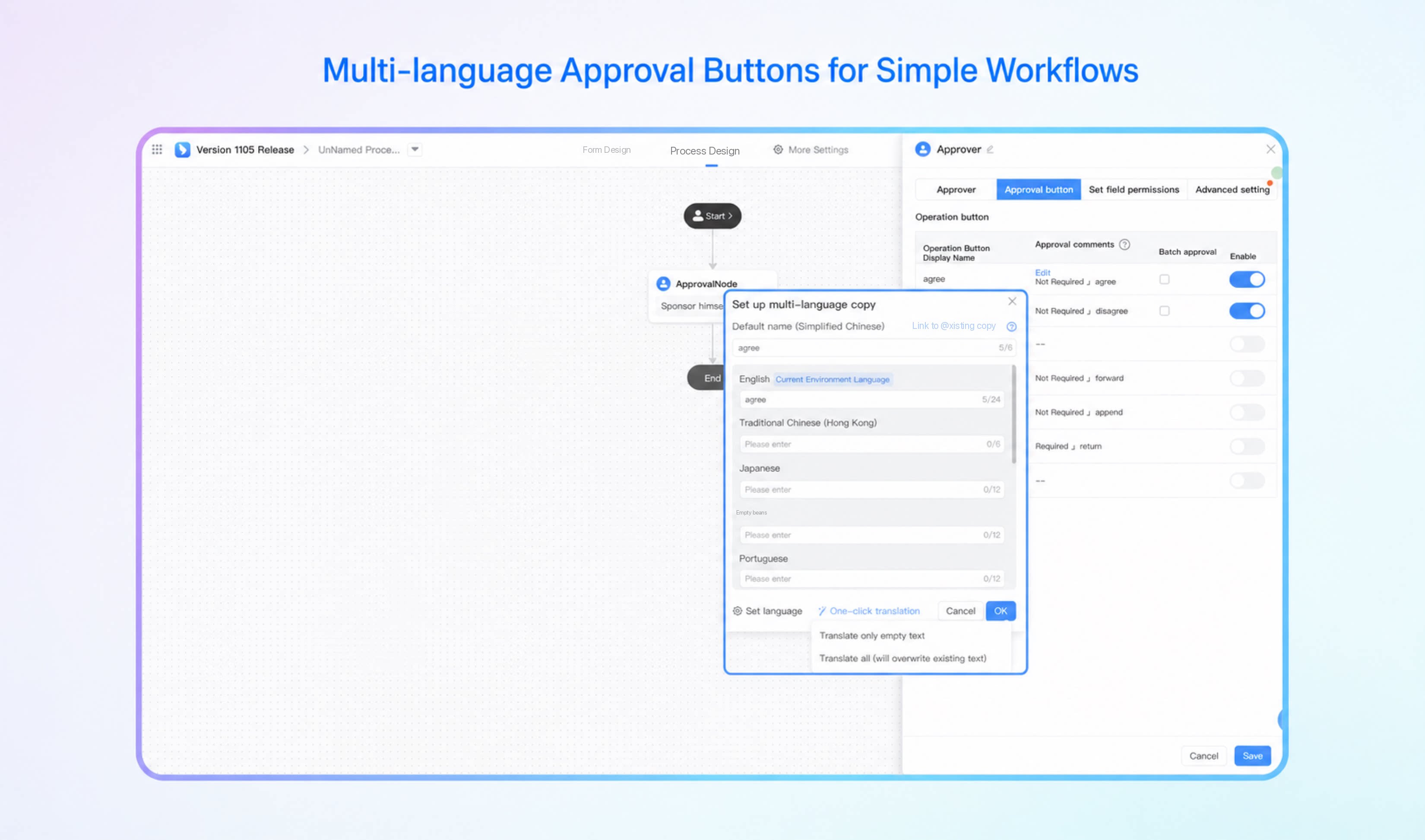 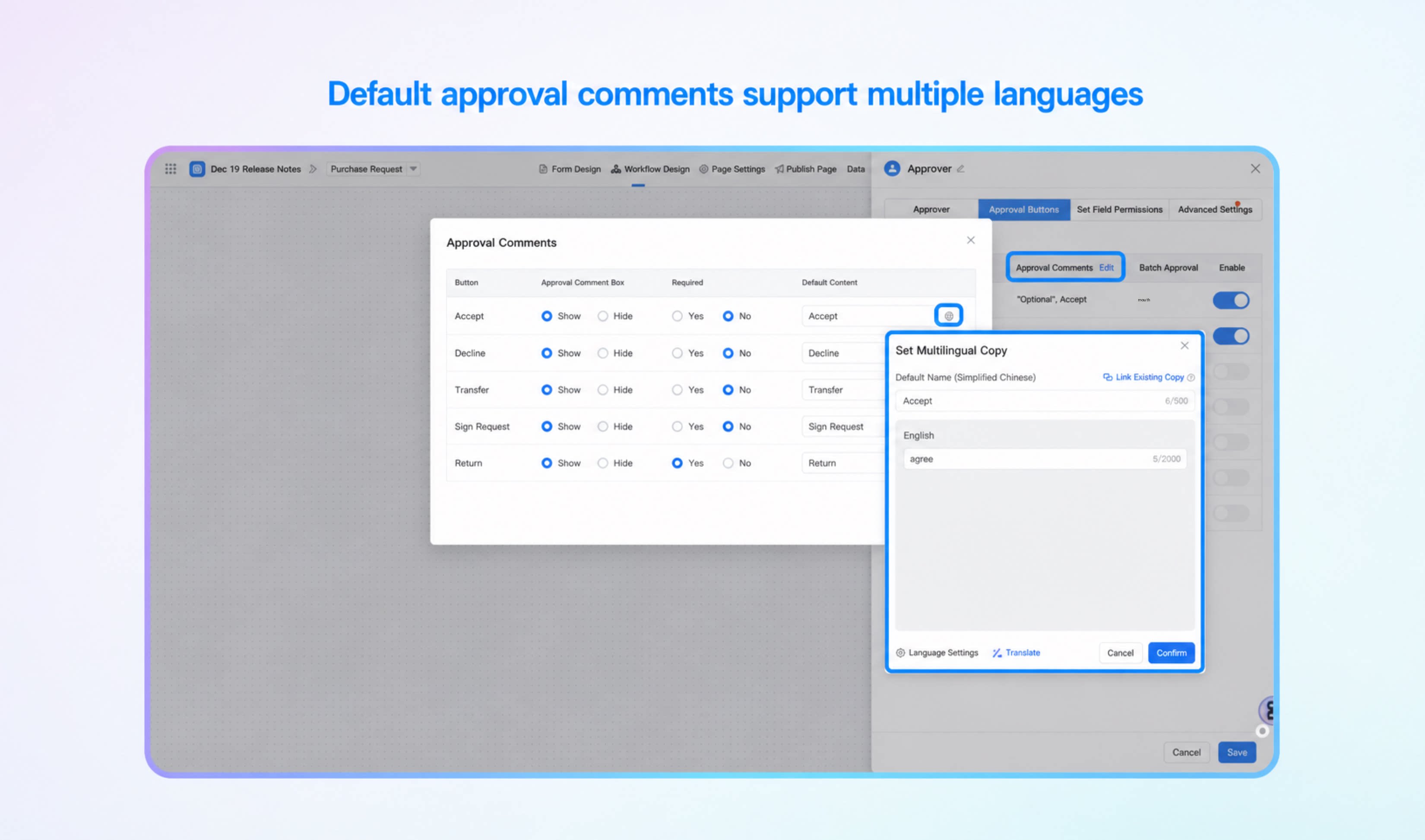 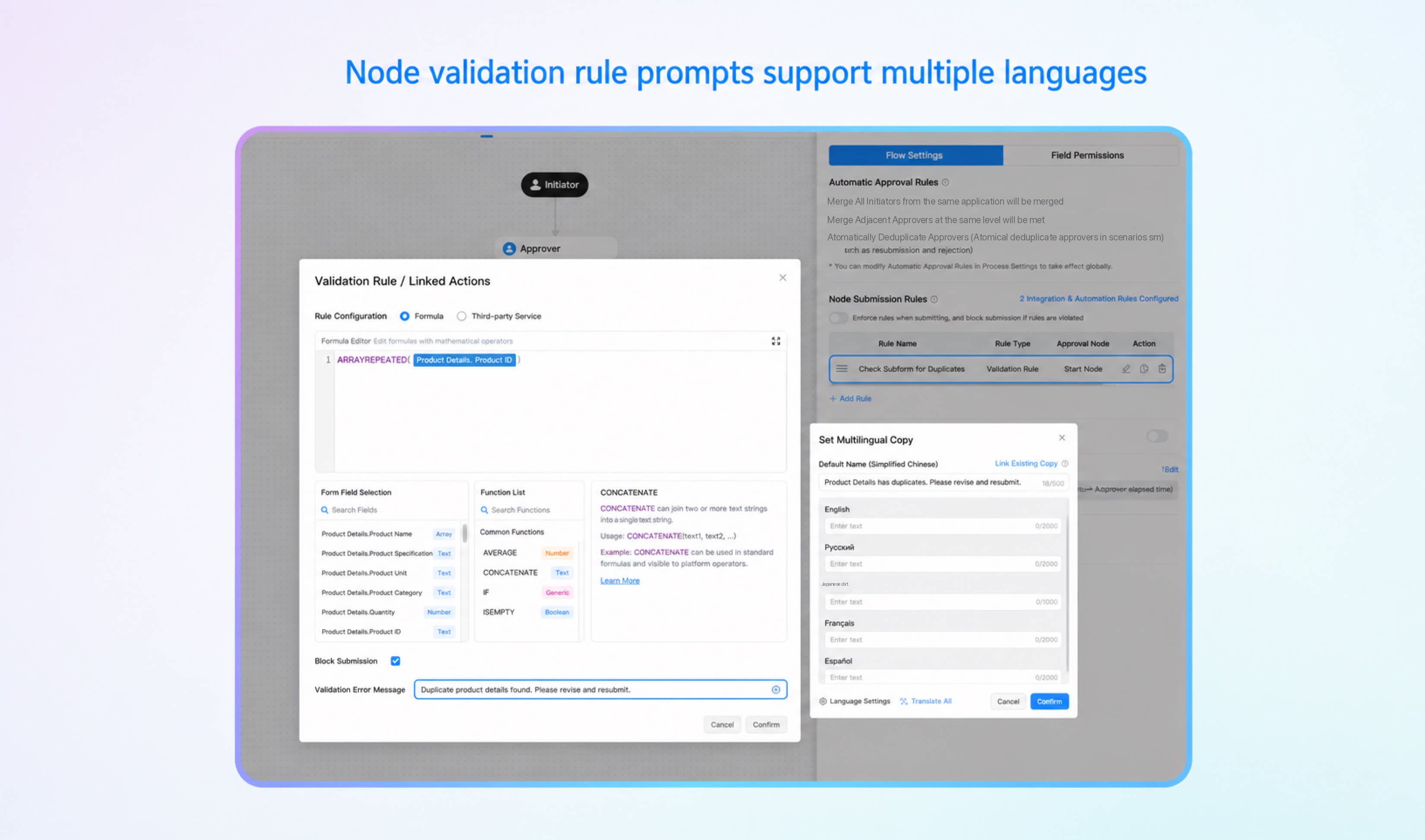 |
| Multi-view names for data | 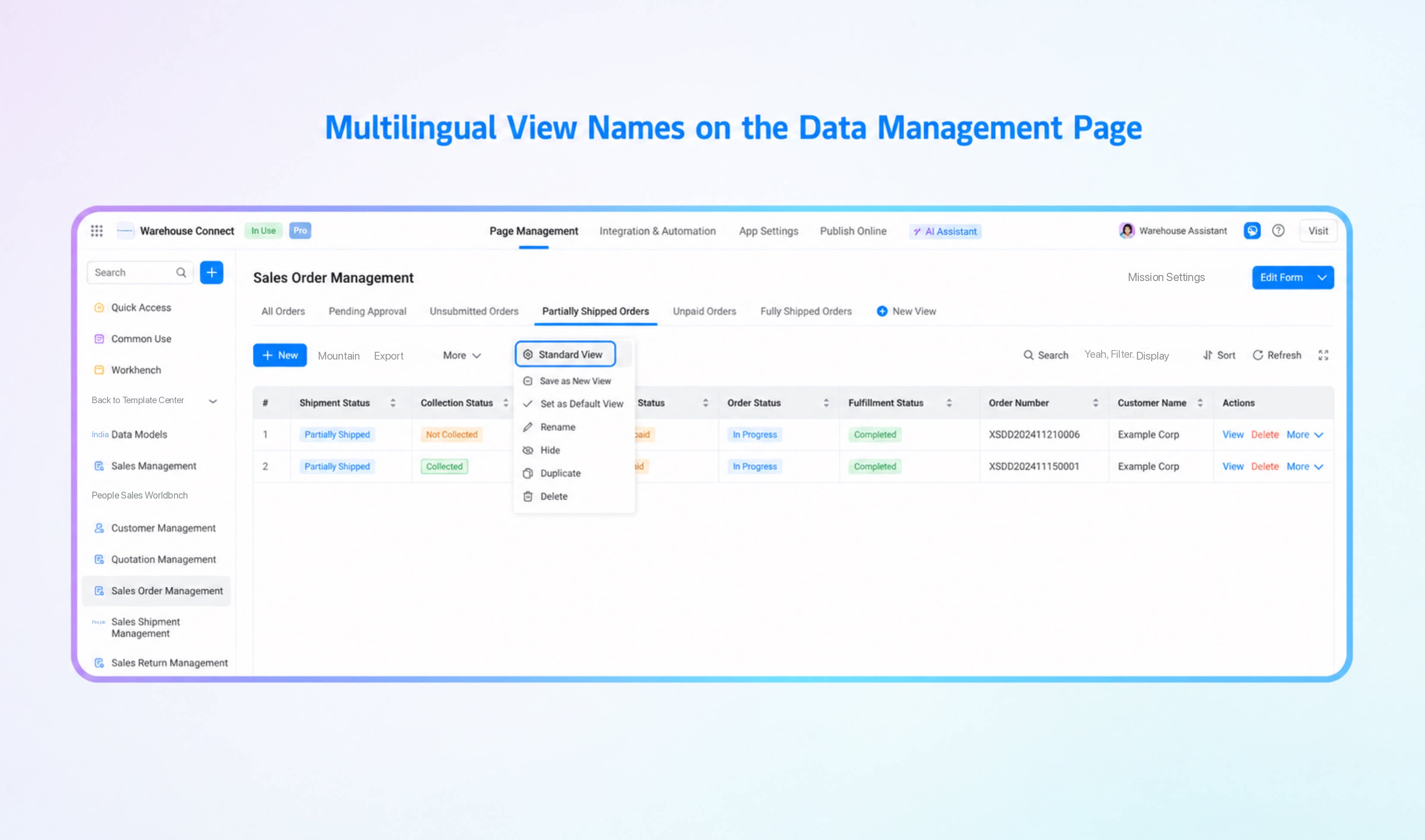 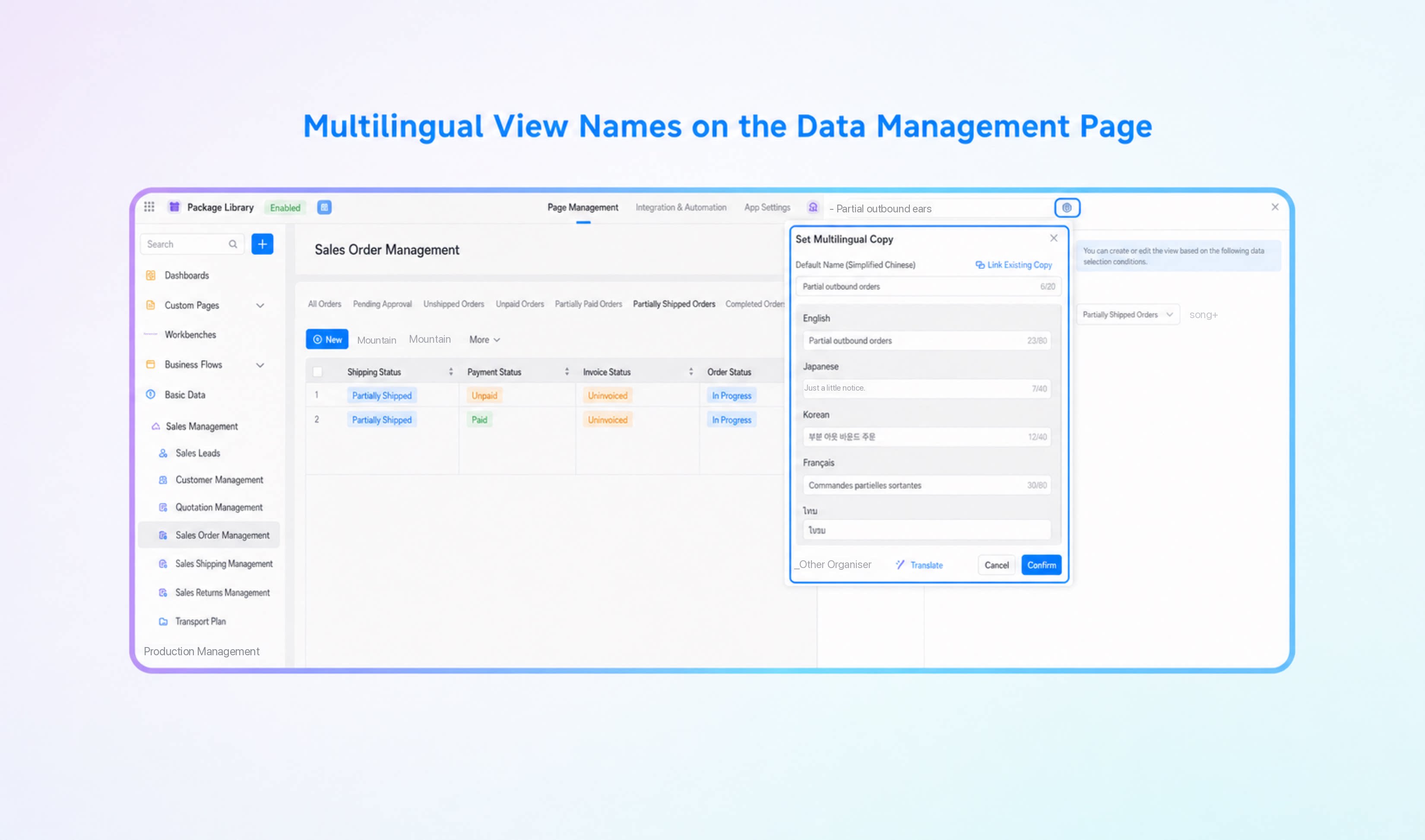 |
| Custom button names | Note: For details on using Custom Buttons, see Custom Button.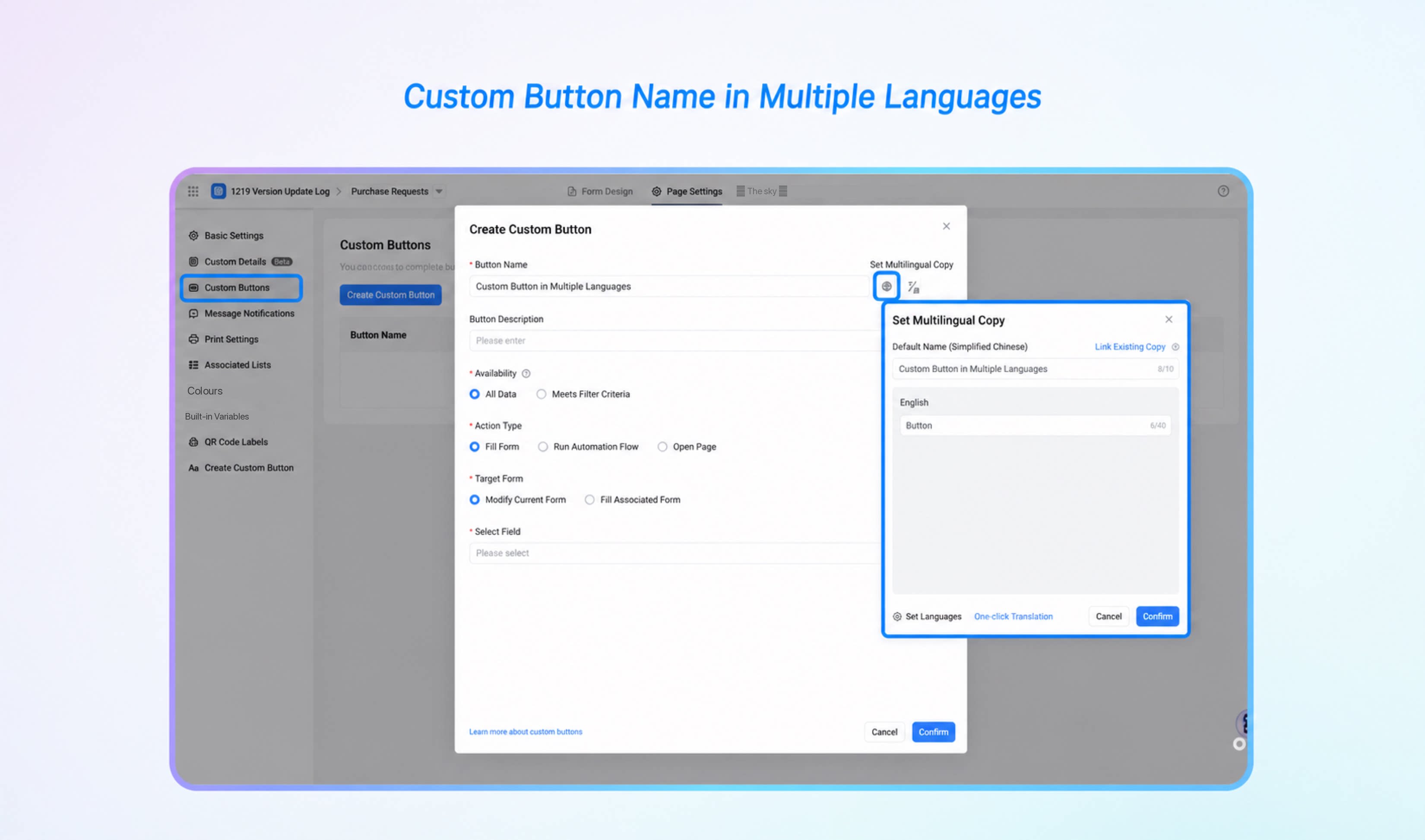 |
| Reports | Multilingual support for report design and display.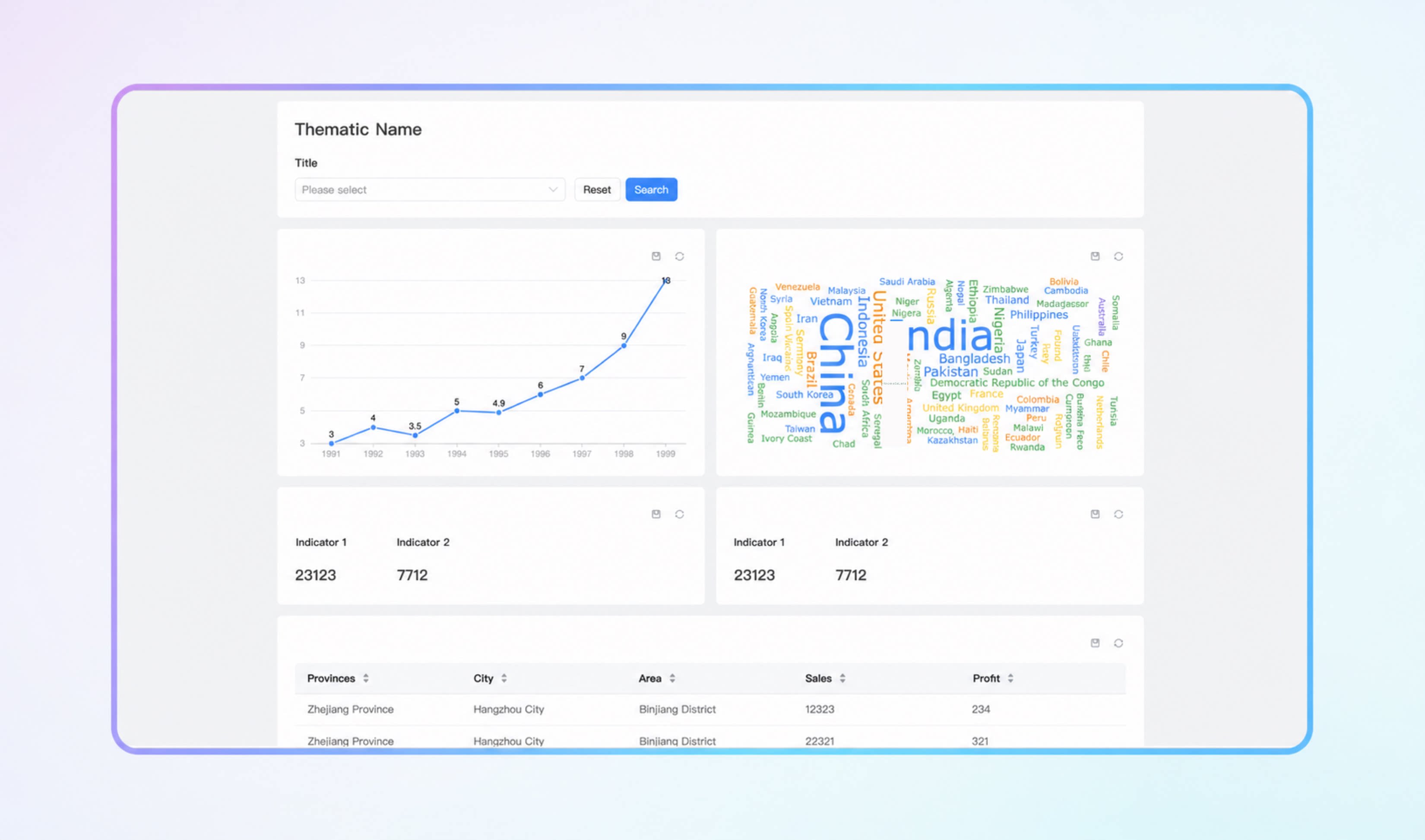 |
| Broadcast portal | Multilingual support for broadcast portal pages.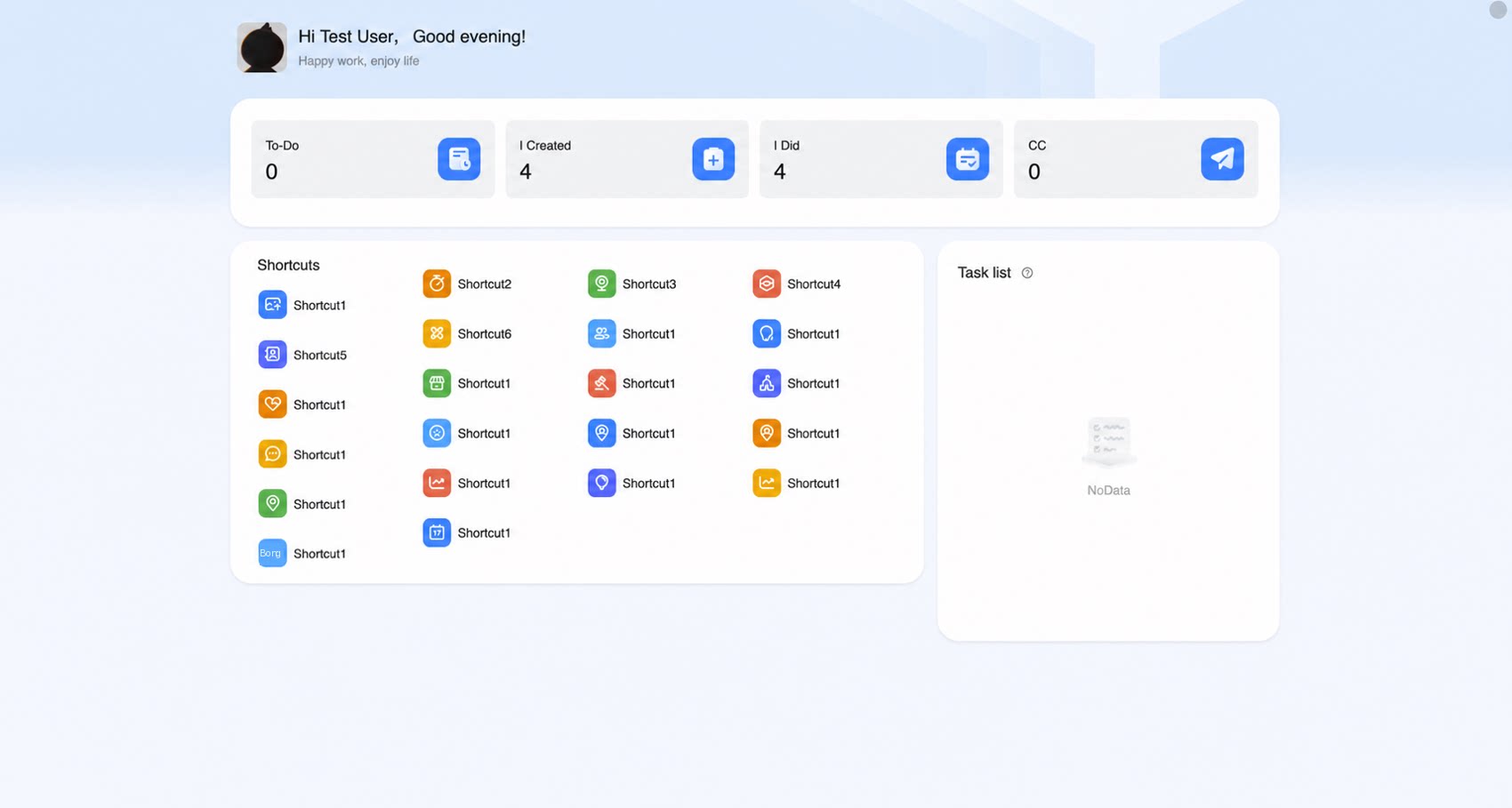 |
| Data management page | Multilingual support for the data management page.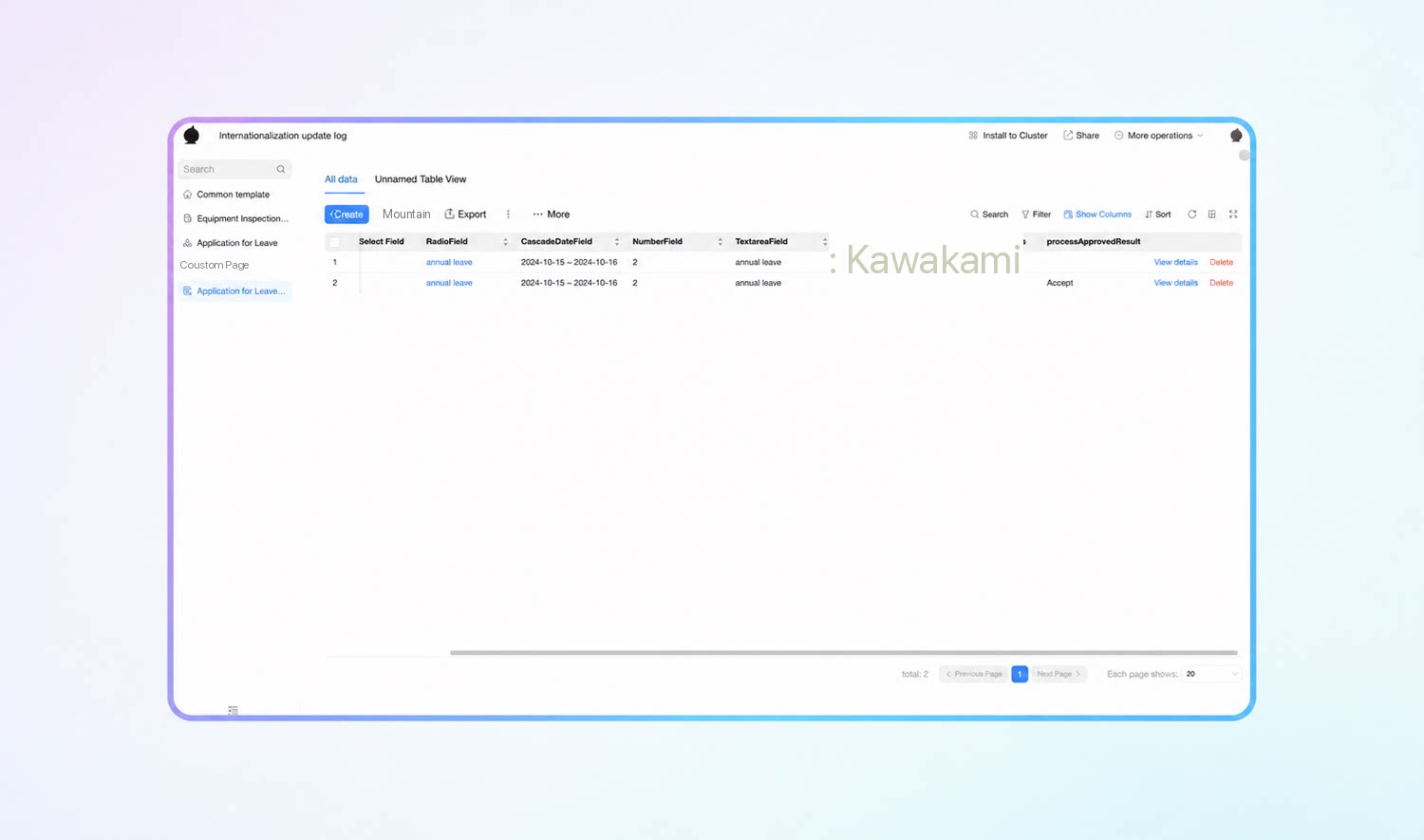 |
| Source records page | Multilingual support for the Source records page.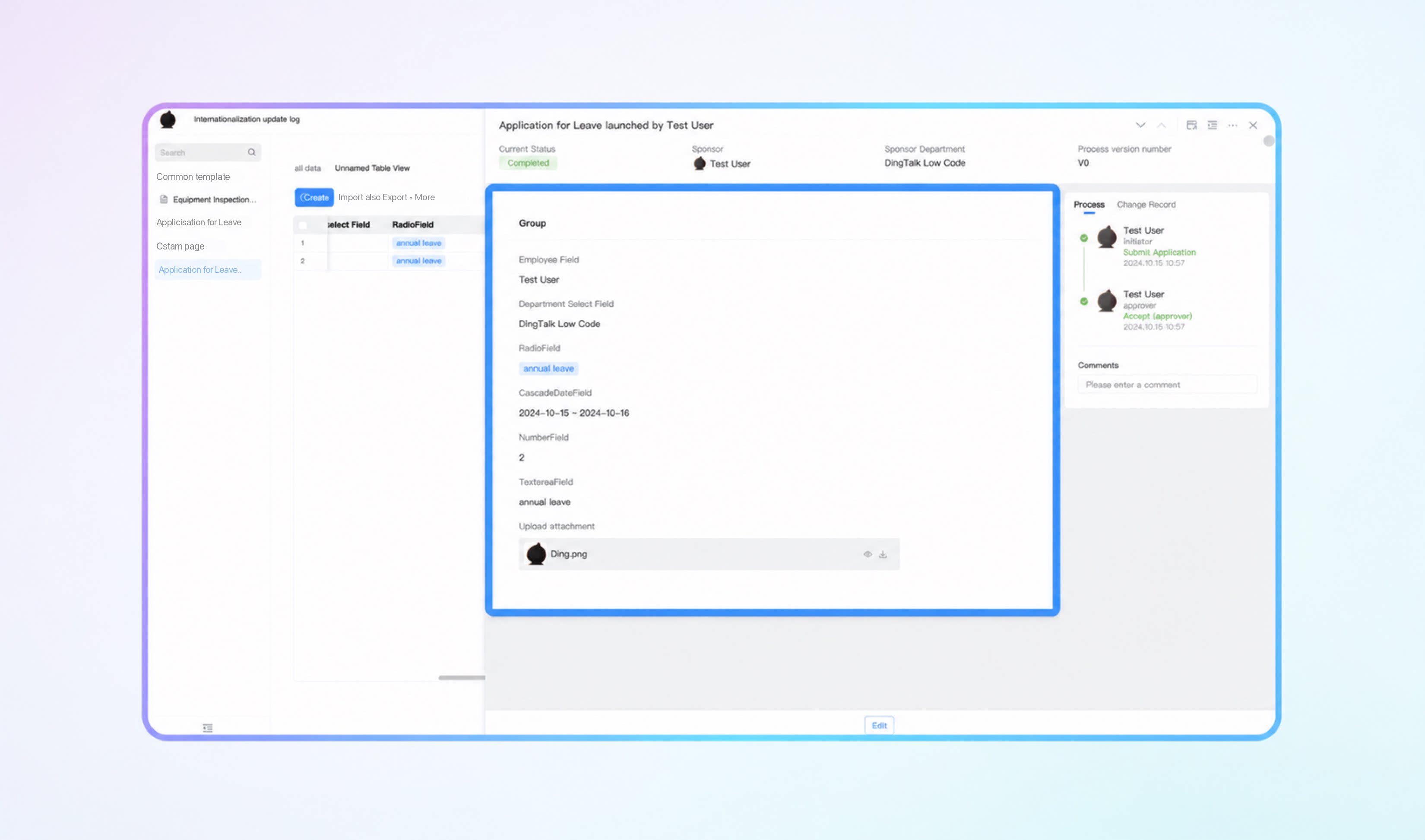 |
Multilingual support for Print.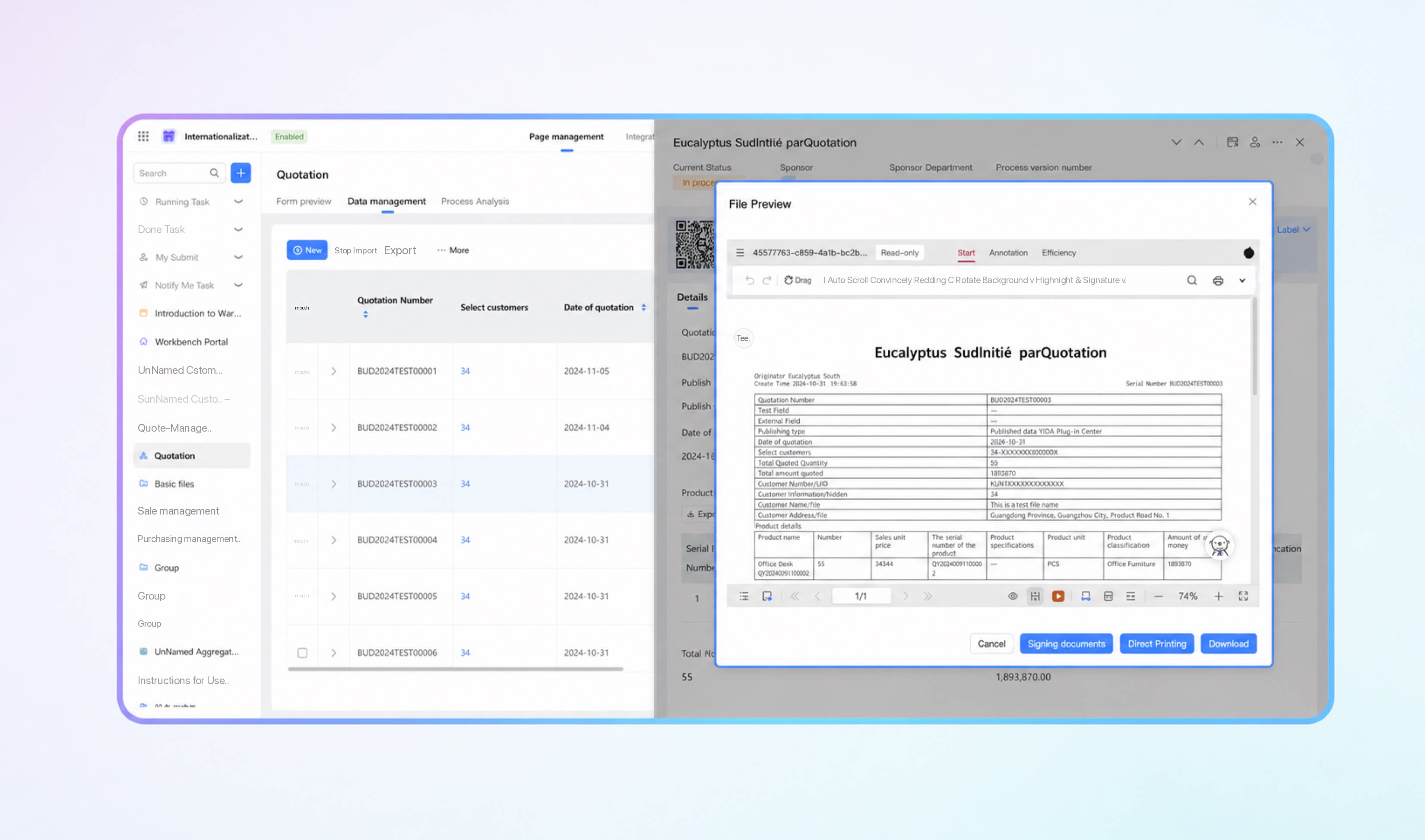 | |
| Import and Export | Multilingual support for import templates downloaded during batch import. Multilingual support for spreadsheets exported during batch export. Multilingual support for import templates downloaded during subform batch import. Multilingual support for spreadsheets exported during subform batch export. 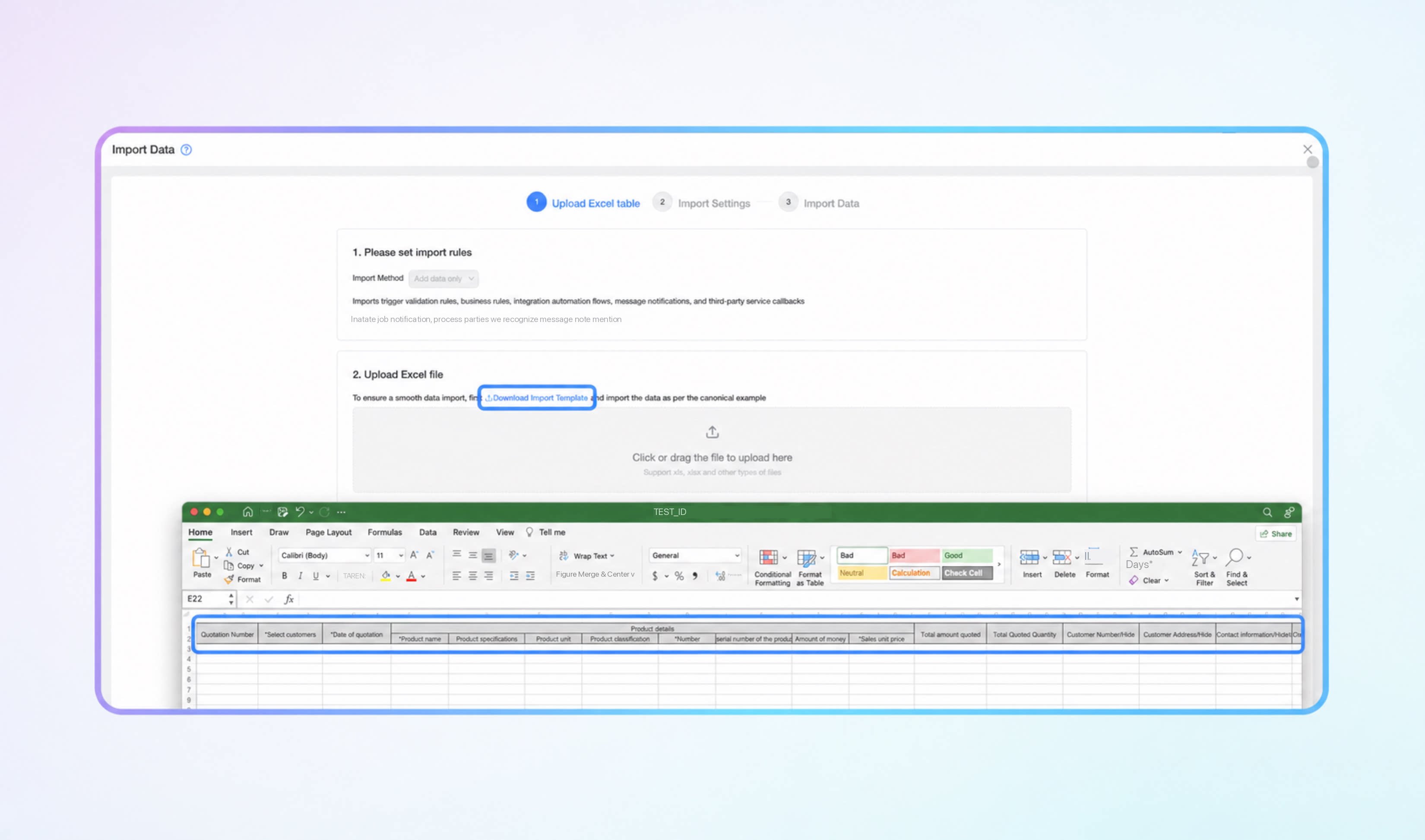 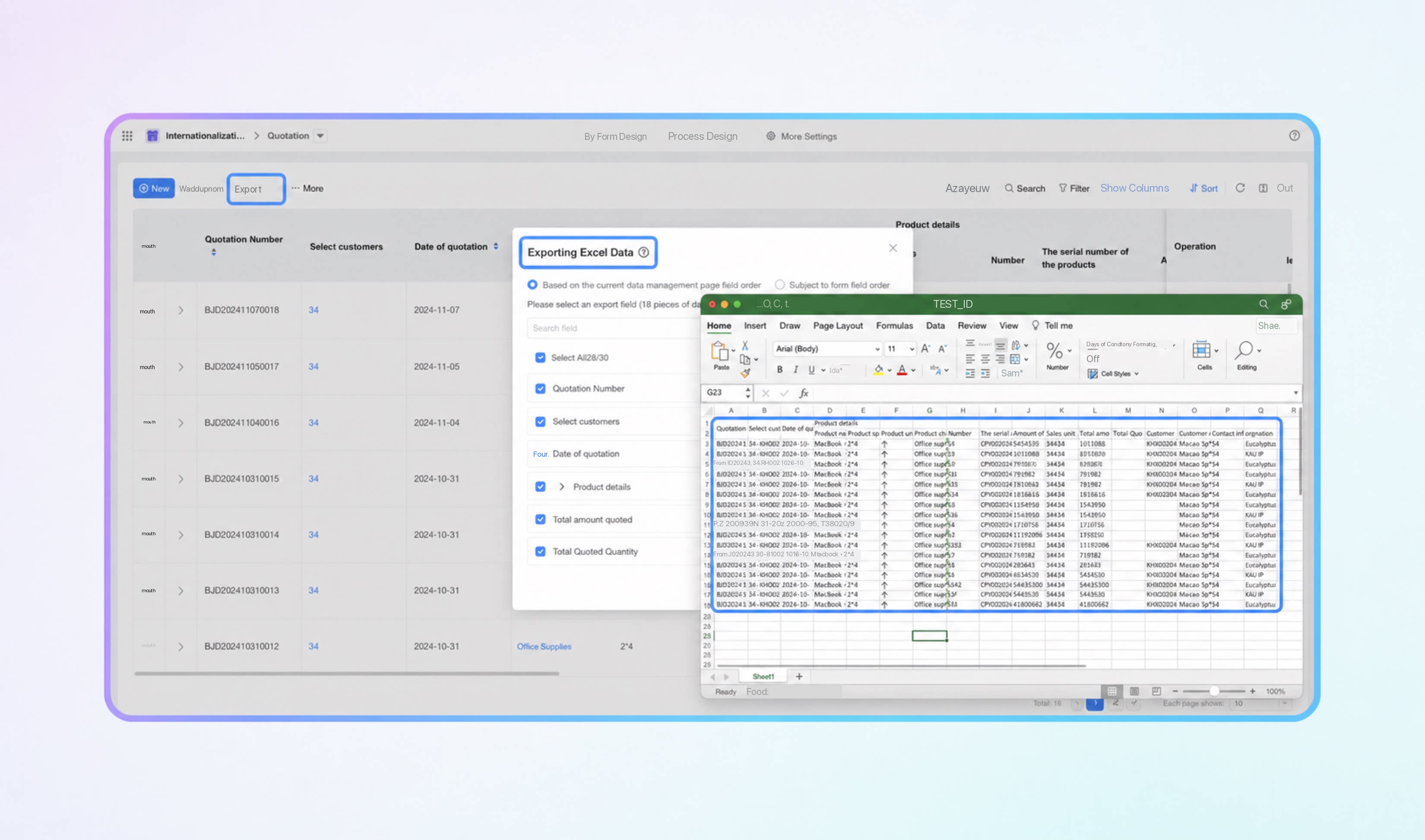 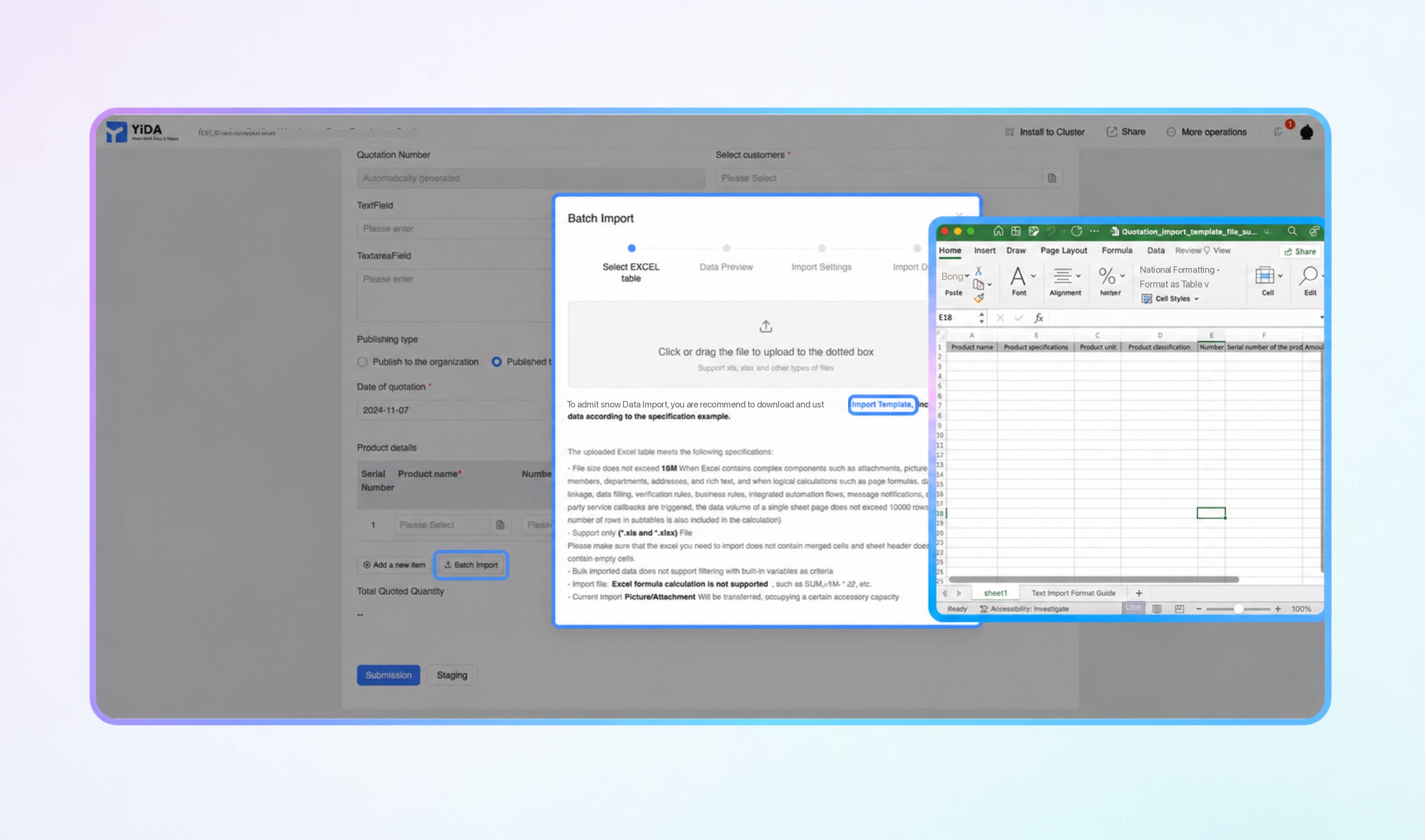 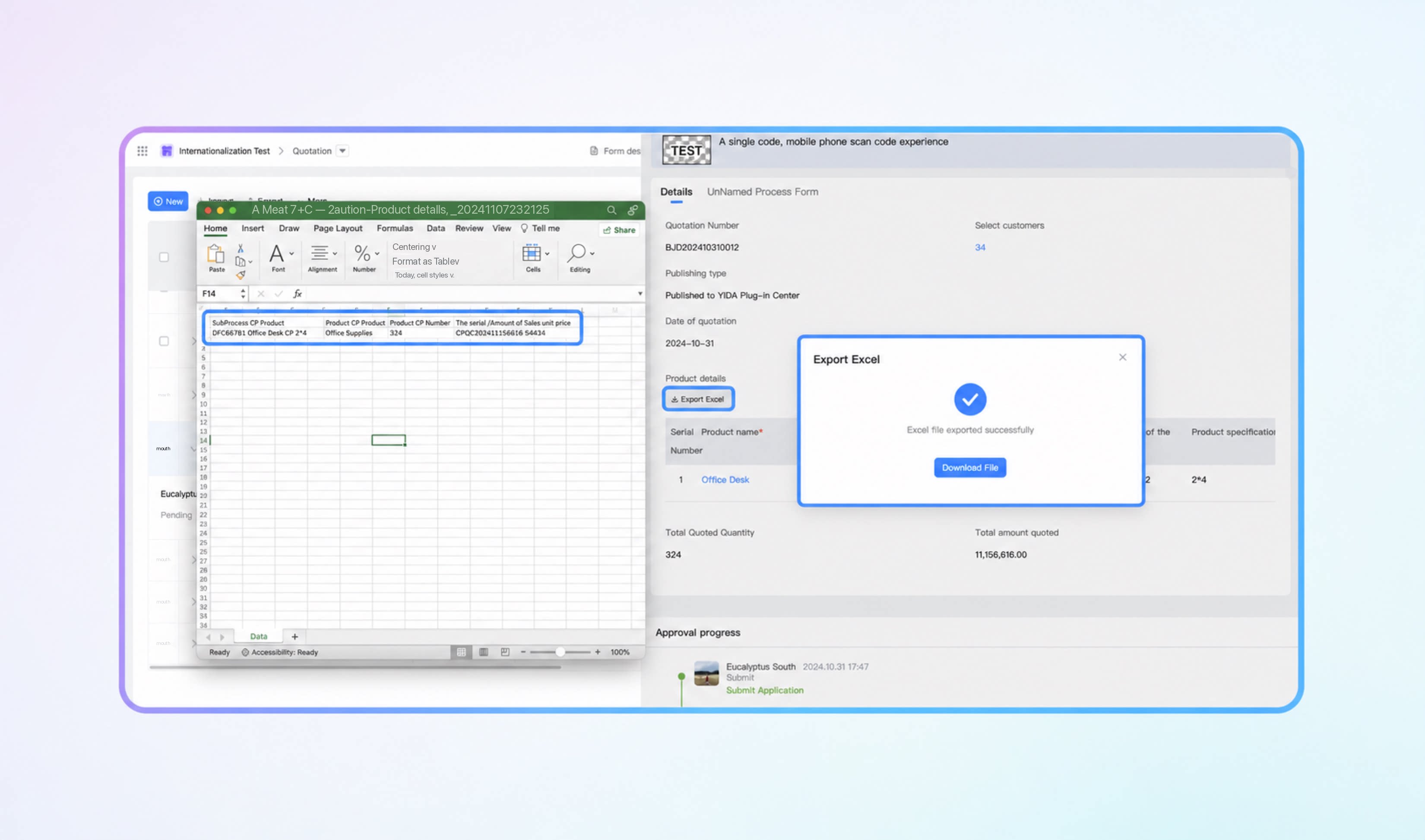 |
| Multilingual support for Chats | YiDA Message notifications now support multiple languages, including quick approval messages, approval reminder notifications, CC notifications, approval timeout reminders, YiDA system notifications, custom notification content, Work Notifications, and Activity Cards.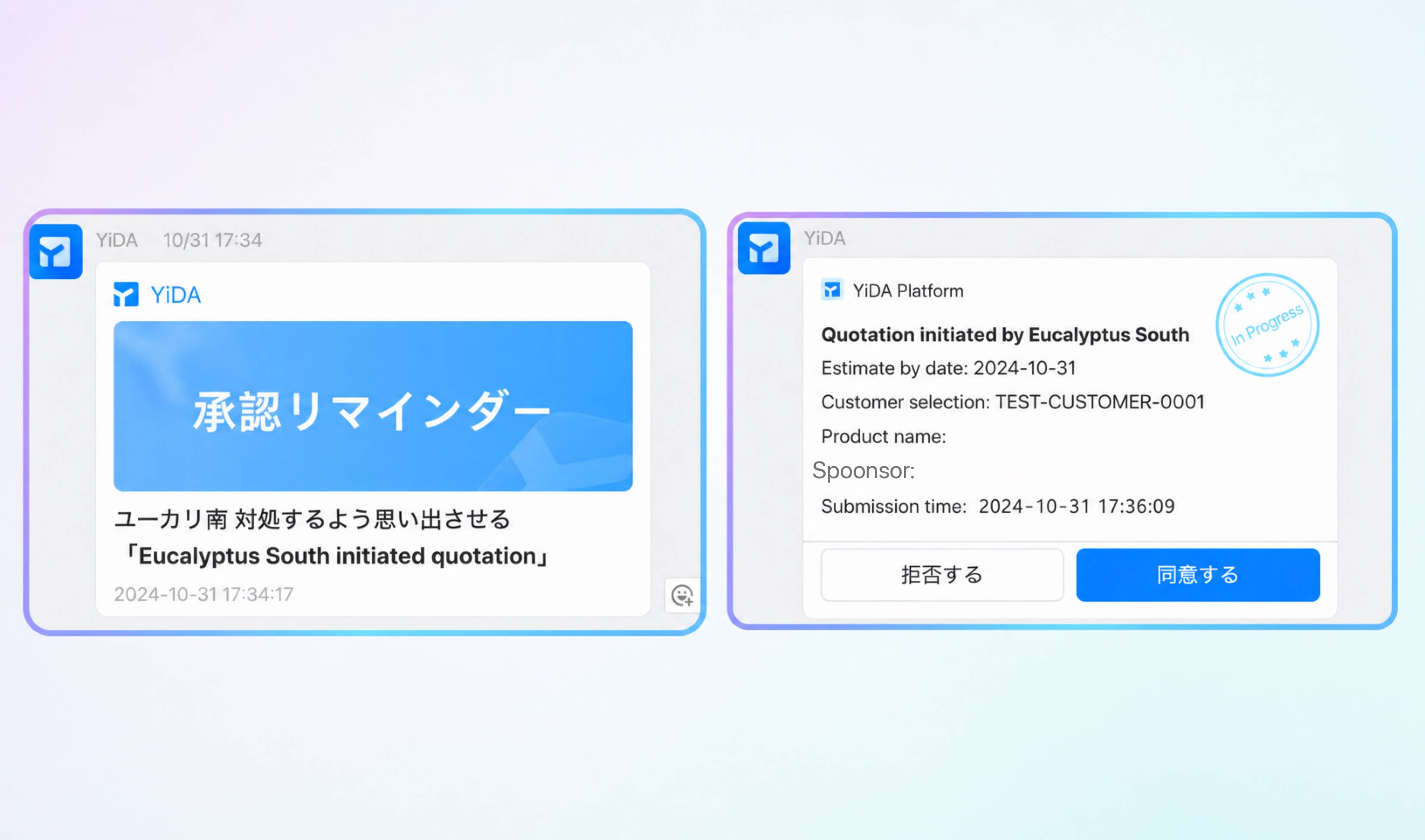 |
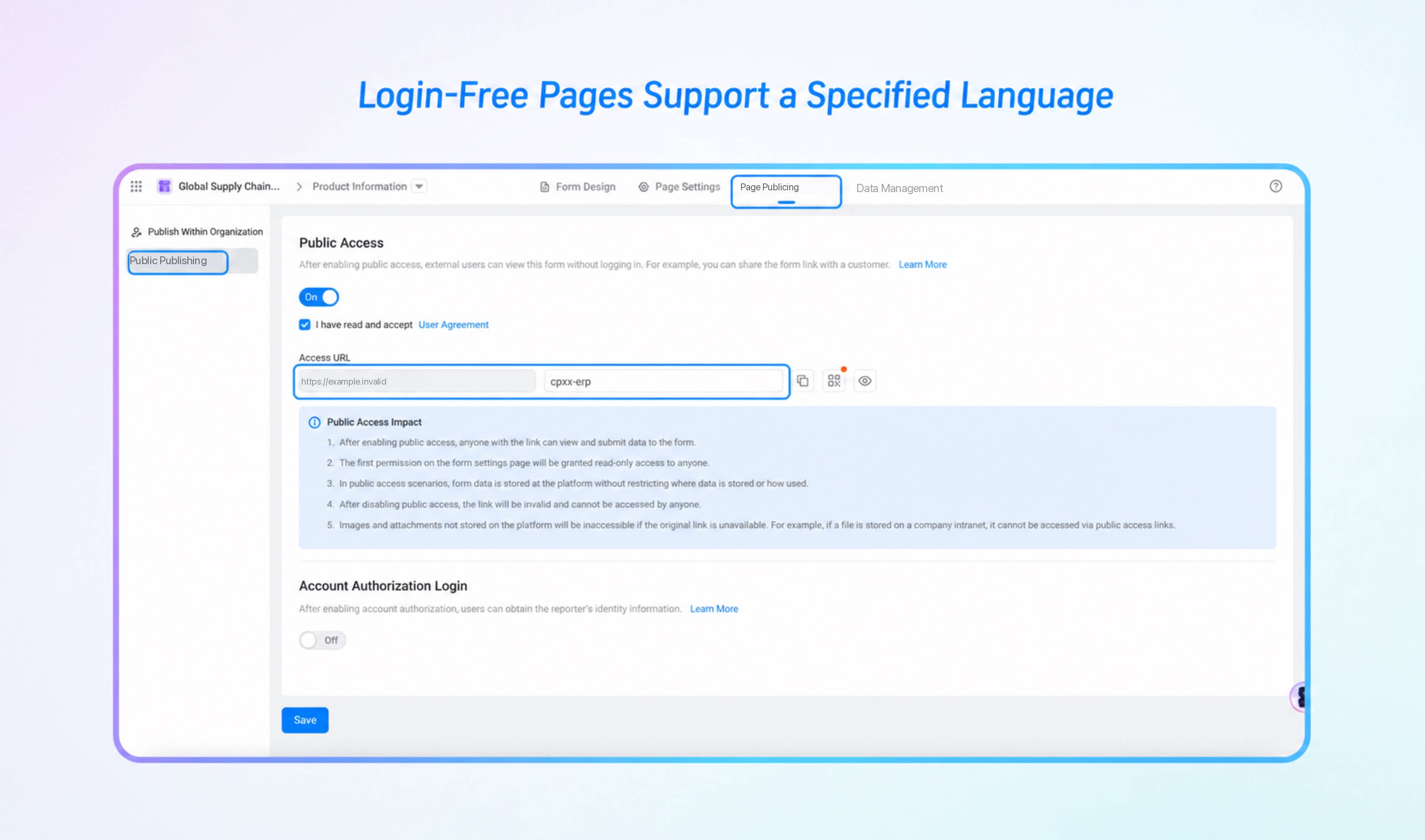
Specify a Language for Silent-Login Pages
Because silent-login pages do not carry user sign-in information, they cannot automatically detect the sign-in language preference. Admins can specify the language for a silent-login link as follows: Append?__page_lang= followed by the language code to the generated silent-login URL to specify the language.
Example: the silent-login URL for the “Product Information” Form is https://your-domain.yidaapps.com/o/cpxx-erp.
Build a Multilingual Workspace
Workspaces support multiple languages. Set the languages supported by a workspace and manage multilingual entries for the workspace portal.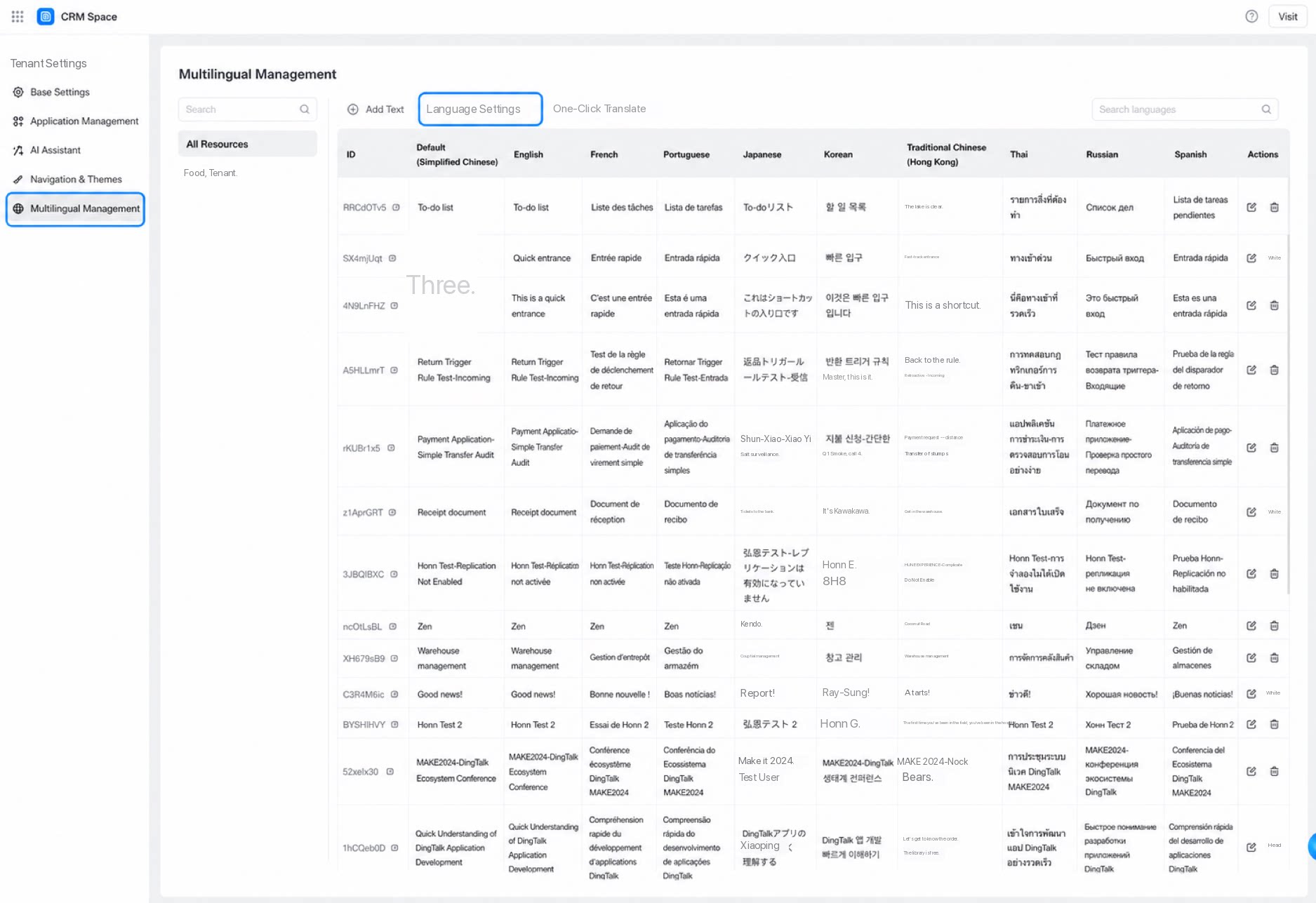
For more about workspaces, see Workspace management.
Upgrade Legacy Chinese-English Text to the New Multilingual Capability
YiDA’s new multilingual capability supports 15 international languages, unified app-level management of multilingual text, and one-click translation. It also adapts multilingual capabilities across all YiDA modules. Legacy Chinese-English apps can be upgraded to the new version. Upgrade results:| Before: legacy bilingual capability supports only Chinese and English | After: new multilingual capability |
|---|---|
| • Supports Chinese and English. • Supports multilingual text management for Forms and Custom pages. 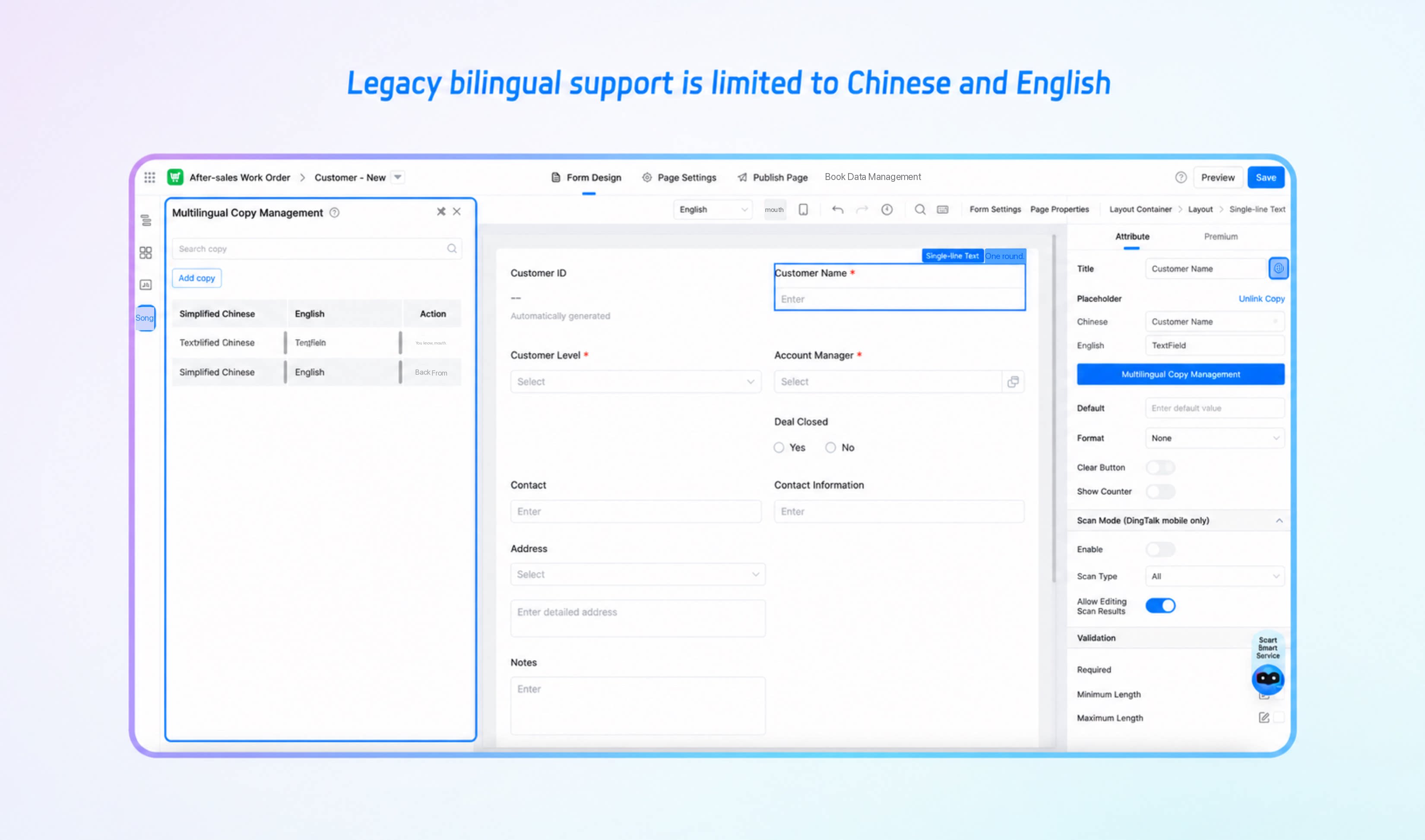 | • Supports 15 international languages, including Chinese, English, French, Japanese, Korean, Spanish, Russian, and Thai. • Supports unified app-level management of multilingual text. • Supports one-click translation of text into multiple languages. 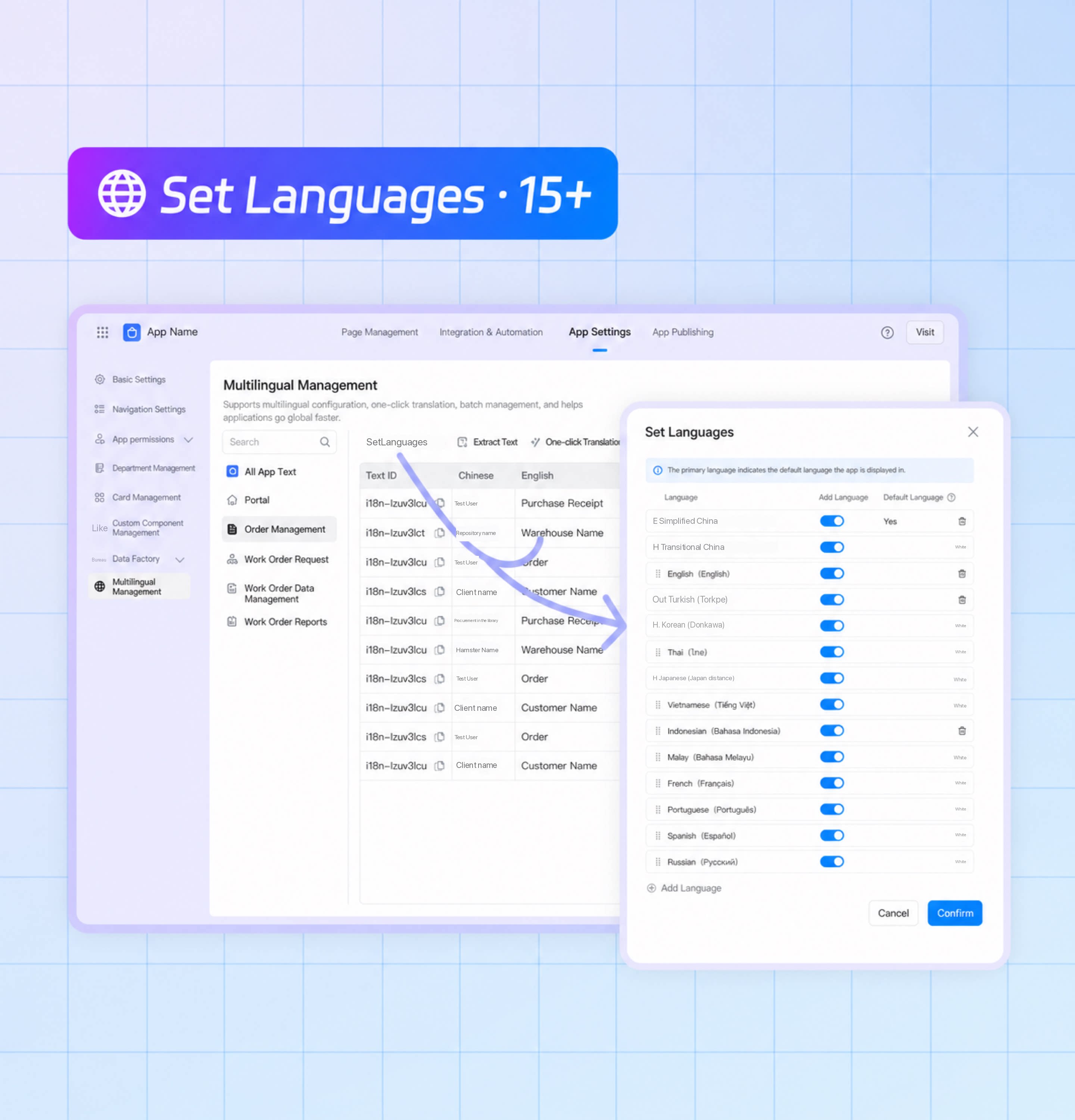 |
- If an app contains legacy bilingual entries, an upgrade prompt appears automatically in the app development environment.
- In App Settings > Multilingual Management, if the app contains legacy Chinese-English text, an upgrade prompt is displayed.
- On the page multilingual management page, if the page contains legacy Chinese-English text, an upgrade prompt is displayed.
For YiDA China edition without the Global edition purchased, the new bilingual capability and unified app-level management of multilingual text are available. One-click translation and support for other languages are exclusive to the Global edition.