

 Chats
Chats Calendar
 Meetings
 Contacts
 Mail
Mail Docs
Docs Drive
Drive AI Table
 AI Minutes
 Attendance
 Approval
 YiDA
YiDA Admin Console
Supported scope:
- The detail page Action bar of regular forms and workflow forms. For workflow forms, custom buttons appear only on approval records that have been completed.
- Custom buttons are currently supported on detail pages and data management pages.
1. Overview
1.1 Feature Overview
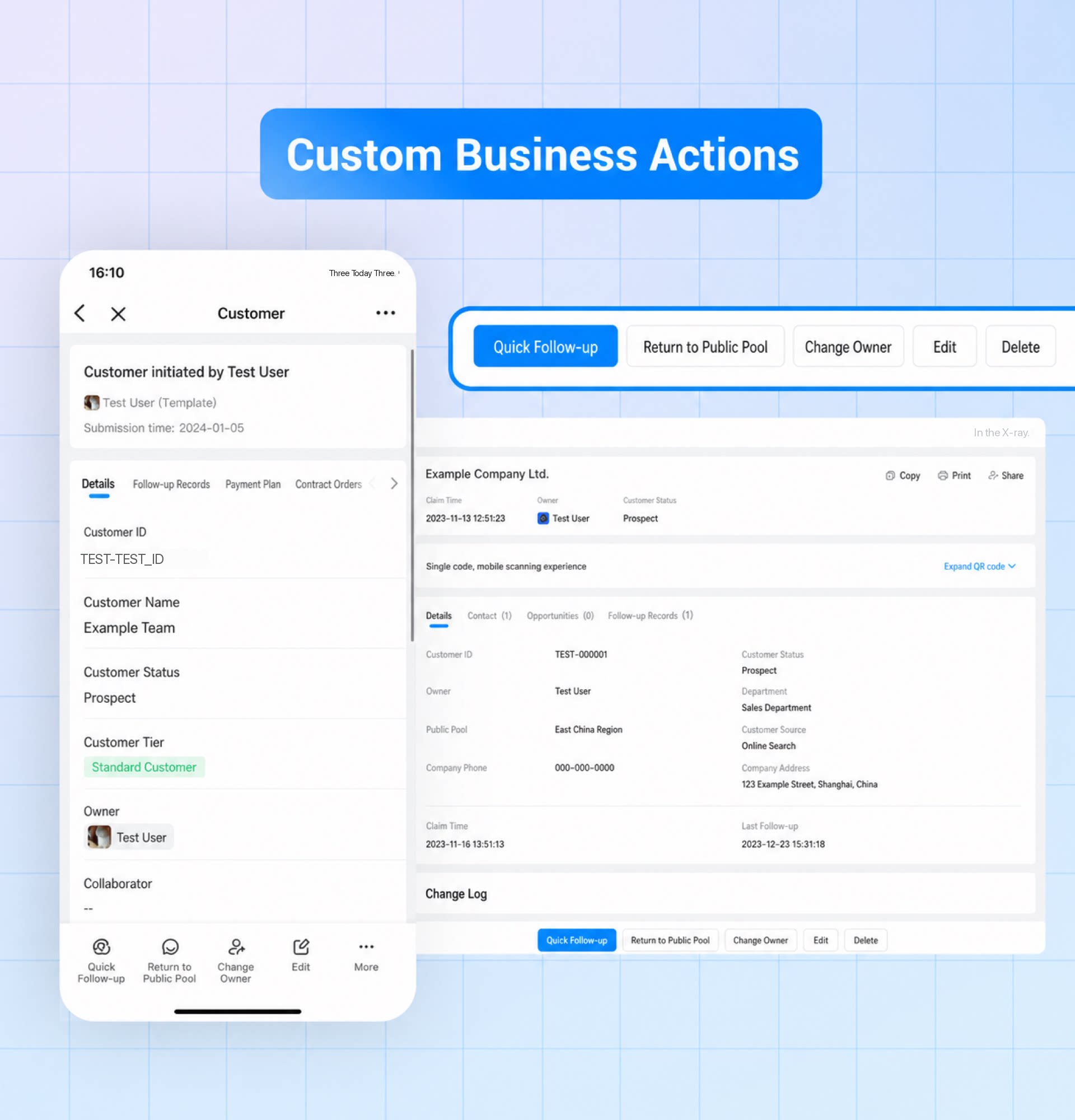
- Custom buttons let Admins define complex business flows as button events. Users can then trigger the corresponding Form, Page, or integration & automation flow through a custom button to complete their business tasks.
- Custom buttons give users a more convenient way to perform business actions, boosting overall work efficiency.
1.2 Use Cases
- CRM: On the customer lead page, use the custom button “Follow up” to quickly log follow-up records.
- CRM: For leads in the public pool, use the custom button “Assign” to specify the “Follow-up owner” and complete lead assignment.
- Procurement management: After a procurement request is approved, use the custom button “Create order” to quickly initiate a purchase order.
- HR: For probationary employees, use the custom button “Convert to full-time” to promote them to full-time employees with one click.
2. How-To Guide
2.1. Admin Mode
2.1.1. Access Path
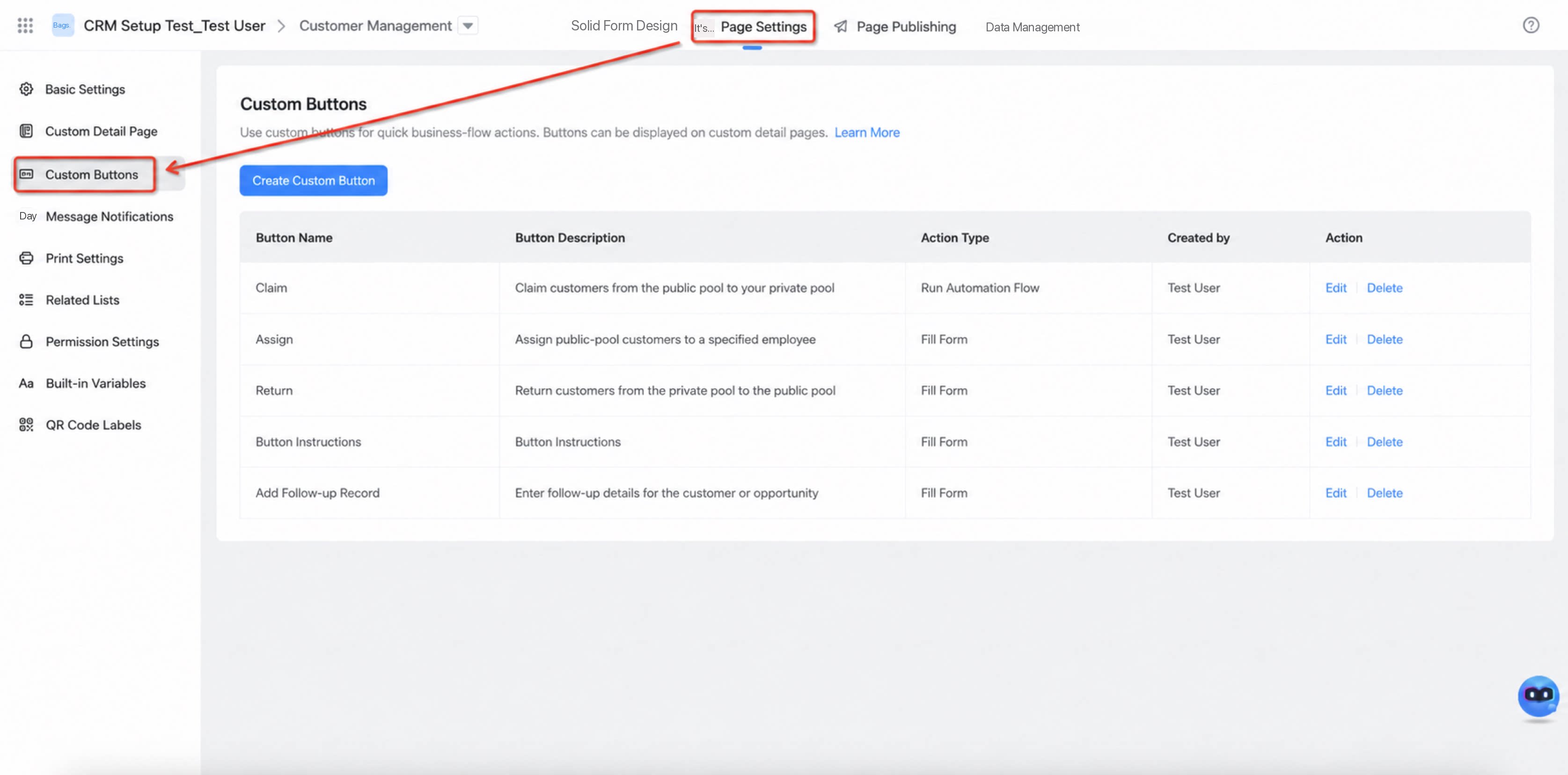
There are two entry points for creating and managing custom buttons: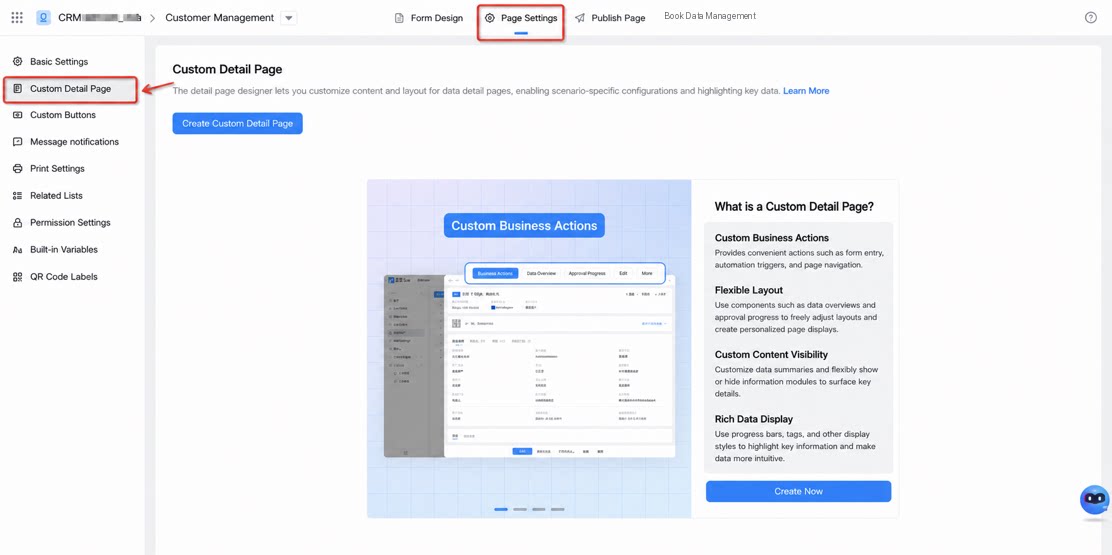
1
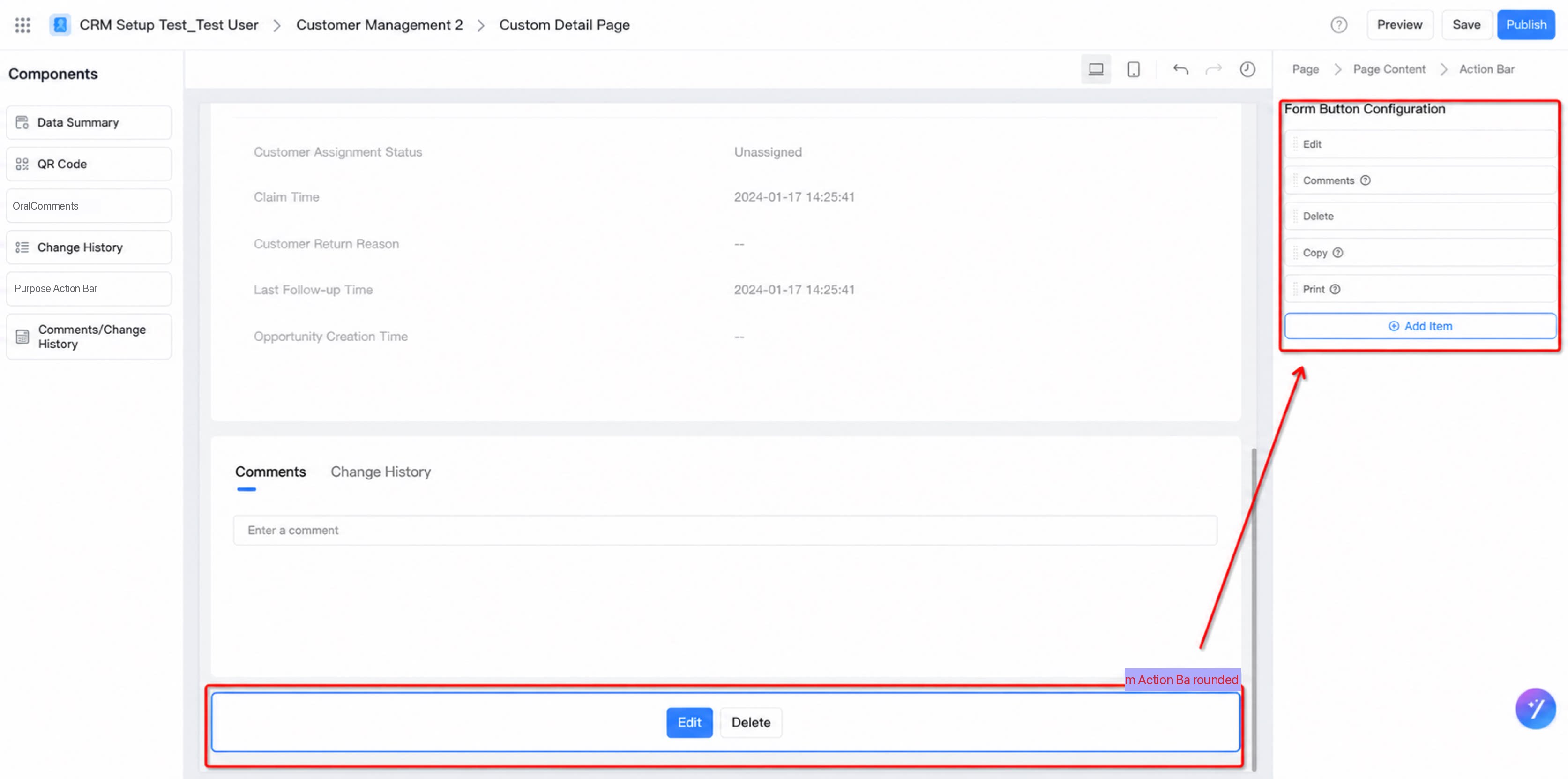
On the custom detail page (support for the list Action area on the data management page will be available later)
2
Form / workflow form page > Page settings > Custom buttons menu
2.1.2. Create a Custom Button
- Create a custom button
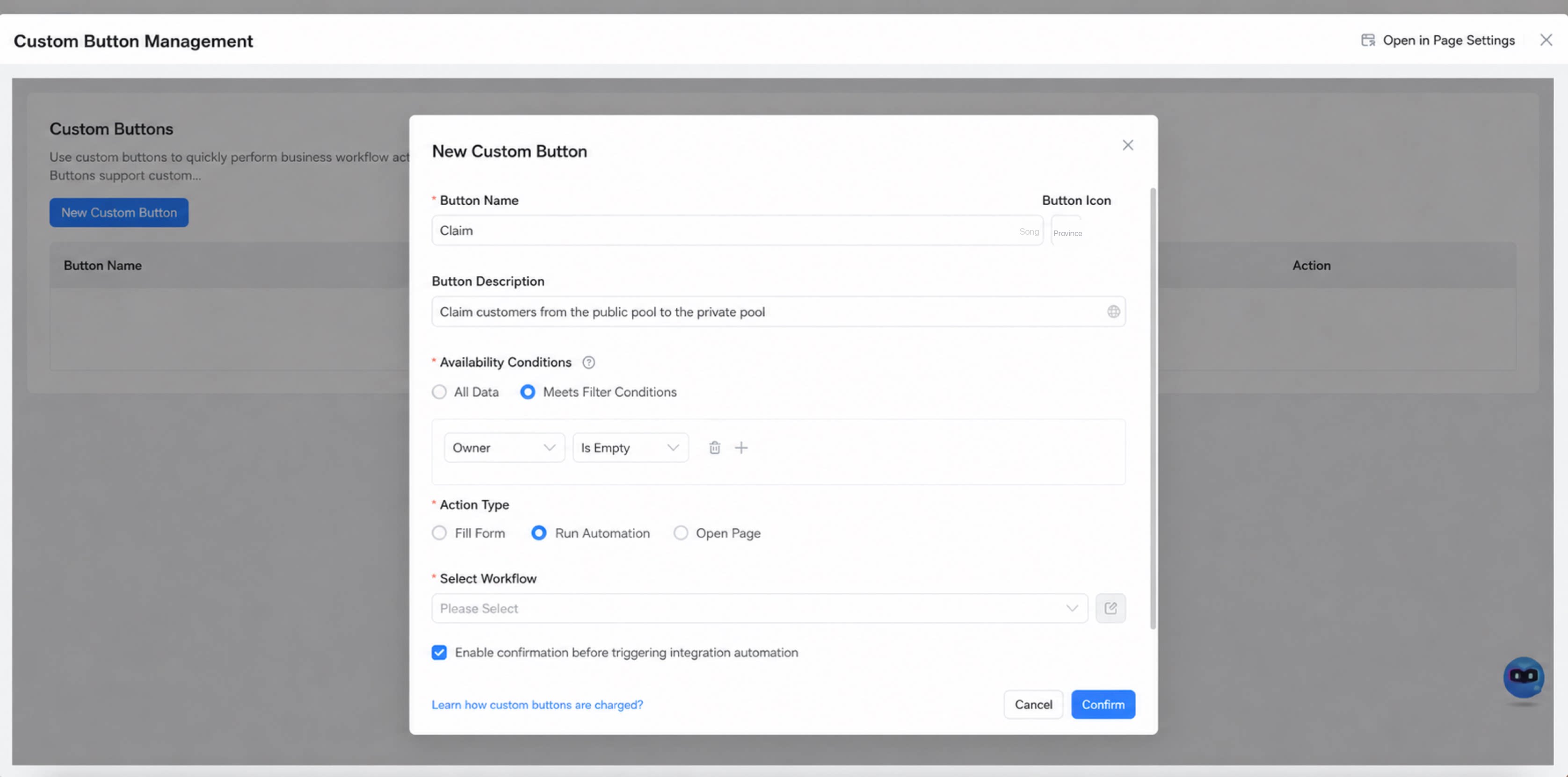
| Action type | Admin-mode configuration | Access-mode behavior |
|---|---|---|
| Fill in Form: Modify current Form | The Admin specifies the fields to be modified.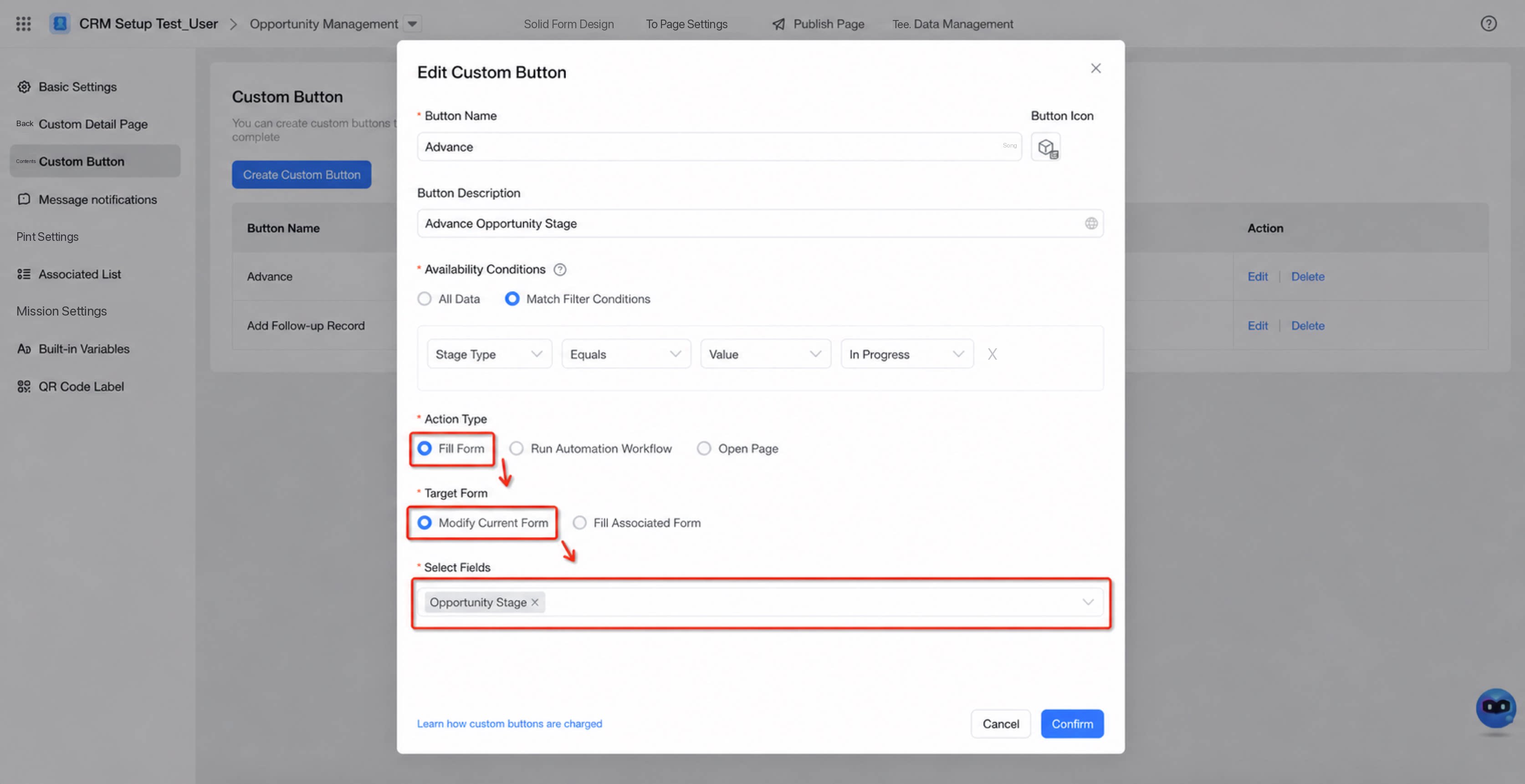 | In access mode, clicking the Button opens a dialog that shows the editable fields.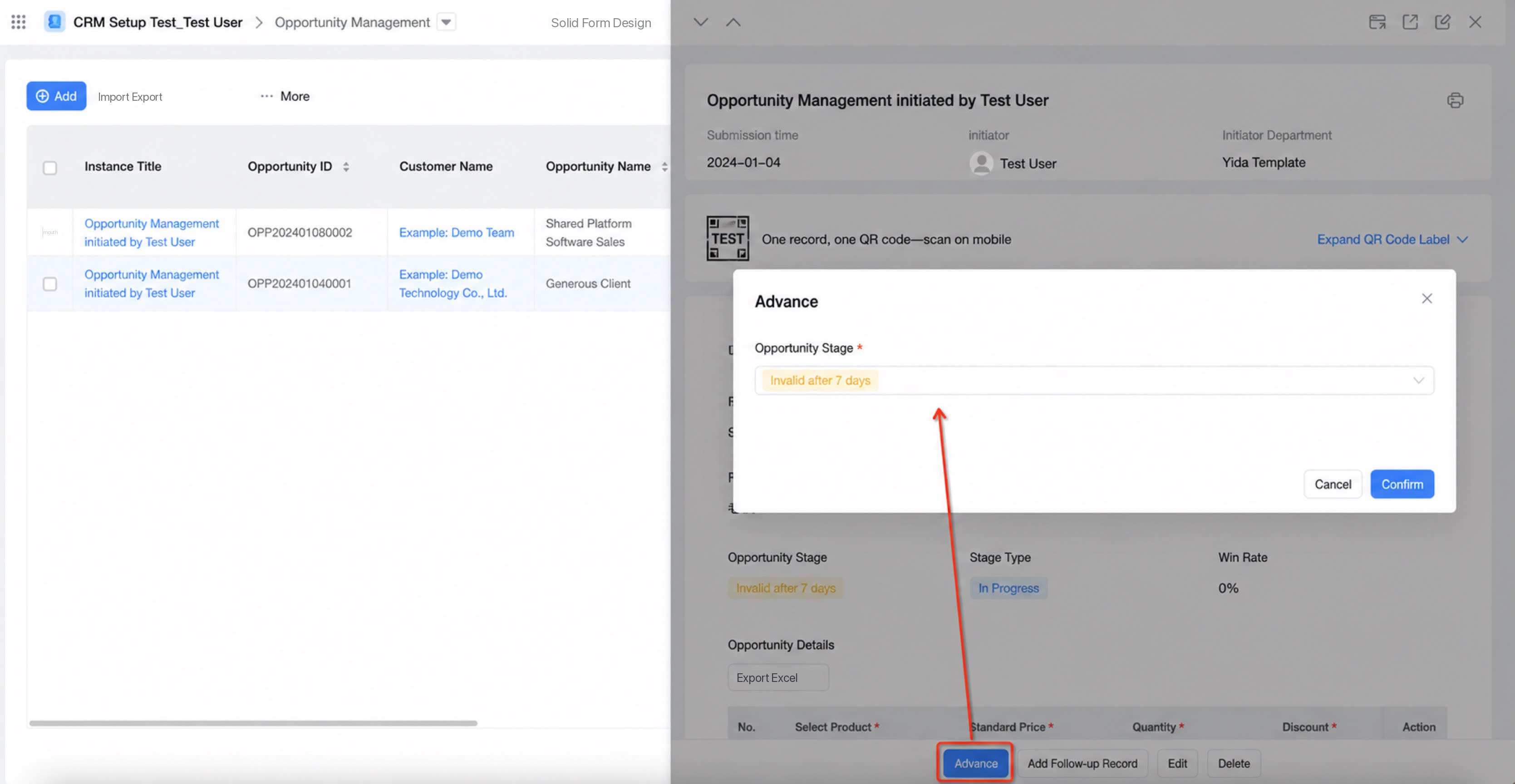 |
| Fill in Form: Fill in an associated form | The Admin selects the associated form to be filled in when the Button is clicked.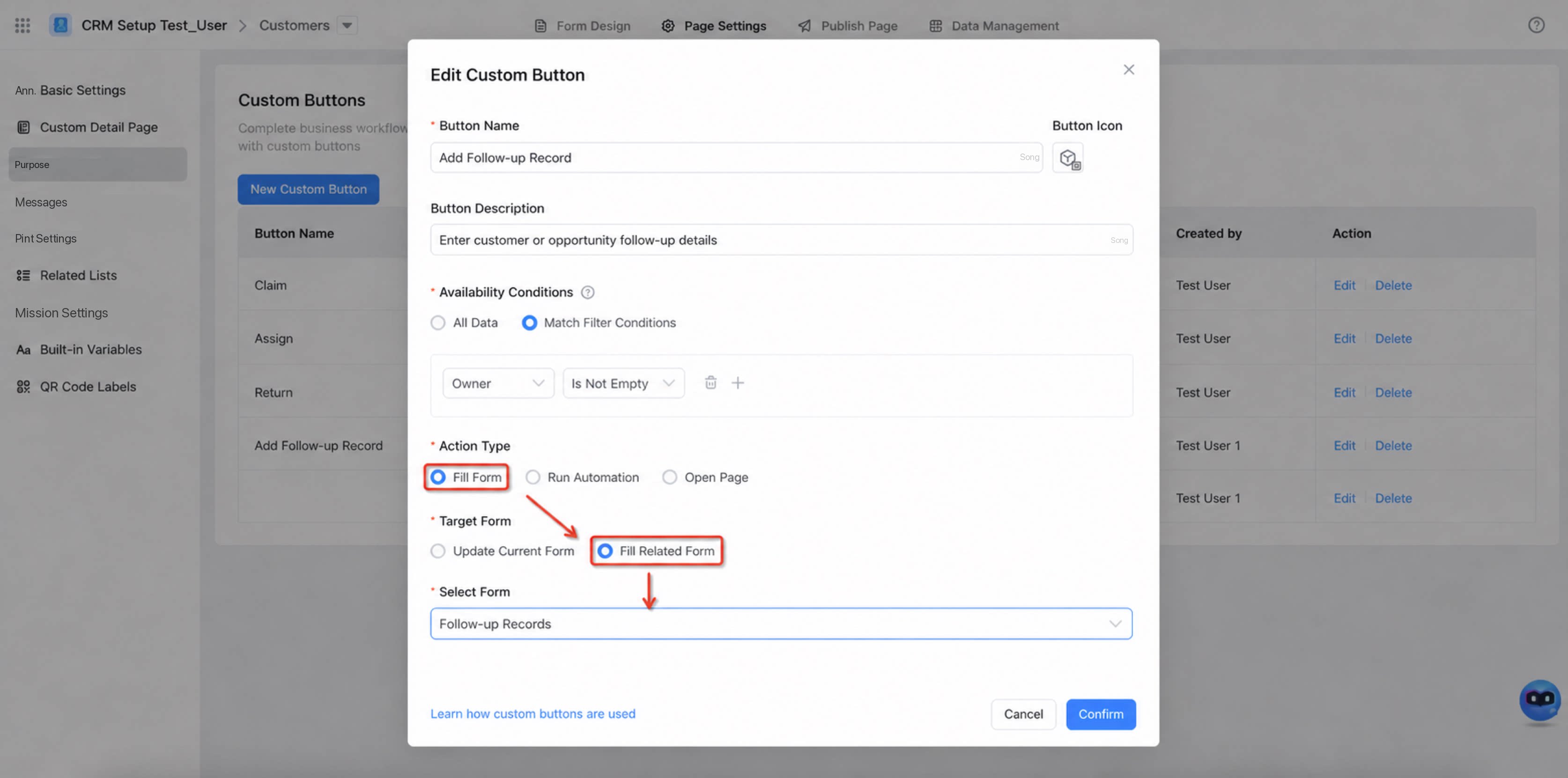 | If the associated form is configured with association-fill logic, the current Form’s field values are auto-filled into the associated form when the custom Button is triggered. Example: In the “Follow-up record” form, an associated form “Customer” is set, and association-fill is configured. Result: On the “Customer” form detail page, click “Fill in follow-up record”. The customer’s basic information is automatically filled into the “Follow-up record” form. 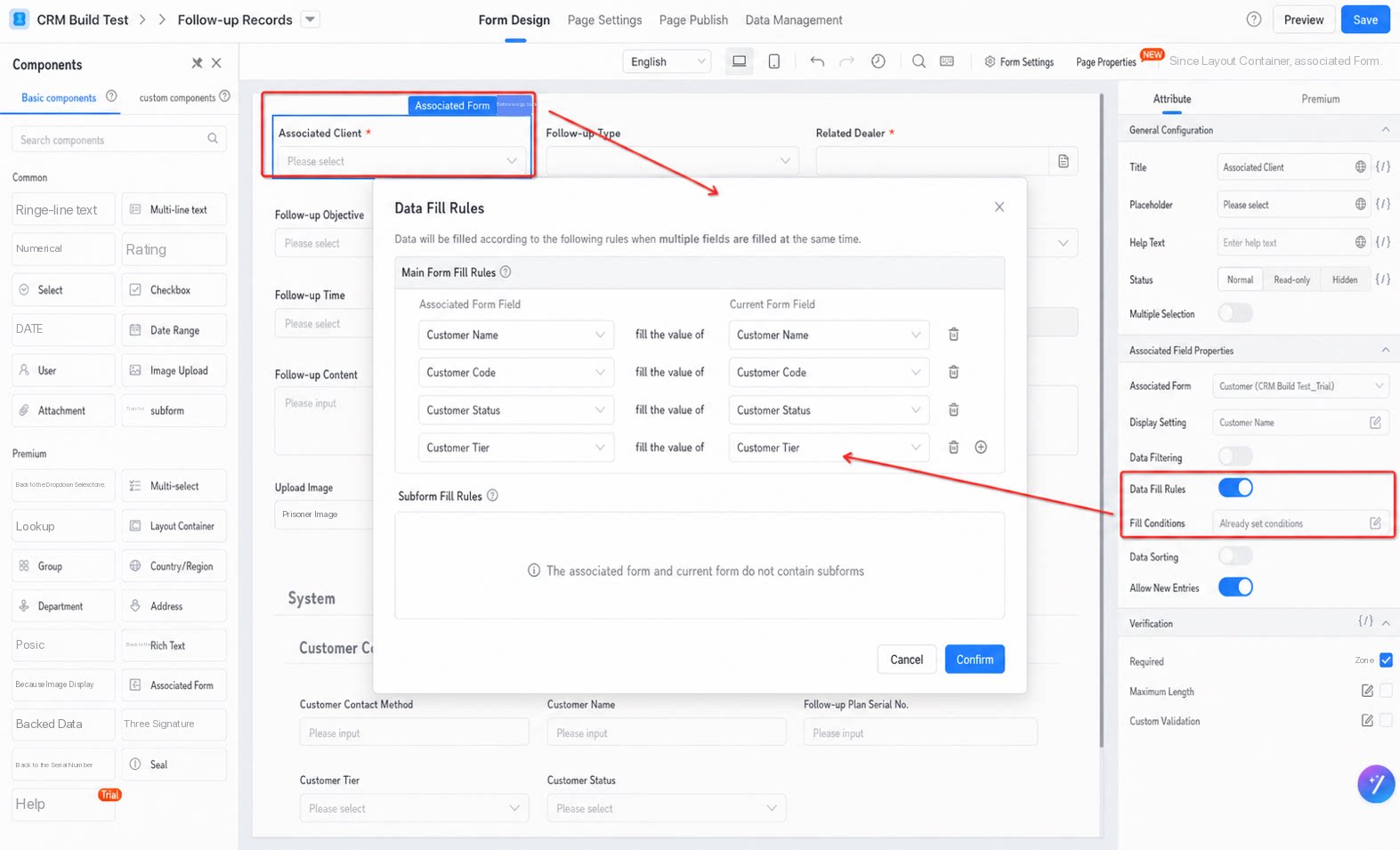 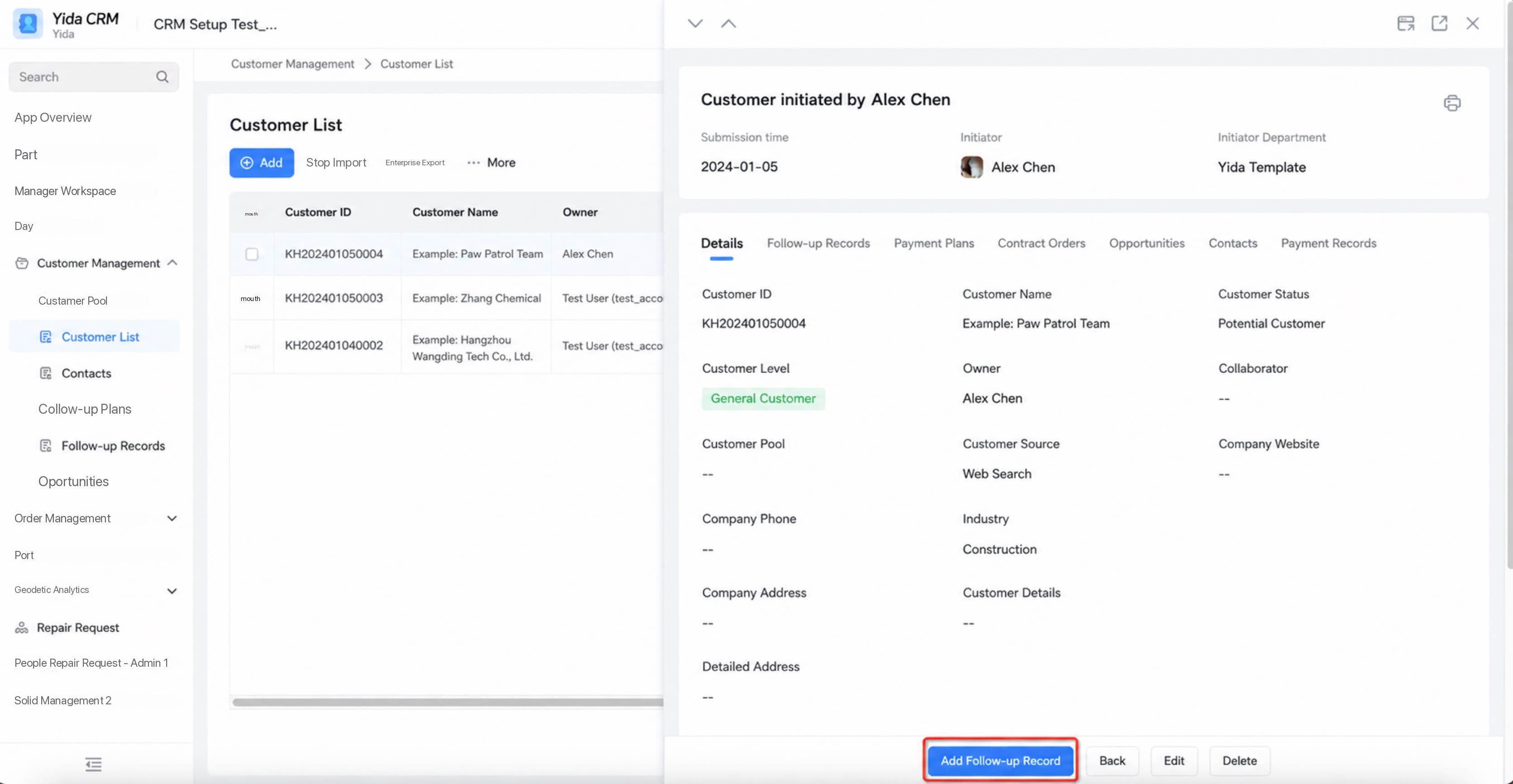 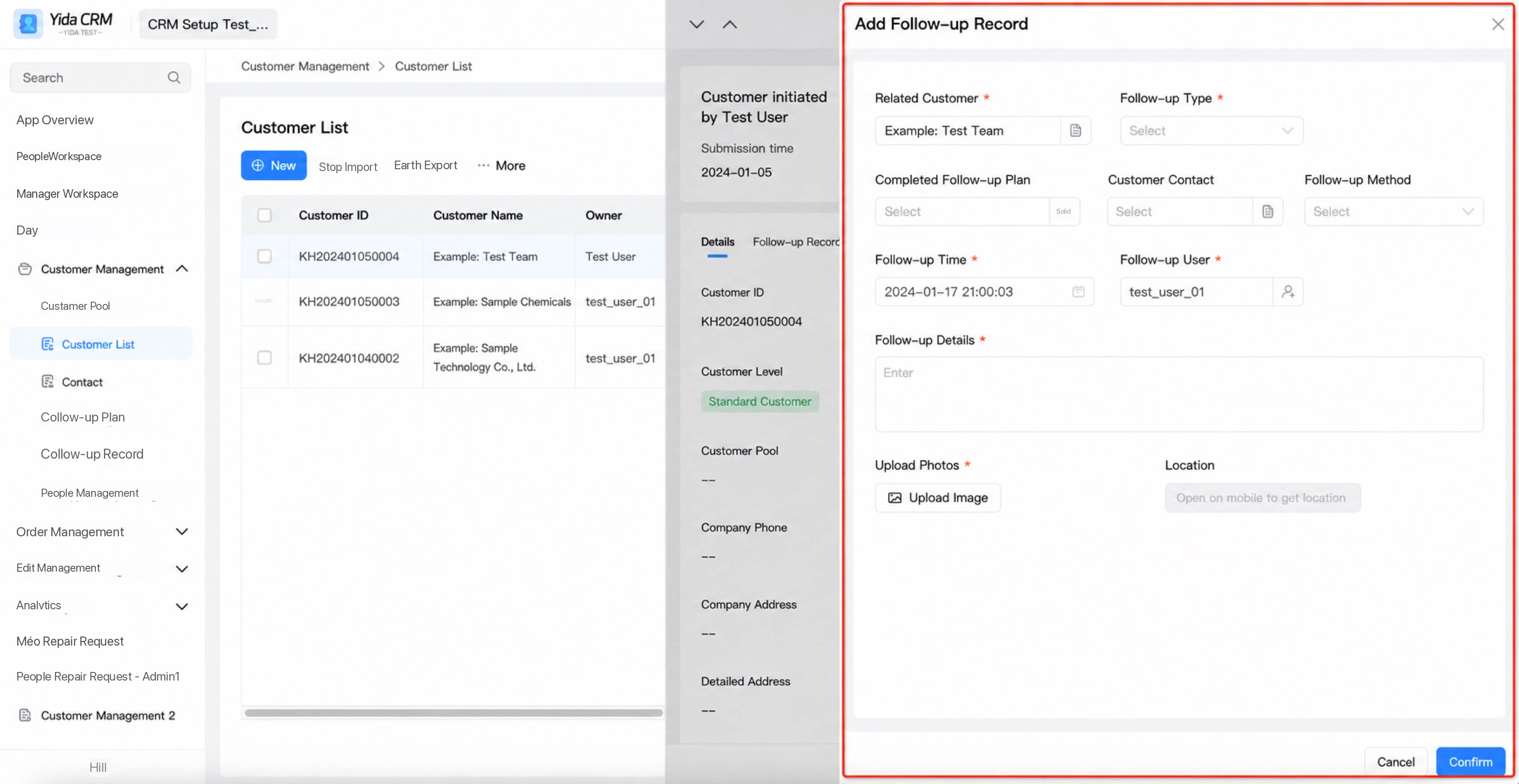 |
| Execute an integration & automation flow | • Create a new integration & automation flow. This redirects you to the flow designer and automatically creates an automation flow with the trigger type “Manual trigger - Custom button trigger”, with the current Form pre-selected. • If the current Form already has an automation flow of type “Manual trigger - Custom button trigger”, you can also select one from the drop-down list. When creating a new integration & automation flow, you can choose to create it with the trigger type “Manual trigger - Custom button trigger” and select the target Form. 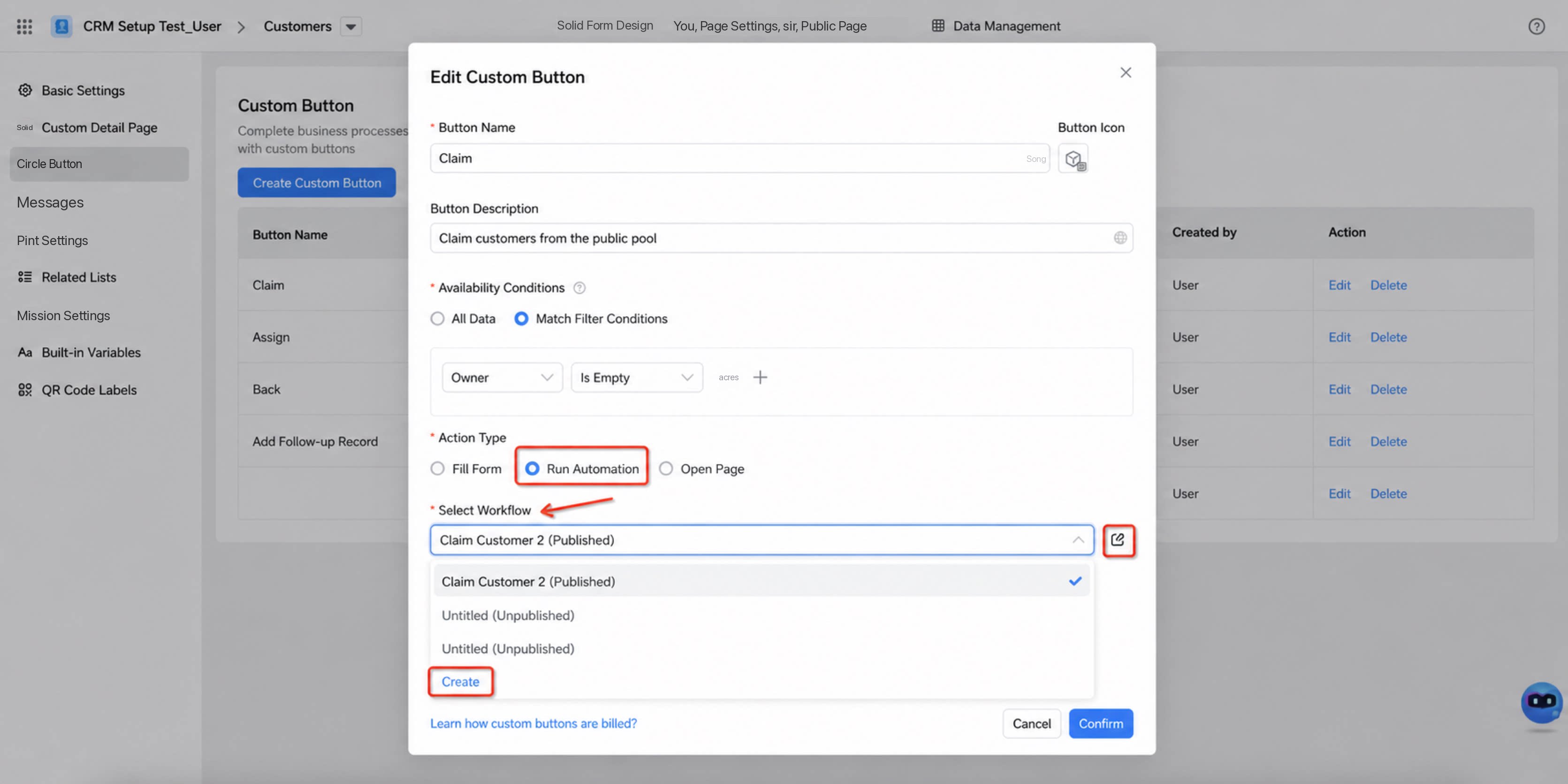 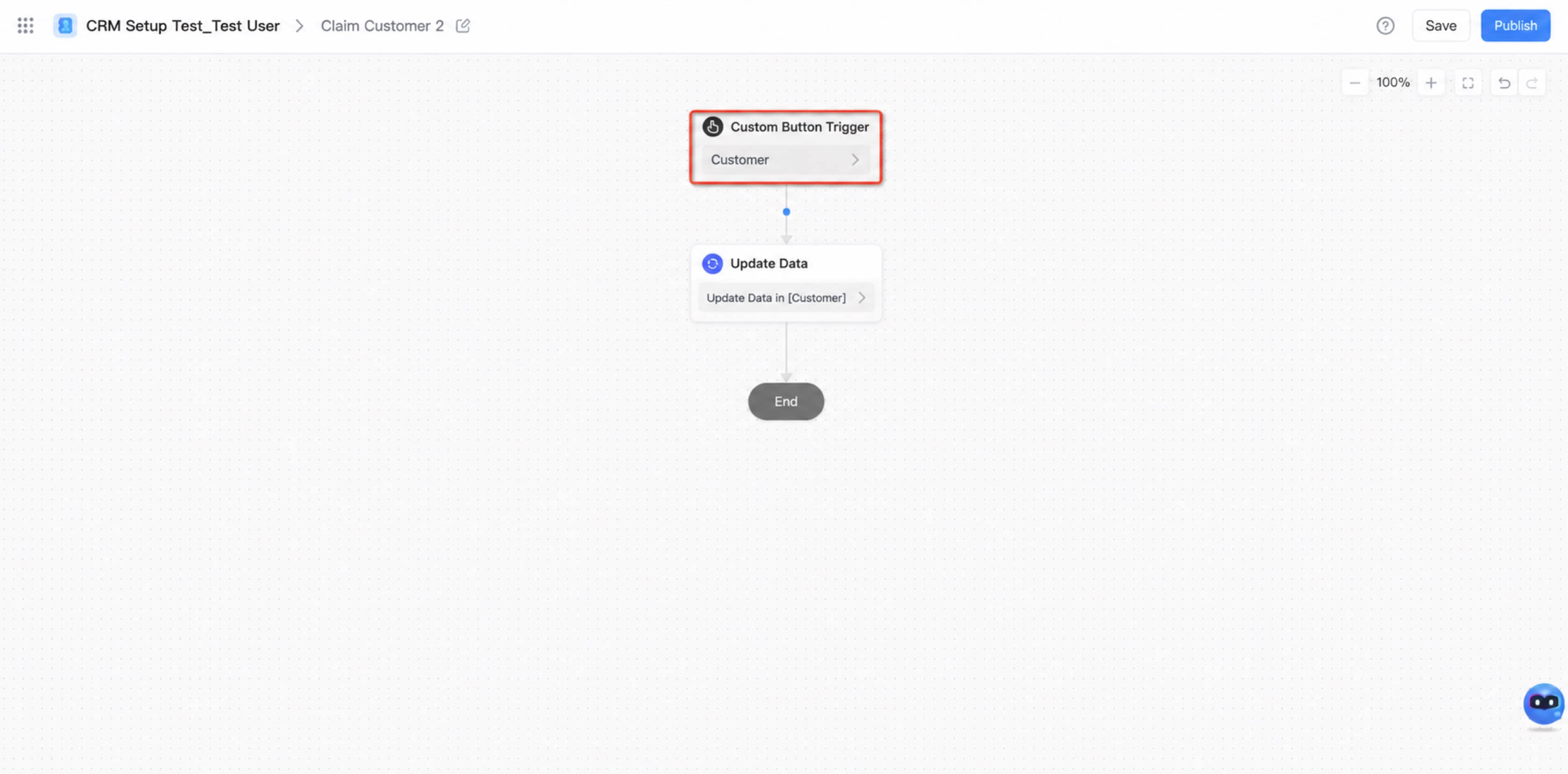 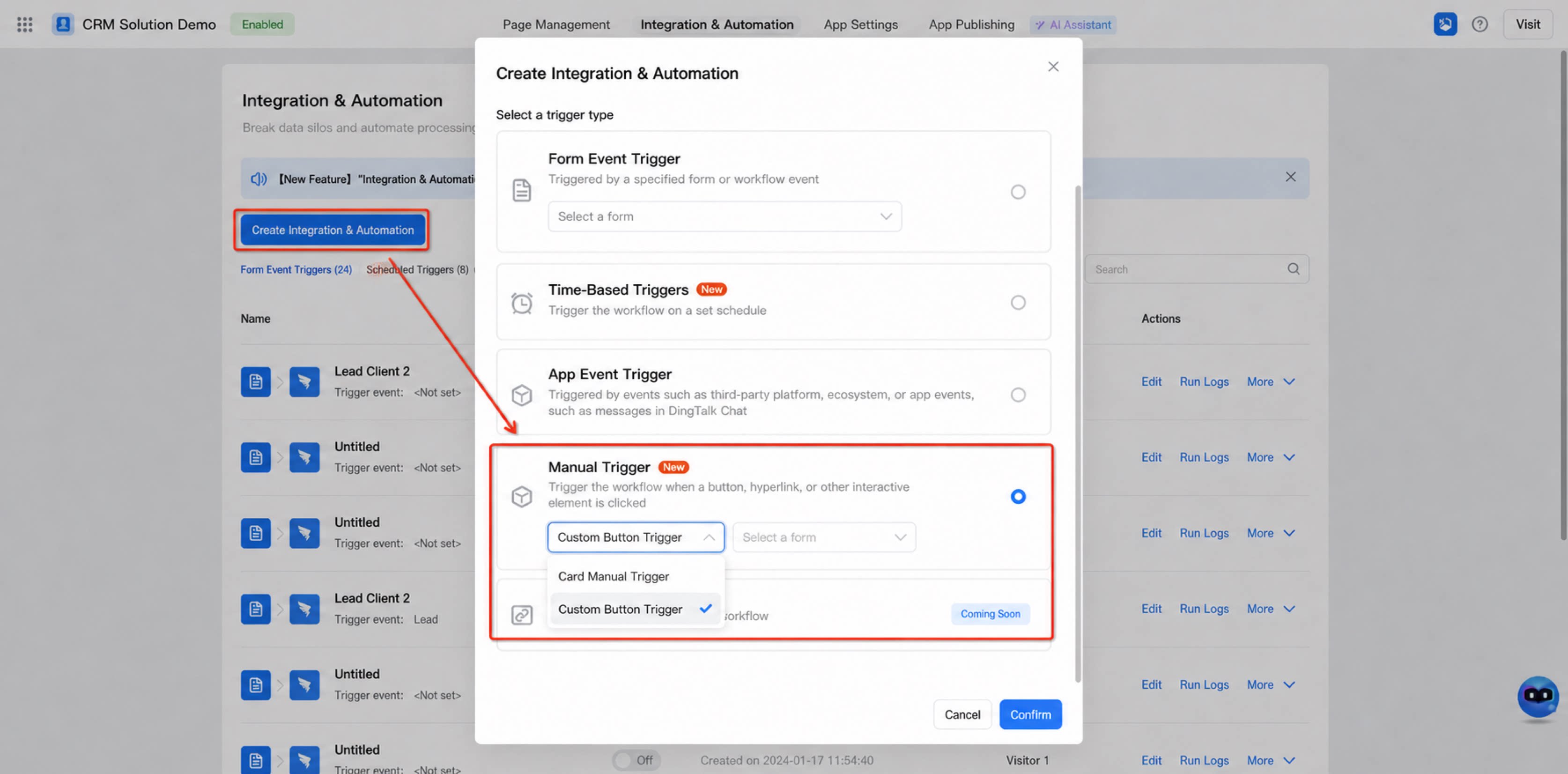 | 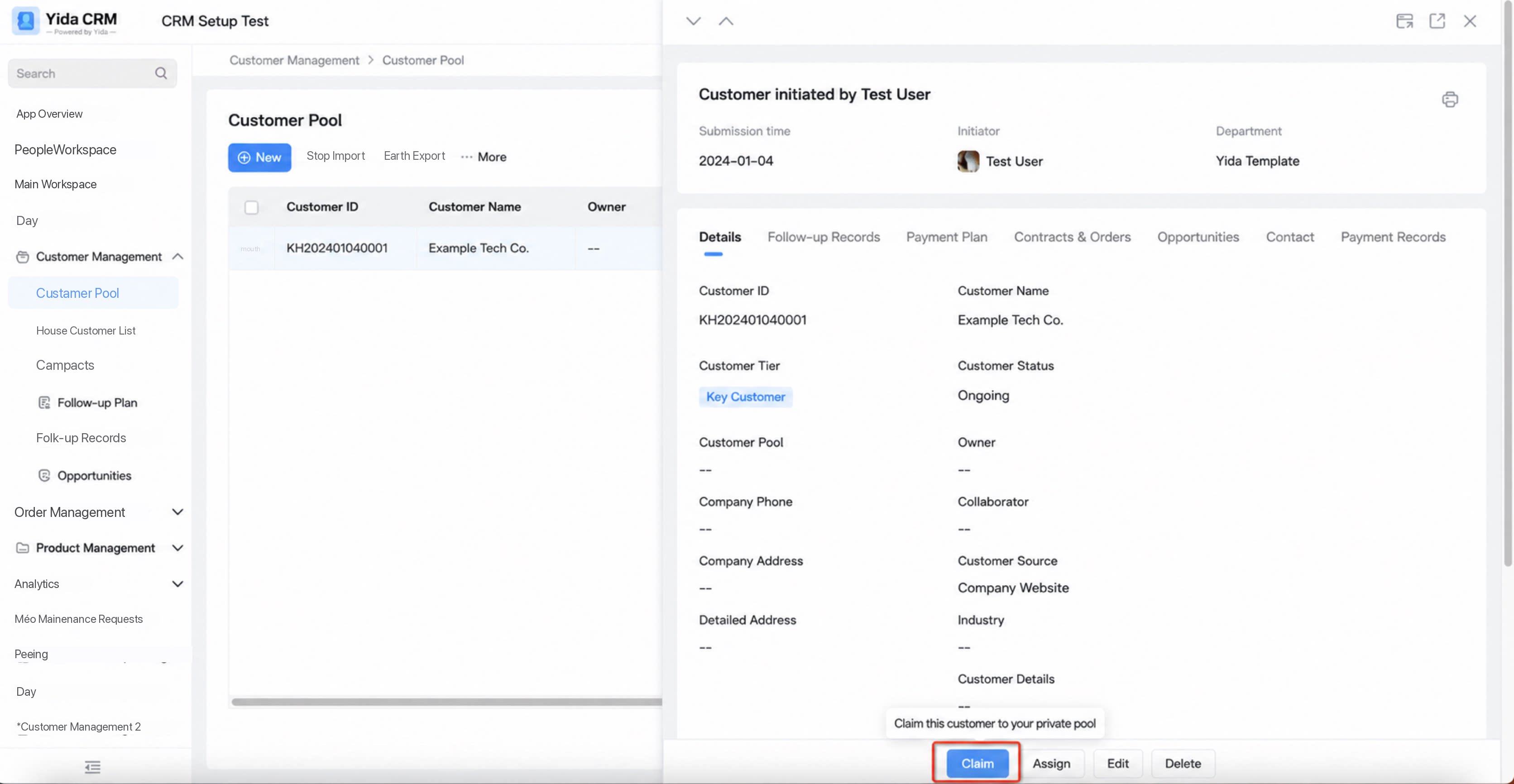 |
2.1.3. Manage Custom Buttons
- Edit a custom Button: Edits apply to all existing form records.
- Delete a custom Button: Deleting a custom Button from the detail page Action bar removes only the reference. To permanently delete the custom Button, delete it from the custom Button management list.
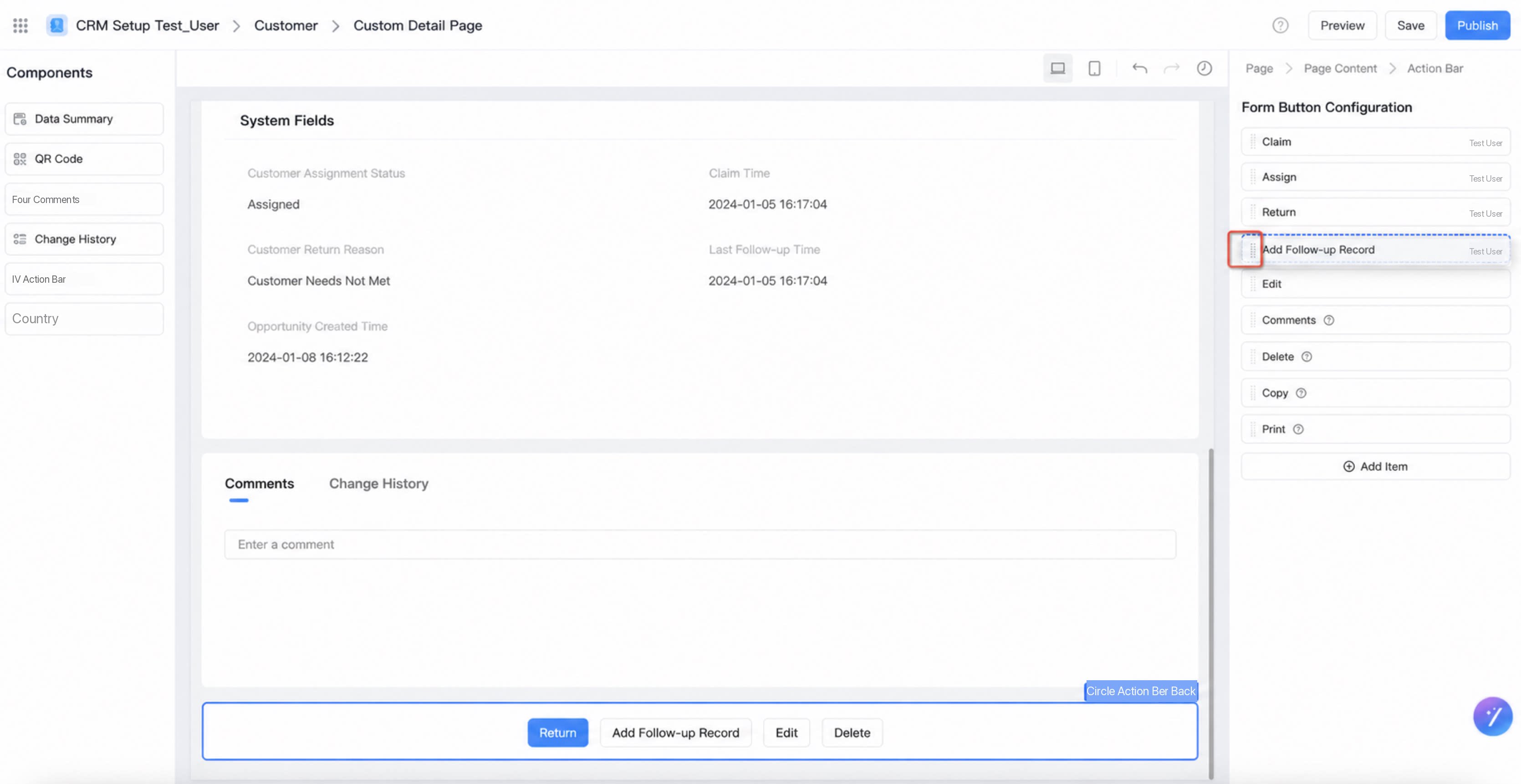
- Sort custom buttons: On the custom detail page, drag the buttons to reorder both custom buttons and system buttons.
2.2. Access Mode
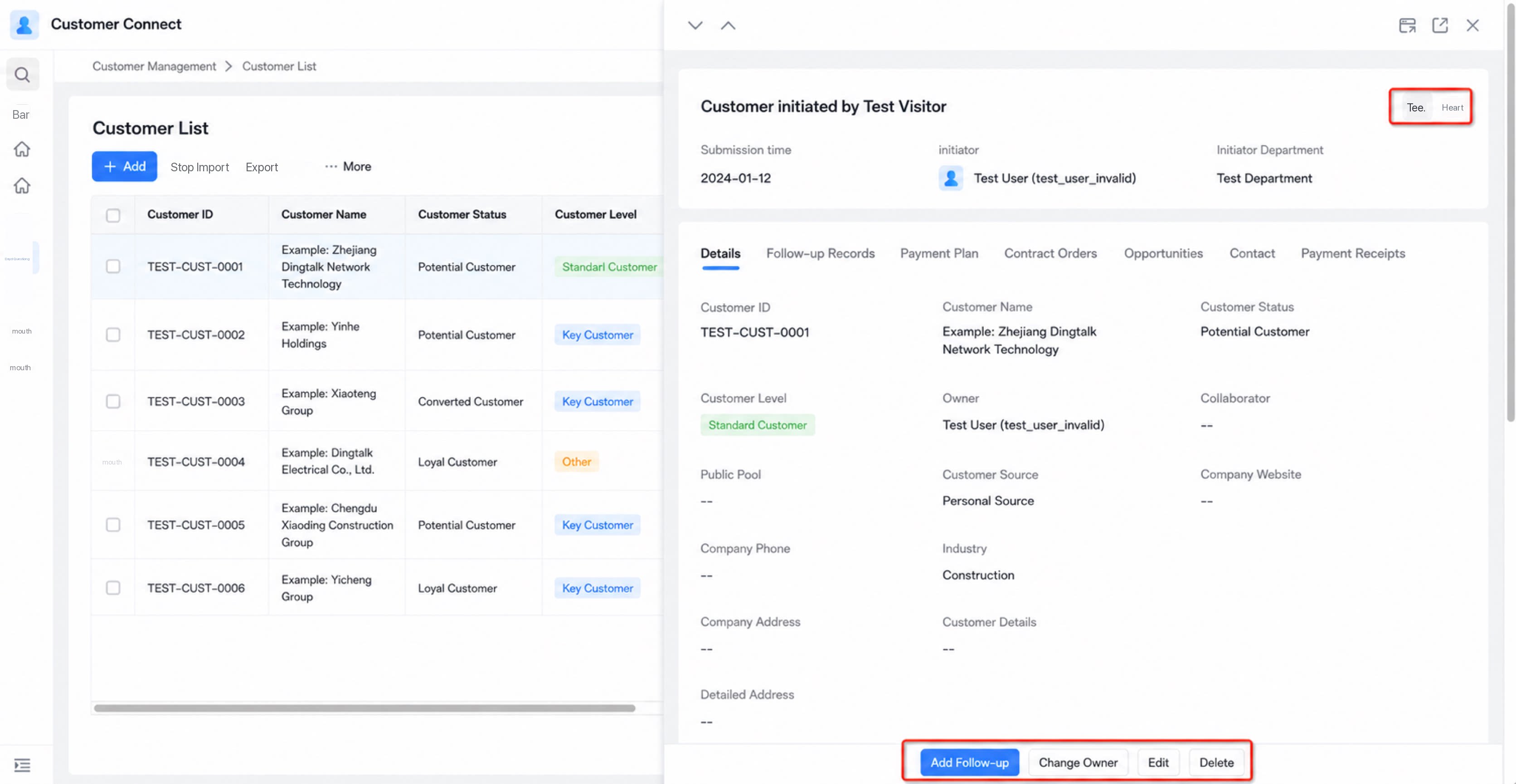
2.2.1. Desktop
- Data summary area: shows the system buttons Copy and Print.
- Bottom Action bar: shows custom buttons and the system buttons Edit and Delete.
2.2.2. Mobile
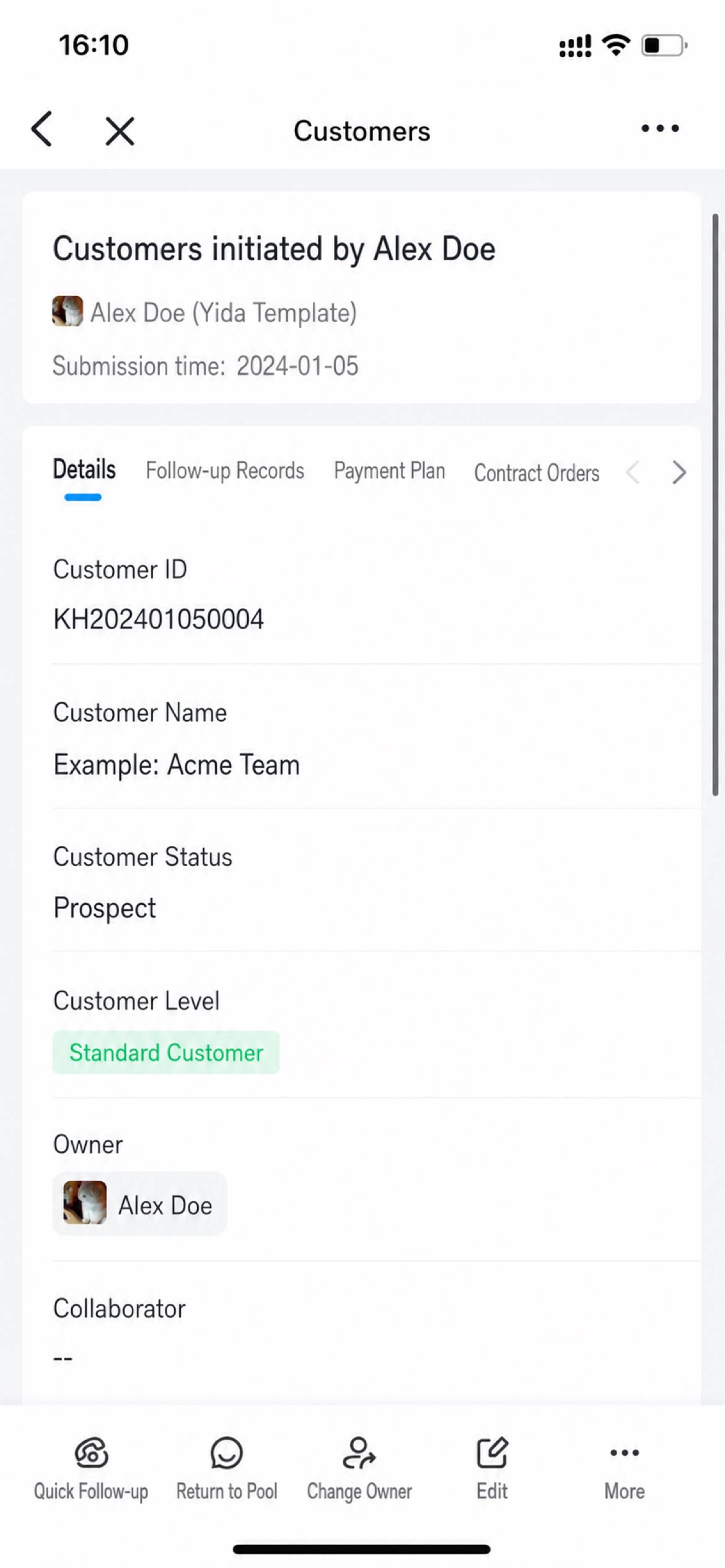
Both system buttons and custom buttons appear in the bottom Action bar. When there are too many buttons, extra buttons are collapsed under “More”.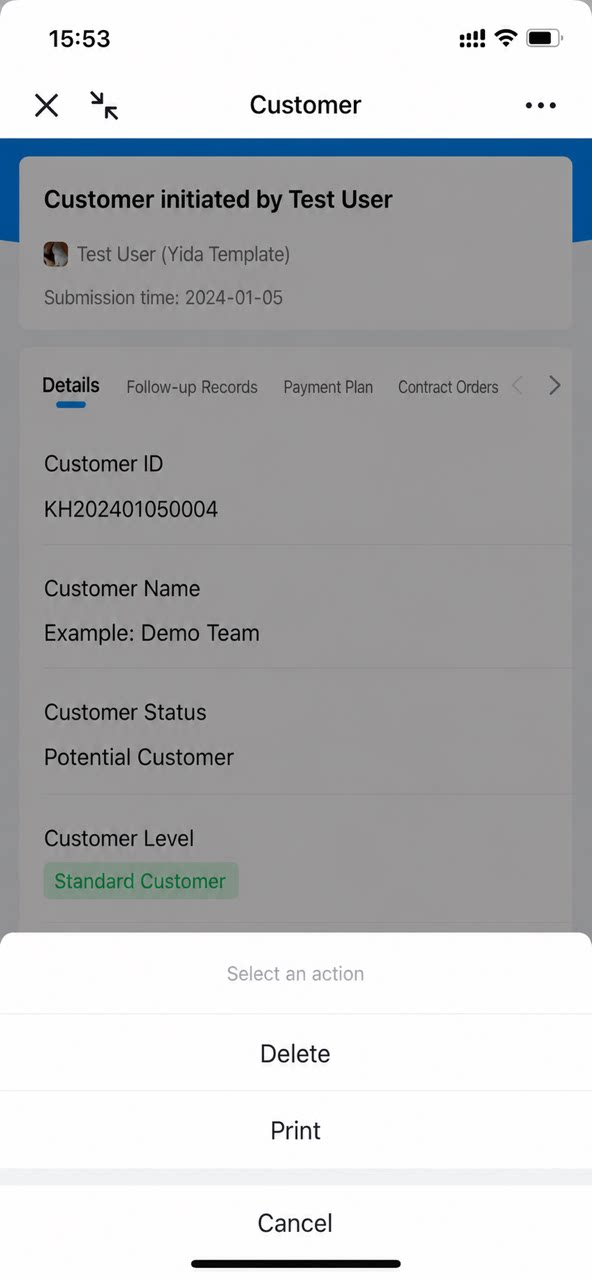
Notes
- Maximum number of custom buttons: 10.
- Custom Button permissions match Form access permissions. If a user has access to the Page, they can also see the custom buttons.
- Button action type: “Modify current Form”.
- Button action type: “Execute an integration & automation flow”.
- Button availability conditions: If a field configured in the Filter is deleted, any data submitted afterward will be missing that field value and will not meet the availability conditions, so the custom Button will not appear.
- Concurrent clicks: When multiple users click the Action Button on the same record at the same time, if someone has already clicked it and the previous execution has not finished, subsequent clicks will show the message: “The Button has already been clicked and is still running. Please try again later.”
- Redirect links: For redirect links, whether the user can access the target depends on whether the current user has permission to view the target Page.