

 Chats
Chats Calendar
 Meetings
 Contacts
 Mail
Mail Docs
Docs Drive
Drive AI Table
 AI Minutes
 Attendance
 Approval
 YiDA
YiDA Admin Console
- Workflow overview
- Quickstart
- Steps
- Workflow settings
- Workflow analytics
- Delegation center
- Workflow task center
- FAQs
- Workflow examples
- The YiDA simple workflow designer supports up to 100 design nodes (including the start and end nodes). Exceeding this limit triggers an error and prevents you from saving the workflow.
- The YiDA Dedicated edition workflow designer supports up to 150 nodes, giving you more flexibility to orchestrate business processes.
Feature Overview
If a form requires review and confirmation by users, use a workflow form. The key difference between a workflow form and a regular form is that a workflow form requires workflow design.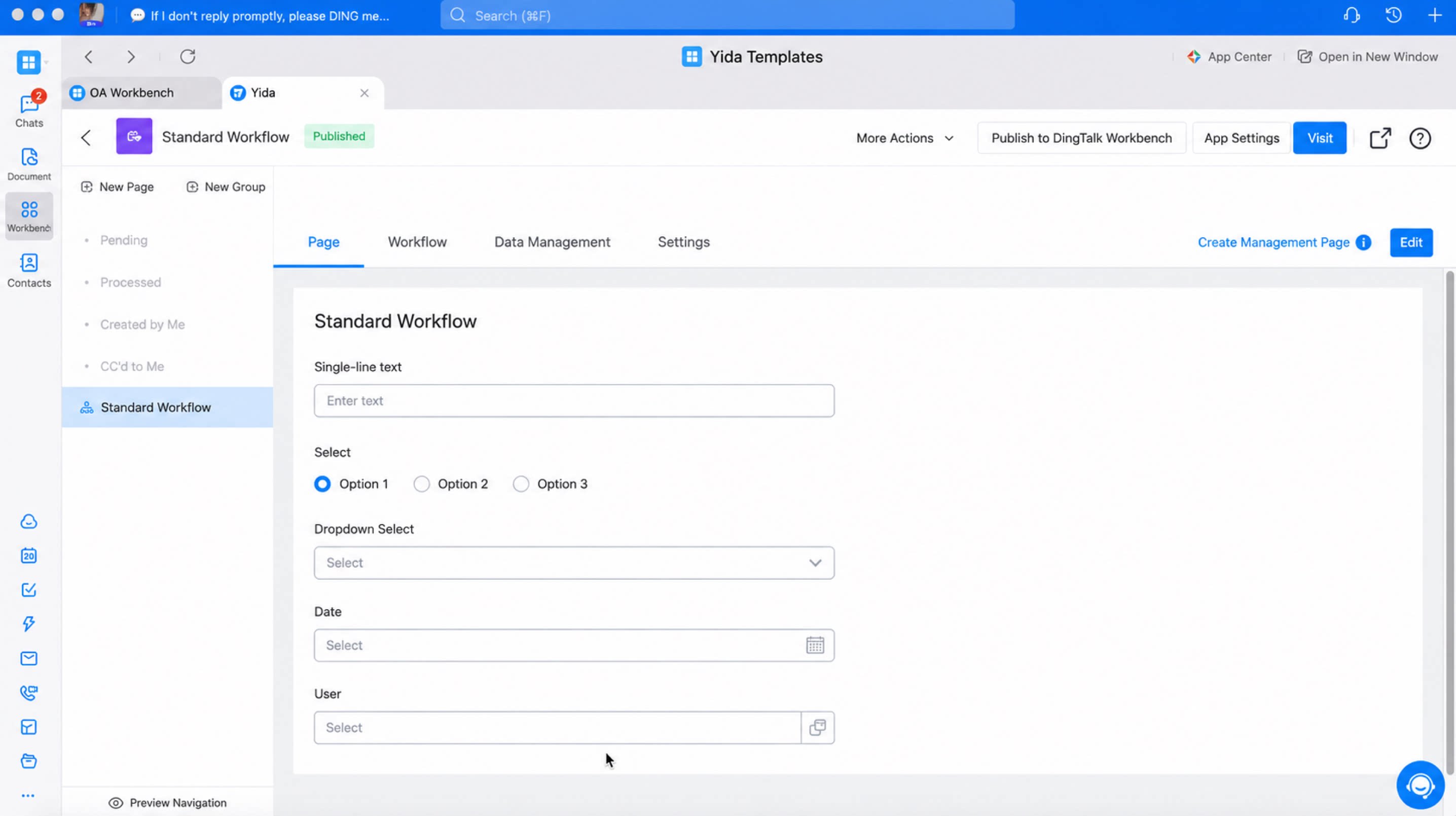
Use Cases
Traditional paper-based approvals are slow and inefficient. In complex business processes, initiators must run back and forth to collect approvals, and approvers are frequently interrupted from their work. YiDA solves this by enabling online workflow approvals, so you can efficiently handle approvals across complex business processes and boost team productivity.Procedure
- Sign in to the YiDA workbench.
- Select the target app and open the Page Management page.
- Select the workflow form you want to edit and click it to open the Form Design page.
- On the Form Design page, click Workflow Design at the top.
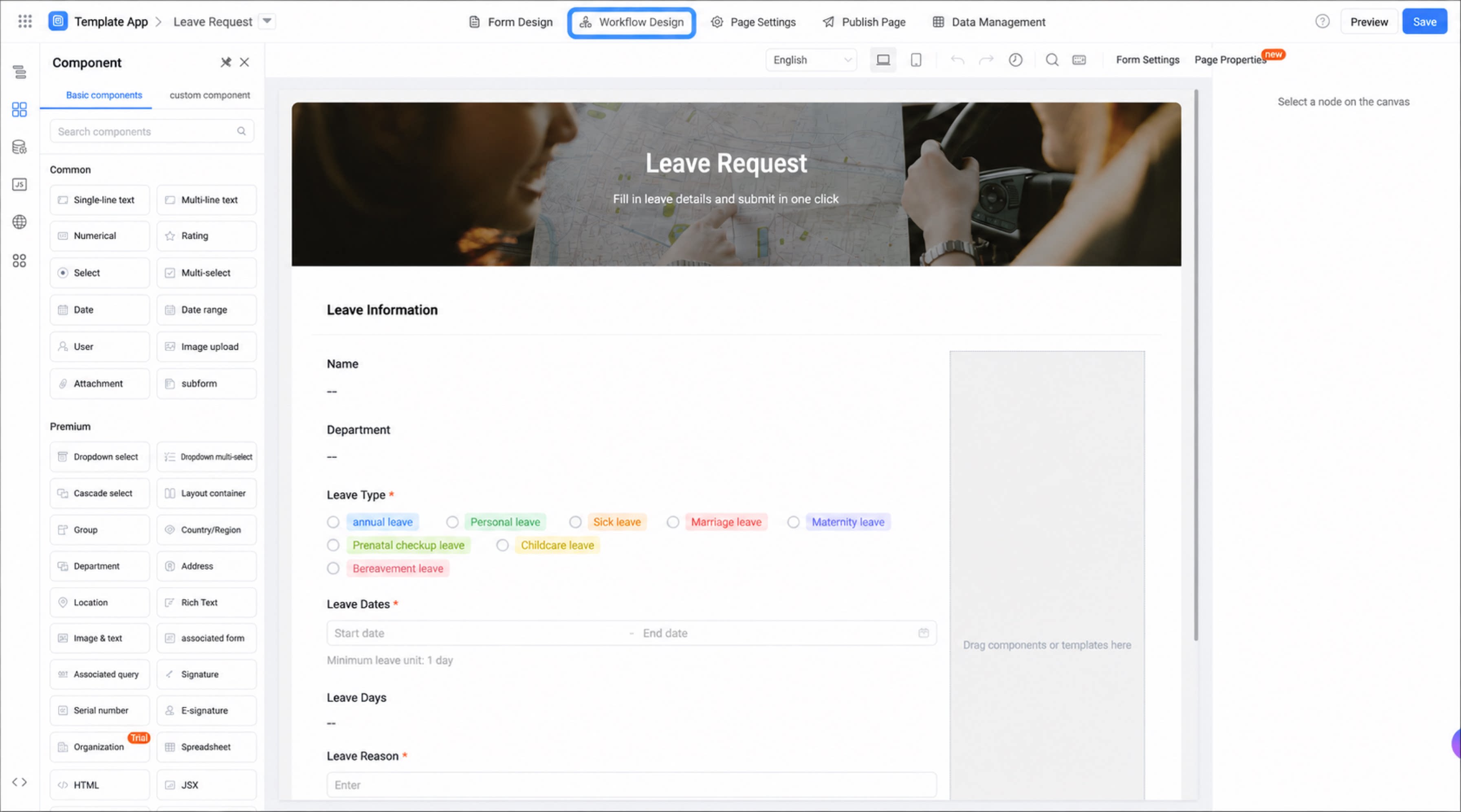
- Click Create Workflow in the upper-right corner.
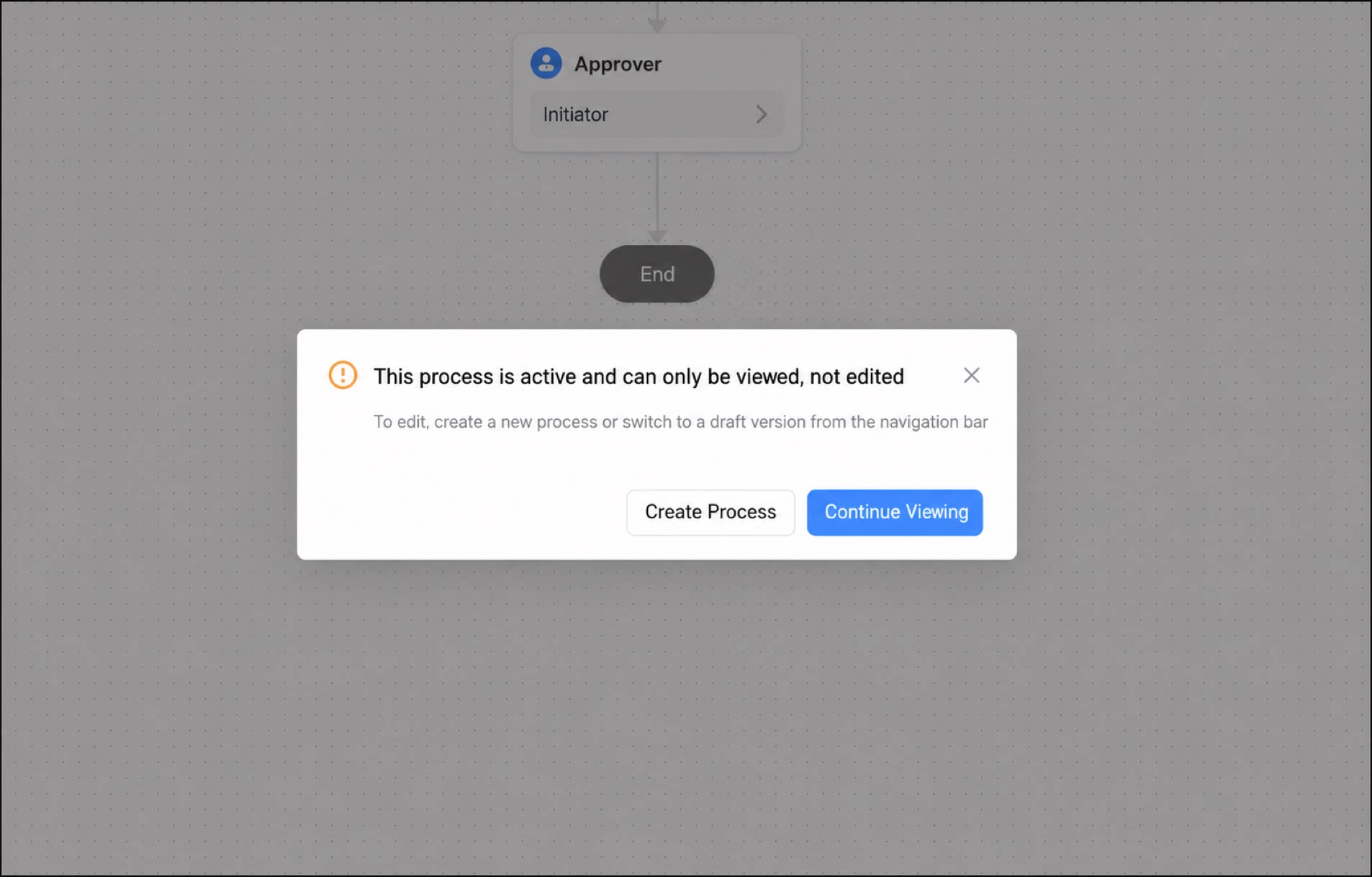
Enabled workflows are view-only and cannot be edited directly. When a workflow form is created, a default workflow is generated automatically with you as the approver and V0 as the version number.
FAQs
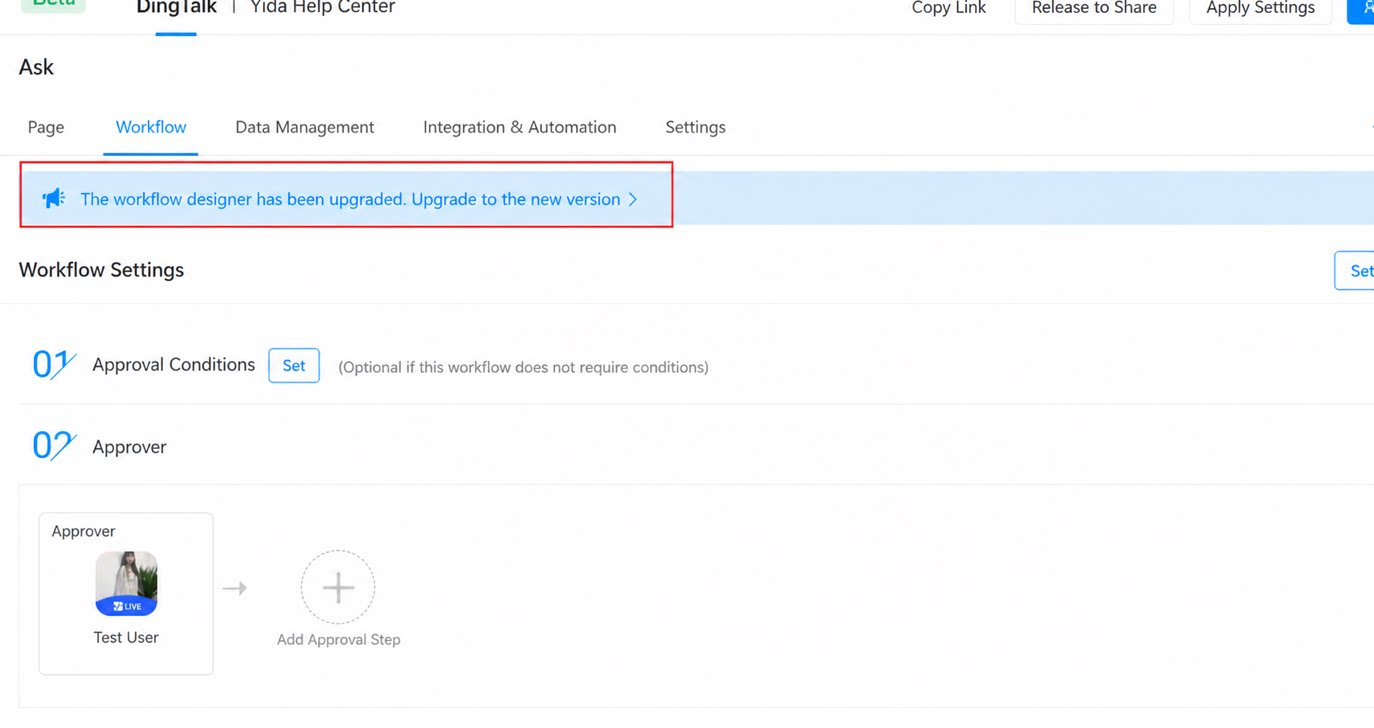
Q: How do I create a new simple workflow designer? Why is the regular workflow editor in my app not upgraded to the new simple workflow designer? The new simple workflow designer currently applies only to workflow pages created after the update. Workflows created before the update still use the legacy workflow designer. Q: Does YiDA 2.0 support the new simple workflow designer? Yes. On the page, click the location highlighted in the blue box to upgrade with one click. After the upgrade, you cannot roll back to the legacy workflow designer. Any workflow settings you have configured will be migrated to the new version.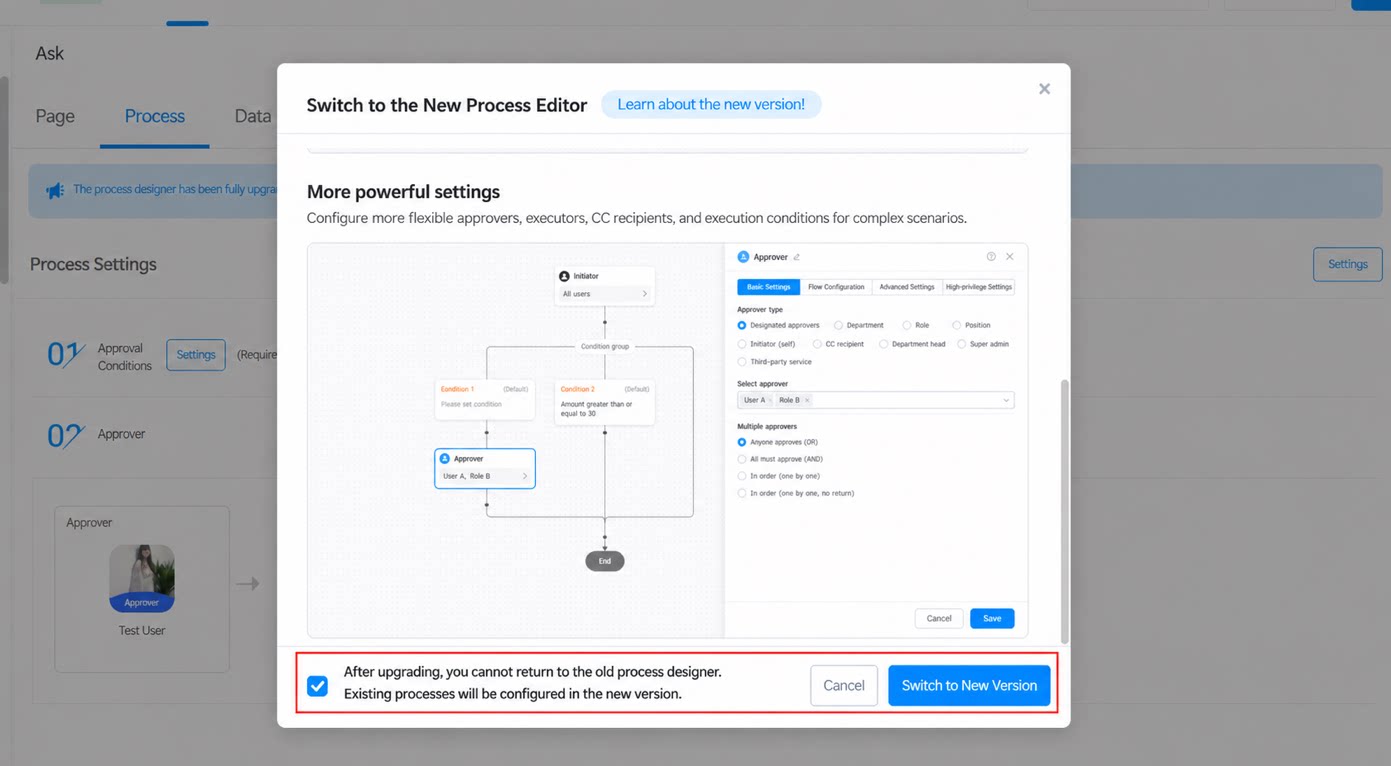
- This error usually occurs when the approver is set to a manager. Verify whether the initiator’s department in DingTalk Contacts has a corresponding manager configured. If not, add one.
- Alternatively, on the step, set the approver to “Allow approver to be empty.” For example, if a second-level manager may not exist, allow the second-level manager to be empty. See the animation below for configuration steps:
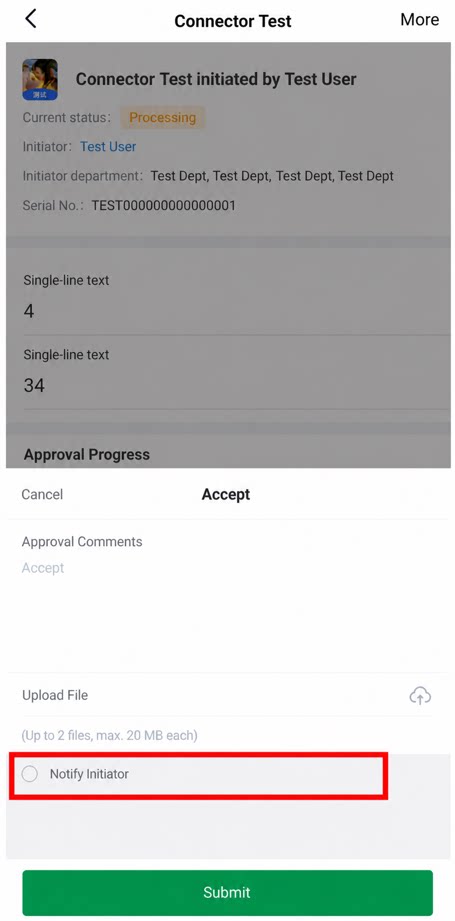
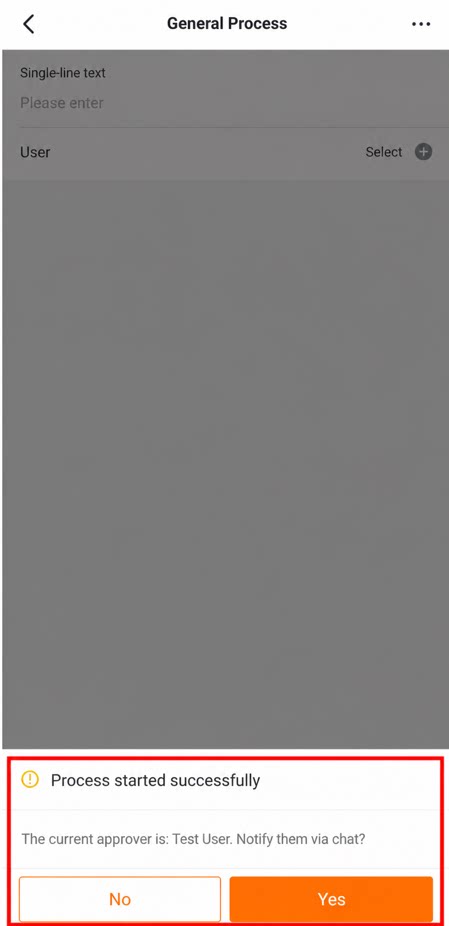
- If you create a default report via Workflow Form > Create Workflow Analytics, the default report applies the filter conditions of the current form and queries only the current workflow by default.
- If you manually add a component to the report and select the built-in dataset, you must bind the workflow yourself in Filter conditions. Otherwise, the default is the full detail data at the app level.
- Workflow instance detail link format
- Form instance detail link format
- The initiator and the initiating department are locked in at the moment the workflow is initiated and do not change throughout the workflow’s lifecycle, regardless of department changes or delegated resubmissions.
- If a user in the workflow leaves the organization and an approval step depends on that user’s organization structure information (for example, manager approval), the workflow cannot find an approver. This causes an error and blocks the workflow from proceeding. In this case, the admin must resolve the issue by jumping to another step.