Chats
Chats Calendar
 Meetings
 Contacts
 Mail
Mail Docs
Docs Drive
Drive AI Table
 AI Minutes
 Attendance
 Approval
 YiDA
YiDA Admin Console
- Create from scratch: Build a broadcastable portal from the ground up.
- Create from a template: Quickly build a broadcastable portal based on an official template.
- Create with AI: Use the YiDA AI Assistant to generate a broadcastable portal automatically.
Create a Portal from Scratch
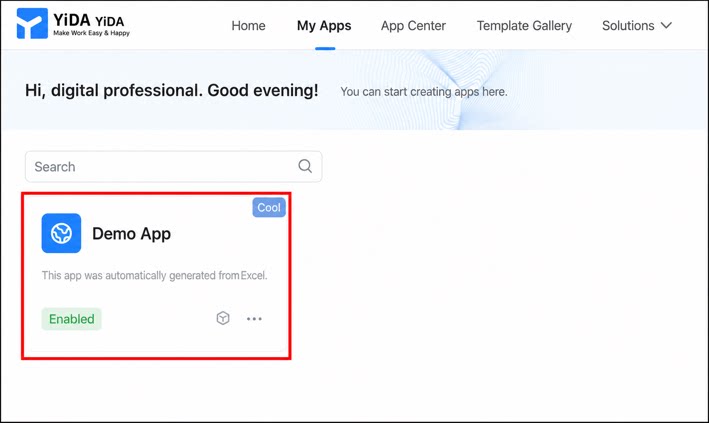
- Sign in to the YiDA workbench and open the My apps page.
- Select the app in which you want to create the portal, and open the app details page.
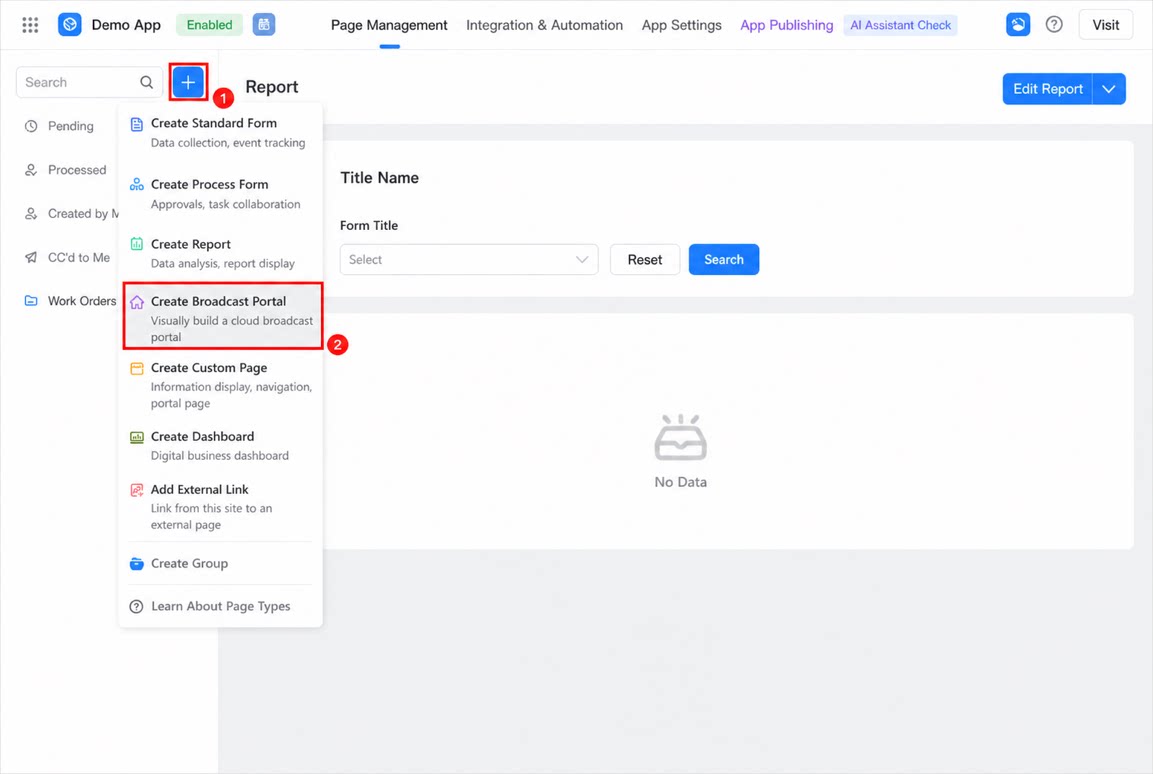
1
Click ➕ in the upper-left corner, and then select Create broadcastable portal.
2
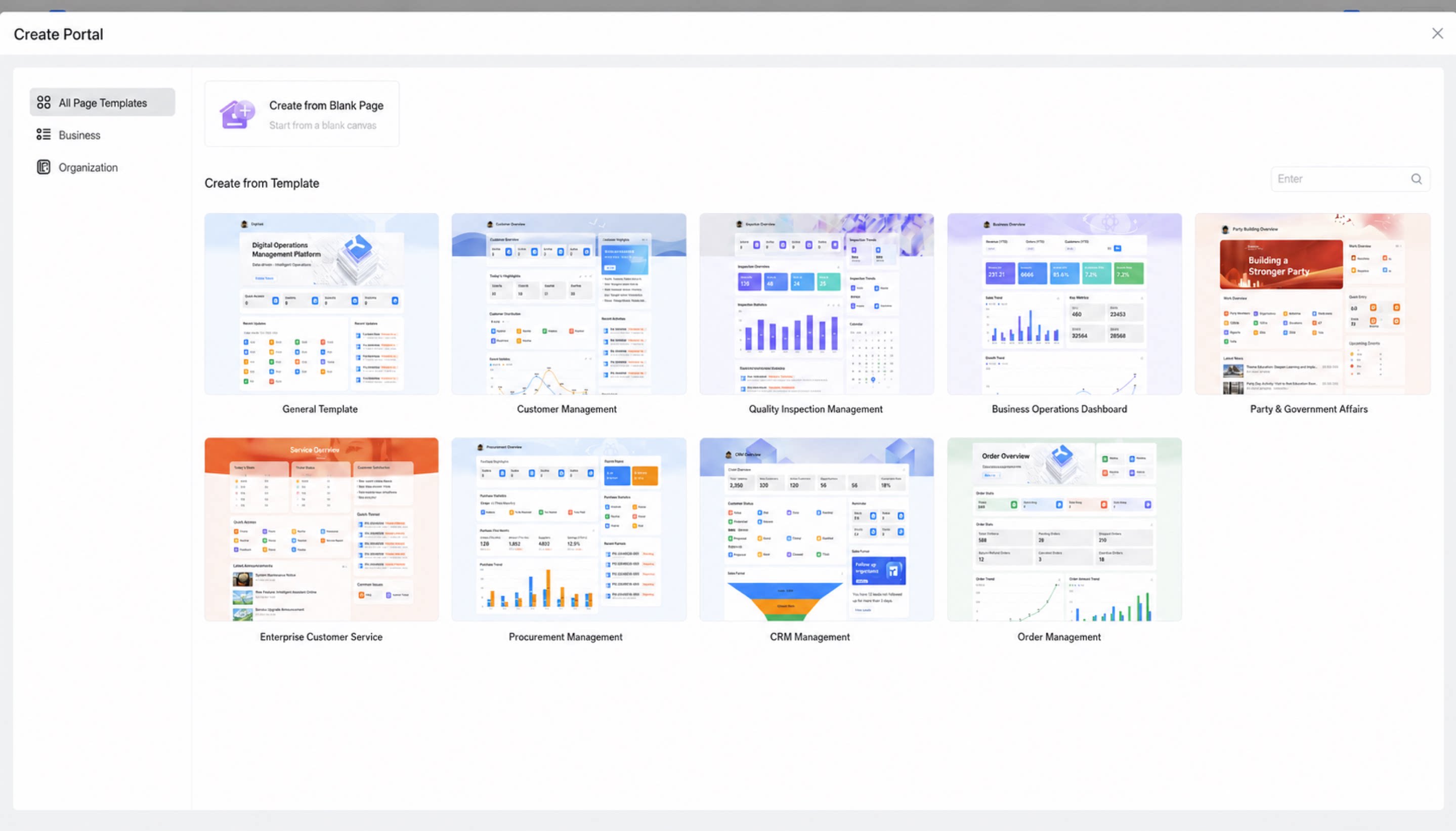
Click Create blank page, and then set the portal page name in the upper-right corner.
Create a Portal from a Template
- Sign in to the YiDA workbench and open the My apps page.
- Select the app in which you want to create the portal, and open the app details page.
- Click ➕ in the upper-left corner, and then select Create broadcastable portal.
- Select a portal template that fits your business needs and click Use.
- Set the portal page name in the upper-left corner of the page.
If none of the existing portal templates meet your needs, you can submit a request here.