

 Chats
Chats Calendar
 Meetings
 Contacts
 Mail
Mail Docs
Docs Drive
Drive AI Table
 AI Minutes
 Attendance
 Approval
 YiDA
YiDA Admin Console
1. Introduction
1.1 Feature Overview
Forms are the foundational tool in YiDA, and all data entry and collection rely on them. As a result, forms also serve as the source of data. Workflow form: enables data to flow upward level by level for tiered approval. You can also assign permissions to further manage workflow data.2. Entry Point
Entry point: Edit app > Page management > ➕ > Create workflow form.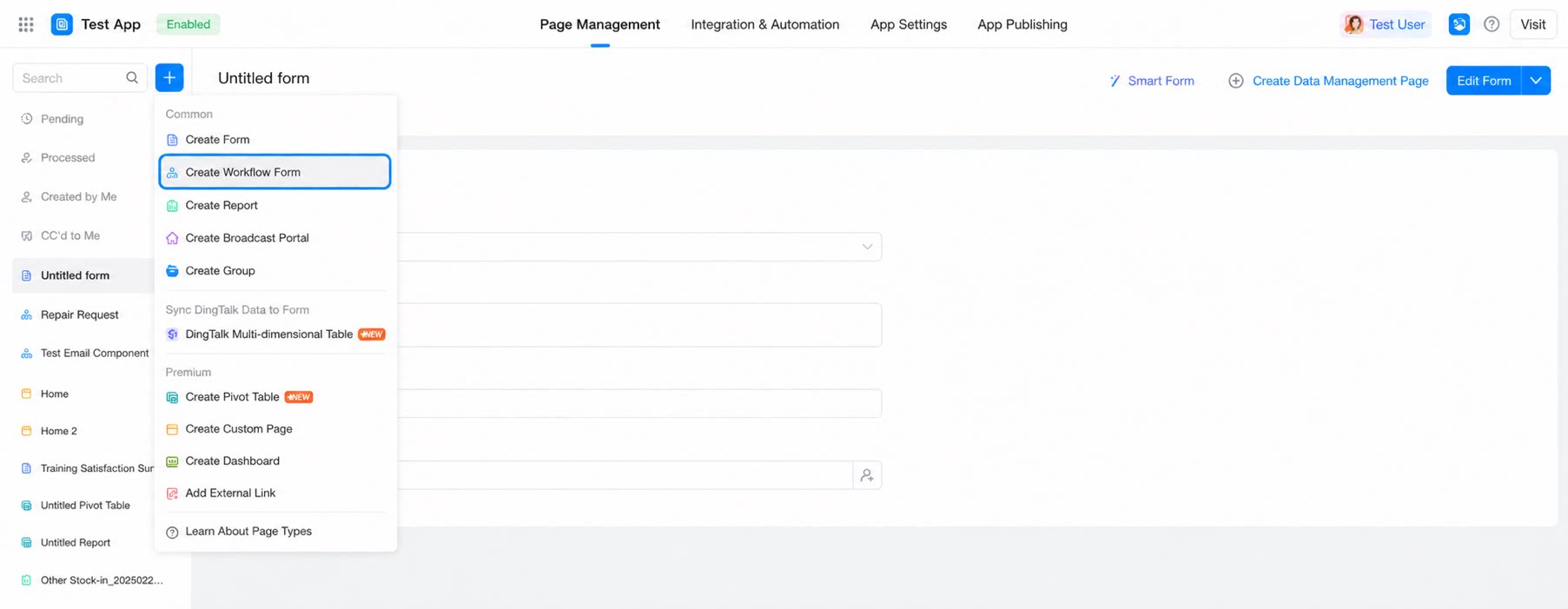
3. Create a Regular Form
3.1 Create a Smart Form
Click Create smart form, then enter a prompt in the AI Assistant, such as “Build a ‘Vehicle request’ workflow form containing request ID, request date, requested vehicle type, requester, and request reason.” Based on the prompt, the AI automatically creates the corresponding form.3.2 Create a Blank Page
- Click Create blank page to open a blank page in the form designer.
3.3 Create a Page by Importing Excel
- Click Create page by importing Excel.
- Select the Excel file (local Excel) > Preview data > Form settings (select data type) > Import data.
- Once the import succeeds, you are redirected to the new form page.
3.4 Sync from DingTalk Base to Form
- Click Sync from DingTalk Base to form and configure the sync settings.
- The popup displays the sync steps: first select a dataset, then configure the sync form and fields.
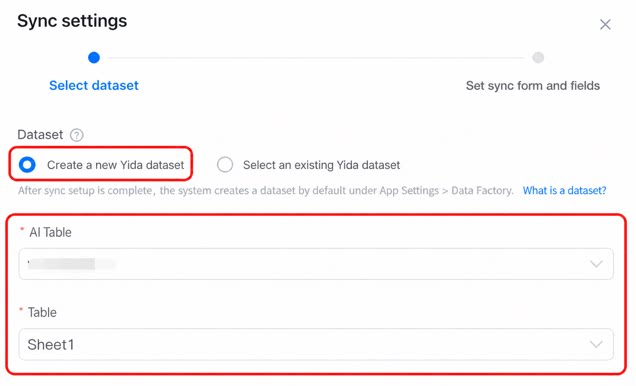
- To create a new YiDA dataset, configure the base and the specific table within it.
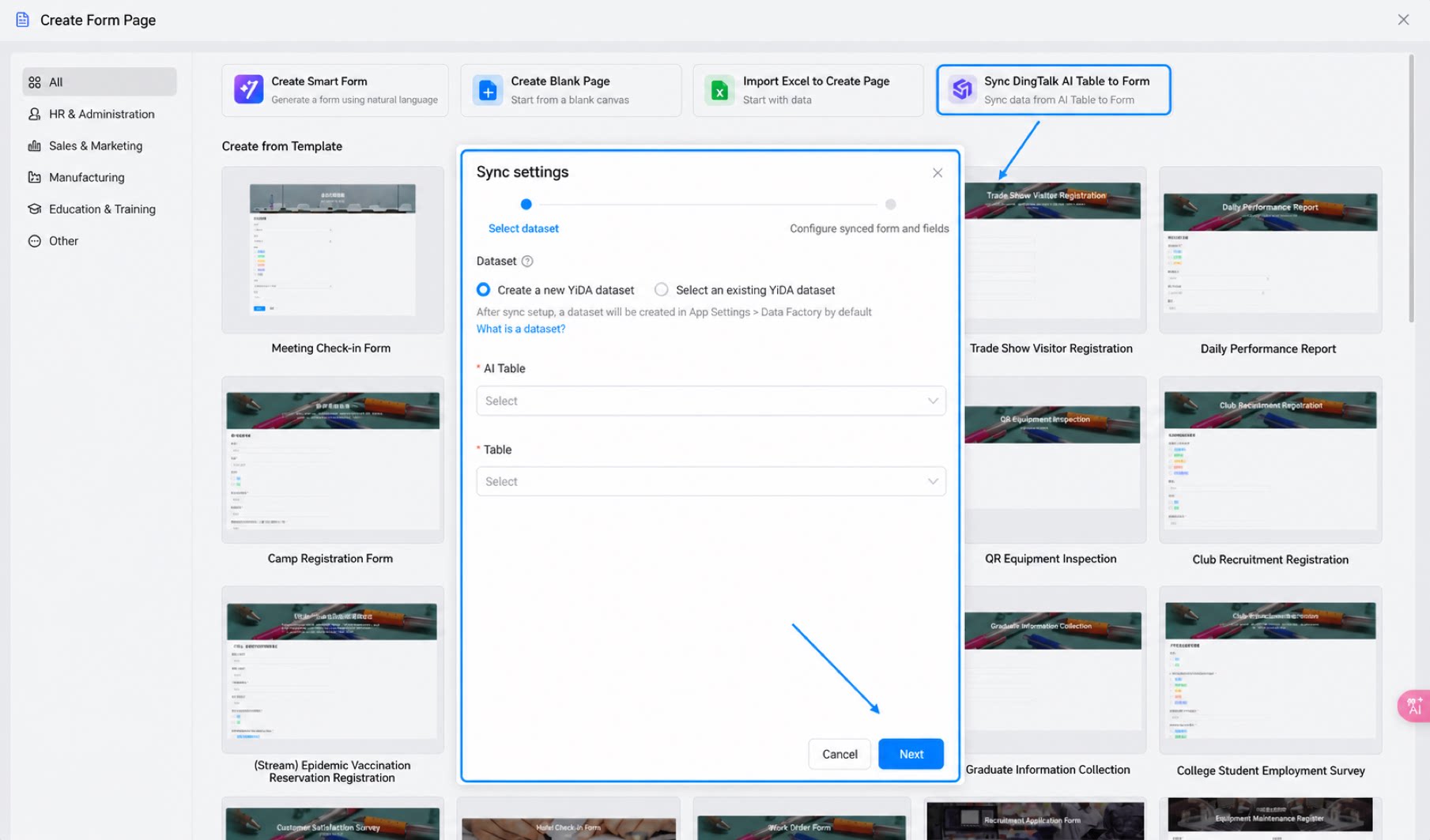
Available bases:
-
- Bases within the Organization Knowledge Base for which the current user has management permissions.
-
- Bases created by the current user in My Docs.
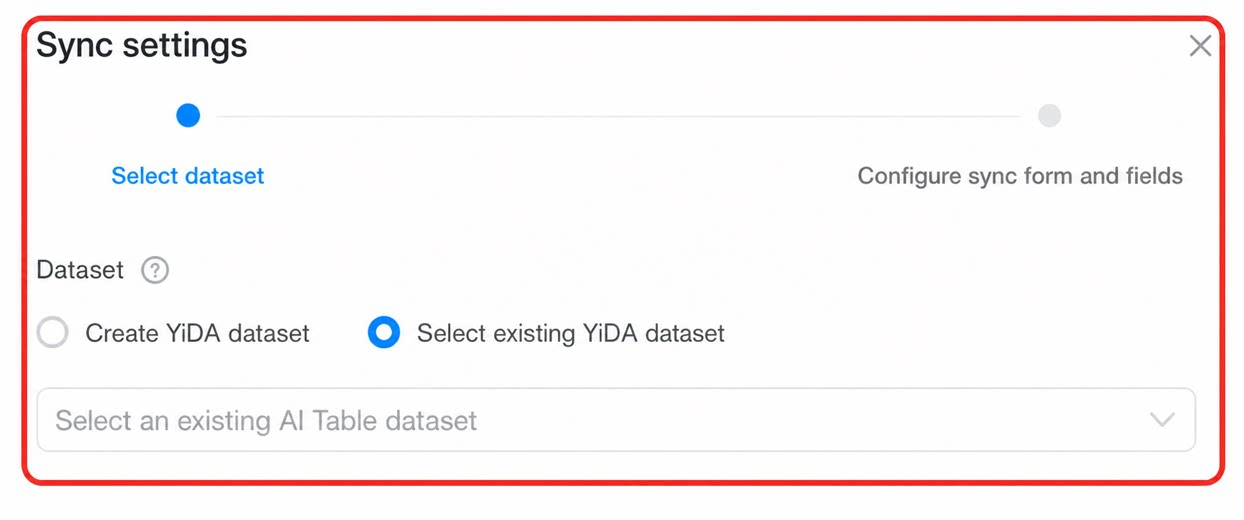
- To select an existing YiDA dataset, see Create a dataset from the DingTalk Data Asset Platform for detailed steps.
3.5 Create from a Template
- In the template list, select a template and click Use.