1. Overview

1.1 Feature Overview

A report turns your data into charts and tables so you can quickly review trends and details.
1.2 Use Cases

When you need to aggregate data submitted by employees for review, create a report page and use the components in the report designer to analyze, aggregate, and query the data.

2. How to Create a Report

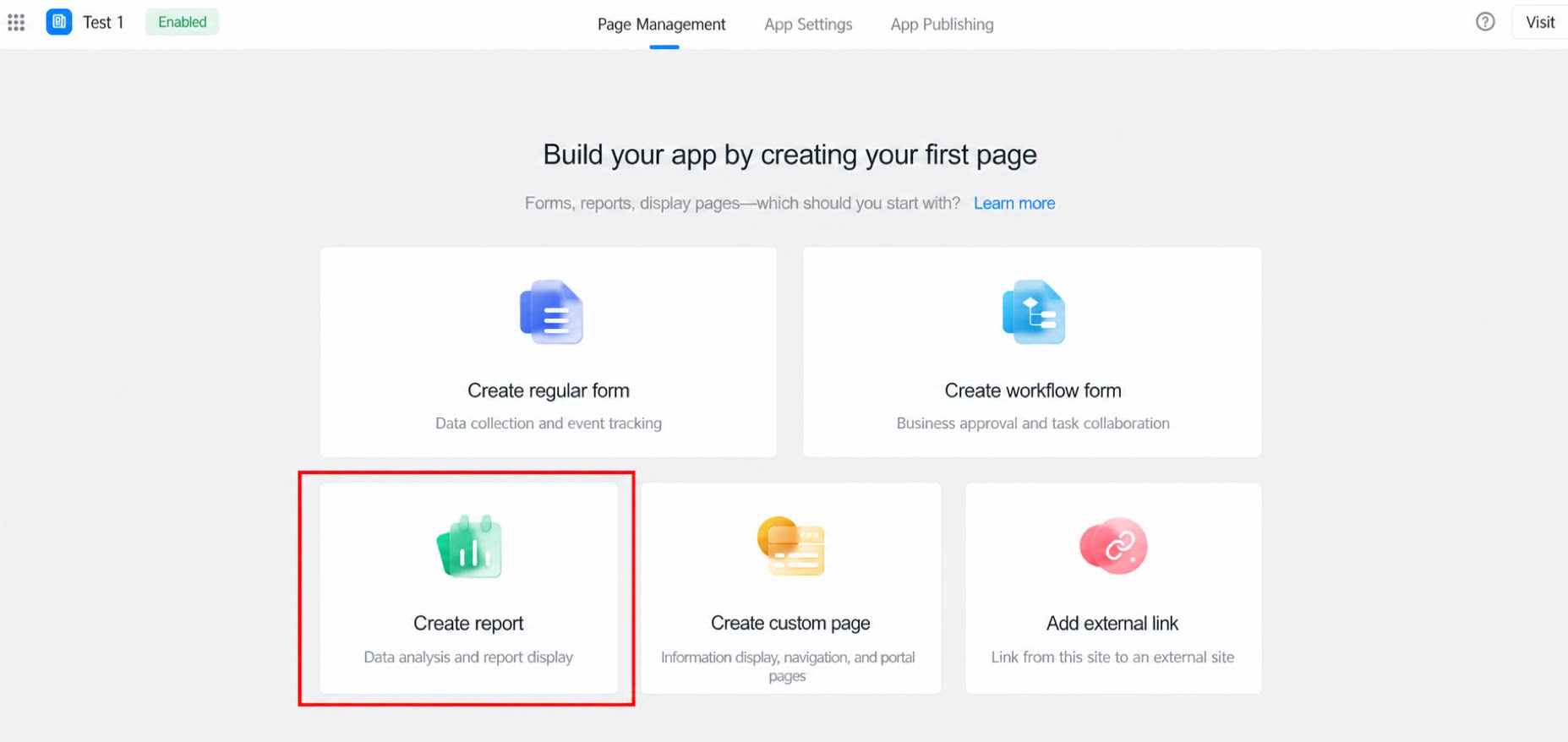
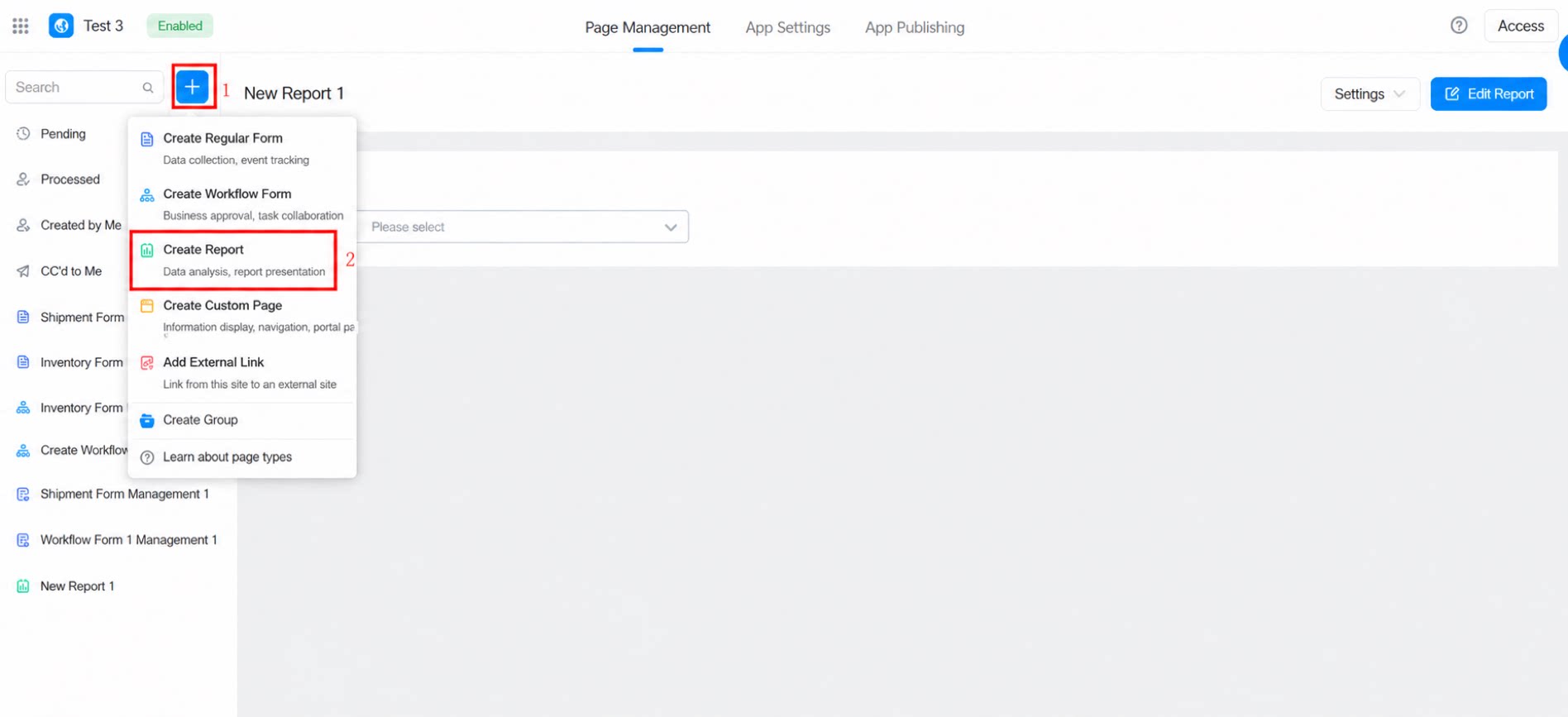
There are two ways to create a report: (1) After entering YiDA, click My Apps, then create or open an app. In the page management section in the middle of the screen, select the page type and choose Create Report. (2) On the app home page, click the blue + icon in the upper-left corner, then select Create Report.
3. Configure a Report

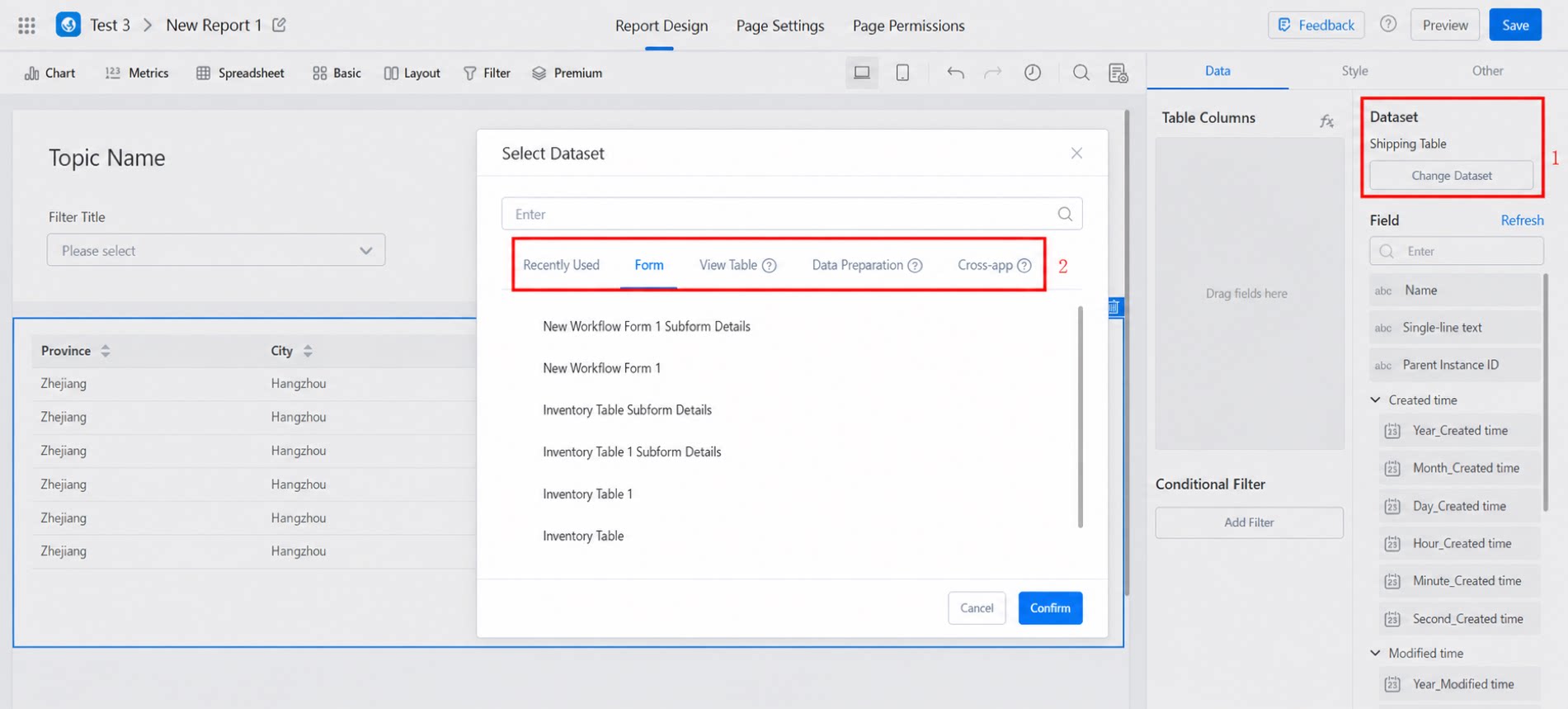
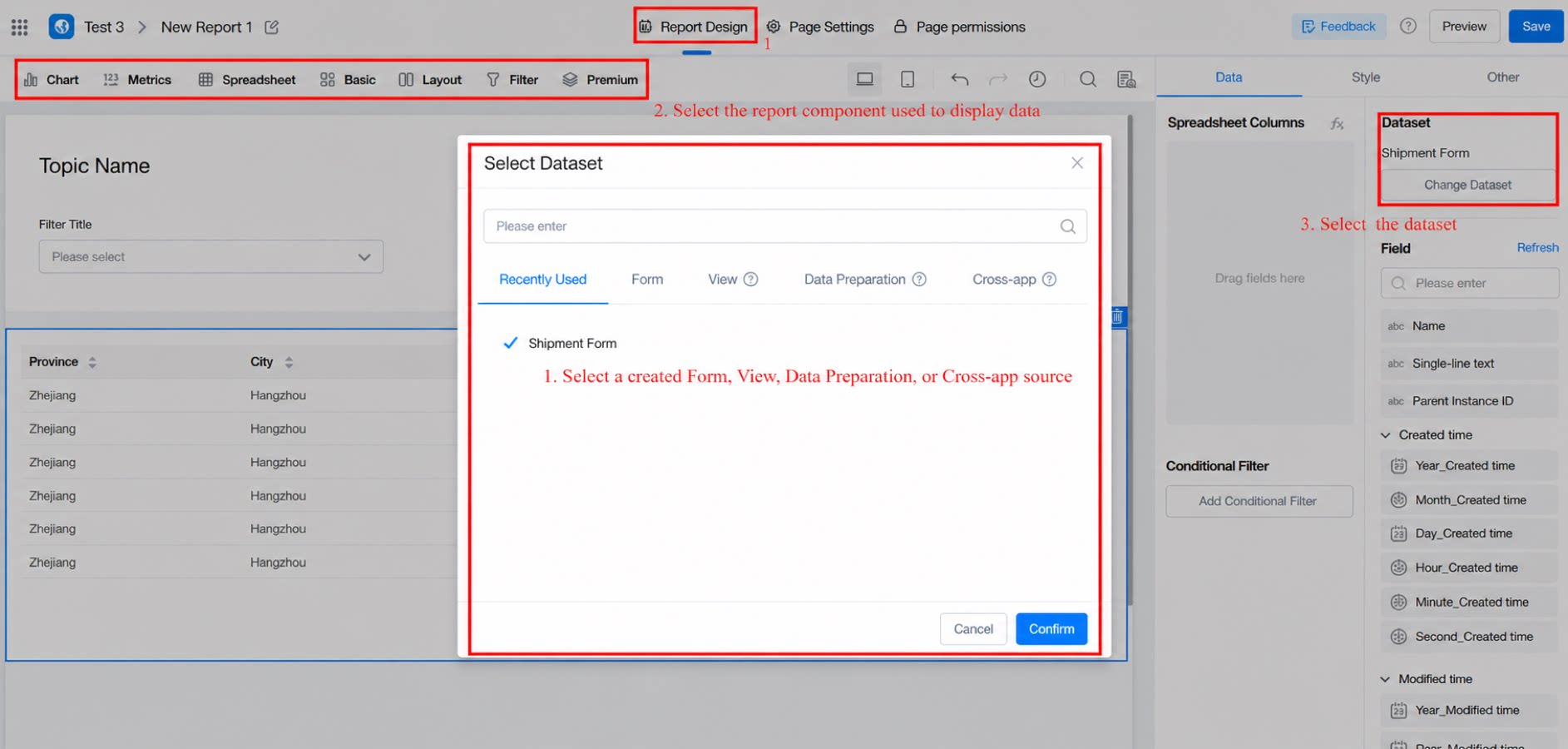
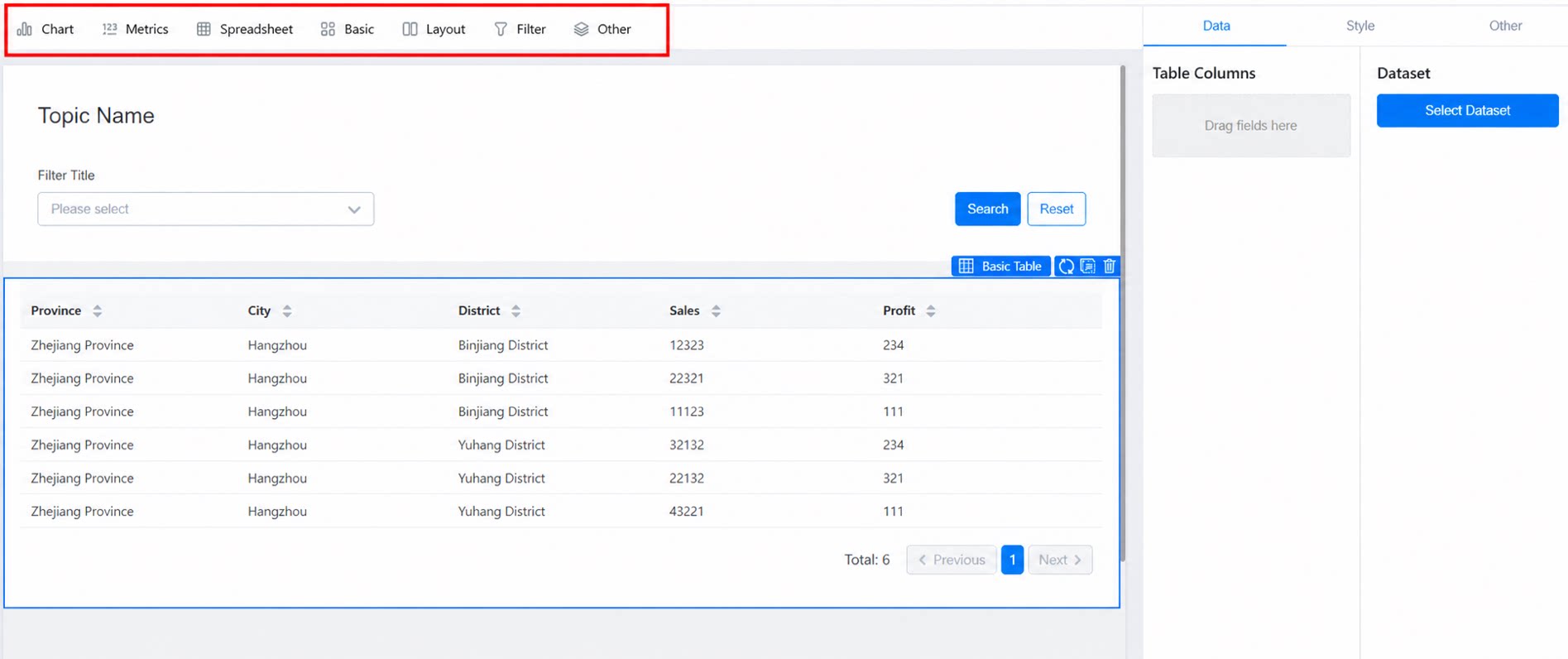
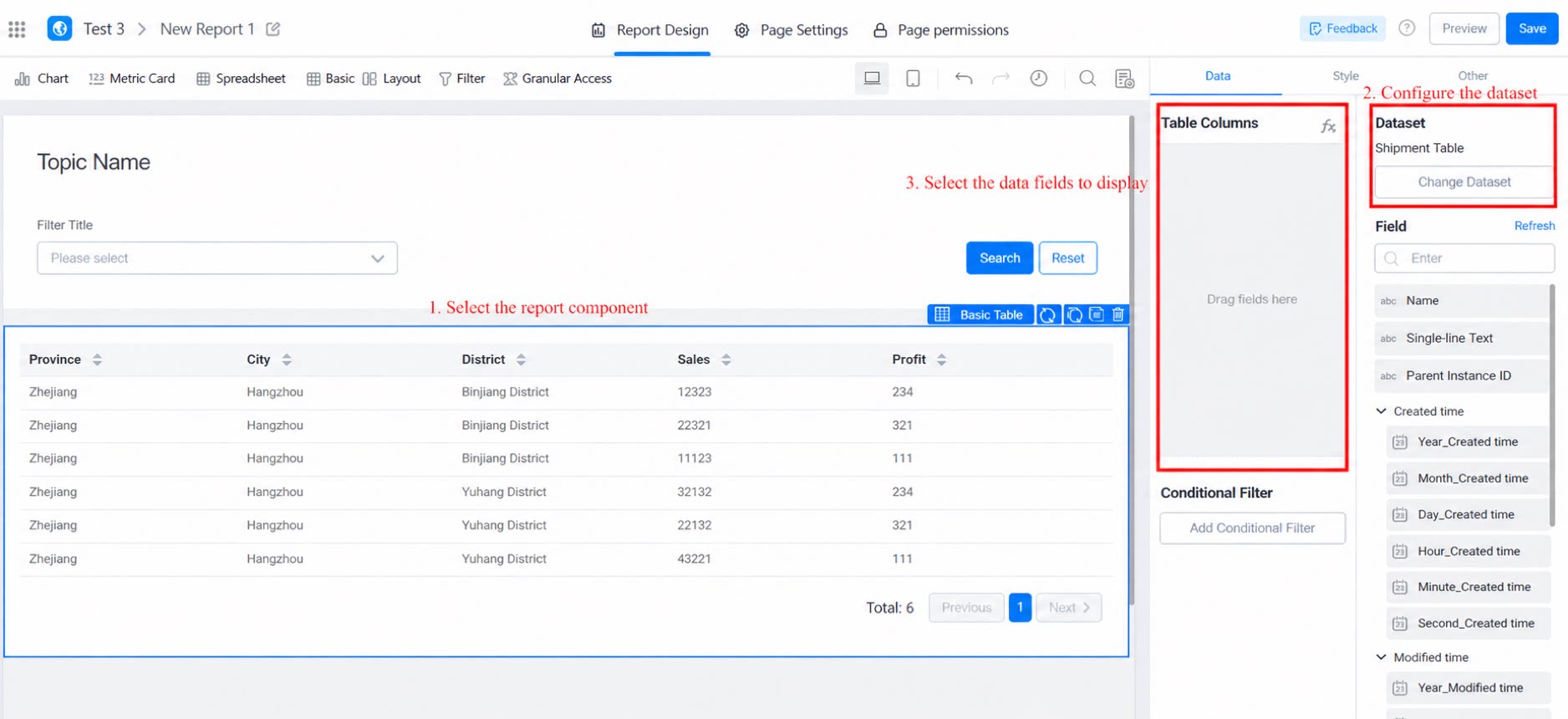
After you create a report using the steps above, you are redirected to the report design page. Drag the required report component from the component library at the top. After selecting a component, click it in the center of the canvas. The data set configuration panel appears on the right. For the data set, select a created form, a view table, a data preparation source, or a cross-app source.
4. FAQ

Q: How can a basic spreadsheet redirect to source records?
See Link redirect to learn how to configure spreadsheet Link redirection. You can customize the target destination, for example, to view source records. Learn more through YiDA Q&A:

https://cloud.video.taobao.com/play/u/null/p/1/e/6/t/1/394576387188.mp4?SBizCode=xiaoer

Q: How can a basic spreadsheet merge identical values in a column (Merge Cells)?
Use the Merge Cells capability of the report spreadsheet component to quickly merge and display identical values in a column. If the identical values are not in order, sort the column first, and then turn On Merge Cells.
Q: Why can I not select both the main form and subform when choosing a data set?
By default, you cannot select both at the same time. You need to associate them through a view table (or data preparation). In YiDA reports, the main form and subform can be associated by setting the association condition as “Instance ID of main form = Parent instance ID of subform data”.
Q: Why does the system prompt that I have triggered “YiDA resource protection”?
To ensure the overall performance and stability of YiDA, the system monitors the computing resource consumption of complex data queries. For example, using the report formulas VAL and CASEWHEN can easily generate complex SQL queries, which may trigger YiDA resource protection.