Chats
Chats Calendar
 Meetings
 Contacts
 Mail
Mail Docs
Docs Drive
Drive AI Table
 AI Minutes
 Attendance
 Approval
 YiDA
YiDA Admin Console
1. Introduction
You can redirect to a URL with freely combined parameters, or redirect into a card to achieve a side-drawer effect.2. Steps
2.1 Redirect to URL
| Legacy version | New version |
|---|---|
| Open mode: Choose whether to open a new page or refresh the current page. Link URL: Enter a URL. Press Space + @ to select fields, parameters, or filters already configured in the Spreadsheet from the drop-down. Note: The @ must be typed in English input mode to bring up the field selector. 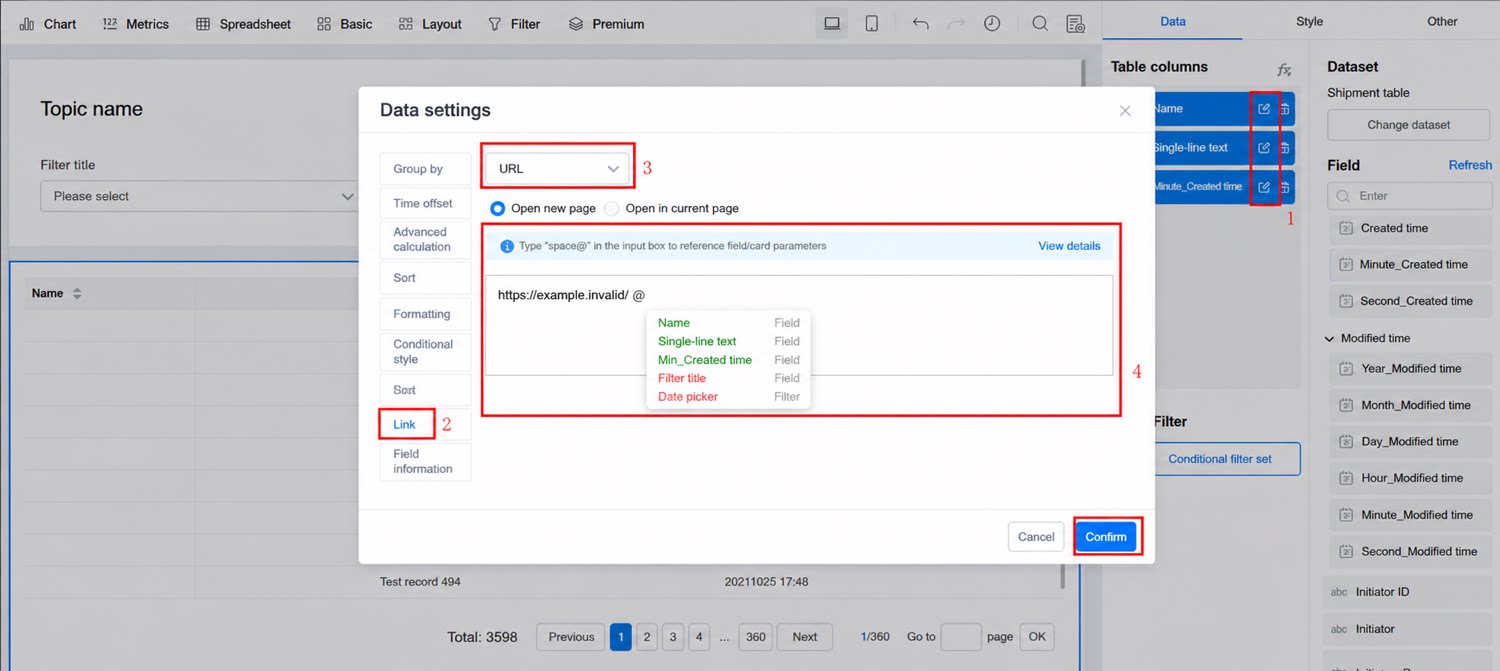 | Link URL: Enter a URL. Click Insert Field to insert fields configured in Spreadsheet columns as well as filter parameters. Open mode: Select Open new page or Refresh current page. 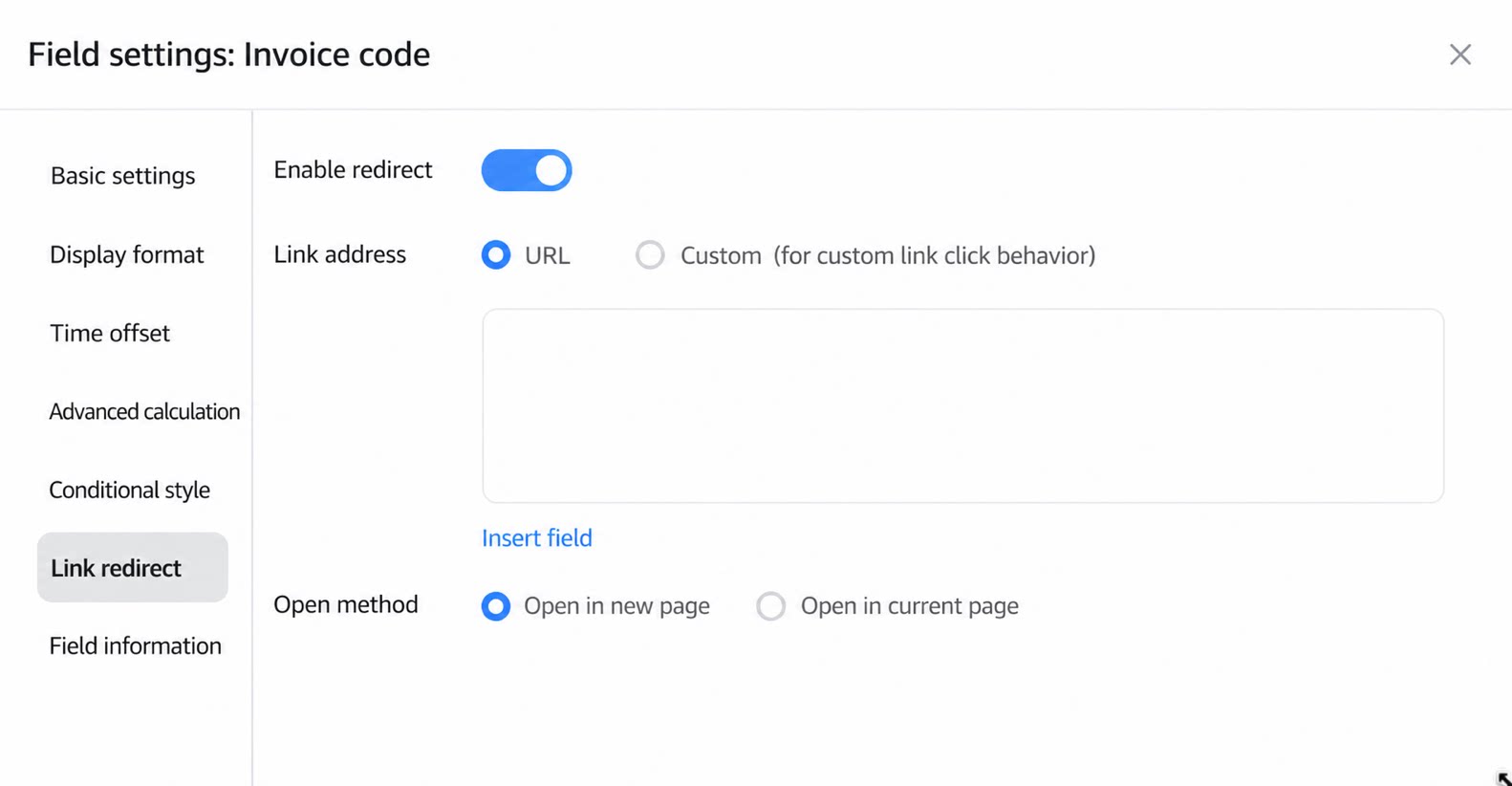 |
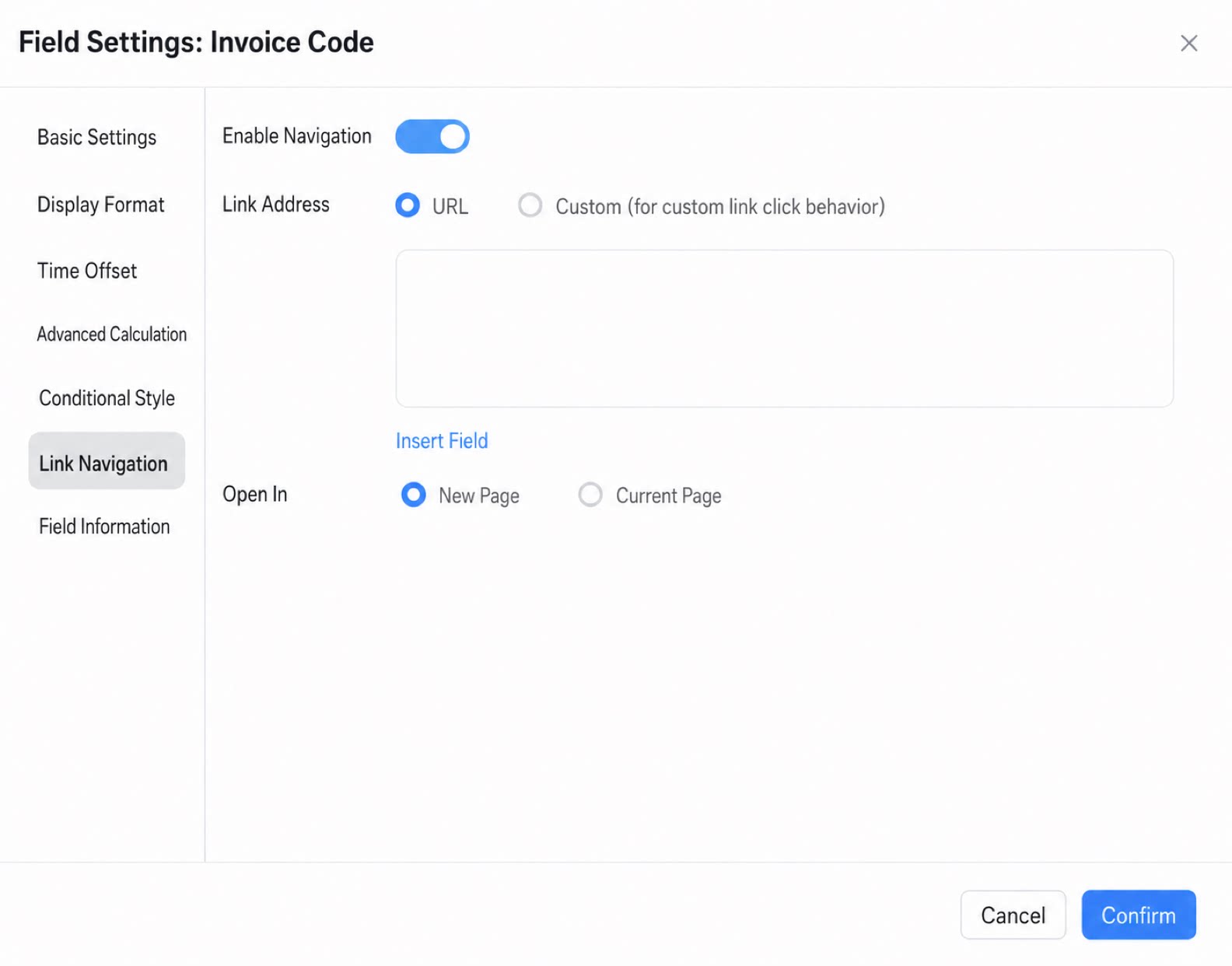
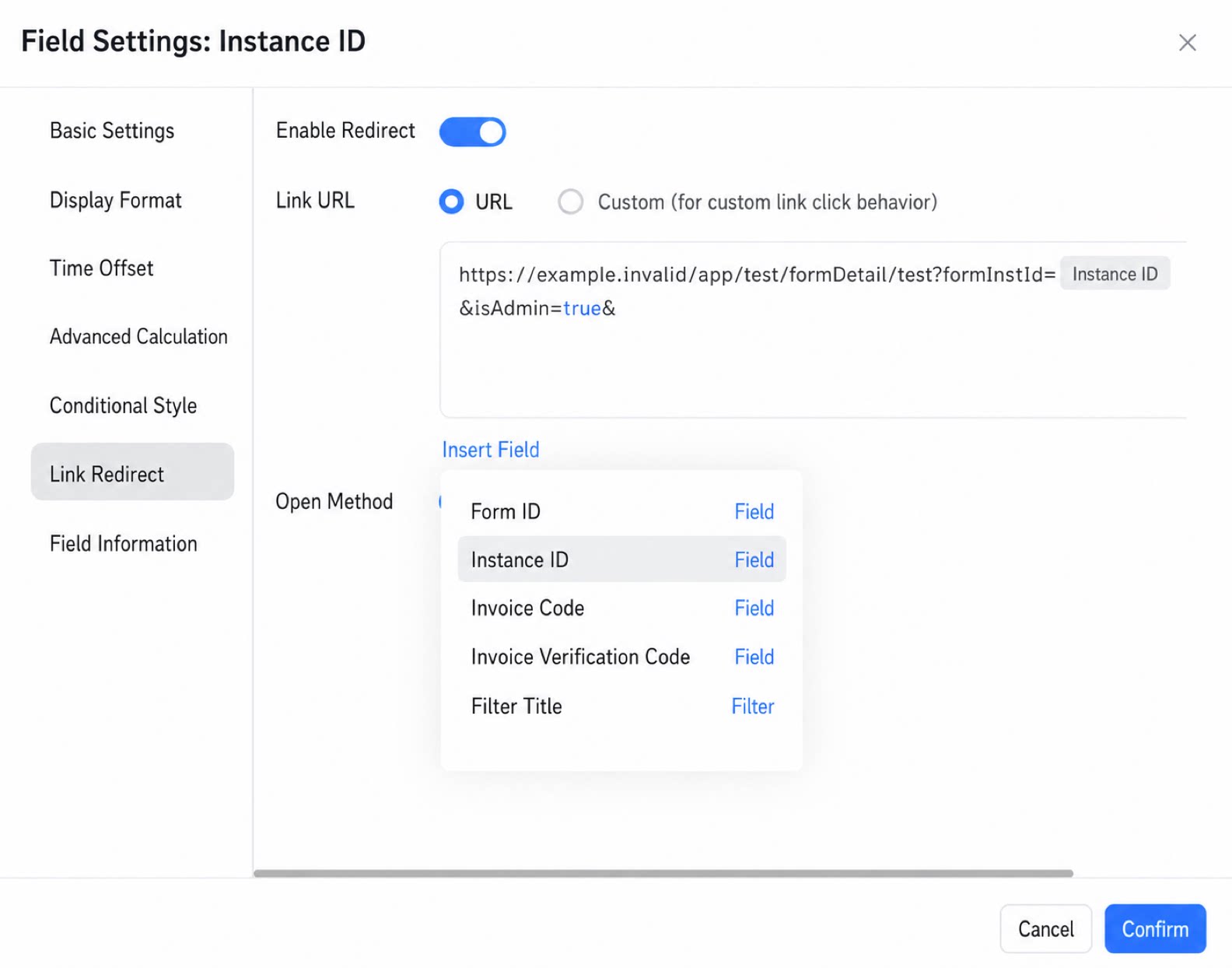
2.2 Custom
Set Parameter Settings to Standard or Custom.| Legacy version | New version |
|---|---|
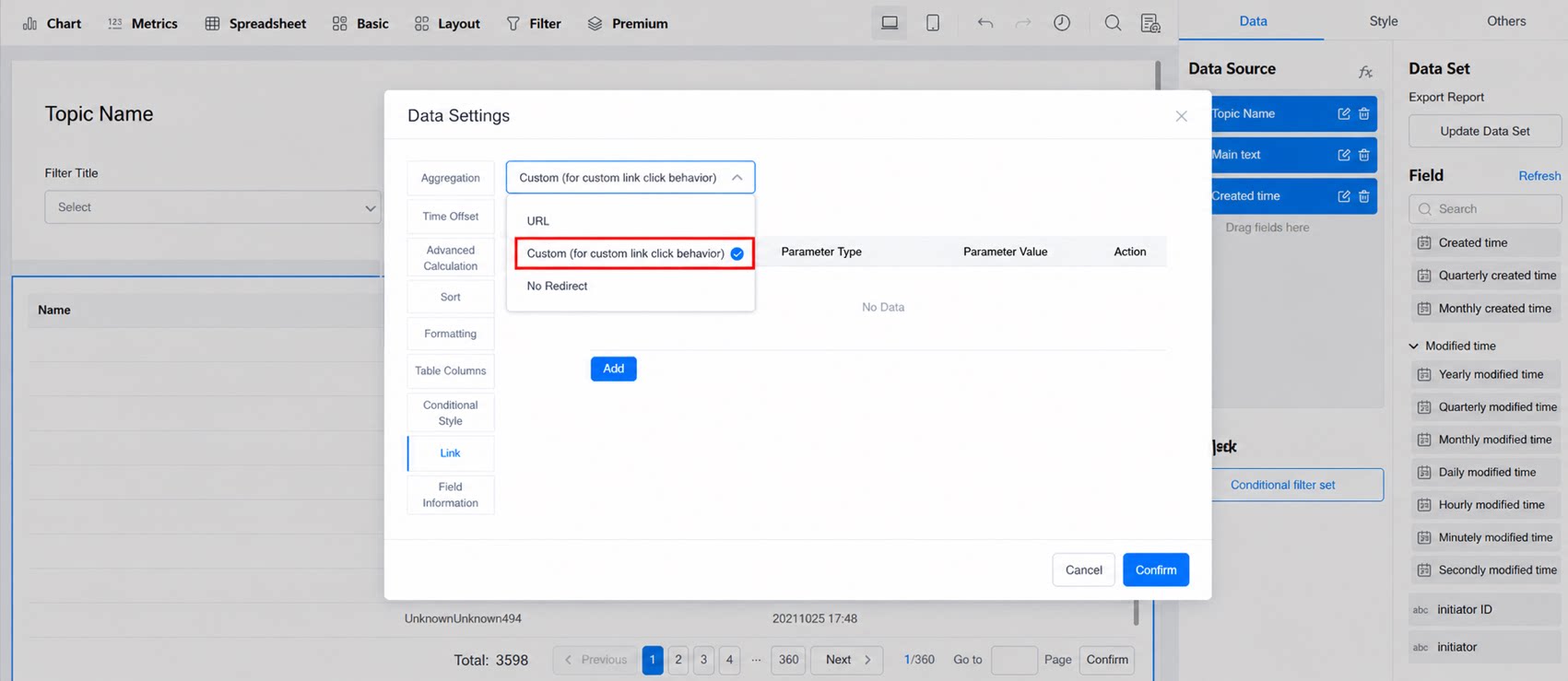 | 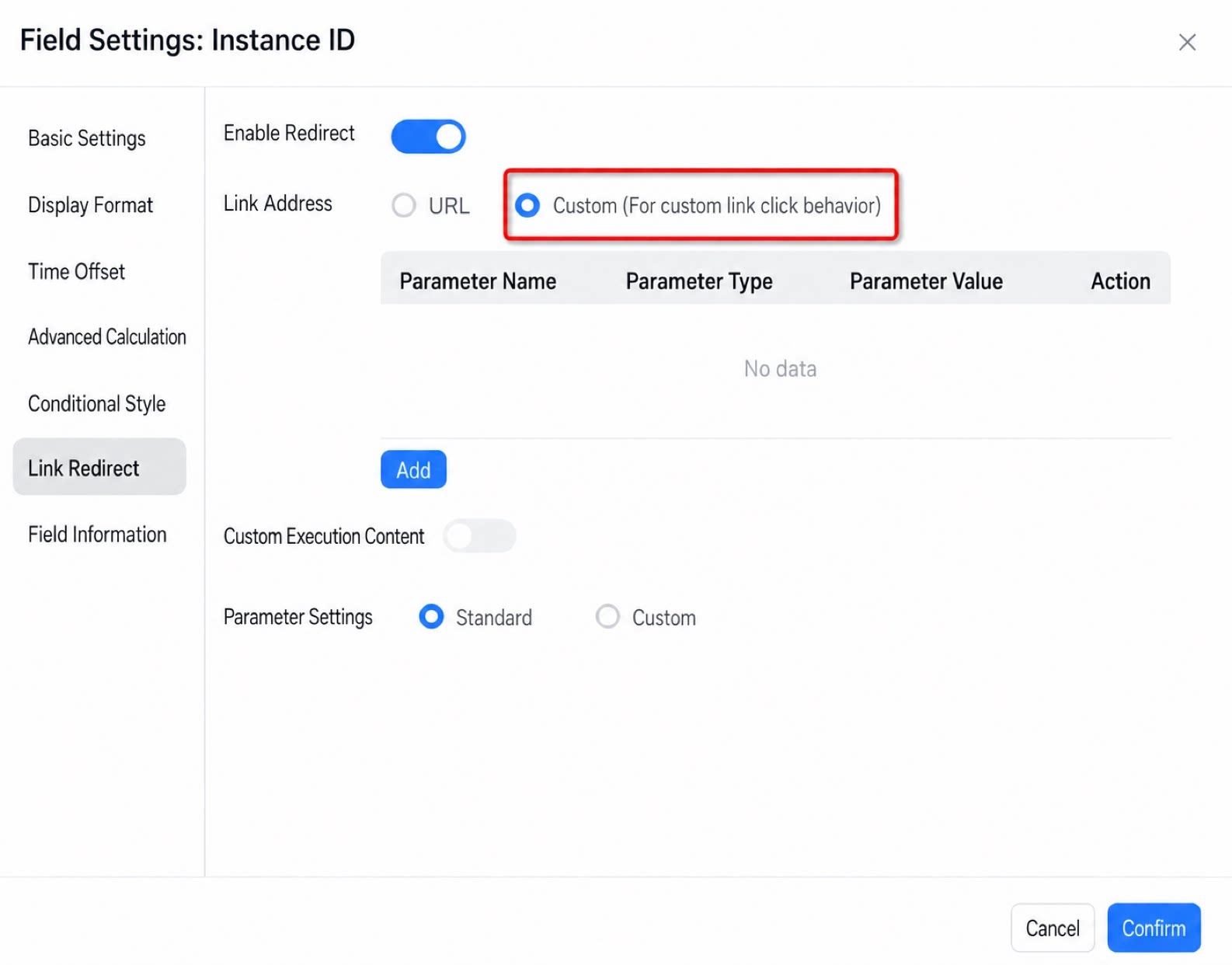 |
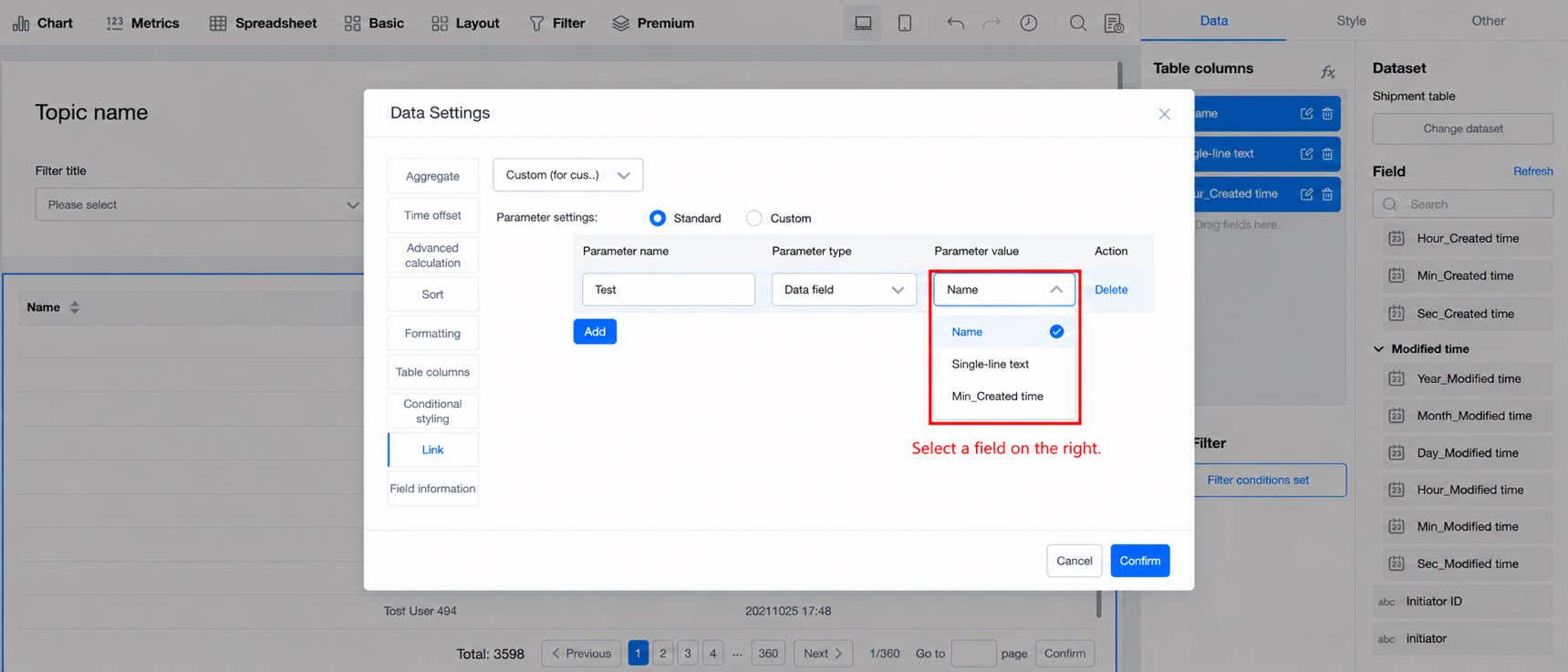
all, but pass it when the filter value is <>all.
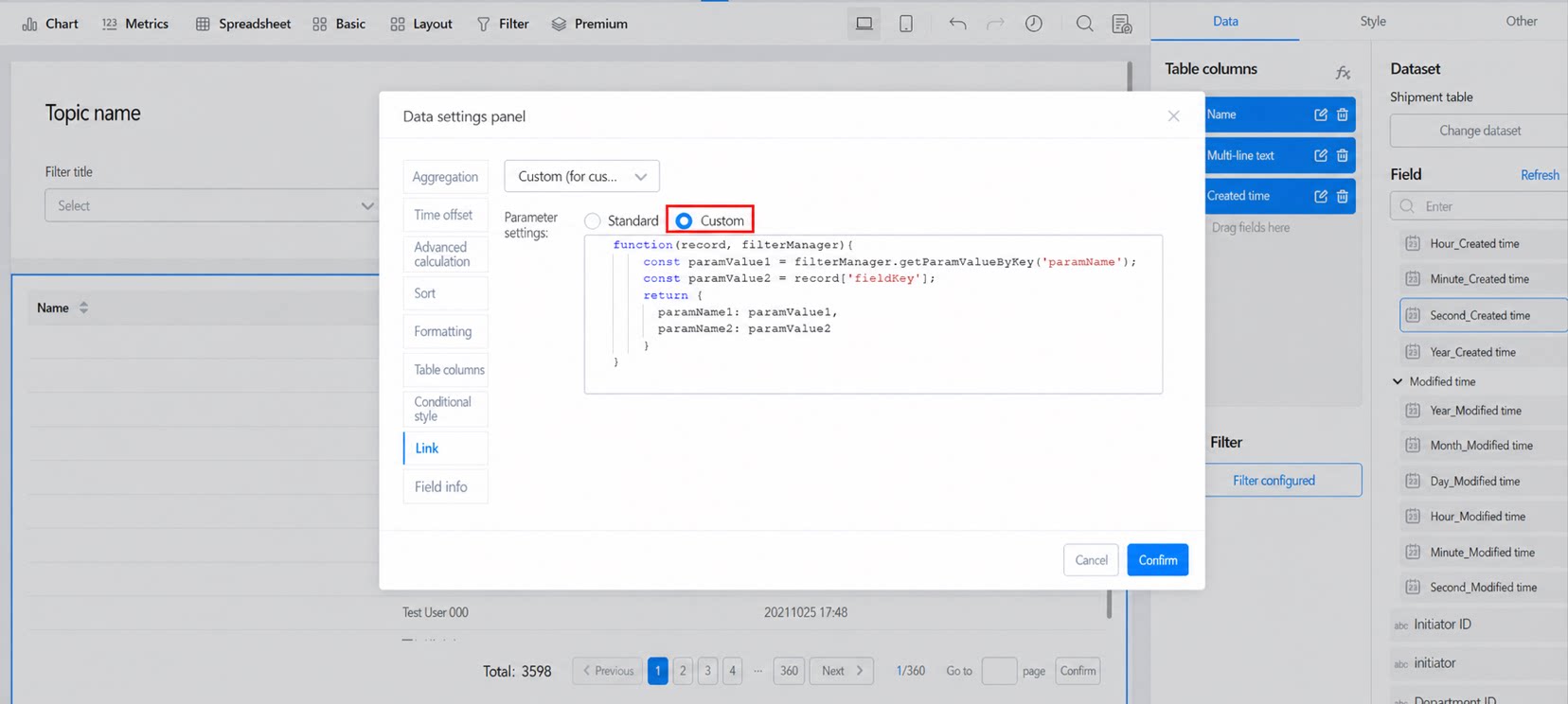
2.3 No Redirect
Does not redirect to any page, as shown below: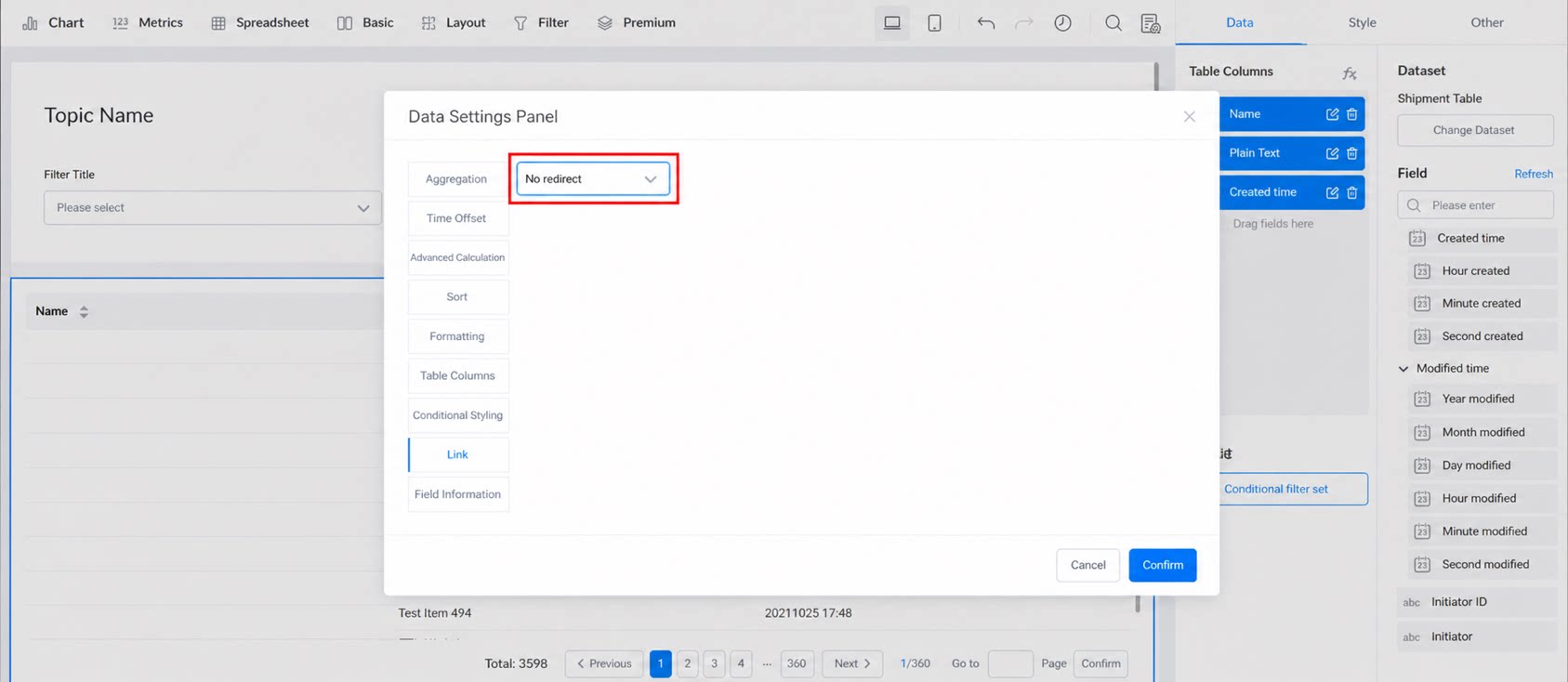
3. Common Use Cases
The following procedures use the legacy panel. The configuration steps are the same; only field insertion differs.
3.1 Redirect from a Report to the Source Records Page
Create a Regular Form
Configure the Category, Product Name, and Quantity fields, and enter data.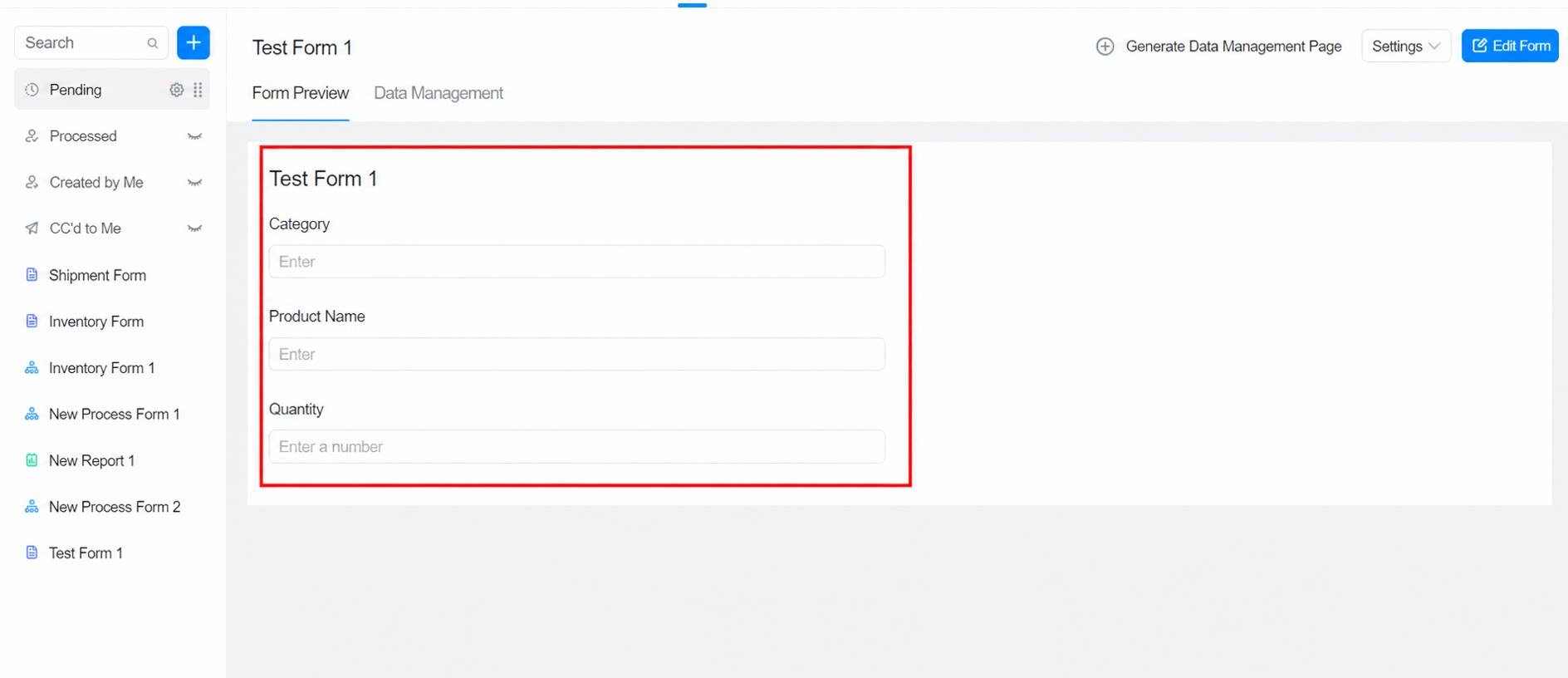
Create a Report
Select the Spreadsheet component, configure the data set and the fields to display. The Instance ID field must be selected.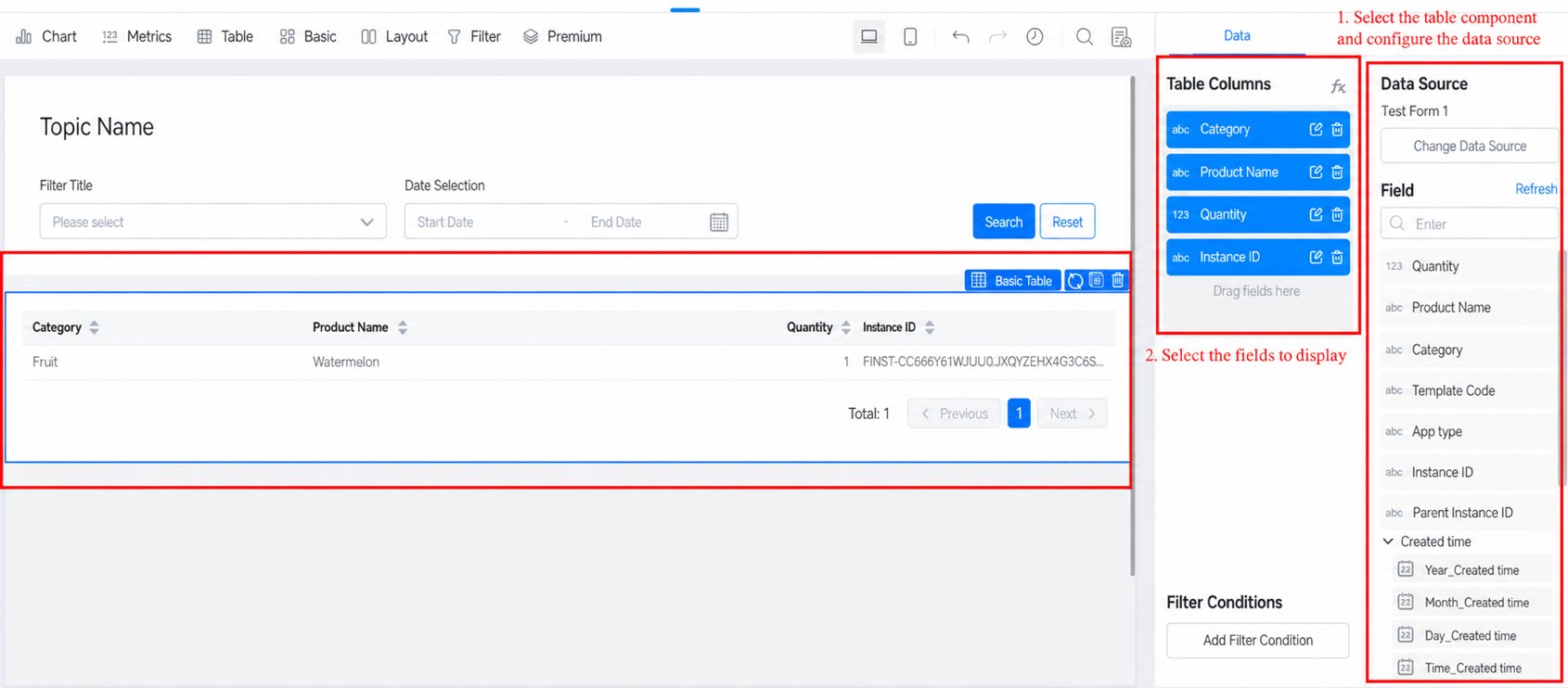
Configure the Link Redirect
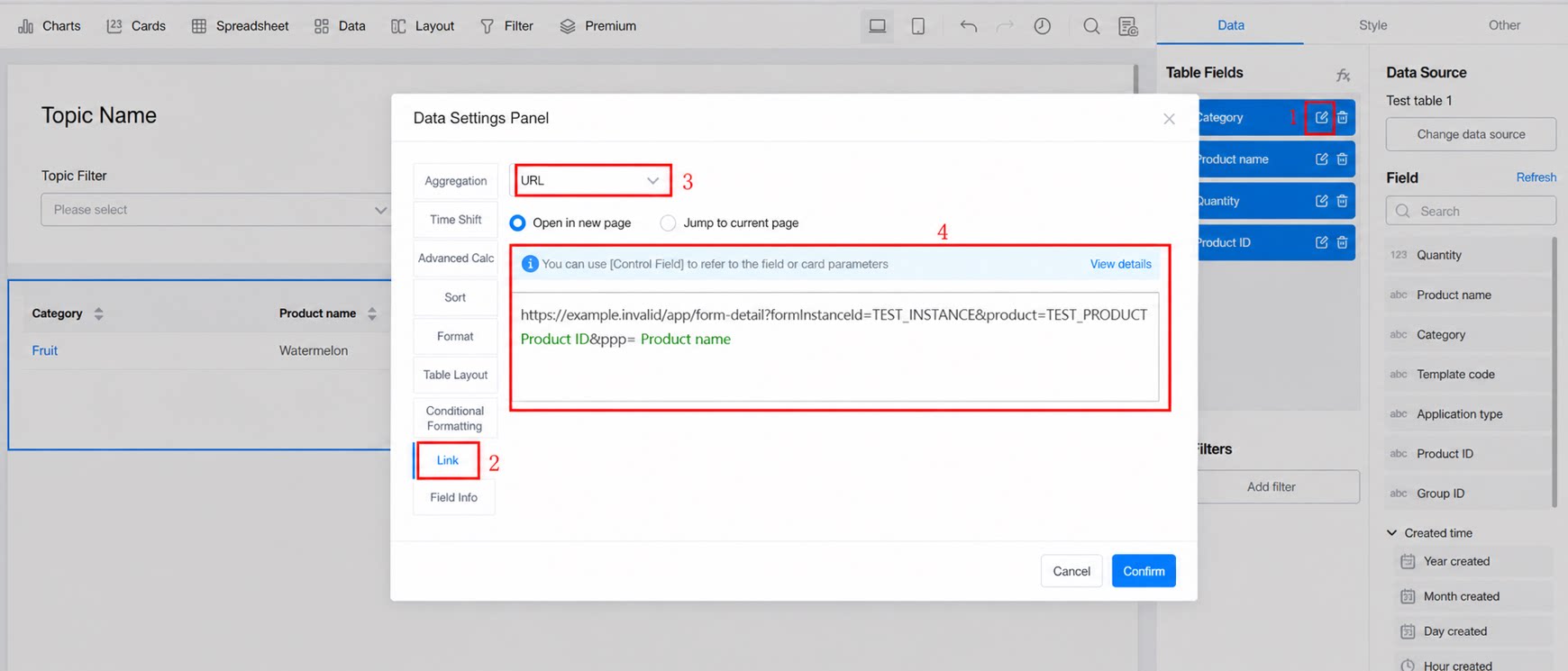
Click a field, then configure the link by referring to the images below.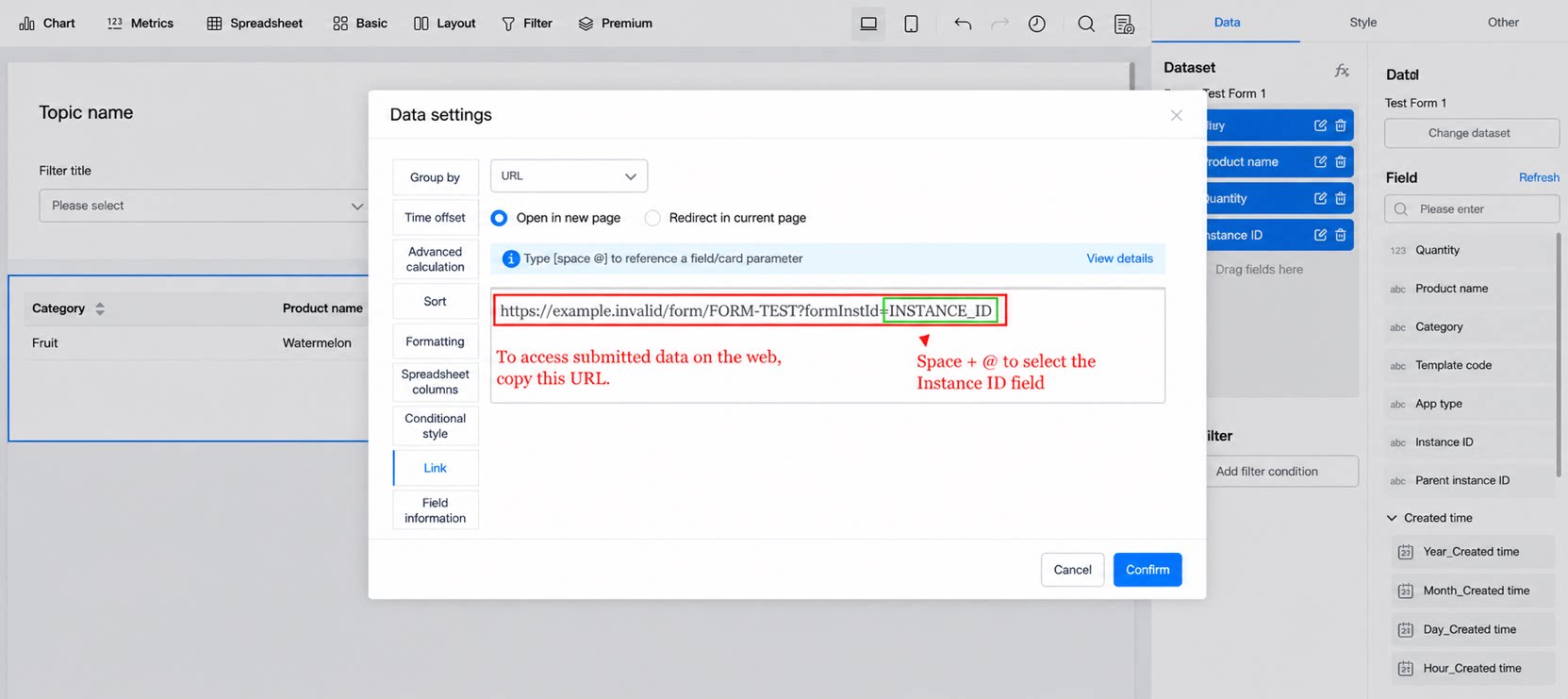
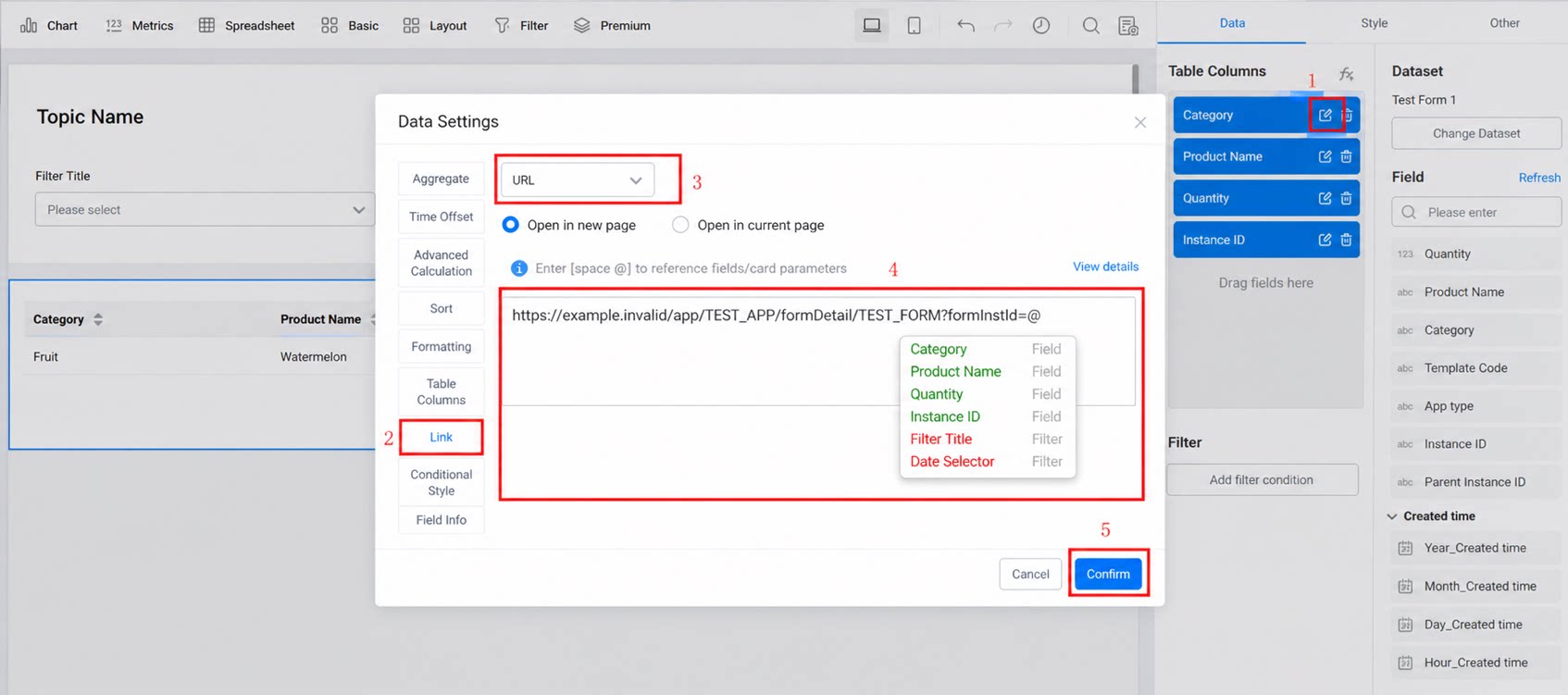
Result
Example result.3.2 Redirect to Details with Parameters
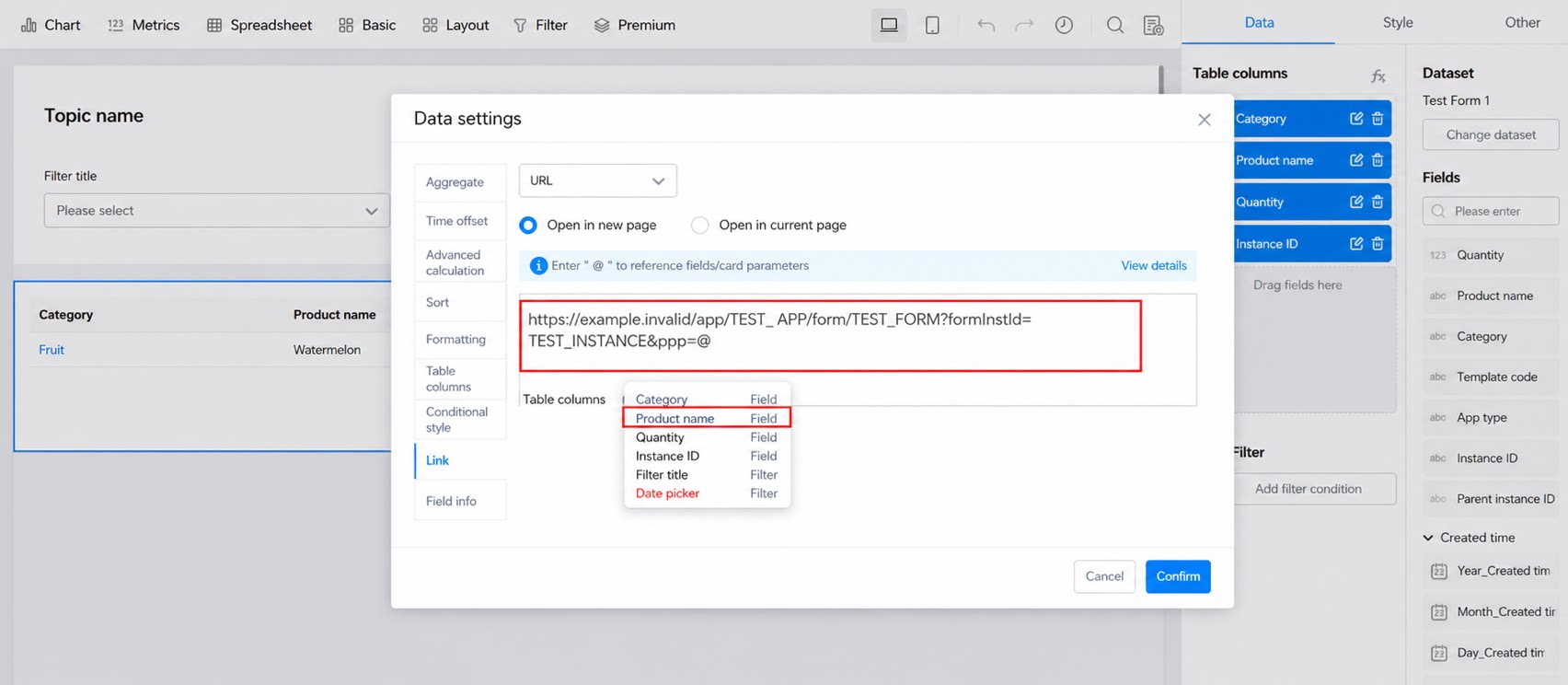
First, follow 3.1 Redirect from a report to the source records page, then complete the following steps:Configure the Redirect Link
Building on section 3.1, append &ppp=Product Name. Note that Product Name is a field in the Form.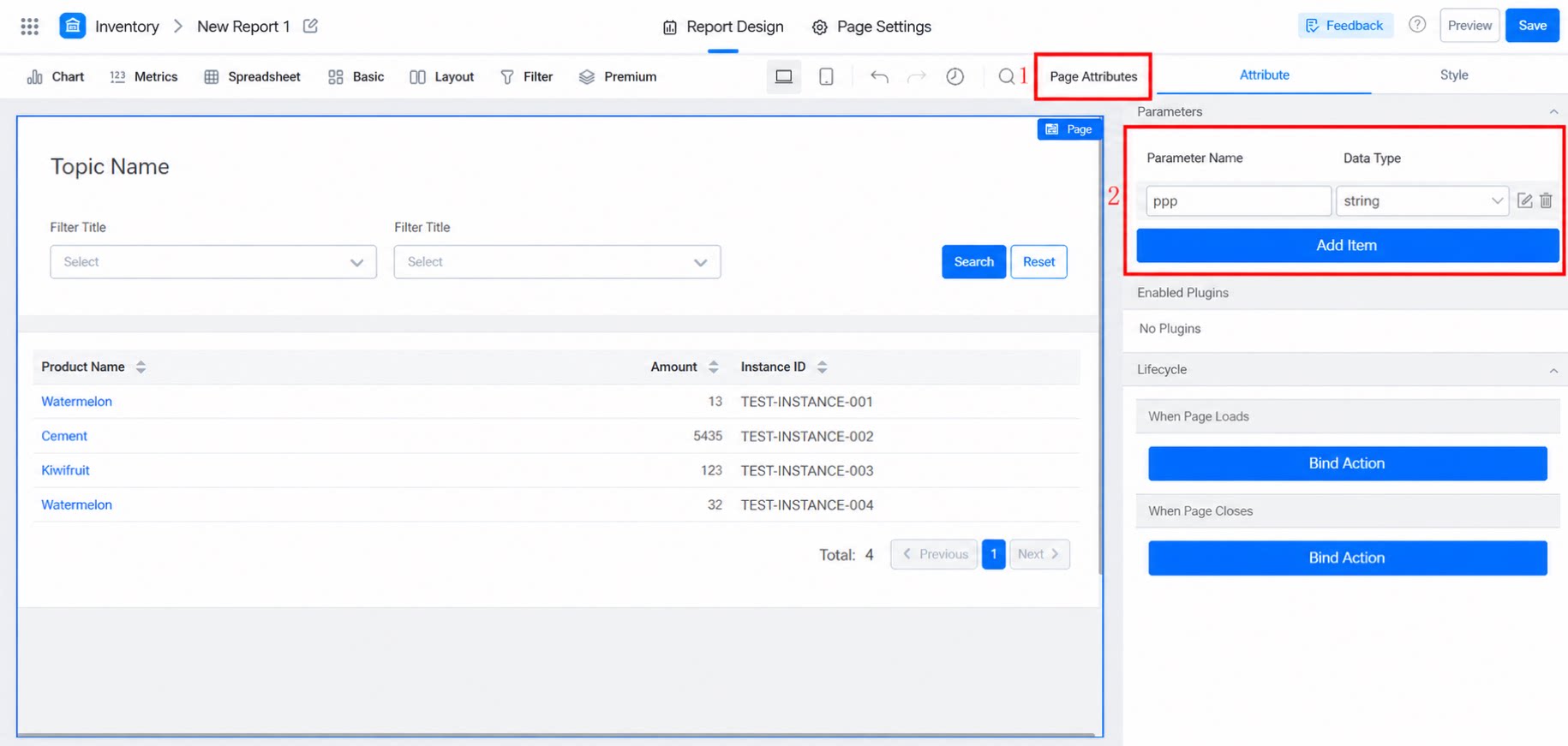
Result
3.3 Redirect from One Report to Another with Filtering Applied
Custom Parameter
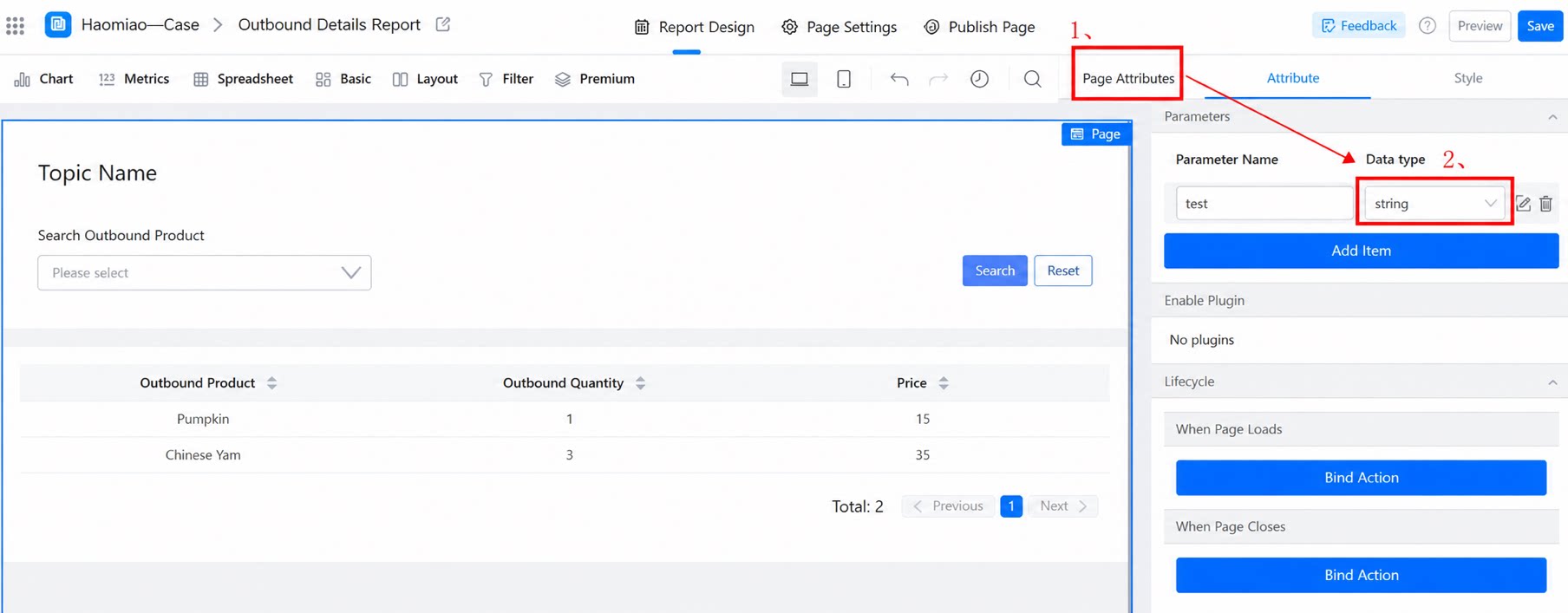
In the target report Outbound Table, open Page Attributes and Add a string-type parameter, then give it a name.Set the Default Value of the Filter Component
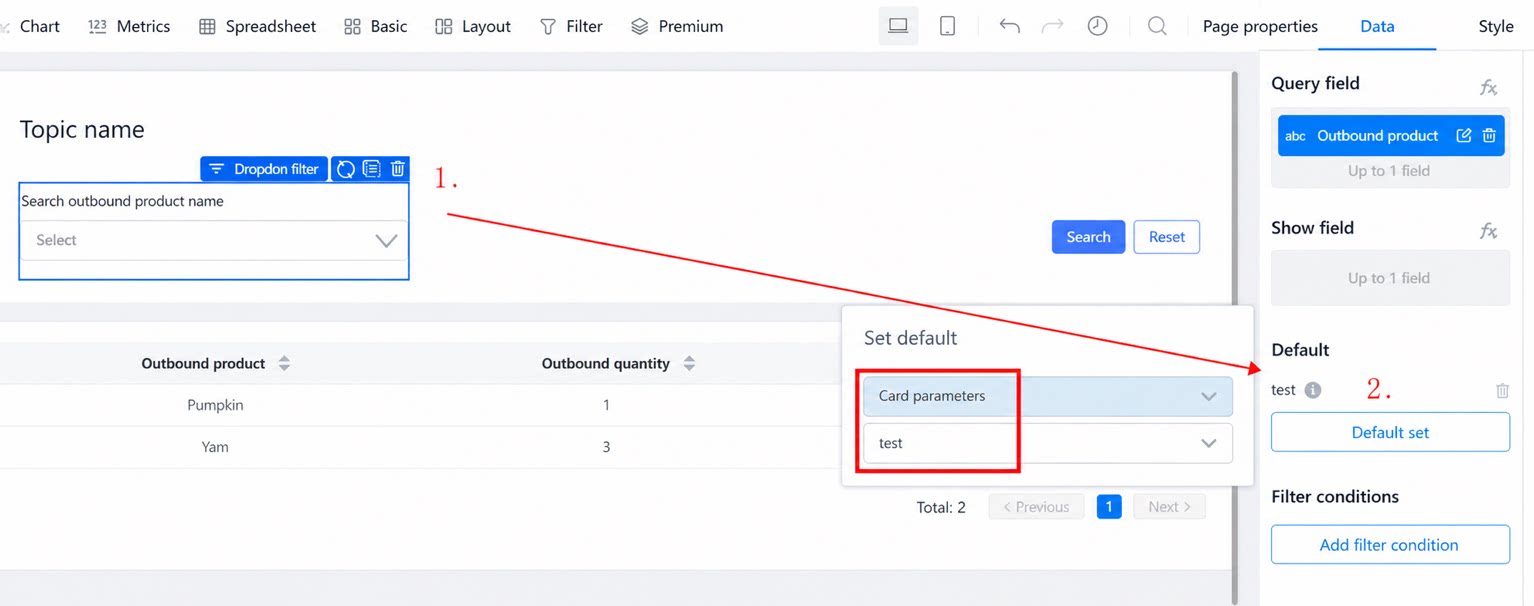
Set the default value of the filter component to a card parameter, and select the parametertest that you just created.
Configure the Link Redirect
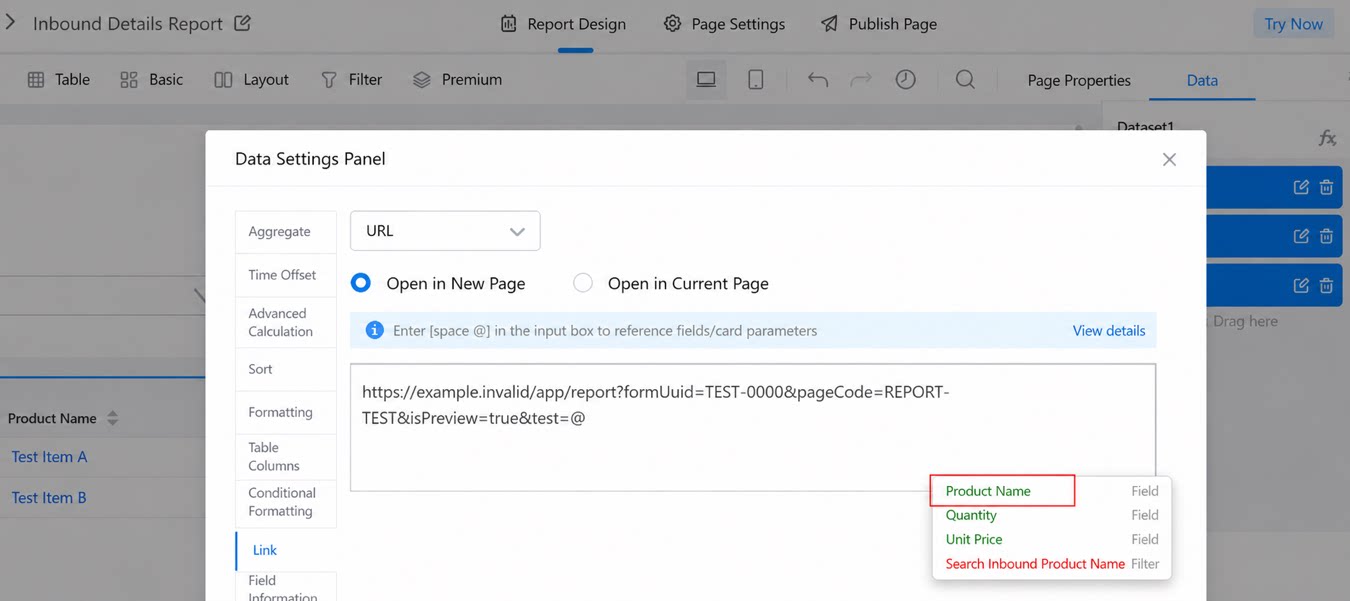
In the Inbound Table report, configure the link for the Spreadsheet field. Copy the preview link of the Outbound Table report, append an& symbol, and then concatenate the parameter name with test= + space + @filter field, as shown below:
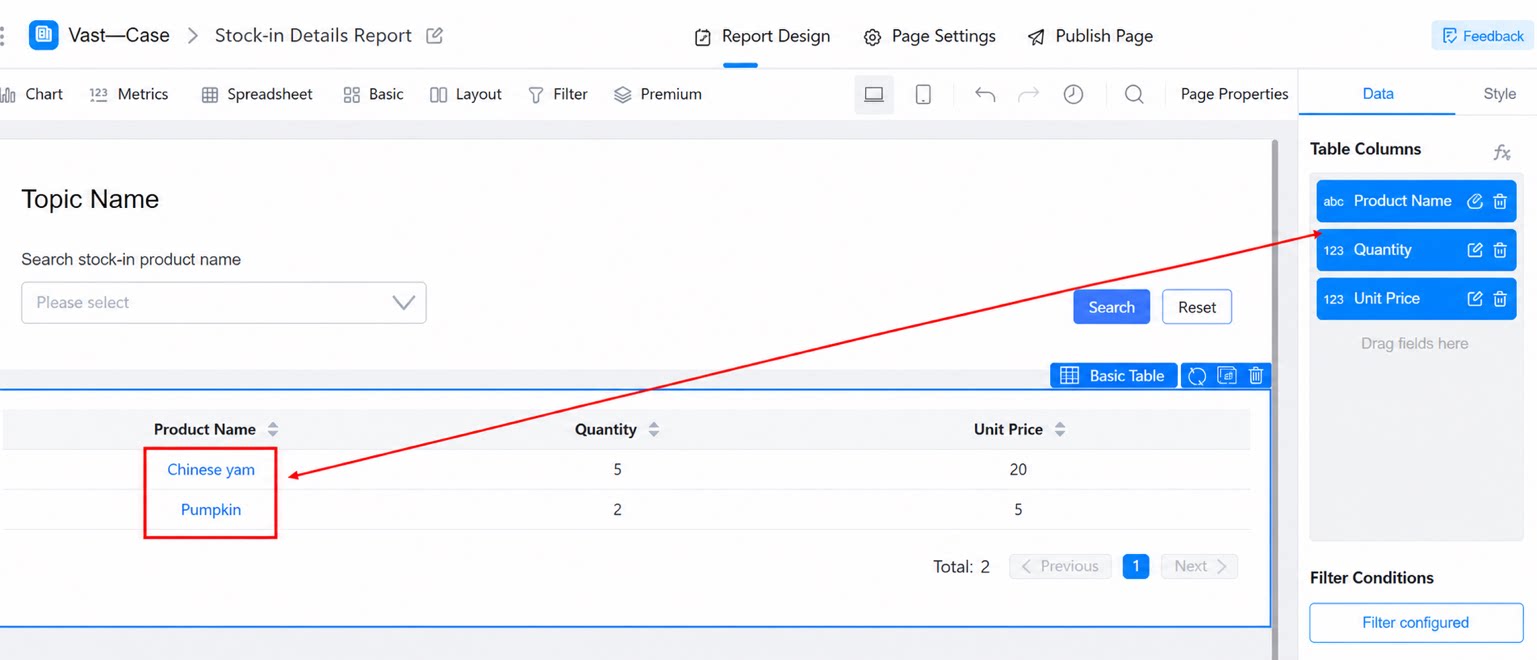
Result
Click the product name Yam in the Inbound Table report to redirect directly to the Outbound Table report with Yam data filtered.