

 Chats
Chats Calendar
 Meetings
 Contacts
 Mail
Mail Docs
Docs Drive
Drive AI Table
 AI Minutes
 Attendance
 Approval
 YiDA
YiDA Admin Console
1. Usage Notes
1.1 HTTP URL Concatenation Rules
App-level APIs are currently supported. Within an app (cross-app calls are also supported), you can access the corresponding API using the following format: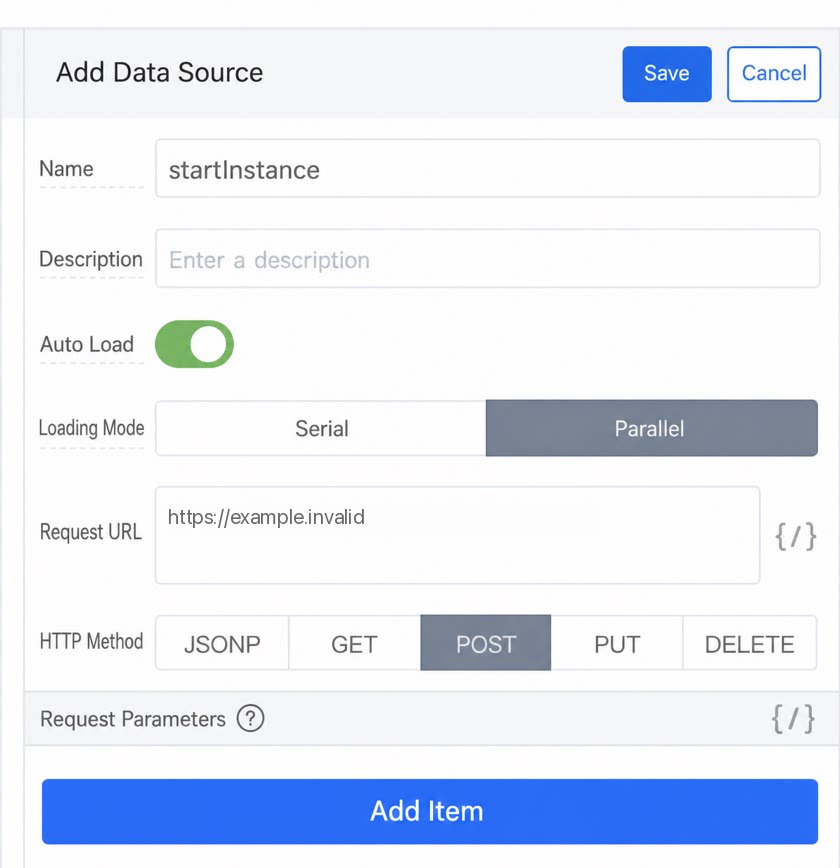
2. Workflow Instance
2.1 Start Workflow
- API: /v1/process/startInstance.json
- HTTP method: POST
- Parameters
- Return value:
- Return value
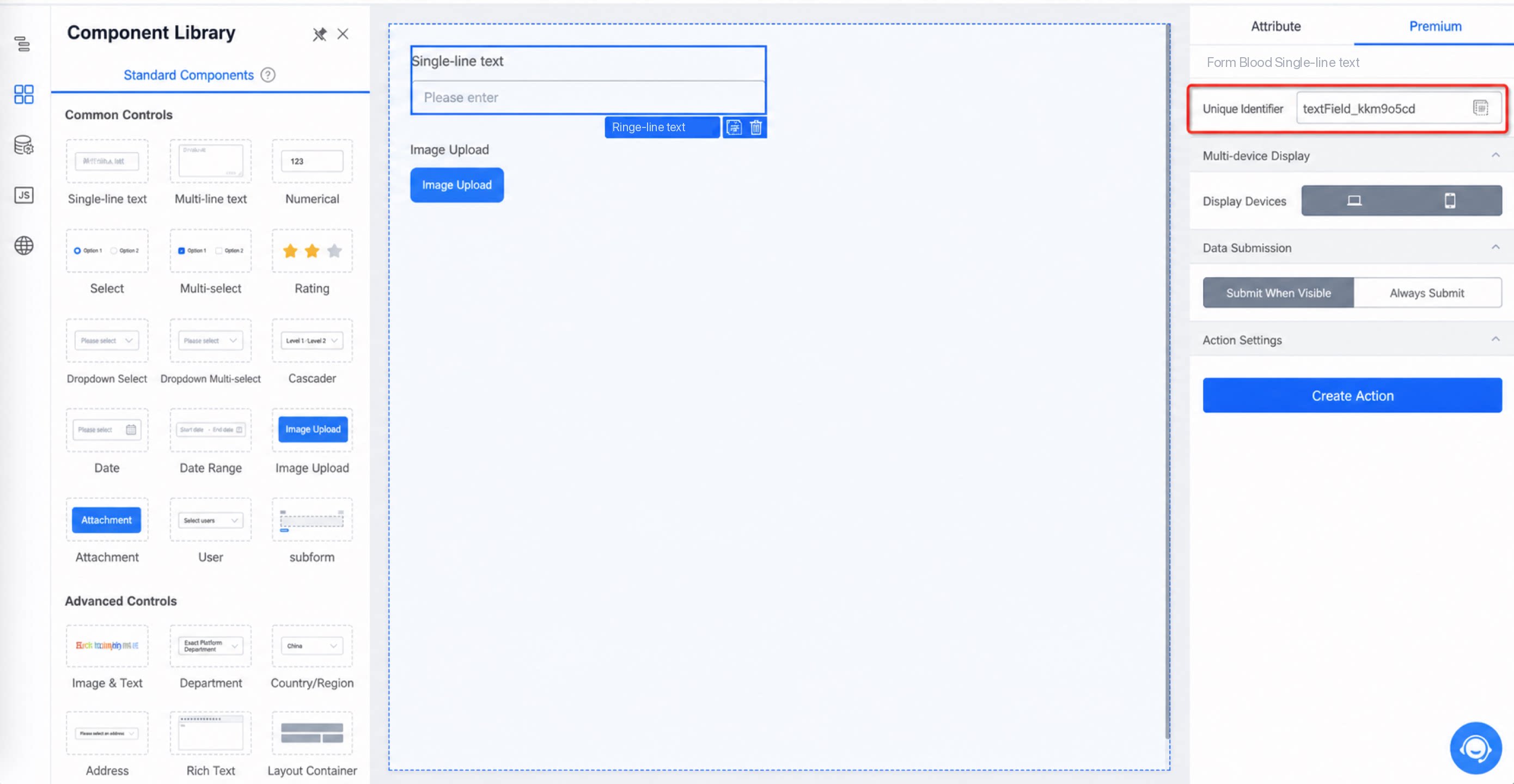
textField_kkm9o5cd.
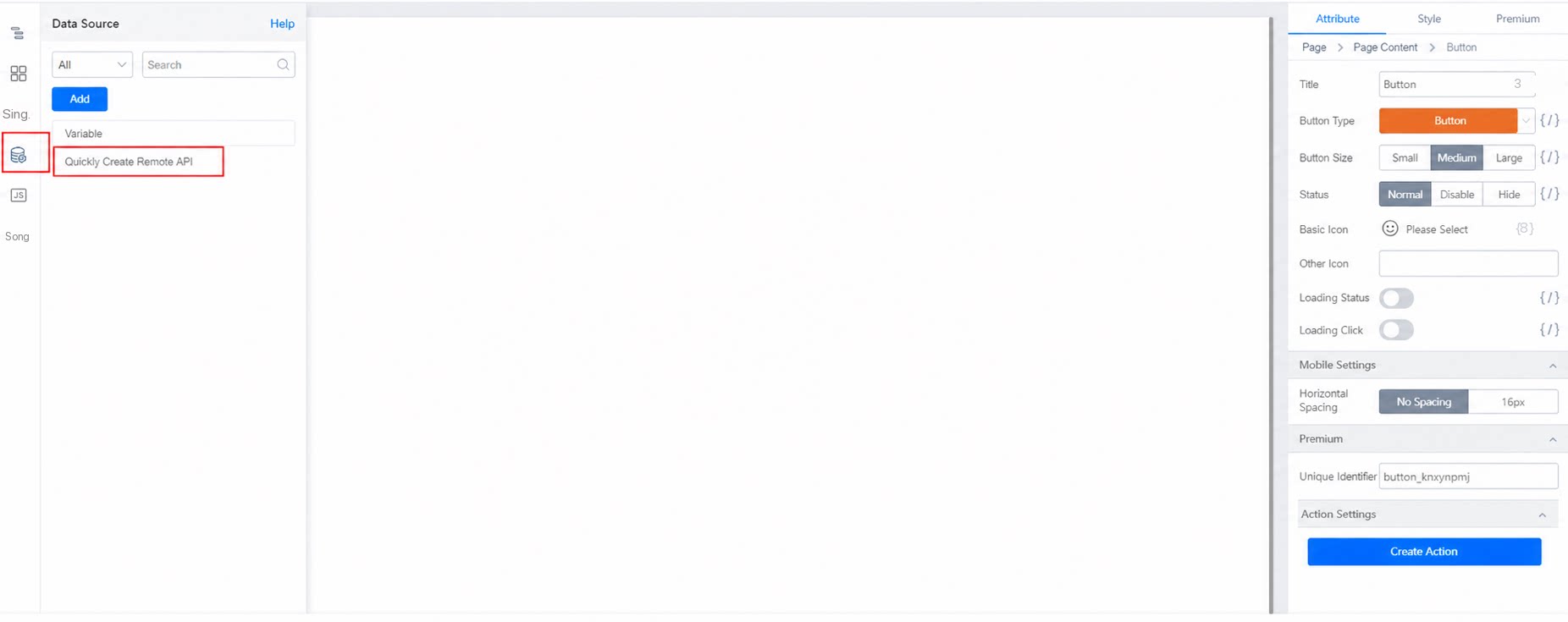
②. Create a Premium display Page, drag a Button onto the Page, and Add a Data Source.
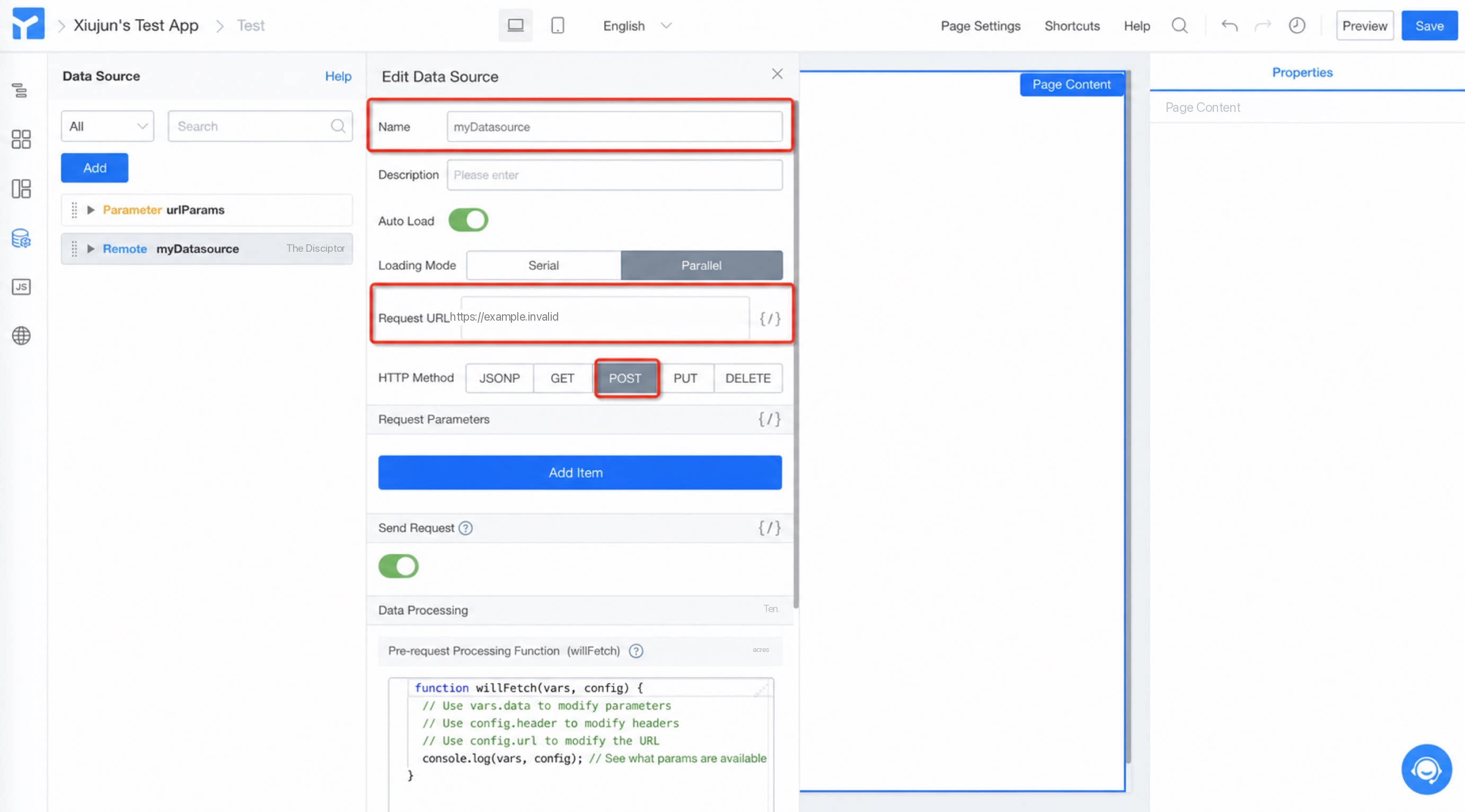
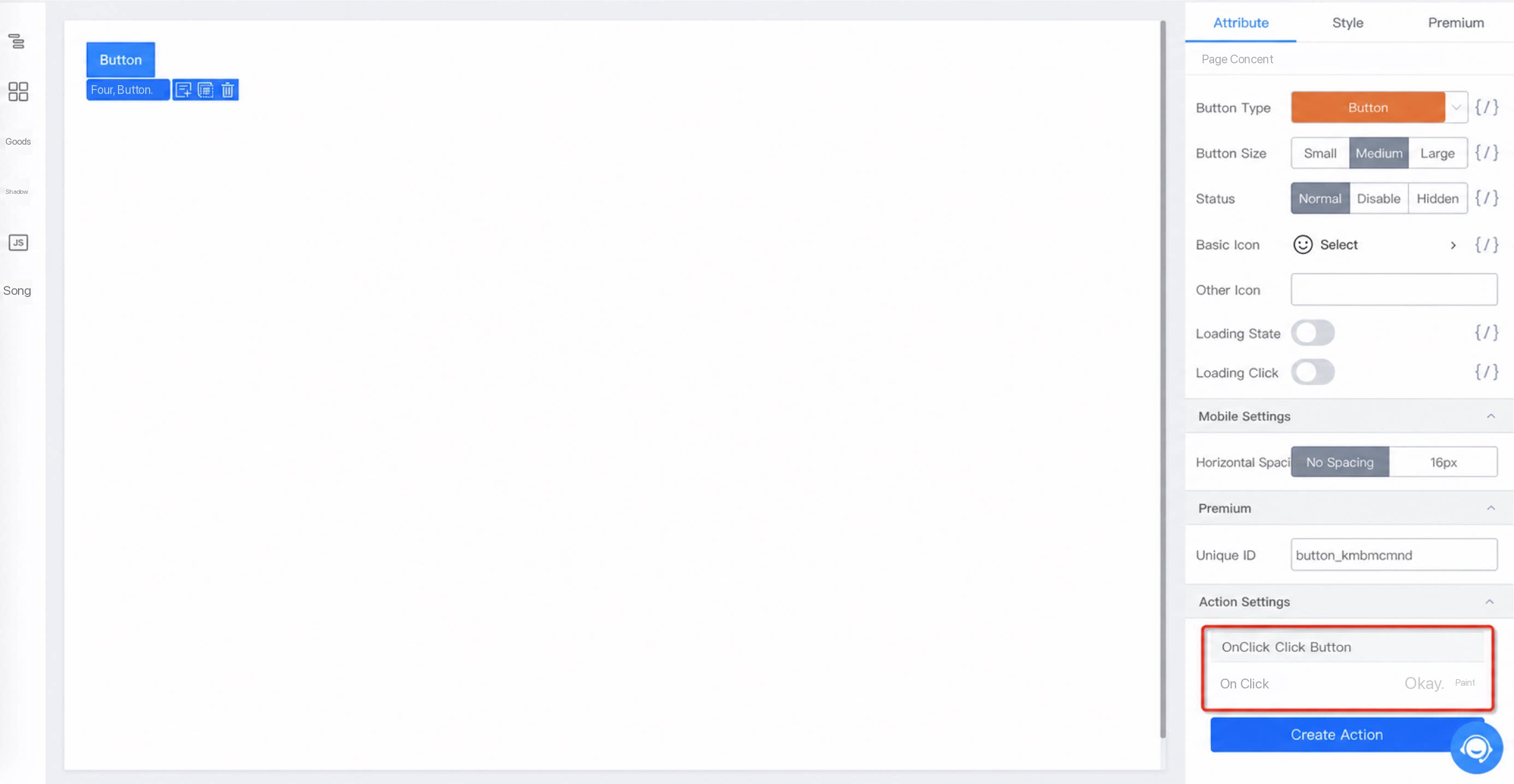
123 for the Single-line text Form control (unique identifier: textField_kkm9o5cd).
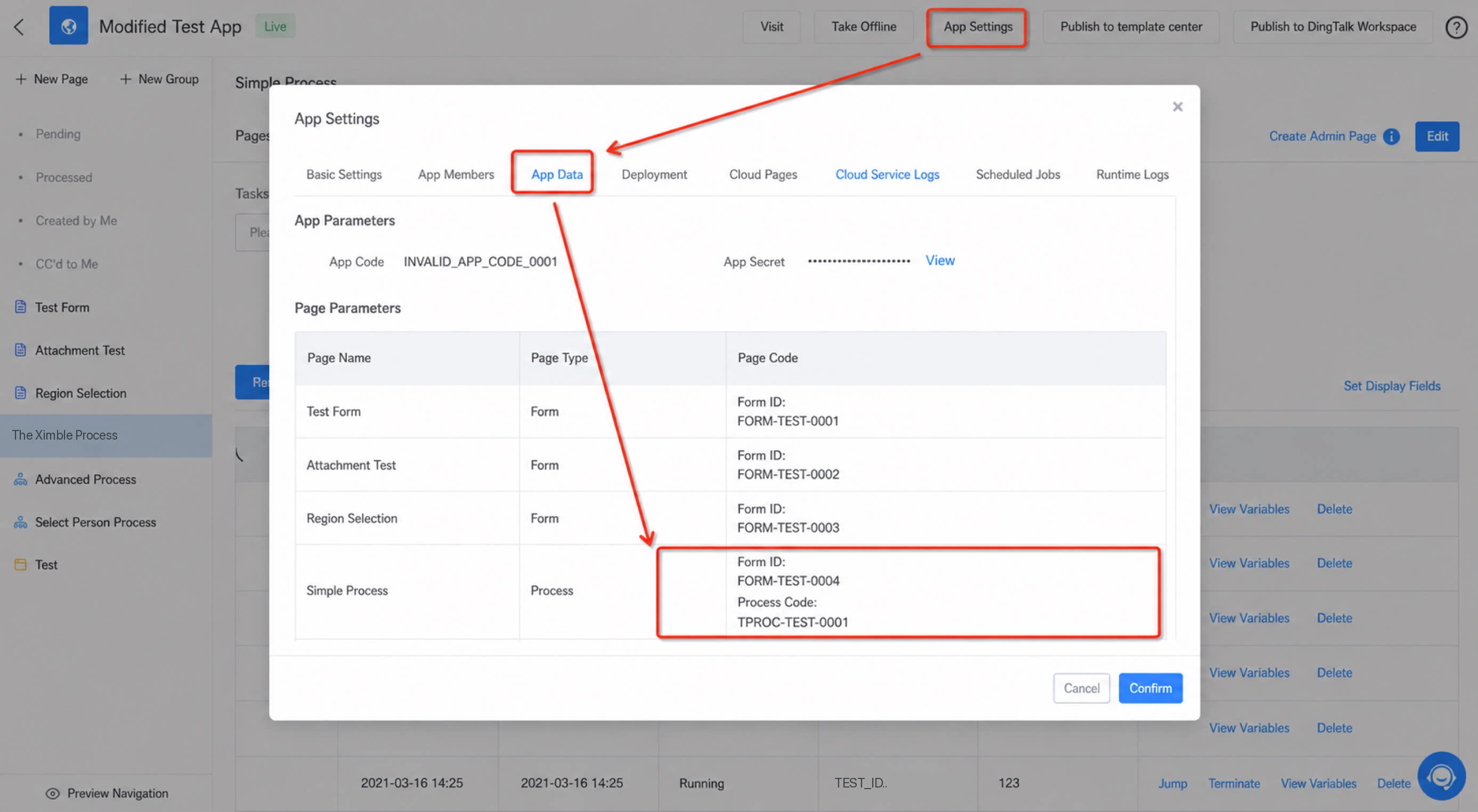
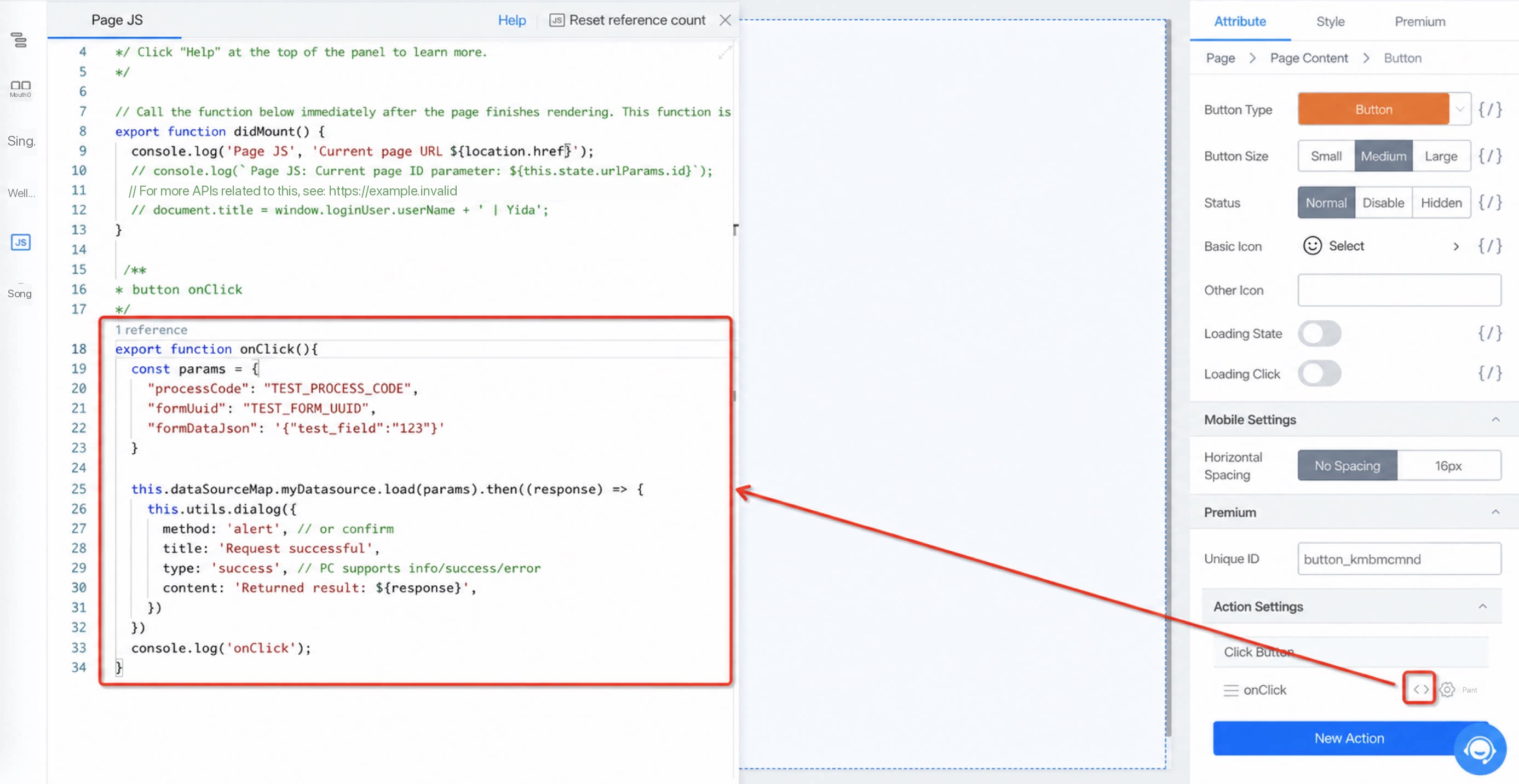
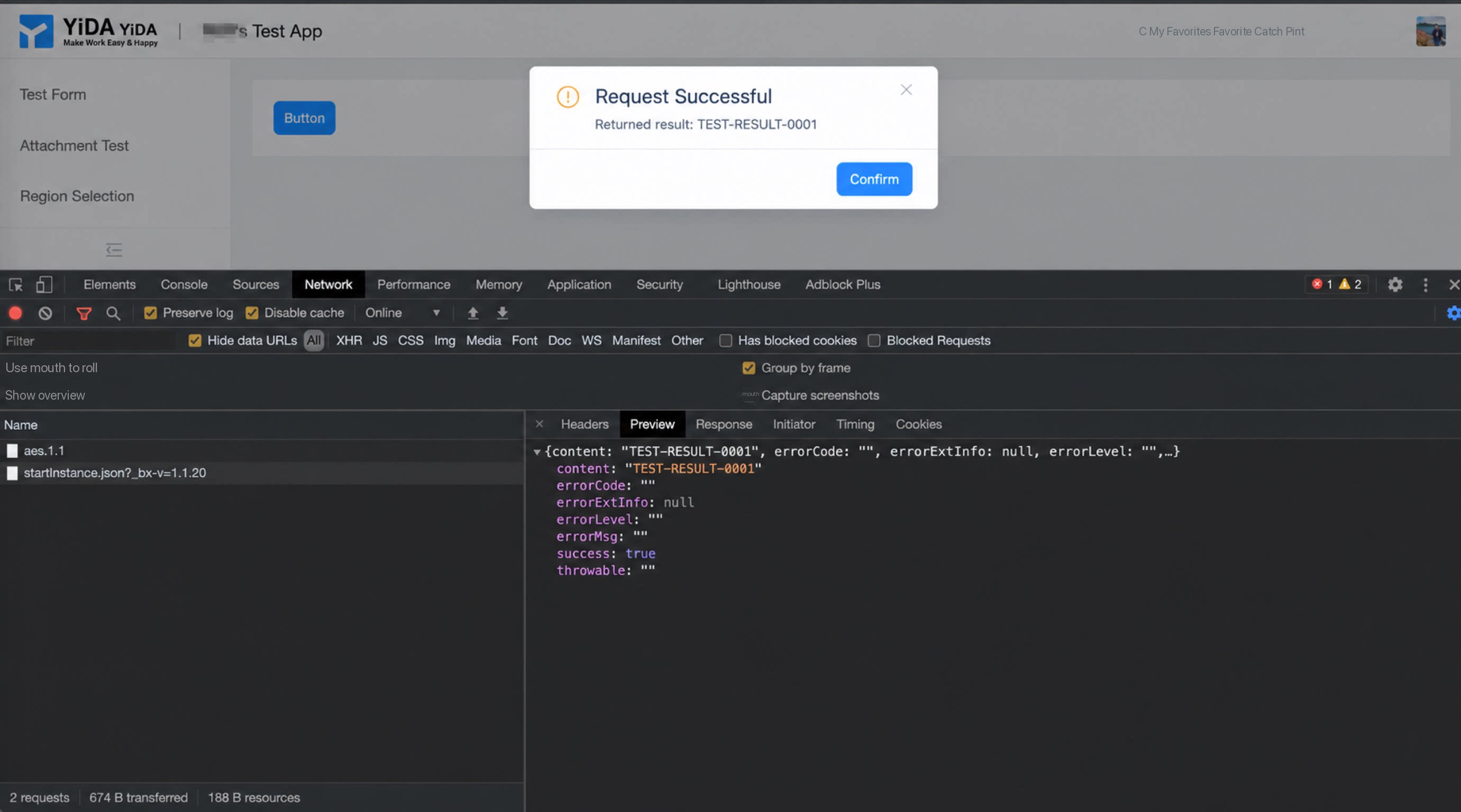
da5ed25c-977b-40e0-acff-4a1c07aa6f41 is the workflow instance ID, which uniquely identifies this workflow instance.
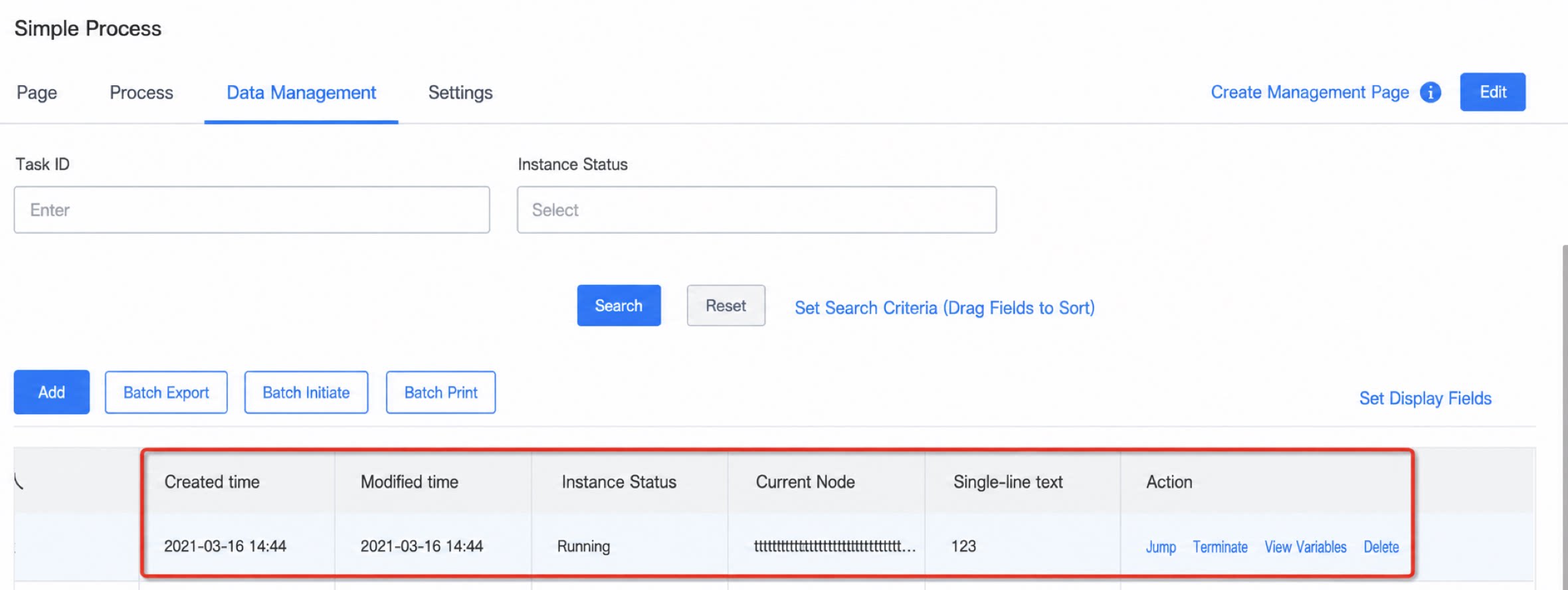
123 that we entered in the code. Testing and verification are now Complete.
- Video walkthrough
2.2 Search Workflow Instance IDs by Conditions
- API: /v1/process/getInstanceIds.json
- HTTP method: GET
- Permissions: the workflow must have instance View Permission configured (Admins are exempt)
- Parameters
- Return value
2.3 Get Instance Details List by Search Conditions
- API: /v1/process/getInstances.json
- HTTP method: GET
- Permissions: the workflow must have instance View Permission configured (Admins are exempt)
- Parameters
- Return value
2.4 Get Workflow Instance Details by Instance ID
- API: /v1/process/getInstanceById.json
- HTTP method: GET
- Parameters
- Return value
2.5 Delete Workflow Instance
- API: /v1/process/deleteInstance.json
- HTTP method: POST
- Parameters
- Return value
2.6 Terminate Workflow Instance
- API: /v1/process/terminateInstance.json
- HTTP method: POST
- Parameters
- Return value
2.7 Batch Get Workflow Instance Details by Instance IDs [Not yet Open]
- API: /v1/process/getInstancesByIds.json
- HTTP method: GET
- Parameters
- Return value
2.7 Execute Single Task API
- API: /v1/task/executeTask.json
- HTTP method: POST
- Parameters
- Return value
2.8 Get Approval Records
- API: /v1/process/getOperationRecords.json
- HTTP method: GET
- Parameters
- Return value
- Return format
2.9 Update Workflow Instance
- API: /v1/process/updateInstance.json
- HTTP method: POST
- Parameters
- Return value:
- Return value demo
2.8 Get the Button List for a Workflow Design Node [Not yet Open]
- API: /v1/process/getActivityButtonVOs.json
- HTTP method: GET
- Parameters
- Return value:
- Return value demo:
3. Form Instance
3.1 Create Form Instance
- API: /v1/form/saveFormData.json
- HTTP method: POST
- Parameters:
- Return value:
- Return value demo:
3.2 Update Specified Component Values in a Form
- API: /v1/form/updateFormData.json
- HTTP method: POST
- Parameters:
- Return value:
- Return value demo
3.3 Delete Form Instance
- API: /v1/form/deleteFormData.json
- HTTP method: POST
- Parameters:
- Return value:
- Return value demo
3.4 Query Form Instance Details by Form Instance ID
- API: /v1/form/getFormDataById.json
- HTTP method: GET
- Parameters:
- Return value
3.5 Search Form Instance ID List by Conditions
- API: /v1/form/searchFormDataIds.json
- HTTP method: GET
- Permissions: this API is subject to Page-level Permissions (Admins are exempt).
- Parameters:
- Return value
- Return value demo:
3.6 Search Form Instance Details List by Conditions
- API: /v1/form/searchFormDatas.json
- HTTP method: GET
- Permissions: this API is subject to Page-level Permissions (Admins are exempt).
- Parameters
- Return value
3.7 Get Form Definition
- API: /v1/form/getFormComponentDefinationList.json
- HTTP method: GET
- Parameters:
- Return value:
- Return format
3.8 Get Subform Data
- API: /v1/form/listTableDataByFormInstIdAndTableId.json
- HTTP method: GET
- Parameters
- Return value
- Return format
4. Task Center
4.1 Submitted Tasks
- API: /v1/process/getMySubmitInApp.json
- HTTP method: GET
- Parameters
- Return value:
- Return format
4.2 To-Do Tasks
- API: /v1/task/getTodoTasksInApp.json
- HTTP method: GET
- Parameters
- Return value:
- Return format
4.3 Completed Tasks
- API: /v1/task/getDoneTasksInApp.json
- HTTP method: GET
- Parameters
- Return value:
- Return format
4.4 Tasks CC’d to Me (App-Level)
- API: /v1/task/getNotifyMeTasksInApp.json
- HTTP method: GET
- Parameters
- Return value:
- Return format
- Tips: instValue returns a string; its Content is in JSON array format.
5. Appendix
5.1 Save/Update Form Data Format
- Every Component in a Form has a unique ID (viewable in the Premium panel on the right side of the Component in the page designer), and each Component’s value has its own fixed format. The form components currently supported are: Single-line, multi-line, Number, Select, Dropdown Single Select, Multiselect, Dropdown Multiselect, Date, Date range, User search box, Region Select, Department Select, Cascading Select, and subform Components.
- When saving or updating Form data, the data in the Form is passed as a JsonString in the Map<String, Object> format. The key is the Component ID and Object is the Component’s value. The format of each Component’s value is as follows:
- The complete Form data format is as follows:
5.2 Condition Search by Component Value – Component Value Format
- Every Component in a Form has a unique ID (viewable in the Premium panel on the right side of the Component in the page designer), and each Component’s Search format differs. The Form Components currently supported for Search are: Single-line, multi-line, Number, Select, Dropdown Single Select, Multiselect, Dropdown Multiselect, Date, Date range, User search box, Region Select, Department Select, Cascading Select, and subform Components.
- When searching, each Component’s Search conditions are represented as a Map<String, Object>. The key is the Component ID and Object is the Component’s Search value. The Search type and value format for each Component are as follows:
- Full example
5.3 Workflow Instance Details Object Format
- Complete data format demo
5.4 Form Data Format as a Return Value
The format of Form data as a return value is essentially the same as in “Appendix 1 – Save/Update Form data format”. The differences are:- On submission, the Region Component value is [“Province ID”, “City ID”, “District ID”]. As a return value, it is [“Province Name”,“City Name”,“District Name”].
- Select, Dropdown Single Select, Multiselect, and Dropdown Multiselect are internationalized. As return values, they return the data value corresponding to the
languageparameter you passed.
5.5 Form Instance Details Object Format
A complete demo is as follows: