

 Chats
Chats Calendar
 Meetings
 Contacts
 Mail
Mail Docs
Docs Drive
Drive AI Table
 AI Minutes
 Attendance
 Approval
 YiDA
YiDA Admin Console
Configure a Message Template
1
Step 1
Sign in to the YiDA workbench as an Admin.
2
Step 2
Click the platform management button  in the upper-right corner to open the platform management page.
in the upper-right corner to open the platform management page.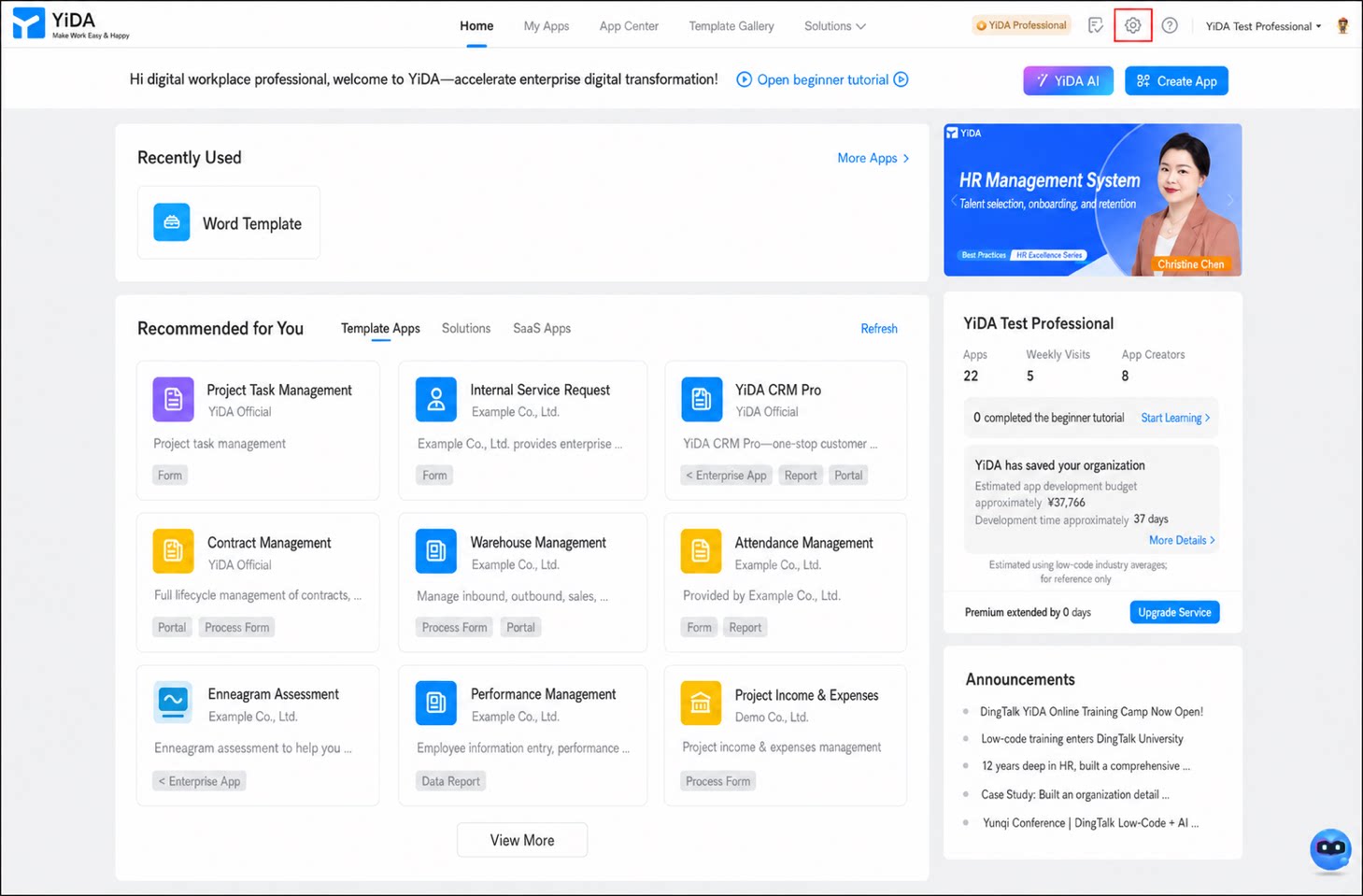
1
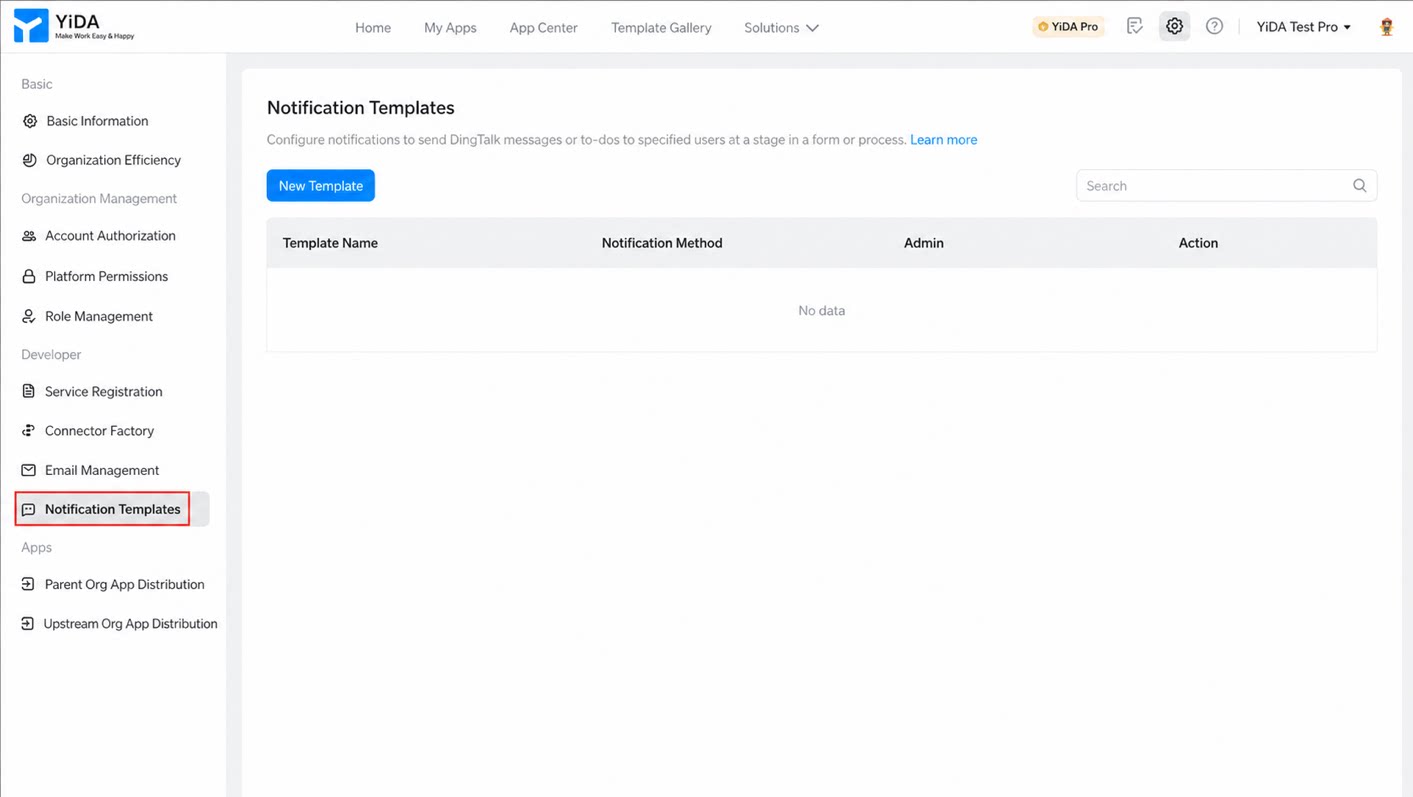
In the left-side menu, click Message notification templates
2
Click Create template, configure the template as described below, and then click Confirm to finish
| Attribute | Description |
| Template name | Enter a name for the message template. |
| Admin | The administrator of this message template. You can assign multiple administrators. |
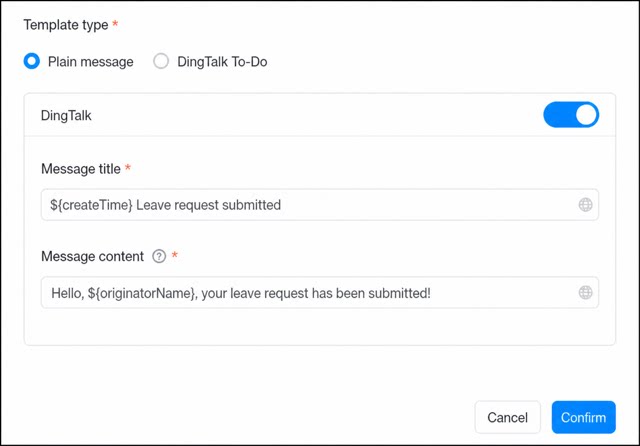
| Template type | Plain message: Currently supports sending DingTalk message notifications only.
 |
DingTalk To-Do: The DingTalk To-Do notification type is available only in the Basic edition and above. For details, refer to Edition differences.
Note: Each organization can create up to 200 DingTalk To-Do templates. Exceeding this limit triggers an error. 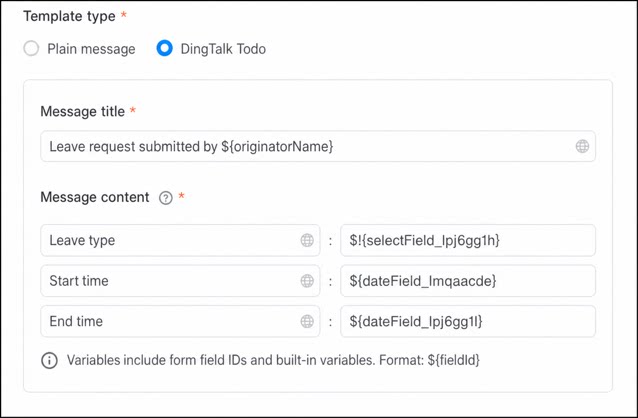 |
Use a Message Template
You can apply a message template in two ways:- Method 1: Use it in the Message notifications step of a workflow form’s workflow design. For details, refer to Message notifications step.
- Method 2: Use it in the form page settings. For details, refer to Form message notifications.
Regular forms do not currently support DingTalk To-Do message templates.
Built-In Variable Formats
The message content in a message template supports configurable variables. Each variable is the ID of a form component, formatted as$!{Component ID}. When the message is sent, YiDA automatically replaces the variable with the value of the form component.