Chats
Chats Calendar
 Meetings
 Contacts
 Mail
Mail Docs
Docs Drive
Drive AI Table
 AI Minutes
 Attendance
 Approval
 YiDA
YiDA Admin Console
1 Broadcastable Portal Page Settings
1.1 Basic Settings
Choose whether to enable “Hide the top navigation” on the broadcastable portal page.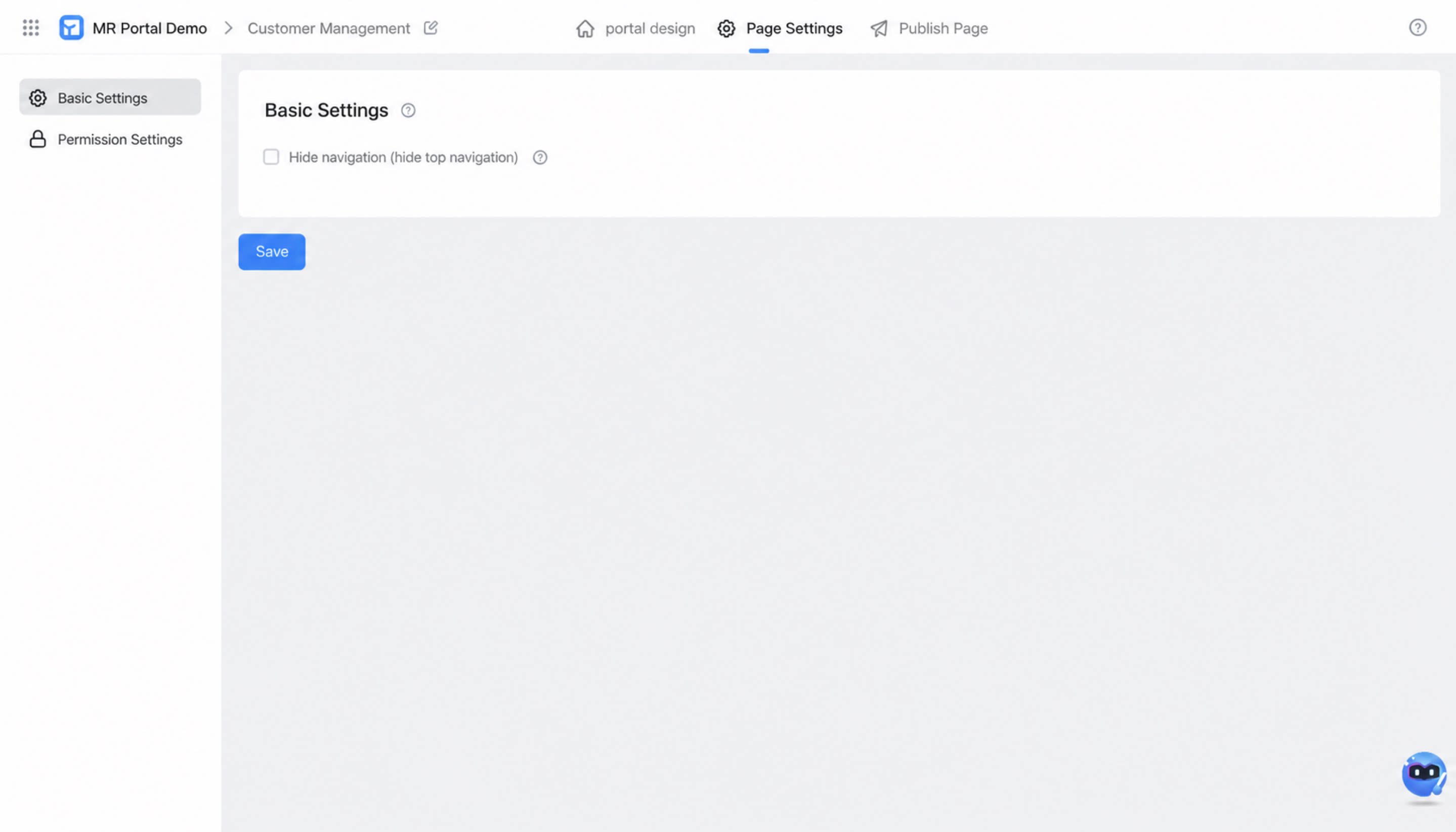
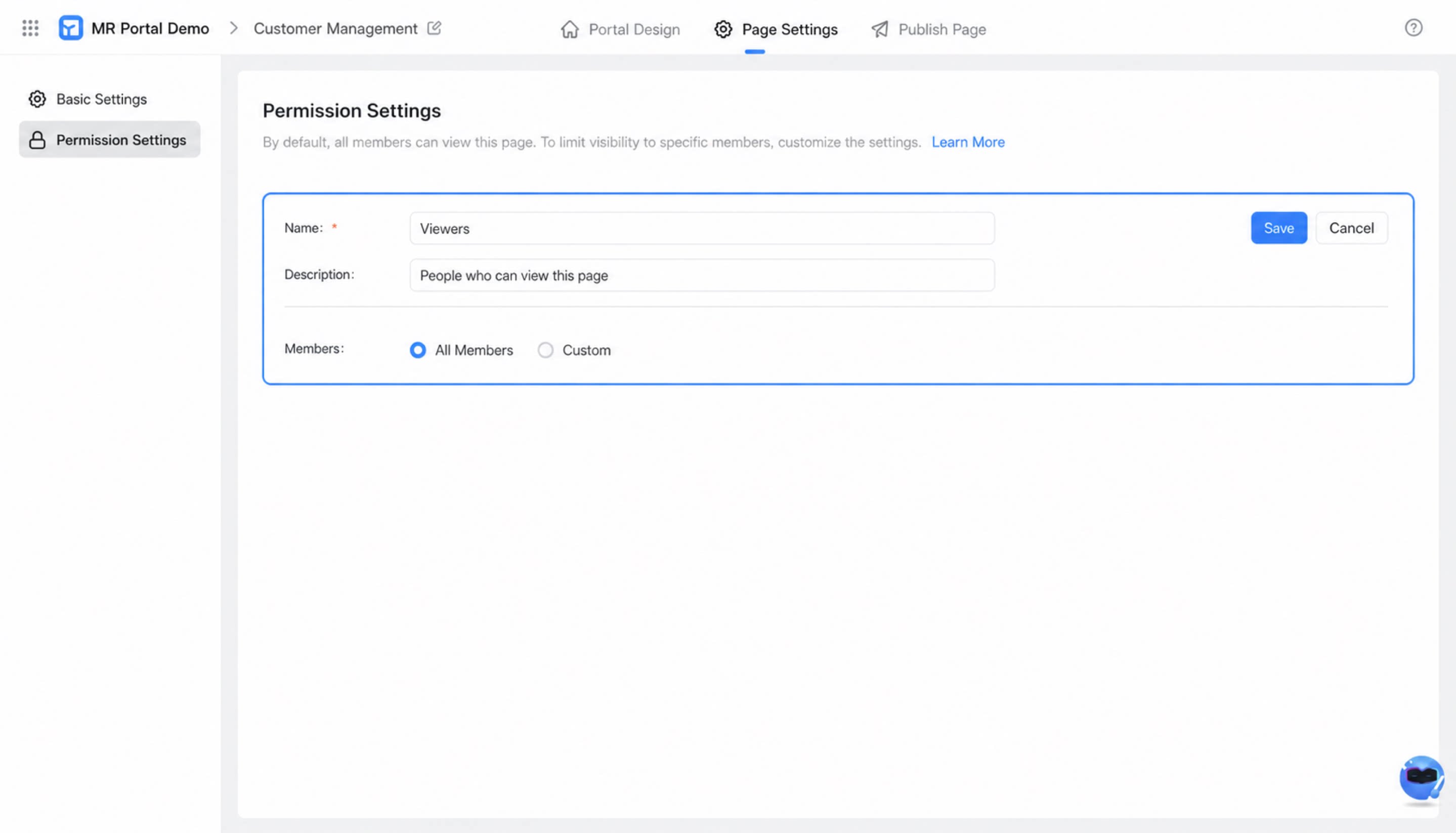
1.2 Permission Settings
Set the visibility range of the broadcastable portal. Select All users or Custom to define which users can view the page.You can create up to 100 permission groups for a portal page.
2 Publish the Broadcastable Portal Page
2.1 Publish Within the Organization
Users within the organization must sign in and grant authorization to access the link.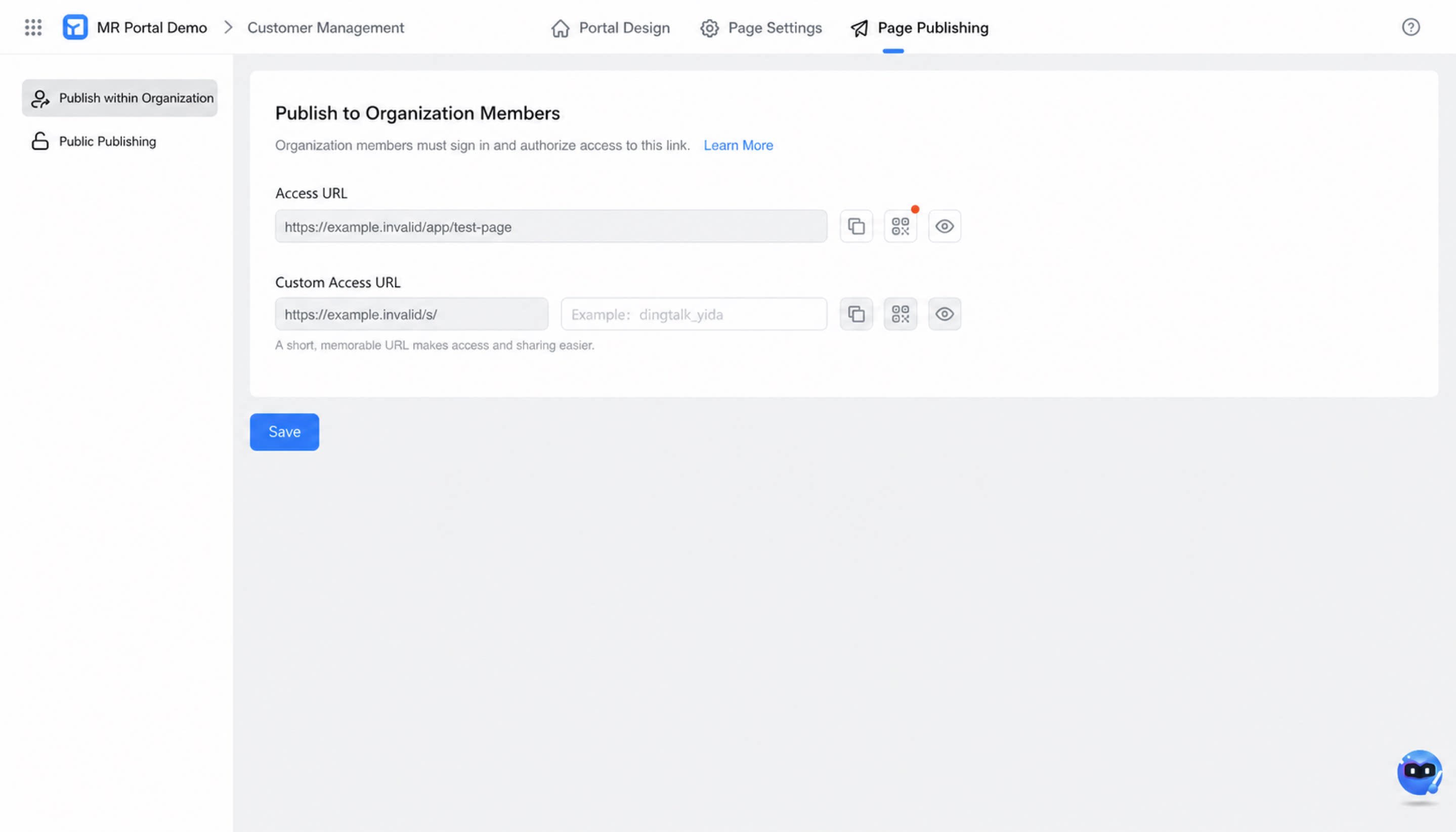
2.2 Public Publishing
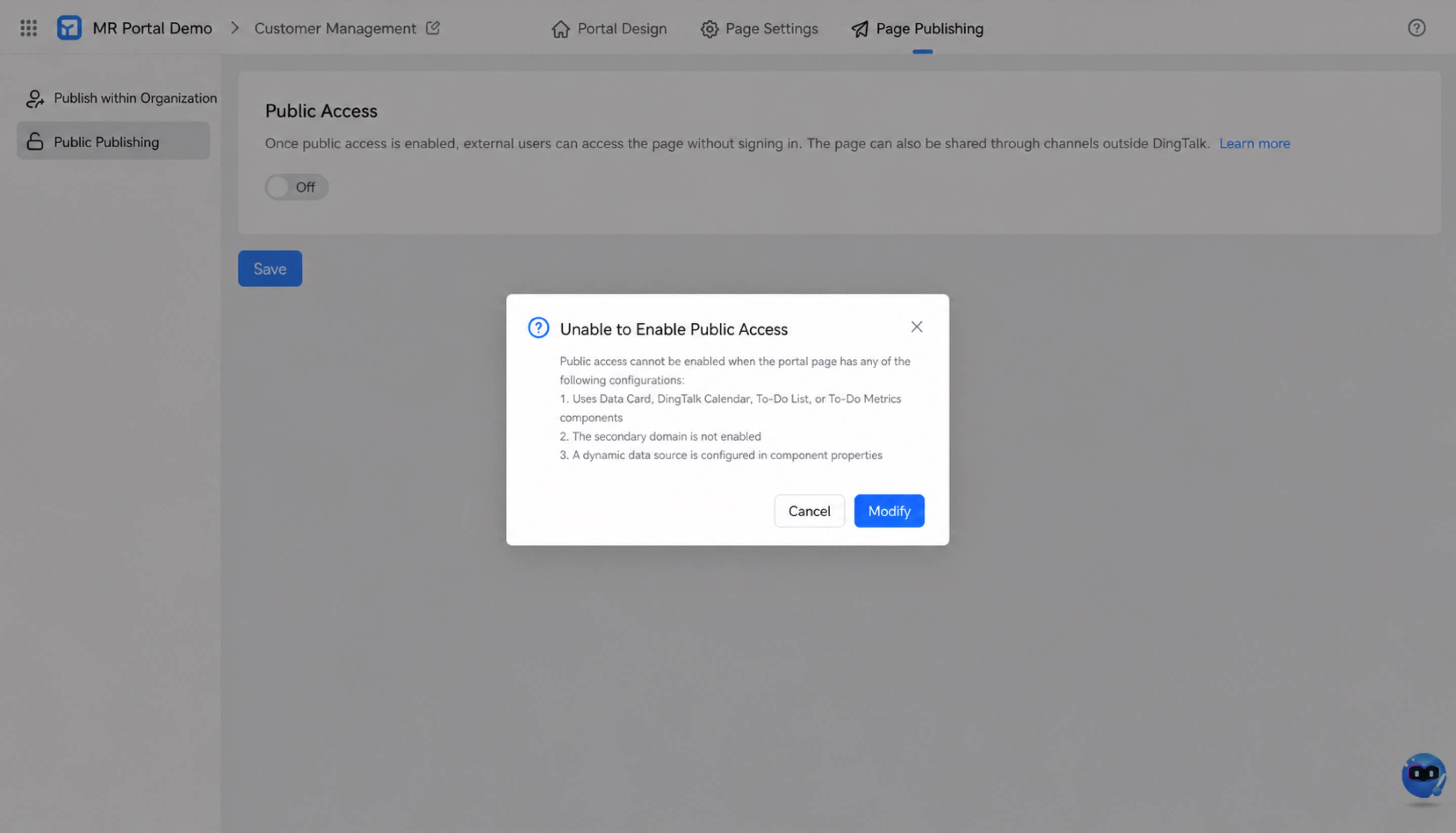
After you enable public access, users outside the organization can access the portal page without signing in. Note: You cannot enable public access when the broadcastable portal page has any of the following configurations:1
Uses the Data Card, DingTalk Event, To-Do List, or To-Do Metric component
2
The secondary domain is not enabled
3
The component attribute is configured with an Activity Data Source (for example, the data source of a carousel, announcement bar, or news list is set to an Activity Data Source)