Chats
Chats Calendar
 Meetings
 Contacts
 Mail
Mail Docs
Docs Drive
Drive AI Table
 AI Minutes
 Attendance
 Approval
 YiDA
YiDA Admin Console
1. Introduction
1.1 Feature Overview
Applicable scope: applies to page-level message notifications on regular forms and workflow forms (supports the simplified new workflow designer; not compatible with the legacy advanced workflow designer). Platform-level message notifications and message notification steps in integration & automation / workflow designer do not yet support the capabilities below.
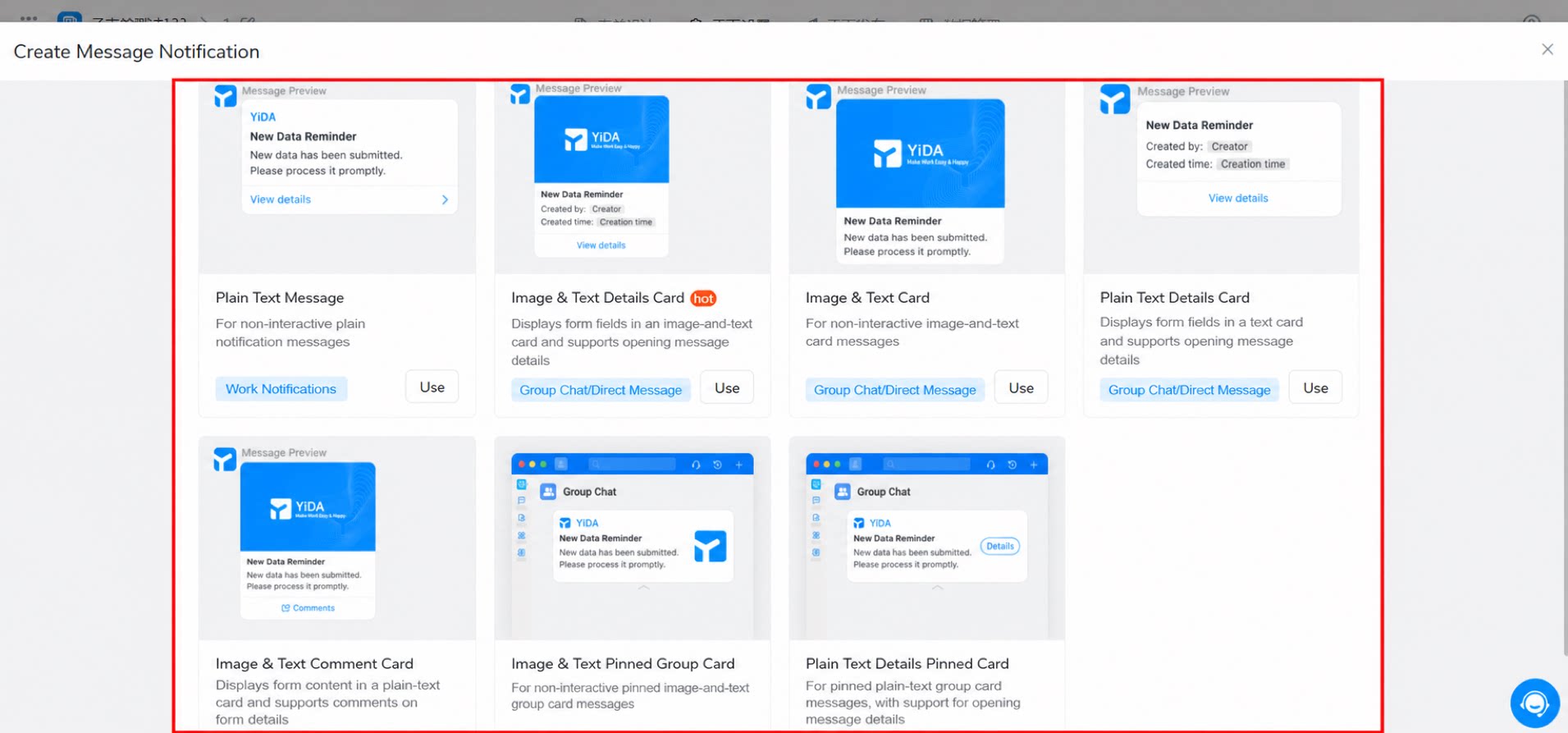
| Work Notifications | Plain text message Suitable for notification-only plain messages that require no action. 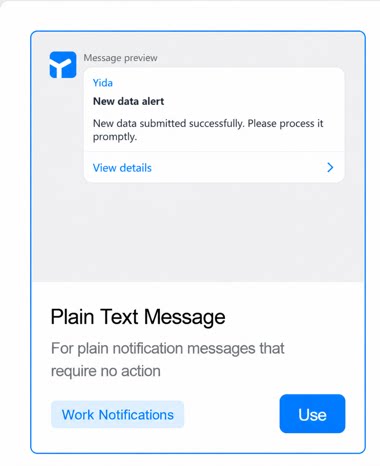 | To send a DingTalk To-Do, turn on More settings. Regular form Workflow form 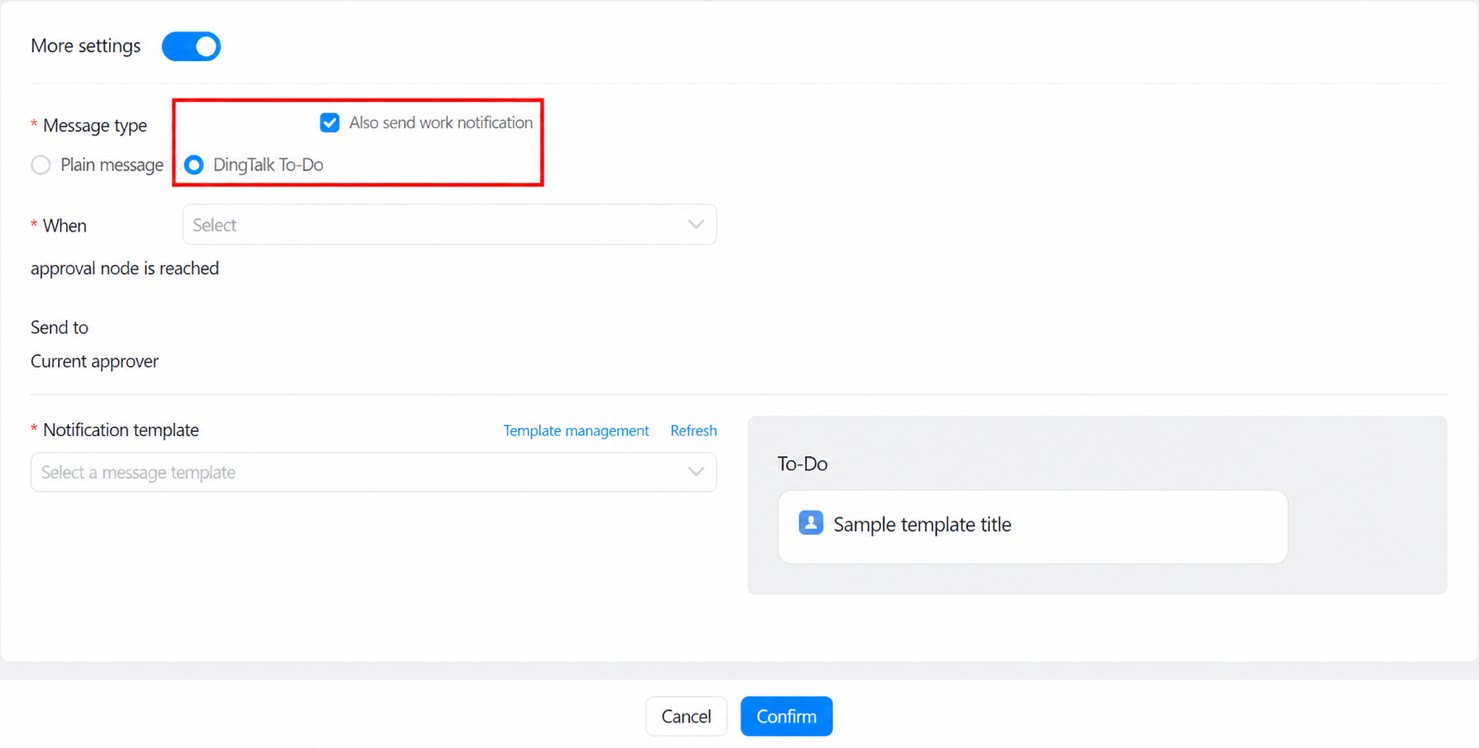 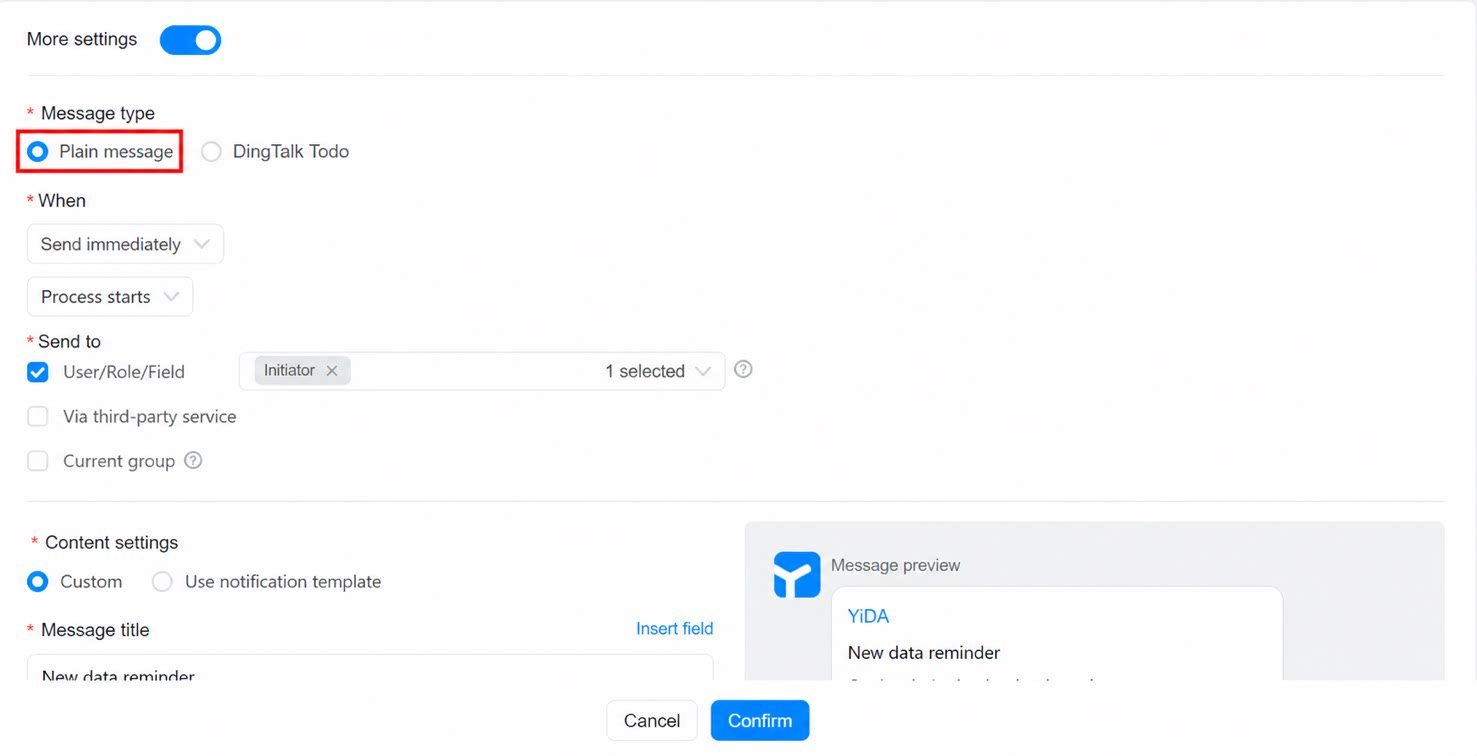 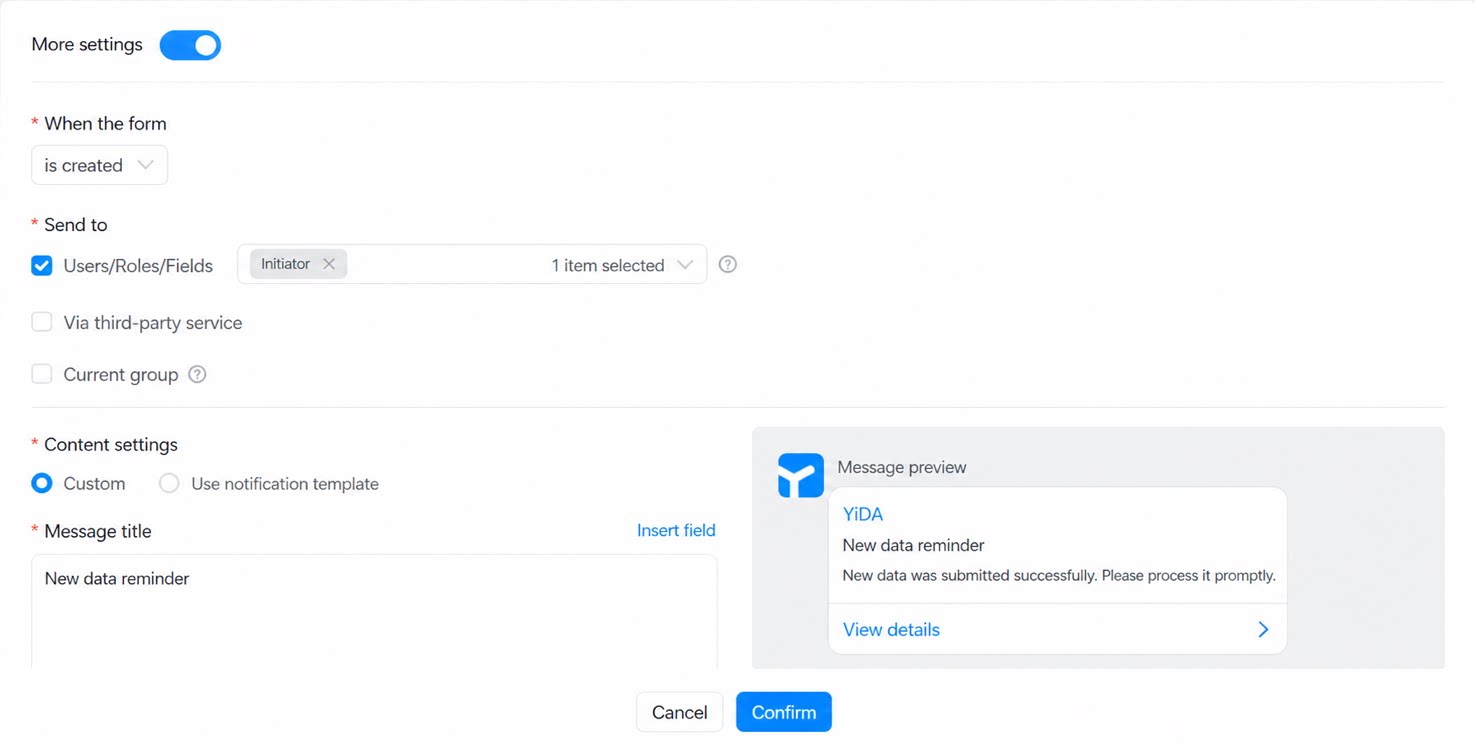 |
| Group message / Direct Message | Image-text detail card Suitable for image-text card views of form fields, with a link to view message details. 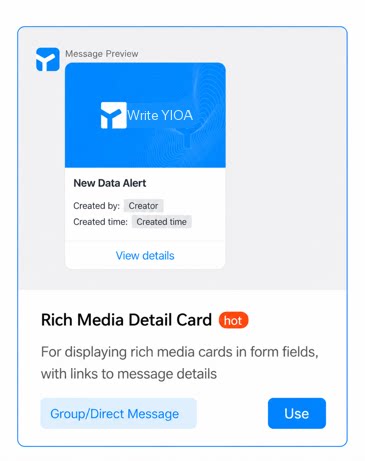 | When sending to a group chat, the group must be an All-staff Chat or Internal Group. |
| Image-text card Suitable for image-text card messages that require no action. 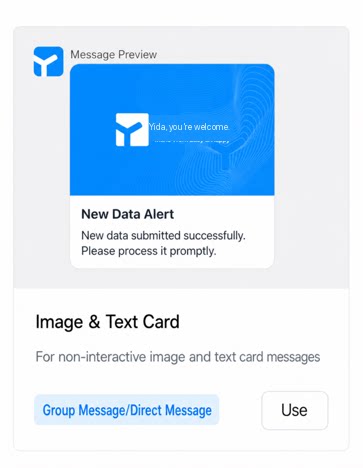 | ||
| Plain text detail card Suitable for text card views of form fields, with a link to view message details. 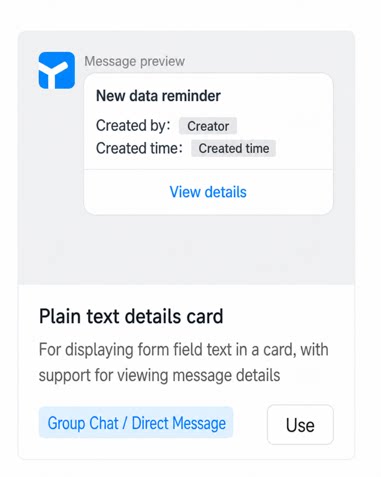 | ||
| Image-text comment card Suitable for plain-text card views of forms and supports commenting on form details. 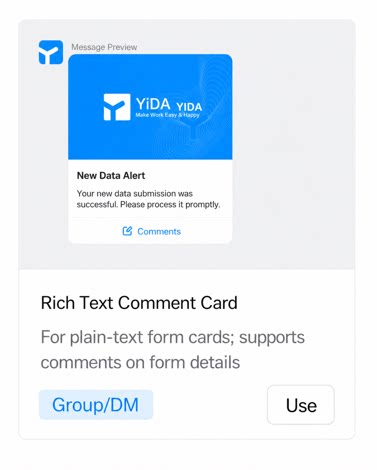 | Click Comments to jump directly to the comment area of the current form detail page. Submitted comments are stored in the database. | |
| Group Pin | Image-text pinned card Suitable for image-text pinned card messages that require no action. 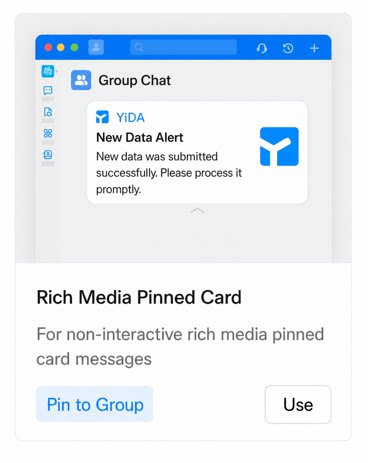 | Once pinned in a group, the pin lasts for 1 day. |
| Plain text pinned detail card Suitable for plain-text pinned card messages of forms, with a link to view message details. 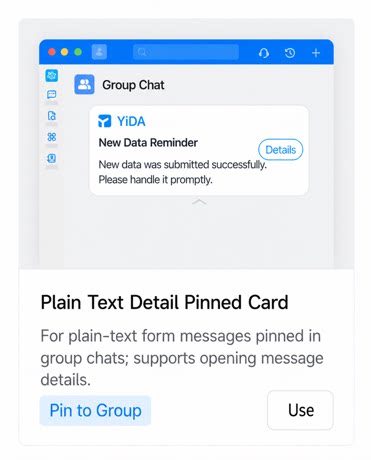 |
1.2 Use Cases
Message notifications are prompts sent to specified users or group chats when a form is submitted or edited, when a workflow starts or ends, or after an action is taken on another workflow step. Note:- Form message notifications can only send plain messages (that is, DingTalk Work Notifications). They cannot send DingTalk To-Do items.
2. Operation Guide
The following example shows how to send a group notification after a form is submitted, so you can experience the new message notification feature.2.1 Step 1: Create a Message Notification
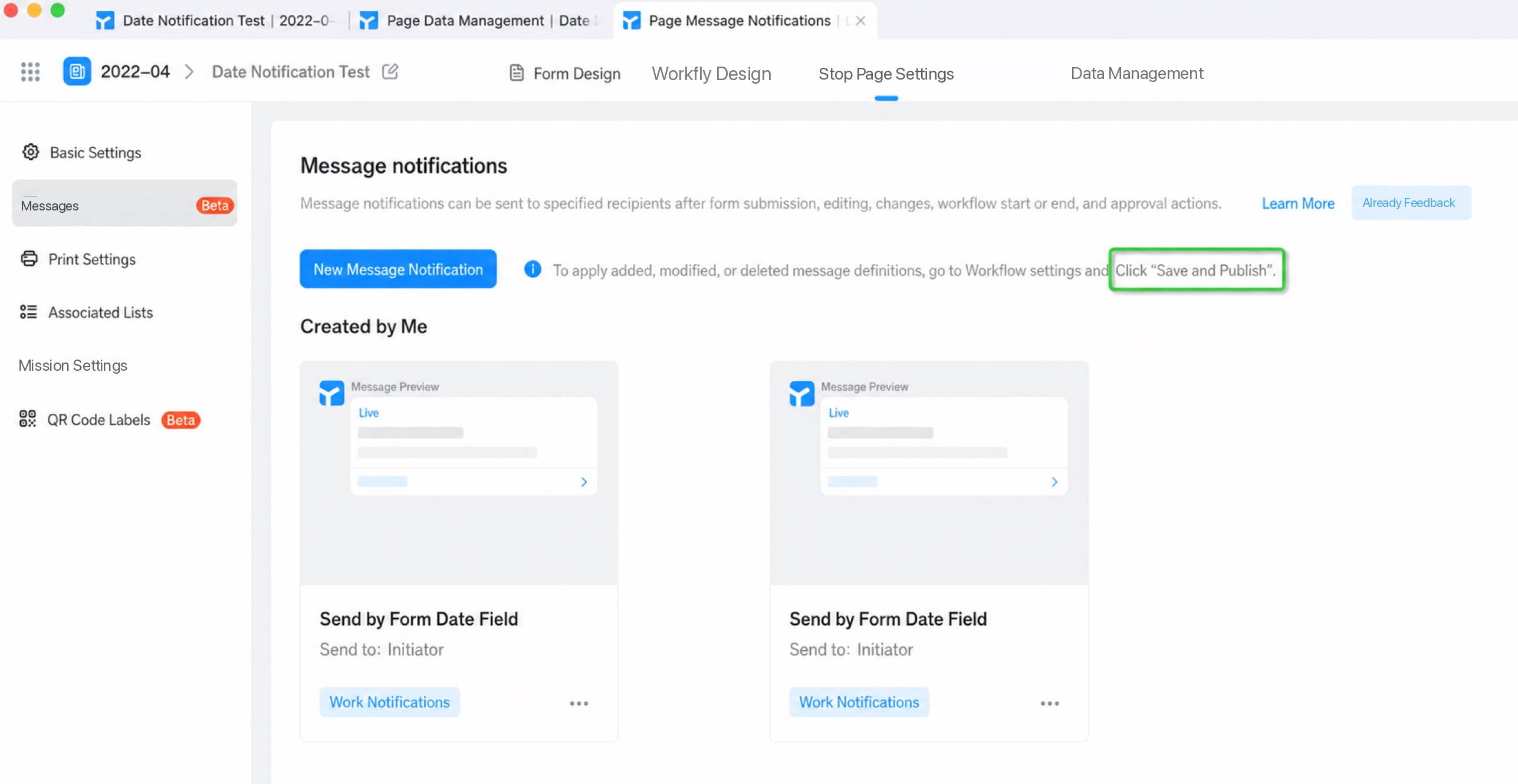
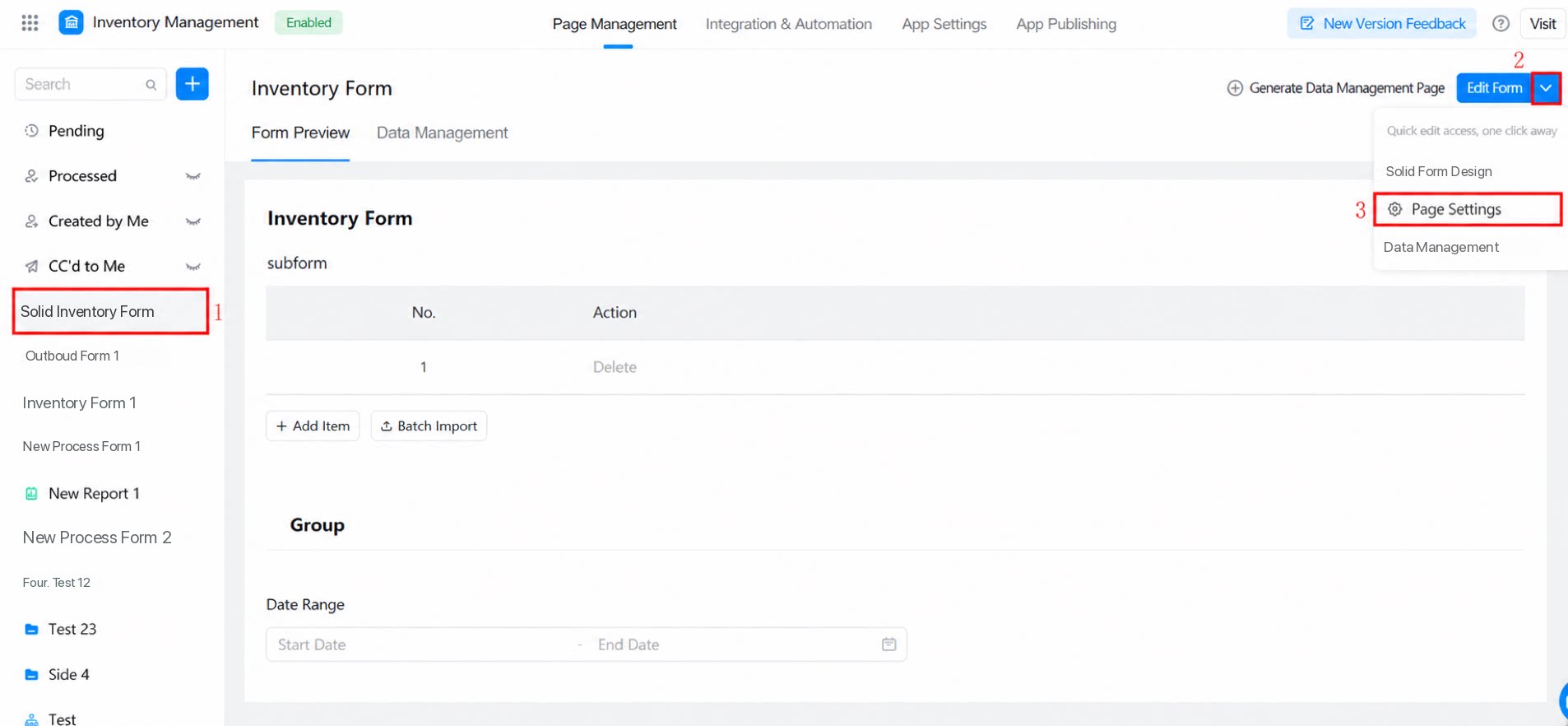
Path: click the target form / workflow form >> Settings >> Page settings >> Message notifications to open the message notification settings page.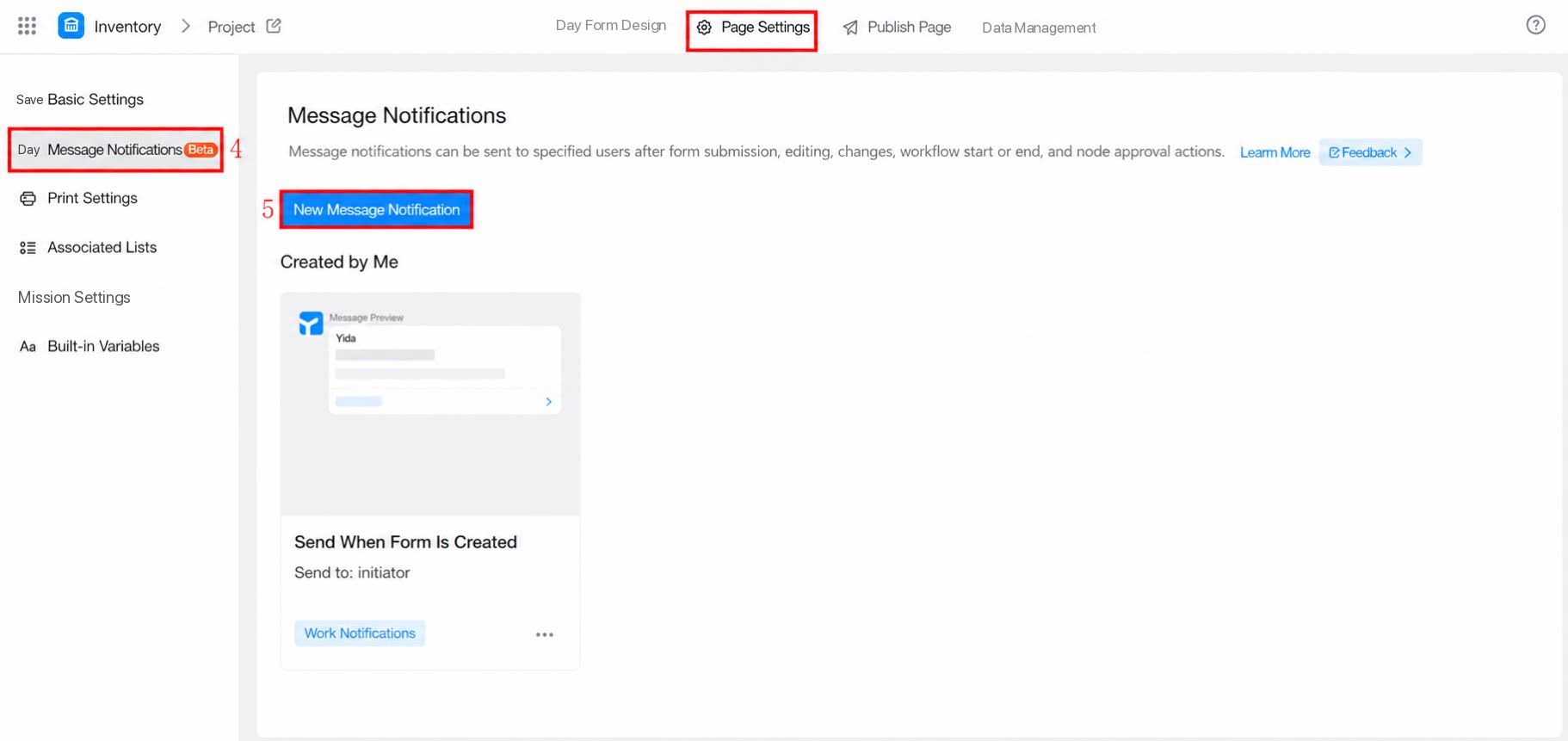
2.2 Step 2: Select a Message Template
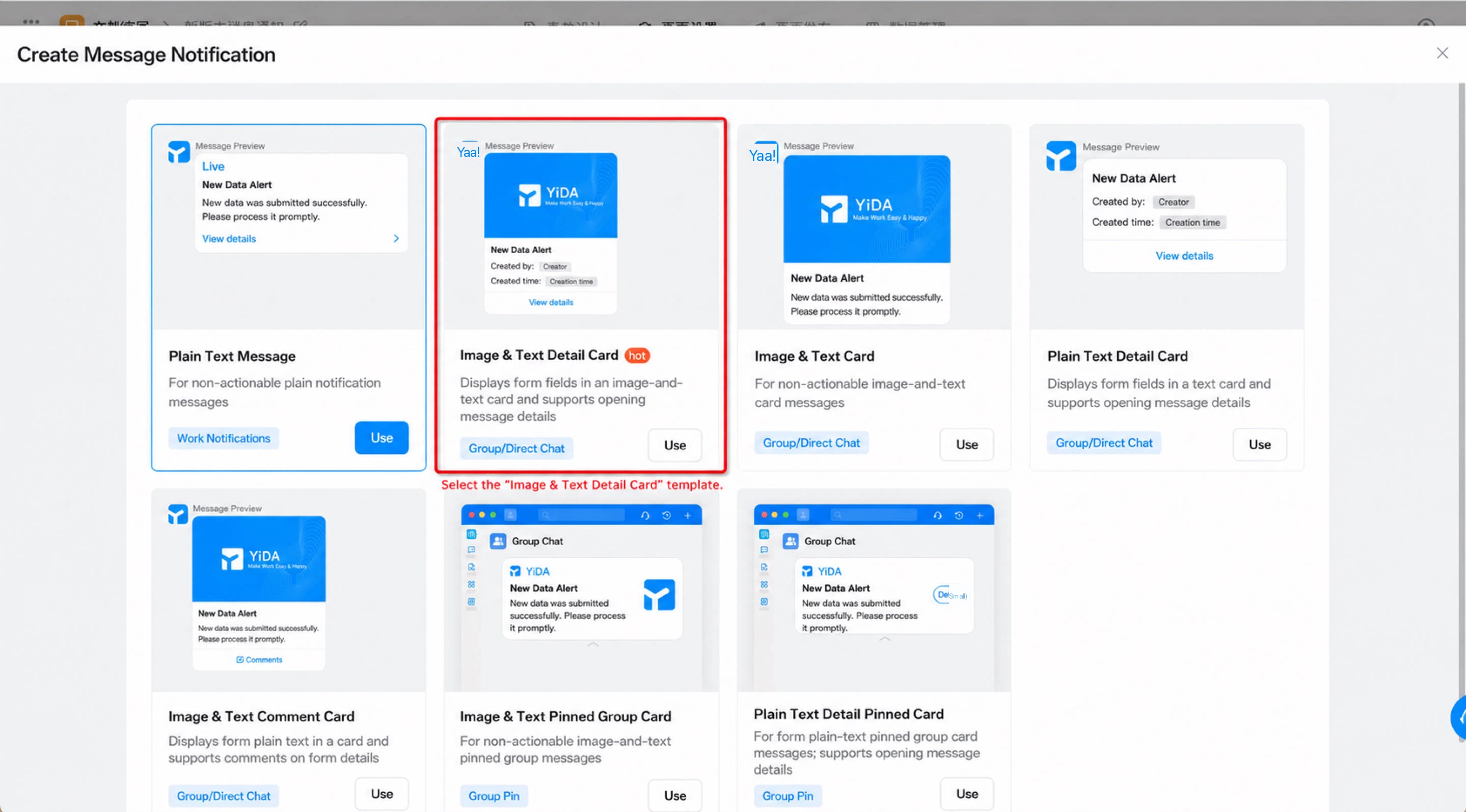
Steps:- Select the Image-text detail card template >> Use this template. (See Figure 2.2-1.)
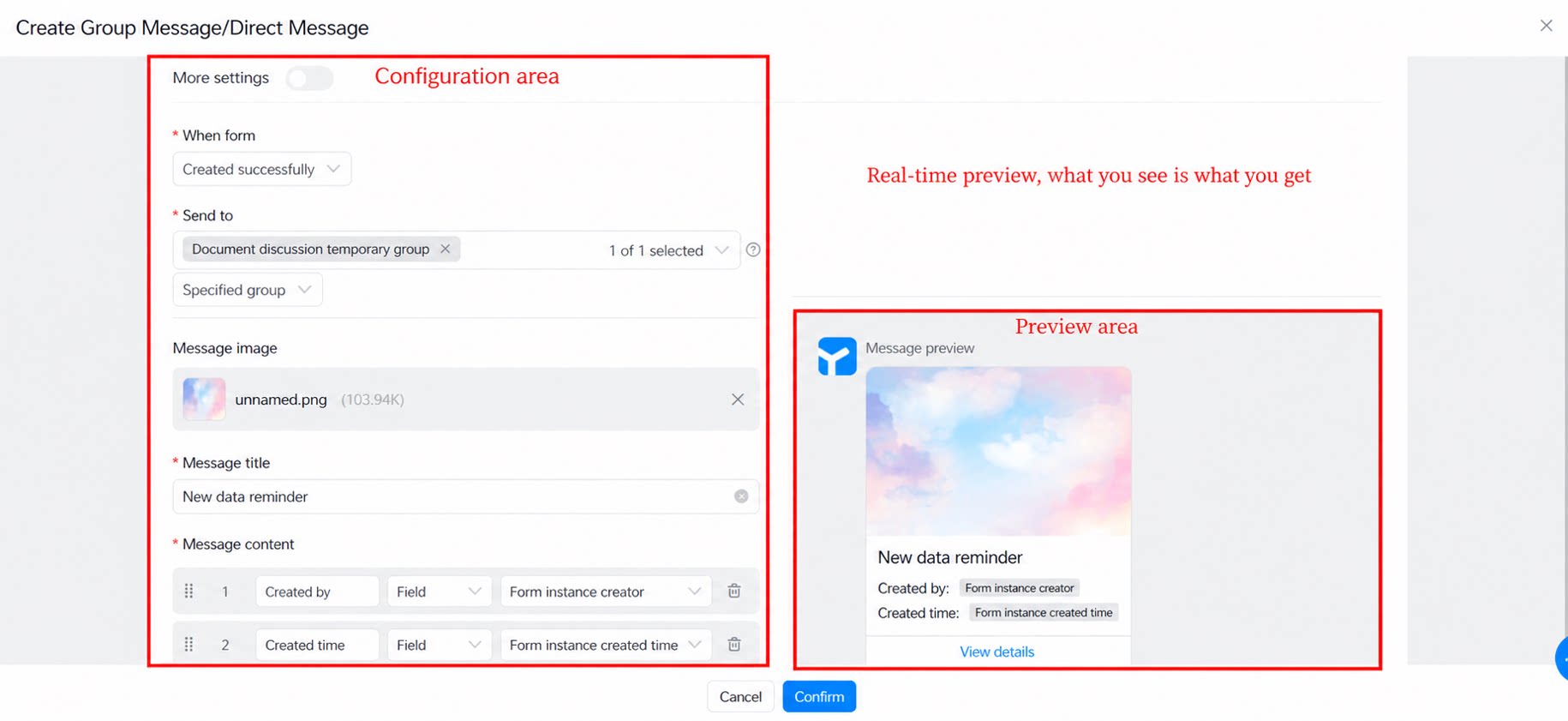
- Configure the message notification template. (See Figure 2.2-2.)
2.3 Configuration Guide
Now that you have a hands-on feel for the new message notification feature, let’s take a closer look at each option.2.3.1 Trigger Conditions
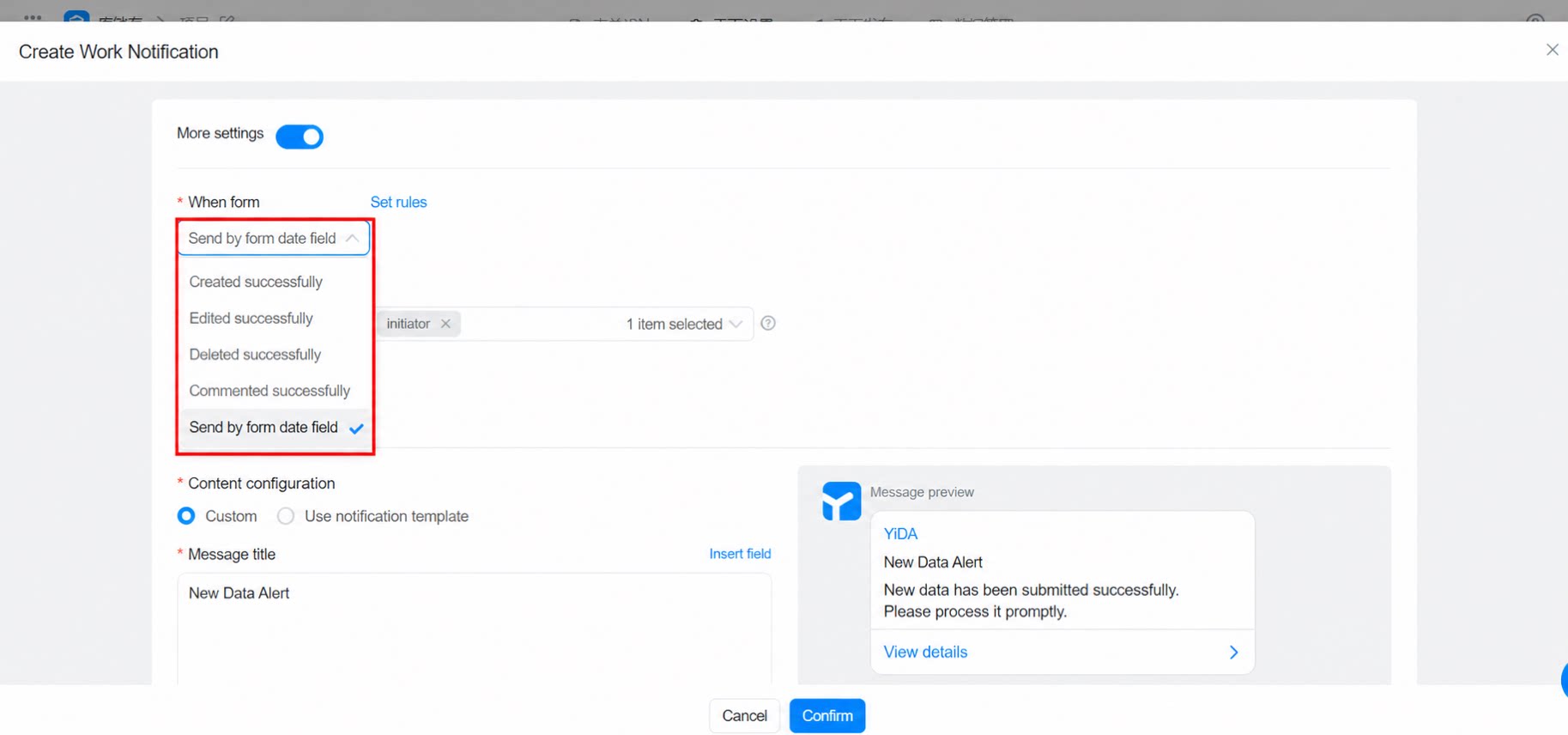
Five trigger conditions are available:- Created: sends a message notification when a form or workflow form entry is submitted successfully.
- Edited: sends a message notification when a submitted form entry is edited successfully.
- Deleted: sends a message notification when a submitted form entry is deleted successfully.
- Commented: sends a message notification when a submitted form entry is commented on successfully.
- Sent by form Date field: sends a message notification based on the value of a Date component in the form.
2.3.2 Recipients
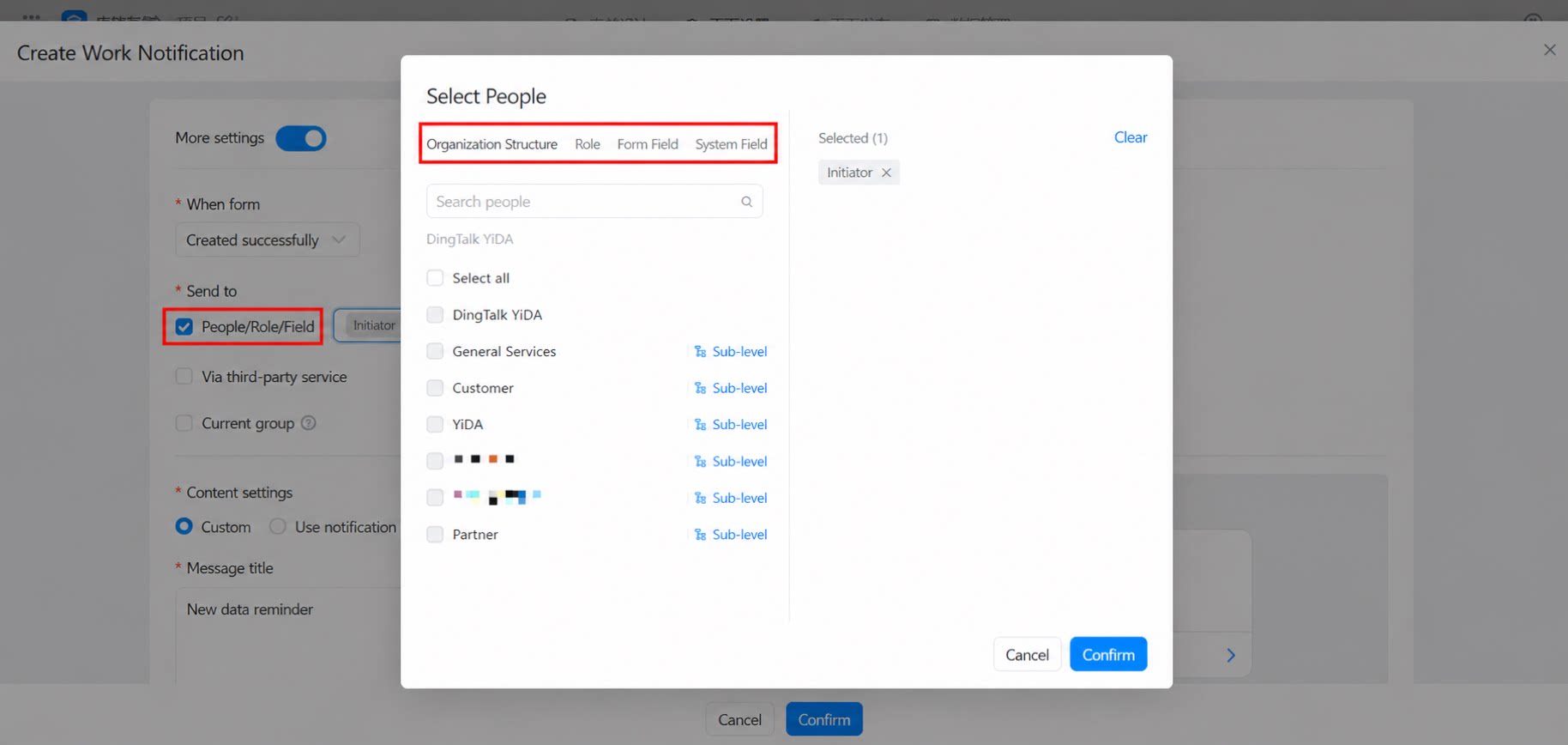
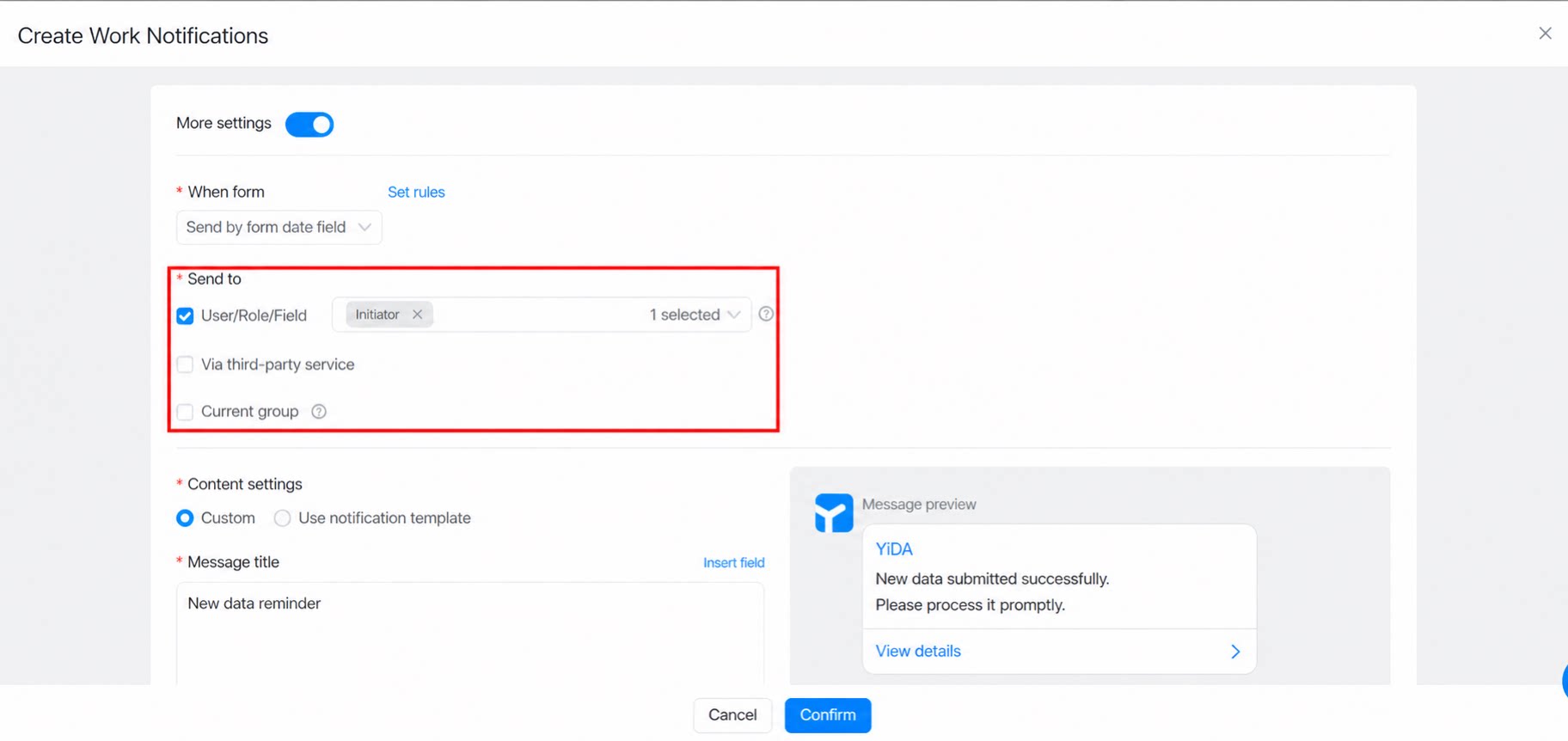
Recipient types include: User / Role / Field: specify users or roles in the organization, or users selected in a member component of the form (only YiDA Roles are supported for Role). Via third-party service: select a third-party service configured under Platform management > Service registry. Current group: group chats where the current app is enabled. Notes:- Recipients are the union of all users configured above. If the same person appears in multiple conditions, they receive the notification only once.
- A single message can be sent to a maximum of 100 recipients.
2.3.3 Content Configuration
Content configuration refers to the notification’s message title and message content. Two options are available: Custom: enter fixed values for the message title and content manually, or select fields from the form.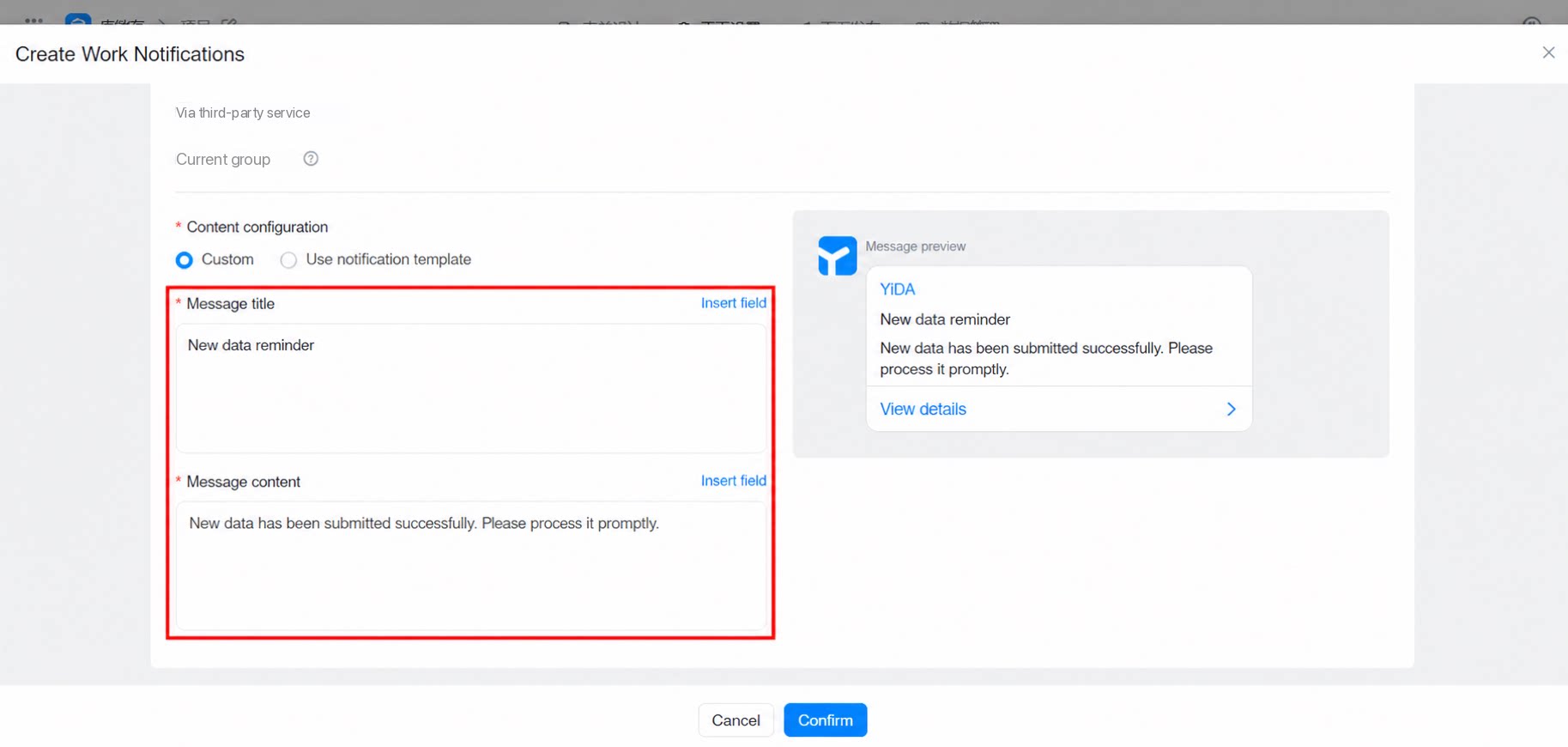
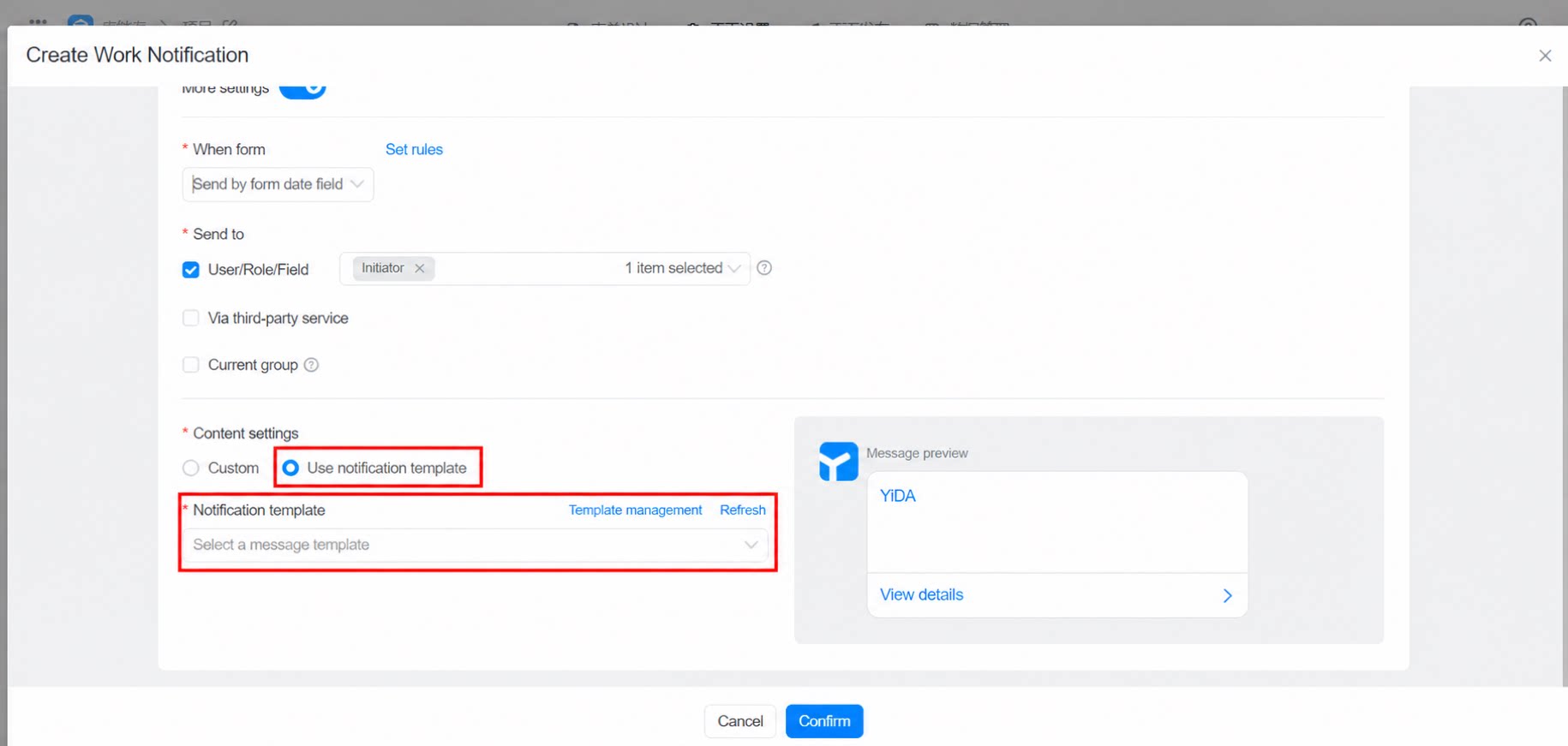
2.3.4 Scheduled Messages
Scheduled messages are mainly used for custom, recurring scheduled reminders. The interval can range from one day to one year. Common use cases: employee work anniversary reminders, meeting booking reminders, and cafeteria dining reminders.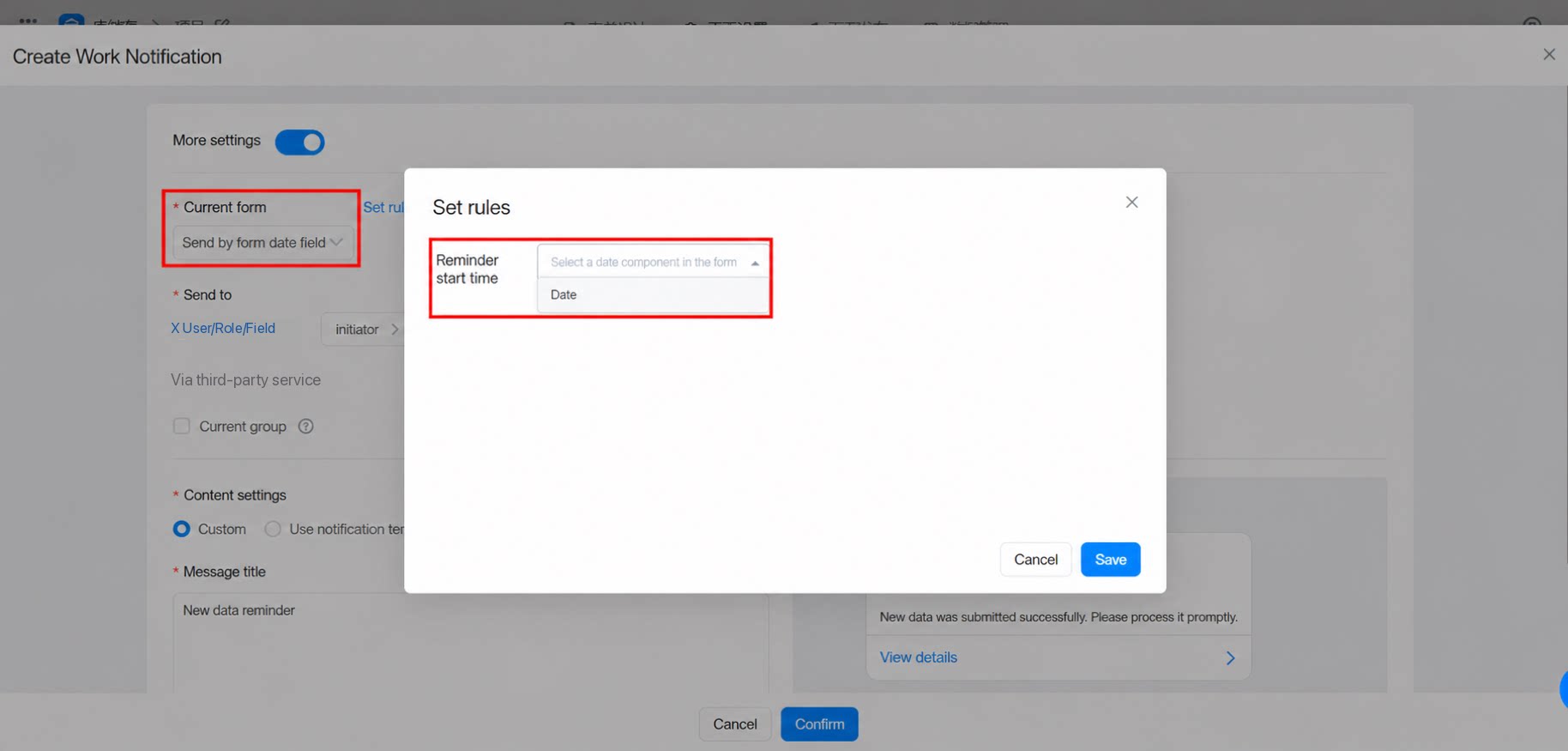
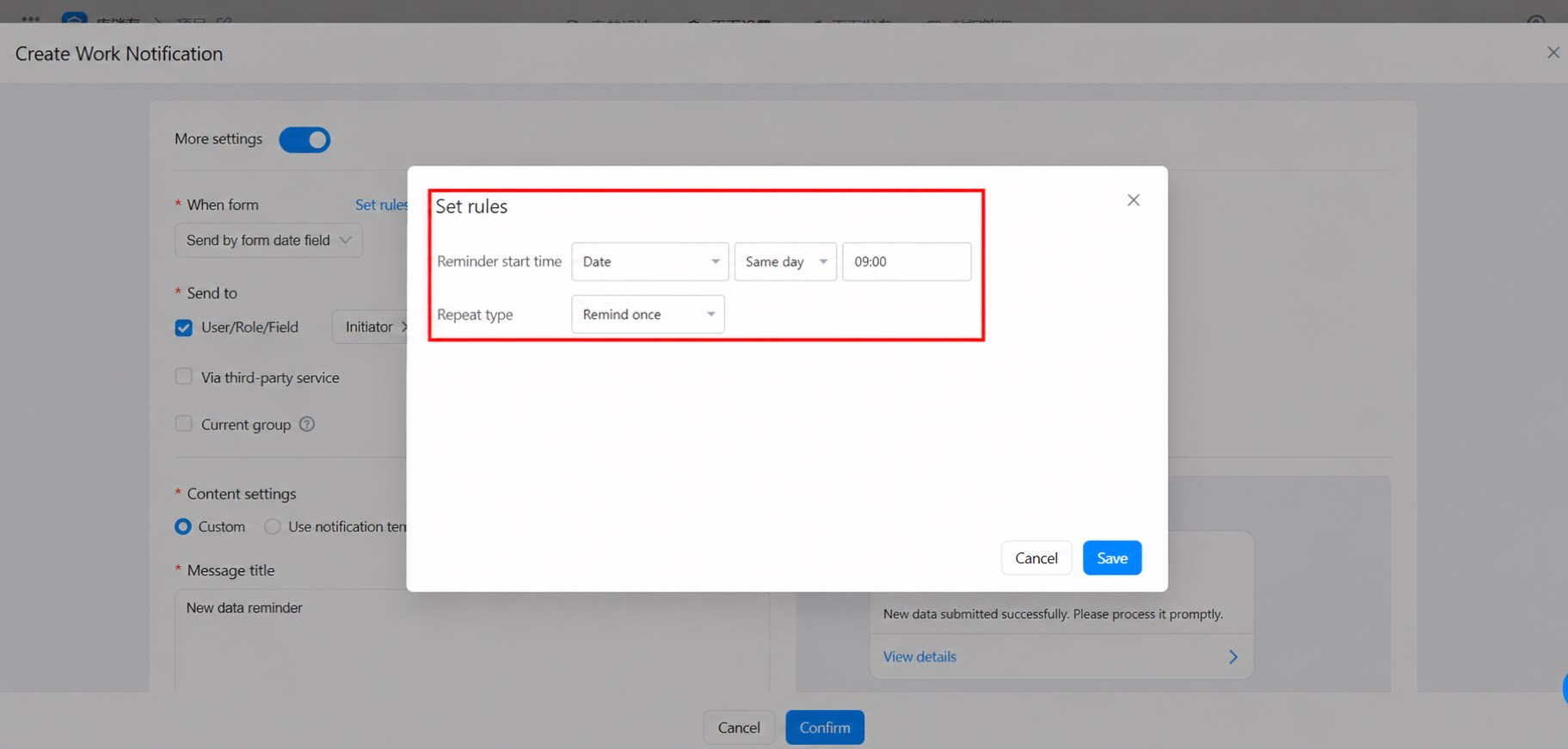
Only Date component fields in the main form are currently supported as message notification trigger conditions. Date component fields in subforms and associated forms are not yet supported.
2.3.5 Notification Validity
(1) Rules take effect immediately after they are configured and apply to historical form data (limited to the most recent 50,000 records). (2) If a Date component used in a message notification is deleted from the form or workflow form, previously configured message notification tasks remain effective. To cancel message pushes, delete the corresponding message notification configuration.2.4 Result Demonstration
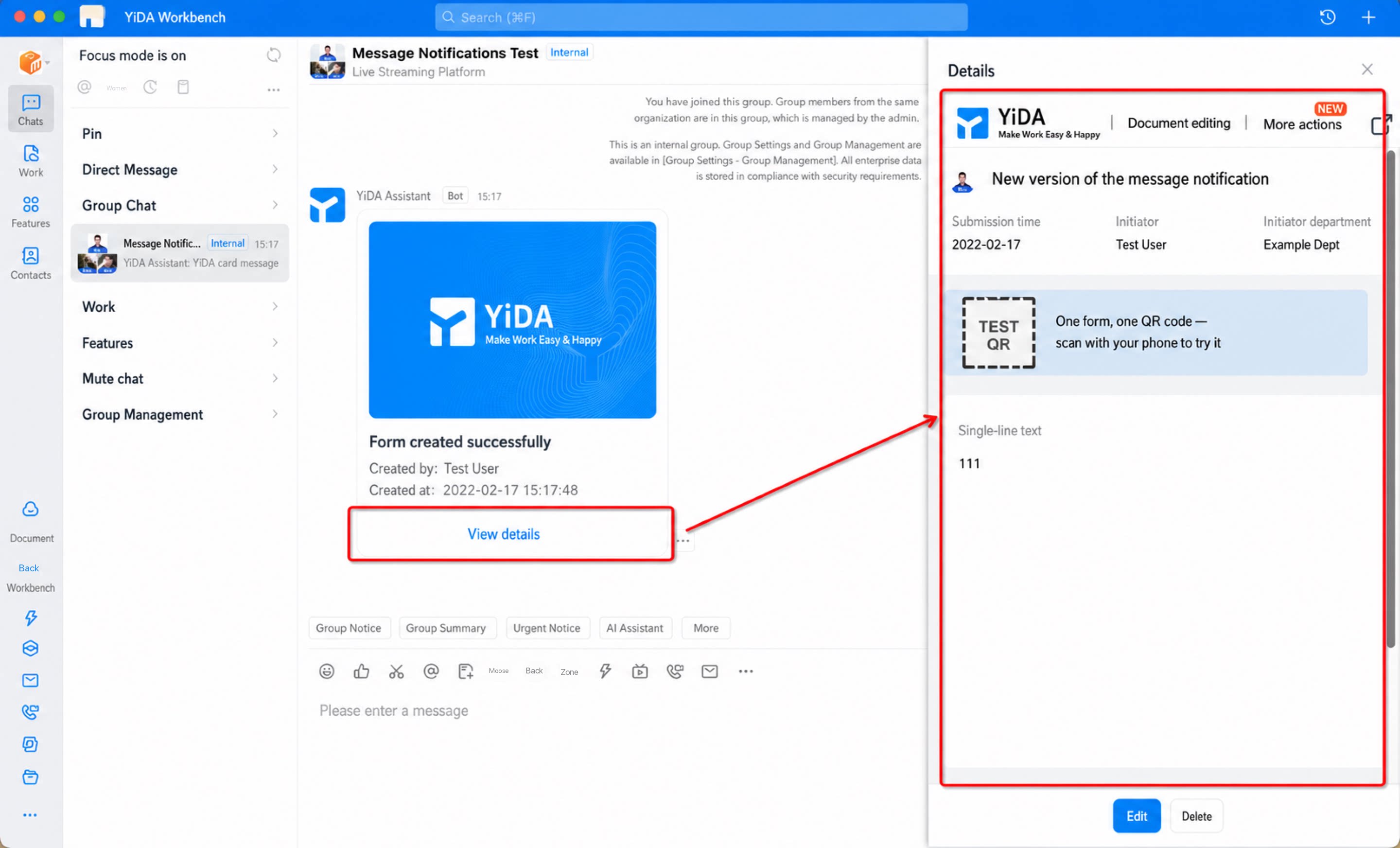
2.5 Notes
DingTalk imposes additional restrictions on message notifications, including:- DingTalk filters out messages with identical content and title. Each user receives a repeated message notification only once per day.
$!{form field unique identifier}.
- DingTalk limits the number of Work Notifications each user receives per day. In YiDA, the limit is 2,000 messages per user per day. For details, see DingTalk message limits.
- If a scheduled reminder is configured but the end date is not filled in when the form is submitted, the message notification will not be triggered.
- When Card messages are pushed to group messages or group pins, note the following three points:
- The YiDA assistant bot can send up to 20 messages per group per minute.
- Once pinned in a group, the pin lasts for 1 day.
- When a workflow form card message is sent to a group (group message or group pin), sending a DingTalk To-Do at the same time is not supported.
3. FAQ
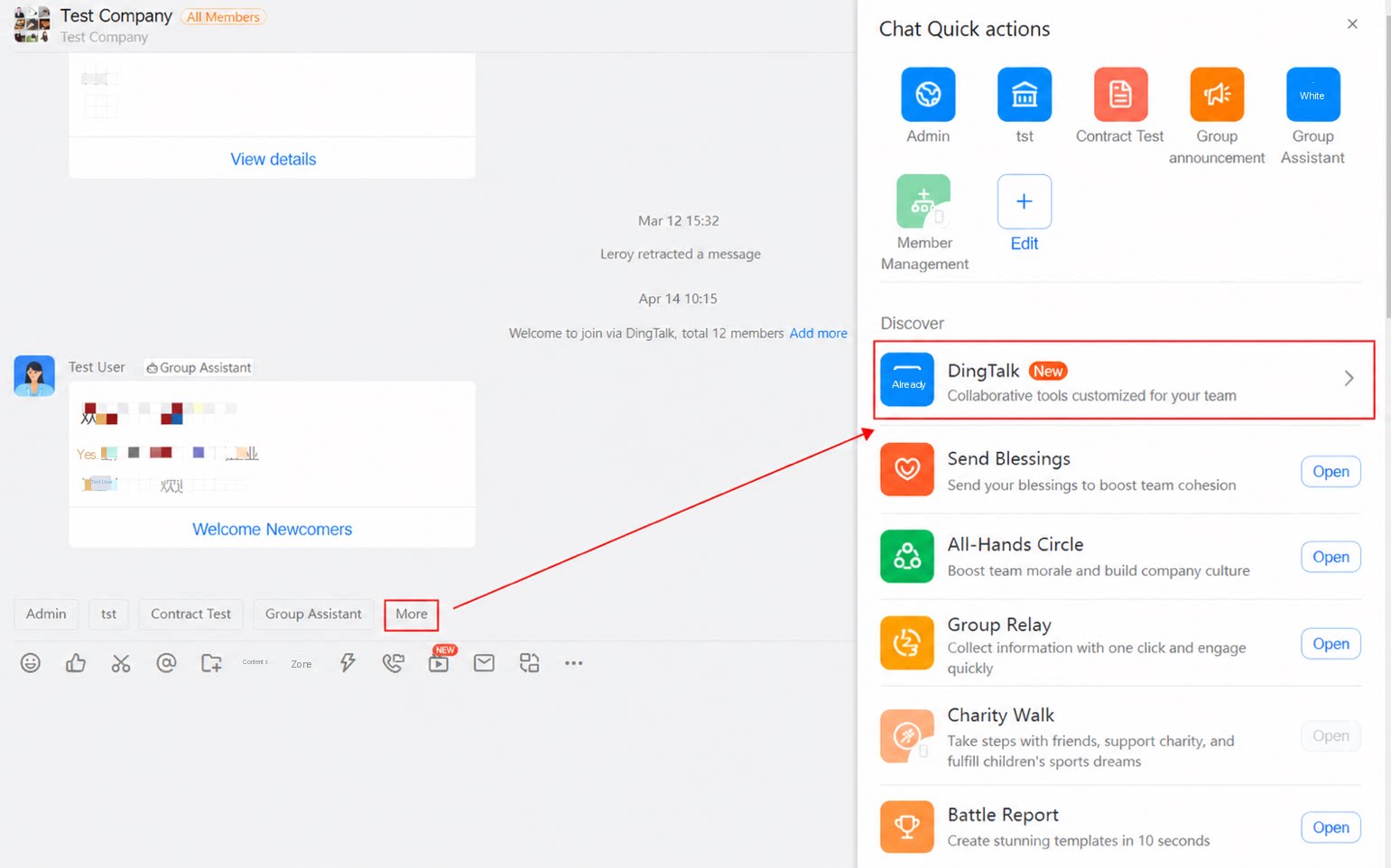
3.1 How do I push messages to the current group?
3.1 How do I push messages to the current group?
(1) Open an All-staff Chat, Department Chat, or Internal Group where YiDA is enabled >> More >> YiDA.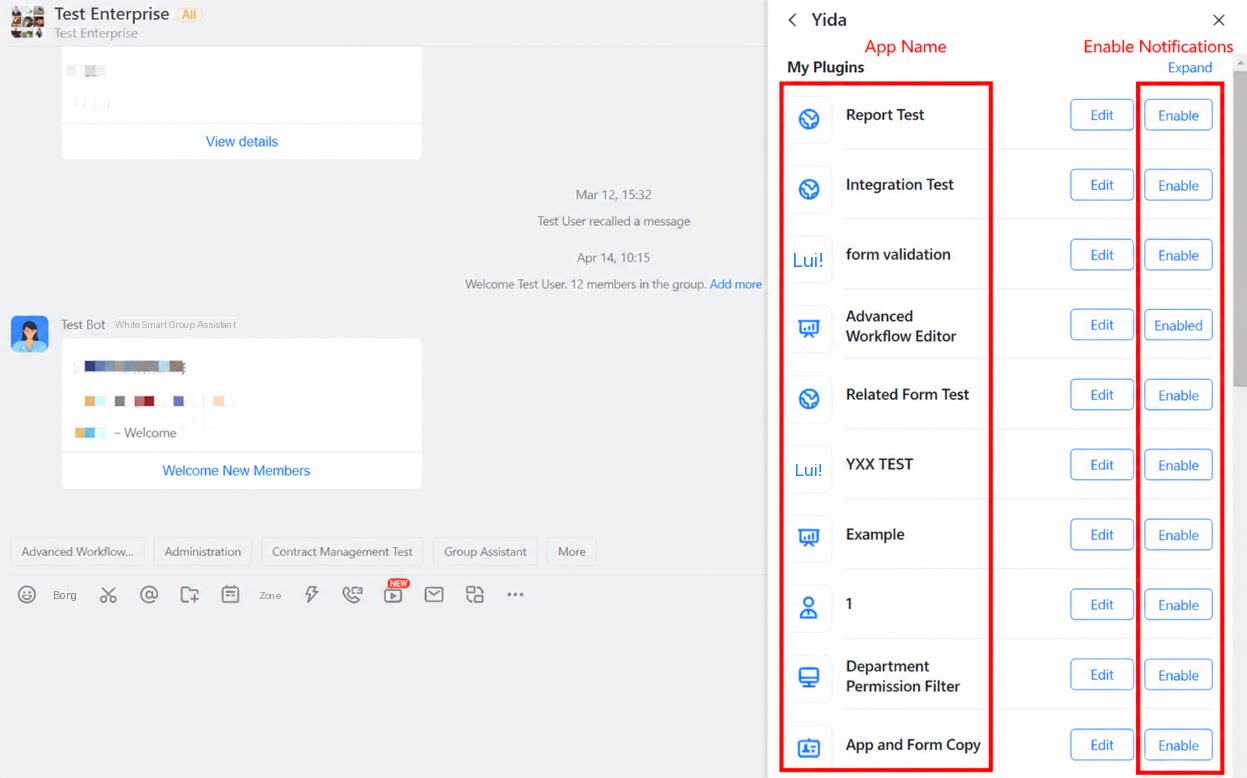 (2) Select the app for which you want to send notifications, and enable it.
3.2 I configured a group pin notification, but why is it not shown pinned?
3.2 I configured a group pin notification, but why is it not shown pinned?
An in-group pinned card is displayed for only 1 day. After 1 day, it is no longer pinned.
3.3 Will upgrading quick messages affect existing message notifications?
3.3 Will upgrading quick messages affect existing message notifications?
No. Work Notifications are automatically converted to Work Notifications, and To-Do items are automatically converted to DingTalk To-Do items.
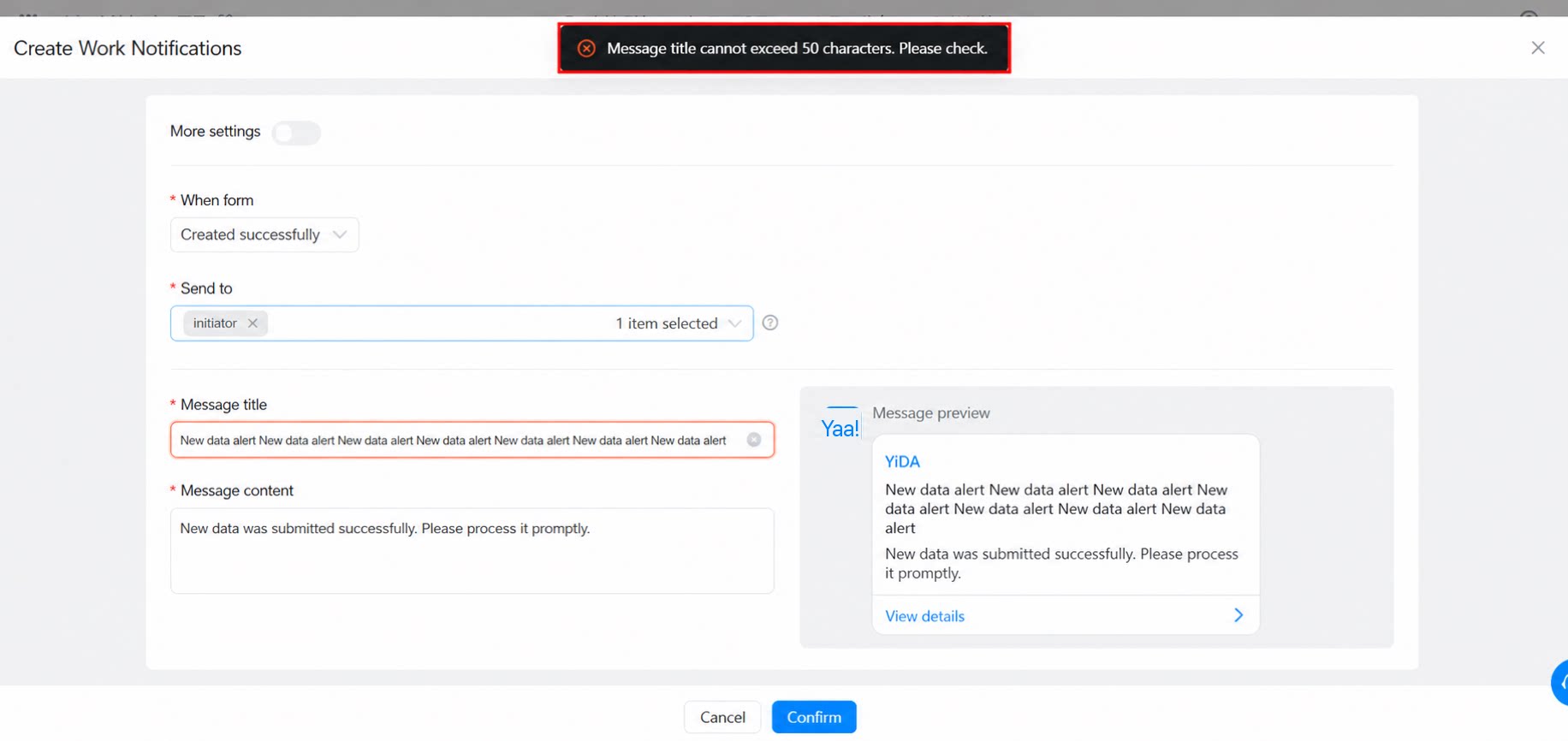
3.4 Why does the system show a warning that the message length cannot exceed 50 characters?
3.4 Why does the system show a warning that the message length cannot exceed 50 characters?
The message title supports a maximum of 50 characters.
3.5 Why does the system show that More settings is enabled and cannot be turned off?
3.5 Why does the system show that More settings is enabled and cannot be turned off?
Once you enable More settings and click Confirm to save, it cannot be turned off.
3.6 How do I set notifications to a DingTalk To-Do when using a template card?
3.6 How do I set notifications to a DingTalk To-Do when using a template card?
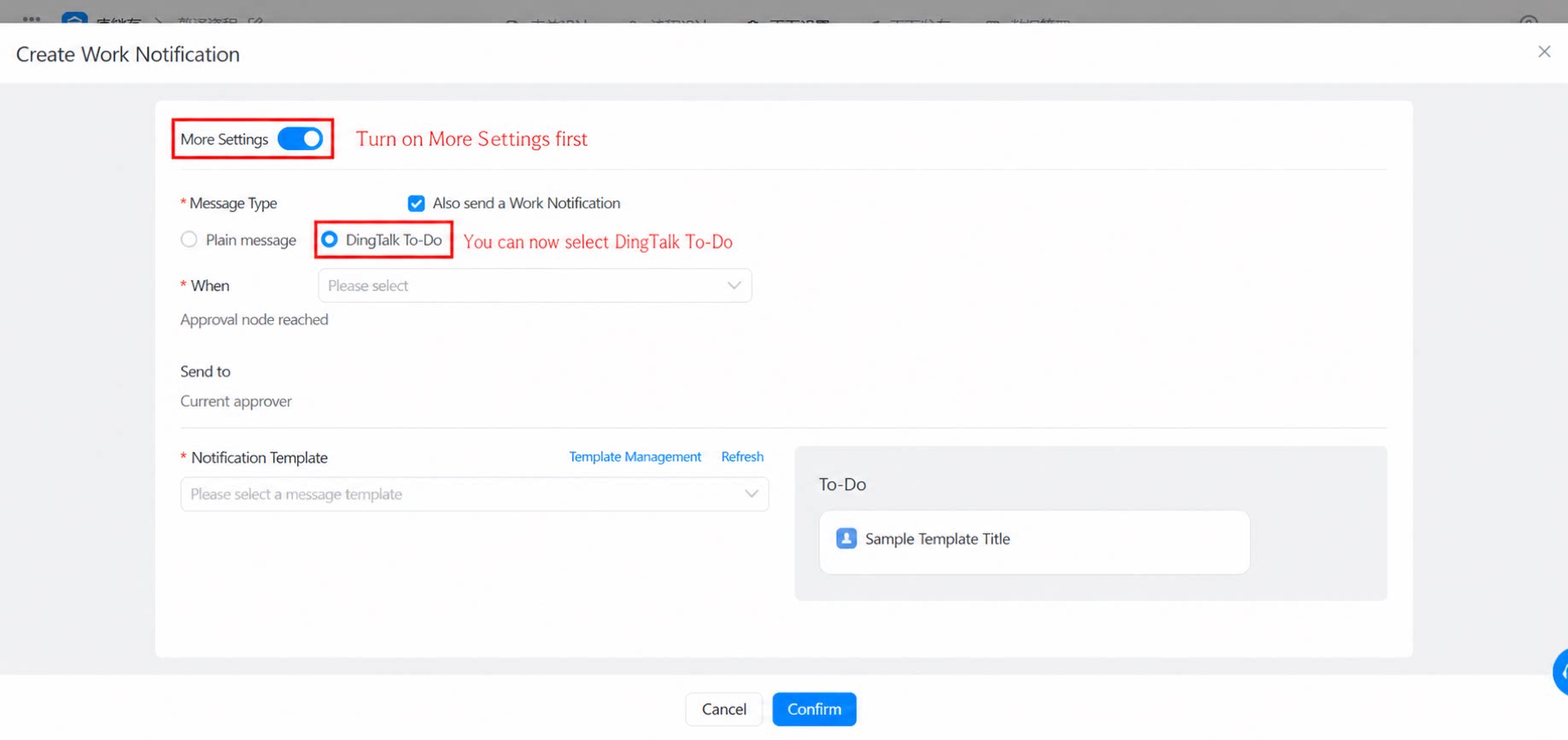
If your workflow form needs to send notifications to a DingTalk To-Do, enable More settings when using a template card, and then choose DingTalk To-Do.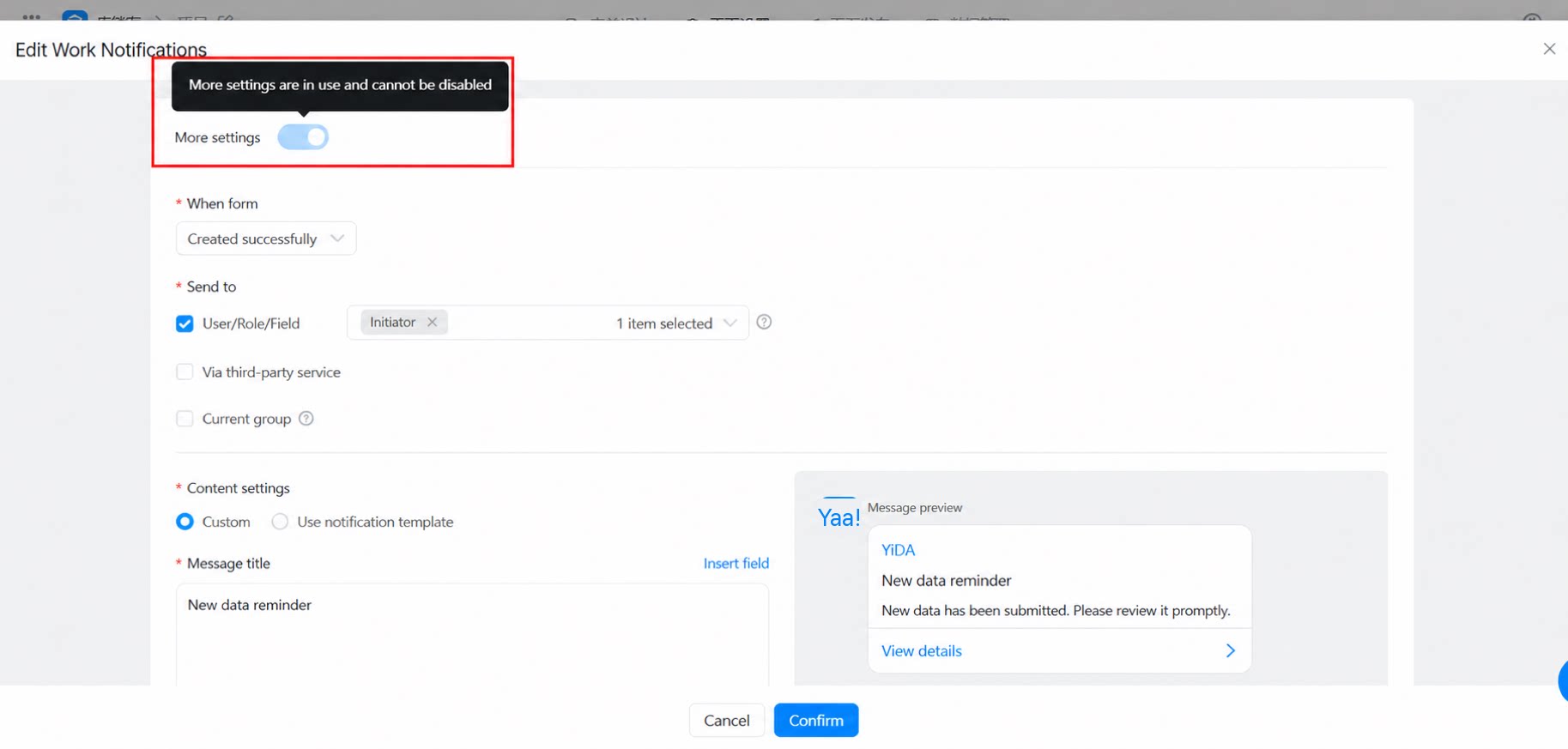
 Notes:
- Only the first Work Notification template can be configured to send a DingTalk To-Do.
- Once you enable More settings and click Confirm to save, it cannot be turned off.
3.7 Why can't I select group chats from other organizations when selecting a specified group?
3.7 Why can't I select group chats from other organizations when selecting a specified group?
Group messages can only be sent to All-staff Chats and Internal Groups within the same organization. Other group types are not supported.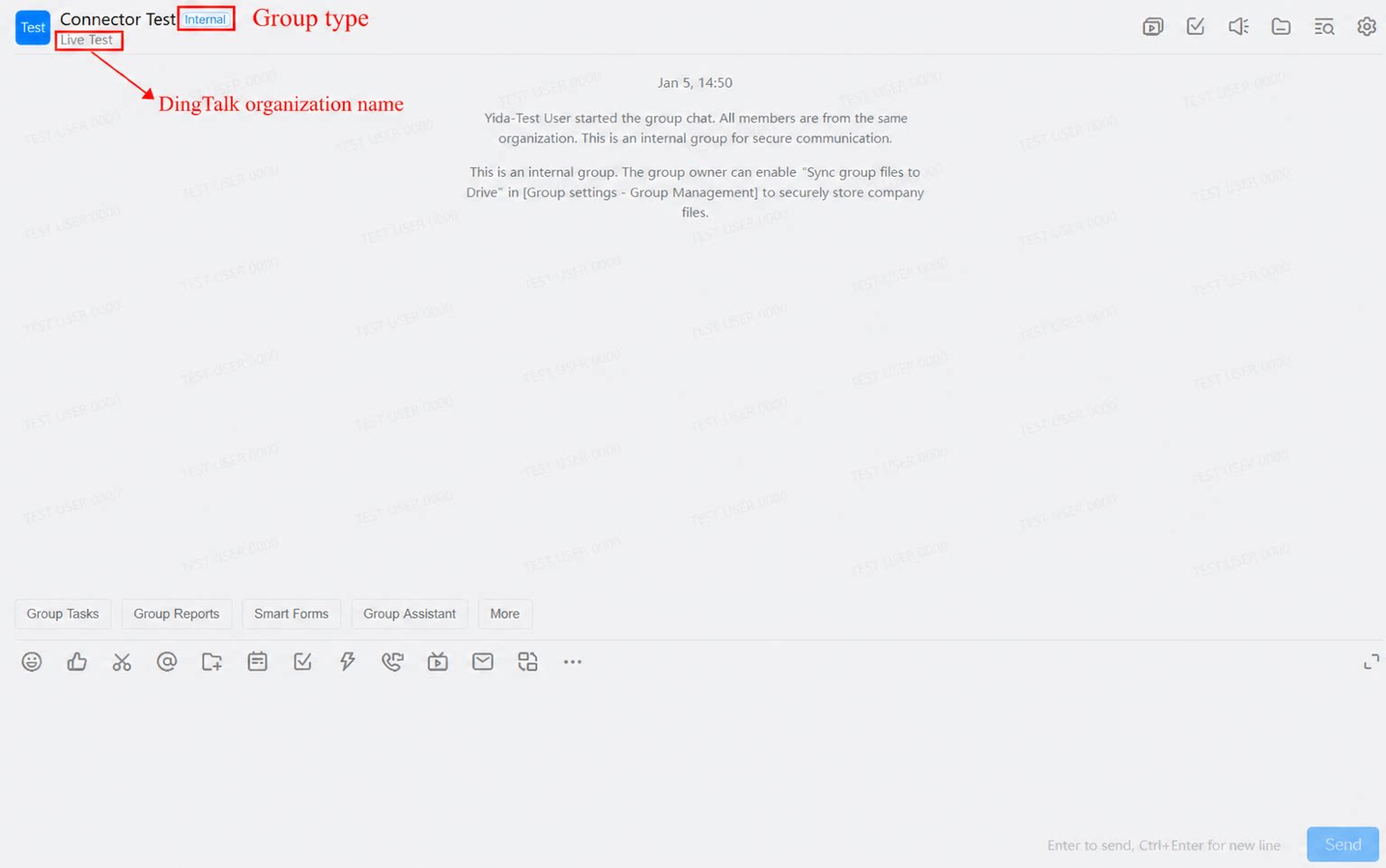
 You can view the group type at the location shown in the screenshot below.
3.8 How do I remove a group app?
3.8 How do I remove a group app?
Open the group chat >> More >> a plugin added by group members >> the minus icon next to the app name.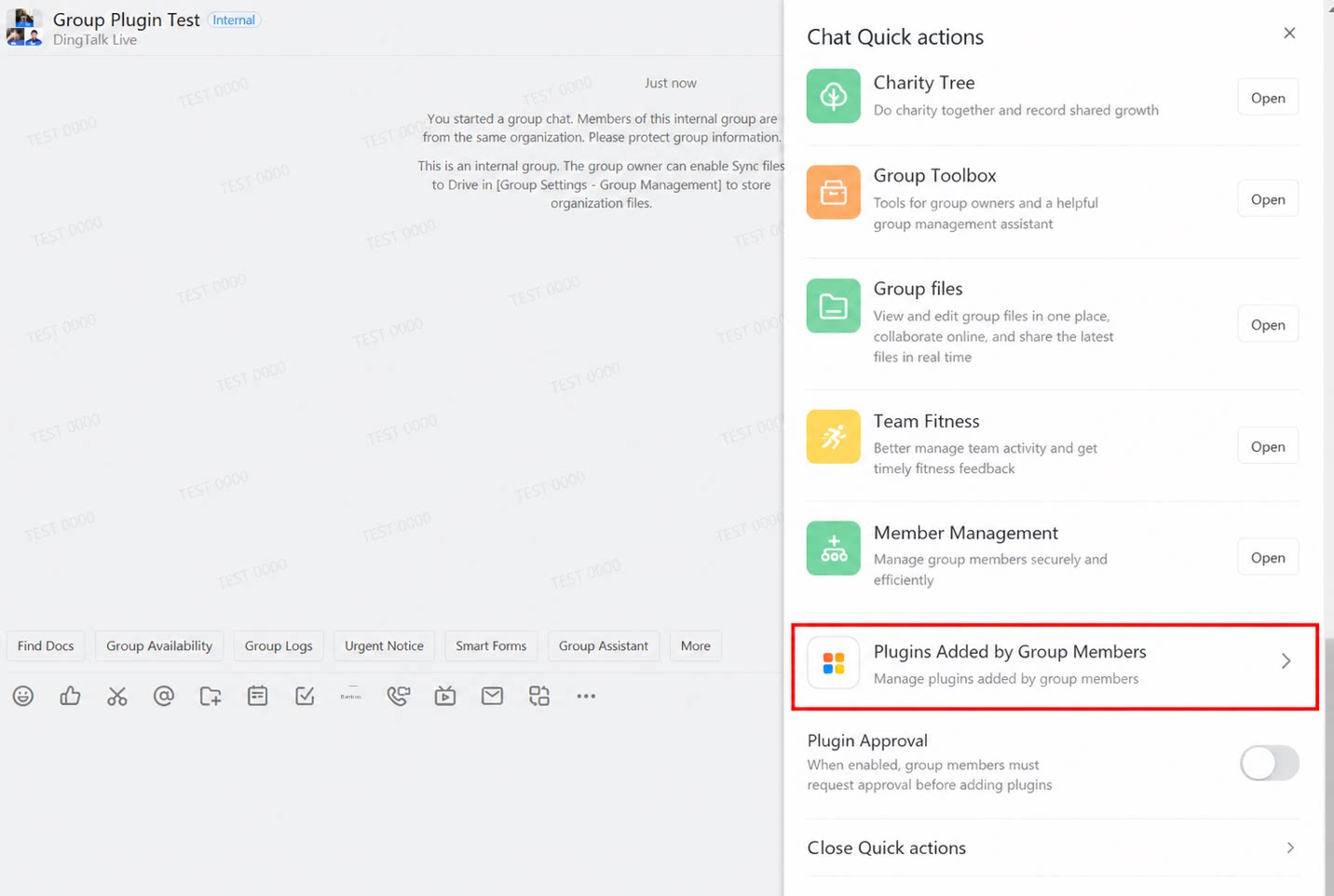 Note: if you configured message notifications to the current group, you can also cancel message pushes by removing the group app.
3.9 Can bulk-imported data trigger message notifications?
3.9 Can bulk-imported data trigger message notifications?
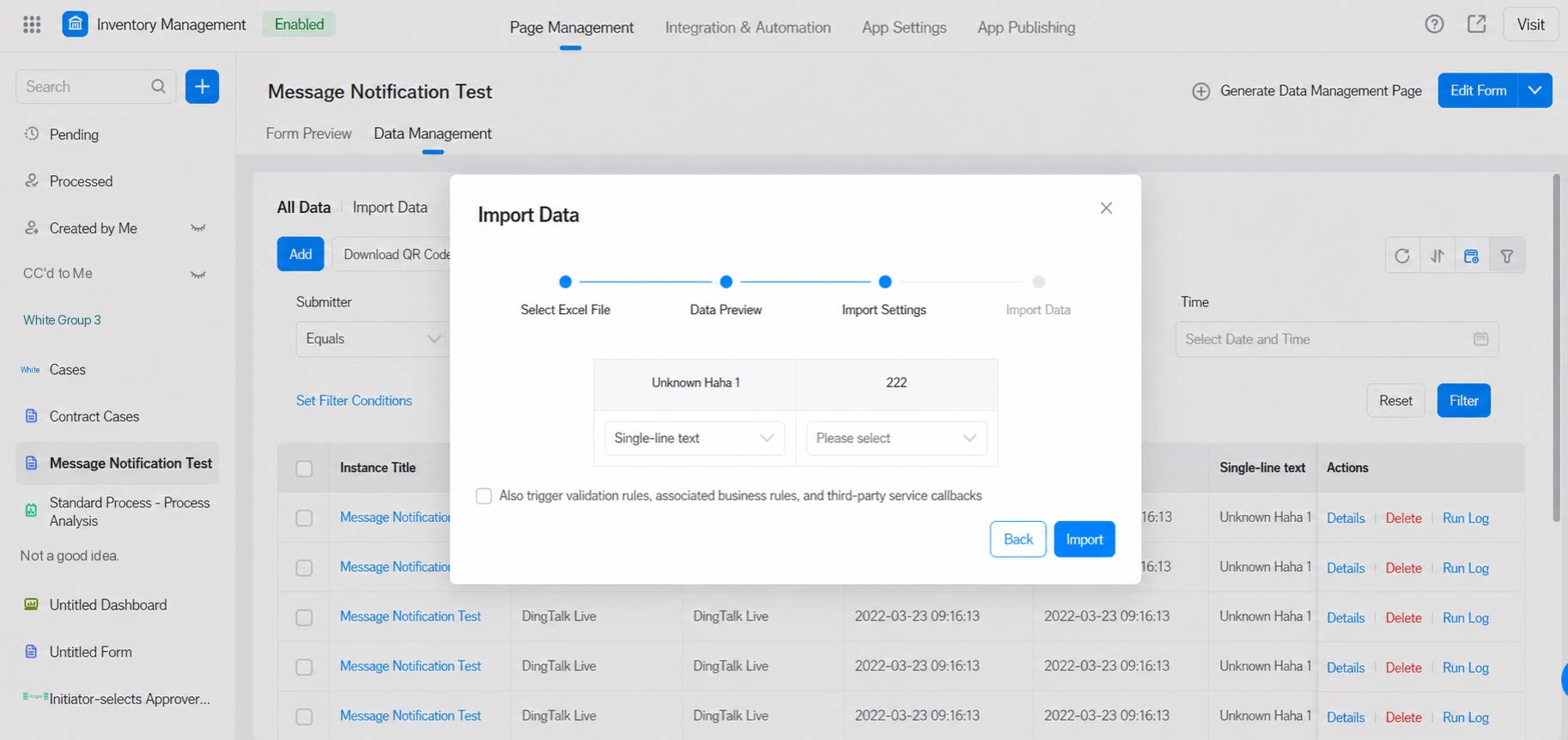
Yes. When importing, select the options to trigger validation rules, associated business rules, and third-party service callbacks at the same time.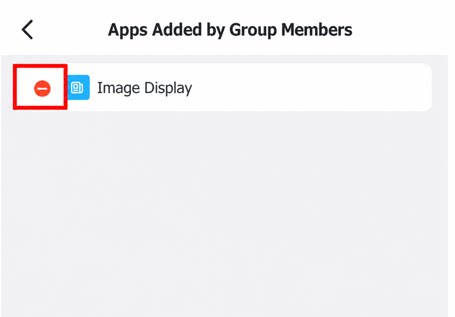 Note: this is a paid feature.
3.10 Why do the message notifications and To-Do rules configured on a workflow form not take effect?
3.10 Why do the message notifications and To-Do rules configured on a workflow form not take effect?
Make sure you have published a new version of the workflow after configuring the rules.