Chats
Chats Calendar
 Meetings
 Contacts
 Mail
Mail Docs
Docs Drive
Drive AI Table
 AI Minutes
 Attendance
 Approval
 YiDA
YiDA Admin Console
1. Introduction
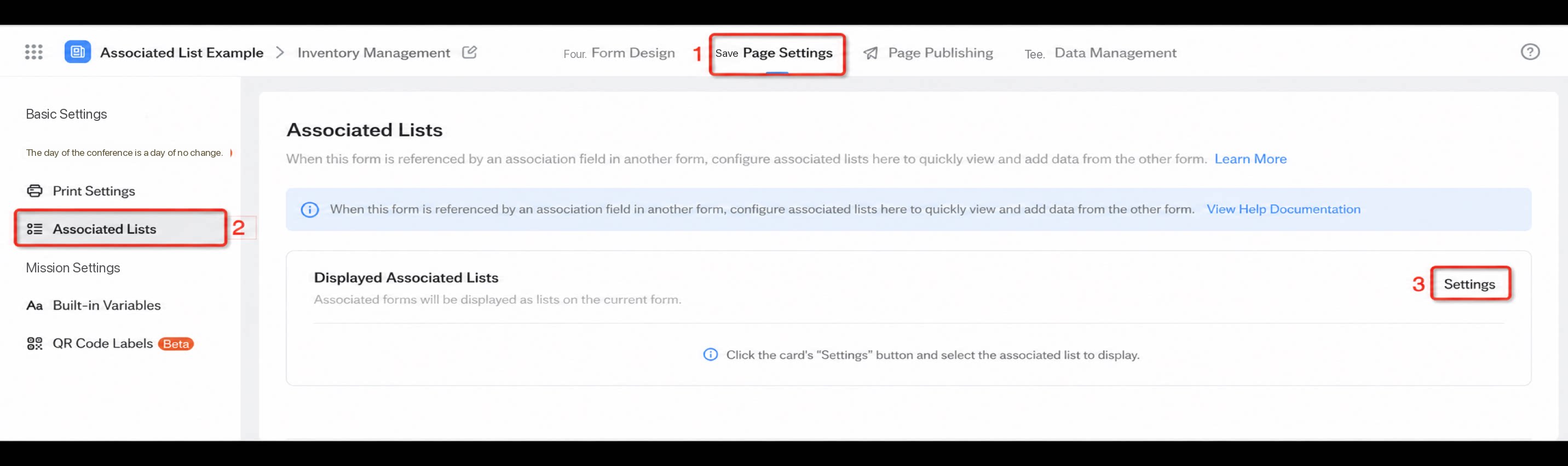
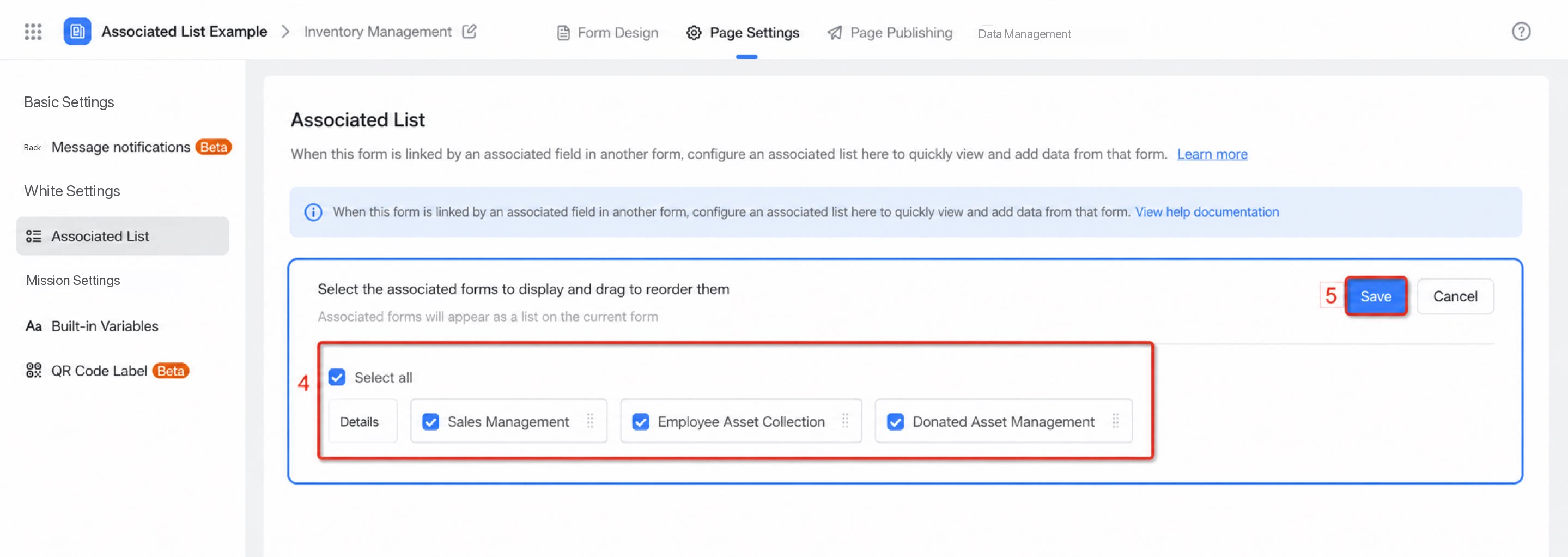
This topic introduces how to add an Associated table tab in Page Settings and use it to manage data across referenced forms. Steps to add: Go to Form >> Page Settings >> Associated table, add a new Associated table tab, and select the forms to associate with the current main form.| Configuration view | Runtime view |
2. Example
2.1 Use Case
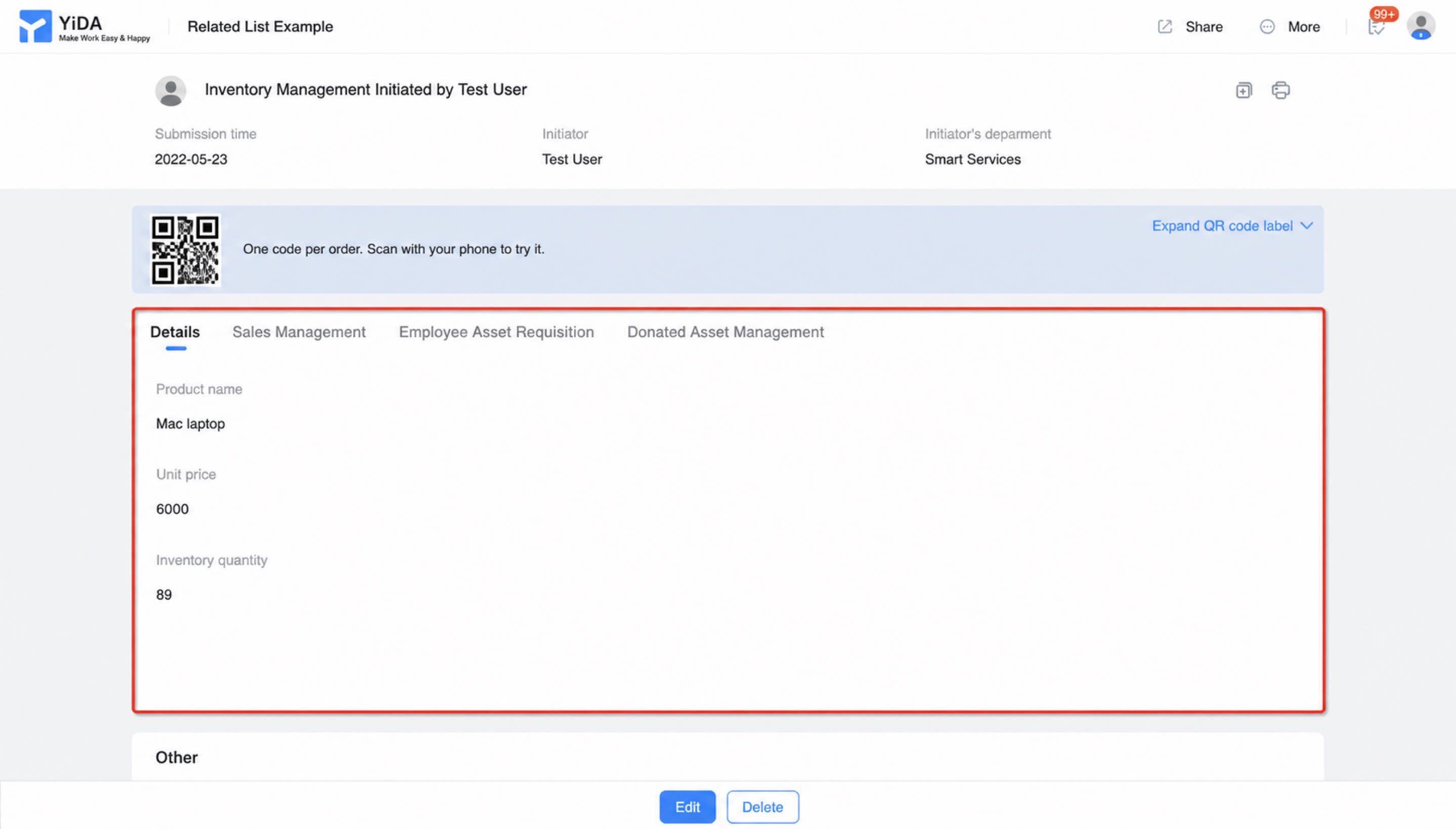
To quickly find which forms reference the current table, and to view, edit, or add data in the associated tables, use the Associated table feature. Scenario: The Inventory Management form is referenced by the Sales Management, Employee Asset Receipt, and Donated Asset Management forms. From the inventory table data, you can quickly query the corresponding records.2.2 Result
After submitting form data, open the Source records of the Inventory Management form to view, add, or edit data in the Inventory Management form and in the associated forms (Sales Management, Employee Asset Receipt, and Donated Asset Management), as shown below: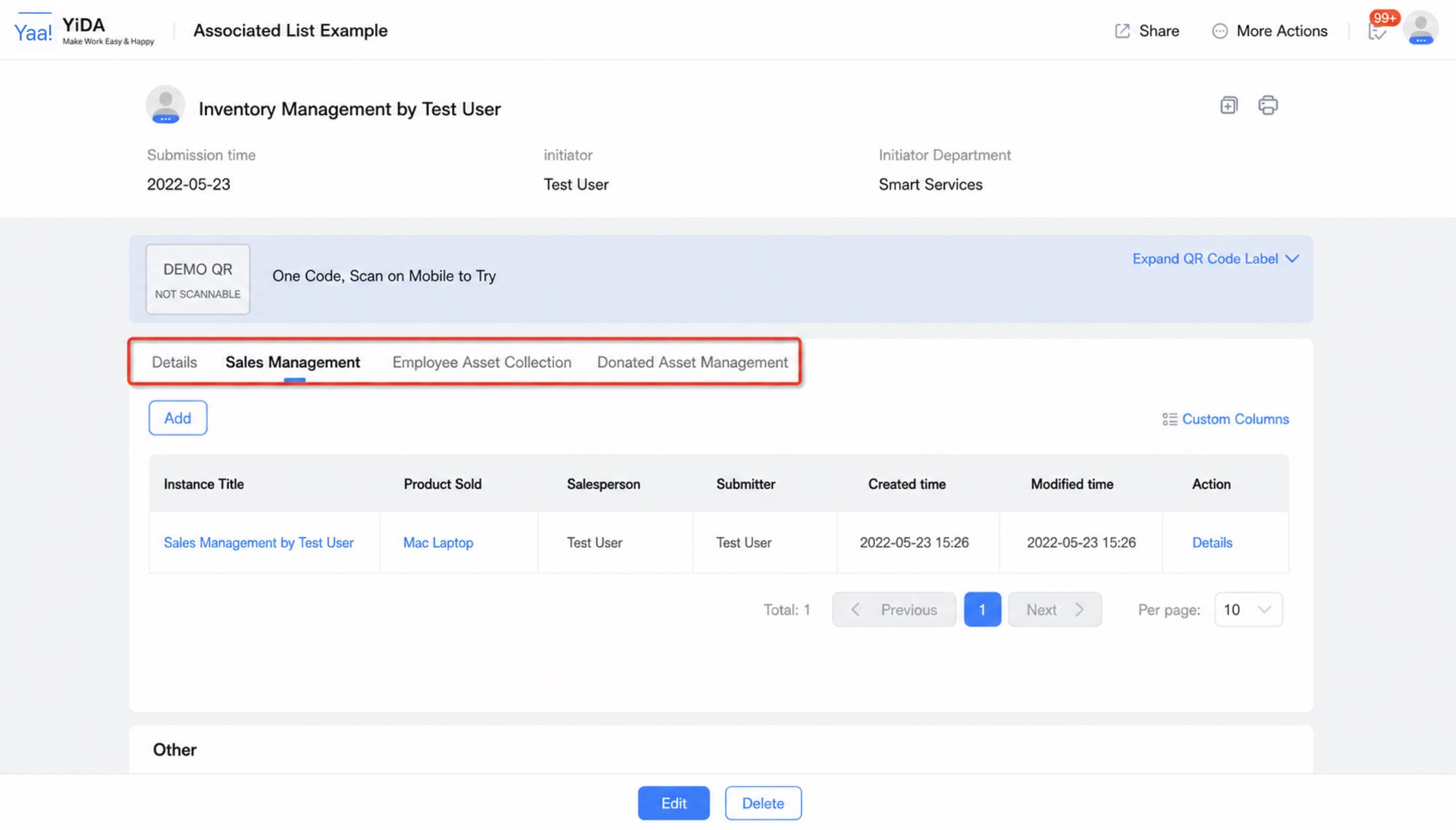
2.3 Implementation Steps
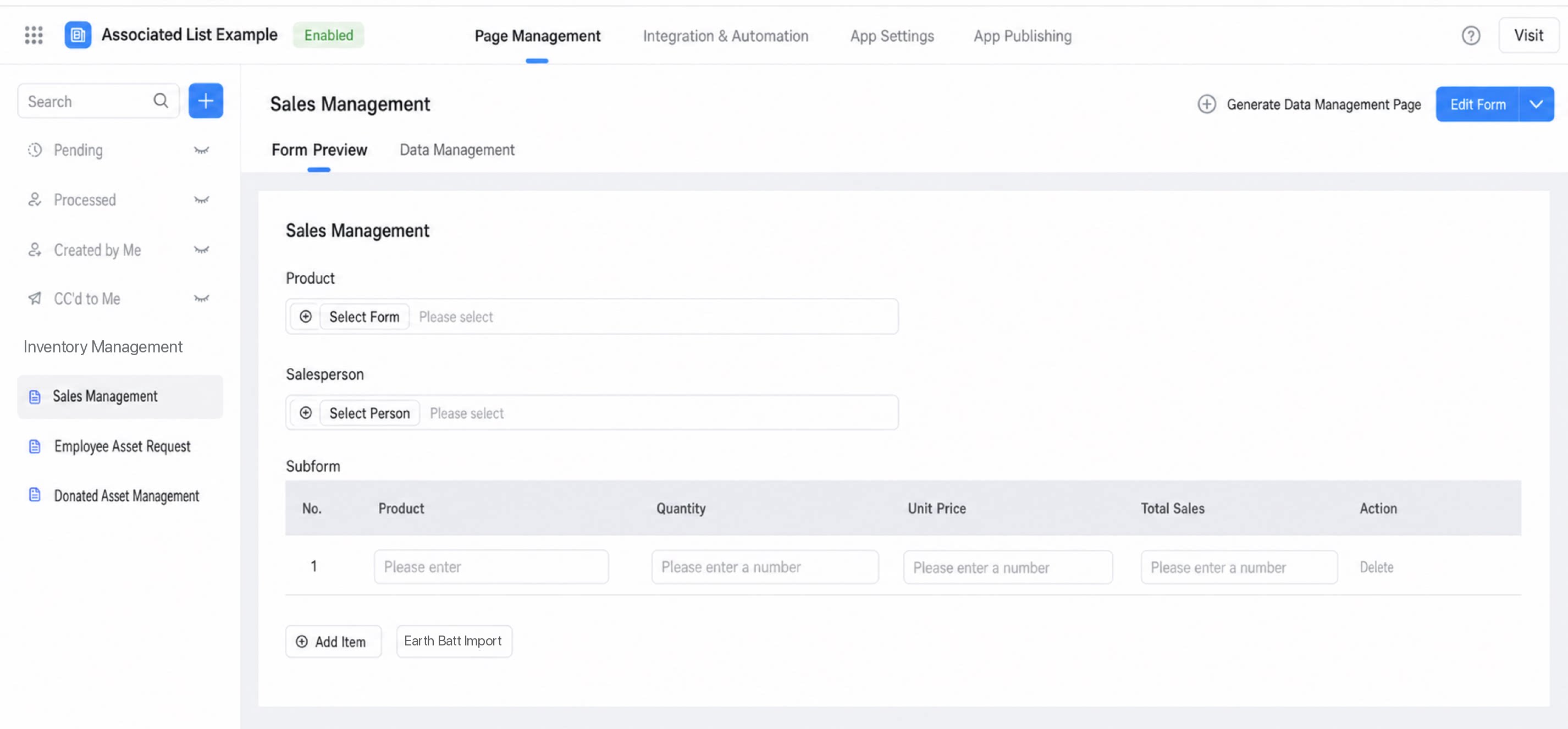
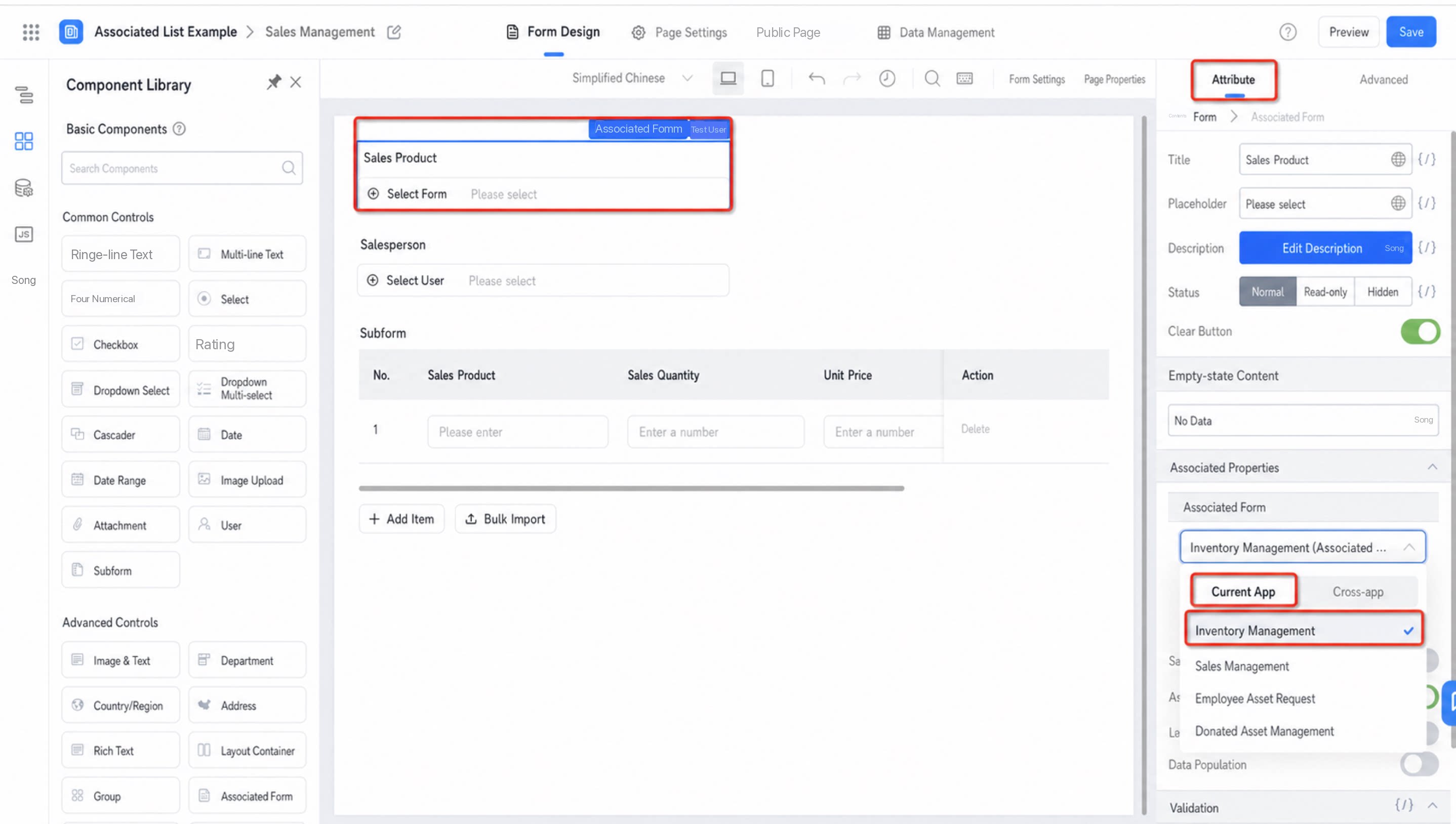
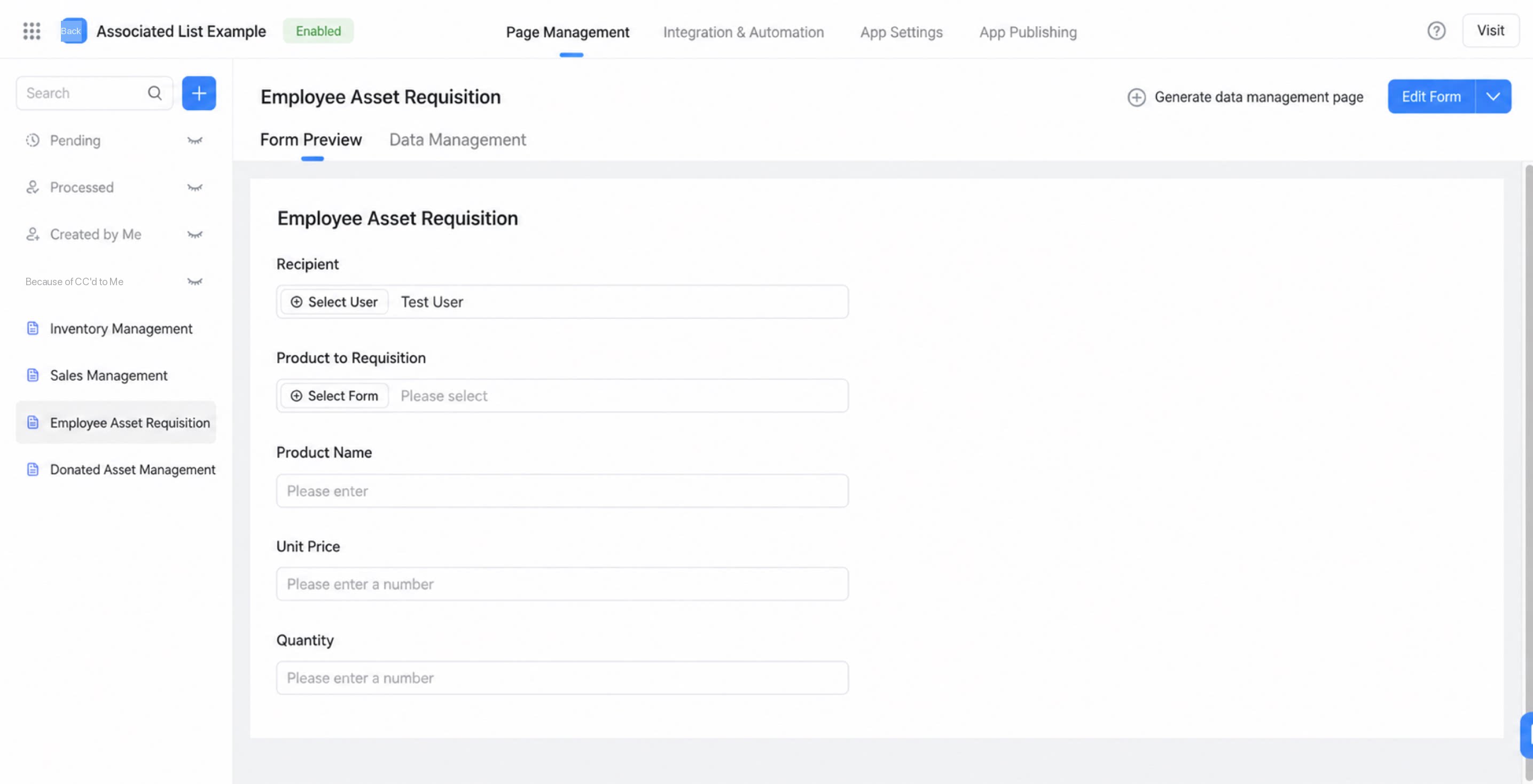
2.2.1 Create Forms
This example uses 4 forms. Select the form type based on your needs, and add more custom forms if you need additional associations. All form fields can be customized. The forms in this example are created as follows: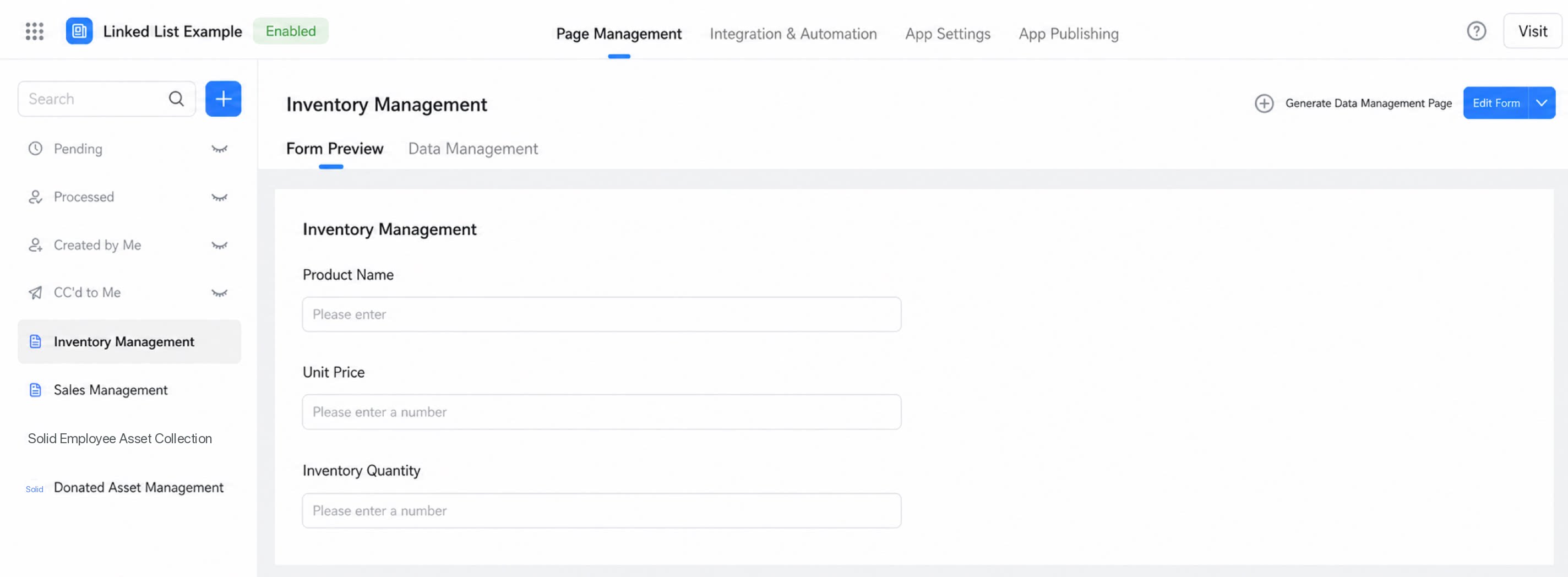
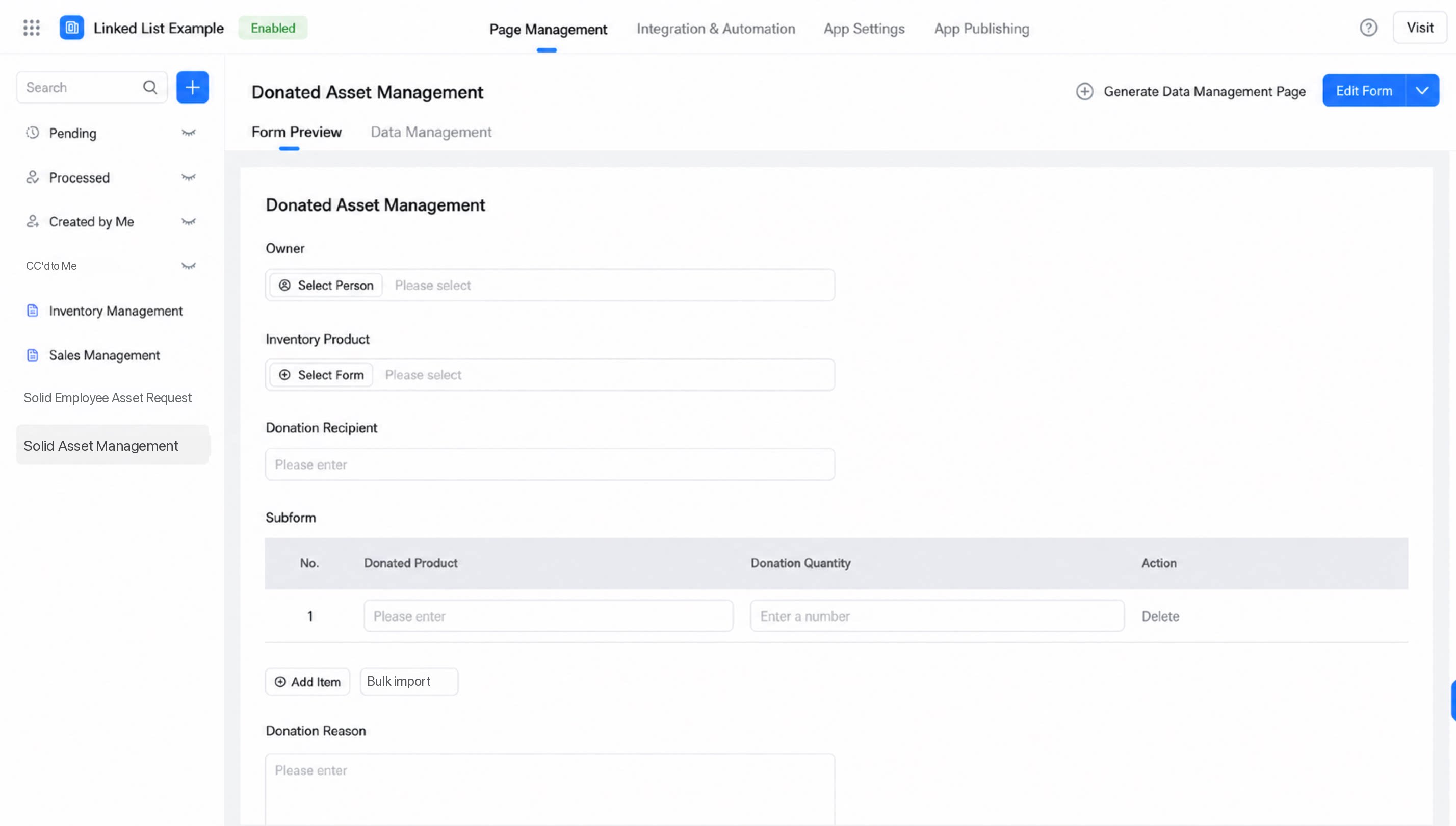
2.2.2 Configure the Associated Table
Steps: Inventory Management >> Settings >> Page Settings >> Associated table >> Settings >> select Sales Management, Employee Asset Receipt, Donated Asset Management.