Chats
Chats Calendar
 Meetings
 Contacts
 Mail
Mail Docs
Docs Drive
Drive AI Table
 AI Minutes
 Attendance
 Approval
 YiDA
YiDA Admin Console
1. Associated Form
1.1 What Is an Associated Form
The associated form component links data from other forms and populates that data into components in the current form. It also supports filtering when retrieving data from the associated form.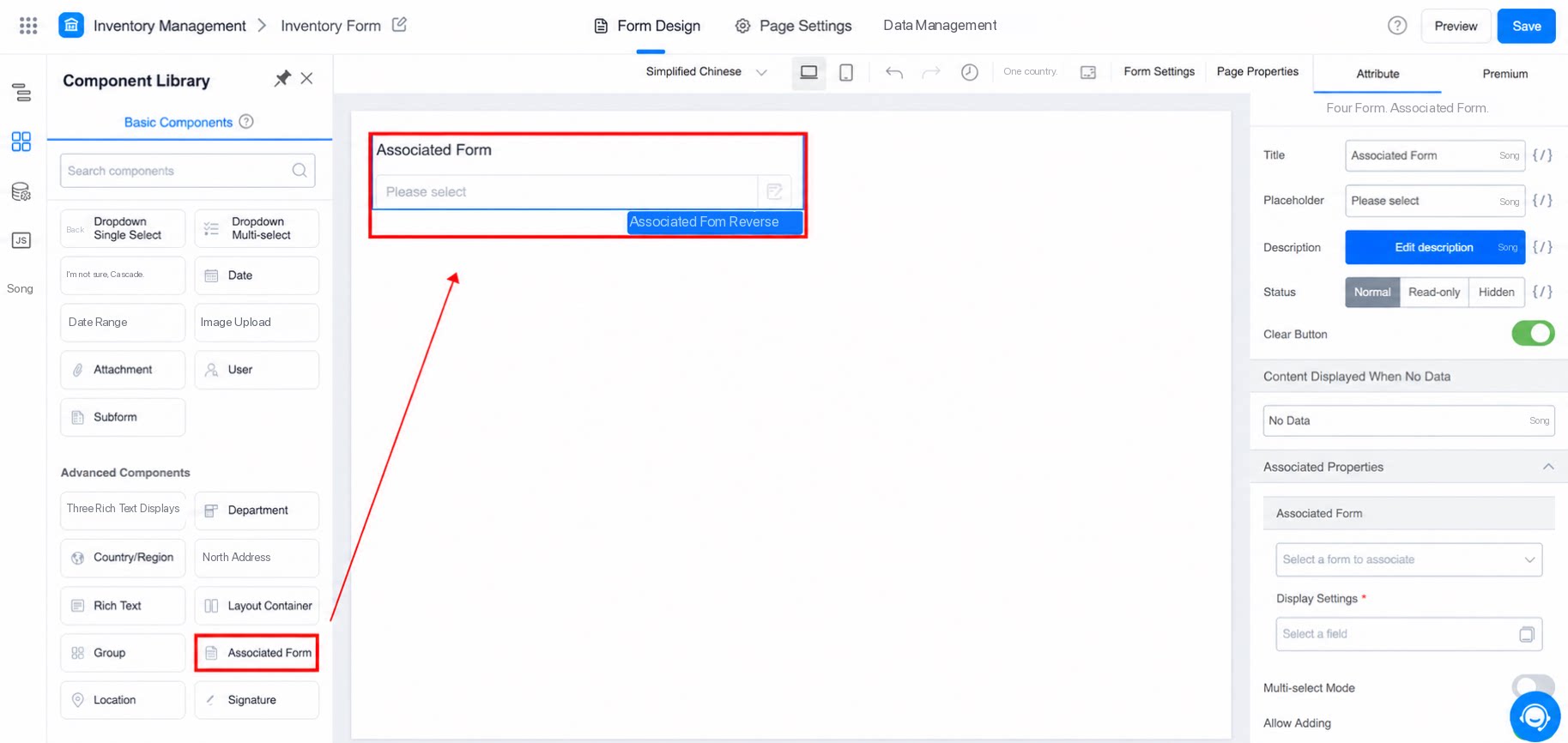
1.2 Use Cases
- View data from another form in the current form and open it with a single click.
2. Association Attributes
2.1 Associated Form and Displayed Content
- Link to other regular forms and workflow forms.
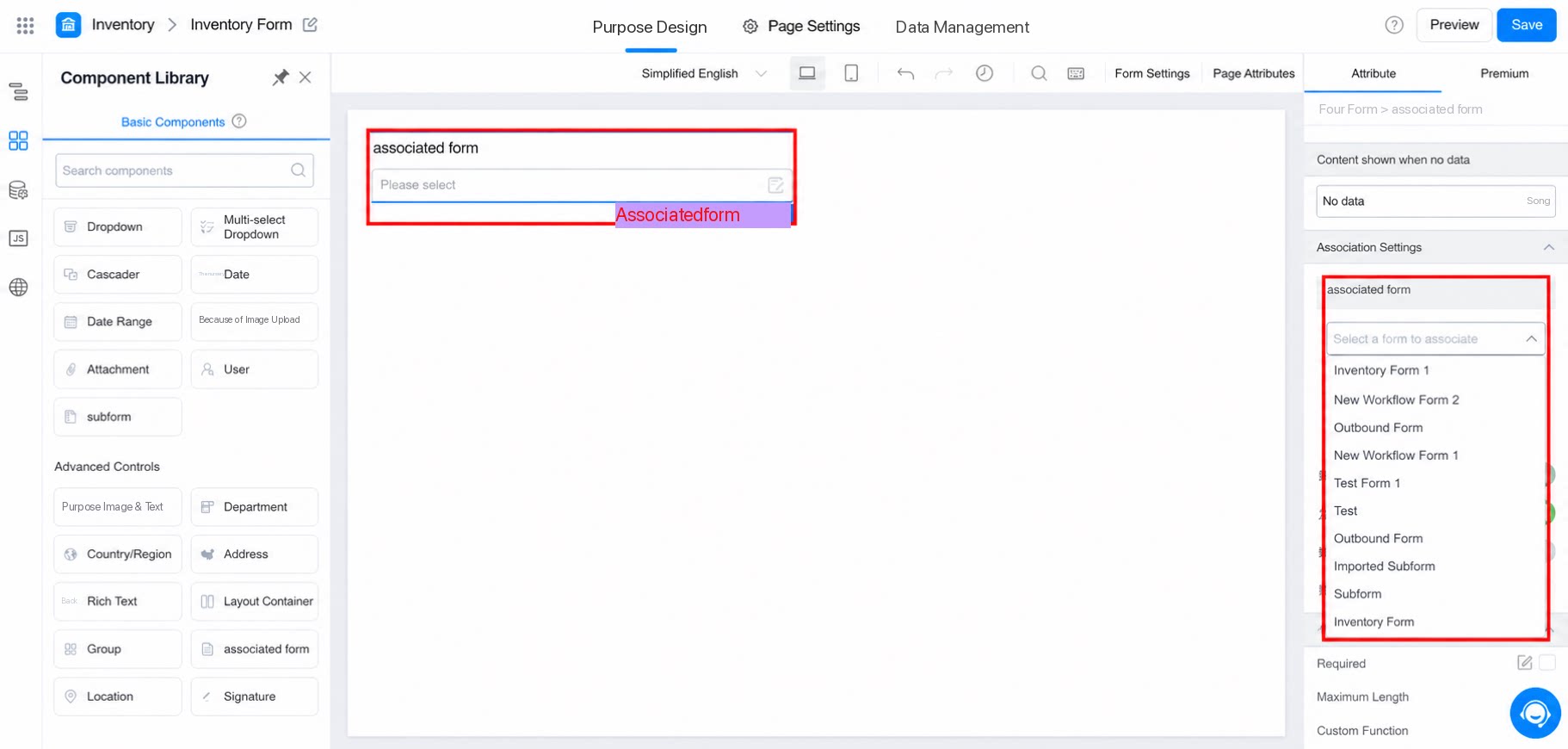
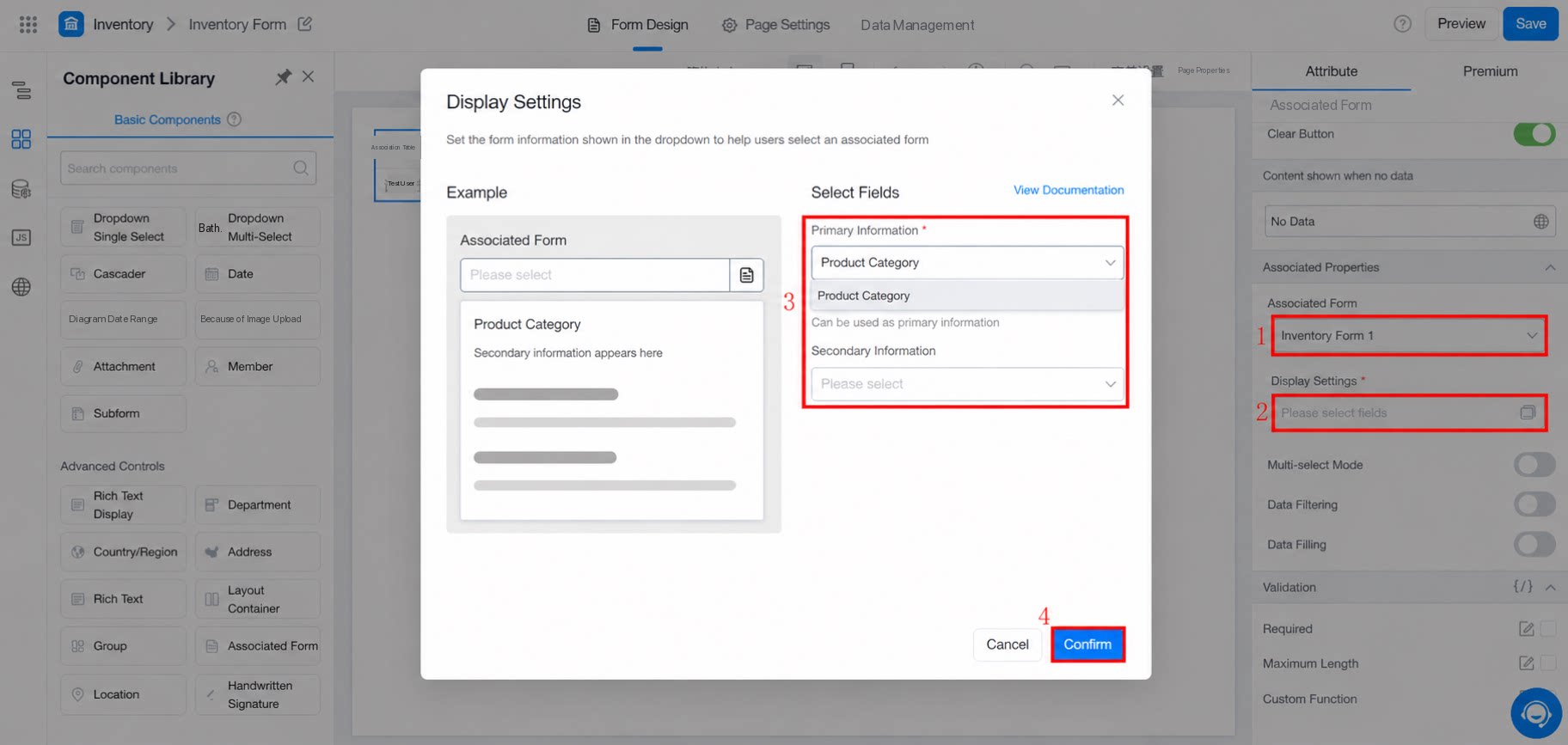
2.1.1 Displayed Information of the Associated Form (Primary and Secondary Information)
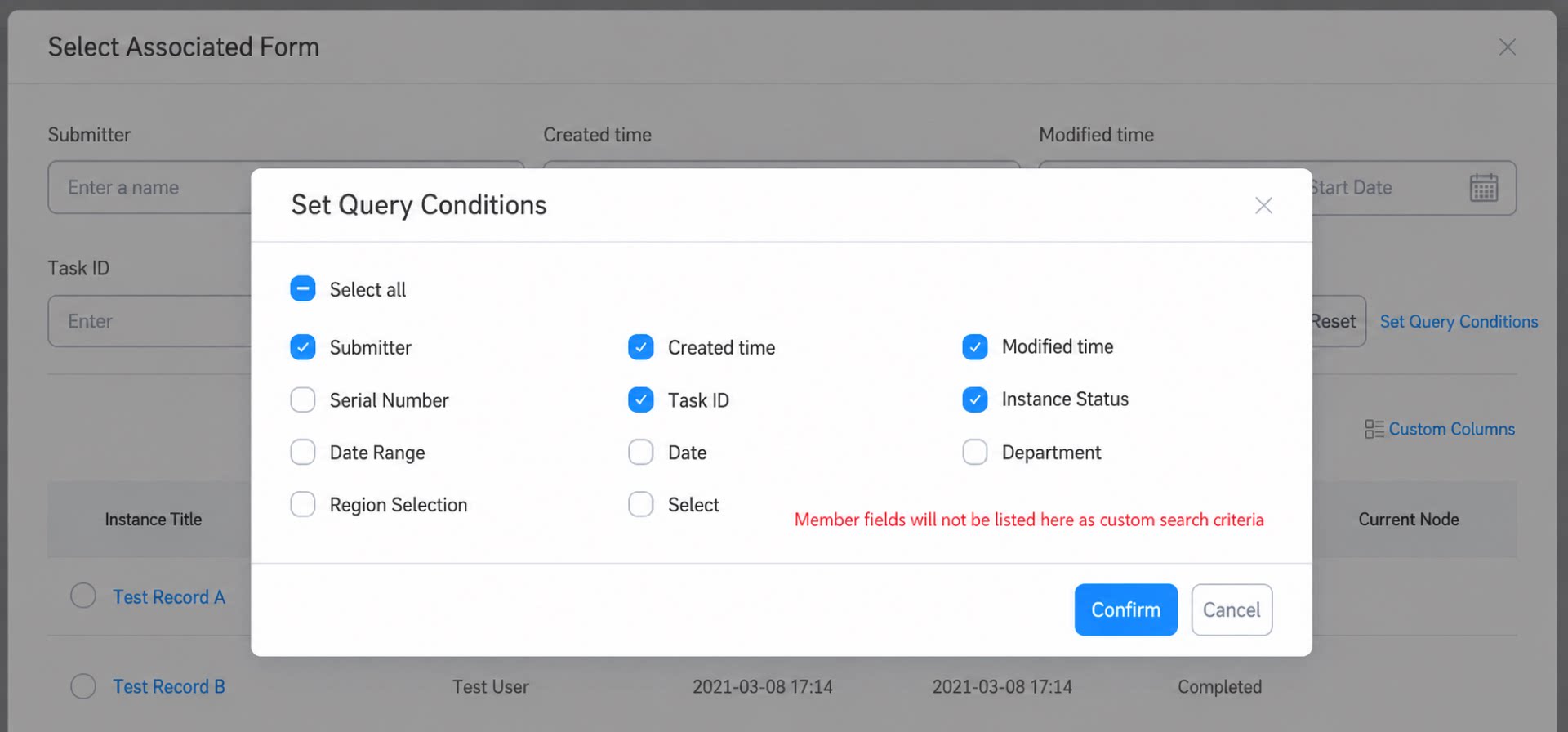
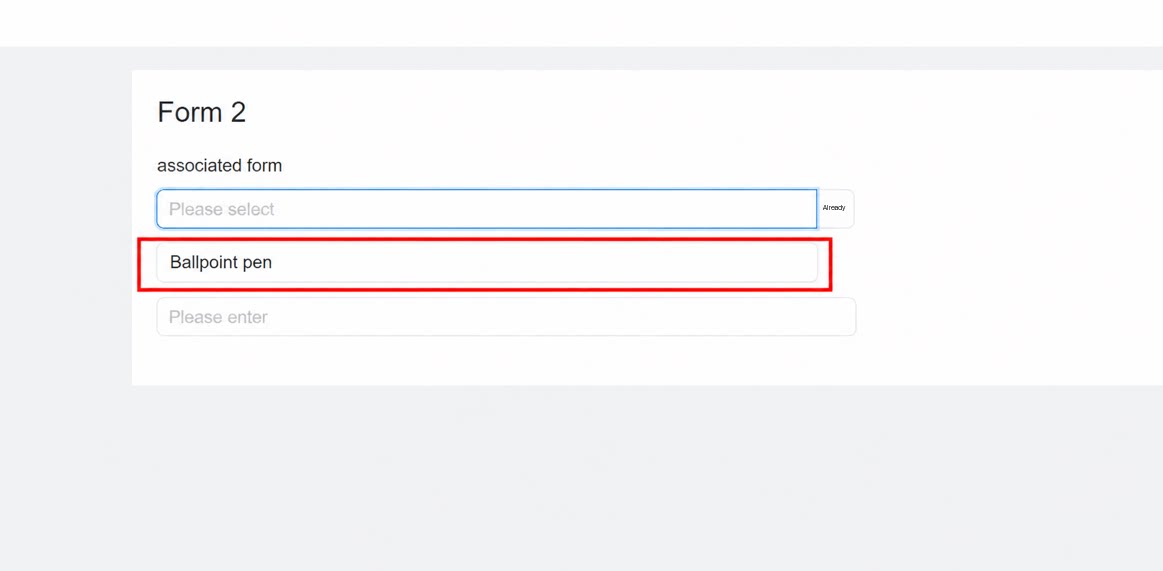
Primary and secondary information are used to display and search data in the dropdown list of the associated form component.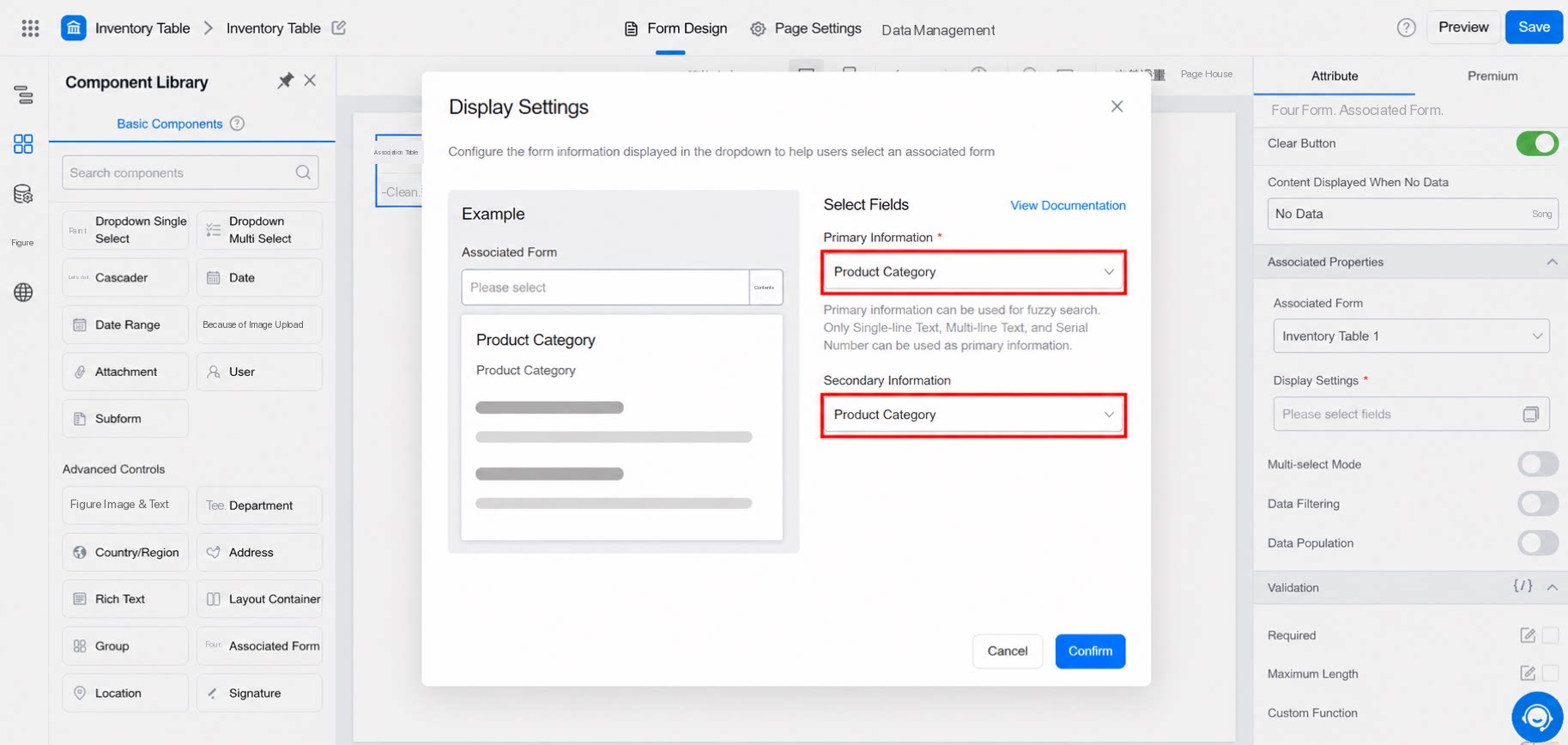
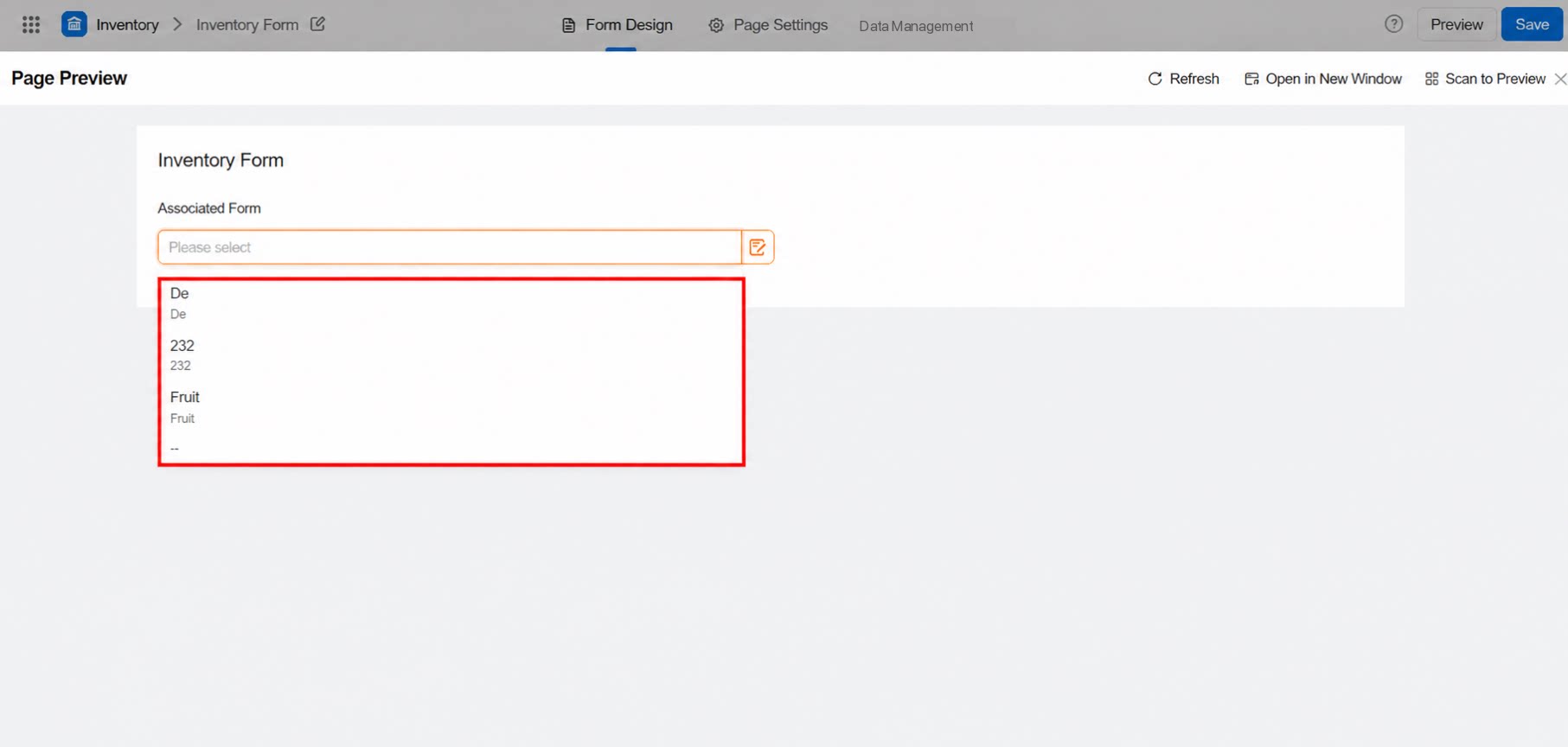
- Primary information can be used for search when data is submitted. Only text input components are currently supported (including serial numbers). Secondary information can be any form component.
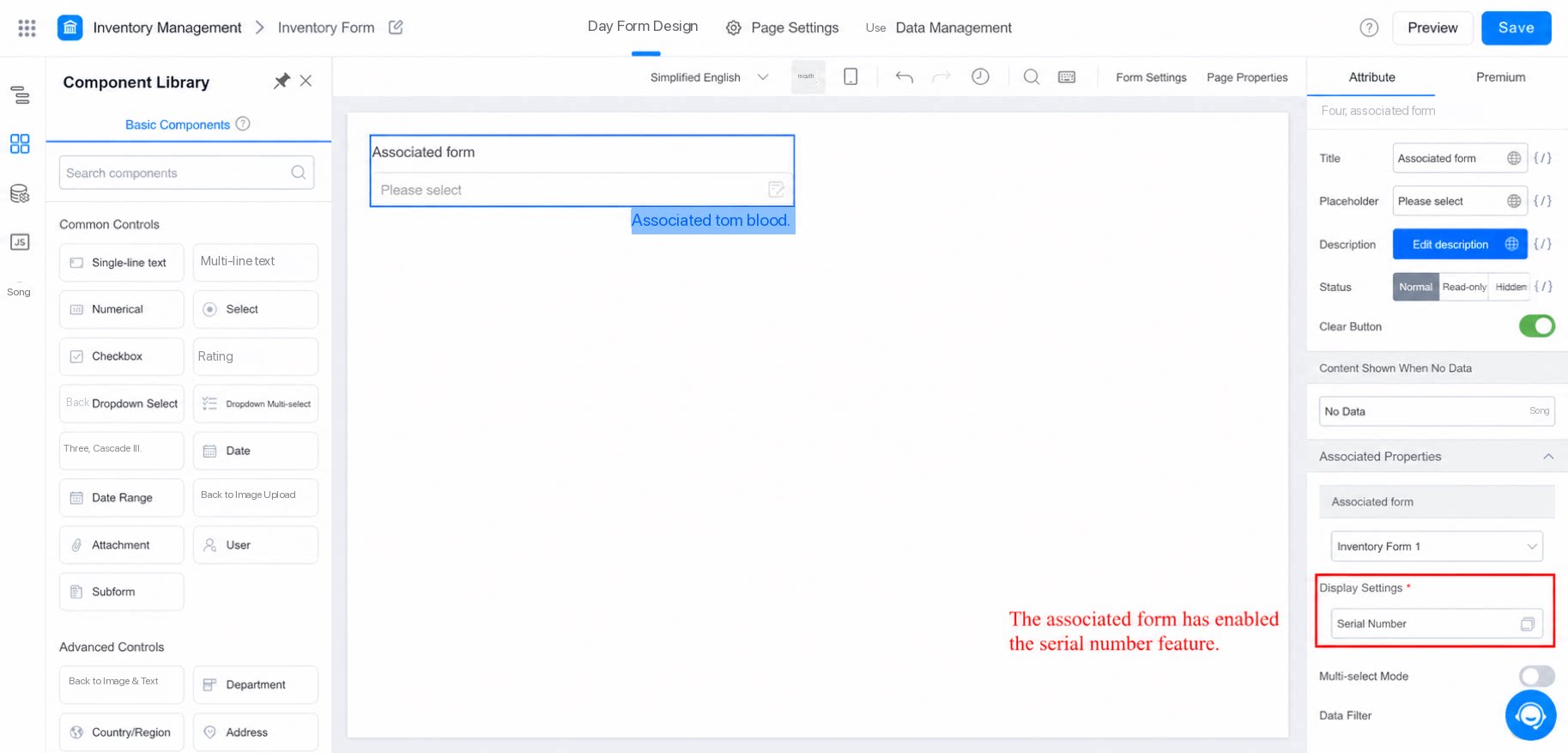
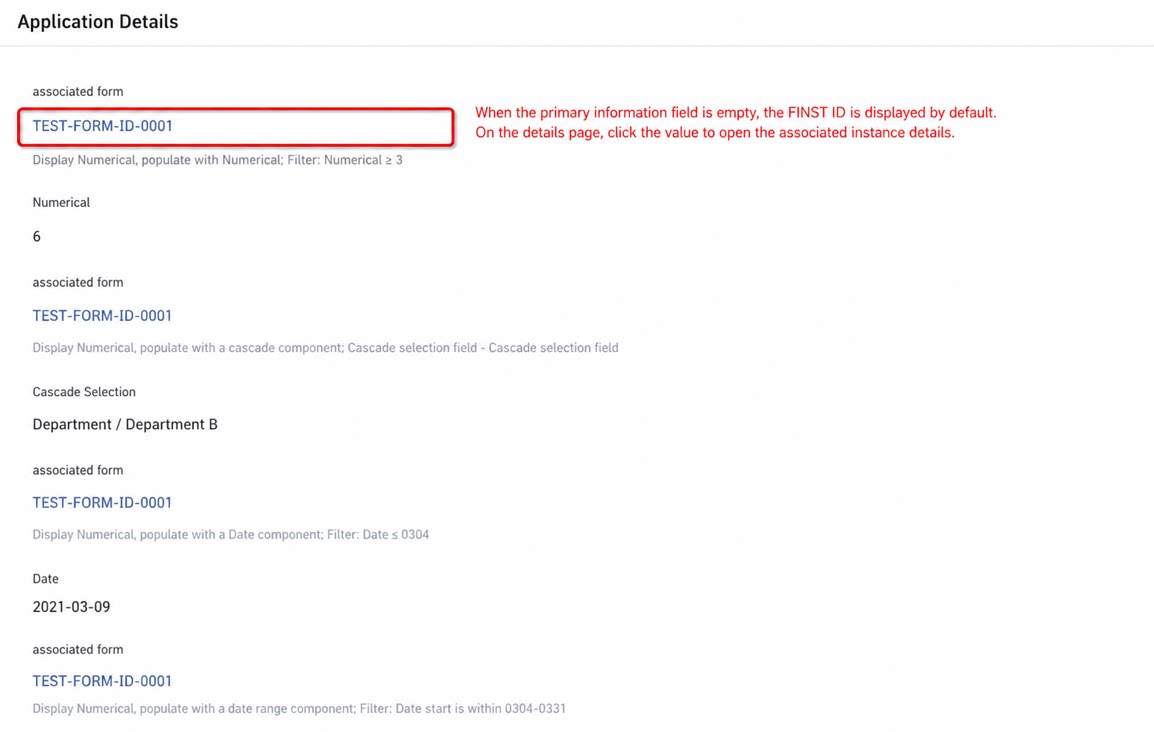
- Display settings are required when data is submitted. If the serial number feature is enabled, primary information shows the serial number by default. Change it as needed.
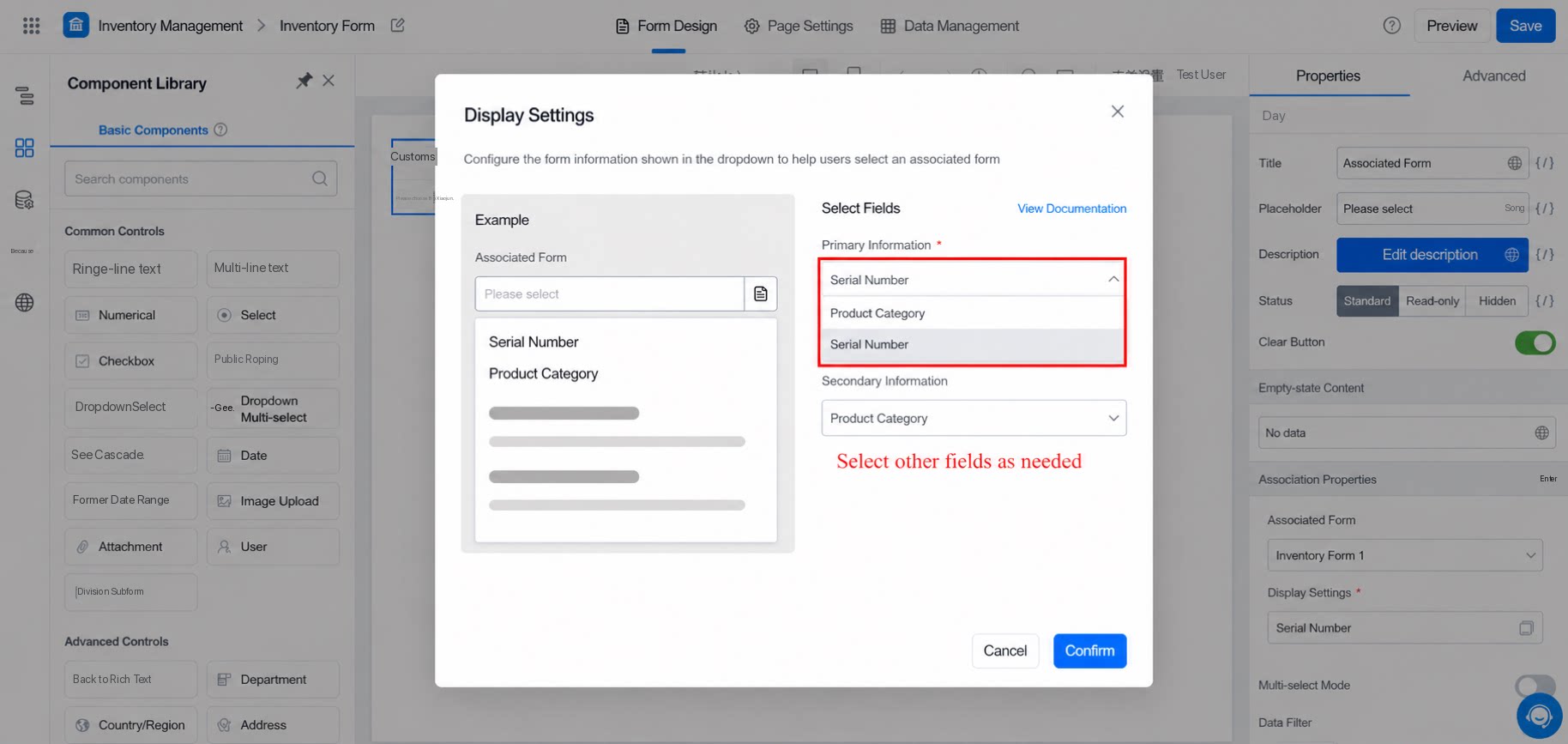
2.1.2 Multiselect Mode
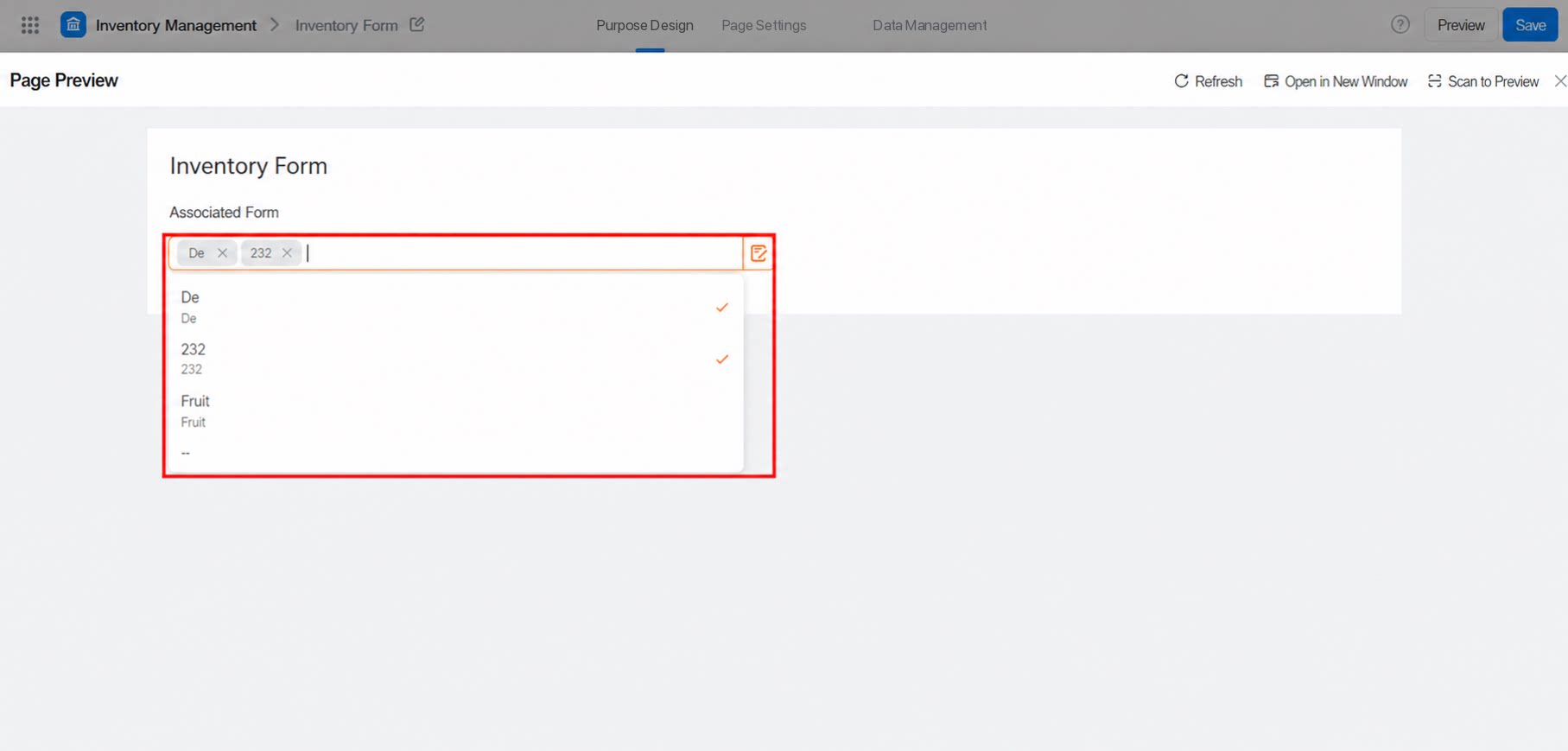
The associated form supports both single-select and multiselect modes. Single-select is the default (multiselect mode is off).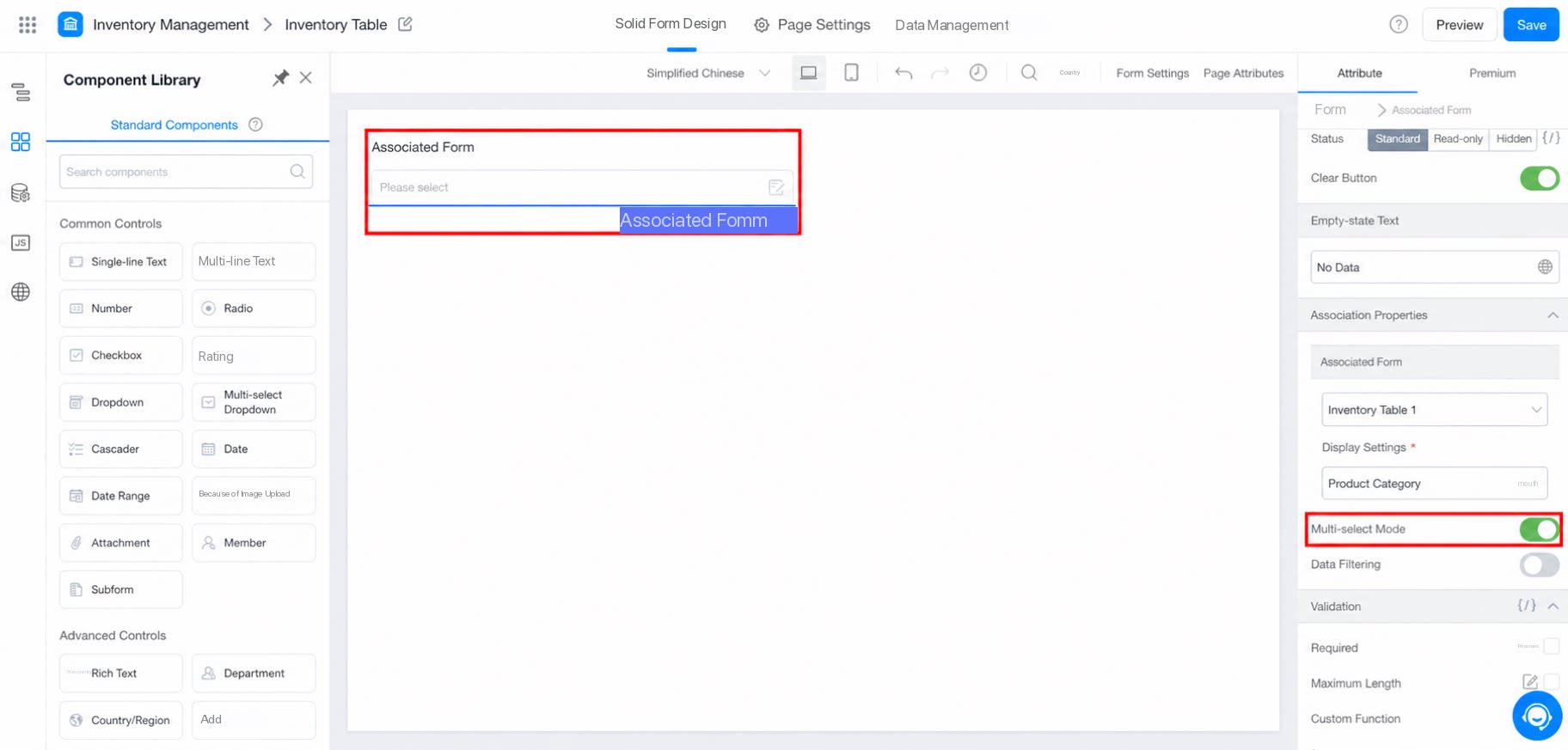
2.1.3 Data Filling
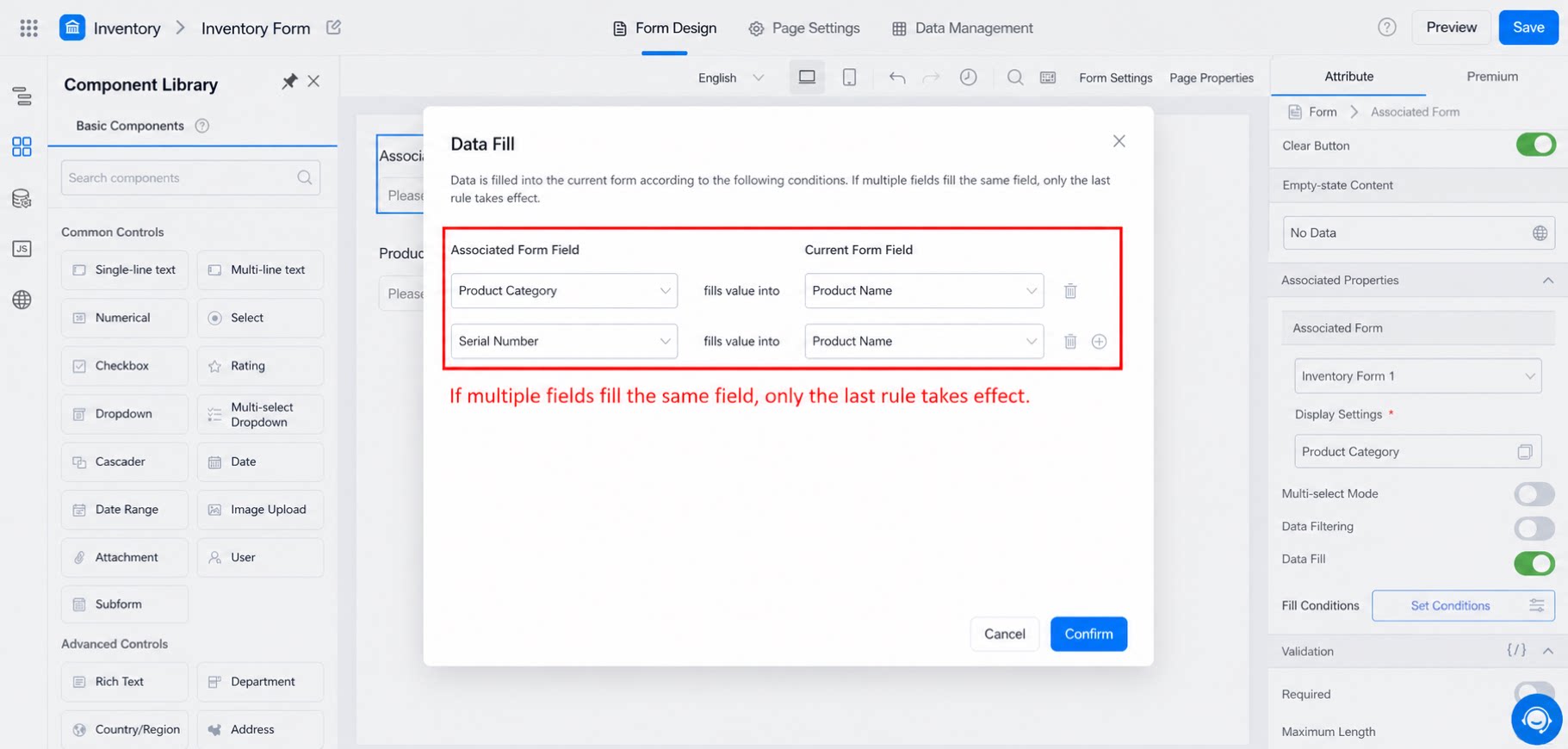
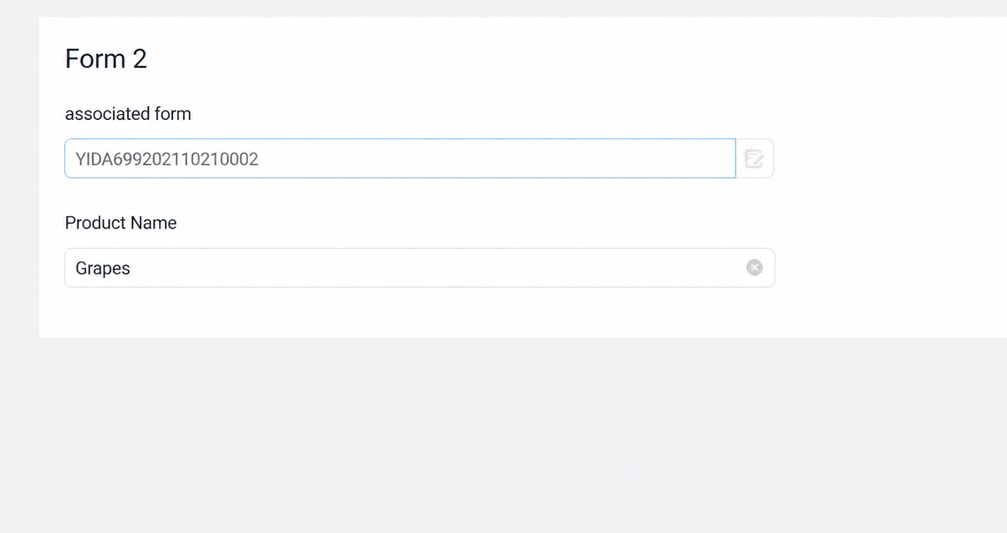
- In addition to selecting data from another form, data filling copies fields from the selected associated record into fields of the current form.
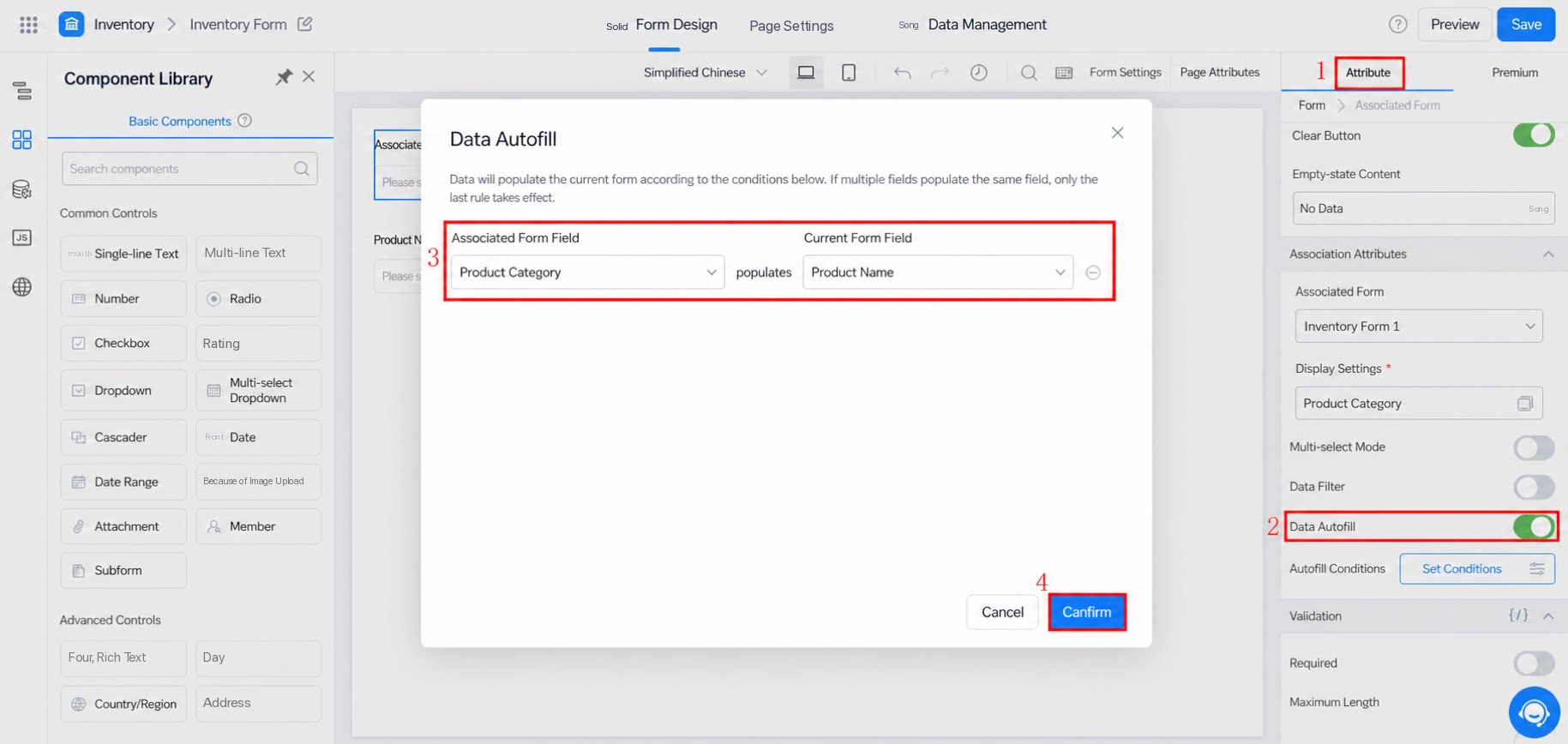
- When setting filling conditions, define multiple conditions for the same field in the dialog box that appears.
- Due to differences in data structures, field mapping restrictions apply, as shown in the following table:
2.1.4 Allow Creating Records in the Associated Form
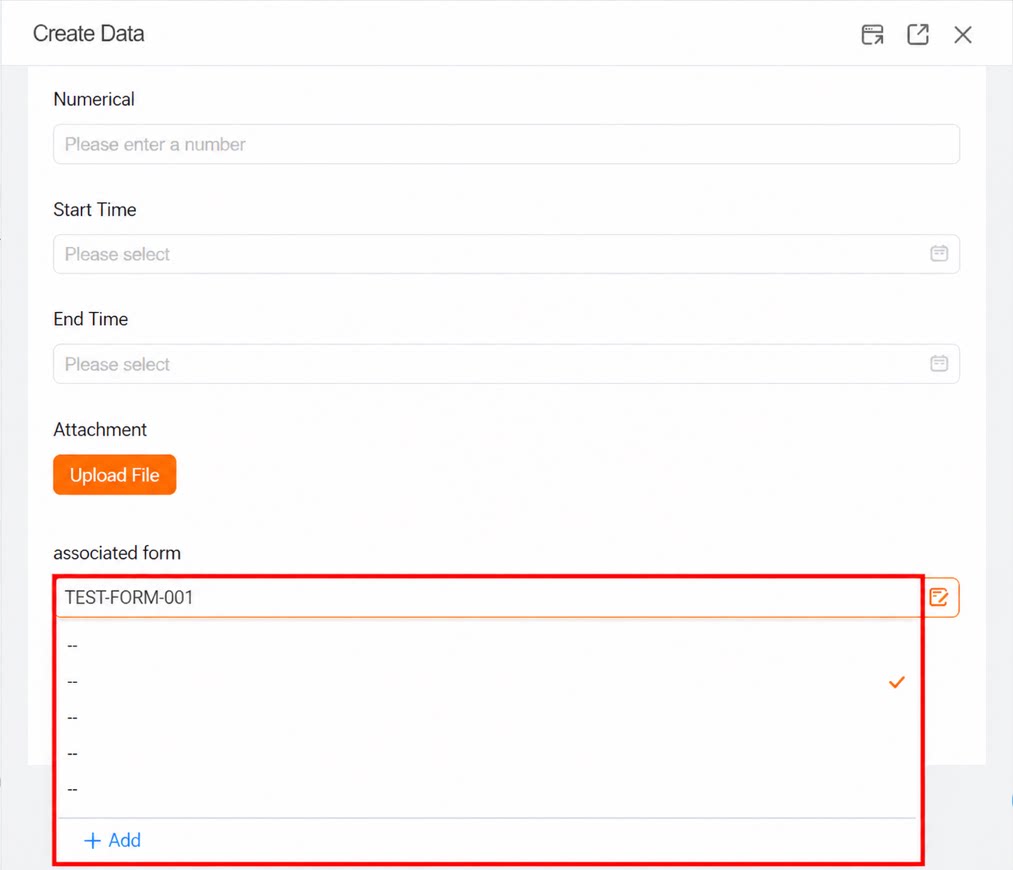
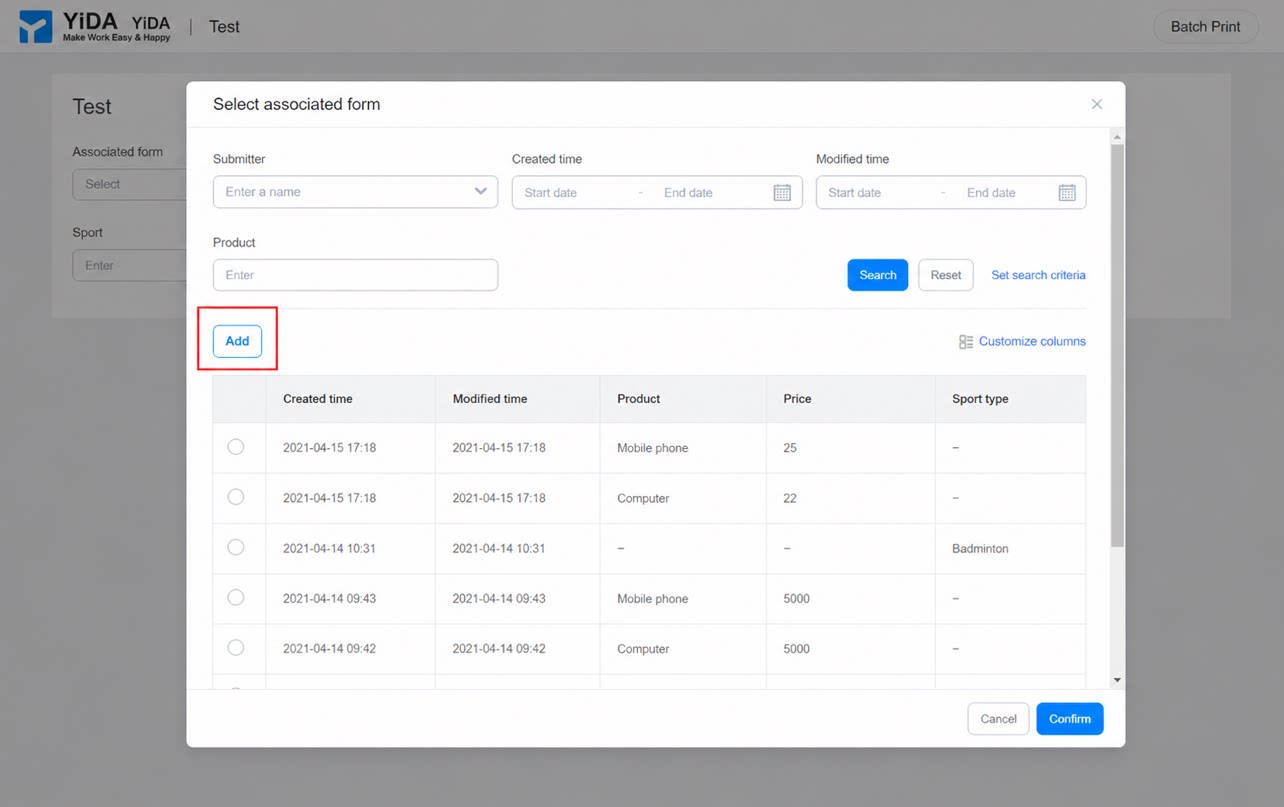
The associated form component allows record creation by default, which means a Create button appears in the selection dropdown and on the management page.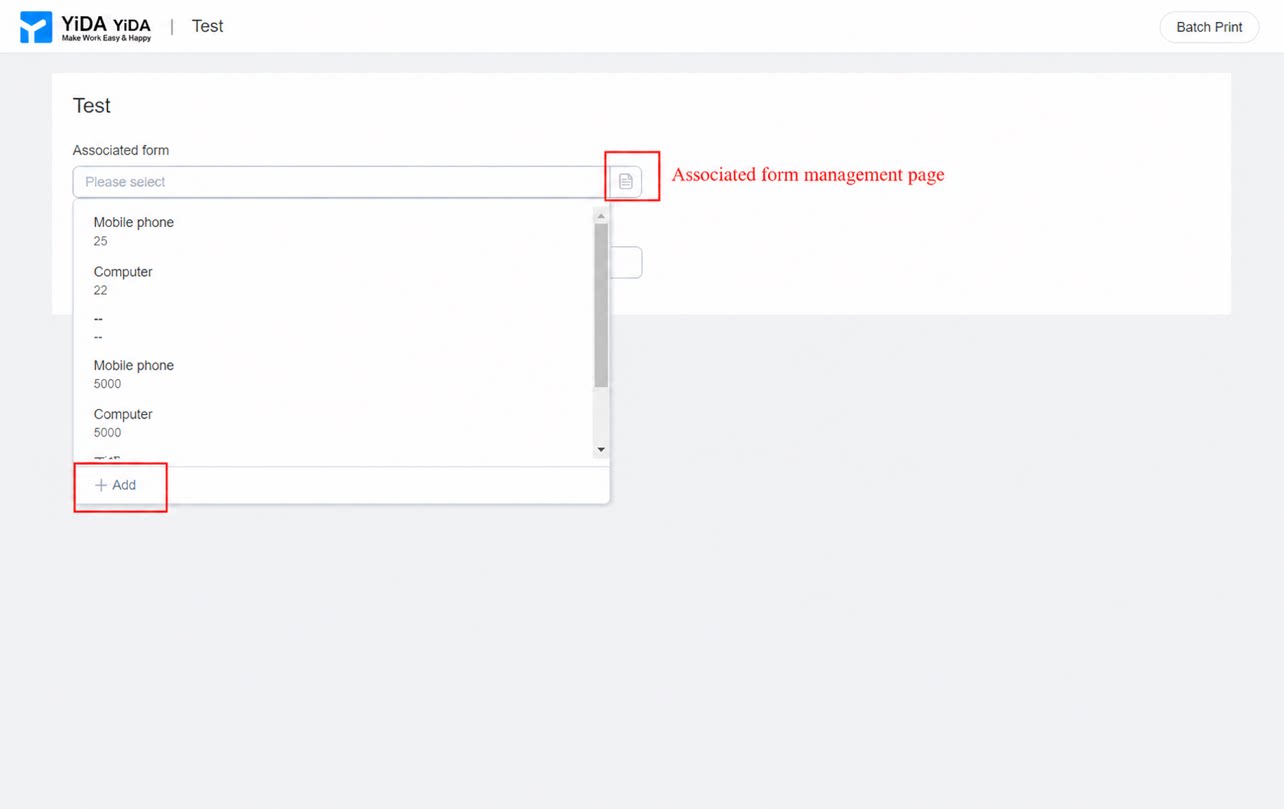
- Workflow forms do not support record creation.
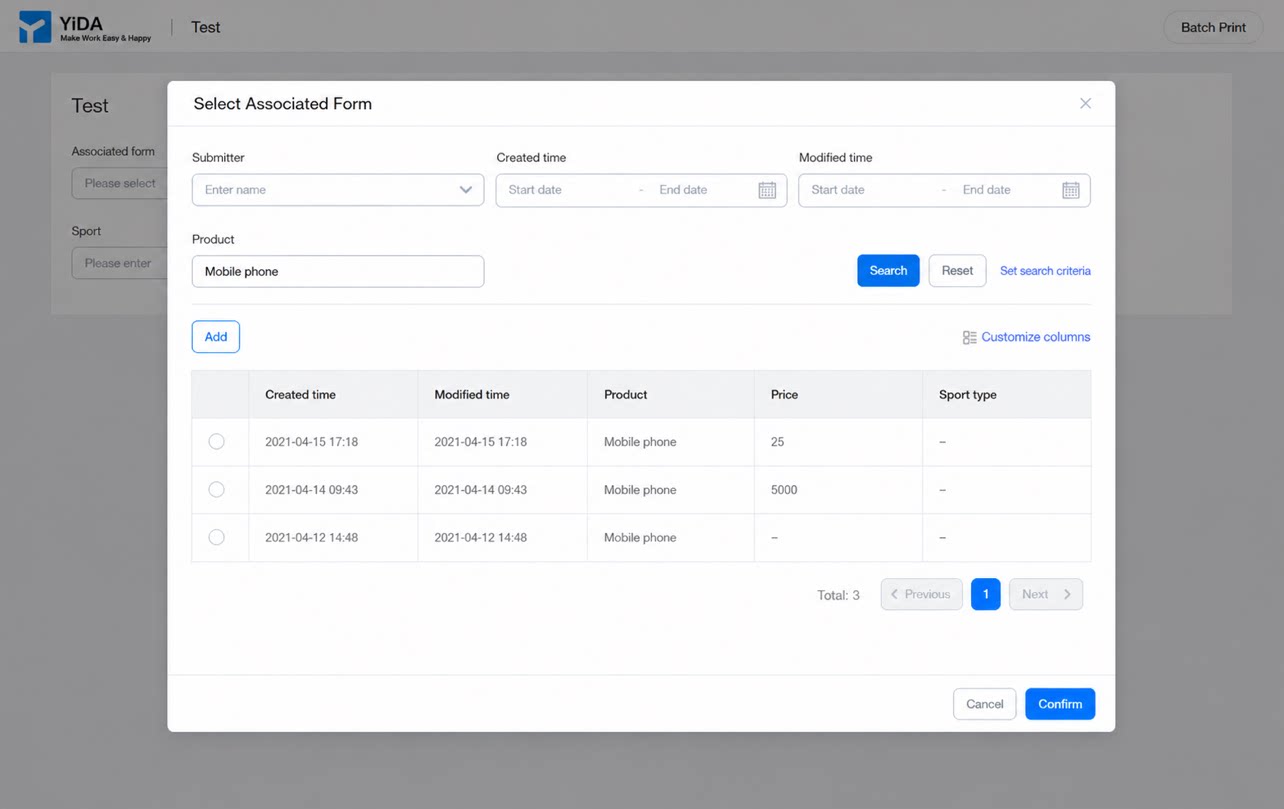
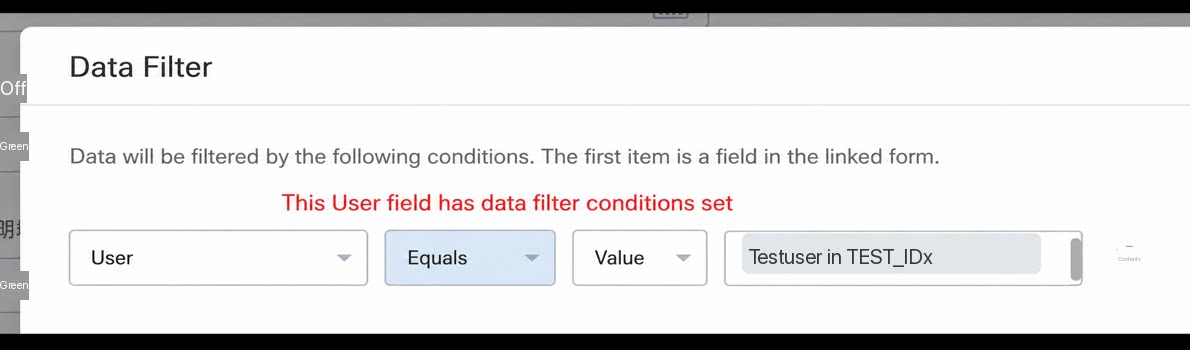
2.1.5 Data Filtering
Data filtering predefines filter conditions to limit the range of data visible during data submission.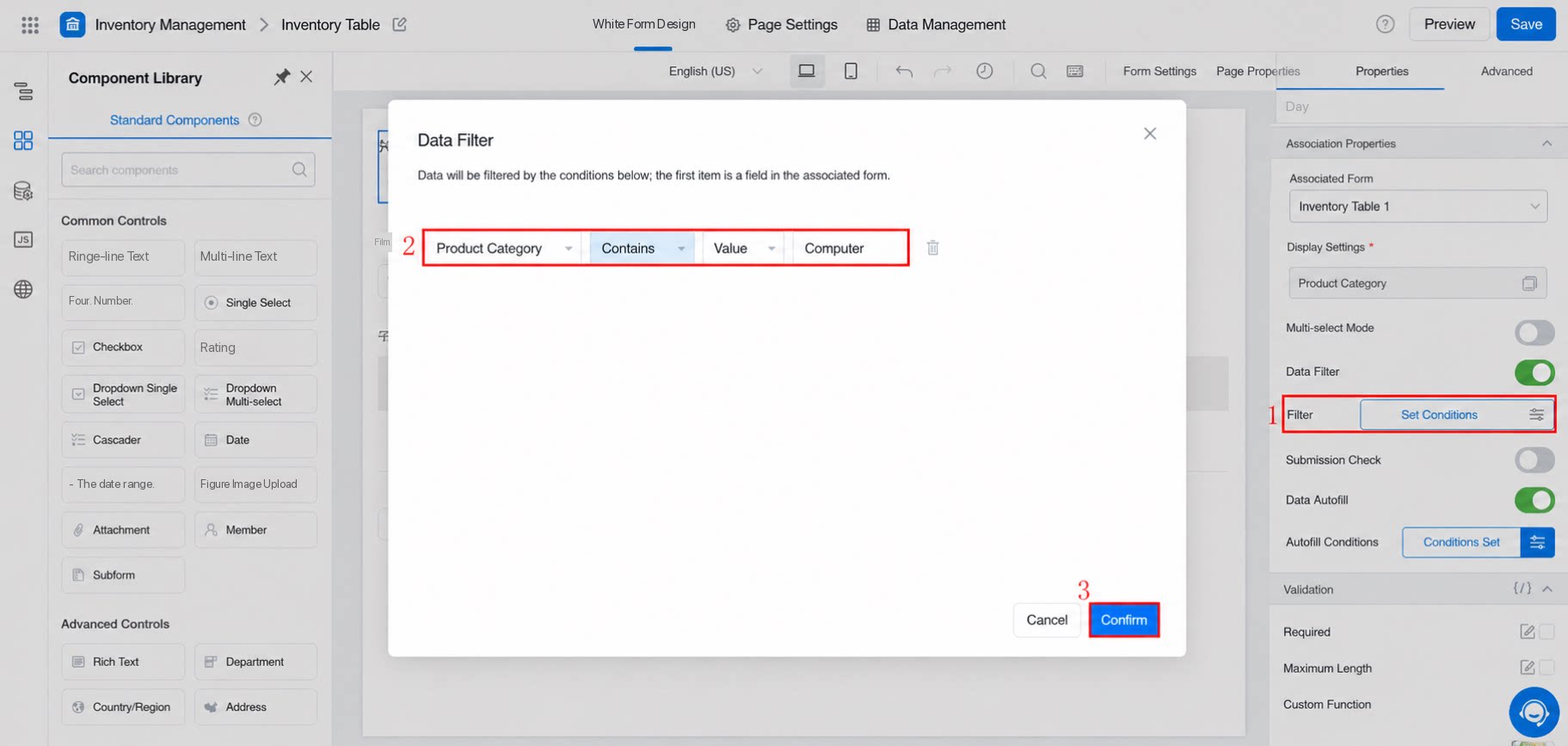
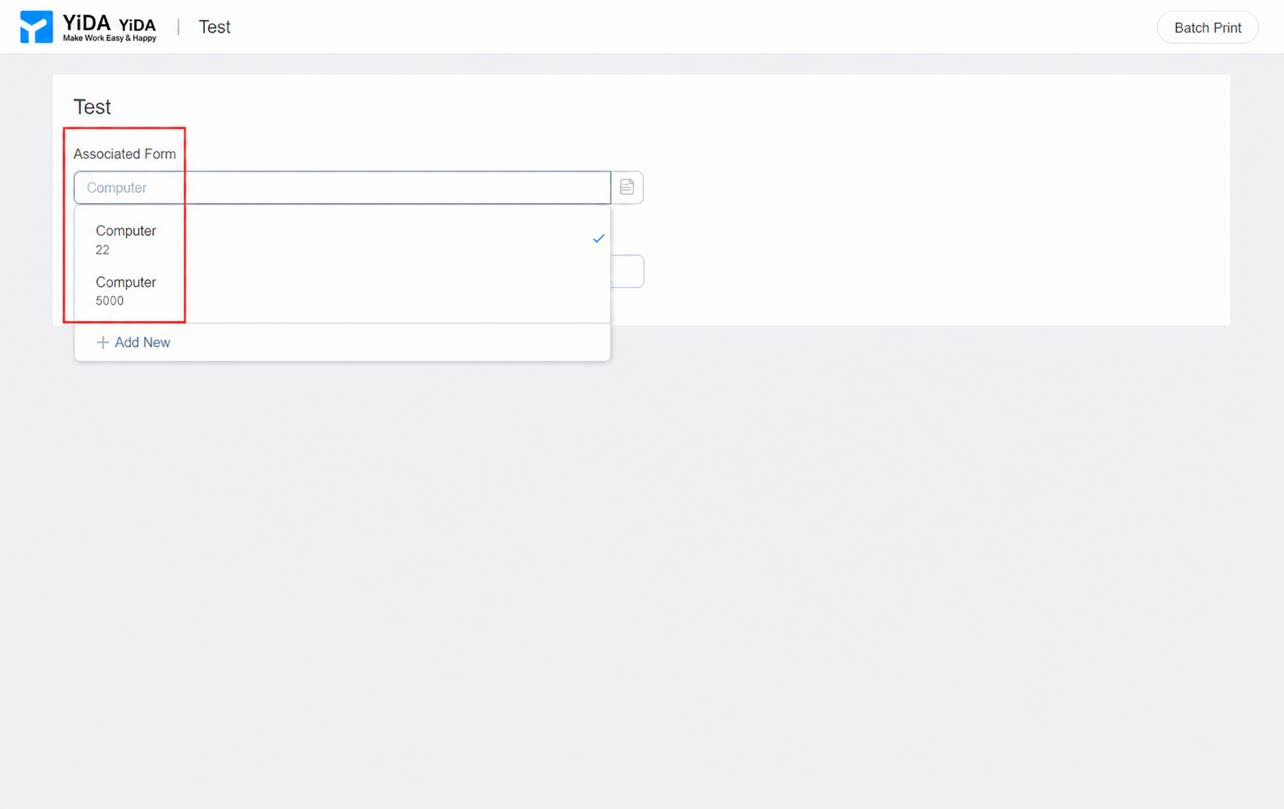
- Two types are available: value and field.
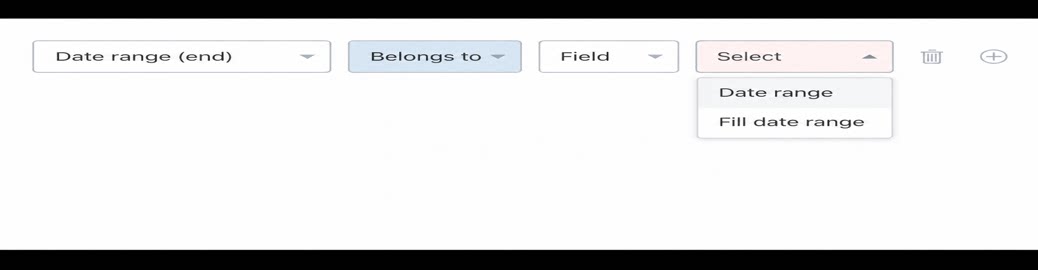
- Associated data that is already selected is not affected by condition changes, and it is not cleared when the conditions are no longer met.
- Each field supports only one set of filter conditions. Some components, such as date range, support separate range conditions.
| Component name | Component identifier |
| Subform | TableField |
| Rich Text | EditorField |
| Associated form | AssociationFormField |
| Other fields excluded from search in the page settings | |
3. Submitting Associated Form Data and Viewing Details
Keep the following in mind when you submit a page that contains the associated form component after filling it in according to the configured data filtering and filling conditions:- If the associated page is a form page, all submitted data is available for selection.
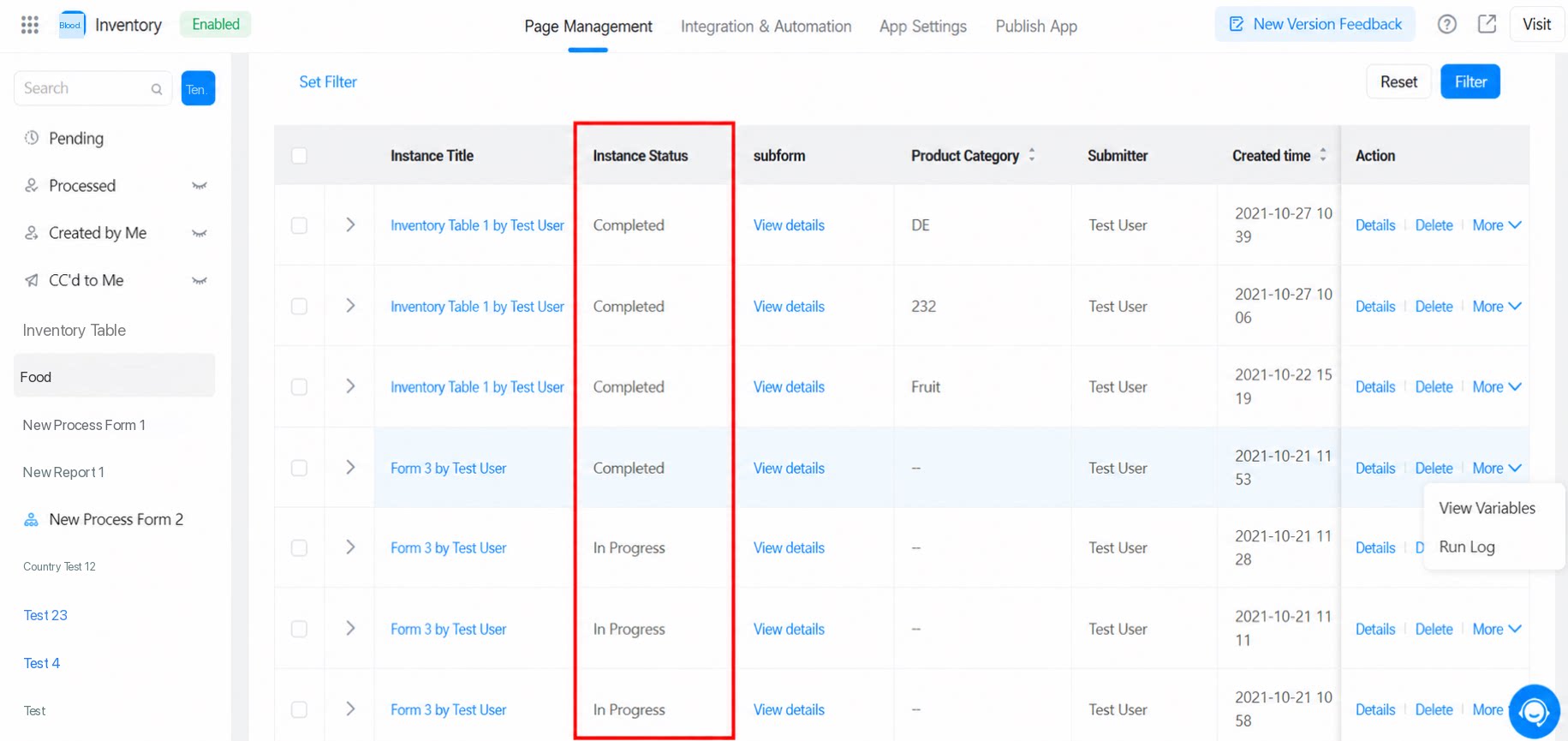
- If the associated page is a workflow page, submitted data is available for selection only after the approval is complete.
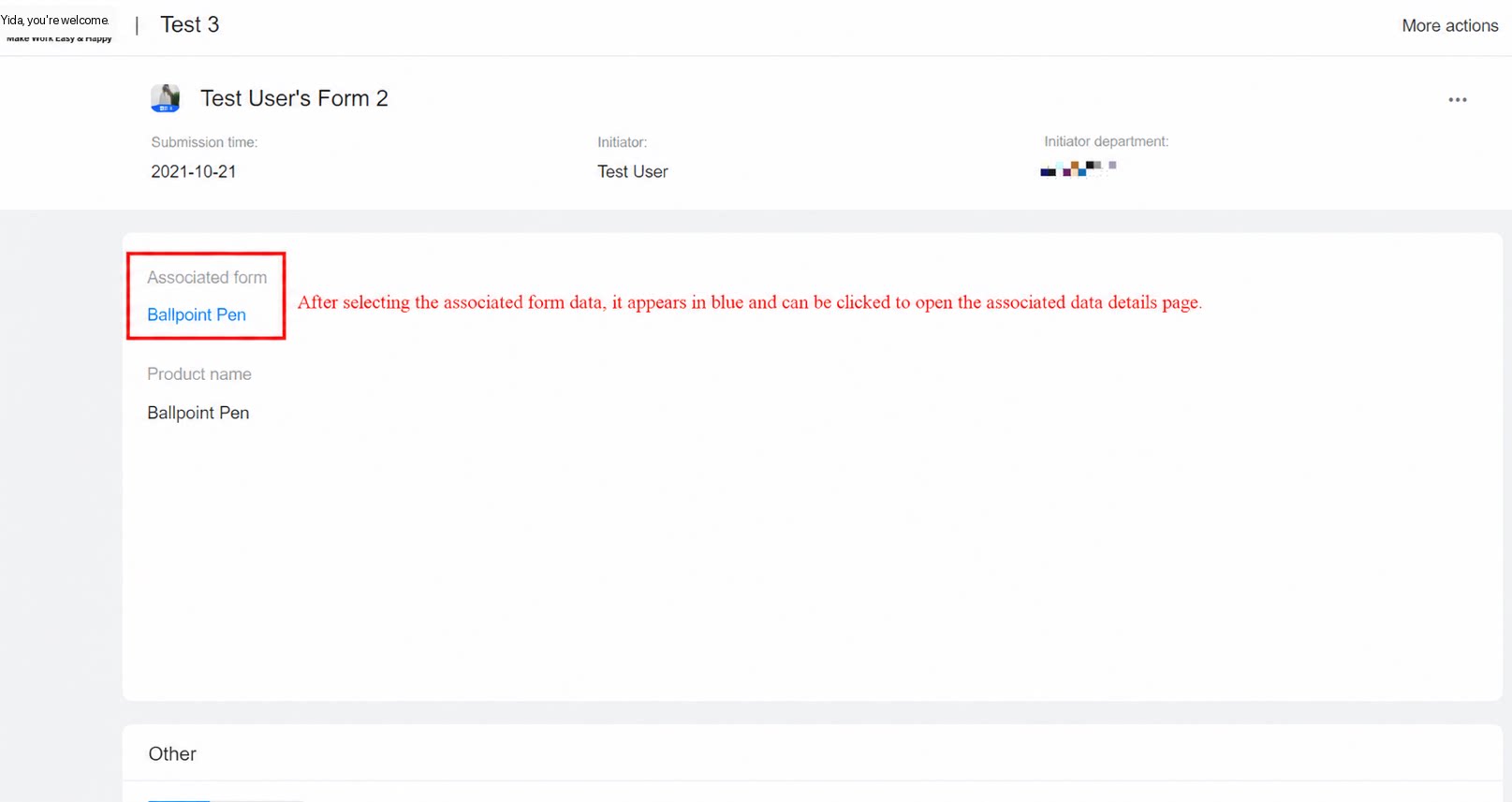
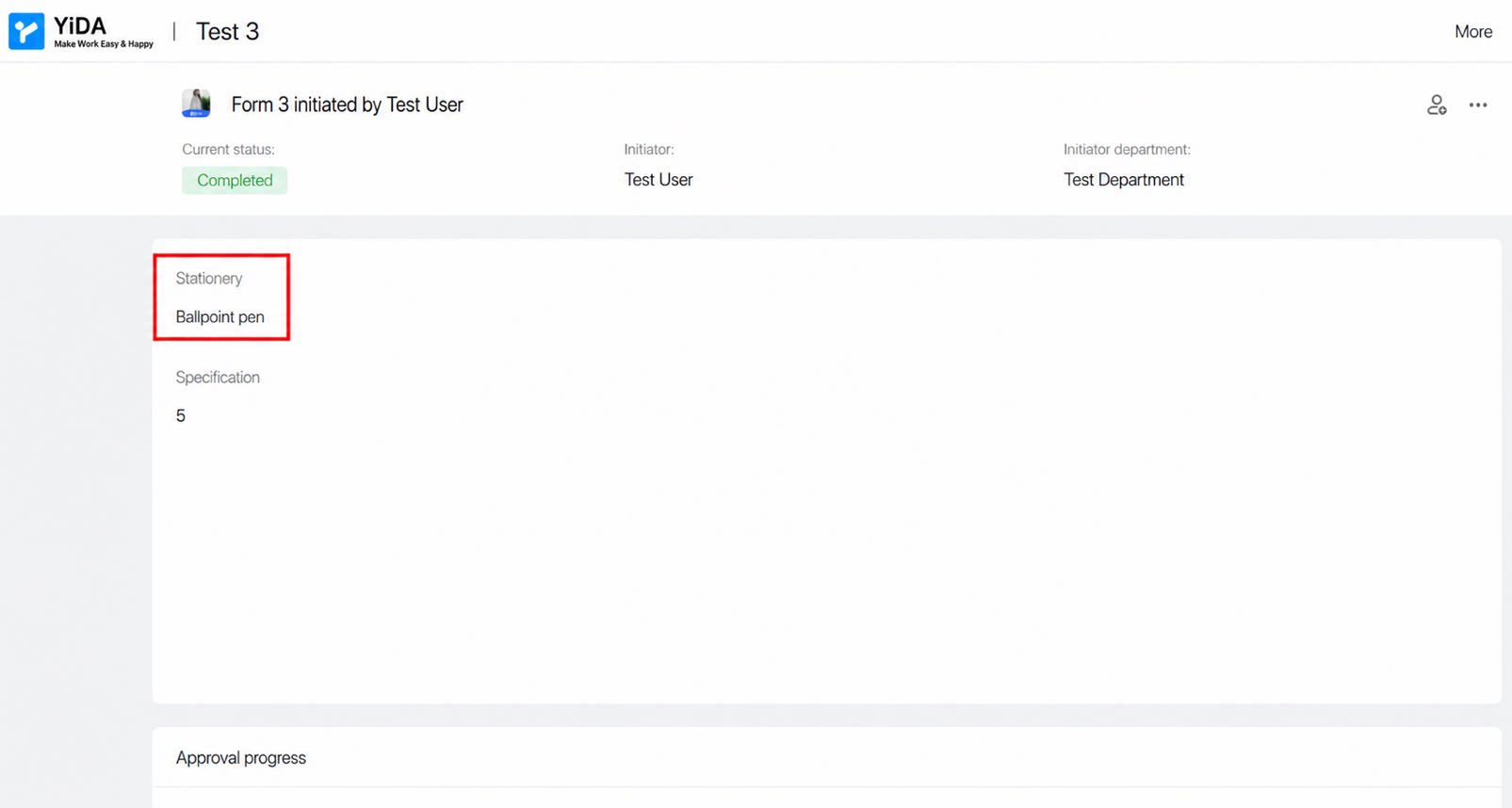
- On the details page, click the associated form field to open the details page of the associated instance.
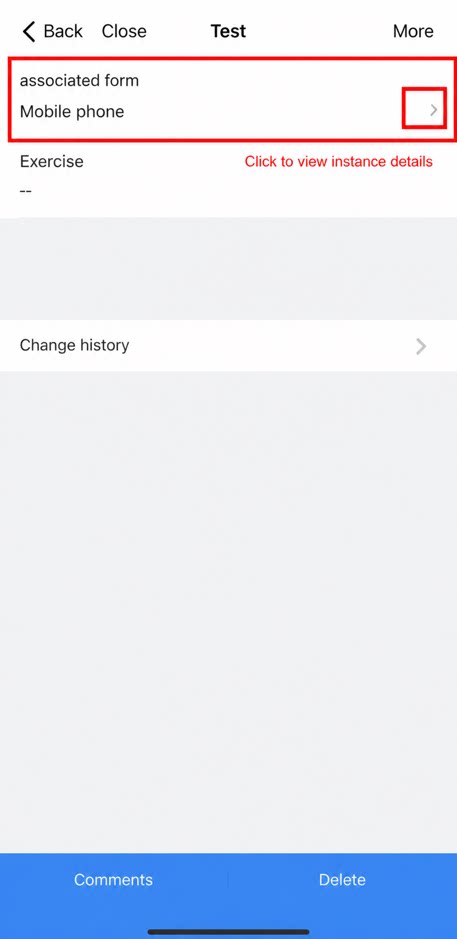
- On the mobile details page, an arrow icon to the right of the associated form component indicates that the record can be opened.
4. Data Format
6. FAQ
Q: What is the difference between an associated form and associating data from other forms?
Q: What is the difference between an associated form and associating data from other forms?
The associated form is more powerful and will gradually replace the older feature. Do not continue using the feature that links data from other forms.
Q: Why can't an associated form reference components in a subform?
Q: Why can't an associated form reference components in a subform?
This is not supported yet.
Q: Can I select an associated form component for data linkage?
Q: Can I select an associated form component for data linkage?
This is not supported yet.
Q: How do I assign a value to an associated form component with JS?
Q: How do I assign a value to an associated form component with JS?
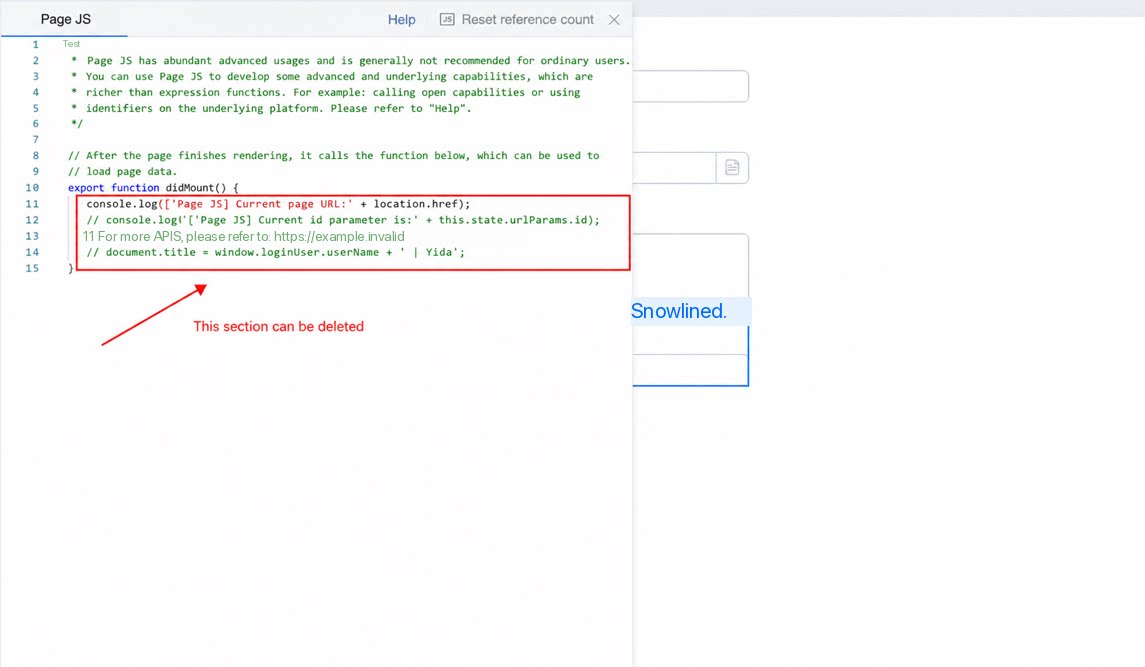
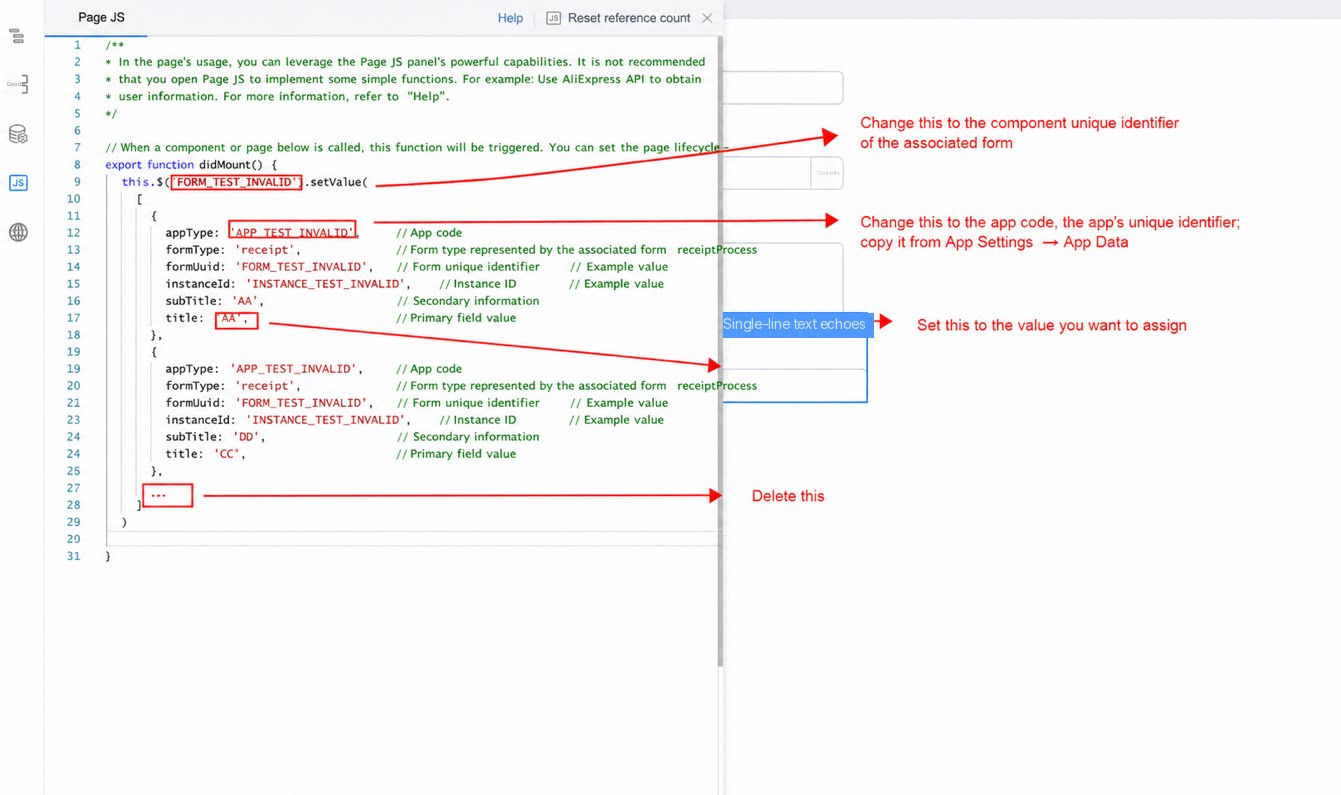
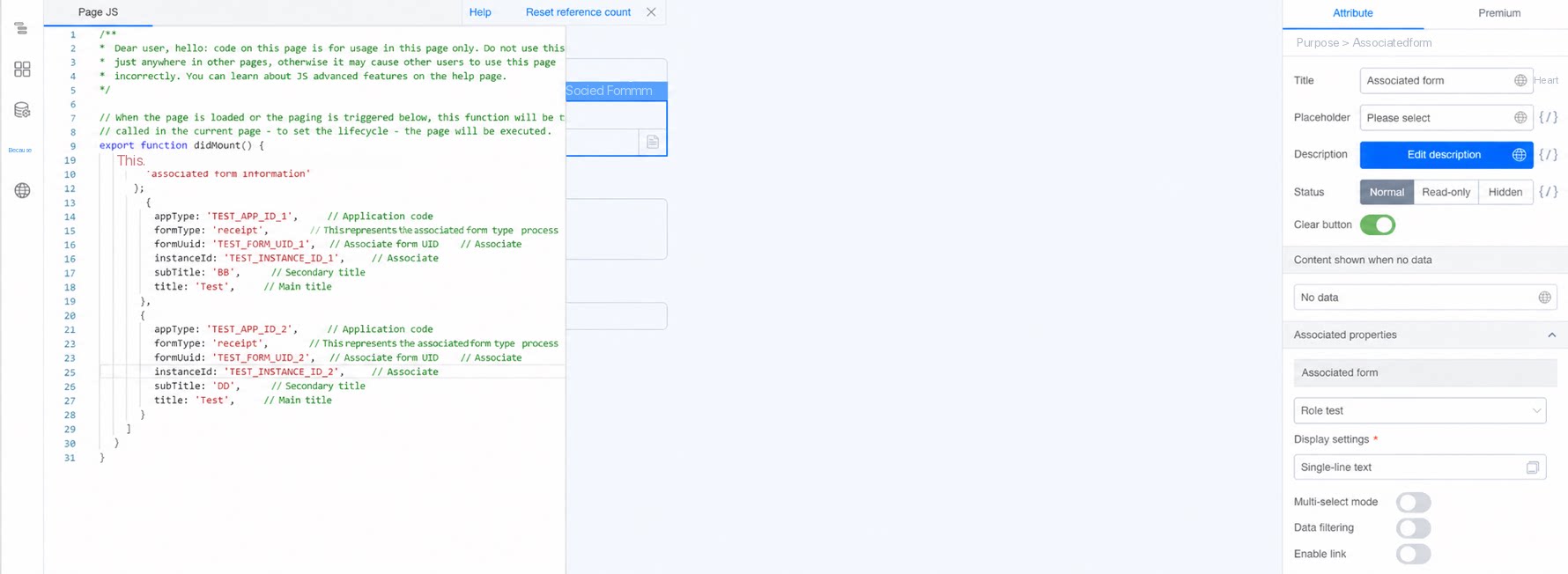
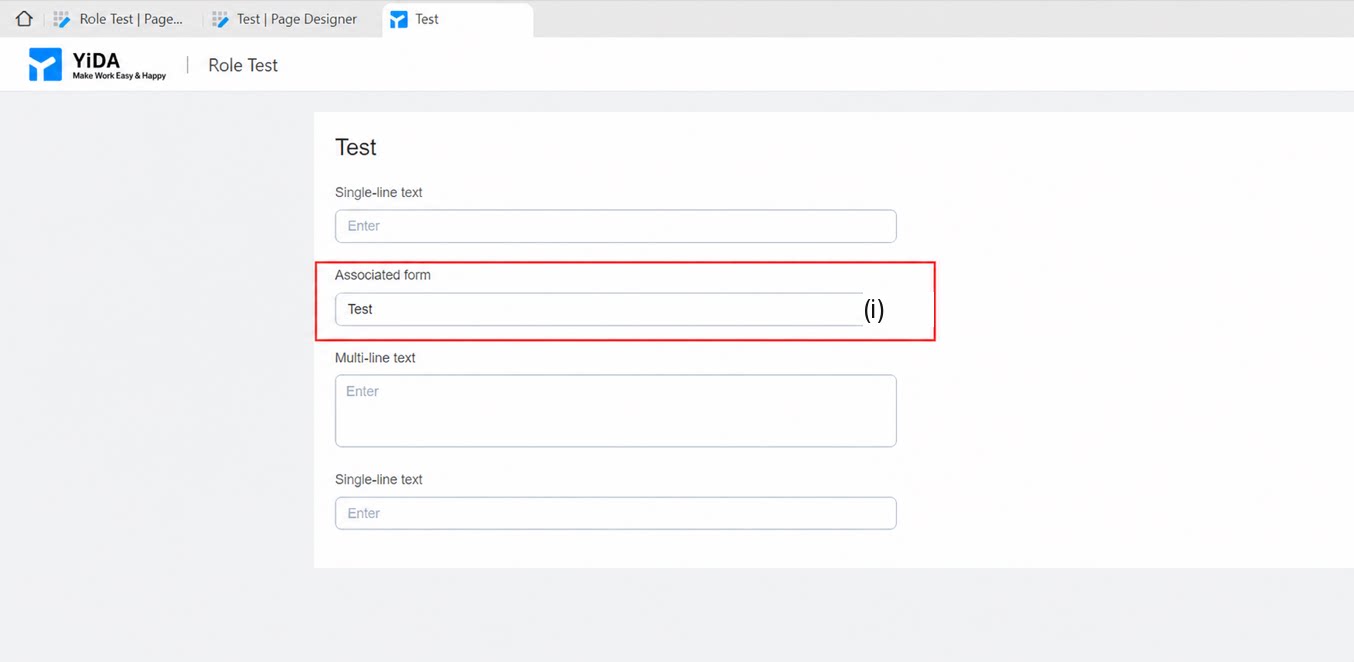
Procedure:Copy the following code and modify it as needed:Result:
Q: My associated form has more than 20 records but only 20 are displayed. How do I access the rest?
Q: My associated form has more than 20 records but only 20 are displayed. How do I access the rest?
The associated form displays only 20 records by default. Enter a keyword to search for the other records.
Q: Does the associated form support batch import?
Q: Does the associated form support batch import?
Yes. For import rules, see https://docs.aliwork.com/docs/yida_updates/gddpov#k27QX.
Q: Does the associated form support deduplication settings?
Q: Does the associated form support deduplication settings?
Not yet. As a workaround, use a business association rule to sync data to an intermediate table, keep the data in that table unique, and set the intermediate table as the Data Source of the associated form.
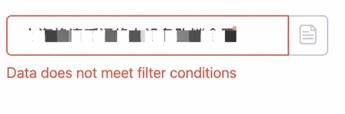
Q: What if the error 'Data does not meet the filter conditions' appears?
Q: What if the error 'Data does not meet the filter conditions' appears?
This error is caused by spaces in the associated data. Remove the spaces from the associated data.
Q: Why is the selected field of the associated form displayed as an instance ID?
Q: Why is the selected field of the associated form displayed as an instance ID?
Check whether the field is hidden in the view permission group of the associated form. If it is hidden, the field shows — when you select associated data, and the instance ID of the record is displayed after selection.
Q: Why does EQ(associated form component, 'aaa') return an error?
Q: Why does EQ(associated form component, 'aaa') return an error?
The associated form component cannot yet be used as a condition in business association rules, such as the UPSERT formula. In such cases, use the
Dropdown Select or Dropdown Multiselect component instead.