Chats
Chats Calendar
 Meetings
 Contacts
 Mail
Mail Docs
Docs Drive
Drive AI Table
 AI Minutes
 Attendance
 Approval
 YiDA
YiDA Admin Console
1. Department Component
1.1 What Is the Department Component
A component that lets you select the department a user belongs to.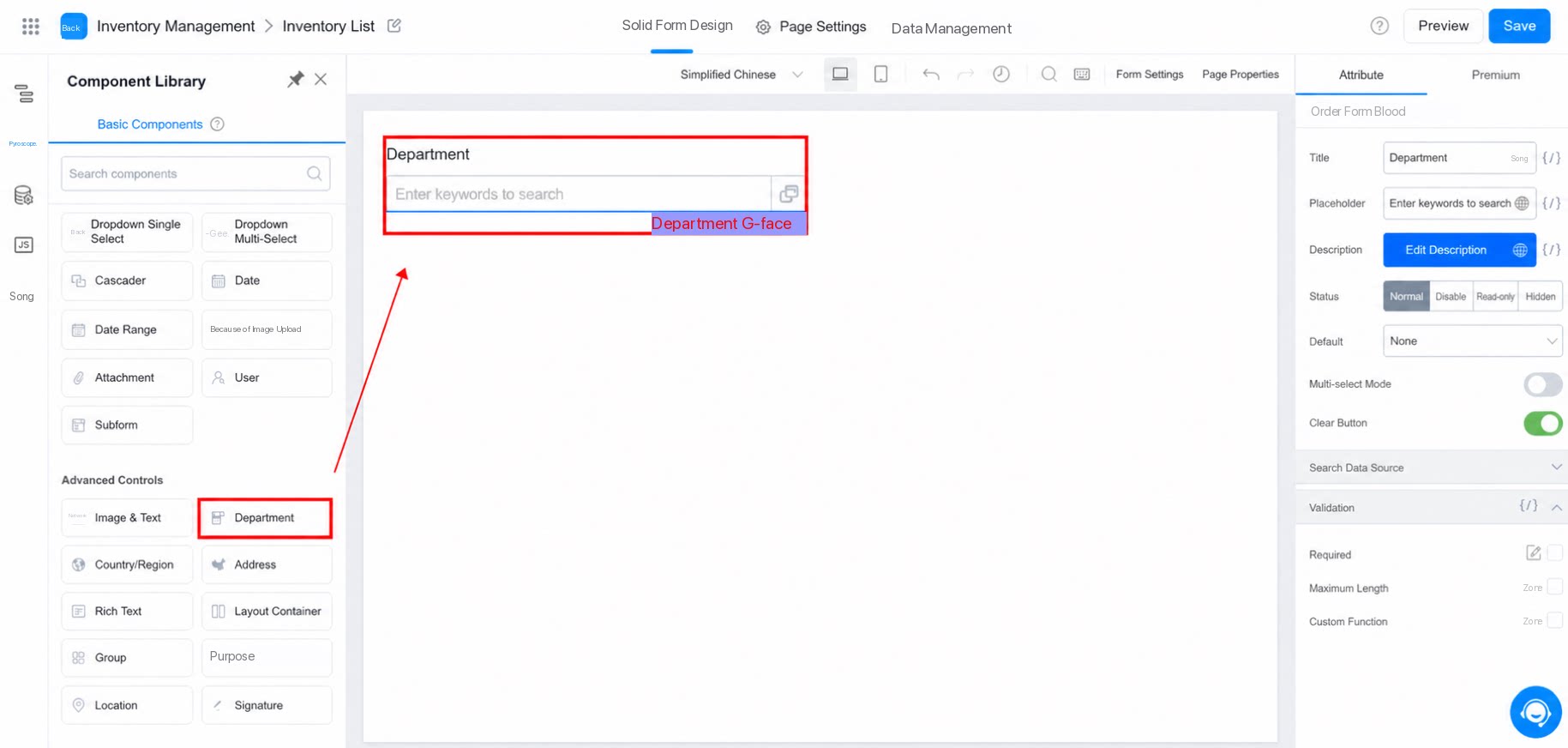
1.2 Use Cases
Retrieves the department a user belongs to. By default, this component displays the current signed-in user’s department.1.3 Premium Query Feature
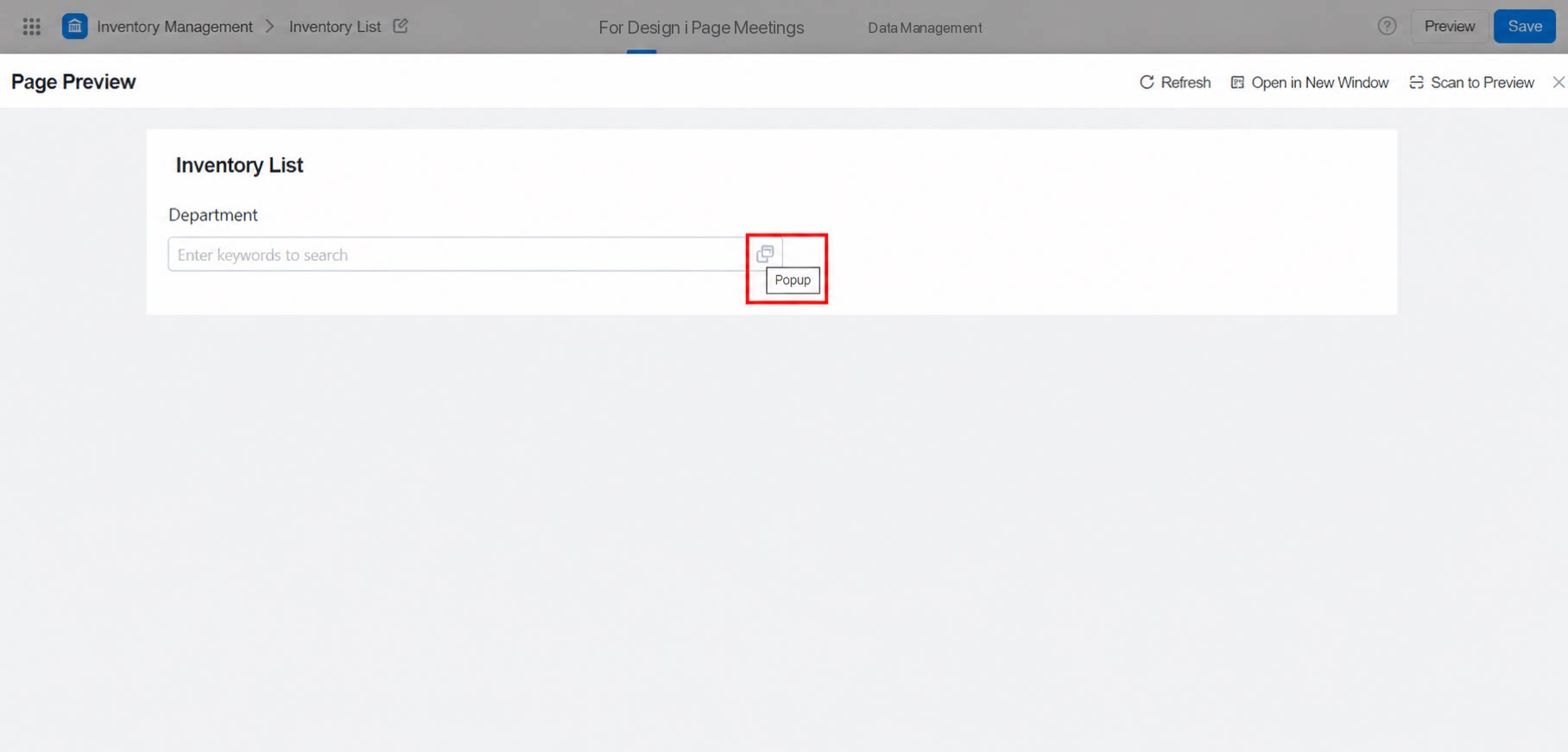
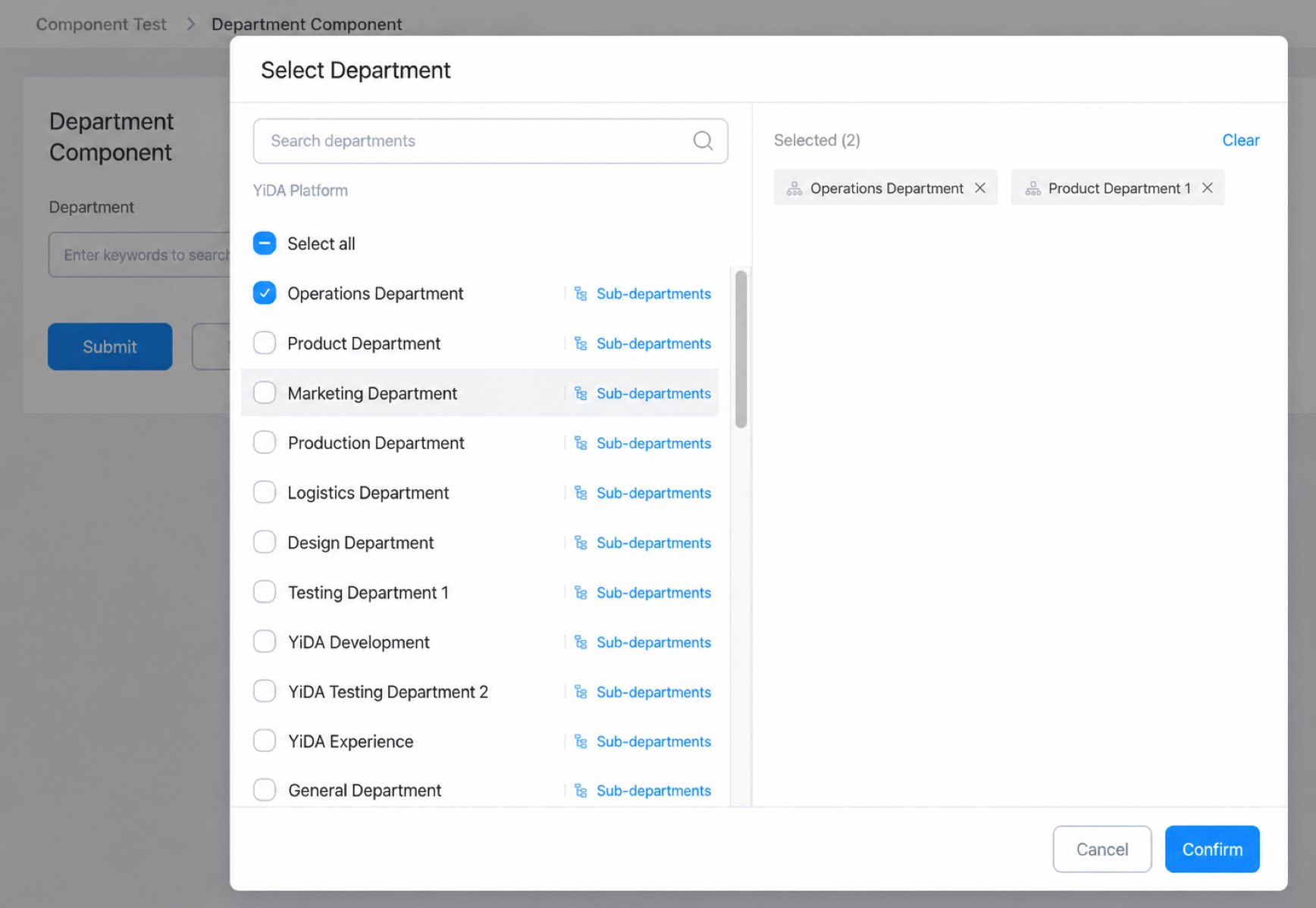
- When you use the YiDA department component on the DingTalk desktop client or in a web browser, a new Premium query feature is available, supporting selection based on the Contacts tree structure and organization drill-down capabilities.
- The Premium user-picker entry is on by default on the desktop client. Click it to open a modal that provides a complete department selection page.
1.3.1 Use Cases
- Based on the tier structure of the organization’s Contacts, drill down through the tree structure to query and select the target department.
2. Attributes
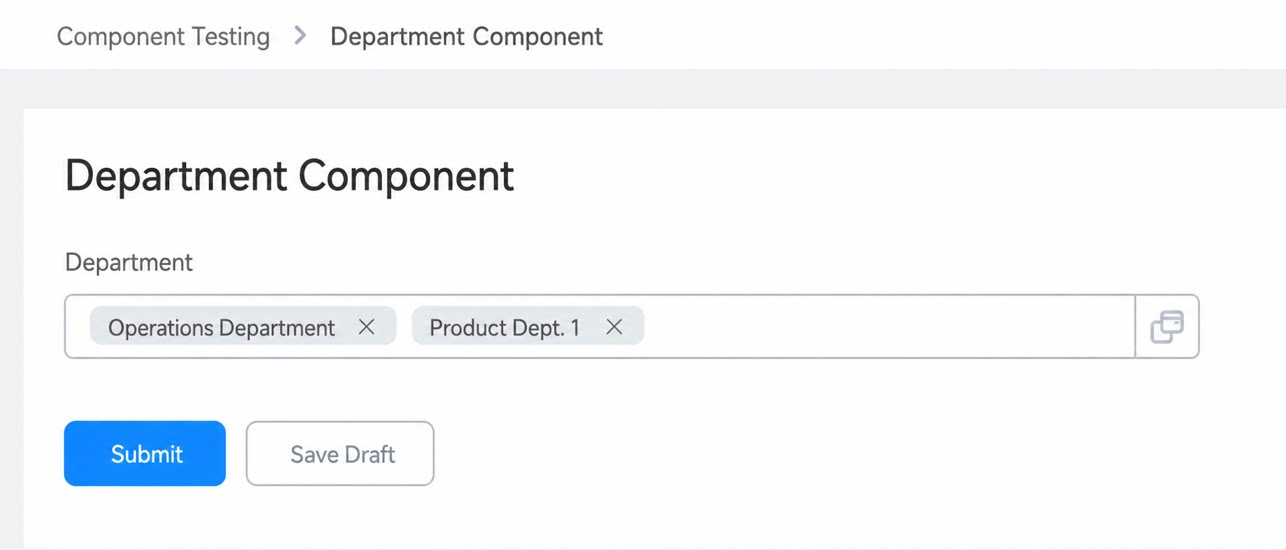
2.1 Multiselect
Multiselect mode is off by default. When it is on, you can select multiple departments, as shown below: Multiselect mode2.2 Select All
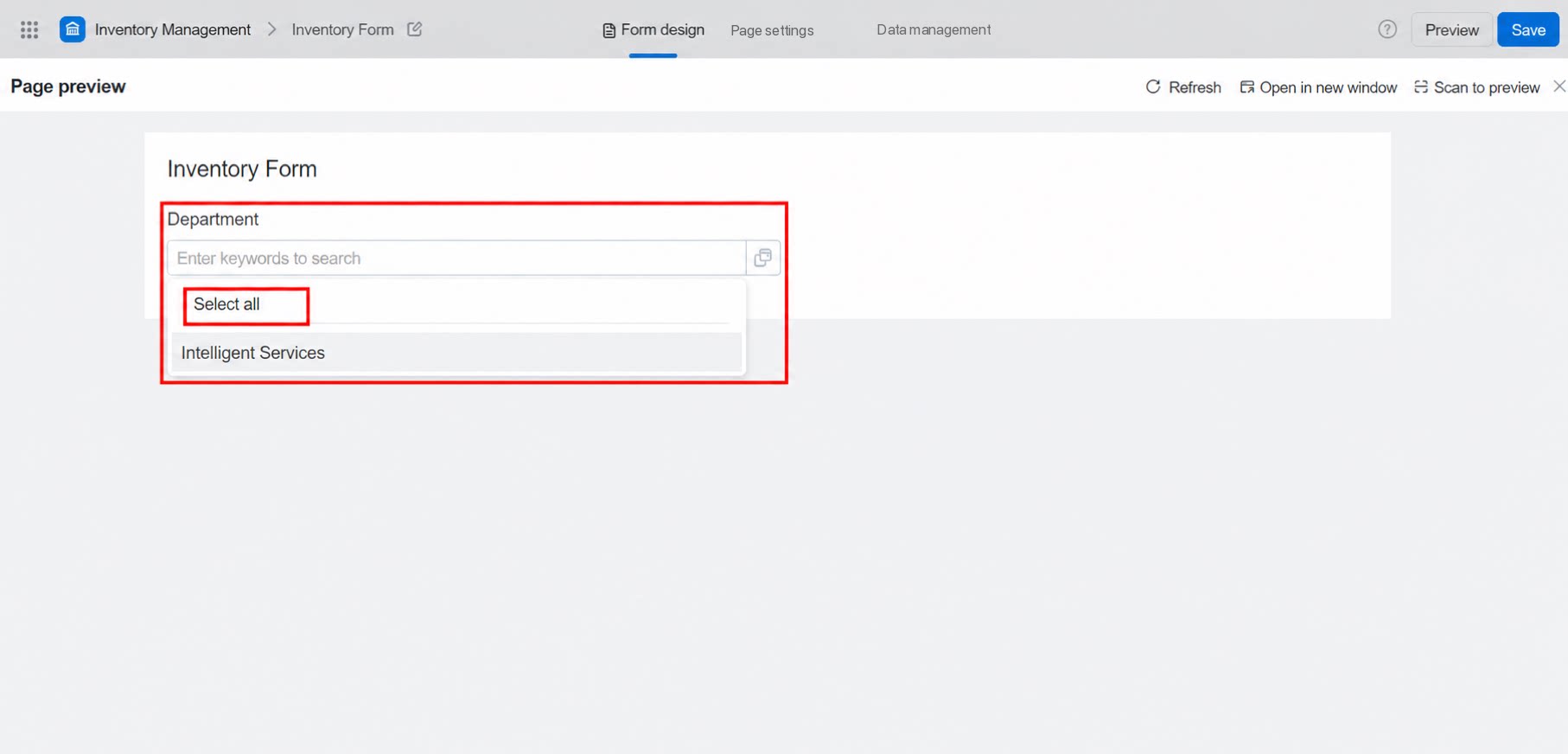
When Select all mode is on, a Select all toggle is added to the submit page, letting you select all departments in the current dropdown list, as shown below: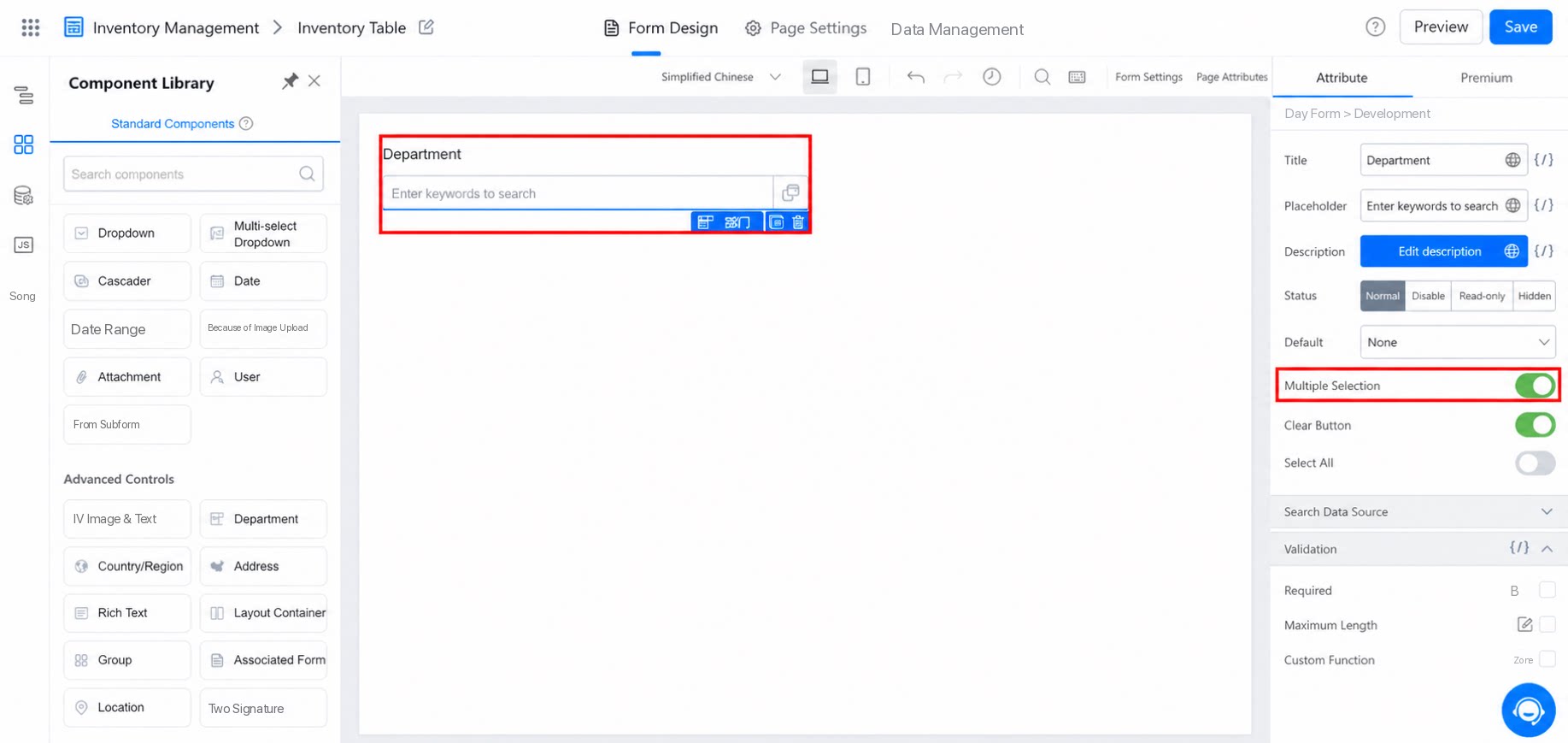
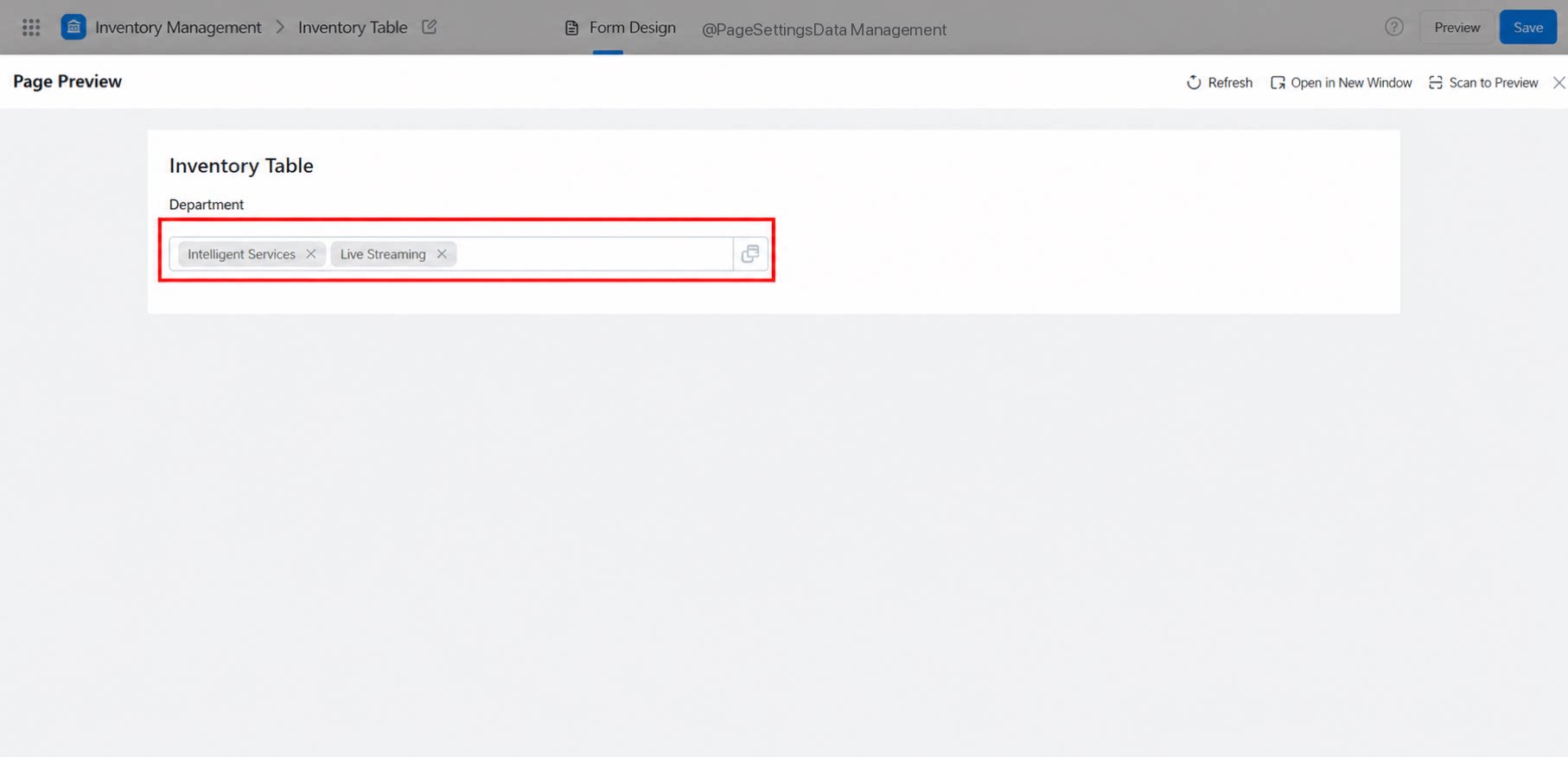
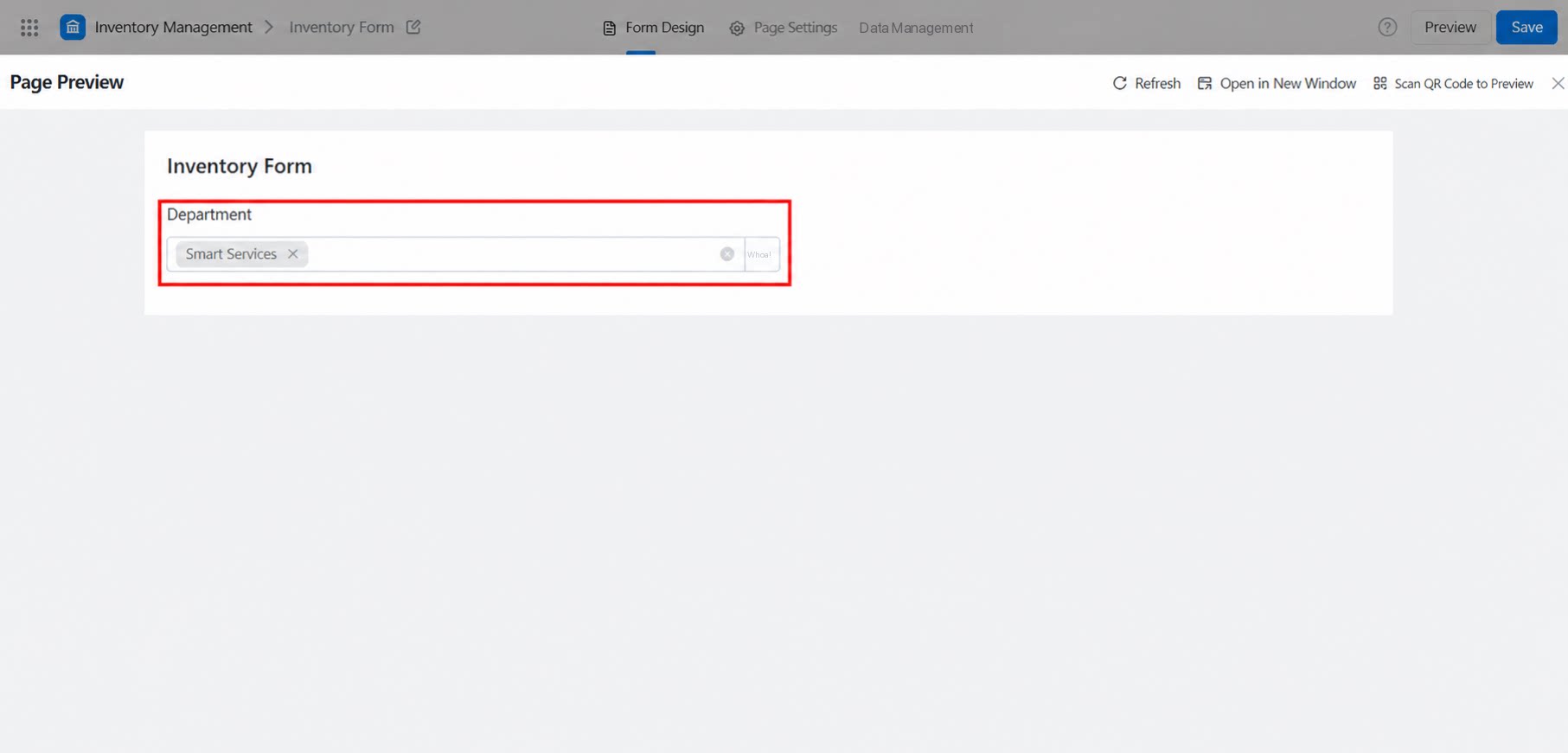
2.3 Clear Button
Allow clearing the entered content with one click via thex, as shown below:
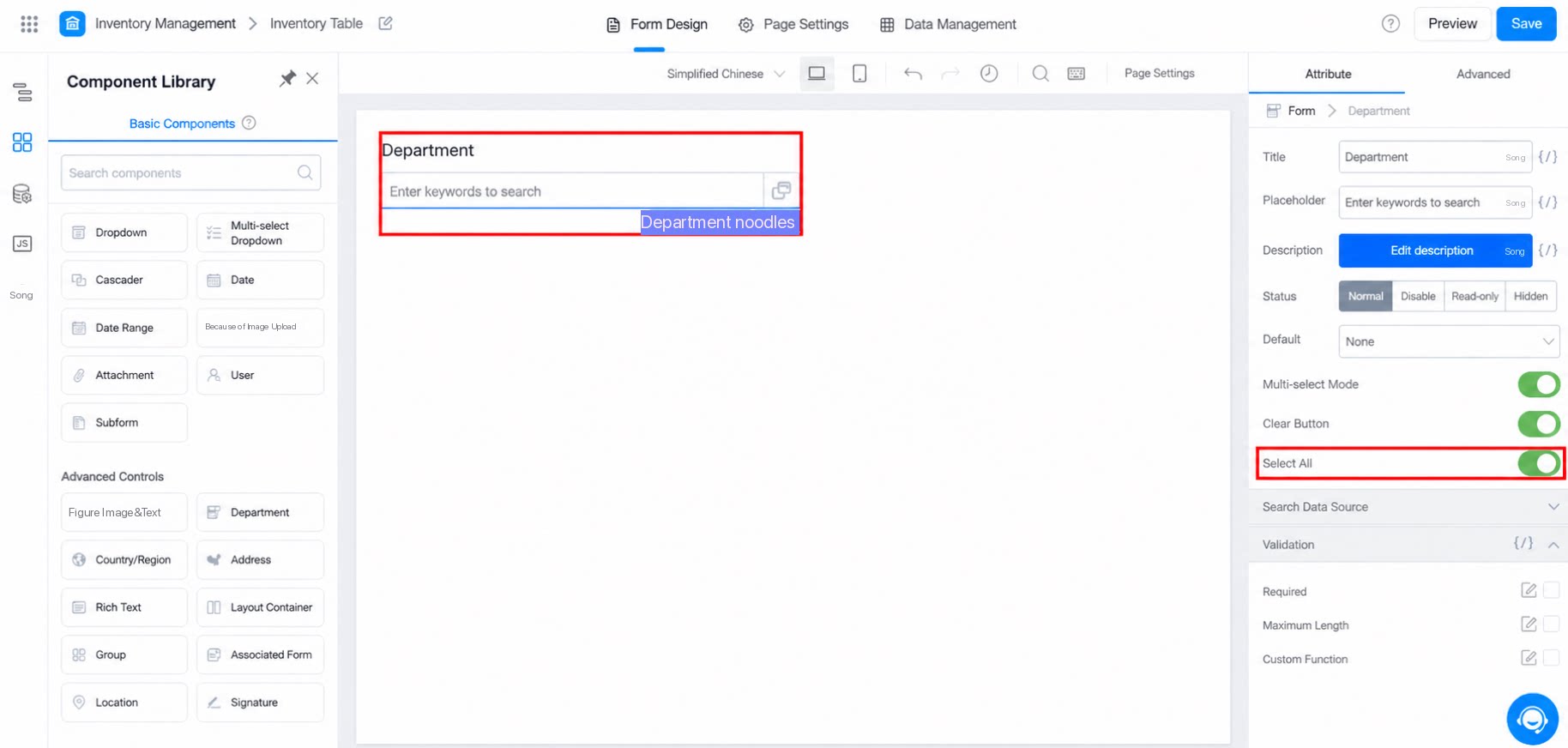
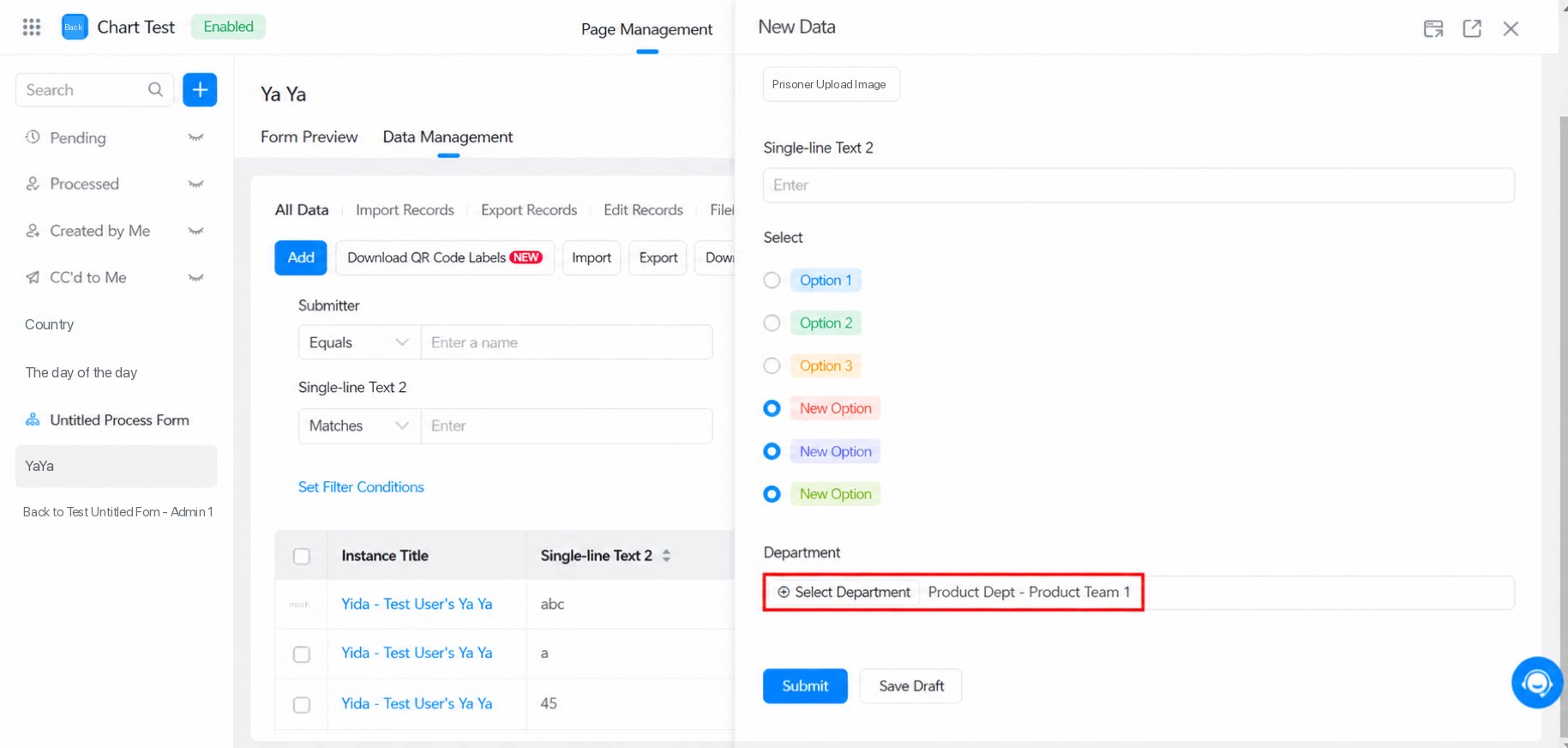
2.4 Show Full Department Path
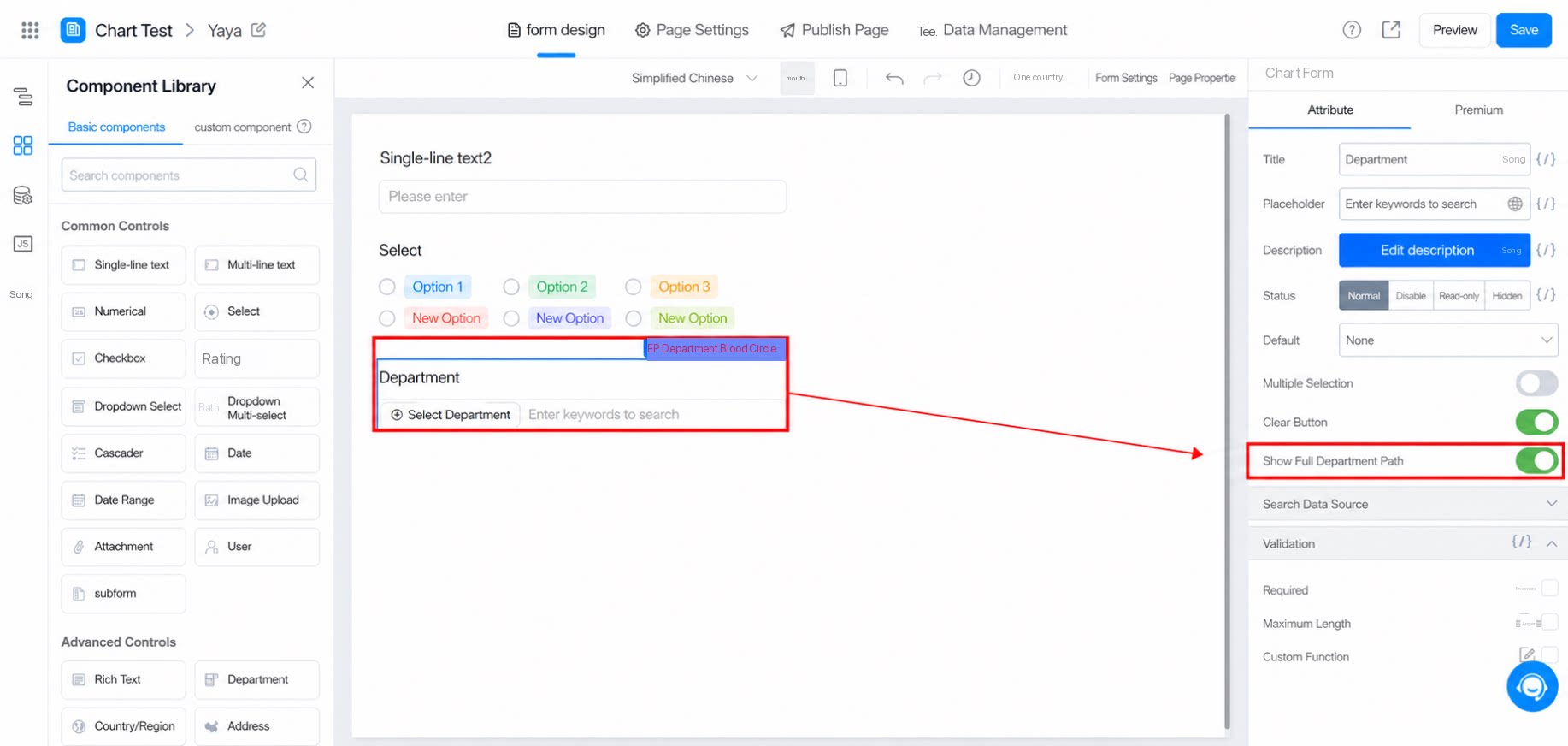
When Show full department path is on, the department component’s value displays the full department path from parent to child, left to right. For example, if Product Department is the parent of Product Department 1, selecting Product Department 1 displays: Product Department - Product Department 1.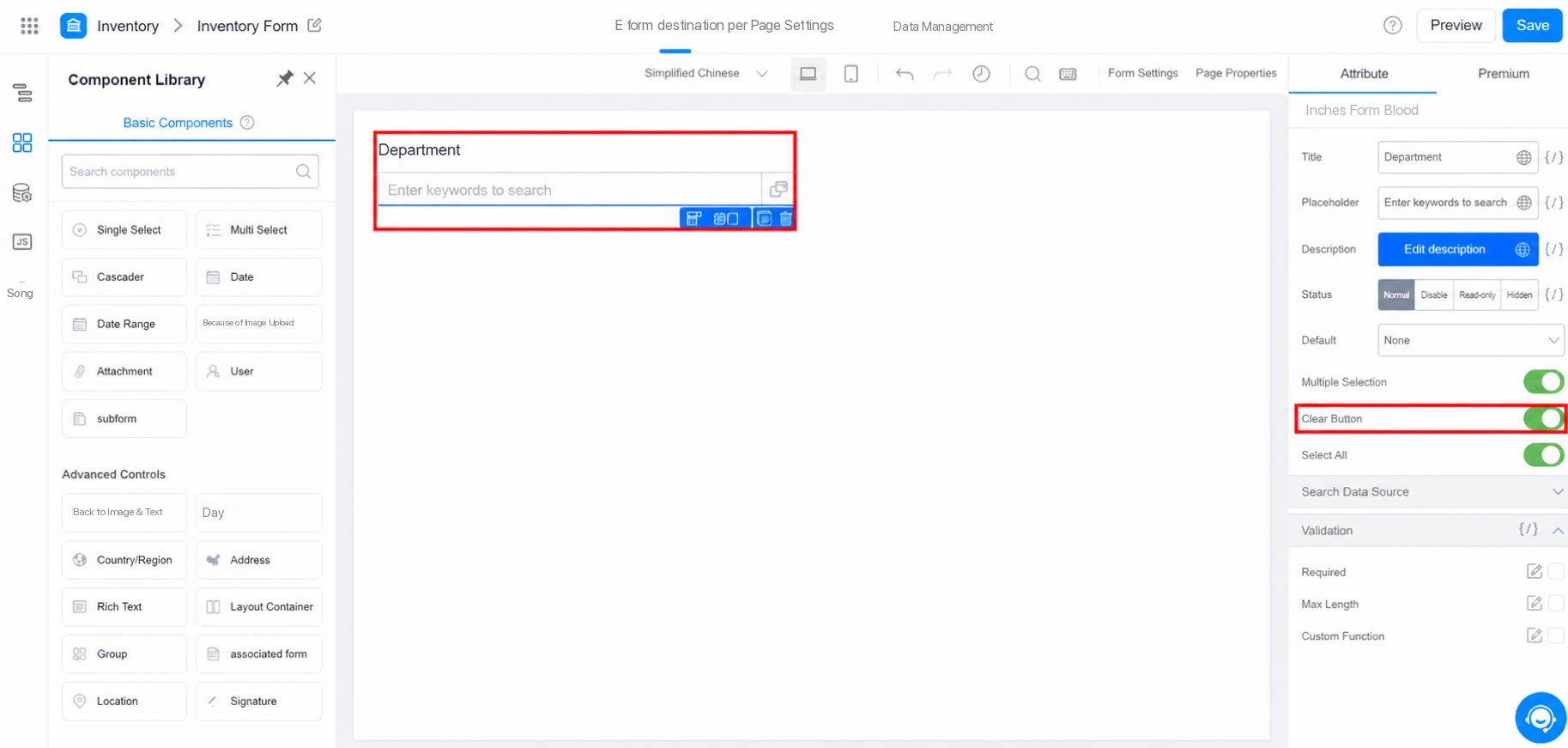
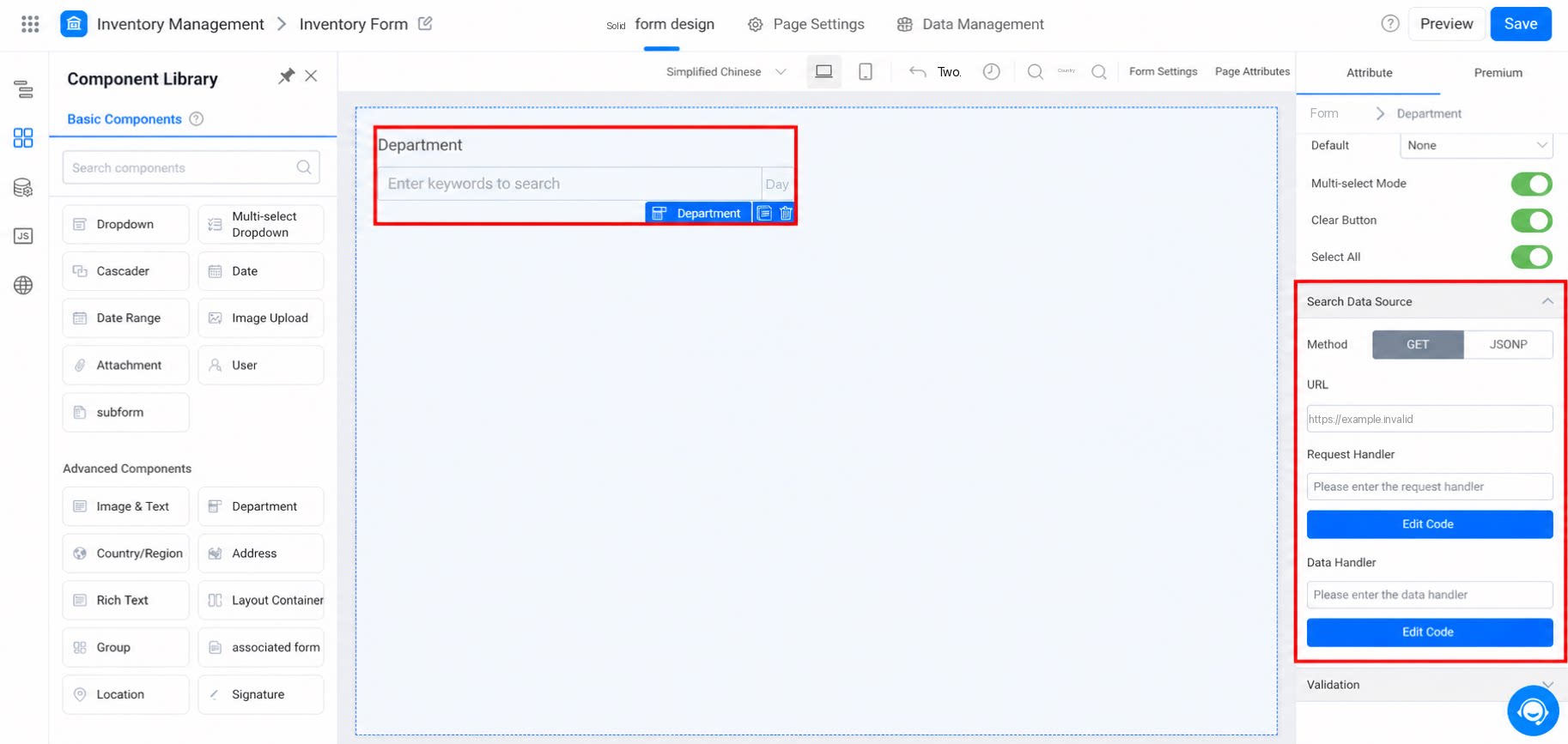
2.5 Search Data Source
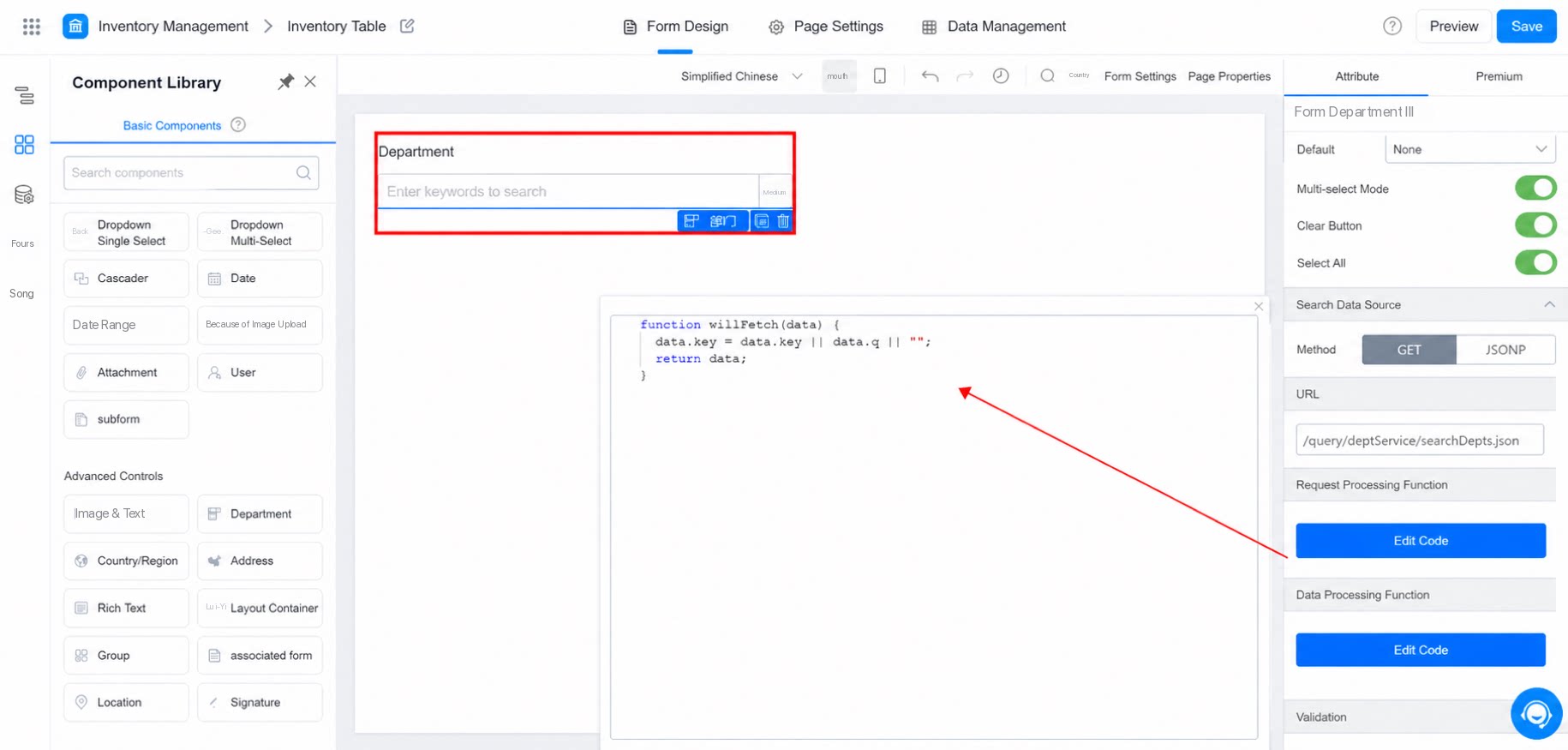
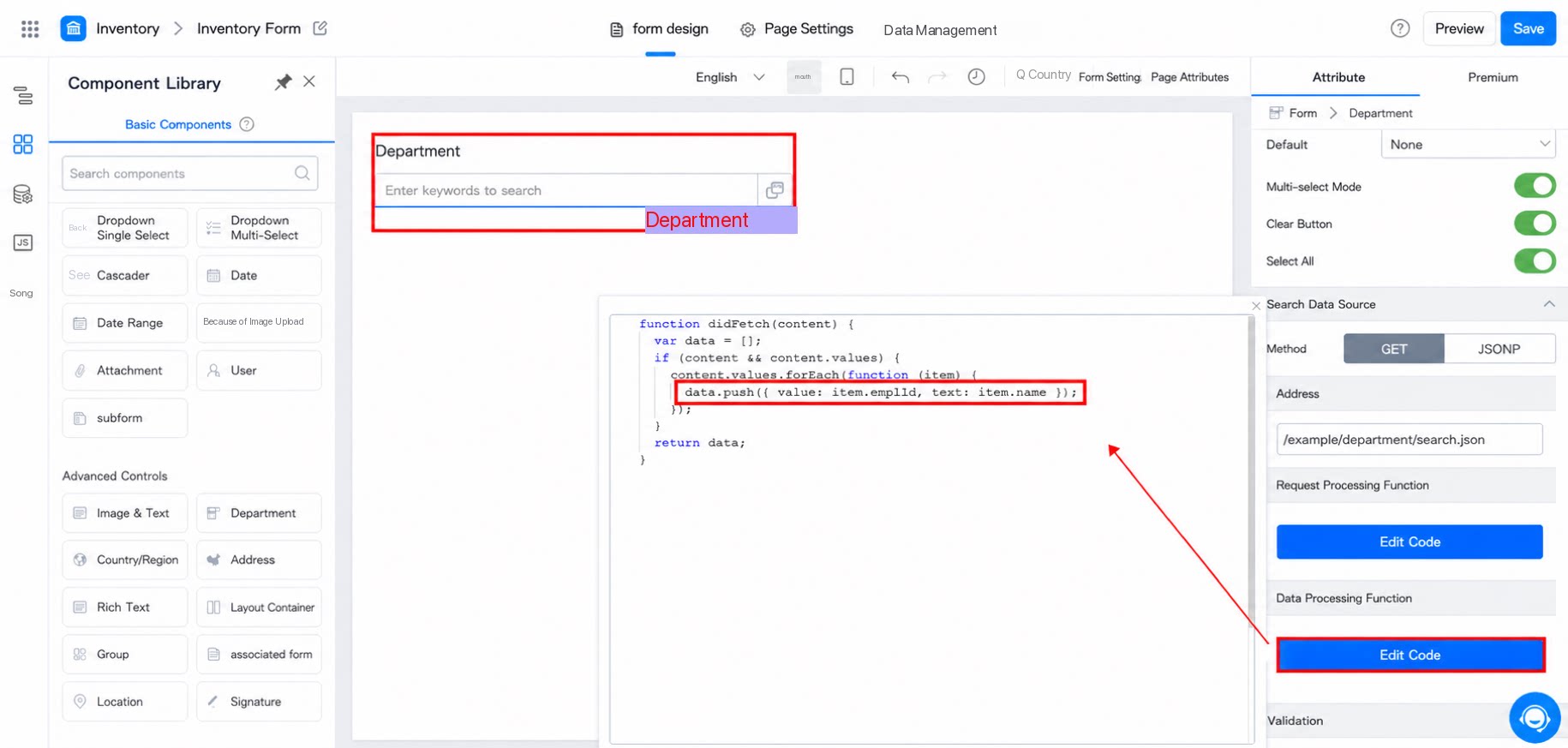
If your organization has its own organization structure data source, you can replace the request URL here with your data source’s HTTP URL, as shown below: You can also write a request handler function tailored to your HTTP URL’s requirements. The function’s input parameterdata is the user’s search input value, and its return value is used as the query parameter for the request, as shown below:
Request handler function
3. Premium
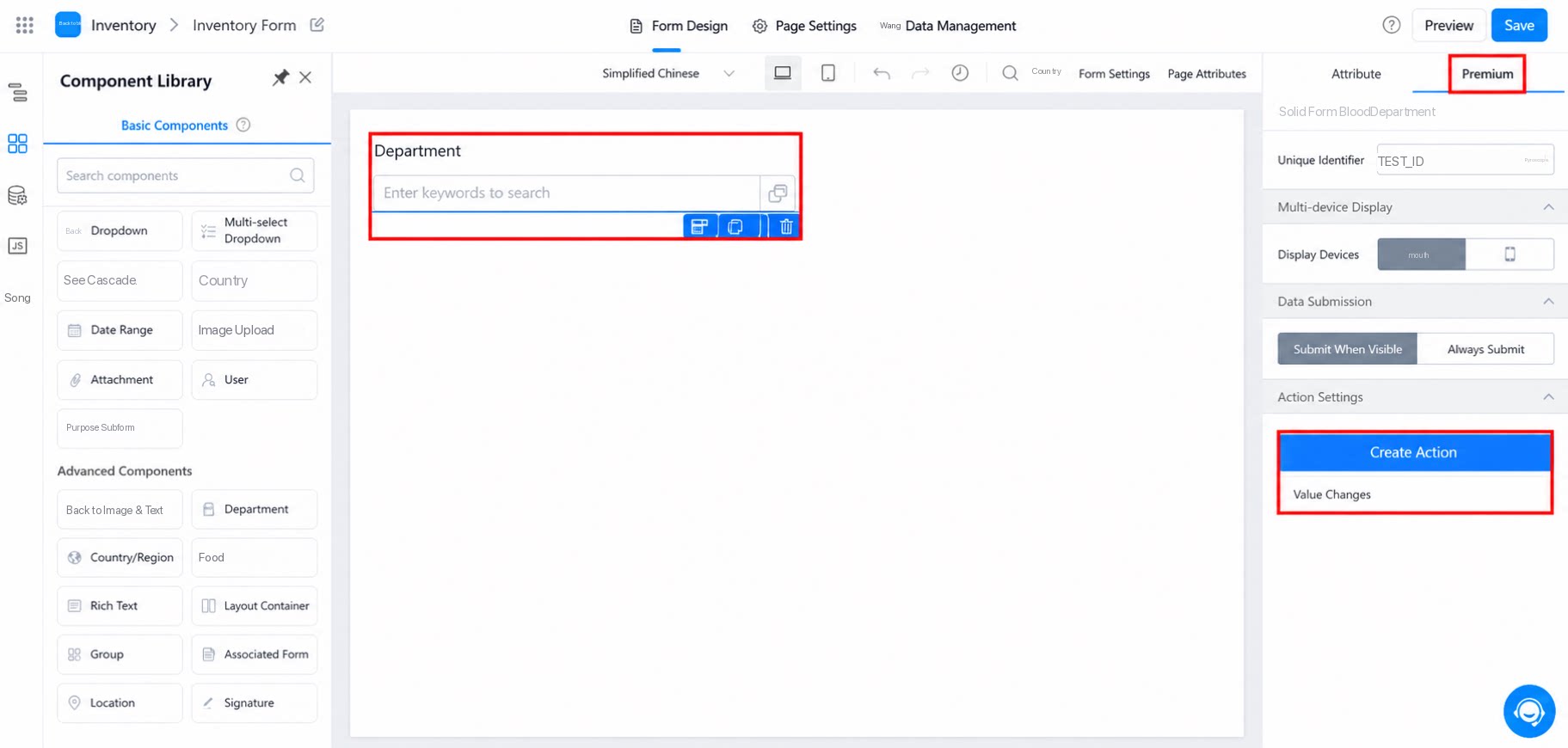
3.1 Action Settings
Configure JS code when you need to define this component’s action, as shown below: action Settings - Value change4. FAQ
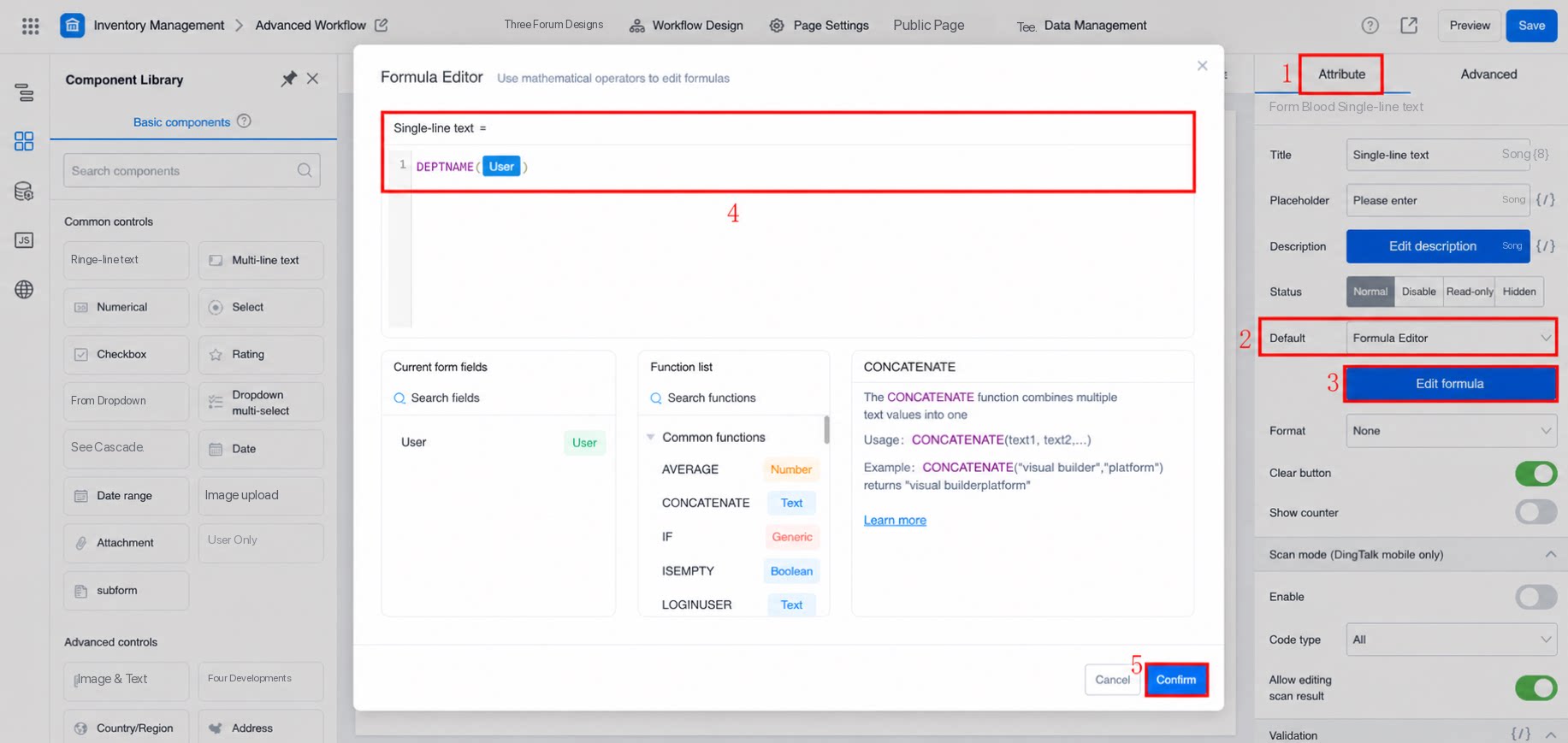
4.1 How to Retrieve the Current Signed-In User’s Department
This requires a formula. The recommended approach is to use a Single-line text and a member component, switching the default to formula editing. Set the member component’s formula toUSER(), and set the Single-line text’s formula to DEPTNAME(member component).
4.2 Cannot Search for Other Departments in the Organization Within the Department Component
By default, the department component only shows the department the current signed-in user belongs to.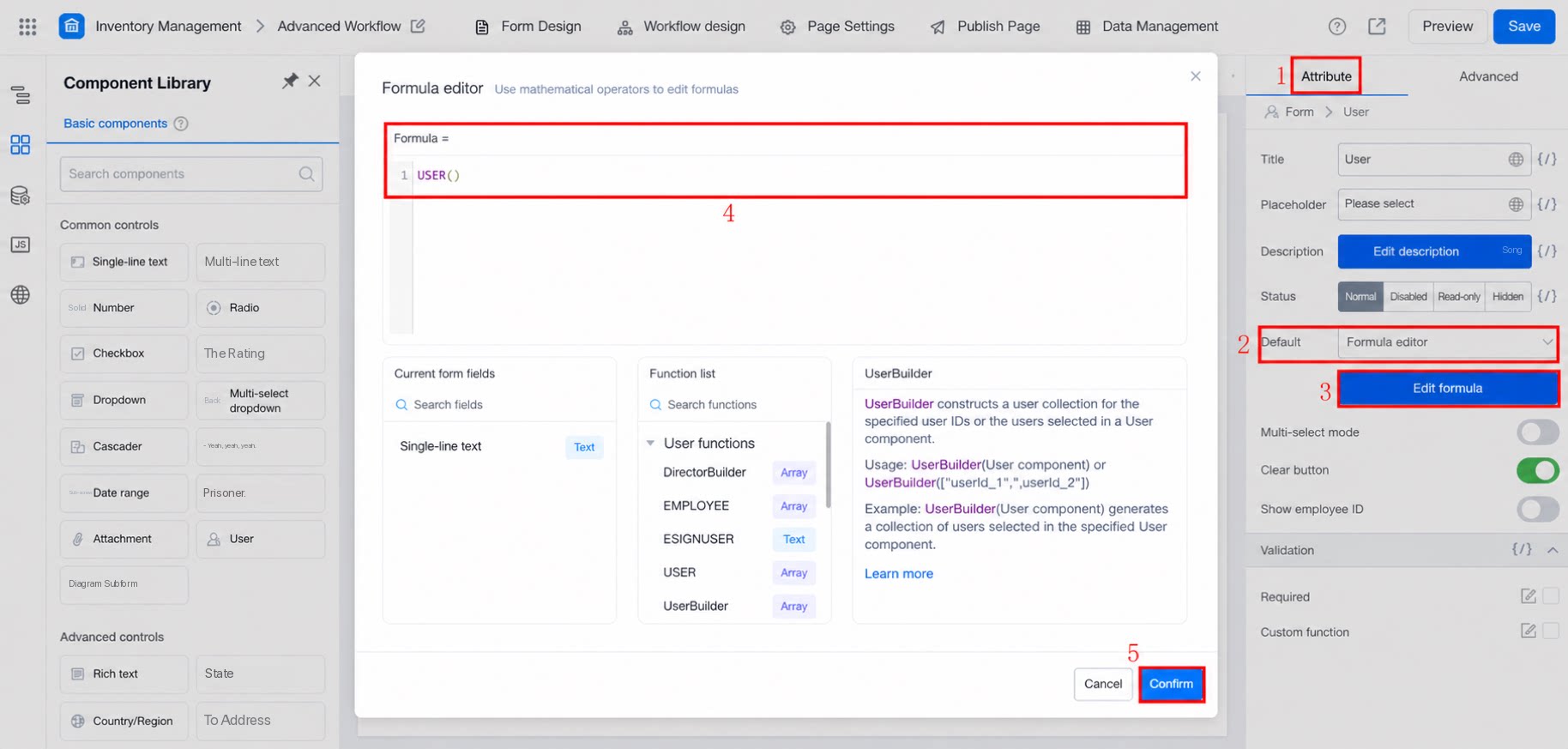
4.3 How to Retrieve the Manager of the Current Department via the Department Component
Direct retrieval is not currently supported. However, you can configure a department & manager association table in YiDA, then have the workflow form automatically associate the corresponding department’s manager information after the department is selected, and bind that manager information variable at the approval node.