Chats
Chats Calendar
 Meetings
 Contacts
 Mail
Mail Docs
Docs Drive
Drive AI Table
 AI Minutes
 Attendance
 Approval
 YiDA
YiDA Admin Console
1. Location Component
1.1 What Is the Location Component
A detailed address selector based on the current standard administrative divisions of China.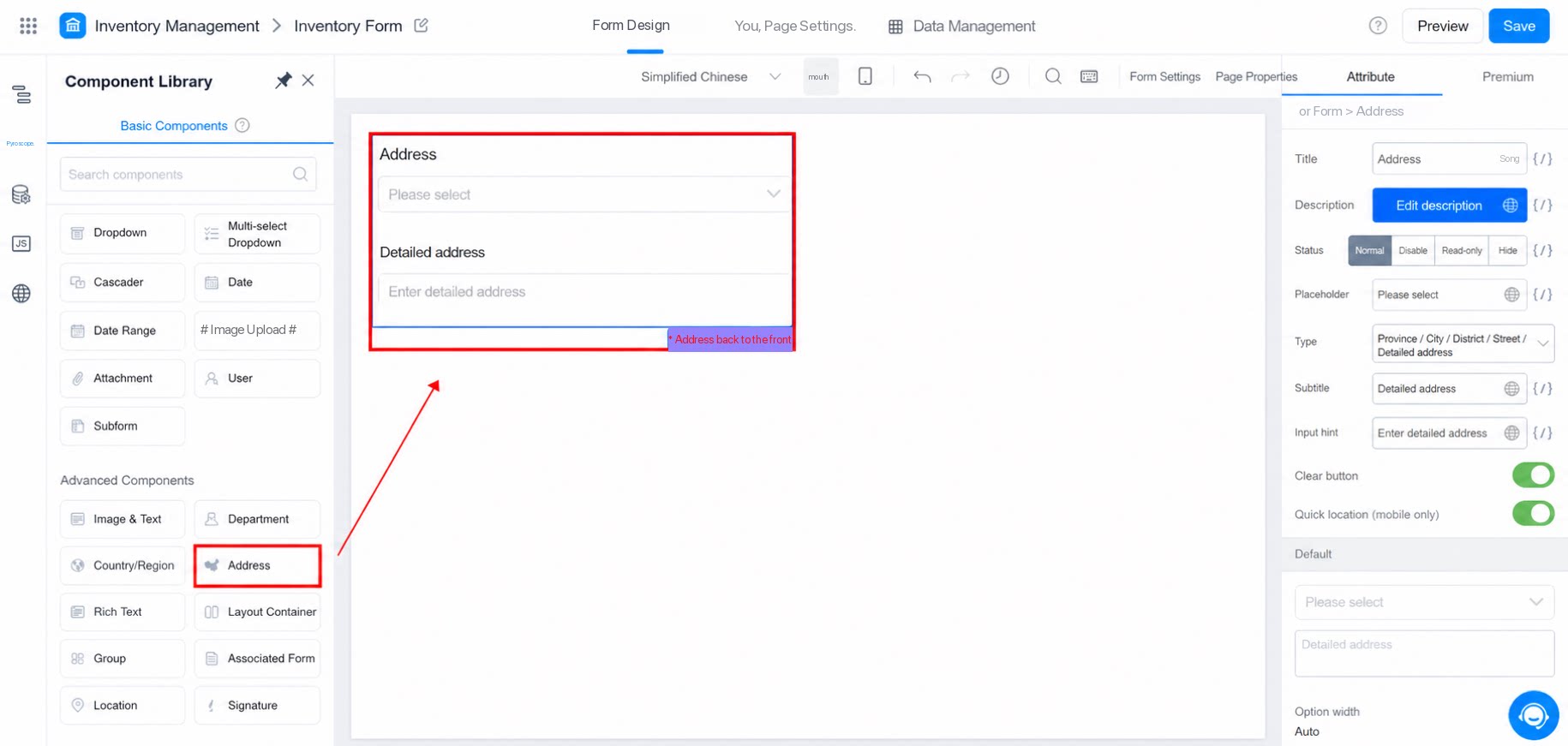
1.2 Use Cases
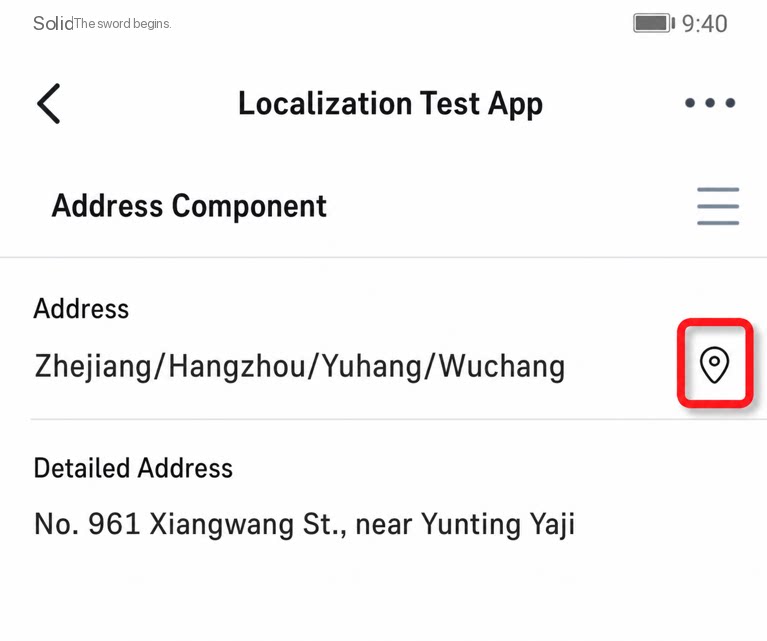
- The Location component supports positioning on mobile devices, letting you quickly fill in address information while still allowing further edits.
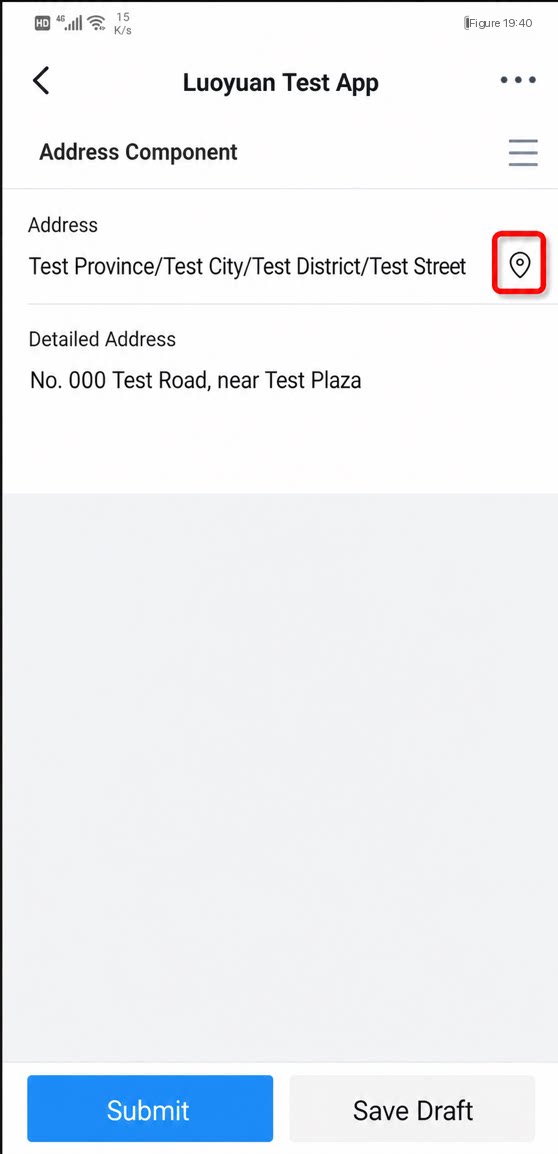
- If the address you want to select is your current location, tap the positioning icon on the mobile device (with location permission enabled). The address is filled in automatically and remains editable.
- Commonly used for address selection scenarios such as shipping addresses and administrative region addresses.
- The component comes preloaded with the latest Province / City / District (County) / Street (Township) data of China. Simply add the Location component to start using it.
2. Attributes
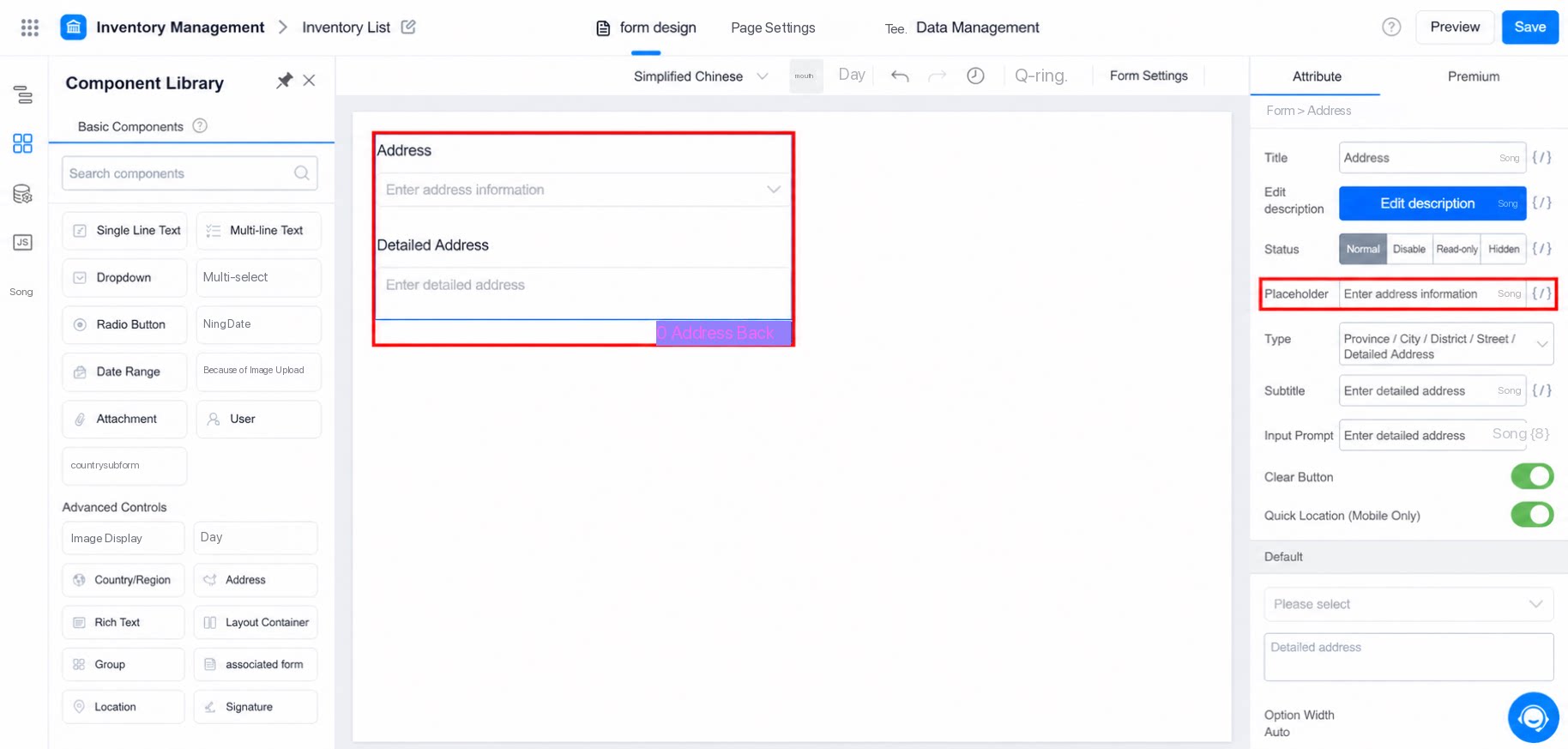
2.1 Placeholder Tips
- Similar to the gray placeholder text in a standard input box, used to provide guidance.
- If no default address is set, the placeholder tips are displayed. Otherwise, the default address content takes priority.
2.2 Type
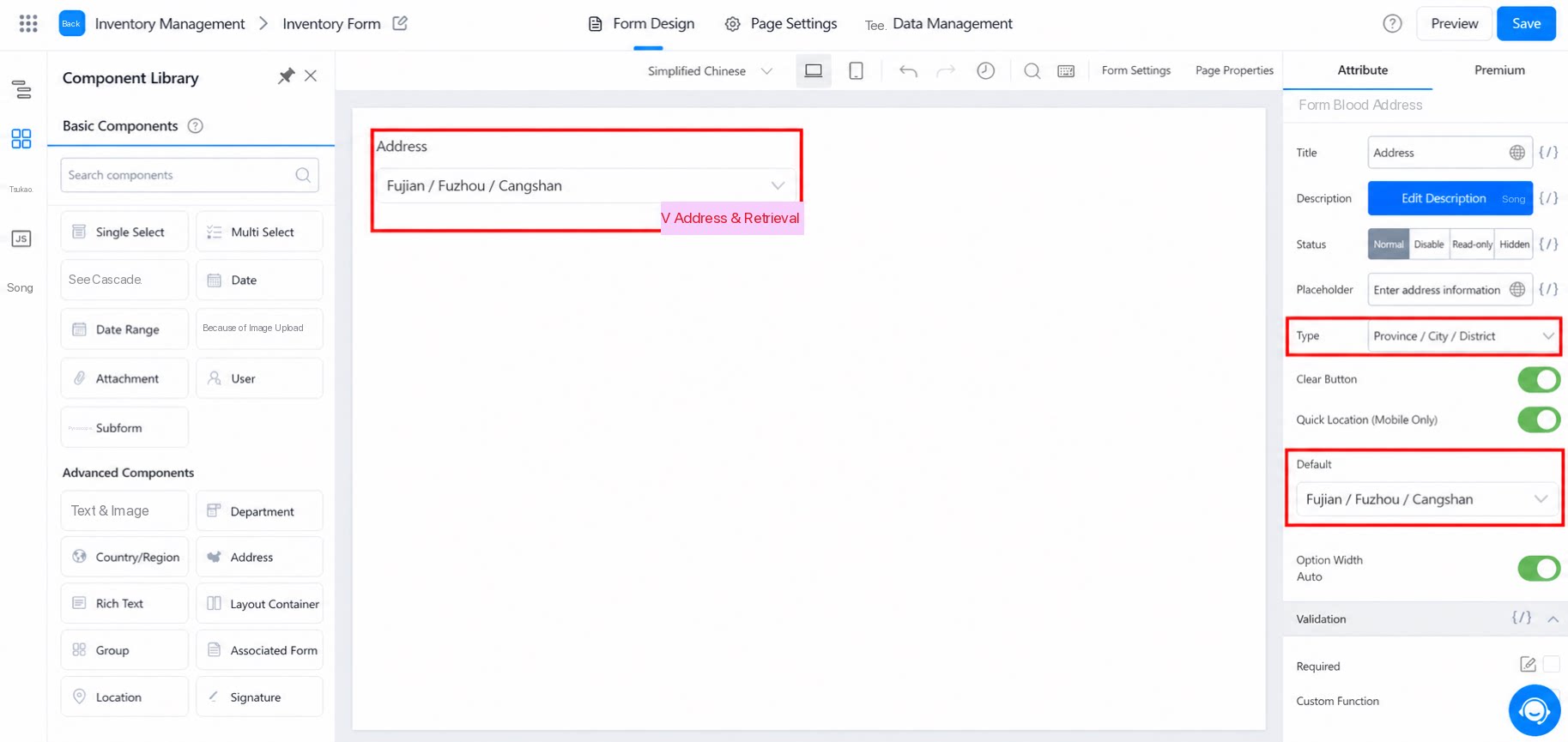
- Sets the level of address detail.
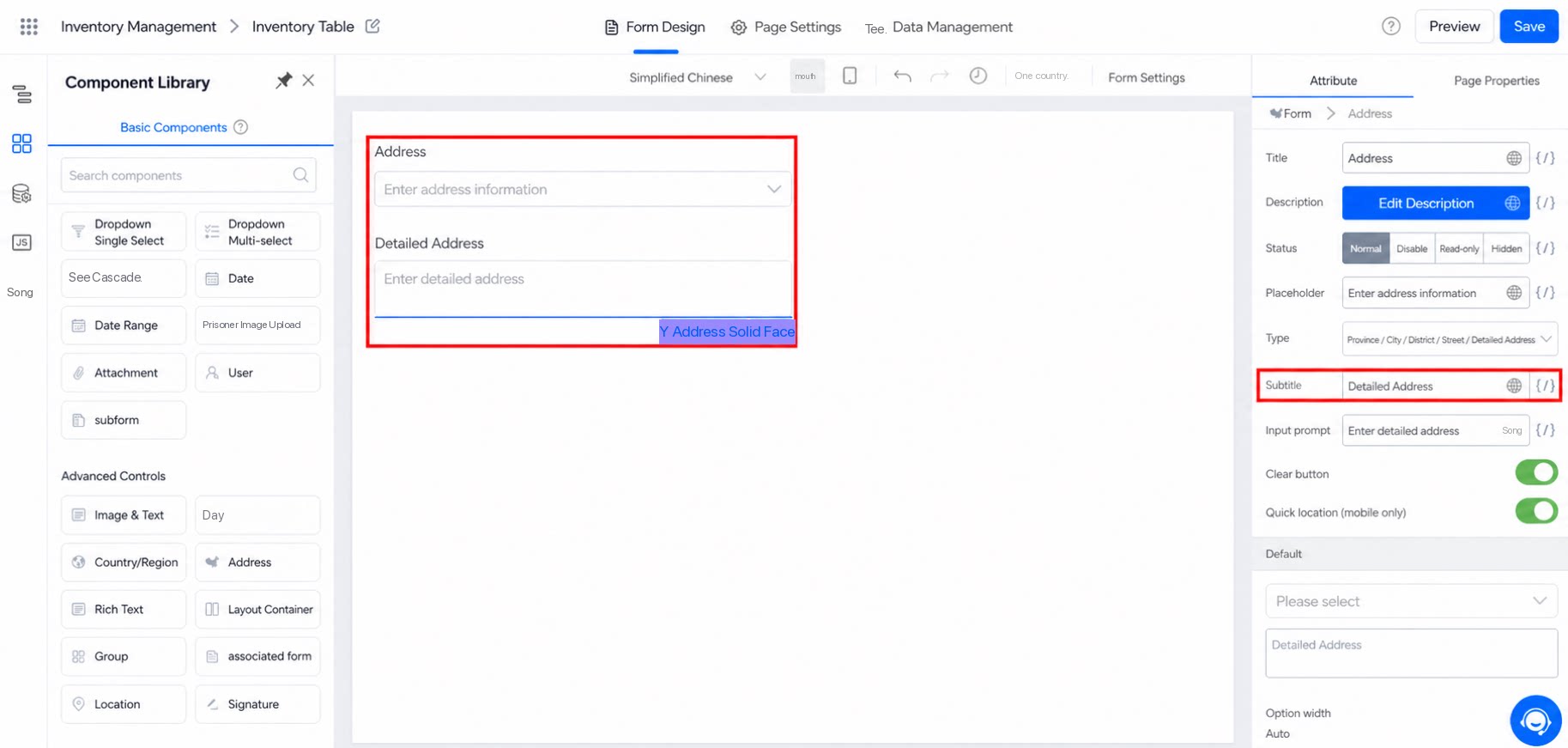
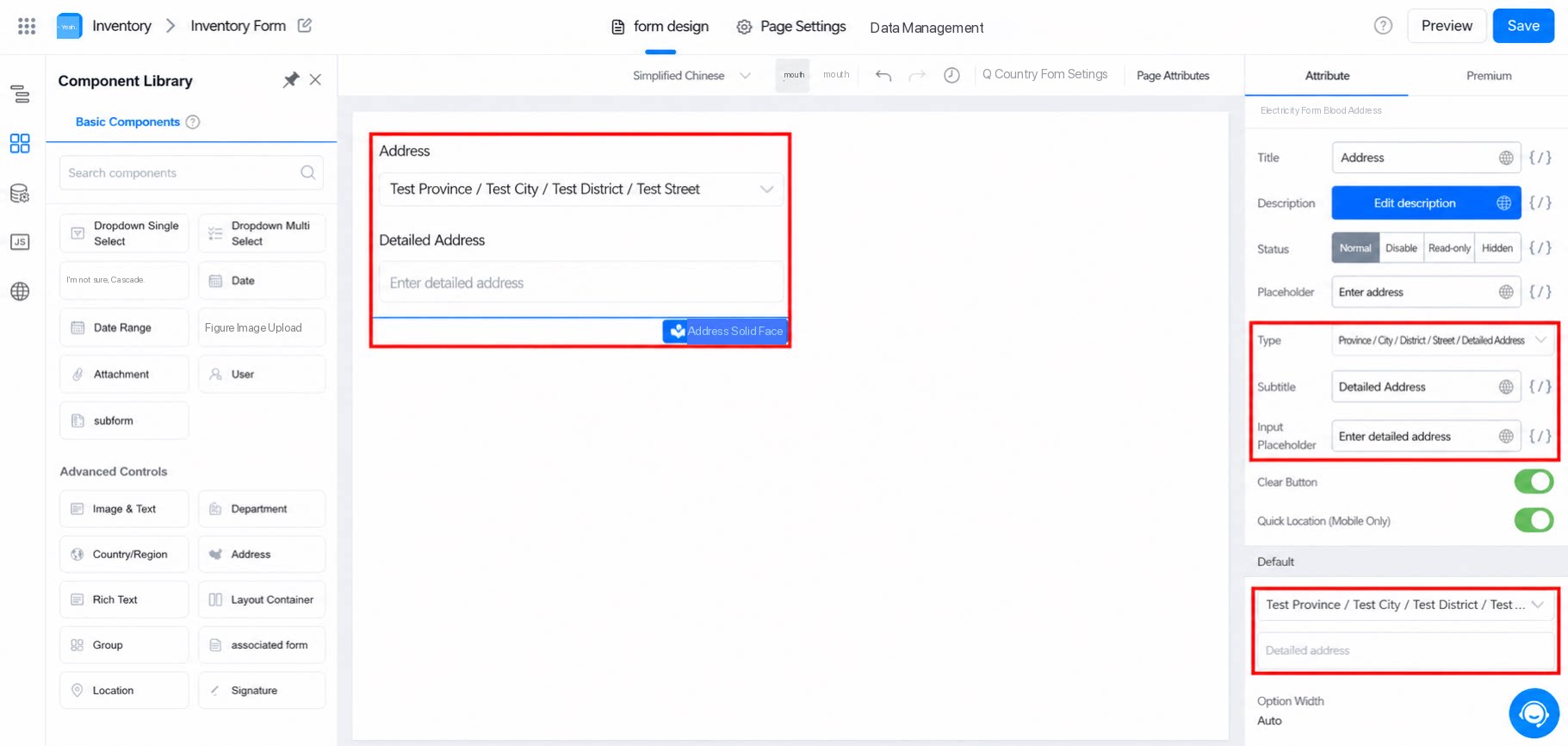
- If Detailed address is selected, the component displays two rows.
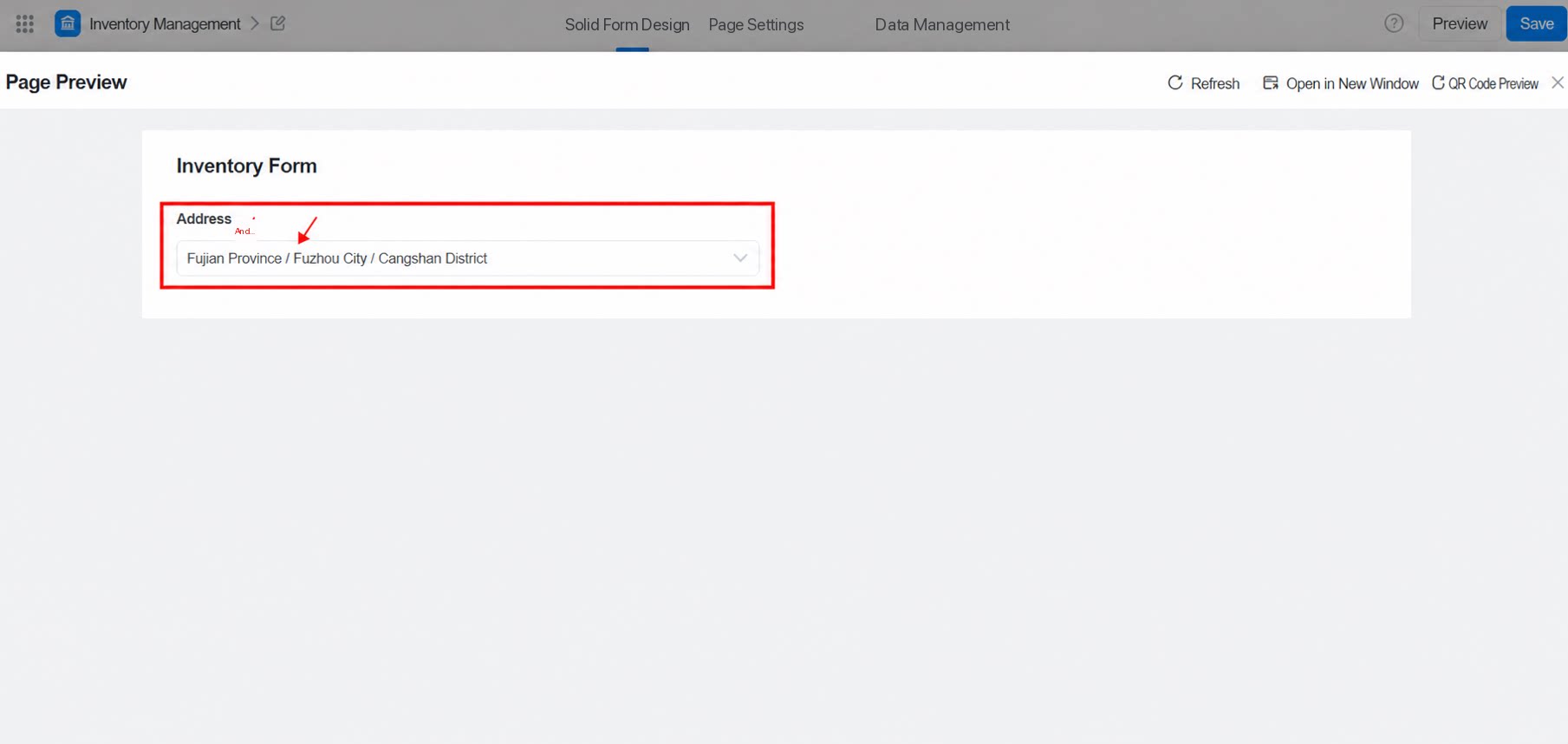
- If Detailed address is not selected, only one row is displayed, as shown below:
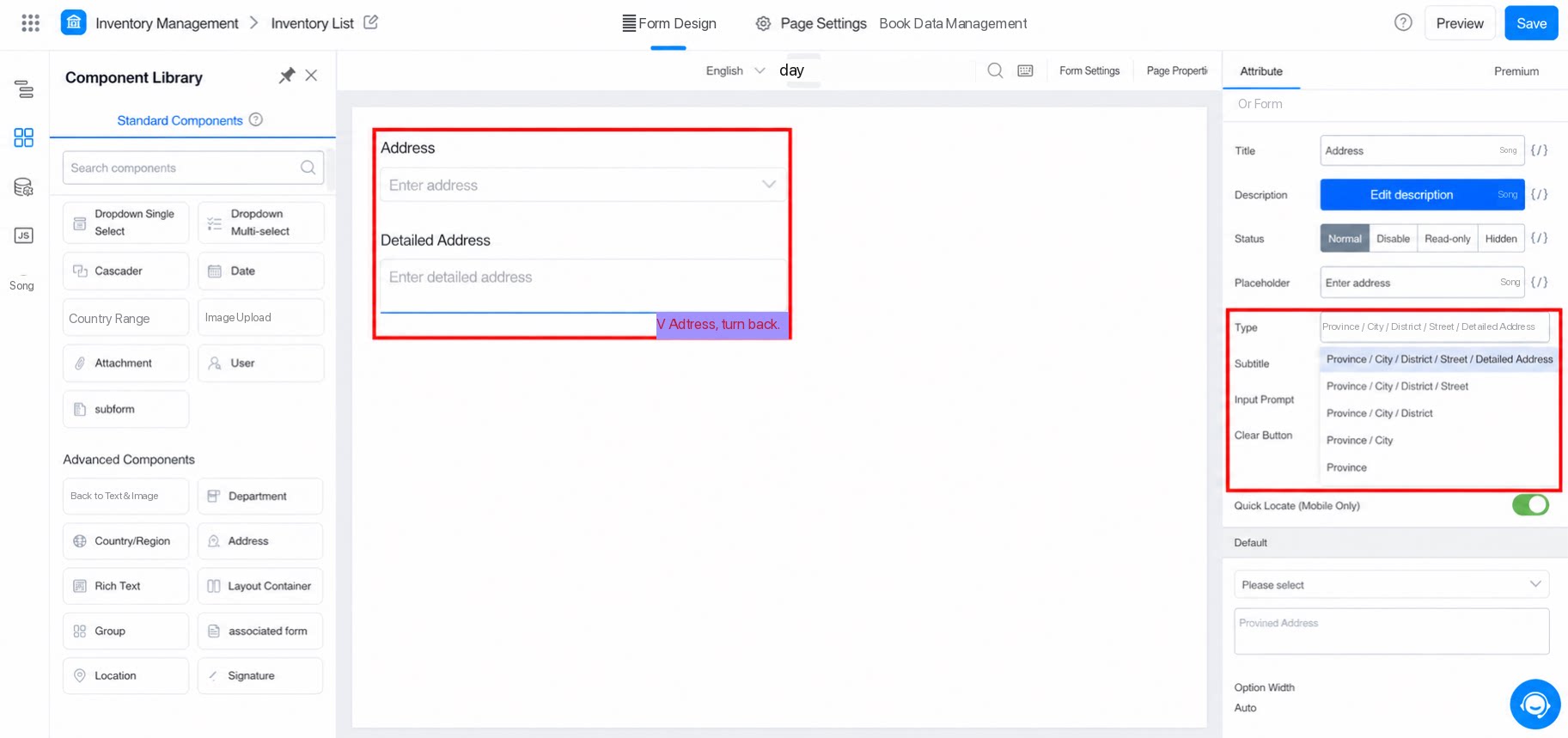
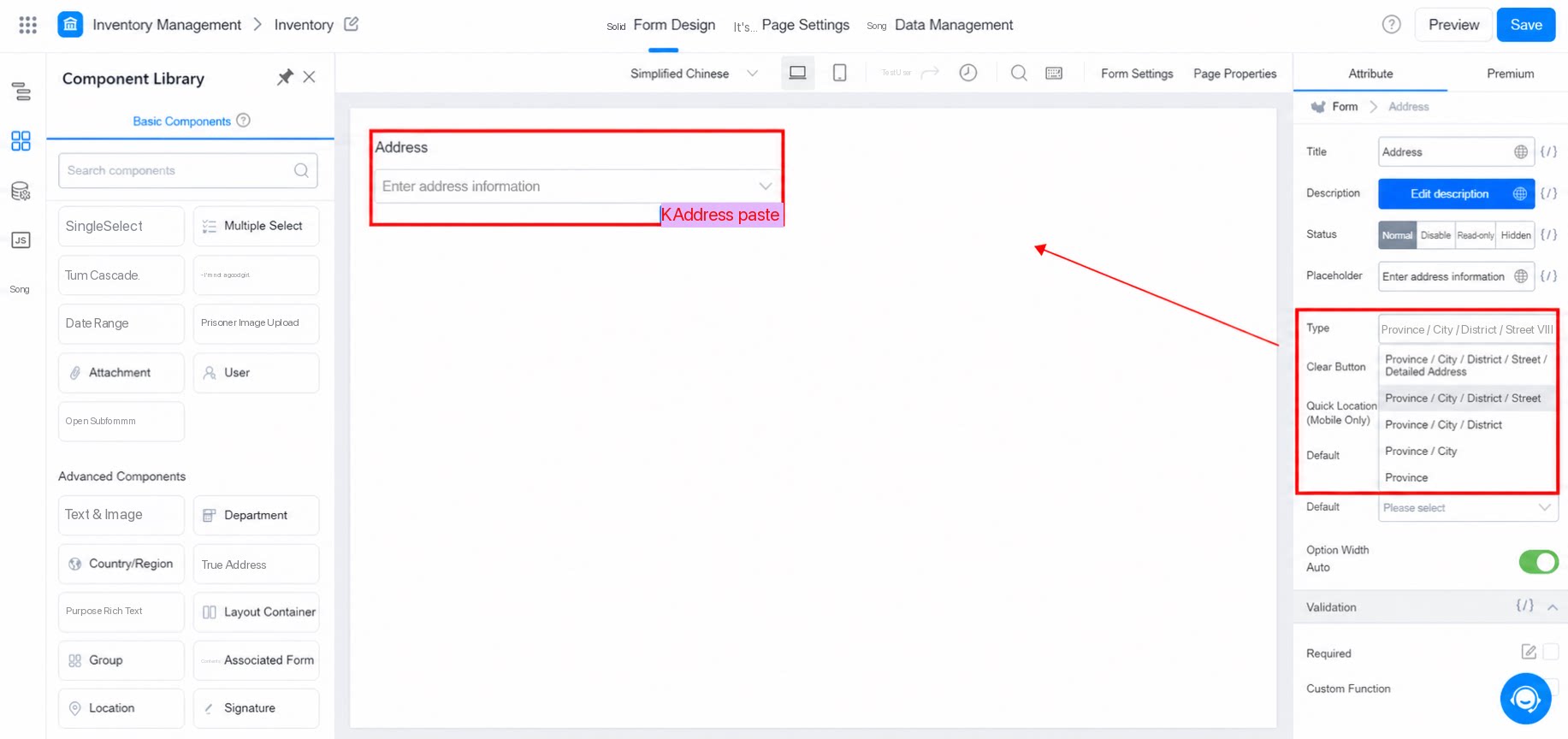 Select the address display type.
2.3 Sub-Title and Prompt Content of the Component
The following settings apply to the detailed address input box after Detailed address is selected, as shown below: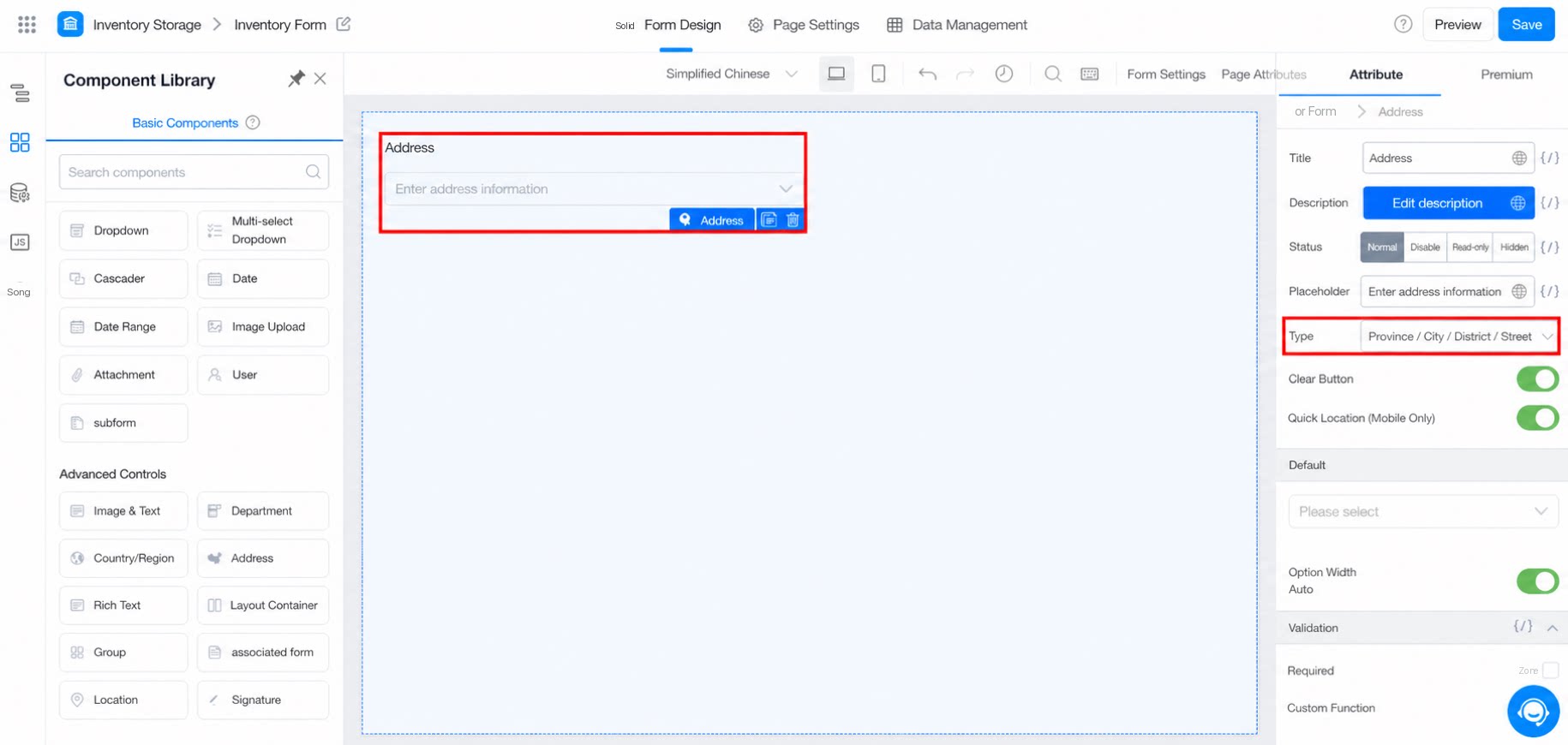
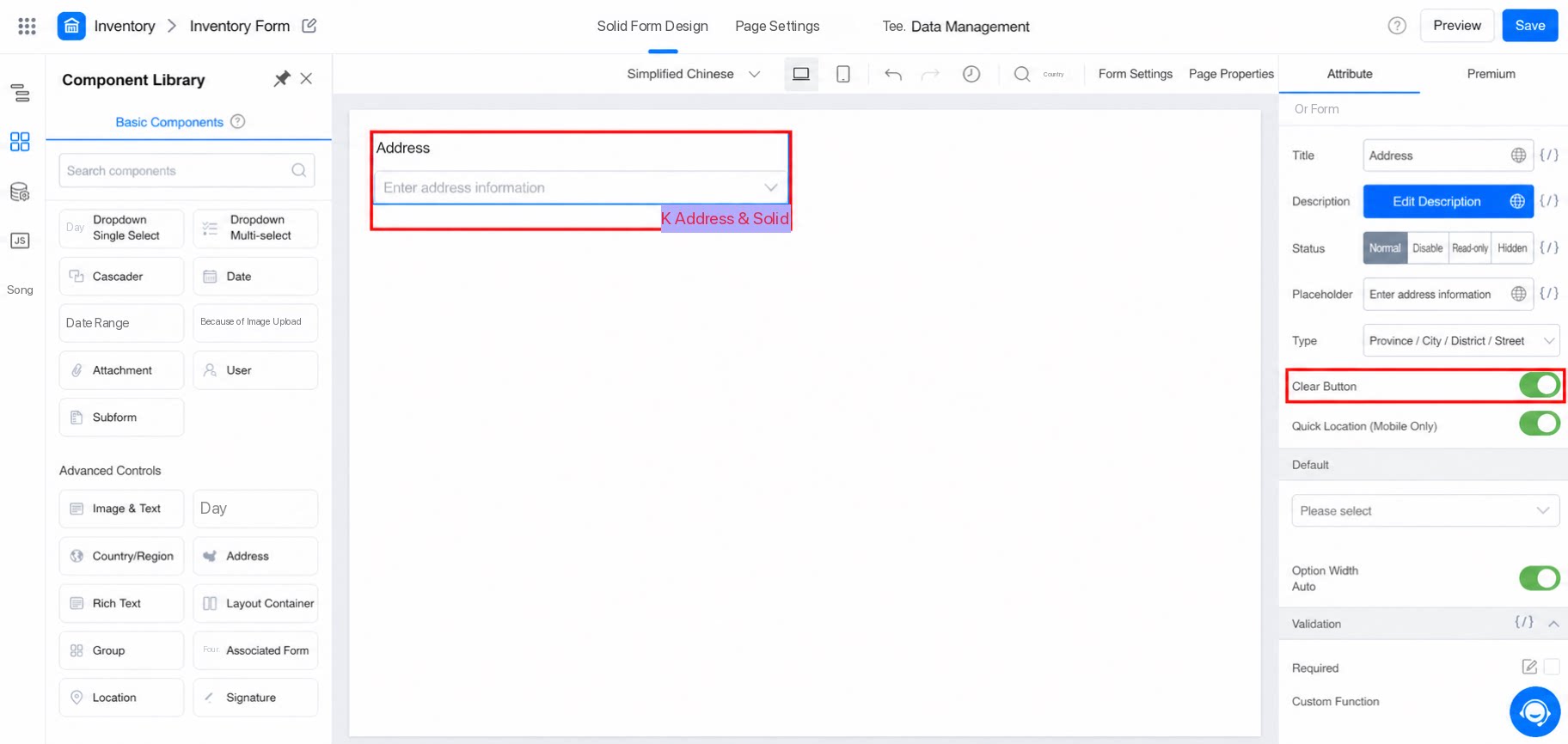
2.4 Allow Clear
When the Allow clear switch is turned on, you can clear the entered component data with one click when submitting the form.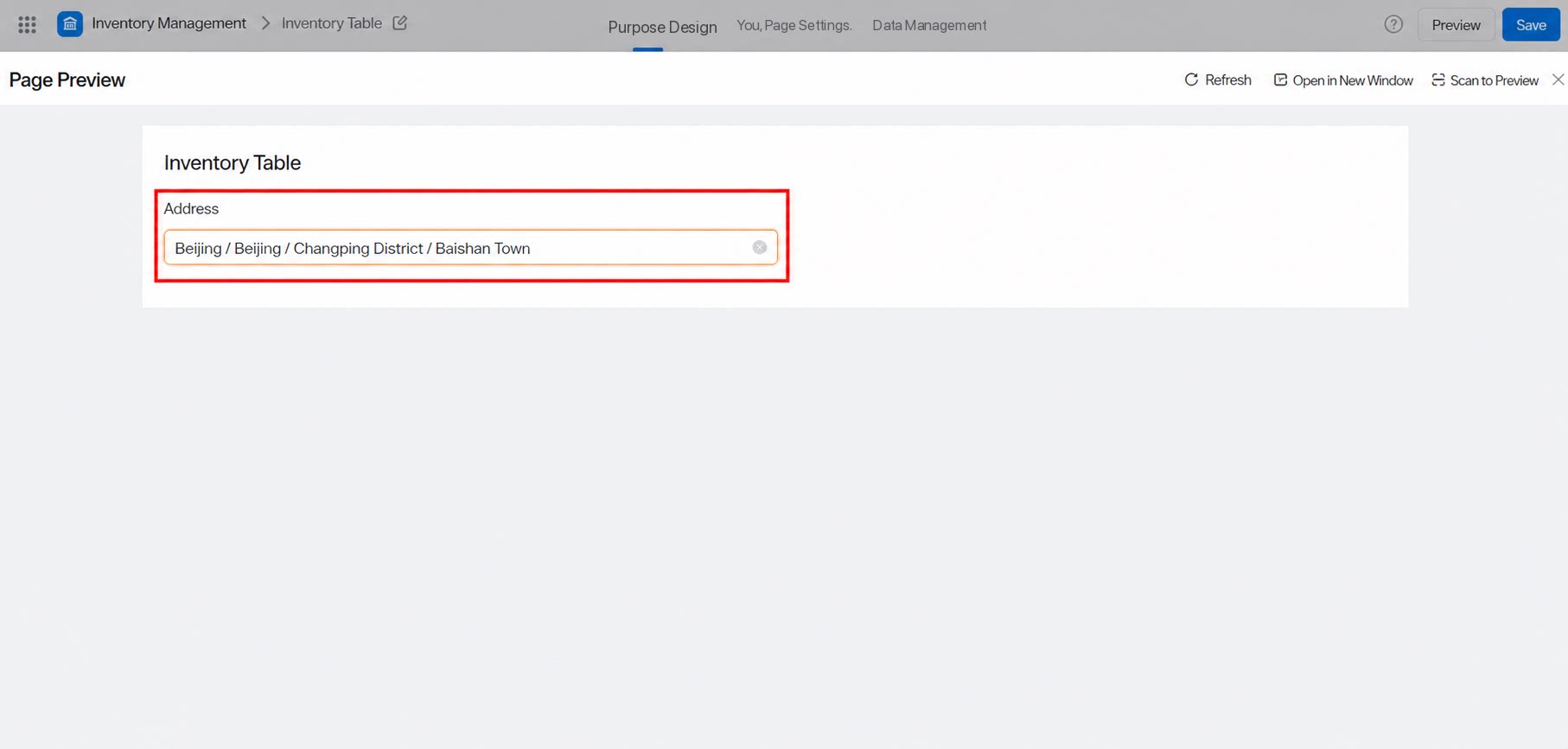
2.5 Default Address for the Component
- Initialize a default address on the right side of the designer.
- The level of detail of the default value is automatically linked to the option selected in Type.
2.6 Quick Positioning
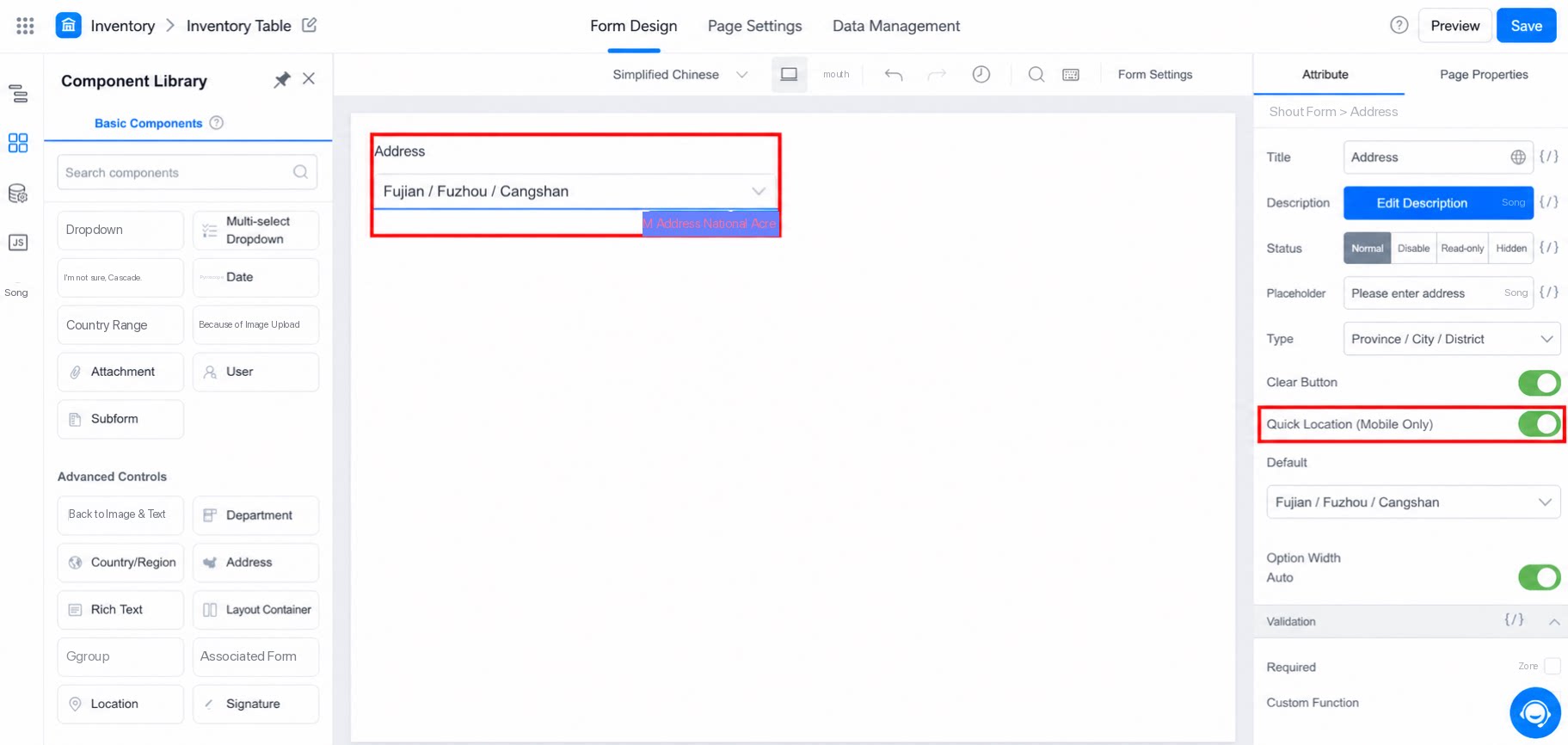
- Mobile devices support positioning to quickly fill in address information.
2.6.1 Use Cases
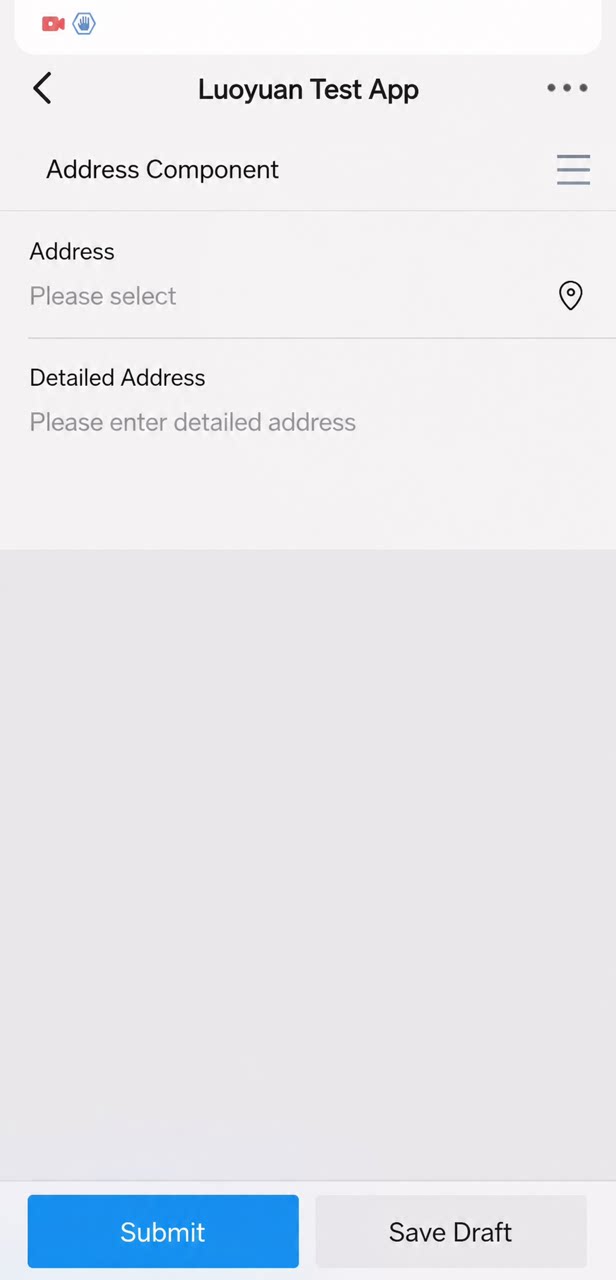
- When the address you want to select is your current location.
- Tap the positioning icon on the mobile device (with location permission enabled). The address is filled in automatically and remains editable.
| Component design-time attribute panel | Runtime component effect |
|---|---|
 |  |
3. Premium
3.1 Action Settings
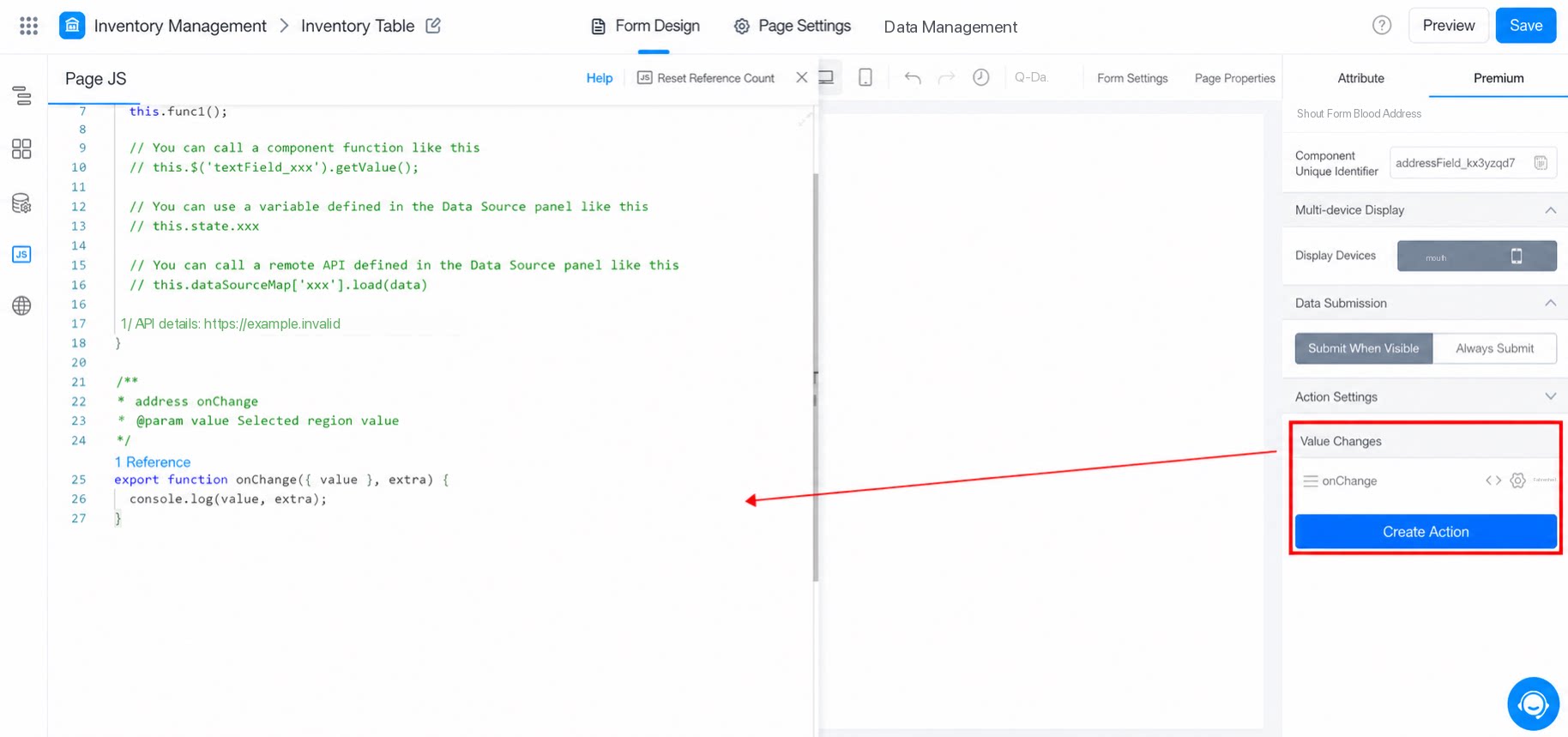
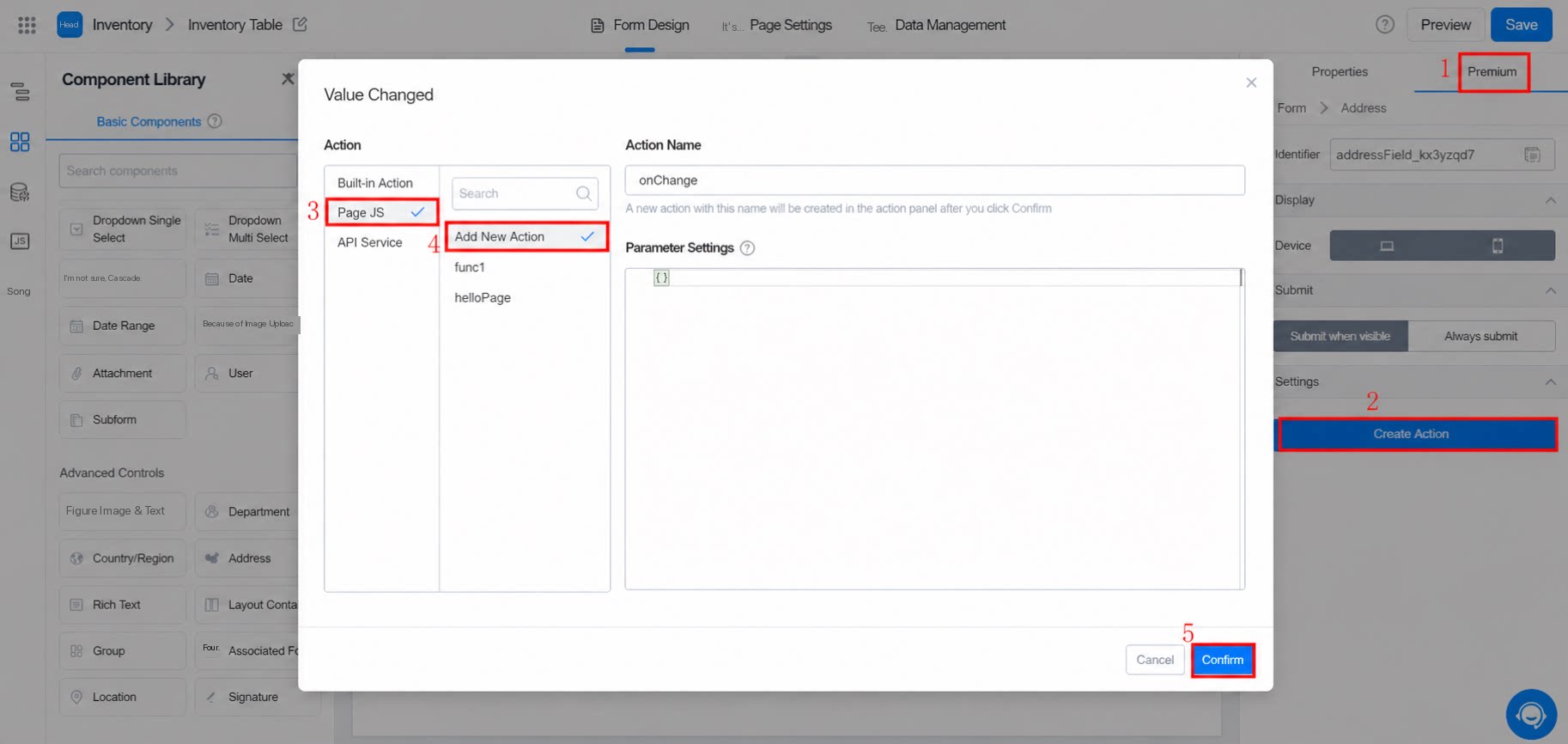
To configure JS code as an action for this component: Path: Click Create action >> Value change >> Configure JS code, as shown below: Configure JS code.4. FAQ
4.1 The Location component currently displays a location name. Is there a way to obtain the longitude and latitude?
4.1 The Location component currently displays a location name. Is there a way to obtain the longitude and latitude?
YiDA does not currently support retrieving longitude and latitude in the Location component. Longitude and latitude were previously available in the Positioning component. The Location component now exposes a region code, but longitude and latitude are not yet available.
4.2 Can the slash in the Location control be removed? When the data is extracted and concatenated into a Single-line text field, can the slash be removed automatically, for example, using JS?
4.2 Can the slash in the Location control be removed? When the data is extracted and concatenated into a Single-line text field, can the slash be removed automatically, for example, using JS?
After obtaining the region information, use JS to process the result and assign it to the Single-line text field to remove the ”/”.