

 Chats
Chats Calendar
 Meetings
 Contacts
 Mail
Mail Docs
Docs Drive
Drive AI Table
 AI Minutes
 Attendance
 Approval
 YiDA
YiDA Admin Console
1. Introduction
1.1 What Is Rich Text
The Rich Text editor (Multi-function Text Editor), or MTE for short, is a WYSIWYG text editor that can be embedded in browsers. Note: The new Rich Text component has removed the general configuration feature.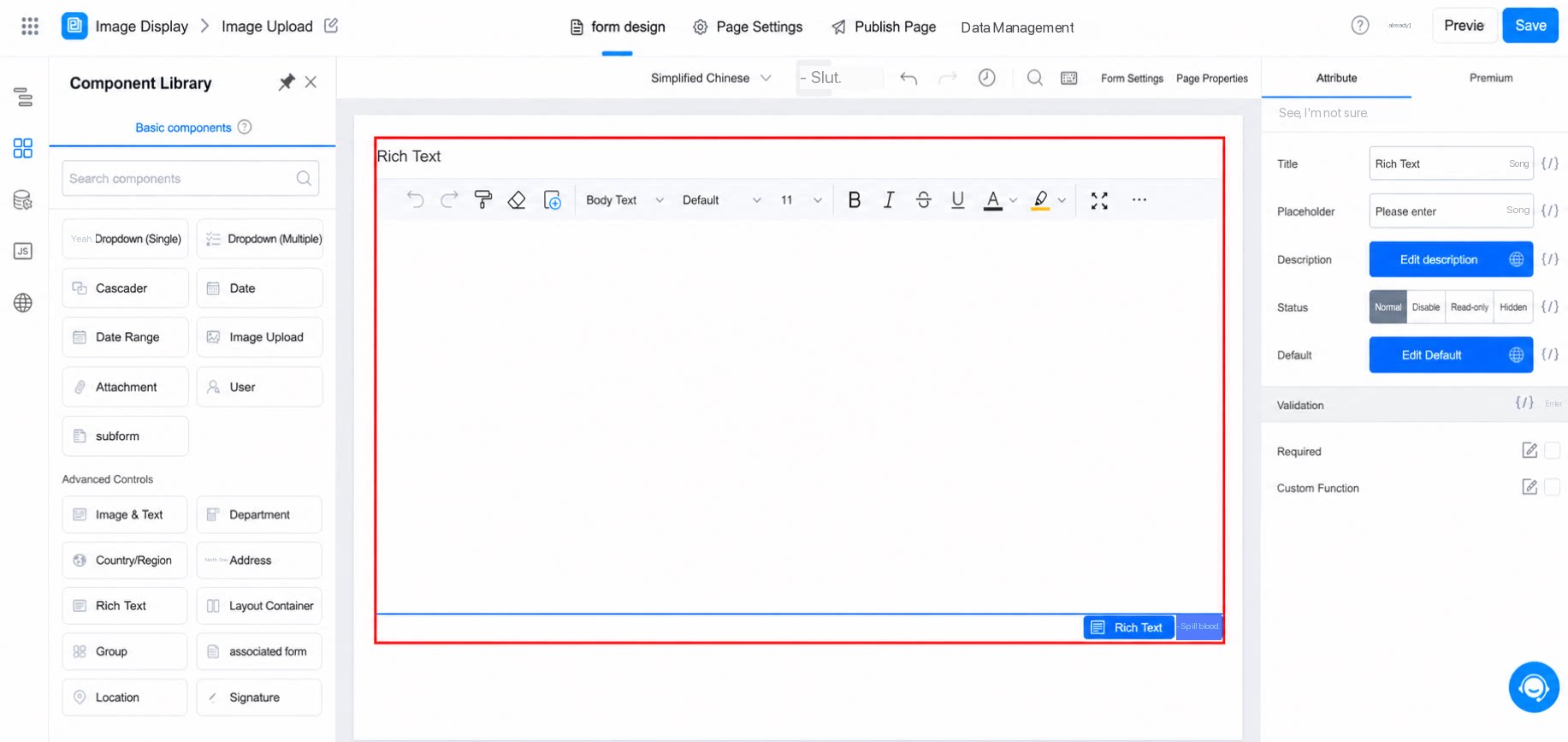
1.2 Use Cases
- When the standard YiDA form text component cannot meet complex text needs for styling, layout, or configuration.
- When optimizing the styling of large blocks of text.
- When users need to customize text content and upload entire blocks of styled text.
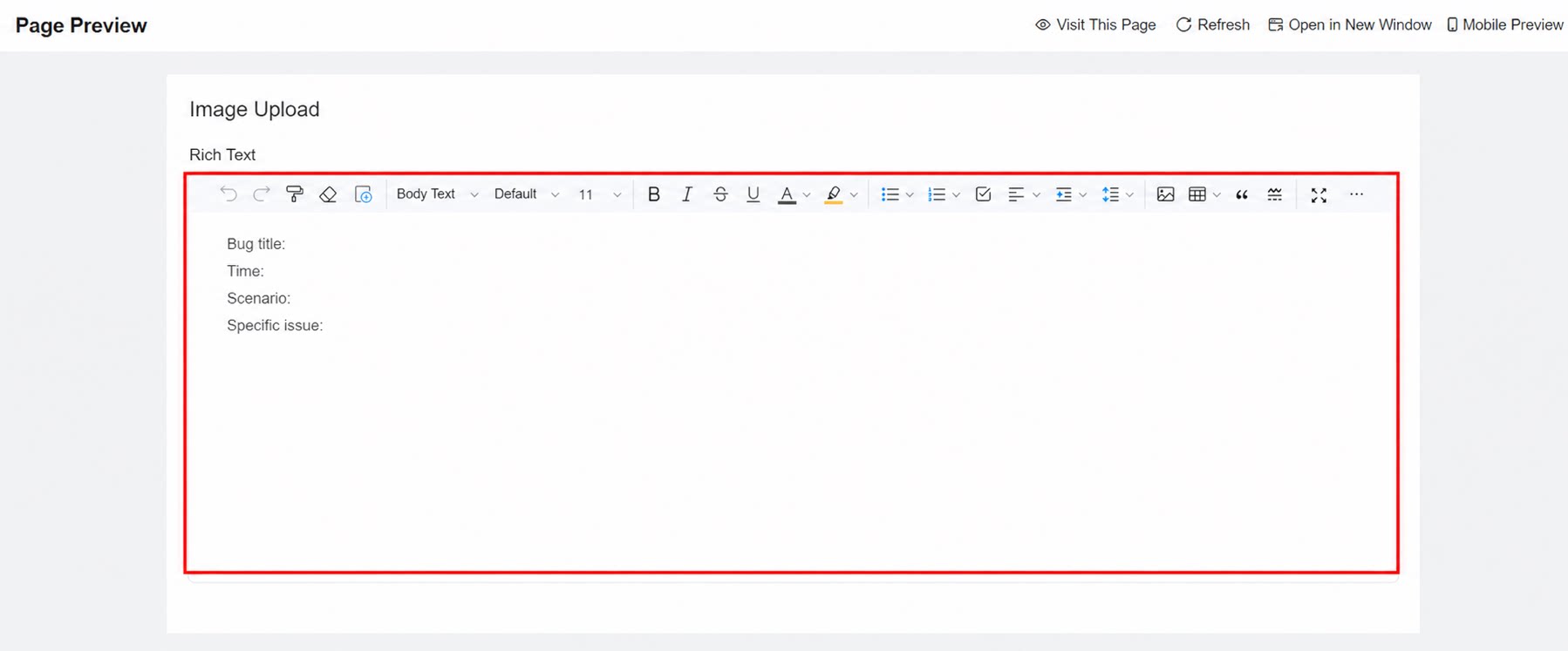
For component attributes, usage, and examples, see the Rich Text component reference.
2. Attributes
2.1 Description
This is the prompt text for content entered into the component. It appears at the bottom of the component, as shown below: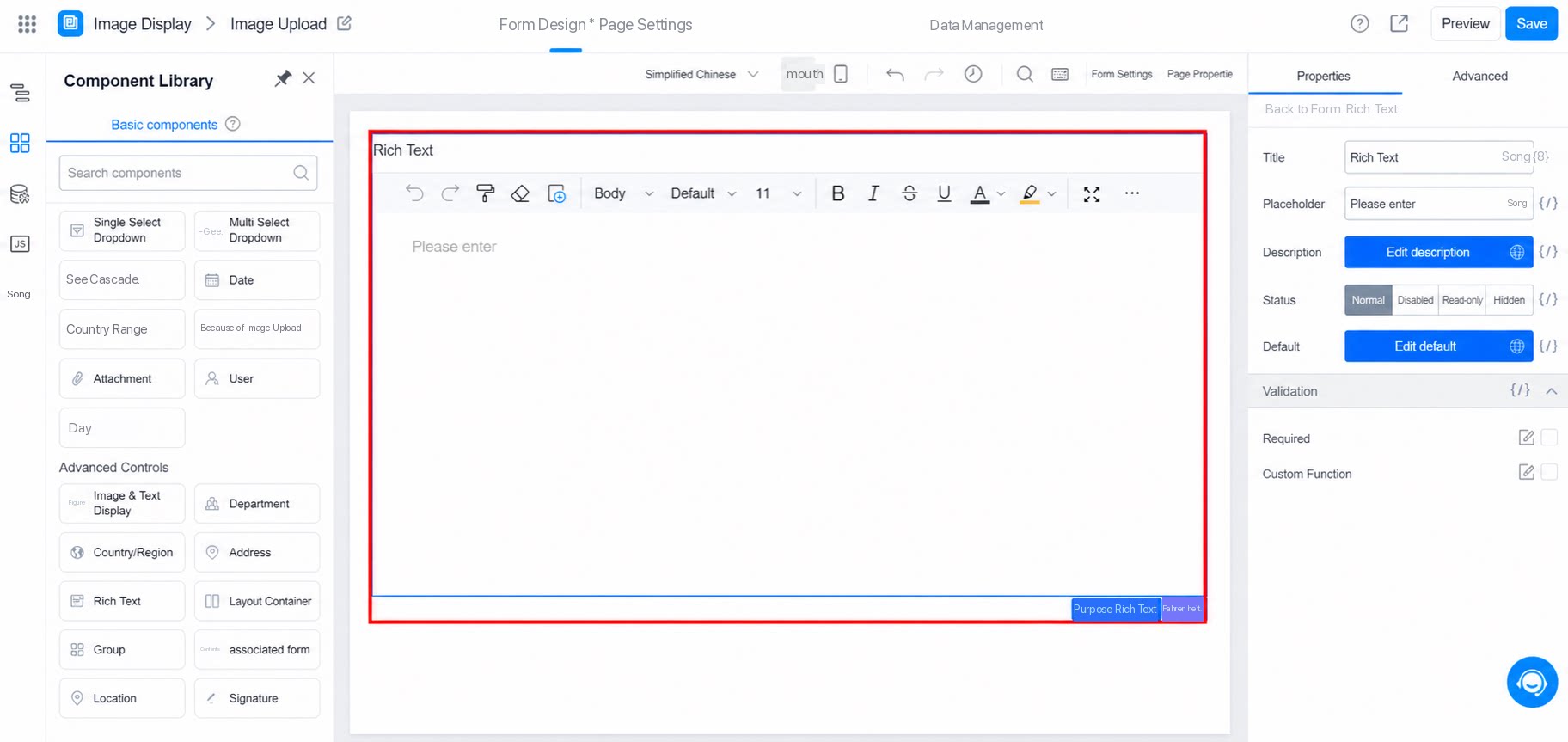
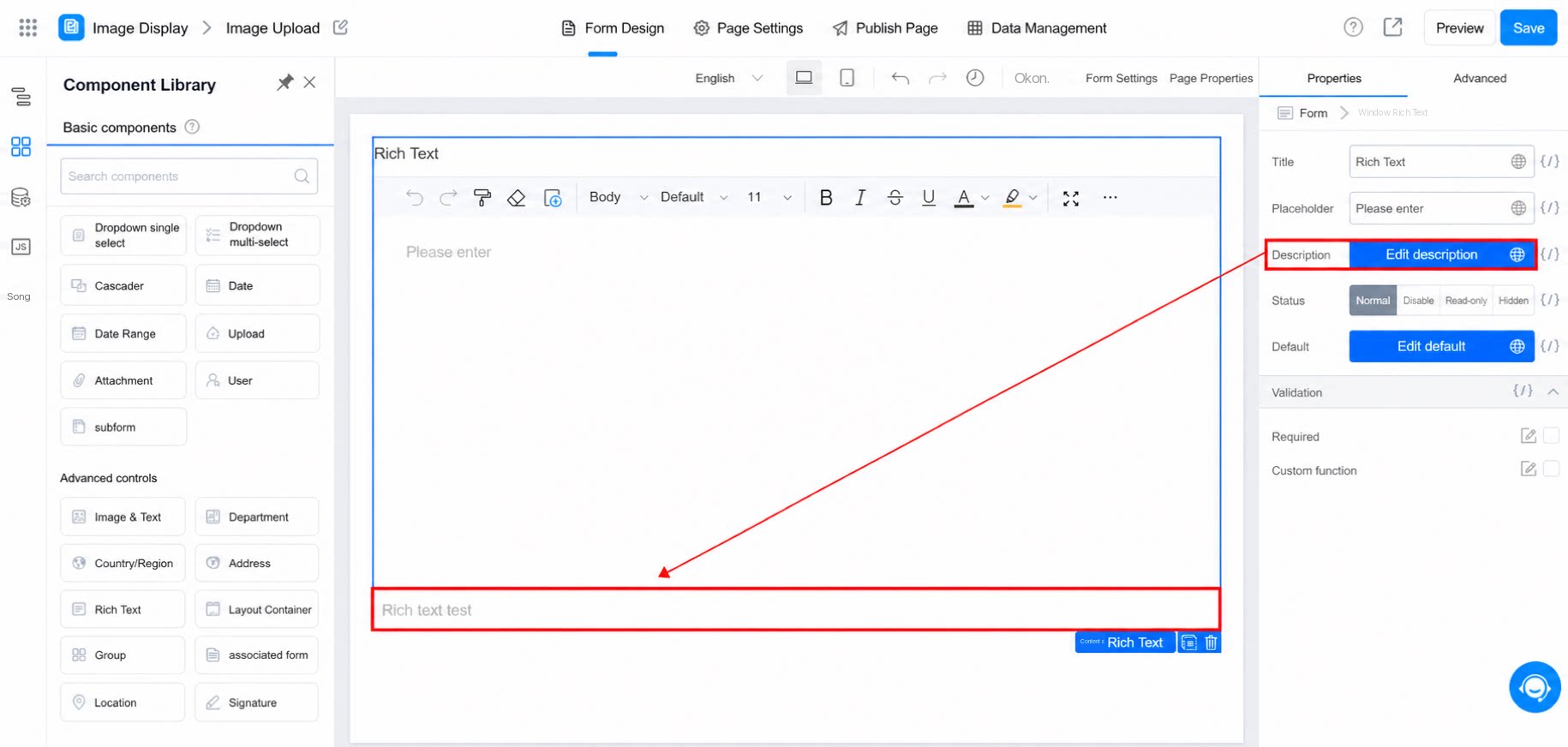
2.2 Edit Default Value
Enter information when configuring the component. The content can be modified later when the form is submitted, as shown below: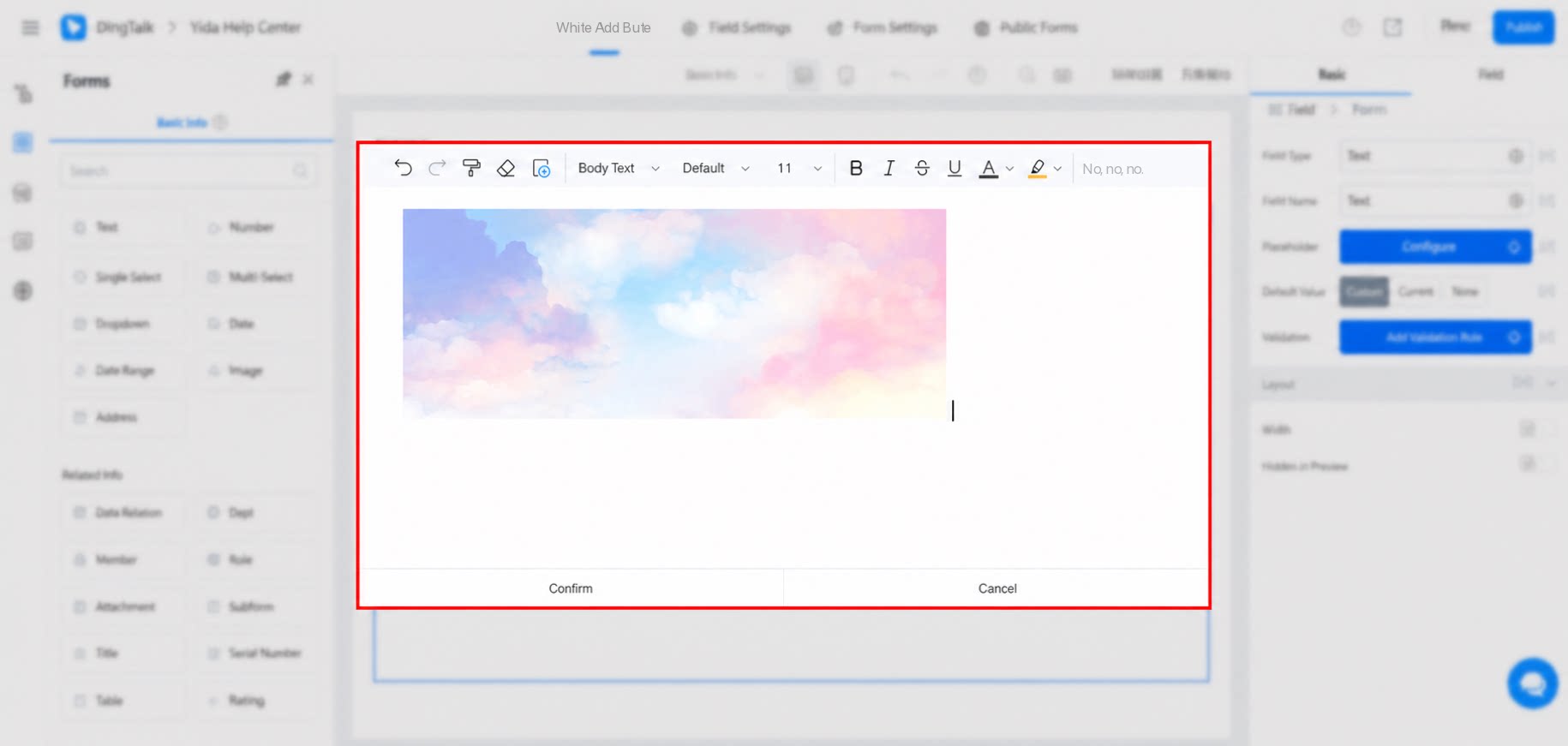
2.2.1 Editor
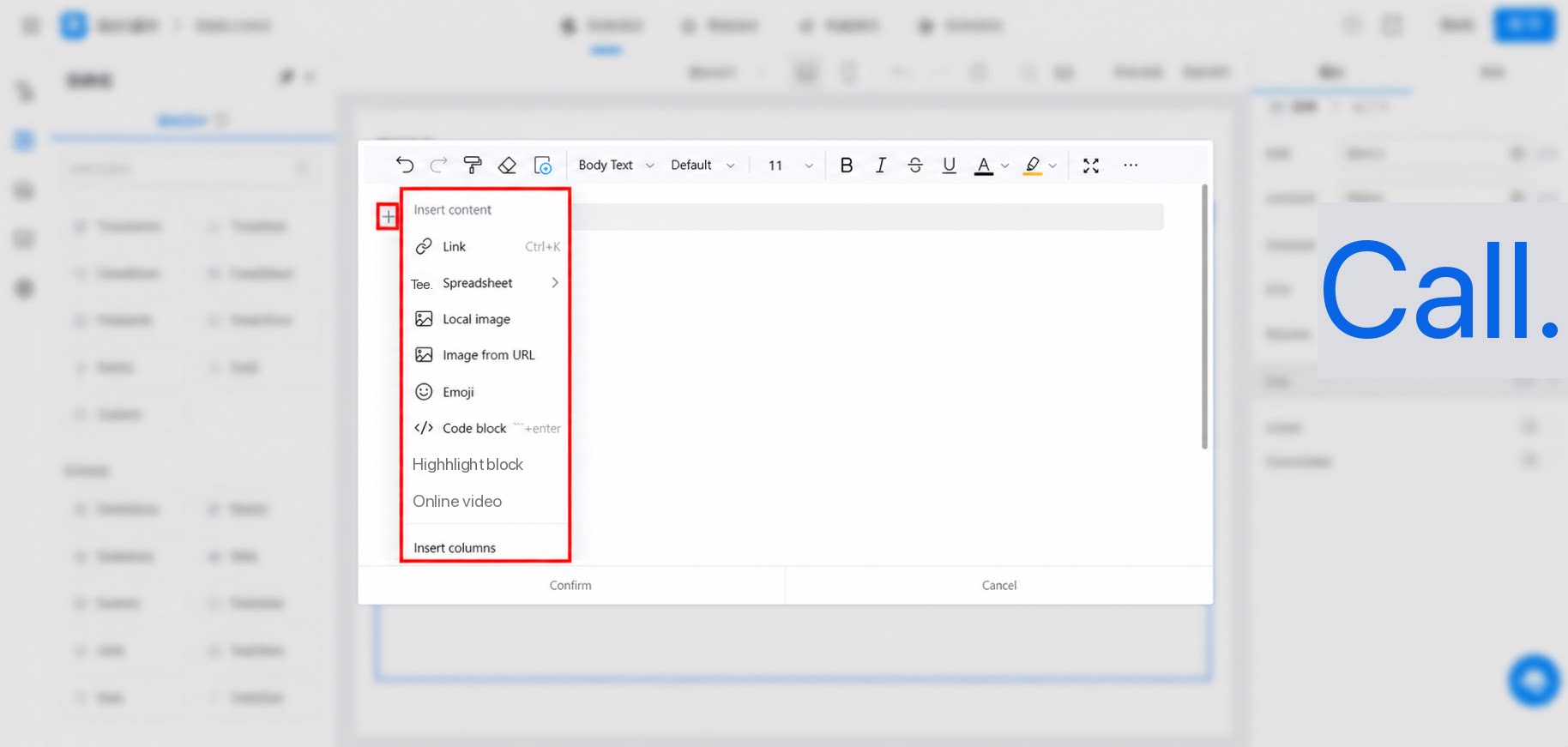
The Rich Text editor is consistent with the DingTalk Docs editor. Use/ on your keyboard, symbols, or the + icon on the page to quickly select the content you want to insert. The following capabilities are also supported:
- Insert richer content such as local or remote images, emojis, highlight blocks, and online videos.
- Insert layout styles such as columns, horizontal lines, and quotes within the editor.
- Insert to-dos to enable scenarios where users complete tasks.
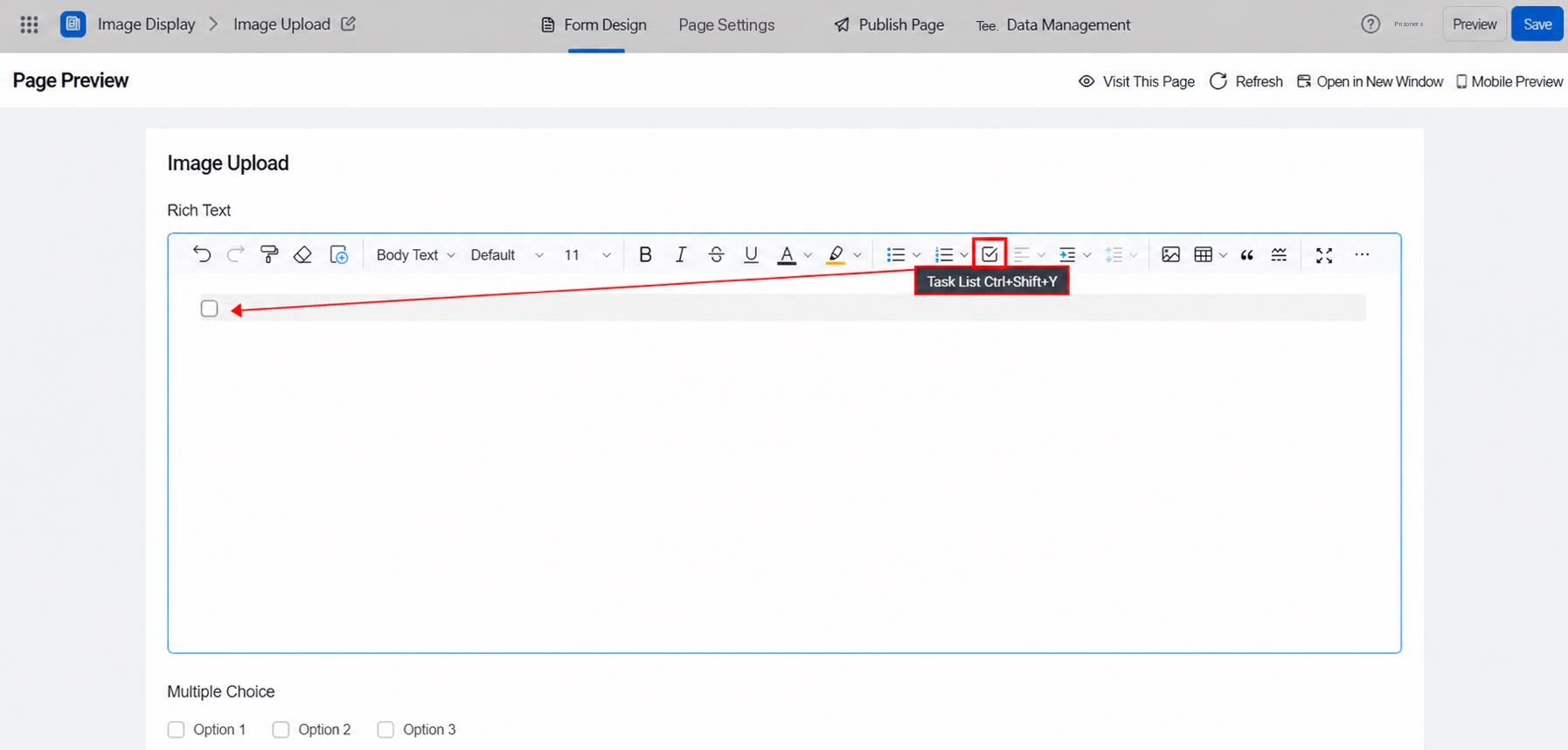
Notes:
- A single Rich Text field supports inserting multiple tables.
- You can copy and paste table data from Excel into the Rich Text field (we recommend pasting no more than 100 rows at a time).
- By default, you can insert a 10×10 table. Use the built-in row and column buttons in the Rich Text field to add rows or columns.
- There is currently no limit on the number of rows or columns, but we recommend a maximum of 100 rows. Beyond 100 rows, adding rows or columns becomes slower and affects performance.
- For large datasets, we recommend using the original Excel file plus an Attachment to display table data.
3. Premium
3.1 Action Settings
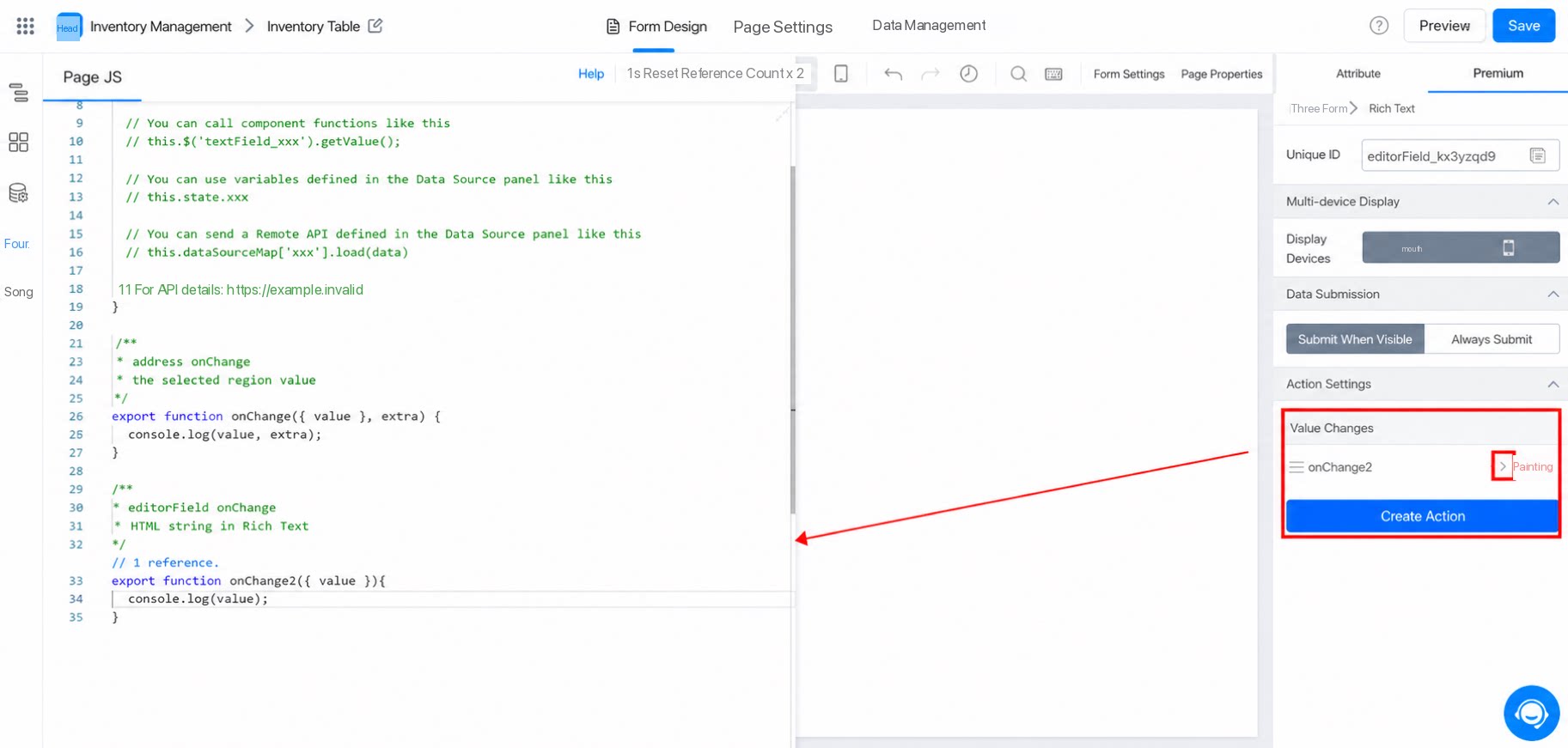
When you need to configure JS code for this component’s action: Path: Click Create action >> Value changes >> Configure JS code, as shown below: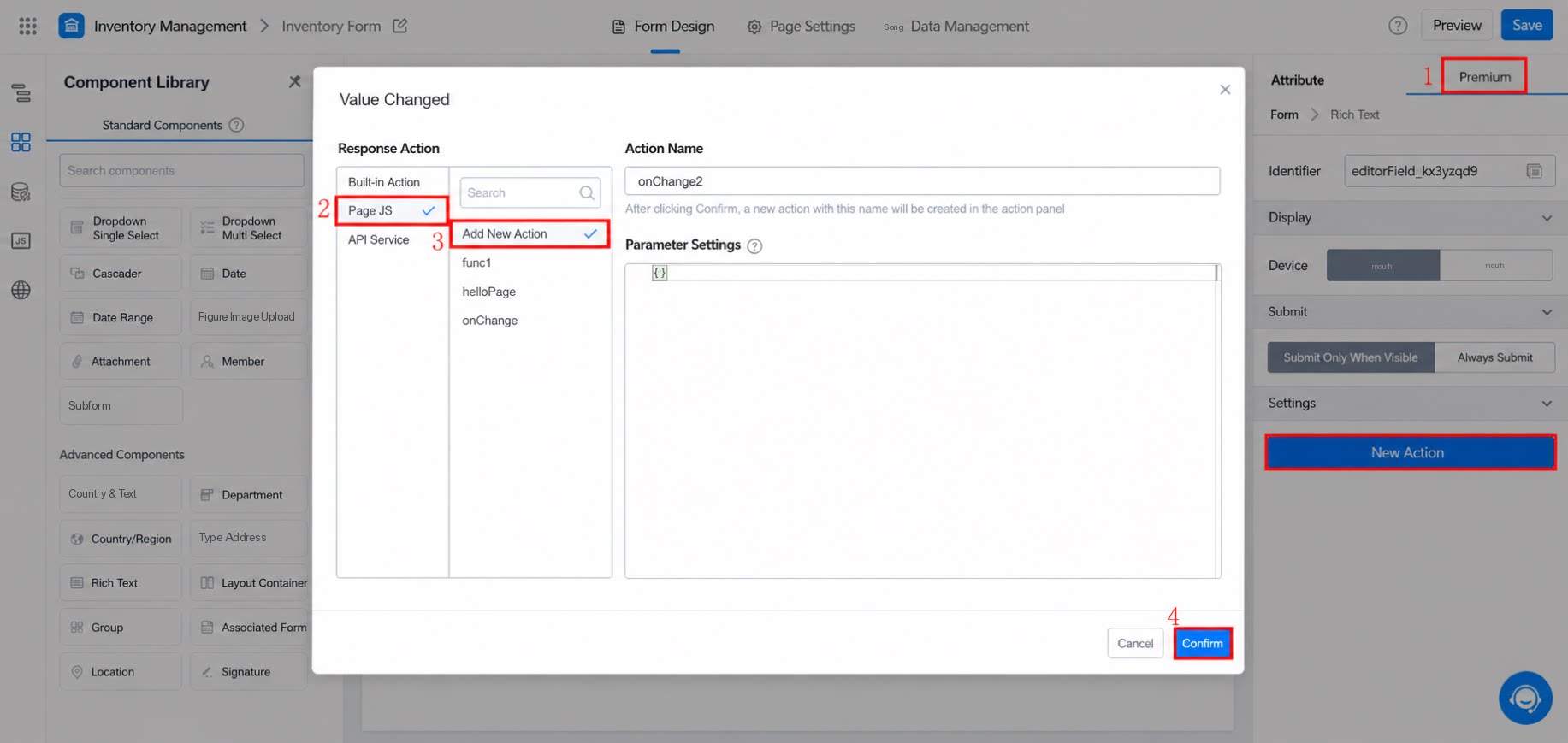
4. FAQ
4.1 Why Can’t I Open the Attachment Download Link?
The Rich Text component has been upgraded. To click an inserted link to navigate and download an attachment, prepend the domainhttps://www.yidaapps.com to the retrieved attachment URL.