

 Chats
Chats Calendar
 Meetings
 Contacts
 Mail
Mail Docs
Docs Drive
Drive AI Table
 AI Minutes
 Attendance
 Approval
 YiDA
YiDA Admin Console
Component Attributes
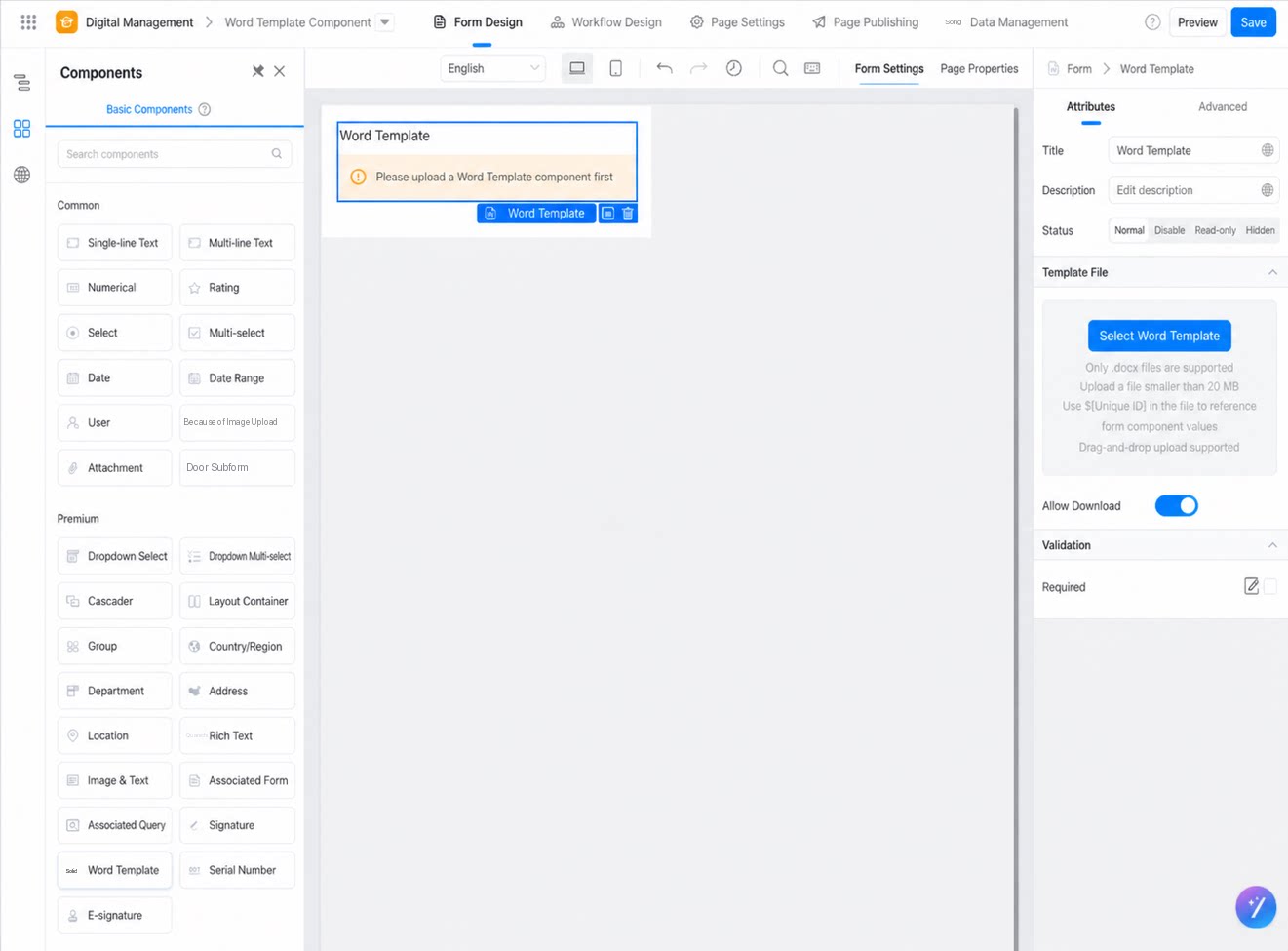
| Attribute | Description |
|---|---|
| Title | The name of the component. Multilingual titles are supported. Default: Word template. |
| Description | Additional information about the component, displayed below the component.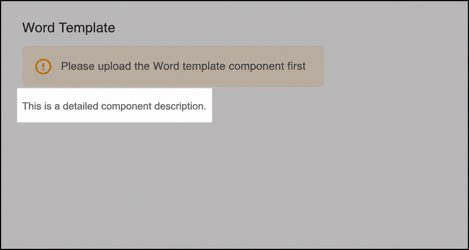 |
| Template file | The core of the component. Upload a Word template when designing the form. After the template is uploaded, you can edit, preview, and download it. Only .docx files smaller than 20 MB are supported. Use ${component unique identifier} in the file content to reference form component values. The Basic edition does not support online editing. For details, see Edit attachments online. |
| Validation | Supports required-field validation. |
Usage Notes
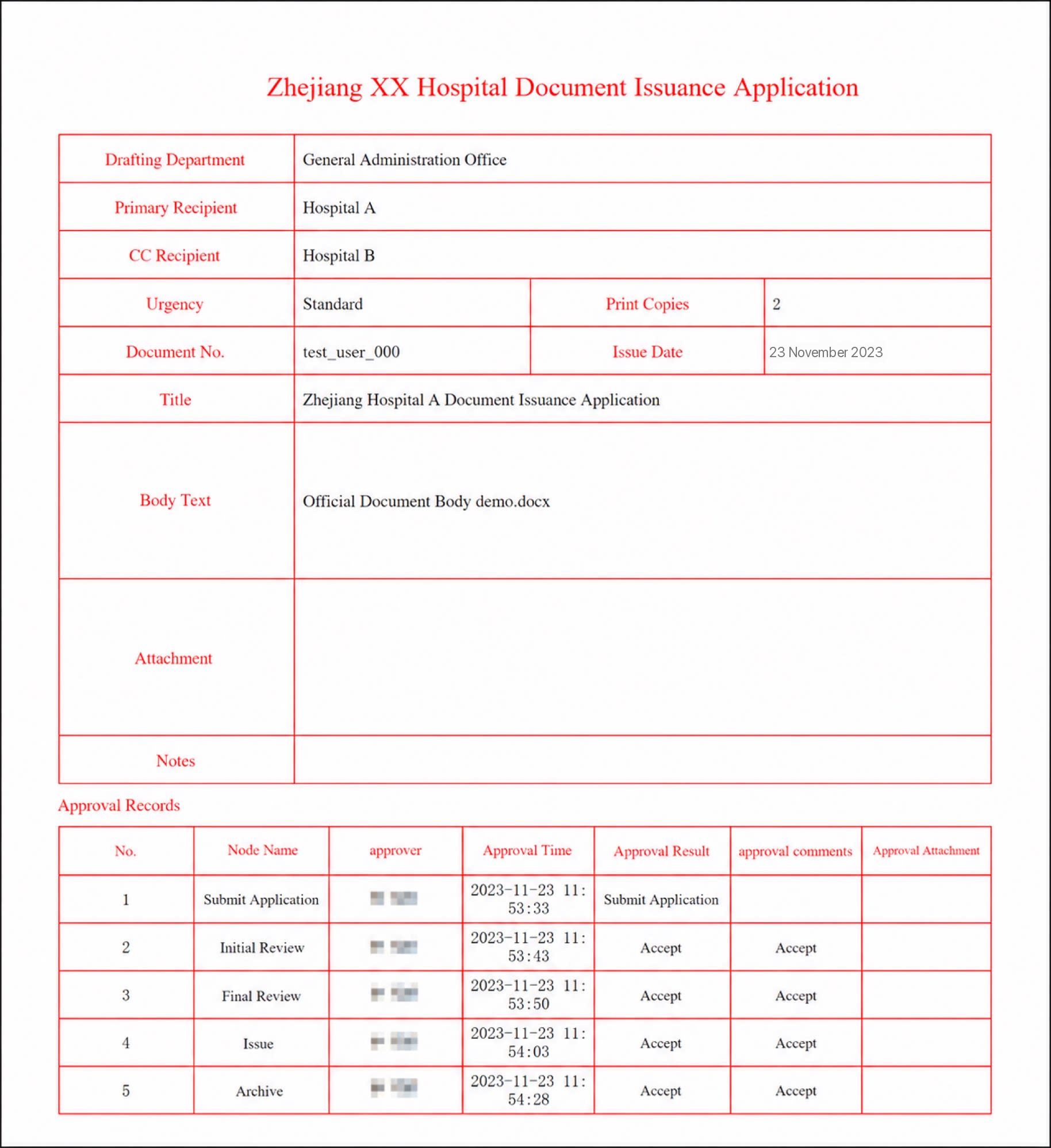
The Word template component is a YiDA feature that generates Word attachments from a Word template and form field values. It is suitable for scenarios that require a standardized format, such as nationwide official document management. Usage notes: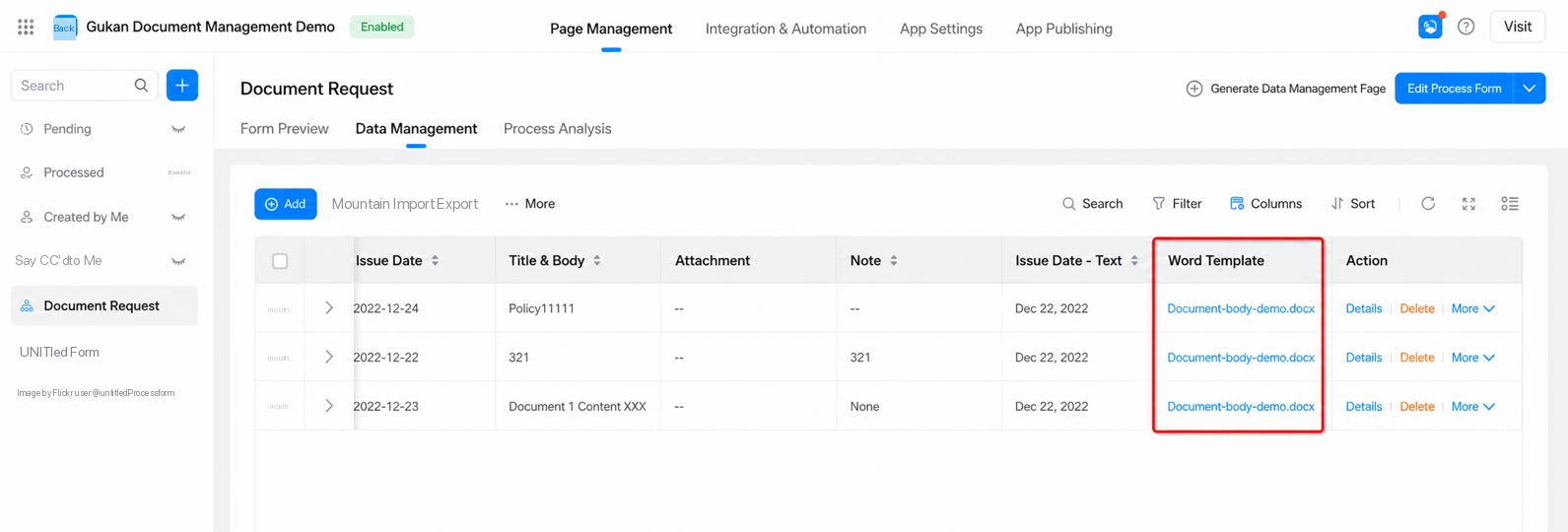
-
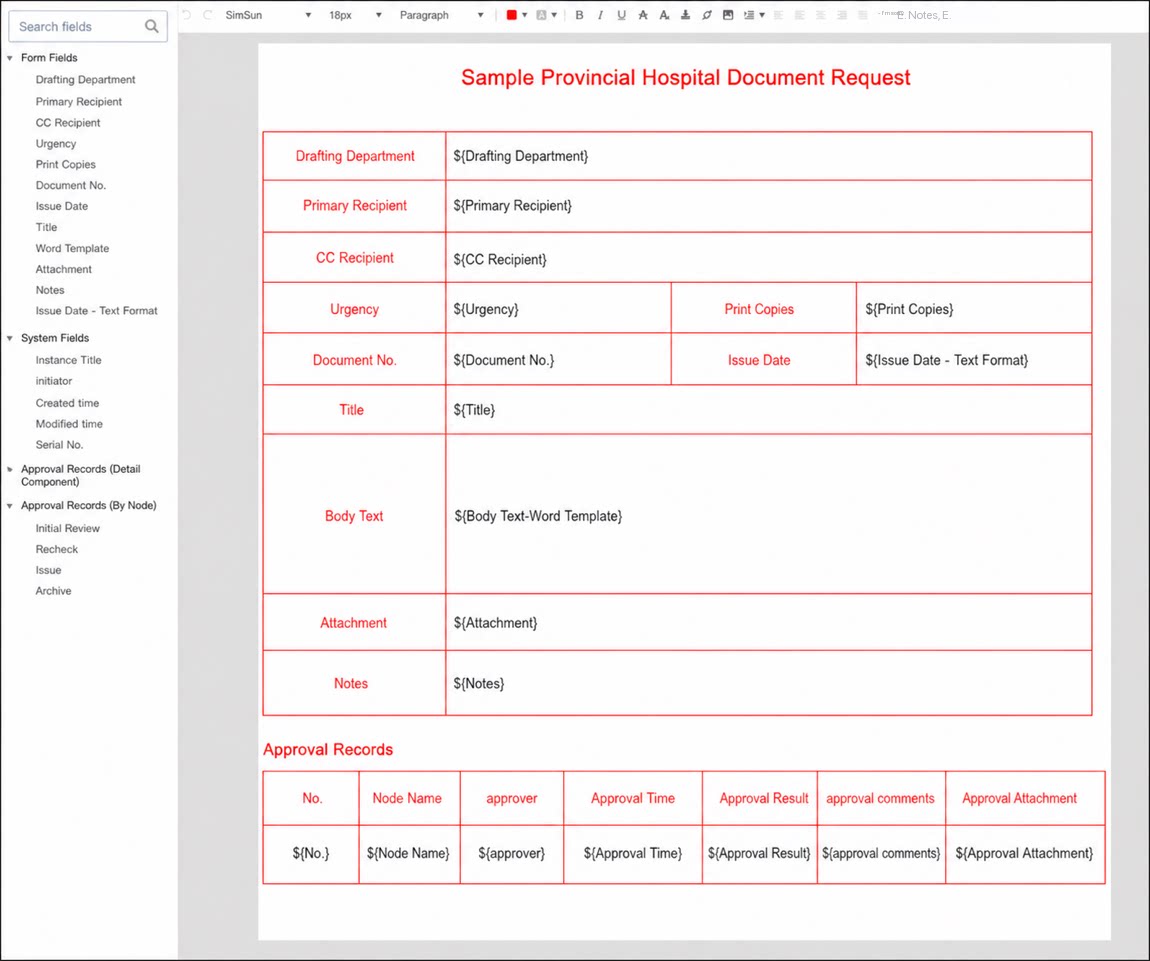
Content in the Word template can be bound to form variables. Set the content in the template to the unique identifier of a form component, using the variable format
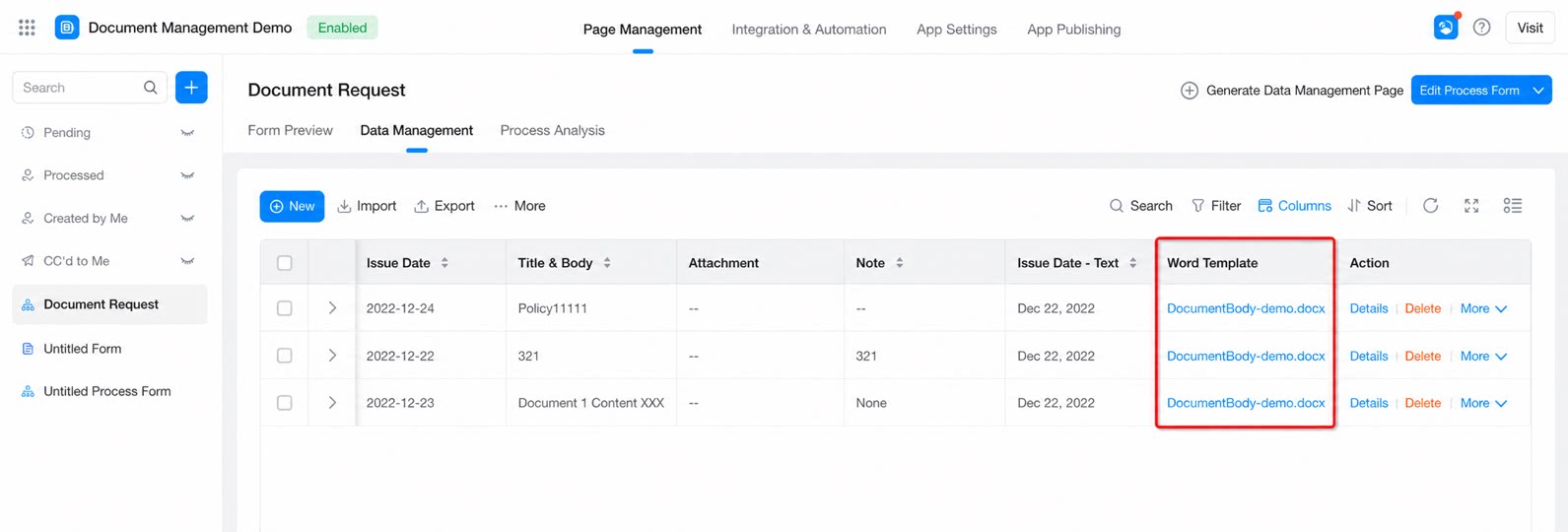
${component unique identifier}. - Supported in the YiDA data management page (display, export), associated forms (display, filter), form detail change records, workflow design (step submission rules, field permission settings), and print records.
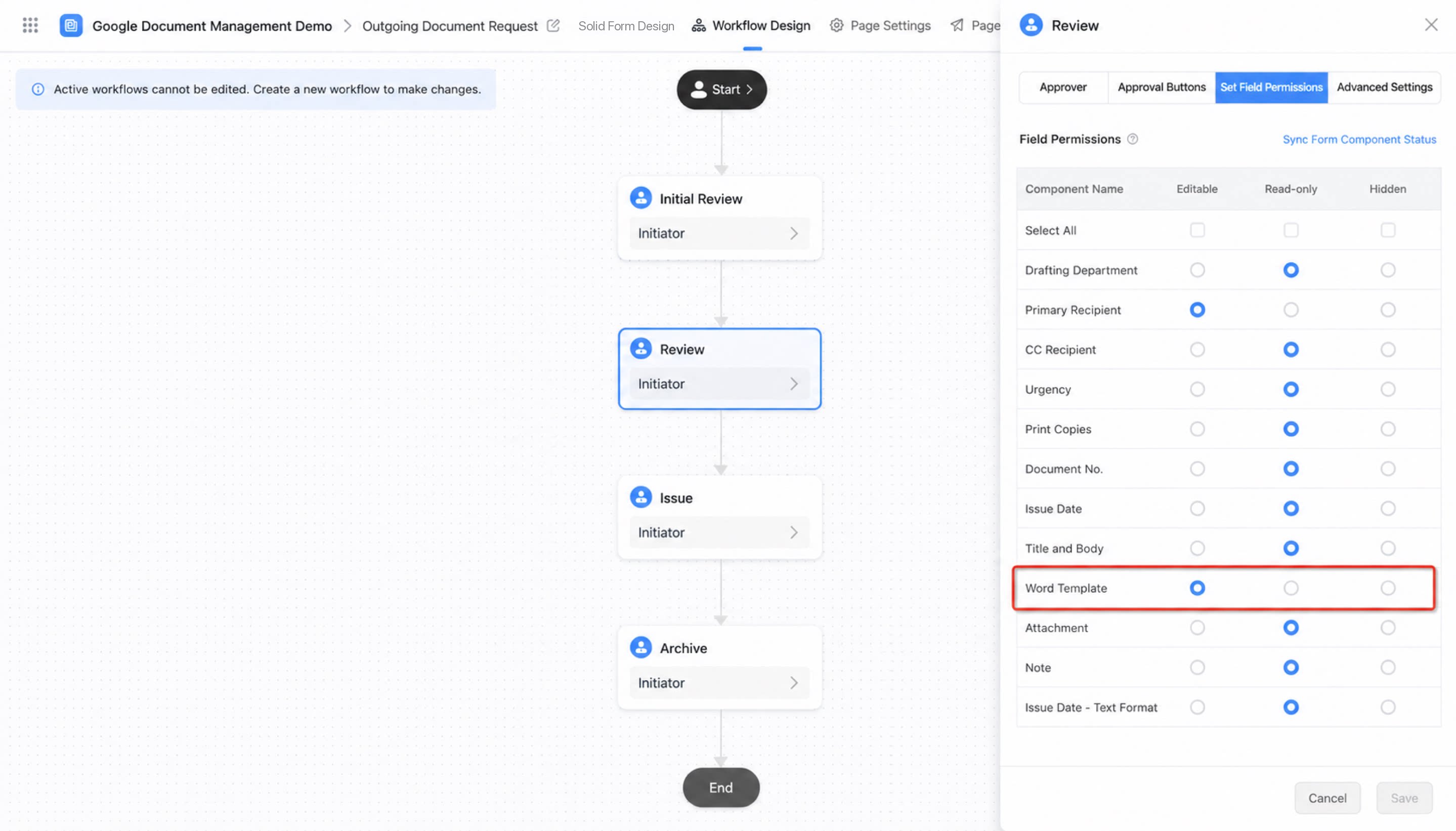
- In the workflow design, you can control the permissions (Editable, Read-only, Hidden) of the Word template component at each step.
- Currently supported only in workflow forms.
- Getting and setting values through JS APIs is not supported.
- Viewing the Word template data format through Open APIs is not supported.
Example
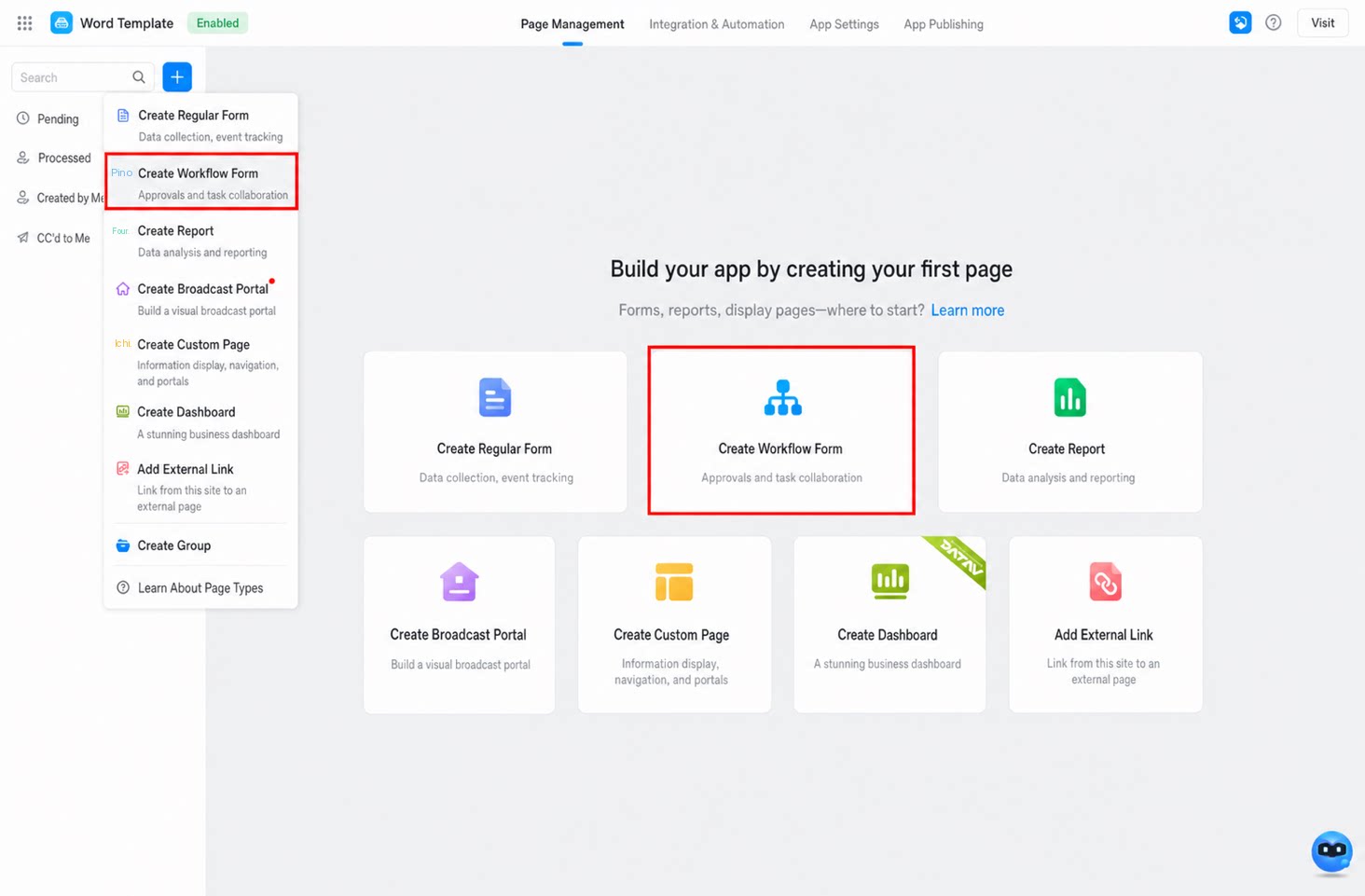
Follow these steps to work with the Word template component.Step 1: Create a Workflow Form
1
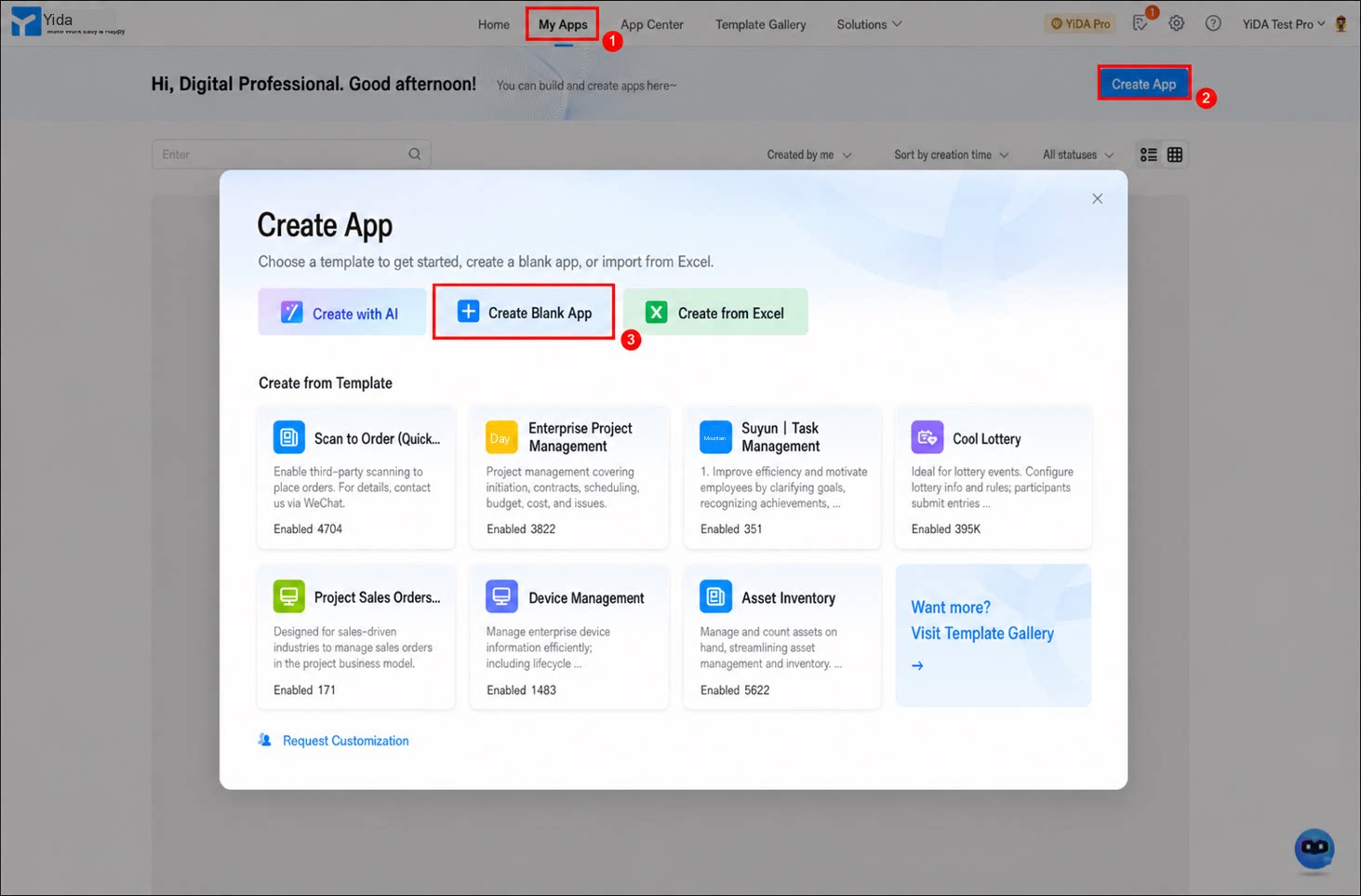
Sign in to the YiDA console and create a blank app
2
Click Create workflow form to create a workflow form
3
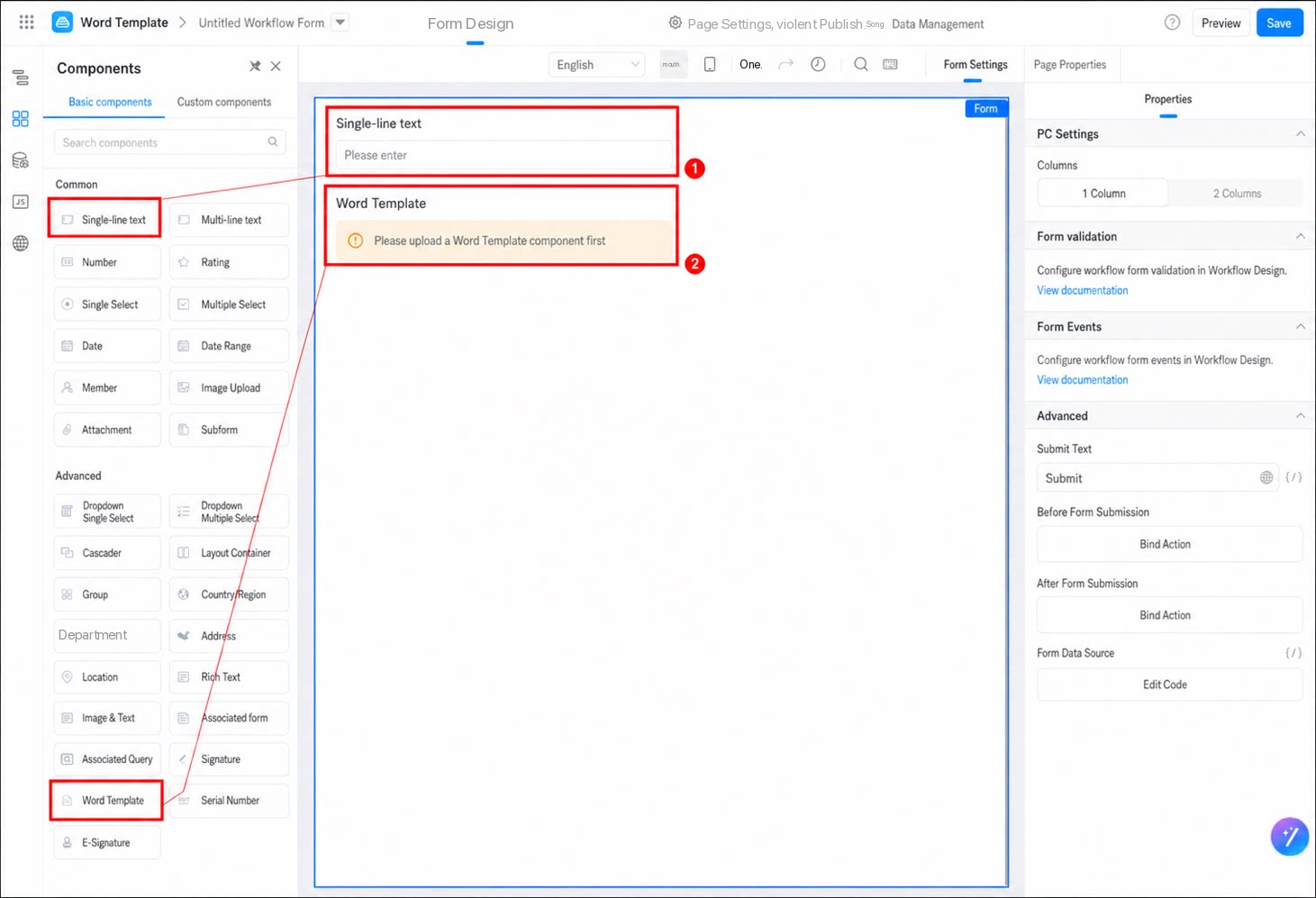
Drag a Single-line text component and a Word template component into the form
4
Select the Single-line text component, click Premium in the attributes panel on the right, and copy the unique identifier of the Single-line text component
Step 2: Create a Word Template
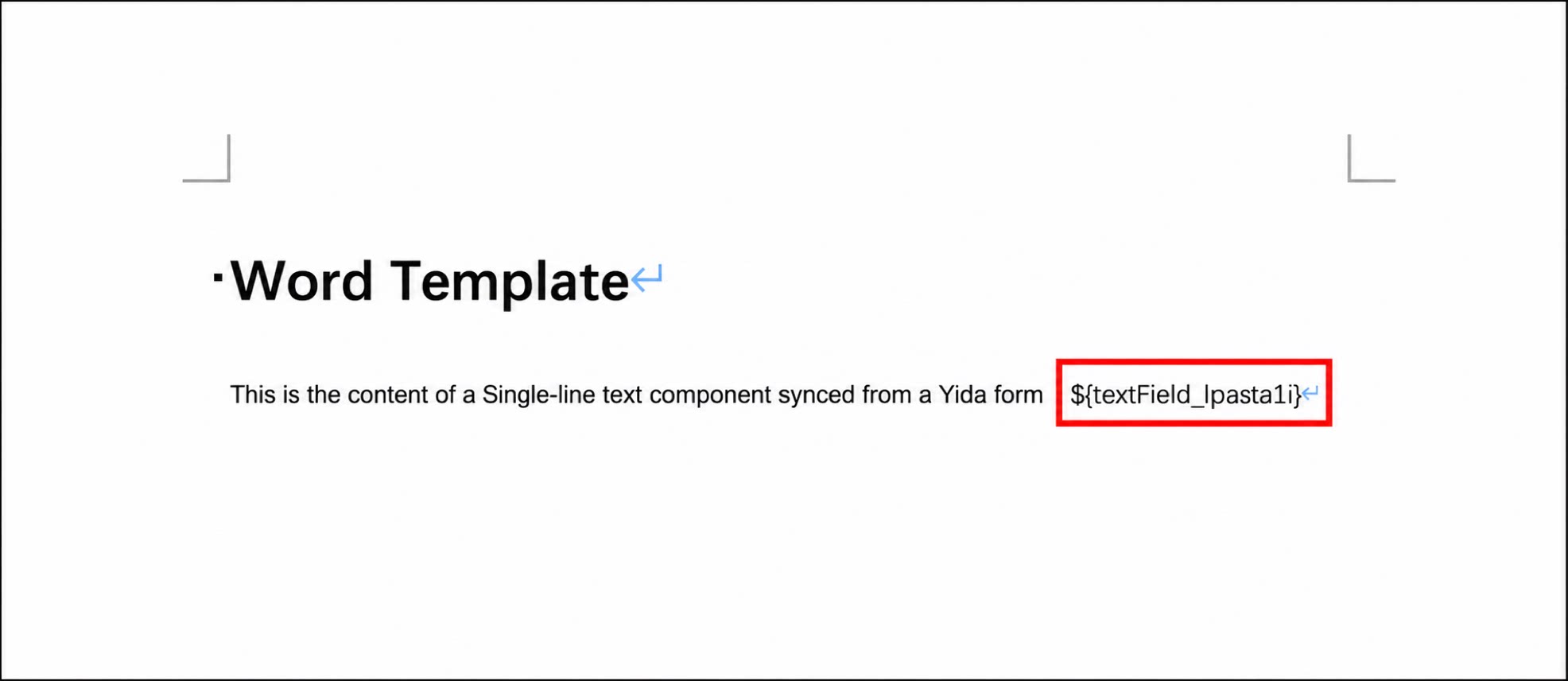
- Create a Word document (
.docx) locally and open it. - Add the unique identifier of the Single-line text component copied in Step 1 to the Word document, using the format
${Single-line text component unique identifier}.
- Save the file.
Step 3: Use the Template in a Workflow
- Return to the form design page in the YiDA console.
- Select the Word template component. In the attribute panel on the right, click Select Word template and upload the Word document created in the previous step.
1
Click Preview in the upper-right corner, then click Visit this page
2
Enter content in the Single-line text field, then click Submit. After submission succeeds, preview the content of the Word document on the approval page
${} placeholders in the Word template are replaced with the actual form values.
Considerations
-
When a form contains a subform,
${placeholder}references to single-line text, multi-line text, number, select, dropdown select, multiselect, dropdown multiselect, date, and image upload components inside the subform cannot be rendered in the Word template component. Printing content that references the Word template component from within a subform is also not supported. - If the app has dedicated OSS storage enabled for file-storage components such as images and attachments, references from the Word template are not supported.
- To use image-type variables in the Word template, the component identifier must start with a specific variable prefix.
-
For example:
attachmentField_kdtv9ayf,imageField_kdtv9aye,digitalSignatureField_kdtv9aye.