

 Chats
Chats Calendar
 Meetings
 Contacts
 Mail
Mail Docs
Docs Drive
Drive AI Table
 AI Minutes
 Attendance
 Approval
 YiDA
YiDA Admin Console
Overview
This component not only recognizes text, graphics, tables, and ID information in images, but also integrates advanced AI technologies such as image classification, object detection, and semantic segmentation to perform scene understanding and logical judgment on image content. For example, it can identify complex scenarios such as fire smoke, helmet compliance, and abnormal equipment states. It extracts key information from uploaded images and automatically fills the corresponding form fields, elevating the process from “information extraction” to “intelligent decision-making.” Key advantages of this feature include:- Proactive risk alerts
- End-to-end automation
- High-precision scene adaptation
Basic capabilities of the Image Upload component: View details
Use Cases
AI Image Information Extraction
This feature extracts key information from uploaded images and outputs it as fields. Typical scenarios include:- Price tags: Extract retail price, member price, product name, and specifications from price tag images uploaded by stores.
- Receipts: Extract product name, quantity, specification, unit price, and amount from receipt images.
- Product appearance information: Recognize batch numbers, production dates, and QR Code information on product packaging.
- Passports: Extract name, passport number, and validity period from passport images.
AI Image Recognition and Analysis
This feature identifies specific elements in images to verify that they meet design requirements or layout standards. Typical scenarios include:- Packaging design verification: Check whether packaging designs contain errors, such as mirrored logos or missing website addresses.
- Merchandising layout inspection: Evaluate whether store layouts meet standards, including promotion tables, food tasting areas, and product display areas.
- Chain store campaign inspection: Inspect campaign setups in stores, such as banners, LED screens, and posters.
Procedure
Entry Point
1
Path: Go to the form page, click the Image Upload AI component >> Attributes panel on the right >> AI intelligent recognition and fill
2
Turn on AI, and then click Image intelligent recognition.
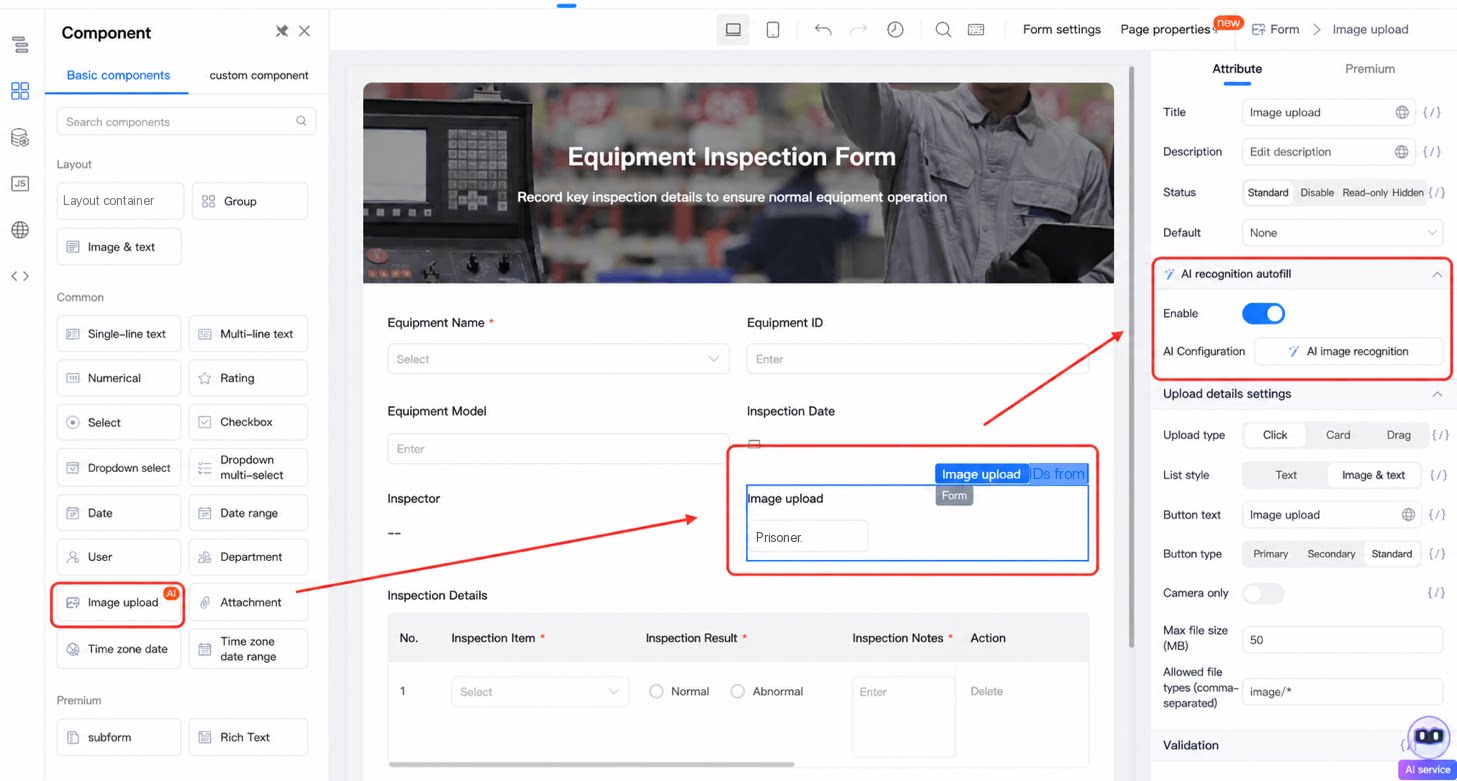
Write the Prompt
Keep the following in mind when writing a prompt:1
Step 1
Describe the business scenario and the information to extract from the image. 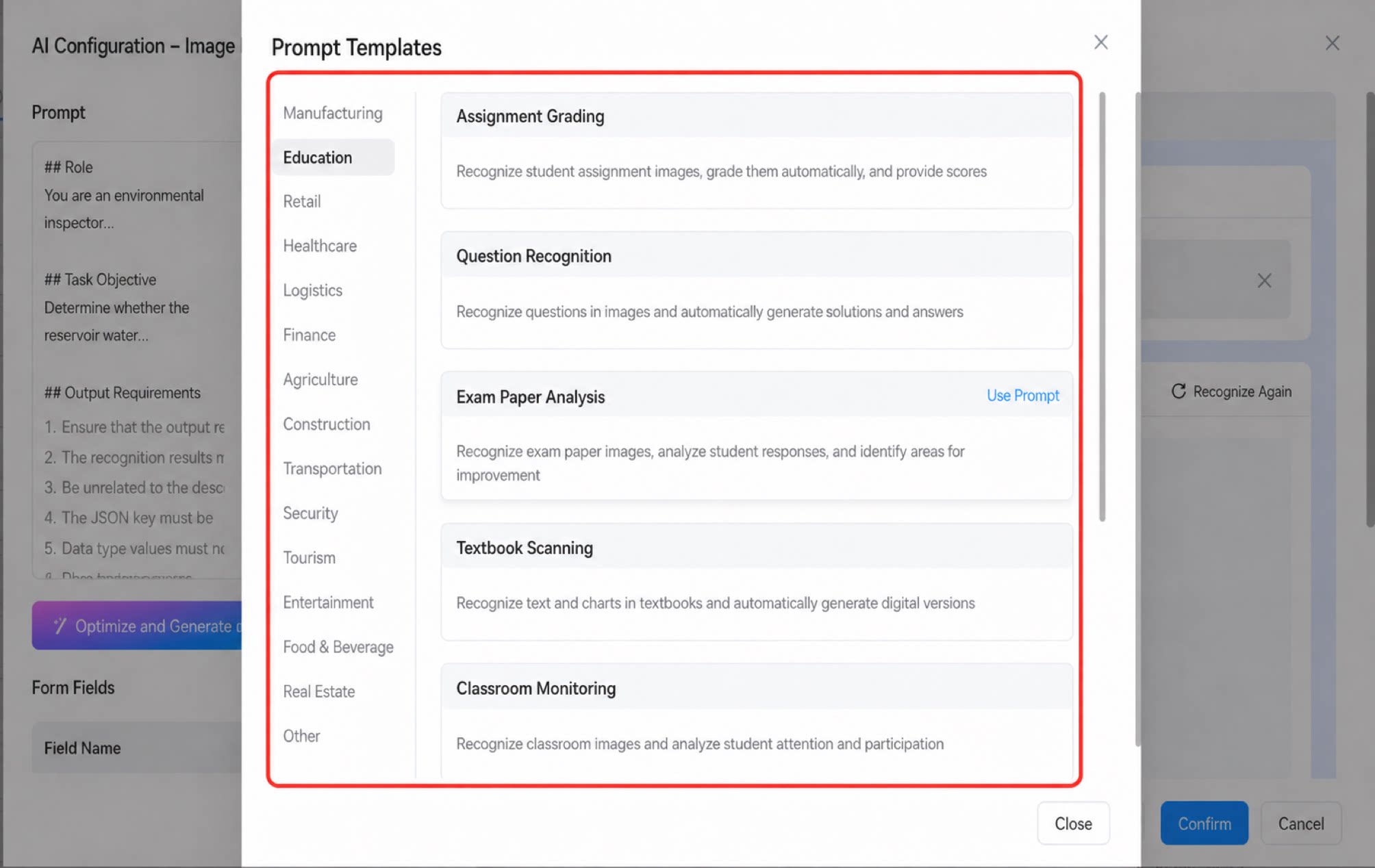
2
Step 2
The system provides more than 200 built-in prompt templates covering 15 industries. Click to quickly access scenario templates.
- We recommend that the prompt include the following:
Optimize the Prompt
- Auto-tuning: Click Optimize and generate form fields. AI refines the prompt to make it more professional and standardized.
- Multi-round continuous tuning:
- To add, modify, or delete fields, append the following instructions at the end of the prompt:
Configure the Form Field List
| Illustration | Configuration item | Description |
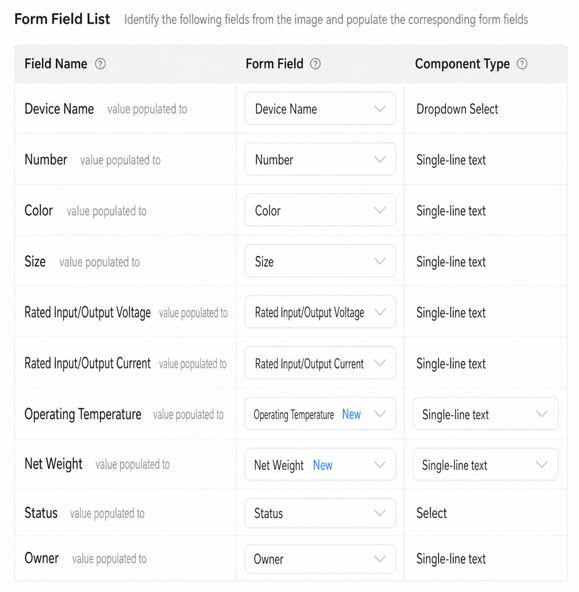 | Field name | The field name recognized from the image by AI. Optimizing the prompt automatically generates a form field list. Based on the prompt, AI identifies the fields to extract from the image, infers the data type of each field, and recommends a default component type accordingly. |
| Form field | Select the form field to fill with the recognition result. Each field automatically matches an existing form field with the same data type and name. If a match exists, the field is bound directly; otherwise, a new form field is created. | |
| Component type | The component type corresponding to the form field. This can only be selected when adding a new field. For newly added fields, select an appropriate component type as needed. If the new field uses a component type such as subform, Select, or Multiselect, the corresponding subform columns, options, and multiple-choice settings are automatically generated. After saving, the new field is added to the form page automatically. 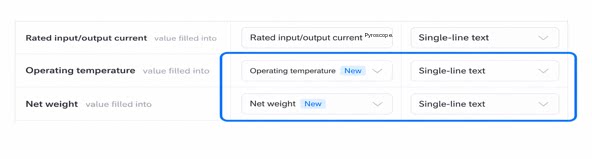 |
Test the Recognition Results
- Click to upload an image. The system automatically runs recognition and displays the results.
- Click Re-recognize to run recognition on the image again.
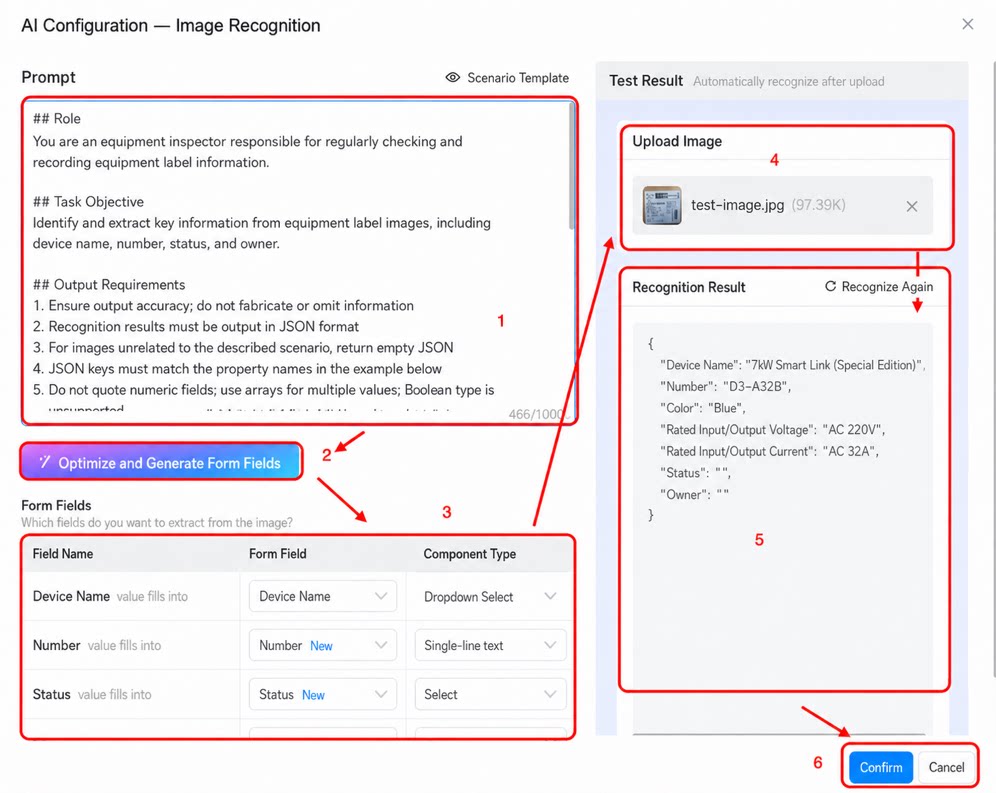
- Click Confirm to save the configuration. Click Preview to preview the AI Image Upload component.
Supported Component Types
The following table shows whether each component supports batch data export:| Component type | Component name | Export supported | Data type description |
| Common components | Single-line text |
| Text format |
| Multi-line text |
| Text format | |
| Numerical |
| Number | |
| Rating |
| Number | |
| Select |
| Text format | |
| Checkbox |
| Text format; multiple options are separated by commas | |
| Date range |
| Date format | |
| Date |
| Date format | |
| User |
| Text format | |
| Department |
| Text format | |
| Attachment | ❌ Not supported | / | |
| Word template | ❌ Not supported | / | |
| Signature | ❌ Not supported | / | |
| Smart invoice | ❌ Not supported | / | |
| ID number | ❌ Not supported | / | |
| Phone number | ❌ Not supported | / | |
| Subform |
| Text format | |
| Premium components | Dropdown Select |
| Text format |
| Dropdown Checkbox |
| Text format; multiple options are separated by commas | |
| Cascade Select |
| Text format | |
| Country/Region |
| Text format | |
| Address |
| Text format | |
| Location | ❌ Not supported | / | |
| Associated form |
| Text format | |
| Serial number | ❌ Not supported | / | |
| Organization | ❌ Not supported | / | |
| UnionPay | ❌ Not supported | / | |
| Budget control | ❌ Not supported | / | |
| Group | ❌ Not supported | / | |
| Associated query | ❌ Not supported | / | |
| Rich Text | ❌ Not supported | / | |
| Image and text display | ❌ Not supported | / |
Notes
- The maximum image size is 20 MB.
- Supported image formats: PNG and JPG.
- The more detailed and accurate the prompt, the better the recognition results.
- When you add a new field, the component type is recommended automatically based on the data format.
- Recognition results appear in real time in the right panel.