

 Chats
Chats Calendar
 Meetings
 Contacts
 Mail
Mail Docs
Docs Drive
Drive AI Table
 AI Minutes
 Attendance
 Approval
 YiDA
YiDA Admin Console
| Feature | Free plan | Basic edition | Professional edition | Dedicated edition |
| Smart Invoice | 5 times/organization | 100 times/organization | 100 times/organization | 100 times/organization |
| Note: This entitlement must be claimed manually. Click here to claim it. | ||||
- Recognizes multiple invoice types: Automatically extracts reimbursement information without manual entry. For supported invoice types, see the Invoice types section below.
- Automatic authenticity verification: Syncs the input invoice pool and uploads invoices with a single click. Integrated with the tax bureau interface, it automatically verifies invoice authenticity, aggregates invoices into the pool, and completes selection for authentication.
- The Smart Invoice component does not currently support uploading invoices from a browser.
- You can select up to 10 invoices per upload. Multiple batches are supported, and there is no total limit on the number of invoices. (Recognizing and verifying the same invoice multiple times counts as multiple uses.)
- Billing and add-on purchases: When the free entitlement is used up, contact your service provider to purchase more.
- Only one Smart Invoice component can be added per form page.
Component Attributes
Steps
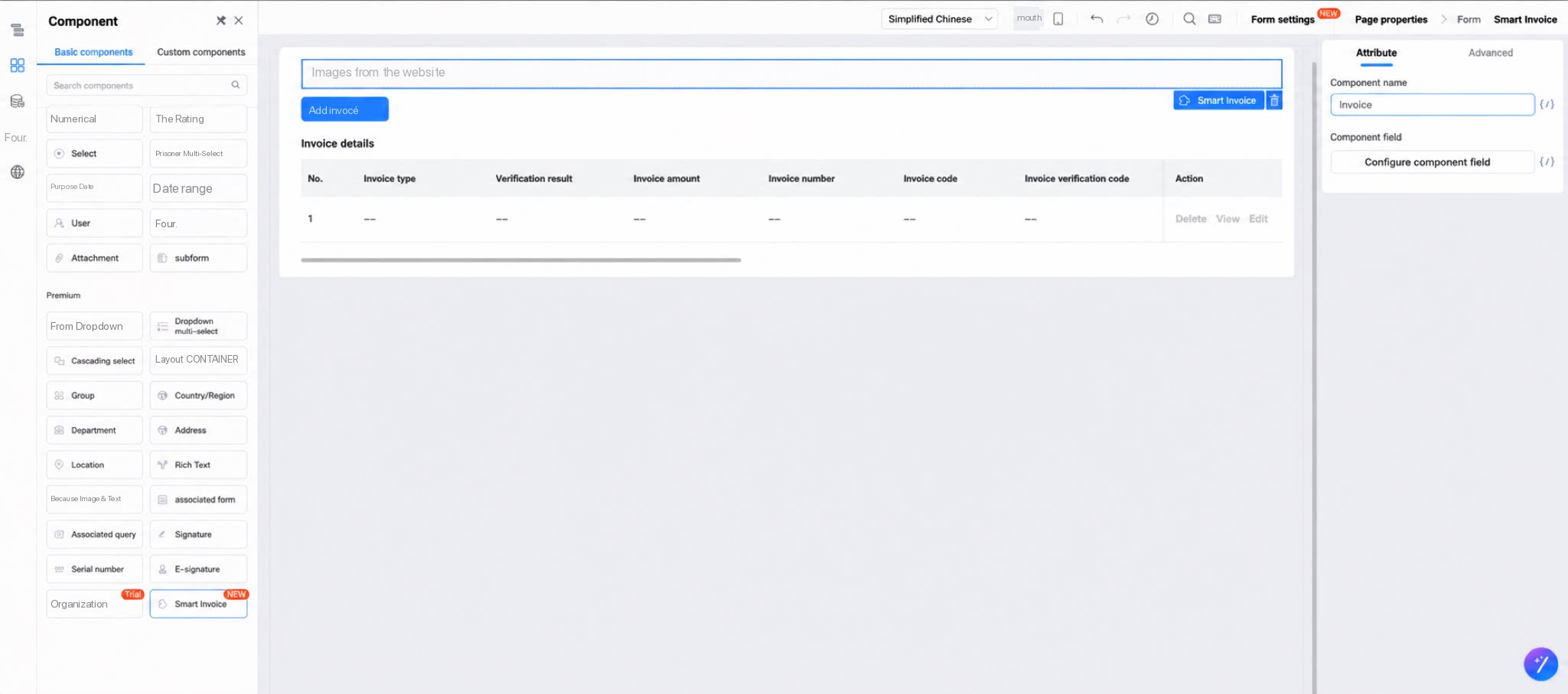
Follow these steps to use the Smart Invoice component.- Sign in to the YiDA workbench and open the Form editor page of your app.
- In the left navigation pane, click Components, select the Premium category, and drag the Smart Invoice component to the canvas.
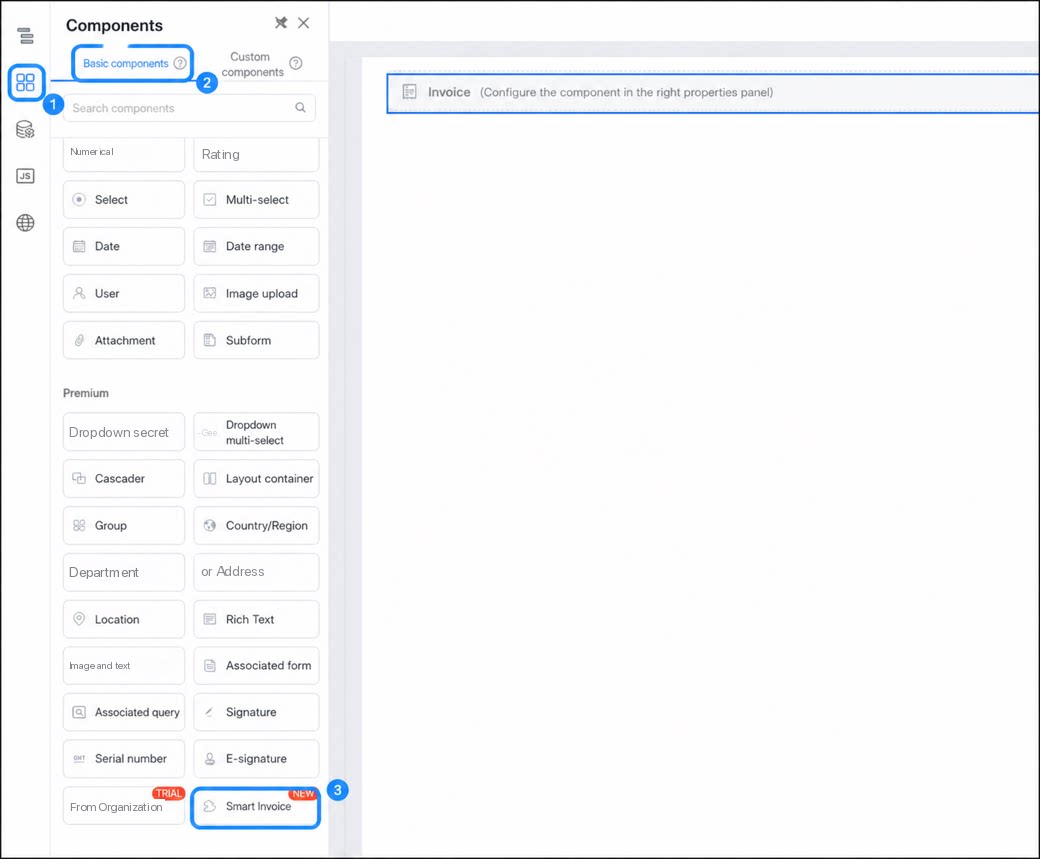
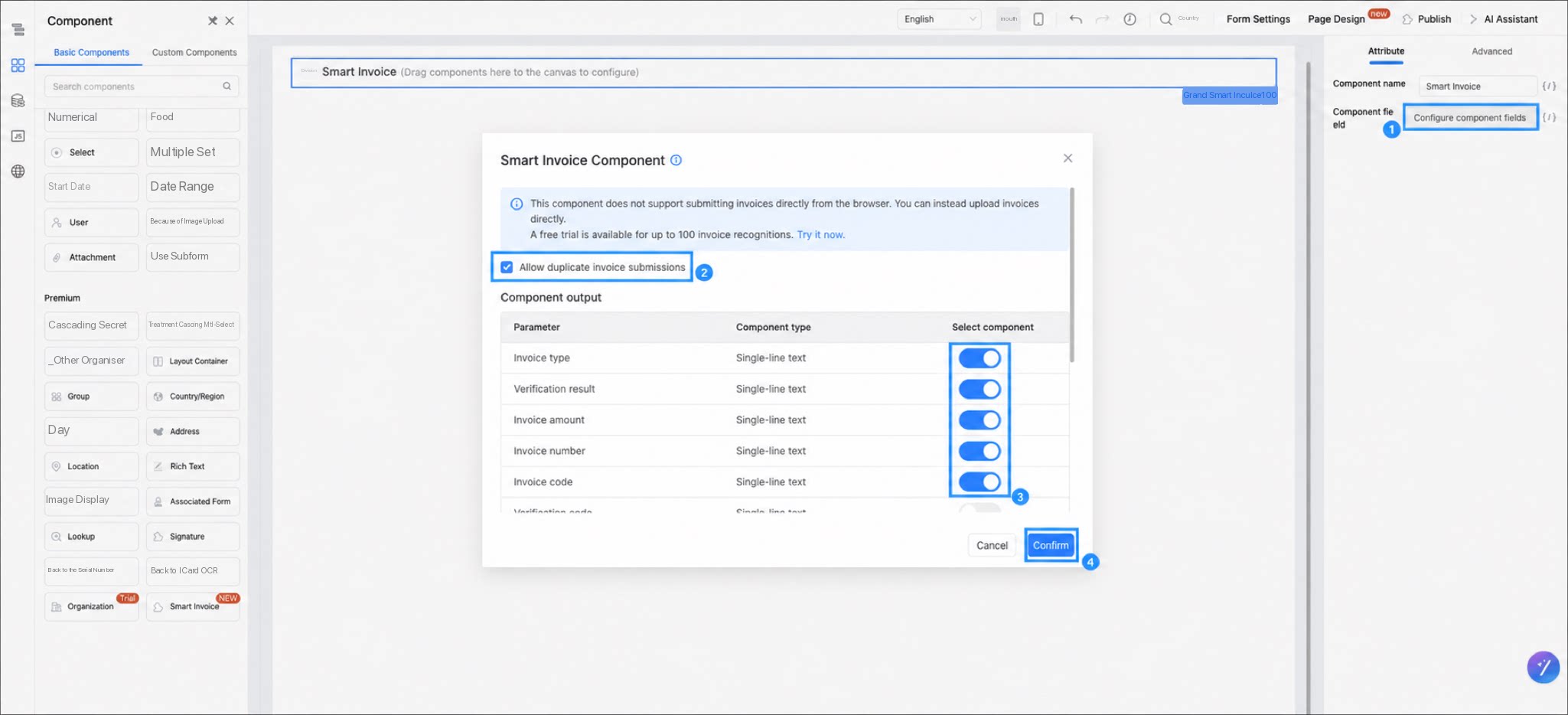
- In the right-hand attribute panel, set the Component name.
- Select Component fields, then click Configure component fields.
- In the dialog box, configure the settings and click Confirm.
- After configuration, upload an invoice on the Access page to preview the result.
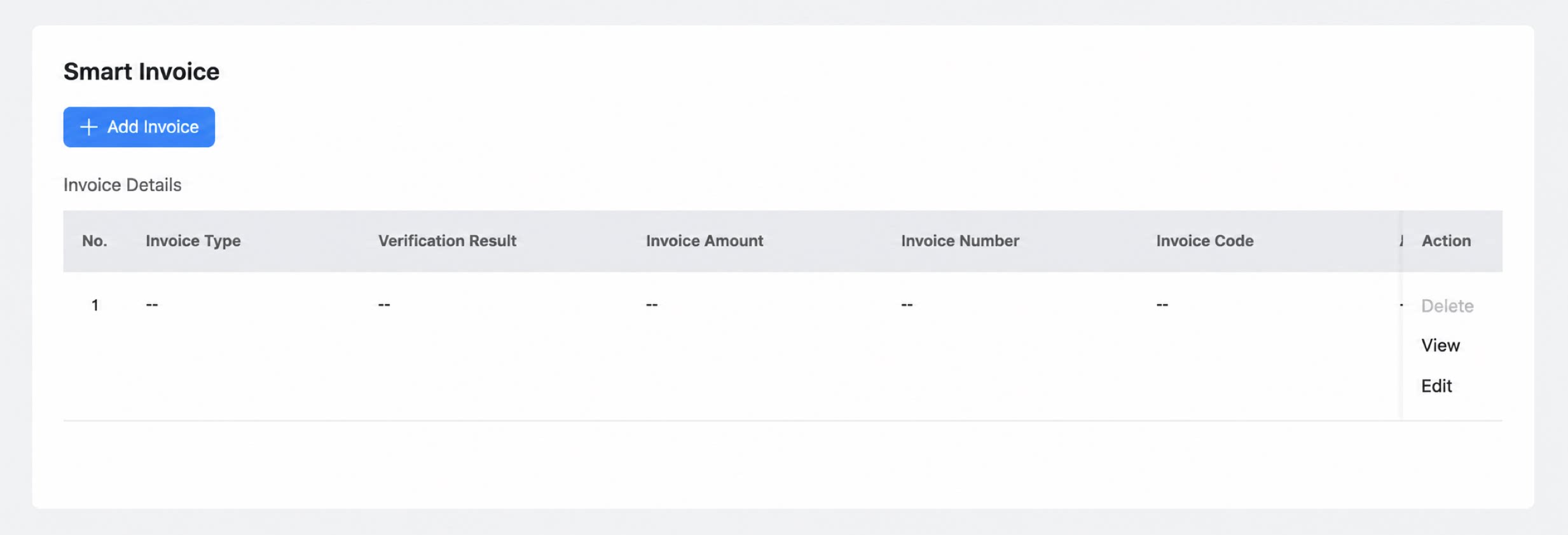
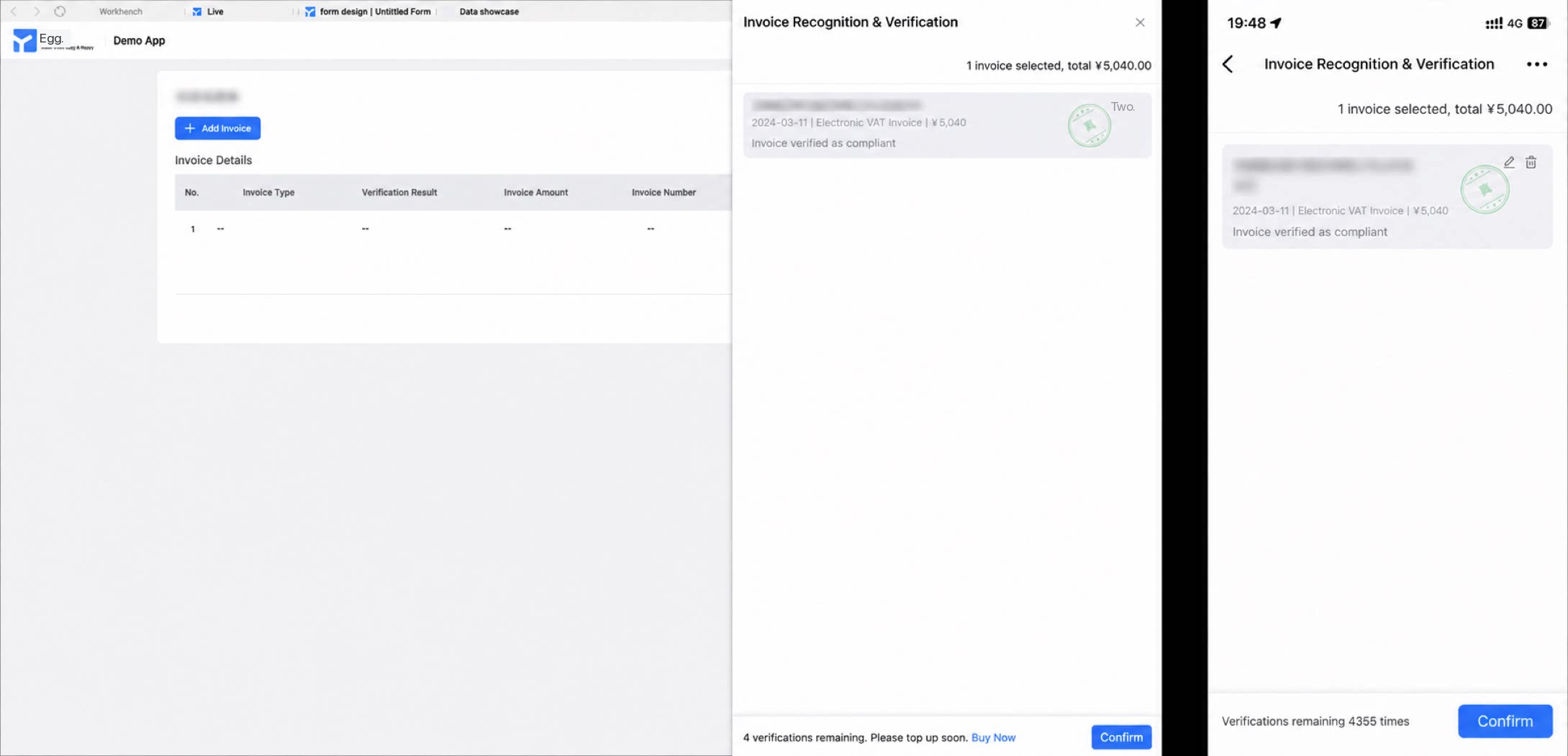
- Click Add invoice, choose an upload method, and complete the verification.
- Ensure invoice images are clear, with no shadows or obstructions.
- Mixed invoice images are supported, but recognition accuracy decreases when too many invoices are placed together.
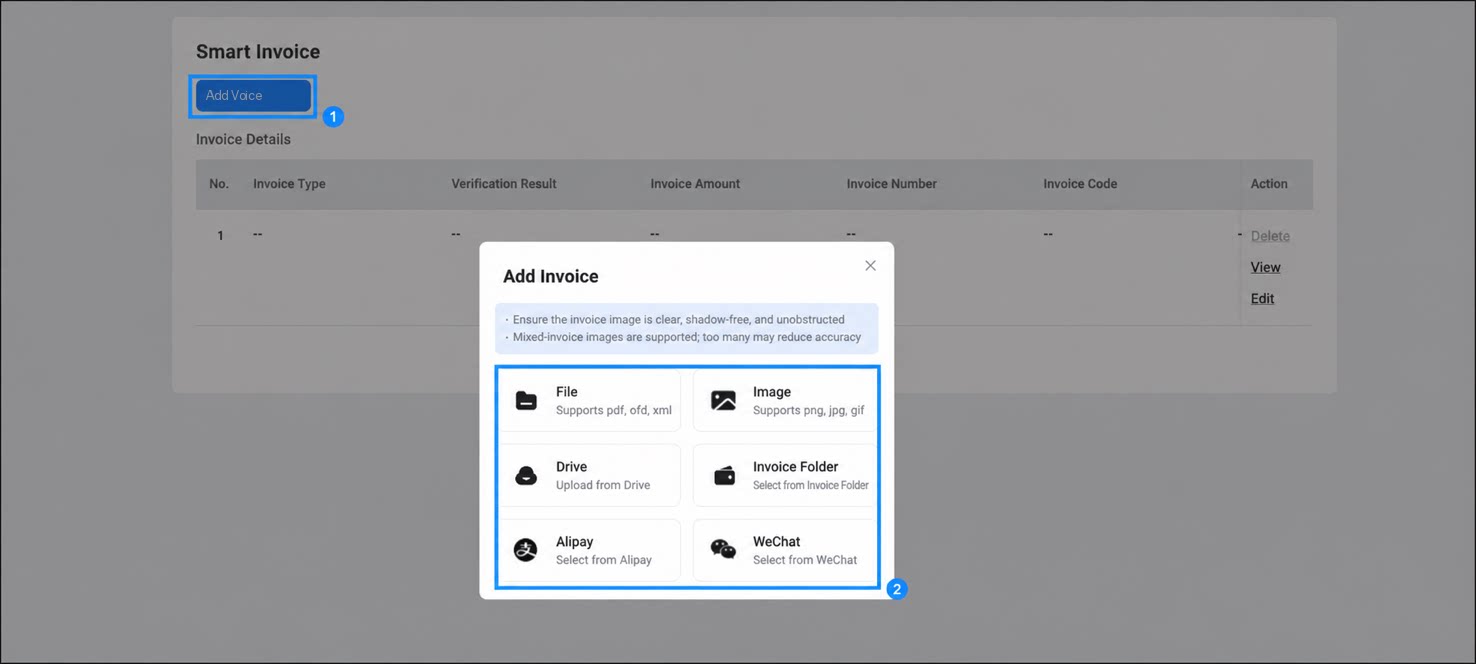
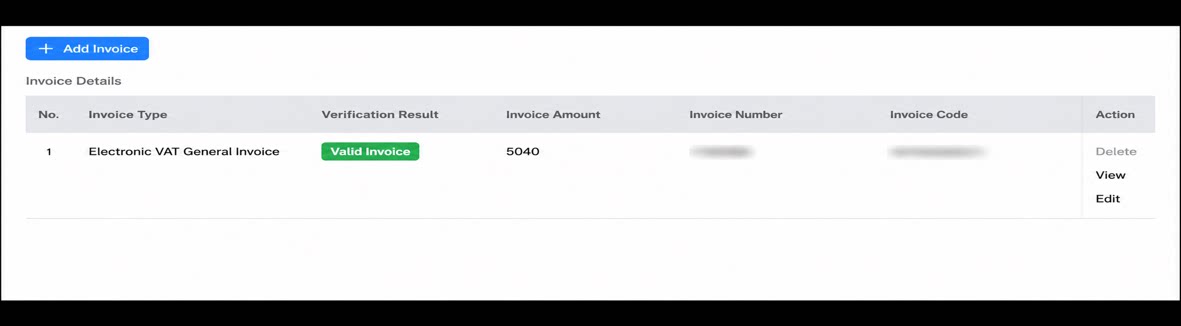
- This example uses a local invoice file. The verification result is shown below.
Supported Invoice Types
The Smart Invoice component currently supports the following invoices.FAQ
- Q: The component has been added to the canvas. Why does it not work as expected?
- Q: Why can’t I upload invoices directly when opening the form in a browser?
- Q: Can I upload images that contain multiple invoices?
- Q: When I verify an invoice with the Smart Invoice component, I get an error saying the verification quota is insufficient and the invoice was not verified. What causes this?
- Q: When I verify an invoice with the Smart Invoice component, I get an error saying smart recognition failed and I need to edit the information manually. What causes this?
- Q: If a single PDF contains multiple invoices, does it count as one recognition or multiple? A: Multiple. Recognition is counted per invoice, so each invoice counts as one use.
- Q: If a form is not submitted after recognition, does it still count against the quota? A: Yes. Any recognition is counted toward the quota.