

 Chats
Chats Calendar
 Meetings
 Contacts
 Mail
Mail Docs
Docs Drive
Drive AI Table
 AI Minutes
 Attendance
 Approval
 YiDA
YiDA Admin Console
1. Use Cases
Image Upload lets you attach image-based supporting materials required by the current form submission, such as ID cards or reimbursement invoices.2. Basic Features
Configure the format and display of the Image Upload component.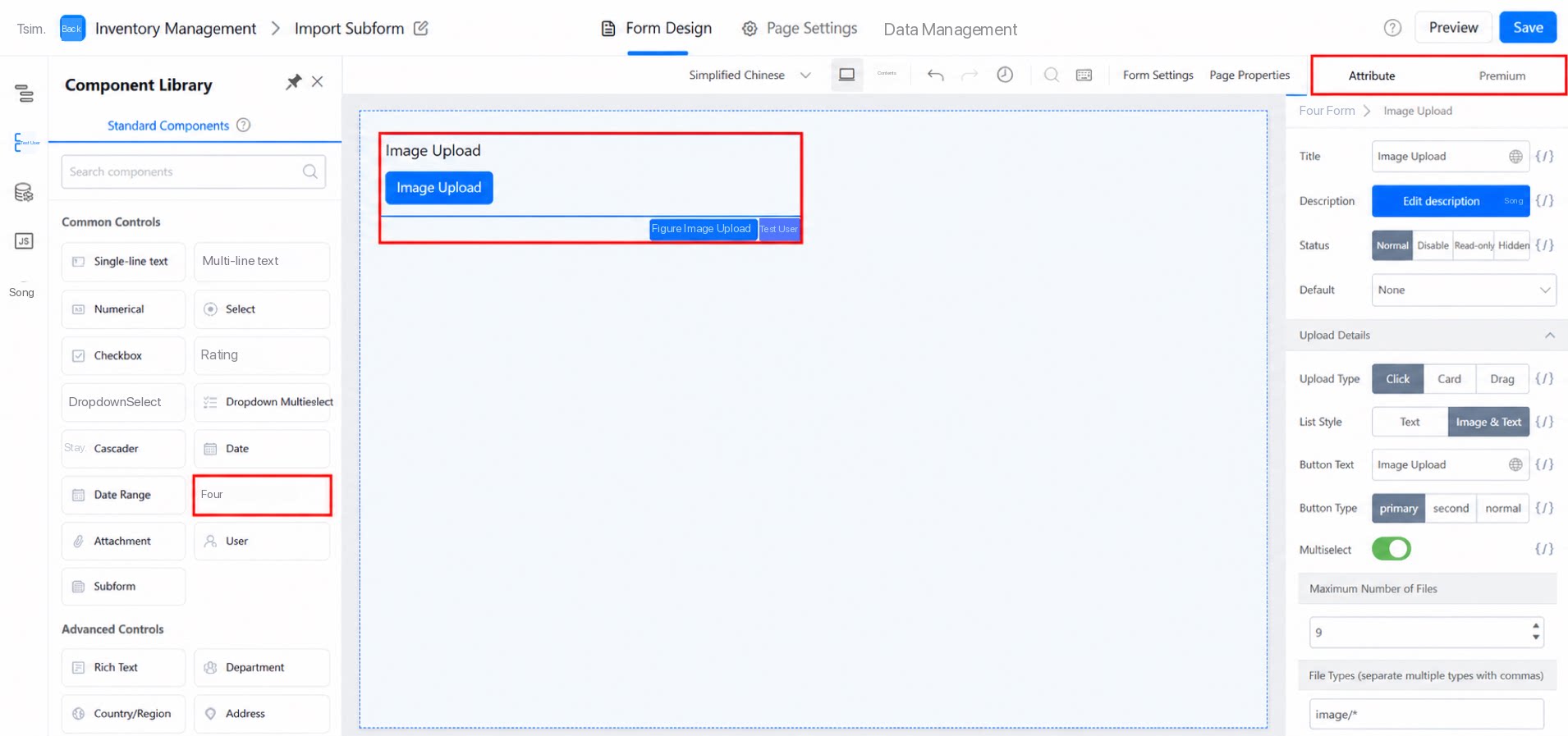
2.1 Upload Type
Path: Click the component >> Attribute panel on the right >> Upload details. Options: Click, Card, and Drag.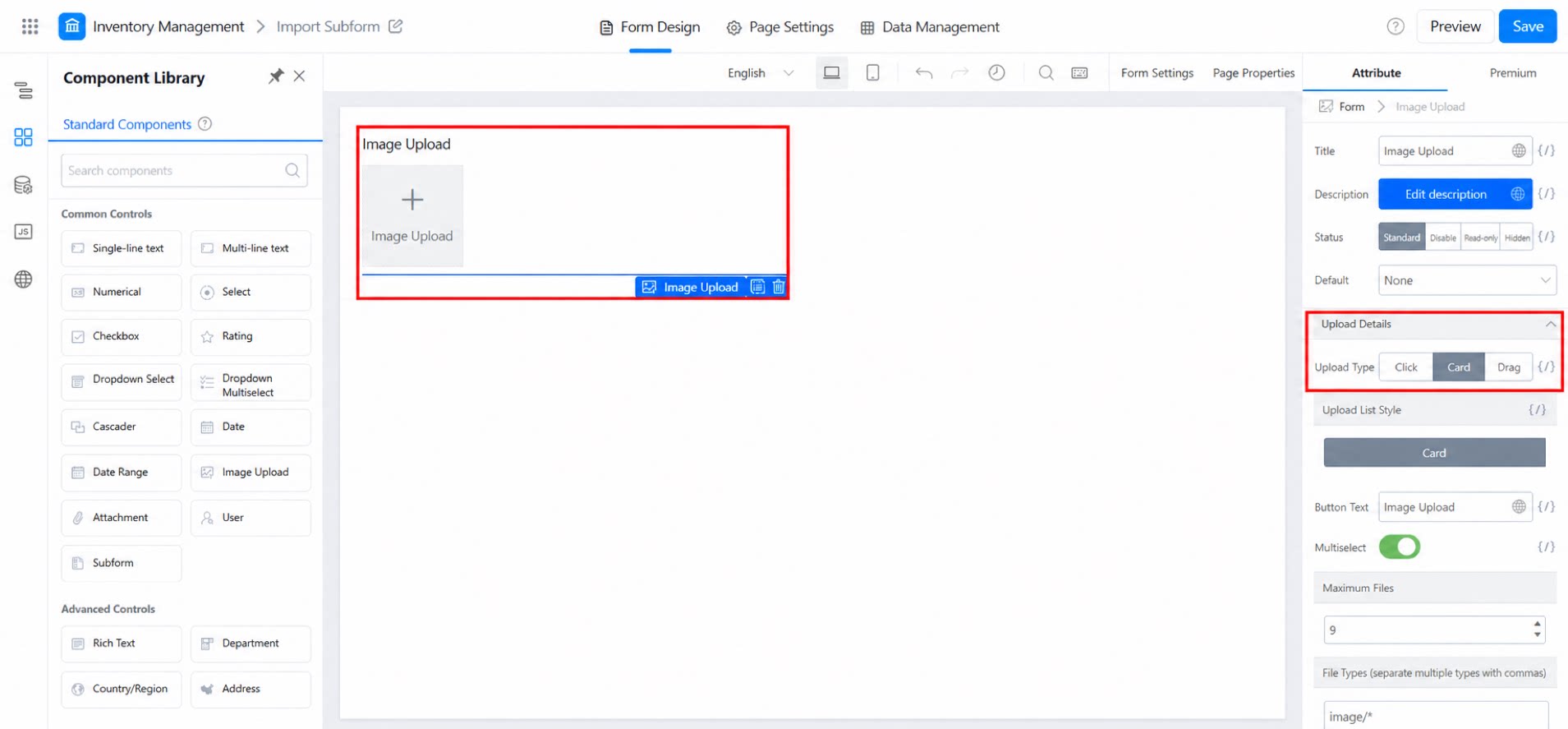
2.1.1 Click
Displayed in the system default format, as shown below.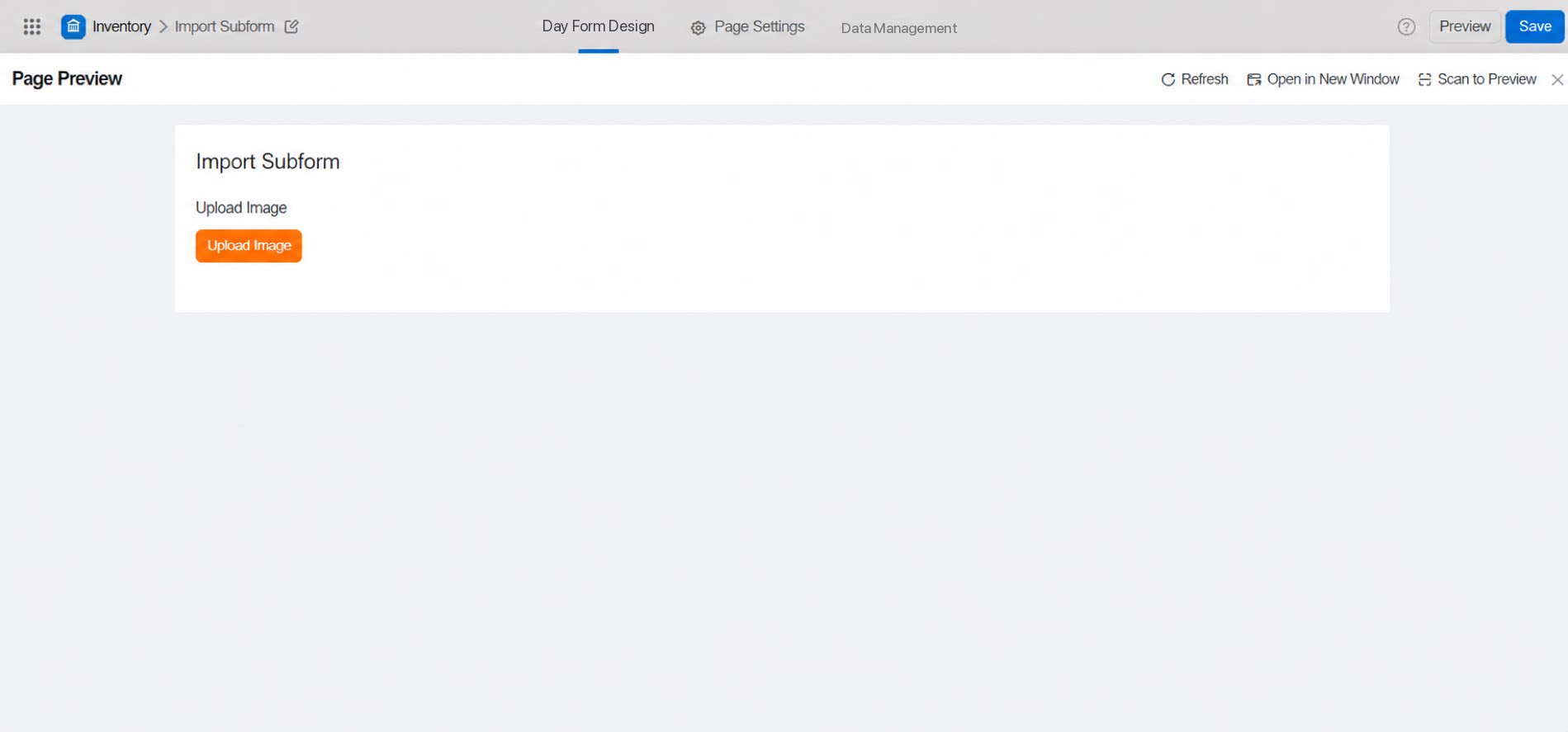
2.1.2 Card
Displayed as a square frame, as shown below.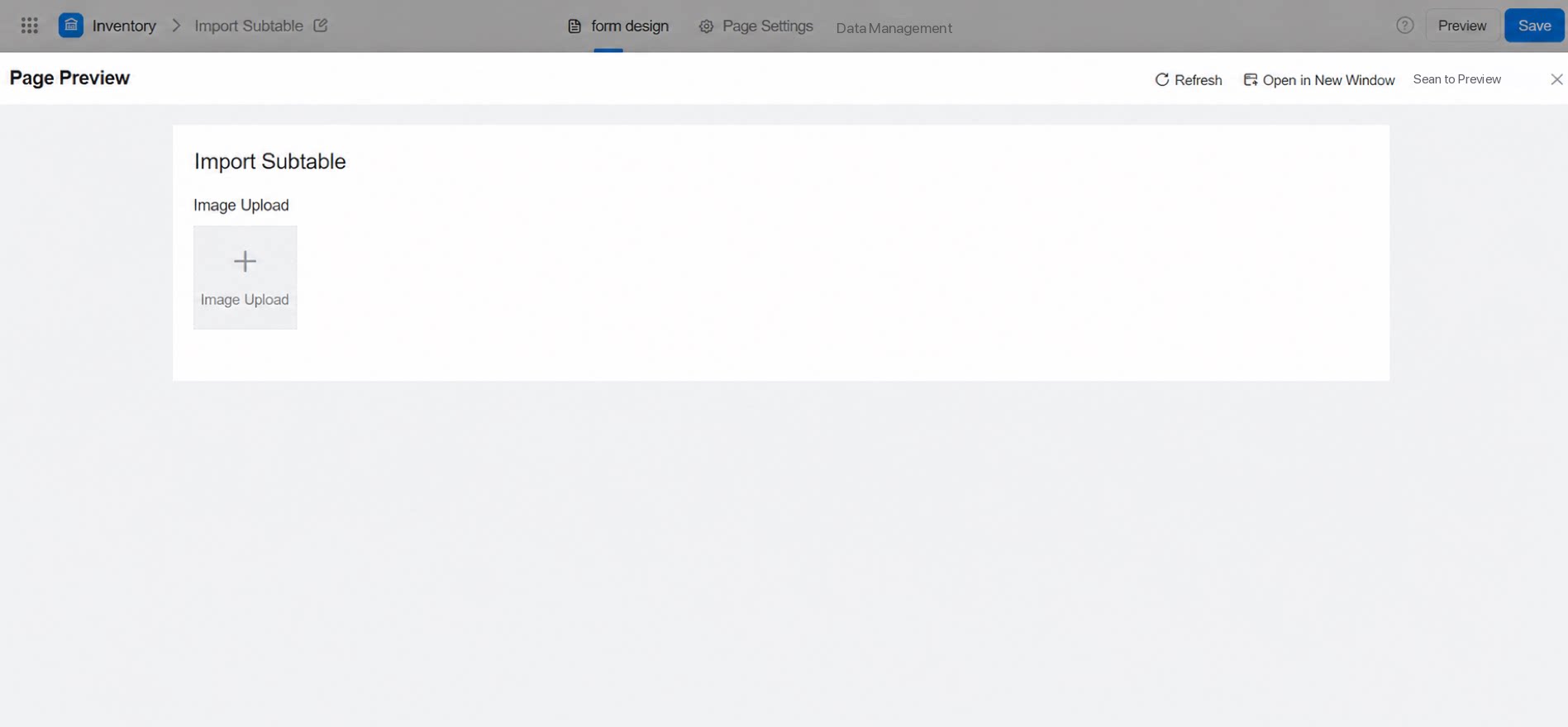
2.1.3 Drag
Drag an image directly from your desktop into the dashed frame, as shown below.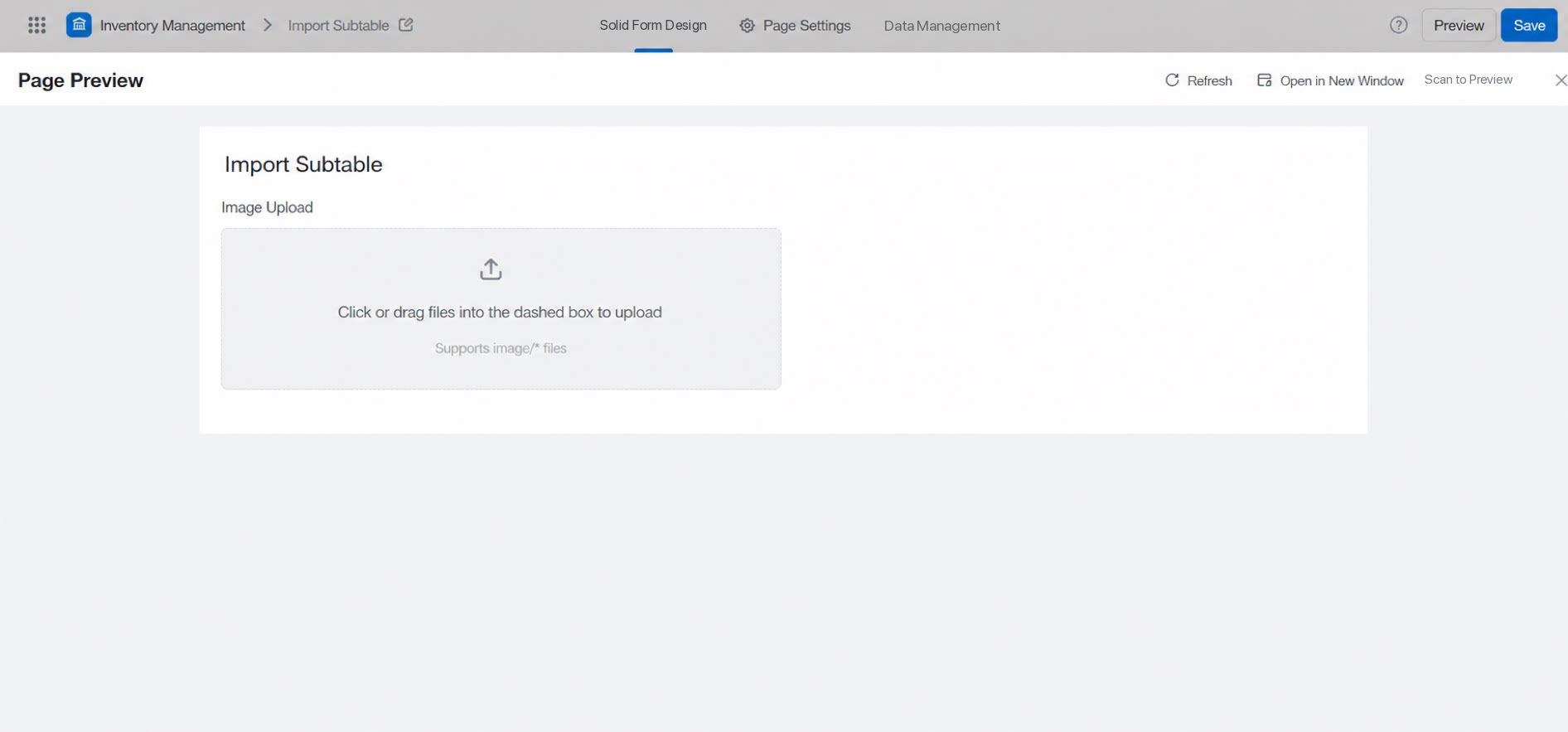
2.1.4 Upload Size Limit
No need to worry about oversized images. Upload them with a single click. The maximum image upload size has been increased from 20 MB to 50 MB.
2.2 Image Display
Choose how uploaded images are displayed. Options: Text, and Text and image.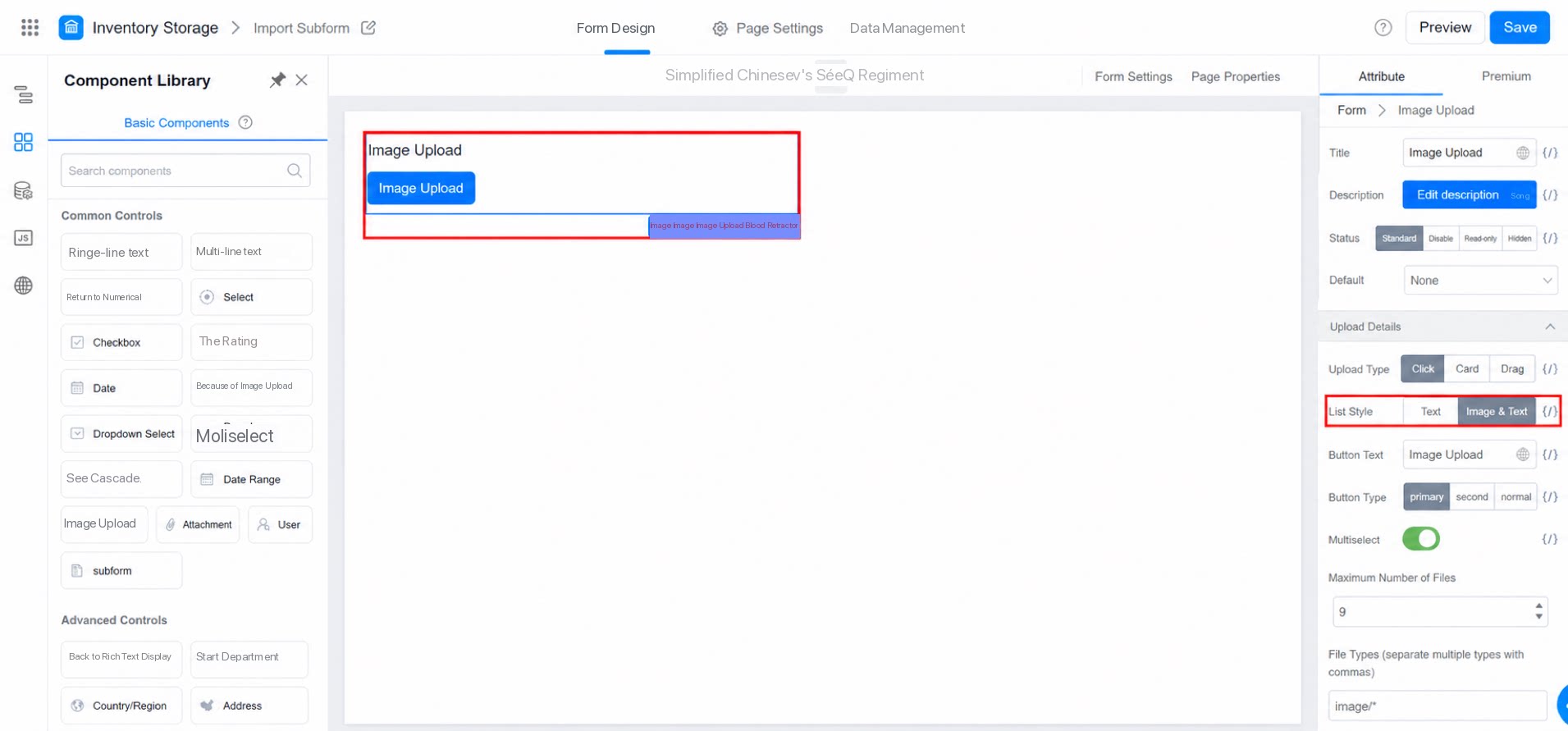
2.2.1 Text
Only the image name is shown. Click the eye icon on the right to view the image details, as shown below.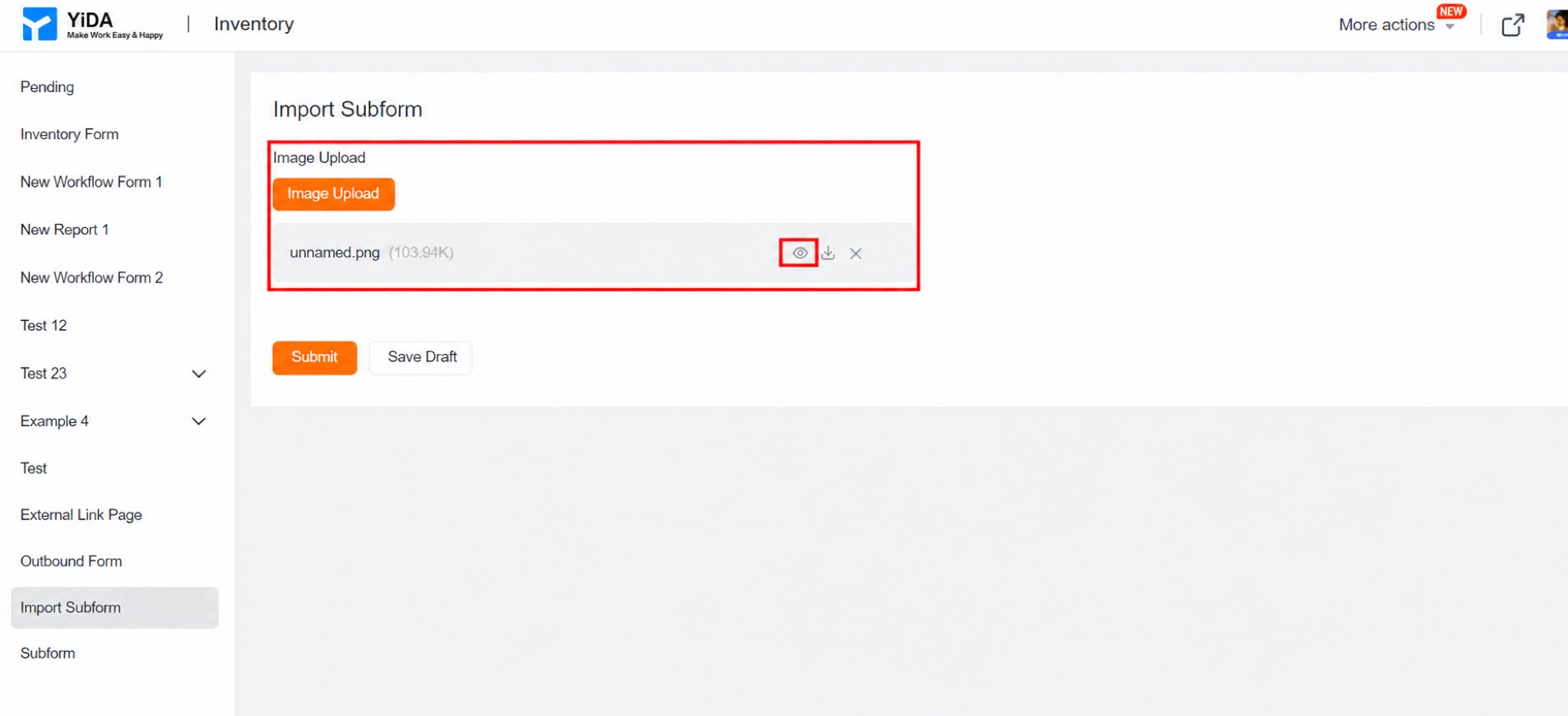
2.2.2 Text and Image
Displays both the image name and a thumbnail, as shown below.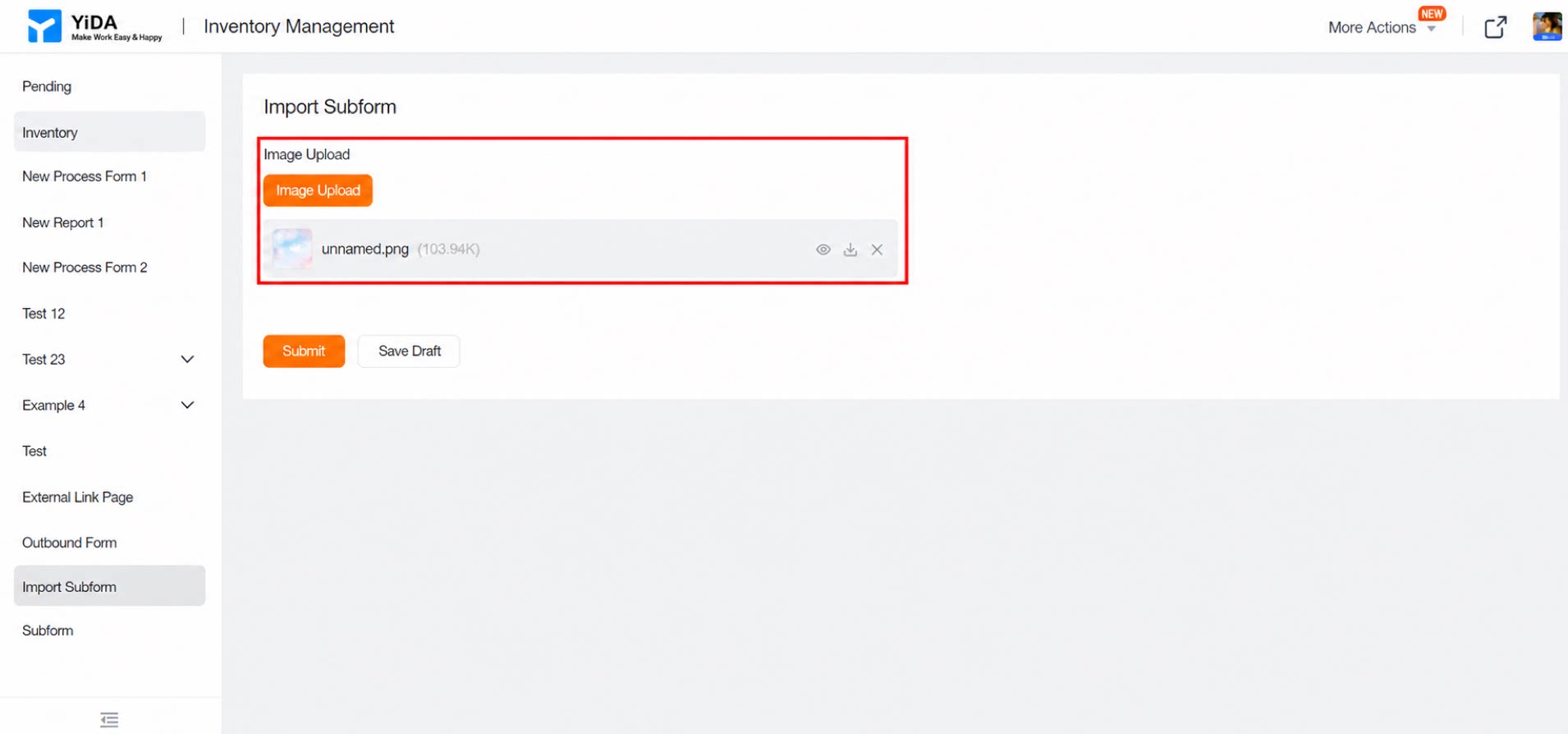
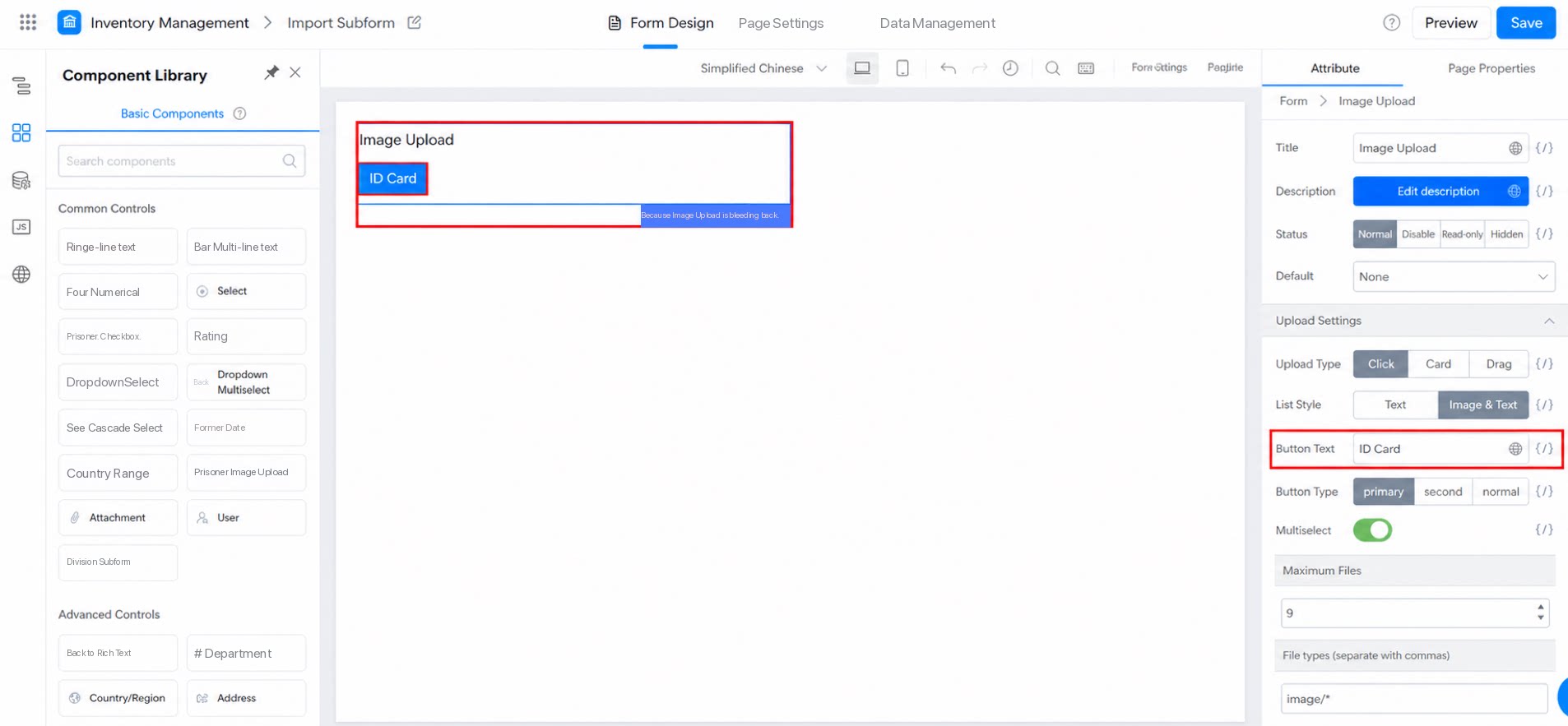
2.3 Rename the Button
For example, if a user needs to upload their ID card when submitting a form, rename the button to “ID Card”, as shown below.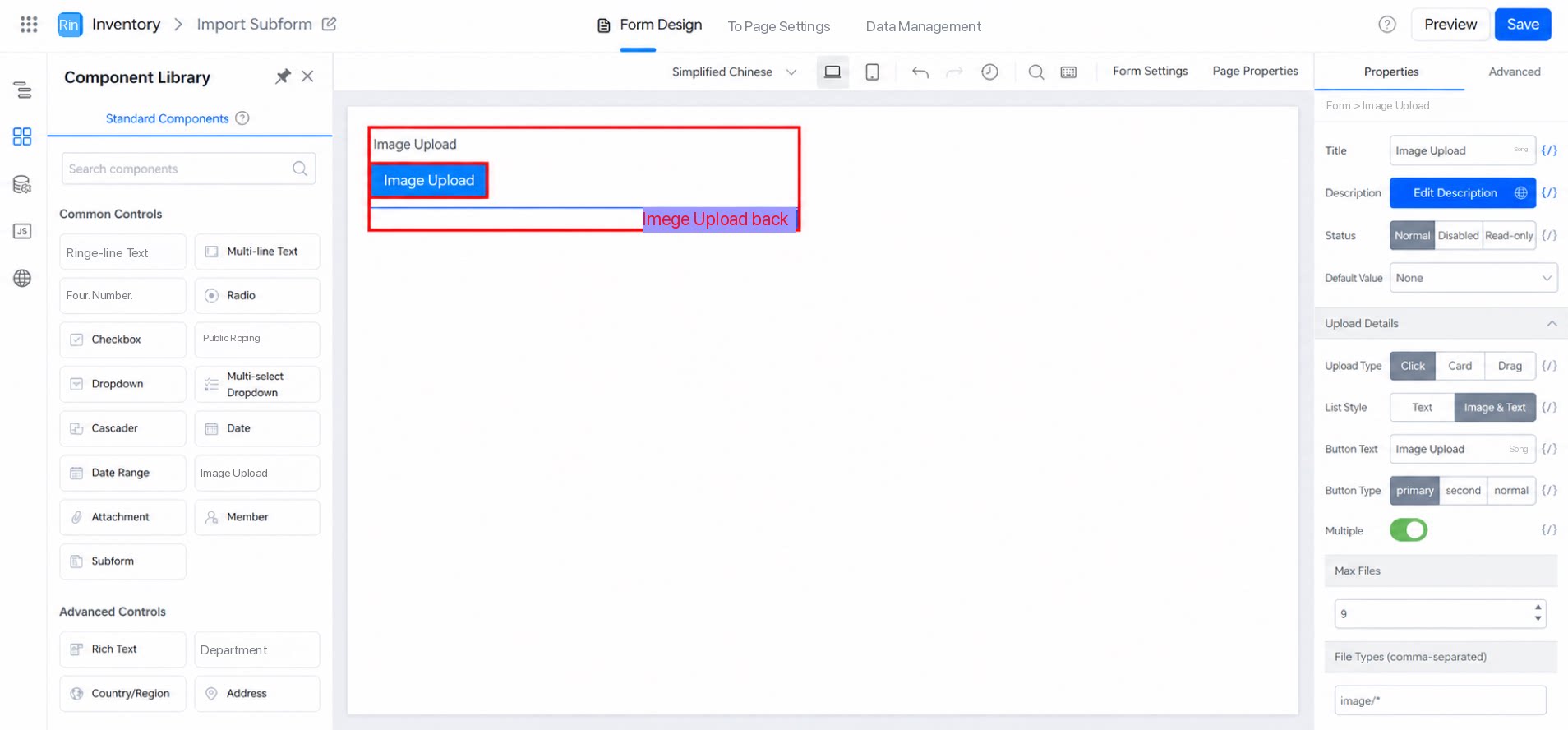
2.4 Appearance Color
Customize the button color. The system default is “primary”.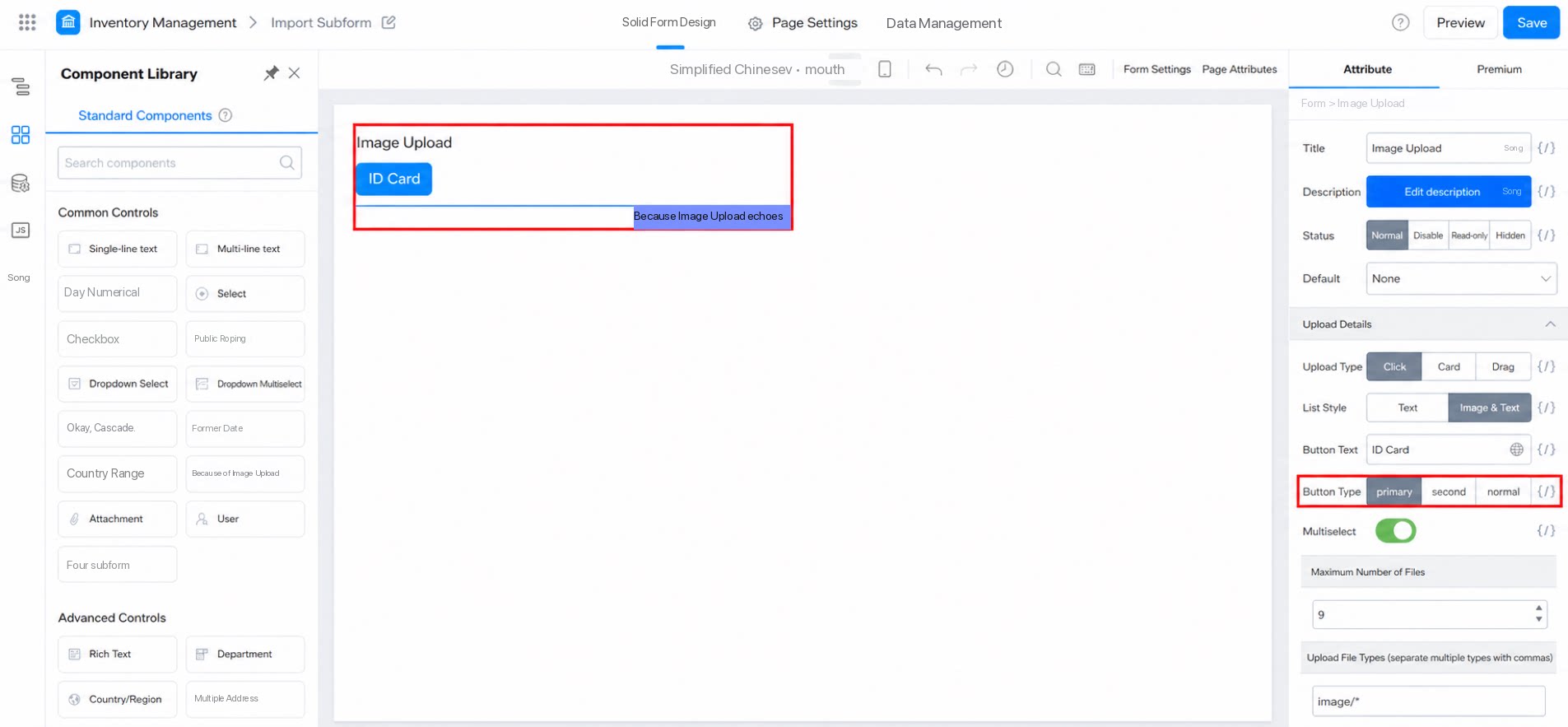
2.4.1 Primary
The Image Upload button appears with a blue background and white text.2.4.2 Second
The Image Upload button appears with a blue border and a white background.2.4.3 Normal
The Image Upload button appears with a gray border and gray text.2.5 Multiselect
When Multiselect is off, you can upload only one image at a time. When it is on, you can upload multiple images at once.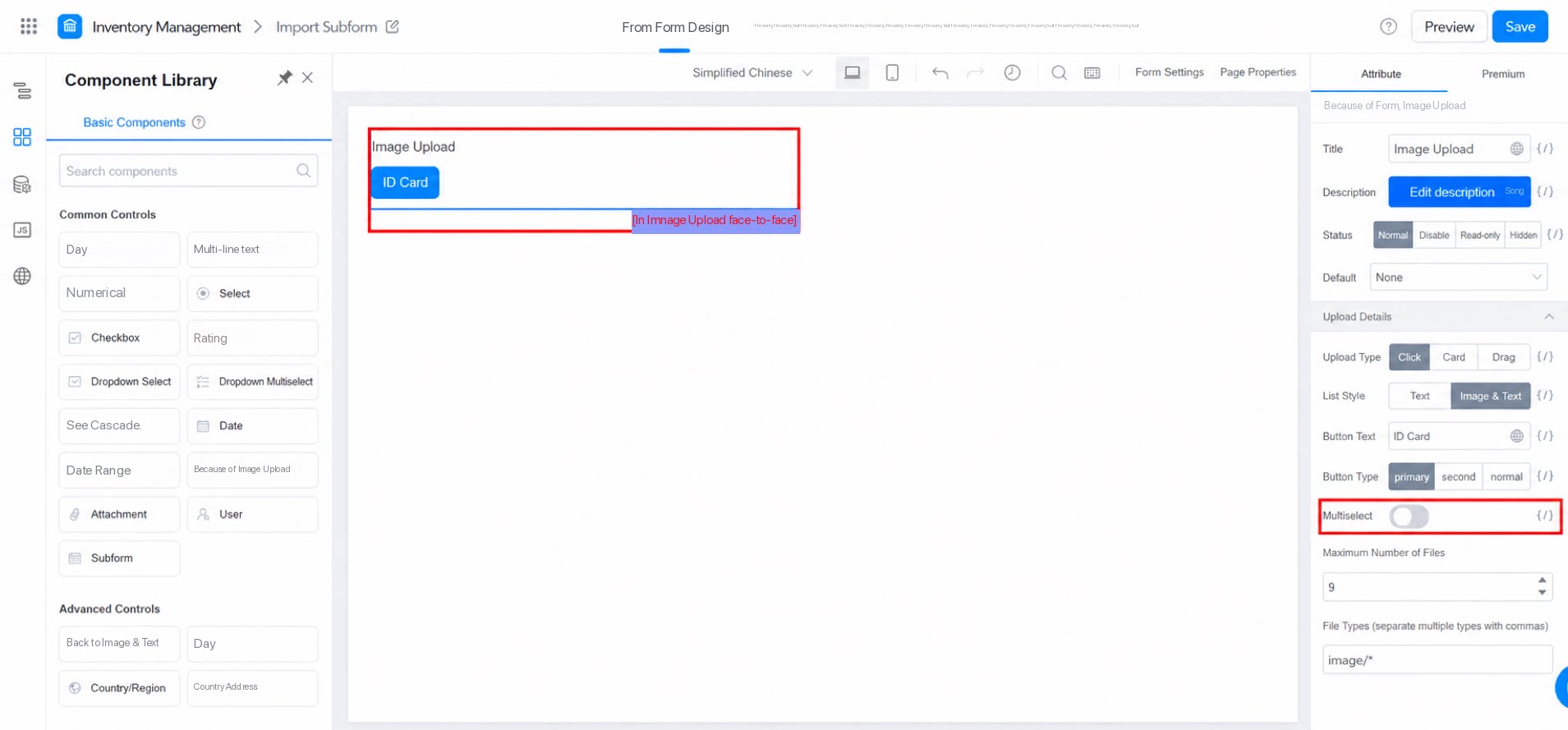
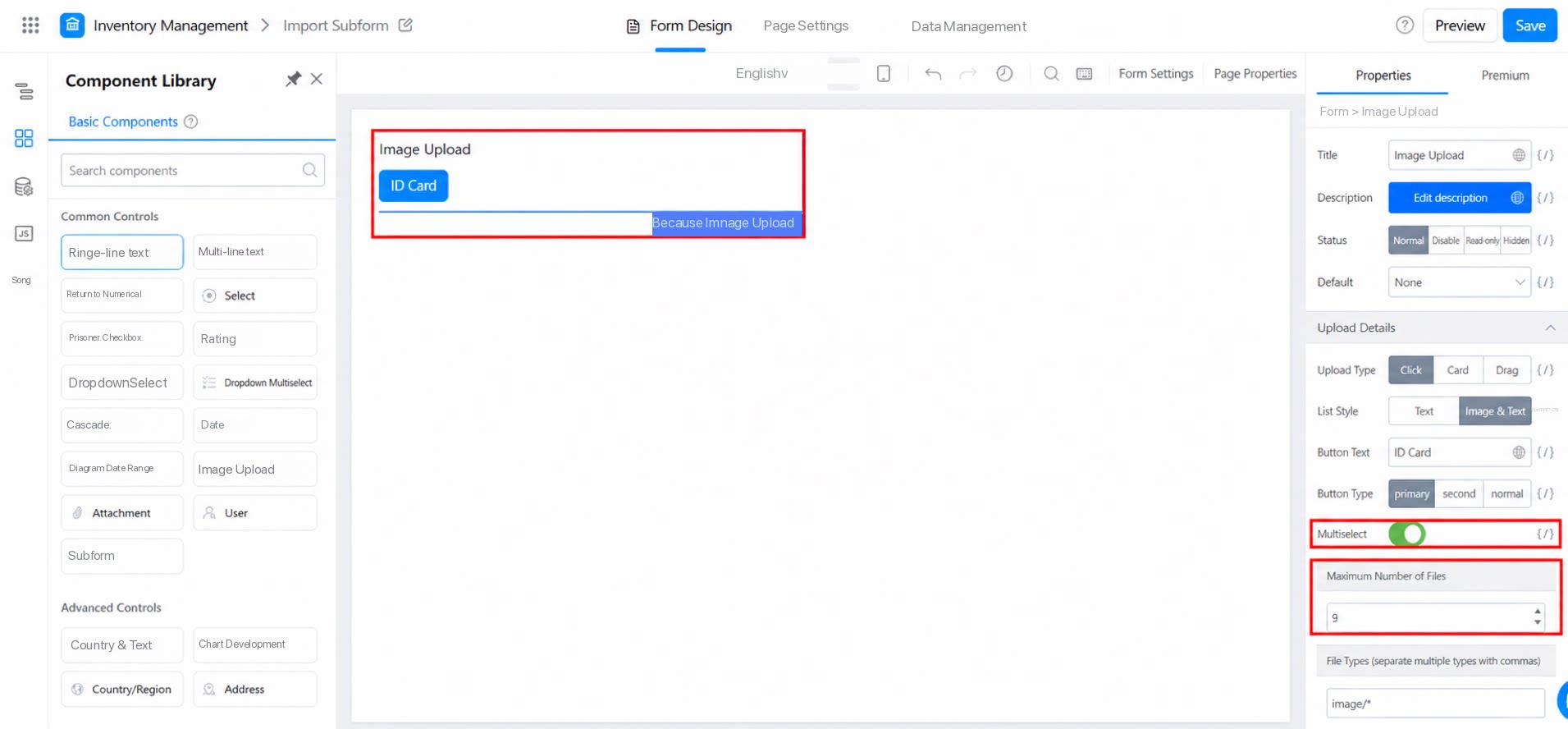
2.6 Upload Image Type
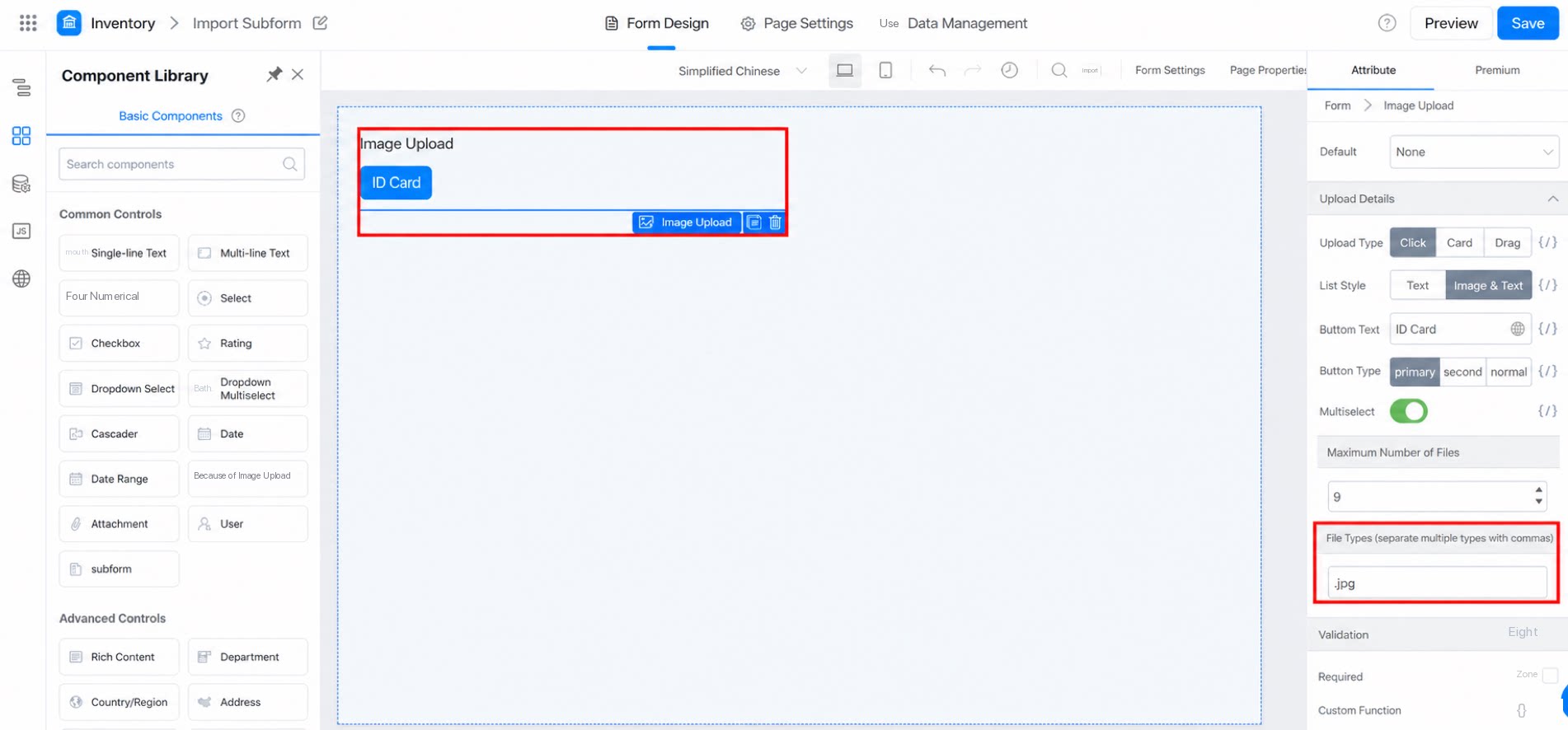
Customize the file types allowed for image upload. The system default is “image/*”, which allows all image formats. Note: When the upload type is set to Drag, the image format is not restricted.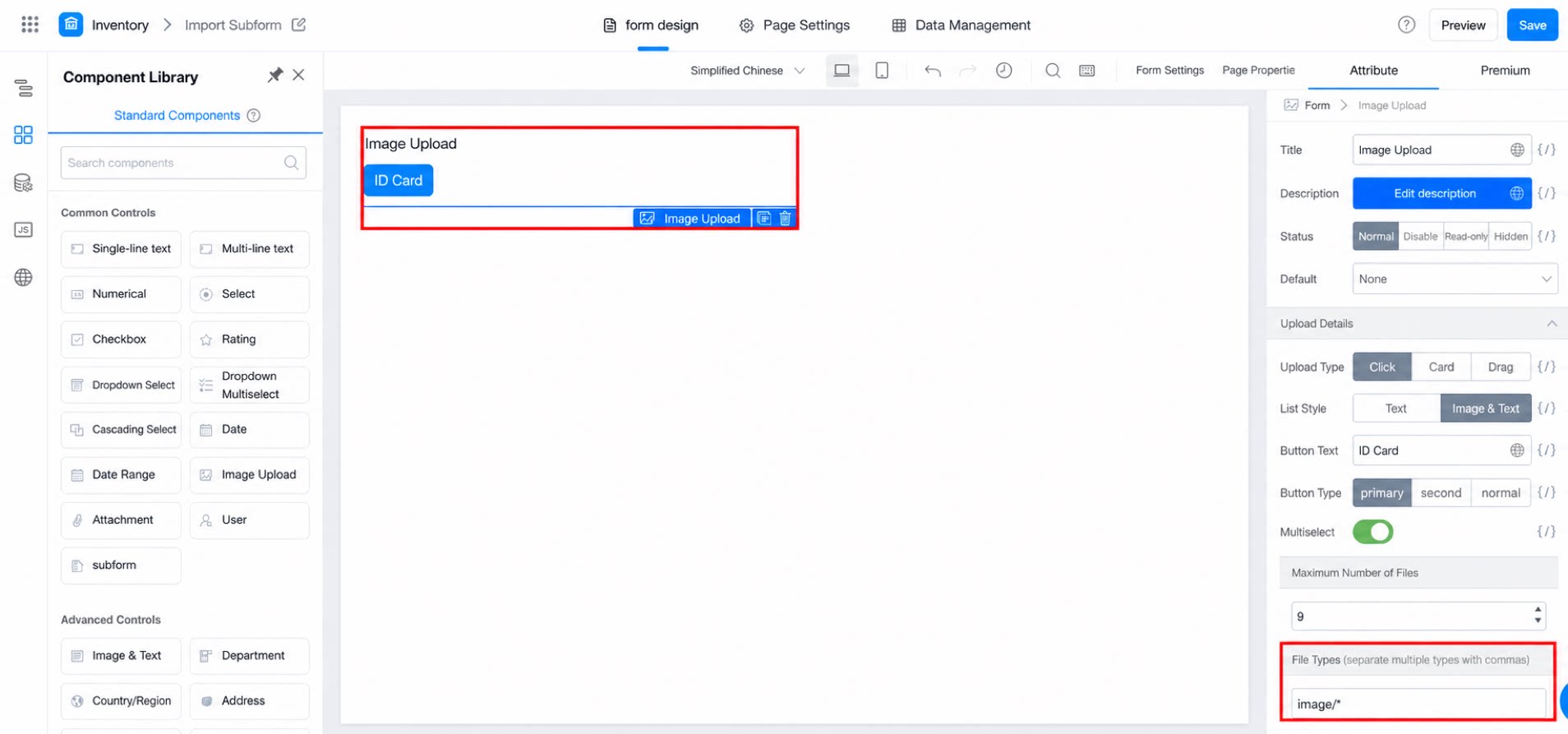
3. FAQ
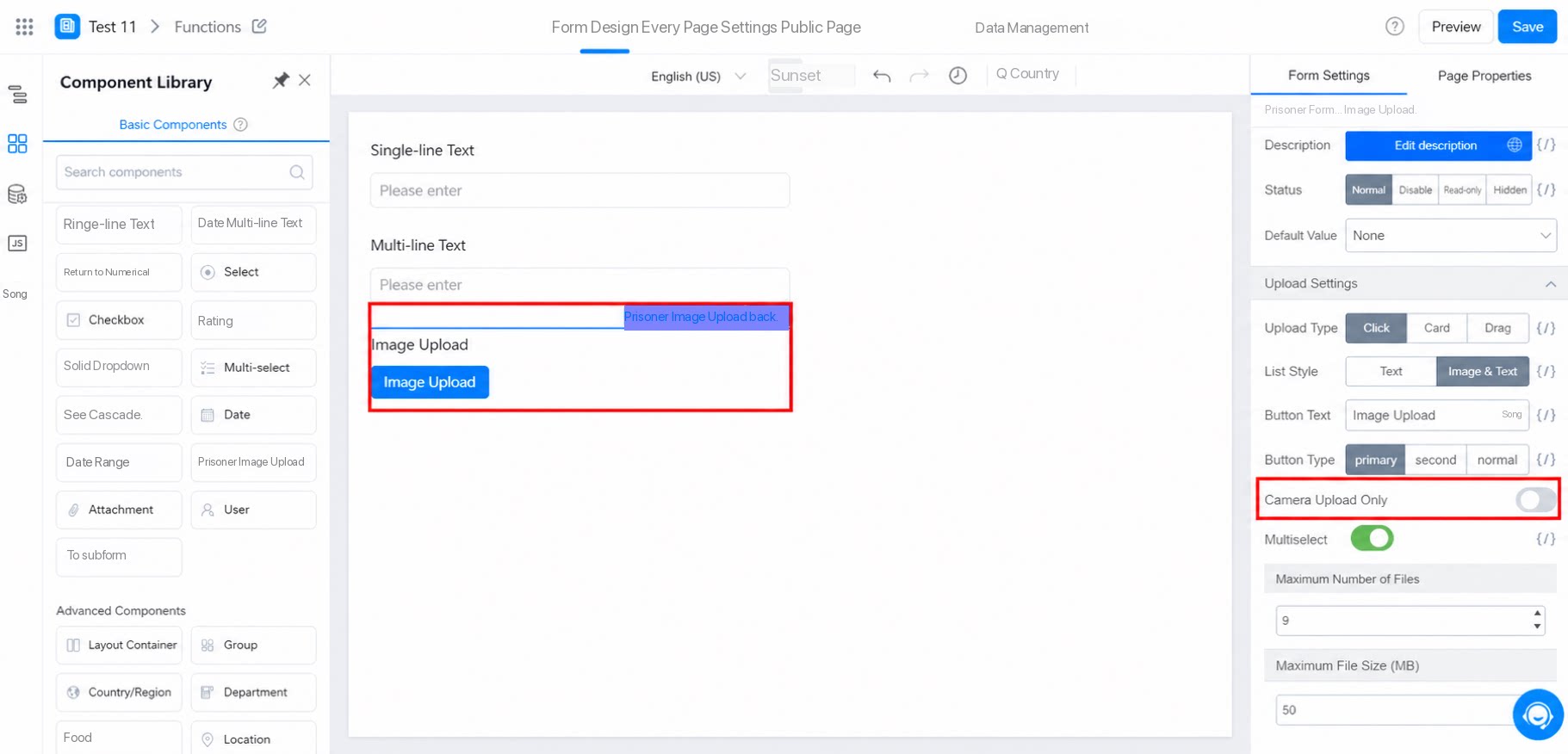
- Q: How can I restrict image upload to real-time photo capture only?
- Q: Why are thumbnails not shown for some images?