Chats
Chats Calendar
 Meetings
 Contacts
 Mail
Mail Docs
Docs Drive
Drive AI Table
 AI Minutes
 Attendance
 Approval
 YiDA
YiDA Admin Console
1. Applicable Scenarios
Option information follows a one-to-many relationship and features hierarchy and linkage. It is often used to create a main category and its sub-categories, such as Department selection and city selection (for example, province, city, and district) that involve hierarchical relationships.For Component attributes, usage, and examples, click here.
2. Basic Features
2.1 Show Search
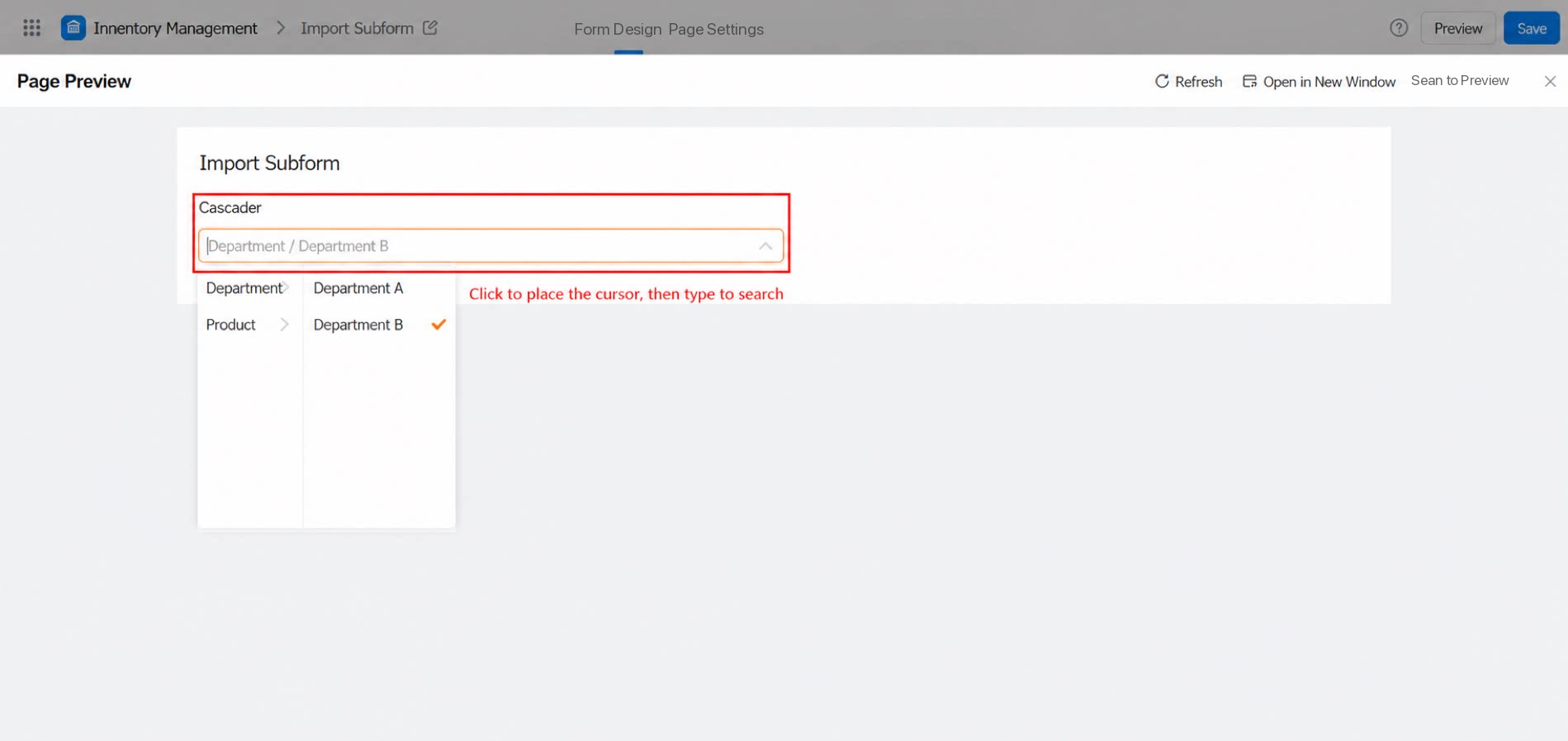
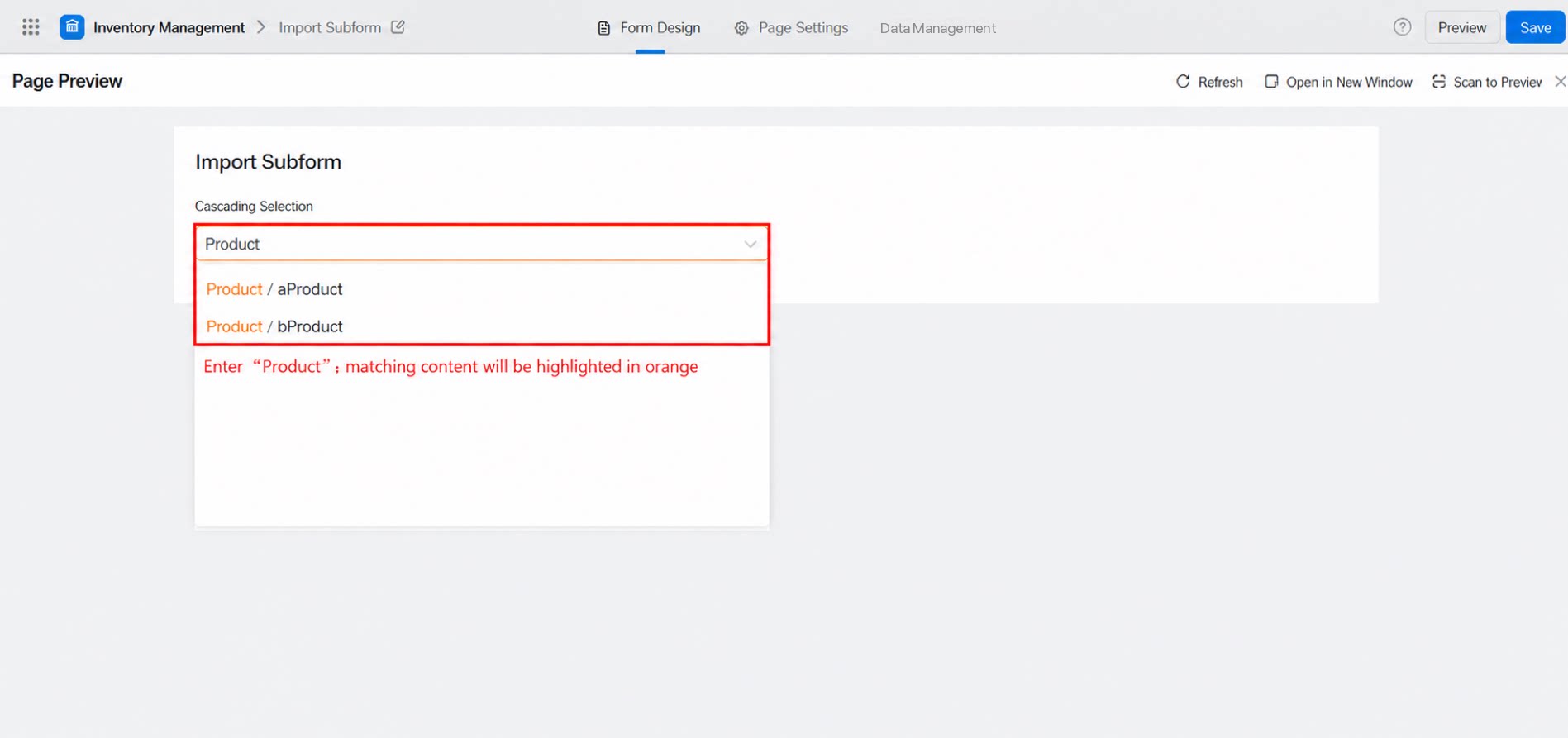
Determines whether users can type Content directly in the input box to Search. When there are many Tiers, turn on the Search feature to quickly locate the target option.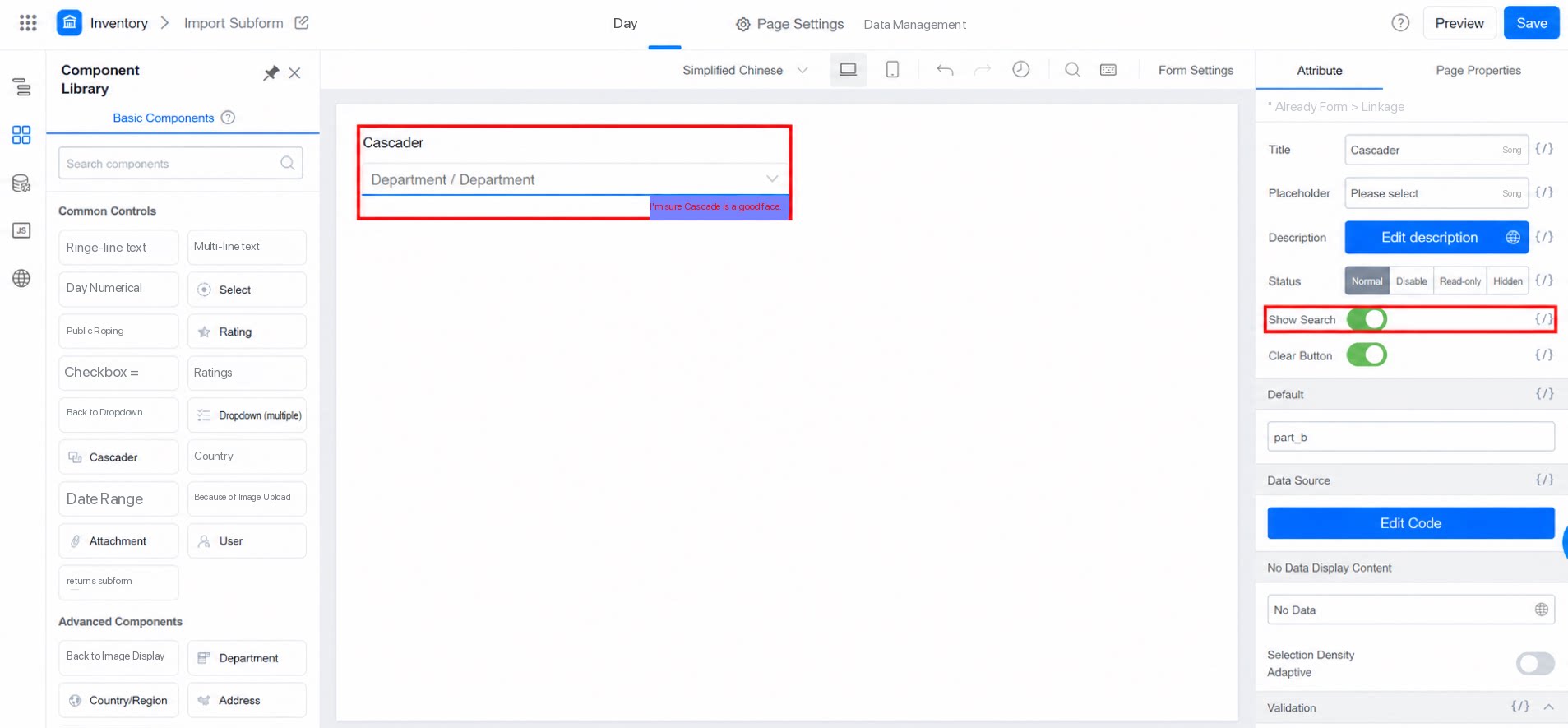
2.2 Clear Button
Clears the Content in the option box.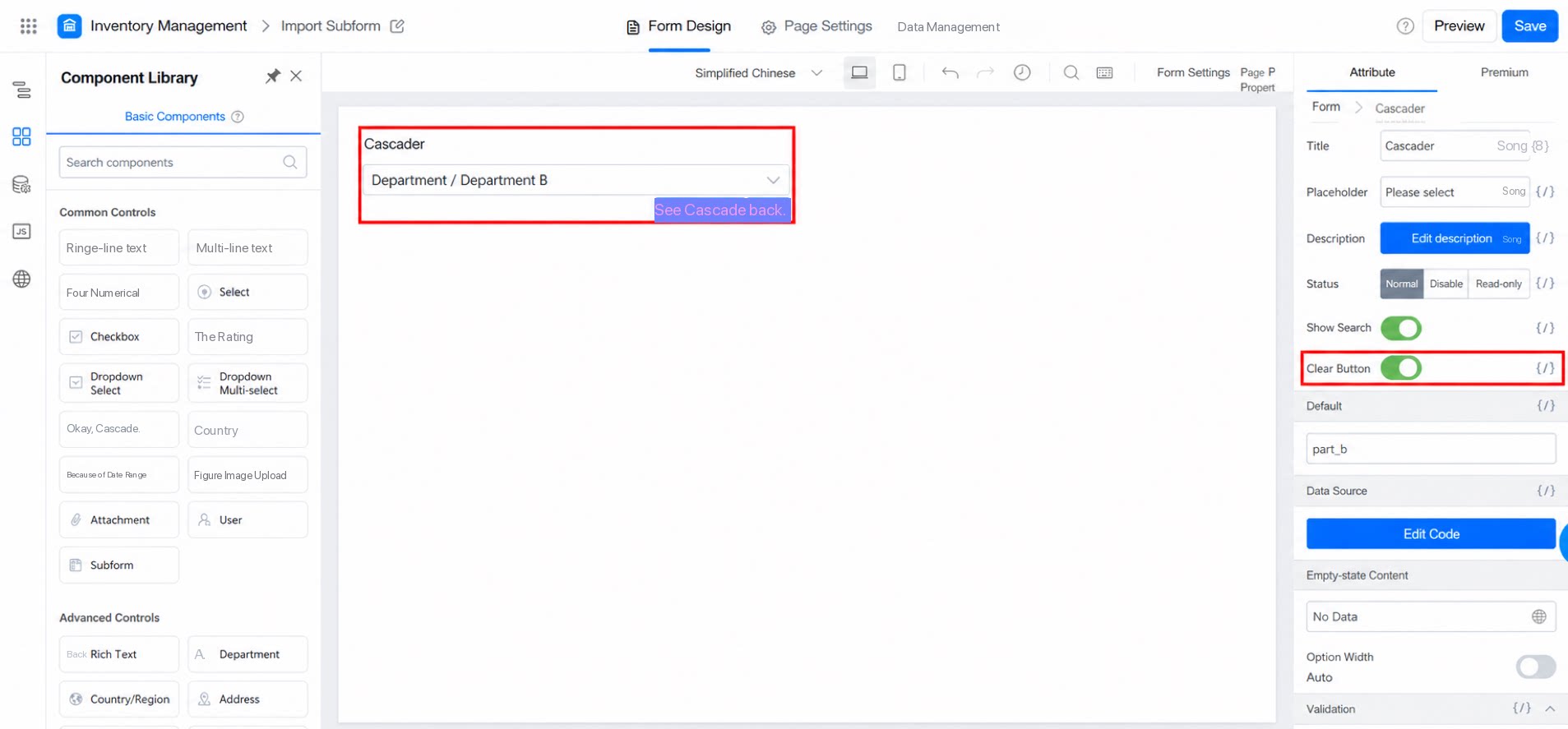
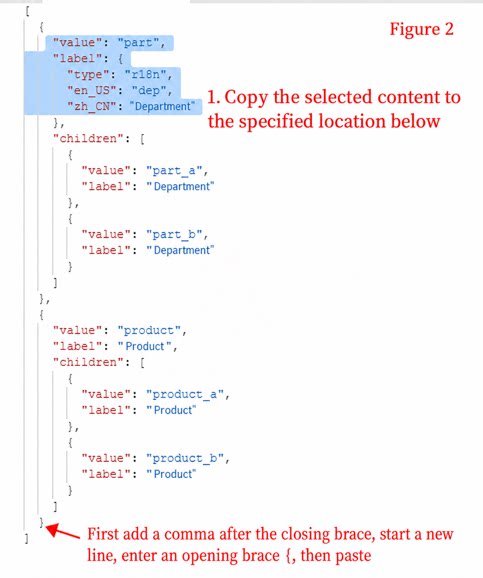
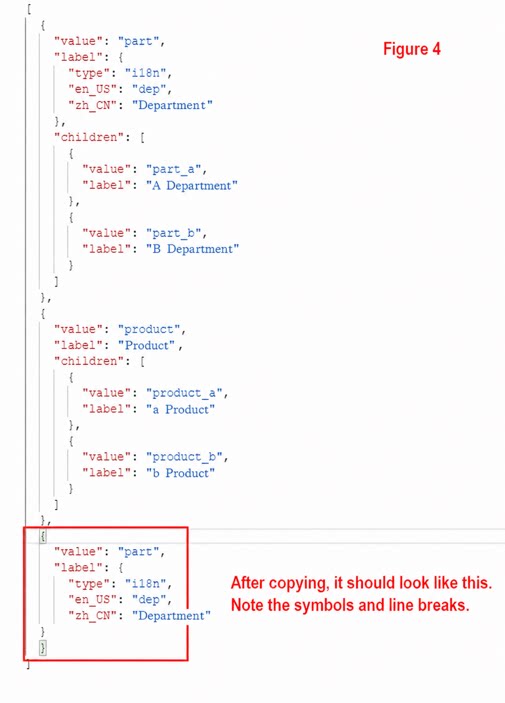
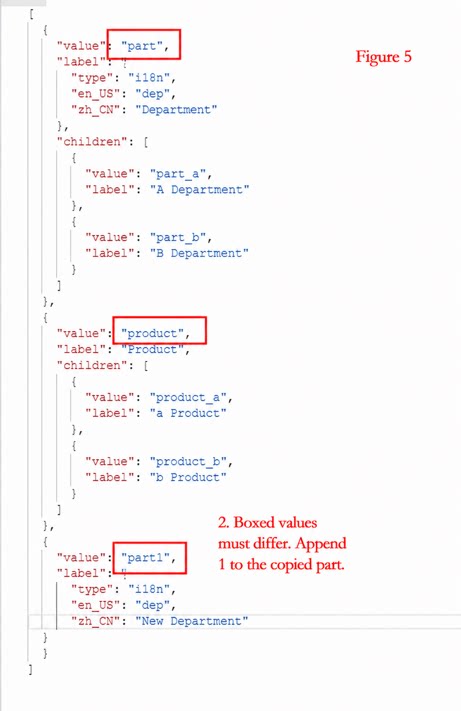
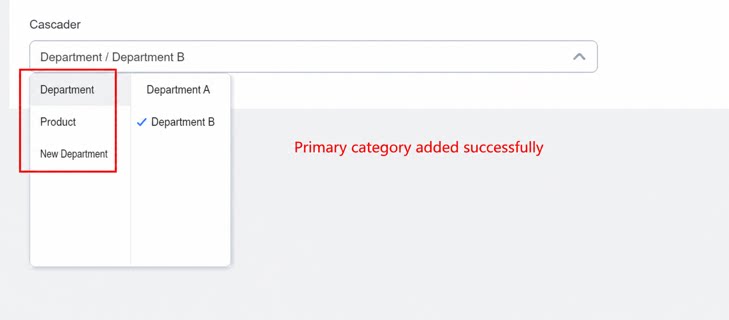
2.3 Use the Data Source to Add, Delete, or Modify Departments
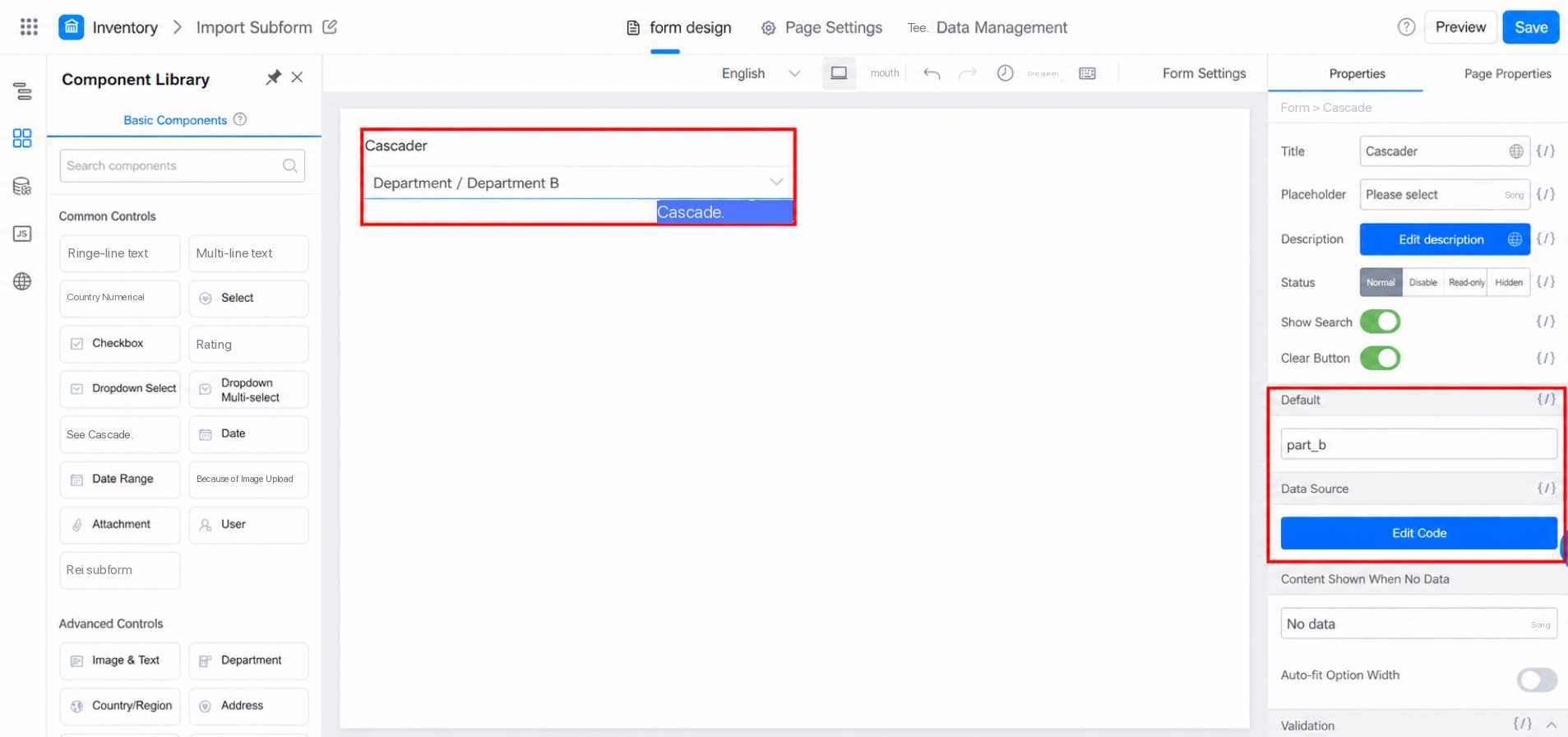
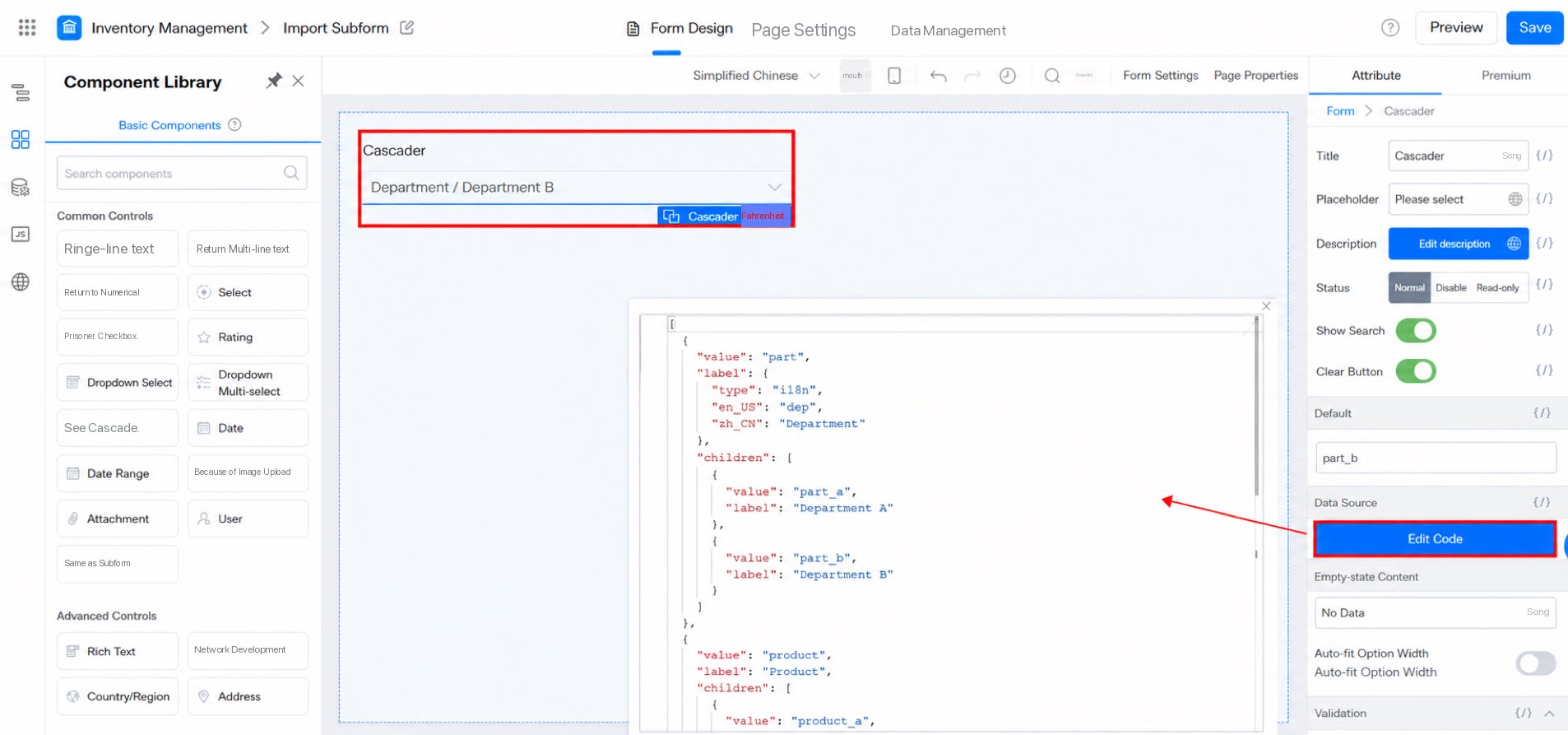
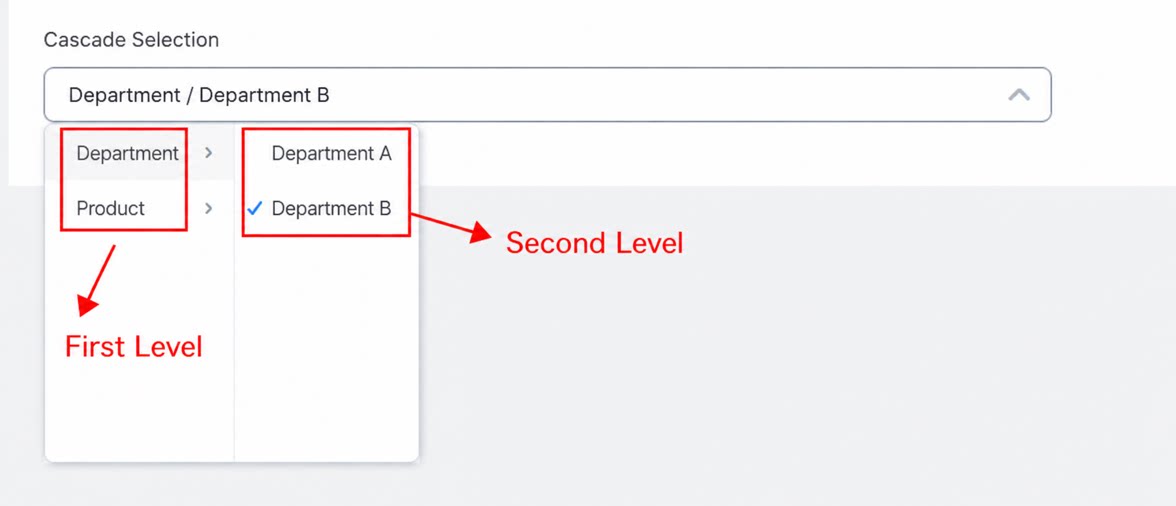
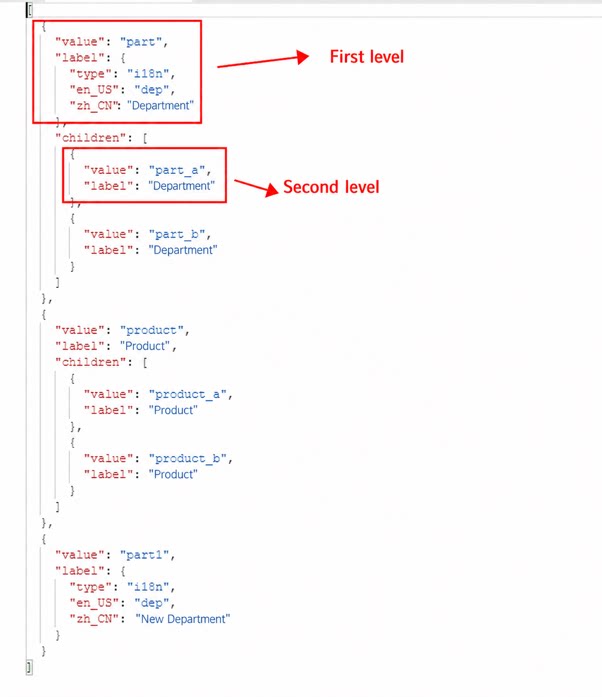
3. FAQ
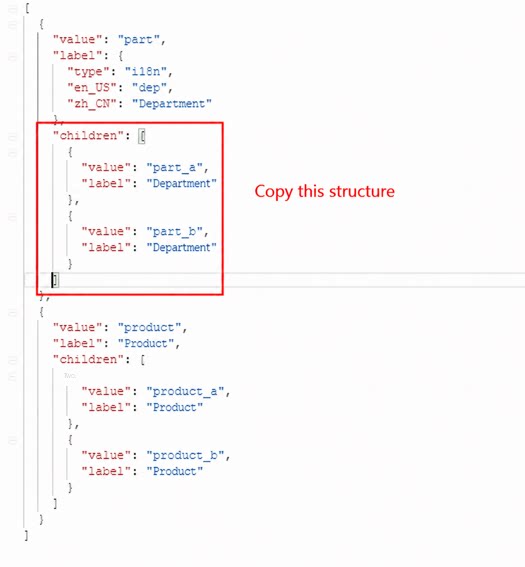
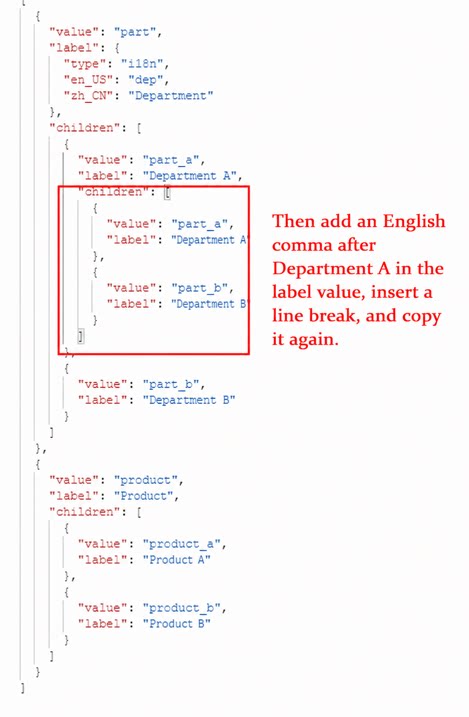
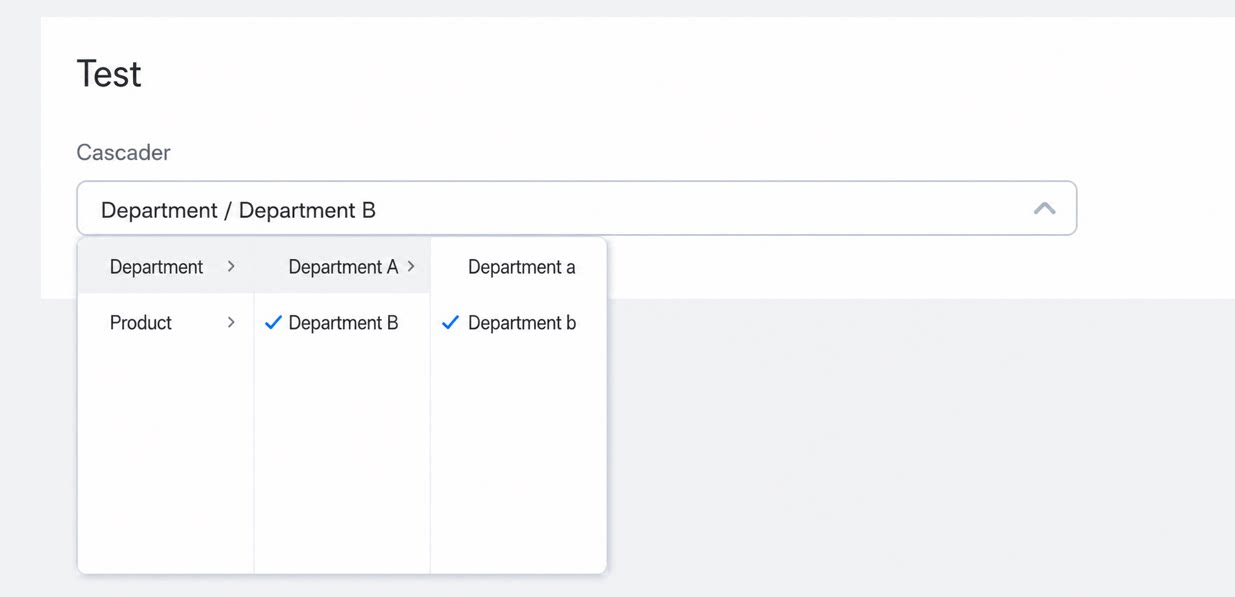
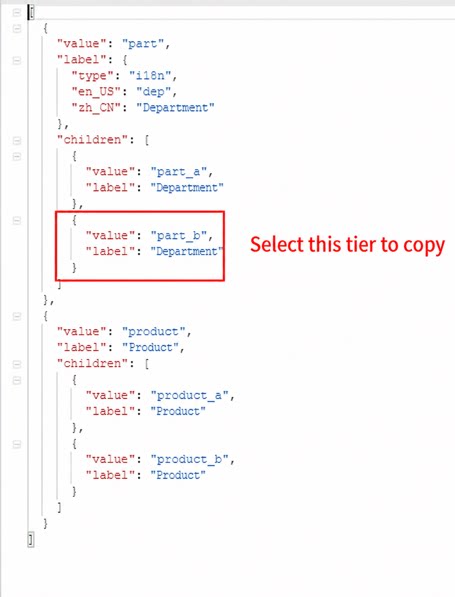
3.1 How do I add a sub-category (a lower Tier)?
3.1 How do I add a sub-category (a lower Tier)?
The final effect:
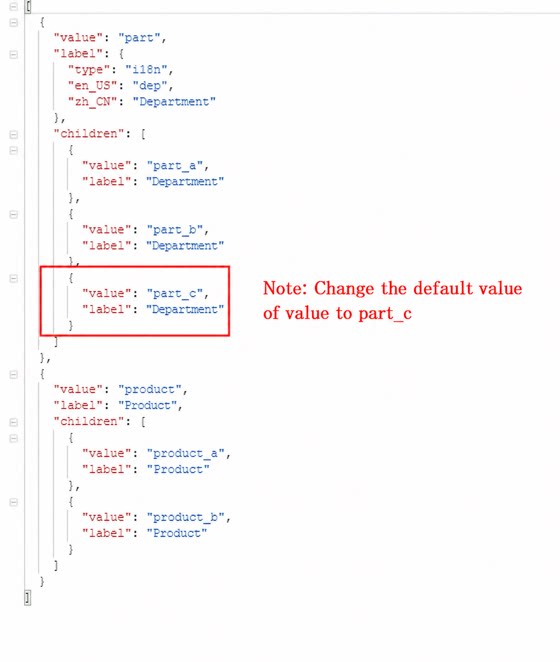
3.2 How do I add option content?
3.2 How do I add option content?
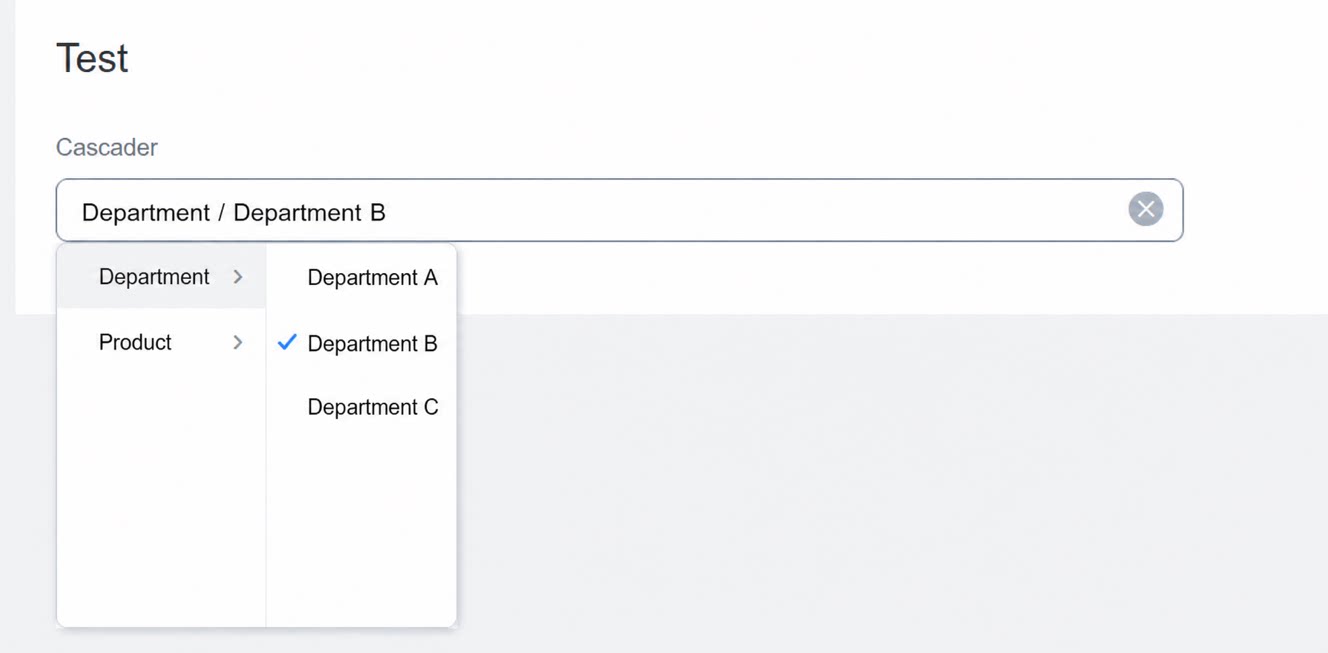
The final effect:
3.3 Why don't the Settings take effect even after I copied the Tier structure?
3.3 Why don't the Settings take effect even after I copied the Tier structure?
Make sure you copied the complete structure, including symbols such as
{} and []. Also check that commas are added in the correct places and that they are half-width (English) commas. If it still doesn’t work, Delete the Component and Add it again.