Chats
Chats Calendar
 Meetings
 Contacts
 Mail
Mail Docs
Docs Drive
Drive AI Table
 AI Minutes
 Attendance
 Approval
 YiDA
YiDA Admin Console
1. Use Cases
Use this component in scenarios that require selecting two dates, such as leave requests, business trip periods, or service processing times.For component attributes, usage, and examples, see this reference.
2. Basic Features
2.1 Date Format
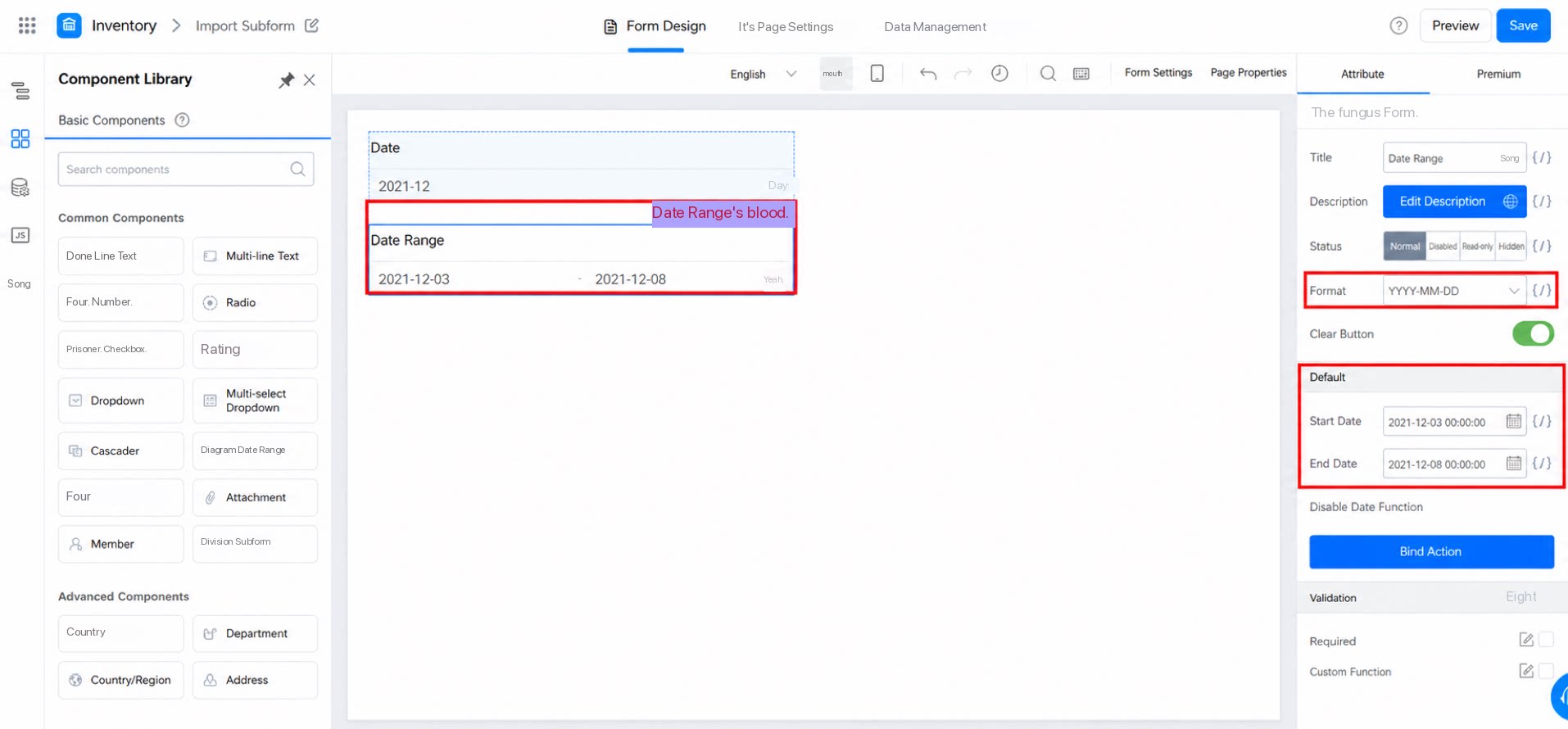
Set the display format of the date. Path: Component >> Attribute >> Format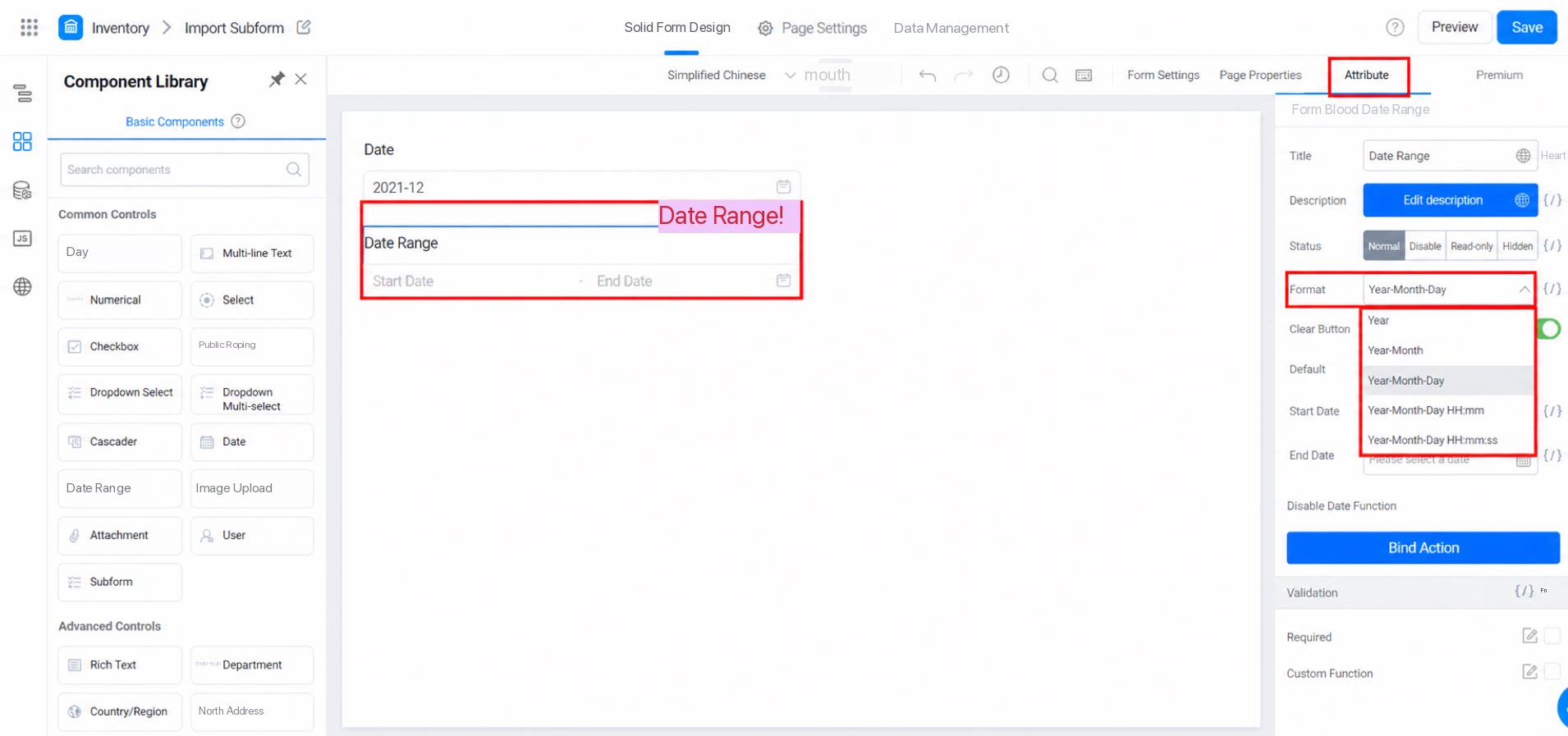
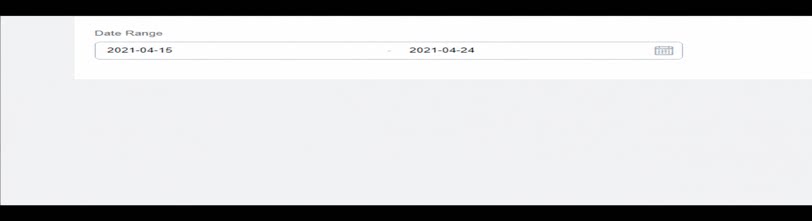
2.2 Set a Fixed Time (Default Value)
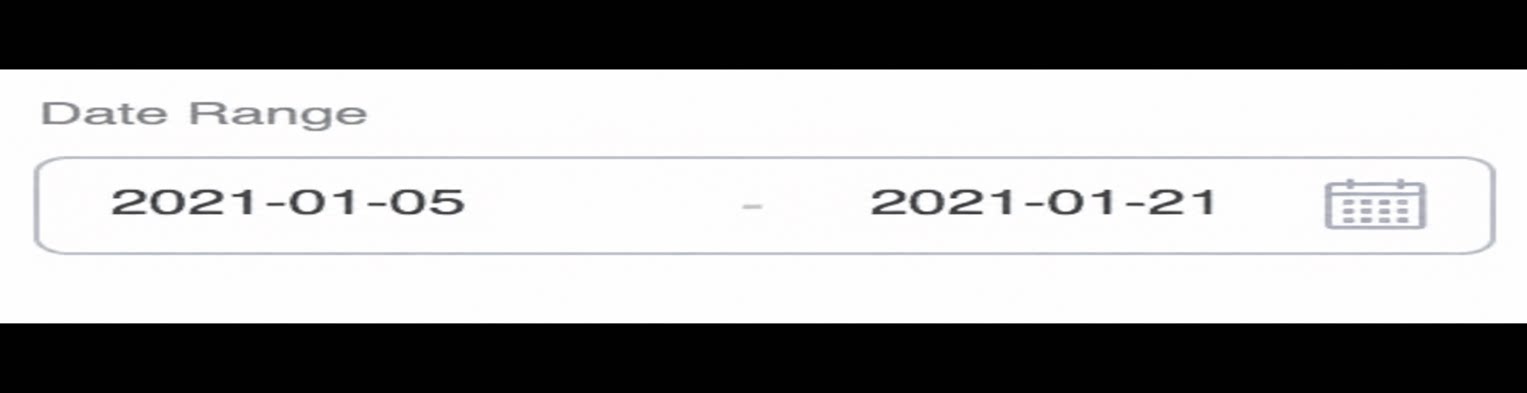
Set a fixed value for the date range. Once a default value is set, the date range component displays the configured default directly. You can still select a different date manually. Path: Attribute >> Default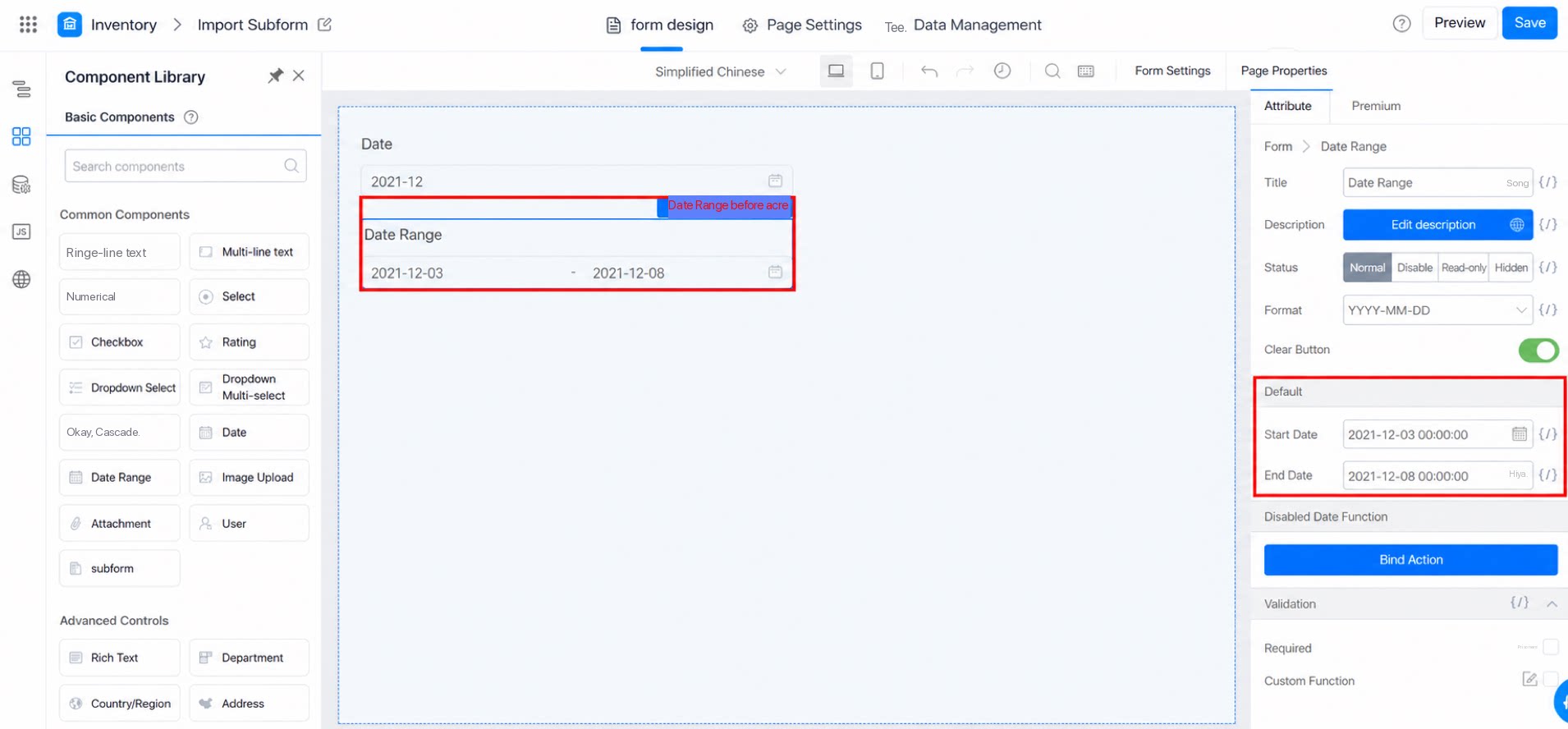
3. Advanced Usage
3.1 Calculate Date Differences
Calculate the difference between the two dates selected in the date range, and populate the result into a numerical component.3.1.1 Configuration Steps
- On the form design page of a form or workflow form, drag a date range component and a numerical component onto the canvas.
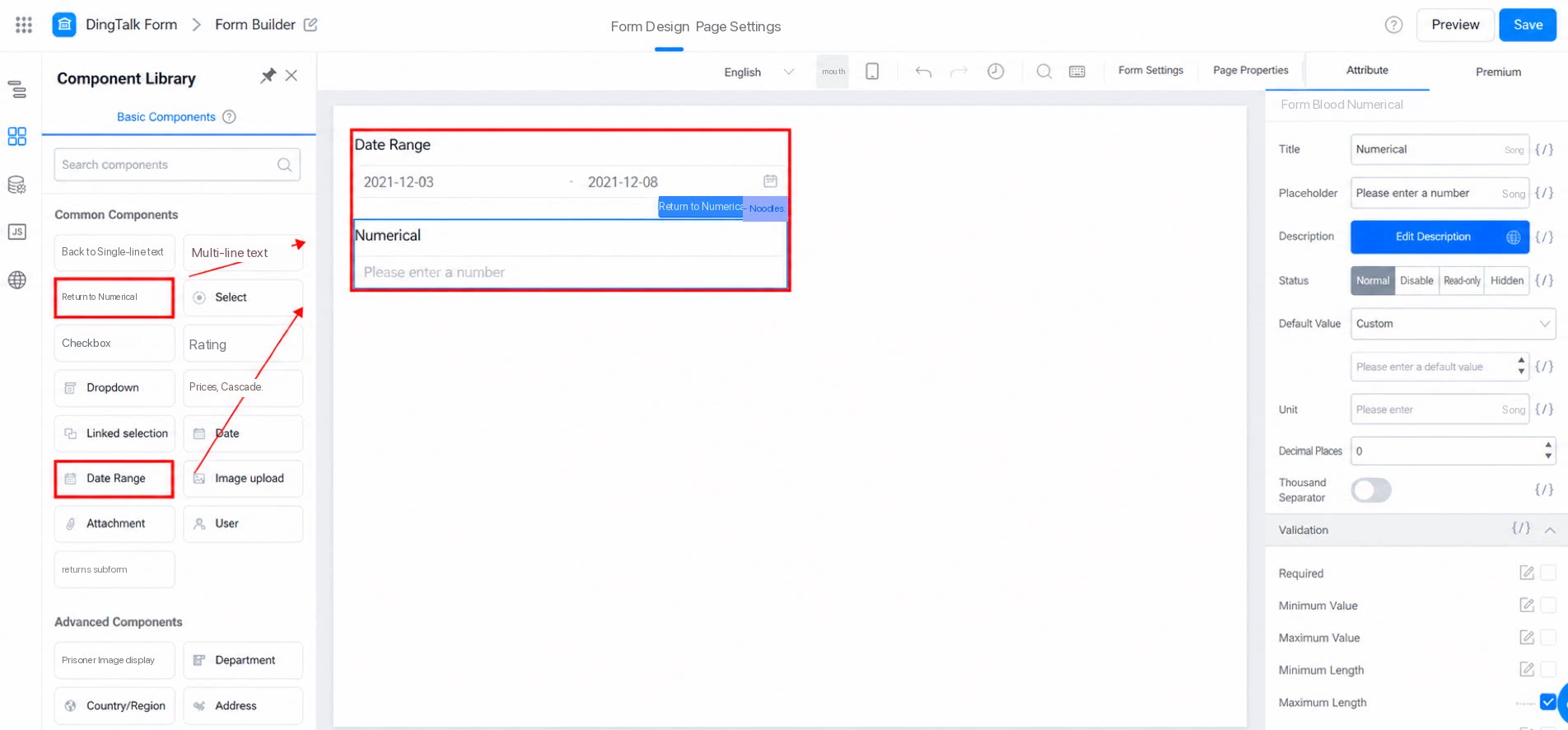
- Click the numerical component, then select formula editing under Default on the left.
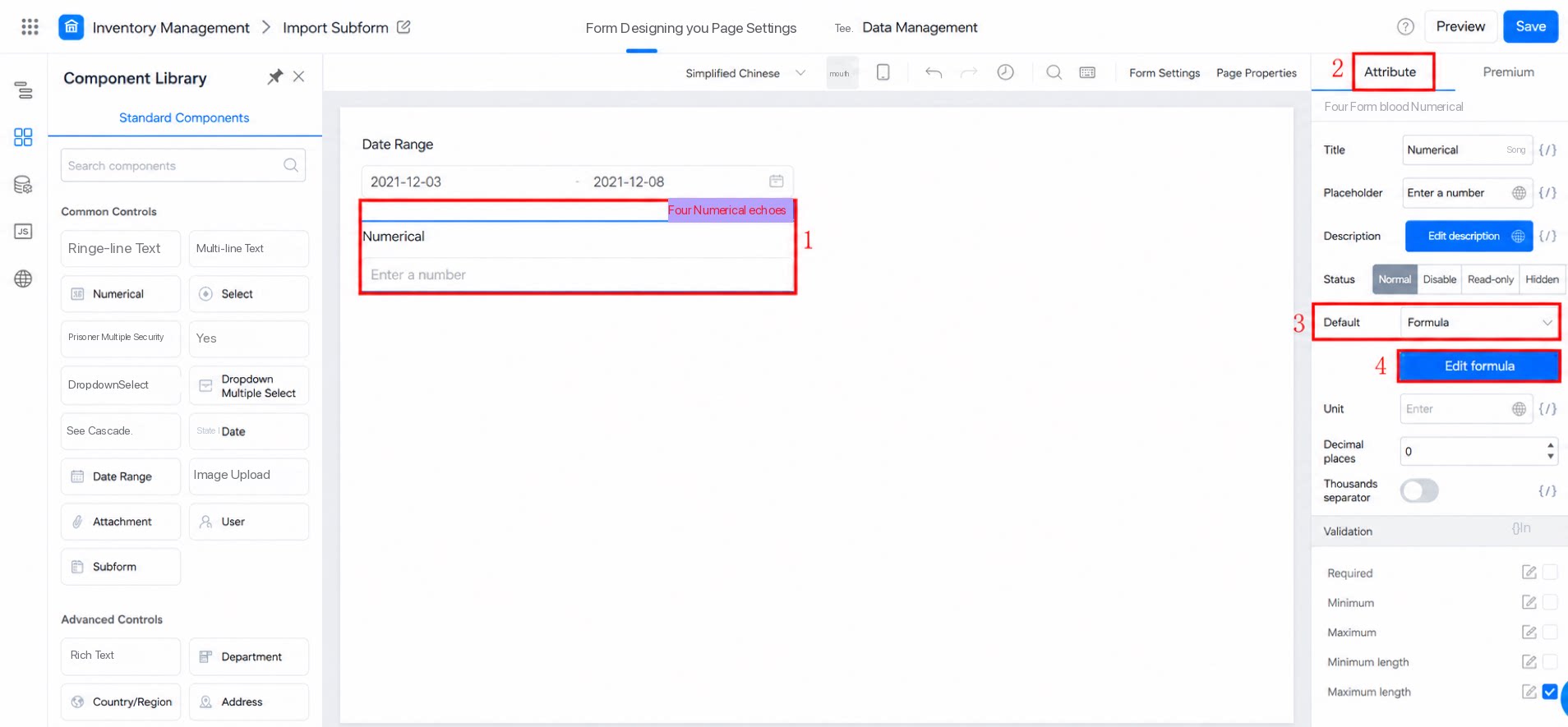
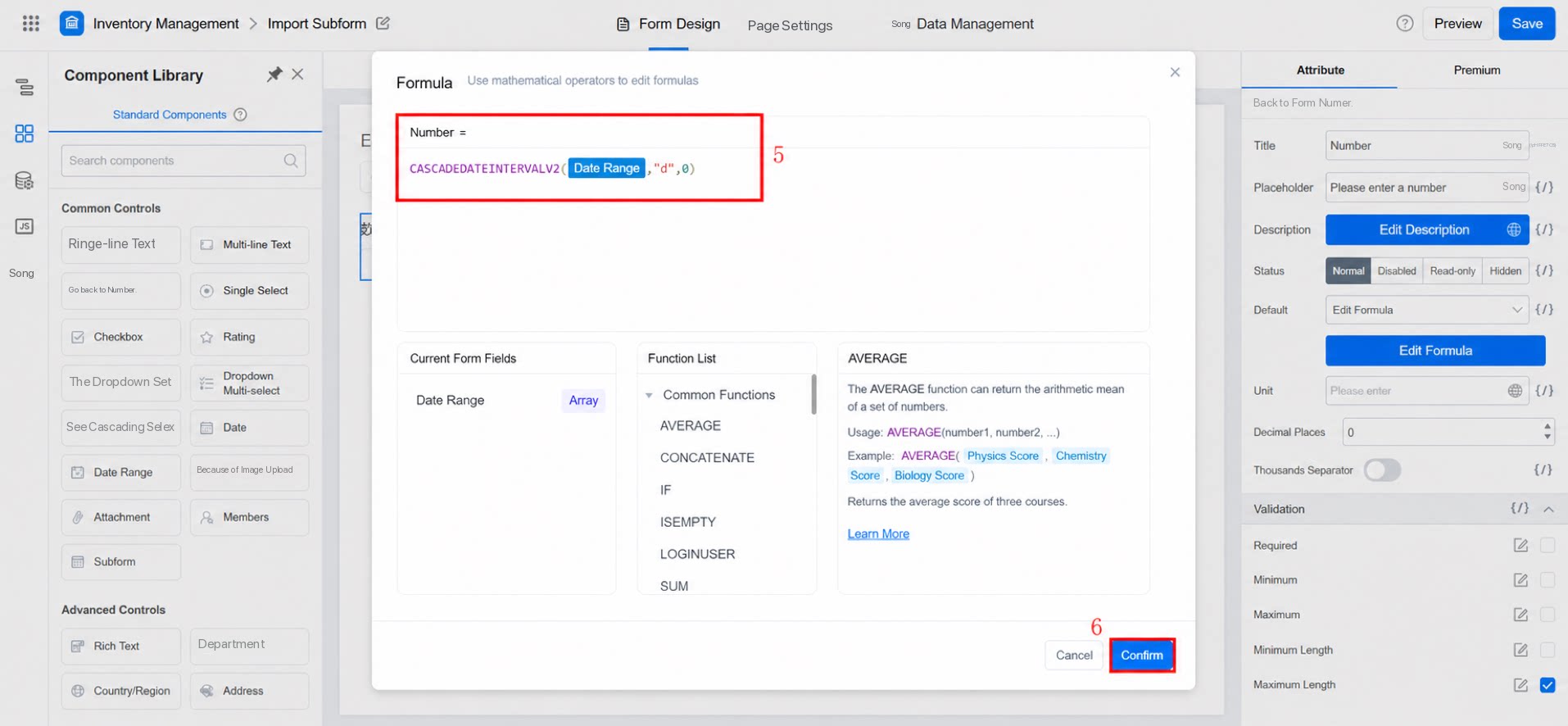
- Click Edit Formula >> select a time function >> select the CASCADEDATEINTERVALV2 function. See the figure below for detailed configuration.
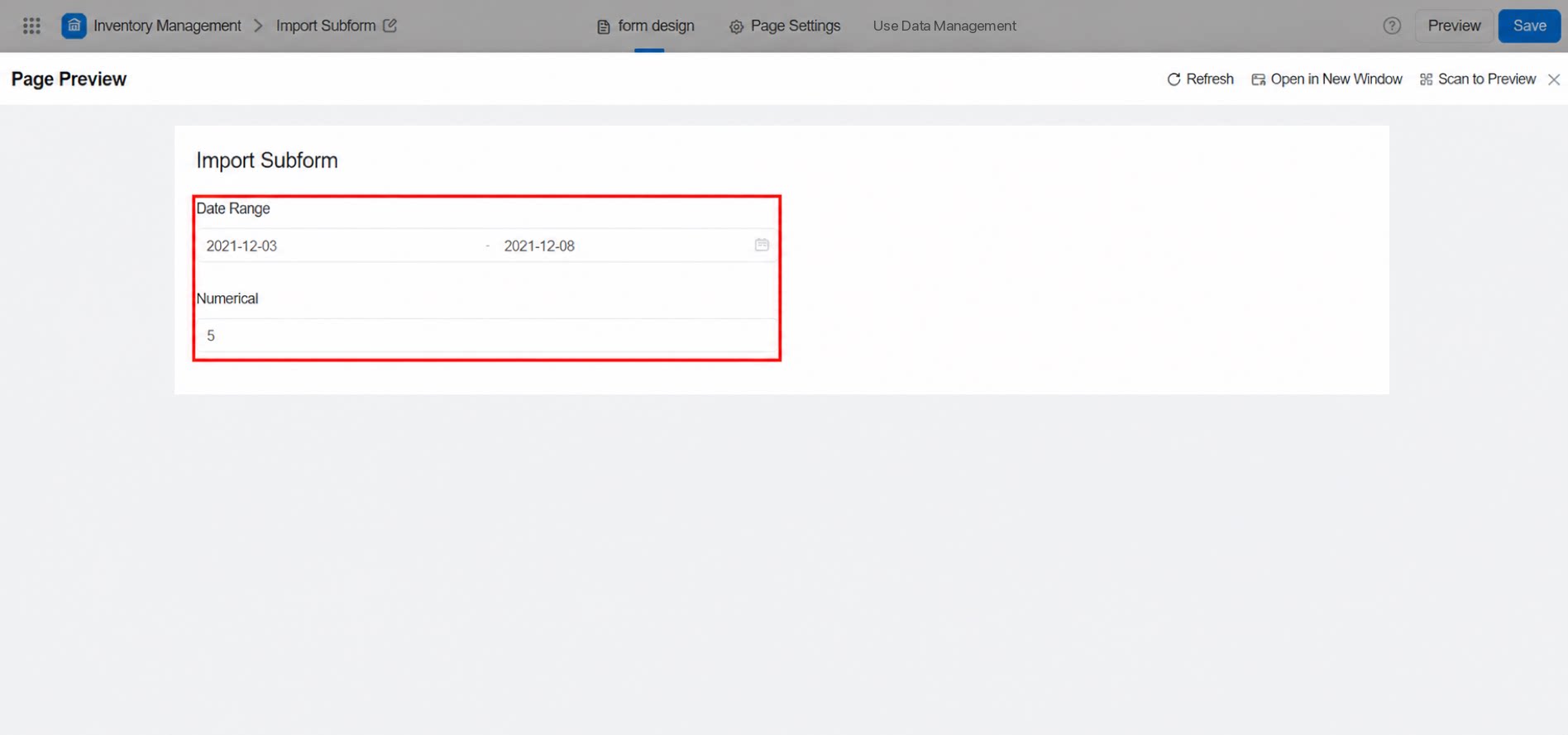
- The result is shown below.
3.2 Disable Date Function
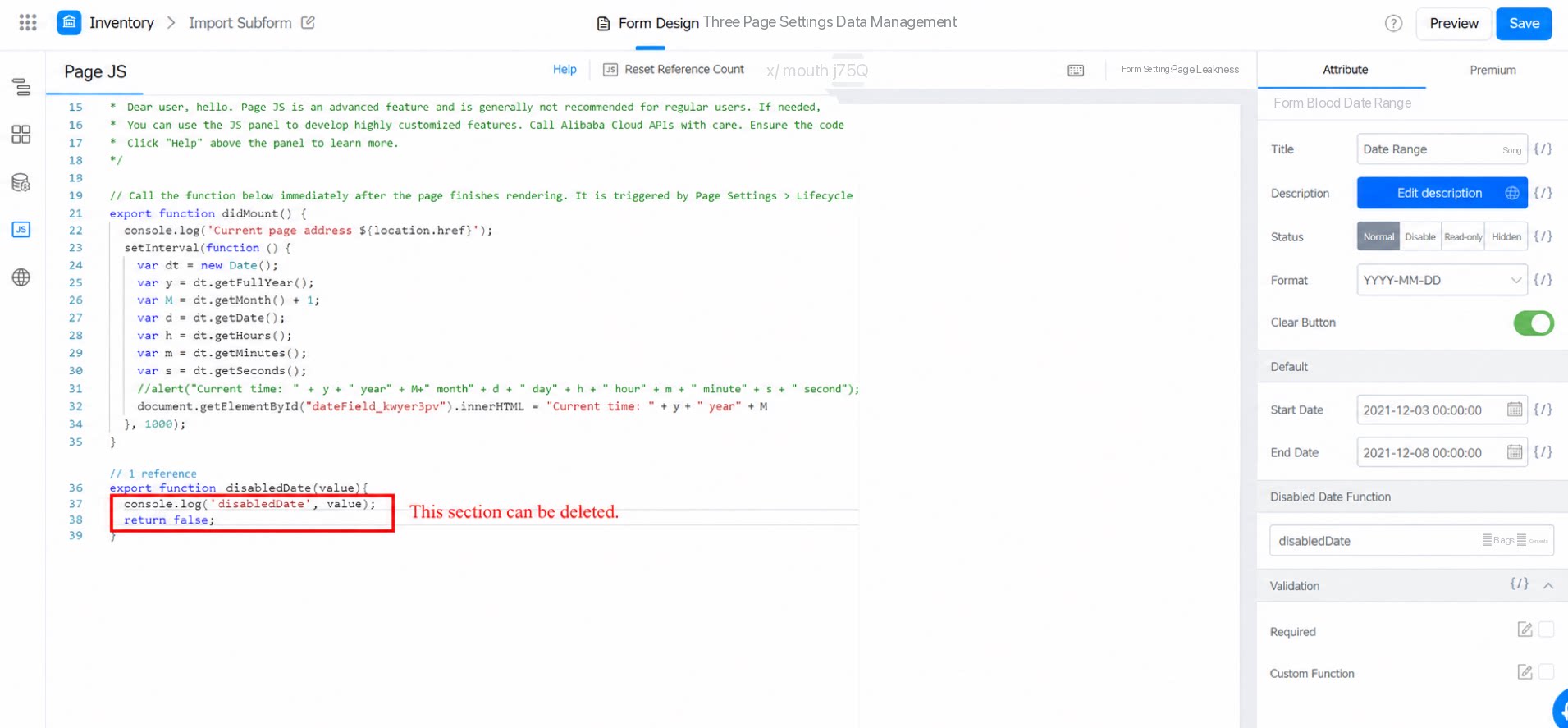
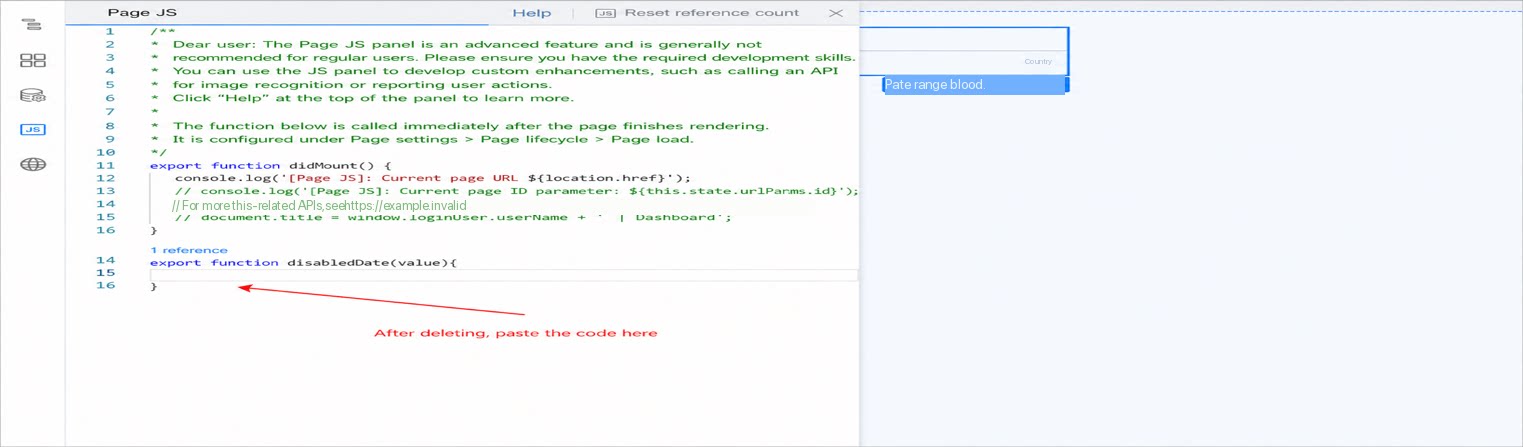
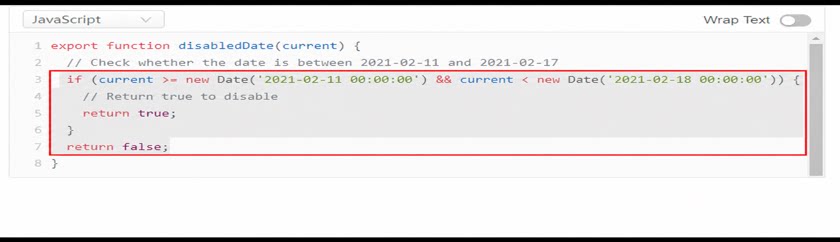
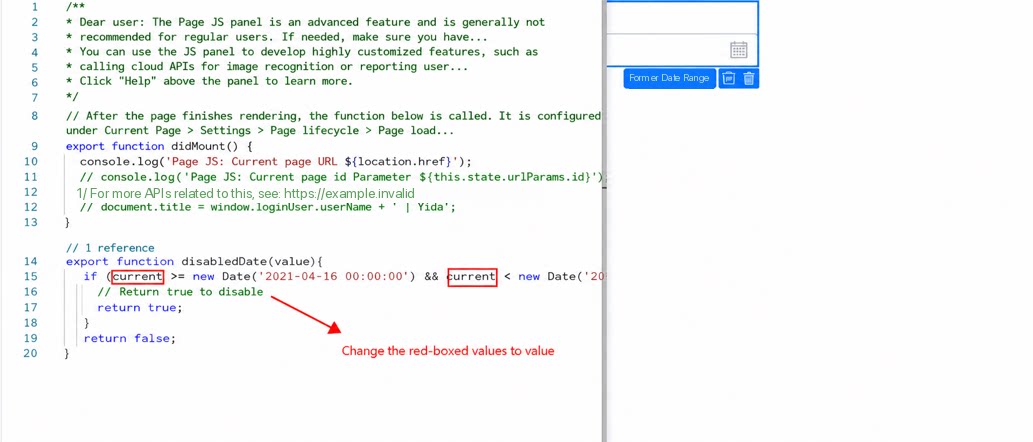
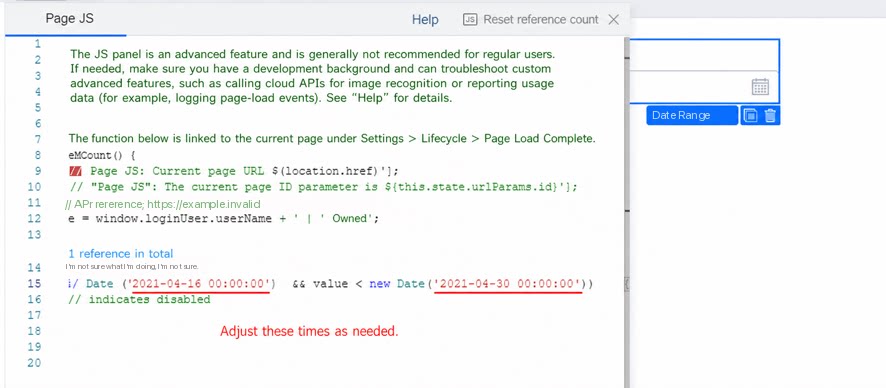
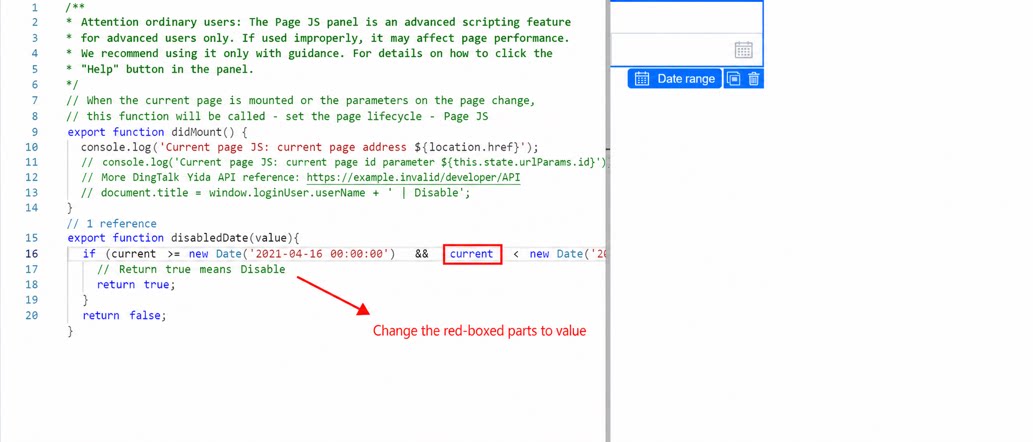
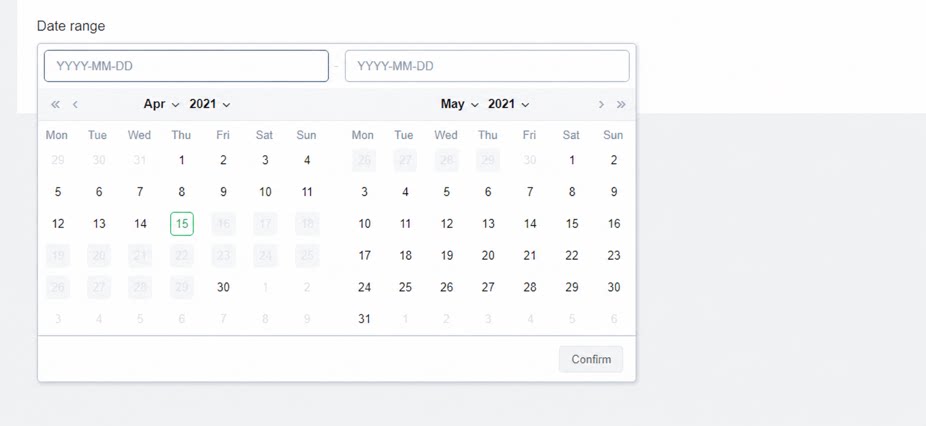
Use a custom function to define the selectable range of the date range, similar to the custom settings of the date component. This is suitable for appointment scenarios. Path: Attribute >> Disable date function >> Bind action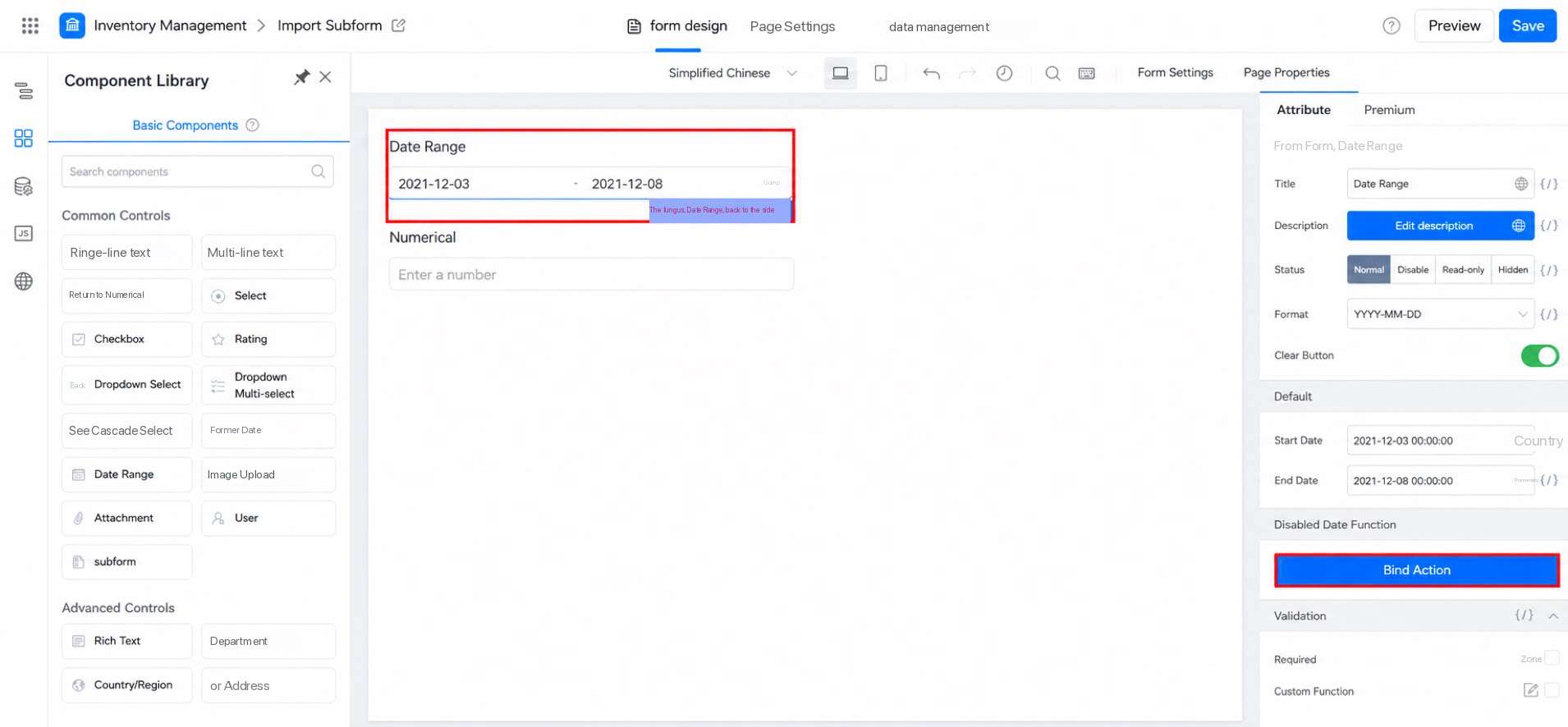
3.2.1 Configuration Steps and Example for the Disable Date Function
To make dates between 2021-04-16 and 2021-04-30 unselectable, refer to the following configuration.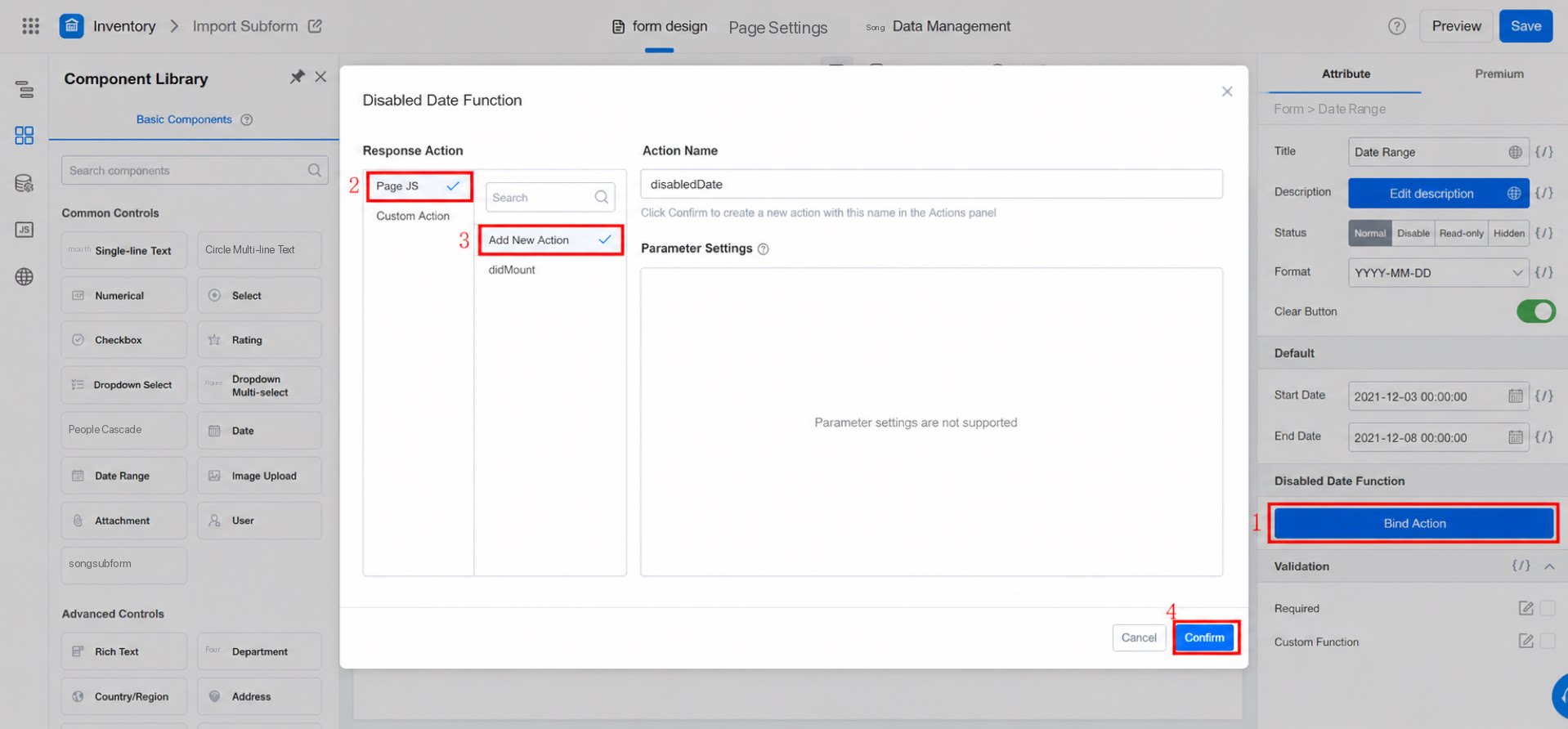
4. FAQ
4.1 Why Is the Time Reset When I Change the Date?
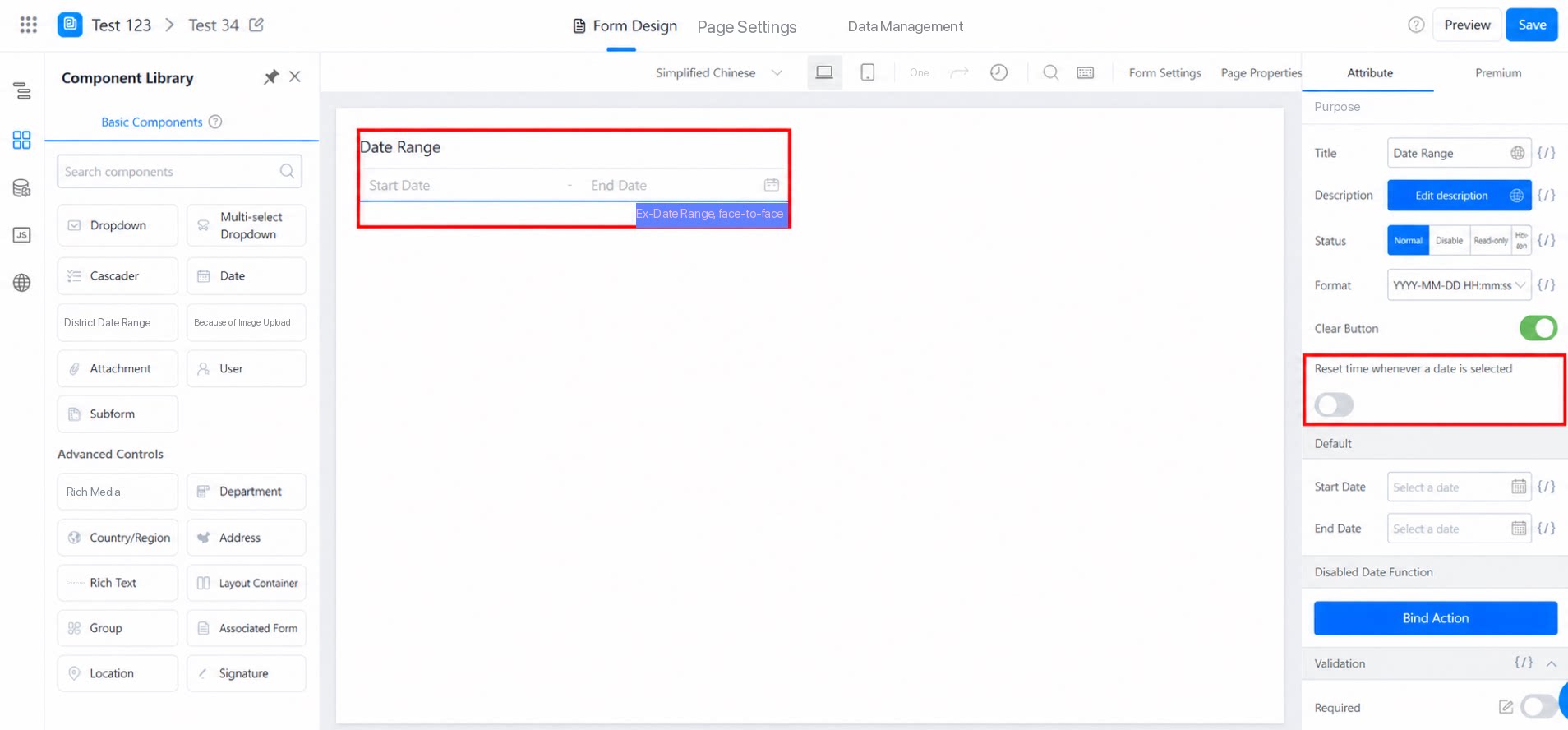
When Format is set to “Year-Month-Day-Hour-Minute” or “Year-Month-Day-Hour-Minute-Second”, a “Reset time on each date selection” option appears in the attribute panel, as shown below.